/


Author: Dalby A. Parrett T.
Tags: electrical engineering electronics manual digital technology
Year: 2024



Text
NE
W
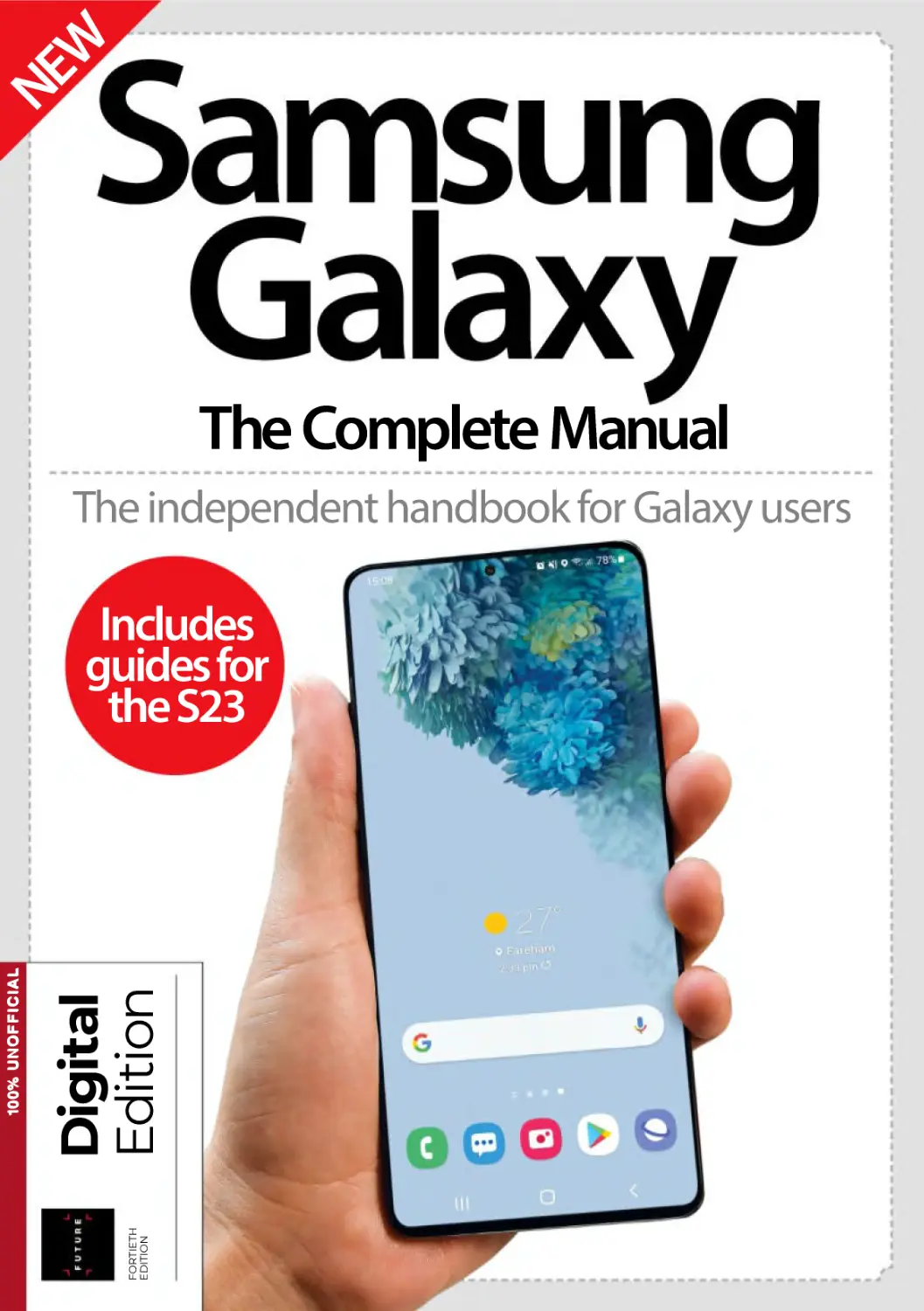
The Complete Manual
The independent handbook for Galaxy users
FORTIETH
EDITION
Digital
Edition
100% UNOFFICIAL
Includes
guides for
the S23
Welcome to
Samsung
Galaxy
The Complete Manual
Samsung has been a front-runner in the smartphone
industry, and its range of Galaxy devices continues to
set the bar high when it comes to innovation. Whether
it’s the S23, S22+, A52s, Tab A or Flip series, each Galaxy
combines superb hardware with a range of fantastic builtin software. In this revised edition of Samsung Galaxy The
Complete Manual, we take you through everything you
need to know to get the most from your Galaxy. From
how to make use of your device’s camera, to how to
download the latest apps from the Play Store, read on to
get started on your way to becoming a Galaxy expert.
Samsung
Galaxy
The Complete Manual
Future PLC Quay House, The Ambury, Bath, BA1 1UA
Editorial
Compiled by Thomas Parrett
Features Editor Aiden Dalby
Head of Art & Design Greg Whitaker
Editorial Director Jon White
Managing Director Grainne McKenna
Photography
Samsung, James Sheppard, Getty, Iceworks, Ultimate Ears, Spigen
All copyrights and trademarks are recognised and respected
Advertising
Media packs are available on request
Commercial Director Clare Dove
International
Head of Print Licensing Rachel Shaw
licensing@futurenet.com
www.futurecontenthub.com
Circulation
Head of Newstrade Tim Mathers
Production
Head of Production Mark Constance
Production Project Manager Matthew Eglinton
Advertising Production Manager Joanne Crosby
Digital Editions Controller Jason Hudson
Production Managers Keely Miller, Nola Cokely,
Vivienne Calvert, Fran Twentyman
Printed in the UK
Distributed by Marketforce, 5 Churchill Place, Canary Wharf, London, E14 5HU
www.marketforce.co.uk For enquiries, please email:
mfcommunications@futurenet.com
Samsung Galaxy: The Complete Manual Fortieth Edition (CMB5720)
© 2023 Future Publishing Limited
We are committed to only using magazine paper which is derived from responsibly managed,
ƬƺȸɎǣˡƺƳǔȒȸƺɀɎȸɵƏȇƳƬǝǼȒȸǣȇƺٮǔȸƺƺȅƏȇɖǔƏƬɎɖȸƺِÁǝƺȵƏȵƺȸǣȇɎǝǣɀƫȒȒǸƏɿǣȇƺɯƏɀɀȒɖȸƬƺƳ
and produced from sustainable managed forests, conforming to strict environmental and
socioeconomic standards.
All contents © 2023 Future Publishing Limited or published under licence. All rights reserved.
No part of this magazine may be used, stored, transmitted or reproduced in any way without
the prior written permission of the publisher. Future Publishing Limited (company number
דזזזא٣ǣɀȸƺǕǣɀɎƺȸƺƳǣȇ0ȇǕǼƏȇƳƏȇƳáƏǼƺɀِ«ƺǕǣɀɎƺȸƺƳȒǔˡƬƺيªɖƏɵRȒɖɀƺًÁǝƺȅƫɖȸɵً
Bath BA1 1UA. All information contained in this publication is for information only and is, as far
as we are aware, correct at the time of going to press. Future cannot accept any responsibility
for errors or inaccuracies in such information. You are advised to contact manufacturers and
retailers directly with regard to the price of products/services referred to in this publication. Apps
and websites mentioned in this publication are not under our control. We are not responsible for
their contents or any other changes or updates to them. This magazine is fully independent and
ȇȒɎƏǔˡǼǣƏɎƺƳǣȇƏȇɵɯƏɵɯǣɎǝɎǝƺƬȒȅȵƏȇǣƺɀȅƺȇɎǣȒȇƺƳǝƺȸƺǣȇِ
Future plc is a public
company quoted on the
London Stock Exchange
(symbol: FUTR)
www.futureplc.com
!ǝǣƺǔ0ɴƺƬɖɎǣɮƺ ǔˡƬƺȸ Jon Steinberg
zȒȇٮ0ɴƺƬɖɎǣɮƺ!ǝƏǣȸȅƏȇ Richard Huntingford
!ǝǣƺǔIǣȇƏȇƬǣƏǼƏȇƳ³ɎȸƏɎƺǕɵ ǔˡƬƺȸ Penny Ladkin-Brand
Tel +44 (0)1225 442 244
Contents
What you can find inside the bookazine
Getting started
The apps
8 Introducing the
Samsung Galaxy
32 Settings, part 1
Network
connections
34 Settings, part 2
Personalise your
Samsung Galaxy
38 Settings, part 3
Change the
device settings
42 Wear OS
Connect to your
Wear device
44 Google Play
Download apps
and media
50 Galaxy Apps
Find discounts
and collections
14 Setting up your
Samsung Galaxy
54 Phone
Make a regular
phone call
58 Contacts
Store people’s
contact details
62 Messages
Send SMS and
MMS messages
66 Keep
Create notes,
lists and more
68 Email
Access multiple
email accounts
72 Internet
Browse the
World Wide Web
76 Camera
Take photos
anywhere
80 Gallery
View images
and videos
18 The first steps
Home screen and gestures
82 Google Podcasts
Play and listen to
the latest shows
S23, S22, S21, Tab,
Fold, Z Flip: there is a
Galaxy device for every
Android user out there
22 How to use your
Samsung Galaxy
30 Applications
A guide to the native apps
6
Please note: The appearance of your app icons may differ from those seen
in the book depending on the model of your phone or software version.
Become
a Galaxy
master in
minutes
84 Kindle for
Samsung
Read books
88 Samsung Music
Listen to tunes
on the go
92 Video Player
Watch HD videos
on your device
96 Kids Home
Tailor your
device for kids
104 Maps
Use turn-by-turn
navigation
114 S Planner
Keep track of
dates and tasks
98 Play Books
Read books on
the go
108 Google Drive
Store your files on
the cloud
116 Bixby
Control apps
with your voice
100 Google TV
Watch HD videos
on your device
110 Google News
Stay up to date
with the news
102 Google Home
Connect to
your Home
112 S Note
Write and draw
notes by hand
118 S Health
Get fit
and healthy
122 Translate
Converse abroad
with your Galaxy
124 Facebook
Update your
status and more
Quickly access your favourite websites
126 X
Post wherever
you are
Use your Galaxy to find your way around
7
Getting started
Introducing the Samsung Galaxy
Introducing the
Samsung Galaxy
Just got a Samsung Galaxy device? Then discover
how hard it can work on your behalf
8
Introducing the Samsung Galaxy
Smartphones and tablets could be considered
something of a beauty and the beast of the
modern age. They are certainly beautiful to look at,
many boasting sleek and stylish designs that are
comfortable to hold and jaw-dropping in terms of
design. And the sheer amount of functionality that
is crammed into their compact units is nothing
short of incredible. However, with such astounding
Getting started
wonder comes the beastly downside that we
simply can’t stop staring at them – they are just
so distracting! We’ll outline why you’ll find it hard
to put your Galaxy device down. Whether it’s
because of the look and feel of your smartphone
or tablet, the intuitive operating system or the
huge number of apps you can download and
install, before too long you’ll be hooked.
9
Getting started
Introducing the Samsung Galaxy
“The Galaxy S23
has taken over as
the company’s
flagship device”
Hardware
Galaxy devices are versatile micro-computers that are capable of
managing every aspect of your life – and there’s a model to suit
everyone. The Samsung Galaxy S23 has taken over as the company’s
flagship device, boasting exquisite design, an ultra-responsive
interface, an impeccably sharp display and lightning-quick charging
to keep it all topped up. The S23, along with the S23 Plus and S23
Ultra all run the latest Android operating system.
If you prefer a bigger screen to work remotely or enjoy a film,
then you may want to look into the Galaxy Z Fold4. The front has a
6.2-inch screen, but when it is folded outwards it shows its 7.6-inch
Dynamic AMOLED display. It’s like having a phone and tablet in
the same device. There is also the Z Flip4, a foldable phone in the
style of a flip-phone. It doesn’t have cutting-edge specs like the S23
range, but it will turn heads. Finally, there is the Galaxy Note range,
which is geared towards working. The Note 20 and Note 20+ come
with the S Pen, a stylus that can be used as a remote control for
taking photos or playback controls when watching videos.
Fig 1 The Google Play Store is your first port
of call for the latest and greatest apps
10
Introducing the Samsung Galaxy
Getting started
OS/Apps
As we have already mentioned, Galaxy devices run on Google’s
Android operating system, which provides a wide range of apps
and functions instantly. A stable of favourite apps that come preinstalled on your device include the Chrome web browser, Gmail,
Maps and Google’s media suite – Play Movies & TV, Play Newsstand
and Play Games. Then, of course, there is the Play Store app, which
is your first port of call for all of the latest and greatest Android apps
(as well as movies, books and games). Galaxy devices are also well
provided for by Samsung. Samsung’s user has been designed to
make controlling Galaxy devices easier by providing shortcuts to
your everyday tasks – and it is layered over the top of the Android
interface with the two working in perfect unison. You will also find
the Galaxy Apps service pre-installed on your Galaxy device, which
provides instant access to Samsung’s own app store. Though not as
expansive or varied as the Google Play Store, this is still a great place
to come for Galaxy-exclusive apps that may not come pre-installed
on your device.
Fig 2 The Galaxy Apps store is the place
to go for apps to get the most out of your
Samsung device
Fig 3 Google Drive comes pre-installed on
your device and allows you to store your
important files in the cloud
11
Getting started
Introducing the Samsung Galaxy
Essential Galaxy
downloads
Evernote This brilliant app makes
it hard to forget anything as you
can create quick and easy typed,
handwritten, voice or photo
notes whenever you need to.
Everything you create is synced
and updated on all your devices.
Functions
Kindle Reading on your Galaxy
has never been easier thanks
to Kindle’s online store, where
you can download ebooks
to read instantly and use the
customisable display options.
As well as being infernal distractions, smartphones and tablets
provide many positive uses to help you manage all aspects of your
life. If you require your Galaxy device to work remotely then you’ll
find a wide range of apps available for word processing, creating
and editing spreadsheets and putting together presentations – and
everything can be saved and synced to select cloud computing
apps, such as Drive and Dropbox, to ensure everyone concerned
is working from the same document. If you just want to relax
then you can, of course, use your device to play the latest movies
downloaded or streamed from places such as Google Play Movies
& TV and Netflix, or use it to enjoy a wide range of games, many of
which give the specialist console devices a run for their money.
Your Galaxy device can also be used to keep fit and stay in shape.
Not only are there apps to help you monitor your daily exercise and
calorie intake, apps like YouTube also provide instant access to keepfit videos. Whatever you need or want from your Galaxy device,
you’ll soon discover that, as the saying goes, “there’s an app for that!”
BBC iPlayer With a decent Wi-Fi
connection you can stream or
download the latest BBC TV
shows to enjoy when you want.
This is just one of many quality
streaming services available.
12
Introducing the Samsung Galaxy
Getting started
Galaxy accessories
Wireless Charging Pad
Samsung Galaxy Watch4
Most new Samsung smartphones support
wireless charging. Just place your phone onto the
pad and it will charge just as quickly as it would if
plugged into an outlet
This classic-looking watch gives you the
freedom to enjoy a smart mobile experience
without having to have your phone in
hand. You can make and receive calls, check
directions, monitor your fitness and more
Galaxy Buds+ earphones
These earbuds use touch controls and
require no wires, so you can keep your
phone in a bag or pocket while in use.
They track fitness data such as calories
burned and heartrate as you listen to music
streaming from your Galaxy smartphone
Phone cover
As your Galaxy device is undoubtedly
worth a lot of money, it makes good sense
to protect it with a decent cover. Spigen’s
Rugged Armor can absorb shocks and
scratches, protecting it from any drops
Portable power bank
Sometimes you may be too far from a
power outlet to charge your phone, but
after only around 15 minutes plugged
into this charger your phone should have
enough power to last another seven hours
Ultimate Ears MEGABOOM 3
As smartphones and tablets can be used
to store all of your digital music and movie
collections, investing in a wireless speaker
to blast them out is definitely worth
considering when accessorising
13
Getting started
Setting up your Samsung Galaxy
Setting up your
Samsung Galaxy
The first few minutes you have with your Galaxy device will be spent
setting it up. Invest time in this for an enjoyable and productive future
14
Setting up your Samsung Galaxy
Getting started
1 Language When you take your new Samsung Galaxy device out of its box
and have fully charged its battery, you will be ready to start using it. There is a
setup procedure to go through first, however. Your first task is to tell your new
Samsung what your language is. It should be set to English (United Kingdom)
but you can tap the language bar to see more options if you need to change it.
2 Add Wi-Fi Next, select a Wi-Fi network. Your Galaxy device will then scan the
surrounding area and show you all of the available networks that there are in
the immediate vicinity. Depending on where you are, there could be quite a lot
of them! You can identify your own network by its name – in order to log on,
simply tap the name.
3 Enter password You will need to enter the password for your Wi-Fi network.
Type this in using the keyboard – remember, you can long-press characters
that sit on the top row of the keyboard to get to the numbers or just tap the
bottom-left icon. Check Show password to double-check that you are entering
it correctly, then select Connect when you are ready (Fig 1).
Fig 1 Enter your Wi-Fi access code
4 Connecting the Wi-Fi Having entered your password, wait for the next screen
to appear. After a few seconds, you will see that you have been connected to
your chosen Wi-Fi network. Even after doing this, all of the other networks that
you could originally see will still be visible, meaning that it is easy for you to go
back at any time and change networks.
5 Advanced options Tap on the Advanced option and you will then be able
to set up some more Wi-Fi preferences, such as being notified when an open
network is available and keeping Wi-Fi on when the handset is in sleep mode.
You can also set up a timer to automatically connect to and disconnect from
Wi-Fi networks on a regular basis (Fig 2).
Fig 2 Do more with your Wi-Fi
6 Adjust display settings If you are going to use your device at night, then you
may want to go to the Display section of the Settings app and enable the Eye
Comfort Shield. This reduces eye strain by reducing blue light and can help
you sleep better. From the Settings menu (Fig 3) you can turn this feature on
permanently or set it to a schedule, as well as change the opacity of the filter.
When setting up your
device you will be guided
through the initial setup
process to make life easier
Fig 3 Set up a timer for your Eye Comfort Shield
15
Getting started
Setting up your Samsung Galaxy
7 Date and time The next settings you change are for the date and time. You
can set these manually or get your network to set them automatically. In
most cases the latter will be perfectly fine. You can also select your time zone,
although the network time settings should automatically do this for you.
Regardless, you can always come and change this information later on.
8 Samsung Account Next, you can set up your Samsung account. Samsung
lets you access a range of services, including Find My Mobile, which helps you
locate a lost phone and even lock it so that if anyone else finds it they can’t
access your data. You can skip this and do it later if you like, but it is a good idea
to do it sooner rather than later (Fig 4).
9 Create an account After agreeing to the terms and conditions of this account
with a tap in the box that appears on the next screen and a tap of the Agree
button, you are ready to set up your account. You will need to enter some
details first, however, like an email address and password. Note down what you
have chosen somewhere safe. You’ll get an email to verify your account (Fig 5).
Fig 4 Create a Samsung account
10 Backup and restore You can set up your Samsung account so that it will back
up call logs, SMS and MMS messages, settings and other data (Fig 6). If you
ever need to do a reset and have already made this backup beforehand, you
can choose to restore the information to your Galaxy device when you come
to this part of the installation process.
11 Google account Next, you will be asked to set up a Google account. You
will need one of these to access Google Play and download apps. You’ll get a
Gmail email address as part of the process too, which gives you access to lots of
useful stuff through the Google website. If you don’t already have an account,
answer No to ‘Are you a Google user?’ and then select Get an account.
Fig 5 Add contact info to your account
12 Type in details Enter your real first and last names and then press the forwardfacing arrow on the right side of the screen to move on to the next menu.
There will be a short wait while your Galaxy device processes the information
about your name. After this is finished it will ask you to select an email address
for your Google Mail address.
Your Samsung account
can help you find a lost
or stolen Galaxy and can
even be used to disable it
Fig 6 Keep all your data safe
16
Setting up your Samsung Galaxy
Getting started
13 Try again You might find that the name you want to use has already been
taken and therefore decide to try a new name instead. You can get Google
to suggest some alternatives based on your first choice, or simply keep trying
different choices until one that suits you appears by entering them and
pressing Try again (Fig 7).
14 Password Next, you will need to enter a password for your Google account.
When the option is made available, you will have to enter this twice in order
to ensure that you have typed precisely what you want the first time round –
make sure you choose something secure and memorable. After doing this, tap
the forward-facing arrow on the right of the screen (Fig 8).
15 Security question Next, you need to enter a security question to help you
recover your account if you ever lose your password. There are various choices
on offer. Tap the down arrow by ‘choose a security question’ and then enter
the answer. Add an email address to use for this process, too – not the Google
Mail one you are creating.
Fig 7 Google can suggest names
16 Google settings By having a Google account, you have access to a number of
services, for example Google Drive and Photos. You can go into your Google
Account settings by going to Accounts and Backup> Accounts then selecting
your Google account. From here you can select what activity Google can
monitor, and change or manage your cloud storage (Fig 9).
17 Set your profile Your Google account is set up with just your name to begin
with. When you’re in the Google account section, you will be able to add
more information to your profile, like a photo. For now, though, all you need
to do is finish the setup, including checking the Security section to see if your
account is safe.
Fig 8 Select a strong password
18 Finishing off A final few screens finish off the process, including setting
up the use of Google Location for location-based services and configuring
a Dropbox account. Sign in now if you have an account, or wait and set an
account up later if you prefer to do that instead. Then, all you have to do is tap
Finish and you are good to go.
Google can use your
location to help it deliver
better and even more
accurate information
Fig 9 Join Google for more services
17
Getting started
The first steps
Learn the home screen
Here we show you around your Samsung Galaxy’s home screen and
notifications bar, then teach you the interaction gestures to use
Time
The time
shows in the
very top-right
corner of the
home screen
Battery
Common icons
Wi-Fi signal
This icon shows your Wi-Fi signal
strength (the top bars) and whether
the connection is active (the arrows)
3G/4G connection
Battery level
is indicated
here, and a
lightning bolt
icon shows if it
is charging
Here you can see your mobile phone
signal, its strength, and whether it is
currently in operation
Wi-Fi
Battery (charging)
You can see if
you’ve got an
active Wi-Fi
connection by
checking the
tiny upload
and download
arrows just
beneath the
signal strength
Missed call
You have a missed call. You can pull
the notifications bar down to see
more information and return the call
Your battery charge level is indicated
and a white icon within shows if it is
currently charging
Alarm
If you’ve got one or more alarms set
then the alarm icon will be present in
the notifications bar
Silent/vibrate
If you have your device set to silent or
vibrate mode then an icon will show
to indicate this
Blocking mode
Blocking mode stops you receiving
unwanted calls and notifications.
When it is active you’ll see this icon
Bluetooth
Bluetooth gives you access to shortrange wireless communications with
other devices such as speakers
Downloads
When you are downloading apps and
updates this icon will be displayed
throughout the process
Google Play updates
When there are updates on Google
Play this icon lets you know so that
you can go and download them
USB connection
When your Galaxy device is
connected to a PC via USB this icon
will be shown in the notifications bar
Dock
Wallpaper
Apps
Put your favourite
apps in the Dock and
they’ll be available on
every home screen
Wallpaper sits behind the
icons. You can change this
with a tap and hold of the
home screen
Each application can
be placed on a home
screen and identified
by its unique icon
18
GPS active
This icon shows you that the GPS
function is active and currently
locked onto your position
The first steps
Getting started
Hand gestures
on your Galaxy
There are many ways in which you can interact with
your Galaxy’s touchscreen interface…
Fig 1 Simply tap the screen to select things
1 Tap When you want something to happen with your Galaxy you generally have
to touch the screen, and arguably the most basic of all the gestures is the tap
(Fig 1). You tap to open an application, make a menu selection, activate a link in
a web page, open an image or music track, and lots more too. Just press your
finger down in the required spot and the device will recognise it.
2 Scroll When there’s more information than you can see on a single screen,
you have to scroll up and down to get to it. Hold a finger on the screen, move
it vertically and the screen moves (Fig 2). You might scroll horizontally too – to
move around image files or web pages, for example – but you will use the
vertical scroll to glance through emails, settings screens, news feeds and more.
Fig 2 Tap and hold to scroll up and down
3 Swipe The swipe is a neat little gesture that’s the counterpart of the scroll (Fig
3). We don’t really call it a scroll, though, because devices like to use this gesture
to quickly flick between adjacent screens, whether they’re home screens on
your device or pages inside an application. Just tap and slide to try it.
Fig 3 Pull your finger across the screen
4 Drag (long-press) As well as tapping the screen to make things happen, you
can also long-press. This means putting your finger on something and holding
it down and often allows you to drag your selected item around (Fig 4). You’ll
most likely use the long-press to move icons around, dragging them between
different home screens or to the trash icon to remove them from home screens,
or inside the app drawer to put them on home screens in the first place.
5 Pinch The pinch gesture is a really clever one. You’ll use it to zoom out and
make text or an image smaller. Simply put two fingers on the screen quite a way
apart from each other when you have an image or web page showing on the
screen, and then pull them towards each other to make what you are viewing
smaller. Use it alongside the spread gesture for even more control.
6 Spread The spread gesture is best used with the pinch. Use it to zoom in and
make text or an image larger. Put two fingers on the screen close to each other
when there’s an image or web page showing, then push them away from each
other to make what you are viewing larger (Fig 5). Before you know it, the hand
gestures that you use to operate your Galaxy will become second nature.
Fig 4 Press and hold for a long-press
Fig 5 Reverse the pinch to zoom in
19
Getting started
The first steps
Smart gestures
on your Galaxy
As well as having the standard Android gestures,
Samsung Galaxy devices have a few of their own…
Fig 1 Simply lift the handset to call
1 Direct call If a contact’s details, such as their call log entry or a text message, are
visible on the screen then the mere act of raising your Galaxy to your ear will be
enough to call them. (Fig 1) You won’t need to tap at the screen at all to identify
them to the handset – it just knows what you want it to do. This makes calling a
quick and easy process that requires minimum effort on your part.
2 Smart alert Missing a call or message can be irritating, and you don’t always
glance at the screen to see the information that tells you something has been
missed. You can use smart alerts to get your Galaxy to vibrate when you pick it
up if there’s a missed call or message, so that you know you need to check. This
can be a life-saver if you happen to miss something important (Fig 2).
Fig 2 Vibrations remind you of alerts
3 Lift to wake With this enabled you can turn on your smartphone’s display by
lifting the device. This means that when you take the device out of your pocket
the screen will come on without needing to press the power button. Couple
this with the Galaxy’s face recognition and you can turn on and unlock your
device by simply lifting the phone to your face.
Fig 3 Raise the smartphone to wake the screen
4 Split Screen View When this it turned on, press and hold the Recent app
button and the app you are currently in will go from full screen to just half of it
(Fig 4). Your previous apps will be listed below, tap on one and that app will take
up the other half of the screen. Tap and hold on the Recent apps button again
to go back to full screen.
5 Quick Launch Camera If you want a quicker way to launch the Camera app,
enable this. Now all it takes is pressing the Side button twice in quick succession
and it will open. Be careful not to press the button more than twice however as
this will cause the app to open, only for it to go to the Homescreen. It’s useful for
capturing those spontaneous moment.
Fig 4 Go into Split View
6 Smart Stay Your Galaxy device will keep track of your eyes and as long as you
are looking at the screen, it won’t turn off. It does this by using the front camera
of your device to detect your face. To get the best results make sure your phone
is upright, steady and in a place with good lighting. If you have another app
open that uses the front camera, Smart Stay won’t work.
Fig 5 The camera tracks your eyes
20
The first steps
Getting started
Use the Advanced
features on your device
to turn these different
gestures and settings on
Fig 6 Double-tab the Home button
7 Tap the Home button two times In the Advanced Settings menu is the
option for One-Handed Mode. With this turned on you can select one of two
gestures for reducing the size of the screen. One option is to double-tap the
Home button (Fig 6). Once it has been made smaller, you can tap the arrow
icons to move the display across the screen.
8 Swipe down in the middle of the screen You can revert back to full-screen
by tapping outside of the minimised display. You can move the screen to the
other side of your device by tapping on the white arrow. To quickly get back to
the settings menu, tap on the gear icon in either bottom corner of the screen.
9 Palm swipe to capture screen There is a key combination that lets you save
an image of whatever your device is currently displaying – hold down the
Power and Home buttons together. However, you can also do it by sweeping
the edge of your hand from one side of your Galaxy to the other (Fig 8). It’s
neater, faster and is far easier than using any button combinations.
Fig 7 Using One-Handed Mode
Fig 8 Take screenshots in seconds
10 Palm touch to mute/pause If an alarm goes off on your phone or you are
receiving an incoming call, you could pick your Galaxy up and hit a button.
There’s a simple gesture that can do the job too, though. If you put your whole
palm on the screen, your device will be silenced (Fig 9). Ideal for when you
don’t want to be disturbed.
11 Tap to turn off screen If you want to turn off your device’s display, you can
do so by double-tapping an empty space on the Home or Lock screen. This is
a handy way of putting your Galaxy device into sleep mode when using one
hand. Just make sure when tapping the screen that you aren’t pressing on any
icons or the function won’t work.
12 Finger sensor gestures You don’t even have to touch the Galaxy’s screen to
use gestures. The Galaxy S9 has finger sensor gestures using the fingerprint
sensor located on the back of the phone. When turned on, you can swipe
down with one finger on the sensor to open the notifications panel. To close
the panel, swipe back up with a finger.
Fig 9 Cover it up to mute or pause
Fig 10 Turn off the display by double-tapping
21
Getting started
How to use your Galaxy
How to use your Galaxy
Now you know how to interact with your device, it’s time to start using it
When you get your new Galaxy up and
running you’re going to want to start making
the most of it right away. There are a few tips
about using the hardware and the software
that will get you off to a running start.
One of the great things about the Galaxy is
how easy it is to access key features and work
with apps. Here we’re going to run through a
few things that will help you get started and
use some of the main functions like Wi-Fi and
GPS, as well as how to start customising the
layout of your home screens.
“One of the great
things about the
Galaxy is how easy it is
to access features and apps”
22
How to use your Galaxy
Getting started
Switch your device on and off
2 Power options Hold the button
down to see more power options.
1 Switch on The on/off button will most likely be on the top or the right long
edge of your device. Give it a gentle press to switch your Galaxy on. If you aren’t
using it for long periods of time then you might consider turning it off again.
3 Power off Simply tap Power off at
the top of the list to shut down.
Restart or lock your device
1 Restart your Galaxy Hold the
power button down for a second.
Select Restart from the power
options to reboot your device.
2 Lock your Galaxy Give the power
button a quick press to turn the
screen off and lock your Galaxy.
23
Getting started
How to use your Galaxy
Recharge your Galaxy device
2 Adaptor Put the other end into the
adaptor that came with your Galaxy.
1 Charging up Your Galaxy is charged via Micro USB. The charge port will
probably be on the bottom edge, though it might be on one of the sides. Grab
your Micro USB cable and insert the smaller end into the charge port.
3 Computers You can charge up by
plugging into a computer instead.
Change the volume
2 Media volume Swipe the volume
bar down to reveal more options.
1 The volume keys You can change the volume of audio on your Galaxy using
the buttons that are usually found on the left along the edge. Pressing the top
button raises the volume while pressing the bottom one lowers it.
24
3 Earphone controls You can also use
your Samsung earphones’ controls.
How to use your Galaxy
Getting started
Using the notifications area
Reveal the area
To see your notifications
area in full, drag the top
bar (containing the time)
down from any screen
Settings shortcut
Tapping on this gear
icon will take you to the
phone’s settings app
Quick settings
Icons at the top of the
screen let you make
quick adjustments to the
settings and feature
Third-party
apps
Some apps you
install on your
device, such as
Google Music,
will also use the
notifications area
Clear
Notifications
You can instantly
delete all
notifications on
screen by tapping
on this button.
Access the Settings toggles
1 Quick access Drag the notifications
bar down to see the whole area.
2 Tap to use Tap on buttons such as
Wi-Fi to turn them on or off.
3 More settings Swipe to the left to
see even more settings toggles.
25
Getting started
How to use your Galaxy
Organise apps with folders
2 Name it You’ll be asked to give the
new folder a name, so type away.
1 Drag the app You can put apps into folders by dragging them onto the Create
Folder icon that appears at the top of screen when you ‘pick one up’, or onto
existing folders. This will help you to keep your home screens nice and tidy.
3 Change it Tap a folder to open it,
and tap on its name to change it.
Customise the dock
1 Open the Dock settings
Tap and hold on an empty space
in the homescreen.
2 Drag into the dock
Select from the options along the
bottom to customise.
26
How to use your Galaxy
Getting started
Inside the App Drawer
Menu options
Tap here to create folders,
uninstall/disable apps and
much more
Adding widgets
Press and hold on a home
screen to bring up options
to add widgets relating to
your apps
All the apps
All the apps
installed on your
device can be
found here
Navigation
You can use these
dots to quickly
move between App
Drawer pages
Open the Drawer
To get here, just tap the
Apps icon in your Dock
Add apps to home screens
1 Find your app Go to the app
drawer and locate the app you want.
2 Select it Tap and hold the app and
it’ll overlay onto the home screen.
3 Drop it Now just take your finger off
the app to drop it into place.
27
Getting started
How to use your Galaxy
Multitasking on your device
All open apps
You can see all your
currently opened
apps here. Scroll
vertically to see more
Start multitasking
If you tap the Recents key
on your device then you
will be taken to this screen
Swipe to close
To close a single app,
sweep it horizontally
off the screen
Close all
Tap on this icon
to close all of the
opened apps in
one go
1 Multi View Tap on the app’s icon at
the top of the window.
28
2 Split screen Tap on ‘Open in split
screen view’ (if available).
3 Second apps Tap the second app
you want to use and it will open too.
How to use your Galaxy
Getting started
Share your content
2 Where to share Tap the icon and
then choose the app to share with.
1 Share files If you have files such as images or audio that you would like to share
with other people, you can tap the share icon that appears whenever it can be
used. The icon, shown above, looks like a little ‘less than’ mathematical symbol.
3 Attach and share Follow the
required procedure method.
Search using Google
1 Search quickly Tap on the
Google search bar on the home
screen to open the app.
2 Search now Type in your search
or tap the mic icon to speak it.
29
Getting started
Applications
Applications
These are the key applications that you will be using
every day with your Samsung Galaxy device
Fig 1 Control your Galaxy device
Settings The Settings area, accessible via its app icon or by pressing the
Menu button from the home screen and selecting Settings, allows you
to control every aspect of your device.
Play Store Google Play is the main hub for content on your Samsung
Galaxy device. Here you can browse, download and share apps, games,
movies, music, books and magazines.
Galaxy Apps Galaxy Apps is a portal to apps and games that offers
many discounts and deals as well as a fresh system of categories,
including apps selected by Samsung and featured collections.
Fig 2 Discover apps and discounts
Phone The mainstay of mobile devices, your Samsung Galaxy also has
its cornerstone Phone app. You can dial directly using the keypad or
start typing names to find your saved contacts.
Contacts The Contacts app is a powerful tool that amalgamates your
contacts data saved in a range of places, including Google, Facebook
and LinkedIn, and provides quick access to calls and messages.
Messages Messages allows you to keep in touch with everyone
important to you. You can send SMS or MMS messages, and make calls
by simply lifting your phone during a text conversation.
Fig 3 Store phone numbers and more
Hangouts Google’s messaging service neatly wraps its predecessors
into a neat, functional app that lets you carry on the conversation you’re
having in your Circles on your Galaxy device.
Email Samsung’s Email app is a useful tool for managing multiple email
accounts, allowing you to direct all your mail to one handy app with full
search, folder and labelling capabilities.
Fig 4 Start browsing the web
Internet The Internet app is your first port of call when it comes to
surfing the web. Browsing is fast and simple, and you can zoom out to
the tab view by simply pinching.
Camera The Camera app is a very versatile tool that provides you with
a deluge of options ranging from fun filters to pro photographers’
settings, and it also has a number of handy launch shortcuts.
Gallery All the photos you take, as well as the screenshots you save, the
images you download and those you transfer from other devices, can all
be viewed from within the Gallery app.
Fig 5 Take photos wherever you are
30
Applications
Getting started
Google Podcasts Search, download, and play the latest podcasts. You
can also subscribe to your favourite shows so they are available as soon
as they’re published.
YouTube Music You can listen to any song from YouTube Music’s library
of over 70 million tracks. Listen for free or subscribe to take your music
offline. You can also search through the thousands of curated playlists.
Fig 6 Listen to your favourite tunes
Google TV Watch purchased or rented movies on your device. If
you want to watch movies and TV shows anywhere, they can be
downloaded to take with you.
Samsung Wear Use this app to pair your other Samsung devices, such
as a smartwatch or Gear Icon X earphones, and change the devices’
settings or keep them updated.
SmartThings This app transforms your Galaxy device into a remote
control for other devices such as your Smart TV. You can also change the
settings on devices such as home appliances and speakers.
Fig 7 Get personalised fitness advice
Samsung Pay Make contactless payments through your phone. It’s
secure as you must provide your fingerprint to authenticate purchases.
You can also add loyalty cards and receive discounts.
Samsung Health This app helps you manage your health as well as lets
you set fitness goals, check your progress and keep track of your overall
health. Create a profile and monitor your diet and exercise.
Google Drive An incredibly useful tool for backing things up, as well as
sharing photos, documents and other files across devices, Google Drive
offers users plenty of free storage online.
Fig 8 Access turn-by-turn directions
Clock Use this handy app to set yourself alarms, see what time it is in
other places around the world and get instant access to a stopwatch to
record laps and a timer to assist you in the kitchen.
Maps Google’s Maps app shows you what’s going on nearby, places
to eat, drink and more. Plus, with turn-by-turn navigation for in-car or
in-pocket setups, you’ll never get lost again.
S Note Whether you’re using your finger or the S Pen, you can jot all
your important notes down for later using the S Note app and even link
them with your S Planner tasks.
Fig 9 Sketch out your reminders
Calendar This app is both a comprehensive calendar, pulling in data
from your Google and Facebook calendars, and an organiser that you
can use to set reminders, manage to-do lists and more.
Bixby Replacing S-Voice on newer models, Bixby is your voice-activated
personal assistant. It allows you to find information by asking questions
and also to control your device’s apps and settings.
Fig 10 Manage your schedule effortlessly
Please note: The appearance of your app icons may differ from those seen in the book depending on the model of your phone or software version.
31
The apps
Settings – Network connections
Settings –
Network
connections
You’ll use it to…
Get online
Use Wi-Fi and the mobile phone network to get in
contact with the world
Surf the web
Distribute music
Share tracks between devices
Pass on pictures
Share photos between devices
Introducing Settings
Personalise your device
Change the ringtone and more
Settings is where you can
configure a wide range of
different aspects of your
device to get them just how
you like them, personalising
the look and feel, responses
to gestures and a lot more.
Settings is also where
you configure wireless
connections and networks.
Create a hotspot
Share the Internet between devices
Update your status
Tweet your thoughts
Get entertainment
Use download and streaming services like
the BBC iPlayer
Fig 1 (right) On the home page, select your
App Drawer. Scroll to find Settings. Tap it
and you will be inside the settings area
Connect to Wi-Fi
When it comes to Wi-Fi,
getting connected is really
easy. First you need to
make your way to the Wi-Fi
settings area on your Galaxy
(Fig 1). Then use the slider
to turn Wi-Fi on. This screen
also lists all of the Wi-Fi connections your Galaxy can find (Fig 2).
Tap one, enter its password and then tap Connect. Your Galaxy
will remember networks it has connected to in the past, so there’s
no need to keep entering the passcode every time you want to
connect. Better yet, it will automatically connect whenever you
come into the vicinity of a network you’ve used before, so moving
Fig 2 (above) Find a Wi-Fi network and
connect to it via Settings
32
Settings – Network connections
The apps
off your data connection and onto your home Wi-Fi is seamless.
This will matter a lot if your network data allowance is low.
Wi-Fi passwords can be a complex mix of letters and numbers,
and it can be tricky to enter them correctly. If you find your Galaxy
won’t connect, maybe you are entering the information incorrectly.
Just choose Show password if you find you are having a problem
and double-check what you are entering as the password.
Use NFC
Create a Wi-Fi hotspot
1 Use NFC Make contactless
payments and use NFC tags by
using Near Field Communication.
If you have a Wi-Fi-only device you want
to connect to the internet when you’re
out and about, like a laptop, you can do
so via your Galaxy. Simply create a Wi-Fi
‘hotspot’ using your Galaxy and then
connect to it with the Wi-Fi-only device.
In Settings, under Network
Connections, tap on Mobile Hotspot and
Tethering. Use the slider to turn Mobile
Hotspot on, then make a note of the
password and use it in your other device
to connect.
2 Find Android Beam Go to
Settings and select Connections.
Now tap NFC and payment.
Tethering via Bluetooth
As well as using Wi-Fi to allow other devices to share your Galaxy’s
internet connection, you can also use Bluetooth in the same way.
The setting is similar to using Wi-Fi.
To get the Bluetooth method to work, go back to the Settings
app and open the Mobile Hotspot and Tethering option under
Connections. Next you need to tick the box next to Bluetooth
Tethering. This will turn Bluetooth on and any device that’s paired
with your Galaxy will be able to get to the internet through the
connection – pretty impressive.
3 Turn on Turn NFC and payment
on, then tap on the Contactless
payments option.
For Intelligent Wi-Fi
features, under Wi-Fi, tap
on the menu icon and
choose Advanced
4 Choose method You can
select between Google Pay or
Samsung Pay in the menu.
33
The apps
Settings – Personalisation
Settings –
Personalisation
Change your Galaxy
to suit your tastes
You’ll use it to…
Change the font
Make your menus more readable
Customising your
Galaxy device
Set your lock screen
Customise the available options
Pick ringtones
When you first set up your
Galaxy device, many settings
will have been taken care of.
There’s a lot you can do to
personalise these, though,
from changing the home
and lock screen wallpapers
to altering the fonts or the
sounds used for ringtones,
alerts and more. Different
Galaxy devices have
different features – here,
we’re looking at the Galaxy
S20 (Fig 1).
Give your friends bespoke alerts
Prevent cold calls
Block unwanted callers
Save battery
Set up Power saving mode
Choose wallpapers
Change your device’s background
Fig 1 (right) You can personalise your
Galaxy device in a number of ways
Control the
system sounds
There are lots of different ways in which your Galaxy device uses
sound. The one that is likely to spring to mind immediately is
ringtones, but there are many others. How about all the different
kinds of notifications for different incoming communications? There
are lots and lots of built-in sounds that you can use as ringtones
and notification alerts, and experimenting with them can be an
entertaining experience.
In fact, some of the sounds aren’t really like noises at all. These
relate to vibrations and something called ‘haptic feedback’, which
refers to those small tactile jolts you get when you tap and hold
Fig 2 (above) You can make precise
changes to the vibration intensity for
different circumstances
34
Settings – Personalisation
The apps
app icons on the screen. There is a sound associated with these, but
it’s really much more about vibration – as is full vibration, of course,
which you can use for an alert if you want to turn the ringtone
volume off. You can even make changes to that in order to make it
stronger or weaker in different circumstances (Fig 2).
Set ringtones and alerts
Customise the display
Personalising the look of your Galaxy
device is a great way to make it truly
yours, and there are lots of features that
enable you to do this. For example, if
you tap Settings and go to Display, you
will see lots of choices. You can change
the display font and alter how the LED
indicator is used – by setting it to flash
red if the battery gets low, for instance.
You can also use the Smart Stay function
whereby the front camera is used to
keep the screen on if you are looking
at the device, which instantly eradicates any frustration when the
screen dims and locks when you leave it idle for a few seconds.
1 Go to settings Open the
Settings app, then go to Sound
and vibration.
2 Select a ringtone Tap Ringtone,
then tap the tones to test them
and hit the back arrow to set it.
Adjust the screen settings
The screen is the most power-hungry part of your device, so you’ll
want to ensure it works to a sufficiently high standard but, at the
same time, doesn’t consume power at an unnecessarily fast rate.
There are some key options to help you get the best out of your
device, and you’ll find them in the Display part of the Settings app.
Here, you can manually alter the screen brightness or set it to
automatically adapt, and you can set the screen to time out after a
period of inactivity - this ranges from 15 seconds to ten minutes.
3 Vibrations Tap Vibration
pattern and select an option to
test it.
You can alter the screen
brightness, choosing to
adjust it either manually
or automatically
4 Notification sound You can
also change the notification
sound in the Settings.
35
The apps
Settings – Personalisation
Change the lock screen
The lock screen isn’t just a screen that appears when your handset
has timed out; it can also provide you with some very useful
functions. On the latest Galaxy models, you can set it to display lots
of different kinds of information, including a clock, weather data and
a rolling ‘ticker’ of information from sources like Facebook.
The lock screen can open directly into two different applications
– what they are is up to you (Fig 3). This is one of the best shortcuts
you can set up. If you frequently pick up your Galaxy device to make
a phone call, check your email, tweet, take a photo and so on, the
chances are that you can put a shortcut to the relevant app on the
lock screen and get there in an instant.
Fig 3 (above) You can set apps to
open directly from the lock screen
Searching
Tap here and type what
you’re looking for if you
can’t find it yourself
Clock
Add a clock icon
by selecting this option
Owner info
Add your own user info to the
lock screen
Always On
With this on, your display
will always show a clock
36
Settings – Personalisation
The apps
Enable Power modes
Add your owner details
to the lock screen in case
your missing device is
found by someone
To get started with this feature, tap on Shortcuts under the Lock
Screen settings and then move the slider to the On position. This
will illuminate the default applications, but you can change these by
tapping on the left or right shortcut option and then deselecting
existing apps before choosing new ones.
1 Settings app Head over to the
Settings menu and scroll down
to Battery and Device care.
Set up Blocking mode
Most of the calls and texts we get are generally from people that we
actually want to hear from. However, as you will probably appreciate
by now, that’s not always the case since we occasionally, and for any
number of reasons, receive unwelcome phone calls from people
that we just don’t want to hear from. You will be happy to hear that
you can block incoming phone numbers to make sure that you
don’t have to take their calls. Go to the Phone app, tap on settings
and then select ‘Block numbers’. Now enter the number and tap
on the ‘+’ icon to block. There’s also an option to block all unknown
callers. You can also block callers from within the Phone app by
tapping on the number and then tapping the three-dot icon in the
top-right corner and selecting the ‘Block contact’ option from the
menu. You can always remove numbers later if you wish.
2 More settings Tap on the
Battery option found at the top
of the list.
3 Power mode Turn on Power
saving mode or tap on the menu
to enable more features.
Register fingerprints
1 Find the settings Open the Settings
app, find Lock screen, and choose a
Screen lock type.
2 Enter fingerprint Now tap
Fingerprint, then slide your finger
along the device’s sensor.
4 Cutbacks Tap on the options to
turn restrictions on or off to save
more power.
37
The apps
Settings – Device
Settings –
Device
Understand how to make Settings work for you
You’ll use it to…
Set passcodes
Managing your
Samsung device
Protect your Galaxy device
Update firmware
Make sure you have the latest OS
Your Samsung Galaxy device
will work right out of the box,
but using it will be a more fun
experience if you personalise
its settings to meet your own
requirements. This is easy to
do, and the Settings area has
a lot on offer (Fig 1). What
you get will vary from device
to device, but it’s all logically
arranged and all of the settings
are handily placed into easy-tofind sections.
Set up notifications
Change notification options for each app
Simplify the device
Use the accessibility settings
Manage space
Check on your device’s storage
Check storage space
Free up space in either your device or
SD card
Fig 1 (right) The Settings area can be
complex but it is logically arranged
Change the
language settings
When you set your Samsung
Galaxy device up for the first
time, you need to tell it your preferred language. However, there’s
more to the language settings area than just telling your Galaxy
what language it should use as its main one; you can also set up a
range of other language and speech-related preferences. If you go
to the General Management area of your Galaxy settings and tap
Language and input, you will have access to these settings.
So, for example, you are able to change how voice search works
by setting a default language under virtual keyboard and then
asking it to block offensive words. Moreover, you are also able
Fig 2 (above) You can set up what apps
on your device send notifications
38
Settings – Device
The apps
to set some text-to-speech options. You can also decide how
fast speech synthesis runs, setting it to talk at different speeds
depending on what your preference might be. There’s also a really
useful Notification setting (Fig 2). By pressing on Advanced, you
can set what apps are prioritised - this means that when you get a
notification, the Galaxy will make a sound and the screen will turn
on, even when Do not disturb is on.
Set up Finger Scanner
Finger Scanner
1 Open Settings Go to the
Settings app and tap Lock
Biometrics and security.
One of the most useful features of the Galaxy devices is the
Fingerprint Scanner, which is used as an alternative to entering
passwords. Where this technology sits depends on your device but
Samsung has made this feature available to third-party developers
to integrate into separate apps (the PayPal app was the first to
utilise the Fingerprint Scanner for added security). Setting up the
Fingerprint Scanner is quick and easy, and can be done in the
Fingerprint option in Settings (under Biometrics and security). You’ll
need to slowly press your finger down over the scanner a few
times to register your fingerprint and then provide an alternative
password as a backup option. Once your print has been registered,
you will be taken to the Lock screen settings where you can add
another fingerprint.
2 Fingerprint manager Tap on
Fingerprint and then enter your
PIN or pattern.
Use the accessibility options
To discover ways in which you can make your Galaxy device easier
to use, tap on the Accessibility heading in Settings. This area groups
together a lot of different options that you might find useful if you
have a disability or would just like a bit of help with certain things.
For example, you can change the font size that’s used across the
device, and reverse the screen colours to make it easier for you to
read. You can also change the sounds from stereo to mono and set
up a front light for notifications.
3 Register print Now press your
finger down over the scanner
multiple times.
You can use the search
tool at the top of the
app’s homescreen to find
specific settings
4 Screen lock You will then be
taken to the settings where you
can add another fingerprint.
39
The apps
Settings – Device
Check storage space
Fig 3 Check the storage space on
your device and microSD card
Face recognition
Enable this to unlock
your phone by raising the
device and having the
camera scan your face
Fingerprint
You can scan your
fingerprint using the
home button for a higher
level of security
Secure Folder
Keep certain documents,
photos or data in a folder
that requires a passcode or
biometric lock to access
More
Settings
Here you can encrypt
your device’s SD card,
make passwords visible
when typed and more
Your Samsung Galaxy has a set amount of space for storage,
and once that is full you will find that you can’t cram anything
else onto it unless you remove something to save space.
Fortunately, most smartphones and tablets let you add to the builtin storage space using microSD cards, and the Samsung Galaxy has
that feature. With cards available offering storage of up to 1TB, you
can add lots more storage space to your Galaxy, and that space can
accommodate both apps and data (including music, movies and
much more).
It is easy to check the amount of storage space that’s available on
your Galaxy. Simply head over to the Settings area and then scroll
down to Battery and device care. Tap on that and you will be able
Settings – Device
The apps
Configure iris scanner
Think about how secure
the different lock systems
are. A password offers the
highest level of security
to see how much device memory is being used by different types
of media. You can also check the amount of storage that is free on
your microSD card, unmount the card so that you can remove it
safely, and even format it (wipe all the data off it).
1 Open the settings Iris
scanner setup is in the phone’s
Biometrics and security settings.
Use the security settings
After you’ve owned a Samsung Galaxy for a little while, you will find
that it will have all sorts of personal information stored on it. This
could include contact details, Facebook logins, logins for a range of
other apps, web-based services and more. However, you will need
to be careful, as these services could be used to give people access
to personal information like your bank account or other important
data that you don’t want others to see.
In order to protect your personal data, always log out of web
services when you’re done with them and take advantage of the
numerous security features that are available on your Samsung
Galaxy device. There are several options available, including the
remote Find My Mobile service that enables you to locate and even
wipe your Galaxy device from a distance, and you can also set up
your device to use PINs and logins for added protection.
2 Configure lock You must
configure a lock type as backup
for your iris scan.
3 Register your iris Follow the
directions on screen to register
your eyes.
Lock your screen
1 Screen lock options In the Settings
menu, tap Lock Screen followed by
Screen Lock to see the options.
2 Choose a method Decide what
kind of method you want to use and
then tap on it to set it up.
4 Configure additional options
Your irises can be linked to your
Samsung account.
41
The apps
Wear OS
Wear OS
Get all of your Galaxy’s notifications sent to your
smartwatch – even when you leave it at home
You’ll use it to…
View your Galaxy on your wrist
Smartwatches are all the rage right now, so you’ll be glad to hear
there are lots of models that work with your Galaxy device.
The most popular smartwatches run a system called Wear OS.
These come in a wide variety of designs, with a choice of circular or
square watch faces and different watch straps, but all work similarly
with your Galaxy device.
When set up, messages and notifications from your device will be
sent to the watch as easy-to-understand information cards. Read on
to find out more about how your Wear works in conjunction with
your Samsung Galaxy.
Receive messages
View your messages and app notifications
with a flick of your wrist
Set reminders
Dictate reminders to the watch and receive
alerts about your appointments
Check the weather
Glance at the weather forecast for the day
ahead when you wake up in the morning
Track your fitness
Keep track of your activity and get updates
about your step count and heart rate
Play music offline
Store your favourite songs to your watch for
when your Galaxy’s not around
Get directions
Get the companion app
Provided your watch and Galaxy have Wi-Fi,
get turn-by-turn navigation to places
Wear OS watches can’t access
Wi-Fi in the conventional
manner, so without
connecting it to
your device, your
smartwatch can’t do
much more than a
digital watch. To set
up this connection,
you will need to
install the Wear OS
app on your device.
From within this
app, you can then
connect your Galaxy
with your smartwatch
via Bluetooth. Once this
connection is set up,
all of your Galaxy’s notifications will
Fig 1 (below) To give your smartwatch
internet access, install the free Android
Wear app from the Google Play Store
Fig 2 (right) View all of your Galaxy’s
updates on your wrist, so you can respond
to messages and notifications more easily
42
Wear OS
The apps
be redirected to your smartwatch. Newer Wear OS models can then
work independently of your device, relaying messages and more, as
long as your smartwatch and smartphone or tablet are connected
to Wi-Fi networks, no matter the distance.
Pair your smartwatch
View notifications
When on the main watch
screen, swipe up and all of your
notifications will be displayed in
a list format. If your watch has
a digital crown, scrolling it will
navigate you through your list of
notifications. Tap on any to see it in
more detail. As well as displaying
all the messages and notifications sent to your device, your
smartwatch will display useful information from Google Assistant in
the form of simple cards. These can include reminders to leave on
time for an upcoming appointment, sports scores for your favourite
team and traffic alerts for your journey home. You can find these by
swiping right from the main watch screen. Google Assistant will also
display a series of suggested commands you could use.
1 Download Watch OS app
Install the app from Google Play
store and open it on your device.
2 Pair devices via Bluetooth
Select ‘Pair with a new wearable’
from the drop-down menu.
Track your health
As well as getting essential updates, the other advantage to using a
Wear OS device is being able to track your health. Every smartwatch
can quietly count your footsteps while you wear it, and some
models also measure your heart rate. Some Wear OS watches have
GPS sensors, so they can also log your route when you go jogging.
You can then view this data as a short graph on your watch. If you
swipe left from the main watch screen you will be taken to the
Google Fit page. This will display your steps and activity as rings that
will fill until you meet your target.
3 Confirm pairing To confirm the
set up check the passkey and
confirm if correct.
To get a guided tour of your Wear OS
device’s features, open menu options
and select the Tutorial option in the
smartphone/tablet app
4 Receive notifications Go to
Notification Settings in the app
to allow the watch to update.
43
The apps
Google Play
Google Play
Get more content onto your device by using the
Google Play store
You’ll use it to…
Introducing
Google Play
Download apps
Google Play is constantly
expanding with new
content on a daily basis.
As well as offering over 3
million apps and games,
users can find dedicated
sections that are filled with
more content than ever (Fig
1). Whether you’re looking
for free content or premium
apps there is something for
you here.
Add paid and free apps to your device
Read books
Download books from a range of genres
Purchase audiobooks
Get audio versions of your favourite books
Update your content
Manually update your apps and other
assorted media
Purchasing apps
With over 3.5 million apps
at your disposal, you’re
never going to run out of
new content to fill up your
device. What you’ll notice
about some apps is that they’re free to download, while the rest
require you to part with some cash before you can download them
(Fig 2). The payment process is simple through the Google Play
store and, thanks to Google’s own Wallet system, users can keep
their details safe while purchasing as many apps as they like. Google
does require you to input your card details to purchase apps, but
you can always remove them by going directly into the settings
menu within Google Play after purchasing the app.
All the paid apps require just a one-off payment to download
and each varies in its price. With some more of the expensive apps,
such as Star Walk 2, you’ll find that after purchasing the main app
Fig 1 (right) The Play Store’s home screen
features links to all the different sections
Fig 2 (above) Most paid apps need a oneoff payment before you can install them
44
Google Play
The apps
you will then have access to further content, like additional maps,
that can be purchased individually within the app. With so much on
offer, you should download some apps right away!
Refund an app
Managing apps
After downloading some apps, the chances are
that they will require an update at some point.
Most apps automatically update themselves,
if the setting is enabled, but the rest can be
manually updated by going in to the My Apps
section of the Play store (hit the Account key for
a quick shortcut). On the other hand, you might
want to permanently delete an app from your
device. In this case, simply go to its corresponding page on the
Google Play store and select the Uninstall option. It’s as easy as that.
1 Find an app Go to the main
information page of the app you
want to download.
Apps and games
The selection of apps on offer covers 27 different categories, so
there’s always something for everyone. Within each category of
the Play store you can find the most downloaded apps within that
section, as well as the highest-rated ones. One particular area in
which Android apps have vastly improved over the past year or so is
in the quality of games that they now offer.
Many big brands have made the transition over to the smaller
Android screen, with the likes of The Simpsons, Sonic The
Hedgehog and Mass Effect to name but a few. There are also plenty
of indie games that are Android exclusives and provide something
quirky, original and compelling that you may not have experienced
before. With so many games on offer, the downside is that they can
take up lots of internal storage space on your device, so be careful
not to download too many of them or you’ll soon realise that you
have precious little space for anything else.
2 Purchase and download Tap
the price, enter your payment
details and download the app.
3 Trial period You now have 15
minutes to decide whether or
not you want to keep the app.
You can purchase films
and TV shows in either
SD or HD. The HD version
costs a little more
4 Refund If you don’t, go back to
the app’s page and then press
the ‘Refund’ button.
45
The apps
Google Play
Editor’s Choice
If you’re ever stuck looking for new apps or games to download,
we recommend finding the Editor’s Choice tabs (Fig 3). You can
find these when in the Games or Apps section of the Google Play
Store and scrolling down the For You page. Here you can find
groups of apps or games that Google’s editors have selected as
their choice for the best downloads in the store. But these are not
just a list of the top downloads; when you tap on the collection
you will see an article from Google’s editors explaining why the
app or game has been selected as well as links to download what
is being recommended or to its page in the Play Store to find more
information. These collections include, apps for helping with sleep,
apps for learning a new language, the best games for testing your
Fig 3 (above) The Editor’s Choice
section is a great place to find new
games or apps to download
Social media
Post links directly to
Facebook or other social
media platform
Other apps
Use other services to
share apps and/or store
them for later
Messaging
You can email the info
directly to family and
friends by tapping one of
your messagingl apps
Cloud storage
Upload the app links
directly to a cloud storage
account so that other
people can access it
Fig 4 (above) Play Books provides quick
access to both the ebook you’re reading
and some recommended titles
46
Google Play
The apps
Share an app
Using the tabs at the top
of the Books section, you
can find the ‘Top Selling’
and ‘Top Free’ charts
brain, or games that work well offline. These collections are updated
frequently, so it’s worth opening the Google Play app regularly to
see if there’s anything new that you like.
1 Find an app Go to a specific
app’s information page on the
Google Play store.
Play Books
Despite facing heavy competition from the likes of Amazon, Play
Books has proved to be a big success on the Google Play store.
With the Play Books app, you have instant access to the latest and
greatest literature, all of which have been digitally optimised for your
device (Fig 4). The selection is amazing and, no matter what your
interests may be, there’s something for everyone to download.
Prices are competitive and the download process takes all but
a few minutes to complete, without taking up too much internal
storage either. Each book can be read in Play Books’ default reading
app, which also works really well. Text can be customised to help
your reading experience and you can even add virtual bookmarks
so that you remember where you’ve read up to. If you’re sick of
lugging around heavy books with you, then Play Books is a brilliant
solution for your literary needs that means you can carry a sprawling
virtual library around with you everywhere you go.
2 Tap to share Tap the more icon
in the top-right corner and then
select Share.
3 Choose a route Scroll the popup list to find the share option
you want to use and tap on it.
Enlarge text
1 Find settings While reading, tap the
screen to bring up various display
options around the page.
2 Which size? Choose the size option
and then customise the text until it is
more comfortable for you to read.
4 In the app Finish off the share
process inside your chosen app
and then it’s job done.
47
The apps
Google Play
Rate an app
Some films have trailers
that you can watch, so
make sure you explore all
the options
Audiobooks in Google Play
1 Download an app Download
and install an app on your
Galaxy phone or tablet.
As well as your standard eBooks, the Books section of the Play
Store has an Audiobooks tab. Audiobooks also has its own charts
in the ‘Top Selling’ and ‘Top Free’ sections. Another method of
finding audiobooks is to go to the purchase page of an eBook
and under the purchase tab will be a link to buy the audiobook
version, if one is available. Tap on the Preview button to listen to
a short sample of the audiobook, so you can decide whether it’s
worth a purchase or not. At the top of the purchase page, you
can see the average review score, who narrated the book, as well
as the total length. After you’ve purchased an audiobook, you
can find it in the Google Play Books app by going to the Library
section. Here you can set a filter to only show audiobooks or
eBooks, so finding content is easier.
2 Rate and review Tap on the
stars under ‘Rate this app’ to
start reviewing the app.
Google TV
The final area of the Google Play store to explore is the Google TV
app. This is its own app but is tied to Google Play. As the name
suggests, Google TV contains the latest and greatest blockbuster
titles that you can stream directly on your device. The service is
3 Add stars Give the app some
feedback and a star rating, with
five being the best score.
Rent a film
4 Post Add a message and then
press Done to add your review
to the list of other reviews.
1 Find a film Tap the search bar and
enter the necessary keywords to find
the film you want to rent.
48
2 Pay and watch Choose the ‘Rent’
option, pay for the movie and then
sit back and enjoy.
Google Play
The apps
pretty similar to the likes of Netflix but prices can be slightly cheaper
depending on the movies that take your fancy. Once you’ve rented
a movie you will have access to it for 48 hours, after which you will
need to pay again to be able to watch. TV shows can be purchased
per episode or per season.
Every purchase is tied directly to your Google account, meaning
that you’ll have access to it on any device that is also linked with
the same account. Quality is great and if you’re lucky enough to
have a Samsung device with a Super AMOLED screen then your
movie-viewing experience will be even better. If you’re interested in
getting the latest movies on your phone or tablet, look no further
than Google TV where you’ll find the history of Tinseltown right at
your fingertips.
Fig 5 (above) If it’s audiobooks you are
looking for, the Play Store has that covered
with ‘Top Free’ and Top ‘Selling’ sections
Average rating
At the top left of the ratings
page is a quick summary
showing you the average rating
and the total number of ratings
Agree or disagree
Next to each review is a thumbsup-and-down icon enabling
you to choose if you agree or
disagree with the review
Filter reviews
You can rearrange the reviews
by how old they are and how
helpful they are to you
Edit your review
Click on your own review to
amend it and make edits to it
where necessary
49
The apps
Galaxy Store
Galaxy Store
Fill your Samsung Galaxy device with the best apps
around using Galaxy Store
You’ll use it to…
Explore Galaxy Store
At its core, Galaxy Store
is a one-stop shop for
you to load your Galaxy
device with the latest and
greatest apps. Galaxy Store
now boasts an impressive
number of titles to
download, most of which
are completely exclusive
to the range of Samsung
Galaxy devices, no matter
if you happen to own a
smartphone or tablet.
Download apps
Fill your Galaxy with different apps
Find recommendations
Get apps based on your search history
Get exclusive apps
Find apps only available for Galaxy users
Manage installations
Look through previously installed apps
Discover updates
Get the latest features for your most
favourite apps
Discover and
download apps
Fig 1 (right) Galaxy Store has plenty of titles
to download
Look around the Galaxy
Store and you’ll find a
wide array of both paid-for
and free apps (Fig 1). To
make navigation easier,
each of these is organised into different categories. The process of
downloading apps onto your Samsung Galaxy device is fairly simple,
but does require several steps. First and foremost, you’ll need to
find an app you want to download. You can do this by either using
the search tool at the top of the app (Fig 2), or going through the
correct category.
Once you’ve found the app you want, it’s just a case of pressing
the Download button and waiting for it to finish. If the app requires
you to pay for it, and you’ve not paid for an app before, you’ll be
taken to a payment screen where you can enter card details. To take
Fig 2 (above) The search tool is a quick way
to find the app you want
50
Galaxy Store
The apps
it one step further, you might also want to check out the reviews
before downloading an app. Scroll to the bottom of an app’s page
and you can find reviews posted by other Samsung Galaxy users
who have downloaded it. Also on the app’s page are other essential
details, including who the developer is, how many downloads the
app has had and the current version of the app. All of these points
together will help you decide if this app is worth downloading to
your device.
Download an app
1 Load app Search for an app
or game and open up its own
page on Galaxy Store.
Find exclusive Galaxy apps
While on the Apps page of Galaxy Store,
locate and press on the Exclusives tab
along the top of the page. You’ll now
be taken to the apps solely made for
Samsung Galaxy devices. There’s plenty
on offer, and you can find various types
of apps as you scroll through. Many
of the apps utilise specific features of
various Galaxy devices. For example, this
is the section you need to go to if you
want to find compatible apps that work
with your Galaxy Note’s stylus, or apps
that cater for the Samsung Galaxy’s software.
2 Permissions Read through the
app permissions before you
press the Install button.
Get the best Galaxy games
Galaxy Store also provides a plethora of games. These range from
big blockbuster titles, which have been ported over from other
consoles, down to small independent games. The choice is superb
and no matter what your tastes are, there’s really something for
everyone. One thing to keep an eye on is that although some
games will be listed as free, once downloaded and installed you
might need in-app purchases to unlock features within them.
3 Install The app will download.
Its progress will appear at the
bottom of the screen.
Only update your apps
over Wi-Fi because
updating over 4G/5G can
use a lot of data
4 Review it After testing the app,
leave a review by going to the
bottom of the app’s page.
51
The apps
Galaxy Store
Master the Galaxy Store settings
Although the main use of Galaxy Store is to download apps, it’s
important to also take care of the Store’s settings. It may seem like
a tedious task but without proper care, you could experience a
massive slowdown on your device, apps not responding correctly,
and your battery life greatly reduced. Press on the menu icon at
the top-left of the Galaxy Store home page and select the gear
icon at the top of the menu. The first setting you should change
is Require password to buy. This is a great way of stopping people
from making unwarranted purchases on your account, as it requires
the password linked with your Samsung account to download the
app. The next step is to make sure you’re signed in to your primary
Samsung account at the top of the Settings menu. Downloading
Fig 3 (above) Find available
updates by tapping the menu icon
in the top-left corner
Find apps
Press on the magnifyingglass icon to commence
a search
Popular
Check out the most
popular apps by selecting
the Top tab
Open an app
Open up an app’s page
simply by pressing its
listing on the home page
Fig 4 (above) The Store has a
separate section dedicated to
wallpapers and themes
52
Galaxy Store
The apps
Share favourite apps
The search function is
essential for finding a
specific app that you
know the name of
apps while signed in to the wrong account will stop all of these
downloaded apps from appearing when you eventually switch to
the correct account.
The third and final essential change is disabling the Push
Notifications option. This will prevent you receiving promotional
messages regularly and can help save your battery life.
1 Open app page Open the
page of one of your favourite
apps on Galaxy Store.
Keep all your apps updated
Now that you’ve filled your device with lots of apps and made some
essential changes to how Galaxy Store performs, you need to tackle
how your device will update apps. By default, any app downloaded
from Galaxy Store will update automatically. Although this sounds
good, it can actually lead to problems. Automatic app updates can
drain your battery, and it leaves you no choice but to accept the
changes the update brings as well. Venture back into the Settings
menu in Galaxy Store and disable the choice to download apps
automatically, which will put you back in control of how and when
you update apps. To then manually update an app, simply tap on
the menu icon from the main store screen and then select the
Updates tab. You can update apps individually or select Update all.
2 Open Share menu Tap on
the More icon in the top-right
corner and then select ‘Share’.
3 Share via email Press on one of
the apps listed to share the link
to a friend or contact.
Create an app wishlist
1 Add to Wish List Find an app that
you want to add, then tap on the
three-dot icon and Add to wish list.
2 Access list On the main app screen,
tap the menu icon in the top-left,
then choose Wish list.
4 Send details A link to the app
will then be sent to your phone
via your chosen medium.
53
The apps
Phone
Phone
You can do more than just call
Using your phone
You’ll use it to…
Whatever else your Galaxy
can do, it should be able
to make and take phone
calls. That’s the essence
of any phone, and your
Galaxy manages to do it
very well indeed. Part of
this is its ability to handle
huge numbers of contacts;
it manages reams of
information about them,
including details of all the
calls you’ve made.
Talk to people
Make phone calls
Quickly dial numbers
Set up a favourites list
Stop calls
Reject calls with an explanatory SMS
Restrict calls
Set up blacklists to stop cold-callers
Find connections
Search for your contacts easily
Connect quicker
Set up speed dials
Keypad and Contacts
While the keypad of your
Galaxy might look, at first,
as though you have to do
all the work entering in the
numbers each time you
make a call (Fig 1), that’s
not the case. You don’t have to remember the phone number of
every person you know – your Galaxy does that for you. You can
designate some contacts as ‘favourite’ people and they’ll be listed at
the top of the Contacts tab inside the Phone app, while the full list
of everyone whose details you’ve saved is also listed further down
this tab.
However, you don’t have to rifle through your contacts every
time you want to call somebody. Just go straight to the Keypad
screen. Work with the letters on each key rather than the numbers,
and start tapping out any part of someone’s name. Matches are
shown on-screen – the matching letters will be highlighted in green
Fig 1 (right) No matter how little data you
have left to spend of your allowance, you’ll
always be able to place a phone call
Fig 2 (above) It is easy to find specific
contacts by using the dial pad
54
Phone
The apps
(Fig 2). If there is more than one match then you can tap the dropdown arrow to the right to see them all or keep typing until there is
just one match. When you’ve found who you need, tap the green
dial button to make a call or the video call button instead.
Make a call
Recents and Favourites
Your Galaxy remembers who you have called,
and it is easy to see this information. If you ever
need to refer to your call history, just hit the
Recents tab along the bottom of the Phone
app. On the Recents screen you can see how
many times you’ve made and received calls
to and from a number, and tapping a number
gives you even more details, as well as a
shortcut to their Contacts page and some dial
buttons.Meanwhile, you can set up your favourite people in the
Contacts section of the app (or the standalone Contacts app). You
could use this for your closest friends and family so that reaching
them is only ever a couple of taps away.
1 Go to the keypad Tap the
Phone icon on your home
screen to open the dialer.
2 Identify the caller Tap out the
name of the person you want to
ring, then tap the Call button.
Call settings
When you are in the Phone app, tap on the Menu button in the
top-right corner to bring up options including Call settings. Tap that
and you’ll be able to set up a wide range of different options that
help you personalise how you make and take calls.
There are some really useful options here. Turning the screen off
during calls is great if you spend time in places where the screen
might irritate other people, like cinemas. You can set different ways
to answer and end calls too – perhaps you prefer using the Power
button to end a call, for example. There’s a useful setting that gets
your Galaxy to raise its ringtone volume when it is in your pocket or
bag, so you stand a better chance of hearing it in crowded places.
3 Use the speaker While you are
inside the call, tap Speaker to
enable the speakerphone.
Tap the Menu button
while on the Keypad
screen then Speed dial
to access these
4 Volume If the caller sounds
faint, turn up the volume and
use the extra volume button.
55
The apps
Phone
Create a blacklist
There may be certain people who have your mobile number but
who you’d rather not take calls from. Whether they are ex-partners,
old clients or pesky call centres, we all have certain numbers we’d
like to block from our phones. Instead of having to manually stop
a call each time you’re called, you can set up a blacklist of numbers
whose calls will automatically be rejected (Fig 3).
In the Phone app, tap the Menu button that is located at the
top of the screen and then select the Settings option. Next, tap
Block numbers and here you can enter any numbers you wish to
have stopped from calling you. If you wish to unblock any phone
numbers, tap on the red icon next to it and the number will be
removed form the list. Next, check to see if the slider at the top
Fig 3 (above) You can create an
intelligent blacklist to stop callers
that you don’t want to speak to
Contacts
Tap here to jump across
to the Contacts app
Recommended
As you type a phone
number, contacts
containing those
numbers will appear
Search
Here you can find contacts
by typing either their
number or name
Video or voice?
Tap one of these to make
a video or a voice call
56
Phone
The apps
Speed dialling
If you want to use the
Power button for ending
calls, you must ensure it is
turned on in the settings
for Block anonymous calls is showing green. If it is grey then the
function won’t work, so simply slide it to the right to ensure that
you’re able to block these numbers. If this is on then all calls from
anyone who is said to be anonymous will automatically be rejected.
Be careful if you do this as some companies and establishments’
numbers are never displayed.
1 Set up speed dials From the
Keypad screen, press the Menu
button then Speed dial.
Set auto-reject text
Sometimes a call comes in and you are interested in talking to that
particular person, but you just can’t take the call immediately for
whatever reason. However, it is possible to let them know you are
interested in talking rather than just sending their call directly to
voicemail. Your Galaxy lets you set up text messages that you can
easily send out as you are rejecting a call.
Once again, press the Menu button to bring up the options and
then choose Call Settings. Tap Quick decline messages. There are
several template messages already in the system that you can edit
but you can easily add a new one by tapping Custom quick decline
message at the top. When a call comes in you can then reject it by
sending a pre-written text message.
2 Select a number Tap one of the
speed dial numbers that’s not
yet been allocated.
Create a Quick Decline message
3 Add a contact Search for a
contact in your list to add to the
speed dial.
1 Settings When in the Phone app,
tap the more icon in the top corner
and select ‘Settings’.
4 Use speed dial Once added,
call them by long-pressing their
number on the keypad.
2 Reject the call You can edit one of
the existing messages or create a
new one.
57
The apps
Contacts
Contacts
Manage the details of your friends, family and
colleagues in the Contacts app
You’ll use it to…
Keeping up
with contacts
Manage contacts
One of the most handy
functions on any phone
is the ability to keep all
your contact details in
one place, in the process
enabling you to keep in
touch with your friends
(Fig 1). Your Galaxy device
can be used to bring
together information
about your contacts from
a whole range of sources.
Keep track of everyone important
Organise groups
Put similar contacts together
Merge sources
Link information from multiple apps
Set ringtones
Give your friends a personal ringer
Mark favourites
Highlight contacts for quick access
Manage calls
Place calls or send texts directly
Create new contacts
There are lots of ways
to add contacts to your
Galaxy device; you can
import them from places
like your Google, Facebook or WhatsApp accounts, import contacts
from a SIM, or simply add them manually. In order to do this, all you
have to do is go into the Contacts app and tap the plus sign next to
the search box near the top of the screen. After this, all that’s left to
do is add information (Fig 2).
You are given a simple set of fields at first, like name, mobile
number, email address and home address. However, should you
wish to, you can expand these to add multiple numbers, email
addresses and home addresses. You can assign a contact to a
group such as work, family or friends, and in the process attach
a dedicated ringtone and vibration pattern to them. Once these
basic tasks have been completed, you can add more fields such as
Fig 1 (right) You can keep all of your
favourite contacts on a screen widget
Fig 2 (above) You can manually add people
to your Contacts app
58
Contacts
The apps
website, organisation and even attach notes, as well as change the
contact’s photo by tapping on it. Manually adding contacts in this
way is slower and arguably less efficient than simply adding them in
bulk from existing accounts, but it is very useful if you need to add
or edit specific details, or you meet new people.
Join or split contacts
Add an app account
A great way to import contacts to your Galaxy
device is to do so through an app. One
example is to add your Google account so that
the contacts you have there are drawn into
the device’s contacts. In order to do this, press
the Menu icon, then tap on Manage Contacts
at the bottom of the list. Select Default
Storage Location and then you should see
the Add Account option. Having selected an
account, you will be asked to set the sync preferences, after which
synchronisation will commence automatically and your data will
move across.
1 Two people, one contact
Importing contacts can often
result in duplicated information.
2 Manage contacts Tap on the
menu icon in the top-left corner
followed by Manage contacts.
Import/export contacts
Contacts can be imported to and exported from a range of
different places. You might find that exporting contacts to USB
storage represents a good way to make a local physical backup
from time to time, or you may feel more secure leaving such data in
the cloud. Moreover, it also means that if you are upgrading from an
older phone and want to import the contacts you’ve got on your
SIM, then you can do so easily and without fuss.
In order to import or export your contacts, first open Contacts
and make sure that you are in the main Contacts view screen. After
you’ve done this, tap the Menu button. Select Manage Contacts
then Import/Export, and make your choice.
3 Duplicates Tap Merge contacts
and all of your contacts with the
same information will be shown.
If you’re importing
contacts from a SIM, send
them to Google so they’ll
sync with your Galaxy
4 Link contacts Tap on a contact
followed by Merge and they will
be combined to one contact.
59
The apps
Contacts
Set up groups
Once you have all your contacts in place, you might want to set up
some groups (Fig 3). This represents a great way of keeping people
you deal with in a particular way together. Perhaps you have a
special group of friends or a family group, or maybe a set of work
colleagues that you like to group together. Doing this is easy with
your Galaxy device, which comes with a number of groups set
up already, and also gives you the facility through which to create
even more groups quickly and easily. Simply hit the Groups option
from the Contacts Menu, select Create Group, give it a name and
a specific ringtone if desired, and finally tap Add member at the
bottom of the page. From there, simply select the people you wish
to add and then hit Done.
Fig 3 (above) It’s easy to split your list of
contacts down into manageable groups
Add contact
Give this a tap to
add a new contact
and select where it
is saved
Search
Enter text or numbers to
search through all of your
saved contacts
Favourites
Your favourite contacts
are placed at the top of
the list
Call
Tapping a contact will
display that person’s
details with links to call or
message them
Fig 4 (above) You can send text messages
and emails out en masse if you like
60
Contacts
The apps
Set Favourite contacts
When inputting a
contact, you can save it to
your phone or a Google/
Samsung account
You can very easily add to and delete from these groups as time
goes on so that they can reflect your ever-evolving circles of friends
and your social life. If you need to contact the group of people all
at the same time you can do so when viewing the group. Tap the
More icon and you will see options for Send email or Send message.
You can then select recipients (Fig 4).
1 Mark contacts as favourite
To begin with, open up the
Contacts app.
Customise the list
As you can probably appreciate, you can easily end up with a lot of
contacts stored on your Galaxy device, and it is highly likely that you
won’t actually need to see them all at any given time. To help you
get to grips with a very large contacts list, you can customise it so
that not all of the contacts are available to view at once. You might
not want to make a customisation setting and use it all the time, but
it could be something that you use to filter through your large list
and make it more manageable.
For example, you can choose to narrow down your contacts so
that only those sourced from a particular place, such as your SIM or
Google account, are displayed. Alternatively, you can produce a list
that has been more heavily customised.
2 Select a contact Now scroll
down your contacts and tap
one to open their details.
3 Star the contact Tap the star at
the bottom-left of the page so
that it becomes yellow.
Customise contacts display
1 Menu option Tap the menu icon
and go to Settings located in the
top-right corner of the menu.
2 Make selection You can choose in
what order contacts are arranged, as
well as how they’re displayed.
4 View favourites Your Favourites
are displayed at the top of the
Contacts screen.
61
The apps
Messaging
Messaging
Get to grips with messaging on your Galaxy
Texting friends
and family
You’ll use it to…
Texting is one of the most
popular uses of any phone
and your Galaxy has texting
down to a fine art. It’s easy to
take advantage of its simple
and accessible interface to
keep in touch with all your
family and friends (Fig 1).
Text people
Send and receive text messages
Share images
Attach pictures to MMS messages
Dictate messages
Save time and keep your hands free
Stay organised
Manage spam messages
Reply with templates
Send short pre-written messages
Customise alerts
Set your own message notifications
Send a text message
Texting is about a lot
more than just creating
and sending messages.
Suppose someone sends
you a website address in a
text message – it becomes
a live link and you can tap
it to go straight to the site.
Alternatively, if someone
texts you a phone number
then just tapping it will open
the Phone app from which you can call them directly or add them
to your contacts (Fig 2).
There’s another potentially useful item on that menu too: copy
message text. Imagine you want to take a bit of an SMS and put it
into an email, or even send text from one SMS to a new recipient –
with this command you can copy the text and then paste it straight
into any other app that supports text.
SMS messages are ‘threaded’, meaning that you can see a
conversational view between you and the person you are chatting
to. You might not always want to keep every message, though, and
Fig 1 (right) Messaging provides you with
threaded conversations so that you don’t
have to keep digging through old texts
Fig 2 (above) Tap on a phone number
inside a text message to go to the Phone
app and either call or add them as a contact
62
Messaging
The apps
if you long-press on any particular message you can delete it. You
also get the option to forward the message on to someone else or
lock it so it can’t be accidentally removed, which is great for tickets.
Dictate an SMS
Attach photos and videos
Messaging is often just about text, but it doesn’t
have to be. It is easy to attach a picture or video
to a text message, and in doing so convey so
much more. If you take a photo that you want
to share, start a text message and then hit the
attachment icon beside the typing area – it
looks like a picture frame. Now go through
your Gallery and select the photo you want to
attach. It’ll be embedded within the body of the message, which is
upgraded from SMS to MMS, and you can send it when ready.
1 Start SMS Open Messaging and
tap the Compose button at the
bottom-right of the screen.
Message and display settings
You can make use of a range of settings to help you get more out
of the SMS messages you send and receive. In the main Messaging
window, tap the Menu button on your device to see a number of
options, including Settings. Tap this and you can make all kinds of
changes to how your messages look and are managed.
You can switch between different viewing styles for messages
and change the font size too, helping you squeeze more onto the
screen at once. You can also tell the handset to automatically delete
older messages if you get past the limit for messages in any one
text conversation. This helps you manage the storage memory of
your device automatically.
Texting on your Galaxy is a simple exercise that will soon become
as effortless as breathing. Just take a few moments to explore the
range of options available and, once your first text has been sent,
you’ll be completely familiar with the setup and the procedure.
2 Enter recipient Enter the
recipient(s) details in the box at
the top of the screen.
3 Voice entry Tap the
microphone icon to access
Google Voice Messaging.
Swipe Messaging
notifications down to
write a reply to the text
from outside the app
4 Speak your text Now speak
and your words will be instantly
turned into an SMS message.
63
The apps
Messaging
Notifications, signatures and spam
There are other settings you can use to help you get more from
your messages. On the main Messaging screen tap the Menu
button at the top the screen and then select Settings. Then scroll
down the screen to see the full range of settings available (Fig 3).
You can request a delivery report so you can be absolutely certain
your message has arrived at the other end, and you can even get a
notification when the message has been opened by the recipient.
You can also make a range of settings to notify you when you
have received an SMS, including repeating incoming message
alerts, setting a ringtone notification and getting a preview of a
message on the notifications bar at the top of your device’s screen.
That’s useful if you don’t want to go into the Messaging app to get
Fig 3 (above) You can make sophisticated
settings for managing text messages and
tailoring the app to suit your needs
Recipients
All your recipients are
listed in this area at the
top of the screen
Composing
a message
You’ve got 160
characters for
each message,
and you can see a
countdown here
Predictive text
It can be faster to tap
the word you want
when it appears here
rather than type the
whole thing
Tools
Here you can access
tools like handwriting
and speech
recognition
64
Messaging
The apps
Add photos to texts
Tap on a message
notification to instantly
go into the app and
compose a reply
the gist of what they are about. You can also block senders and
register particular phrases that block messages – this is handy if
you get a lot of SMS spam on a particular topic. You can even add a
short signature to your SMS messages.
1 Start a message Tap to open
Messaging and then opt to start
a new message.
Add emoji
We often use shorthand when writing SMS messages to save on
characters, since we’re only allowed a certain amount, as well as to
make typing faster. We’ve also become addicted to emoji, the little
characters that express how we’re feeling. Happy and sad faces are
the most frequently used, but there are lots more. Your Galaxy has a
host of them built in, covering a wide range of different sentiments:
laughter, confusion, indecision, foot-in-mouth, surprise and more.
You can enter these into a text message using the characters that
combine to make them. For example, :-) makes up a happy face
and :-[ is the combination for the embarrassed emoji. If you type
these into a message then its Android symbol is sent instead of
the constituent characters. However, it’s more fun and often faster
to use the menu to send emoji instead. Plus, you won’t have to
remember lots of different combinations of keys.
2 Select attachments Press the
arrow icon and select Camera
from the menu.
3 Take a picture Use the buttons
to shoot either a photo or video
and switch between cameras.
Find the emoji
1 Emoji menu When writing a
message tap the emoji face icon to
the left of the text field.
2 Insert emoji Pick an emoji to insert
by tapping on it and it will instantly
appear in your message.
4 Send If you’re happy with the
photo, tap send. To delete the
image, tap the red minus icon.
65
The apps
Keep Notes
Keep Notes
Use Google’s own note-taking service to write down
ideas, lists or reminders
You’ll use it to…
Capture thoughts
with Keep Notes
Jot down notes
At its core, the app is a notetaking service that allows you
to write down any ideas, lists
or more that come to mind.
If you want to make things
quicker you can use the
voice-recording feature to
make audio notes, and Keep
can transcribe it for reading
at a later time. Your notes
are saved to your Google
account and can be accessed
on a computer or tablet, with
changes synced across all
devices. Notes can also be
shared and collaborated on
in real time.
Write ideas while you’re on the move
Create lists
Box lists can be ticked when completed
Dictate ideas
Use Google’s voice recorder to transcribe
your words into text notes
Share notes
Email contacts and invite them to
collaborate on notes
Search
Look for specific notes using the app’s
search function
Fig 1 (right) As well as text you can add
photos and lists
Create notes
Creating a new note is as simple as tapping on the ‘+’ icon in the
bottom-right corner. Once in the note-taking screen you can start
typing, or tap on the add icon (‘+’) to include a photo, drawing,
recording or list to the note.
If you choose to use the voice-recording function, Google’s
recorder will activate and you can immediately begin talking (Fig
2). This function can be very accurate as long as you speak clearly.
Once you have finished talking, the recording will be transcribed
and shown as text in the note. A copy of the recording will also be
available at the bottom of the note. To listen to the recording, tap on
the play button.
Fig 2 (above) Google’s recorder can be
used to dictate notes into text
66
Keep Notes
The apps
Google has included several tools to make finding specific notes
easy. Firstly is the search tool, which can be found at the top of the
main screen. Tap here and start typing in a phrase and the app will
show any results as you type. Your notes can be displayed as a list or
grid, and when creating notes you can assign colours to them that
changes its background colour. These colours can be seen when
viewing all notes, so finding specific ones is as simple as looking for
a note in that colour.
Draw in Keep Notes
1 Open the app Open Keep
Notes and tap on the ‘+’ icon to
create a new note.
Collaborate with others
Whether you’re brainstorming for work or
trying to put together a secret birthday party,
collaborating on notes can be a useful feature.
By pressing on the more icon in the bottomright, you will find the Collaborator tool. Enter
a name or email address and a link will be sent
to that person, inviting them to open and
tweak the document. Collaborators can work
on the note from their computer, smartphone or tablet and any
changes being made can be seen in real time.
2 Drawing tools Select the add
icon in the bottom corner and
select Drawing.
Add reminders to notes
Sometimes having just an alarm isn’t enough. With Google Keep
Notes, you can set reminders to specific notes – so if there are
details needed for an appointment, you can set a time and date
for a reminder to go off and those notes are there ready for when
you need them. Tap on the bell icon in the top corner to access the
reminder settings. You can have a reminder set off at a time and
date, or you can set a location for the reminder. If you have a Home
or Work location set to your Google account then you can choose
one of these as the location or you can use Google Maps to search
for a location.
3 Choose a tool Tap on a drawing
tool and then swipe on the
screen to try it out.
Tap on the palette icon at
the bottom of the screen
to change the note’s
background.
4 More options Tap on the
drawing tool again to see colour
and thickness options.
67
The apps
Email
Email
The Samsung Galaxy offers many options for email,
one of the most important communication features
You’ll use it to…
Managing multiple
email accounts
Send messages
There are obvious benefits
to using multiple email
accounts during your dayto-day life, and the ability
to do this is right at the
heart of Samsung’s Email
app. It is a very useful
option to have because
it allows you to organise
your emails into different
categories, the most
obvious being one email
account for work-related
emails and then another
for your personal life.
Send and receive emails while on the go
Share photos
You can attach images to your emails…
Share videos
… and even video files, too!
Contact multiple people
You can send a single message to more than
one individual simultaneously
Manage accounts
Use different email accounts for
different purposes
Dictate emails
You can use the mic to record your message
Fig 1 (right) Setting up your Email app
is a very simple process
Add an account
Adding an email account
to your Galaxy device is
very easy. In order to do
so, just go to your Email app and press the Inbox button in the topleft corner of the screen. A pop-up menu will appear listing various
options, including your combined inboxes, priority senders and
sent emails. Tap on Manage accounts at the bottom of the screen
and here you can manage your accounts individually by tapping on
them or add a new account by tapping the ‘+’ icon in the top-right
corner of the screen. This is where you will be able to input details of
your new email account (Fig 1). There are two input boxes available.
Type your required email address at the top and your password
into the bottom box. If need be, you can tap the Show Password
Fig 2 (above) On the main email screen, tap
on the Inbox button at the top to switch
between inboxes from different accounts
68
Email
The apps
box if you are unsure about your typing skills and would like to
seek reassurance. If you want this email account to be your default
one then tap on the next box down: Send email from this account
by default. Tap Next and your phone will subsequently negotiate
a series of checks. Select your Account Option, tap Next and then
Done. You can switch accounts by tapping the Inbox button (Fig 2).
Save attachments
Customise email display
With the Sort By option, you can easily
customise your email application so that it
better suits your life, if you so desire. Tap on
Sort By in the top-right corner, which will cause
a menu to appear. After doing this, select how
you want to sort your emails. Choose from
various categories, such as Unread or Read, by
whether they are highlighted by a star, their
priority or by those with attachments linked to
them – plenty of options to choose from! From the menu icon you
can also organise your email into the regular listings or link them
into a conversational mode. As well as this, you have the ability to
manage your email’s storage folders.
1 Save email Within your email
tap Save and wait for the
attachment to download.
2 App menu To view saved
emails, exit the Email app and
return to the App Drawer.
Respond to emails
When new emails arrive in your inbox, tap on them in order to read
them. Once you have done that, you can choose to respond by
tapping on the single left-curving arrow. Just type in your response
and tap the envelope icon up at the top right to send. You can also
forward information to a contact by tapping the straight right arrow,
and you can choose to move your message to a desired folder too.
Just highlight your message within the Inbox, tap the menu icon
next to the sender at the top of the screen and choose the folder
you want to move the email to.
3 My Files Tap the My Files
app. Your recent files will be
displayed when it opens.
To add a second account,
tap the menu icon and
go to settings. You can
set a default account here
4 View categories Under this tab
is a Downloads section. Go here
to see the latest files.
69
The apps
Email
Compose an email
Composing new emails is quick and easy through the Email app.
While in an inbox, you will see a plus icon in the lower-right corner.
Tap on this icon to be taken to the email composition screen. You
need to insert the recipient’s email address in the To box and then
next to the word Subject, tap and type in the topic of your email.
Now, you can think about what you are going to say within your
email. Tap the large white area of the screen and begin typing your
email using the on-screen keyboard. Use the formatting options by
tapping the arrow icon to modify your text (Fig 3). You might, for
example, want to highlight a word or portion of text and then tap
on the B button within the formatting band – this will embolden
your text. Similarly, you can tap on the Undo and Redo buttons in
Fig 3 (above) Use the array of formatting
options to modify your email text
Attach
The paperclip icon is
the attachment button
that lets you send
various media along
with your message
Send
The envelope icon
with the arrow running
through it is the Send
command, which
dispatches your emails
Formatting bar
The formatting bar
allows you to modify
the look of your email
text and insert objects
into it
Message area
The white area in the
centre of the screen is
where your text resides
Fig 4 (above) If you tap the menu icon while
writing a new email then you’ll have access
to even more options, like Priority
70
Email
The apps
Attach a map
You can decide not to
send a message. Tap the
back button on your
device and ‘Discard’
case of errors and also insert a number of elements, such as images,
memos and contacts, via the Insert button beside them. Tap the
envelope icon at the top of the screen to send your email.
1 Write email Open up the
Email app and write your email,
attaching the relevant addresses.
Additional sending options
You can send an email in a straightforward manner or modify your
sending options. Within the composition screen, tap on the menu
icon and a range of new options will appear on the pop-up menu
(Fig 4). You can send an email to yourself or to others to provide
copies of the email to those who need them. Schedule email allows
you to send an email at a specified date and time, while the Priority
option allows you to mark each message with a low, normal or high
priority status to grade the importance of each message.
Finally, you also have the option of introducing Security options
within your sent email, such as the option to Encrypt the email to
secure its contents and ensure that only the intended recipient ever
sees it. If you wish to abandon an email during composition, you
can either tap the back button on your device or tap the ‘X’ icon on
the top row of options. This latter method doesn’t even ask if you
are sure, which can save you time.
2 Location Select Maps from the
selection of apps, and allow it to
use location services.
3 Use the map Type a location
into the search bar or use the
map to set a marker.
Attaching items
1 Tap paperclip While composing an
email, tap on the paperclip icon in
the top-left corner.
2 Select attachment You will be
presented with a screen full of
services to attach an item from.
4 Send Press Done to grab a
picture of the map, which will
then be added to the email.
71
The apps
Internet
Internet
Explore the vast resources of the internet with your
Samsung Galaxy device
You’ll use it to…
Browsing the web
The Internet app is one of the
native apps that arrives preloaded onto your Samsung
Galaxy. It is your window
onto the internet, allowing
you to roam the world wide
web wherever you are and, in
the process, access a wealth
of information that you can
view and manipulate. You can
even set up shortcuts to any
websites that you frequently
visit so that they sit on your
home screen like any other
app shortcut, which is perfect
for enabling speedy access to
your favourite web watering
holes. With the Internet app,
there are no boundaries.
Browse the web
Explore a world of information
Save information
Retain information for offline viewing
Download files
Enjoy music, videos, images and more
View multiple websites
Keep multiple website windows open at the
same time while browsing
Stay private
Manage your privacy settings to keep you
safe online
Create shortcuts
Add Home Screen links for quick access
Fig 1 (right) You can input both search
terms, to be processed by a search engine,
and URLs into the multibar at the top
Navigate with the multibar
The heart of the Internet app is the multibar. This is the area of the
app in which you can not only search the internet, but also input
website addresses (Fig 1). If you decide to use the space as a search
engine then, when you begin to type out your search words, the
app will try to second-guess your instructions. This means that every
time you add another letter to the words you are typing, the search
engine will present a selection of results based on those letters. Tap
on the result to go to the connected website.
Alternatively, you can simply enter a website address if you have
a particular location in mind. The keyboard keys can be utilised
Fig 2 (above) The keyboard is a
multifunction affair that can save you time
72
Internet
The apps
to speed up the instructions (Fig 2). For example, there is a ‘.com’
button available that reflects just how common this notation is
during website address entries, while tapping the settings icon will
take you directly to the keyboard settings area. Also, tap on the
bottom left key to be taken to a numbers and symbols layout. Tap
on the 1/2 key above in order to see further symbolic selections.
Home screen shortcuts
Switch between tabs
If you are adept at multitasking then you
may be pleased to hear that you can
examine more than one website at a time.
In order to open a new website window,
tap on the Tabs icon along the bottom of
the screen. Tap ‘New Tab’ to open a new
window. Tap on the Tabs icon again and
swipe up or down to examine each window,
switching between tabs in the process. Tap
the Tabs icon and choose the ‘Turn on Secret
mode’ option to utilise a window that creates no records in your
browser or search history, thus adding extra privacy enhancements
to hide your browsing history.
1 Options Within the Internet
app, tap the Menu button while
on the website of your choice.
2 Bookmark page Tap the ‘Add
page to’ then ‘Home screen’ and
it will be added.
Use your History and Bookmarks
If you wish to retain your place on the web so that you can revisit a
website without having to search for it all over again, just tap on the
Menu icon that sits at the bottom-right of the screen, and then tap
on the ‘Add page to’ option. You can also access your saved pages
at any point by tapping the Menu icon at the bottom of the screen
and selecting ‘Saved pages’. While on the Menu screen, you may
notice the History tab at the top. Tap on this to see which websites
you have been looking at previously, and browse through a timeline
of your internet activity.
3 Home screen To check, exit the
Internet app and search through
your home screens to find it.
To clear your history,
while in the History tab,
tap More then Delete or
‘Clear history’ to delete all
4 Final shortcut Tap on the
shortcut to go directly to the
indicated website.
73
The apps
Internet
Control zoom and font size
Your Galaxy has the ability to modify just about every aspect of your
device and its interface. For example, you can change the zoom
function and how you control it. Yes, there is the familiar spread and
pinch to zoom in and out, but you can also add extra control. Tap
the Menu icon in the bottom-right corner of the interface and tap
on Settings. Now tap the ‘Appearance’ category (Fig 3) and move
the ‘Control the zoom on webpages’ slider to the ‘On’ position,
which overrides a website’s request to control zoom behaviour.
You can also change the font size to aid ease of use here. To do
this, tap on the ‘Text size’ option within the primary Menu screen
(Fig 4). Now move the Text scaling slider to change the way that
text is resized. This should make it easier for you to read the text on
Fig 3 (above) The Advanced settings
contain a number of useful options to
help customise your web experience
Multibar
Use this area as both
a search bar and
to directly input a
website address
Bookmarks
Tap on the Bookmark
icon at the bottomright of the screen to
save a page for later
Tabs
You can have several
tabs open in the app,
and you can open a
new one by tapping
this icon
More options
Tap here to bring up
options to add new
bookmarks, save
pages to your home
screen and more
Fig 4 (above) Changing the font size
will provide you with better accessibility
when you are browsing the web
74
Internet
The apps
Save for offline reading
Change your home page
by going to Settings and
then tapping on the
Homepage option
certain websites. You can, of course, adjust this option at any time to
suit your needs.
1 Select website Choose the
page of the website that you
would like to save.
Manage your downloads
Once you download information from the internet, how do you
manage it? What happens if you download several pieces? Can you
move the information elsewhere after you have downloaded it? You
can tap on the Menu icon and select ‘Downloads’ or you can do all
these things in My Files, as well. When you download something
from the internet, a small, pulsating, down-facing arrow appears in
your notifications bar. Go to the My Files app to see the result. Tap
to enter and then tap on the Download history category to see all
of your downloaded files. Each will feature an icon indicating how
you can play or view the download. Tap the download to start that
associated app, or instead tap the menu icon and choose the Sort
by option to arrange files by date, name or size. Press and hold on
a downloaded file to highlight them, and then either tap on the
trashcan icon to delete them or the share icon at the top of the
screen to move them to the likes of Dropbox, Email, Wi-Fi Direct and
Bluetooth. The process is quick and easy.
2 Options Hit the Menu icon, tap
‘Add pages to’ and then select
‘Saved pages’.
3 Save page Your saved page
will then be confirmed with an
on-screen notification.
Delete downloads
1 Find files To delete your downloads,
go into the Bookmarks tab and then
Select ‘History’.
2 Delete Tap and hold on the files you
wish to delete and then tap on the
‘Delete’ option.
4 Access page To access your
saved pages, tap Menu then the
‘Saved Pages’ tab.
75
The apps
Camera
Camera
Save space on gadgets by using your Samsung
Galaxy device as a camera
You’ll use it to…
Using the camera
Accessing the camera is
incredibly easy. An app icon
can be found in your app
drawer as well as on your
lock screen. When open,
aim the main camera lens
at your desired subject
and make any necessary
adjustments that you may
require before pressing
the shutter button at the
bottom of the screen in
order to take the actual
picture. If you would like
to record a video instead,
just tap on video then the
record button.
Take pictures
Capture moments while on the move
Shoot video
Record videos with your device
Get up close
Zoom right into your images
Share photos
Send your snaps via email and more
Become a pro
Use a variety of professional camera modes
Fig 1 (right) The Camera app will
automatically focus on your subject
Take your
first picture
Taking your first picture will reveal just how powerful the camera
feature is on your Samsung Galaxy. When you open the app, you
will be presented with a host of features that can affect your final
image. In low light, for example, the flash feature is an essential
inclusion. The zigzag arrow in the menu bar can be used to change
this mode. Tap on either Off, On or Auto flash if you want the
camera itself to make the call as to whether or not the flash function
should be utilised. Of course, you may choose to simply take a
picture of what’s in front of you, but you might also want to capture
an image of yourself. With this in mind, the option exists for you to
toggle the front and back camera in order to easily and accurately
Fig 2 (above) Open up the camera
and adjust the settings before you start
taking photos
76
Camera
The apps
take a self-portrait. In order to do this, tap on the camera icon in the
bottom-right corner of the screen to switch between the front and
rear-facing cameras. Zooming into your subject is very easy: simply
place two fingers on the screen and slowly spread them apart. To
zoom out, pinch them together.
Shoot a video
Share pictures immediately
Once you’ve taken a picture tap its
thumbnail at the bottom-left corner of the
screen to open the Gallery, followed by the
Share icon at the bottom of the screen, then
select a share option such as Bluetooth,
Dropbox or Email. To share images with
friends, tap the share icon, followed by Send
to Device. Here, select who you want to
connect to and then the selected images
will be forwarded to the connected device quickly and easily.
1 Adjust Tap on Settings and
make required adjustments to
video stabilisation and more.
Apply effects and night mode
2 Ready Switch to video mode
and the record button will be
where capture was..
Being able to take photos on your Galaxy is all well and good.
However, you should also be aware that you can add a little bit
more of a spark to your work by enhancing it with the various
additional modes and effects that are available. To access a range
of photo filter effects, simply tap the wand icon in the top-right
corner of the screen. Swipe to the left to see the various filters also
available. Tap on a filter to apply that effect. In fact, before you even
take a picture, you can cycle through each of the different effects to
see how it will turn out if you apply it to the image. You can manage
your effects by double-tapping it and then adjusting the slider on
the screen. Each filter has a Intensity slider. You can also tap on the
Download icon at the far end of all the effects to get more from the
Galaxy App Store.
3 Focus Tap where you want to
focus. This will cause the focus
box to change to a green colour.
Quick Launch lets you
open the Camera app by
double-pressing on the
side button
4 Record The video will start
recording straight away. Tap the
Stop button to cease recording.
77
The apps
Camera
Explore shooting modes
The built-in camera can take photos in the same way as any other
camera with a single shot. There are, however, other shooting
modes that can add a welcome level of variation, and HDR does
just that. The camera will take a number of pictures, and then
automatically combine all three into the best possible image in a
matter of seconds. If you are a keen photographer, Pro Mode gives
you more controls to adjust the shutter speed, ISO and exposure.
Moreover, there’s a Selfie or Wide Selfie mode that allows you
to take a picture of a person and then, when the camera detects
and places a square around the face, tap on it to zoom into the face
and then take a sharp close-up picture. There is also the panorama
option, which works almost like a combination of the camera and
Fig 3 (above) The various shooting modes
available in the Camera app offer more
flexibility when taking photos
Menu bar
The menu bar at the
top of the screen
features your most
popular settings. This
bar can be modified
Settings
The cogwheel icon
on the top left of
the screen is your
entry point to a
host of settings
Picture thumbnail
The tiny image in the
bottom right is your most
recent picture. Tap to view
it inside the Gallery app
Shutter button
Take a photo by pressing
this button. When in video
mode, the camera image
turns into a red button
78
Camera
The apps
Panorama mode
Go into camera settings
to change what the
volume keys do while in
the camera app
video modes, in that you use the camera to take a long, sweeping
image, in the process producing one very long photograph. To
access the various modes, simply tap the More button in the lowerright corner and then select the mode from the various options
shown on screen (Fig 3). What’s more, if you tap on the Pencil icon
along the bottom you can add Camera Modes to the main Camera
screen for quicker access.
1 Line up the shot Aim your
phone to either side of the shot
and press the shutter.
Change the camera settings
While in the app, tap on the gear icon to enter the Settings. Some of
the options available include turning on Grid lines to make framing
photos easier. You can set the quality and size of pictures and videos
for both the rear and front camera. Features that are exclusive to the
rear camera are Tracking AF, which will focus on an object and stay
with it during filming, and Shape correction, which smooths out
any distortion. There are also a couple of functions you can turn on
to make shooting easier. With Voice Commands turned on you can
take pictures by saying “Capture” or “Cheese”. You can also enable
the volume key function to take pictures, video stabilisation, auto
HDR and change where your videos and photos are saved.
2 Move across Move the phone
continuously left or right across
the shot.
3 Slow down Go at a steady pace.
Your Galaxy will tell you to slow
down if you’re going too fast.
GPS tag
1 Settings In the Settings app tap on
Apps, then Camera, Permissions and
allow Location.
2 Camera Settings Go to the Settings
section in the Camera app and turn
on Location tags.
4 Keep going Press the shutter
button again to stop and wait
until you reach the end.
79
The apps
Gallery
Gallery
The Gallery app isn’t just a place for storing photos
and videos, as you’ll soon discover
You’ll use it to…
Viewing photos
The Gallery app
fundamentally does what
its name suggests; it offers a
great way of simply viewing
all your photos. In recent
updates the Gallery app has
now expanded into areas
of photo editing and video
management (Fig 1).
Store media files
Take full advantage of the various different
storage albums
Tag your friends
Use Tag Buddy to put names to faces
Edit your photos
Perform simple editing techniques on
your photos
Upload to social media sites
Enable auto-uploading of your photos to
your Facebook
Share videos wirelessly
Use Kies to wirelessly share videos
Personalise your Galaxy
Navigate your albums
Apply a photo or video as wallpaper
Whenever you save a photo
or video on your Galaxy
device, it’s automatically
added to a default album
within the Gallery app. Which
album it’s saved into depends
on the size, type and origin of
the photo or video. Most of
the time, you’ll find your files
stored in the Pictures folder,
but occasionally you might find them in similar albums. Many thirdparty apps will add their own unique albums to the Gallery app. An
example of this is WhatsApp, which adds its own album for all the
photos that are sent to you through the messaging platform. The
way your albums are arranged is very straightforward. All of your
albums are arranged in a grid with preview images, which lets you
quickly see what sort of photos are in the folder. By tapping on an
album, the contents will be displayed. The other screen furniture
include icons to create new albums, launch the Camera app and
access a menu of other features that let you select photos, delete
Fig 1 (right) The carousel view is a
unique way to display your photos in
a dynamic and engaging way
Fig 2 (above) The Gallery app now links
to some great photo-editing tools that
you can explore and play around with
80
Gallery
The apps
photos, view an album as a slideshow, access the Settings and visit
the brilliant Studio, whereby you can start getting really creative
with your photos.
Create an Album
Sort your photos
If you’re a keen photo hoarder then being able
to sort through your photos will be of vital
importance. Luckily for Galaxy users, the Gallery
app includes a series of sorting options that
you can access by tapping the search icon in
the top-right corner. By default your photos
will be stored inside albums, but this will allow
you to search through your photos not only
by date or place but also by object and face
recognition. So, for example, you can type in ‘dog’ and it will display
photos that have dogs in them.
1 Select more Open the Albums
tab, select the More icon and
then ‘Create album’.
Organise your photos
If you’re not happy with where some of your photos are being
stored then don’t worry, as the Gallery app is highly customisable.
Each photo can be renamed, moved and deleted to keep all your
albums organised. Moving said photos is an easy enough process;
all that’s required is a long-press on the photo in question to enable
the tickbox selection process, and then tapping the menu icon to
select a place to move them to. After a few minutes of sorting out
the contents of your Gallery app, you’ll have a much more organised
app that you can use without worrying it’ll get cluttered.
You may want to tweak the colours of your images a little, add
some fun effects to them or even scribble notes on them. You can
do all of this with the app’s editing tools. Simply hit the pencil icon
while viewing an image and the tools will pop up. The tweaked
image will be saved as its own separate photo in your library.
2 Choices Give the album a name
and then select if it will be saved
on your device or on an SD card.
3 Add images Tap on the album
and then tap on the option to
add items.
Make artistic adjustments
and then share your
edited photos directly to
Facebook and Twitter
4 Choose images Tap on an
image to select it. When you’ve
finished, tap ‘Done’ to save.
81
The apps
Google Podcasts
Google
Podcasts
Find out how to discover, subscribe to and play
your favourite podcasts
You’ll use it to…
Discover new shows
Explore thousands of free podcasts that
cover a range of topics
What is Google Podcasts?
Subscribe to podcasts
The Google Podcasts app is an
great way to discover, subscribe
to and play podcasts. The
audio shows rare categorised
into topics ranging from news,
comedy, music, sport and more.
The best thing about the app
is that every episode in Google
Podcasts is completely free.
When you first boot up the
app the Home section will be
empty. To fill this space you will
need to find and subscribe to
shows using the Explore section
- the tab for which is found at the
bottom of the screen. There are
a couple of methods to find new
shows in the Explore section. The
first, and probably the easiest
for new users, is just simply browsing the Explore tab. This is very
similar to searching for new apps and games from the Google Play
Store. There is a For You section that recommends shows based
on what you’ve listened to in the past (Fig 2). Below this is the
Popular & Trending section which highlights the most played and
downloaded episodes. At the top of the Explore section is a search
bar that you can use to search for topics or specific shows. Enter
your search term and Google Podcasts will recommend shows as
well as episodes that relate to what you searched.
Find new podcast episodes whenever they
become available
Play your podcast
Use Google Podcasts playback controls to
rewind, fast forward, and more
Listen through speakers
Cast your podcasts through speakers
connected to the same network
Fig 1 (right) All your shows can be found in
the Home section of Google Podcasts
Fig 2 (above) Finding new shows is easy
thanks to the Explore section
82
Google Podcasts
The apps
Download and play
Subscribe to a podcast
When you’ve found something that appeals to you, you can
immediately listen to it by using the play button. To download
a show, tap on the downwards-pointing arrow icon and it will
be added to your Galaxy device. To find the episode, tap on the
Activity tab at the bottom of the screen and go to Downloads.
Once you begin listening to a podcast you will see a banner at the
bottom of the screen displaying the episode currently playing. Tap
this banner to see the playback controls. There is a handy 30-second
fast forward & ten-second rewind button – great if you miss that
last comment and want to quickly skip back to hear it again. There
is also a handy sleep timer that you can find by tapping on the
moon icon. This is handy if you feel
like you might fall asleep but don’t
want to lose your place in the current
episode. The sleep timer can be set for
anything from five minutes to the end
of an episode. You can subscribe to
your favourite shows and automatically
get new episodes as they become
available by tapping on the ‘+’ icon
next to a show or going to its page
and pressing the Subscribe button.
1 Search Use the tools in the
Explore section to search for a
new podcast.
2 Subscribe When you’ve found
a show, tap on its artwork and
then on the Subscribe button.
Organise your podcasts
When you subscribe to a podcast it will be added to the Home
section of the Google Podcasts app. This section displays the latest
episodes of your subscribes shows in order of when episodes were
released. At the top of the Home section is the fan display of all of
your subscribed shows. Swipe this left to scroll through shows and
tap on the show’s art to see a list of every episode. You can also find
your subscriptions in the Activity tab.
3 Your shows Go to the Home
section and you’ll find the
podcast at the top of the page.
To unsubscribe from
a podcast, go to the
show and tap on the
Subscribed button
4 Download Tap on the
downwards-pointing arrow to
download an episode.
83
The apps
Kindle for Samsung
Kindle
Download your favourite books and read them on
your Galaxy using Kindle
You’ll use it to…
Read on your Galaxy
The Kindle app has over 1.5
million books, magazines
and newspapers to read
from your Galaxy device.
You may think that a
device with a small screen
wouldn’t be suited for
reading on, but Kindle
offers options to make it
comfortable. The app can
be downloaded from the
Google Play Store or if you
own a Samsung S7 or older,
you can go to the Galaxy
App Store and download
the exclusive Kindle for
Samsung app that offers
all the same features plus
some exclusives.
Browse for books
Choose from over 1 million books
Subscribe
Receive issues of your favourite magazines
Sync across multiple devices
Start exactly where you left off on any
Samsung device
Interact with a book
Make notes, highlight and look up words
in books
Download free books
Get free books with your Samsung account
Build a library
Manage and categorise your favourite reads
Fig 1 (right) Read and buy books on your
Galaxy with Amazon’s Kindle app
Getting started
On opening the app tap
Start Reading. You’ll be asked to login to your Amazon account. If
you don’t have one tap Create an account. Once signed in you’ll be
taken to the home page. Any books you have previously purchased
through Amazon can be added to the app by going into the
Library section. Just swipe through your books and tap on one
to download and read it. Under the Store heading tap Samsung
Book Deals. If you’re using the Kindle for Samsung app, you can
go to the Samsung Book Deals page to view the books, which are
available for free provided you login with your Samsung account.
Fig 2 (above) Download a free Kindle Book
on your Samsung Galaxy device
84
Kindle for Samsung
The apps
Samsung users can download one book per month from the
available collection without charge. From the selection tap on the
book’s front cover to visit its details page. From here you can read a
synopsis and product details, check out customer reviews or share
the book’s details page through another app. If you are happy with
your choice tap Buy Now with 1-click and the book will be added to
your Kindle Library.
Navigate books
Browse the Kindle Store
1 Navigation Tap on a page then
along the bottom of the screen
is a bar; move this to navigate.
Store items are broken into two sections:
Kindle ebooks and Kindle Newsstand. Tap
on a category to begin browsing or use the
search tool. Some Magazines or Newspapers
can be subscribed to, and a separate button
for Subscribing will appear on the items details
page. There are also subsections such as New
& Noteworthy, Kindle Exclusives, Kindle Singles
and Amazon Original Books. You’ll need to have a payment method
setup on your Amazon account to buy from the store. This can be
done by logging into amazon.co.uk or an Amazon App.
2 Add notes Tap and hold on
a piece of text to select it. Tap
Note to add notes to the page.
Build a digital library
To find all of your purchased books, simply tap on the Library icon
at the bottom of the screen. Tap and hold on a book thumbnail to
display the book’s options menu. Here you can Remove the book
from your device and manage the download in many other ways.
Tap Add to collection. Title your new collection, tap Create then tap
OK. Repeat this step for however many books you like. From the
apps menu under the Library Subheading tap Collections to view
and modify your existing collections. Collections are a great way to
manage and order your own personal library of digital literature.
3 Search Tap Search to find
further uses of a word in the
book or search the web.
Books not downloaded
to your Galaxy can be
accessed from the Cloud
tab on your library
4 Highlight If there’s text you
want to mark, tap on the
coloured dots to highlight it.
85
The apps
Kindle for Samsung
Get recommendations on ebooks
One of the best things about the Kindle app is that it’s constantly
adding new and engaging titles across all genres to provide the
most thorough ebook storefront around. After prolonged use,
you’ll notice some gradual changes in how the app works for you.
You’ll see lots of recommendations appearing through several
menus accessible from the home page of the app. Scroll to the
bottom of the app and eventually you’ll find a recommended
list based on your previous purchases. The app will also give you
recommendations based on specified authors that you access
often; again this is all available through the home page after
prolonged use. The other ways users can get recommendations
through the Kindle is by reading reviews on each dedicated ebook’s
Fig 3 (above) Amazon will recommend
other authors and books based upon
your reading history
Pricing
Check to see the
listing price and
download price at
the top
Quick pay
Pay for your books
quickly with the
1-Click option
Share book
Use the Share tab to
link your friends to
the listing
Review it
Scroll down and
press Review in
order to leave
your opinion
86
Kindle for Samsung
The apps
How to buy a book
If you’re ever lost within
the Kindle app you
can use the tabs at the
bottom of the screen
page. All reviews are stored at the bottom of each page and will
help you figure out if a book is worth a download, or best worth
avoiding. If you have several friends who also use the Kindle app,
then they can also send you links and recommended reads, which
you can open up and look at on your Galaxy device.
1 Choose book Use the Kindle
Store and search function to find
a book you want to purchase.
Reading your ebooks
After you’ve put together a list of ebooks, you can begin reading
them. Amazon is famed for its simple Kindle reading software
and the app includes many great features that make it a decent
e-reader. First and foremost you’ll need to download the book onto
your Galaxy, before flicking through pages of the book using your
volume keys. By pressing on a particular page, you can then change
things like the font size, colour, or simply highlight a word that you
don’t understand. You’ll also be able to use the bookmark feature.
As its name suggests, this will create a virtual bookmark so that you
can come back to the correct spot later. Once you’re finished with
the book, you can choose to remove it from your device to help
save on internal storage. If there are words you don’t know, you can
press it for a second and then select the search option.
2 Sample Before buying, use the
Try it Out tab to read a sample of
the book for free.
3 Login Go back to the book’s
screen and press the 1-Click tab
and log in to your account.
Get free and exclusive books
1 Book deals Open the Samsung
Book Deals page through the side
menu to claim your free book.
2 Make a choice You’ll have a choice
between four books per month; just
select the one you want.
4 Payment Choose an existing
payment or add a new one
before confirming the purchase.
87
The apps
Samsung Music
Samsung Music
Use the music player app to play your favourite
songs on the move
You’ll use it to…
Listening to music
Listening to your favourite
music is simple on your
Galaxy device as it features
a cool little music-playing
app with a simple control set
to enable you to find what
you want to listen to quickly
and then play it effortlessly
(Fig 1). To access it, tap on
the Samsung Music app,
which in turn will reveal your
music files. Browse your
music library and then tap
on a track to start playing
it. If you happen to be on
a home screen then you
can access a simple set of
playback controls to manage
your music by swiping down
from the top of the screen to
access your notifications panel (Fig 2).
Play music
Load music onto your Tab and listen to it
while on the move
Control track order
Modify the order you play tracks via shuffle,
repeat and more
Make playlists
Create your own personal jukebox
Import music
Import your tunes via USB
Get info
Search online for more information about
your favourite songs
Tweak sound
Change the equaliser settings
Fig 1 (right) You can shuffle tracks, toggle
playing order and even create your own
playlists in the playback screen
Browse your library
If you currently have a gamut of music files on your Samsung Galaxy
then you can, with the aid of Samsung Music, organise them into a
library of songs. When you launch Samsung Music you can use the
tabs at the top of the interface to locate your music files. The Tracks
tab will list all of your songs alphabetically and, moving to the right
of the same menu bar, you can tap on Albums to group all of your
songs into their respective albums or instead tap on Artists to list all
of the tracks by the artist or band who performed them. You can
Fig 2 (above) Pull down the notification
panel to reveal playback controls
88
Samsung Music
The apps
swipe all the way to the far right in order to reveal the Folder button.
Tapping this allows you to see a basic grouping of your tracks in
terms of where they’re stored. This option is ideal if you want to
group different music formats and styles together.
The MP3 is no longer the only popular format out there either.
Extra memory (the Galaxy S10’s 128GB of storage can be expanded
massively with Micro SD memory cards) means that FLAC and WAVformat music files are numerous and common nowadays.
Set the equaliser
1 EQ button The EQ icon is in
the top-right corner, next to the
more icon. Tap here.
Master playback controls
Playing music provides many additional
interface options. The base of the screen
shows the basic Play/Pause button in the
centre and the Forward and Backward
buttons to skip tracks on either side. Tap the
track name to be taken to a new play screen
showcasing the album sleeve art and plenty
more options besides. Swipe the artwork left
and right to skip tracks, press the icon in the bottom-right corner to
shuffle tracks, and use the icon to the far right to repeat tracks. The
interface is simple and accessible to every music fan and ideal for
quickly finding the songs you want to hear.
2 Dolby Atmos Some Samsung
devices allow you to use Dolby
Atmos playback settings.
Create playlists
To access a playlist, swipe through the options at the top of the
screen until you come to Playlists. If you wish to create a new
playlist, tap the ‘+’ icon at the bottom of the screen next to ‘Create
Playlist’. A new box will then appear. Enter a title for your new playlist
and tap Create. Now you need to start choosing tracks to add. Tick
the box to select a track and then tap Done.
3 Custom EQ Tap on the Equaliser
option to bring up a list of
presets for music styles.
When selecting files for a
new playlist, tick the box
in the top corner to select
all of your music
4 Advanced controls Tap on the
‘Custom’ option to bring up a
more advanced control set.
89
The apps
Samsung Music
Explore the settings
Fig 3 (above) Access the app settings to
tweak certain aspects…
You can access the settings (Fig 3) for the Samsung Galaxy app by
tapping on the More option in the top-right corner of the interface.
The First option in settings lets you edit which tabs are displayed
across the top of the screen. You can tick or untick the boxes next to
each category to determine what is displayed and adjust the order
in which they are presented across the top of the screen by pressing
and holding on the arrow icons and moving them up or down. The
next option should be turned on by default, but if you don’t wish to
access your music controls from your lock screen then you can turn
the option off.
Other options within the app settings let you adjust the play
speed and enable Smart Volume to play each track at the same
Menu bar
The main menu options
for Samsung Music
provide the majority of
settings and tweaks
Main screen
Your music tracks are
listed here. Just tap to play
each one and you will be
able to control them
Index
An alphabetical search list
runs vertically down the
right side of the screen.
Tap or drag here to quickly
scroll the list of tracks
Play controls
The main music controls
are listed at the bottom of
the screen. The EQ button
is also here
Samsung Music
The apps
Get song info
To delete a song, tap on
the More button, choose
Edit and then pick songs
to remove
level. Finally, if you like to listen to your music while going to sleep,
for example, then you can use the ‘Music auto off’ option to stop
your music after a determined length of time. Tap this option to
determine the time before your music stops playing.
1 Tap More While playing a song,
tap on the ‘More’ option in the
top-right corner.
Import more tunes
To import tunes via USB, plug the supplied cable into your Galaxy
and connect the other end to a computer housing your music
archive. Make sure you download and launch the SmartSwitch app
for your Mac or PC (go to www.samsung.com/uk/smart-switch)
and then when you connect your device to your computer using
the USB cable you will get a message on your device prompting
you to allow access to device data. Select ‘Allow’ and you’re all
set. You can even monitor the connection process through the
SmartSwitch app on your computer.
Once connected, click on the downward arrow next to your
device name and click on the folder icon next to the Internal
Memory option. Now navigate your way to the Music folder on your
device and drag and drop music files from your computer into this
destination to copy them across.
2 Song details Now select the
‘Details’ option from the menu
that appears…
3 View details Information about
the song currently playing will
then be displayed.
Queue the music
1 Tap Queue On the main playback
screen, tap the ‘Queue‘ icon just
above the music controls.
2 Set order Add tracks by tapping the
‘+’ icon and adjust the running order
by holding the arrows.
4 Search online Tap the ‘Search
Online’ option and pick a service
to find out more.
91
The apps
Video Player
Samsung Video
You can play a wide variety of videos on your
Samsung Galaxy device
You’ll use it to…
Watching videos
Share your clips on YouTube
You have the ability to not
only play a range of videos
that are currently stored on
your Samsung Galaxy device,
but you can also choose to
manipulate them in a variety
of ways, such as changing
the speed that it plays at or
even trimming clips down
to focus on the main action
without having to leave the
Video app. You can also
share your videos via other
devices and apps, or upload
them to the internet.
Fig 1 (right) Video Player makes great use of
your Samsung Galaxy’s powerful hardware
Play a file
Fig 2 (above) Before you press play, a short
clip of the video will be played
Playing a video file on
the Samsung Galaxy is
straightforward, and the
video will appear to be quite
similar to many other devices playing the same sort of media, albeit
with a few tweaks relating to the particular platform, of course (Fig
1). To begin, enter your Gallery app, swipe down and tap on the
‘Videos’ icon, which will then display the video files saved on your
device. Decide on how you would like the files to be displayed
by pinching the screen with two fingers to make the grid larger.
Alternatively you can spread fingers apart to make the widgets
larger. Once you have scanned the files available, tap on the one
that you want to watch. As soon as you initiate the file, it will load
and then begin to play a short preview automatically (Fig 2).
Play movies
Watch a video file on your Tab
Edit videos
Trim your home video clips
Send via Bluetooth
Connect to other Bluetooth devices
Float videos on-screen
Use the Pop-up play option
Upload videos
92
Video Player
The apps
Depending on the format of the video, you may need to rotate
your device in order to view the video at the correct aspect ratio. If
the playback controls are hidden from view (they tend to move out
of your way, giving you more screen real estate to enjoy the video
with, after a few seconds), just tap on the screen to display them
again. Press Pause and Play alternately to stop and start the film, and
skip forwards and backwards to view other video files. Once the
video begins the controls will disappear again.
Use Pop-up play
1 Choose video Open the Gallery
app and choose the video you
would like to play.
Tweak playback options
While you are playing a video, tap on the
Menu button on your Galaxy and a new
pop-up menu will appear. Select Settings and
tap the Playblack Speed option, and you can
then increase the speed at which the video
plays so it is up to 1.5-times faster or instead
lower it to a minimum of 0.5X, which is half
speed. If the files are available on your device
(usually .srt files) then you can also switch on subtitles, and you can
also get your Galaxy to automatically play the next video file in the
line-up. Also, from the Menu button, tap Chapter preview to jump
to specific points.
2 Play video Tap on your chosen
video file and it will then appear
on-screen and start playing.
Shoot and tag videos
Of course, on a Samsung Galaxy, videos can also be shot as well
as viewed, although in this case the Video app must be placed to
one side for the moment as the Camera app comes back into play.
To shoot and tag your videos, open up the Camera app and then
tap to enter the Settings section at the top left of the screen. Scroll
down the menu until you reach the Location tag section. After
tapping this, a small window will appear on the screen. Tap on it
and the videos you shoot will now be tagged.
3 Pop-up Tap on the small Popup play icon in order to start
the function.
You can create GIFs by
tapping the icon at the
top of the screen and
following the instructions
4 Move window Move the Popup play window around the
screen to work around it.
93
The apps
Video Player
Connect to Bluetooth devices and share media
Fig 3 (above) Connect, or ‘pair’, with
another device to send data via Bluetooth
Sharing files has become almost second nature to users of Samsung
Galaxy devices – sharing a video via email, MMS or via social sites
such as Facebook is relatively common. You can choose to go
direct, however, and share it via Bluetooth – that is, transfer data
from one particular device to another. To do so, you will need to
switch on Bluetooth, which can be done by entering Settings from
the home screen. Under the Quick Settings section at the top is
the Bluetooth option. Flick the switch to On and the tiny Bluetooth
icon will appear at the very top of your screen. Now, you will need
to connect to a device to share data, so tap on Bluetooth beside
the switch and then Scan at the bottom of the next screen. When a
device is found, it will be listed under Available devices. Tap one to
GIF
Tap this icon to create a
GIF from footage in the
video. Instructions will be
displayed to help you out
Video title
The text situated at the
top is the file name of
that video
Rotate
If the video is in landscape
when you meant for it to
be portrait then tap this to
rotate the video
Running time
Along the bottom is
the total running time.
The ball shows the current
position in the video
Video Player
The apps
Edit video clips
Before you post your
video to YouTube, tap on
Privacy so you can limit
who is able to view it
‘pair’, or connect, then follow the confirmation request that appears.
Now, return to the Video app, find and play your selected video, tap
on the share icon at the top, select Bluetooth and tap your paired
device; the video will be sent directly to it.
1 Find Editor Start off by tapping
the more icon and selecting
Editor from the menu.
Upload to YouTube
It is possible to share your video with many different devices and
services, but posting to YouTube is slightly different because, by
doing it this way, you are allowing the general public to view
your work instead of an individual or a select group of people.
The process of uploading to YouTube is, on the face of it, similar
to sharing data with other services. Hence, you open up Video
Player and select your video, and then tap on the Menu button
to examine the options. Near the top of the menu is the Share
via feature, which you can tap to enter a full screen of possible
destinations. This is where you can select YouTube. Tap YouTube,
and then enter the title of the video you want to upload, a
description, tags and, indeed, whether or not you want to make it
public. Then tap the upload key – which is the up arrow at the top
of the screen – in order to send the video to YouTube.
2 Trim Select trip, tap on the
video and then move the frame
around the video to trim it.
Select multiple videos for upload
3 Effect You can select from a
range of filters. Tap one to see a
live preview over the video.
1 Select Share To share multiple
videos at once press and hold on
any video and then tick them.
4 Audio Tap on audio to add
background music and edit the
audio levels.
2 Select video Now tap the menu
icon, choose the Share Via option
and then pick a means to share.
95
The apps
Kids Home
Kids Home
Samsung’s Kids Home allows you to control which
apps your children can use via an intuitive interface
You’ll use it to…
Protect the settings on a Tab
Stop children accidentally wiping the device
Track the device usage
Understand how much time is spent on
the tablet
Set daily usage limits
Control your children’s access to the device
and easily ensure use is not excessive
Limit approved media
Ensure kids see only appropriate content
Keep children safe
Ensure they only use content that you
approve of
Installing Kids Home
Some Galaxy devices don’t have Kids Home installed by default; if
you don’t, open the Galaxy Apps Store and search for it. Click the
icon and you’ll be presented with a download option. Depending
on the model of Galaxy device you own, opening Kids Home may
vary. For some, the link can be found in the Settings toggles, while
for others it has an app icon you can find in the App drawer.
Explore the features
The Kids Home app uses large, bright icons that are attractive
to children, together with an intuitive user interface and built-in
applications. There is also a ‘Kids Store’ section; this includes both
free and paid Samsung and third-party applications for Kids Mode
for additional functionality. Kids Mode already includes a drawing
and colouring application in which children can either draw their
own pictures with a number of brushes or they can use one of a
large number of stickers before saving their creations to view in the
gallery. A sound recording tool allows children to alter the sound
of their voice to match on-screen characters and a camera app
enables them to take pictures or videos. Access and usage limits can
be controlled individually.
Fig 1 (above right) The app features kidfriendly versions of apps available on the
Galaxy device such as the Camera
Fig 2 (above) After the introduction
screens, familiarise yourself with the
Kids Home features
96
Kids Home
The apps
More Kids Home tips
Adding your movies
Kids Mode includes a media player, allowing
you to load kid-friendly movies onto your
device. This too is subject to usage limits if you
have defined them. Internal storage is limited
but microSD cards of up to 256GB are available
on some devices, so to ensure that the device
continues to run smoothly it’s best to put
movies on the card. This also makes copying the files across from a
PC easier. Videos can be approved per item, allowing you to have
multiple videos on a card.
1 App Store Kids Home has a
dedicated app store with a
section for the best free apps.
Change authorised applications
Within Kids Mode, it is possible to add applications that are
downloaded via the Play Store or Samsung Apps in addition to the
purpose-built apps that can be installed from the Kids Home store.
By default, all non-kids Home apps are disabled, so a parent needs
to log in (by entering the secure PIN or swipe pattern) and authorise
each app individually. Although authorised apps effectively launch
outside of the Kids Home app, children are still unable to break out
of the limited environment, because if they close the app or press
the home button, they will be returned back to the Kids Home
interface. Configuration of the authorised applications can be found
in the parental control menu, which is accessed using the handholding icon in the bottom right. When adding third-party apps,
it’s important to remember that they’re adapted for children, so you
should ensure the content is appropriate and that they don’t allow
the child to break out of the ‘walled garden’ of Kids Home via access
to built-in web browsers or app launchers. Be aware that when
applications are updated, they will remain accessible from within
Kids Home.
2 Using gifts Authorised apps
first appear to your children as
gifts that they can click to reveal.
3 Launching Kids Home is in
the Settings toggles. Drag the
notification bar down to see it.
Within Kids Home, you
can customise your child’s
profile; multiple children
can have an account
4 Parental controls Tap on the
More icon in the top-right
corner to access these settings.
97
The apps
Play Books
Play Books
Play Books is Google’s digital book store – effectively
the company’s answer to the Amazon Kindle –
synced to your Google account
You’ll use it to…
Much more than just
an ebook reader
Browse and buy books
The application allows you to purchase
content directly on your device
While the main premise
of Play Books is reading,
well, books, the application
actually offers users so
much more. In addition
to being a fully featured
bookstore, the application
also lends itself to reading
technical documents and
manuals, comics, magazines
– in fact just about anything
you want to upload to it!
Whereas devices like the
Kindle are slightly limited
by their monochrome E Ink
screen, most Galaxy devices
have very bright and sharp
colour screens for much
more versatility.
Upload your own content
If you have your own content, in ePub, PDF
or other formats, you can upload
Annotate your documents
You can use Play Books as a way to annotate
or highlight your uploaded documents
Sync between devices
It’s not just your actual content that syncs
between devices, but annotations too
Find new releases
The content buying section allows you to
easily find new releases
See top sellers
You can also quickly get book suggestions
via the top sellers list
Fig 1 (right) Play Books is a rich app
experience for reading a variety of different
types of content
Reading purchased and uploaded content
When using the Play Books application, the user interface is broken
down into three sections. First up there is the Home page, which
provides easy access to recently viewed content. This is perfect
for diving straight back into that book you’ve been reading. Next,
accessed from the bottom-left of the screen, is the Shop. This is
effectively a link to the Play Books section of the Google Play Store,
where you can find available books sorted in a huge number of
ways including top sellers, new releases, genres, comics, children’s
Fig 2 (above) Although less paper-like than
E Ink, reading with Google Play books still
provides a good experience
98
Play Books
The apps
books etc. You’ll note that there is a section labelled Top Free, which
is always popular. As you can probably guess from the name, it’s a
good place to start for free content.
Google is often running Play Books promotions, offering
discounted or free paid content – when such deals are active, they
are displayed in a banner at the top of the Shop screen. Get in the
habit of keeping your eyes peeled for these. Also accessible from
the bottom menu is the Library option, which lists content you have
purchased or uploaded, arranged in a tab view. You can also view
content sorted by series.
You might notice that there is no option to upload within the
app. Instead, you have to download an appropriate content type (eg
PDF or ePub) and open it, which will present you with the standard
Android intent dialogue offering Play Books as a destination.
Tweak the settings
1 Enable PDF uploading The
PDF upload option lets you send
content from other apps.
Annotating and highlighting in
your documents
One of the most useful features of Play
Books, and one that is particularly well
suited to the rich screens of Galaxy devices,
is annotating and highlighting your
documents. The process is incredibly easy
– simply press, hold and drag on the screen
to select a piece of content and a small
bar of options will appear. The coloured
circles are used to set a highlight colour; the
magnifying glass searches for other instances of the selection in
the document; and there are also copy and paste icons as well as
an icon with a piece of paper and a ‘+’. This is the shortcut for when
you want to add your own note to the text. If you select a single
word, you will see a dictionary definition of that word appear at the
bottom of the screen, too.
2 Save notes to Google Drive
Annotations can be synced to
Google Drive.
3 Improve offline use The Play
Books dictionary can be saved
for offline use.
Use the Blue light filter
from the Settings app to
reduce eye strain when
using the screen at night
4 Read books aloud Play Books
can convert any content you like
into an audiobook.
99
The apps
Google TV
Google TV
Google TV is the home of your online video
content, bringing movies and TV to your phone
You’ll use it to…
Use Google TV to
access film and TV
content online
Stream movies
Google TV includes an expansive library of
new and classic movies ready for streaming
Google TV allows you to
access online video content
on your Galaxy device.
Linked to the Play Store, the
application enables you to
either stream or buy both
movies and TV shows. Pricing
varies and is tiered based
on whether the content is
standard definition, high
definition or 4K. Rented
content should be started
within 30 days and finished
within two days.
Stream TV shows
As well as movies, the app also offers TV
shows, by episode or series
Buy content
Content can be rented for a limited period
of time or purchased to keep
Manage a watchlist
A watchlist allows you to manage content,
both current and future
Discover new titles
Pre-defined tags help you discover new
video content via the Play Store
Connect to other services
Sign into Disney+ or Amazing Prime Video
to watch content from those services
Fig 1 (right) Pricing varies depending on
content type
Find and watch
content on
Google TV
After launching the application, you should go to the main Shop
screen, which includes a number of movie categories including
New Releases, Top Selling and Hot Deals, together with a
Recommended For You section based on your previous viewing
history. The first page is a good place to find discounted content,
typically including £10 and £5 sections and content bundles. You’ll
also note a section labelled ‘Top pre-orders’. You can use this area
to browse future content and add any items you like the look of to
your wish list. After doing so, you will be alerted when the chosen
title is released and ready to be watched. After buying or renting
content, it will become available in the Your Stuff section of the app.
Fig 2 (above) Google TV can act as a hub for
all of your streaming services
100
Google TV
The apps
Save your bandwidth
This is broken down by movies, TV shows and your watchlist. The
best part of Google TV is that you can connect the app to several
other video streaming sites such as Amazon Prime Video, Disney+
and more. Google TV then works as a hub for all of your video
content, allowing you to watch all services through the one app. Tap
on the account icon followed by Manage services and then you can
log into your other account and begin watching content through
Google TV.
1 Download on Wi-Fi only A
video download on mobile data
can use all of your allowance!
Watch content even when you
are offline
The streaming economy means access
to a massive amount of content, but the
downside is that if you are in a situation
where you have no Internet connection (or
a slow or expensive Internet connection)
such as on a flight, then it is not necessarily
ideal. As you’d expect, Google TV has
the answer for this type of situation, by
providing offline downloads. Content
can be downloaded in standard or high
definition when a Wi-Fi connection is available for watching later.
Video files can be very large, so you’ll need to keep an eye on your
available storage space. Not a problem if you have a 1TB MicroSD
card, but it might be an issue if you have just the onboard memory.
Google TV allows you to authorise multiple Galaxy devices against
your Google account, which means even if you have purchased
or viewed content on one device, you can still access it on others.
This allows you to manage content purchases on your phone, but
perhaps watch on a device with a larger screen, such as a tablet.
2 Configure preferred quality
Downloads can be configured
to use SD to save space.
3 Manage downloads See
storage usage on your device
using the download manager.
The Parental Controls
option allows you to limit
the content available
without entering a PIN
4 Mobile preferences Set the
app to play only SD streams
when using the mobile network.
101
The apps
Google Home
Google Home
Stream music and video from your Galaxy to
Google devices around the house
What is Home?
You’ll use it to…
Home is your hub for all
of Google’s streaming
devices; you can manage
Chromecasts as well as
Google Nest devices.
Chromecasts are small
devices that stream content
over Wi-Fi, are cheap to
purchase and can be set
up in a few simple steps.
The Google Nest device is
a voice-activated speaker,
enabling you to access news,
music or ask questions using
just your voice. Once your
device has been set up
through the Google Home
app, you can go into its
settings and give them new
names to make them easier
to distinguish.
Stream audio
Stream from music, radio and podcast apps
Stream video
Watch content in up to 4K UHD and HDR
Group speakers
Set up your own wireless audio network
Stream screen
Cast what’s on your phone onto a TV or to
a speaker
Look at photos
Share your favourite images on your TV
Fig 1 (right) The Home app will show
which content currently trending in your
apps can be streamed
Stream films
There are two types of Chromecast devices that can stream video:
Chromecast and Chromecast with Google TV. Both are tiny devices
that plug into your TV via HDMI but the Google TV model is more
powerful and as such, is capable of streaming in 4K Ultra HD and
HDR. While you’re streaming from your Samsung Galaxy you can
also answer messages or make phone calls without interrupting
the video. There are a number of compatible apps that can stream
to Chromecast such as Google Play, NOW TV, BBC iPlayer, and
there are a couple that stream in 4K including Netflix and YouTube.
Fig 2 Home will recommend content based
on what’s trending in your apps
102
Google Home
The apps
Chromecast and Chromecast with Google TV can also stream music
to your TV. Open a music app such as Spotify, choose the Stream
to the device icon, and then use the Galaxy as a control to change
volume and skip songs. Also, if you’ve been on holiday and want to
share your photos on something bigger than the Galaxy’s screen,
you can cast to a TV.
Stream music
Cast your tunes
Chromecast Audio plugs into a speaker via
a 3.5mm jack, and streams audio over your
home’s Wi-Fi. Samsung Music, Spotify, BBC
iPlayer Radio and more have cast icons in
them so you can stream their content to
your devices. If you have more than one
Chromecast Audio you can group them
together in the Home app, then use your
Galaxy to stream the same thing across
multiple speakers. Guest mode can be turned on from the device’s
settings and allows your friends to cast from their devices without
having to connect to Wi-Fi.
1 Set up the device Work your
way through the device setup
procedure in the Home app.
2 Open a music app Open a
compatible app. For this tutorial,
we chose Spotify.
Your intelligent assistant
If you want a gadget to help with some day-to-day chores then
the Google Nest devices have you covered. The intelligent speakers
works with every smart device from lightbulbs, boilers and even
drones. They have microphones to hear commands and speakers
to answer you. Ask a question and the device will refer to Google to
find the answer; tell it a message you want to send and it will send
it. With your Galaxy you can set options such as the default audio
player when you ask it to play songs, your location for when you
ask it about the weather, and to find new features and sync new
devices to work with your Home.
3 Smart view Open the Play
controls, tap the Smart View
icon and select your device.
You can group multiple
Chromecast Audios so
you can stream one thing
across multiple speakers
4 Device controls Music will play
through your device. Go to the
Home app for Audio Settings.
103
The apps
Maps
Maps
The ideal navigational companion for your
Samsung Galaxy device
You’ll use it to…
Navigating
with maps
Find places
Google’s Maps app is an
efficient navigational tool
that takes full advantage
of your Samsung Galaxy’s
built-in GPS system (Fig 1).
With GPS you can plan a
wide number of routes that
will not only be graphically
represented within the
app but can also be
converted into turn-by-turn
instructions showing you
the best way to get there.
Check out locations on a map
Plan routes
Calculate a route from start to finish
Get travel times
See how long it will take by foot, by car or by
public transport
See what’s nearby
Find the nearest specialist locations
Navigate
Obtain turn-by-turn directions
Store maps
Save your maps for use offline
Find your feet
Fig 1 (right) It is easy to discover how to get
to a place using Google Maps
Maps is an easy-to-use
and efficient app that
will routinely undertake a
number of location-related
tasks, such as devising
routes from A to B and finding useful and important locations in
your area or further afield. To do this, however, the app – and by
extension your Samsung Galaxy device – has to be able to know
where you are in the world, which it does by utilising the GPS
system that comes as part of your Galaxy device. When you buy the
phone, this feature will be set to Off by default. Hence, you naturally
have to turn it on to get the full use of Google’s Maps facilities.
To get this particular function up and running, go to your home
screen and tap the Menu button, followed by Settings. Scroll down
to the Network Connections section, where you will notice the
Fig 2 (above) Enable the options present in
the Location services settings to enhance
the accuracy of the results
104
Maps
The apps
Location option. Tap this option and ensure that the switch at the
top of the screen is turned on for the location services (Fig 2). In
terms of Google and other services that depend on your location,
it is wise to try out all three options at some point, as doing this will
enhance the accuracy of any results.
Set Home location
Search for local hotspots
In your area, especially if you live in an
urban environment, there will be a number
of services and facilities that you can take
advantage of, including food-related locations
like restaurants or takeaways, pubs, cafes, B&Bs
and even guest houses. To take advantage of
this information, tap inside the search box at
the top of the screen. Entering keywords such
as ‘restaurant’ will display all local eateries on
the map. You can then tap the list icon to view them all in a handy
list format.
1 Access Maps While in the Maps
app, tap on the Saved icon at
the bottom of the screen.
2 Sidebar This will open up the
Saved menu. From here, tap the
‘Labelled’ tab to find your places.
Get turn-by-turn directions
One of the most useful features of Google’s Maps app is the turnby-turn option. This can be a real lifesaver, getting you out of many
a sticky situation either because you need to find an unfamiliar
place, you are in an unfamiliar (or even familiar) town or city, or you
are simply in a rush and need to know the most direct route to your
destination. Alternatively, you could simply be lost, in which case
this app can represent the perfect solution. To get turn-by-turn
directions, open up the Maps app and tap the Directions icon in the
search box at the top of the main app screen. When the new screen
appears, input your current and destination locations, then tap on
the Start button to switch straight into navigation mode. You’ll get
3D directions with voice guidance to your destination.
3 Edit home From the list of
options available, tap on the
home or work option.
On the Navigation screen,
tap on the blue start
button to switch straight
into navigation mode
4 Address Type in your address or
move the marker to the correct
location and tap ‘Save’.
105
The apps
Maps
Finding services
Fig 3 (above) Access commonly needed
services through the Services option
One of the most interesting features in the current version of
Google Maps is the way it is set up to provide you with the most
relevant information at any given time. This is seen most effectively
within the Services feature, which delivers instant access to a wealth
of commonly used services that you’ll need while on the road, such
as petrol stations, cash points or taxi ranks. You access Services
by tapping into the search box from the main map screen (Fig 3).
A short scroll down reveals the Services option, with four icons
representing the ones you most frequently use (tapping ‘View more
categories’ will reveal many more). Tapping on any of the icons will
take you back to the map screen with each of the available services
in that category marked on the map. The name of the service is
Search box
Either search for an
address or tap the
empty box for contextsensitive information
Main menu
Tap here to access the
various map options and
settings available
Main screen
This large area is
where you can
view your map.
Pan and zoom with
gesture controls
Current location
The compass point here
at the bottom right can
be tapped to return you
to your current location
Maps
The apps
Different map views
A road sign icon appears
on the map with
guidance on how this will
affect your travel plans
detailed at the bottom of the screen, and swiping left and right will
take you through all of the results while simultaneously highlighting
their position on the map. Tapping the List icon that appears in the
search box gives you all the results ordered by proximity.
1 Traffic Real-time traffic
conditions are displayed as an
overlay on main roads.
Traffic and transport
Google Maps has long had support for live traffic information, and
this has been further developed in the latest version of the app.
From the main map screen tap on the layer icon in the top-right
corner to access the menu. The first option on the list is Traffic.
Tapping this adds live traffic information to the map, with colour
coding on major roads: green shows traffic flowing normally, yellow
suggests heavy traffic but no delays, and red indicates delays. Traffic
incidents are also reported. When you see a road-sign icon appear
on the map, tapping it opens a pop-up window revealing the
nature of the incident as well as guidance on how this will affect
your plans. If you’re not driving, you can also access cycle routes and
public transport information within the app. Open the sidebar again
and select the second option. Routes and stations will appear, as
well as schedule information.
2 Transport Public transport
routes are shown in regions
where they are supported.
3 Cycling You can view cycle
routes to determine off-road
routes to your destination.
Use offline maps
1 Find the option Tap the Account
icon from the main screen and
select ‘Offline maps’.
2 Save the map Move the square
across the map over the area you
want and select ‘Download.’
4 Satellite Google Maps’ famed
satellite view is also supported
with high-res imagery.
107
The apps
Google Drive
Google Drive
Discover how Google’s versatile cloud storage
service will revolutionise the way in which you work
Store files online
You’ll use it to…
Google Drive is a useful and
versatile cloud storage service
that makes it easy to store
files and access them from
any device, anywhere in the
world. If the app doesn’t
come pre-installed on your
Galaxy device, then you can
download it for free from the
Google Play Store and, once
installed, it will be added to
the means by which you can
share files from your device.
Store files
Keep your important files safe in one place
Access from anywhere
Access your Drive from any mobile device
or computer
Collaborate
Work on projects with other people
Stay organised
Create folders to keep all of your files
neatly organised
Work offline
Download files to your device to carry on
working on the move
Scan docs
Use your Galaxy’s camera to photograph
and store files as PDFs
Easy interface
By default, your Google
Drive account comes with
a staggering 15GB of free
storage space and an intuitive
interface that makes it easy to
view and manage all of the content that you upload either by list
or by grid view, which you can toggle by tapping the icon in the
top-right corner of the screen. Tapping on the top-right icon will
also provide ways to sort and filter your content (Fig 1). This, coupled
with a smart search engine, means that you’ll always be able to find
the files you need quickly.
Google Drive works seamlessly with other Google services, such
as Gmail and the Google Photos app, so you can store files, save
email attachments and back up photos directly to the service.
What’s more, Drive makes working remotely from the office easy
thanks to the way it is integrated into Google’s suite of office apps,
such as Docs, Sheets and Slides. As such you can create new
Fig 1 (right) Tapping on the top-right
icon lets you view your content as either
a list or a grid
Fig 2 (above) The ‘i’ icon brings up a wealth
of options regarding the select file
108
Google Drive
The apps
documents on your device and then effortlessly beam them into
the office and even collaborate on live projects with other people.
Uploading files
Uploading files
There are two ways to upload files to Google
Drive. You can tap the Share button from
within any other app and choose the Drive
option from the list of possible options.
Alternatively, tap on the red ‘+’ icon while in
the app and start the upload process there.
Tapping the ‘+’ icon brings up plenty of other
options. You can create a new folder, create
new files for Docs, Sheets or Slides and even
scan. The latter lets you take a photo of documents and upload
them to Drive as PDFs.
The upload process is a lot more efficient if you are connected to
Wi-Fi, as uploading files on a mobile data plan may incur additional
costs. On the flip-side, if you know that you’re not going to have
access to Wi-Fi, you can make files available offline so that you can
view them when your device loses service. Simply tap on the small
More icon next to the document to bring up the info page and
move the ‘Keep on device’ slider to ‘On’.
1 Tap the ‘+’ To upload, tap on
the ‘+’ icon in the lower-right
corner of the Drive interface.
2 Choose Upload From the
menu that appears, choose the
‘Upload’ option to select files.
Sharing files
As we mentioned, tapping the More icon next to a document will
bring up the option to keep a version on your device, but there are
plenty of other options available (Fig 2). It is here that you can add
people to collaborate on the file, share a link, mark the file with a
star to make it easier to find, move the file to a different location,
send the file to other people, download it to your device and
rename it. Scroll down the page further and you will be able to set
sharing permissions and see who currently has access to the file.
3 Find file An ‘Open from’ menu
will appear that lets you easily
navigate through your files.
To find files easily, mark
them with a star, tap the
menu, select ‘Starred’ and
marked files will be listed
4 Upload file Tap a file you wish
to upload and it’ll be processed
and uploaded in minutes.
109
The apps
Google News
Google News
Stay up to date with everything happening around
the world or just see the news that interests you
with this app
You’ll use it to…
Make it personal
Check the news
Google News is where
you should go when you
want to read the latest
headlines (fig 1), see news
videos or find articles from
your favourite publications.
There are thousands of
websites and magazines
with articles available to
read that include links
to find more from that
publication. Google News
features articles from a wide
range of news sources and
allows you to see just the
ones you are interested in.
See stories from a variety of sources
Manage your sources
Pick the ones that matter to you
Share stories
Send articles and features to your friends
through social media
Save for later
Save stories for when you have more time
to read them
Read features
Subscribe to publications and get the
latest articles
Fig 1 (right) Your personal Top 5 news
stories are in the For You tab
Your subscriptions
Find news stories chosen
by Google’s newsroom editors by tapping on the Newsstand icon
in the bottom right of the screen. Featured magazines and websites
will be shown on the main page or you can scroll down to see what
publications other users are reading. Scroll down to the bottom of
the page to find the categories section – these also recommend
magazines based on your interests.
If you fancy following a publication you can always tap on the
star icon (Fig 2). You can also create shortcuts to the feeds of these
publications by tapping on the more icon in the top-corner and
selecting Add to Home screen. This lets you create a widget on your
smartphone or tablet to their page in the News app.
Fig 2 (above) As well as reading
articles you follow publications
110
Google News
The apps
Exploring the news
Reading news stories
On the news side of things, users can explore various sources based
on their hobbies and interests and subscribe to feeds of some of the
biggest news outlets.
If you are interested in a news story but not the source covering it,
you can use the Full Coverage feature and see other sources’ articles
on the subject. The content is constantly updating, capturing your
attention with a host of options tailored to your interests. It’s likely
that you’ll keep coming back to the app a few times a day to see
new content as it’s easy to navigate.
1 The story You can search
through stories from a specific
subject if you wish.
Your news
The For You section includes your Top 5 stories, articles that Google
believe will be of interest based on your recent searches and
reading history. As you scroll down you
will find more recommended content.
If this content doesn’t interest you tap
the more icon and select the option to
see less of it. In the top-left corner of the
screen is the current weather; tap this
for a five-day forecast. When you find a
news story that interests you, tap it to
open the reader. Each source displays
their story differently. Under some news
stories will be an icon of a newspaper
in a variety of colours. This means that
the story supports Full Coverage. Tap
the icon and all news articles on that story will be displayed. Once
you have opened a news story, tap on the more icon. You have the
option to open the story in the source’s own website (which will
open in Samsung’s Internet app), view that source in the Google
News app, share the article or save it for later.
2 Full Coverage Press the
coloured newspaper icon to see
other sources’ take on the story.
3 Go to source Tap the more icon
and you can open the article in
the source’s website.
Tap the ‘+’ icon in the
Following tab to search for
topics, sources and more
to follow
4 Save it Select Save for Later to
keep it in the Favourites tab for
future reading.
111
The apps
Samsung Notes
Samsung Notes
Use Samsung Notes to make both quick sketches
and important, complex notes
You’ll use it to…
Getting ideas down
Samsung Notes lets you
write or draw notes directly
onto the screen of your
Galaxy device (Fig 1). You
can gather notes together
into folders to keep things
on similar topics together
and also place a home
screen widget for quick
access (Fig 2). The app is
best used on a Galaxy Note
device, where it works in
combination with the S Pen
stylus in order to allow for
fast and easy note-making.
Make notes
If you remember something, keep a record
Capture ideas
If you catch an epiphany, never let it go
Draw diagrams
Make your plans more visual
Turn handwriting into text
Write notes the comfortable way
Send notes to others
Share your thoughts with friends
Group ideas into folders
Bring notes on a single subject together
Fig 1 (right) You can write simple
handwritten notes or undertake much
more complex tasks with Samsung Notes
Use templates
Fig 2 (above) Use Samsung Notes to keep
all your ideas organised
Samsung Notes is
deceptively easy to use for
taking basic notes, yet it is
extremely flexible and can be used in lots of different ways. If you
start off using it for things like shopping lists, which is what many
smartphone-based notes apps are appropriate for, you will soon
realise that it has potential way beyond that kind of thing, because it
can cope with shapes, formulae, drawings, text and even recorded
notes, and since notes can be grouped into folders when shared
beyond the app – and the device – the uses are endless.
To start off, run Samsung Notes and then tap the ‘+’ symbol in
order to create a new note. Writing text straight onto the screen
with your finger or an S Pen is generally the quickest and easiest
way to get started, but if you look at the bottom of the screen then
112
Samsung Notes
The apps
you will also see a few options to choose from. ‘Text’ allows you to
type any notes, or you could use the drawing mode – ‘Brush’ – to
illustrate. There is also a box that lets you create a checklist. You’re
not limited to using just one option. For example, you can draw
something with the Brush tool kit and then add text below or
above the image using the Type tools.
Inserting photos
Handwrite text and use brushes
When writing on the screen, you might at
first only feel confident writing ordinary
words and sentences. To get past this, it is
perhaps important to bear in mind that you
can transform your scribing digit into all
manner of writing and drawing implements
with the aid of in-app pen and brush
settings. Tap the pen icon and you will see a
range of settings appear on the screen that
let you choose different brush types, stroke thicknesses and styles,
not to mention ink colours.
1 Tap paperclip Tap on the icon
in the top-right corner and then
choose ‘Image’.
2 Choose photo From the menu,
select a photo from your Gallery
to add it to the note.
Add images to notes
A picture says a thousand words – at least that’s what people
say, anyway. With Samsung Notes, you can combine words and
images into a single item, bringing them together in order to help
emphasise your point. You can draw in images from the Gallery
app, as well as use photos and images from your Gallery app. Just
tap on the Paperclip icon in the top-right corner of the screen and
select ‘Image’. You can also take a new photo using the camera app
without leaving Samsung Notes. Once you’ve placed an image
onto a note, you can resize it so that it fits your requirements, rotate
it, then apply a range of different effects to make a photo look like
it’s been hand-drawn. The scope to get creative is immense.
3 Tape a photo You can take a
new picture by tapping on the
‘Camera’ option.
The handwriting tool
takes what you write and
places the text within
the gridlines
4 Edit image Tap on an image
and you can begin to crop and
rotate the photo.
113
The apps
Calendar
Calendar
Use Calendar to manage your time effectively and
keep important dates in mind
You’ll use it to…
Organising your life
One thing smartphones do
really well is put your diary
in your pocket. Your phone
is with you all the time, so
there’s really no reason for
not being up to speed with
where you need to be and at
what time.
Remember events
Never forget your important dates
Stay organised
Note down tasks to do later
Manage time
Keep track of everything in your life
Total recall
Store all of your great ideas
Plan ahead
View your upcoming schedule
Navigate the
calendar views
One of the great things
about Calendar is the range
of different views it lets you
have of all the important
information you need to
keep in a calendar. Using
the Samsung Galaxy S20, for
example, you’ve got no fewer
than five different views on
offer. You switch between
them by tapping the menu icon in the top-left corner of the screen
and choosing from Year, Month, Week, Day and Reminder.
Year view (Fig 1) is ideal for looking up dates, and you can tap any
month on show to drop straight into Month view (Fig 2). That one
displays each day in a grid layout, with text for your commitments
on show. If you are a busy person there won’t be room to display
everything, but Week view gives you an hour-by-hour breakdown
showing everything you have planned.
Day view gives you the full details on your commitments, and List
view shows all your upcoming commitments, not bothering with
Fig 1 (right) Keep track of the whole year
with the Calendar app
Fig 2 (above) The Month view gives you a
clear view of your upcoming commitments
114
Calendar
The apps
days when you are free. Agenda view
shows your to-do items.
Add the weather
Sync calendar accounts
Increasingly, we maintain more than
one calendar. You might have a work
calendar and a separate one for home.
Your partner might have a calendar that
you have access to in order to know when
they are busy and free.
However, it is possible to view multiple
calendars easily. When using Calendar on
your Samsung Galaxy, hit the Menu button and tap the Settings
icon. By tapping ‘Add new account’ you will be able to add a wide
range of calendars from various different sources, including Google
and Facebook.
1 Go to Settings Tap on the
Menu button and then tap the
Settings icon.
Create a new event
The Calendar app lets you store all of your important dates and
events, and creating a new calendar event is a quick and easy
process thanks to Calendar’s intuitive interface. There are two ways
to create an event – you can either press and hold on the date until
an event box pops up, or you can tap the ‘+’ icon in the lower-right
corner of the screen.
Give your event a title and provide a location. Tap on the map
icon and then search for the location in the Google Maps app. Enter
start and end times for the event and set yourself a reminder. Tap on
‘View More Options’ and you can write a description and assign an
icon to signify the event. Once you have finished adding the details,
tap ‘Save’ and your event will be saved to the corresponding date.
Tap on the created event to open the details and then tap on the
share icon to start sharing the event with other people.
2 Weather option Now select the
‘Show weather forecast’ option
and move the slider to ‘On’.
3 Weather settings Tap on the
Weather Settings option and
then tailor the various options.
Colour code each new
event that you create by
tapping on the palette
icon next to the title
4 At a glance Icons for the next
seven days will provide a heads
up to the weather.
115
The apps
Bixby
Bixby
Now you can control your Samsung Galaxy device
with a range of vocal commands
You’ll use it to…
Introducing your
personal assistant
Control apps
Bixby is a voice-command
tool; simply use your voice
to deliver commands and
the intelligent assistant will
respond. Its capabilities
extend to being able
to answer generalknowledge questions, as
well as searching online
in order to help find the
nearest restaurant, and
being able to play music
or record memos, among
other things. Bixby was
introduced along with the
Samsung Galaxy S8 and is
available on the majority
of Galaxy devices released
after 2017.
Use your voice to interact with apps
Voice dial
Say the number you want to call
Text message
Dictate your text messages
Navigate
Request your directions
Find answers
Search online for the answer to questions
Set alarm
Tell your phone when you need to wake up
Fig 1 (right) You can open your apps by
simply speaking to Bixby
Ask your device for information
Opening up your Samsung Galaxy device, searching for app icons
to tap, waiting for them to open and then finding the right interface
and command to issue takes time. This can be inconvenient if you
don’t have much to spare or have your hands full of bags. Maybe
you are running to catch a plane, or a disability prevents the easy
use of the standard interface. In all of these cases, the Bixby app can
prove to be invaluable. It acts like a butler or a personal assistant,
hearing your instructions and, if necessary, delivering information
based upon those commands. Bixby will perform tasks that might
Fig 2 (above) Voice commands trigger
a number of services from Bixby
116
Bixby
The apps
have required a fairly complex command structure, but even basic
commands can save time. To perform such commands, open Bixby
with the command “Hi Bixby” or by holding down the Bixby button
underneath the volume controls on the side of your phone. To
open YouTube, for example, say “Open YouTube” and the app will
then open, in the process presenting the
home screen.
Set up voice wake-up
Control apps by speaking
1 Get started Start Bixby for the
first time by holding the button
below the volume controls.
Yes, you can use Bixby to open up your
favourite app, but what if you are already
inside the app? There are apps on your
Samsung Galaxy that can be controlled by
Bixby. For example, you can instruct your
device to play a song. Bixby will open the
Music Player app and play the track. Once in there, however, you
can also tell Bixby to pause the song. You can also tell it to skip to
the next track or increase and decrease the volume, in the process
providing even more hands-free flexibility.
2 Set up Follow the instructions
and repeat the phrase so Bixby
can learn your voice.
Activate Bixby
There are different methods of waking up the Bixby system. The
most obvious is to say “Hi Bixby”. You can activate or disable this
feature by going to Settings from the Bixby app, but we found
that it is the easiest method of launching this service. From inside
the Bixby settings menu you can also provide a different wake-up
command that will unlock the phone. There are also commands
that will start Bixby and then start an app such as Music Player, or
open the Camera app or check a schedule. The easiest way to open
the app is to hold down the Bixby button, located on the side of the
device under the volume controls.
3 Done Once you’ve finished with
the setup you will be taken to
main Bixby app.
In Bixby’s menu tap the
Quick commands tab to
see a list of suggested
commands
4 Let’s go! Now you can activate
the assistant at any time by
saying “Hi Bixby.”
117
The apps
Samsung Health
Samsung
Health
Watch your weight,
count steps, check your
heartbeat and create a
diet plan with this app
You’ll use it to…
Add your details
Cater Samsung Health to you
Compete against yourself
Log and track activities
Keep an eye on your heart
Fitness on your
smartphone
Use your Galaxy ’s heart rate monitor to
get your BPM
Set goals
The Samsung Health app has
dozens of tools to help you
monitor and improve your
general health and fitness. At
its simplest, Samsung Health
can take your basic information
(height, weight, age etc) and
create a series of customisable
goals that are tailored
specifically to you. Begin by
opening Samsung Health and
inputting and saving
your details.
Challenge yourself and win achievements
Watch your calories
Build a personalised diet
Record your fitness
Log exercise duration and distances
Fig 1 (right) Add your details to Samsung
Health to get the most out of it
Smart fitness
The app does more than allow you to log and review all of your
fitness and dietary information. With the use of the Galaxy S range,
or a Galaxy Watch Active, you’ll be able to keep accurate information
on your exercise, including distance travelled and, through the use
of GPS, the exact route that you took. The first most useful tool that
you’ll be able to fully utilise with the smartphone or smartwatch is
the pedometer. This can be found at the top of the main Samsung
Health window. Once you’ve set up your Samsung Health profile
your device will always count your steps, even when the app isn’t
open. The second most useful tool is the heart rate monitor. Again
Fig 2 (above) Samsung’s latest smart
technology is fully utilised in S Health
118
Samsung Health
The apps
access this from the main window. Once opened, press your finger
against the monitor on the device. This is on the back of some
Galaxy phones, but if your device doesn’t have a monitor then you
can use an accessory such as a Galaxy Fit. If you regularly check your
heart rate, you can tap the green chart icon at the bottom-right
corner of the heart rate window to check the fluctuations in your
BPM. Tap the Log icon to see a breakdown of your BPM records.
Record your exercise
See your steps in Samsung Health
1 Exercise type From the Main
app window tap Exercise. Select
the workout you want.
Once you have recorded steps using the
pedometer, tap the top window in the main
screen to review your progress. Below your
day’s count is the distance travelled and
calories burnt. Tap on the Trends tab to see
how your current count compares to previous
days, weeks or months. The Together section
of the app is handy, as it will tell you how
your step count compares to other Samsung
Health users. The Together section also has links to join challenges.
These can be to reach a certain step goal or to be active for a
certain amount of time.
2 Set a goal Tap Set workout goal.
Set a goal based on Distance,
time or calories burnt.
Setting personal goals
Before you begin recording your exercise and diet it’s a good idea
to set up some personal goals. Once you’ve added your details
and taken your heart rate tap on any of the windows in the main
Samsung Health window such as Activity or Steps. Several goals
will have been created for you. Tap the More icon in the top-right
corner then Set target to change the goal parameters. Each goal has
different parameters. The step count and calories burnt goals can
be logged automatically. Tap the Food menu to add details for your
calorie intake goal.
3 Start Begin your workout. To
play music tap the music button
and get exercising!
Go to the settings window
to change units of
measurement for height,
weight and distance
4 Finish Work Out Once you’re
done, tap ‘Finish’ and it shall tell
you what you have achieved.
119
The apps
Samsung Health
Input your calorie intake
Access all of Samsung Health’s tools from the main menu. In the
Home tab tap on Food. By default the Food page will land on
today’s date so any info you add will be applied to today. Tap on the
date and select a different day on the calendar to back-date calorie
info. At the top of the Food page you’ll see your Calorie intake goal,
and how far below or above it you are. Tap the icons for Breakfast,
Lunch, Dinner or snacks. You’ll be taken to a page where you can
search for food or save food you regularly eat. The food items you
eat regularly will be added automatically into the ‘Favs’ tab. Once
you’ve searched for food, tap on it to select it, then input your
portion size by adjusting the scale by sliding your finger over it. You
Fig 3 (above) Watch your calorie
intake in Samsung Health
Exercise window
This window provides
active distance, duration
and calorie details
More info
Tap the drop-down
menu to change
the main details of
an exercise
Play music
Open the music app of
your choice before or
during a workout
Screen lock
Save battery life by
tapping this icon. All
workout stats will be
displayed but the screen
will be locked
120
Samsung Health
The apps
Join a challenge
Tap on My Page and go
to Achievements to see
your personal bests
can change the measurement of a portion from the drop-down
menu. Tap Done when finished. Add more food types if need be
then tap Done at the top of the window. In the next window you
can add a time and date of consumption, as well as images and
notes. Tap Save and the calorie intake will be added to your page.
Repeat for all meals.
1 Together Open the app and
tap on the Together tab at the
bottom of the screen.
Complete a full workout
Open the main menu and tap Exercise to enter exercise mode.
There are countless exercises to choose from. Each exercise has its
own preferences but for each one you’ll be able to set a goal that
is covered in the tutorial. Tap on the chart icon at the bottom right
of the exercise window to review and compare previous sessions.
Tap the options icon at the top-right corner of the window and
tap Set routes and Auto pause settings. When using a Samsung
smartwatch you can turn on the option to warn you when you
reach a set maximum heart rate. Once a workout is complete review
the workout’s details and add notes and photos as well as share the
information on social media. Workouts will automatically be added
to your current goals.
2 Choose Select the global
challenge from the list. It
changes monthly.
3 Join View the challenge details,
click Join at the bottom of the
page and create a nickname.
Edit your profile
1 Your profile Tap the My page icon
located in the bottom-right corner
of the main screen and tap ‘Edit.’
2 Change details Tap on the section
you want to edit and scroll the
numbers to change it.
4 Get going Your progress will
automatically be uploaded and
you can see your progress.
121
The apps
Google Translate
Google
Translate
Discover how to use Google’s simple and accessible
translation tool to
help you converse
and understand your
surroundings when in
foreign countries
You’ll use it to…
Converse overseas
Over 109 languages are supported
Translate words or phrases
Speak to enter text to be translated
Store translations
Mark translations as favourites to refer
back to later
Tanslate text
Talk to anyone
Use your camera to instantly translate text
The Google Translate app is a
brilliant tool for helping you
converse with others and
understand what is going on
around you in foreign countries.
The simple interface makes
it quick and easy to translate
keywords or complete phrases
and keep them safely stored so
that you can refer back to them
when you need to.
Hear translations
Listen to audio of your translated text
Fig 1 (right) You can type in text to
translate or simply speak it…
Easy translating
The service supports over 109 languages to translate text to and
from and you simply select the languages and get typing. The text
will be translated and presented as you are typing, giving you an
instant translation. If you don’t fancy typing the text then you can
also speak the words or phrases using the phone’s microphone
to translate (Fig 1). This is particularly useful for when you need to
converse with people in a different language as you can speak
words or phrases directly into your device and play the audio of the
translated text back to the recipient for a more natural and organic
communication process.
Fig 2 (above) You can use your Galaxy’s
camera to instantly translate text
122
Google Translate
The apps
Storing phrases
Start translating
All of the translations that you make can
be marked with a star icon. If you then tap
the star icon in the top-left corner of the
app you can access your saved translations.
This is handy for saving phrases that you
frequently use. Another option is to tap the
menu icon in the top-right corner and select
Downloaded Languages. From here you
can scroll through all of the available languages and select which
ones you would like to download onto your Galaxy device. If you
do this you can translate text even when you’re not connected to
the internet. This is a handy feature if you’re going abroad and don’t
know if you’ll have access to any Wi-Fi hotspots.
1 Select language ‘from’ Tap on
the language that you wish to
translate from and choose one.
Sound options
As you can ask the app to read aloud the translations for you by
tapping the speech icon, you can also explore various options
that relate to this function. By going into the app’s settings you
can adjust the readout speed (which may help the people you are
trying to converse with).
2 Select language ‘to’ Choose
the language you would like to
translate to and start typing.
Translate images
If you ever come across a sign or note in a foreign language, tap
on the Camera icon and you can instantly translate the text. The
camera features in Google Translate can be handy in situations such
as when you’re at a restaurant or train station. Point your Galaxy’s
camera at the text and it will be changed and displayed on your
screen in English. You can use the Scan function to take a photo
and then scan the text, which could be more accurate. Select the
Import option to choose and a photo saved on your device and
then translate the text.
3 Make translation When you
finish typing, tap on the translate
icon and the text will appear.
If you want to switch to
Tap to Translate, you can
do this from within the
Settings menu
4 Mark it In History, tap the star to
favourite a translation. This lets
you find it quickly.
123
The apps
Facebook
Facebook
Facebook remains the premier social media client
available to all Samsung Galaxy users
You’ll use it to…
Stay in touch
using Facebook
Chat
Facebook is the ultimate
social media client for
Samsung Galaxy users who
want to chat to friends
and family. Galaxy owners
can use the chat function
to keep in contact with
their friends and even
start video chats using
their smartphone’s frontfacing camera. Facebook’s
Messenger also supports
group chat.
Talk to your friends and family
Browse timelines
See what people have been up to
Meet new people
Find and add new friends
Post statuses
Tell people about your day
Share photos
Add photos and videos to your timeline
Fig 1 (right) Scroll through recent content
added by friends and family
Manage your
Facebook timeline
Fig 2 (above) Add a new status or share
pictures on your timeline easily
The timeline feature within
the Facebook app is the
hub for all Samsung Galaxy users. It provides each person with a
place to post their status details and stores them in chronological
order. But dig a little deeper and your timeline can be so much
more. Samsung Galaxy users can choose to add details about
themselves to their own timeline, and even set individual privacy
settings to stop or allow certain people from viewing the content
they hold. Each user can then set a profile picture to represent
them and a cover photo to appear at the top. Once you’ve started
connecting with new people through the Facebook app, you’ll find
that posts from them appear on your timeline. These posts are fully
interactive and users can choose to like them, or simply respond to
them by posting a comment. In some cases you may want to delete
124
Facebook
The apps
the post, and this is easily done by pressing the more icon at the top
right of the post and then selecting the Delete option. Samsung
Galaxy users can also explore their friend’s timeline by selecting
their name from the Friends list. You’ll be able to see their personal
status, images they’ve linked with their account and posts created
by others.
Stop auto-play videos
Manage media on
your account
1 Menu Press the Menu icon at
the top right of your screen and
scroll down.
As well as being a great place for posting
statuses and chatting with friends,
Facebook has a comprehensive suite of
features for those who want to share and
embed media files on their timelines.
While posting a status, users can attach
photos to it, as well as designate these
photos to a specific album. It’s also
possible to load any number of photos
to your account and create a virtual
library of them. Similarly, users can record
and upload videos to their account, which automatically embed
themselves on to the timeline for other people to watch.
2 Settings Towards the bottom
of the menu is App Settings. Tap
on this.
Take control of your security
You may remember seeing stories in the news regarding 50
million Facebook users having their personal data taken by the
firm Cambridge Analytica. Since that news broke, the social media
network has tried to take measures to help you protect your data,
but these can be awkward to find. Tap the menu icon, scroll down
until you find Settings then go to the Security section. Here you can
choose what data third-party apps and websites can gather.
3 Auto-play At the bottom of the
menu is Auto-play. By default, it
is set to Wi-Fi and Mobile Data.
Videos and photos will
not be uploaded in HD
unless you set them to
do so in the App Settings
4 Change Videos can use a lot of
data, so it might be best to set it
to Never Auto-play.
125
The apps
X
X
Follow trends, meet new people and post your
own views all within the X app
You’ll use it to…
Enjoy X wherever
you are
Follow people
X, formally known as
Twitter, is a social media
client, where users can
create snippets of their
thoughts and post them
to the world. Although
there are several apps
currently available for
Galaxy, the official X app
remains the best choice.
The app is split into menus,
enabling you to find your
profile, news feed and your
private messages.
Follow friends, family and celebrities
Write
Post your own thoughts and opinions
Send messages
Send private messages to people
Share posts
Repost your favourite posts
Create polls
Send questions to your followers with up to
four answers
Enjoy videos
Watch video in X’s integrated player
Fig 1 (right) Read through the posts
from people you follow in one menu
Posting directly from
your Galaxy
At the heart of X is the act
of sending out posts. These
are small message that are
linked to your profile and can be started by tapping the icon at the
bottom of the screen. There are no real rules to what you can post,
apart from each one must be 280 characters or less; so don’t expect
the chance to write any in-depth posts here. At the bottom of the
box, you’ll also find the option to add a video or image to the post,
so other people can watch it and share it on their profiles for their
followers to interact with. Your created posts are then sent to all the
people that follow you, who can then interact with it and you can
interact with their posts too. As well as simply reading each other’s
posts, you can also repost it on to your own page, write a reply or
Fig 2 (above) You can add photos and
locations to posts with ease
126
X
The apps
favourite it. Whenever you create a post, you can also direct it to a
specific person by starting the post with the @ symbol and then
their username. Just remember that although your post is meant for
one person, everyone will be able to see it. You’ll want to consider
direct messaging if it’s an important or private message that you
want to send.
Add media & location
Sending private messages
By pressing the envelope icon found on your profile, you’ll be taken
to the Direct Messages section. Here you can find all of the private
messages that were sent to you, but aren’t publicly available for
others to see. To reply to a message just press on one and begin
typing away. Again, it’s important to remember that you can only
use 280 characters or less. When a new direct message is sent to
you, a small notification will appear at the top of your profile and by
pressing on that, you’ll be taken directly to it to read and reply.
1 Posting From your news feed,
press on the blue circle at the
bottom of the page to post.
Discover more
The Moments section on the X app is
where you’ll want to go to find out what
everyone is talking about. It contains the
most trending topics at that time, and
by simply pressing on one of them you
can see posts dedicated to it. Scroll down
further and you can see how the people
you follow are interacting with the trends
or even see the posts they have recently
favourited. The Moments section is split
into different tabs: For You, News, Sports and Entertainment. The
number of stories in each tab varies depending on what is currently
trending. We’ve seen as few as eight stories in a tab and more than
20 in others.
2 Options After typing out the
post, you can now use the
media and location add-ons.
3 Photos Your recent photos will
be shown but you can scroll left
to find the Gallery button.
You can add polls to your
posts. Add up to four
answers and select how
long it lasts
4 Location Press the location
marker to add a map and marker
of your current location.
127
Find out
everything you’ve
ever wanted
to know about
outer space
Explore our
incredible planet
and the secrets
beneath the
surface
Understand the
world we live
in, from science
and tech to the
environment
FEED YOUR MIND
WITH OUR BOOKAZINES
Explore the secrets of the universe, from the days of the
dinosaurs to the miracles of modern science!
Discover
answers to
the most
fascinating
questions
Follow us on Instagram
@futurebookazines
www.magazinesdirect.com
SUBSCRIBE &
SAVE UP TO 61%
Delivered direct to your door
or straight to your device
Choose from over 80 magazines and make great savings off the store price!
Binders, books and back issues also available
Simply visit www.magazinesdirect.com
No hidden costs
Shipping included in all prices
We deliver to over 100 countries
Secure online payment
Samsung Galaxy
9001
The Complete Manual
Meet the Galaxy range
Get to know your new Galaxy smartphone or tablet
and discover how it can change your life
Set up your phone or tablet
Follow our straightforward guide to get your Galaxy
working exactly as you want it to, right out of the box
Get more from your device
Learn how to use your Galaxy with our simple
step-by-step guides to mastering the hardware
Navigate the Samsung apps
Get to grips with the native Samsung apps installed on
your Galaxy, from your camera app to Samsung Health
Understand Android
Take advantage of Samsung’s custom version of the
world’s most popular mobile operating system
Follow in-depth guides
Learn even more about your device with our essential
tutorials on every aspect of your Galaxy
E nter Google Play
Extend the functionality of your device by downloading
the very best apps from the Google Play Store
Connect with Galaxy Watch
Find out how easy it is to get Galaxy notifications
sent straight to your smartwatch
E xplore amazing new apps
9000
Discover everything your Galaxy has to offer, from
monitoring your fitness to editing your photos
For every new Galaxy device
Essential guides for all the flagship Galaxy devices,
including the S23, S22, A52, Tab and more