/

































































Author: Aggarwal S.
Tags: programming languages programming computer science microprocessors packt publisher reverse engineering
ISBN: 978-1-80461-110-4
Year: 2023
Similar

Text
Flask Framework Cookbook
Third Edition
Enhance your Flask skills with advanced techniques and build
dynamic, responsive web applications
Shalabh Aggarwal
BIRMINGHAM—MUMBAI
Flask Framework Cookbook
Third Edition
Copyright © 2023 Packt Publishing
All rights reserved. No part of this book may be reproduced, stored in a retrieval system, or transmitted
in any form or by any means, without the prior written permission of the publisher, except in the case
of brief quotations embedded in critical articles or reviews.
Every effort has been made in the preparation of this book to ensure the accuracy of the information
presented. However, the information contained in this book is sold without warranty, either express
or implied. Neither the author, nor Packt Publishing or its dealers and distributors, will be held liable
for any damages caused or alleged to have been caused directly or indirectly by this book.
Packt Publishing has endeavored to provide trademark information about all of the companies and
products mentioned in this book by the appropriate use of capitals. However, Packt Publishing cannot
guarantee the accuracy of this information.
Group Product Manager: Pavan Ramchandani
Publishing Product Manager: Bhavya Rao
Senior Editor: Divya Anne Selvaraj
Technical Editor: Joseph Aloocaran
Copy Editor: Safis Editing
Project Coordinator: Sonam Pandey
Proofreader: Safis Editing
Indexer: Manju Arasan
Production Designer: Alishon Mendonca
Marketing Coordinator: Nivedita Pandey
First published: November 2014
Second edition: July 2019
Third edition: June 2023
Production reference: 1300623
Published by Packt Publishing Ltd.
Livery Place
35 Livery Street
Birmingham
B3 2PB, UK.
ISBN 978-1-80461-110-4
www.packtpub.com
To my late father, Videsh, who will always be there in my thoughts for the love and encouragement he
gave me to explore new things in life.
– Shalabh Aggarwal
Contributors
About the author
Shalabh Aggarwal is a seasoned engineering leader who develops and manages enterprise systems and
web and mobile applications for small- and large-scale organizations. He started his career working
with Python, and although he now works on multiple technologies, he remains a Python developer
at heart. He is passionate about open source technologies and writes highly readable and high-quality
code. Throughout his career, he has built software products and engineering teams for companies
moving from 0 to 1, 1 to 10, and 10 to 100 levels.
He is also active in voluntary training for engineering students and young engineers on non-conventional
and open source topics. When not working with full-time assignments, he consults for start-ups on
starting or scaling up while leveraging different technologies. When not writing code, he dedicates
his time to his young kid and occasional travels.
I would like to thank my family, my wife, and my mother for putting up with me during my long
writing and research sessions. Special thanks to my three-year-old son, Krishiv, for it was his time
that was sacrificed the most. Thanks also to the Pocoo and Pallets teams, Armin Ronacher, and the
complete Flask community for developing and maintaining the framework that made this series of
books possible.
About the reviewers
Vincenzo Antignano, hailing from Naples, Italy, is a software engineer who specializes in finding
solutions and leading developers to make successes of products. He currently works at IQVIA.
He has 10 years of experience in Python and has worked extensively with Flask in many projects in
the last few years, from leading the dev team that boosted the acclaimed Google Outside Campaign in
London to designing and implementing data and APIs for the clinical trial and life science industry.
Rahul Shelke is a seasoned technology professional with over 13 years of experience in software
architecture, development, cybersecurity, and DevOps tools. He is passionate about helping start-ups
succeed. He is a curious person and a fluid thinker. He likes sharing insights on software, cybersecurity,
and personal growth by simplifying complex topics. As a skilled trainer and mentor, he has trained
teams and created automated development standards. He advises start-ups on product development,
architecture design, team hiring, and coaching, and he has contributed to open source communities.
Rahul has also done technical reviews for other Packt Publishing books on web development using
Python Flask.
Thank you, Packt Publishing, for giving me the opportunity to do the technical review for this book.
A special thanks to the editorial team and coordinator for their constant support and patience. I would
also like to thank my family, who have been my unwavering source of support and motivation. Finally,
I would like to acknowledge the author of this book for his dedication and hard work. His expertise
and passion for the subject matter are evident in every chapter, and it has been an honor to work
with him..
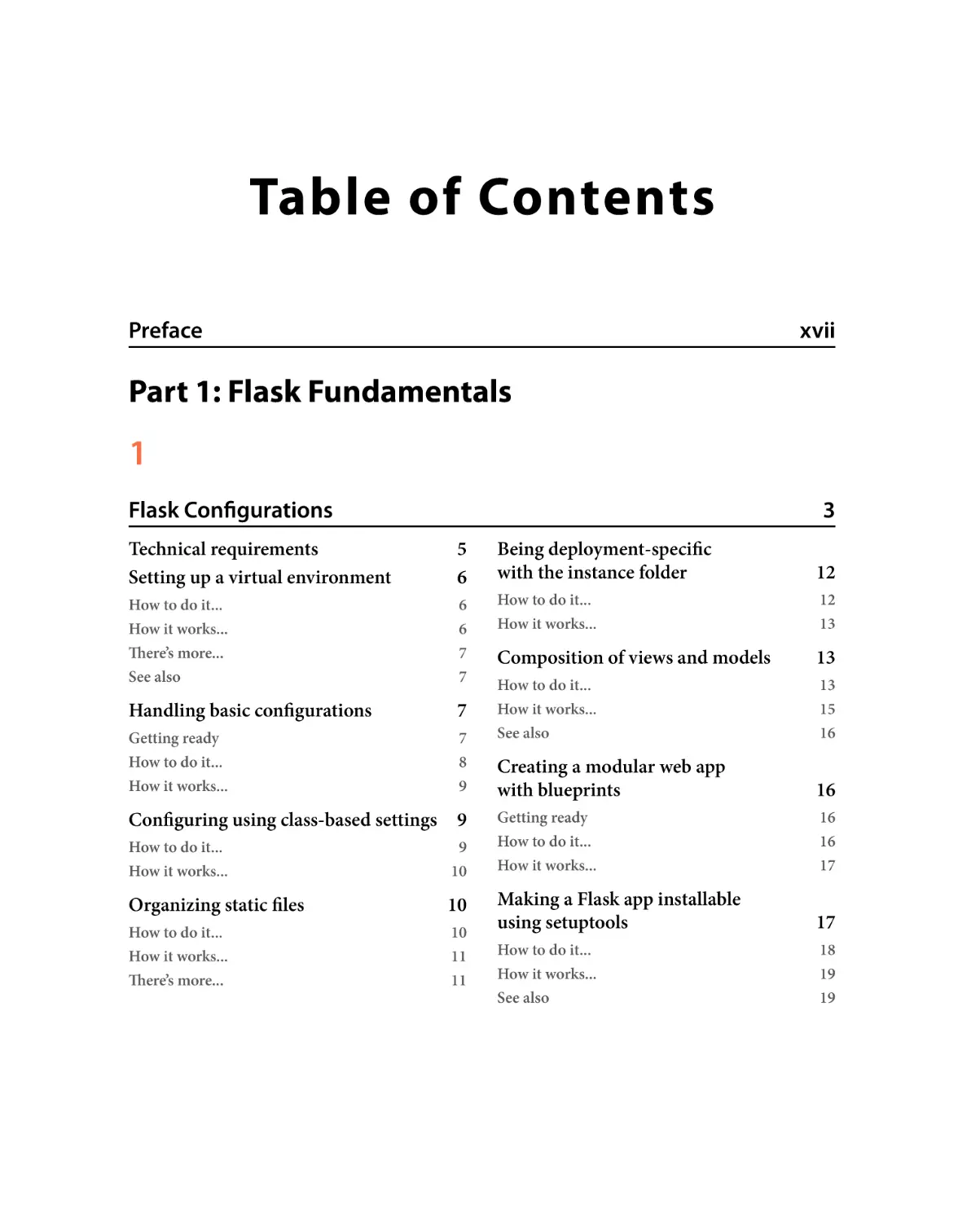
Table of Contents
Prefacexvii
Part 1: Flask Fundamentals
1
Flask Configurations
3
Technical requirements
Setting up a virtual environment
5
6
How to do it...
How it works...
There’s more...
See also
6
6
7
7
Handling basic configurations
7
Getting ready
How to do it...
How it works...
7
8
9
Configuring using class-based settings 9
How to do it...
How it works...
9
10
Organizing static files
10
How to do it...
How it works...
There’s more...
10
11
11
Being deployment-specific
with the instance folder
12
How to do it...
How it works...
12
13
Composition of views and models
13
How to do it...
How it works...
See also
13
15
16
Creating a modular web app
with blueprints
16
Getting ready
How to do it...
How it works...
16
16
17
Making a Flask app installable
using setuptools
17
How to do it...
How it works...
See also
18
19
19
viii
Table of Contents
2
Templating with Jinja
21
Technical requirements
Bootstrapping the standard layout
22
22
Getting ready
How to do it...
How it works...
Getting ready
How to do it...
How it works...
22
23
24
25
25
29
Creating a custom context processor
30
How to do it...
30
Creating a custom Jinja filter
32
How to do it...
How it works...
See also
32
33
33
Creating a custom macro for forms
33
Getting ready
How to do it...
33
34
Advanced date and time formatting
34
Getting ready
How to do it...
How it works…
There’s more…
35
35
36
36
3
Data Modeling in Flask
37
Creating an SQLAlchemy
DB instance
38
Getting ready
How to do it...
There’s more…
See also
38
39
39
40
Creating a basic product model
40
How to do it…
How it works...
41
43
Creating a relational category model
44
How to do it...
How it works…
See also
44
47
47
Migrating databases using
Alembic and Flask-Migrate
47
Getting ready
How to do it...
How it works...
See also
48
48
50
51
Indexing model data with Redis
51
Getting ready
How to do it...
How it works...
51
51
52
Opting for the NoSQL way
with MongoDB
53
Getting ready
How to do it...
How it works…
See also
53
54
56
56
Table of Contents
4
Working with Views
57
Writing function-based views
and URL routes
58
Getting ready
How to do it...
How it works...
There’s more...
58
58
59
59
Writing class-based views
60
Getting ready
How to do it...
How it works...
There’s more...
See also
60
60
61
61
62
Implementing URL routing
and product-based pagination
62
Getting ready
How to do it...
See also
62
62
64
Rendering to templates
64
Getting ready
How to do it...
How it works...
See also
64
64
69
69
Dealing with XHR requests
69
Getting ready
How to do it...
How it works...
70
70
71
Using decorators to handle
requests beautifully
72
Getting ready
How to do it...
See also
72
72
73
Creating custom 4xx and
5xx error handlers
73
Getting ready
How to do it...
How it works...
There’s more...
73
73
74
74
Flashing messages for
better user feedback
75
Getting ready
How to do it...
How it works...
75
75
77
Implementing SQL-based searching
78
Getting ready
How to do it...
How it works...
78
78
79
ix
x
Table of Contents
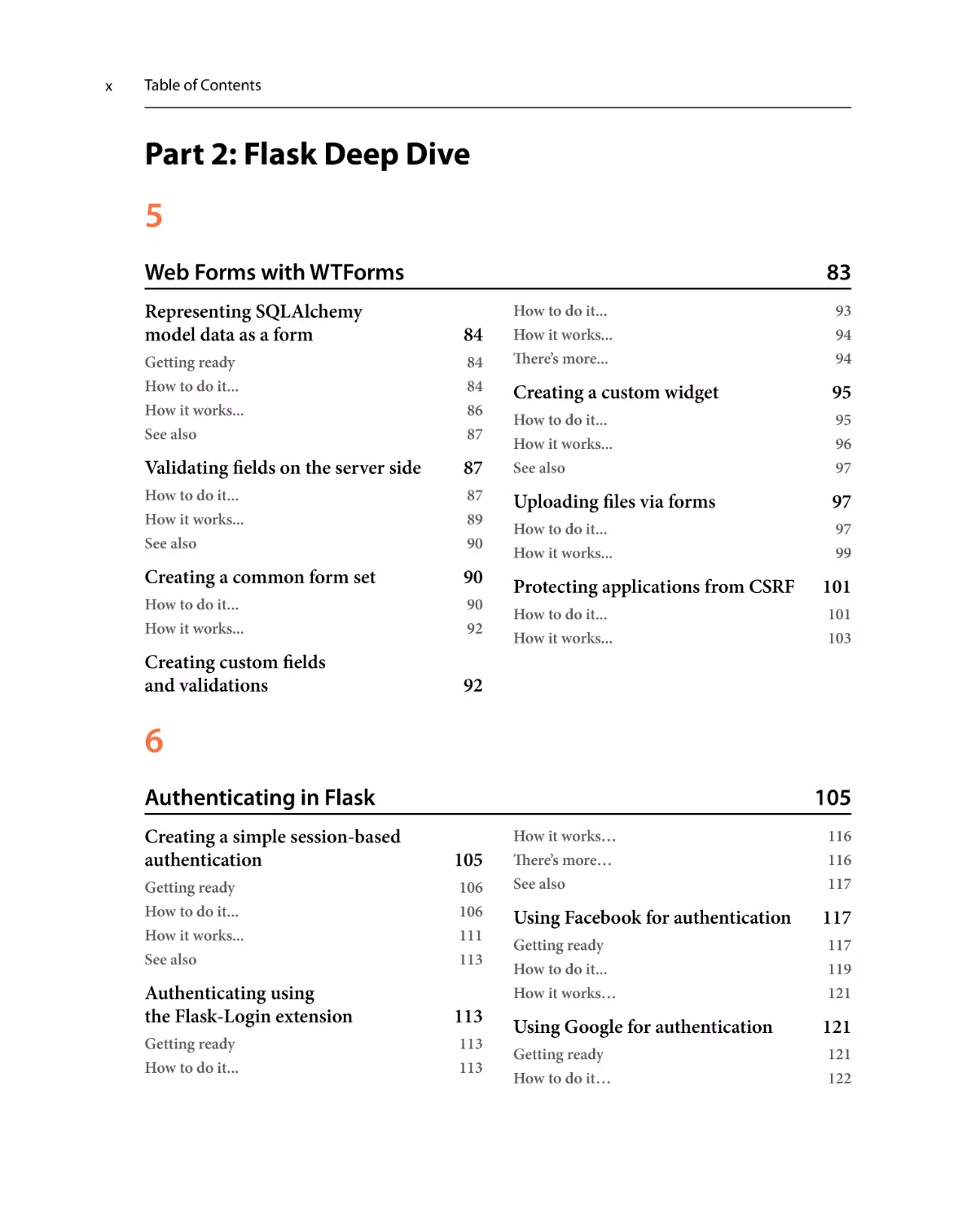
Part 2: Flask Deep Dive
5
Web Forms with WTForms
83
Representing SQLAlchemy
model data as a form
84
Getting ready
How to do it...
How it works...
See also
84
84
86
87
Validating fields on the server side
87
How to do it...
How it works...
See also
87
89
90
Creating a common form set
90
How to do it...
How it works...
90
92
Creating custom fields
and validations
92
How to do it...
How it works...
There’s more...
93
94
94
Creating a custom widget
95
How to do it...
How it works...
See also
95
96
97
Uploading files via forms
97
How to do it...
How it works...
97
99
Protecting applications from CSRF
How to do it...
How it works...
101
101
103
6
Authenticating in Flask
105
Creating a simple session-based
authentication105
Getting ready
How to do it...
How it works...
See also
Authenticating using
the Flask-Login extension
Getting ready
How to do it...
106
106
111
113
113
113
113
How it works…
There’s more…
See also
Using Facebook for authentication
Getting ready
How to do it...
How it works…
Using Google for authentication
Getting ready
How to do it…
116
116
117
117
117
119
121
121
121
122
Table of Contents
How it works…
Using Twitter for authentication
124
124
Getting ready
How to do it...
How it works…
124
125
127
Authenticating with LDAP
Getting ready
How to do it...
How it works…
See also
127
127
128
132
132
7
RESTful API Building
Creating a class-based
REST interface
133
134
Getting ready
How to do it...
How it works...
Creating an extension-based
REST interface
134
134
135
136
Getting ready
How to do it…
How it works…
See also
Creating a complete RESTful API
Getting ready
How to do it…
How it works…
136
137
138
138
138
138
141
136
8
Admin Interface for Flask Apps
Creating a simple CRUD interface
Getting ready
How to do it...
How it works...
Using the Flask-Admin extension
Getting ready
How to do it…
How it works…
There’s more…
143
144
144
144
148
149
149
149
150
151
Registering models with
Flask-Admin151
Getting ready
151
How to do it…
How it works…
Creating custom forms and actions
Getting ready
How to do it…
How it works…
Using a WYSIWYG editor
for textarea integration
Getting ready
How to do it…
How it works…
See also
152
153
154
154
155
156
157
157
157
159
160
xi
xii
Table of Contents
Creating user roles
Getting ready
160
160
How to do it…
How it works…
160
163
9
Internationalization and Localization
Adding a new language
Getting ready
How to do it...
How it works...
There’s more…
See also
Implementing lazy evaluation and
the gettext/ngettext functions
Getting ready
165
166
166
170
170
170
171
How to do it…
How it works…
Implementing the global
language-switching action
Getting ready
How to do it…
How it works…
There’s more…
165
171
173
173
173
174
175
175
171
Part 3: Advanced Flask
10
Debugging, Error Handling, and Testing
Setting up basic file logging
Getting ready
How to do it...
How it works...
There’s more…
See also
Sending emails on the occurrence
of errors
Getting ready
How to do it…
How it works…
180
180
181
182
183
183
183
183
184
184
Using Sentry to monitor exceptions 185
Getting ready
185
How to do it…
How it works…
Debugging with pdb
Getting ready
How to do it…
How it works…
See also
Creating application factories
Getting ready
How to do it…
How it works…
See also
Creating the first simple test
179
185
186
187
187
187
188
188
189
189
189
191
191
191
Table of Contents
Getting ready
How to do it…
How it works…
See also
Writing more tests
for views and logic
Getting ready
How to do it…
How it works…
See also
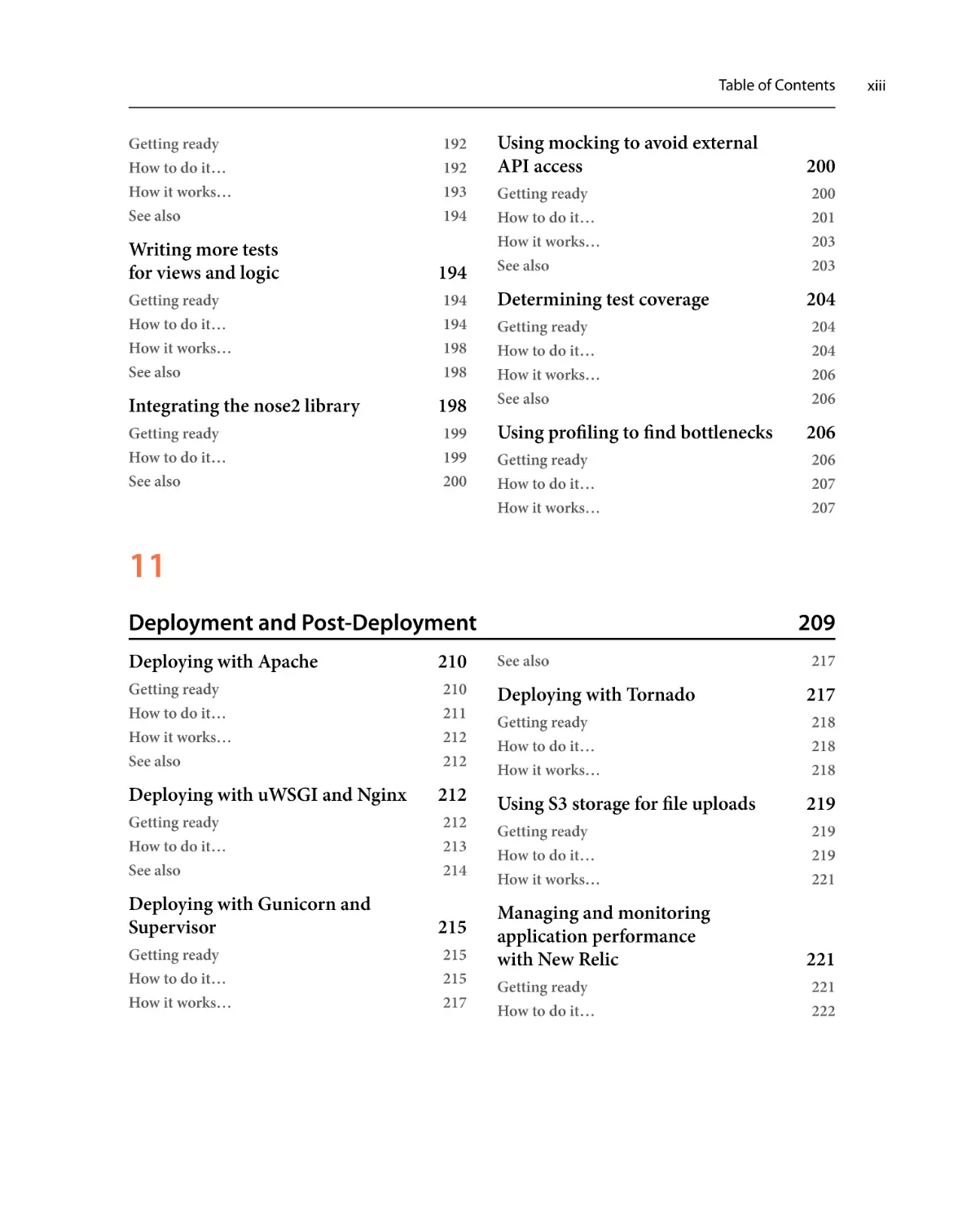
Integrating the nose2 library
Getting ready
How to do it…
See also
192
192
193
194
194
194
194
198
198
198
199
199
200
Using mocking to avoid external
API access
Getting ready
How to do it…
How it works…
See also
Determining test coverage
Getting ready
How to do it…
How it works…
See also
Using profiling to find bottlenecks
Getting ready
How to do it…
How it works…
200
200
201
203
203
204
204
204
206
206
206
206
207
207
11
Deployment and Post-Deployment
Deploying with Apache
Getting ready
How to do it…
How it works…
See also
Deploying with uWSGI and Nginx
Getting ready
How to do it…
See also
210
210
211
212
212
212
212
213
214
Deploying with Gunicorn and
Supervisor215
Getting ready
How to do it…
How it works…
215
215
217
209
See also
Deploying with Tornado
Getting ready
How to do it…
How it works…
Using S3 storage for file uploads
Getting ready
How to do it…
How it works…
Managing and monitoring
application performance
with New Relic
Getting ready
How to do it…
217
217
218
218
218
219
219
219
221
221
221
222
xiii
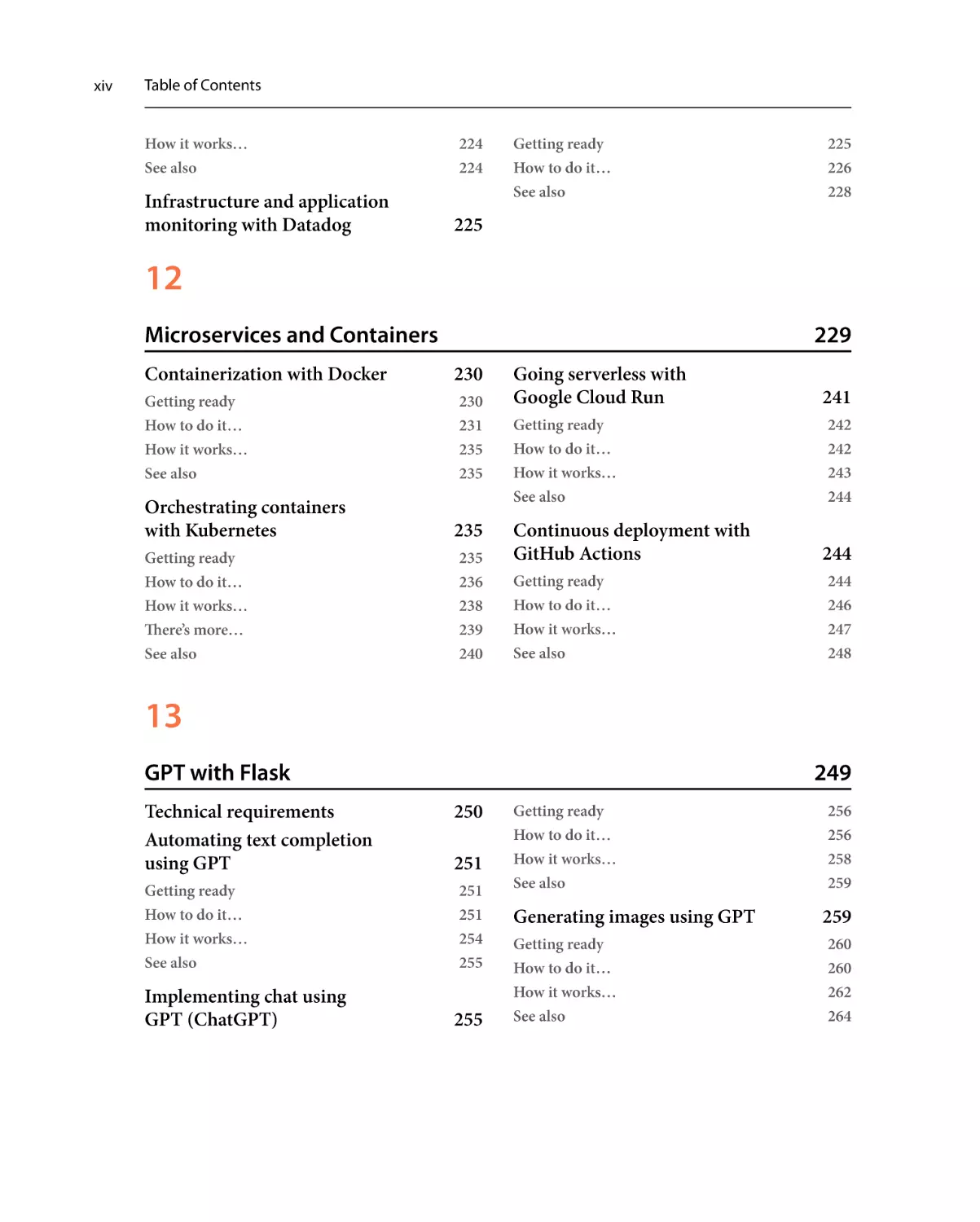
xiv
Table of Contents
How it works…
See also
Infrastructure and application
monitoring with Datadog
224
224
Getting ready
How to do it…
See also
225
226
228
225
12
Microservices and Containers
Containerization with Docker
Getting ready
How to do it…
How it works…
See also
Orchestrating containers
with Kubernetes
Getting ready
How to do it…
How it works…
There’s more…
See also
229
230
230
231
235
235
235
235
236
238
239
240
Going serverless with
Google Cloud Run
Getting ready
How to do it…
How it works…
See also
Continuous deployment with
GitHub Actions
Getting ready
How to do it…
How it works…
See also
241
242
242
243
244
244
244
246
247
248
13
GPT with Flask
Technical requirements
Automating text completion
using GPT
Getting ready
How to do it…
How it works…
See also
Implementing chat using
GPT (ChatGPT)
249
250
251
251
251
254
255
255
Getting ready
How to do it…
How it works…
See also
Generating images using GPT
Getting ready
How to do it…
How it works…
See also
256
256
258
259
259
260
260
262
264
Table of Contents
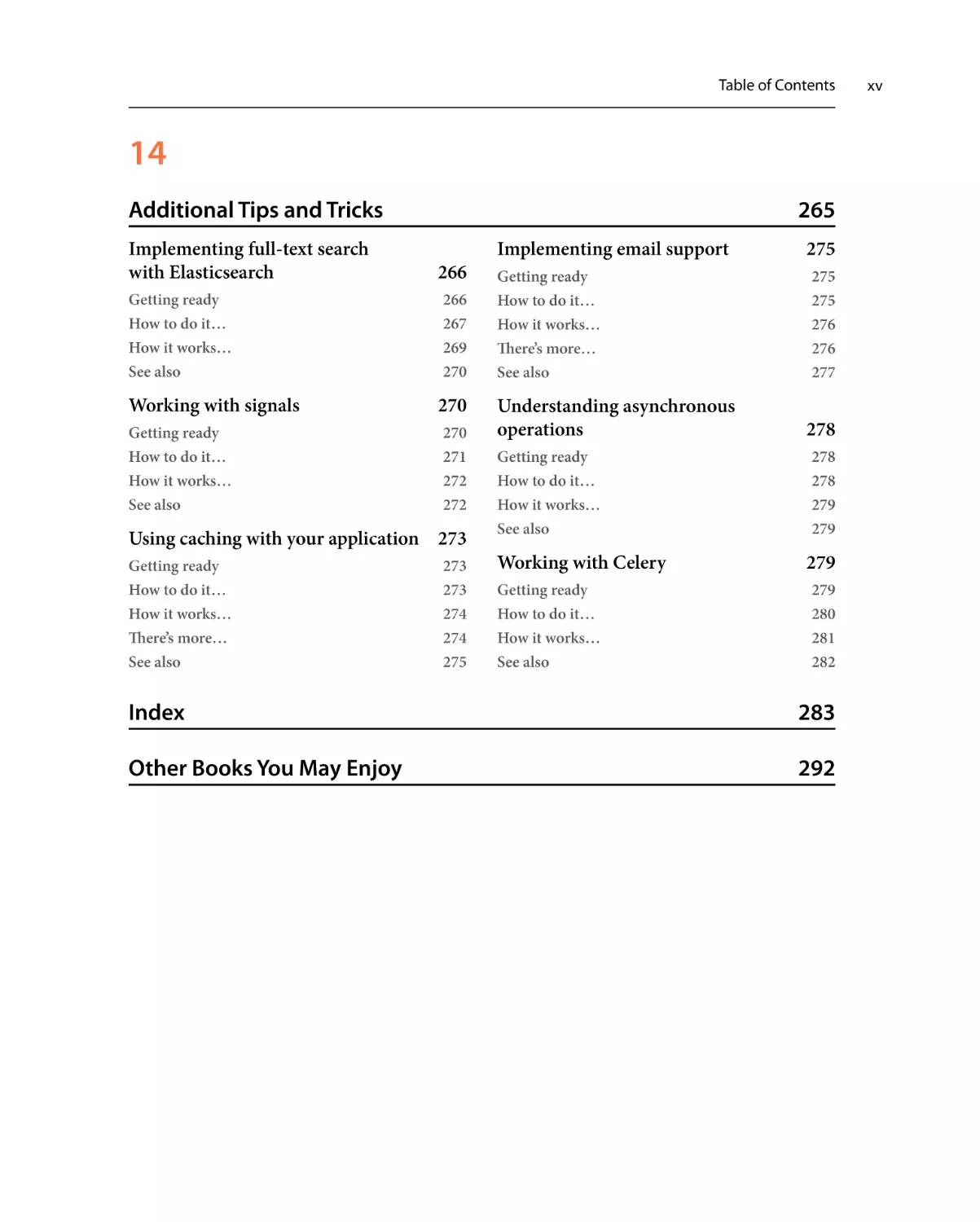
14
Additional Tips and Tricks
Implementing full-text search
with Elasticsearch
Getting ready
How to do it…
How it works…
See also
Working with signals
Getting ready
How to do it…
How it works…
See also
265
266
266
267
269
270
270
270
271
272
272
Using caching with your application 273
Getting ready
How to do it…
How it works…
There’s more…
See also
273
273
274
274
275
Implementing email support
Getting ready
How to do it…
How it works…
There’s more…
See also
275
275
275
276
276
277
Understanding asynchronous
operations278
Getting ready
How to do it…
How it works…
See also
Working with Celery
Getting ready
How to do it…
How it works…
See also
278
278
279
279
279
279
280
281
282
Index283
Other Books You May Enjoy
292
xv
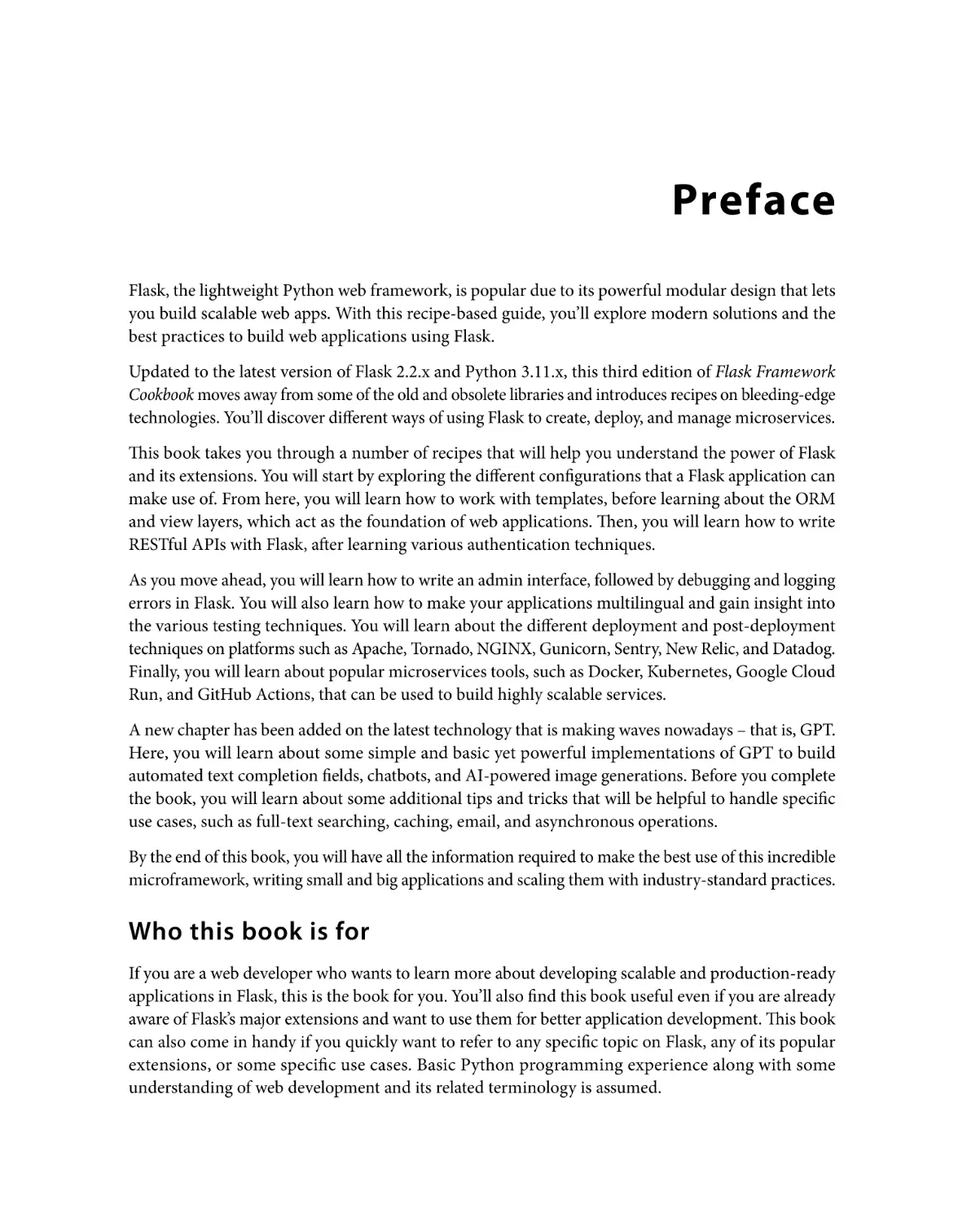
Preface
Flask, the lightweight Python web framework, is popular due to its powerful modular design that lets
you build scalable web apps. With this recipe-based guide, you’ll explore modern solutions and the
best practices to build web applications using Flask.
Updated to the latest version of Flask 2.2.x and Python 3.11.x, this third edition of Flask Framework
Cookbook moves away from some of the old and obsolete libraries and introduces recipes on bleeding-edge
technologies. You’ll discover different ways of using Flask to create, deploy, and manage microservices.
This book takes you through a number of recipes that will help you understand the power of Flask
and its extensions. You will start by exploring the different configurations that a Flask application can
make use of. From here, you will learn how to work with templates, before learning about the ORM
and view layers, which act as the foundation of web applications. Then, you will learn how to write
RESTful APIs with Flask, after learning various authentication techniques.
As you move ahead, you will learn how to write an admin interface, followed by debugging and logging
errors in Flask. You will also learn how to make your applications multilingual and gain insight into
the various testing techniques. You will learn about the different deployment and post-deployment
techniques on platforms such as Apache, Tornado, NGINX, Gunicorn, Sentry, New Relic, and Datadog.
Finally, you will learn about popular microservices tools, such as Docker, Kubernetes, Google Cloud
Run, and GitHub Actions, that can be used to build highly scalable services.
A new chapter has been added on the latest technology that is making waves nowadays – that is, GPT.
Here, you will learn about some simple and basic yet powerful implementations of GPT to build
automated text completion fields, chatbots, and AI-powered image generations. Before you complete
the book, you will learn about some additional tips and tricks that will be helpful to handle specific
use cases, such as full-text searching, caching, email, and asynchronous operations.
By the end of this book, you will have all the information required to make the best use of this incredible
microframework, writing small and big applications and scaling them with industry-standard practices.
Who this book is for
If you are a web developer who wants to learn more about developing scalable and production-ready
applications in Flask, this is the book for you. You’ll also find this book useful even if you are already
aware of Flask’s major extensions and want to use them for better application development. This book
can also come in handy if you quickly want to refer to any specific topic on Flask, any of its popular
extensions, or some specific use cases. Basic Python programming experience along with some
understanding of web development and its related terminology is assumed.
xviii
Preface
What this book covers
Chapter 1, Flask Configurations, explains the different ways in which Flask can be configured to suit
the various needs of any project. It starts by telling us how to set up a development environment and
moves on to the different configuration techniques.
Chapter 2, Templating with Jinja, covers the basics of Jinja2 templating from the perspective of Flask
and explains how to make applications with modular and extensible templates.
Chapter 3, Data Modeling in Flask, deals with one of the most important parts of any application –
that is, its interaction with database systems. We will see how Flask can connect to different database
systems, define models, and query databases to retrieve and feed data.
Chapter 4, Working with Views, deals with the core of web frameworks. It talks about how to interact
with web requests and the proper responses to these requests. It covers various methods of handling
requests properly and designing them in the best way.
Chapter 5, Web Forms with WTForms, covers form handling, which is an important part of any web
application. As much as forms are important, their validation holds equal importance, if not more.
Presenting this information to users in an interactive fashion adds a lot of value to an application.
Chapter 6, Authenticating in Flask, talks about authentication, which acts as the red line between an
application being secure and insecure. It deals with multiple social and enterprise login techniques
in detail. Authentication is an important part of any application, be it web-based, desktop, or mobile.
Chapter 7, RESTful API Building, explains REST as a protocol and then discusses writing RESTful
APIs for Flask applications using libraries, as well as completely customized APIs. An API can be
summarized as a developer’s interface to an application.
Chapter 8, Admin Interface for Flask Apps, focuses on writing admin views for Flask applications. First, we
will write completely custom-made views and then write them with the help of an extension. As opposed
to the very popular Python-based web framework Django, Flask does not provide an admin interface
by default. Although this can be seen as a shortcoming by many, this gives developers the flexibility
to create an admin interface as per their requirements and have complete control over an application.
Chapter 9, Internationalization and Localization, expands the scope of Flask applications and covers
the basics of how to enable support for multiple languages. Web applications usually are not limited
to one geographical region or to serving people from one linguistic domain. For example, a web
application intended for users in Europe will be expected to support other European languages, such
as German, French, Italian, Spanish, and so on, apart from English.
Chapter 10, Debugging, Error Handling, and Testing, moves on from being completely developmentoriented to testing our application. With better error handling and tests, the robustness of the application
increases manifold, and debugging makes the lives of developers easier. It is very important to know
how robust our application is and to keep track of how it has worked and performed. This, in turn,
gives rise to the need to be informed when something goes wrong in the application. Testing in itself
is a very huge topic and has several books devoted to it.
Preface
Chapter 11, Deployment and Post-Deployment, covers the various ways and tools with which an
application can be deployed. Then, you will learn about application monitoring, which helps us to
keep track of the performance of the application. Deployment of an application and managing the
application post-deployment is as important as developing it. There can be various ways of deploying
an application, and choosing the best way depends on the requirements.
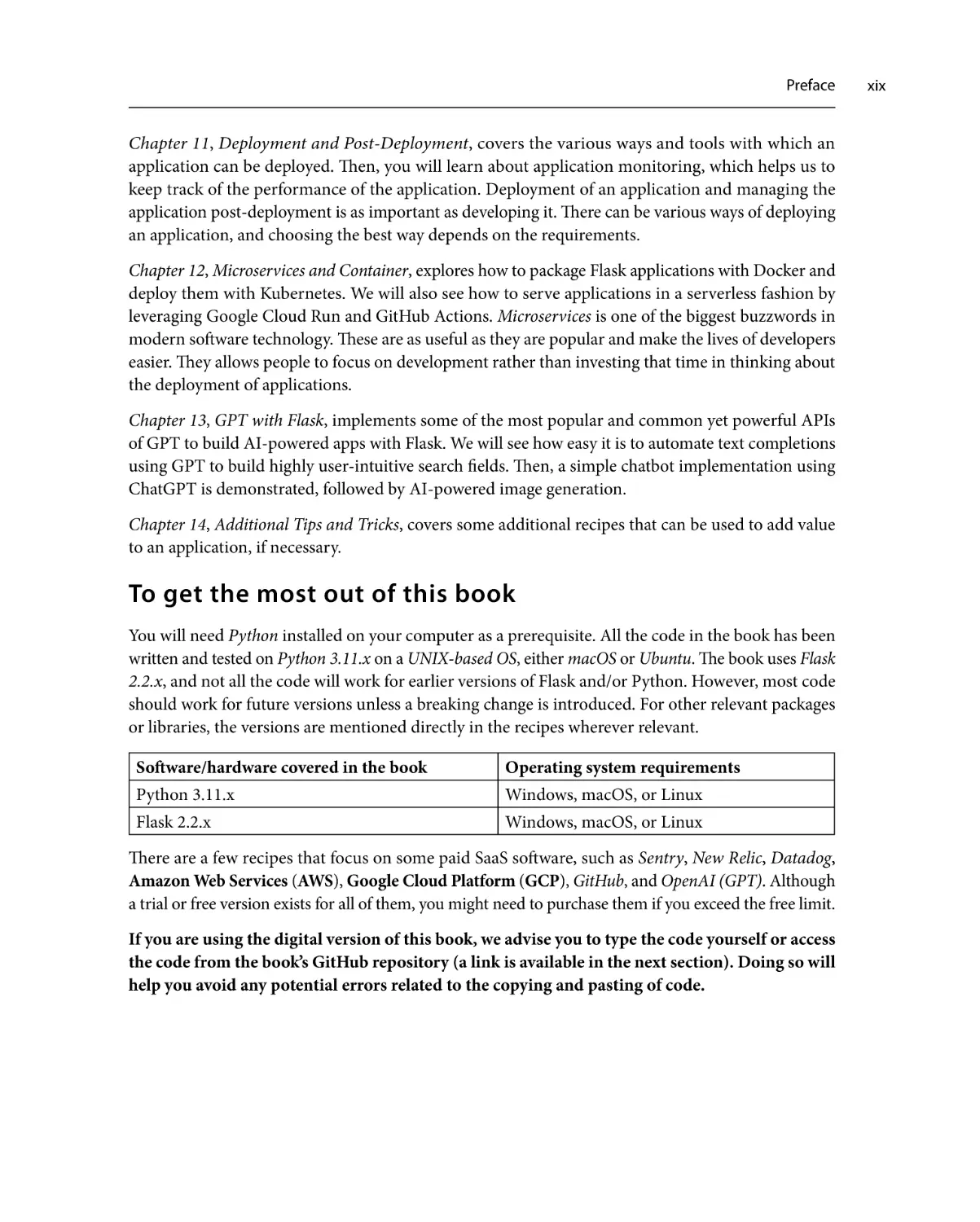
Chapter 12, Microservices and Container, explores how to package Flask applications with Docker and
deploy them with Kubernetes. We will also see how to serve applications in a serverless fashion by
leveraging Google Cloud Run and GitHub Actions. Microservices is one of the biggest buzzwords in
modern software technology. These are as useful as they are popular and make the lives of developers
easier. They allows people to focus on development rather than investing that time in thinking about
the deployment of applications.
Chapter 13, GPT with Flask, implements some of the most popular and common yet powerful APIs
of GPT to build AI-powered apps with Flask. We will see how easy it is to automate text completions
using GPT to build highly user-intuitive search fields. Then, a simple chatbot implementation using
ChatGPT is demonstrated, followed by AI-powered image generation.
Chapter 14, Additional Tips and Tricks, covers some additional recipes that can be used to add value
to an application, if necessary.
To get the most out of this book
You will need Python installed on your computer as a prerequisite. All the code in the book has been
written and tested on Python 3.11.x on a UNIX-based OS, either macOS or Ubuntu. The book uses Flask
2.2.x, and not all the code will work for earlier versions of Flask and/or Python. However, most code
should work for future versions unless a breaking change is introduced. For other relevant packages
or libraries, the versions are mentioned directly in the recipes wherever relevant.
Software/hardware covered in the book
Operating system requirements
Python 3.11.x
Windows, macOS, or Linux
Flask 2.2.x
Windows, macOS, or Linux
There are a few recipes that focus on some paid SaaS software, such as Sentry, New Relic, Datadog,
Amazon Web Services (AWS), Google Cloud Platform (GCP), GitHub, and OpenAI (GPT). Although
a trial or free version exists for all of them, you might need to purchase them if you exceed the free limit.
If you are using the digital version of this book, we advise you to type the code yourself or access
the code from the book’s GitHub repository (a link is available in the next section). Doing so will
help you avoid any potential errors related to the copying and pasting of code.
xix
xx
Preface
Download the example code files
You can download the example code files for this book from GitHub at https://github.com/
PacktPublishing/Flask-Framework-Cookbook-Third-Edition. If there’s an update
to the code, it will be updated in the GitHub repository.
We also have other code bundles from our rich catalog of books and videos available at https://
github.com/PacktPublishing/. Check them out!
Download the color images
We also provide a PDF file that has color images of the screenshots and diagrams used in this book.
You can download it here: https://packt.link/KWUib.
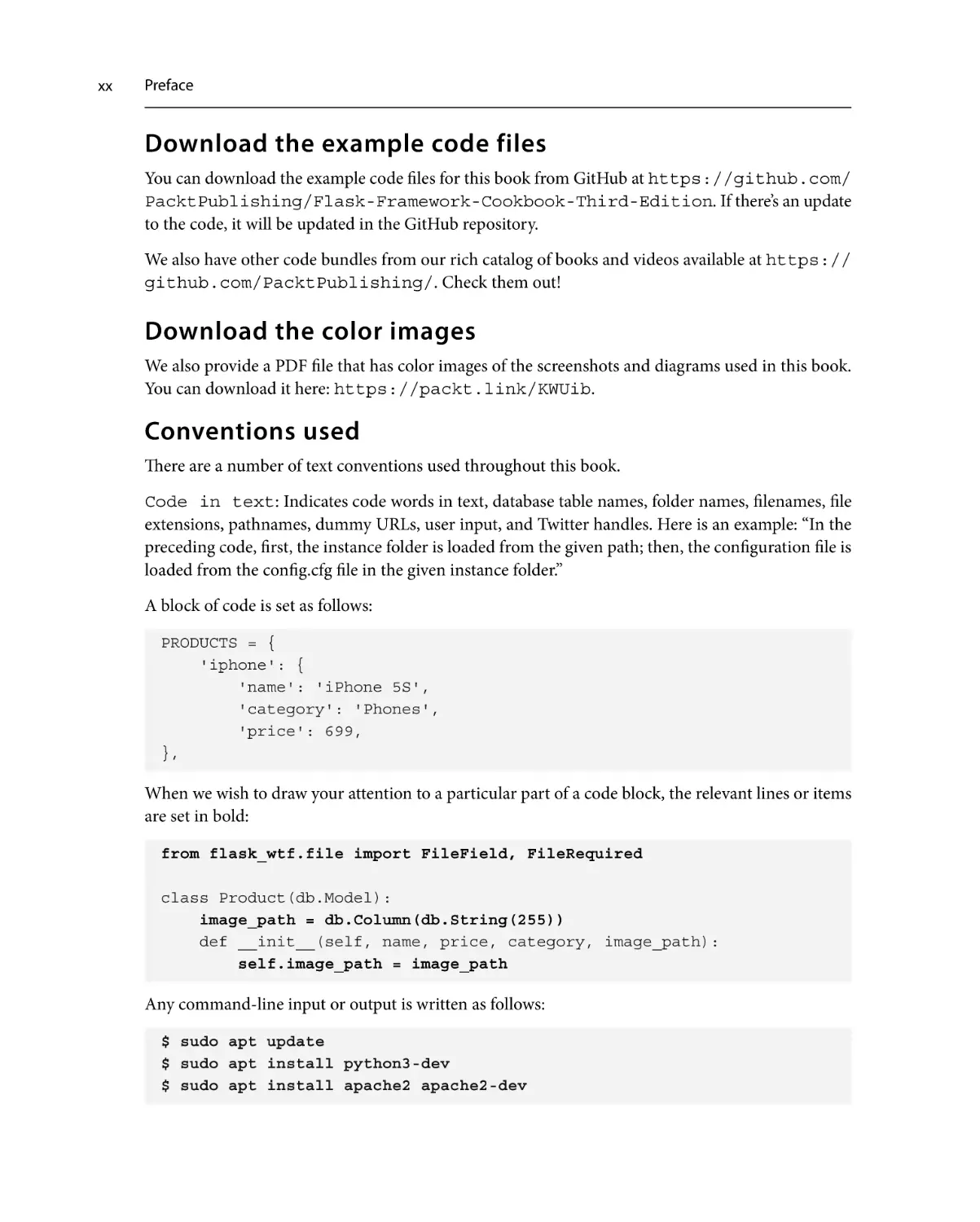
Conventions used
There are a number of text conventions used throughout this book.
Code in text: Indicates code words in text, database table names, folder names, filenames, file
extensions, pathnames, dummy URLs, user input, and Twitter handles. Here is an example: “In the
preceding code, first, the instance folder is loaded from the given path; then, the configuration file is
loaded from the config.cfg file in the given instance folder.”
A block of code is set as follows:
PRODUCTS = {
'iphone': {
'name': 'iPhone 5S',
'category': 'Phones',
'price': 699,
},
When we wish to draw your attention to a particular part of a code block, the relevant lines or items
are set in bold:
from flask_wtf.file import FileField, FileRequired
class Product(db.Model):
image_path = db.Column(db.String(255))
def __init__(self, name, price, category, image_path):
self.image_path = image_path
Any command-line input or output is written as follows:
$ sudo apt update
$ sudo apt install python3-dev
$ sudo apt install apache2 apache2-dev
Preface
Bold: Indicates a new term, an important word, or words that you see on screen. For instance, words
in menus or dialog boxes appear in bold. Here is an example: “It can also handle the Remember me
feature, account recovery features, and so on.”
Tips or important notes
Appear like this.
Get in touch
Feedback from our readers is always welcome.
General feedback: If you have questions about any aspect of this book, email us at customercare@
packtpub.com and mention the book title in the subject of your message.
Errata: Although we have taken every care to ensure the accuracy of our content, mistakes do happen.
If you have found a mistake in this book, we would be grateful if you would report this to us. Please
visit www.packtpub.com/support/errata and fill in the form.
Piracy: If you come across any illegal copies of our works in any form on the internet, we would
be grateful if you would provide us with the location address or website name. Please contact us at
copyright@packt.com with a link to the material.
If you are interested in becoming an author: If there is a topic that you have expertise in and you
are interested in either writing or contributing to a book, please visit authors.packtpub.com.
Share Your Thoughts
Once you’ve read Flask Framework Cookbook, we’d love to hear your thoughts! Please click here to go
straight to the Amazon review page for this book and share your feedback.
Your review is important to us and the tech community and will help us make sure we’re delivering
excellent quality content.
xxi
xxii
Preface
Download a free PDF copy of this book
Thanks for purchasing this book!
Do you like to read on the go but are unable to carry your print books everywhere?
Is your eBook purchase not compatible with the device of your choice?
Don’t worry, now with every Packt book you get a DRM-free PDF version of that book at no cost.
Read anywhere, any place, on any device. Search, copy, and paste code from your favorite technical
books directly into your application.
The perks don’t stop there, you can get exclusive access to discounts, newsletters, and great free content
in your inbox daily
Follow these simple steps to get the benefits:
1.
Scan the QR code or visit the link below
https://packt.link/free-ebook/9781804611104
2.
Submit your proof of purchase
3.
That’s it! We’ll send your free PDF and other benefits to your email directly
Part 1:
Flask Fundamentals
As the name suggests, this part of the book focuses on the basic fundamental building blocks of any Flask
web application. A clear understanding of these topics is essential to building scalable, configurable,
and extensible web applications with Flask as we move to more complex topics.
Developers usually struggle with how to set up their Flask application configurations to suit different
environments, such as development and production. At times, they might find it difficult to choose the best
way to structure their Flask applications. The first chapter helps in answering such questions and many more.
The next three chapters focus on creating the foundational pillars of any web application – that is,
models, views, and templates. A very important concept covered in these chapters concerns connecting
multiple types of databases with your application.
The content in these chapters will be basic- to mid-level in complexity, and it will act as the groundwork
to address more complex use cases in the next two parts of the book.
At the end of this first part of the book, you will be able to create a full-fledged Flask application that
will be functional and capable of basic functionalities.
This part of the book comprises the following chapters:
• Chapter 1, Flask Configurations
• Chapter 2, Templating with Jinja
• Chapter 3, Data Modeling in Flask
• Chapter 4, Working with Views
1
Flask Configurations
This introductory chapter will help us understand the different ways Flask can be configured to suit
the various needs of a project. Flask is “The Python micro framework for building web applications”
(pallets/Flask, https://github.com/pallets/flask).
So, why is Flask called a microframework? Does this mean Flask lacks functionality, or that it’s
mandatory for the complete code of your web application to be contained in a single file? Not really!
The term microframework simply refers to the fact that Flask aims to keep the core of its framework
small but highly extensible. This makes writing applications or extensions both easy and flexible
and gives developers the power to choose the configurations they want for their application without
imposing any restrictions on the choice of database, templating engine, admin interface, and so on.
In this chapter, you will learn several ways to set up and configure Flask.
Important information
This whole book uses Python 3 as the default version of Python. Python 2 lost its support on
December 31, 2019, and is therefore not supported in this book. It is recommended that you use
Python 3 while learning from this book, as many of the recipes might not work on Python 2.
Likewise, while writing this book, Flask 2.2.x was the latest version. Although a lot of code in
this book can work on earlier versions of Flask, it is recommended that you use versions 2.2.x
and above.
Getting started with Flask takes just a couple of minutes. Setting up a simple Hello World application
is as easy as pie. Simply create a file, such as app.py, in any location on your computer that can
access python or python3 that contains the following script:
from flask import Flask
app = Flask(__name__)
@app.route('/')
def hello_world():
4
Flask Configurations
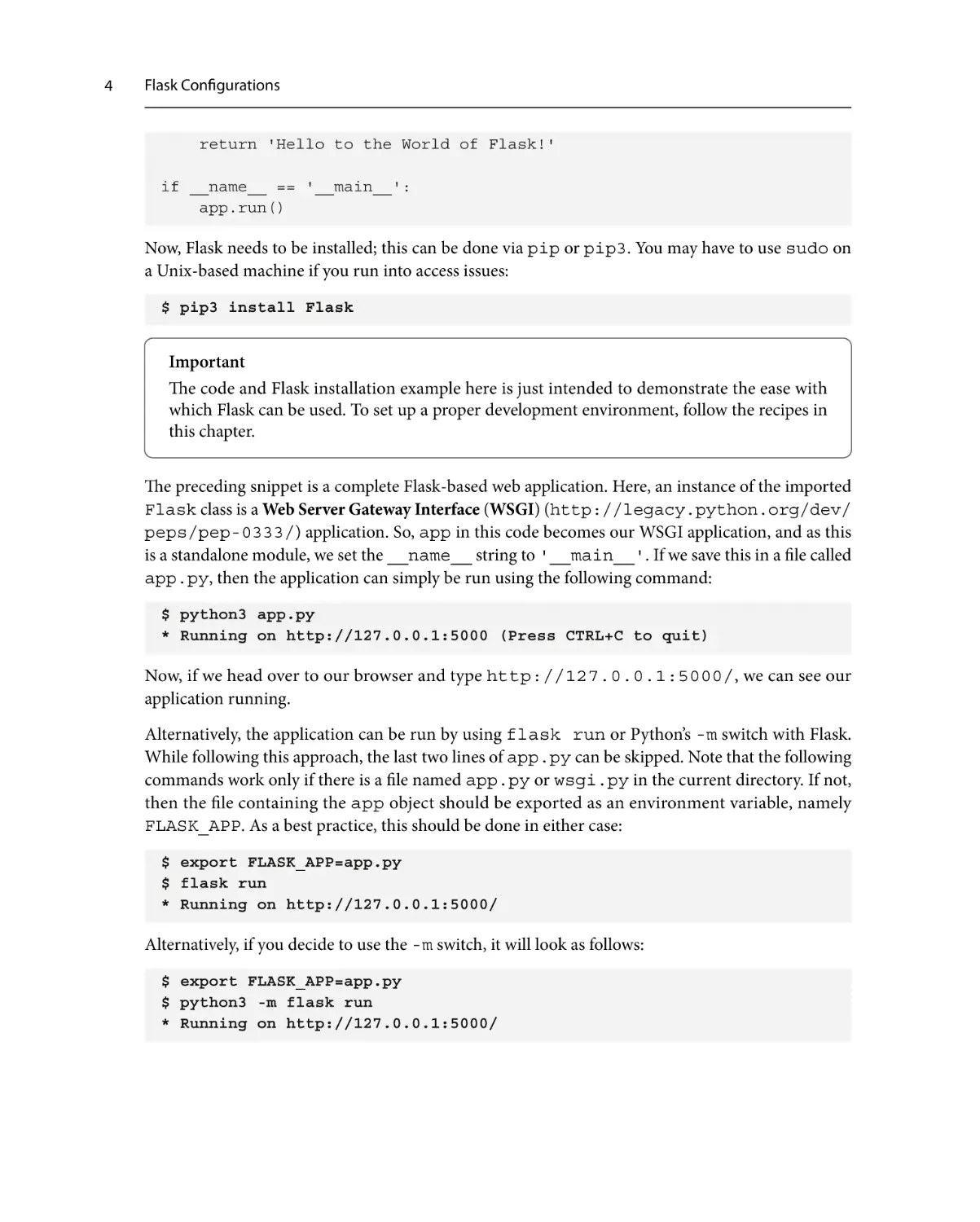
return 'Hello to the World of Flask!'
if __name__ == '__main__':
app.run()
Now, Flask needs to be installed; this can be done via pip or pip3. You may have to use sudo on
a Unix-based machine if you run into access issues:
$ pip3 install Flask
Important
The code and Flask installation example here is just intended to demonstrate the ease with
which Flask can be used. To set up a proper development environment, follow the recipes in
this chapter.
The preceding snippet is a complete Flask-based web application. Here, an instance of the imported
Flask class is a Web Server Gateway Interface (WSGI) (http://legacy.python.org/dev/
peps/pep-0333/) application. So, app in this code becomes our WSGI application, and as this
is a standalone module, we set the __name__ string to '__main__'. If we save this in a file called
app.py, then the application can simply be run using the following command:
$ python3 app.py
* Running on http://127.0.0.1:5000 (Press CTRL+C to quit)
Now, if we head over to our browser and type http://127.0.0.1:5000/, we can see our
application running.
Alternatively, the application can be run by using flask run or Python’s -m switch with Flask.
While following this approach, the last two lines of app.py can be skipped. Note that the following
commands work only if there is a file named app.py or wsgi.py in the current directory. If not,
then the file containing the app object should be exported as an environment variable, namely
FLASK_APP. As a best practice, this should be done in either case:
$ export FLASK_APP=app.py
$ flask run
* Running on http://127.0.0.1:5000/
Alternatively, if you decide to use the -m switch, it will look as follows:
$ export FLASK_APP=app.py
$ python3 -m flask run
* Running on http://127.0.0.1:5000/
Technical requirements
Tip
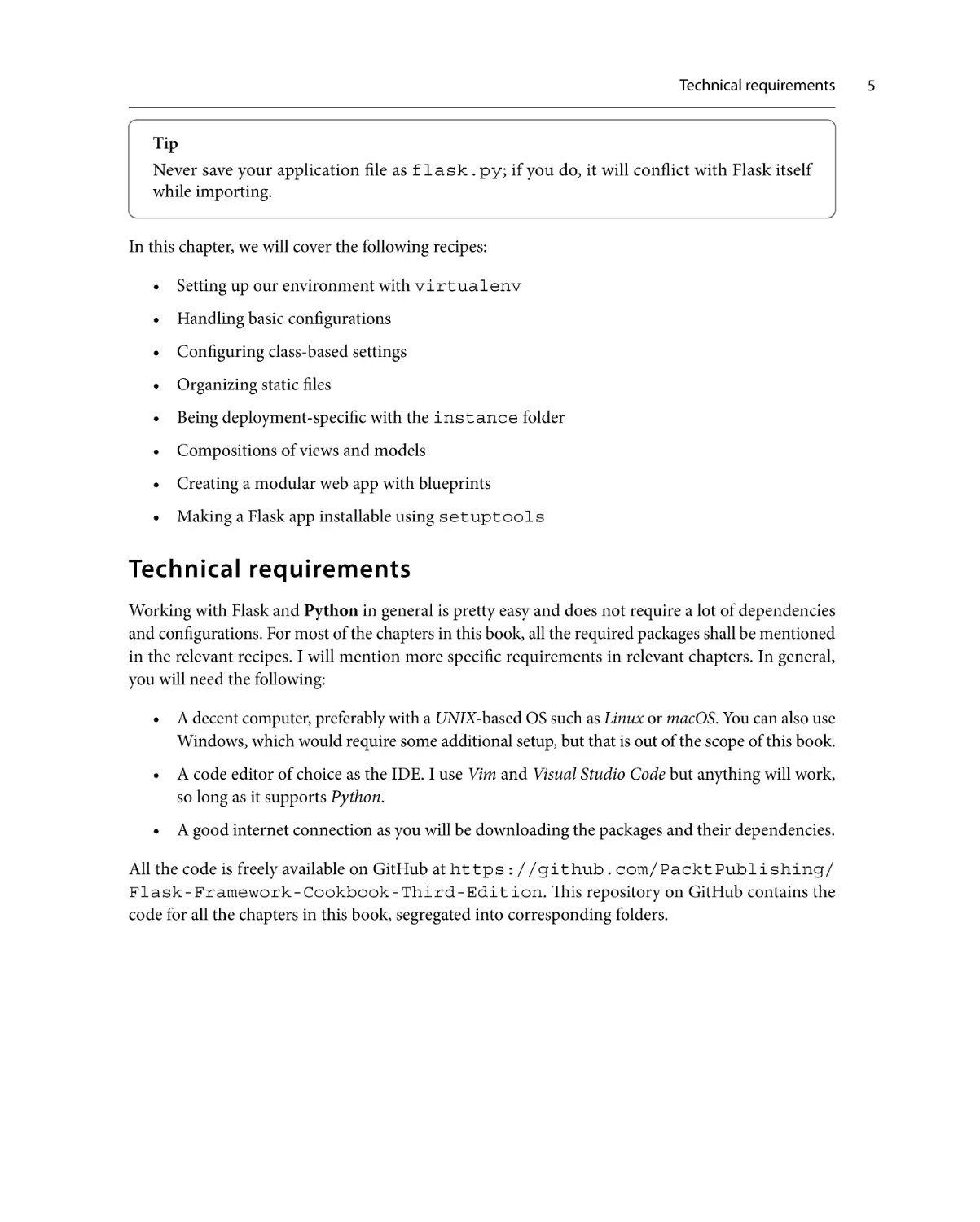
Never save your application file as flask.py; if you do, it will conflict with Flask itself
while importing.
In this chapter, we will cover the following recipes:
• Setting up our environment with virtualenv
• Handling basic configurations
• Configuring class-based settings
• Organizing static files
• Being deployment-specific with the instance folder
• Compositions of views and models
• Creating a modular web app with blueprints
• Making a Flask app installable using setuptools
Technical requirements
Working with Flask and Python in general is pretty easy and does not require a lot of dependencies
and configurations. For most of the chapters in this book, all the required packages shall be mentioned
in the relevant recipes. I will mention more specific requirements in relevant chapters. In general,
you will need the following:
• A decent computer, preferably with a UNIX-based OS such as Linux or macOS. You can also use
Windows, which would require some additional setup, but that is out of the scope of this book.
• A code editor of choice as the IDE. I use Vim and Visual Studio Code but anything will work,
so long as it supports Python.
• A good internet connection as you will be downloading the packages and their dependencies.
All the code is freely available on GitHub at https://github.com/PacktPublishing/
Flask-Framework-Cookbook-Third-Edition. This repository on GitHub contains the
code for all the chapters in this book, segregated into corresponding folders.
5
6
Flask Configurations
Setting up a virtual environment
Flask can be simply installed using pip/pip3 or easy_install globally, but it’s preferable to set
up an application environment using venv. This prevents the global Python installation from being
affected by a custom installation as it creates a separate environment for the application. This separate
environment is helpful as it allows you to have multiple versions of the same library for multiple
applications; some packages might also have different versions of the same libraries as dependencies.
venv manages this in separate environments and does not let the incorrect version of any library
affect any application. In this recipe, we will learn how to create and manage these environments.
How to do it...
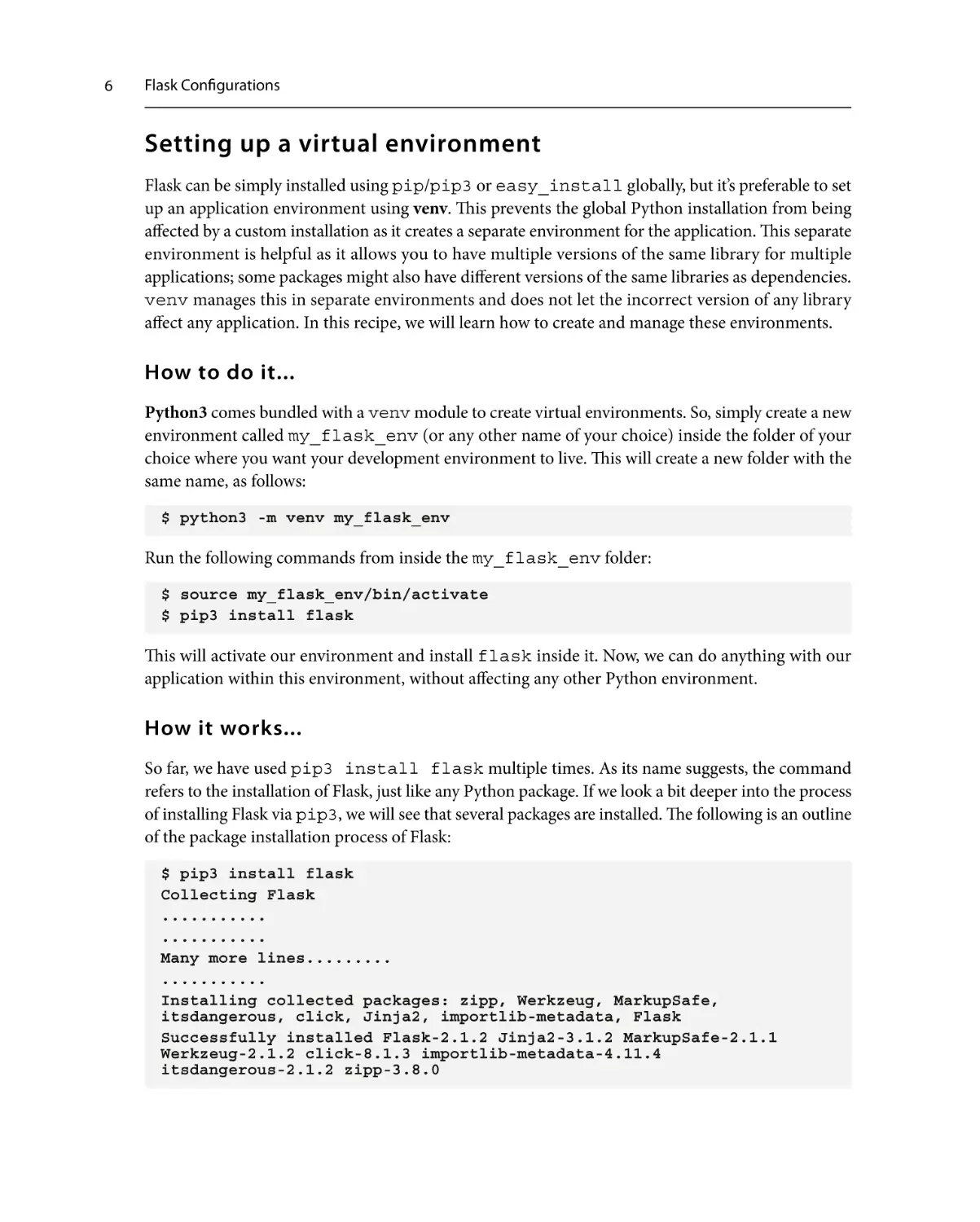
Python3 comes bundled with a venv module to create virtual environments. So, simply create a new
environment called my_flask_env (or any other name of your choice) inside the folder of your
choice where you want your development environment to live. This will create a new folder with the
same name, as follows:
$ python3 -m venv my_flask_env
Run the following commands from inside the my_flask_env folder:
$ source my_flask_env/bin/activate
$ pip3 install flask
This will activate our environment and install flask inside it. Now, we can do anything with our
application within this environment, without affecting any other Python environment.
How it works...
So far, we have used pip3 install flask multiple times. As its name suggests, the command
refers to the installation of Flask, just like any Python package. If we look a bit deeper into the process
of installing Flask via pip3, we will see that several packages are installed. The following is an outline
of the package installation process of Flask:
$ pip3 install flask
Collecting Flask
...........
...........
Many more lines.........
...........
Installing collected packages: zipp, Werkzeug, MarkupSafe,
itsdangerous, click, Jinja2, importlib-metadata, Flask
Successfully installed Flask-2.1.2 Jinja2-3.1.2 MarkupSafe-2.1.1
Werkzeug-2.1.2 click-8.1.3 importlib-metadata-4.11.4
itsdangerous-2.1.2 zipp-3.8.0
Handling basic configurations
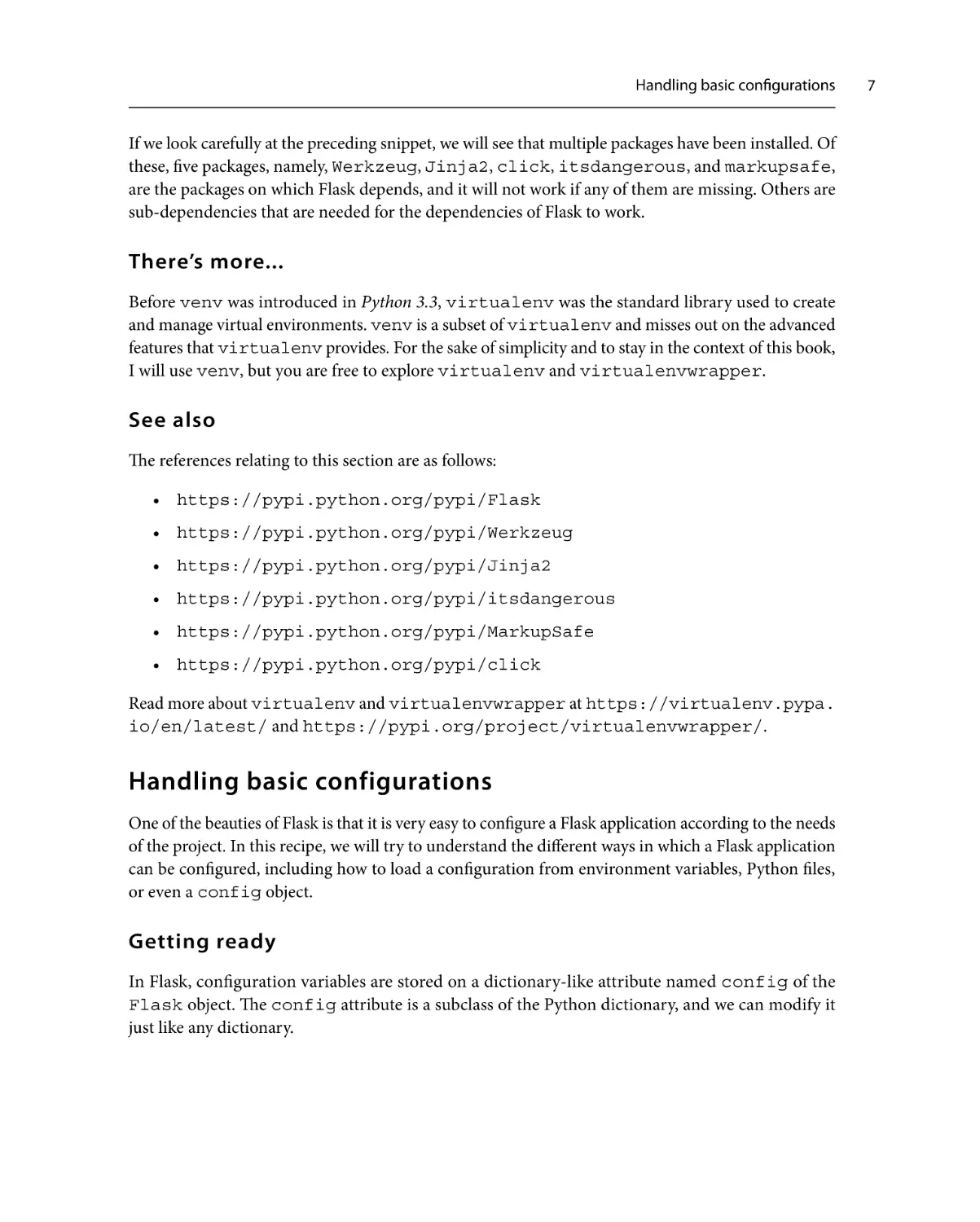
If we look carefully at the preceding snippet, we will see that multiple packages have been installed. Of
these, five packages, namely, Werkzeug, Jinja2, click, itsdangerous, and markupsafe,
are the packages on which Flask depends, and it will not work if any of them are missing. Others are
sub-dependencies that are needed for the dependencies of Flask to work.
There’s more...
Before venv was introduced in Python 3.3, virtualenv was the standard library used to create
and manage virtual environments. venv is a subset of virtualenv and misses out on the advanced
features that virtualenv provides. For the sake of simplicity and to stay in the context of this book,
I will use venv, but you are free to explore virtualenv and virtualenvwrapper.
See also
The references relating to this section are as follows:
• https://pypi.python.org/pypi/Flask
• https://pypi.python.org/pypi/Werkzeug
• https://pypi.python.org/pypi/Jinja2
• https://pypi.python.org/pypi/itsdangerous
• https://pypi.python.org/pypi/MarkupSafe
• https://pypi.python.org/pypi/click
Read more about virtualenv and virtualenvwrapper at https://virtualenv.pypa.
io/en/latest/ and https://pypi.org/project/virtualenvwrapper/.
Handling basic configurations
One of the beauties of Flask is that it is very easy to configure a Flask application according to the needs
of the project. In this recipe, we will try to understand the different ways in which a Flask application
can be configured, including how to load a configuration from environment variables, Python files,
or even a config object.
Getting ready
In Flask, configuration variables are stored on a dictionary-like attribute named config of the
Flask object. The config attribute is a subclass of the Python dictionary, and we can modify it
just like any dictionary.
7
8
Flask Configurations
How to do it...
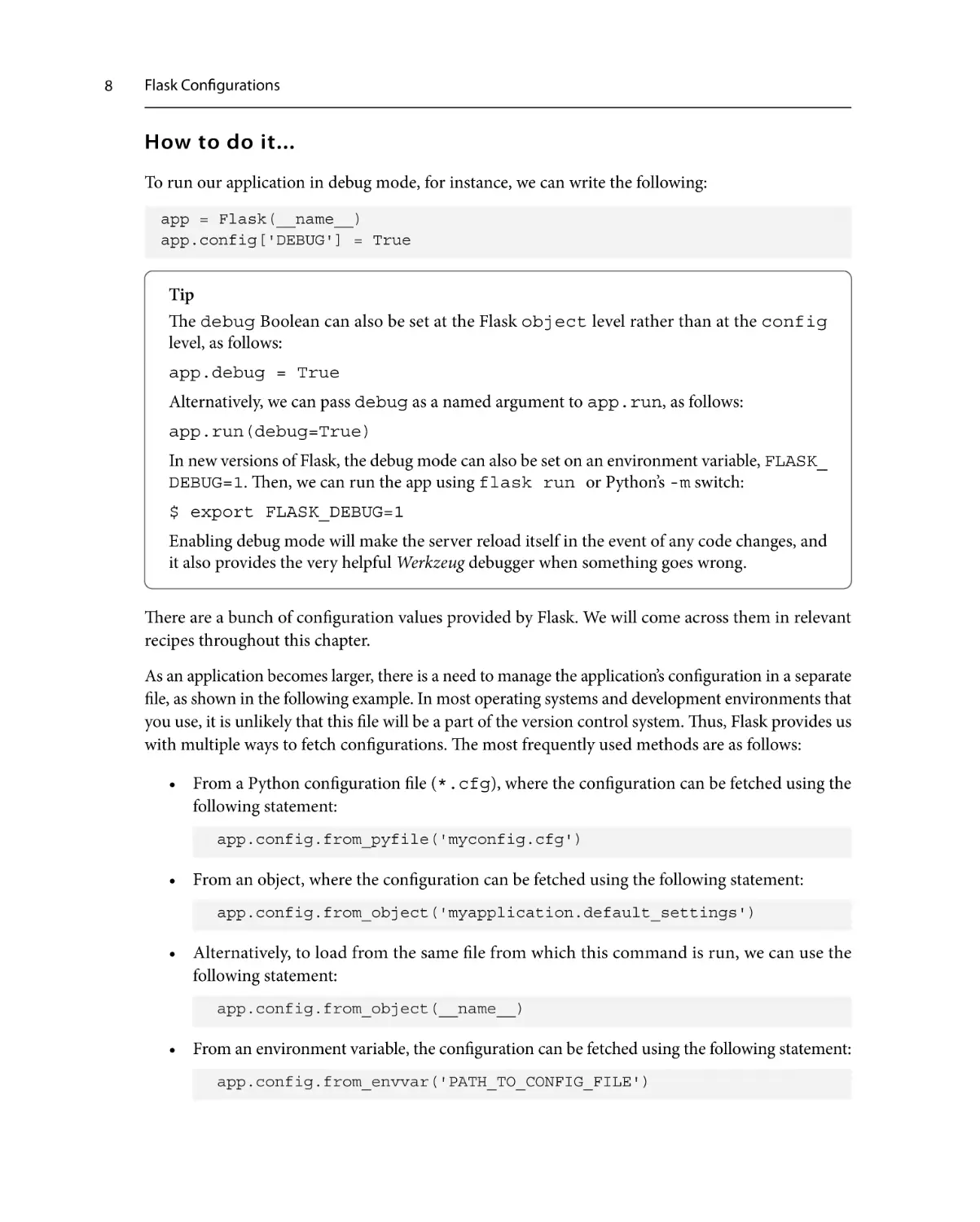
To run our application in debug mode, for instance, we can write the following:
app = Flask(__name__)
app.config['DEBUG'] = True
Tip
The debug Boolean can also be set at the Flask object level rather than at the config
level, as follows:
app.debug = True
Alternatively, we can pass debug as a named argument to app.run, as follows:
app.run(debug=True)
In new versions of Flask, the debug mode can also be set on an environment variable, FLASK_
DEBUG=1. Then, we can run the app using flask run or Python’s -m switch:
$ export FLASK_DEBUG=1
Enabling debug mode will make the server reload itself in the event of any code changes, and
it also provides the very helpful Werkzeug debugger when something goes wrong.
There are a bunch of configuration values provided by Flask. We will come across them in relevant
recipes throughout this chapter.
As an application becomes larger, there is a need to manage the application’s configuration in a separate
file, as shown in the following example. In most operating systems and development environments that
you use, it is unlikely that this file will be a part of the version control system. Thus, Flask provides us
with multiple ways to fetch configurations. The most frequently used methods are as follows:
• From a Python configuration file (*.cfg), where the configuration can be fetched using the
following statement:
app.config.from_pyfile('myconfig.cfg')
• From an object, where the configuration can be fetched using the following statement:
app.config.from_object('myapplication.default_settings')
• Alternatively, to load from the same file from which this command is run, we can use the
following statement:
app.config.from_object(__name__)
• From an environment variable, the configuration can be fetched using the following statement:
app.config.from_envvar('PATH_TO_CONFIG_FILE')
Configuring using class-based settings
• New in Flask version 2.0 is a capability to load from generic configuration file formats such
as JSON or TOML:
app.config.from_file('config.json', load=json.load)
Alternatively, we can do the following:
app.config.from_file('config.toml', load=toml.load)
How it works...
Flask is designed to only pick up configuration variables that are written in uppercase. This allows us
to define any local variables in our configuration files and objects and leave the rest to Flask.
The best practice when using configurations is to have a bunch of default settings in app.py, or via
any object in the application itself, and then override the same by loading it from the configuration
file. So, the code will look as follows:
app = Flask(__name__)
DEBUG = True
TESTING = True
app.config.from_object(__name__)
app.config.from_pyfile('/path/to/config/file')
Configuring using class-based settings
An effective way of laying out configurations for different deployment modes, such as production,
testing, staging, and so on, can be cleanly done using the inheritance pattern of classes. As your project
gets bigger, you can have different deployment modes, and each mode can have several different
configuration settings or some settings that will remain the same. In this recipe, we will learn how to
use class-based settings to achieve such a pattern.
How to do it...
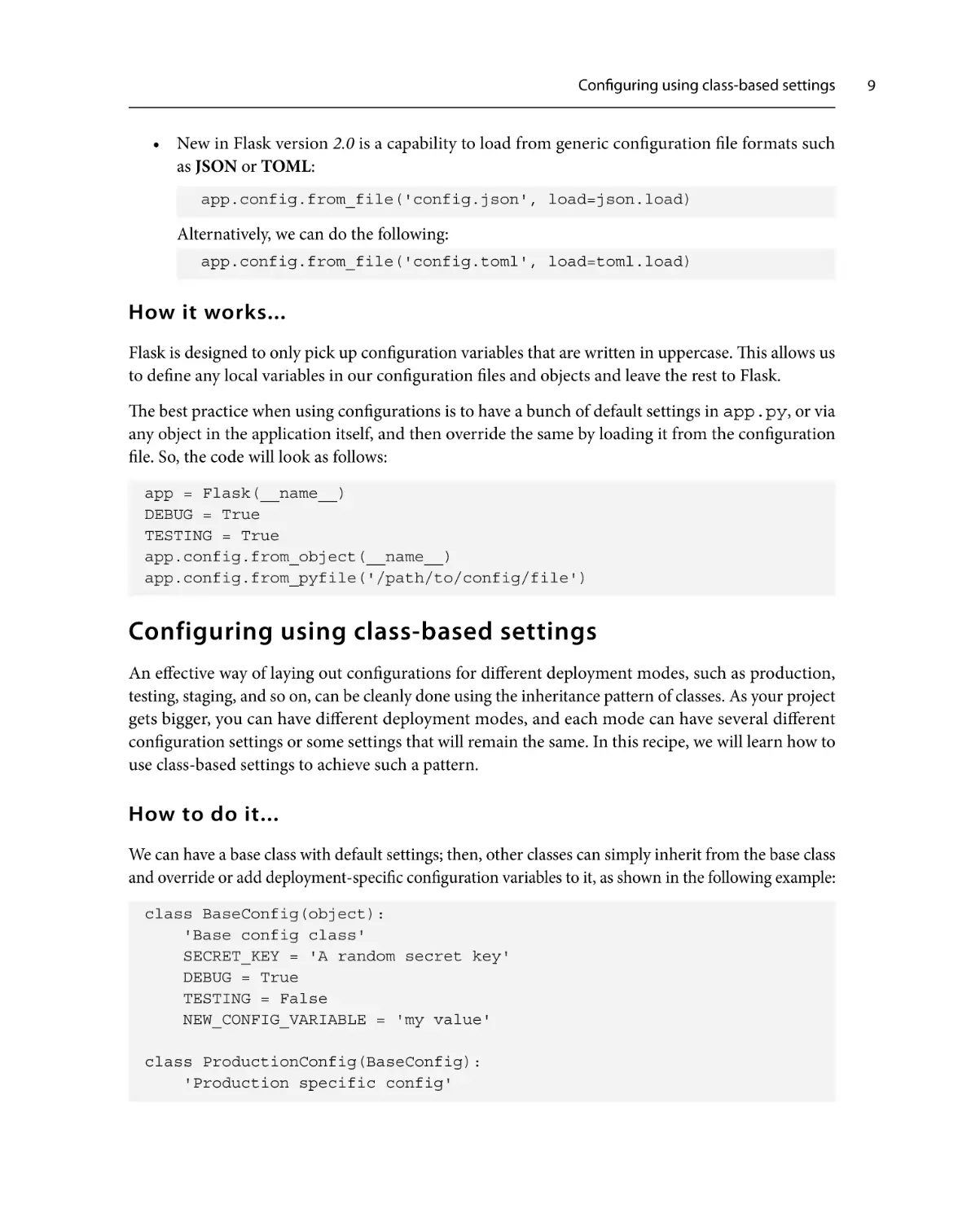
We can have a base class with default settings; then, other classes can simply inherit from the base class
and override or add deployment-specific configuration variables to it, as shown in the following example:
class BaseConfig(object):
'Base config class'
SECRET_KEY = 'A random secret key'
DEBUG = True
TESTING = False
NEW_CONFIG_VARIABLE = 'my value'
class ProductionConfig(BaseConfig):
'Production specific config'
9
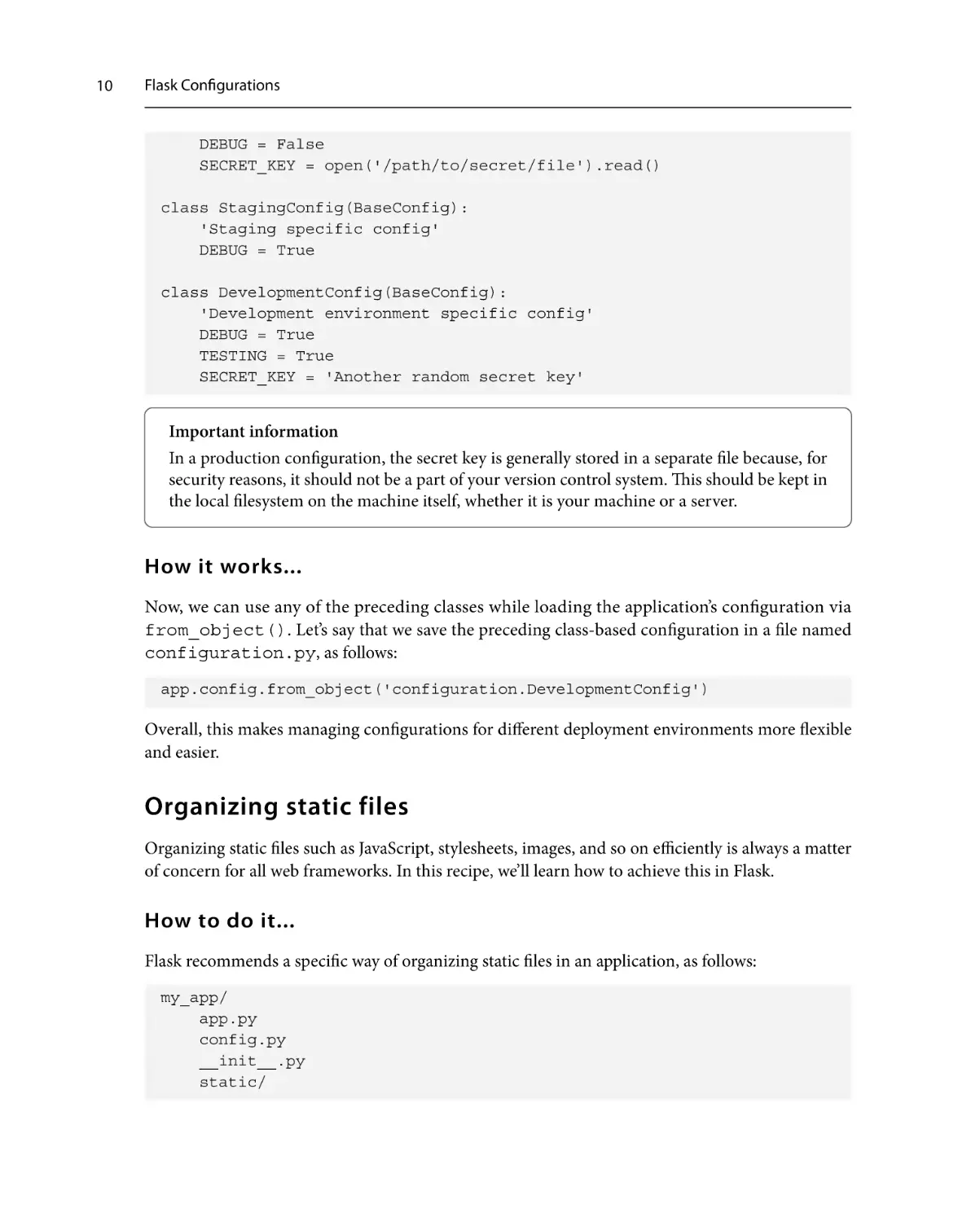
10
Flask Configurations
DEBUG = False
SECRET_KEY = open('/path/to/secret/file').read()
class StagingConfig(BaseConfig):
'Staging specific config'
DEBUG = True
class DevelopmentConfig(BaseConfig):
'Development environment specific config'
DEBUG = True
TESTING = True
SECRET_KEY = 'Another random secret key'
Important information
In a production configuration, the secret key is generally stored in a separate file because, for
security reasons, it should not be a part of your version control system. This should be kept in
the local filesystem on the machine itself, whether it is your machine or a server.
How it works...
Now, we can use any of the preceding classes while loading the application’s configuration via
from_object(). Let’s say that we save the preceding class-based configuration in a file named
configuration.py, as follows:
app.config.from_object('configuration.DevelopmentConfig')
Overall, this makes managing configurations for different deployment environments more flexible
and easier.
Organizing static files
Organizing static files such as JavaScript, stylesheets, images, and so on efficiently is always a matter
of concern for all web frameworks. In this recipe, we’ll learn how to achieve this in Flask.
How to do it...
Flask recommends a specific way of organizing static files in an application, as follows:
my_app/
app.py
config.py
__init__.py
static/
Organizing static files
css/
js/
images/
logo.png
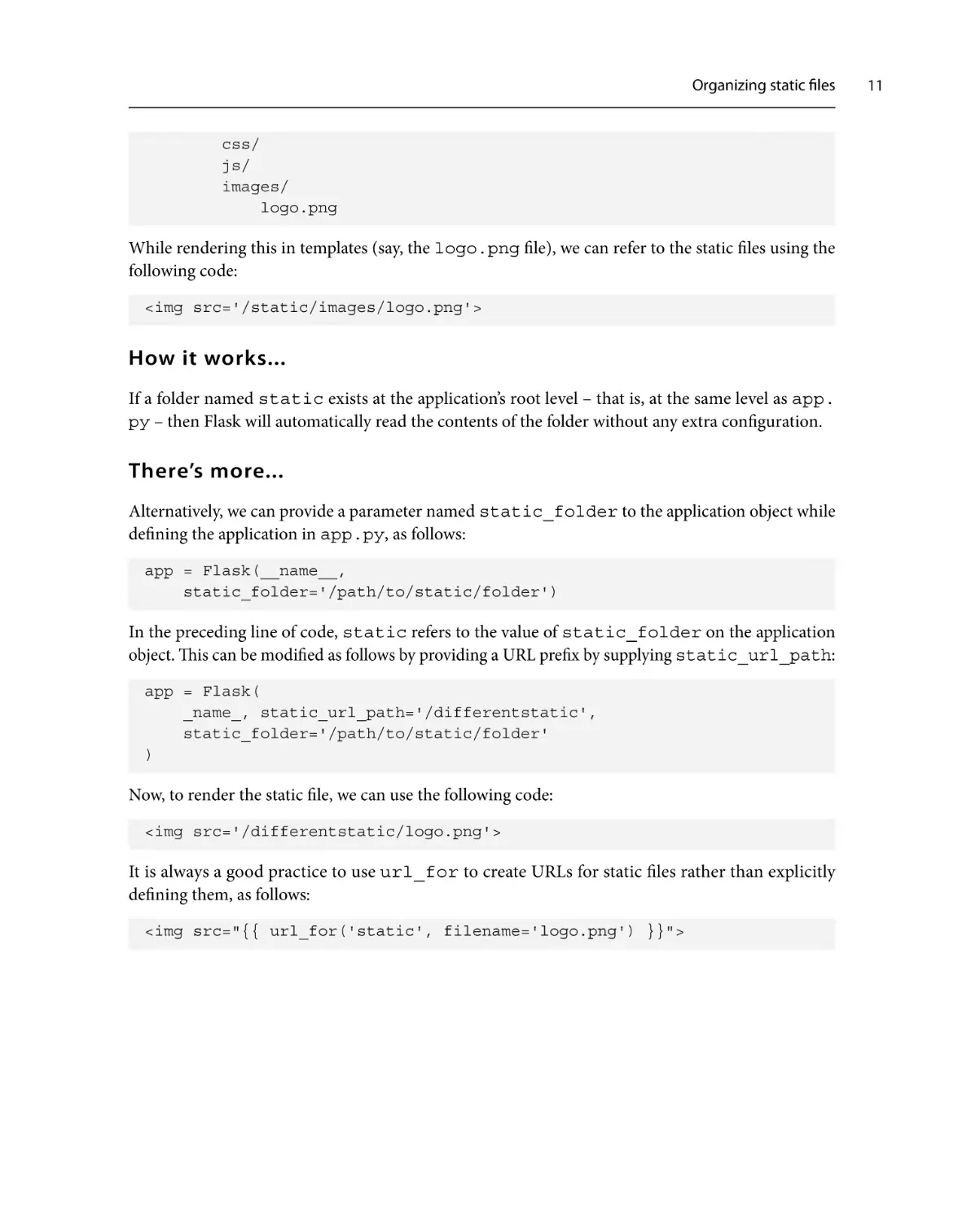
While rendering this in templates (say, the logo.png file), we can refer to the static files using the
following code:
<img src='/static/images/logo.png'>
How it works...
If a folder named static exists at the application’s root level – that is, at the same level as app.
py – then Flask will automatically read the contents of the folder without any extra configuration.
There’s more...
Alternatively, we can provide a parameter named static_folder to the application object while
defining the application in app.py, as follows:
app = Flask(__name__,
static_folder='/path/to/static/folder')
In the preceding line of code, static refers to the value of static_folder on the application
object. This can be modified as follows by providing a URL prefix by supplying static_url_path:
app = Flask(
_name_, static_url_path='/differentstatic',
static_folder='/path/to/static/folder'
)
Now, to render the static file, we can use the following code:
<img src='/differentstatic/logo.png'>
It is always a good practice to use url_for to create URLs for static files rather than explicitly
defining them, as follows:
<img src="{{ url_for('static', filename='logo.png') }}">
11
12
Flask Configurations
Being deployment-specific with the instance folder
Flask provides yet another method for configuration, where we can efficiently manage deploymentspecific parts. Instance folders allow us to segregate deployment-specific files from our version-controlled
application. We know that configuration files can be separate for different deployment environments,
such as development and production, but there are also many more files, such as database files, session
files, cache files, and other runtime files. In this recipe, we will create an instance folder that will act
like a holder container for such kinds of files. By design, the instance folder will not be a part of the
version control system.
How to do it...
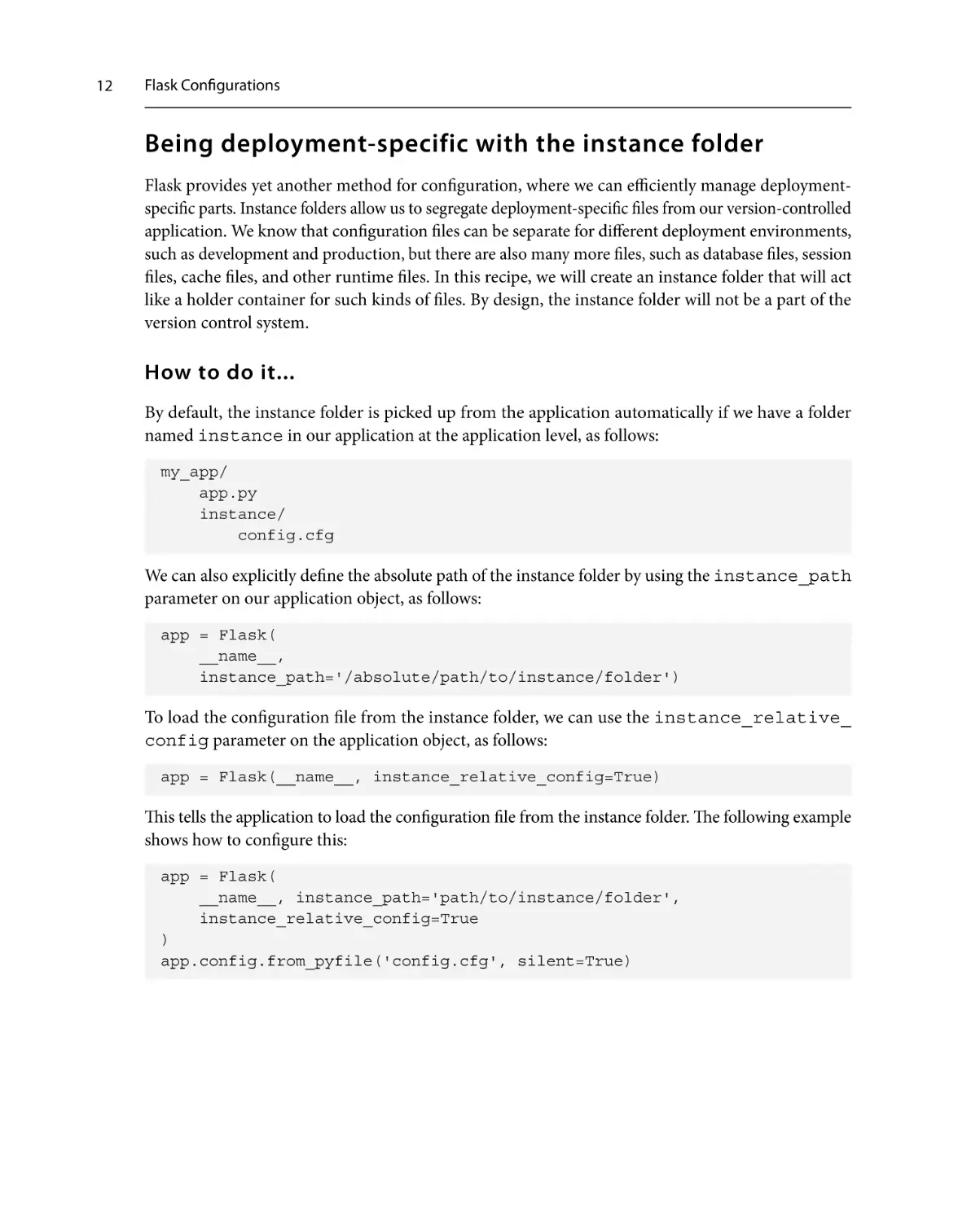
By default, the instance folder is picked up from the application automatically if we have a folder
named instance in our application at the application level, as follows:
my_app/
app.py
instance/
config.cfg
We can also explicitly define the absolute path of the instance folder by using the instance_path
parameter on our application object, as follows:
app = Flask(
__name__,
instance_path='/absolute/path/to/instance/folder')
To load the configuration file from the instance folder, we can use the instance_relative_
config parameter on the application object, as follows:
app = Flask(__name__, instance_relative_config=True)
This tells the application to load the configuration file from the instance folder. The following example
shows how to configure this:
app = Flask(
__name__, instance_path='path/to/instance/folder',
instance_relative_config=True
)
app.config.from_pyfile('config.cfg', silent=True)
Composition of views and models
How it works...
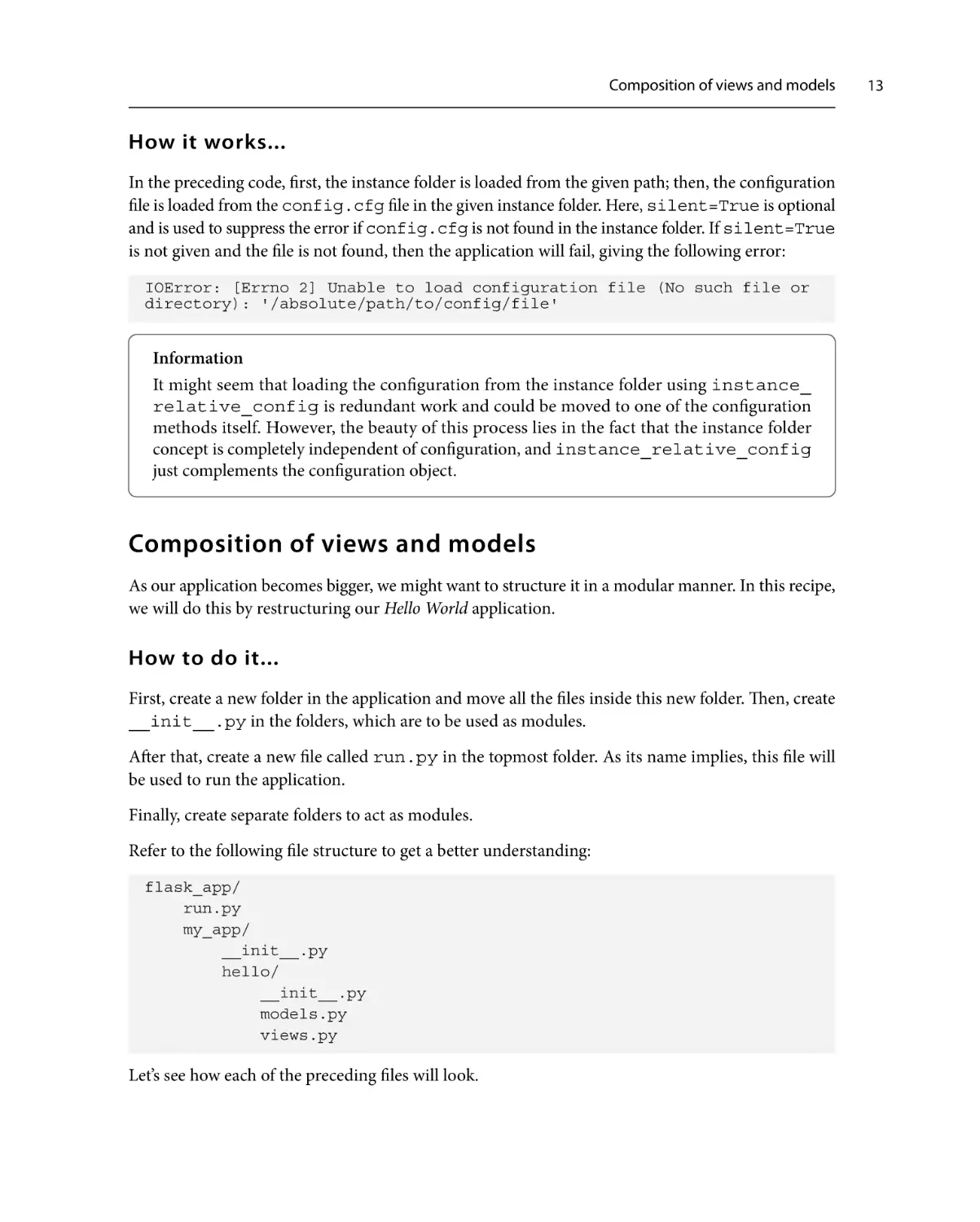
In the preceding code, first, the instance folder is loaded from the given path; then, the configuration
file is loaded from the config.cfg file in the given instance folder. Here, silent=True is optional
and is used to suppress the error if config.cfg is not found in the instance folder. If silent=True
is not given and the file is not found, then the application will fail, giving the following error:
IOError: [Errno 2] Unable to load configuration file (No such file or
directory): '/absolute/path/to/config/file'
Information
It might seem that loading the configuration from the instance folder using instance_
relative_config is redundant work and could be moved to one of the configuration
methods itself. However, the beauty of this process lies in the fact that the instance folder
concept is completely independent of configuration, and instance_relative_config
just complements the configuration object.
Composition of views and models
As our application becomes bigger, we might want to structure it in a modular manner. In this recipe,
we will do this by restructuring our Hello World application.
How to do it...
First, create a new folder in the application and move all the files inside this new folder. Then, create
__init__.py in the folders, which are to be used as modules.
After that, create a new file called run.py in the topmost folder. As its name implies, this file will
be used to run the application.
Finally, create separate folders to act as modules.
Refer to the following file structure to get a better understanding:
flask_app/
run.py
my_app/
__init__.py
hello/
__init__.py
models.py
views.py
Let’s see how each of the preceding files will look.
13
14
Flask Configurations
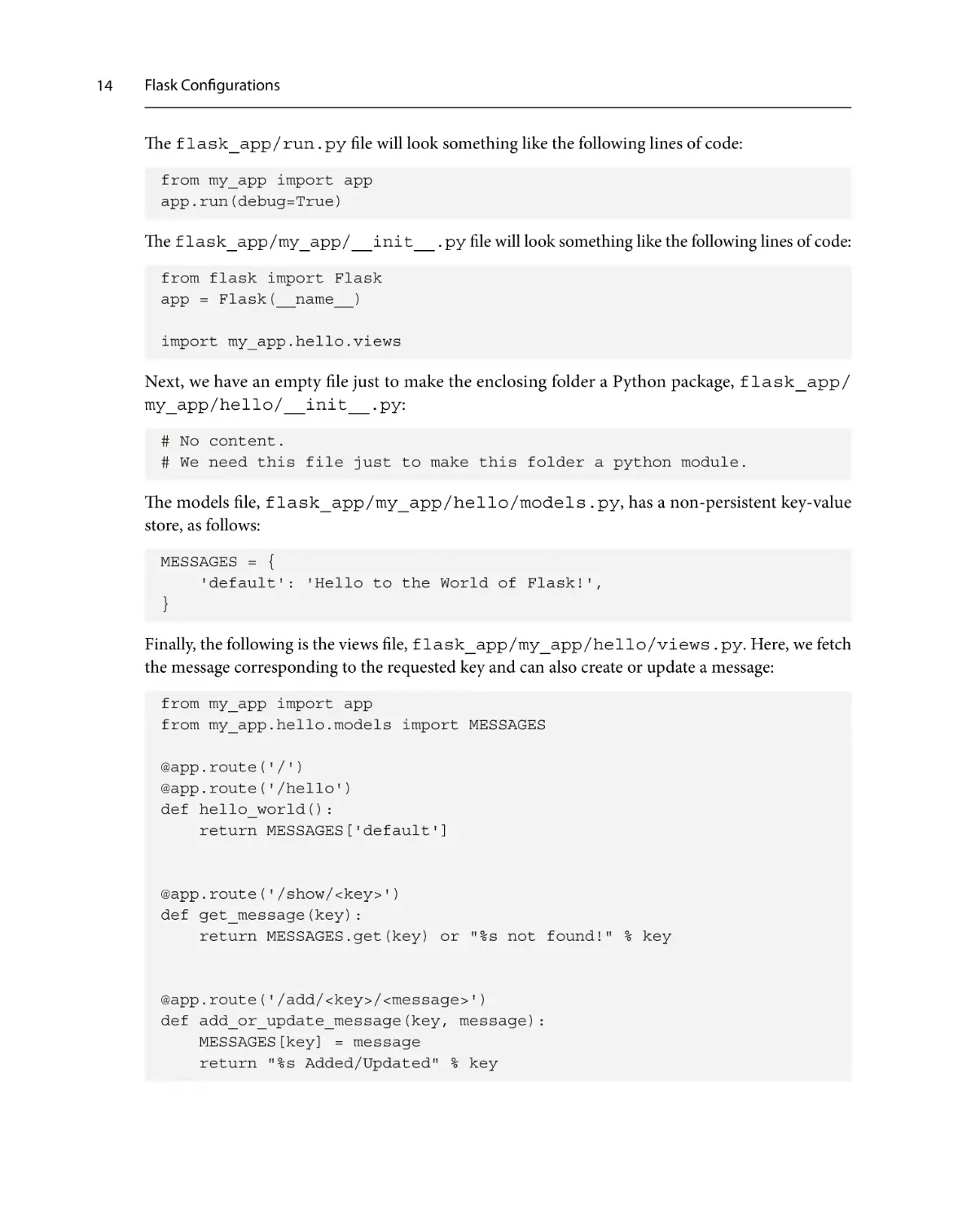
The flask_app/run.py file will look something like the following lines of code:
from my_app import app
app.run(debug=True)
The flask_app/my_app/__init__.py file will look something like the following lines of code:
from flask import Flask
app = Flask(__name__)
import my_app.hello.views
Next, we have an empty file just to make the enclosing folder a Python package, flask_app/
my_app/hello/__init__.py:
# No content.
# We need this file just to make this folder a python module.
The models file, flask_app/my_app/hello/models.py, has a non-persistent key-value
store, as follows:
MESSAGES = {
'default': 'Hello to the World of Flask!',
}
Finally, the following is the views file, flask_app/my_app/hello/views.py. Here, we fetch
the message corresponding to the requested key and can also create or update a message:
from my_app import app
from my_app.hello.models import MESSAGES
@app.route('/')
@app.route('/hello')
def hello_world():
return MESSAGES['default']
@app.route('/show/<key>')
def get_message(key):
return MESSAGES.get(key) or "%s not found!" % key
@app.route('/add/<key>/<message>')
def add_or_update_message(key, message):
MESSAGES[key] = message
return "%s Added/Updated" % key
Composition of views and models
How it works...
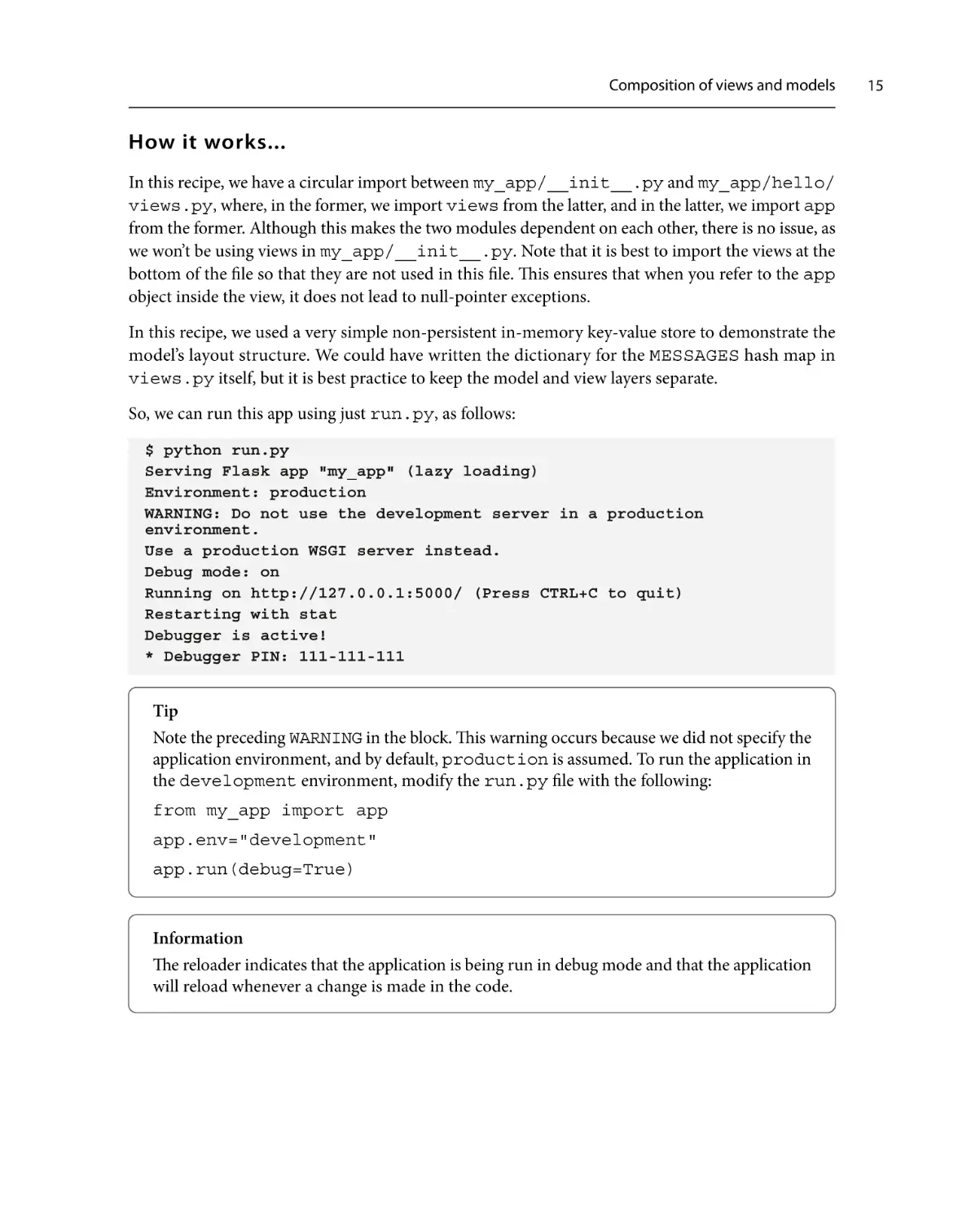
In this recipe, we have a circular import between my_app/__init__.py and my_app/hello/
views.py, where, in the former, we import views from the latter, and in the latter, we import app
from the former. Although this makes the two modules dependent on each other, there is no issue, as
we won’t be using views in my_app/__init__.py. Note that it is best to import the views at the
bottom of the file so that they are not used in this file. This ensures that when you refer to the app
object inside the view, it does not lead to null-pointer exceptions.
In this recipe, we used a very simple non-persistent in-memory key-value store to demonstrate the
model’s layout structure. We could have written the dictionary for the MESSAGES hash map in
views.py itself, but it is best practice to keep the model and view layers separate.
So, we can run this app using just run.py, as follows:
$ python run.py
Serving Flask app "my_app" (lazy loading)
Environment: production
WARNING: Do not use the development server in a production
environment.
Use a production WSGI server instead.
Debug mode: on
Running on http://127.0.0.1:5000/ (Press CTRL+C to quit)
Restarting with stat
Debugger is active!
* Debugger PIN: 111-111-111
Tip
Note the preceding WARNING in the block. This warning occurs because we did not specify the
application environment, and by default, production is assumed. To run the application in
the development environment, modify the run.py file with the following:
from my_app import app
app.env="development"
app.run(debug=True)
Information
The reloader indicates that the application is being run in debug mode and that the application
will reload whenever a change is made in the code.
15
16
Flask Configurations
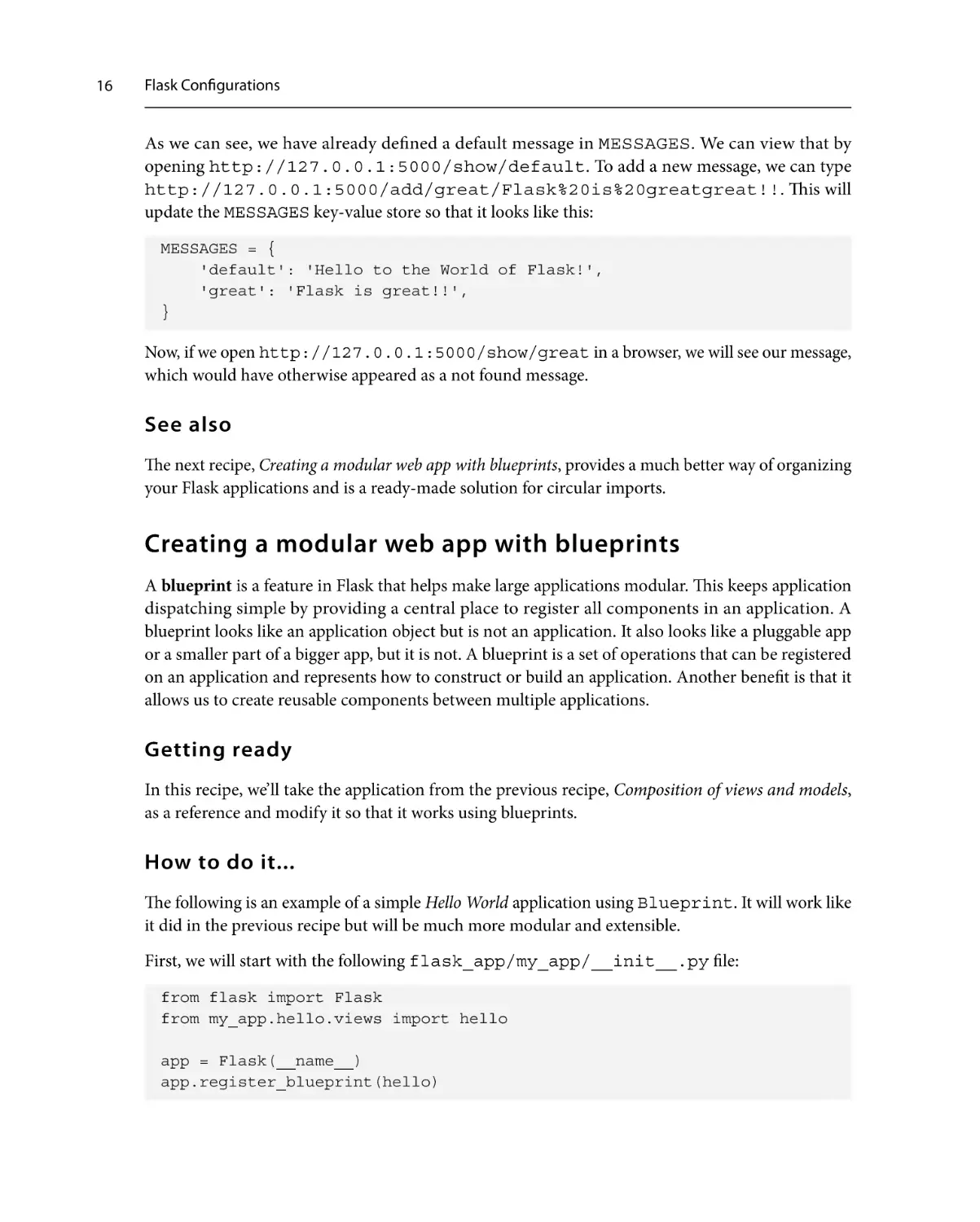
As we can see, we have already defined a default message in MESSAGES. We can view that by
opening http://127.0.0.1:5000/show/default. To add a new message, we can type
http://127.0.0.1:5000/add/great/Flask%20is%20greatgreat!!. This will
update the MESSAGES key-value store so that it looks like this:
MESSAGES = {
'default': 'Hello to the World of Flask!',
'great': 'Flask is great!!',
}
Now, if we open http://127.0.0.1:5000/show/great in a browser, we will see our message,
which would have otherwise appeared as a not found message.
See also
The next recipe, Creating a modular web app with blueprints, provides a much better way of organizing
your Flask applications and is a ready-made solution for circular imports.
Creating a modular web app with blueprints
A blueprint is a feature in Flask that helps make large applications modular. This keeps application
dispatching simple by providing a central place to register all components in an application. A
blueprint looks like an application object but is not an application. It also looks like a pluggable app
or a smaller part of a bigger app, but it is not. A blueprint is a set of operations that can be registered
on an application and represents how to construct or build an application. Another benefit is that it
allows us to create reusable components between multiple applications.
Getting ready
In this recipe, we’ll take the application from the previous recipe, Composition of views and models,
as a reference and modify it so that it works using blueprints.
How to do it...
The following is an example of a simple Hello World application using Blueprint. It will work like
it did in the previous recipe but will be much more modular and extensible.
First, we will start with the following flask_app/my_app/__init__.py file:
from flask import Flask
from my_app.hello.views import hello
app = Flask(__name__)
app.register_blueprint(hello)
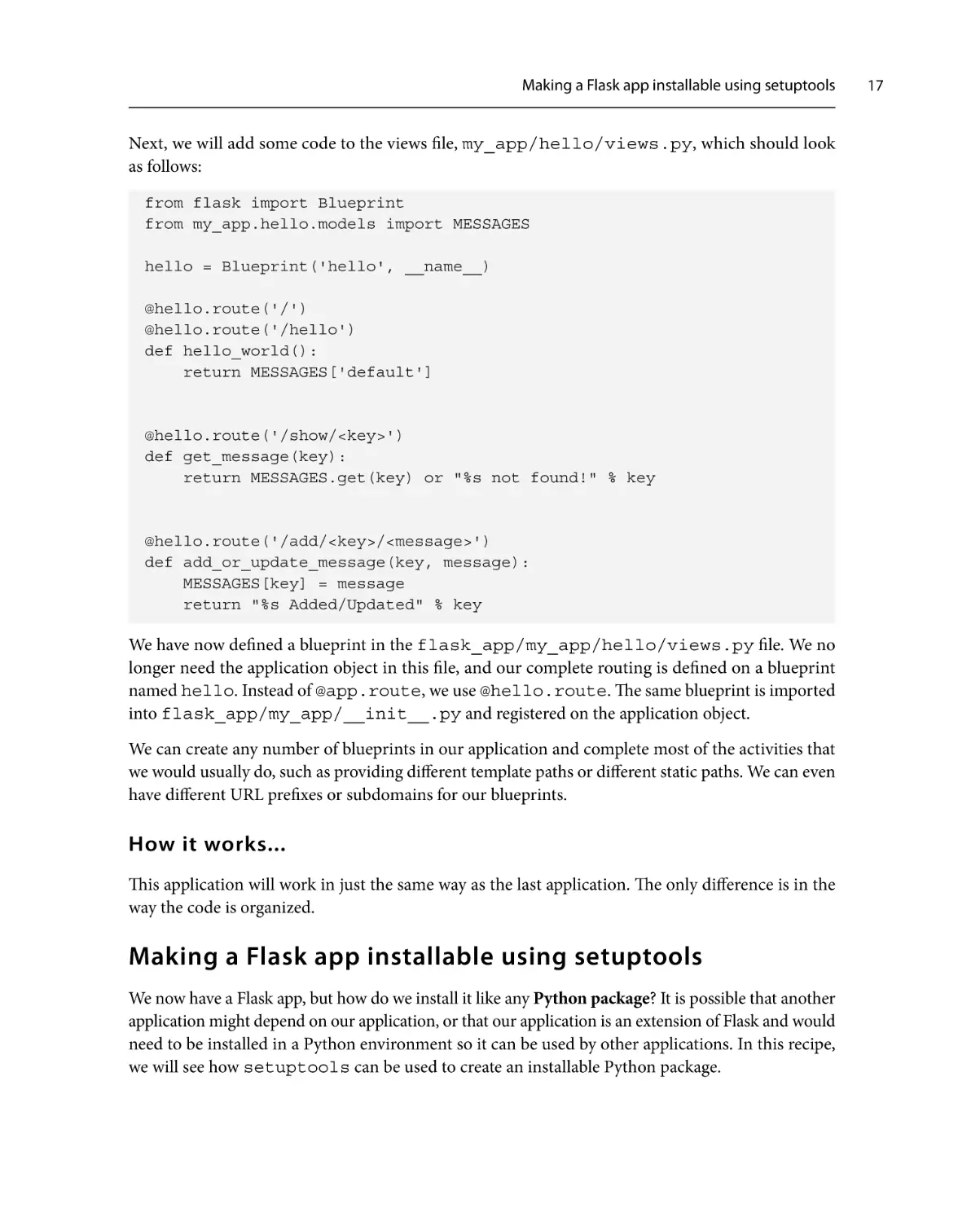
Making a Flask app installable using setuptools
Next, we will add some code to the views file, my_app/hello/views.py, which should look
as follows:
from flask import Blueprint
from my_app.hello.models import MESSAGES
hello = Blueprint('hello', __name__)
@hello.route('/')
@hello.route('/hello')
def hello_world():
return MESSAGES['default']
@hello.route('/show/<key>')
def get_message(key):
return MESSAGES.get(key) or "%s not found!" % key
@hello.route('/add/<key>/<message>')
def add_or_update_message(key, message):
MESSAGES[key] = message
return "%s Added/Updated" % key
We have now defined a blueprint in the flask_app/my_app/hello/views.py file. We no
longer need the application object in this file, and our complete routing is defined on a blueprint
named hello. Instead of @app.route, we use @hello.route. The same blueprint is imported
into flask_app/my_app/__init__.py and registered on the application object.
We can create any number of blueprints in our application and complete most of the activities that
we would usually do, such as providing different template paths or different static paths. We can even
have different URL prefixes or subdomains for our blueprints.
How it works...
This application will work in just the same way as the last application. The only difference is in the
way the code is organized.
Making a Flask app installable using setuptools
We now have a Flask app, but how do we install it like any Python package? It is possible that another
application might depend on our application, or that our application is an extension of Flask and would
need to be installed in a Python environment so it can be used by other applications. In this recipe,
we will see how setuptools can be used to create an installable Python package.
17
18
Flask Configurations
What is a Python package?
A Python package can simply be thought of as a program that can be imported using Python’s
import statement in a virtual environment or globally based on its installation scope.
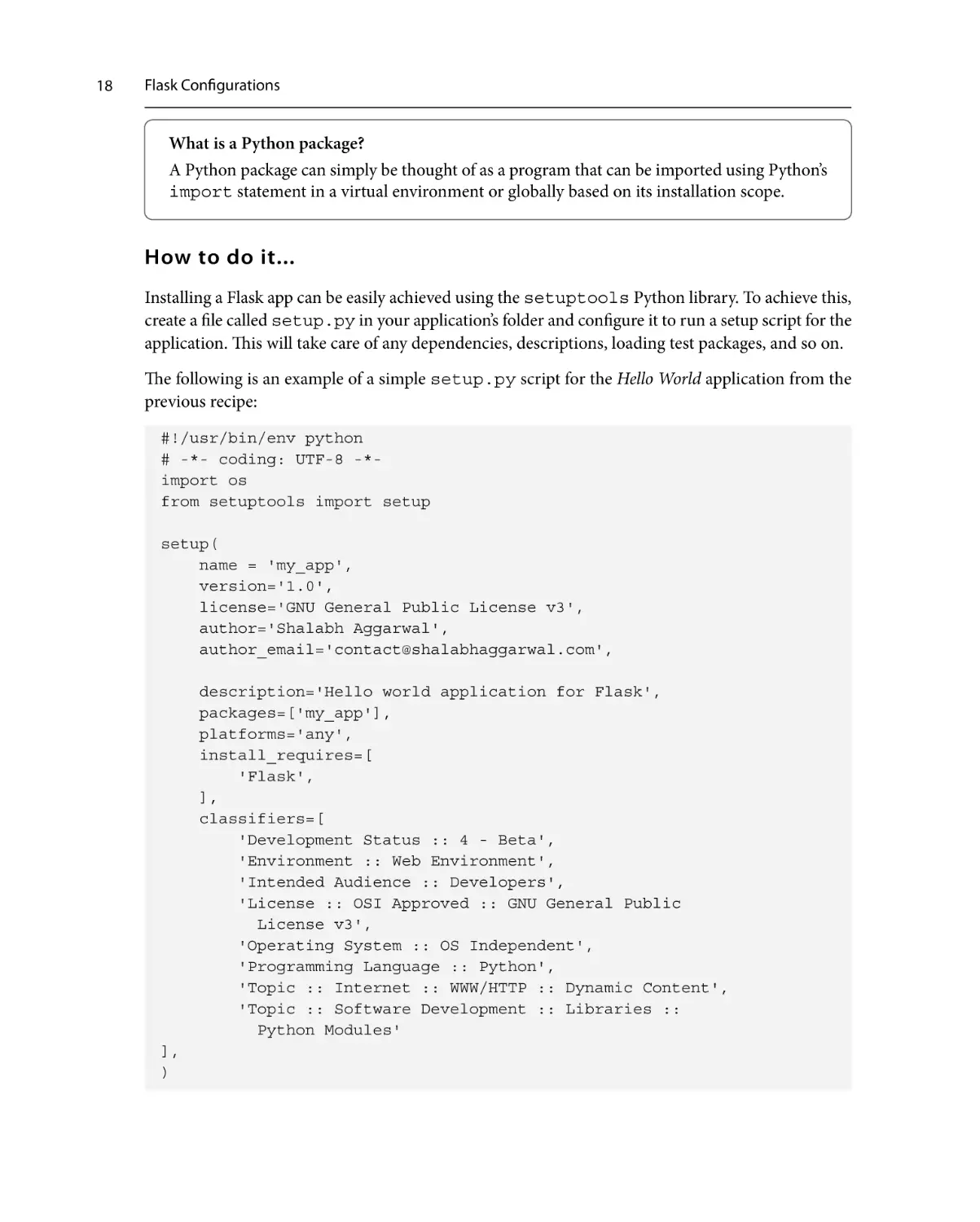
How to do it...
Installing a Flask app can be easily achieved using the setuptools Python library. To achieve this,
create a file called setup.py in your application’s folder and configure it to run a setup script for the
application. This will take care of any dependencies, descriptions, loading test packages, and so on.
The following is an example of a simple setup.py script for the Hello World application from the
previous recipe:
#!/usr/bin/env python
# -*- coding: UTF-8 -*import os
from setuptools import setup
setup(
name = 'my_app',
version='1.0',
license='GNU General Public License v3',
author='Shalabh Aggarwal',
author_email='contact@shalabhaggarwal.com',
description='Hello world application for Flask',
packages=['my_app'],
platforms='any',
install_requires=[
'Flask',
],
classifiers=[
'Development Status :: 4 - Beta',
'Environment :: Web Environment',
'Intended Audience :: Developers',
'License :: OSI Approved :: GNU General Public
License v3',
'Operating System :: OS Independent',
'Programming Language :: Python',
'Topic :: Internet :: WWW/HTTP :: Dynamic Content',
'Topic :: Software Development :: Libraries ::
Python Modules'
],
)
Making a Flask app installable using setuptools
How it works...
In the preceding script, most of the configuration is self-explanatory. The classifiers are used when
the application is made available on PyPI. These will help other users search the application using
the relevant classifiers.
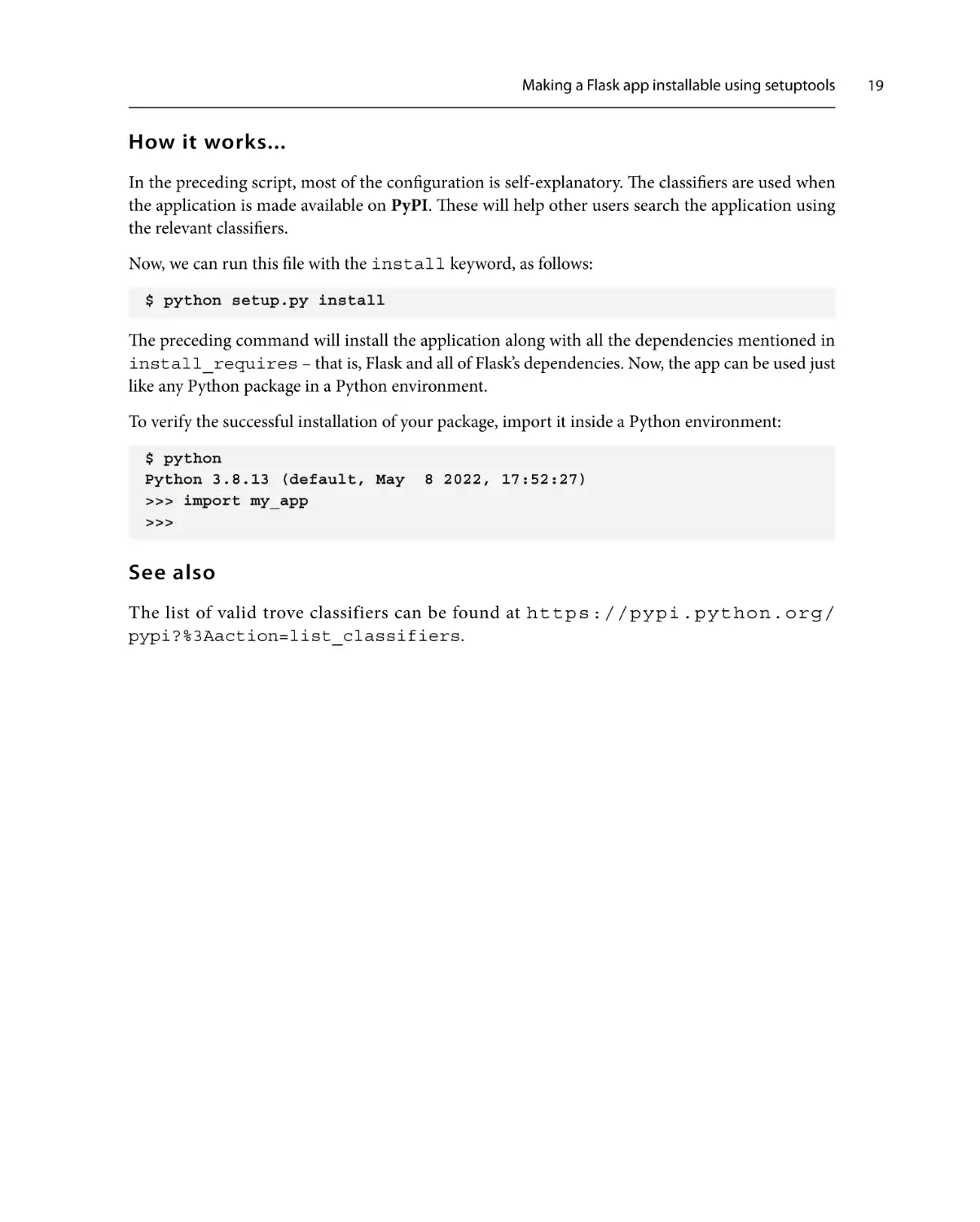
Now, we can run this file with the install keyword, as follows:
$ python setup.py install
The preceding command will install the application along with all the dependencies mentioned in
install_requires – that is, Flask and all of Flask’s dependencies. Now, the app can be used just
like any Python package in a Python environment.
To verify the successful installation of your package, import it inside a Python environment:
$ python
Python 3.8.13 (default, May 8 2022, 17:52:27)
>>> import my_app
>>>
See also
The list of valid trove classifiers can be found at https://pypi.python.org/
pypi?%3Aaction=list_classifiers.
19
2
Templating with Jinja
This chapter will cover the basics of Jinja templating from the perspective of Flask. We will also learn
how to design and develop applications with modular and extensible templates.
Information
If you have followed Flask or Jinja or this book’s previous editions, you might have noticed
that, previously, this templating library was called Jinja2. The latest version of Jinja at the time
of writing is version 3, and the authors/community have decided to call it just Jinja instead of
confusingly continuing with Jinja2, Jinja3, and so on.
In Flask, we can write a complete web application without the need for a third-party templating engine.
For example, have a look at the following code; this is a standalone, simple Hello World application
with a bit of HTML styling included:
from flask import Flask
app = Flask(__name__)
@app.route('/')
@app.route('/hello')
@app.route('/hello/<user>')
def hello_world(user=None):
user = user or 'Shalabh'
return '''
<html>
<head>
<title>Flask Framework Cookbook</title>
</head>
<body>
<h1>Hello %s!</h1>
<p>Welcome to the world of Flask!</p>
</body>
22
Templating with Jinja
</html>''' % user
if __name__ == '__main__':
app.run()
Is the preceding pattern of application writing feasible in the case of large applications that involve
thousands of lines of HTML, JS, and CSS code? In my opinion, no!
Fortunately, templating offers a solution because it allows us to structure our views code by keeping
our templates extensible and separate. Flask provides default support for Jinja, although we can use
any templating engine that suits us. Furthermore, Jinja provides many additional features that make
templates very powerful and modular.
In this chapter, we will cover the following recipes:
• Bootstrapping the standard layout
• Implementing block composition and layout inheritance
• Creating a custom context processor
• Creating a custom Jinja filter
• Creating a custom macro for forms
• Advanced date and time formatting
Technical requirements
Jinja is installed as a part of the standard Flask installation. There is no need to install it separately.
For more details, refer to the Setting up a virtual environment section in Chapter 1.
Bootstrapping the standard layout
Most of the applications in Flask follow a specific pattern of laying out templates. In this recipe, we
will implement the recommended way of structuring the layout of templates in a Flask application.
Getting ready
By default, Flask expects templates to be placed inside a folder named templates at the application
root level. If this folder is present, then Flask will automatically read the contents by making the
contents of this folder available for use with the render_template() method, which we will use
extensively throughout this book.
Bootstrapping the standard layout
How to do it...
Let’s demonstrate this with a small application. This application is very similar to the one we developed
in Chapter 1, Flask Configurations.
The first thing to do is to add a new folder named templates under my_app. The application
structure should look like the following directory structure:
flask_app/
run.py
my_app/
__init__.py
hello/
__init__.py
views.py
templates
We now need to make some changes to the application. The hello_world() method in the views
file, my_app/hello/views.py, should look like the following lines of code:
from flask import render_template, request
@hello.route('/')
@hello.route('/hello')
def hello_world():
user = request.args.get('user', 'Shalabh')
return render_template('index.html', user=user)
In the preceding method, we look for a URL query argument, user. If it is found, we use it, and if
not, we use the default argument, Shalabh. Then, this value is passed to the context of the template
to be rendered – that is, index.html – and the resulting template is rendered.
The my_app/templates/index.html template can simply be the following:
<html>
<head>
<title>Flask Framework Cookbook</title>
</head>
<body>
<h1>Hello {{ user }}!</h1>
<p>Welcome to the world of Flask!</p>
</body>
</html>
23
24
Templating with Jinja
How it works...
Now, if we open the http://127.0.0.1:5000/hello URL in a browser, we should see a
response similar to the one shown in the following screenshot:
Figure 2.1 – The first rendered template
If we pass a URL argument with a value for the user key as http://127.0.0.1:5000/
hello?user=John, we should see the following response:
Figure 2.2 – Serving custom content in the template
As we can see in views.py, the argument passed in the URL is fetched from the request object
using request.args.get('user') and then passed to the context of the template being
rendered, using render_template. The argument is then parsed using the Jinja placeholder, {{
user }}, to fetch the contents from the current value of the user variable from the template context.
This placeholder evaluates all of the expressions placed inside it, depending on the template context.
Information
The Jinja documentation can be found at http://jinja.pocoo.org/. This will come
in handy when writing templates.
Implementing block composition and layout inheritance
Usually, any web application will have a number of web pages that are different from each other.
However, code blocks such as headers and footers will appear the same on almost all pages throughout
the site; likewise, the menu will remain the same. In fact, it is usually just the center container block
that changes. For this, Jinja provides a great way of ensuring inheritance among templates.
With this in mind, it’s a good practice to have a base template where the basic layout of the site, along
with the header and footer, can be structured.
Bootstrapping the standard layout
Getting ready
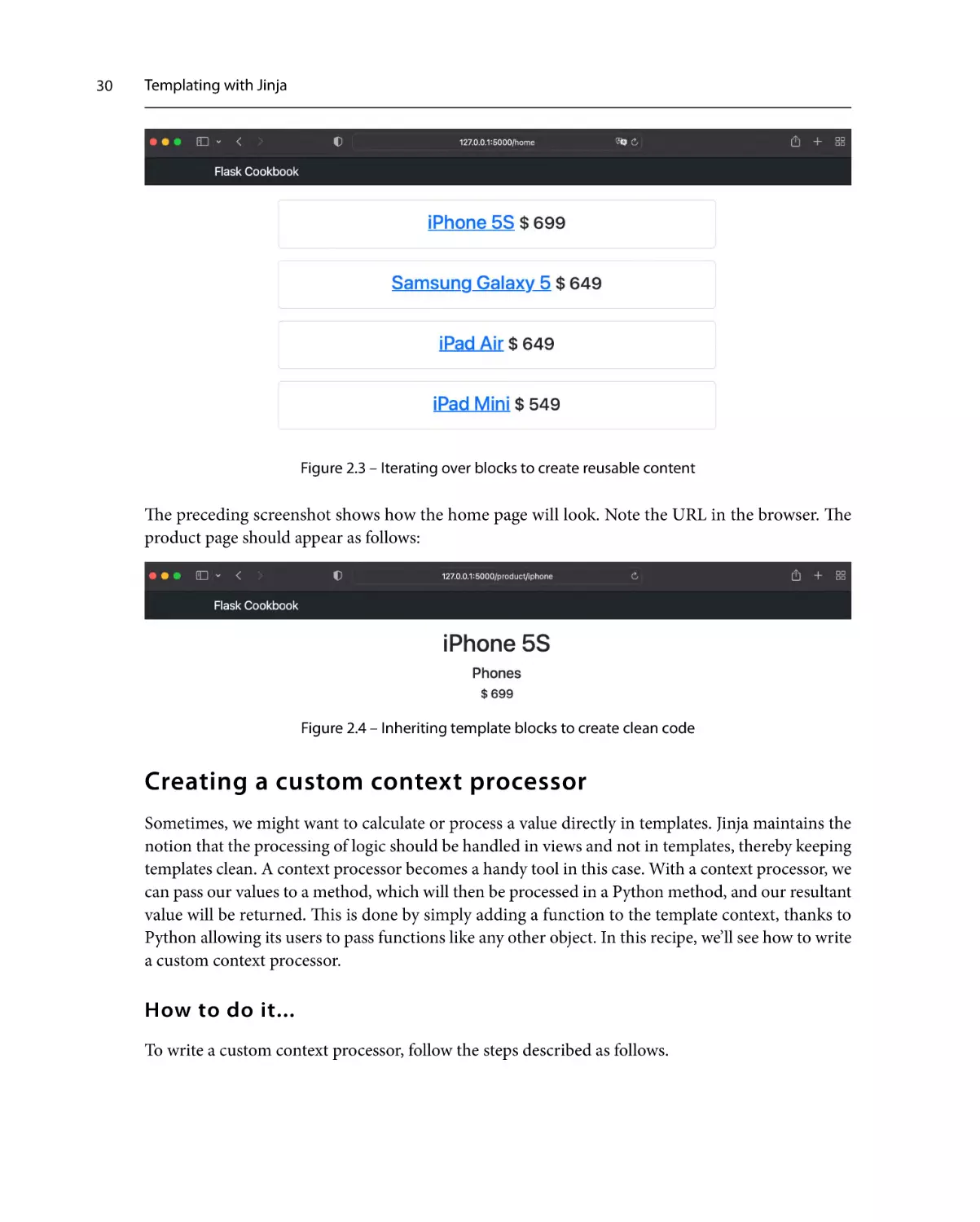
In this recipe, we will create a small application that will have a home page and a product page (such
as the ones we see on e-commerce stores). We will use the Bootstrap framework to give a minimalistic
design and theme to our template. Bootstrap v5 can be downloaded from http://getbootstrap.
com/.
Information
The latest version of Bootstrap at the time of writing is v5. Different versions of Bootstrap might
cause the UI of an application to behave in different ways, but the core essence of Bootstrap
remains the same.
For the sake of simplicity and focus on the topic at hand, we have created a hardcoded data store of a
few products, which can be found in the models.py file. These are imported and read in views.
py and are sent over to the template as template context variables, via the render_template()
method. The rest of the parsing and display is handled by the templating language, which in our case
is Jinja.
How to do it...
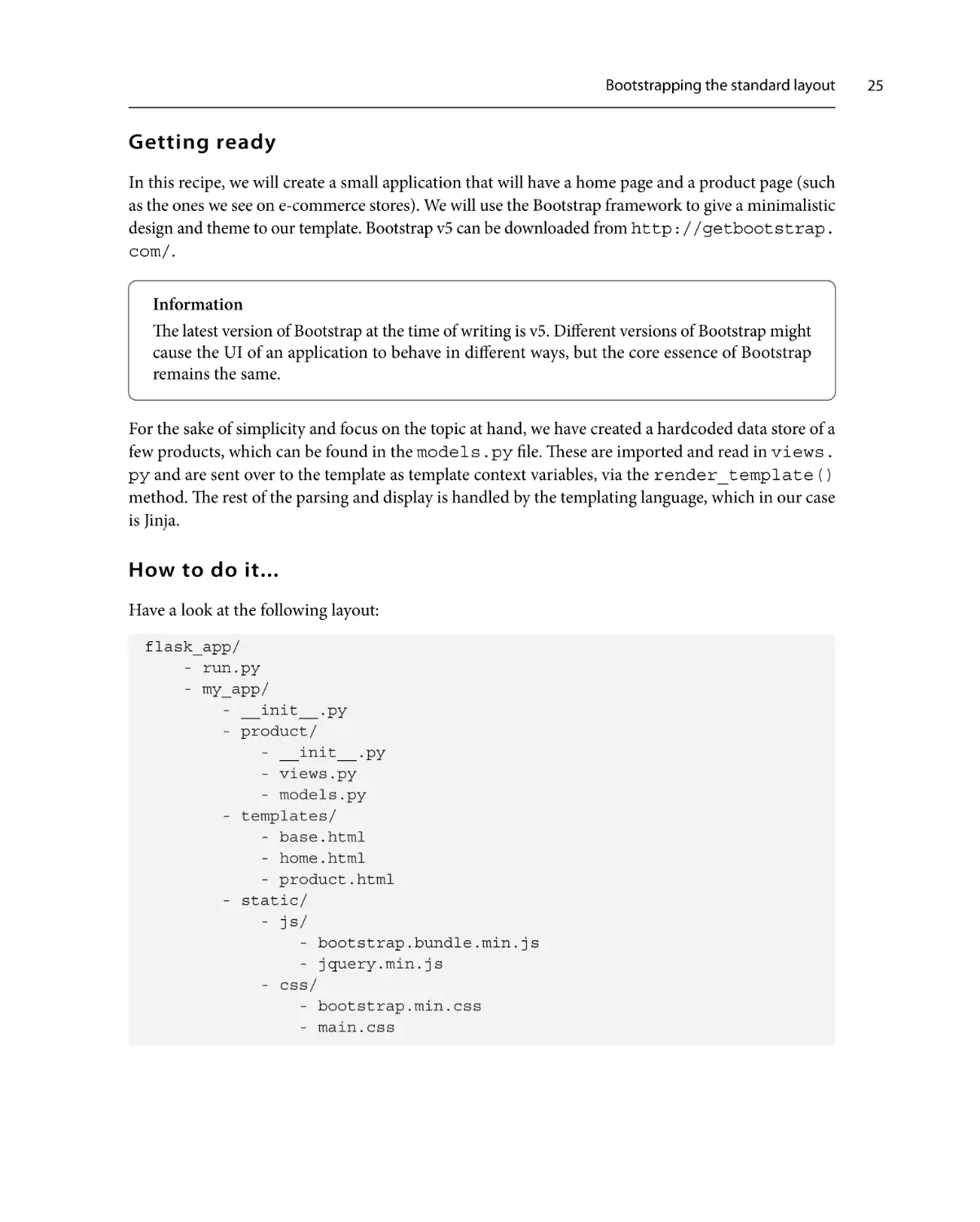
Have a look at the following layout:
flask_app/
- run.py
- my_app/
- __init__.py
- product/
- __init__.py
- views.py
- models.py
- templates/
- base.html
- home.html
- product.html
- static/
- js/
- bootstrap.bundle.min.js
- jquery.min.js
- css/
- bootstrap.min.css
- main.css
25
26
Templating with Jinja
In the preceding layout, static/css/bootstrap.min.css and static/js/bootstrap.
bundle.min.js are standard files that can be downloaded from the Bootstrap website mentioned
in the Getting ready section. The run.py file remains the same, as always. The rest of the applicationbuilding process is as follows.
First, define the models in my_app/product/models.py. In this chapter, we will work on a
simple, non-persistent key-value store. We will start with a few hardcoded product records made well
in advance, as follows:
PRODUCTS = {
'iphone': {
'name': 'iPhone 5S',
'category': 'Phones',
'price': 699,
},
'galaxy': {
'name': 'Samsung Galaxy 5',
'category': 'Phones',
'price': 649,
},
'ipad-air': {
'name': 'iPad Air',
'category': 'Tablets',
'price': 649,
},
'ipad-mini': {
'name': 'iPad Mini',
'category': 'Tablets',
'price': 549
}
}
Next comes the views – that is, my_app/product/views.py. Here, we will follow the blueprint
style to write the application, as follows:
from
from
from
from
werkzeug.exceptions import abort
flask import render_template
flask import Blueprint
my_app.product.models import PRODUCTS
product_blueprint = Blueprint('product', __name__)
@product_blueprint.route('/')
@product_blueprint.route('/home')
def home():
return render_template('home.html', products=PRODUCTS)
Bootstrapping the standard layout
@product_blueprint.route('/product/<key>')
def product(key):
product = PRODUCTS.get(key)
if not product:
abort(404)
return render_template('product.html', product=product)
Information
The abort() method comes in handy when you want to abort a request with a specific error
message. Flask provides basic error message pages, which can be customized as needed. We
will look at them in the Creating custom 404 and 500 handlers recipe in Chapter 4, Working
with Views.
The name of the blueprint (product) that is passed in the Blueprint constructor will be appended
to the endpoints defined in this blueprint. Do have a look at the base.html code for clarity.
Now, create the application’s configuration file, my_app/__init__.py, which should look like
the following lines of code:
from flask import Flask
from my_app.product.views import product_blueprint
app = Flask(__name__)
app.register_blueprint(product_blueprint)
It is always possible to create your own custom CSS, which can add more flavor to the standard CSS
provided by Bootstrap. To do this, add a bit of custom CSS code in my_app/static/css/main.
css, as follows:
body {
padding-top: 50px;
}
.top-pad {
padding: 10px 15px;
text-align: center;
}
When considering templates, it is always a good practice to create a base template to house the common
code that can be inherited by all the other templates. Name this template base.html and place it
in my_app/templates/base.html, as follows:
<!DOCTYPE html>
<html lang="en">
<head>
27
28
Templating with Jinja
<meta charset="utf-8">
<meta http-equiv="X-UA-Compatible" content="IE=edge">
<meta name="viewport" content="width=device-width,
initial-scale=1">
<title>Flask Framework Cookbook</title>
<link href="{{ url_for('static',
filename='css/bootstrap.min.css') }}"
rel="stylesheet">
<link href="{{ url_for('static',
filename='css/main.css') }}" rel="stylesheet">
<script src="{{ url_for('static',
filename='js/moment.min.js') }}"></script>
</head>
<body>
<nav class="navbar navbar-dark bg-dark fixed-top"
role="navigation">
<div class="container">
<div class="navbar-header">
<a class="navbar-brand" href="{{
url_for('product.home') }}">Flask Cookbook</a>
</div>
</nav>
</div>
<div class="container">
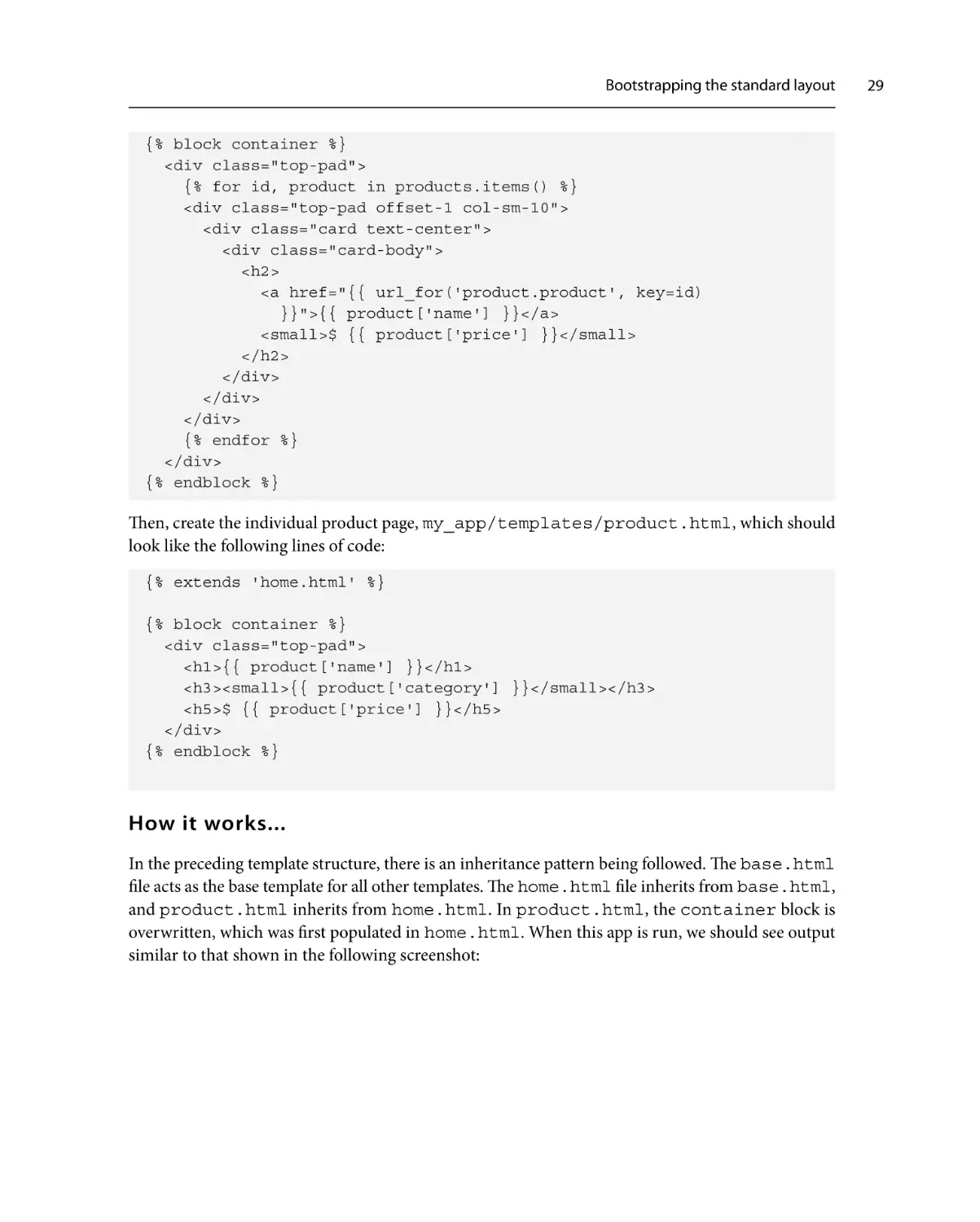
{% block container %}{% endblock %}
</div>
<script src="{{ url_for('static',
filename='js/jquery.min.js') }}"></script>
<script src="{{ url_for('static',
filename='js/bootstrap.bundle.min.js') }}"></script>
</body>
</html>
Most of the preceding code contains normal HTML and Jinja evaluation placeholders, which we
introduced in the previous recipe, Bootstrapping the recommended layout. An important point to
note, however, is how the url_for() method is used for blueprint URLs. The blueprint name is
appended to all endpoints. This becomes very useful when there are multiple blueprints inside one
application, as some of them may have similar-looking URLs.
On the home page, my_app/templates/home.html, iterate over all the products and display
them, as follows:
{% extends 'base.html' %}
Bootstrapping the standard layout
{% block container %}
<div class="top-pad">
{% for id, product in products.items() %}
<div class="top-pad offset-1 col-sm-10">
<div class="card text-center">
<div class="card-body">
<h2>
<a href="{{ url_for('product.product', key=id)
}}">{{ product['name'] }}</a>
<small>$ {{ product['price'] }}</small>
</h2>
</div>
</div>
</div>
{% endfor %}
</div>
{% endblock %}
Then, create the individual product page, my_app/templates/product.html, which should
look like the following lines of code:
{% extends 'home.html' %}
{% block container %}
<div class="top-pad">
<h1>{{ product['name'] }}</h1>
<h3><small>{{ product['category'] }}</small></h3>
<h5>$ {{ product['price'] }}</h5>
</div>
{% endblock %}
How it works...
In the preceding template structure, there is an inheritance pattern being followed. The base.html
file acts as the base template for all other templates. The home.html file inherits from base.html,
and product.html inherits from home.html. In product.html, the container block is
overwritten, which was first populated in home.html. When this app is run, we should see output
similar to that shown in the following screenshot:
29
30
Templating with Jinja
Figure 2.3 – Iterating over blocks to create reusable content
The preceding screenshot shows how the home page will look. Note the URL in the browser. The
product page should appear as follows:
Figure 2.4 – Inheriting template blocks to create clean code
Creating a custom context processor
Sometimes, we might want to calculate or process a value directly in templates. Jinja maintains the
notion that the processing of logic should be handled in views and not in templates, thereby keeping
templates clean. A context processor becomes a handy tool in this case. With a context processor, we
can pass our values to a method, which will then be processed in a Python method, and our resultant
value will be returned. This is done by simply adding a function to the template context, thanks to
Python allowing its users to pass functions like any other object. In this recipe, we’ll see how to write
a custom context processor.
How to do it...
To write a custom context processor, follow the steps described as follows.
Creating a custom context processor
Let’s first display the descriptive name of the product in the Category / Product-name format.
Afterward, add the method to my_app/product/views.py, as follows:
@product_blueprint.context_processor
def some_processor():
def full_name(product):
return '{0} / {1}'.format(product['category'],
product['name'])
return {'full_name': full_name}
A context is simply a dictionary that can be modified to add or remove values. Any method decorated
with @product_blueprint.context_processor should return a dictionary that updates
the actual context. We can use the preceding context processor as follows:
{{ full_name(product) }}
We can add the preceding code to our app for the product listing (in the flask_app/my_app/
templates/product.html file) in the following manner:
{% extends 'home.html' %}
{% block container %}
<div class="top-pad">
<h4>{{ full_name(product) }}</h4>
<h1>{{ product['name'] }}</h1>
<h3><small>{{ product['category'] }}</small></h3>
<h5>$ {{ product['price'] }}</h5>
</div>
{% endblock %}
The resulting parsed HTML page should look like the following screenshot:
Figure 2.5 – A custom context processor for the product name
Information
Have a look at the Implementing block composition and layout inheritance recipe earlier in this
chapter to understand the context of this recipe better regarding the product and category logic.
31
32
Templating with Jinja
Creating a custom Jinja filter
After looking at the previous recipe, experienced developers might wonder why we used a context
processor for the purpose of creating a well-formatted product name. Well, we can also write a filter
for the same purpose, which will make things much cleaner. A filter can be written to display the
descriptive name of a product, as shown in the following example:
@product_blueprint.app_template_filter('full_name')
def full_name_filter(product):
return '{0} / {1}'.format(product['category'],
product['name'])
This can also be used as follows:
{{ product|full_name }}
The preceding code will yield a similar result as in the previous recipe. Moving on, let’s now take things
to a higher level by using external libraries to format currency.
How to do it...
First, let’s create a filter to format a currency based on the current local language. Add the following
code to my_app/__init__.py:
import ccy
from flask import request
@app.template_filter('format_currency')
def format_currency_filter(amount):
currency_code =
ccy.countryccy(request.accept_languages.best[-2:])
return '{0} {1}'.format(currency_code, amount)
Information
request.accept_languages might not work in cases where a request does not have
the ACCEPT-LANGUAGES header.
The preceding snippet will require the installation of a new package, ccy, as follows:
$ pip install ccy
The filter created in this example takes the language that best matches the current browser locale
(which, in my case, is en-US), takes the last two characters from the locale string, and then generates
the currency as per the ISO country code, which is represented by two characters.
Creating a custom macro for forms
Tip
An interesting point to note in this recipe is that the Jinja filter can be created at the blueprint
level as well as at the application level. If the filter is at the blueprint level, the decorator would
be app_template_filter; otherwise, at the application level, the decorator would
be template_filter.
How it works...
The filter can be used in our template for the product as follows:
<h3>{{ product['price']|format_currency }}</h3>
The preceding code will yield the result shown in the following screenshot:
Figure 2.6 – A custom Jinja filter for the display of currency
See also
The Implementing block composition and layout inheritance recipe earlier in this chapter will aid your
understanding of the context of this recipe regarding product and category logic.
Creating a custom macro for forms
Macros allow us to write reusable pieces of HTML blocks. They are analogous to functions in regular
programming languages. We can pass arguments to macros as we do with functions in Python, and
we can then use them to process an HTML block. Macros can be called any number of times, and the
output will vary as per the logic inside them. In this recipe, let’s understand how to write a macro in Jinja.
Getting ready
Macros in Jinja are a very common topic and have a lot of use cases. Here, we will just take a look at
how a macro can be created and then used after importing it.
33
34
Templating with Jinja
How to do it...
One of the most redundant pieces of code in HTML is that which defines input fields in forms. This
is because most fields have similar code with maybe some style modifications.
The following snippet is a macro that creates input fields when invoked. The best practice is to create
the macro in a separate file for better reusability – for example, _helpers.html:
{% macro render_field(name, class='', value='',
type='text') -%}
<input type="{{ type }}" name="{{ name }}" class="{{ class
}}" value="{{ value }}"/>
{%- endmacro %}
Information
The minus sign (-) before and after % will strip the whitespace before and after these blocks,
making the HTML code cleaner to read.
Now, the macro should be imported into the file to be used, as follows:
{% from '_helpers.html' import render_field %}
It can now be called using the following code:
<fieldset>
{{ render_field('username', 'icon-user') }}
{{ render_field('password', 'icon-key', type='password') }}
</fieldset>
It is always good practice to define macros in a different file to keep the code clean and increase
code readability.
Tip
If you need to write a private macro that cannot be accessed from outside its current file, name
the macro with an underscore preceding the name.
Advanced date and time formatting
Date and time formatting is a painful thing to handle in web applications. Such formatting in Python,
using the datetime library, often increases overhead and is pretty complex when it comes to the
correct handling of time zones. It is a best practice to standardize timestamps to UTC when they are
stored in a database, but this means that the timestamp needs to be processed every time it is presented
to users around the world.
Advanced date and time formatting
Instead, it is smarter to defer this processing to the client side – that is, the browser. The browser always
knows the current time zone of its user and will, therefore, be able to manipulate the date and time
information correctly. This approach also reduces any unnecessary overhead from the application
servers. In this recipe, we will understand how to achieve this. We will use Moment.js for this purpose.
Getting ready
Moment.js can be included in our app just like any JS library. We just have to download and place
the JS file, moment.min.js, in the static/js folder. The Moment.js file can be downloaded
from http://momentjs.com/. This file can then be used in an HTML file by adding the following
statement along with other JavaScript libraries:
<script src="{{ url_for('static',
filename='js/moment.min.js') }}"></script>
The basic usage of Moment.js is shown in the following code. This can be done in the browser
console for JavaScript:
>>> moment().calendar(); "Today at 11:09 AM"
>>> moment().endOf('day').fromNow(); "in 13 hours"
>>> moment().format('LLLL'); "Sunday, July 24, 2022 11:10
AM"
How to do it...
To use Moment.js in an application, please follow the required steps.
First, write a wrapper in Python and use it via the Jinja environment variables, as follows:
from markupsafe import Markup
class momentjs(object):
def __init__(self, timestamp):
self.timestamp = timestamp
# Wrapper to call moment.js method
def render(self, format):
return Markup(
"<script>\ndocument
.write(moment(\"%s\").%s);\n</script>" % (
self.timestamp.strftime("%Y-%m-%dT%H:%M:%S"),
format
)
)
35
36
Templating with Jinja
# Format time
def format(self, fmt):
return self.render("format(\"%s\")" % fmt)
def calendar(self):
return self.render("calendar()")
def fromNow(self):
return self.render("fromNow()")
You can add as many Moment.js methods as you want to parse to the preceding class, as and when
they’re needed. Now, in your app.py file, set the following created class to the Jinja environment variables:
# Set jinja template global
app.jinja_env.globals['momentjs'] = momentjs
You can now use the class in templates, as shown in the following example. Make sure that timestamp
is an instance of a JavaScript date object:
<p>Current time: {{ momentjs(timestamp).calendar() }}</p>
<br/>
<p>Time: {{momentjs(timestamp).format('YYYY-MM-DD
HH:mm:ss')}}</p>
<br/>
<p>From now: {{momentjs(timestamp).fromNow()}}</p>
How it works…
The output of the preceding HTML is shown in the following screenshot. Note how the formatting
varies for each statement.
Figure 2.7 – Datetime formatting using momentjs
There’s more…
You can read more about the Moment.js library at http://momentjs.com/.
3
Data Modeling in Flask
This chapter covers one of the most important aspects of any application, which is the interaction
with the database systems. In this chapter, you will see how Flask can connect to database systems,
define models, and query the databases for the retrieval and feeding of data. Flask has been designed
to be flexible enough to support any database. The simplest way would be to use the direct SQLite3
package, which is a DB-API 2.0 interface and does not give an actual object-relational mapping (ORM).
Here, we need to write SQL queries to talk with the database. This approach is not recommended for
large projects, as it can eventually become a nightmare to maintain the application. Also, with this
approach, the models are virtually non-existent and everything happens in the view functions, and
it is not a good practice to write database queries in your view functions.
In this chapter, we will talk about creating an ORM layer for our Flask applications with SQLAlchemy
for relational database systems, which is recommended and widely used for applications of any size.
Also, we will have a glance over how to write a Flask app with a NoSQL database system.
Information
ORM implies how our application’s data models store and deal with data at a conceptual level.
A powerful ORM makes the designing and querying of business logic easy and streamlined.
In this chapter, we will cover the following recipes:
• Creating an SQLAlchemy DB instance
• Creating a basic product model
• Creating a relational category model
• Migrating databases using Alembic and Flask-Migrate
• Indexing model data with Redis
• Opting for the NoSQL way with MongoDB
38
Data Modeling in Flask
Creating an SQLAlchemy DB instance
SQLAlchemy is a Python SQL toolkit and provides ORM, which combines the flexibility and power of
SQL with the feel of Python’s object-oriented nature. In this recipe, we will understand how to create
an SQLAlchemy database instance that can be used to perform any database operation that shall be
covered in future recipes.
Getting ready
Flask-SQLAlchemy
is the extension that provides the SQLAlchemy interface for Flask. This extension
can simply be installed by using pip as follows:
$ pip install flask-sqlalchemy
The first thing to keep in mind with Flask-SQLAlchemy is the application configuration parameter,
which tells SQLAlchemy about the location of the database to be used:
app.config['SQLALCHEMY_DATABASE_URI'] =
os.environ('DATABASE_URI')
SQLALCHEMY_DATABASE_URI is a combination of the database protocol, any authentication needed,
and also the name of the database. In the case of SQLite, this would look something like the following:
sqlite:////tmp/test.db
In the case of PostgreSQL, it would look like the following:
postgresql://yourusername:yourpassword@localhost/yournewdb
This extension then provides a class named Model, which helps define models for our application.
Read more about database URLs at https://docs.sqlalchemy.org/en/14/core/
engines.html#database-urls.
Tip
The SQLite database URI is OS-specific, meaning the URI would be different for Unix/macOS/
Linux and Windows. Please refer to the documentation at https://docs.sqlalchemy.
org/en/14/core/engines.html#sqlite for more details.
Information
For all database systems other than SQLite, separate libraries are needed. For example, for using
PostgreSQL, you need psycopg2.
Creating an SQLAlchemy DB instance
How to do it...
Let’s create a small application in this recipe to understand the basic database connection with Flask.
We will build over this application in the next few recipes. Here, we will just see how to create a db
instance and validate its existence. The file’s structure would look like the following:
flask_catalog/
run.py
my_app/
__init__.py
First, we start with flask_app/run.py. This is the usual run file that we have read about previously
in this book in multiple recipes:
from my_app import app
app.run(debug=True)
Then, we configure our application configuration file, flask_app/my_app/__init__.py:
from flask import Flask
from flask_sqlalchemy import SQLAlchemy
app = Flask(__name__)
app.config['SQLALCHEMY_DATABASE_URI'] =
'sqlite:////tmp/test.db'
db = SQLAlchemy(app)
with app.app_context():
db.create_all()
Here, we first configure our application to point SQLALCHEMY_DATABASE_URI to a specific
location. Then, we create an object of SQLAlchemy with the name db. As the name suggests, this is
the object that will handle all our ORM-related activities. As mentioned earlier, this object has a class
named Model, which provides the base for creating models in Flask. Any class can just subclass or
inherit the Model class to create models, which will act as database tables.
Now, if we open the http://127.0.0.1:5000 URL in a browser, we will see nothing. This is
because we have just configured the database connection for this application and there is nothing to
be seen on the browser. However, you can always head to the location specified in app.config for
the database location to see the newly created test.db file.
There’s more…
Sometimes, you may want a single SQLAlchemy db instance to be used across multiple applications, or
to create an application dynamically. In such cases, it is not preferable to bind the db instance to a single
application. Here, you will have to work with the application context to achieve the desired outcome.
39
40
Data Modeling in Flask
In this case, register the application with SQLAlchemy differently, as follows:
from flask import Flask
from flask_sqlalchemy import SQLAlchemy
db = SQLAlchemy()
def create_app():
app = Flask(__name__)
db.init_app(app)
return app
Tip
The preceding approach can be taken up while initializing the app with any Flask extension
and is very common when dealing with real-life applications.
Now, all the operations that were earlier possible globally with the db instance will require a Flask
application context at all times.
The Flask application context is as follows:
>>>
>>>
>>>
>>>
>>>
from my_app import create_app
app = create_app()
app.test_request_context().push()
# Do whatever needs to be done
app.test_request_context().pop()
Or, you can use context manager, as follows:
with app():
# We have flask application context now till we are inside the with
block
See also
The next couple of recipes will extend the current application to make a complete application, which
will help us to understand the ORM layer better.
Creating a basic product model
In this recipe, we will create an application that will help us to store products to be displayed on the
catalog section of a website. It should be possible to add products to the catalog and then delete them
as and when required. As you saw in the last chapter, this is possible to do using non-persistent storage
as well. Here, however, we will store data in a database to have persistent storage.
Creating a basic product model
How to do it…
The new directory layout would appear as follows:
flask_catalog/
run.py
my_app/
__init__.py
catalog/
__init__.py
views.py
models.py
First of all, start by modifying the application configuration file,
flask_catalog/my_app/__init__.py:
from flask import Flask
from flask_sqlalchemy import SQLAlchemy
app = Flask(__name__)
app.config['SQLALCHEMY_DATABASE_URI'] =
'sqlite:////tmp/test.db'
db = SQLAlchemy(app)
from my_app.catalog.views import catalog
app.register_blueprint(catalog)
with app.app_context():
db.create_all()
The last statement in the file is db.create_all(), which tells the application to create all the tables
in the database specified. So, as soon as the application runs, all the tables will be created if they are
not already there. Since you are not in an application request at this point, create a context manually
using with app.app_context():.
Now is the time to create models that are placed in flask_catalog/my_app/catalog/
models.py:
from my_app import db
class Product(db.Model):
id = db.Column(db.Integer, primary_key=True)
name = db.Column(db.String(255))
price = db.Column(db.Float)
def __init__(self, name, price):
41
42
Data Modeling in Flask
self.name = name
self.price = price
def __repr__(self):
return '<Product %d>' % self.id
In this file, we have created a model named Product, which has three fields, namely id, name, and
price. id is a self-generated field in the database, which will store the ID of the record and is the
primary key. name is a field of the string type, and price is a field of the float type.
Now, add a new file for views, which is lask_catalog/my_app/catalog/views.py. In
this file, we have multiple view methods, which control how we deal with the product model and the
web application in general.
from flask import request, jsonify, Blueprint
from my_app import db
from my_app.catalog.models import Product
catalog = Blueprint('catalog', __name__)
@catalog.route('/')
@catalog.route('/home')
def home():
return "Welcome to the Catalog Home."
The preceding method handles how the home page or the application landing page looks or responds
to users. You would most probably want to use a template for rendering this in your applications. We
will cover this in the next chapter.
Have a look at the following code:
@catalog.route('/product/<id>')
def product(id):
product = Product.query.get_or_404(id)
return 'Product - %s, $%s' % (product.name,
product.price)
The preceding method controls the output to be shown when a user looks for a specific product using
its ID. We filter for the product using the ID and then return its information if a product is found, or
else abort with a 404 error.
Consider the following code:
@catalog.route('/products')
def products():
products = Product.query.all()
res = {}
Creating a basic product model
for product in products:
res[product.id] = {
'name': product.name,
'price': str(product.price)
}
return jsonify(res)
The preceding method returns a list of all products in the database in JSON format. If no product is
found, it simply returns an empty JSON: {}.
Consider the following code:
@catalog.route('/product-create', methods=['POST',])
def create_product():
name = request.form.get('name')
price = request.form.get('price')
product = Product(name, price)
db.session.add(product)
db.session.commit()
return 'Product created.'
The preceding method controls the creation of a product in the database. We first get the information
from the request object and then create a Product instance from this information.
Then, we add this Product instance to the database session and finally, use commit to save the
record to the database.
How it works...
In the beginning, the database is empty and has no products. This can be confirmed by opening
http://127.0.0.1:5000/products in a browser. This would result in an empty JSON
response, or {}.
Now, first, we would want to create a product. For this, we need to send a POST request, which can
easily be sent from the Python prompt using the requests library:
>>> import requests
>>> requests.post('http://127.0.0.1:5000/product-create',
data={'name': 'iPhone 5S', 'price': '549.0'})
To confirm whether the product is now in the database, we can again open http://127.0.0.1:5000/
products in the browser. This time, it will show a JSON dump of the product details, which will
look like this:
{
"1": {
"name": "iPhone 5S",
43
44
Data Modeling in Flask
"price": "549."
}
}
Creating a relational category model
In our previous recipe, we created a simple product model, which had a couple of fields. In practice,
however, applications are much more complex and have various relationships between their tables.
These relationships can be one-to-one, one-to-many, many-to-one, or many-to-many. In this recipe,
we will try to understand some of these relationships with the help of an example.
How to do it...
Let’s say we want to have product categories where each category can have multiple products, but each
product should have only one category. Let’s do this by modifying some files from the application
in the last recipe. We will make modifications to both models and views. In models, we will add a
Category model, and, in views, we will add new methods to handle category-related calls and also
modify the existing methods to accommodate the newly added feature.
First, modify the models.py file to add the Category model and make some modifications to
the Product model:
from my_app import db
class Product(db.Model):
id = db.Column(db.Integer, primary_key=True)
name = db.Column(db.String(255))
price = db.Column(db.Float)
category_id = db.Column(db.Integer,
db.ForeignKey('category.id'))
category = db.relationship(
'Category', backref=db.backref('products',
lazy='dynamic')
)
def __init__(self, name, price, category):
self.name = name
self.price = price
self.category = category
def __repr__(self):
return '<Product %d>' % self.id
Creating a relational category model
In the preceding Product model, check the newly added fields for category_id and category.
category_id is the foreign key to the Category model, and category represents the relationship
table. As evident from the definitions themselves, one of them is a relationship, and the other uses this
relationship to store the foreign key value in the database. This is a simple many-to-one relationship
from product to category. Also, notice the backref argument in the category field; this
argument allows us to access products from the Category model by writing something as simple as
category.products in our views. This acts like a one-to-many relationship from the other end.
Important information
Just adding the field to the model would not get reflected in the database right away. You might
need to drop the whole database and then run the application again or run migrations, which
shall be covered in the next recipe, Migrating databases using Alembic and Flask-Migrate.
For SQLite, you can simply delete the database file that was created while initializing the application.
Create a Category model that has just one field called name:
class Category(db.Model):
id = db.Column(db.Integer, primary_key=True)
name = db.Column(db.String(100))
def __init__(self, name):
self.name = name
def __repr__(self):
return '<Category %d>' % self.id
Now, modify views.py to accommodate the change in the models. Make the first change in the
products() method:
from my_app.catalog.models import Product, Category
@catalog.route('/products')
def products():
products = Product.query.all()
res = {}
for product in products:
res[product.id] = {
'name': product.name,
'price': product.price,
'category': product.category.name
}
return jsonify(res)
45
46
Data Modeling in Flask
Here, we have just one change where we send the category name in the product’s JSON data, which
is being generated to be returned as a response when a request is made to the preceding endpoint.
Change the create_product() method to look for the category before creating the product:
@catalog.route('/product-create', methods=['POST',])
def create_product():
name = request.form.get('name')
price = request.form.get('price')
categ_name = request.form.get('category')
category =
Category.query.filter_by(name=categ_name).first()
if not category:
category = Category(categ_name)
product = Product(name, price, category)
db.session.add(product)
db.session.commit()
return 'Product created.'
Here, we will first search for an existing category with the category name in the request. If an existing
category is found, we will use the same in the product creation; otherwise, we will create a new category.
Create a new method, create_category(), to handle the creation of a category:
@catalog.route('/category-create', methods=['POST',])
def create_category():
name = request.form.get('name')
category = Category(name)
db.session.add(category)
db.session.commit()
return 'Category created.'
The preceding code is a relatively simple method for creating a category using the name provided in
the request.
Create a new method, categories(), to handle the listing of all categories and corresponding products:
@catalog.route('/categories')
def categories():
categories = Category.query.all()
res = {}
for category in categories:
res[category.id] = {
'name': category.name
}
for product in category.products:
res[category.id]['products'] = {
Migrating databases using Alembic and Flask-Migrate
'id': product.id,
'name': product.name,
'price': product.price
}
return jsonify(res)
The preceding method does a bit of tricky stuff. Here, we fetched all the categories from the database
and then, for each category, we fetched all the products and then returned all the data as a JSON dump.
How it works…
This recipe works very similarly to the preceding recipe, Creating a basic product model.
To create a product with a category, make a POST request to the /product-create endpoint:
>>> import requests
>>> requests.post('http://127.0.0.1:5000/product-create',
data={'name': 'iPhone 5S', 'price': '549.0', 'category': 'Phones'})
To view how the data now looks when fetched from the database, open http://127.0.0.1:5000/
categories in your browser:
{
"1": {
"name": "Phones",
"products": {
"id": 1,
"name": "iPhone 5S",
"price": 549.0
}
}
}
See also
Refer to the Creating a basic product model recipe to understand the context of this recipe and how
this recipe works for a browser, given that its workings are very similar to the previous one.
Migrating databases using Alembic and Flask-Migrate
Updating database schema is an important use case for all applications, as it involves adding or removing
tables and/or columns or changing column types. One way is to drop the database and then create
a new one using db.drop_all() and db.create_all(). However, this approach cannot be
followed for applications in production or even in staging. We would like to migrate our database to
match the newly updated model with all the data intact.
47
48
Data Modeling in Flask
For this, we have Alembic, a Python-based tool for managing database migrations, which uses
SQLAlchemy as the underlying engine. Alembic provides automatic migrations to a great extent with
some limitations (of course, we cannot expect any tool to be seamless). As the icing on the cake, we
have a Flask extension called Flask-Migrate, which eases the process of migrations even more. In this
recipe, we will cover the basics of database migration techniques using Alembic and Flask-Migrate.
Getting ready
First of all, run the following command to install Flask-Migrate:
$ pip install Flask-Migrate
This will also install Alembic, among a number of other dependencies.
How to do it...
To enable migrations, we need to modify our app definition a bit. Let’s understand how such a config
appears if we modify the same for our catalog application:
The following lines of code show how my_app/__init__.py appears:
from flask import Flask
from flask_sqlalchemy import SQLAlchemy
from flask_migrate import Migrate
app = Flask(__name__)
app.config['SQLALCHEMY_DATABASE_URI'] =
'sqlite:////tmp/test.db'
db = SQLAlchemy(app)
migrate = Migrate(app, db)
from my_app.catalog.views import catalog
app.register_blueprint(catalog)
with app.app_context():
db.create_all()
If we pass --help to the flask command while running it as a script, the terminal will show all
the available options, as shown in the following screenshot:
Migrating databases using Alembic and Flask-Migrate
Figure 3.1 – Database migration option
To initialize migrations, run the init command:
$ flask db init
Important information
For the migration commands to work, the Flask application should be locatable; otherwise,
you will get the following error:
Error: Could not locate a Flask application. Use the 'flask
--app' option, 'FLASK_APP' environment variable, or a 'wsgi.
py' or 'app.py' file in the current directory.
In our case, simply export the Flask application to the environment variable:
export FLASK_APP="my_app.__init__.py"
Or, simply with the following:
export FLASK_APP=my_app
49
50
Data Modeling in Flask
Once changes are made to the models, call the migrate command:
$ flask db migrate
To make the changes reflect on the database, call the upgrade command:
$ flask db upgrade
How it works...
Now, let’s say we modify the model of our product table to add a new field called
company, as shown here:
class Product(db.Model):
# Same Product model as last recipe
# ...
company = db.Column(db.String(100))
The result of migrate will be something like the following snippet:
$ flask db migrate
INFO [alembic.runtime.migration] Context impl SQLiteImpl.
INFO [alembic.runtime.migration] Will assume non-transactional DDL.
INFO [alembic.autogenerate.compare] Detected added column 'product.
company'
Generating
<path/to/application>/flask_catalog/migrations/versions/2c08f71f9253_.
py
... done
In the preceding code, we can see that Alembic compares the new model with the database table and
detects a newly added column for company in the product table (created by the Product model).
Similarly, the output of upgrade will be something like the following snippet:
$ flask db upgrade
INFO [alembic.runtime.migration] Context impl SQLiteImpl.
INFO [alembic.runtime.migration] Will assume non-transactional DDL.
INFO [alembic.runtime.migration] Running upgrade None ->
2c08f71f9253, empty message
Here, Alembic performs the upgrade of the database for the migration detected earlier. We can see a
hex code in the preceding output. This represents the revision of the migration performed. This is for
internal use by Alembic to track the changes to database tables.
Indexing model data with Redis
See also
Refer to the Creating a basic product model recipe for the context of this recipe around the catalog
models for product.
Indexing model data with Redis
There may be some features we want to implement but do not want to have persistent storage for
them. In such a use case, it is a good approach to have these stored in cache-like storage temporarily
– for example, when we want to show a list of recently viewed products to visitors on a website. In
this recipe, we will understand how to use Redis as an effective cache to store non-persistent data that
can be accessed at a high speed.
Getting ready
We will do this with the help of Redis, which can be installed using the following command:
$ pip install redis
Make sure that you run the Redis server for the connection to happen. To install and run a Redis
server, refer to http://redis.io/topics/quickstart.
Then, we need to have the connection open to Redis. This can be done by adding the following lines
of code to my_app/__init__.py:
from redis import Redis
redis = Redis()
We can do this in our application file, where we will define the app, or in the views file, where we will
use it. It is preferred that you do this in the application file because then, the connection will be open
throughout the application, and the redis object can be used by just importing it where required.
How to do it...
We will maintain a set in Redis, which will store the products visited recently. This will be populated
whenever a product is visited. The entry will expire in 10 minutes. This change goes in views.py:
@catalog.route('/product/<id>')
def product(id):
product = Product.query.get_or_404(id)
product_key = 'product-%s' % product.id
redis.set(product_key, product.name)
redis.expire(product_key, 600)
return 'Product - %s, $%s' % (product.name,
product.price)
51
52
Data Modeling in Flask
In the preceding method, note the set() and expire() methods on the redis object. First, set
the product ID using the product_key value in the Redis store. Then, set the expire time of the
key to 600 seconds.
Tip
It would be a good practice to fetch the expire time – that is, 600 – from a configuration
value. This can be set on the application object in my_app/__init__.py, and can then
be fetched from there.
Now, we will look for the keys that are still alive in the cache and then fetch the products corresponding
to these keys and return them:
@catalog.route('/recent-products')
def recent_products():
keys_alive = redis.keys('product-*')
products = [redis.get(k).decode('utf-8') for k in
keys_alive]
return jsonify({'products': products})
How it works...
An entry is added to the store whenever a user visits a product, and the entry is kept there for 600
seconds (10 minutes). Now, this product will be listed in the recent products list for the next 10 minutes
unless it is visited again, which will reset the time to 10 minutes again.
To test this, add a few products to your database:
>>> requests.post('http://127.0.0.1:5000/product-create',
data={'name': 'iPhone 5S', 'price': '549.0', 'category': 'Phones'})
>>> requests.post('http://127.0.0.1:5000/product-create',
data={'name': 'iPhone 13', 'price': '799.0', 'category': 'Phones'})
>>> requests.post('http://127.0.0.1:5000/product-create',
data={'name': 'iPad Pro', 'price': '999.0', 'category': 'Tablets'})
>>> requests.post('http://127.0.0.1:5000/product-create',
data={'name': 'iPhone 5S', 'price': '549.0', 'category': 'Phones'})
Then, visit some products by simply opening the product URLs in the browser – for example,
http://127.0.0.1:5000/product/1 and http://127.0.0.1:5000/product/3.
Opting for the NoSQL way with MongoDB
Now, open http://127.0.0.1:5000/recent-products in the browser to view the list of
recent products:
{
"products": [
"iPad Pro",
"iPhone 5S"
]
}
Opting for the NoSQL way with MongoDB
Sometimes, the data to be used in the application we are building may not be structured at all; it may
be semi-structured, or there may be some data whose schema changes frequently over time. In such
cases, we would refrain from using an RDBMS, as it adds to the pain and is difficult to scale and
maintain. For such cases, it would be desirable to use a NoSQL database.
Also, as a result of fast and quick development in the currently prevalent development environment,
it is not always possible to design the perfect schema the first time. NoSQL provides the flexibility to
modify the schema without much hassle.
In production environments, the database usually grows to a huge size over a period of time. This
drastically affects the performance of the overall system. Vertical and horizontal scaling techniques
are available, but they can be very costly at times. In such cases, a NoSQL database can be considered,
as it is designed from scratch for similar purposes. The ability of NoSQL databases to run on large
multiple clusters and handle huge volumes of data generated with high velocity makes them a good
choice when looking to handle scaling issues with traditional RDBMSes.
In this recipe, we will use MongoDB to learn how to integrate NoSQL with Flask.
Getting ready
There are many extensions available for using Flask with MongoDB. We will use Flask-MongoEngine,
as it provides a good level of abstraction, which makes it easy to understand. It can be installed using
the following command:
$ pip install flask-mongoengine
Remember to run the MongoDB server for the connection to happen. For more details on installing
and running MongoDB, refer to http://docs.mongodb.org/manual/installation/.
53
54
Data Modeling in Flask
How to do it...
First, manually create a database in MongoDB using the command line. Let’s name this database my_
catalog:
>>> mongosh
Current Mongosh Log ID: 62fa8dtfd435df654150997b
Connecting to: mongodb://127.0.0.1:27017/?directConnection
=true&serverSelectionTimeoutMS=2000&appName=mongosh+1.5.4
Using MongoDB: 6.0.0
Using Mongosh: 1.5.4
test> use my_catalog
switched to db my_catalog
The following is a rewrite of our catalog application using MongoDB. The first change comes to our
configuration file, my_app/__init__.py:
from flask import Flask
from flask_mongoengine import MongoEngine
app = Flask(__name__)
app.config['MONGODB_SETTINGS'] = {'DB': 'my_catalog'}
app.debug = True
db = MongoEngine(app)
from my_app.catalog.views import catalog
app.register_blueprint(catalog)
Information
Note that instead of the usual SQLAlchemy-centric settings, we now have MONGODB_SETTINGS.
Here, we just specify the name of the database to use, which, in our case, is my_catalog.
Next, we will create a Product model using MongoDB fields. This happens as usual in the models
file, my_app/catalog/models.py:
import datetime
from my_app import db
class Product(db.Document):
created_at = db.DateTimeField(
default=datetime.datetime.now, required=True
Opting for the NoSQL way with MongoDB
)
key = db.StringField(max_length=255, required=True)
name = db.StringField(max_length=255, required=True)
price = db.DecimalField()
def __repr__(self):
return '<Product %r>' % self.id
Important information
Now would be a good time to look at the MongoDB fields used to create the preceding model
and their similarity to the SQLAlchemy fields used in the previous recipes. Here, instead of an
ID field, we have a key, which stores the unique identifier that will be used to uniquely identify
a record. Also, note the class that is inherited by Product while creating the model. In the
case of SQLAlchemy, it is db.Model, and in the case of MongoDB, it is db.Document. This
is in accordance with how these database systems work. SQLAlchemy works with conventional
RDBMSes, but MongoDB is a NoSQL document database system.
The following is the views file, namely, my_app/catalog/views.py:
from decimal import Decimal
from flask import request, Blueprint, jsonify
from my_app.catalog.models import Product
catalog = Blueprint('catalog', __name__)
@catalog.route('/')
@catalog.route('/home')
def home():
return "Welcome to the Catalog Home."
@catalog.route('/product/<key>')
def product(key):
product = Product.objects.get_or_404(key=key)
return 'Product - %s, $%s' % (product.name,
product.price)
@catalog.route('/products')
def products():
products = Product.objects.all()
res = {}
for product in products:
res[product.key] = {
'name': product.name,
'price': str(product.price),
55
56
Data Modeling in Flask
}
return jsonify(res)
@catalog.route('/product-create', methods=['POST',])
def create_product():
name = request.form.get('name')
key = request.form.get('key')
price = request.form.get('price')
product = Product(
name=name,
key=key,
price=Decimal(price)
)
product.save()
return 'Product created.'
You will notice that it is very similar to the views created for the SQLAlchemy-based models. There
are just a few differences in the methods that are called from the MongoEngine extension, and these
should be easy to understand.
How it works…
First, add products to the database by using the /product-create endpoint:
>>> res = requests.post('http://127.0.0.1:5000/product-create',
data={'key': 'iphone-5s', 'name': 'iPhone 5S', 'price': '549.0'})
Now, validate the product addition by visiting the http://127.0.0.1:5000/products
endpoint in the browser. The following is the resultant JSON value:
{
"iphone-5s": {
"name": "iPhone 5S",
"price": "549.00"
}
}
See also
Refer to the Creating a basic product model recipe to understand how this application is structured.
4
Working with Views
With any web application, it is very important to control how you interact with web requests and
the proper responses to cater to these requests. This chapter takes us through the various methods of
handling requests properly and designing them in the best way.
Flask offers several ways of designing and laying out URL routing for our applications. Also, it gives
us the flexibility to keep the architecture of our views as just functions or to create classes, which
can be inherited and modified as required. In earlier versions, Flask just had function-based views.
Later, however, in Version 0.7, inspired by Django, Flask introduced the concept of pluggable views,
which allows us to have classes and then write methods in these classes. This also makes the process
of building a RESTful API pretty straightforward, with every HTTP method being handled by the
corresponding class method. Also, we can always go a level deeper into the Werkzeug library and
use the more flexible, but slightly complex, concept of URL maps. In fact, large applications and
frameworks prefer using URL maps.
In this chapter, we will cover the following recipes:
• Writing function-based views and URL routes
• Writing class-based views
• Implementing URL routing and product-based pagination
• Rendering to templates
• Dealing with XHR requests
• Using decorators to handle requests beautifully
• Creating custom 4xx and 5xx error handlers
• Flashing messages for better user feedback
• Implementing SQL-based searching
58
Working with Views
Writing function-based views and URL routes
This is the simplest way of writing views and URL routes in Flask. We can just write a method and
decorate it with the endpoint. In this recipe, we will write a few URL routes for GET and POST requests.
Getting ready
To go through this recipe, we can start with any Flask application. The app can be a new, empty, or
complex app. We just need to understand the methods outlined in this recipe.
How to do it...
The following section explains the three most widely used different kinds of requests, demonstrated
by means of small examples.
A simple GET request
The following is a simple example of what a GET request looks like:
@app.route('/a-get-request')
def get_request():
bar = request.args.get('foo', 'bar')
return 'A simple Flask request where foo is %s' % bar
Here, we just check whether the URL query has an argument called foo. If yes, we display this in the
response; otherwise, the default is bar.
A simple POST request
POST is similar to the GET request, but with a few differences:
@app.route('/a-post-request', methods=['POST'])
def post_request():
bar = request.form.get('foo', 'bar')
return 'A simple Flask request where foo is %s' % bar
The route now contains an extra argument called methods. Also, instead of request.args, we
now use request.form, as POST assumes that the data is submitted in a form.
A simple GET/POST request
An amalgamation of both GET and POST into a single view function can be written as shown here:
@app.route('/a-request', methods=['GET', 'POST'])
def some_request():
if request.method == 'GET':
Writing function-based views and URL routes
bar = request.args.get('foo', 'bar')
else:
bar = request.form.get('foo', 'bar')
return 'A simple Flask request where foo is %s' % bar
How it works...
Let’s try to understand how the preceding play of methods works.
By default, any Flask view function supports only GET requests. In order to support or handle any
other kind of request, we have to specifically tell our route() decorator about the methods we want
to support. This is precisely what we did in our last two methods for POST and GET/POST.
For GET requests, the request object will look for args – that is, request.args.get() – and
for POST, it will look for form – that is, request.form.get().
Also, if we try to make a GET request to a method that supports only POST, the request will fail with
a 405 HTTP error. The same holds true for all the methods. Refer to the following screenshot:
Figure 4.1 – The Method Not Allowed error page
There’s more...
Sometimes, we might want to have a URL map kind of a pattern, where we prefer to define all the
URL rules with endpoints in a single place, rather than them being scattered all around an application.
For this, we will need to define our methods without the route() decorator and define the route
on our application object, as shown here:
def get_request():
bar = request.args.get('foo', 'bar')
return 'A simple Flask request where foo is %s' % bar
app = Flask(__name__)
app.add_url_rule('/a-get-request', view_func=get_request)
Make sure that you give the correct relative path to the method assigned to view_func.
59
60
Working with Views
Writing class-based views
Flask introduced the concept of pluggable views in Version 0.7; this added a lot of flexibility to the
existing implementation. We can write views in the form of classes; these views can be written in a
generic fashion and allow for easy and understandable inheritance. In this recipe, we will look at how
to create such class-based views.
Getting ready
Refer to the previous recipe, Writing function-based views and URL routes, to see the basic functionbased views first.
How to do it...
Flask provides a class named View, which can be inherited to add our custom behavior. The following
is an example of a simple GET request:
from flask.views import View
class GetRequest(View):
def dispatch_request(self):
bar = request.args.get('foo', 'bar')
return 'A simple Flask request where foo is %s' %
bar
app.add_url_rule(
'/a-get-request',
view_func=GetRequest.as_view('get_request')
)
The name of the view provided in as_view (i.e., get_request) signifies the name that will be
used when referring to this endpoint in url_for().
To accommodate both the GET and POST requests, we can write the following code:
class GetPostRequest(View):
methods = ['GET', 'POST']
def dispatch_request(self):
if request.method == 'GET':
bar = request.args.get('foo', 'bar')
if request.method == 'POST':
bar = request.form.get('foo', 'bar')
return 'A simple Flask request where foo is %s' %
bar
Writing class-based views
app.add_url_rule(
'/a-request',
view_func=GetPostRequest.as_view('a_request')
)
How it works...
We know that by default, any Flask view function supports only GET requests. The same applies to
class-based views. In order to support or handle any other kind of request, we have to specifically tell
our class, via a class attribute called methods, about the HTTP methods we want to support. This is
exactly what we did in our last example of GET/POST requests.
For GET requests, the request object will look for args – that is, request.args.get() – and
for POST, it will look for form – that is, request.form.get().
Also, if we try to make a GET request to a method that supports only POST, the request will fail with
a 405 HTTP error. The same holds true for all the methods.
There’s more...
Now, many of you may be considering whether it would be possible to just declare the GET and POST
methods inside a View class and let Flask handle the rest of the stuff. The answer to this question is
MethodView. Let’s write our previous snippet using MethodView:
from flask.views import MethodView
class GetPostRequest(MethodView):
def get(self):
bar = request.args.get('foo', 'bar')
return 'A simple Flask request where foo is %s' %
bar
def post(self):
bar = request.form.get('foo', 'bar')
return 'A simple Flask request where foo is %s' %
bar
app.add_url_rule(
'/a-request',
view_func=GetPostRequest.as_view('a_request')
)
61
62
Working with Views
See also
Refer to the previous recipe, Writing function-based views and URL routes, to understand the contrast
between class- and function-based views.
Implementing URL routing and product-based pagination
At times, we may encounter a problem where there is a need to parse the various parts of a URL
differently. For example, a URL can have an integer part, a string part, a string part of a specific length,
and slashes in the URL. We can parse all these combinations in our URLs using URL converters. In
this recipe, we will see how to do this. Also, we will learn how to implement pagination using the
Flask-SQLAlchemy extension.
Getting ready
We have already seen several instances of basic URL converters in this book. In this recipe, we will
look at some advanced URL converters and learn how to use them.
How to do it...
Let’s say we have a URL route defined as follows:
@app.route('/test/<name>')
def get_name(name):
return name
Here, the URL, http://127.0.0.1:5000/test/Shalabh, will result in Shalabh being
parsed and passed in the name argument of the get_name method. This is a Unicode or string
converter, which is the default one and need not be specified explicitly.
We can also have strings with specific lengths. Let’s say we want to parse a URL that may contain a
country code or currency code. Country codes are usually two characters long, and currency codes
are three characters long. This can be done as follows:
@app.route('/test/<string(minlength=2,maxlength=3):code>')
def get_name(code):
return code
This will match both US and USD in the URL – that is, http://127.0.0.1:5000/test/USD
and http://127.0.0.1:5000/test/US will be treated similarly. We can also match the exact
length using the length parameter instead of minlength and maxlength.
Implementing URL routing and product-based pagination
We can also parse integer values in a similar fashion:
@app.route('/test/<int:age>')
def get_age(age):
return str(age)
We can also specify the minimum and maximum values that can be accepted. For example, to
limit the acceptable age between 18 and 99, the URL can be structured as @app.route('/
test/<int(min=18,max=99):age>'). We can also parse float values using float in place
of int in the preceding example.
Let’s understand the concept of pagination next. In the Creating a basic product model recipe in
Chapter 3, Data Modeling in Flask, we created a handler to list all the products in our database. If we
have thousands of products, then generating a list of all of these products in one go can take a lot of
time. Also, if we have to render these products in a template, then we would not want to show more than
10–20 products on a page in one go. Pagination proves to be a big help in building great applications.
Let’s modify the products() method to list products to support pagination:
@catalog.route('/products')
@catalog.route('/products/<int:page>')
def products(page=1):
products = Product.query.paginate(page, 10).items
res = {}
for product in products:
res[product.id] = {
'name': product.name,
'price': product.price,
'category': product.category.name
}
return jsonify(res)
In the preceding handler, we added a new URL route that adds a page parameter to the URL. Now, the
http://127.0.0.1:5000/products URL will be the same as http://127.0.0.1:5000/
products/1, and both will return a list of the first 10 products from the database. The
http://127.0.0.1:5000/products/2 URL will return the next 10 products, and so on.
Information
The paginate() method takes four arguments and returns an object of the Pagination
class. These four arguments are as follows:
• page: This is the current page to be listed.
• per_page: This is the number of items to be listed per page.
• e
rror_out: If no items are found for the page, then this aborts with a 404 error. To prevent
this behavior, set this parameter to False, and then it will just return an empty list.
• max_per_page: If this value is specified, then per_page will be limited to the same.
63
64
Working with Views
See also
Refer to the Creating a basic product model recipe in Chapter 3, Data Modeling in Flask, to understand
the context of this recipe for pagination, as this recipe builds on top of it.
Rendering to templates
After writing the views, we will surely want to render the content in a template and get information
from the underlying database.
Getting ready
To render templates, we will use Jinja as the templating language. Refer to Chapter 2, Templating
with Jinja2, to understand templating in depth.
How to do it...
We will again work in reference to our existing catalog application from the previous recipe. Let’s
modify our views to render templates and then display data from the database in these templates.
The following is the modified views.py code and the templates. The complete app can be downloaded
from the code bundle provided with this book or from the GitHub repository.
We will start by modifying our views – that is, flask_catalog_template/my_app/catalog/
views.py – to render templates on specific handlers:
from flask import request, Blueprint, render_template
from my_app import db
from my_app.catalog.models import Product, Category
catalog = Blueprint('catalog', __name__)
@catalog.route('/')
@catalog.route('/home')
def home():
return render_template('home.html')
Note the render_template() method. This method will render home.html when the home
handler is called.
The following method handles the rendering of product.html with the product object in the
template context:
@catalog.route('/product/<id>')
def product(id):
Rendering to templates
product = Product.query.get_or_404(id)
return render_template('product.html', product=product)
To get the paginated list of all products, see the following method:
@catalog.route('/products')
@catalog.route('/products/<int:page>')
def products(page=1):
products = Product.query.paginate(page, 10)
return render_template('products.html',
products=products)
Here, the products.html template will be rendered with the list of paginated product objects
in the context.
To render the product template on the creation of a new product, the create_product() method
can be modified, as shown here:
@catalog.route('/product-create', methods=['POST',])
def create_product():
# ...Same code as before ...
return render_template('product.html', product=product)
This can also be done using redirect(), but we will cover this at a later stage. Have a look at the
following code:
@catalog.route('/category-create', methods=['POST',])
def create_category():
# ...Same code as before ...
return render_template('category.html',
category=category)
@catalog.route('/category/<id>')
def category(id):
category = Category.query.get_or_404(id)
return render_template('category.html',
category=category)
@catalog.route('/categories')
def categories():
categories = Category.query.all()
return render_template(
'categories.html', categories=categories)
All three handlers in the preceding code work in a similar way, as discussed earlier when rendering
the product-related templates.
65
66
Working with Views
The following are all the templates created and rendered as part of the application. For more information
on how these templates are written and how they work, refer to Chapter 2, Templating with Jinja2.
The first template file is flask_catalog_template/my_app/templates/base.html,
as follows:
<!DOCTYPE html>
<html lang="en">
<head>
<meta charset="utf-8">
<meta http-equiv="X-UA-Compatible" content="IE=edge">
<meta name="viewport" content="width=device-width,
initial-scale=1">
<title>Flask Framework Cookbook</title>
<link href="{{ url_for('static', filename
='css/bootstrap.min.css') }}" rel="stylesheet">
<link href="{{ url_for('static', filename
='css/main.css') }}" rel="stylesheet">
</head>
<body>
<div class="navbar navbar-inverse navbar-fixed-top"
role="navigation">
<div class="container">
<div class="navbar-header">
<a class="navbar-brand" href="{{ url_for
('catalog.home') }}">Flask Cookbook</a>
</div>
</div>
</div>
<div class="container">
{% block container %}{% endblock %}
</div>
<!-- jQuery (necessary for Bootstrap's JavaScript
plugins) -->
<script src="https://ajax.googleapis.com/ajax/libs
/jquery/2.0.0/jquery.min.js"></script>
<script src="{{ url_for('static', filename
='js/bootstrap.min.js') }}"></script>
</body>
</html>
Rendering to templates
The flask_catalog_template/my_app/templates/home.html file appears as follows:
{% extends 'base.html' %}
{% block container %}
<h1>Welcome to the Catalog Home</h1>
<a href="{{ url_for('catalog.products') }}">Click here to
see the catalog</a>
{% endblock %}
The flask_catalog_template/my_app/templates/product.html file appears as follows:
{% extends 'home.html' %}
{% block container %}
<div class="top-pad">
<h1>{{ product.name }}<small> {{ product.category.name
}}</small></h1>
<h4>{{ product.company }}</h4>
<h3>{{ product.price }}</h3>
</div>
{% endblock %}
The flask_catalog_template/my_app/templates/products.html file appears
as follows:
{% extends 'home.html' %}
{% block container %}
<div class="top-pad">
{% for product in products.items %}
<div class="well">
<h2>
<a href="{{ url_for('catalog.product', id
=product.id) }}">{{ product.name }}</a>
<small>$ {{ product.price }}</small>
</h2>
</div>
{% endfor %}
{% if products.has_prev %}
<a href="{{ url_for(request.endpoint, page
=products.prev_num) }}">
{{"<< Previous Page"}}
</a>
{% else %}
{{"<< Previous Page"}}
67
68
Working with Views
{% endif %} |
{% if products.has_next %}
<a href="{{ url_for(request.endpoint, page
=products.next_num) }}">
{{"Next page >>"}}
</a>
{% else %}
{{"Next page >>"}}
{% endif %}
</div>
{% endblock %}
Note how the URL is being created for the Previous page and Next page links. We are using
request.endpoint so that pagination works for the current URL, which will make the template
reusable with search as well. We will see this later in this chapter.
The flask_catalog_template/my_app/templates/category.html file appears
as follows:
{% extends 'home.html' %}
{% block container %}
<div class="top-pad">
<h2>{{ category.name }}</h2>
<div class="well">
{% for product in category.products %}
<h3>
<a href="{{ url_for('catalog.product', id
=product.id) }}">{{ product.name }}</a>
<small>$ {{ product.price }}</small>
</h3>
{% endfor %}
</div>
</div>
{% endblock %}
The flask_catalog_template/my_app/templates/categories.html file appears
as follows:
{% extends 'home.html' %}
{% block container %}
<div class="top-pad">
{% for category in categories %}
<a href="{{ url_for('catalog.category',
id=category.id) }}">
Dealing with XHR requests
<h2>{{ category.name }}</h2>
</a>
{% endfor %}
</div>
{% endblock %}
How it works...
Our view methods have a render_template method call at the end. This means that following
the successful completion of the method operations, we will render a template with some parameters
added to the context.
Information
Note how pagination has been implemented in the products.html file. It can be improved
further to show the page numbers as well between the two links for navigation. You should
undertake this on your own.
See also
Refer to the Implementing URL routing and product-based pagination recipe to understand pagination
and the remainder of the application used in this recipe.
Dealing with XHR requests
Asynchronous JavaScript, commonly known as Ajax, has become an important part of web applications
over the last decade or so. The built-in XMLHttpRequest (XHR) object in a browser is used to execute
Ajax on web pages. With the advent of single-page applications and JavaScript application frameworks
such as Angular, Vue, and React, this technique of web development has risen exponentially. In this
recipe, we will implement an Ajax request to facilitate asynchronous communication between the
backend and the frontend.
Note
In this book, I am opting to use Ajax to demonstrate async requests because it is simpler to
understand and demonstrate and keeps the focus of the book on Flask. You can choose to use
any JavaScript platform/framework. The Flask code would remain the same, while the JavaScript
code would have to change according to the framework that you used.
69
70
Working with Views
Getting ready
Flask provides an easy way to handle the XHR requests in the view handlers. We can even have common
methods for normal web requests and XHRs. We can just check for the XMLHttpRequest header
in our request object to determine the type of call and act accordingly.
We will update the catalog application from the previous recipe to have a feature to demonstrate
XHR requests.
How to do it...
The Flask request object has a provision to check for the headers sent along with the request from
the browser. We can check the X-Requested-With header for XMLHttpRequest, which tells
us whether the request made is an XHR request or a simple web request. Usually, when we have an
XHR request, the caller expects the result to be in the JSON format, which can then be used to render
content in the correct place on the web page without reloading the page.
So, let’s say we have an Ajax call to fetch the number of products in the database on the home page itself.
One way to fetch the products is to send the count of products along with the render_template()
context. Another way is to send this information over as a response to an Ajax call. We will implement
the latter to see how Flask handles XHR:
from flask import request, render_template, jsonify
@catalog.route('/')
@catalog.route('/home')
def home():
if request.headers.get("X-Requested-With") ==
"XMLHttpRequest":
products = Product.query.all()
return jsonify({
'count': len(products)
})
return render_template('home.html')
In the preceding method, we first checked whether this is an XHR. If it is, we return the JSON data;
otherwise, we just render home.html, as we have done hitherto.
Tip
This design of handling XHR and regular requests together in one method can become a bit
bloated as the application grows in size, and different logic handling has to be executed in the case
of XHR, compared to regular requests. In such cases, these two types of requests can be separated
into different methods, where the handling of XHR is done separately from regular requests. This
can even be extended so that we have different blueprints to make URL handling even cleaner.
Dealing with XHR requests
Next, modify flask_catalog_template/my_app/templates/base.html to a block for
scripts. This empty block, which is shown here, can be placed after the line where the Bootstrap.
js script is included:
{% block scripts %}
{% endblock %}
Next, we have flask_catalog_template/my_app/templates/home.html, where we
send an Ajax call to the home() handler, which checks whether the request is an XHR request. If it
is, it fetches the count of products from the database and returns it as a JSON object. Check the code
inside the scripts block:
{% extends 'base.html' %}
{% block container %}
<h1>Welcome to the Catalog Home</h1>
<a href="{{ url_for('catalog.products') }}"
id="catalog_link">
Click here to see the catalog
</a>
{% endblock %}
{% block scripts %}
<script>
$(document).ready(function(){
$.getJSON("/home", function(data) {
$('#catalog_link').append('<span class="badge">' +
data.count + '</span>');
});
});
</script>
{% endblock %}
How it works...
Now, our home page contains a badge, which shows the number of products in the database. This badge
will load only after the whole page has loaded. The difference in the loading of the badge and the other
content on the page will be notable when the database has a substantially high number of products.
The following is a screenshot that shows what the home page looks like now:
71
72
Working with Views
Figure 4.2 – The home page with the count loaded using AJAX calls
Using decorators to handle requests beautifully
Some of you may believe that checking every time whether a request is XHR, as shown in the last
recipe, kills code readability. To solve this, we have an easy solution. In this recipe, we will write a
simple decorator that can handle this redundant code for us.
Getting ready
In this recipe, we will write a decorator. For some Python beginners, this might seem like alien
territory. If so, read http://legacy.python.org/dev/peps/pep-0318/ for a better
understanding of decorators.
How to do it...
The following is the decorator method that we have written for this recipe:
from functools import wraps
def template_or_json(template=None):
""""Return a dict from your view and this will either
pass it to a template or render json. Use like:
@template_or_json('template.html')
"""
def decorated(f):
@wraps(f)
def decorated_fn(*args, **kwargs):
ctx = f(*args, **kwargs)
if request.headers.get("X-Requested-With") ==
"XMLHttpRequest" or not template:
return jsonify(ctx)
else:
Creating custom 4xx and 5xx error handlers
return render_template(template, **ctx)
return decorated_fn
return decorated
This decorator simply does what we did in the previous recipe to handle XHR – that is, check whether
our request is XHR and, based on the outcome, either render the template or return JSON data.
Now, let’s apply this decorator to our home() method, which handled the XHR call in the last recipe:
@catalog.route('/')
@catalog.route('/home')
@template_or_json('home.html')
def home():
products = Product.query.all()
return {'count': len(products)}
See also
Refer to the Dealing with XHR requests recipe to understand how this recipe changes the coding
pattern. The reference for this recipe comes from http://justindonato.com/notebook/
template-or-json-decorator-for-flask.html.
Creating custom 4xx and 5xx error handlers
Every application throws errors to users at some point in time. These errors can be due to a user typing
a non-existent URL (404), application overload (500), or something forbidden for a certain user to
access (403). A good application handles these errors in a user-interactive way instead of showing
an ugly white page, which makes no sense to most users. Flask provides an easy-to-use decorator to
handle these errors. In this recipe, we will understand how we can leverage this decorator.
Getting ready
The Flask app object has a method called errorhandler(), which enables us to handle our
application’s errors in a much more beautiful and efficient manner.
How to do it...
Create a method that is decorated with errorhandler() and renders the 404.html template
whenever the 404 Not Found error occurs:
@app.errorhandler(404)
def page_not_found(e):
return render_template('404.html'), 404
73
74
Working with Views
The following lines of code represent the flask_catalog_template/my_app/templates/404.
html template, which is rendered if there are any 404 errors:
{% extends 'home.html' %}
{% block container %}
<div class="top-pad">
<h3>Hola Friend! Looks like in your quest you have
reached a location which does not exist yet.</h3>
<h4>To continue, either check your map location (URL)
or go back <a href="{{ url_for('catalog.home')
}}">home</a></h4>
</div>
{% endblock %}
How it works...
So, now, if we open an incorrect URL – for example, http://127.0.0.1:5000/i-am- lost
– then we will get the screen shown in the following screenshot:
Figure 4.3 – A custom error handler page
Similarly, we can add more error handlers for other error codes too.
There’s more...
It is also possible to create custom errors as per application requirements and bind them to error codes
and custom error screens. This can be done as follows:
class MyCustom404(Exception):
pass
@app.errorhandler(MyCustom404)
def special_page_not_found(error):
return render_template("errors/custom_404.html"), 404
Flashing messages for better user feedback
Flashing messages for better user feedback
An important aspect of all good web applications is to give users feedback regarding various activities.
For example, when a user creates a product and is redirected to the newly created product, then it is
good practice to tell them that the product has been created. In this recipe, we will see how flashing
messages can be used as a good feedback mechanism for users.
Getting ready
We will start by adding the flash message functionality to our existing catalog application. We also
have to make sure that we add a secret key to the application because the session depends on it, and
if it’s absent, the application will error out while flashing.
How to do it...
To demonstrate the flashing of messages, we will flash messages upon a product’s creation.
First, we will add a secret key to our app configuration in
flask_catalog_template/my_app__init__.py:
app.secret_key = 'some_random_key'
Now, we will modify our create_product() handler in flask_catalog_template/
my_app/catalog/views.py to flash a message to the user regarding the product’s creation.
Also, another change has been made to this handler; now, it is possible to create the product from a
web interface using a form. This change will make it easier to demonstrate how this recipe would work.
@catalog.route('/product-create', methods=['GET', 'POST'])
def create_product():
if request.method == 'POST':
name = request.form.get('name')
price = request.form.get('price')
categ_name = request.form.get('category')
category = Category.query.filter_by(
name=categ_name).first()
if not category:
category = Category(categ_name)
product = Product(name, price, category)
db.session.add(product)
db.session.commit()
flash('The product %s has been created' % name,
'success')
return redirect(
url_for('catalog.product', id=product.id))
return render_template('product-create.html')
75
76
Working with Views
In the preceding method, we first check whether the request type is POST. If yes, then we proceed
to product creation as always, or render the page with a form to create a new product. Also, note the
flash statement, which will alert a user in the event of the successful creation of a product. The first
argument to flash() is the message to be displayed, and the second is the category of the message.
We can use any suitable identifier in the message category. This can be used later to determine the
type of alert message to be shown.
A new template is added; this holds the code for the product form. The path of the template will
be flask_catalog_template/my_app/templates/product-create.html:
{% extends 'home.html' %}
{% block container %}
<div class="top-pad">
<form
class="form-horizontal"
method="POST"
action="{{ url_for('catalog.create_product') }}"
role="form">
<div class="form-group">
<label for="name" class="col-sm-2 control label">Name</label>
<div class="col-sm-10">
<input type="text" class="form-control" id="name"
name="name">
</div>
</div>
<div class="form-group">
<label for="price" class="col-sm-2 control label">Price</label>
<div class="col-sm-10">
<input type="number" class="form-control"
id="price" name="price">
</div>
</div>
<div class="form-group">
<label for="category" class="col-sm-2 control label">Category</label>
<div class="col-sm-10">
<input type="text" class="form-control"
id="category" name="category">
</div>
</div>
<button type="submit" class="btn
btn-default">Submit</button>
Flashing messages for better user feedback
</form>
</div>
{% endblock %}
We will also modify our base template – that is, flask_catalog_template/my_app/
templates/base.html – to accommodate flashed messages. Just add the following lines of code
inside the <div> container before the container block:
<br/>
<div>
{% for category, message in
get_flashed_messages(with_categories=true) %}
<div class="alert alert-{{category}}
alert-dismissable">
<button type="button" class="close" data-dismiss
="alert" aria-hidden="true">×</button>
{{ message }}
</div>
{% endfor %}
</div>
Information
Note that in the <div> container, we have added a mechanism to show a flashed message that
fetches the flashed messages in the template, using get_flashed_messages().
How it works...
A form like the one shown in the following screenshot will appear upon moving
to http://127.0.0.1:5000/product-create:
Figure 4.4 – Creating a product
77
78
Working with Views
Fill in the form and click on Submit. This will lead to the usual product page with an alert message
at the top:
Figure 4.5 – The flash message on successful product creation
Implementing SQL-based searching
In any web application, it is important to be able to search a database for records based on certain
criteria. In this recipe, we will go through how to implement basic SQL-based searching in SQLAlchemy.
The same principle can be used to search any other database system.
Getting ready
We have implemented some level of search functionality in our catalog application from the beginning.
Whenever we show the product page, we search for a specific product using its ID. We will now take
it to a slightly more advanced level and search on the basis of name and category.
How to do it...
The following is a method that searches in our catalog application for name, price, company, and
category. We can search for any one criterion, or multiple criteria (except for a search by category,
which can only be searched alone). Note that we have different expressions for different values. For
a float value in price, we can search for equality, and in the case of a string, we can search using
like. Also, carefully note how join is implemented in the case of category. Place this method
in the views file – that is, flask_catalog_template/my_app/catalog/views.py:
from sqlalchemy.orm import join
@catalog.route('/product-search')
@catalog.route('/product-search/<int:page>')
Implementing SQL-based searching
def product_search(page=1):
name = request.args.get('name')
price = request.args.get('price')
company = request.args.get('company')
category = request.args.get('category')
products = Product.query
if name:
products = products.filter(Product.name.like('%' +
name + '%'))
if price:
products = products.filter(Product.price == price)
if company:
products = products.filter(Product.company.like('%'
+ company + '%'))
if category:
products = products.select_from(join(Product,
Category)).filter(
Category.name.like('%' + category + '%')
)
return render_template(
'products.html', products=products.paginate(page,
10)
)
How it works...
We can search for products by entering a URL, something like http://127.0.0.1:5000/
product-search?name=iPhone. This will search for products with the name iPhone and list
the results on the products.html template. Similarly, we can search for price and/or company or
category as required. Try various combinations by yourself to aid your understanding.
Information
We have used the same product list page to render our search results. It will be interesting to
implement the search using Ajax. I will leave this to you to implement yourself.
79
Part 2:
Flask Deep Dive
Once the basic Flask web application is built, the next question concerns creating beautiful and reusable
web forms and authentication. The first two chapters in this part focus specifically on these topics.
As a developer, you can always build web forms using plain HTML, but it is usually a cumbersome
task and difficult to maintain consistent reusable components. This is where Jinja helps, with a better
definition of forms and super-easy validations while being extensible and customizable.
Authentication is one of the most important parts of any application, whether web, mobile, or desktop.
Chapter 6 focuses on various techniques of authentication, which range from social to completely
managed in-house.
The next chapter deals with APIs, which are an integral part of any web application, and one of the
major strengths of Flask lies in building APIs in a very clear, concise, and readable format. This is
followed by adding the capability to support multiple languages in your Flask application.
Flask by default does not come with an admin interface as you would find in Django, which is another
popular web framework written in Python. However, it is possible to create a completely custom admin
interface in Flask quickly by leveraging some extensions. The last chapter in this part deals with this subject.
This part of the book comprises the following chapters:
• Chapter 5, Web Forms with WTForms
• Chapter 6, Authenticating in Flask
• Chapter 7, RESTful API Building
• Chapter 8, Internationalization and Localization
• Chapter 9, Admin Interface for Flask Apps
5
Web Forms with WTForms
Form handling is an integral part of any web application. There can be innumerable cases that make
the presence of forms in any web app very important. Some cases may include situations where users
need to log in or submit some data, or where applications might require input from users. As much as
forms are important, their validation holds equal importance, if not more. Presenting this information
to users in an interactive fashion adds a lot of value to the application.
There are various ways in which we can design and implement forms in a web application. As web
applications have matured, form validation and communicating the correct messages to a user have
become very important. Client-side validations can be implemented at the frontend using JavaScript
and HTML5. Server-side validations have a more important role in adding security to an application,
rather than being user-interactive. Server-side validations prevent any incorrect data from going
through to the database and, hence, curb fraud and attacks.
WTForms provides many fields with server-side validation by default and, hence, increases development
speed and decreases the overall effort required. It also provides the flexibility to write custom validations
and custom fields as required.
We will use a Flask extension in this chapter. This extension is called Flask-WTF (https://flaskwtf.readthedocs.io/en/latest/); it provides integration between WTForms and Flask,
taking care of important and trivial stuff that we would have to otherwise reinvent in order to make
our application secure and effective. We can install it using the following command:
$ pip install Flask-WTF
In this chapter, we will cover the following recipes:
• Representing SQLAlchemy model data as a form
• Validating fields on the server side
• Creating a common form set
• Creating custom fields and validations
84
Web Forms with WTForms
• Creating a custom widget
• Uploading files via forms
• Protecting applications from cross-site request forgery (CSRF)
Representing SQLAlchemy model data as a form
First, let’s build a form using a SQLAlchemy model. In this recipe, we will take the product model
from our catalog application used previously in this book and add functionality, creating products
from the frontend using a web form.
Getting ready
We will use our catalog application from Chapter 4, Working with Views, and we will develop a form
for the Product model.
How to do it...
If you recall, the Product model looks like the following lines of code in the models.py file:
class Product(db.Model):
id = db.Column(db.Integer, primary_key=True)
name = db.Column(db.String(255))
price = db.Column(db.Float)
category_id = db.Column(db.Integer,
db.ForeignKey('category.id'))
category = db.relationship(
'Category', backref=db.backref('products',
lazy='dynamic')
)
First, we will create a ProductForm class in models.py; this will subclass the FlaskForm class,
which is provided by flask_wtf, to represent the fields required on a web form:
from wtforms import StringField, DecimalField, SelectField
from flask_wtf import FlaskForm
class ProductForm(FlaskForm):
name = StringField('Name')
price = DecimalField('Price')
category = SelectField('Category', coerce=int)
Representing SQLAlchemy model data as a form
We import FlaskForm from the flask-wtf extension. Everything else, such as fields and
validators, are imported from wtforms directly. The Name field is of the StringField type,
as it requires text data, while Price is of the DecimalField type, which will parse the data to
Python’s Decimal data type. We have kept Category as the SelectField type, which means
that we can choose only from the categories created previously when creating a product.
Information
Note that we have a parameter called coerce in the field definition for Category (which
is a selection list); this means that the incoming data from the HTML form will be coerced
to an integer value prior to validating or any other processing. Here, coercing simply means
converting a value, provided in a specific data type, to a different data type.
The create_product() handler in views.py should now accommodate the form created earlier:
from my_app.catalog.models import ProductForm
@catalog.route('/product-create', methods=['GET', 'POST'])
def create_product():
form = ProductForm(meta={'csrf': False})
categories = [(c.id, c.name) for c in
Category.query.all()]
form.category.choices = categories
if request.method == 'POST':
name = request.form.get('name')
price = request.form.get('price')
category = Category.query.get_or_404(
request.form.get('category')
)
product = Product(name, price, category)
db.session.add(product)
db.session.commit()
flash('The product %s has been created' % name,
'success')
return redirect(url_for('catalog.product',
id=product.id))
return render_template('product-create.html',
form=form)
85
86
Web Forms with WTForms
The create_product() method accepts values from a form on a POST request. This method
will render an empty form with the prefilled choices in the Category field on a GET request. On
the POST request, the form data will be used to create a new product, and when the creation of the
product is completed, the newly created product’s page will be displayed.
Information
Note that while creating the form object as form = ProductForm(meta={'csrf':
False}), we set csrf to False. CSRF is an important part of any secure web application.
We will talk about this in detail in the Protecting applications from CSRF recipe of this chapter.
The templates/product-create.html template also requires some modification. The form
objects created by WTForms provide an easy way to create HTML forms and keep code readable:
{% extends 'home.html' %}
{% block container %}
<div class="top-pad">
<form method="POST" action="{{
url_for('catalog.create_product') }}" role="form">
<div class="form-group">{{ form.name.label }}: {{
form.name() }}</div>
<div class="form-group">{{ form.price.label }}: {{
form.price() }}</div>
<div class="form-group">{{ form.category.label }}: {{
form.category() }}</div>
<button type="submit" class="btn btn default">Submit</button>
</form>
</div>
{% endblock %}
How it works...
On a GET request – that is, upon opening http://127.0.0.1:5000/product-create – we
will see a form similar to the one shown in the following screenshot:
Validating fields on the server side
Figure 5.1 – Product creation form using WTForms
You can fill in this form to create a new product.
See also
Refer to the following Validating fields on the server side recipe to understand how to validate the
fields we just learned to create.
Validating fields on the server side
We have created forms and fields, but we need to validate them in order to make sure that only the
correct data goes through to the database and that errors are handled beforehand, rather than corrupting
the database. These validations can also protect an application against cross-site scripting (XSS) and
CSRF attacks. WTForms provides a whole lot of field types that, themselves, have validations written
for them by default. Apart from these, there are a bunch of validators that can be used based on choice
and need. In this recipe, we will use a few of them to understand the concept.
How to do it...
It is pretty easy to add validations to our WTForm fields. We just need to pass a validators
parameter, which accepts a list of validators to be implemented. Each of the validators can have their
own arguments, which enables us to control the validations to a great extent.
Let’s modify our ProductForm object in the models.py class to have validations:
from decimal import Decimal
class ProductForm(FlaskForm):
name = StringField('Name',
validators=[InputRequired()])
87
88
Web Forms with WTForms
price = DecimalField('Price', validators=[
InputRequired(), NumberRange(min=Decimal('0.0'))
])
category = SelectField(
'Category', validators=[InputRequired()],
coerce=int
)
Here, we have the InputRequired validator on all three fields; this means that these fields are
required, and the form will not be submitted unless we have values for these fields.
The Price field has an additional validator, NumberRange, with a min parameter set to 0.0. This
implies that we cannot have a value of less than 0 as the price of a product. To complement these
changes, we will have to modify our create_product() method in views.py:
@catalog.route('/product-create', methods=['GET', 'POST'])
def create_product():
form = ProductForm(meta={'csrf': False})
categories = [(c.id, c.name) for c in
Category.query.all()]
form.category.choices = categories
if form.validate_on_submit():
name = form.name.data
price = form.price.data
category = Category.query.get_or_404(
form.category.data
)
product = Product(name, price, category)
db.session.add(product)
db.session.commit()
flash('The product %s has been created' % name,
'success')
return redirect(url_for('catalog.product',
id=product.id))
if form.errors:
flash(form.errors, 'danger')
return render_template('product-create.html',
form=form)
Validating fields on the server side
Tip
The flashing of form.errors will just display the errors in the form of a JSON object. This
can be formatted to be shown in a pleasing format to a user. This is left for you to try yourself.
Here, we modified our create_product() method to validate the form for the input value when
submitted. Some of the validations will be translated and applied to the frontend as well, just like the
InputRequired validation will add a required property to the form field’s HTML. On a POST
request, the form data will be validated first. If the validation fails for some reason, the same page will
be rendered again, with error messages flashed on it. If the validation succeeds and the creation of the
product is completed, the newly created product’s page will be displayed.
Note
Note the very convenient validate_on_submit() method. This will automatically check
whether the request is POST and whether it is valid. It is essentially a combination of request.
method == 'POST' and form.validate().
How it works...
Now, try to submit the form without any field filled in – that is, an empty form. An alert message with
an error will be shown as follows:
Figure 5.2 – In-built error handling in WTForms
If you try to submit the form with a negative price value, the flashed error will look something like
the following screenshot:
89
90
Web Forms with WTForms
Figure 5.3 – Custom error handling in WTForms
Try different combinations of form submissions that will violate the defined validators, and note the
different error messages that come up.
See also
Refer to the previous recipe, Representing SQLAlchemy model data as a form, to understand basic
form creation using WTForms.
Creating a common form set
An application can have many forms, depending on the design and purpose. Some of these forms will
have common fields with common validators. You might think, “Why not have common form parts
and then reuse them as and when needed?” In this recipe, we will see that this is certainly possible with
the class structure for forms’ definition provided by WTForms.
How to do it...
In our catalog application, we can have two forms, one each for the Product and Category models.
These forms will have a common field called Name. We can create a common form for this field,
and then the separate forms for the Product and Category models can use this form, instead of
having a Name field in each of them.
This can be implemented as follows in models.py:
class NameForm(FlaskForm):
name = StringField('Name',
validators=[InputRequired()])
Creating a common form set
class ProductForm(NameForm):
price = DecimalField('Price', validators=[
InputRequired(), NumberRange(min=Decimal('0.0'))
])
category = SelectField(
'Category', validators=[InputRequired()],
coerce=int
)
class CategoryForm(NameForm):
pass
We created a common form called NameForm, and the other forms, ProductForm and
CategoryForm, inherit from this form to have a field called Name by default. Then, we can add
more fields as necessary.
We can modify the create_category() method in views.py to use CategoryForm to
create categories:
@catalog.route('/category-create', methods=['GET', 'POST'])
def create_category():
form = CategoryForm(meta={'csrf': False})
if form.validate_on_submit():
name = form.name.data
category = Category(name)
db.session.add(category)
db.session.commit()
flash(
'The category %s has been created' % name,
'success'
)
return redirect(url_for('catalog.category',
id=category.id))
if form.errors:
flash(form.errors)
return render_template('category-create.html',
form=form)
A new template, templates/category-create.html, also needs to be added for category creation:
{% extends 'home.html' %}
{% block container %}
91
92
Web Forms with WTForms
<div class="top-pad">
<form method="POST" action="{{
url_for('catalog.create_category') }}" role="form">
<div class="form-group">{{ form.name.label }}: {{
form.name() }}</div>
<button type="submit" class="btn btn default">Submit</button>
</form>
</div>
{% endblock %}
How it works...
Open the http://127.0.0.1:5000/category-create URL in your browser. The newly
created category form will look like the following screenshot:
Figure 5.4 – A common form used for category creation
Tip
This is a very small example of how a common form set can be implemented. The actual benefits
of this approach can be seen in e-commerce applications, where we can have common address
forms, and then they can be expanded to have separate billing and shipping addresses.
Creating custom fields and validations
Apart from providing a bunch of fields and validations, Flask and WTForms also provide you with
the flexibility to create custom fields and validations. Sometimes, we might need to parse some form
of data that cannot be processed using the available current fields. In such cases, we can implement
our own fields.
Creating custom fields and validations
How to do it...
In our catalog application, we used SelectField for the category, and we populated the values for
this field in our create_product() method on a GET request by querying the Category model.
It would be much more convenient if we did not concern ourselves with this and the population of
this field took care of itself.
Now, let’s implement a custom field to do this in models.py:
class CategoryField(SelectField):
def iter_choices(self):
categories = [(c.id, c.name) for c in
Category.query.all()]
for value, label in categories:
yield (value, label, self.coerce(value) ==
self.data)
def pre_validate(self, form):
for v, _ in [(c.id, c.name) for c in
Category.query.all()]:
if self.data == v:
break
else:
raise ValueError(self.gettext('Not a valid
choice'))
class ProductForm(NameForm):
price = DecimalField('Price', validators=[
InputRequired(), NumberRange(min=Decimal('0.0'))
])
category = CategoryField(
'Category', validators=[InputRequired()],
coerce=int
)
SelectField implements a method called iter_choices(), which populates the values to
the form using the list of values provided to the choices parameter. We overwrite the iter_
choices() method to get the values of categories directly from the database, and this eliminates
the need to populate this field every time we need to use this form.
93
94
Web Forms with WTForms
Information
The behavior created by CategoryField here can also be achieved using QuerySelectField.
Refer to https://wtforms-sqlalchemy.readthedocs.io/en/stable/
wtforms_sqlalchemy/#wtforms_sqlalchemy.fields.QuerySelectField
for more information.
Due to the changes described in this section, our create_product() method in views.py will
have to be modified. For this, just remove the following two statements that populated the categories
in the form:
categories = [(c.id, c.name) for c in Category.query.all()]
form.category.choices = categories
How it works...
There will not be any visual effect on the application. The only change will be in the way the categories
are populated in the form, as explained in the previous section.
There’s more...
We just saw how to write custom fields. Similarly, we can write custom validations, too. Let’s assume
that we do not want to allow duplicate categories. We can implement this in our models easily, but
let’s do this using a custom validator on our form:
def check_duplicate_category(case_sensitive=True):
def _check_duplicate(form, field):
if case_sensitive:
res = Category.query.filter(
Category.name.like('%' + field.data + '%')
).first()
else:
res = Category.query.filter(
Category.name.ilike('%' + field.data + '%')
).first()
if res:
raise ValidationError(
'Category named %s already exists' %
field.data
)
return _check_duplicate
class CategoryForm(NameForm):
name = StringField('Name', validators=[
InputRequired(), check_duplicate_category()
])
Creating a custom widget
So, we created our validator in a factory style, where we can get separate validation results based on
whether we want a case-sensitive comparison. We can even write a class-based design, which makes
the validator much more generic and flexible, but I will leave that for you to explore.
Now, if you try to create a new category with the same name as the one that already exists, the following
error will be shown:
Figure 5.5 – An error on the duplicate category creation
Creating a custom widget
Just like we can create custom fields and validators, we can also create custom widgets. These widgets
allow us to control how our fields will look on the frontend. Each field type has a widget associated with
it, and WTForms, by itself, provides a lot of basic and HTML5 widgets. In this recipe, to understand
how to write a custom widget, we will convert our custom selection field for Category into a radio
field. I agree with those of you who would argue that we can directly use the radio field provided by
WTForms. Here, we are just trying to understand how to do it ourselves.
Information
The widgets provided by default by WTForms can be found at https://wtforms.
readthedocs.io/en/3.0.x/widgets/.
How to do it...
In our previous recipe, we created CategoryField. This field used the Select widget, which was
provided by the Select superclass. Let’s replace the Select widget with a radio input in models.py:
from wtforms.widgets import html_params, Select
from markupsafe import Markup
class CustomCategoryInput(Select):
95
96
Web Forms with WTForms
def __call__(self, field, **kwargs):
kwargs.setdefault('id', field.id)
html = []
for val, label, selected in field.iter_choices():
html.append(
'<input type="radio" %s> %s' % (
html_params(
name=field.name, value=val,
checked=selected, **kwargs
), label
)
)
return Markup(' '.join(html))
class CategoryField(SelectField):
widget = CustomCategoryInput()
# Rest of the code remains same as in last recipe
Creating custom field and validation
Here, we added a class attribute called widget to our CategoryField class. This widget points to
CustomCategoryInput, which takes care of HTML code generation for the field to be rendered.
This class has a __call__() method, which is overwritten to return radio inputs corresponding to
the values provided by the iter_choices() method of CategoryField.
How it works...
When you open the product creation page, http://127.0.0.1:5000/product-create, it
will look like the following screenshot:
Figure 5.6 – A custom widget for category selection
Uploading files via forms
See also
Refer to the previous recipe, Creating custom fields and validation, to understand more about the level
of customization that can be done to the components of WTForms.
Uploading files via forms
Uploading files via forms, and doing it properly, is usually a matter of concern for many web
frameworks. In this recipe, we will see how Flask and WTForms handle this for us in a simple and
streamlined manner.
How to do it...
In this recipe, we will implement a feature to store product images while creating products. First, we
will start with the configuration bit. We need to provide a parameter to our application configuration
– that is, UPLOAD_FOLDER. This parameter tells Flask about the location where our uploaded files
will be stored.
Tip
One way to store product images can be to store images in a binary-type field in our database,
but this method is highly inefficient and never recommended in any application. We should
always store images and other uploads in a filesystem, and store their locations in a database
using a string field.
Add the following statements to the configuration in my_app/__init__.py:
import os
ALLOWED_EXTENSIONS = set(['txt', 'pdf', 'png', 'jpg',
'jpeg', 'gif'])
app.config['UPLOAD_FOLDER'] = os.path.realpath('.') +
'/my_app/static/uploads'
Tip
Note the app.config['UPLOAD_FOLDER'] statement, where we store the images inside
a subfolder in the static folder itself. This will make the process of rendering images easier.
Also, note the ALLOWED_EXTENSIONS statement, which is used to make sure that only files
of a specific format go through. The list here is actually for demonstration purposes only, and for
image types, we can filter this list even more. Make sure the folder path specified in the app.
config['UPLOAD_FOLDER'] statement exists; otherwise, the application will error out.
97
98
Web Forms with WTForms
In the models file – that is, my_app/catalog/models.py – add the following highlighted
statements to their designated places:
from flask_wtf.file import FileField, FileRequired
class Product(db.Model):
image_path = db.Column(db.String(255))
def __init__(self, name, price, category, image_path):
self.image_path = image_path
class ProductForm(NameForm):
image = FileField('Product Image',
validators=[FileRequired()])
Check FileField for image in ProductForm and the field for image_path to the Product
model. Here, the uploaded file will be stored on the filesystem at the path defined in the config, and
the path generated will be stored in the database.
Now, modify the create_product() method to save the file in my_app/catalog/views.py:
import os
from werkzeug.utils import secure_filename
from my_app import ALLOWED_EXTENSIONS
@catalog.route('/product-create', methods=['GET', 'POST'])
def create_product():
form = ProductForm(meta={'csrf': False})
if form.validate_on_submit():
name = form.name.data
price = form.price.data
category = Category.query.get_or_404(
form.category.data
)
image = form.image.data
if allowed_file(image.filename):
filename = secure_filename(image.filename)
image.save(os.path.join(app.config
['UPLOAD_FOLDER'], filename))
product = Product(name, price, category, filename)
db.session.add(product)
db.session.commit()
flash('The product %s has been created' % name,
Uploading files via forms
'success')
return redirect(url_for('catalog.product',
id=product.id))
if form.errors:
flash(form.errors, 'danger')
return render_template('product-create.html',
form=form)
Add the new field to the product create form in template templates/product-create.
html. Modify the form tag definition to include the enctype parameter, and add the field for the
image before the Submit button (or wherever you feel it is necessary inside the form):
<form method="POST"
action="{{ url_for('catalog.create_product') }}"
role="form"
enctype="multipart/form-data">
<!-- The other field definitions as always -->
<div class="form-group">{{ form.image.label }}: {{
form.image(style='display:inline;') }}</div>
<button type="submit" class="btn btn default">Submit</button>
</form>
The form should have the enctype="multipart/form-data" statement to tell the application
that the form input will have multipart data.
Rendering the image is very easy, as we are storing the files in the static folder itself. Just add the
img tag wherever the image needs to be displayed in templates/product.html:
<img src="{{ url_for('static', filename='uploads/' +
product.image_path) }}"/>
How it works...
The field to upload the image will look something like the following screenshot:
99
100
Web Forms with WTForms
Figure 5.7 – Uploading files for the product image
Following the creation of the product, the image will be displayed, as shown in the following screenshot:
Figure 5.8 – The product page with the uploaded file
Protecting applications from CSRF
Protecting applications from CSRF
In the first recipe of this chapter, we learned that CSRF is an important part of web form security. We
will now talk about this in detail. CSRF basically means that someone can hack into the request that
carries a cookie and use this to trigger a destructive action. We won’t be discussing CSRF in detail
here, since ample resources are available on the internet to learn about it. We will talk about how
WTForms helps us to prevent CSRF. Flask does not provide any security against CSRF by default, as
this has to be handled at the form-validation level, which is not a core feature of Flask as a framework.
However, in this recipe, we will see how this can be done for us by using the Flask-WTF extension.
Information
More information about CSRF can be found at https://owasp.org/www-community/
attacks/csrf.
How to do it...
Flask-WTF, by default, provides a form that is CSRF-protected. If we have a look at the recipes so far,
we can see that we have explicitly told our form to not be CSRF-protected. We just have to remove the
corresponding statement to enable CSRF.
So, form = ProductForm(meta={'csrf': False}) will become form = ProductForm().
Some configuration bits also need to be done in our application:
app.config['WTF_CSRF_SECRET_KEY'] = 'random key for form'
By default, the CSRF key is the same as our application’s secret key.
With CSRF enabled, we will have to provide an additional field in our forms; this is a hidden field and
contains the CSRF token. WTForms takes care of the hidden field for us, and we just have to add {{
form.csrf_token }} to our form:
<form method="POST" action="/some-action-like-create product">
{{ form.csrf_token }}
</form>
That was easy! Now, this is not the only type of form submission that we do. We also submit AJAX
form posts; this actually happens a lot more than normal forms since the advent of JavaScript-based
web applications, which are replacing traditional web applications.
101
102
Web Forms with WTForms
For this, we need to include another step in our application’s configuration:
from flask_wtf.csrf import CSRFProtect
#
# Add configurations #
CSRFProtect(app)
The preceding configuration will allow us to access the CSRF token using {{ csrf_token() }}
anywhere in our templates. Now, there are two ways to add a CSRF token to AJAX POST requests.
One way is to fetch the CSRF token in our script tag and use it in the POST request:
<script type="text/javascript">
var csrfToken = "{{ csrf_token() }}";
</script>
Another way is to render the token in a meta tag and use it whenever required:
<meta name="csrf-token" content="{{ csrf_token() }}"/>
The difference between the two approaches is that the first approach may have to be repeated in
multiple places, depending on the number of script tags in the application.
Now, to add the CSRF token to the AJAX POST request, we have to add the X-CSRFToken attribute
to it. This attribute’s value can be taken from either of the two approaches stated here. We will take
the second one for our example:
$.ajaxSetup({
beforeSend: function(xhr, settings) {
if (!/^(GET|HEAD|OPTIONS|TRACE)$/i
.test(settings.type)) {
xhr.setRequestHeader("X-CSRFToken", csrftoken)
}
}
})
This will make sure that a CSRF token is added to all the AJAX POST requests that go out.
Protecting applications from CSRF
How it works...
The following screenshot shows what the CSRF token added by WTForms in our form looks like:
Figure 5.9 – The CSRF token
The token is completely random and different for all the requests. There are multiple ways of implementing
CSRF token generation, but this is beyond the scope of this book, although I encourage you to explore
some alternative implementations on your own to understand how it’s done.
103
6
Authenticating in Flask
Authentication is an important part of any application, be it web-based, desktop, or mobile. Each kind
of application has certain best practices when it comes to handling user authentication. In web-based
applications, especially Software-as-a-Service (SaaS) applications, this process is of utmost importance,
as it acts as the thin red line between the application being secure and insecure.
To keep things simple and flexible, Flask, by default, does not provide any mechanism for
authentication. It always has to be implemented by us, the developers, as per our requirements and
the application’s requirements.
Authenticating users for your application can be done in multiple ways. It can be a simple sessionbased implementation or a more secure approach using the Flask-Login extension. We can
also implement authentication by integrating popular third-party services such as the Lightweight
Directory Access Protocol (LDAP) or social logins such as Facebook, Google, and so on. In this
chapter, we will go through all of these methods.
In this chapter, we will cover the following recipes:
• Creating a simple session-based authentication
• Authenticating using the Flask-Login extension
• Using Facebook for authentication
• Using Google for authentication
• Using Twitter for authentication
• Authenticating with LDAP
Creating a simple session-based authentication
In session-based authentication, when the user logs in for the first time, the user details are set in the
session of the application’s server side and stored in a cookie on the browser.
106
Authenticating in Flask
After that, when the user opens the application, the details stored in the cookie are used to check
against the session, and the user is automatically logged in if the session is alive.
Info
SECRET_KEY is an application configuration setting that should always be specified in your
application’s configuration; otherwise, the data stored in the cookie, as well as the session on
the server side, will be in plain text, which is highly insecure.
We will implement a simple mechanism to do this ourselves.
Tip
The implementation done in this recipe is designed to explain how authentication works at a
lower level. This approach should not be adopted in any production-level application.
Getting ready
We will start with a Flask app configuration, as seen in Chapter 5, Web Forms with WTForms.
How to do it...
Configure the application to use the SQLAlchemy and WTForms extensions (refer to the previous
chapter for details). Follow these steps to understand how:
1.
Before starting with authentication, first, create a model to store the user details. This is achieved
by creating models in flask_authentication/my_app/auth/models.py, as follows:
from werkzeug.security import generate_password_hash, check_
password_hash
from flask_wtf import FlaskForm
from wtforms import StringField, PasswordField
from wtforms.validators import InputRequired, EqualTo
from my_app import db
class User(db.Model):
id = db.Column(db.Integer, primary_key=True)
username = db.Column(db.String(100))
pwdhash = db.Column(db.String())
def __init__(self, username, password):
self.username = username
Creating a simple session-based authentication
self.pwdhash = generate_password_hash(password)
def check_password(self, password):
return check_password_hash(self.pwdhash, password)
The preceding code is the User model, which has two fields: username and pwdhash.
The username field works as its name suggests. The pwdhash field stores the salted hash of
the password because it is not recommended that you store passwords directly in databases.
2.
Then, create two forms in flask_authentication/my_app/auth/models.py – one
for user registration and the other for login. In RegistrationForm, create two fields of the
PasswordField type, just like any other website’s registration; this is to make sure that the
user enters the same password in both fields, as shown in the following snippet:
class RegistrationForm(FlaskForm):
username = StringField('Username', [InputRequired()])
password = PasswordField(
'Password', [
InputRequired(), EqualTo('confirm',
message='Passwords must match')
]
)
confirm = PasswordField('Confirm Password',
[InputRequired()])
class LoginForm(FlaskForm):
username = StringField('Username', [InputRequired()])
password = PasswordField('Password', [InputRequired()])
3.
Next, create views in flask_authentication/my_app/auth/views.py to handle
the user requests for registration and login, as follows:
from flask import request, render_template, flash, redirect,
url_for, session, Blueprint
from my_app import app, db
from my_app.auth.models import User, RegistrationForm, LoginForm
auth = Blueprint('auth', __name__)
@auth.route('/')
@auth.route('/home')
def home():
return render_template('home.html')
@auth.route('/register', methods=['GET', 'POST'])
def register():
if session.get('username'):
107
108
Authenticating in Flask
flash('Your are already logged in.', 'info')
return redirect(url_for('auth.home'))
form = RegistrationForm()
if form.validate_on_submit():
username = request.form.get('username')
password = request.form.get('password')
existing_username = User.query.filter(
User.username.like('%' + username + '%')
).first()
if existing_username:
flash(
'This username has been already taken. Try
another one.',
'warning'
)
return render_template('register.html', form=form)
user = User(username, password)
db.session.add(user)
db.session.commit()
flash('You are now registered. Please login.',
'success')
return redirect(url_for('auth.login'))
if form.errors:
flash(form.errors, 'danger')
return render_template('register.html', form=form)
The preceding method handles user registration. On a GET request, the registration form
is shown to the user; this form asks for the username and password. Then, on a POST
request, the username is checked for its uniqueness after the form validation is complete. If
the username is not unique, the user is asked to choose a new username; otherwise, a new
user is created in the database and redirected to the login page.
After successful registration, the user is redirected to log in, which is handled as shown in the
following code:
@auth.route('/login', methods=['GET', 'POST'])
def login():
form = LoginForm()
if form.validate_on_submit():
username = request.form.get('username')
Creating a simple session-based authentication
password = request.form.get('password')
existing_user = User.query.filter_by(username=username).
first()
if not (existing_user and existing_user.check_
password(password)):
flash('Invalid username or password. Please try again.',
'danger')
return render_template('login.html', form=form)
session['username'] = username
flash('You have successfully logged in.', 'success')
return redirect(url_for('auth.home'))
if form.errors:
flash(form.errors, 'danger')
return render_template('login.html', form=form)
The preceding method handles the user login. After form validation, it first checks whether the
username exists in the database. If not, it asks the user to enter the correct username. Similarly, it
checks whether the password is correct. If not, it asks the user for the correct password. If all the
checks pass, the session is populated with a username key, which holds the username of the user. The
presence of this key on the session indicates that the user is logged in. Consider the following code:
@auth.route('/logout')
def logout():
if 'username' in session:
session.pop('username')
flash('You have successfully logged out.', 'success')
return redirect(url_for('auth.home'))
The preceding method becomes self-implied once we’ve understood the login() method. Here,
we just popped out the username key from the session, and the user got logged out automatically.
Next, create the templates that are rendered by the register() and login() handlers for the
registration and login, respectively, created previously.
The flask_authentication/my_app/templates/base.html template remains almost
the same as it was in Chapter 5, Web Forms with WTForms. The only change will be with the routing,
where catalog will be replaced by auth.
109
110
Authenticating in Flask
First, create a simple home page, flask_authentication/my_app/templates/home.
html, as shown in the following code. This reflects whether the user is logged in or not and also
shows links for registration and login if the user is not logged in:
{% extends 'base.html' %}
{% block container %}
<h1>Welcome to the Authentication Demo</h1>
{% if session.username %}
<h3>Hey {{ session.username }}!!</h3>
<a href="{{ url_for('auth.logout') }}">Click here to logout</a>
{% else %}
Click here to <a href="{{ url_for('auth.login') }}">login</a> or <a
href="{{ url_for('auth.register') }}">register</a>
{% endif %}
{% endblock %}
Now create a registration page, flask_authentication/my_app/templates/register.
html, as follows:
{% extends 'home.html' %}
{% block container %}
<div class="top-pad">
<form
method="POST"
action="{{ url_for('auth.register') }}"
role="form">
{{ form.csrf_token }}
<div class="form-group">{{ form.username.label }}: {{ form.
username() }}</div>
<div class="form-group">{{ form.password.label }}: {{ form.
password() }}</div>
<div class="form-group">{{ form.confirm.label }}: {{ form.
confirm() }}</div>
<button type="submit" class="btn btn-default">Submit</button>
</form>
</div>
{% endblock %}
Finally, create a simple login page, flask_authentication/my_app/templates/login.
html, with the following code:
{% extends 'home.html' %}
{% block container %}
Creating a simple session-based authentication
<div class="top-pad">
<form
method="POST"
action="{{ url_for('auth.login') }}"
role="form">
{{ form.csrf_token }}
<div class="form-group">{{ form.username.label }}: {{ form.
username() }}</div>
<div class="form-group">{{ form.password.label }}: {{ form.
password() }}</div>
<button type="submit" class="btn btn-default">Submit</button>
</form>
</div>
{% endblock %}
How it works...
The working of this application is demonstrated with the help of the screenshots in this section.
The following screenshot displays the home page that comes up on opening http://127.0.0.1:5000/
home:
Figure 6.1 – Home page visible to a user who is not logged in
The registration page that comes up on opening http://127.0.0.1:5000/register looks
like the following screenshot:
111
112
Authenticating in Flask
Figure 6.2 – The registration form
After registration, the login page will be shown on opening http://127.0.0.1:5000/login,
as shown in the following screenshot:
Figure 6.3 – Login page rendered after successful registration
Finally, the home page is shown to the logged-in user at http://127.0.0.1:5000/home, as
shown in the following screenshot:
Figure 6.4 – Home page as shown to a logged-in user
Authenticating using the Flask-Login extension
See also
The next recipe, Authenticating using the Flask-Login extension, will cover a more secure and productionready method of performing user authentication.
Authenticating using the Flask-Login extension
In our previous recipe, we learned how to implement session-based authentication ourselves. FlaskLogin is a popular extension that handles a lot of the same stuff in a helpful and efficient way and
thus saves us from reinventing the wheel all over again. In addition, Flask-Login will not bind us
to any specific database or limit us to using any specific fields or methods for authentication. It can
also handle the Remember me feature, account recovery features, and so on. In this recipe, we will
understand how to use Flask-Login with our application.
Getting ready
Modify the application created in the previous recipe to accommodate the changes to be done by the
Flask-Login extension.
Before that, we have to install the extension itself with the following command:
$ pip install Flask-Login
How to do it...
Follow these steps to understand how Flask-Login can be integrated with a Flask application:
1.
To use Flask-Login, first, modify the application’s configuration, which is in flask_
authentication/my_app/__init__.py, as follows:
from flask_login import LoginManager
#
# Do other application configurations
#
login_manager = LoginManager()
login_manager.init_app(app)
login_manager.login_view = 'auth.login'
In the preceding code snippet, after importing the LoginManager class from the extension, we
created an object of this class. Then, we configured the app object for use with LoginManager
using init_app(). There are then multiple configurations that can be done in the login_
manager object, as and when needed. Here, we have just demonstrated one basic and
compulsory configuration, that is, login_view, which points to the view handler for
113
114
Authenticating in Flask
login requests. In addition, we can also configure messages to be shown to the users, such as
how long a session will last, handling logins using request headers, and so on. Refer to the
Flask-Login documentation at https://flask-login.readthedocs.org/en/
latest/#customizing-the-login-process for more details.
2.
Flask-Login calls for some additional methods to be added to the User model/class in
my_app/auth/models.py, as shown in the following snippet:
@property
def is_authenticated(self):
return True
@property
def is_active(self):
return True
@property
def is_anonymous(self):
return False
def get_id(self):
return str(self.id)
In the preceding code, we added four methods, which are explained as follows:
is_authenticated(): This property returns True. This should return False only
in cases where we do not want a user to be authenticated.
is_active(): This property returns True. This should return False only in cases
where we have blocked or banned a user.
is_anonymous(): This property is used to indicate a user who is not supposed to be
logged in to the system and should access the application as anonymous. This should return
False for regular logged-in users.
get_id(): This method represents the unique ID used to identify the user. This should
be a Unicode value.
Information
It is not necessary to implement all of the methods and properties discussed while implementing
a user class. To make things easier, you can always subclass the UserMixin class from
flask_login, which has default implementations already done for the methods and
properties we mentioned. For more information on this, visit https://flask-login.
readthedocs.io/en/latest/#flask_login.UserMixin.
Authenticating using the Flask-Login extension
3.
Next, make the following changes to the views in my_app/auth/views.py:
from flask import g
from flask_login import current_user, login_user, logout_user, \
login_required
from my_app import login_manager
@login_manager.user_loader
def load_user(id):
return User.query.get(int(id))
@auth.before_request
def get_current_user():
g.user = current_user
In the preceding method, the @auth.before_request decorator implies that the method
will be called before the view function whenever a request is received.
4.
In the following snippet, we have memorized our logged-in user:
@auth.route('/login', methods=['GET', 'POST'])
def login():
if current_user.is_authenticated:
flash('You are already logged in.', 'info')
return redirect(url_for('auth.home'))
form = LoginForm()
if form.validate_on_submit():
username = request.form.get('username')
password = request.form.get('password')
existing_user = User.query.filter_by(username=username).
first()
if not (existing_user and existing_user.check_
password(password)):
flash('Invalid username or password. Please try
again.', 'danger')
return render_template('login.html', form=form)
login_user(existing_user)
flash('You have successfully logged in.', 'success')
return redirect(url_for('auth.home'))
if form.errors:
flash(form.errors, 'danger')
115
116
Authenticating in Flask
return render_template('login.html', form=form)
@auth.route('/logout')
@login_required
def logout():
logout_user()
return redirect(url_for('auth.home'))
Notice that now, in login(), we check whether the current_user is authenticated before
doing anything else. Here, current_user is a proxy that represents the object for the currently
logged-in User record. After all validations and checks are done, the user is then logged in
using the login_user() method. This method accepts the user object and handles all of
the session-related activities required to log in a user.
Now, if we move on to the logout() method, we can see that a decorator has been added for
login_required(). This decorator makes sure that the user is logged in before this method is
executed. It can be used for any view method in our application. To log a user out, we just have to call
logout_user(), which will clean up the session for the currently logged-in user and, in turn, log
the user out of the application.
As we do not handle sessions ourselves, a minor change in the templates is required, as shown in the
following snippet. This happens whenever we want to check whether a user is logged in and whether
particular content needs to be shown to them:
{% if current_user.is_authenticated %}
...do something...
{% endif %}
How it works…
The demonstration in this recipe works exactly as it did in the previous recipe, Creating a simple
session-based authentication. Only the implementation differs, but the end result remains the same.
There’s more…
The Flask-Login extension makes the implementation of the Remember me feature pretty simple.
To do so, just pass remember=True to the login_user() method. This will save a cookie on
the user’s computer, and Flask-Login will use this to log the user in automatically if the session
is active. You should try implementing this on your own.
Using Facebook for authentication
See also
See the previous recipe, Creating a simple session-based authentication, to understand the complete
working of this recipe.
Flask provides a special object called g. You can read more about this at https://flask.
palletsprojects.com/en/2.2.x/api/#flask.g.
Another interesting way of authentication is using JWT tokens, which work in a way that is very similar
to Flask-Login. See more details at https://flask-jwt-extended.readthedocs.
io/en/stable/.
Using Facebook for authentication
You will have noticed that many websites provide an option to log in to their own site using thirdparty authentication, such as Facebook, Google, Twitter, LinkedIn, and so on. This has been made
possible by OAuth 2, which is an open standard for authorization. It allows the client site to use an
access token to access the protected information and resources provided by the resource server. In
this recipe, we will show you how to implement OAuth-based authorization via Facebook. In later
recipes, we will do the same using other providers.
Information
OAuth is a mechanism that allows users to grant websites or applications access to their
information on other websites (such as Google, Facebook, Twitter, etc.) without sharing the
password. It essentially means that the third-party client application (your Flask application)
gets access to data stored on the resource server (Google, Facebook, etc.) by means of an
access token, which is issued by the resource server’s authentication engine on approval of the
resource owner (the user).
Getting ready
OAuth 2 only works with SSL, so the application should run with HTTPS. To do this on a local
machine, please follow these steps:
1.
Install pyopenssl using the $ pip3 install pyopenssl command.
2.
Add additional options to app.run(), including ssl_context with the adhoc value.
The completed app.run should look as follows: app.run(debug=True, ssl_
context='adhoc').
3.
Once these changes have been made, run the application using the URL https://
localhost:5000/. Before the app loads, your browser will display warnings about the
certificate not being safe. Just accept the warning and proceed.
117
118
Authenticating in Flask
Tip
This is not a recommended method. In production systems, SSL certificates should be obtained
from a proper certifying authority.
To install Flask-Dance and generate Facebook credentials, follow these step:.
1.
First, install the Flask-Dance extension and its dependencies with the following command:
$ pip3 install Flask-Dance
2.
Next, register for a Facebook application that will be used for login. Although the process for
registration on the Facebook app is pretty straightforward and self-explanatory, in this case,
we are only concerned with the App ID, App secret, and Site URL options, as shown in the
following screenshot (more information on this can be found on the Facebook developer pages
at https://developers.facebook.com/):
Figure 6.5 – Facebook app credentials
While configuring Facebook, make sure to configure the site URL to https://localhost:5000/
for the purpose of this recipe, and the valid OAuth redirect URIs, as shown in the following screenshots:
Figure 6.6 – Facebook site URL config
Figure 6.7 – Facebook OAuth Redirect URIs config
Using Facebook for authentication
How to do it...
To enable Facebook authentication for your application, follow these steps:
1.
As always, start with the configuration part in my_app/__init__.py. Add the following
lines of code; do not remove or edit anything else unless you are confident of the change:
app.config["FACEBOOK_OAUTH_CLIENT_ID"] = 'my facebook APP ID'
app.config["FACEBOOK_OAUTH_CLIENT_SECRET"] = 'my facebook app
secret'
from my_app.auth.views import facebook_blueprint
app.register_blueprint(auth)
app.register_blueprint(facebook_blueprint)
In the preceding code snippet, we used Flask-Dance with our application for authentication.
This blueprint will be created in the views file, which we will cover next.
2.
Now modify the views, that is, my_app/auth/views.py, as follows:
from flask_dance.contrib.facebook import
make_facebook_blueprint, facebook
facebook_blueprint =
make_facebook_blueprint(scope='email',
redirect_to='auth.facebook_login')
make_facebook_blueprint reads FACEBOOK_OAUTH_CLIENT_ID and FACEBOOK_
OAUTH_CLIENT_SECRET from the application configuration and takes care of all the OAuthrelated handling in the background. While making the Facebook blueprint, we set scope to
email, so that an email address can be used as a unique username. We also set redirect_to
to auth.facebook_login, so Facebook routes the application back to this URL once
authentication succeeds. If this option is not set, the application will be automatically redirected
to the home page, that is, /.
3.
Now, create a new route handler to handle the login using Facebook, as follows:
@auth.route("/facebook-login")
def facebook_login():
if not facebook.authorized:
return redirect(url_for("facebook.login"))
resp = facebook.get("/me?fields=name,email")
user = User.query.filter_by(username
=resp.json()["email"]).first()
if not user:
user = User(resp.json()["email"], '')
119
120
Authenticating in Flask
db.session.add(user)
db.session.commit()
login_user(user)
flash(
'Logged in as name=%s using Facebook login' % (
resp.json()['name']), 'success' )
return redirect(request.args.get('next',
url_for('auth.home')))
This method first checks whether a user is already authorized with Facebook. If not, it redirects
the app to Facebook’s login handler, where the user will need to follow the steps outlined by
Facebook and give the necessary permissions to our application in order to access the requested
user details, as per the settings in make_facebook_blueprint. Once the user is authorized
with Facebook, the method then requests a user’s details, such as their name and email address,
from Facebook. Using these user details, it is determined whether a user already exists with the
email entered or not. If not, a new user is created and logged in; otherwise, the existing user is
directly logged in.
4.
Finally, modify the login.html template to allow for broader social login functionality.
This will act as a placeholder for the Facebook login, as well as a number of alternative social
logins, which we will cover later. The code for the updated login.html template is as follows:
{% extends 'home.html' %}
{% block container %}
<div class="top-pad">
<ul class="nav nav-tabs">
<li class="active"><a href="#simple-form" data toggle="tab">Old Style Login</a></li>
<li><a href="#social-logins" data toggle="tab">Social Logins</a></li>
</ul>
<div class="tab-content">
<div class="tab-pane active" id="simple-form">
<form
method="POST"
action="{{ url_for('auth.login') }}"
role="form">
{{ form.csrf_token }}
<div class="form-group">{{ form.username
.label }}: {{ form.username() }}</div>
<div class="form-group">{{ form.password
.label }}: {{ form.password() }}</div>
<button type="submit" class="btn btn default">Submit</button>
Using Google for authentication
</form>
</div>
<div class="tab-pane" id="social-logins">
<a href="{{ url_for('auth.facebook_login',
next=url_for('auth.home')) }}"
>Login via Facebook</a>
</div>
</div>
</div>
{% endblock %}
In the preceding code, we created a tabbed structure in which the first tab is our conventional
login and the second tab corresponds to social logins.
Currently, there is just one option for Facebook available. More options will be added in upcoming
recipes. Note that the link is currently simple; we can always add styles and buttons as needed later on.
How it works…
The login page has a new tab that provides an option for the user to log in using Social Logins, as
shown in the following screenshot:
Figure 6.8 – Social Logins page
When we click on the Login via Facebook link, the application is taken to Facebook, where the user
will be asked for their login details and permission. Once the permission is granted, the user will be
logged in to the application.
Using Google for authentication
Just like we did for Facebook, we can integrate our application to enable login using Google.
Getting ready
Start by building over the last recipe. It is easy to implement Google authentication by simply leaving
out the Facebook-specific elements as it is.
121
122
Authenticating in Flask
Now, create a new project from the Google developer console (https://console.developers.
google.com). In the APIs and Services section, click on Credentials. Then, create a new client
ID for the web application; this ID will provide the credentials needed for OAuth 2 to work. You will
also need to configure the OAuth consent screen before a client ID can be created, as shown in the
following screenshot:
Figure 6.9 – Google app configuration
How to do it…
To enable Google authentication in your application, follow these steps:
1.
As always, start with the configuration part in my_app/__init__.py, as follows:
app.config["GOOGLE_OAUTH_CLIENT_ID"] = "my Google
OAuth client ID"
app.config["GOOGLE_OAUTH_CLIENT_SECRET"] = "my Google
OAuth client secret"
app.config["OAUTHLIB_RELAX_TOKEN_SCOPE"] = True
from my_app.auth.views import auth,
facebook_blueprint, google_blueprint
app.register_blueprint(google_blueprint)
Using Google for authentication
In the preceding code snippet, we registered the Google blueprint provided by Flask-Dance
with our application for authentication. This blueprint will be created in the views file, which
we will take a look at next. Note the additional configuration option, OAUTHLIB_RELAX_
TOKEN_SCOPE. This is suggested for use when implementing Google authentication because
Google tends to provide data that sometimes diverges from the scope mentioned.
2.
Next, modify the views, that is, my_app/auth/views.py, as follows:
from flask_dance.contrib.google import
make_google_blueprint, google
google_blueprint = make_google_blueprint(
scope=[
"openid",
"https://www.googleapis.com
/auth/userinfo.email",
"https://www.googleapis.com
/auth/userinfo.profile"],
redirect_to='auth.google_login')
In the preceding code snippet, make_google_blueprint reads GOOGLE_OAUTH_CLIENT_
ID and GOOGLE_OAUTH_CLIENT_SECRET from the application configuration and takes care
of all the OAuth-related handling in the background. While making the Google blueprint, we
set scope to openid, https://www.googleapis.com/auth/userinfo.email,
and https://www.googleapis.com/auth/userinfo.profile, because we want
to use a user’s email address as their unique username and display name after login. openid
is required in scope because Google prefers it.
We also set redirect_to to auth.google_login so Google is able to route the application
back to this URL after authentication has succeeded. If this option is not set, the application
will be automatically redirected to the home page, that is, /.
3.
Next, create a new route handler that handles the login using Google with the following code:
@auth.route("/google-login")
def google_login():
if not google.authorized:
return redirect(url_for("google.login"))
resp = google.get("/oauth2/v1/userinfo")
user = User.query.filter_by(username=resp.json()
["email"]).first()
if not user:
user = User(resp.json()["email"], '')
db.session.add(user)
123
124
Authenticating in Flask
db.session.commit()
login_user(user)
flash(
'Logged in as name=%s using Google login' % (
resp.json()['name']), 'success' )
return redirect(request.args.get('next',
url_for('auth.home')))
Here, the method first checks whether the user is already authorized with Google. If not, it
redirects the app to the Google login handler, where the user will need to follow the steps outlined
by Google and give permission to our application so it can access the requested user details.
Once the user is authorized with Google, the method requests the user’s details, including their
name and email address, from Google. Using these user details, it is determined whether a user
already exists with this email or not. If not, a new user is created and logged in; otherwise, the
existing user is directly logged in.
4.
Finally, modify the login template, login.html, to allow the Google login. Add the following
line inside the social-logins tab:
<a href="{{ url_for('auth.google_login',
next=url_for('auth.home'))
}}">Login via Google</a>
How it works…
The Google login works in a manner similar to the Facebook login from the previous recipe.
Using Twitter for authentication
OAuth was actually born while writing the OpenID API for Twitter. In this recipe, we will integrate
Twitter login with our application.
Getting ready
We will continue by building over the Using Google for authentication recipe. It is easy to implement
Twitter authentication – simply leave out the Facebook or Google-specific parts from the previous
authentication recipes.
First, we have to create an application from the Twitter Application Management page (https://
developer.twitter.com/en/portal/dashboard). It will automatically create consumer
API keys (API Key and API Key Secret) for us to use, as shown in the following screenshot:
Using Twitter for authentication
Figure 6.10 – Twitter app configuration
How to do it...
To enable Twitter authentication for your application, follow these steps:
1.
First, start with the configuration part in my_app/__init__.py, as follows:
app.config["TWITTER_OAUTH_CLIENT_KEY"] = "my Twitter
app ID"
app.config["TWITTER_OAUTH_CLIENT_SECRET"] = "my
Twitter app secret"
from my_app.auth.views import twitter_blueprint
app.register_blueprint(twitter_blueprint)
In the preceding code snippet, we registered the Twitter blueprint provided by Flask-Dance
with our application for authentication. This blueprint will be created in the views file, which
we will take a look at next.
2.
Next, modify the views, that is, my_app/auth/views.py, as follows:
from flask_dance.contrib.twitter import
make_twitter_blueprint, twitter
twitter_blueprint = make_twitter_blueprint
(redirect_to='auth.twitter_login')
125
126
Authenticating in Flask
In the preceding code, make_twitter_blueprint reads TWITTER_OAUTH_CLIENT_
KEY and TWITTER_OAUTH_CLIENT_SECRET from the application configuration and takes
care of all the OAuth-related handling in the background. There is no need to set scope, as
we did during Facebook and Google authentication, as this recipe will use a Twitter handle as
the username, which is provided by default.
We also set redirect_to to auth.twitter_login so that Twitter can route the
application back to this URL after authentication has succeeded. If this option is not set, the
application will be automatically redirected to the home page, that is, /.
3.
Next, create a new route handler that handles the login using Twitter, as follows:
@auth.route("/twitter-login")
def twitter_login():
if not twitter.authorized:
return redirect(url_for("twitter.login"))
resp = twitter.get("account/verify_credentials
.json")
user = User.query.filter_by(username=resp
.json()["screen_name"]).first()
if not user:
user = User(resp.json()["screen_name"], '')
db.session.add(user)
db.session.commit()
login_user(user)
flash(
'Logged in as name=%s using Twitter login' % (
resp.json()['name']), 'success' )
return redirect(request.args.get('next',
url_for('auth.home')))
The preceding method first checks whether the user is already authorized with Twitter. If not,
it redirects the app to the Twitter login handler, where the user will need to follow the steps
outlined by Twitter and give permission to our application so it can access the requested user
details. Once the user is authorized with Twitter, the method requests the user’s details, including
their screen name or handle from Twitter. Using these user details, it is determined whether a
user already exists with this Twitter handle or not. If not, a new user is created and logged in;
otherwise, the existing user is directly logged in.
Authenticating with LDAP
4.
Finally, modify the login template, login.html, to allow the Twitter login. Add the following
line inside the social-logins tab:
<a href="{{ url_for('auth.twitter_login',
next=url_for('auth.home')) }}">Login via Twitter</a>
How it works…
This recipe works in a manner similar to the Facebook and Google logins from previous recipes.
Information
Similarly, we can integrate LinkedIn, GitHub, and scores of other third-party providers that
provide support for login and authentication using OAuth. It’s up to you to implement any
more integrations. The following links have been added for your reference:
LinkedIn: https://learn.microsoft.com/en-us/linkedin/shared/
authentication/authentication
GitHub: https://docs.github.com/en/developers/apps/building-oauthapps
Authenticating with LDAP
LDAP is essentially an internet protocol for looking up contact information about users, certificates,
network pointers, and more from a server, where the data is stored in a directory-style structure. Of
LDAP’s multiple use cases, the most popular is the single sign-on functionality, where a user can access
multiple services by logging in to just one, as the credentials are shared across the system.
Getting ready
In this recipe, we will create a login page similar to the one we created in the first recipe of this chapter,
Creating a simple session-based authentication. The user can log in using their LDAP credentials. If
the credentials are successfully authenticated on the provided LDAP server, the user is logged in.
If you already have an LDAP server that you can access, feel free to skip the LDAP setup instructions
explained in this section.
The first step is to get access to an LDAP server. This can be a server already hosted somewhere, or you
can create your own local LDAP server. The easiest way to spawn a demo LDAP server is by using Docker.
Important
Here, we are assuming that you have prior experience in Docker and have Docker installed on
your machine. If not, please refer to https://docs.docker.com/get-started/.
127
128
Authenticating in Flask
To create an LDAP server using Docker, run the following command on the terminal:
$ docker run -p 389:389 -p 636:636 --name my-openldap-container
--detach osixia/openldap:1.5.0
Once the preceding command has successfully executed, test the server by searching for an example
user with the username and password admin and admin, as follows:
$ docker exec my-openldap-container ldapsearch -x -H ldap://localhost
-b dc=example,dc=org -D "cn=admin,dc=example,dc=org" -w admin
The successful execution of the preceding command indicates that the LDAP server is running and
is ready for use.
Tip
Refer to https://github.com/osixia/docker-openldap for more information
on the OpenLDAP Docker image.
Now, install the Python library that will help our application talk to the LDAP server with the
following code:
$ pip install python-ldap
How to do it...
To enable LDAP authentication for your application, follow these steps:
1.
As always, start with the configuration part in my_app/__init__.py, as follows:
import ldap
app.config['LDAP_PROVIDER_URL'] = 'ldap://localhost'
def get_ldap_connection():
conn = ldap.initialize(app.config
['LDAP_PROVIDER_URL'])
return conn
In the preceding code snippet, we imported ldap, then created an app configuration option
that points to the LDAP server address. This is followed by the creation of a simple function,
get_ldap_connection, which creates the LDAP connection object on the server and
then returns that connection object.
Authenticating with LDAP
2.
Next, modify the views, that is, my_app/auth/views.py, where a new route, ldap_login,
is created to facilitate login via LDAP, as follows:
import ldap
from my_app import db, login_manager,
get_ldap_connection
@auth.route("/ldap-login", methods=['GET', 'POST'])
def ldap_login():
if current_user.is_authenticated:
flash('Your are already logged in.', 'info')
return redirect(url_for('auth.home'))
form = LoginForm()
if form.validate_on_submit():
username = request.form.get('username')
password = request.form.get('password')
try:
conn = get_ldap_connection()
conn.simple_bind_s(
'cn=%s,dc=example,dc=org' % username,
password
)
except ldap.INVALID_CREDENTIALS:
flash('Invalid username or password.
Please try again.', 'danger')
return render_template('login.html',
form=form)
user = User.query.filter_by(username=username)
.first()
if not user:
user = User(username, password)
db.session.add(user)
db.session.commit()
login_user(user)
flash('You have successfully logged in.',
'success')
return redirect(url_for('auth.home'))
if form.errors:
flash(form.errors, 'danger')
return render_template('login.html', form=form)
129
130
Authenticating in Flask
Here, we first checked whether the user is already authenticated. If they were, we redirected
them to the home page; otherwise, we moved ahead. We then used LoginForm, which
we created in the Creating a simple session-based authentication recipe, as we also require
a username and password. Next, we validated the form and then fetched the connection
object using get_ldap_connection. After, the application tried to authenticate the
user from the LDAP server using simple_bind_s. Notice the string inside this method,
'cn=%s,dc=example,dc=org' – this string might vary for each LDAP server depending
on the configurations internal to the server. You are urged to contact your LDAP server admin
if these details are not known.
If the user is successfully authenticated, then a new user record is created in our local database
and the user is logged in. Otherwise, the LDAP connection fails and throws the error INVALID_
CREDENTIALS, which is then caught and the user is notified accordingly.
Tip
We just witnessed the power of reusable components! As you can see, LoginForm has now
been used for two different purposes. This is a good coding practice.
3.
Finally, modify the login template, login.html, to allow the LDAP login, as follows:
{% extends 'home.html' %}
{% block container %}
<div class="top-pad">
<ul class="nav nav-tabs">
<li class="active"><a href="#simple-form" data toggle="tab">Old Style Login</a></li>
<li><a href="#social-logins" data toggle="tab">Social Logins</a></li>
<li><a href="#ldap-form" data-toggle="tab">LDAP
Login</a></li>
</ul>
<div class="tab-content">
<div class="tab-pane active" id="simple-form">
<br/>
<form
method="POST"
action="{{ url_for('auth.login') }}"
role="form">
{{ form.csrf_token }}
Authenticating with LDAP
<div class="form-group">{{ form.username
.label }}: {{ form.username() }}</div>
<div class="form-group">{{ form.password
.label }}: {{ form.password() }}</div>
<button type="submit" class="btn btn default">Submit</button>
</form>
</div>
<div class="tab-pane" id="social-logins">
<a href="{{ url_for('auth.facebook_login',
next=url_for('auth.home')) }}"
>Login via Facebook</a>
<br/>
<a href="{{ url_for('auth.google_login',
next=url_for('auth.home')) }}"
>Login via Google</a>
<br/>
<a href="{{ url_for('auth.twitter_login',
next=url_for('auth.home')) }}"
>Login via Twitter</a>
</div>
<div class="tab-pane" id="ldap-form">
<br/>
<form
method="POST"
action="{{ url_for('auth.ldap_login') }}"
role="form">
{{ form.csrf_token }}
<div class="form-group">{{ form.username
.label }}: {{ form.username() }}</div>
<div class="form-group">{{ form.password
.label }}: {{ form.password() }}</div>
<button type="submit" class="btn btn default">Submit</button>
</form>
</div>
</div>
</div>
{% endblock %}
131
132
Authenticating in Flask
How it works…
The new login screen with the LDAP tab should look like the following screenshot:
Figure 6.11 – LDAP Login screen
Here, the user simply needs to enter their username and password. If the credentials are correct, the
user will be logged in and taken to the home screen; otherwise, an error will occur.
See also
You can read more about LDAP at https://en.wikipedia.org/wiki/Lightweight_
Directory_Access_Protocol and https://www.python-ldap.org.
7
RESTful API Building
An Application Programming Interface (API) can be summarized as a developer’s interface with
an application. Just as end users have a visible frontend user interface with which they can work on
and talk to the application, developers also need an interface to it. Representational State Transfer
(REST) is not a protocol or a standard. It is just a software architectural style or a set of suggestions
defined for writing applications, the aim of which is to simplify the interfaces within and without the
application. When web service APIs are written in a way that adheres to the REST definitions, then
they are known as RESTful APIs. Being RESTful keeps the API decoupled from the internal application
details. This results in ease of scalability and keeps things simple. The uniform interface ensures that
each and every request is documented.
Information
It is a topic of debate as to whether REST or simple object access protocol (SOAP) is better.
This is actually a subjective question, as it depends on what needs to be done. Each has its own
benefits and should be chosen based on the requirements of the application.
REST calls for segregating your API into logical resources, which can be accessed and manipulated
using HTTP requests, where each request consists of one of the following methods – GET, POST, PUT,
PATCH, and DELETE (there can be more, but these are the ones used most frequently). Each of these
methods has a specific meaning. One of the key implied principles of REST is that the logical grouping
of resources should be easily understandable and, hence, provide simplicity along with portability.
We have a resource called product, as used in our book hitherto. Now, let’s see how we can logically
map our API calls to the resource segregation:
• GET /products/1: This gets the product with an ID of 1
• GET /products: This gets the list of products
• POST /products: This creates a new product
• PUT /products/1: This replaces or recreates the product with an ID of 1
134
RESTful API Building
• PATCH /products/1: This partially updates the product with an ID of 1
• DELETE /products/1: This deletes the product with an ID of 1
In this chapter, we will cover the following recipes:
• Creating a class-based REST interface
• Creating an extension-based REST interface
• Creating a complete RESTful API
Creating a class-based REST interface
We saw how class-based views work in Flask, using the concept of pluggable views, in the Writing
class-based views recipe in Chapter 4, Working with Views. In this recipe, we will now see how we can
use the same to create views, which will provide a REST interface to our application.
Getting ready
Let’s take a simple view that will handle the REST-style calls to our Product model.
How to do it...
We simply have to modify our views for product handling to extend the MethodView class in views.py:
import json
from flask.views import MethodView
class ProductView(MethodView):
def get(self, id=None, page=1):
if not id:
products = Product.query.paginate(page,
10).items
res = {}
for product in products:
res[product.id] = {
'name': product.name,
'price': product.price,
'category': product.category.name
}
else:
product =
Product.query.filter_by(id=id).first()
if not product:
Creating a class-based REST interface
abort(404)
res = json.dumps({
'name': product.name,
'price': product.price,
'category': product.category.name
})
return res
The preceding get() method searches for the product and sends back a JSON result. Similarly, we
can write the post(), put(), and delete() methods too:
def post(self):
# Create a new product.
# Return the ID/object of the newly created product.
return
def put(self, id):
# Update the product corresponding provided id.
# Return the JSON corresponding updated product.
return
def delete(self, id):
# Delete the product corresponding provided id.
# Return success or error message.
return
Many of us would question why we have no routing here. To include routing, we have to do the following:
product_view = ProductView.as_view('product_view')
app.add_url_rule('/products/', view_func=product_view,
methods=['GET', 'POST'])
app.add_url_rule('/products/<int:id>',
view_func=product_view,
methods=['GET', 'PUT', 'DELETE'])
The first statement here converts the class to an actual view function internally that can be used with the
routing system. The next two statements are the URL rules corresponding to the calls that can be made.
How it works...
The MethodView class identified the type of HTTP method in the sent request and converted the
name to lowercase. Then, it matched this to the methods defined in the class and called the matched
method. So, if we make a GET call to ProductView, it will automatically be mapped to the get()
method and processed accordingly.
135
136
RESTful API Building
Creating an extension-based REST interface
In the previous recipe, Creating a class-based REST interface, we saw how to create a REST interface
using pluggable views. In this recipe, we will use an extension called Flask- RESTful, which is written
over the same pluggable views we used in the previous recipe, but which handles a lot of nuances by
itself to allow us developers to focus on actual API development. It is also independent of objectrelational mapping (ORM), so there are no strings attached to the ORM we may want to use.
Getting ready
First, we will begin with the installation of the extension:
$ pip install flask-restful
We will modify the catalog application from the last recipe to add a REST interface using this extension.
How to do it…
As always, start with changes to the application’s configuration in my_app/__init__.py, which
will look something like the following lines of code:
from flask_restful import Api
api = Api(app)
Here, app is our Flask application object/instance.
Next, create the API inside the views.py file. Here, we will just try to understand how to lay out
the skeleton of the API. Actual methods and handlers will be covered in the Creating a complete
RESTful API recipe:
from flask_restful import Resource
from my_app import api
class ProductApi(Resource):
def get(self, id=None):
# Return product data
return 'This is a GET response'
def post(self):
# Create a new product
return 'This is a POST response'
def put(self, id):
# Update the product with given id
Creating an extension-based REST interface
return 'This is a PUT response'
def delete(self, id):
# Delete the product with given id
return 'This is a DELETE response'
The preceding API structure is self-explanatory. Consider the following code:
api.add_resource(
ProductApi,
'/api/product',
'/api/product/<int:id>'
)
Here, we created the routing for ProductApi, and we can specify multiple routes as necessary.
How it works…
We will see how this REST interface works on the Python shell using the requests library.
Information
requests is a very popular Python library that makes the rendering of HTTP requests very
easy. It can simply be installed by running the $ pip install requests command.
The command will show the following information:
>>> import requests
>>> res = requests.get('http://127.0.0.1:5000/api/product')
>>> res.json()
'This is a GET response'
>>> res = requests.post('http://127.0.0.1:5000/api/product')
>>> res.json()
'This is a POST response'
>>> res = requests.put('http://127.0.0.1:5000/api/product/1')
>>> res.json()
'This is a PUT response'
>>> res = requests.delete('http://127.0.0.1:5000/api/product/1')
>>> res.json()
'This is a DELETE response'
In the preceding snippet, we saw that all our requests are properly routed to the respective methods;
this is evident from the response received.
137
138
RESTful API Building
See also
Refer to the following recipe, Creating a complete RESTful API, to see the API skeleton from this
recipe come to life.
Creating a complete RESTful API
In this recipe, we will convert the API structure created in the last recipe, Creating an extension-based
REST interface, into a full-fledged RESTful API.
Getting ready
We will take the API skeleton from the last recipe as a basis to create a completely functional SQLAlchemyindependent RESTful API. Although we will use SQLAlchemy as the ORM for demonstration purposes,
this recipe can be written in a similar fashion for any ORM or underlying database.
How to do it…
The following lines of code are the complete RESTful API for the Product model. These code snippets
will go into the views.py file.
Start with imports and add parser:
import json
from flask_restful import Resource, reqparse
parser = reqparse.RequestParser()
parser.add_argument('name', type=str)
parser.add_argument('price', type=float)
parser.add_argument('category', type=dict)
In the preceding snippet, we created parser for the arguments that we expected to have in our
requests for POST and PUT. The request expects each of the arguments to have a value. If a value is
missing for any argument, then None is used as the value.
Write the method as shown in the following code block to fetch products:
class ProductApi(Resource):
def get(self, id=None, page=1):
if not id:
products = Product.query.paginate(page=page,
per_page=10).items
else:
products = [Product.query.get(id)]
Creating a complete RESTful API
if not products:
abort(404)
res = {}
for product in products:
res[product.id] = {
'name': product.name,
'price': product.price,
'category': product.category.name
}
return json.dumps(res)
The preceding get() method corresponds to GET requests and returns a paginated list of products
if no id is passed; otherwise, it returns the corresponding product.
Create the following method to add a new product:
def post(self):
args = parser.parse_args()
name = args['name']
price = args['price']
categ_name = args['category']['name']
category =
Category.query.filter_by(name=categ_name).first()
if not category:
category = Category(categ_name)
product = Product(name, price, category)
db.session.add(product)
db.session.commit()
res = {}
res[product.id] = {
'name': product.name,
'price': product.price,
'category': product.category.name,
}
return json.dumps(res)
The preceding post() method will lead to the creation of a new product by making a POST request.
Write the following method to update or essentially replace an existing product record:
def put(self, id):
args = parser.parse_args()
name = args['name']
price = args['price']
categ_name = args['category']['name']
category =
139
140
RESTful API Building
Category.query.filter_by(name=categ_name).first()
Product.query.filter_by(id=id).update({
'name': name,
'price': price,
'category_id': category.id,
})
db.session.commit()
product = Product.query.get_or_404(id)
res = {}
res[product.id] = {
'name': product.name,
'price': product.price,
'category': product.category.name,
}
return json.dumps(res)
In the preceding code, we updated an existing product using a PUT request. Here, we should provide
all the arguments even if we intend to change a few of them. This is because of the conventional way
in which PUT has been defined to work. If we want to have a request where we intend to pass only
those arguments that we intend to update, then we should use a PATCH request. I would urge you
to try that by yourself.
Delete a product using the following method:
def delete(self, id):
product = Product.query.filter_by(id=id)
product.delete()
db.session.commit()
return json.dumps({'response': 'Success'})
Last, but not least, we have the DELETE request, which will simply delete the product that matches
the id passed.
The following is a definition of all the possible routes that our API can accommodate:
api.add_resource(
ProductApi,
'/api/product',
'/api/product/<int:id>',
'/api/product/<int:id>/<int:page>'
)
Creating a complete RESTful API
How it works…
To test and see how this works, we can send a number of requests using the Python shell by means
of the requests library:
>>> import requests
>>> import json
>>> res = requests.get('http://127.0.0.1:5000/api/product')
>>> res.json()
{'message': 'The requested URL was not found on the server. If you
entered the URL manually please check your spelling and try again.'}
We made a GET request to fetch the list of products, but there is no record of this. Let’s create a new
product now:
>>> d = {'name': u'iPhone', 'price': 549.00, 'category':
... {'name':'Phones'}}
>>> res = requests.post('http://127.0.0.1:5000/api/product',
data=json.
... dumps(d), headers={'Content-Type': 'application/json'})
>>> res.json()
'{"1": {"name": "iPhone", "price": 549.0, "category": "Phones"}}'
We sent a POST request to create a product with some data. Note the headers argument in the
request. Each POST request sent in Flask-RESTful should have this header. Now, we should look for
the list of products again:
>>> res = requests.get('http://127.0.0.1:5000/api/product')
>>> res.json()
'{"1": {"name": "iPhone", "price": 549.0, "category": "Phones"}}'
If we look for the products again via a GET request, we can see that we now have a newly created
product in the database.
I will leave it to you to try to incorporate other API requests by themselves.
Important
An important facet of RESTful APIs is the use of token-based authentication to allow only
limited and authenticated users to be able to use and make calls to the API. I urge you to explore
this on your own. We covered the basics of user authentication in Chapter 6, Authenticating in
Flask, which will serve as a basis for this concept.
141
8
Admin Interface for Flask Apps
Many applications require an interface that provides special privileges to some users and can be
used to maintain and upgrade an application’s resources. For example, we can have an interface in an
e-commerce application that will allow some special users to create categories, products, and more.
Some users might have special permissions to handle other users who shop on the website, deal with
their account information, and so on. Similarly, there can be many cases where we need to isolate
some parts of the interface of our application from normal users.
In comparison to the very popular Python-based web framework, Django, Flask does not provide any
admin interface by default. Although this can be seen as a shortcoming by many, this gives developers
the flexibility to create the admin interface as per their requirements and have complete control over
the application.
We can choose to write an admin interface for our application from scratch or use an extension of
Flask, which does most of the work for us and gives us the option to customize the logic as needed.
One very popular extension for creating admin interfaces in Flask is Flask-Admin (https://
flask-admin.readthedocs.io/en/latest/). It is inspired by the Django admin but is
implemented in a way that gives the developer complete control over the look, feel, and functionality
of the application. In this chapter, we will start with the creation of an admin interface on our own,
and then move on to using the Flask-Admin extension and fine-tune this as needed.
In this chapter, we will cover the following recipes:
• Creating a simple CRUD interface
• Using the Flask-Admin extension
• Registering models with Flask-Admin
• Creating custom forms and actions
• Using a WYSIWYG editor for textarea integration
• Creating user roles
144
Admin Interface for Flask Apps
Creating a simple CRUD interface
CRUD refers to Create, Read, Update, and Delete. A basic necessity of an admin interface is to have
the ability to create, modify, or delete the records/resources from the application as and when needed.
We will create a simple admin interface that will allow admin users to perform these operations on
the records that other normal users generally can’t.
Getting ready
We will start with the authentication application from the Authenticating using the Flask-Login
extension recipe in Chapter 6, Authenticating in Flask, and add admin authentication with an interface
for admins, which would allow only the admin users to create, update, and delete user records. Here,
in this recipe, I will cover some specific parts that are necessary to understand the concepts. For the
complete application, you can refer to the code samples available for the book.
How to do it...
To create a simple admin interface, perform the following steps:
1.
Start with the models by adding a new BooleanField field called admin to the User model
in auth/models.py. This field will help in identifying whether the user is an admin or not:
from wtforms import BooleanField
class User(db.Model):
id = db.Column(db.Integer, primary_key=True)
username = db.Column(db.String(100))
pwdhash = db.Column(db.String())
admin = db.Column(db.Boolean())
def __init__(self, username, password,
admin=False):
self.username = username
self.pwdhash =
generate_password_hash(password)
self.admin = admin
def is_admin(self):
return self.admin
The preceding method simply returns the value of the admin field. This can have a custom
implementation as per our requirements.
Creating a simple CRUD interface
Tip
Since this is a new field being added to the User model, database migration should be done.
You can refer to the Migrating databases using Alembic and Flask-Migrate recipe in Chapter 3,
Data Modeling in Flask, for more details.
2.
Create two forms that will be used by the admin views in auth/models.py:
class AdminUserCreateForm(FlaskForm):
username = StringField('Username',
[InputRequired()])
password = PasswordField('Password',
[InputRequired()])
admin = BooleanField('Is Admin ?')
class AdminUserUpdateForm(FlaskForm):
username = StringField('Username',
[InputRequired()])
admin = BooleanField('Is Admin ?')
3.
Now, modify the views in auth/views.py to implement the admin interface:
from functools import wraps
from flask import abort
from my_app.auth.models import AdminUserCreateForm,
AdminUserUpdateForm
def admin_login_required(func):
@wraps(func)
def decorated_view(*args, **kwargs):
if not current_user.is_admin():
return abort(403)
return func(*args, **kwargs)
return decorated_view
The preceding code is the admin_login_required decorator, which works just like the
login_required decorator. Here, the difference is that it needs to be implemented along
with login_required, and it checks whether the currently logged-in user is an admin.
4.
Create the following handlers, which will be needed to create a simple admin interface. Note the
usage of the @admin_login_required decorator. Everything else is pretty much standard,
as we learned in the previous chapters of this book that focused on views and authentication
handling. All the handlers will go in auth/views.py:
@auth.route('/admin')
@login_required
145
146
Admin Interface for Flask Apps
@admin_login_required
def home_admin():
return render_template('admin-home.html')
@auth.route('/admin/users-list')
@login_required
@admin_login_required
def users_list_admin():
users = User.query.all()
return render_template('users-list-admin.html',
users=users)
@auth.route('/admin/create-user', methods=['GET',
'POST'])
@login_required
@admin_login_required
def user_create_admin():
form = AdminUserCreateForm()
if form.validate_on_submit():
username = form.username.data
password = form.password.data
admin = form.admin.data
existing_username = User.query.filter_by
(username=username).first()
if existing_username:
flash(
'This username has been already taken.
Try another one.',
'warning'
)
return render_template('register.html',
form=form)
user = User(username, password, admin)
db.session.add(user)
db.session.commit()
flash('New User Created.', 'info')
return
redirect(url_for('auth.users_list_admin'))
if form.errors:
flash(form.errors, 'danger')
Creating a simple CRUD interface
return render_template('user-create-admin.html',
form=form)
The preceding method allows admin users to create new users in the system. This works in
a manner that is pretty similar to the register() method but allows the admin to set the
admin flag on the user.
The following method allows the admin users to update the records of other users:
@auth.route('/admin/update-user/<id>', methods=['GET', 'POST'])
@login_required
@admin_login_required
def user_update_admin(id):
user = User.query.get(id)
form = AdminUserUpdateForm(
username=user.username,
admin=user.admin
)
if form.validate_on_submit():
username = form.username.data
admin = form.admin.data
User.query.filter_by(id=id).update({
'username': username,
'admin': admin,
})
db.session.commit()
flash('User Updated.', 'info')
return
redirect(url_for('auth.users_list_admin'))
if form.errors:
flash(form.errors, 'danger')
return render_template('user-update-admin.html', form=form,
user=user)
However, as per the best practices of writing web applications, we do not allow the admin
to simply view and change the passwords of any user. In most cases, the provision to change
passwords should rest with the user who owns the account. Although admins can have the
provision to update the password in some cases, still, it should never be possible for them to
see the passwords set by the user earlier. This topic is discussed in the Creating custom forms
and actions recipe.
147
148
Admin Interface for Flask Apps
The following method handles the deletion of a user by an admin:
@auth.route('/admin/delete-user/<id>')
@login_required
@admin_login_required
def user_delete_admin(id):
user = User.query.get(id)
db.session.delete(user)
db.session.commit()
flash('User Deleted.', 'info')
return redirect(url_for('auth.users_list_admin'))
The user_delete_admin() method should actually be implemented on a POST request.
This is left to you to implement by yourself.
5.
Followed by models and views, create some templates to complement them. It might have been
evident to many of you from the code of the views itself that we need to add four new templates,
namely, admin-home.html, user-create- admin.html, user-update-admin.
html, and users-list-admin.html. How these work is shown in the next section. You
should now be able to implement these templates by yourself; however, for reference, the code
is always available with the samples provided with the book.
How it works...
To begin, we added a menu item to the application; this provides a direct link to the admin home
page, which will look like the following screenshot:
Figure 8.1 – Menu item for admin access
A user must be logged in as the admin to access this page and other admin-related pages. If a user is not
logged in as the admin, then the application will show an error, as shown in the following screenshot:
Figure 8.2 – Forbidden error for non-admin users
Using the Flask-Admin extension
Information
Create an admin user before you can log in as the admin. To create an admin user, you can
make DB changes in SQLAlchemy from the command line using SQL queries. Another simpler
but hacky way of doing this is to change the admin flag to True in auth/models.py and
then register a new user. This new user will be an admin user. Make sure that you revert the
admin flag to False as the default after this is done.
To a logged-in admin user, the admin home page will look as follows:
Figure 8.3 – Admin home page
From here, the admin can see the list of users on a system or create a new user. The options to edit or
delete the users will be available on the user list page itself.
Using the Flask-Admin extension
Flask-Admin is an available extension that helps in the creation of admin interfaces for our
application in a simpler and faster way. All the subsequent recipes in this chapter will focus on using
and extending this extension.
Getting ready
First, we need to install the Flask-Admin extension:
$ pip install Flask-Admin
We will extend our application from the previous recipe and keep building on the same.
How to do it…
Adding a simple admin interface to any Flask application using the Flask-Admin extension is just
a matter of a couple of statements.
149
150
Admin Interface for Flask Apps
Simply add the following lines to the application’s configuration in my_app/__init__.py:
from flask_admin import Admin
app = Flask(__name__)
# Add any other application configurations
admin = Admin(app)
You can also add your own views to this; this is as simple as adding a new class as a new view that
inherits from the BaseView class, as shown in the following code block. This code block goes
in auth/views.py:
from flask_admin import BaseView, expose
class HelloView(BaseView):
@expose('/')
def index(self):
return self.render('some-template.html')
After this, add this view to the admin object in the Flask configuration in my_app/__init__.py:
import my_app.auth.views as views
admin.add_view(views.HelloView(name='Hello'))
One thing to notice here is that this page does not have any authentication or authorization logic
implemented by default, and it will be accessible to all. The reason for this is that Flask-Admin does
not make any assumptions about the authentication system in place. As we are using Flask-Login
for our applications, you can add a method named is_accessible() to your HelloView class:
def is_accessible(self):
return current_user.is_authenticated and \
current_user.is_admin()
How it works…
Just initializing an application with the Admin class from the Flask-Admin extension, as demonstrated
in the first step of this recipe, will put up a basic admin page, as shown in the following screenshot:
Figure 8.4 – Admin home page using Flask-Admin
Registering models with Flask-Admin
Notice the URL in the screenshot, which is http://127.0.0.1:5000/admin/. Pay special
attention to the forward slash (/) at the end of the URL. If you miss that forward slash, then it would
open the web page from the last recipe.
The addition of the custom HelloView in the second step will make the admin page look like the
following screenshot:
Figure 8.5 – Adding a dummy Hello view
There’s more…
After implementing the preceding code, there is still an admin view that won’t be completely userprotected and will be publicly available. This will be the admin home page. To make this available only
to the admins, we have to inherit from AdminIndexView and implement is_accessible():
from flask_admin import BaseView, expose, AdminIndexView
class MyAdminIndexView(AdminIndexView):
def is_accessible(self):
return current_user.is_authenticated and
current_user.is_admin()
Then, just pass this view to the admin object in the application’s configuration as index_view,
and we are done:
admin = Admin(app, index_view=views.MyAdminIndexView())
This approach makes all our admin views accessible only to the admin users. We can also implement
any permission or conditional access rules in is_accessible() as and when required.
Registering models with Flask-Admin
In the previous recipe, we learned how to get started with the Flask-Admin extension to create
admin interfaces/views for our application. In this recipe, we will examine how to implement admin
views for our existing models with the facilities to perform CRUD operations.
Getting ready
We will extend our application from the previous recipe to include an admin interface for the User model.
151
152
Admin Interface for Flask Apps
How to do it…
Again, with Flask-Admin, registering a model with the admin interface is very easy; perform the
following steps:
1.
Just add the following single line of code to auth/views.py:
from flask_admin.contrib.sqla import ModelView
# Other admin configuration as shown in last recipe
admin.add_view(ModelView(views.User, db.session))
Here, in the first line, we imported ModelView from flask_admin.contrib.sqla,
which is provided by Flask-Admin to integrate SQLAlchemy models.
Looking at the screenshot corresponding to the first step in the How it works… section of this
recipe (Figure 8.6), most of us will agree that showing the password hash to any user, be they
an admin or a normal user, does not make sense. Additionally, the default model-creation
mechanism provided by Flask-Admin will fail for our User creation, because we have an
__init__() method in our User model. This method expects values for the three fields
(username, password, and is_admin), while the model-creation logic implemented in
Flask-Admin is very generic and does not provide any value during model creation.
2.
Now, customize the default behavior of Flask-Admin to something of your own, where you
fix the User creation mechanism and hide the password hash from view in auth/views.py:
from wtforms import PasswordField
from flask_admin.contrib.sqla import ModelView
class UserAdminView(ModelView):
column_searchable_list = ('username',)
column_sortable_list = ('username', 'admin')
column_exclude_list = ('pwdhash',)
form_excluded_columns = ('pwdhash',)
form_edit_rules = ('username', 'admin')
def is_accessible(self):
return current_user.is_authenticated and
current_user.is_admin()
The preceding code shows some rules and settings that our admin view for User will follow.
These are self-explanatory via their names. A couple of them, column_exclude_list and
form_excluded_columns, might appear to be slightly confusing. The former will exclude
the columns mentioned from the admin view itself and refrain from using them in search,
creation, and other CRUD operations. The latter will prevent the field from being shown on
the form for CRUD operations.
Registering models with Flask-Admin
3.
Create a method in auth/views.py that overrides the creation of the form from the model
and adds a password field, which will be used in place of the password hash:
def scaffold_form(self):
form_class = super(UserAdminView,
self).scaffold_form()
form_class.password =
PasswordField('Password')
return form_class
4.
Then, override the model-creation logic in auth/views.py to suit the application:
def create_model(self, form):
model = self.model(
form.username.data, form.password.data,
form.admin.data
)
form.populate_obj(model)
self.session.add(model)
self._on_model_change(form, model, True)
self.session.commit()
5.
Finally, add this model to the admin object in the application config in
my_app/__init__.py by writing the following:
admin.add_view(views.UserAdminView(views.User,
db.session))
Information
Notice the self._on_model_change(form, model, True) statement. Here, the
last parameter, True, signifies that the call is for the creation of a new record.
How it works…
The first step will create a new admin view for the User model, which will look like the
following screenshot:
153
154
Admin Interface for Flask Apps
Figure 8.6 – List of users without custom logic
After all the steps have been followed, the admin interface for the User model will look like the
following screenshot:
Figure 8.7 – List of users with password hash hidden
We have a search box here, and no password hash is visible. There are changes to the user creation
and edit views too. I recommend that you run the application to see this for yourself.
Creating custom forms and actions
In this recipe, we will create a custom form using the forms provided by Flask-Admin. Additionally,
we will create a custom action using the custom form.
Getting ready
In the previous recipe, we saw that the edit form view for the User record update had no option to
update the password for the user. The form looked like the following screenshot:
Creating custom forms and actions
Figure 8.8 – Built-in user edit form
In this recipe, we will customize this form to allow administrators to update the password for any user.
How to do it…
The implementation of this feature will only require changes to views.py:
1.
First, start by importing rules from the Flask-Admin form:
from flask_admin.form import rules
In the previous recipe, we had form_edit_rules, which had just two fields – that is,
username and admin – as a list. This denoted the fields that will be available for editing to
the admin user in the User model’s update view.
2.
Updating the password is not simply a case of just adding one more field to the form_edit_
rules list; this is because we do not store cleartext passwords. Instead, we store password
hashes that cannot be edited directly by users. We need to input the password from the user
and then convert it to a hash while storing. Take a look at how to do this in the following code:
form_edit_rules = (
'username', 'admin',
rules.Header('Reset Password'),
'new_password', 'confirm'
)
form_create_rules = (
'username', 'admin', 'notes', 'password'
)
The preceding piece of code signifies that we now have a header in our form; this header
separates the password reset section from the rest of the section. Then, add two new fields,
new_password and confirm, which will help us safely change the password.
155
156
Admin Interface for Flask Apps
3.
This also calls for a change to the scaffold_form() method so that the two new fields
become valid while form rendering:
def scaffold_form(self):
form_class = super(UserAdminView,
self).scaffold_form()
form_class.password =
PasswordField('Password')
form_class.new_password = PasswordField('New
Password')
form_class.confirm = PasswordField('Confirm
New Password')
return form_class
4.
Finally, implement the update_model() method, which is called when we try to update
the record:
def update_model(self, form, model):
form.populate_obj(model)
if form.new_password.data:
if form.new_password.data !=
form.confirm.data:
flash('Passwords must match')
return
model.pwdhash = generate_password_hash(
form.new_password.data)
self.session.add(model)
self._on_model_change(form, model, False)
self.session.commit()
In the preceding code, we will first make sure that the password entered in both fields is the
same. If it is, then we will proceed with resetting the password, along with any other change.
How it works…
The user update form will now look like the following screenshot:
Using a WYSIWYG editor for textarea integration
Figure 8.9 – Custom form with a custom action
Here, if we enter the same password in both of the password fields, the user password will be updated.
Using a WYSIWYG editor for textarea integration
As users of websites, we all know that writing beautifully formatted text using the normal textarea
fields is a nightmare. There are plugins that make our life easier and turn simple textarea fields
into What You See Is What You Get (WYSIWYG) editors. One such editor is CKEditor. It is open
source, provides good flexibility, and has a huge community for support. Additionally, it is customizable
and allows users to build add-ons as needed. In this recipe, we will understand how CKEditor can be
leveraged to build beautiful textarea fields.
Getting ready
We start by adding a new textarea field to our User model for notes and then integrate this field
with CKEditor to write formatted text. This will include the addition of a JavaScript library and a
CSS class to a normal textarea field to convert this into a CKEditor-compatible textarea field.
How to do it…
To integrate CKEditor with your application, perform the following steps:
1.
First, add the notes field to the User model in auth/models.py, as follows:
class User(db.Model):
id = db.Column(db.Integer, primary_key=True)
username = db.Column(db.String(100))
pwdhash = db.Column(db.String())
admin = db.Column(db.Boolean())
157
158
Admin Interface for Flask Apps
notes = db.Column(db.UnicodeText)
def __init__(self, username, password,
admin=False, notes=''):
self.username = username
self.pwdhash =
generate_password_hash(password)
self.admin = admin
self.notes = notes
Important
In order to add a new field, you might need to run migration scripts. You can refer to the
Migrating databases using Alembic and Flask-Migrate recipe in Chapter 3, Data Modeling in
Flask, for more details.
2.
After this, create a custom wtform widget and a field for the CKEditor textarea field
in auth/models.py:
from wtforms import widgets, TextAreaField
class CKTextAreaWidget(widgets.TextArea):
def __call__(self, field, **kwargs):
kwargs.setdefault('class_', 'ckeditor')
return super(CKTextAreaWidget,
self).__call__(field, **kwargs)
In the custom widget in the preceding code, we added a ckeditor class to our TextArea
widget. For more insights into the WTForms widgets, you can refer to the Creating a custom
widget recipe in Chapter 5, Web Forms with WTForms.
3.
Next, create a custom field that inherits TextAreaField and updates it to use the widget
created in the previous step:
class CKTextAreaField(TextAreaField):
widget = CKTextAreaWidget()
In the custom field in the preceding code, we set the widget to CKTextAreaWidget, and
when this field will be rendered, the ckeditor CSS class will be added to it.
4.
Next, modify form_edit_rules in the UserAdminView class in auth/views.py,
where we specify the template to be used for the create and edit forms. Additionally,
override the normal TextAreaField object with CKTextAreaField for notes. Make
sure that you import CKTextAreaField from auth/models.py:
form_overrides = dict(notes=CKTextAreaField)
Using a WYSIWYG editor for textarea integration
create_template = 'edit.html'
edit_template = 'edit.html'
In the preceding code block, form_overrides enables the overriding of a normal textarea
field with the CKEditor textarea field.
5.
The final part of this recipe is the templates/edit.html template, which was
mentioned earlier:
{% extends 'admin/model/edit.html' %}
{% block tail %}
{{ super() }}
<script src="https://cdn.ckeditor.com
/4.20.1/standard/ckeditor.js"></script>
{% endblock %}
Here, we extend the default edit.html file provided by Flask-Admin and add the CKEditor JS file
so that our ckeditor class in CKTextAreaField works.
How it works…
After we have made all the changes, the create user form will look like the following screenshot; in
particular, notice the Notes field:
Figure 8.10 – Notes field created using a WYSIWYG editor
159
160
Admin Interface for Flask Apps
Here, anything entered in the Notes field will be automatically formatted in HTML while saving and
can be used anywhere later for display purposes.
See also
This recipe is inspired by the gist by the author of Flask-Admin. The gist can be found at https://
gist.github.com/mrjoes/5189850.
You can also choose to directly use the Flask-CKEditor extension, which can be found at https://
flask-ckeditor.readthedocs.io/en/latest/. I have not used the extension because I
wanted to demonstrate the concept from a lower level.
Creating user roles
So far, we have discovered how a view that is accessible to a certain set of admin users can be created
easily using the is_accessible() method. This can be extended to have different kinds of scenarios,
where specific users will be able to view specific views. There is another way of implementing user
roles at a much more granular level in a model, where the roles determine whether a user can perform
all, some, or any of the CRUD operations.
Getting ready
In this recipe, we will explore a basic way of creating user roles, where an admin user can only perform
actions they are entitled to.
Information
Remember that this is just one way of implementing user roles. There are a number of better
ways of doing this, but this one appears to be the best one to demonstrate the concept of creating
user roles. One such method would be to create user groups and assign roles to the groups,
rather than individual users. Another method can be the more complex policy-based user
roles, which will include defining the roles according to complex business logic. This approach
is usually employed by business systems such as ERP, CRM, and more.
How to do it…
To add basic user roles to the application, perform the following steps:
1.
First, add a field named roles to the User model in auth/models.py, as follows:
class User(db.Model):
id = db.Column(db.Integer, primary_key=True)
username = db.Column(db.String(100))
pwdhash = db.Column(db.String())
Creating user roles
admin = db.Column(db.Boolean())
notes = db.Column(db.UnicodeText)
roles = db.Column(db.String(4))
def __init__(self, username, password,
admin=False, notes='', roles='R'):
self.username = username
self.pwdhash =
generate_password_hash(password)
self.admin = admin
self.notes = notes
self.roles = self.admin and roles or ''
Here, we added a new field, roles, which is a string field with a length of 4. We assumed that
the only entries that are possible in this field are any combinations of C, R, U, and D. A user with
the roles value as CRUD will have permission to perform all the actions, while any missing
permissions will prevent the user from performing that action. Note that read permissions are
always implied to any admin user, whether specified or not.
Important
In order to add a new field, you might need to run migration scripts. You can refer to the
Migrating databases using Alembic and Flask-Migrate recipe in Chapter 3, Data Modeling in
Flask, for more details.
2.
Next, make some changes to the UserAdminView class in auth/views.py:
from flask_admin.actions import ActionsMixin
class UserAdminView(ModelView, ActionsMixin):
form_edit_rules = (
'username', 'admin', 'roles', 'notes',
rules.Header('Reset Password'),
'new_password', 'confirm'
)
form_create_rules = (
'username', 'admin', 'roles', 'notes',
'password'
)
In the preceding code, we just added the roles field to our create and edit forms. We
also inherited a class called ActionsMixin. This is necessary to handle the mass update
actions such as mass deletion.
161
162
Admin Interface for Flask Apps
3.
Next, we have the methods that we need to implement conditions and handle the logic for
various roles:
I.
First is the method that handled the creation of a model:
def create_model(self, form):
if 'C' not in current_user.roles:
flash('You are not allowed to create
users.', 'warning')
return
model = self.model(
form.username.data, form.password.data,
form.admin.data,
form.notes.data
)
form.populate_obj(model)
self.session.add(model)
self._on_model_change(form, model, True)
self.session.commit()
In the preceding method, we first checked whether the roles field in current_user
has permission to create records (this is denoted by C). If not, we show an error message and
return from the method.
II.
Next is the method that would handle the update:
def update_model(self, form, model):
if 'U' not in current_user.roles:
flash('You are not allowed to edit
users.', 'warning')
return
form.populate_obj(model)
if form.new_password.data:
if form.new_password.data !=
form.confirm.data:
flash('Passwords must match')
return
model.pwdhash = generate_password_hash(
form.new_password.data)
self.session.add(model)
self._on_model_change(form, model, False)
self.session.commit()
In the preceding method, we first checked whether the roles field in current_user has
permission to update records (this is denoted by U). If not, we show an error message and
return from the method.
Creating user roles
III.
The next method handles the deletion:
def delete_model(self, model):
if 'D' not in current_user.roles:
flash('You are not allowed to delete
users.', 'warning')
return
super(UserAdminView, self).delete_model(model)
Similarly, in the preceding method, we checked whether current_user is allowed to delete
records.
IV.
Finally, the need to check for relevant roles and permission is addressed:
def is_action_allowed(self, name):
if name == 'delete' and 'D' not in
current_user.roles:
flash('You are not allowed to delete
users.', 'warning')
return False
return True
In the preceding method, we checked whether the action is delete and whether current_
user is allowed to delete. If not, then we flash the error message and return a False value.
This method can be extended to handle any custom-written actions too.
How it works…
This recipe works in a manner that is very similar to how our application has been working so far,
except for the fact that, now, users with designated roles will be able to perform specific operations.
Otherwise, error messages will be displayed.
The user list will now look like the following screenshot:
Figure 8.11 – Admin role assigned to users
To test the rest of the functionality, such as creating new users (both normal and admin), deleting
users, updating user records, and more, I urge you to try it for yourself.
163
9
Internationalization
and Localization
Web applications are usually not limited to one geographical region or only serve people from one
linguistic domain. For example, a web application intended for users in Europe will be expected to
support more than one European language, such as German, French, Italian, and Spanish, as well
as English. This chapter will cover the basics of how to enable support for multiple languages in a
Flask application.
Adding support for a second language in any web application is a tricky affair. It increases the overhead
a bit every time some change is made to the application, and this increases with the number of
languages. There can be a number of things that need to be taken care of, apart from just changing the
text, depending on the language. Some of the major things that need changing are currency, number,
time, and date formatting.
Flask-Babel, an extension that adds internationalization (i18n) and localization (l10n) support to any
Flask application, provides a number of tools and techniques to make this process easy to implement.
In this chapter, we will cover the following recipes:
• Adding a new language
• Implementing lazy evaluation and the gettext/ngettext functions
• Implementing the global language-switching action
Adding a new language
By default, English is the language for applications built in Flask (and almost all web frameworks).
In this recipe, we will add a second language to our application and add some translations for the
display strings used in the application. The language displayed to the user will vary depending on the
language that is currently set in the browser.
166
Internationalization and Localization
Getting ready
We will start with the installation of the Flask-Babel extension:
$ pip install Flask-Babel
This extension uses Babel and pytz to add i18n and l10n support to the application.
We will use our catalog application from Chapter 5, Web Forms with WTForms.
How to do it...
We will use French as the second language. Follow these steps to achieve this:
1.
Start with the configuration part by creating an instance of the Babel class, using the app object
in my_app/__init__.py. We will also specify all the languages that will be available here:
from flask import request
from flask_babel import Babel
ALLOWED_LANGUAGES = {
'en': 'English',
'fr': 'French',
}
babel = Babel(app)
Tip
Here, we used en and fr as the language codes. These refer to English (standard) and French
(standard), respectively. If we intend to support multiple languages that are from the same
standard language origin, but differ on the basis of region, such as English (US) and English
(GB), then we should use codes such as en-us and en-gb.
2.
The locale of the application depends on the output of the method that is provided while
initializing the babel object:
def get_locale():
return request.accept_languages.best_match
(ALLOWED_LANGUAGES.keys())
babel.init_app(app, locale_selector=get_locale)
The preceding method gets the accept_languages header from the request and finds the
language that best matches the languages we allow.
Adding a new language
Tip
You can change the language preferences of your browser to test the application’s behavior in
another language.
Earlier, it used to be pretty easy to change the language preferences in the browser, but with the
locale becoming more ingrained in the OS, it has become difficult to do so without changing the
global locale of the OS. Hence, if you do not want to mess with the language preferences of the
browser or your OS, simply return the expected language code from the get_locale() method.
3.
Next, create a file in the application folder called babel.cfg. The path of this file will be
my_app/babel.cfg, and it will have the following content:
[python: catalog/**.py]
[jinja2: templates/**.html]
Here, the first two lines tell Babel about the filename patterns that are to be searched for
marked translatable text.
Information
In earlier versions of this book, I suggested loading a couple of extensions from Jinja2, namely,
jinja2.ext.autoescape and jinja2.ext.with_. But as of version 3.1.0 of Jinja,
these modules have got built-in support and, hence, there is no need to load them separately now.
4.
Next, mark some text that is intended to be translated as per the language. Let’s start with the
first text we see when we start our application, which is in home.html:
{% block container %}
<h1>{{ _('Welcome to the Catalog Home') }}</h1>
<a href="{{ url_for('catalog.products') }}"
id="catalog_link">
{{ _('Click here to see the catalog ') }}
</a>
{% endblock %}
Here, _ is a shortcut for the gettext function provided by Babel to translate strings.
5.
After this, run the following commands so that the marked text is actually available as translated
text in our template when it is rendered in the browser:
$ pybabel extract -F my_app/babel.cfg -o
my_app/messages.pot my_app/
167
168
Internationalization and Localization
The preceding command traverses the content of the files. This command matches the patterns
in babel.cfg and picks out the texts that have been marked as translatable. All these texts
are placed in the my_app/messages.pot file. The following is the output of the preceding
command:
extracting messages from my_app/catalog/__init__.py
extracting messages from my_app/catalog/models.py
extracting messages from my_app/catalog/views.py
extracting messages from my_app/templates/404.html
extracting messages from my_app/templates/base.html
extracting messages from
my_app/templates/categories.html
extracting messages from my_app/templates/category create.html
extracting messages from
my_app/templates/category.html
extracting messages from my_app/templates/home.html
extracting messages from my_app/templates/product create.html
extracting messages from my_app/templates/product.html
extracting messages from
my_app/templates/products.html
writing PO template file to my_app/messages.pot
6.
Run the following command to create a .po file that will hold the translations for the texts to
be translated into:
$ pybabel init -i my_app/messages.pot -d
my_app/translations -l fr
This file is created in the specified folder, my_app/translations, as fr/LC_MESSAGES/
messages.po. As we add more languages, more folders will be added.
7.
Now, add translations to the messages.po file. This can be performed manually, or we can
use GUI tools such as Poedit (http://poedit.net/). Using this tool, the translations will
look as in the following screenshot:
Adding a new language
Figure 9.1 – Poedit screen while editing translations
Manually editing messages.po will look as in the following code. Only one message
translation is shown for demonstration purposes:
#: my_app/catalog/models.py:75
msgid "Not a valid choice"
msgstr "Pas un choix valable"
8.
Save the messages.po file after the translations have been incorporated and run the
following command:
$ pybabel compile -d my_app/translations
This will create a messages.mo file next to the message.po file, which will be used by the
application to render the translated text.
Information
Sometimes, the messages do not get compiled after running the preceding command. This is
because the messages might be marked as fuzzy (starting with a # symbol). These need to be
looked into by a human, and the # sign has to be removed if the message is OK to be updated
by the compiler. To bypass this check, add an -f flag to the preceding compile command,
as it will force everything to be compiled.
169
170
Internationalization and Localization
How it works...
If we run the application with French set as the primary language in the browser (or returned as
the language of choice from the get_locale() method), the home page will look as in the
following screenshot:
Figure 9.2 – Home page in French
If the primary language is set to a language other than French, then the content will be shown in
English, which is the default language.
There’s more…
Next time, if there is a need to update the translations in our messages.po file, we do not need
to call the init command again. Instead, we can run an update command, which is as follows:
$ pybabel update -i my_app/messages.pot -d
my_app/translations
After this, run the compile command as usual.
Information
It is often preferable to change the language of a website based on the user IP and location
(determined from the IP). However, this is, in general, less recommended than using the
accept-language header as we did in our application.
See also
Refer to the Implementing the global language-switching action recipe later in this chapter, which allows
the user to change the language directly from the application rather than doing it at the browser level.
An important aspect of multiple languages is to be able to format the date, time, and currency
accordingly. Babel also handles this pretty neatly. I urge you to try your hand at this. Refer to the Babel
documentation, available at http://babel.pocoo.org/en/latest/, for this.
Implementing lazy evaluation and the gettext/ngettext functions
Implementing lazy evaluation and the gettext/ngettext
functions
Lazy evaluation is an evaluation strategy that delays the evaluation of an expression until its value is
needed; that is, it is a call-when-needed mechanism. In our application, there can be several instances
of texts that are evaluated later while rendering the template. This usually happens when we have texts
that are marked as translatable outside the request context, so we defer the evaluation of these until
they are actually needed.
Getting ready
Let’s start with the application from the previous recipe. Now, we want the labels in the product and
category creation forms to show the translated values.
How to do it…
Follow these steps in order to implement the lazy evaluation of translations:
1.
To mark all the field labels in the product and category forms as translatable, make the following
changes to my_app/catalog/models.py:
from flask_babel import _
class NameForm(FlaskForm):
name = StringField(
_('Name'), validators=[InputRequired()])
class ProductForm(NameForm):
price = DecimalField(_('Price'), validators=[
InputRequired(),
NumberRange(min=Decimal('0.0'))
])
category = CategoryField(
_('Category'), validators=[InputRequired()],
coerce=int
)
image = FileField(
_('Product Image'),
validators=[FileRequired()])
class CategoryForm(NameForm):
name = StringField(_('Name'), validators=[
171
172
Internationalization and Localization
InputRequired(), check_duplicate_category()
])
Notice that all the field labels are enclosed within _() to be marked for translation.
2.
Now, run the extract and update pybabel commands to update the messages.po
file, and then fill in the relevant translations and run the compile command. Refer to the
previous recipe, Adding a new language, for details.
3.
Now, open the product creation page using the following link: http://127.0.0.1:5000/
product-create. Does it work as expected? No! As most of us would have guessed by now,
the reason for this behavior is that this text is marked for translation outside the request context.
To make this work, modify the import statement to the following:
from flask_babel import lazy_gettext as _
4.
Now, we have more text to translate. Let’s say we want to translate the product creation flash
message content, which looks like this:
flash('The product %s has been created' % name)
To mark it as translatable, we cannot simply wrap the whole thing inside _() or gettext().
The gettext() function supports placeholders, which can be used as %(name)s. Using
this, the preceding code will become something like this:
flash(_('The product %(name)s has been created',
name=name), 'success')
The resulting translated text for this will be something like La produit %(name)s a
été créée.
5.
There may be cases where we need to manage the translations based on the number of items,
that is, singular or plural names. This is handled by the ngettext() method. Let’s take an
example where we want to show the number of pages in our products.html template. For
this, add the following code:
{{ ngettext('%(num)d page', '%(num)d pages',
products.pages) }}
Here, the template will render page if there is only one page, and pages if there is more
than one page.
It is interesting to note how this translation appears in the messages.po file:
#: my_app/templates/products.html:20
#, python-format
msgid "%(num)d page"
msgid_plural "%(num)d pages"
msgstr[0] "%(num)d page"
msgstr[1] "%(num)d pages"
Implementing the global language-switching action
How it works…
Open the product creation form at http://127.0.0.1:5000/product-create. The following
screenshot shows how it would look with translation to French:
Figure 9.3 – Form fields translated using lazy evaluation
Implementing the global language-switching action
In the previous recipes, we saw that the language changes based on the current language preferences
in the browser. Now, however, we want a mechanism where we can switch the language being used,
irrespective of the language in the browser. In this recipe, we will understand how to handle changing
the language at the application level.
Getting ready
We start by modifying the application from the last recipe, Implementing lazy evaluation and the
gettext/ngettext functions, to accommodate the changes to enable language switching. We will add
an extra URL part to all our routes to allow us to add the current language. We can just change this
language part in the URL in order to switch between languages.
173
174
Internationalization and Localization
How to do it…
Observe the following steps to understand how to implement language switching globally:
1.
First, modify all the URL rules to accommodate an extra URL part. @catalog.route('/')
will become @catalog.route('/<lang>/'), and @catalog.route('/home')
will become @catalog.route('/<lang>/home'). Similarly, @catalog.route('/
product-search/<int:page>') will become @catalog.route('/<lang>/
product-search/<int:page>'). The same needs to be done for all the URL rules.
2.
Now, add a function that will add the language passed in the URL to the global proxy object, g:
@app.before_request
def before():
if request.view_args and 'lang' in
request.view_args:
g.current_lang = request.view_args['lang']
request.view_args.pop('lang')
This method will run before each request and add the current language to g.
3.
However, this will mean that all the url_for() calls in the application need to be modified
so that an extra parameter called lang can be passed. Fortunately, there is an easy way out of
this, which is as follows:
from flask import url_for as flask_url_for
@app.context_processor
def inject_url_for():
return {
'url_for': lambda endpoint, **kwargs:
flask_url_for(
endpoint, lang=g.get('current_lang',
'en'), **kwargs
)
}
url_for = inject_url_for()['url_for']
In the preceding code, we first imported url_for from flask as flask_url_for. Then,
we updated the application context processor to have the url_for() function, which is a
modified version of url_for() provided by Flask in order to have lang as an extra parameter.
Also, we used the same url_for() method that we used in our views.
Implementing the global language-switching action
How it works…
Now, run the application as it is, and you will notice that all the URLs have a language part. The
following two screenshots show what the rendered templates will look like.
For English, the following screenshot shows what the home page looks like after
opening http://127.0.0.1:5000/en/home:
Figure 9.4 – Home page in English
For French, just change the URL to http://127.0.0.1:5000/fr/home, and the home page
will look like this:
Figure 9.5 – Home page in French
There’s more…
There is more to l10n than just translating alphabetical languages. Different geographies follow different
formats for numbers, decimals, currencies, and so on. For example, 1.5 million USD would be written
as 1,5 Mio USD in Dutch, and 123.56 in English would be written as 123,56 in French.
Babel makes it very easy to implement this kind of formatting. There is a whole suite of methods
available for this purpose. Some examples follow:
>>> from babel import numbers
>>> numbers.format_number(12345, 'en_US')
'12,345'
175
176
Internationalization and Localization
>>> numbers.format_number(12345, 'fr_FR')
'12\u202f345'
>>> numbers.format_number(12345, 'de_DE')
'12.345'
>>> numbers.format_decimal(12.345, locale='de_DE')
'12,345'
>>> numbers.format_decimal(12.345, locale='en_US')
'12.345'
>>> numbers.format_currency(12.345, 'USD', locale='en_US')
'$12.34'
>>> numbers.format_currency(12345789, 'USD', locale='en_US')
'$12,345,789.00'
>>> numbers.format_compact_currency(12345789, 'USD', locale='de_DE')
'12\xa0Mio.\xa0$'
>>> numbers.format_compact_currency(12345789, 'USD', locale='en_US')
'$12M'
You can read more about this at https://babel.pocoo.org/en/latest/api/numbers.
html#module-babel.numbers.
Part 3:
Advanced Flask
Once the web applications are built in Flask, the next question concerns how to test applications, followed
by deployment, and finally, maintaining them. This final part of this book covers these important
topics. This is where the book moves from being completely development-oriented to focusing on
post-development activities.
It is very important to test an application by writing unit tests, which allow for the introspection of
code that has been written and also preemptively identifies any issues that might creep into further
development of features. Once the application is built, you will want to measure the performance of
the application in terms of clear metrics. Chapter 10 deals with these topics, among others.
The next couple of chapters focus on various tools and techniques that can be leveraged to deploy a Flask
web application on different platforms, ranging from cloud-native services to bare shell servers. You
will read about how to use state-of-the-art technologies such as Docker and Kubernetes to effectively
deploy your web applications.
A new chapter on GPT has been added, which talks about how to integrate this cutting-edge technology
with Flask for some popular use cases, and how to make your applications future-ready with AI.
The final chapter is a collection of additional tips and tricks that can be used anywhere, based on specific use
cases. There are many more such topics, but I have covered the ones that I have dealt with most frequently.
This part of the book comprises the following chapters:
• Chapter 10, Debugging, Error Handling, and Testing
• Chapter 11, Deployment and Post-Deployment
• Chapter 12, Microservices and Containers
• Chapter 13, GPT with Flask
• Chapter 14, Additional Tips and Tricks
10
Debugging, Error Handling,
and Testing
So far in this book, we have concentrated on developing applications and adding features to them one
at a time. It is very important to know how robust our application is and to keep track of how it has
been working and performing. This, in turn, gives rise to the need to be informed when something
goes wrong in the application. It is normal to miss out on certain edge cases while developing the
application, and usually, even the test cases miss them out. It would be great to know about these edge
cases whenever they occur so that they can be handled accordingly.
Effective logging and the ability to debug quickly are a couple of the deciding factors when choosing
a framework for application development. The better the logging and debugging support from the
framework, the quicker the process of application development and maintenance is. A better level of
logging and debugging support helps developers quickly find out the issues in the application, and
on many occasions, logging points out issues even before they are identified by end users. Effective
error handling plays an important role in end user satisfaction and eases the pain of debugging at the
developer’s end. Even if its code is perfect, the application is bound to throw errors at times. Why?
The answer is simple – the code might be perfect, but the world in which it works is not. There can
be innumerable issues that can occur, and as developers, we always want to know the reason behind
any anomaly. Writing test cases along with the application is one of the most important pillars of
software writing.
Python’s built-in logging system works pretty well with Flask. We will work with this logging system in
this chapter before moving on to an awesome service called Sentry, which eases the pain of debugging
and error logging to a huge extent.
180
Debugging, Error Handling, and Testing
As we have already talked about the importance of testing for application development, we will now
see how to write test cases for a Flask application. We will also see how we can measure code coverage
and profile our application to tackle any bottlenecks.
Testing in itself is a huge topic and has several books attributed to it. Here, we will try to understand
the basics of testing with Flask.
In this chapter, we will cover the following recipes:
• Setting up basic file logging
• Sending emails on the occurrence of errors
• Using Sentry to monitor exceptions
• Debugging with pdb
• Creating application factories
• Creating the first simple test
• Writing more tests for views and logic
• Integrating the nose2 library
• Using mocking to avoid external API access
• Determining test coverage
• Using profiling to find bottlenecks
Setting up basic file logging
By default, Flask will not log anything for us anywhere, except for the errors with the stack traces,
which are sent to the logger (we will see more of this in the rest of the chapter). It does create a lot of
stack traces while we run the application in the development mode using run.py, but in production
systems, we don’t have this luxury. Thankfully, the logging library provides a whole lot of log handlers,
which can be used as per requirements. In this recipe, we will understand how the logging library
can be leveraged to ensure that effective logs are being captured from Flask applications.
Getting ready
We will start with our catalog application from the previous chapter and add some basic logging to it
using FileHandler, which logs messages to a specified file on the filesystem. We will start with a
basic log format and then see how to format the log messages to be more informative.
Setting up basic file logging
How to do it...
Follow these steps to configure and set up the logging library to use with our application:
1.
The first change is made to the my_app/__init__.py file, which serves as the application’s
configuration file:
app.config['LOG_FILE'] = 'application.log'
if not app.debug:
import logging
from logging import FileHandler, Formatter
file_handler = FileHandler(app.config['LOG_FILE'])
app.logger.setLevel(logging.INFO)
app.logger.addHandler(file_handler)
Here, we added a configuration parameter to specify the log file’s location. This takes the
relative path from the application folder unless an absolute path is explicitly specified. Next, we
will check whether the application is already in debug mode, and then we will add a handler
logging to a file with the logging level as INFO. Now, DEBUG is the lowest logging level and
will log everything at any level. For more details, refer to the logging library documentation
(in the See also section).
2.
After this, add loggers to the application wherever they are needed, and the application will
start logging to the deputed file. Now, let’s add a couple of loggers to my_app/catalog/
views.py for demonstration:
@catalog.route('/')
@catalog.route('/<lang>/')
@catalog.route('/<lang>/home')
@template_or_json('home.html')
def home():
products = Product.query.all()
app.logger.info(
'Home page with total of %d products'
% len(products)
)
return {'count': len(products)}
@catalog.route('/<lang>/product/<id>')
def product(id):
product = Product.query.filter_by(id=id).first()
if not product:
app.logger.warning('Requested product not
181
182
Debugging, Error Handling, and Testing
found.')
abort(404)
return render_template('product.html',
product=product)
In the preceding code, we have added loggers for a couple of our view handlers. Note that the
first of the loggers in home() is at the info level, and the other in product() is warning.
If we set our log level in __init__.py as INFO, then both will be logged, and if we set the
level as WARNING, then only the warning logger will be logged.
Information
Make sure to import abort from Flask if this has not already been done – from flask
import abort.
How it works...
The preceding steps will create a file called application.log in the root application folder. The
logger statements as specified will be logged to application.log and will look something like
the following snippet, depending on the handler called; the first one is from the home page, and the
second is from requesting a product that does not exist:
Home page with total of 0 products
Requested product not found.
Important
To enable logging, either run your application with a WSGI server (refer to Chapter 11) or run
using flask run on your terminal prompt (refer to Chapter 1).
Running the application using run.py will always make it run with the debug flag as True, which
will not allow logging to work as expected.
The information logged does not help much. It would be great to know when the issue was logged,
with what level, which file caused the issue at what line number, and so on. This can be achieved
using advanced logging formats. For this, we need to add a couple of statements to the configuration
file – that is, my_app/__init__.py:
if not app.debug:
import logging
from logging import FileHandler, Formatter
file_handler = FileHandler(app.config['LOG_FILE'])
app.logger.setLevel(logging.INFO)
Sending emails on the occurrence of errors
app.logger.addHandler(file_handler)
file_handler.setFormatter(Formatter(
'%(asctime)s %(levelname)s: %(message)s '
'[in %(pathname)s:%(lineno)d]'
))
In the preceding code, we added a formatter to file_handler, which will log the time, log level,
message, file path, and line number. After this, the logged message will look like this:
2023-01-02 13:01:25,125 INFO: Home page with total of 0 products [in /
Users/apple/workspace/flask-cookbook-3/Chapter-10/Chapter-10/my_app/
catalog/views.py:72]
2023-01-02 13:01:27,657 WARNING: Requested product not found. [in /
Users/apple/workspace/flask-cookbook-3/Chapter-10/Chapter-10/my_app/
catalog/views.py:82]
There’s more…
We might also want to log all the errors when a page is not found (the 404 error). For this, we can
just tweak the errorhandler method a bit:
@app.errorhandler(404)
def page_not_found(e):
app.logger.error(e)
return render_template('404.html'), 404
See also
Go to Python’s logging library documentation about handlers at https://docs.python.
org/dev/library/logging.handlers.html to learn more about logging handlers.
Sending emails on the occurrence of errors
It is a good idea to receive notifications when something unexpected happens with the application.
Setting this up is pretty easy and adds a lot of convenience to the process of error handling.
Getting ready
We will take the application from the last recipe and add mail_handler to it to make our application
send emails when an error occurs. Also, we will demonstrate the email setup using Gmail as the
SMTP server.
183
184
Debugging, Error Handling, and Testing
How to do it…
First, add the handler to the configuration in my_app/__init__.py. This is similar to how we
added file_handler in the previous recipe:
RECEPIENTS = ['some_receiver@gmail.com']
if not app.debug:
import logging
from logging import FileHandler, Formatter
from logging.handlers import SMTPHandler
file_handler = FileHandler(app.config['LOG_FILE'])
app.logger.setLevel(logging.INFO)
app.logger.addHandler(file_handler)
mail_handler = SMTPHandler(
("smtp.gmail.com", 587), 'sender@gmail.com',
RECEPIENTS,
'Error occurred in your application',
('some_email@gmail.com', 'some_gmail_password'),
secure=())
mail_handler.setLevel(logging.ERROR)
app.logger.addHandler(mail_handler)
for handler in [file_handler, mail_handler]:
handler.setFormatter(Formatter(
'%(asctime)s %(levelname)s: %(message)s '
'[in %(pathname)s:%(lineno)d]'
))
Here, we have a list of email addresses to which the error notification email will be sent. Also, note
that we have set the log level to ERROR in the case of mail_handler. This is because emails will
be necessary only in the case of crucial matters.
For more details on the configuration of SMTPHandler, refer to the documentation.
Important
Always make sure that you run your application with the debug flag set to off to enable the
application to log and send emails for internal application errors (the 500 error).
How it works…
To cause an internal application error, just misspell some keyword in any of your handlers. You will
receive an email in your mailbox, with the formatting as set in the configuration and a complete stack
trace for your reference.
Using Sentry to monitor exceptions
Using Sentry to monitor exceptions
Sentry is a tool that eases the process of monitoring exceptions and also provides insights into the
errors that users of the application face while using it. It is highly possible that there are errors in log
files that get overlooked by the human eye. Sentry categorizes the errors under different categories
and keeps a count of the recurrence of errors. This helps us to understand the severity of the errors
on multiple criteria and how to handle them accordingly. It has a nice GUI that facilitates all of these
features. In this recipe, we will set up Sentry and use it as an effective error-monitoring tool.
Getting ready
Sentry is available as a cloud service, which is available free for developers and basic users. For the
purposes of this recipe, this freely available cloud service will be enough. Head over to https://
sentry.io/signup/ and get started with the registration process. This being said, we need to
install the Python SDK for Sentry:
$ pip install 'sentry-sdk[flask]'
How to do it…
Once the Sentry registration is complete, a screen will be shown that will ask about the type of project
that needs to be integrated with Sentry. See the following screenshot:
Figure 10.1 – The Sentry project creation screen
This will be followed by another screen that shows the steps on how to configure your Flask application to
send events to the newly created and configured Sentry instance. This is shown in the following screenshot:
185
186
Debugging, Error Handling, and Testing
Figure 10.2 – The Sentry project configuration steps
Information
Sentry can also be downloaded for free and installed as an on-premises application. There are
multiple ways of installing and configuring Sentry as per your needs. You are free to try this
approach on your own, as it goes beyond the scope of this recipe.
After the previous setup is complete, add the following code to your Flask application in
my_app/__init__.py, replacing https://1234:5678@fake-sentry-server/1 with
the Sentry project URI:
import sentry_sdk
from sentry_sdk.integrations.flask import FlaskIntegration
sentry_sdk.init(
dsn="https://1234:5678@fake-sentry-server/1",
integrations=[FlaskIntegration()]
)
How it works…
An error logged in Sentry will look like the following screenshot:
Debugging with pdb
Figure 10.3 – The Sentry error log screen
It is also possible to log messages and user-defined exceptions in Sentry. I will leave this to you to
figure out by yourself.
Debugging with pdb
Most of the Python developers reading this book might already be aware of the usage of python
debugger (pdb). For those who are not aware of it, pdb is an interactive source code debugger for
Python programs. We can set breakpoints wherever needed, debug using single stepping at the source
line level, and inspect the stack frames.
Many new developers might be of the opinion that the job of a debugger can be handled using a logger,
but debuggers provide a much deeper insight into the flow of control, preserve the state at each step,
and hence, potentially save a lot of development time. In this recipe, let’s have a look at what pdb
brings to the table.
Getting ready
We will use Python’s built-in pdb module for this recipe and use it in our application from the last recipe.
How to do it…
Using pdb is pretty simple in most cases. We just need to insert the following statement wherever we
want to insert a breakpoint to inspect a certain block of code:
import pdb; pdb.set_trace()
This will trigger the application to break execution at this point, and then we can step through the
stack frames one by one using the debugger commands.
So, let’s insert this statement in one of our methods – say, the handler for products:
@catalog.route('/<lang>/products')
@catalog.route('/<lang>/products/<int:page>')
def products(page=1):
187
188
Debugging, Error Handling, and Testing
products = Product.query.paginate(page=page,
per_page=10)
import pdb; pdb.set_trace()
return render_template('products.html',
products=products)
How it works…
Whenever the control comes to this line, the debugger prompt will fire up; this will appear as follows:
> /Users/apple/workspace/flask-cookbook-3/Chapter-10/Chapter-10/my_
app/catalog/views.py(93)products()
-> return render_template('products.html', products=products)
(Pdb) u
> /Users/apple/workspace/flask-cookbook-3/Chapter-10/lib/python3.10/
site-packages/flask/app.py(1796)dispatch_request()
-> return self.ensure_sync(self.view_functions[rule.endpoint])(**view_
args)
(Pdb) u
> /Users/apple/workspace/flask-cookbook-3/Chapter-10/lib/python3.10/
site-packages/flask/app.py(1820)full_dispatch_request()
-> rv = self.dispatch_request()
(Pdb) u
> /Users/apple/workspace/flask-cookbook-3/Chapter-10/lib/python3.10/
site-packages/flask/app.py(2525)wsgi_app()
-> response = self.full_dispatch_request()
(Pdb) u
> /Users/apple/workspace/flask-cookbook-3/Chapter-10/lib/python3.10/
site-packages/flask/app.py(2548)__call__()
-> return self.wsgi_app(environ, start_response)
Note u written against (Pdb). This signifies that I am moving the current frame one level up in the
stack trace. All the variables, parameters, and properties used in that statement will be available in the
same context to help figure out the issue, or just understand the flow of code. There are other debugger
commands that could prove helpful in your navigation of the debug logs. Check the following See
also section for these.
See also
Go to the pdb module documentation at https://docs.python.org/3/library/pdb.
html#debugger-commands to get hold of the various debugger commands.
Creating application factories
Creating application factories
Leveraging a factory pattern is a great way of organizing your application object, allowing for multiple
application objects with different settings. As discussed in Chapter 1, it is always possible to create
multiple application instances by using different configurations, but application factories allow you
to have multiple application objects inside the same application process. It also aids in testing, as you
can choose to have a fresh or different application object with different settings for each test case.
Getting ready
We will use our application from the previous recipe and modify it to use the application factory pattern.
How to do it…
The following are the changes that need to be made:
1.
We will start by creating a function named create_app() in our my_app/__init__.py:
def create_app(alt_config={}):
app = Flask(__name__, template_folder=alt_config
.get('TEMPLATE_FOLDER', 'templates'))
app.config['UPLOAD_FOLDER'] =
os.path.realpath('.') + '/my_app/static/uploads'
app.config['SQLALCHEMY_DATABASE_URI'] =
'sqlite:////tmp/test.db'
app.config['WTF_CSRF_SECRET_KEY'] = 'random key
for form'
app.config['LOG_FILE'] = 'application.log'
app.config.update(alt_config)
if not app.debug:
import logging
from logging import FileHandler, Formatter
from logging.handlers import SMTPHandler
file_handler =
FileHandler(app.config['LOG_FILE'])
app.logger.setLevel(logging.INFO)
app.logger.addHandler(file_handler)
mail_handler = SMTPHandler(
("smtp.gmail.com", 587),
'sender@gmail.com', RECEPIENTS,
'Error occurred in your application',
('some_email@gmail.com',
189
190
Debugging, Error Handling, and Testing
'some_gmail_password'), secure=())
mail_handler.setLevel(logging.ERROR)
# app.logger.addHandler(mail_handler)
for handler in [file_handler, mail_handler]:
handler.setFormatter(Formatter(
'%(asctime)s %(levelname)s:
%(message)s '
'[in %(pathname)s:%(lineno)d]'
))
app.secret_key = 'some_random_key'
return app
In this function, we have just rearranged all the application configurations inside a function
named create_app(). This will allow us to create as many application objects as needed
by simply calling this function.
2.
Next, we create a method named create_db(), which initializes the database and then
creates tables:
db = SQLAlchemy()
def create_db(app):
db.init_app(app)
with app.app_context():
db.create_all()
return db
Again in this function, we have just moved the database-specific code to a function. This
method has been kept separate because you might want to use different database configs with
different application instances.
3.
The final step in my_app/__init__.py would be to call/execute these methods and register
the blueprints:
def get_locale():
return g.get('current_lang', 'en')
app = create_app()
babel = Babel(app)
babel.init_app(app, locale_selector=get_locale)
from my_app.catalog.views import catalog
Creating the first simple test
app.register_blueprint(catalog)
db = create_db(app)
We have created the objects for app, db, and babel by calling relevant methods and initializing
the extensions.
A downside of the application factory pattern is that you cannot use the application object in blueprints
during import time. However, you can always utilize the current_app proxy to access the current
application object. Let’s see how this is done in my_app/catalog/views.py:
from flask import current_app
@catalog.before_request
def before():
# Existing code
@catalog.context_processor
def inject_url_for():
# Existing code
# Similarly simply replace all your references to `app` by
`current_app`. Refer to code provided with the book for a
complete example.
How it works…
The application will continue to work in the same way as it did in the last recipe. It’s just that the code
has been rearranged to implement the application factory pattern.
See also
The next couple of recipes will help you understand how the factory pattern is used while writing
test cases.
Creating the first simple test
Testing is one of the strongest pillars of any software during development and, later, during maintenance
and expansion. Especially in the case of web applications, where the application will handle high traffic
and be scrutinized by a large number of end users at all times, testing becomes pretty important, as
the user feedback determines the fate of the application. In this recipe, we will see how to start with
test writing and also see more complex tests in the recipes to follow.
191
192
Debugging, Error Handling, and Testing
Getting ready
We will start with the creation of a new test file named app_tests.py at the root application level
– that is, alongside the my_app folder.
How to do it…
Let’s write our first test case:
1.
To start with, the content of the app_tests.py test file will be as follows:
import os
from my_app import create_app, db, babel
import unittest
import tempfile
The preceding code describes the imports needed for this test suite. We will use unittest to
write our tests. A tempfile instance is needed to create SQLite databases on the fly.
2.
All the test cases need to subclass from unittest.TestCase:
class CatalogTestCase(unittest.TestCase):
def setUp(self):
test_config = {}
self.test_db_file = tempfile.mkstemp()[1]
test_config['SQLALCHEMY_DATABASE_URI'] =
'sqlite:///' + self.test_db_file
test_config['TESTING'] = True
self.app = create_app(test_config)
db.init_app(self.app)
babel.init_app(self.app)
with self.app.app_context():
db.create_all()
from my_app.catalog.views import catalog
self.app.register_blueprint(catalog)
self.client = self.app.test_client()
Creating the first simple test
The preceding method is run before each test is run and creates a new test client. A test is
represented by the methods in this class that start with the test_ prefix. Here, we set a database
name in the app configuration, which is a timestamp-based value that will always be unique. We
also set the TESTING flag to True, which disables error catching to enable better testing. Do
pay special attention to how the application factory is used to create an application object before
initializing db and babel.
Finally, we run the create_all() method on db to create all the tables from our application
in the test database created.
3.
Remove the temporary database created in the previous step after the test has executed:
def tearDown(self):
os.remove(self.test_db_file)
The preceding method is called after each test is run. Here, we will remove the current database
file and use a fresh database file for each test.
4.
Finally, write the test case:
def test_home(self):
rv = self.client.get('/')
self.assertEqual(rv.status_code, 200)
The preceding code is our first test, where we sent an HTTP GET request to our application at the
/ URL and tested the response for the status code, which should be 200, representing a successful
GET response.
How it works…
To run the test file, just execute the following command in the terminal:
$ python app_tests.py
The following screenshot shows the output that signifies the outcome of the tests:
Figure 10.4 – The first test result
193
194
Debugging, Error Handling, and Testing
See also
Refer to the next recipe, Writing more tests for views and logic, to see more on how to write complex tests.
Writing more tests for views and logic
In the last recipe, we got started with writing tests for our Flask application. In this recipe, we will
build upon the same test file and add more tests for our application; these tests will cover testing the
views for behavior and logic.
Getting ready
We will build upon the test file named app_tests.py created in the last recipe.
How to do it…
Before we write any tests, we need to add a small bit of configuration to setUp() to disable the CSRF
tokens, as they are not generated by default for test environments:
test_config['WTF_CSRF_ENABLED'] = False
The following are some tests that are created as a part of this recipe. Each test will be described as we
go further:
1.
Firstly, write a test to make a GET request to the products list:
def test_products(self):
"Test Products list page"
rv = self.client.get('/en/products')
self.assertEqual(rv.status_code, 200)
self.assertTrue('No Previous Page' in
rv.data.decode("utf-8"))
self.assertTrue('No Next Page' in
rv.data.decode("utf-8"))
The preceding test sends a GET request to the /products endpoint and asserts that the status
code of the response is 200. It also asserts that there is no previous page and no next page
(rendered as a part of the template logic).
2.
Next, create a category and verify that it has been created correctly:
def test_create_category(self):
"Test creation of new category"
rv = self.client.get('/en/category-create')
Writing more tests for views and logic
self.assertEqual(rv.status_code, 200)
rv = self.client.post('/en/category-create')
self.assertEqual(rv.status_code, 200)
self.assertTrue('This field is required.' In
rv.data.decode("utf-8"))
rv = self.client.get('/en/categories')
self.assertEqual(rv.status_code, 200)
self.assertFalse('Phones' in
rv.data.decode("utf-8"))
rv = self.client.post('/en/category-create',
data={
'name': 'Phones',
})
self.assertEqual(rv.status_code, 302)
rv = self.client.get('/en/categories')
self.assertEqual(rv.status_code, 200)
self.assertTrue('Phones' in
rv.data.decode("utf-8"))
rv = self.client.get('/en/category/1')
self.assertEqual(rv.status_code, 200)
self.assertTrue('Phones' in
rv.data.decode("utf-8"))
The preceding test creates a category and asserts for corresponding status messages. When a
category is successfully created, we will be redirected to the newly created category page, and
hence, the status code will be 302.
3.
Now, similar to category creation, create a product and then verify its creation:
def test_create_product(self):
"Test creation of new product"
rv = self.client.get('/en/product-create')
self.assertEqual(rv.status_code, 200)
# Raise a ValueError for a valid category not
found
self.assertRaises(ValueError,
self.client.post, '/en/product-create')
# Create a category to be used in product
195
196
Debugging, Error Handling, and Testing
creation
rv = self.client.post('/en/category-create',
data={
'name': 'Phones',
})
self.assertEqual(rv.status_code, 302)
rv = self.client.post('/en/product-create',
data={
'name': 'iPhone 5',
'price': 549.49,
'company': 'Apple',
'category': 1,
'image': tempfile.NamedTemporaryFile()
})
self.assertEqual(rv.status_code, 302)
rv = self.client.get('/en/products')
self.assertEqual(rv.status_code, 200)
self.assertTrue('iPhone 5' in
rv.data.decode("utf-8"))
The preceding test creates a product and asserts for corresponding status messages on each
call/request.
Information
As a part of this test, we identified a small improvement in our create_product() method.
We had not initiated the filename variable before the if condition to check for the allowed
file type. The earlier code would work fine only when the if condition passed. Now, we have just
adjusted the code to initiate filename as filename = secure_filename(image.
filename) before the if condition, instead of doing it inside the condition.
4.
Finally, create multiple products and search for the products that were just created:
def test_search_product(self):
"Test searching product"
# Create a category to be used in product
creation
rv = self.client.post('/en/category-create',
data={
'name': 'Phones',
})
Writing more tests for views and logic
self.assertEqual(rv.status_code, 302)
# Create a product
rv = self.client.post('/en/product-create',
data={
'name': 'iPhone 5',
'price': 549.49,
'company': 'Apple',
'category': 1,
'image': tempfile.NamedTemporaryFile()
})
self.assertEqual(rv.status_code, 302)
# Create another product
rv = self.client.post('/en/product-create',
data={
'name': 'Galaxy S5',
'price': 549.49,
'company': 'Samsung',
'category': 1,
'image': tempfile.NamedTemporaryFile()
})
self.assertEqual(rv.status_code, 302)
self.client.get('/')
rv = self.client.get('/en/product search?name=iPhone')
self.assertEqual(rv.status_code, 200)
self.assertTrue('iPhone 5' in
rv.data.decode("utf-8"))
self.assertFalse('Galaxy S5' in
rv.data.decode("utf-8"))
rv = self.client.get('/en/product search?name=iPhone 6')
self.assertEqual(rv.status_code, 200)
self.assertFalse('iPhone 6' in
rv.data.decode("utf-8"))
The preceding test first creates a category and two products. Then, it searches for one product
and makes sure that only the searched product is returned in the result.
197
198
Debugging, Error Handling, and Testing
How it works…
To run the test file, just execute the following command in the terminal:
$ python app_tests.py -v
test_create_category (__main__.CatalogTestCase)
Test creation of new category ... ok
test_create_product (__main__.CatalogTestCase)
Test creation of new product ... ok
test_home (__main__.CatalogTestCase) ... ok
test_products (__main__.CatalogTestCase)
Test Products list page ... ok
test_search_product (__main__.CatalogTestCase)
Test searching product ... ok
---------------------------------------------------------------------Ran 5 tests in 0.390s
OK
What follows the command is the output that shows the outcome of the tests.
See also
Another interesting and popular library that can be used for unit testing is pytest. It is similar to Python’s
in-built unittest library but with more out-of-the-box features. Feel free to explore it: https://
docs.pytest.org/en/stable/.
Integrating the nose2 library
nose2 is a library that makes testing easier and much more fun. It provides a whole lot of tools to
enhance our tests. Although nose2 can be used for multiple purposes, the most important usage
remains that of a test collector and runner. nose2 automatically collects tests from Python source
files, directories, and packages found in the current working directory. In this recipe, we will focus on
how to run individual tests using nose2 rather than the whole bunch of tests every time.
Important
In earlier editions of this book, we used the nose library. It has since not been under active
maintenance and can be deemed deprecated. A replacement for it has been created, with the
name nose2. This library behaves similarly to nose but is not exactly the same. However, for
the purpose of our demonstration, the major functionality remains similar.
Integrating the nose2 library
Getting ready
First, we need to install the nose2 library:
$ pip install nose2
nose2 has a mechanism for test file discovery that mandates that a file should start with test. Since,
in our case, the test file is named app_tests.py, we should now rename it test_app.py. On
a terminal, you can simply run the following:
$ mv app_tests.py test_app.py
How to do it…
We can execute all the tests in our application using nose2 by running the following command:
$ nose2 -v
test_create_category (test_app.CatalogTestCase)
Test creation of new category ... ok
test_create_product (test_app.CatalogTestCase)
Test creation of new product ... ok
test_home (test_app.CatalogTestCase) ... ok
test_products (test_app.CatalogTestCase)
Test Products list page ... ok
test_search_product (test_app.CatalogTestCase)
Test searching product ... ok
---------------------------------------------------------------------Ran 5 tests in 0.241s
OK
This will pick out all the tests in our application and run them, even if we have multiple test files.
To run a single test file, simply run the following command:
$ nose2 test_app
Now, if you want to run a single test, simply run this command:
$ nose2 test_app.CatalogTestCase.test_home
This becomes important when we have a memory-intensive application and a large number of test
cases. In that instance, the tests themselves can take a long time to run, and doing so every time can
be very frustrating for a developer. Instead, we will prefer to run only those tests that concern the
change made, or the test that broke following a certain change.
199
200
Debugging, Error Handling, and Testing
See also
There are many other ways to configure nose2 for optimal and effective usage as per requirements.
Refer to the nose2 documentation at https://docs.nose2.io/en/latest/index.
html for more details.
Using mocking to avoid external API access
We are aware of how testing works, but now, let’s imagine we have a third-party application/service
integrated via API calls with our application. It would not be a great idea to make calls to this application/
service every time tests are run. Sometimes, these can be paid, too, and making calls during tests can
not only be expensive but also affect the statistics of that service. Mocking plays a very important role
in such scenarios. The simplest example of this can be mocking SMTP for emails. In this recipe, we
will integrate our application with the geoip2 library and then test it via mocking.
Getting ready
In Python 3, mock has been included as a standard package in the unittest library.
For the purpose of this recipe, we first need to install the geoip2 library and the corresponding database:
$ pip install geoip2
You also need to download the free geoip database from the MaxMind (https://dev.maxmind.
com/geoip/geolite2-free-geolocation-data) website to a location of your preference,
and then unzip the file. For the sake of simplicity, I have downloaded it to the project folder itself. You
will need to create a free account before you can download the geoip city database.
After downloading the city database, you should have a folder with the Geolite2- City- prefix.
This folder contains the geoip database with the .mmdb extension that we will use in this recipe.
Now, let’s say we want to store the location of a user who creates a product (imagine a scenario where
the application is administered at multiple global locations).
We need to make some small changes to my_app/catalog/models.py, my_app/catalog/
views.py, and templates/product.html.
For my_app/catalog/models.py, we will add a new field named user_timezone:
class Product(db.Model):
# ... Other fields ...
user_timezone = db.Column(db.String(255))
Using mocking to avoid external API access
def __init__(self, name, price, category, image_path,
user_timezone=''):
# ... Other fields initialization ...
self.user_timezone = user_timezone
For my_app/catalog/views.py, we will modify the create_product() method to include
the time zone:
import geoip2.database, geoip2.errors
@catalog.route('/<lang>/product-create', methods=['GET',
'POST'])
def create_product():
form = ProductForm()
if form.validate_on_submit():
# ... Non changed code ...
reader = geoip2.database.Reader(
'GeoLite2-City_20230113/GeoLite2-City.mmdb'
)
try:
match = reader.city(request.remote_addr)
except geoip2.errors.AddressNotFoundError:
match = None
product = Product(
name, price, category, filename,
match and match.location.time_zone or
'Localhost'
)
# ... Non changed code ...
Here, we fetched the geolocation data using an IP lookup and passed this during product creation. If
no match is found, then the call is made from localhost, 127.0.0.1, or 0.0.0.0.
Also, we will add this new field in our product template so that it becomes easy to verify in the test. For
this, just add {{ product.user_timezone }} somewhere in the product.html template.
How to do it…
Start by modifying test_app.py to accommodate the mocking of the geoip lookup:
1.
First, configure the mocking of the geoip lookup by creating patchers:
from unittest import mock
import geoip2.records
201
202
Debugging, Error Handling, and Testing
class CatalogTestCase(unittest.TestCase):
def setUp(self):
# ... Non changed code ...
self.geoip_city_patcher =
mock.patch('geoip2.models.City',
location=geoip2.records.Location(time_zone
= 'America/Los_Angeles')
)
PatchedGeoipCity =
self.geoip_city_patcher.start()
self.geoip_reader_patcher =
mock.patch('geoip2.database.Reader')
PatchedGeoipReader =
self.geoip_reader_patcher.start()
PatchedGeoipReader().city.return_value =
PatchedGeoipCity
with self.app.app_context():
db.create_all()
from my_app.catalog.views import catalog
self.app.register_blueprint(catalog)
self.client = self.app.test_client()
First, we imported records from geoip2, which we will use to create the mocked return
value that we need to use for testing. Then, we patched geoip2.models.City with the
location attribute on the City model preset to geoip2.records.Location(time_
zone = 'America/Los_Angeles') and started the patcher. This means that whenever
an instance of geoip2.models.City is created, it will be patched with the time zone on
the location attribute set to 'America/Los_Angeles'.
This is followed by the patching of geoip2.database.Reader, where we mock the return
value of its city() method to the PatchedGeoipCity class that we created previously.
2.
Stop the patchers that were started in the setUp method:
def tearDown(self):
self.geoip_city_patcher.stop()
self.geoip_reader_patcher.stop()
os.remove(self.test_db_file)
We stopped the mock patchers in tearDown so that the actual calls are not affected.
Using mocking to avoid external API access
3.
Finally, modify the product test case created to assert the location:
def test_create_product(self):
"Test creation of new product"
# ... Non changed code ...
rv = self.client.post('/en/product-create',
data={
'name': 'iPhone 5',
'price': 549.49,
'company': 'Apple',
'category': 1,
'image': tempfile.NamedTemporaryFile()
})
self.assertEqual(rv.status_code, 302)
rv = self.client.get('/en/product/1')
self.assertEqual(rv.status_code, 200)
self.assertTrue('iPhone 5' in
rv.data.decode("utf-8"))
self.assertTrue('America/Los_Angeles' in
rv.data.decode("utf-8"))
Here, after the creation of the product, we asserted that the America/Los_Angeles value
is present somewhere in the product template that is rendered.
How it works…
Run the test and see whether it passes:
$ nose2 test_app.CatalogTestCase.test_create_product -v
test_create_product (test_app.CatalogTestCase)
Test creation of new product ... ok
---------------------------------------------------------------Ran 1 test in 0.079s
OK
See also
There are multiple ways in which mocking can be done. I demonstrated just one of them. You can
choose any method from the ones available. Refer to the documentation available at https://
docs.python.org/3/library/unittest.mock.html.
203
204
Debugging, Error Handling, and Testing
Determining test coverage
In the previous recipes, test case writing was covered, but there is an important aspect to measure
the extent of testing, called coverage. Coverage refers to how much of our code has been covered by
the tests. The higher the percentage of coverage, the better the testing (although high coverage is not
the only criterion for good tests). In this recipe, we will check the code coverage of our application.
Tip
Remember that 100% test coverage does not mean that code is flawless. However, in any case,
it is better than having no tests or lower coverage. Remember that “if it’s not tested, it’s broken.”
Getting ready
We will use a library called coverage for this recipe. The following is the installation command:
$ pip install coverage
How to do it…
The simplest way of measuring code coverage is to use the command line:
1.
Simply run the following command:
$ coverage run --source=<Folder name of the application>
--omit=test_app.py,run.py test_app.py
Here, --source indicates the directories that are to be considered in coverage, and --omit
indicates the files that need to be omitted in the process.
2.
Now, to print the report on the terminal itself, run the following command:
$ coverage report
The following screenshot shows the output:
Figure 10.5 – The test coverage report
Determining test coverage
3.
To get a nice HTML output of the coverage report, run the following command:
$ coverage html
This will create a new folder named htmlcov in your current working directory. Inside this,
just open up index.html in a browser, and the full detailed view will be available.
Figure 10.6 – The test coverage report web view
Alternatively, we can include a piece of code in our test file and get the coverage report every time the
tests are run. We just add the following code snippets to test_app.py:
1.
Before anything else, add the following code to start the coverage assessment process:
import coverage
cov = coverage.coverage(
omit = [
'/Users/apple/workspace/flask-cookbook-3/
Chapter-10/lib/python3.10/site-packages/*',
'test_app.py'
]
)
cov.start()
Here, we imported the coverage library and created an object for it. This tells the library to
omit all site-packages instances (because we do not want to evaluate the code that we
did not write) and the test file itself. Then, we started the process to determine the coverage.
2.
At the end of the code, modify the last block to the following:
if __name__ == '__main__':
try:
unittest.main()
finally:
205
206
Debugging, Error Handling, and Testing
cov.stop()
cov.save()
cov.report()
cov.html_report(directory = 'coverage')
cov.erase()
In the preceding code, we first put unittest.main() inside a try..finally block.
This is because unittest.main() exits after all the tests are executed. Now, the coveragespecific code is forced to run after this method completes. We stopped the coverage report,
saved it, printed the report on the console, and then generated the HTML version of it before
deleting the temporary .coverage file (this is created automatically as part of the process).
How it works…
If we run our tests after including the coverage-specific code, then we can run the following command:
$ python test_app.py
The output will be very similar to the one in Figure 10.5.
See also
It is also possible to determine coverage using the nose2 library, which we discussed in the Integrating
the nose2 library recipe. I will leave it to you to explore this by yourself. Refer to https://docs.
nose2.io/en/latest/plugins/coverage.html for a head start.
Using profiling to find bottlenecks
Profiling is an important and handy tool to measure performance when we decide to scale an
application. Before scaling, we want to know whether any process is a bottleneck and affects the overall
performance. Python has a built-in profiler, cProfile, that can do the job for us, but to make life
easier, werkzeug has ProfilerMiddleware, which is written over cProfile. In this recipe, we
will use ProfilerMiddleware to determine whether there is anything that affects performance.
Getting ready
We will use the application from the previous recipe and add ProfilerMiddleware to a new file
named generate_profile.py.
Using profiling to find bottlenecks
How to do it…
Create a new file, generate_profile.py, alongside run.py, which works like run.py itself
but with ProfilerMiddleware:
from werkzeug.middleware.profiler import ProfilerMiddleware
from my_app import app
app.wsgi_app = ProfilerMiddleware(app.wsgi_app,
restrictions = [10])
app.run(debug=True)
Here, we imported ProfilerMiddleware from werkzeug and then modified wsgi_app on
our Flask app to use it, with a restriction of the top 10 calls to be printed in the output.
How it works…
Now, we can run our application using generate_profile.py:
$ python generate_profile.py
We can then create a new product. Then, the output for that specific call will be like the following screenshot:
Figure 10.7 – The profiler output
It is evident from the preceding screenshot that the most intensive call in this process is the call made
to the geoip database. Even though it is a single call, it takes the most amount of time. So, if we decide
to improve performance sometime down the line, this is something that needs to be looked at first.
207
11
Deployment and PostDeployment
So far, we have learned how to write Flask applications in different ways. Deploying an application
and managing the application post-deployment is as important as developing it. There can be various
ways of deploying an application and choosing the best way depends on the requirements. Deploying
an application correctly is very important from a security and performance point of view. There are
multiple ways of monitoring an application after deployment, of which some are paid and others are
free to use. Using them depends on the requirements and features that are offered by them.
In this chapter, we will talk about various application deployment techniques, followed by some
monitoring tools that are used post-deployment.
Each of the tools and techniques we will cover has a set of features. For example, adding too much
monitoring to an application can prove to be an extra overhead to the application and the developers.
Similarly, missing out on monitoring can lead to undetected user errors and overall user dissatisfaction.
Note
In this chapter, I will be focusing on deployment to Ubuntu 22.04 servers. This should cover
most cases. I will try to cover any special steps needed for macOS and Windows but do not
treat those as exhaustive.
Hence, we should choose the tools that we use wisely, which, in turn, will ease our lives as much
as possible.
In terms of post-deployment monitoring tools, we will discuss New Relic. Sentry is another tool that
will prove to be the most beneficial of all from a developer’s perspective. We covered this in the Using
Sentry to monitor exceptions recipe in Chapter 10, Debugging, Error Handling, and Testing.
210
Deployment and Post-Deployment
Tip
Several topics will be covered in this chapter and all of them can be followed/implemented
independently of each other. You can club some of them together to make use of multiple
features and I have mentioned this wherever I felt best. As a software developer, feel free to
use your judgment about which library to use for what purpose.
In this chapter, we will cover the following recipes:
• Deploying with Apache
• Deploying with uWSGI and Nginx
• Deploying with Gunicorn and Supervisor
• Deploying with Tornado
• Using S3 storage for file uploads
• Managing and monitoring application performance with New Relic
• Infrastructure and application monitoring with Datadog
Deploying with Apache
In this recipe, we will learn how to deploy a Flask application with Apache, which is, arguably, the
most popular HTTP server. For Python web applications, we will use mod_wsgi, which implements
a simple Apache module that can host any Python applications that support the WSGI interface.
Note
Remember that mod_wsgi is not the same as Apache and needs to be installed separately.
Getting ready
We will start with the catalog application from the previous chapter. There is no need to make any
changes to the existing code.
For deploying with Apache, it is important to make sure that the latest version of the Apache httpd
server is installed on the machine on which you intend to deploy. Usually, the versions of Apache
shipped with the operating systems (especially macOS) might be older and will not be supported by
the mod_wsgi library.
Deploying with Apache
Note
httpd stands for Hypertext Transfer Protocol Daemon, which refers to a program that waits
for requests from web clients and serves them. In the context of Apache, httpd refers to the
web server that implements the daemon created by Apache Software Foundation. apache
and httpd are mostly used interchangeably.
For macOS, httpd can be installed using Homebrew:
$ brew install httpd
For Ubuntu, httpd is provided by default. Just simply upgrade it:
$ sudo apt update
$ sudo apt install python3-dev
$ sudo apt install apache2 apache2-dev
For Windows operating systems, please follow the official documentation at https://httpd.
apache.org/docs/trunk/platform/.
Once Apache has been successfully installed/updated, the next step is to install the mod_wsgi library.
It can simply be installed inside your virtual environment:
$ pip install mod_wsgi
How to do it…
In stark contrast to the previous editions of this book, mod_wsgi now ships with a modern mod_wsgiexpress command, which removes all the complexity of writing the Apache httpd configuration.
The only argument to the mod_wsgi-express command is a file containing the Flask application
object. So, create a file called wsgi.py with the following content:
from my_app import app as application
Important
The app object needs to be imported as application since mod_wsgi expects the
application keyword.
211
212
Deployment and Post-Deployment
How it works…
Run the following command to invoke the web server using mod_wsgi:
$ mod_wsgi-express start-server wsgi.py --processes 4
Now, visit http://localhost:8000/ to see the application in action.
You can also run your application on privileged ports such as 80 or 443 by providing the --port
parameter. Just make sure that the shell user/group running the command has permission to access
the port(s). If not, you can change the user/group to the relevant ones by passing the --user and
--group parameters.
See also
Refer to http://httpd.apache.org/ to read more about Apache.
The latest documentation on mod_wgsi can be found at https://modwsgi.readthedocs.
io/en/develop.
You can read about WSGI in general at http://wsgi.readthedocs.org/en/latest/.
Deploying with uWSGI and Nginx
For those who are already aware of the usefulness of uWSGI and Nginx, not much needs to be
explained. uWSGI is a protocol as well as an application server and provides a complete stack so that
you can build hosting services. Nginx is a reverse proxy and HTTP server that is very lightweight and
capable of handling virtually unlimited requests. Nginx works seamlessly with uWSGI and provides
many under-the-hood optimizations for better performance. In this recipe, we will use uWSGI and
Nginx together to facilitate the deployment of our application.
Getting ready
We will use our application from the previous recipe, Deploying with Apache, and use the same wsgi.
py file.
Now, install Nginx and uWSGI. On Debian-based distributions such as Ubuntu, they can be easily
installed using the following commands:
$ sudo apt-get install nginx
$ pip install pyuwsgi
These installation instructions are OS-specific, so please refer to the respective documentation as per
the OS that you’re using.
Deploying with uWSGI and Nginx
Make sure that you have a sites-enabled folder for Nginx since this is where we will keep our
site-specific configuration files. Usually, it is already present in most installations in the /etc/ folder.
If not, please refer to the OS-specific documentation for your OS to figure this out.
How to do it…
Follow these steps to deploy the application using uWSGI first and then combine it with Nginx as a
reverse proxy:
1.
The first step is to create a file named wsgi.py:
from my_app import app as application
This is needed because uwsgi expects to find an executable named application, so we
just import our app as application.
2.
Next, create a file named uwsgi.ini in our application root folder:
[uwsgi]
http-socket = :9090
wsgi-file = /home/ubuntu/cookbook3/Chapter-11/wsgi.py
processes = 3
Here, we have configured uwsgi to run the wsgi-file provided at the HTTP address
mentioned with the number of workers, as specified in processes.
To test whether uWSGI is working as expected, run the following command:
$ uwsgi --ini uwsgi.ini
Now, point your browser to http://127.0.0.1:9090/; this should open the home page
of the application.
3.
Before moving on, edit the preceding file to replace http-socket with socket. This will
change the protocol from HTTP to uWSGI (you can read more about this at https://
uwsgi-docs.readthedocs.io/en/latest/Protocol.html).
Important
You must keep the uwsgi process running. Right now, we have run this as a foreground process.
You might want to keep the uWSGI process running automatically in the background as a
headless service rather than having it run manually in the foreground. There are multiple tools
to do this, such as supervisord, circus, and so on. We will touch on supervisord
in the next recipe for a different purpose, but that can be replicated here as well. I will leave it
to you to try this out for yourself.
213
214
Deployment and Post-Deployment
4.
Now, create a new file called nginx-wsgi.conf. This will contain the Nginx configuration
that’s needed to serve our application and the static content:
server {
location / {
include uwsgi_params;
uwsgi_pass 0.0.0.0:9090;
}
location /static/uploads/ {
alias /home/ubuntu/cookbook3/Chapter 11/flask_test_uploads/;
}
}
In the preceding code block, uwsgi_pass specifies the uWSGI server that needs to be mapped
to the specified location.
Tip
The nginx-wsgi.conf file can be created anywhere. It can be created with your code bundle
so that it can be version controlled, or it can be placed at /etc/nginx/sites-available
for easier maintenance if you have multiple .conf files.
5.
Create a soft link from this file to the sites-enabled folder we mentioned earlier using
the following command:
$ sudo ln -s ~/cookbook3/Chapter-11/nginx-wsgi.conf /etc/nginx/
sites-enabled/
6.
By default, Nginx comes with a site configuration named default in the sites-available
folder with a symlink to the sites-enabled folder. Unlink the same to serve our application;
otherwise, the default will block our application from being loaded:
$ sudo unlink /etc/nginx/sites-enabled/default
7.
After all of this, reload the Nginx server using the following command:
$ sudo systemctl reload nginx.service
Point your browser to http://127.0.0.1/ or http://<your server IP or domain
address> to see the application that serves via Nginx and uWSGI.
See also
Refer to https://uwsgi-docs.readthedocs.org/en/latest/ for more information
on uWSGI.
Deploying with Gunicorn and Supervisor
Refer to https://www.nginx.com/ for more information on Nginx.
There is a good article by DigitalOcean on Nginx and uWSGI. I advise you to go through it so that
you have a better understanding of the topic. It is available at https://www.digitalocean.
com/community/tutorials/how-to-serve-flask-applications-with-uwsgiand-nginx-on-ubuntu-22-04.
To get an insight into the differences between Apache and Nginx, I think an article by Anturis, which
can be found at https://anturis.com/blog/nginx-vs-apache/, is pretty good.
Deploying with Gunicorn and Supervisor
Gunicorn is a WSGI HTTP server for Unix. It is very simple to implement, ultra-light, and fairly
speedy. Its simplicity lies in its broad compatibility with various web frameworks.
Supervisor is a monitoring tool that controls various child processes and handles starting/restarting
these child processes when they exit abruptly, or due to some other reason. It can be extended to
control processes via the XML-RPC API over remote locations without you having to log into the
server (we won’t discuss this here as it is beyond the scope of this book).
One thing to remember is that these tools can be used along with the other tools mentioned in the
applications in the previous recipe, such as using Nginx as a proxy server. This is left to you to try out.
Getting ready
We will start by installing both the packages – that is, gunicorn and supervisor. Both can be
directly installed using pip:
$ pip install gunicorn
$ pip install supervisor
How to do it…
Follow these steps:
1.
To check whether the gunicorn package works as expected, just run the following command
from inside our application folder:
$ gunicorn -w 4 -b 0.0.0.0:8000 my_app:app
After this, point your browser to http://0.0.0.0:8000/ or http://<IP address
or domain name>:8000/ to see the application’s home page.
215
216
Deployment and Post-Deployment
2.
Now, we need to do the same as in the previous step using Supervisor so that this process runs as
a daemon that will be controlled by Supervisor itself rather than through human intervention.
First of all, we need a Supervisor configuration file. This can be achieved by running the following
command inside your virtual environment. Supervisor, by default, looks for an etc folder that
has a file named supervisord.conf. In system-wide installations, this folder is /etc/,
while in a virtual environment, it will look for an etc folder in the virtual environment root
folder and then fall back to /etc/. Hence, it is suggested that you create a folder named etc
in your virtual environment to maintain separation of concerns:
$ mkdir etc
$ echo_supervisord_conf > etc/supervisord.conf
The last command will create a configuration file named supervisord.conf in the etc
folder. This file houses all the configurations for the processes that would be run using the
Supervisor daemon.
Information
The echo_supervisord_conf program is provided by Supervisor; it prints a sample config
file to the location specified. If you run into permission issues while running the command,
try using sudo.
3.
Now, add the following configuration block in the file you created previously:
[program:flask_catalog]
command=<path to virtual environment>/bin/gunicorn -w
4 -b 0.0.0.0:8000 my_app:app
directory=<path to application directory>
user=someuser # some user with relevant permissions
autostart=true
autorestart=true
stdout_logfile=/tmp/app.log
stderr_logfile=/tmp/error.log
Here, we specified the gunicorn process as the command to run, along with the directory
and user to be used for the process. Other settings specify the behavior at the start or restart
of the Supervisor daemon and the locations to save respective log files in.
Tip
Note that you should never run the applications as a root user. This is a huge security flaw in
itself as the application may crash or the flaws may harm the OS itself.
Deploying with Tornado
4.
After the setup is complete, run supervisord by using the following command:
$ supervisord
How it works…
To check the status of the application, run the following command:
$ supervisorctl status
flask_catalog RUNNING pid 112039, uptime 0:00:06
This command provides a status for all of the child processes.
Tip
The tools that were discussed in this recipe can be coupled with Nginx to serve as a reverse
proxy server. I suggest that you try this out for yourself.
Every time you make a change to your application and then wish to restart Gunicorn for it to reflect
the changes that have been made, run the following command:
$ supervisorctl restart all
You can also specify specific processes instead of restarting everything:
$ supervisorctl restart flask_catalog
See also
You can read more about Gunicorn at http://gunicorn-docs.readthedocs.org/en/
latest/index.html.
For more information on Supervisor, please refer to http://supervisord.org/index.html.
Deploying with Tornado
Tornado is a complete web framework and a standalone web server in itself. Here, we will use Flask
to create our application, which is a combination of URL routing and templating, and leave the server
part to Tornado. Tornado is built to hold thousands of simultaneous standing connections and makes
applications very scalable.
217
218
Deployment and Post-Deployment
Information
Tornado has limitations while working with WSGI applications, so choose wisely! You
can read more about this at http://www.tornadoweb.org/en/stable/wsgi.
html#running-wsgi-apps-on-tornado-servers.
Getting ready
Installing Tornado can be done using pip:
$ pip install tornado
How to do it…
Let’s create a file named tornado_server.py and put the following code in it:
from
from
from
from
tornado.wsgi import WSGIContainer
tornado.httpserver import HTTPServer
tornado.ioloop import IOLoop
my_app import app
http_server = HTTPServer(WSGIContainer(app))
http_server.listen(8000)
IOLoop.instance().start()
Here, we created a WSGI container for our application; this container is then used to create an HTTP
server, and the application is hosted on port 8000.
How it works…
Run the Python file we created in the previous section using the following command:
$ python tornado_server.py
Point your browser to http://0.0.0.0:8000/ or http://<IP address or domain
name>:8000/ to see the home page being served.
Tip
We can couple Tornado with Nginx (as a reverse proxy to serve static content) and Supervisor
(as a process manager) for the best results. This is left for you as an exercise.
Using S3 storage for file uploads
Using S3 storage for file uploads
Amazon Web Services (AWS) explains S3 as the storage for the internet that is designed to make
web-scale computing easier for developers. S3 provides a very simple interface via web services; this
makes storing and retrieving any amount of data very simple at any time from anywhere on the internet.
Until now, in our catalog application, we saw that there were issues in managing the product images
that were uploaded as a part of the creation process. This whole headache will go away if the images are
stored somewhere globally and are easily accessible from anywhere. We will use S3 for the same purpose.
Getting ready
Amazon offers boto3, a complete Python library that interfaces with AWS via web services. Almost
all of the AWS features can be controlled using boto3. It can be installed using pip:
$ pip install boto3
How to do it…
Now, make some changes to our existing catalog application to accommodate support for file upload
and retrieval from S3:
1.
First, we need to store the AWS-specific configuration to allow boto3 to make calls to S3. Add
the following statements to the application’s configuration file – that is, my_app/__init__.
py. Make sure that you group the following configuration values along with other pre-existing
configuration values:
app.config['AWS_ACCESS_KEY'] = 'AWS Access Key'
app.config['AWS_SECRET_KEY'] = 'AWS Secret Key'
app.config['AWS_BUCKET'] = 'Name of AWS Bucket'
You can get these values from AWS IAM. Ensure that the user associated with these credentials
has access to create and get objects from S3.
2.
Next, we need to change our views.py file:
import boto3
This is the import that we need from boto3. Next, we need to replace the following line in
create_product():
image.save(os.path.join(current_app.config['UPLOAD_FOL
DER'], filename))
219
220
Deployment and Post-Deployment
We must replace this with the following block of code:
session = boto3.Session(
aws_access_key_id=current_app
.config['AWS_ACCESS_KEY'],
aws_secret_access_key=current_app
.config['AWS_SECRET_KEY']
)
s3 = session.resource('s3')
bucket = s3.Bucket(current_app
.config['AWS_BUCKET'])
if bucket not in list(s3.buckets.all()):
bucket = s3.create_bucket(
Bucket=current_app
.config['AWS_BUCKET'],
CreateBucketConfiguration={
'LocationConstraint':
'ap-south-1'
},
)
bucket.upload_fileobj(
image, filename,
ExtraArgs={'ACL': 'public-read'})
With this code change, we are essentially changing how we save files. Earlier, the image was
being saved locally using image.save. Now, this is done by creating an S3 connection and
uploading the image to a bucket there. First, we create a session connection with AWS using
boto3.Session. We use this session to access S3 resources and then create a bucket (if
it doesn’t exist; otherwise, use the same) with a location constraint to 'ap-south-1'. This
location constraint isn’t necessary and can be used as needed. Finally, we upload our image
to the bucket.
3.
The last change will be made to our product.html template, where we need to change the
image’s src path. Replace the original img src statement with the following statement:
<img src="{{ 'https://s3.ap-south 1.amazonaws.com/' + config['AWS_BUCKET']
+ '/' + product.image_path }}"/>
Managing and monitoring application performance with New Relic
How it works…
Now, run the application as usual and create a product. When the created product is rendered, the
product image will take a bit of time to come up as it is now being served from S3 (and not from a
local machine). If this happens, then the integration with S3 has been successful.
Managing and monitoring application performance with
New Relic
New Relic is an analytics software that provides near real-time operational and business analytics
related to your application. It provides deep analytics on the behavior of the application from various
aspects. It does the job of a profiler, as well as eliminates the need to maintain extra moving parts in
the application. It works in the data push principle, where our application sends data to New Relic
rather than New Relic asking for statistics from our application.
Getting ready
We will use the catalog application that we have built throughout this book. In essence, the application
to be used does not matter here; it should just be a running Flask application.
The first step will be to sign up with New Relic for an account. Follow the simple sign-up process and,
upon completion and email verification, you will be sent to your dashboard. Here, choose Application
monitoring as the product that we need to use from the suite of offerings from New Relic and choose
Python as the tech stack:
Figure 11.1 – New Relic stack selection
221
222
Deployment and Post-Deployment
This guided install widget will ask about the operating system being used before handing out the
commands to be run:
Figure 11.2 – New Relic install configuration
Following this, you can choose to do the configuration and setup manually or just follow the steps
that are outlined by New Relic. I will discuss both approaches in the following section.
For the manual method, make sure to copy the license key, as shown in the preceding screenshot.
How to do it…
You can choose either guided or manual configuration.
Guided configuration
The following screenshot lists all the steps that you need to follow to make your application work
with New Relic for APM:
Managing and monitoring application performance with New Relic
Figure 11.3 – New Relic guided configuration
Manual configuration
Once we have the license key, we need to install the newrelic Python library:
$ pip install newrelic
Now, we need to generate a file called newrelic.ini, which will contain details regarding the
license key, the name of our application, and so on. This can be done using the following command:
$ newrelic-admin generate-config <LICENSE-KEY> newrelic.ini
223
224
Deployment and Post-Deployment
In the preceding command, replace LICENSE-KEY with the actual license key of your account. Now,
we have a new file called newrelic.ini. Open and edit the file in terms of the application name
and anything else, as needed.
To check whether the newrelic.ini file is working successfully, run the following command:
$ newrelic-admin validate-config newrelic.ini
This will tell us whether the validation was successful or not. If not, then check the license key and
its validity.
Now, add the following lines at the top of the application’s configuration file, which is my_app/__
init__.py in our case. Make sure that you add these lines before anything else is imported:
import newrelic.agent
newrelic.agent.initialize('newrelic.ini')
How it works…
Now, when you run your application, it will start sending statistics to New Relic, and the dashboard
will have a new application added to it. In the following screenshot, there are two applications, where
one corresponds to the application that we are working on and the other is the test that we ran a while
back to validate whether New Relic is working correctly:
Figure 11.4 – New Relic application list
Open the application-specific page; a whole lot of statistics will appear. It will also show you which
calls have taken the most amount of time and how the application is performing. You will also see
multiple menu items, where each one will correspond to a different type of monitoring to cover all
the necessary aspects.
See also
You can read more about New Relic and its configuration at https://docs.newrelic.com/.
Infrastructure and application monitoring with Datadog
Infrastructure and application monitoring with Datadog
Datadog is an observability service that provides detailed analytics for infrastructure, databases,
applications, and services. Just like New Relic, Datadog is a full-stack platform that allows all-around
monitoring that provides great insights into the health of an application and infrastructure.
Although both Datadog and New Relic are similar in almost all aspects, both of them have some
benefits over each other. For example, a popular opinion is that while New Relic is great at Application
Performance Monitoring (APM), Datadog is stronger at infrastructure monitoring.
In short, both these platforms are great for most purposes and you can choose to use any of them or
maybe some other tool/platform based on your needs.
Getting ready
Just like in the previous recipe, we will use the catalog application that we have built throughout
this book. In essence, the application to be used does not matter here; it should just be a running
Flask application.
The first step is to create a new account with Datadog. They have a free tier that would suffice for
testing, as in our case. Once you’ve signed up and logged in, the first step is to enable/install the Python
integration in the Datadog console:
Figure 11.5 – Installing the Python integration
As shown in the preceding screenshot, click on the Python tile and install the integration.
225
226
Deployment and Post-Deployment
As soon as you create an account on Datadog, it creates an API key by default. This API key will be
needed in all further steps to make sure that monitoring statistics from your machine/server and
application are sent to the correct Datadog account. Navigate to Your account | Organization Settings
| API Keys to get your API key or just go to https://app.datadoghq.com/organizationsettings/api-keys:
Figure 11.6 – Fetching the API key
How to do it…
Go through the following steps to set up infrastructure and application monitoring with Datadog:
1.
Once you get the API key, the next step is to install the Datadog agent on your operating
system to allow for infrastructure monitoring. Follow the instructions according to your OS
or infrastructure by navigating to Integrations | Agent:
Figure 11.7 – Installing the Datadog agent
Infrastructure and application monitoring with Datadog
As shown in the preceding screenshot, select your OS and follow the instructions accordingly. Your
OS might ask for some permissions, which you will need to grant for Datadog to work properly.
2.
Once you’ve installed the agent, navigate to Infrastructure | Infrastructure List to validate
that your infrastructure is being monitored:
Figure 11.8 – Infrastructure monitoring validation
Feel free to explore other options or drill down into the details here to see more analytics.
3.
The next step is to install the ddtrace utility, which is Datadog’s Python APM client and
allows you to profile code, requests, and trace data to flow to Datadog:
$ pip install ddtrace
Important
If your application is running on port 5000, make sure you change the port to something else
– ports 5000 to 5002 are used by Datadog for its agent and other utilities.
4.
Following the installation of ddtrace, run your Flask application using the following command:
$ DD_SERVICE="<your service name>" DD_ENV="<your environment
name>" ddtrace-run python run.py
Note the DD_SERVICE and DD_ENV environment variables. These are important for Datadog
to decide how to segregate and group your application logs.
227
228
Deployment and Post-Deployment
If you get an error, as shown in the following screenshot, just set DD_REMOTE_CONFIGURATION_
ENABLED=false:
Figure 11.9 – Handling configuration errors
Hence, in my case, the command looks like this:
$ DD_SERVICE="flask-cookbook" DD_ENV="stage" DD_REMOTE_
CONFIGURATION_ENABLED=false ddtrace-run python run.py
5.
Now, just wait for a few minutes – your application statistics should start reflecting on Datadog:
Figure 11.10 – APM in action
Feel free to play around and dig into more details to understand how Datadog works and what kind
of statistics it provides.
See also
You can read more about Datadog and ddtrace at the following links:
• Flask configuration for ddtrace: https://ddtrace.readthedocs.io/en/stable/
integrations.html#flask
• Datadog documentation: https://docs.datadoghq.com/
12
Microservices and Containers
Up until now, we have been developing the complete application as one block of code (usually known
as a monolith), which is typically designed, tested, and deployed as a single unit. Scaling also occurs
in a similar manner, where either the whole application is scaled or not. However, as the application
grows in size, it is natural to want to break the monolith into smaller chunks that can be separately
managed and scaled. A solution to this is microservices. This chapter is all about microservices, and
we will look at a few methodologies for creating and managing them.
Microservices comprise a method of developing and architecting software applications as a collection
of multiple loosely coupled services. These services are designed and developed to help build singlefunction modules that have clear and fine-grained interfaces. The benefit of this modularity, if designed
and architected properly, is that the overall application becomes easier to understand, develop, maintain,
and test. Multiple small autonomous teams can work in parallel on multiple microservices, so the time
to develop and deliver an application is effectively reduced. Each microservice can now be deployed
and scaled separately, which allows for less downtime and cost-effective scaling since only the hightraffic services can be scaled based on predefined criteria. Other services can operate as usual.
This chapter will start with some of the common terminologies that you might hear whenever
microservices are talked about – that is, containers and Docker. First, we will look at how to deploy a
Flask application using Docker containers. Then, we will look at how multiple containers are scaled and
managed effectively using Kubernetes, which is one of the best container orchestration tools available.
Then, we will look at how to create fully-managed microservices using some cloud platforms such as
AWS Lambda and GCP Cloud Run. Finally, we will look at how to stitch everything together into a
seamless deployment pipeline using GitHub Actions.
In this chapter, we will cover the following recipes:
• Containerization with Docker
• Orchestrating containers with Kubernetes
• Going serverless with Google Cloud Run
• Continuous deployment with GitHub Actions
230
Microservices and Containers
Containerization with Docker
A container can be thought of as a standardized package of code that is needed to run the application
and all its dependencies, which allows the application to run uniformly across multiple environments
and platforms. Docker is a tool that allows for a standard and easy method of creating, distributing,
deploying, and running applications using containers.
Docker is essentially a virtualization software, but instead of visualizing the whole operating system,
it allows the application to use the underlying host OS and requires applications to package additional
dependencies and components as needed. This makes Docker container images very lightweight and
easy to distribute.
Getting ready
The first step is to install Docker. Docker’s installation steps vary in terms of the operating system
you use. The detailed steps for each operating system can be found at https://docs.docker.
com/install/.
Tip
Docker is a fast-evolving software and has had multiple major releases in the last few years,
where a lot of older releases have been deprecated. I would suggest that you always read the
documentation thoroughly to avoid installing any legacy versions of Docker.
Once Docker has been successfully installed, head over to the Terminal and run the following command:
$ docker ps
CONTAINER ID IMAGE COMMAND CREATED STATUS PORTS NAMES
The preceding command is used to list all the running containers. If it runs without any errors and
shows a row of headers that start with CONTAINER ID, then Docker has been successfully installed.
Information
Different versions of Docker, whether old or current, have been called Docker Toolbox, Docker
Machine, Docker Engine, Docker Desktop, and so on. These names will appear multiple times
across the documentation and other resources on the internet. There is a great probability that
these might change or evolve in the future as well. For the sake of simplicity, I will just call
everything Docker.
A more fun way to verify the Docker installation would be to try out a hello-world container.
Just run the following command:
$ docker run hello-world
Containerization with Docker
The preceding command should give you the following output. It lists the steps that Docker took to
execute this command. I recommend reading through this:
Figure 12.1 – Testing Docker
How to do it…
We will start with the catalog application from the Managing and monitoring application performance
with New Relic recipe from Chapter 11:
1.
The first step toward creating a container is to create an image for it. A Docker image can easily
be created in a scripted manner by creating a file named Dockerfile. This file contains the
steps that Docker needs to perform to build an image for our application’s container. A basic
Dockerfile for our application would be as follows:
FROM python:3
WORKDIR /usr/src/app
COPY requirements.txt requirements.txt
RUN pip install -r requirements.txt
231
232
Microservices and Containers
COPY . .
ENTRYPOINT [ "python" ]
CMD [ "run.py" ]
Each line in the preceding file is a command that is executed in a linear top-down approach.
FROM specifies the base container image over which the new image for our application container
will be built. I have taken the base image as python:3, which is a Linux image with Python
3.11 installed.
Information
The python:3 Docker base images come with Python 3.11 pre-installed at the time of
writing this book. This will change over time.
WORKDIR indicates the default directory where the application will be installed. I have set it to
/usr/src/app. Any commands that are run after this will be executed from inside this folder.
COPY simply copies the files specified on the local machine to the container filesystem. I have
copied requirements.txt to /usr/src/app.
This is followed by RUN, which executes the command provided. Here, we have installed all the
requirements from requirements.txt using pip. Then, I simply copied all the files from
my current local folder, which is essentially my application root folder, to /usr/src/app.
Finally, an ENTRYPOINT is defined that indicates the default CMD command, which should be
run when a container is started. Here, I have simply run my application by running python
run.py.
Information
A Dockerfile provides many other keywords, all of which can be used to create powerful
scripts. Refer to https://docs.docker.com/engine/reference/builder/
for more information.
Tip
There are multiple ways of running the application, as outlined in Chapter 11, Deployment and
Post-Deployment. I would urge you to use those methods while dockerizing the application.
2.
For the Dockerfile to run, you must have a requirements.txt file in your application’s
root folder. If you don’t have one, you can simply generate a requirements.txt file using
the following command:
$ pip freeze > requirements.txt
Containerization with Docker
The following is my requirements.txt file. I encourage you to generate your own instead
of using the one that follows because the Python package versions will evolve and you will want
to use the latest and most relevant ones:
aiohttp==3.8.4
aiosignal==1.3.1
async-timeout==4.0.2
attrs==22.2.0
Babel==2.11.0
blinker==1.5
boto3==1.26.76
botocore==1.29.76
certifi==2022.12.7
charset-normalizer==3.0.1
click==8.1.3
Flask==2.2.3
flask-babel==3.0.1
Flask-SQLAlchemy==3.0.3
Flask-WTF==1.1.1
frozenlist==1.3.3
geoip2==4.6.0
greenlet==2.0.2
gunicorn==20.1.0
idna==3.4
itsdangerous==2.1.2
Jinja2==3.1.2
jmespath==1.0.1
MarkupSafe==2.1.2
maxminddb==2.2.0
multidict==6.0.4
python-dateutil==2.8.2
pytz==2022.7.1
requests==2.28.2
s3transfer==0.6.0
sentry-sdk==1.15.0
six==1.16.0
SQLAlchemy==2.0.4
tornado==6.2
typing_extensions==4.5.0
urllib3==1.26.14
Werkzeug==2.2.3
WTForms==3.0.1
yarl==1.8.2
newrelic==8.7.0
233
234
Microservices and Containers
Tip
If you have mod_wsgi in your requirements.txt file, you can remove it from the file
unless you specifically want to run your application in a Docker container using Apache.
mod_wsgi is an OS-specific package and the OS on your development machine might not
match that on the Docker image, which would lead to installation failure.
3.
A small change needs to be made to run.py, after which it will look as follows:
from my_app import app
app.run(debug=True, host='0.0.0.0', port='8000')
I have added the host parameter to app.run. This allows the application to be accessed
outside the Docker container.
4.
The creation of Dockerfile is followed by building a Docker container image, which can
then be run like so:
$ docker build -t cookbook .
Here, we asked Docker to build an image using the Dockerfile at the same location. The -t
argument sets the name/tag for the image that will be built. The final argument is a dot (.),
which indicates that everything in the current folder needs to be packaged in the build. This
command might take a while to process when it’s run for the first time because it will download
the base image and then all of our application dependencies.
Let’s check the created image:
$ docker images
REPOSITORY TAG IMAGE ID CREATED SIZE
cookbook latest bceac988395a 48 seconds ago 1.13GB
5.
Next, run this image to create a container:
$ docker run -d -p 8000:8000 cookbook:latest
92a7ee37e044cf59196f5ec4472d9ffb540c7f48ee3f4f1e5f978f7f93b301ba
Here, we have asked Docker to run the container using the commands that were specified in the
Dockerfile at the bottom. The -d argument asks Docker to run the container in detached
mode in the background; otherwise, it will block control to the current shell window. -p maps
the port from the host machine to the Docker container port. This means that we have asked
Docker to map port 8000 on the local machine to port 8000 on the container. 8000 is the
port on which we are running our Flask app (see run.py). The last argument is the name of
the container image, which is a combination of REPOSITORY and TAG, as indicated by the
docker images command. Alternatively, you can just provide an IMAGE ID.
Orchestrating containers with Kubernetes
How it works…
Head over to your browser and open http://localhost:8000/ to see the application running.
Now, run docker ps again to see the details of the running container:
$ docker ps
CONTAINER ID IMAGE COMMAND CREATED STA
TUS PORTS NAMES
92a7ee37e044 cookbook:latest "python run.py" 7 seconds ago Up
6 seconds 0.0.0.0:8000->8000/tcp beautiful_ritchie
See also
• You can learn more about Dockerfiles at https://docs.docker.com/engine/
reference/builder/.
• The definition of a container by Docker can be read at https://www.docker.com/
resources/what-container.
• You can read about microservices in general at https://en.wikipedia.org/wiki/
Microservices.
• One of the first articles on microservices by Martin Fowler can be found at https://
martinfowler.com/articles/microservices.html.
Orchestrating containers with Kubernetes
Docker containers are pretty easy and powerful, as we saw from the previous recipe, but without a
strong container orchestration system, managing containers can become pretty intensive. Kubernetes
(also written as K8s) is an open source container orchestration system that automates the management,
deployment, and scaling of containerized applications. It was originally developed at Google and,
over the years, has become the most popular container orchestration software. It is widely available
across all major cloud providers.
Getting ready
In this recipe, we will see how we can leverage Kubernetes to automate the deployment and scaling
of our application container, which we created in the previous recipe.
Kubernetes is packaged along with the newer versions of the Docker Desktop installation and
works in a pretty straightforward manner. However, we will be using minikube, which is a standard
distribution that’s provided by Kubernetes itself. It’s quite popular and good for getting started. For this
recipe, I will use Minikube, which will allow a single-node Kubernetes cluster to be run inside a VM
on our local machine. You can choose to use other distributions of Kubernetes; refer to https://
kubernetes.io/docs/setup/ for more details.
235
236
Microservices and Containers
To install Minikube, follow the instructions outlined at https://minikube.sigs.k8s.io/
docs/start/ for your operating system.
Information
Kubernetes is a huge topic that spans multiple dimensions. There are multiple books dedicated
just to Kubernetes, and many more are being written. In this recipe, we will cover a very basic
implementation of Kubernetes, just to get you acquainted with it.
How to do it…
Follow these steps to understand how a local Kubernetes cluster can be created and used:
1.
After Minikube has been installed, create a Minikube cluster on your local machine:
$ minikube start
😄 minikube v1.29.0 on Darwin 13.0
✨ Automatically selected the docker driver. Other choices:
hyperkit, ssh
📌 Using Docker Desktop driver with root privileges
👍 Starting control plane node minikube in cluster minikube
🚜 Pulling base image …
. . . .
Downloading and installing images
. . .
🔎 Verifying Kubernetes components...
🌟 Enabled addons: storage-provisioner, default-storageclass
🏄 Done! kubectl is now configured to use "minikube" cluster
and "default" namespace by default
As you can see, the preceding command downloads a bunch of images to set up and run
Minikube, which creates a VM on your local machine. After creating a VM using these images,
a simple Kubernetes cluster with only one node will be launched. This process might take a bit
of time when it’s run for the first time.
Minikube provides a browser dashboard view as well. This can be initiated by running the
following command:
$ minikube dashboard
🔌 Enabling dashboard ...
▪ Using image docker.io/kubernetesui/metrics-scraper:v1.0.8
▪ Using image docker.io/kubernetesui/dashboard:v2.7.0
🤔 Verifying dashboard health ...
🚀 Launching proxy ...
Orchestrating containers with Kubernetes
🤔 Verifying proxy health ...
🎉 Opening http://127.0.0.1:57206/api/v1/namespaces/
kubernetes-dashboard/services/http:kubernetes-dashboard:/proxy/
in your default browser...
Visit the URL mentioned in the output of the preceding command to view the dashboard.
In Kubernetes, containers are deployed in pods, where a pod can be defined as a group of one
or more containers that are tied together for sharing resources and networking. In this recipe,
we will have only one container inside a pod.
2.
Whenever a deployment is created using Minikube, it will look for the Docker image on some
cloud-based registries such as Docker Hub or Google Cloud Registry, or something custom.
For this recipe, we intend to make a deployment using a local Docker image. Therefore, we will
run the following command, which sets the docker environment to minikube docker:
$ eval $(minikube -p minikube docker-env)
3.
Now, rebuild the Docker image using the preceding docker environment set:
$ docker build -t cookbook .
For more details on building Docker images, refer to the previous recipe, Containerization
with Docker.
4.
Next, create a file named cookbook-deployment.yaml in your application root folder:
apiVersion: apps/v1
kind: Deployment
metadata:
creationTimestamp: null
labels:
app: cookbook-recipe
name: cookbook-recipe
spec:
replicas: 1
selector:
matchLabels:
app: cookbook-recipe
strategy: {}
template:
metadata:
creationTimestamp: null
labels:
app: cookbook-recipe
spec:
containers:
- image: cookbook:latest
name: cookbook
237
238
Microservices and Containers
resources: {}
imagePullPolicy: Never
status: {}
In this file, we created a deployment named cookbook-recipe, which uses the
cookbook:latest image. Take note of imagePullPolicy, which is set to Never –
this signifies that kubectl should not try to fetch the image from online Docker repositories
(such as Docker Hub or Google Container Registry (GCR); instead, it should always search
for this image locally.
5.
Now, apply the preceding file to create a Kubernetes deployment using kubectl:
$ kubectl apply -f cookbook-deployment.yaml
deployment.apps/cookbook-recipe created
You can verify and get the status of the deployment that’s been created by running the following:
$ kubectl get deployments
NAME READY UP-TO-DATE AVAILABLE AGE
cookbook-recipe 1/1 1 1 26s
Check the values for the READY, UP-TO-DATE, and AVAILABLE columns. These values
represent the number of replicas of our application in the cluster.
6.
Our application is now running but is currently not accessible outside the cluster. To expose
the application outside the Kubernetes cluster, create a LoadBalancer type service:
$ kubectl expose deployment cookbook-recipe --type=LoadBalancer
--port=8000
service/cookbook-recipe exposed
The deployment that we created in the last step exposed our application on port 8000, which
was internal to the cluster. The preceding command has exposed this internal 8000 port to
any random port that can be accessed outside the cluster and hence via a browser.
How it works…
To open the application in a browser, run the following command:
$ minikube service cookbook-recipe
Orchestrating containers with Kubernetes
Figure 12.2 – Service deployed using Kubernetes
Running the preceding command will open the application in a browser on a random port, such
as 58764.
Scaling a deployment is very easy with Kubernetes. It is as simple as running a single command. By
doing this, the application will be replicated in multiple pods:
$ kubectl scale --replicas=3 deployment/cookbook-recipe
deployment.apps/cookbook-recipe scaled
Now, look at the status of deployment again:
$ kubectl get deployments
NAME READY UP-TO-DATE AVAILABLE AGE
cookbook-recipe 3/3 3 3 90s
Check the replica values in the READY, UP-TO-DATE, and AVAILABLE columns, which will have
increased from 1 to 3.
There’s more…
You can look at the YAML configurations that Kubernetes automatically creates for the deployment
and service:
apiVersion: v1
kind: Service
metadata:
creationTimestamp: "2023-03-06T08:23:24Z"
labels:
app: cookbook-recipe
name: cookbook-recipe
namespace: default
239
240
Microservices and Containers
resourceVersion: "5991"
uid: 1253962c-f3d5-4a1f-b997-c11a4abd2b33
spec:
allocateLoadBalancerNodePorts: true
clusterIP: 10.105.38.134
clusterIPs:
- 10.105.38.134
externalTrafficPolicy: Cluster
internalTrafficPolicy: Cluster
ipFamilies:
- IPv4
ipFamilyPolicy: SingleStack
ports:
- nodePort: 31473
port: 8000
protocol: TCP
targetPort: 8000
selector:
app: cookbook-recipe
sessionAffinity: None
type: LoadBalancer
status:
loadBalancer: {}
The preceding code is the config for the service. You can choose to create/save and apply this
config (instead of specifying configuration values in command lines) just like we did earlier for the
deployment in Step 5.
Information
What I have shown in this recipe is a very basic implementation of Kubernetes. The purpose of
this is to get you acquainted with Kubernetes. This recipe does not intend to be a productiongrade implementation. Ideally, the config files need to be created, and then the overall Kubernetes
deployment can be built around them. I would urge you to build on the knowledge from this
recipe and strive toward production-grade techniques with Kubernetes.
See also
To learn more, check out the following resources:
• Start getting to know about Kubernetes at https://kubernetes.io/docs/concepts/
overview/
Going serverless with Google Cloud Run
• The basics of Kubernetes are available at https://kubernetes.io/docs/tutorials/
kubernetes-basics/
• A Minikube tutorial can be followed at https://kubernetes.io/docs/tutorials/
hello-minikube/
• You can learn about the details of Minikube’s installation at https://minikube.sigs.
k8s.io/docs/start/
• The complete Kubernetes documentation can be found at https://kubernetes.io/
docs/home/
Going serverless with Google Cloud Run
Serverless computing is a cloud computing model where the cloud provider runs the server and
dynamically manages the allocation of machine resources by scaling the resources up or down,
depending on the consumption. Pricing is done based on the actual resources that are used. It also
simplifies the overall process of deploying code, and it becomes relatively easy to maintain different
executions for different environments, such as development, testing, staging, and production. These
properties of serverless computing make this model a perfect candidate for developing and deploying
tons of microservices without worrying about managing the overhead.
Trivia
Why is this model called “serverless” even though there is a server involved?
Even though there is a server involved that hosts your application and serves the requests
coming into your application, the lifespan of the server is as small as a single request. So, you
can think of a server as something that lives to serve a single request. Hence, the lifespan of a
server is typically in milliseconds.
As Google explains, Cloud Run is a managed compute platform that lets you run containers directly
on top of Google’s scalable infrastructure. Also, since Google Cloud provides loads of other services
with which Cloud Run integrates very well, it allows us to build full-featured applications without a
lot of moving parts from different cloud vendors.
Note
Throughout this recipe, I will interchangeably use the terms Google Cloud, Google Cloud
Platform, and GCP.
Tip
Deploying with serverless tools allows developers to focus more on writing code rather than
worrying about the infrastructure.
241
242
Microservices and Containers
Getting ready
Before you can deploy with Cloud Run, you need to set up the gcloud CLI on your machine from
where you would deploy your application to Cloud Run. Go through the following steps:
1.
First, create an account on Google Cloud Platform. Head over to https://console.
cloud.google.com/getting-started and create a new account if you don’t already
have one. Then, create a project under which you will deploy your application.
Once you’ve created your account, make sure you have a billing account activated. Even though
you will not be charged for the use case of this recipe, Google mandates you to have a billing
account activated and linked to your project.
2.
Next, install the gcloud CLI. This is highly OS-specific, so look for appropriate instructions
here: https://cloud.google.com/sdk/docs/install.
The gcloud CLI uses Python versions 3.5 to 3.9 for its installation. If you have a later version
of Python such as 3.10 or 3.11, you don’t need to worry about it as gcloud will download its
own Python version and create a virtual environment for itself.
3.
Once the gcloud installation is done, run the following command to initialize gcloud and
go over some basic settings:
$ gcloud init
The execution of this command will ask you for some details, such as which GCP account you
would want to use to link to your gcloud CLI. On a desktop, it will open a browser and ask
you to log into your GCP account. Make sure the user who logs in has enough permissions
to deploy to Cloud Run. For this recipe, the owner permission should handle everything.
Then, you will be asked about the GCP project that you want to use.
You can always change this configuration by running the same command again.
How to do it…
Follow these steps:
1.
After setting up and initializing gcloud, the next step is to create and upload the container
of your application to GCR. You can also use other container registries such as Docker Hub,
but that is outside the scope of this recipe.
Important
Cloud Run expects the application to run on port 8080. So, update your run.py to run on
8080 instead of 8000 or 5000 like we have done so far in this book.
Going serverless with Google Cloud Run
Run the following command from the root of your application where your Dockerfile is
located:
$ gcloud builds submit --tag "gcr.io/<Your project
ID>/<Name of your container image>"
The preceding command created a Docker container using Dockerfile. Then, it uploaded
the Docker container to GCR at the path provided in the command. On successful execution,
you will get a response similar to the following:
Figure 12.3 – GCR image creation
2.
Now, use the image you created to deploy your application to Cloud Run. Run the following
command for the same:
$ gcloud run deploy "your-application-name" –image
"gcr.io/<Your project ID>/<Name of your container
image>" --allow-unauthenticated --platform "managed"
This command will ask for a region of deployment if one hasn’t been set already; then, it will
take a few minutes to deploy the application successfully to Cloud Run. Once done, it will
provide the Service URL on which the application can be accessed. See the following screenshot:
Figure 12.4 – Deployment on Cloud Run
How it works…
To check whether the application deployment is successful and is running as expected, open the
Service URL provided, as shown in the previous screenshot. It should open the application home page.
243
244
Microservices and Containers
See also
To learn more, check out the following resources:
• You can read more about Cloud Run at https://cloud.google.com/run/docs/
overview/what-is-cloud-run.
• There are other serverless tools and platforms such as Serverless, Zappa, AWS Beanstalk, AWS
Lambda, and others. I urge you to explore them on your own. The underlying concept remains
the same.
Continuous deployment with GitHub Actions
Continuous deployment is a deployment strategy that enables the deployment and release of software
to its relevant environment (production, in most cases) whenever there is a committed code change.
Usually, this is preceded by automated test cases; when those pass, the code is deployed automatically.
GitHub Actions is a continuous deployment platform provided by GitHub that allows you to trigger
workflows on certain actions (such as code commit/merge/pull request). These workflows can be used
to deploy to your choice of cloud provider. The best thing about GitHub Actions is that it integrates
seamlessly with GitHub.
Other tools can be used to perform continuous deployment but I will be focusing on GitHub Actions
because it is one of the easiest ones to understand and adopt.
Getting ready
For this recipe, I am assuming that you have a GitHub account and know the basics of managing code
and repositories on GitHub.
In this recipe, we will be building upon the application from the previous recipe.
Two steps need to be done to get ready for this recipe:
1.
In the previous recipe, the authentication step for Google Cloud was performed during gcloud
init, where you were asked to log in to GCP. But when deploying from GitHub Actions, you
won’t have this liberty; hence, you need to create a service account on Google Cloud that has
permission to create a container image on GCR and then deploy it to Cloud Run.
To create a service account, head over to your GCP console and open IAM & Admin. Next, create
a service account and give it relevant permissions/roles. To test this recipe, owner permission
should do. Once you have created and configured a service account, it should look like this:
Continuous deployment with GitHub Actions
Figure 12.5 – Service account on GCP
Download the service account file in JSON format when given the option. It cannot be
downloaded again.
2.
Next, configure your GitHub repository so that it stores secrets that will be read when the
deployment runs. Head over to your GitHub repository by going to Settings | Secrets and
variables | Actions. Here, create two repository secrets called RUN_PROJECT and RUN_SA_KEY.
RUN_PROJECT is the project ID of your GCP project, while RUN_SA_KEY is the content of
the service account JSON file that you downloaded in the previous step:
Figure 12.6 – GitHub repository secrets
245
246
Microservices and Containers
How to do it…
Now, create a file called .github/workflows/main.yml in your application’s root folder. Make
sure the path for the file is created properly. You will need to create two folders called .github and
workflows inside it, followed by the main.yml file in the latter. The following is the content of
the file:
name: Build and Deploy to Cloud Run
on:
push:
branches:
- vol-3
env:
PROJECT_ID: ${{ secrets.RUN_PROJECT }}
RUN_REGION: asia-south1
SERVICE_NAME: flask-cookbook-git
jobs:
setup-build-deploy:
name: Setup, Build, and Deploy
runs-on: ubuntu-latest
steps:
- name: Checkout
uses: actions/checkout@v3
# Setup gcloud CLI
- uses: 'google-github-actions/auth@v1'
with:
credentials_json: ${{ secrets.RUN_SA_KEY }}
project_id: ${{ secrets.RUN_PROJECT }}
# Build and push image to Google Container Registry
- name: Build
run: | gcloud builds submit \
--quiet \
--tag "gcr.io/$PROJECT_ID/$SERVICE_NAME"
# Deploy image to Cloud Run
- name: Deploy
run: | gcloud run deploy "$SERVICE_NAME" \
Continuous deployment with GitHub Actions
--quiet \
--region "$RUN_REGION" \
--image "gcr.io/$PROJECT_ID/$SERVICE_NAME" \
--platform "managed" \
--allow-unauthenticated
In this file, first, we specified the branch on which the GitHub action is triggered on code push. Then,
we have some environment variables that will be used in the next steps in the file. A job named Setup,
Build, and Deploy is then created that specifies the operating system, which is Ubuntu in our
case. The job consists of four steps:
1.
Checkout: Checks out code from the GitHub branch that was specified earlier.
2.
Set up the gcloud CLI: Sets up gcloud and authenticates using the service account credentials file.
3.
Build: Builds the Docker image and pushes it to GCR using gcloud submit.
4.
Deploy the image to Cloud Run: Deploys the Docker image created in the preceding step to
Cloud Run.
Now, just commit and push your code to the relevant branch.
How it works…
When the code is pushed to GitHub on the correct branch, the GitHub action is triggered. A successful
GitHub action looks like this:
Figure 12.7 – Successful GitHub action execution
247
248
Microservices and Containers
To see your application running, copy the service URL, as shown in the preceding screenshot, and
open it in your browser.
Tip
If you have followed this book since the beginning, this recipe would be a good place to think
about how all the major pieces fall into place to complete the puzzle. We learned about creating
a Flask application, then built more complexity into it, which was followed by unit test cases
and, last but not least, deployment.
In this recipe, we automated deployment on code commits known as continuous deployment.
You can also modify your GitHub workflow to run test cases before building the image and
exit on failure. This is called continuous integration.
See also
You can read more about GitHub Actions at https://docs.github.com/en/actions/
deployment/about-deployments/deploying-with-github-actions.
13
GPT with Flask
GPT, the latest buzzword of today (which stands for Generative Pre-trained Transformer), is a
state-of-the-art language model developed by OpenAI. It is based on the Transformer architecture
and uses unsupervised learning to generate natural language text. GPT was first introduced in 2018
with the release of GPT-1, followed by GPT-2 and GPT-3 in 2019 and 2020, respectively.
One of the most well-known applications of GPT is text completion, where it can generate coherent
and grammatically correct sentences based on a given prompt. This has led to its use in various writing
assistance tools, such as autocomplete and auto-correction features in text editors and messaging apps.
Another popular application of GPT is in the development of chatbots, such as ChatGPT. With its ability
to generate natural language responses, GPT can create chatbots that simulate human conversation,
making them useful for customer service and other applications.
GPT has also been used for image generation, where it generates images based on textual descriptions.
This has opened up new possibilities for creative applications such as art and design.
Information
In this chapter, we will touch upon some new terminology that is mostly specific to GPT. One
of the most important of these new terms would be prompt.
In simple terms, a prompt in GPT is a starting point or a partial sentence that is given to the
model. It’s like giving a suggestion or a hint to the model so that it can generate the rest of the
sentence or paragraph based on that hint.
For example, if you want to generate a review for a restaurant, you could start with a prompt
such as “The food was...” and let GPT generate the rest of the sentence. The generated text
could be something like “The food was delicious, with a perfect balance of spices and flavors.
The portions were generous, and the presentation was beautiful.”
By providing a prompt, you are giving GPT some context to work with and guiding it toward
generating text that fits that context. This can be useful in various natural language processing
tasks, such as text completion, summarization, and more.
250
GPT with Flask
GPT is a powerful language model that has been applied to various natural language processing
tasks, such as text completion, chatbots, and image generation. Its ability to generate human-like text
has made it a valuable tool for developers, especially in the Python community who are interested
in natural language processing and related web applications, such as those developed using Flask.
In this chapter, we will look at how to implement GPT for the use cases we have mentioned. There
can be innumerable other applications of GPT as it is open to imagination and creativity, but in this
chapter, I will limit it to some basic yet powerful examples applicable to web applications.
In this chapter, we will cover the following recipes:
• Automating text completion using GPT
• Implementing chat using GPT (ChatGPT)
• Generating images using GPT
Technical requirements
For all the recipes in this chapter, the following steps are common and mandatory:
• We will use a library called openai, which is the official Python library provided by OpenAI
for working with GPT:
$ pip install openai
• We will also need an API key from the OpenAI website, which is necessary to make any API
call for using GPT. For this, simply create an account at platform.openai.com and then
navigate to Settings to create your API key. The following is a screenshot demonstrating the same:
Figure 13.1 – API keys on OpenAI for using GPT
Automating text completion using GPT
Tip
Be mindful that GPT by OpenAI is a paid tool and, as of writing this book, there is a small grant
of 5 USD given with each account for a period of 3 months to experiment and get acquainted
with the APIs. Once the limit is exhausted, you would have to opt for a paid plan. Read more
about pricing at https://openai.com/pricing.
Automating text completion using GPT
Text completion using GPT involves providing a prompt or starting sentence to the model, which
then generates a coherent and relevant continuation. GPT’s capabilities in this area are impressive, as
it can generate complex and contextually relevant text with a high degree of accuracy. This makes it
an ideal tool for web applications that involve writing, such as content creation, auto-correction, and
messaging. By incorporating GPT’s text completion abilities into these applications, developers can
enhance the user experience by automating tedious or time-consuming tasks, improving the quality
of written content, and providing more natural and responsive communication.
If we talk in the context of an e-commerce website, one of the most important features is effective
search. In addition to effectiveness, if the search is made interactive and intuitive, then it becomes
highly engaging for the users. In this recipe, we will implement text completion using GPT to build
intuitive and user-friendly search queries on an e-commerce website.
Getting ready
Refer to the Technical requirements section at the beginning of this chapter for details on setting up GPT.
To demonstrate the complete context of this recipe, I will be using a JavaScript library called Awesomplete
for autocomplete functionality on a demo search field. Head over to https://projects.verou.
me/awesomplete/ to download the static files and learn more about this library.
To demonstrate this recipe, we will start with the code base that was developed in Chapter 4.
How to do it…
Follow these steps to perform the setup of autocomplete functionality and then use GPT for text completion:
1.
Start by adding the static files from Awesomplete to your my_app/templates/base.html:
<!-- Group with other CSS files -—>
<link href="https://cdnjs.cloudflare.com/
ajax/libs/awesomplete/1.1.5/awesomplete.min.css"
rel="stylesheet">
<!-- Group with other JS files -—>
251
252
GPT with Flask
<script src="https://cdnjs.cloudflare.com/
ajax/libs/awesomplete/1.1.5/awesomplete.min.js">
</script>
I have used the link to the static files directly from CDN. You can alternatively choose to
download these files to your static files folder and refer from there.
2.
Next, add the API key provided by OpenAI to your application configuration in
my_app/__init__.py:
app.config['OPENAI_KEY'] = 'Your own API Key'
3.
Next, create a new method to handle the user search term and convert it to GPT-generated
search queries in my_app/catalog/views.py:
import openai
@catalog.route('/product-search gpt',methods=['GET','POST'])
def product_search_gpt():
if request.method == 'POST':
query = request.form.get('query')
openai.api_key = app.config['OPENAI_KEY']
prompt = """Context: Ecommerce electronics website\n
Operation: Create search queries for a product\n
Product: """ + query
response = openai.Completion.create(
model="text-davinci-003",
prompt=prompt,
temperature=0.2,
max_tokens=60,
top_p=1.0,
frequency_penalty=0.5,
presence_penalty=0.0
)
return response['choices'][0][
'text'].strip('\n').split('\n')[1:]
return render_template('product-search-gpt-demo.html')
Automating text completion using GPT
In the preceding code, first, openai is imported. Then a new endpoint is created under the
catalog blueprint with the relative path, /product-search-gpt. This endpoint serves
both GET and POST requests.
On a GET request, it will simply render the product-search-gpt-demo.html template,
which we have created to demonstrate this recipe.
On a POST request, it expects a form field with the name query, which is then used to make
an API request to the openai.Completion module with a relevant prompt. Look carefully
at the prompt where I have specified the Context followed by the Operation that needs to
be performed. There is no defined format in which you can provide the prompt; it just needs to
be something that GPT can understand and work upon. The response returned by GPT needs
a bit of formatting before it can be sent to the JS library for interpretation.
Information
Notice the multiple parameters that have been provided in the API request that we made to
the openai.Completion module. You can read more about all of them at https://
platform.openai.com/docs/api-reference/completions/create.
4.
Finally, the template that we referenced in the last step needs to be created. Create a new template
file at my_app/templates/product-search-gpt-demo.html:
{% extends 'home.html' %}
{% block container %}
<div class="top-pad">
<form
class="form-horizontal"
role="form">
<div class="form-group">
<label for="name" class="col-sm-2 control label">Query</label>
<div class="col-sm-10">
<input type="text" class="form-control
awesomplete" id="query" name="query">
</div>
</div>
</form>
</div>
{% endblock %}
253
254
GPT with Flask
{% block scripts %}
<script>
$(document).ready(function(){
const input = document.querySelector(
'input[name="query"]' );
const awesomplete = new Awesomplete( input, {
tabSelect: true, minChars: 5 } );
function ajaxResults() {
$.ajax({
url: '{{ url_for("catalog.product_search_gpt") }}',
type: 'POST',
dataType: "json",
data: {
query: input.value
}
})
.done(function(data) {
awesomplete.list = data;
});
};
input.addEventListener( 'keyup', ajaxResults );
});
</script>
{% endblock %}
In the preceding code, I have created a simple HTML form with just one field. It is intended
to demonstrate the search field on an e-commerce store. Here, you can enter any product of
choice and the value entered will be sent to GPT to create search queries that will help users
make more targeted searches.
How it works…
Open http://127.0.0.1:5000/product-search-gpt in your browser. In the query
field, enter the product value of choice and see how GPT provides more helpful search queries. This
is demonstrated in the following screenshot.
Implementing chat using GPT (ChatGPT)
Figure 13.2 – Text completion using GPT
See also
• Read about the usage and capabilities of text completion using GPT at https://platform.
openai.com/docs/guides/completion/introduction
• Check out the detailed API reference specific to text completion at https://platform.
openai.com/docs/api-reference/completions/create
Implementing chat using GPT (ChatGPT)
Arguably, chat using GPT, or more popularly, ChatGPT, is the most widely used application of GPT.
Chat using GPT involves using the model to generate natural language responses to user input in a
conversational setting. GPT’s capabilities in this area are impressive, as it can generate coherent and
contextually relevant responses that simulate human conversation. This makes it an ideal tool for web
applications that involve chatbots, virtual assistants, or other conversational interfaces.
With GPT’s ability to generate human-like responses, chatbots developed using this technology can
provide a more personalized and engaging experience for users. By understanding the context of
the conversation and providing relevant responses, these chatbots can be used for a wide range of
applications, such as customer service, scheduling appointments, and more.
If we talk in the context of an e-commerce website or any web application, one of the common features
in recent times is chatbots. All businesses want to remain connected to their users but, at the same
time, might not want to hire many customer support executives. In such a scenario, ChatGPT becomes
very helpful. I will demonstrate this with some basic examples in this recipe.
255
256
GPT with Flask
Getting ready
Refer to the Technical requirements section at the beginning of this chapter for details on setting up GPT.
We will build this recipe on top of the previous recipe, Text completion using GPT. Refer to the same
for the openai configuration settings.
How to do it…
Go through the following steps to implement a basic chatbot on your Flask-powered web application
using ChatGPT:
1.
First, create a handler to receive user chat messages and respond to them using ChatGPT. This
should be done in my_app/catalog/views.py as follows:
@catalog.route('/chat-gpt', methods=['GET', 'POST'])
def chat_gpt():
if request.method == 'POST':
msg = request.form.get('msg')
openai.api_key = app.config['OPENAI_KEY']
messages = [
{
"role": "system",
"content": "You are a helpful chat
assistant for a generic electronics
Ecommerce website"
},
{"role": "user", "content": msg}
]
response = openai.ChatCompletion.create(
model="gpt-3.5-turbo",
messages=messages
)
return jsonify(
message=response[
'choices'][0]['message']['content']
)
return render_template('chatgpt-demo.html')
Implementing chat using GPT (ChatGPT)
In the preceding code, a new endpoint is created under the catalog blueprint with the relative
path, /chat-gpt. This endpoint serves both GET and POST requests.
On a GET request, it will simply render the chatgpt-demo.html template, which we have
created to demonstrate this recipe.
On a POST request, it expects a form field with the name msg, which should refer to the
message entered by the user while talking to the chatbot. The message is then used to make
an API request to the openai.ChatCompletion module with a relevant set of messages.
If you look carefully at the messages provided in the ChatCompletion API, you will
notice that the first message has a system role. It essentially prepares the context for ChatGPT
in which it will address the messages from the actual user that will be in the msg variable.
2.
Next, the template that we referenced in the last step needs to be created. Create a new template
file at my_app/templates/chatgpt-demo.html:
{% extends 'home.html' %}
{% block container %}
<div class="top-pad">
<ul class="list-group" id="chat-list">
<li class="list-group-item">
<span class="badge">GPT</span>
How can I help you?
</li>
</ul>
<div class="input-group">
<input type="text" class="form-control"
name="message" placeholder="Enter your
message" aria-describedby="chat-input">
<span class="input-group-btn">
<button class="btn btn-success" type="button"
data-loading-text="Loading..." id="send message">Send</button>
</span>
</div>
</div>
{% endblock %}
{% block scripts %}
<script>
function appendToChatList(mode, message) {
$( "#chat-list" ).append( '<li class="list group-item"><span class="badge">' + mode +
257
258
GPT with Flask
'</span>' + message + '</li>' );
}
$(document).ready(function(){
$('button#send-message').click(function() {
var send_btn = $(this).button('loading');
const inputChat = document.querySelector
( 'input[name="message"]' );
var message = inputChat.value;
appendToChatList('Human', message);
inputChat.value = '';
$.ajax({
url: '{{ url_for("catalog.chat_gpt") }}',
type: 'POST',
dataType: "json",
data: {
msg: message
}
})
.done(function(data) {
appendToChatList('GPT', data.message);
send_btn.button('reset');
});
});
});
</script>
{% endblock %}
In the preceding code file, I have created a very simple chatbot using a JS list. Here, a simple
textfield takes the user input and sends it to the API endpoint that we created in the first
step for GPT to respond.
How it works…
Open http://127.0.0.1:5000/chat-gpt in your browser. In the message field, enter the
message that you want to send to the chatbot and it will respond with a relevant response in the context
of an e-commerce website. See the following screenshot for a demonstration:
Generating images using GPT
Figure 13.3 – Chat assistant/bot using GPT
See also
• Read about the usage and capabilities of ChatGPT at https://platform.openai.com/
docs/guides/chat
• Check out the detailed API reference specific to ChatGPT at https://platform.openai.
com/docs/api-reference/chat
Generating images using GPT
Image generation using GPT involves using the model to generate images based on textual descriptions.
GPT’s capabilities in this area have shown promising results, although image generation is not its
primary function. By providing a textual description, GPT can generate images that attempt to match
the given description.
While the quality of the generated images may not be as high as specialized image generation models,
GPT’s ability to produce visual representations opens up new possibilities for creative applications
in web development. Possible applications include generating placeholder images, creating visual
representations based on user input, or even assisting in the design process by providing visual
suggestions based on textual descriptions. However, it’s important to note that for advanced image
generation tasks, dedicated image generation models such as GANs or VAEs are typically preferred.
In this recipe, we will generate an image using GPT for a product listing on an e-commerce store.
With a clear enough prompt, GPT should generate a custom image suited to our needs.
259
260
GPT with Flask
Getting ready
Refer to the Technical requirements section at the beginning of this chapter for details on setting up GPT.
To demonstrate this recipe, we will start with the code base that was developed in Chapter 5.
Refer to the first recipe in this chapter, Text completion using GPT, for the openai configuration settings.
We will also be using the requests library to download the image. It can simply be installed via pip:
$ pip install requests
How to do it…
Go through the following steps to generate an image while creating the product automatically and
using the same on the product view page:
1.
The first change is a very trivial one. In this recipe, we are creating a product without uploading
the product image as the image will be generated using GPT. Hence, the requirement for an
image field in the product creation form becomes obsolete. Accordingly, a new form should
be created as follows in my_app/catalog/models.py:
class ProductGPTForm(NameForm):
price = DecimalField('Price', validators=[
InputRequired(),
NumberRange(min=Decimal('0.0'))
])
category = CategoryField(
'Category', validators=[InputRequired()], coerce=int
)
In the preceding code, a new form named ProductGPTForm is created with just the price
and category fields. The name field will be provided by NameForm, which the newly
created form inherits from.
2.
Next, a new product creation handler and endpoint need to be created that will use GPT to
generate images in the my_app/catalog/views.py file:
import openai
import requests
from my_app.catalog.models import ProductGPTForm
@catalog.route('/product-create gpt',methods=['GET','POST'])
def create_product_gpt():
form = ProductGPTForm()
Generating images using GPT
if form.validate_on_submit():
name = form.name.data
price = form.price.data
category = Category.query.get_or_404(
form.category.data
)
openai.api_key = app.config['OPENAI_KEY']
prompt = "Generate an image for a " + name + \
" on a white background for a classy
e-commerce store listing"
response = openai.Image.create(
prompt=prompt,
n=1,
size="512x512"
)
image_url = response['data'][0]['url']
filename = secure_filename(name + '.png')
response = requests.get(image_url)
open(os.path.join(
app.config['UPLOAD_FOLDER'], filename
), "wb").write(response.content)
product = Product(name, price, category,
filename)
db.session.add(product)
db.session.commit()
flash('The product %s has been created' %
name, 'success')
return redirect(url_for('catalog.product',
id=product.id))
if form.errors:
flash(form.errors, 'danger')
return render_template('product-create-gpt.html',
form=form)
In the preceding code snippet, on a GET request, the product-create-gpt.html template
is rendered, which is a newly created template.
261
262
GPT with Flask
In the case of a POST request, once the form is validated, the relevant data for the name, price,
and category fields is captured. Then, a request is made to GPT using the create method
of the openai.Image module to generate an image using the given prompt. Notice the
other parameters provided to the create() method – that is, n and size, which refer to
the number of images to be generated and the size in pixels, respectively. The image_url is
captured from the response of create() and then the image is downloaded using requests.
get(). The downloaded image content is then saved to UPLOAD_FOLDER, which is configured
during the initialization of the application. Then, the rest of the product creation continues, as
discussed throughout Chapter 5.
3.
Finally, the template that we referenced in the last step needs to be created. Create a new template
file at my_app/templates/product-create-gpt.html:
{% extends 'home.html' %}
{% block container %}
<div class="top-pad">
<form method="POST"
action="{{
url_for('catalog.create_product_gpt') }}"
role="form"
enctype="multipart/form-data">
{{ form.csrf_token }}
<div class="form-group">{{ form.name.label }}:
{{ form.name() }}</div>
<div class="form-group">{{ form.price.label }}:
{{ form.price() }}</div>
<div class="form-group">{{ form.category.label
}}: {{ form.category() }}</div>
<button type="submit" class="btn btn default">Submit</button>
</form>
</div>
{% endblock %}
The preceding code snippet is a simple HTML form that takes the product name, price, and
category as input before making a POST request for product creation.
How it works…
First, run your application and create some categories using this URL: http://127.0.0.1:5000/
category-create. Then, head over to http://127.0.0.1:5000/product-creategpt to create a new product using the GPT image generation logic that was described earlier in this
recipe. The screen should look like the following screenshot:
Generating images using GPT
Figure 13.4 – Product creation form without image field
Once you have filled in the details, submit the form and see the image getting generated automatically
using GPT in accordance with the product name provided. Check the following screenshot:
Figure 13.5 – The newly created product with an image generated using GPT
263
264
GPT with Flask
Important
The preceding example is just a demonstration of how to use GPT for image generation. The
images generated might not be exactly accurate or use exact product logos because of image
copyright issues. You can choose to be more creative in your approach while defining the
prompt as per your use cases.
See also
• Read about the usage and capabilities of image generation using GPT at https://platform.
openai.com/docs/guides/images/introduction
• Check out the detailed API reference specific to GPT image generation at https://platform.
openai.com/docs/api-reference/images
• Refer to Chapter 5 to get more details and context about product creation APIs and forms
14
Additional Tips and Tricks
This book has covered almost all the areas that need to be known for the creation of a web application
using Flask. Much has been covered, and a lot more needs to be explored. In this final chapter, we will
go through some additional recipes that can be used to add value to a Flask-based web application
if and when needed.
We will learn how to implement full-text search using Elasticsearch. Full-text search becomes important
for a web application that offers a lot of content and options, such as an e-commerce site. Next, we will
catch up on signals that help decouple applications by sending notifications (signals) when an action
is performed somewhere in the application. This signal is caught by a subscriber/receiver that can
perform an action accordingly. This is followed by implementing caching for our Flask application.
We will also see how email support is added to our application and how emails can be sent directly
from the application by performing different actions. We will then see how we can make our application
asynchronous. By default, WSGI applications are synchronous and blocking – that is, by default, they
do not serve multiple simultaneous requests together. We will see how to deal with this via a small
example. We will also integrate Celery with our application and see how a task queue can be used to
our application’s benefit.
In this chapter, we will cover the following recipes:
• Implementing full-text search with Elasticsearch
• Working with signals
• Using caching with your application
• Implementing email support
• Understanding asynchronous operations
• Working with Celery
266
Additional Tips and Tricks
Implementing full-text search with Elasticsearch
Full-text search is an essential part of almost all use cases that are catered to via web applications. It
becomes much more crucial if you intend to build an e-commerce platform or something similar
where search plays a central role. Full-text search means an ability to search some text inside a large
amount of textual data where the search results can contain full or partial matches as per configuration.
Elasticsearch is a search server based on Lucene, which is an open source information-retrieval
library. Elasticsearch provides a distributed full-text search engine with a RESTful web interface and
schema-free JSON documents. In this recipe, we will implement full-text search using Elasticsearch
for our Flask application.
Getting ready
We will use a Python library called elasticsearch, which makes dealing with Elasticsearch a
lot easier:
$ pip install elasticsearch
We also need to install the Elasticsearch server itself. This can be downloaded from https://www.
elastic.co/downloads/elasticsearch. Unpack the package at any location of your choice
on your machine and run the following command:
$ bin/elasticsearch
This will start the Elasticsearch server on http://localhost:9200/ by default. There are a
couple of details that you need to make note of before moving ahead:
• When you run the elasticsearch server using the preceding command, you will see some
details as shown in the following screenshot:
Figure 14.1 – Elasticsearch security details
Implementing full-text search with Elasticsearch
Make note of the password for the elastic user here. You can also choose to reset the password
using the command specified in the preceding screenshot.
• When you run the elasticsearch server, it generates an HTTP CA certificate, which
needs to be used while establishing a connection via our Flask application. You can find this
certificate file in the config/certs folder of your elasticsearch server folder. In most
cases, it should be <path to your elasticsearch folder>/config/certs/
http_ca.crt.
How to do it…
Follow these steps to perform the integration between Elasticsearch and our Flask application:
1.
Start by adding the elasticsearch object to the application’s configuration – that is, my_
app/__init__.py:
from elasticsearch import Elasticsearch
es = Elasticsearch(
'https://192.168.1.6:9200/',
ca_certs='Users/apple/workspace/elasticsearch 8.6.2/config/certs/http_ca.crt',
verify_certs=False,
basic_auth=("elastic", '8oJ7C3U8ipo0PE+-n1Ff')
)
es.indices.create(index='catalog', ignore=400)
Tip
You will notice that several configuration settings are used in the preceding code. I have used
them directly while instantiating an es object to make it easier for you to understand. In actual
applications, these should come from configuration settings or configuration files.
Here, we have created an es object from the Elasticsearch class, which accepts the server
URL, HTTP CA certificate, and basic authentication using the username and password. The
HTTP CA certificate and password were sourced in the steps outlined in the Getting ready
section of this recipe. verify_certs=False is required because my application is running
on HTTP, while Elasticsearch runs on HTTPS. If your app also runs on HTTPS, then this flag
would not be needed. ignore=400 will ignore any errors related to resource_already_
exists_exception that are raised, as this index has been created already.
267
268
Additional Tips and Tricks
2.
Next, we need to add a document to our Elasticsearch index. This can be done in views or
models; however, in my opinion, the best way will be to add it in the model layer because it is
more closely related to data rather than how it is displayed. We will do this in the my_app/
catalog/models.py file:
from my_app import es
class Product(db.Model):
def add_index_to_es(self):
es.index(index='catalog', document={
'name': self.name,
'category': self.category.name
}, id=self.id)
es.indices.refresh(index='catalog')
class Category(db.Model):
def add_index_to_es(self):
es.index('catalog', document={
'name': self.name,
}, id=self.id)
es.indices.refresh(index='catalog')
Here, in each of the models, we added a new method called add_index_to_es(), which
will add the document that corresponds to the current Product or Category object to the
catalog index. You might want to index different types of data in separate indexes to make
the search more accurate. Finally, we refreshed our index so that the newly created index is
available for searching.
The add_index_to_es() method can be called when we create, update, or delete a product
or category.
3.
Next, for demonstration, just add the statement to index a document (product) to the
elasticsearch index while creating the product in my_app/catalog/views.py:
from my_app import es
@catalog.route('/product-create', methods=['GET',
'POST'])
def create_product():
#... normal product creation logic … #
db.session.commit()
product.add_index_to_es()
#... normal post product creation logic … #
@catalog.route('/product-search-es')
Implementing full-text search with Elasticsearch
@catalog.route('/product-search-es/<int:page>')
def product_search_es(page=1):
q = request.args.get('q')
products = es.search(index="catalog", query={
"query_string": {
"query": '*' + q + '*'
}
})
return products['hits']
In the preceding code, we have also added a product_search_es() method to allow for
searching on the Elasticsearch index we just created. Do the same in the create_category()
method as well.
Tip
The search query we sent to Elasticsearch in the preceding code is pretty basic and open-ended.
I would urge you to read about Elasticsearch query building and apply it to your program.
Refer to the following: https://www.elastic.co/guide/en/elasticsearch/
reference/current/query-dsl.html.
How it works…
Now, let’s say we created a few categories and products in each of the categories. If we open
http://127.0.0.1:5000/product-search-es?q=phone, we will get a response similar
to the following:
{
"hits": [
{
"_id": "5",
"_index": "catalog",
"_score": 1.0,
"_source": {
"category": "Phones",
"name": "iPhone 14"
}
},
{
"_id": "6",
"_index": "catalog",
"_score": 1.0,
"_source": {
"category": "Phones",
"name": "Motorola razr"
269
270
Additional Tips and Tricks
}
}
],
"max_score": 1.0,
"total": {
"relation": "eq",
"value": 2
}
}
I encourage you to try and enhance the formatting and display of the output.
See also
• You can learn more about connecting to the elasticsearch server at https://www.elastic.
co/guide/en/elasticsearch/client/python-api/current/connecting.
html
• More about the Python Elasticsearch client can be read at https://elasticsearch-py.
readthedocs.io/en/v8.6.2/index.html
Working with signals
Signals can be thought of as events that happen in our application. These events can be subscribed by
certain receivers who then invoke a function whenever the event occurs. The occurrence of events is
broadcasted by senders who can specify the arguments that can be used by the function, which will
be triggered by the receiver.
Important
You should refrain from modifying any application data in the signals because signals aren’t
executed in a specified order and can easily lead to data corruption.
Getting ready
We will use a Python library called blinker, which provides the signals feature. Flask has built-in
support for blinker and uses signaling itself to a good extent. There are certain core signals provided
by Flask.
In this recipe, we will use the application from the Implementing full-text search with Elasticsearch
recipe and add the product and category documents to make indexes work via signals.
Working with signals
How to do it…
Follow these steps to implement and understand how signaling works:
1.
First, create signals for the product and category creation. This can be done in my_app/
catalog/models.py. However, you can use any file you want since signals are created
on a global scope:
from blinker import Namespace
catalog_signals = Namespace()
product_created = catalog_signals.signal('product created')
category_created = catalog_signals.signal('category created')
We have used Namespace to create signals, which will create them in a custom namespace
rather than in the global namespace, thereby helping with the clean management of signals.
We created two signals, product-created and category-created, where the intent
of both is clear by their names.
2.
Then, we will create subscribers to these signals and attach functions to them. For this, the
add_index_to_es() methods have to be removed (if you are building over the code from
the previous recipe), and new functions on the global scope have to be created in my_app/
catalog/models.py:
def add_product_index_to_es(sender, product):
es.index(index='catalog', document={
'name': product.name,
'category': product.category.name
}, id=product.id)
es.indices.refresh(index='catalog')
product_created.connect(add_product_index_to_es, app)
def add_category_index_to_es(sender, category):
es.index(index='catalog', document={
'name': category.name,
}, id=category.id)
es.indices.refresh('catalog')
category_created.connect(add_category_index_to_es,
app)
271
272
Additional Tips and Tricks
In the preceding code snippet, we created subscribers for the signals we created in step 1 using
.connect(). This method accepts the function that should be called when the event occurs;
it also accepts the sender as an optional argument. The app object is provided as the sender
because we don’t want our function to be called every time the event is triggered anywhere
in any application. This specifically holds true in the case of extensions, which can be used by
multiple applications. The function that gets called by the receiver (in this case, add_product_
index_to_es and add_category_index_to_es) gets the sender as the first argument,
which defaults to None if the sender is not provided. We provided the product/category as
the second argument for which the record needs to be added to the elasticsearch index.
3.
Now, emit the signal that can be caught by the receiver. This needs to be done in my_app/
catalog/views.py. For this, just remove the calls to the add_index_to_es() methods
and replace them with the .send() methods:
From my_app.catalog.models import product_created,
category_created
@catalog.route('/product-create', methods=['GET',
'POST'])
def create_product():
#... normal product creation logic … #
db.session.commit()
product_created.send(app, product=product)
#... normal post product creation logic … #
Do the same in the create_category() method as well.
How it works…
Whenever a product is created, the product_created signal is emitted, with the app object as
the sender and the product as the keyword argument. This is then caught in models.py and the
add_product_index_to_es() function is called, which adds the document to the catalog index.
The functionality of this recipe is exactly the same as the last recipe, Implementing full-text search
with Elasticsearch.
See also
• Read the Implementing full-text search with Elasticsearch recipe for a background on this recipe
• You can read about the blinker library at https://pypi.python.org/pypi/blinker
• You can view the list of core signals that are supported by Flask at https://flask.
palletsprojects.com/en/2.2.x/api/#core-signals-list
Using caching with your application
• You can view the signals that are provided by Flask-SQLAlchemy for tracking modifications
to models at https://flask-sqlalchemy.palletsprojects.com/en/3.0.x/
api/#module-flask_sqlalchemy.track_modifications
Using caching with your application
Caching becomes an important and integral part of any web application when scaling or increasing the
response time of your application becomes a question. Caching is the first thing that is implemented
in these cases. Flask, by itself, does not provide any caching support by default, but Werkzeug does.
Werkzeug has some basic support to cache with multiple backends, such as Memcached and Redis.
This caching support of Werkzeug is implemented by a package called Flask-Caching, which we will
use in this recipe.
Getting ready
We will install a Flask extension called flask-caching, which simplifies the process of caching a lot:
$ pip install flask-caching
We will use our catalog application for this purpose and implement caching for some methods.
How to do it…
Implementing basic caching is pretty easy. Go through the following steps to do so:
1.
First, initialize Cache to work with our application. This is done in the application’s configuration
– that is, my_app/__init__.py:
from flask_caching import Cache
cache = Cache(app, config={'CACHE_TYPE': 'simple'})
Here, we used simple as the Cache type, where the cache is stored in the memory. This is
not advised for production environments. For production, we should use something such as
Redis, Memcached, filesystem cache, and so on. Flask-Caching supports all of them with a
couple more backends.
2.
Next, add caching to the methods that need to be cached. Just add a @ c a c h e .
cached(timeout=<time in seconds>) decorator to the view methods. A simple
target can be the list of categories (we will do this in my_app/catalog/views.py):
@catalog.route('/categories')
@cache.cached(timeout=120)
def categories():
273
274
Additional Tips and Tricks
categories = Category.query.all()
return render_template('categories.html',
categories=categories)
This way of caching stores the value of the output of this method in the cache in the form of a key-value
pair, with the key as the request path.
How it works…
After adding the preceding code, to check whether the cache works as expected, fetch the list of
categories by pointing the browser to http://127.0.0.1:5000/categories. This will save
a key-value pair for this URL in the cache. Now, create a new category quickly and navigate to the
same category list page. You will notice that the newly added category is not listed. Wait for a couple
of minutes and then reload the page. The newly added category will be shown now. This is because
the first time the category list was cached, it expired after 2 minutes (120 seconds).
This might seem to be a fault with the application but, in the case of large applications, this becomes
a boon where the hits to the database are reduced, and the overall application experience improves.
Caching is usually implemented for those handlers whose results don’t get updated frequently.
There’s more…
Many of us might think that such caching will fail in the case of a single category or product page, where
each record has a separate page. The solution to this is memoization. It is similar to caching, with the
difference being that it stores the result of a method in the cache, along with the information on the
parameters that were passed. So, when a method is created with the same parameters multiple times,
the result is loaded from the cache rather than making a database hit. Implementing memoization
is quite simple:
@catalog.route('/product/<id>')
@cache.memoize(120)
def product(id):
product = Product.query.get_or_404(id)
return render_template('product.html', product=product)
Now, if we open a URL (say, http://127.0.0.1:5000/product/1) in our browser for the
first time, it will be loaded after making calls to the database. However, if we make the same call
again, the page will be loaded from the cache. On the other hand, if we open another product (say,
http://127.0.0.1:5000/product/2), then it will be loaded after fetching the product details
from the database when accessed for the first time.
Implementing email support
See also
• Flask-Caching at https://flask-caching.readthedocs.io/en/latest/
• Memoization at http://en.wikipedia.org/wiki/Memoization
Implementing email support
The ability to send emails is usually one of the most basic functions of any web application. It is
usually easy to implement with any application. With Python-based applications, it is quite simple to
implement with the help of smtplib. In the case of Flask, this is further simplified by an extension
called Flask-Mail.
Getting ready
Flask-Mail can be easily installed via pip:
$ pip install Flask-Mail
Let’s look at a simple case where an email will be sent to a catalog manager in the application whenever
a new category is added.
How to do it…
First, instantiate the Mail object in our application’s configuration – that is, my_app/__init__.py:
from flask_mail import Mail
app.config['MAIL_SERVER'] = 'smtp.gmail.com'
app.config['MAIL_PORT'] = 587
app.config['MAIL_USE_TLS'] = True
app.config['MAIL_USERNAME'] = 'gmail_username'
app.config['MAIL_PASSWORD'] = 'gmail_password'
app.config['MAIL_DEFAULT_SENDER'] = ('Sender name', 'sender
email')
mail = Mail(app)
We also need to do some configuration to set up the email server and sender account. The preceding
code is a sample configuration for Gmail accounts (without two-factor authentication enabled). Any
SMTP server can be set up like this. There are several other options provided; they can be found in
the Flask-Mail documentation at https://pythonhosted.org/Flask-Mail.
275
276
Additional Tips and Tricks
To send an email on category creation, we need to make the following changes in my_app/catalog/
views.py:
from my_app import mail
from flask_mail import Message
@catalog.route('/category-create', methods=['POST',])
def create_category():
# ... Create a category ... #
message = Message(
"New category added",
recipients=['shalabh7777@gmail.com']
)
message.body = 'New category "%s" has been created'
% category.name
message.html = render_template(
"category-create-email-html.html",
category=category
)
mail.send(message)
# ... Rest of the process ... #
Here, a new email will be sent to the list of recipients from the default sender configuration that we
did. You will notice that the category creation takes one or two seconds to execute. That is the time
taken to send the email.
How it works…
Create a new category by simply making a post request to http://127.0.0.1:5000/categorycreate. You can do it using the requests library from the Python prompt:
>>> requests.post('http://127.0.0.1:5000/category-create',
data={'name': 'Headphone'})
You should receive an email on the recipient email ID(s) provided.
There’s more…
Now, let’s assume that we need to send a large email with a lot of HTML content. Writing all of this
in our Python file will make the overall code ugly and unmanageable. A simple solution to this is to
create templates and render their content while sending emails. Here, I created two templates: one
for the HTML content and one simply for text content.
Implementing email support
The category-create-email-text.html template will look like this:
A new category has been added to the catalog.
The name of the category is {{ category.name }}.
Click on the URL below to access the same:
{{ url_for('catalog.category', id=category.id, _external =
True) }}
This is an automated email. Do not reply to it.
The category-create-email-html.html template will look like this:
<p>A new category has been added to the catalog.</p>
<p>The name of the category is <a href="{{
url_for('catalog.category', id=category.id, _external =
True) }}">
<h2>{{ category.name }}</h2>
</a>.
</p>
<p>This is an automated email. Do not reply to it.</p>
After this, we need to modify the email message creation procedure that we created earlier:
message.body = render_template(
"category-create-email-text.html",
category=category
)
message.html = render_template(
"category-create-email-html.html",
category=category
)
See also
The next recipe, Understanding asynchronous operations, will show us how we can delegate the timeconsuming email-sending process to an asynchronous thread and speed up our application experience.
277
278
Additional Tips and Tricks
Understanding asynchronous operations
Some of the operations in a web application can be time-consuming and make the overall application
feel slow for the user, even though it’s not actually slow. This hampers the user experience significantly.
To deal with this, the simplest way to implement the asynchronous execution of operations is with
the help of threads. In this recipe, we will implement this using the threading libraries of Python.
In Python 3, the thread package has been deprecated. Although it is still available as _thread, it
is highly recommended to use threading.
Getting ready
We will use the application from the Implementing email support for Flask applications recipe. Many of
us will have noticed that, while the email is being sent, the application waits for the whole process to
finish, which is unnecessary. Email sending can be easily done in the background, and our application
can become available to the user instantaneously.
How to do it…
Doing an asynchronous execution with the threading package is very simple. Just add the following
code to my_app/catalog/views.py:
from threading import Thread
def send_mail(message):
with app.app_context():
mail.send(message)
# Replace the line below in create_category()
# mail.send(message)
# by
t = Thread(target=send_mail, args=(message,))
t.start()
As you can see, the sending of an email happens in a new thread, which sends the message as a
parameter to the newly created method. We need to create a new send_mail() method because
our email templates contain url_for, which can only be executed inside an application context;
this won’t be available in the newly created thread by default. It provides the flexibility of starting the
thread whenever it’s needed instead of creating and starting the thread at the same time.
Working with Celery
How it works…
It is pretty simple to observe how this works. Compare the performance of sending an email in
this recipe with that of the application in the previous recipe, Implementing email support for Flask
applications. You will notice that the application is more responsive. Another way can be to monitor
the debug logs, where the newly created category page will load before the email is sent.
See also
• Since I have mentioned multithreading and asynchronous operations, many of you must be
thinking about Python’s built-in asyncio library and its potential here. Although it is possible
to write Flask methods using async..await and they would work in a non-blocking fashion,
there are no obvious performance gains as WSGI would still need to run in a single worker
to handle a request. See https://flask.palletsprojects.com/en/2.2.x/
async-await/ for more details.
• You can look at Quart (https://pgjones.gitlab.io/quart/), which is an asyncio
implementation of Flask or Fast API (https://fastapi.tiangolo.com/), which is a
different framework built using asyncio with a very similar syntax to Flask.
Working with Celery
Celery is a task queue for Python. There used to be an extension to integrate Flask and Celery but,
with Celery 3.0, it became obsolete. Now, Celery can be directly used with Flask by just using a bit of
configuration. In the Understanding asynchronous operations recipe, we implemented asynchronous
processing to send an email. In this recipe, we will implement the same using Celery.
Getting ready
Celery can be installed simply from PyPI:
$ pip install celery
To make Celery work with Flask, we will need to modify our Flask app config file a bit. In order to
do its job, Celery needs a broker to receive and deliver tasks. Here, we will use Redis as the broker
(thanks to its simplicity).
Information
Make sure that you run the Redis server for the connection to happen. To install and run a
Redis server, refer to https://redis.io/docs/getting-started/.
You would also need to install the Redis client in your virtual environment:
$ pip install Redis
279
280
Additional Tips and Tricks
We will use the application from the previous recipe and implement Celery in the same manner.
How to do it…
Follow these steps to understand Celery’s integration with the Flask application:
1.
First, we need to do a bit of configuration in the application’s configuration – that is, my_
app/__init__.py:
from celery import Celery
app.config['SERVER_NAME'] = '127.0.0.1:5000'
app.config.update(
CELERY_BROKER_URL='redis://127.0.0.1:6379',
CELERY_RESULT_BACKEND='redis://127.0.0.1:6379'
)
def make_celery(app):
celery = Celery(
app.import_name,
broker=app.config['CELERY_BROKER_URL']
)
celery.conf.update(app.config)
TaskBase = celery.Task
class ContextTask(TaskBase):
abstract = True
def __call__(self, *args, **kwargs):
with app.app_context():
return TaskBase.__call__(self, *args,
**kwargs)
celery.Task = ContextTask
return celery
celery = make_celery(app)
The preceding snippet comes directly from the Flask website and can be used as is in your
application in most cases. Here, we are essentially configuring a task in Celery to have the
application context.
2.
To run the Celery process, execute the following command:
$ celery --app=my_app.celery worker -l INFO
Here, -app points to the celery object that is created in the configuration file, and -l is
the log level that we want to observe.
Working with Celery
Important
Make sure that Redis is also running on the broker URL, as specified in the configuration.
3.
Now, use this celery object in the my_app/catalog/views.py file to send
emails asynchronously:
from my_app import db, app, es, cache, mail, celery
@celery.task()
def send_mail(category_id, category_name):
with app.app_context():
category = Category(category_name)
category.id = category_id
message = Message(
"New category added",
recipients=['some-receiver@domain.com']
)
message.body = render_template(
"category-create-email-text.html",
category=category
)
message.html = render_template(
"category-create-email-html.html",
category=category
)
mail.send(message)
# Add this line wherever the email needs to be sent
send_mail.apply_async(args=[category.id,
category.name])
We add the @celery.task decorator to any method that we wish to use as a Celery task.
The Celery process will detect these methods automatically.
How it works…
Now, when we create a category and an email is sent, we can see a task being run on the Celery process
logs, which will look like this:
[2023-03-22 15:24:21,838: INFO/MainProcess] Task my_app.catalog.views.
send_mail[1e869100-5bee-4d99-a4cc-6a3dca92e120] received
[2023-03-22 15:24:25,927: INFO/ForkPoolWorker-8] Task my_app.catalog.
views.send_mail[1e869100-5bee-4d99-a4cc-6a3dca92e120] succeeded in
4.086294061969966s: None
281
282
Additional Tips and Tricks
See also
• Read the Understanding asynchronous operations recipe to see how threads can be used for
various purposes – in our case, to send emails
• You can read more about Celery at http://docs.celeryproject.org/en/latest/
index.html
Index
A
application, working with
New Relic for APM
Alembic 48
used, for migrating databases 47-50
Amazon Web Services (AWS) 219
Angular 69
Apache 210
application, deploying with 210-212
URL 212
application
caching, using with 273, 274
deploying, with Apache 210-212
deploying, with Gunicorn 215-217
deploying, with Nginx 212-214
deploying, with Supervisor 215-217
deploying, with Tornado 218
deploying, with uWSGI 212-214
factories, creating 189-191
performance, managing and monitoring
with New Relic 221-224
guided configuration 222
manual configuration 223
async
reference link 279
Asynchronous JavaScript (Ajax) 69
asynchronous operations 278, 279
authenticating
Flask-Login extension, using 113-116
with LDAP 127-132
authentication
Facebook , using for 117-121
Google, using for 121-124
Twitter, using for 124-127
await
reference link 279
Awesomplete
URL 251
protecting, from cross-site request
forgery (CSRF) 101-103
Application Performance
Monitoring (APM) 225
Application Programming
Interface (API) 133
B
Babel 166
reference link 170
basic file logging
setting up 180-183
284
Index
blinker library
reference link 272
block composition
implementing 24-30
blueprint 16
used, for creating modular web app 16, 17
boto3 219
bottlenecks
searching, with profiling 206, 207
C
caching 273
using, with application 273, 274
Celery 279
reference link 282
working with 279-281
chat
implementing, with ChatGPT 255- 258
ChatGPT
used, for implementing chat 255-258
usage and capabilities, reference link 259
CKEditor 157
class-based REST interface
creating 134, 135
class-based settings
using, for configurations 9, 10
class-based views
writing 60, 61
Cloud Run 241
reference link 244
coerce parameter 85
complete RESTful API
creating 138-141
configurations
handling 7-9
containerization
with Docker 230-235
continuous deployment 248
with GitHub Actions 244-248
continuous integration 248
Create, Read, Update, and
Delete (CRUD) 144
interface, creating 144-149
cross-site request forgery (CSRF) 84
reference link 101
used, for protecting application 101-103
cross-site scripting (XSS) 87
custom 4xx error handlers
creating 73, 74
custom 5xx error handlers
creating 73, 74
custom actions
creating 154-157
custom context processor
creating 30, 31
custom fields and validations
creating 92-95
custom forms
creating 154-157
custom Jinja filter
creating 32, 33
custom macro
creating, for forms 33, 34
custom widget
creating 95, 96
D
databases
migrating, with Alembic 47-50
migrating, with Flask-Migrate 47-50
database URLs
reference link 38
Index
Datadog 225
used, for monitoring infrastructure
and application 225-228
URL 228
date and time
formatting 34-36
decorators
using, to handle requests 72, 73
Docker 230
containerization with 230-235
Docker containers
orchestrating, with Kubernetes
(K8s) 235-239
Dockerfile 232
E
Elasticsearch 266
download link 266
used, for implementing fulltext search 266-270
elasticsearch server connections
reference link 270
email
sending, with HTML content 276, 277
sending, on occurrence of errors 183, 184
support, implementing 275, 276
exceptions
monitoring, with Sentry 185-187
extension-based REST interface
creating 136, 137
external API access
avoiding, with mocking 200-203
F
Facebook
using, for authentication 117-121
factory pattern
test file, creating 191-194
Fast API
reference link 279
fields
validating, on server side 87-89
files
uploading, with S3 storage 219-221
uploading, via forms 97-100
flashing messages
for user feedback 75-77
Flask-Admin
used, for registering models 151-154
Flask-Admin extension
using 149-151
Flask app
making, installable with setuptools 17-19
Flask application
function-based views, writing 58
GET/POST request 58
GET request 58
method, working 59
POST request 58
URL routes, writing 58
Flask-Caching 273
reference link 275
Flask configuration, for ddtrace
reference link 228
Flask-Login extension
reference link 117
used, for authenticating 113-115
Flask-Mail
reference link 275
285
286
Index
Flask-Migrate 48
used, for migrating databases 47-50
Flask- RESTful 136
Flask-SQLAlchemy for tracking
modifications
H
reference link 273
Flask-WTF extension
reference link 83
forms
custom macro, creating 33, 34
form set
creating 90-92
full-text search
implementing, with Elasticsearch 266-270
function-based views
writing in Flask application 58
I
G
GET request 58
gettext() function 172
GitHub Actions 244
continuous deployment with 244-248
global language-switching action
implementing 173-176
Google
using, for authentication 121-124
Google Cloud Run
serverless computing with 241-243
Google Container Registry (GCR) 242
GPT
used, for automating text
completion 251-254
used, for generating images 259-264
Gunicorn 215
application, deploying with 215-217
reference link 217
Hypertext Transfer Protocol
Daemon (httpd) 211
image generation with GPT,
usage and capabilities
reference link 264
images
generating, with GPT 259-264
infrastructure and application
monitoring, with Datadog 225-228
instance folder
deployment-specific files, segregating from
version control application 12, 13
K
Kubernetes (K8s) 235
used, for orchestrating Docker
containers 235-239
L
language
adding 165-170
layout inheritance
implementing 24-30
lazy evaluation
implementing 171, 172
LDAP
authenticating with 127-132
Index
M
memoization 274
reference link 275
microframework 3
Minikube 235
installation link 236
mocking
using, to avoid external API access 200-203
model data
indexing, with Redis 51, 52
models
registering, with Flask-Admin 151-154
modular web app
creating, with blueprints 16, 17
mod_wgsi
reference link 212
mod_wsgi 210, 211
MongoDB
used, for opting NoSQL database 53-56
MongoDB installation
reference link 53
monolith 229
N
nose2 library
integrating 198, 199
NoSQL database
opting, with MongoDB 53-56
O
object-relational mapping (ORM) 37, 136
P
paginate() method 63
pagination 63
POST request 58
product-based pagination
implementing 62, 63
product model
creating 40-43
profiling
used, for searching bottlenecks 206, 207
pytest 198
python debugger (pdb)
debugging with 187, 188
Python Elasticsearch client
reference link 270
Python package 18
pytz 166
New Relic 221
URL 224
used, for managing and monitoring
application performance 221-224
Q
ngettext() function 172
Nginx 212
application, deploying with 212-214
URL 215
Nginx, versus Apache
reference link 215
Quart
reference link 279
Query DSL
reference link 269, 272
QuerySelectField
reference link 94
287
288
Index
R
React 69
Redis
used, for indexing model data 51, 52
Redis server
reference link 51
relational category model
creating 44-47
render_template method 69
Representational State Transfer (REST) 133
RESTful APIs 133, 141
S
S3 storage
using, for file uploads 219-221
Sentry
using, to monitor exceptions 18-187
serverless computing 241
with Google Cloud Run 241-243
session-based authentication
creating 105-113
setuptools
used, for making Flask app installable 17-19
signals
working with 270-272
SQLAlchemy DB instance
creating 38-40
SQLAlchemy model data
representing, as form 84-86
SQL-based searching
implementing 78, 79
SQLite database
reference link 38
standard layout
booststrapping 22-24
static files
organizing 10, 11
static_folder 11
Supervisor 215
application, deploying with 215-217
reference link 217
T
template
rendering to 64-69
test coverage
determining 204-206
test file
writing, for views and logic 194-198
textarea integration
WYSIWYG editor, using 157-160
text completion
automating, with GPT 251-254
Tornado 217
application, deploying with 218
Twitter
using, for authentication 124-127
U
unittest library 198
URL map
defining 59
URL routes
writing in Flask application 58
URL routing
implementing 62, 63
user roles
creating 160-163
uwsgi
reference link 213
Index
uWSGI 212
application, deploying with 212-214
reference link 214
V
venv 6
views and models
compositing 13-16
virtualenv 7
virtual environment
setting up 6, 7
Vue 69
W
Web Server Gateway Interface (WSGI) 4
reference link 212
Werkzeug 273
What You See Is What You Get
(WYSIWYG) 157
editor, using for textarea integration 157-160
widgets
reference link 95
X
XHR requests
dealing with 69-71
working 71
Y
YAML configurations 239
289
Packtpub.com
Subscribe to our online digital library for full access to over 7,000 books and videos, as well as
industry leading tools to help you plan your personal development and advance your career. For more
information, please visit our website.
Why subscribe?
• Spend less time learning and more time coding with practical eBooks and Videos from over
4,000 industry professionals
• Improve your learning with Skill Plans built especially for you
• Get a free eBook or video every month
• Fully searchable for easy access to vital information
• Copy and paste, print, and bookmark content
Did you know that Packt offers eBook versions of every book published, with PDF and ePub files
available? You can upgrade to the eBook version at packtpub.com and as a print book customer, you
are entitled to a discount on the eBook copy. Get in touch with us at customercare@packtpub.
com for more details.
At www.packtpub.com, you can also read a collection of free technical articles, sign up for a range
of free newsletters, and receive exclusive discounts and offers on Packt books and eBooks.
Other Books You May Enjoy
If you enjoyed this book, you may be interested in these other books by Packt:
Full-Stack Flask and React
Olatunde Adedeji
ISBN: 9781803248448
• Explore the fundamentals of React for building user interfaces
• Understand how to use JSX to render React components
• Handle data and integrate third-party libraries and APIs into React applications
• Secure your Flask application with user authentication and authorization
• Learn how to use Flask RESTful API to build backend services with React frontend
• Build modular and scalable Flask applications using blueprints
Other Books You May Enjoy
Full Stack Django and React
Kolawole Mangabo
ISBN: 9781803242972
• Explore how things work differently under the hood in the frontend as well as the backend
• Discover how to build an API with Django
• Start from scratch to build an intuitive UI using React’s capabilities
• Dockerize and prepare projects for deployment
• Deploy an API and UI using AWS services such as AWS EC2, S3, and AWS Cloudfront
293
294
Packt is searching for authors like you
If you’re interested in becoming an author for Packt, please visit authors.packtpub.com and
apply today. We have worked with thousands of developers and tech professionals, just like you, to
help them share their insight with the global tech community. You can make a general application,
apply for a specific hot topic that we are recruiting an author for, or submit your own idea.
Share Your Thoughts
Now you’ve finished Flask Framework Cookbook, we’d love to hear your thoughts! If you purchased
the book from Amazon, please click here to go straight to the Amazon review page for this book and
share your feedback or leave a review on the site that you purchased it from.
Your review is important to us and the tech community and will help us make sure we’re delivering
excellent quality content.
295
Download a free PDF copy of this book
Thanks for purchasing this book!
Do you like to read on the go but are unable to carry your print books everywhere?
Is your eBook purchase not compatible with the device of your choice?
Don’t worry, now with every Packt book you get a DRM-free PDF version of that book at no cost.
Read anywhere, any place, on any device. Search, copy, and paste code from your favorite technical
books directly into your application.
The perks don’t stop there, you can get exclusive access to discounts, newsletters, and great free content
in your inbox daily
Follow these simple steps to get the benefits:
1.
Scan the QR code or visit the link below
https://packt.link/free-ebook/9781804611104
2.
Submit your proof of purchase
3.
That’s it! We’ll send your free PDF and other benefits to your email directly