/

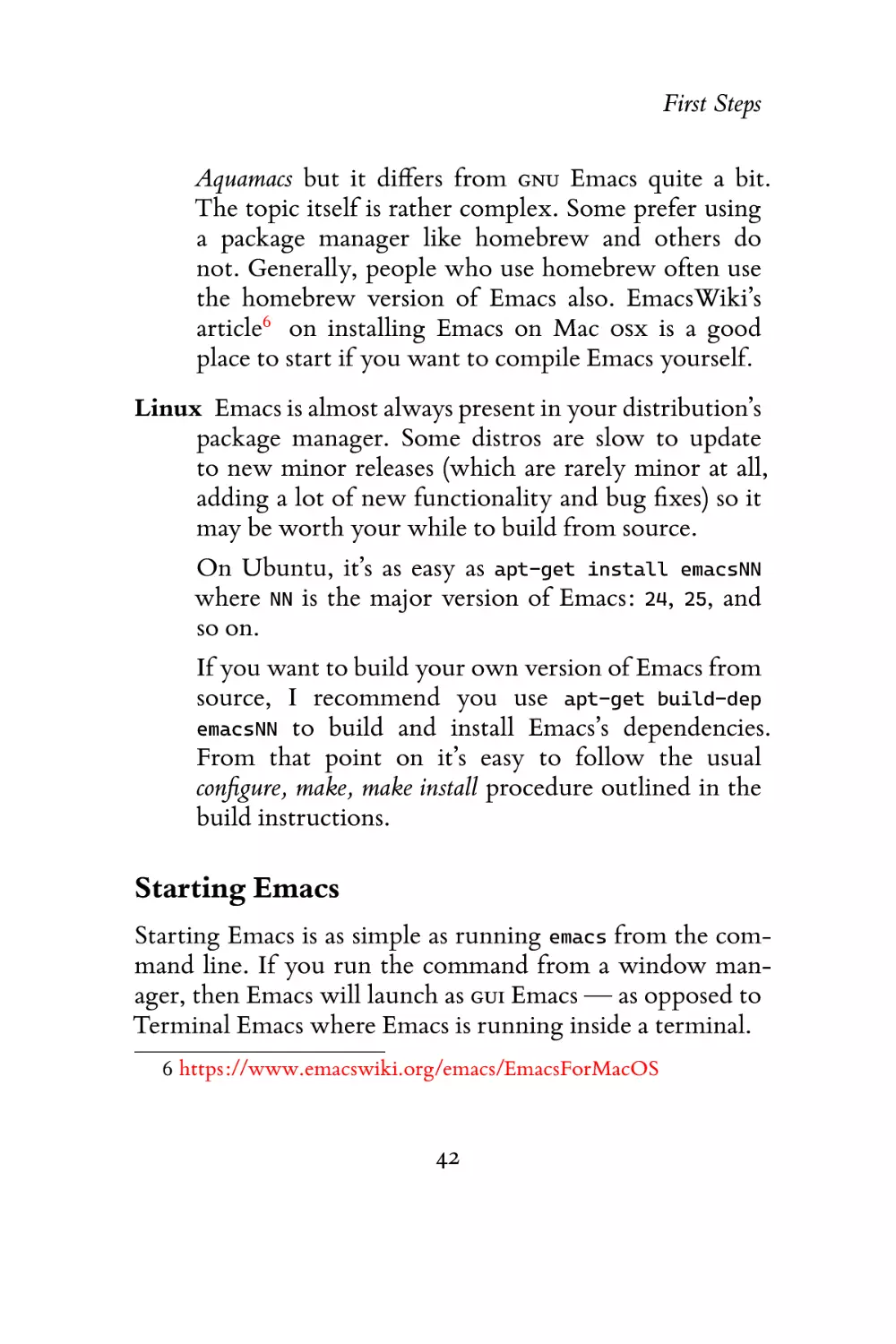
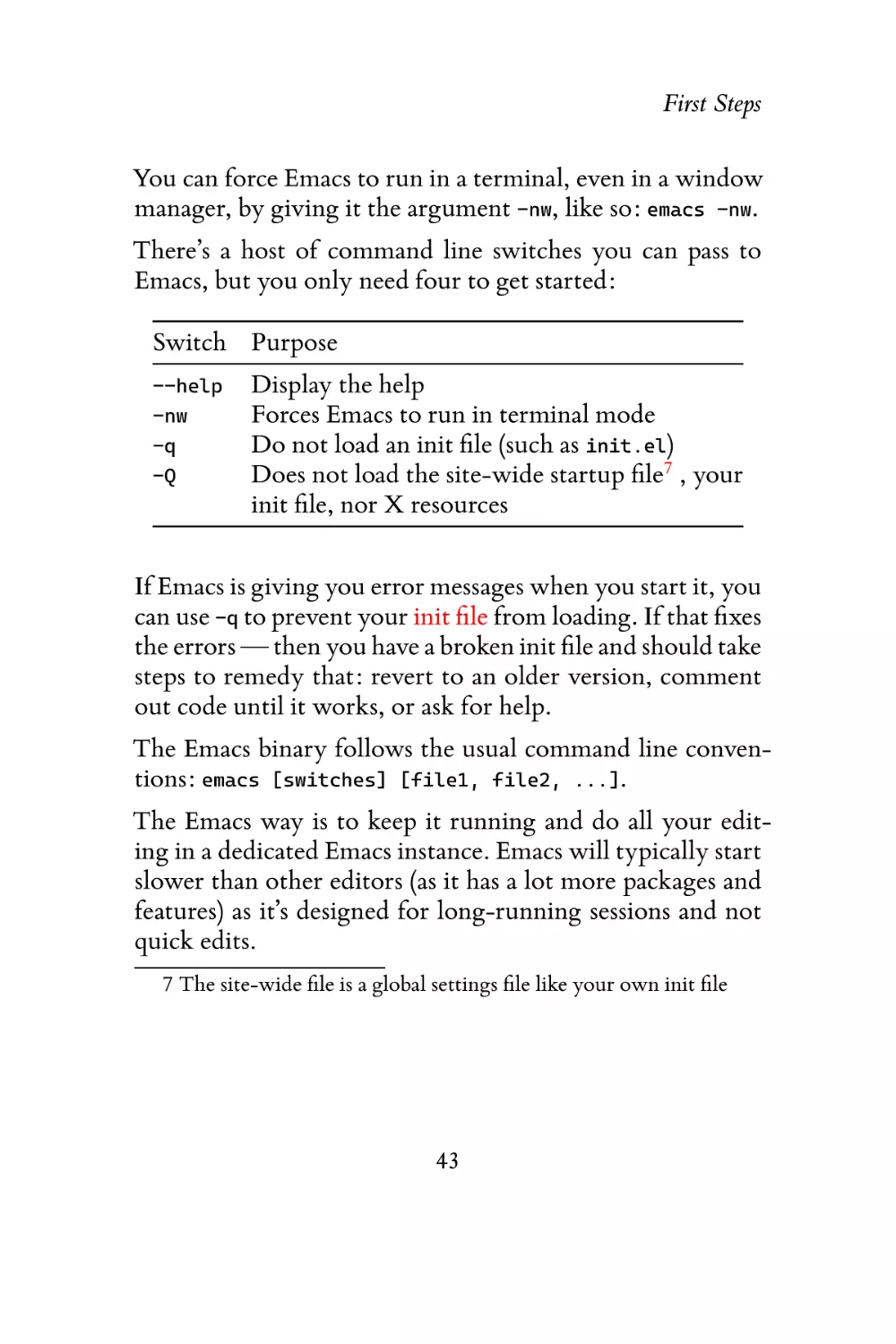
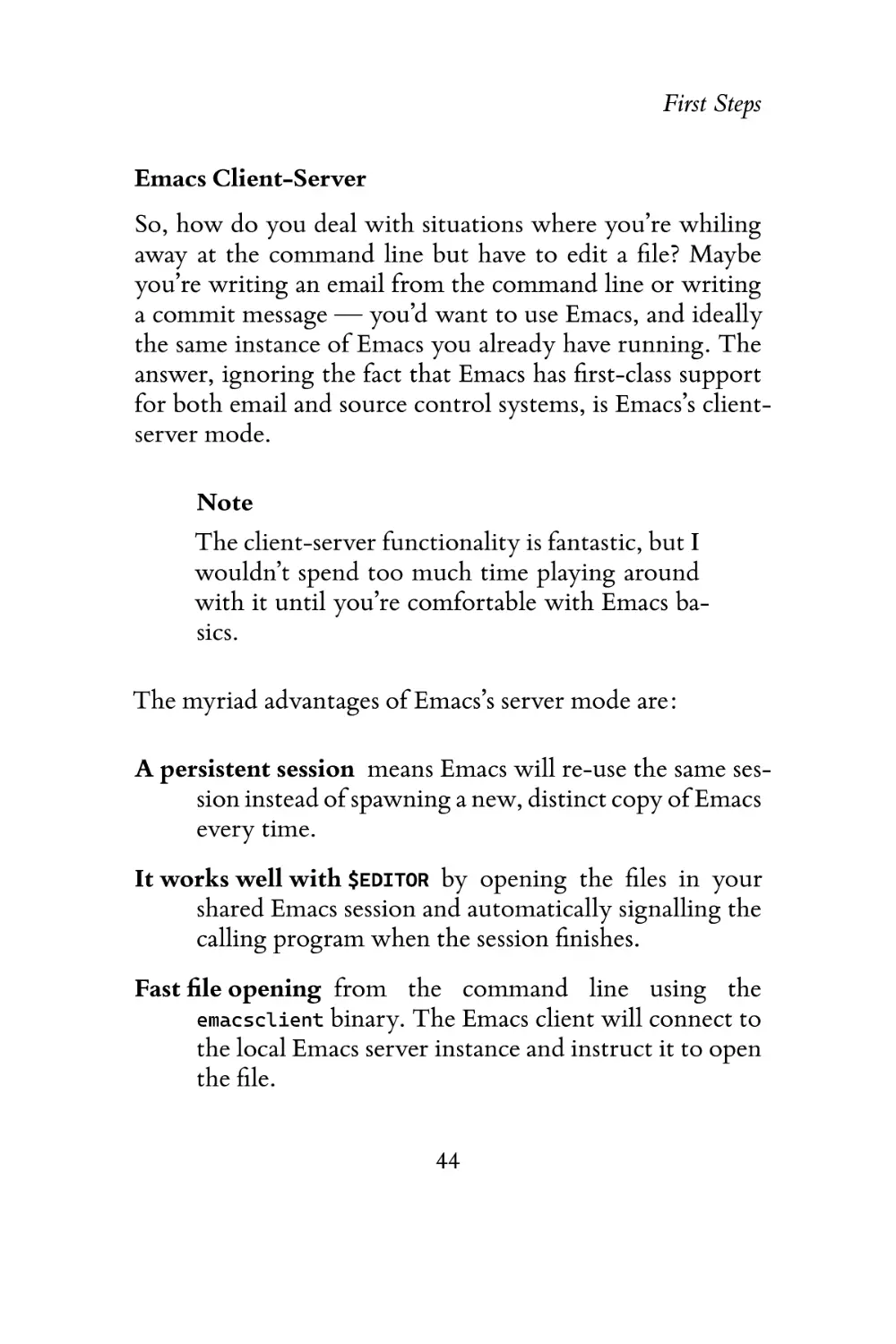
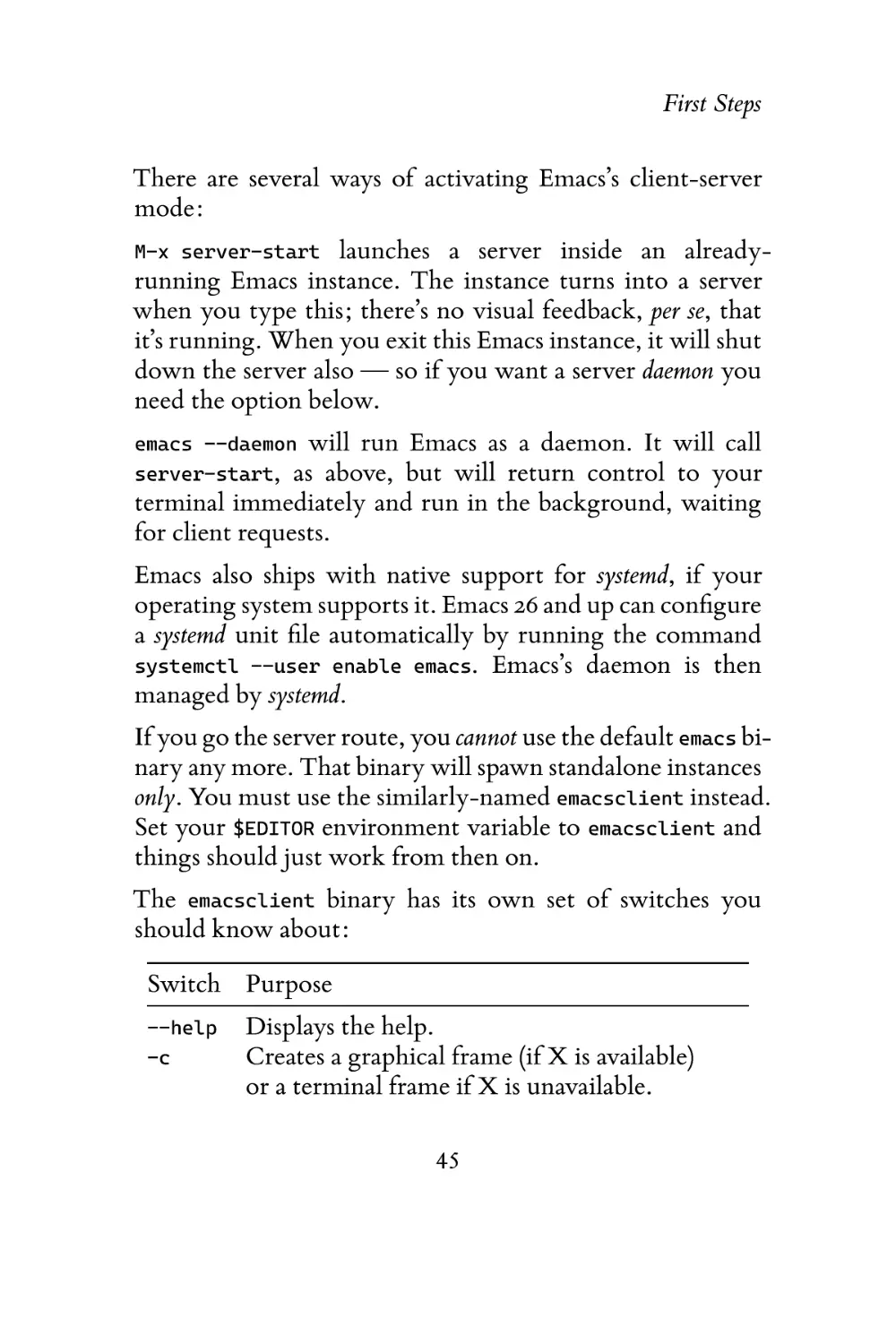

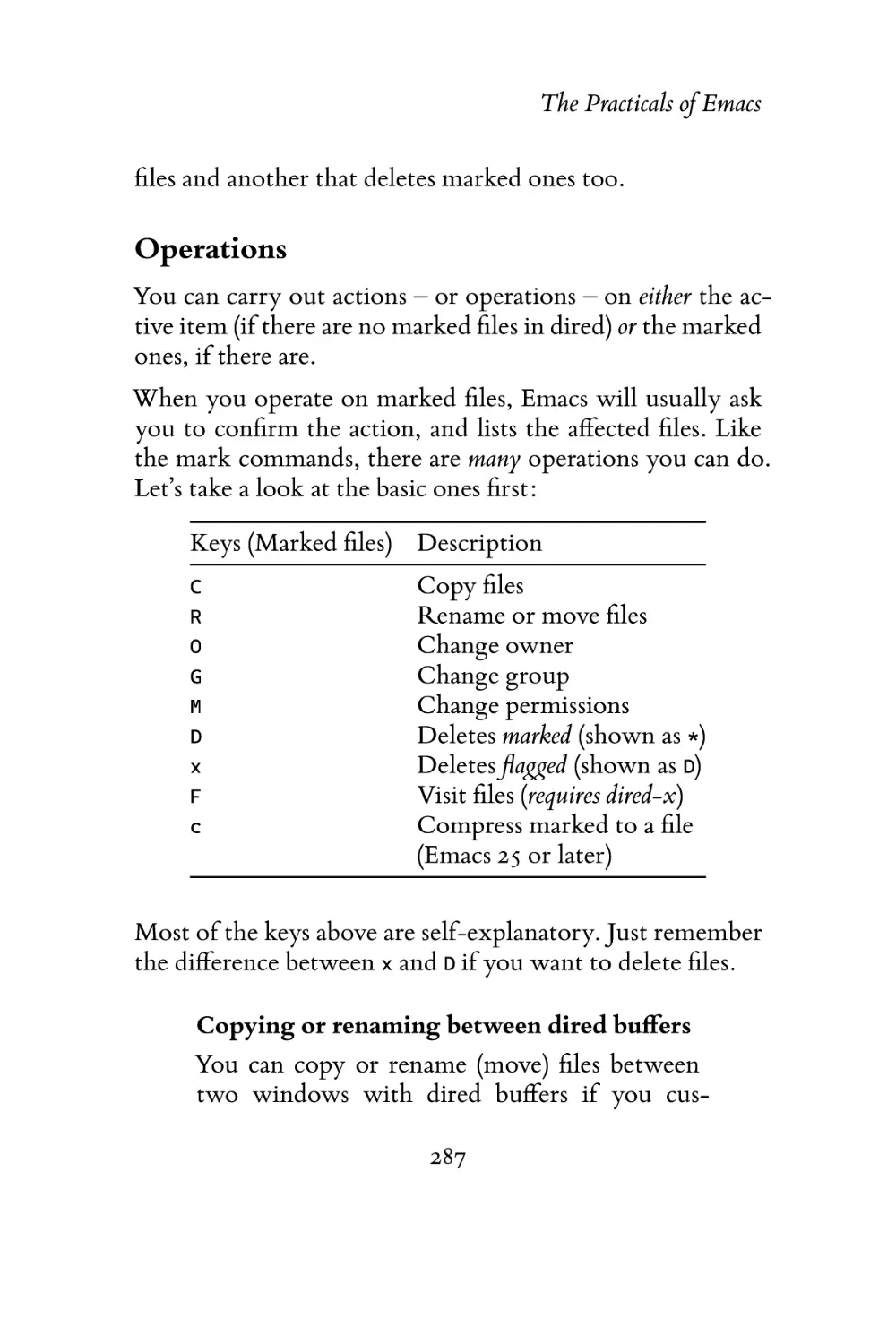

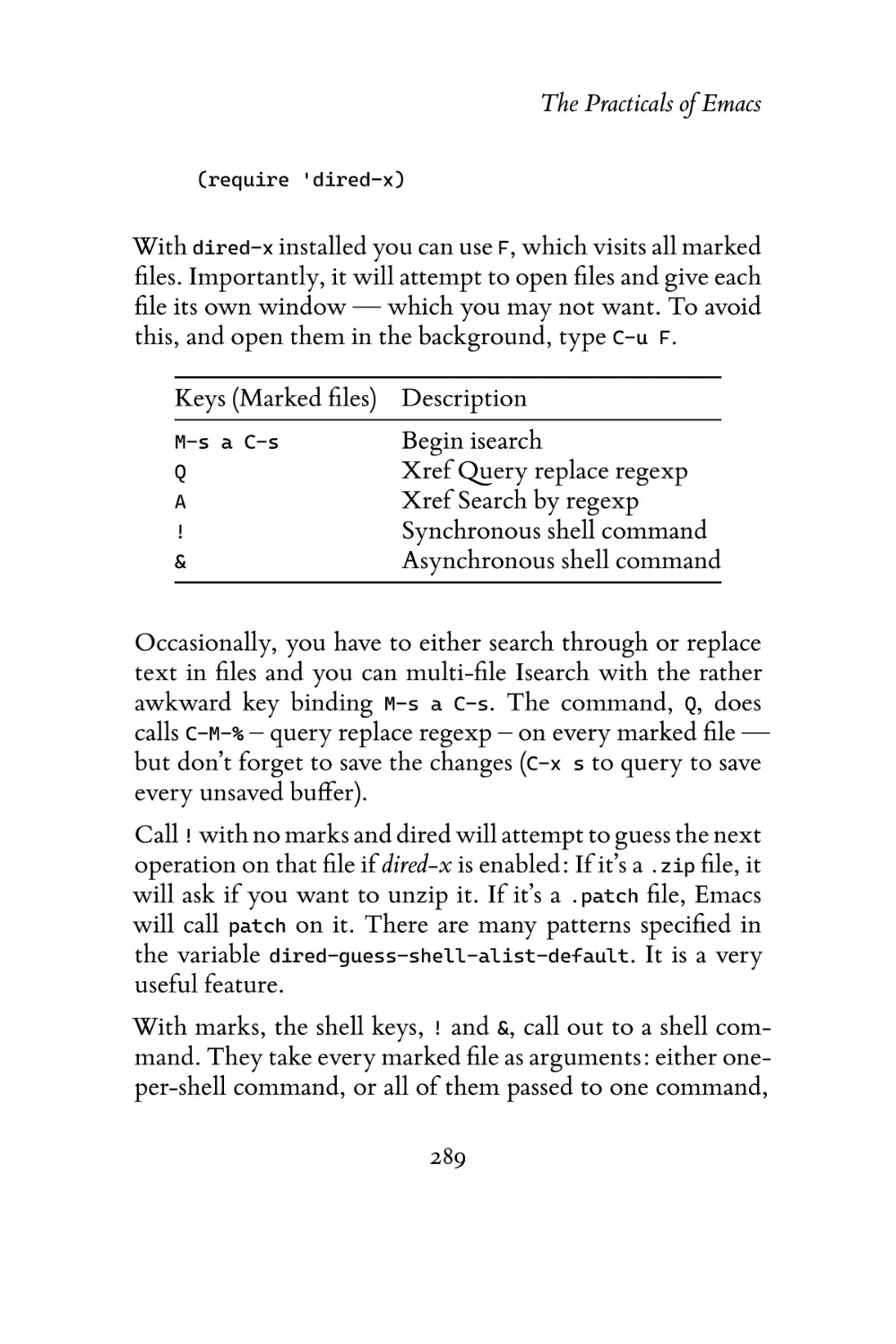
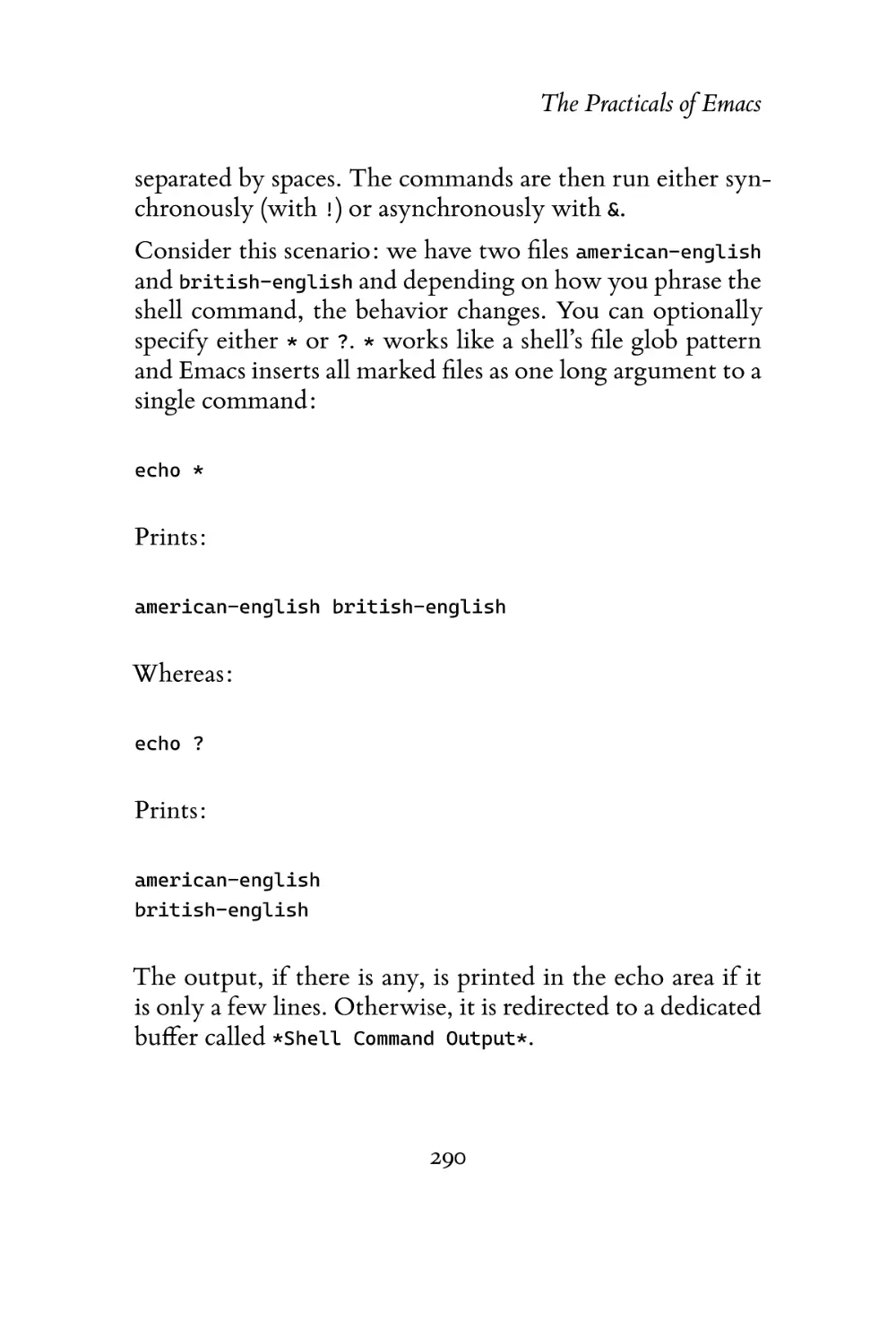
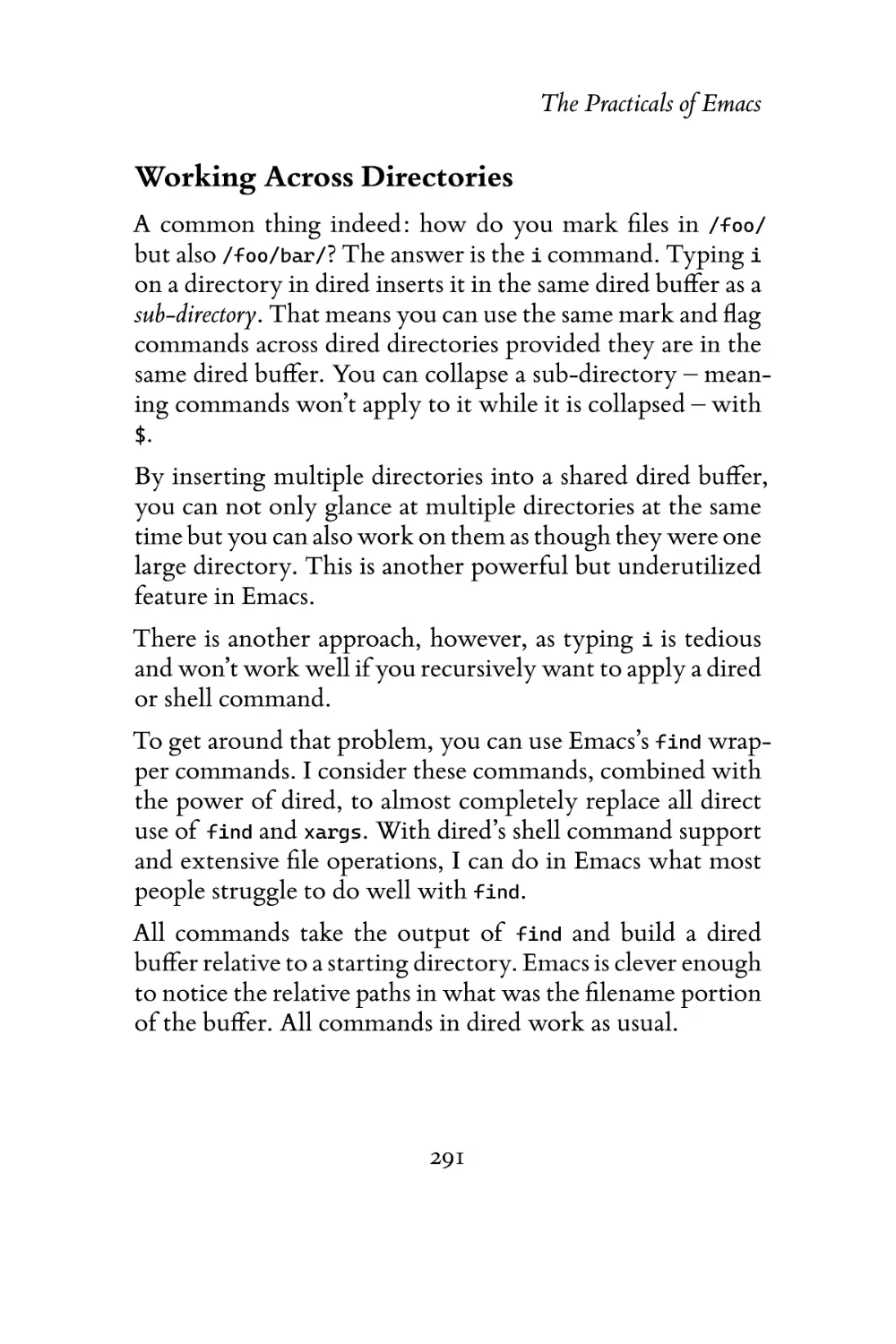

Text
                    Contents
Contents
1 Introduction
Thank You . . . . .
2020 Edition Update
What’s New . .
Intended Audience .
What You’ll Learn .

2

.
.
.
.
.

.
.
.
.
.

.
.
.
.
.

.
.
.
.
.

.
.
.
.
.

.
.
.
.
.

.
.
.
.
.

8
8
10
13
14
15

2 The Way of Emacs
Guiding Philosophy . . . . . . . . . .
LISP? . . . . . . . . . . . . . .
Extensibility . . . . . . . . . . .
Important Conventions . . . . . . . .
The Buffer . . . . . . . . . . . .
The Window and the Frame . .
The Point and Mark . . . . . . .
Killing, Yanking and CUA . . .
.emacs.d, init.el, and .emacs . . .
Major Modes and Minor Modes

.
.
.
.
.
.
.
.
.
.

.
.
.
.
.
.
.
.
.
.

.
.
.
.
.
.
.
.
.
.

.
.
.
.
.
.
.
.
.
.

.
.
.
.
.
.
.
.
.
.

.
.
.
.
.
.
.
.
.
.

18
20
23
27
29
30
31
33
35
36
37

.
.
.
.
.

.
.
.
.
.

.
.
.
.
.

2

.
.
.
.
.

.
.
.
.
.

.
.
.
.
.

.
.
.
.
.

.
.
.
.
.

3 First Steps
Installing and Starting Emacs . . . . . . . .
Starting Emacs . . . . . . . . . . . .
The Emacs Interface . . . . . . . . . . . .
Keys . . . . . . . . . . . . . . . . . . . . .
Caps Lock as Control . . . . . . . . .
M-x: Execute Extended Command . .
Universal Arguments . . . . . . . . .
Discovering and Remembering Keys .
Configuring Emacs . . . . . . . . . . . . .
The Customize Interface . . . . . . .
Evaluating Elisp Code . . . . . . . . .
The Package Manager . . . . . . . . .
Color Themes . . . . . . . . . . . . .
Getting Help . . . . . . . . . . . . . . . .
The Info Manual . . . . . . . . . . .
Apropos . . . . . . . . . . . . . . . .
The Describe System . . . . . . . . .
4 The Theory of Movement
The Basics . . . . . . . . . . . . . .
C-x C-f: Find file . . . . . . .
C-x C-s: Save Buffer . . . . . .
C-x C-c: Exits Emacs . . . . .
C-x b: Switch Buffer . . . . .
C-x k: Kill Buffer . . . . . . .
ESC ESC ESC: Keyboard Escape
C-/: Undo . . . . . . . . . . .
Window Management . . . . . . .
Working with Other Windows
Frame Management . . . . . . . . .

3

.
.
.
.
.
.
.
.
.
.
.

.
.
.
.
.
.
.
.
.
.
.

.
.
.
.
.
.
.
.
.
.
.

.
.
.
.
.
.
.
.
.
.
.

.
.
.
.
.
.
.
.
.
.
.
.
.
.
.
.
.
.
.
.
.
.
.
.
.
.
.
.

.
.
.
.
.
.
.
.
.
.
.
.
.
.
.
.
.
.
.
.
.
.
.
.
.
.
.
.

.
.
.
.
.
.
.
.
.
.
.
.
.
.
.
.
.

39
39
42
47
48
52
53
55
58
60
62
67
69
70
71
73
75
78

.
.
.
.
.
.
.
.
.
.
.

82
84
86
90
91
92
95
95
96
99
102
103

Tab Bars and Tab Lines . . . . . . . . . . . . . . 104
Tab Bar Mode . . . . . . . . . . . . . . . . 105
Tab Line Mode . . . . . . . . . . . . . . . 108
Elemental Movement . . . . . . . . . . . . . . . 109
Navigation Keys . . . . . . . . . . . . . . . 109
Moving by Character . . . . . . . . . . . . 111
Moving by Line . . . . . . . . . . . . . . . 112
Moving by Word . . . . . . . . . . . . . . 116
Moving by S-Expressions . . . . . . . . . . 122
Other Movement Commands . . . . . . . 128
Scrolling . . . . . . . . . . . . . . . . . . . 133
Bookmarks and Registers . . . . . . . . . . . . . 136
Selections and Regions . . . . . . . . . . . . . . 139
Selection Compatibility Modes . . . . . . . 143
Setting the Mark . . . . . . . . . . . . . . 146
Searching and Indexing . . . . . . . . . . . . . . 148
Isearch: Incremental Search . . . . . . . . . 149
Occur: Print and Edit lines matching an expression . . . . . . . . . . . . . . . 158
Imenu: Jump to definitions . . . . . . . . . 162
Helm: Incremental Completion and Selection 163
IDO: Interactively DO Things . . . . . . . 169
Grep: Searching the file system . . . . . . . 172
Other Movement Commands . . . . . . . . . . 177
Conclusion . . . . . . . . . . . . . . . . . . . . 179
5 The Theory of Editing
Killing and Yanking Text . .
Killing versus Deleting
Yanking Text . . . . .
Transposing Text . . . . . .

4

.
.
.
.

.
.
.
.

.
.
.
.

.
.
.
.

.
.
.
.

.
.
.
.

.
.
.
.

.
.
.
.

.
.
.
.

.
.
.
.

.
.
.
.

181
182
184
188
189

C-t:

Transpose Characters . . .
M-t: Transpose Words . . . . . .
C-M-t: Transpose S-expressions .
Other Transpose Commands . .
Filling and Commenting . . . . . . .
Filling . . . . . . . . . . . . . .
Commenting . . . . . . . . . .
Search and Replace . . . . . . . . . .
Case Folding . . . . . . . . . .
Regular Expressions . . . . . . .
Changing Case . . . . . . . . . . . .
Counting Things . . . . . . . . . . .
Text Manipulation . . . . . . . . . .
Editable Occur . . . . . . . . .
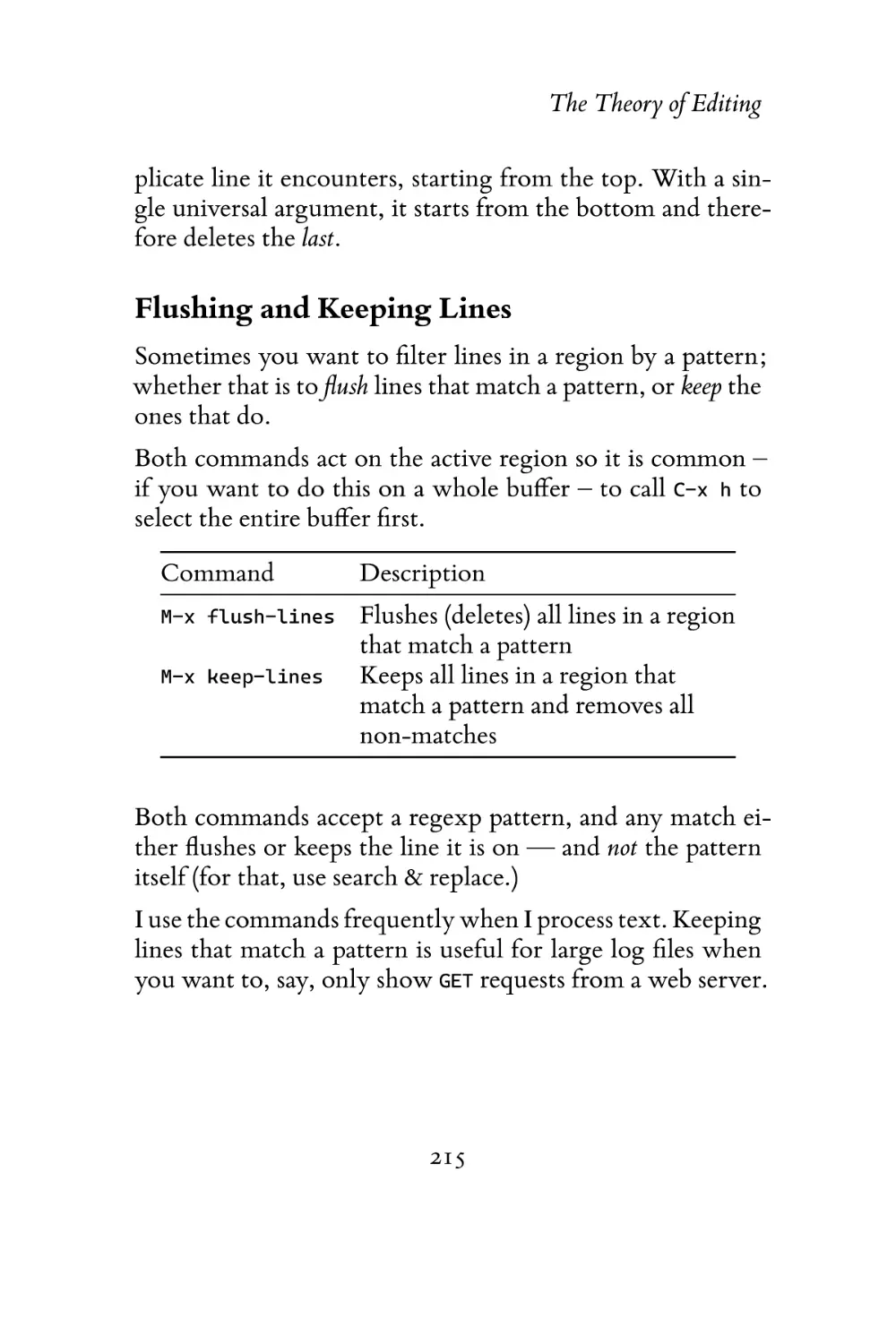
Deleting Duplicates . . . . . . .
Flushing and Keeping Lines . . .
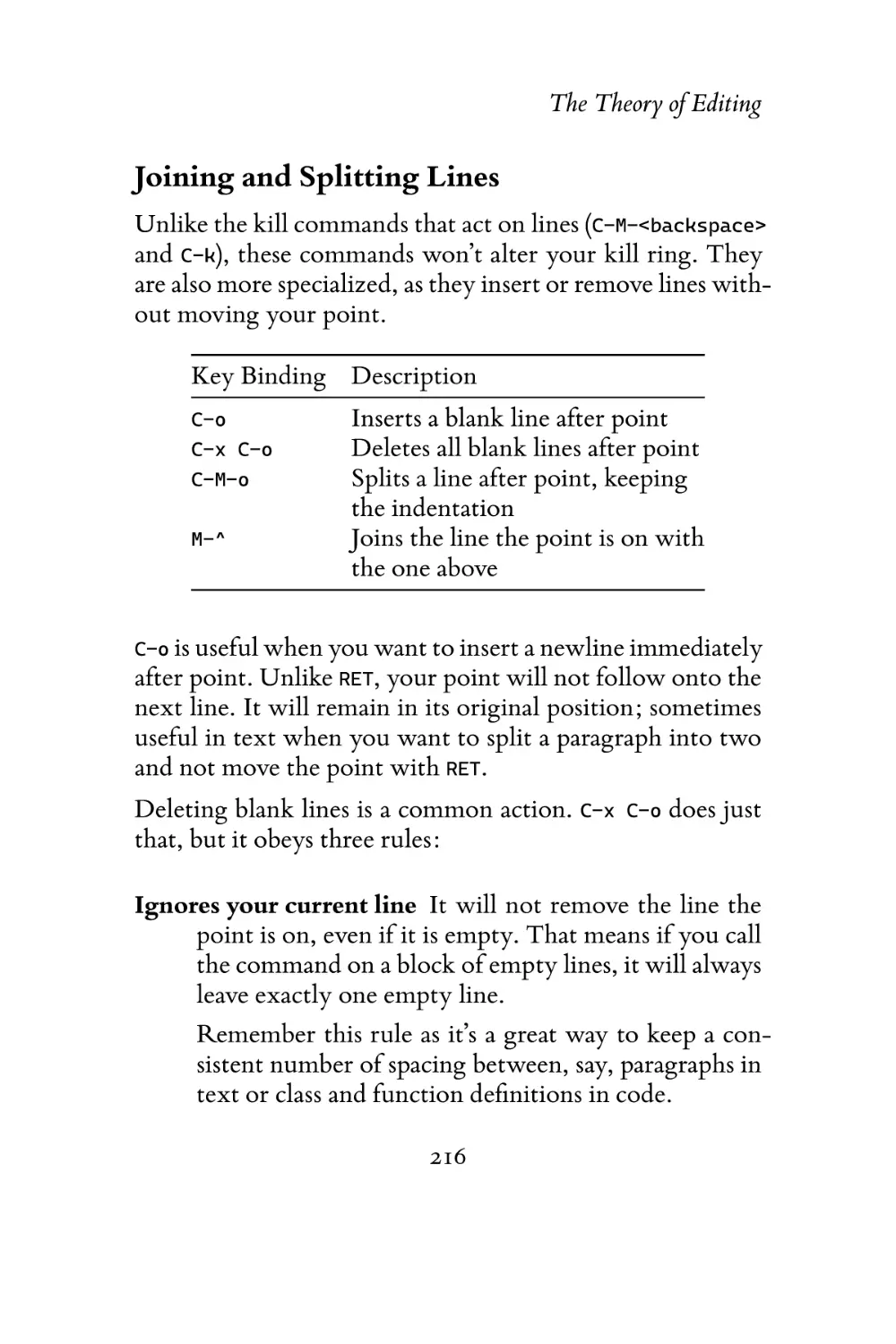
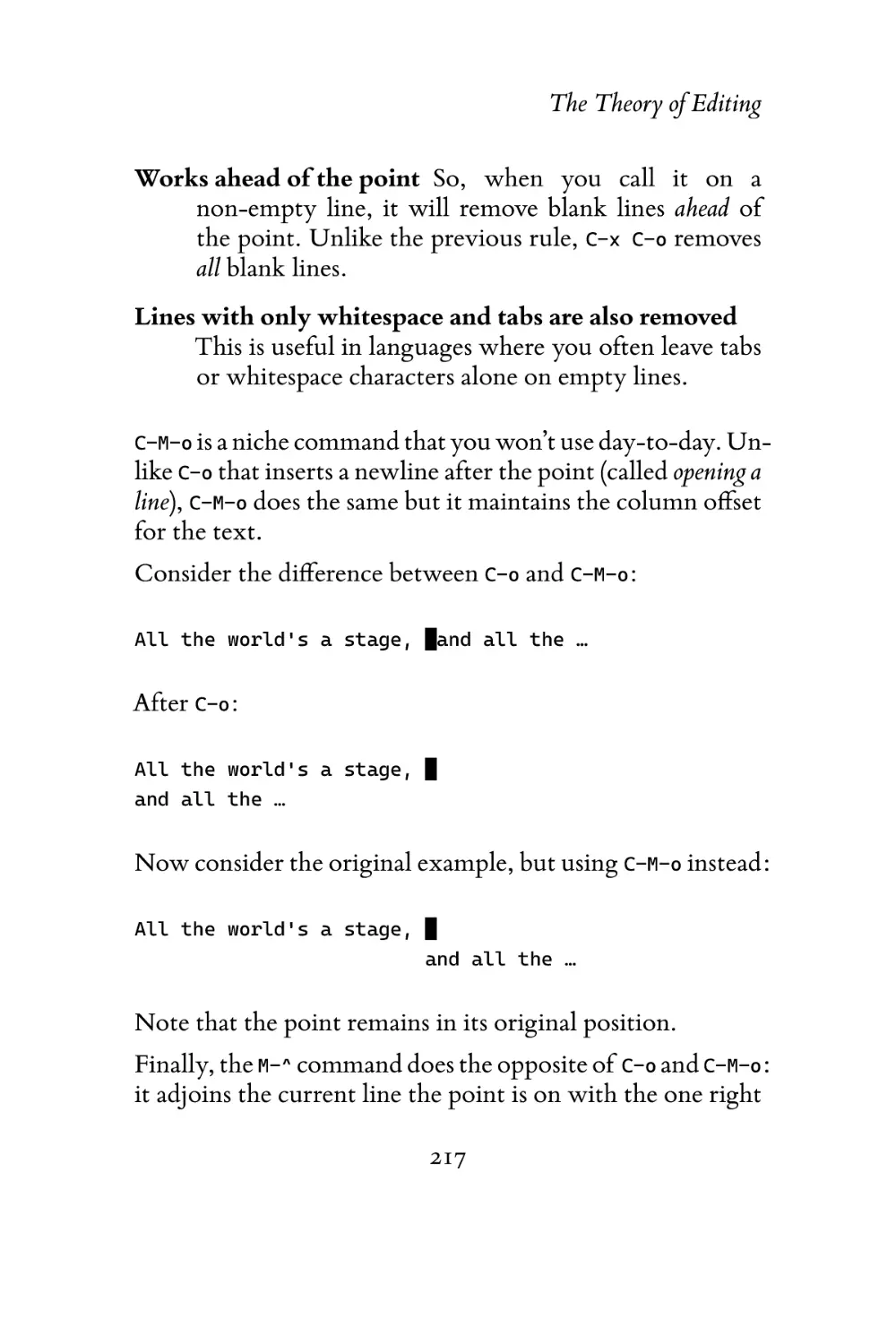
Joining and Splitting Lines . . .
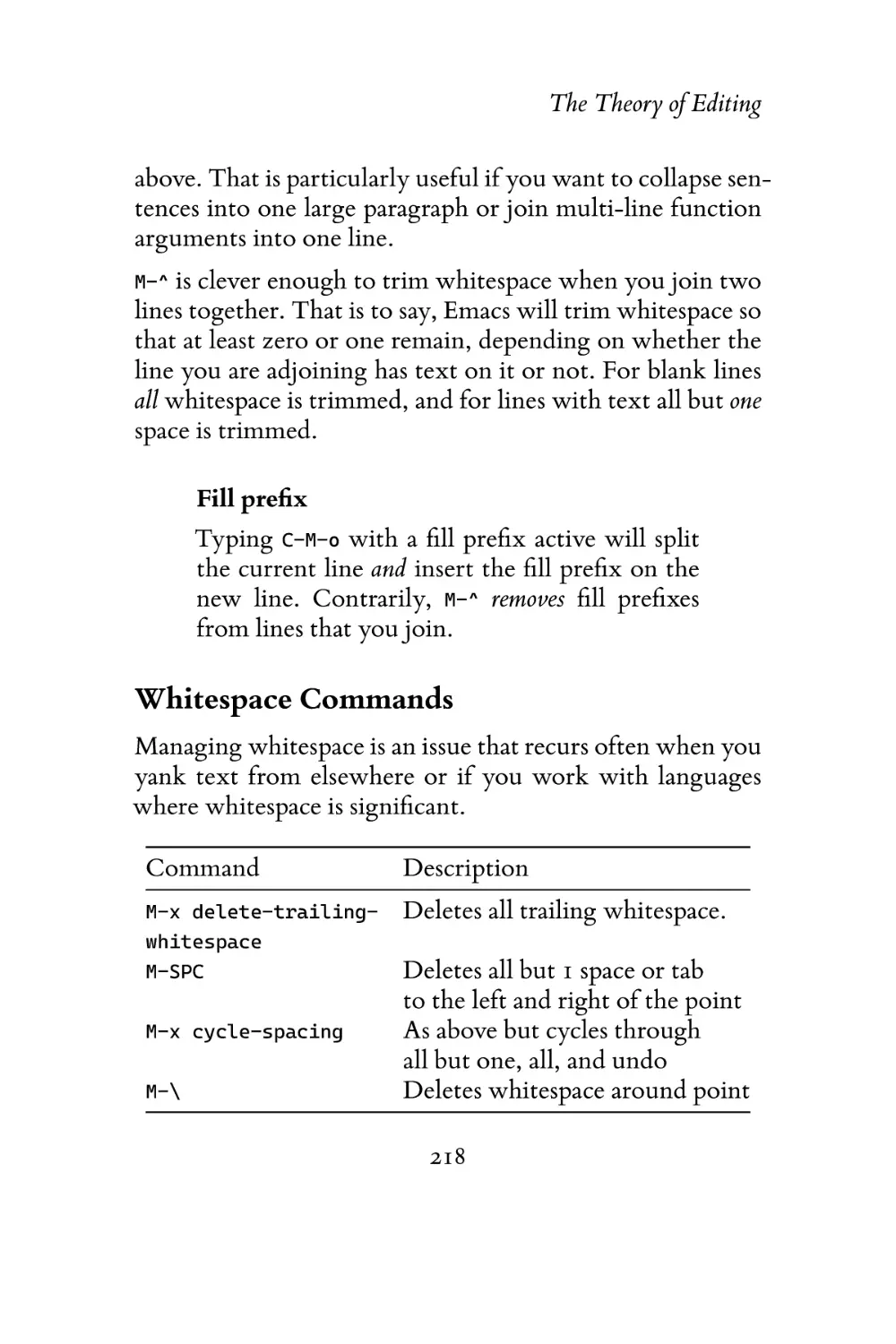
Whitespace Commands . . . . .
Keyboard Macros . . . . . . . . . . .
Basic Commands . . . . . . . .
Advanced Commands . . . . . .
Text Expansion . . . . . . . . . . . .
Abbrev . . . . . . . . . . . . . .
DAbbrev and Hippie Expand . .
Indenting Text and Code . . . . . . .
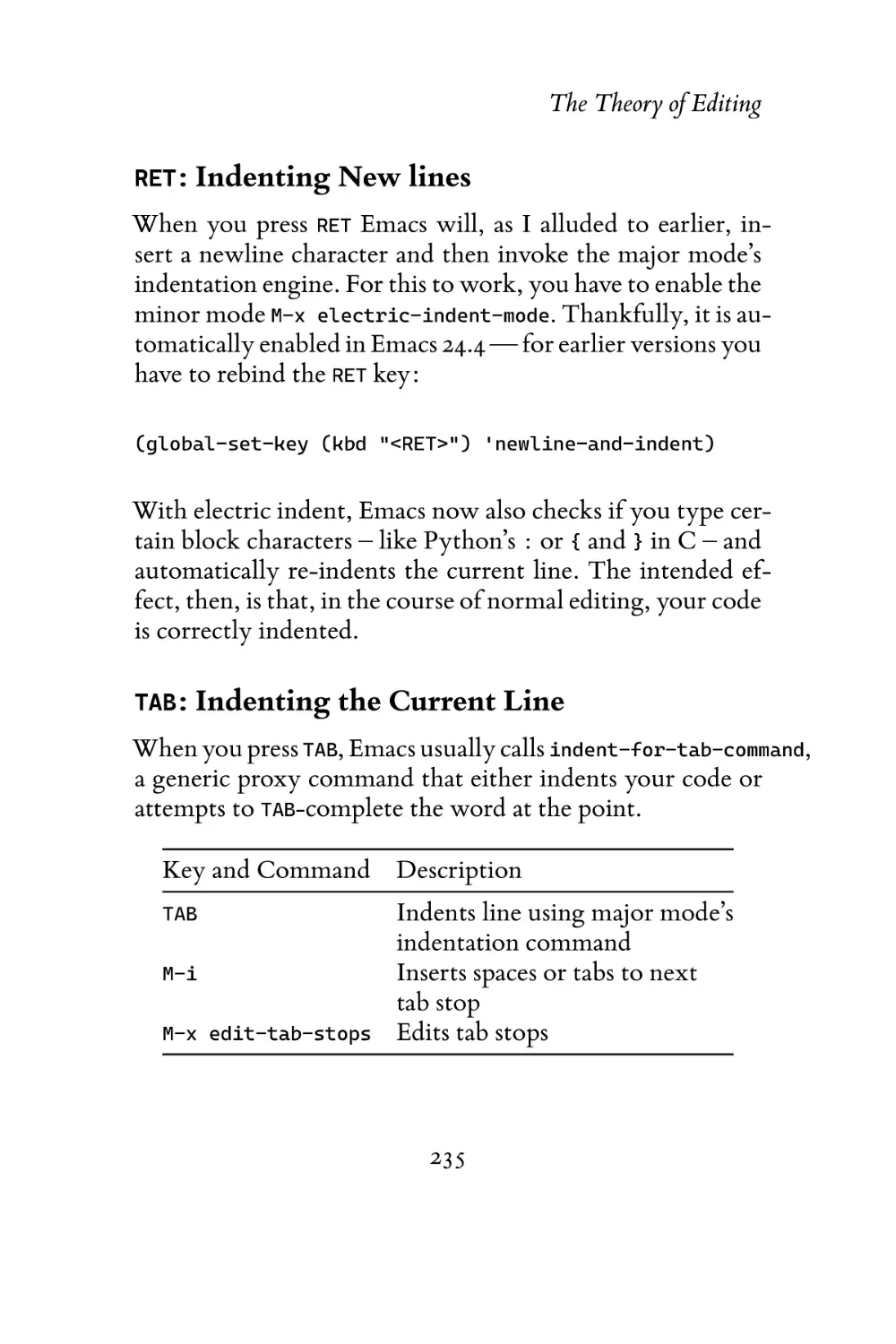
RET: Indenting New lines . . . .
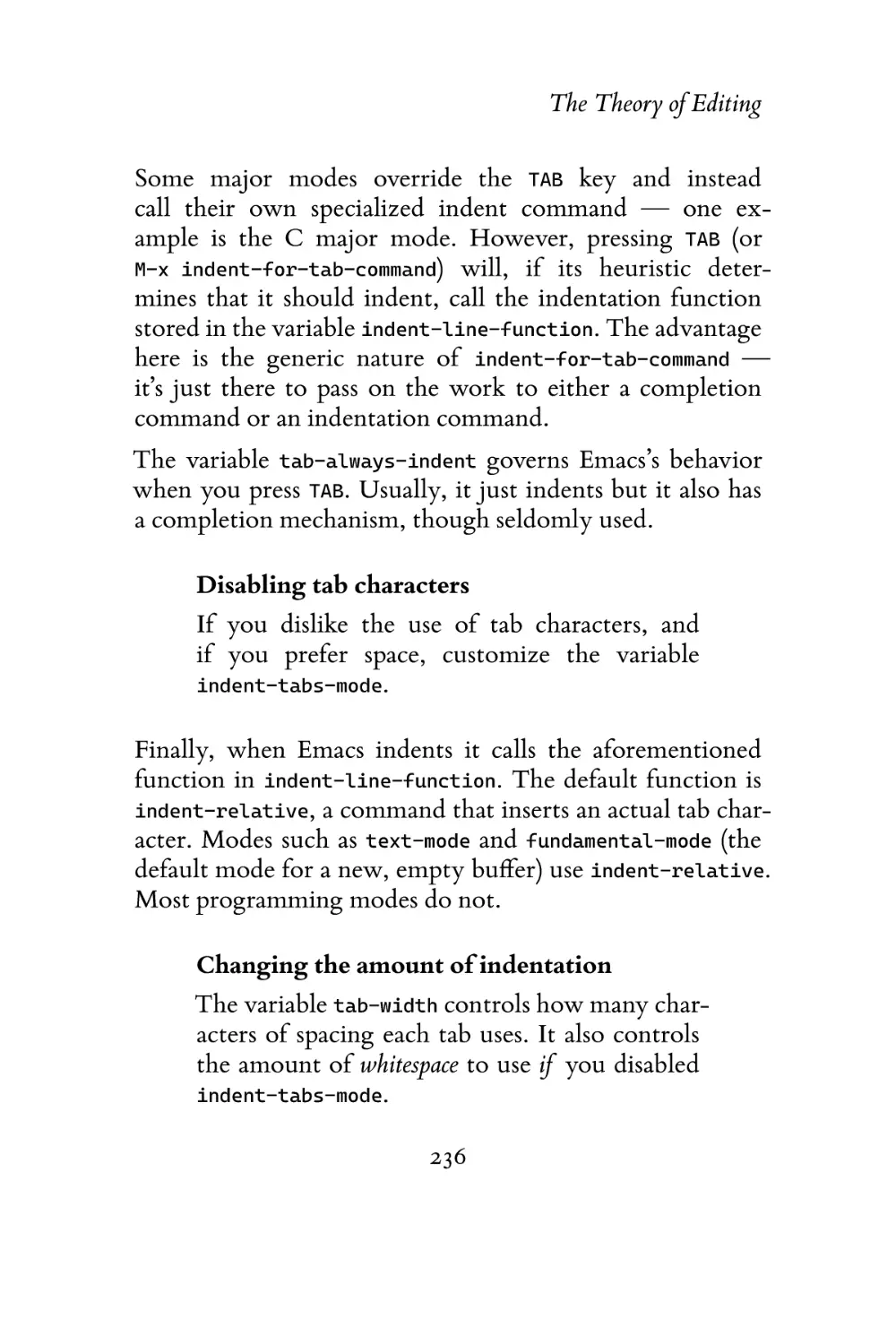
TAB: Indenting the Current Line
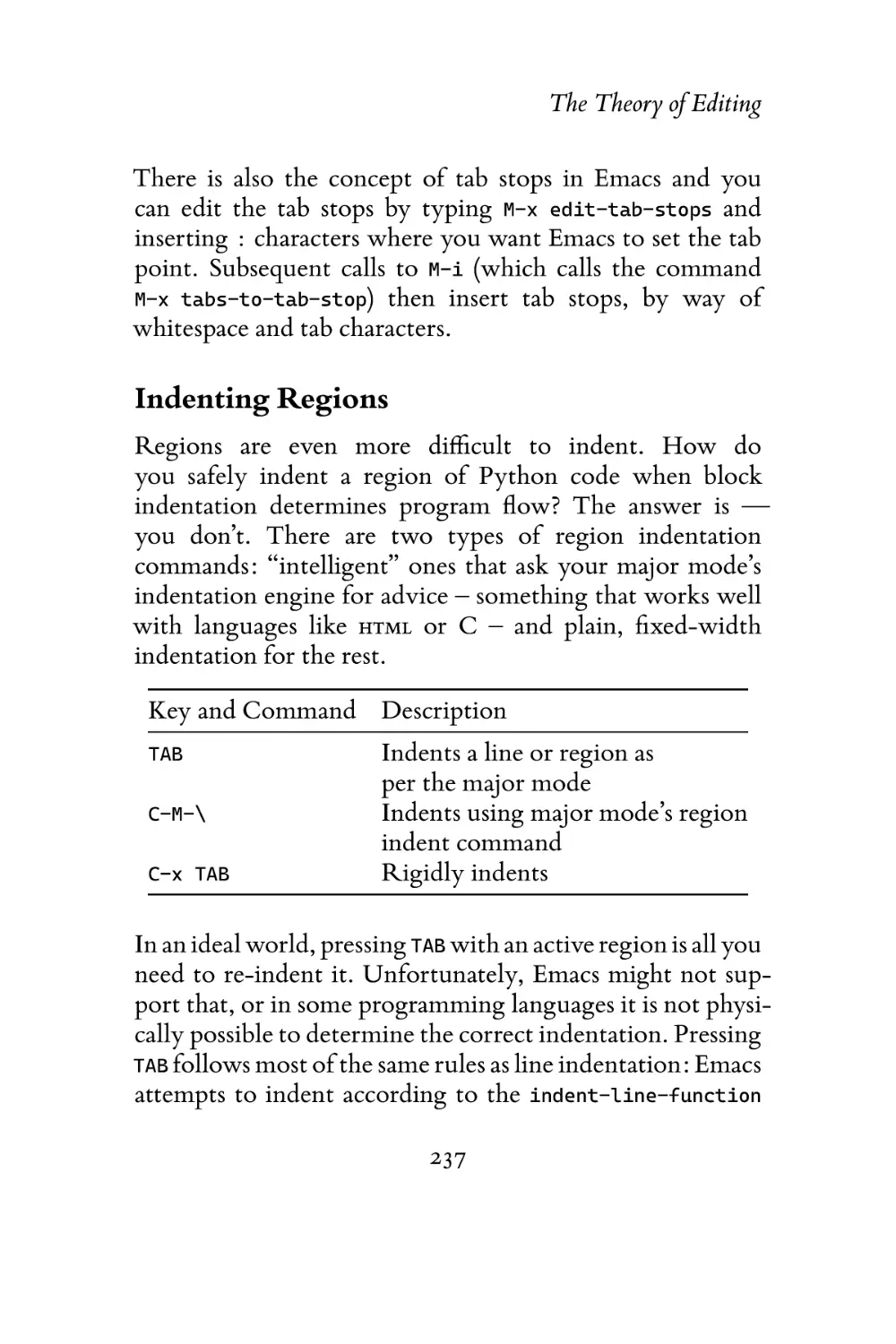
Indenting Regions . . . . . . .
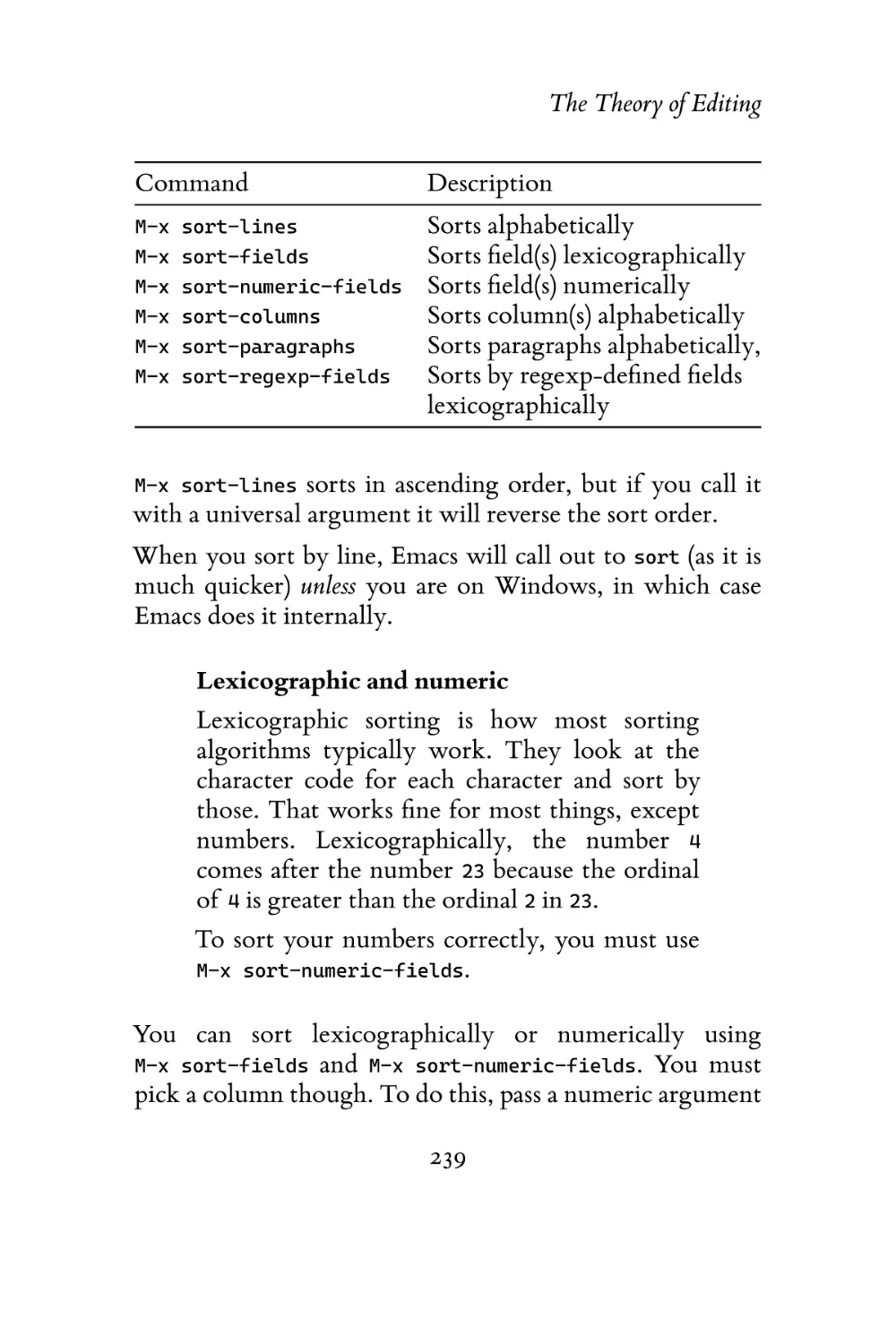
Sorting and Aligning . . . . . . . . .
Sorting . . . . . . . . . . . . . .
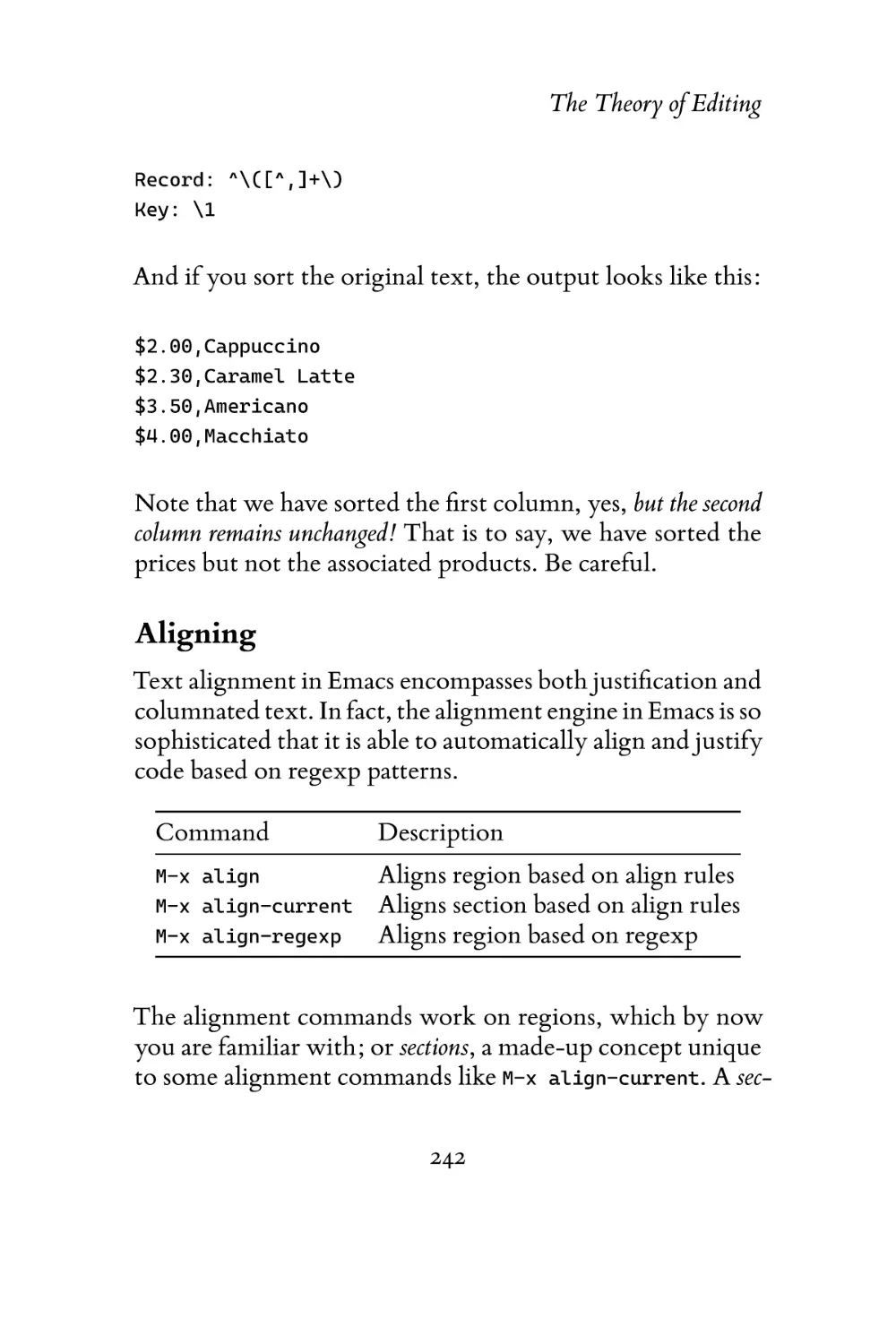
Aligning . . . . . . . . . . . . .
5

.
.
.
.
.
.
.
.
.
.
.
.
.
.
.
.
.
.
.
.
.
.
.
.
.
.
.
.
.
.
.

.
.
.
.
.
.
.
.
.
.
.
.
.
.
.
.
.
.
.
.
.
.
.
.
.
.
.
.
.
.
.

.
.
.
.
.
.
.
.
.
.
.
.
.
.
.
.
.
.
.
.
.
.
.
.
.
.
.
.
.
.
.

.
.
.
.
.
.
.
.
.
.
.
.
.
.
.
.
.
.
.
.
.
.
.
.
.
.
.
.
.
.
.

.
.
.
.
.
.
.
.
.
.
.
.
.
.
.
.
.
.
.
.
.
.
.
.
.
.
.
.
.
.
.

.
.
.
.
.
.
.
.
.
.
.
.
.
.
.
.
.
.
.
.
.
.
.
.
.
.
.
.
.
.
.

190
191
193
195
196
196
198
200
202
203
209
212
213
214
214
215
216
218
220
221
223
228
230
231
234
235
235
237
238
238
242

Other Editing Commands
Zapping Characters .
Spell Checking . . .
Quoted Insert . . . .

.
.
.
.

248
248
249
251

6 The Practicals of Emacs
Exploring Emacs . . . . . . . . . . . . . . . . .
Reading the Manual . . . . . . . . . . . .
Using Apropos . . . . . . . . . . . . . . .
C-h: Exploring Prefix keys . . . . . . . . .
C-h k: Describe what a key does . . . . . .
C-h m: Finding mode commands . . . . . .
Project Management . . . . . . . . . . . . . . .
Xref: Cross-References in Emacs . . . . . . . . .
Working with Log Files . . . . . . . . . . . . .
Browsing Other Files . . . . . . . . . . . .
TRAMP: Remote File Editing . . . . . . . . . .
The Default Directory and Remote Editing
Multi-Hops and User Switching . . . . . .
EWW: Emacs Web Wowser . . . . . . . . . . .
Dired: Files and Directories . . . . . . . . . . .
Navigation . . . . . . . . . . . . . . . . . .
Marking and Unmarking . . . . . . . . . .
Operations . . . . . . . . . . . . . . . . . .
Working Across Directories . . . . . . . .
Shell Commands . . . . . . . . . . . . . . . . .
Compiling in Emacs . . . . . . . . . . . . .
Shells in Emacs . . . . . . . . . . . . . . . . . .
M-x shell: Shell Mode . . . . . . . . . . .
M-x ansi-term: Terminal Emulator . . . . .
M-x eshell: Emacs’s Shell . . . . . . . . . .

252
253
253
254
257
258
259
260
264
266
269
272
275
277
279
282
284
285
287
291
292
294
295
296
298
299

6

.
.
.
.

.
.
.
.

.
.
.
.

.
.
.
.

.
.
.
.

.
.
.
.

.
.
.
.

.
.
.
.

.
.
.
.

.
.
.
.

.
.
.
.

7 Conclusion
Other Resources . . . . . . . . . . . . . . . . .
Third-Party Packages and Tools . . . . . .
Communities . . . . . . . . . . . . . . . .

7

301
303
303
305

Chapter 1
Introduction
“I’m using Linux. A library that emacs uses to
communicate with Intel hardware.”
– Erwin, #emacs, Freenode.

Thank You
Thank you for purchasing Mastering Emacs. This book
has been a long time coming. When I started my blog,
Mastering Emacs, in 2010, it was at the recommendation of
a good friend, Lee, who suggested that I share my thoughts
on Emacs and work flow in Emacs. At the time I had
accrued in an org mode file titled blogideas.org a large but
random assortment of ideas and concepts that I’d learned
about and wished someone had taught me. The end result
of that file is the blog and now this book.
Special Thanks

8

Introduction
I would like to thank the following people for
their encouragement, advice, suggestions and
critiques:
Akira Kitada, Alvaro Ramirez, Arialdo Martini,
Bob Koss, Catherine Mongrain, Chandan
Rajendra, Christopher Lee, Daniel Hannaske,
Edwin Ong, Evan Misshula, Friedrich Paetzke,
Gabriela Hajduk, Gabriele Lana, Greg Sieranski,
Holger Pirk, John Mastro, John Kitchin, Jonas
Enlund, Konstantin Nazarenko, Lee Cullip,
Luis Gerhorst, Lukas Pukenis, Manuel Uberti,
Marcin Borkowski, Mark Kocera, Matt Wilbur,
Matthew Daly, Michael Reid, Nanci Bonfim,
Oliver Martell, Patrick Mosby, Patrick Martin,
Sebastian Garcia Anderman, Stephen NelsonSmith, Steve Mayer, Tariq Master, Travis
Jefferson, Travis Hartwell.
Like a lot of people, I was thrust into the world of Emacs
without knowing anything about it; in my case it was in
my first year of University where the local computer society was made up primarily of Vim users. It was explained
to me, in no uncertain terms, that “you use Vim — that’s
it.” Not wanting to be told what to do, I picked the polar
opposite of Vim and went with Emacs.
Emacs proved to be a stable and reliable editor in all those
years, but it was a tough one to get to know. Despite the
extensive user documentation, it never helped me to learn
and understand Emacs.

9

Introduction

2020 Edition Update
It’s been ten years since I started my blog where I shared
detailed articles on areas of Emacs I felt warranted people’s
interest. And it’s been five years since I published the first
edition of this book.
In those five years, entire text editors have come out of
nowhere and exploded in popularity, only to wane in the
face of even newer upstart challengers. Meanwhile, Emacs
users are still using Emacs, learning from the advances
(and retreats…) of other editors. But there were plenty of
advances in the last five years for Emacs users to benefit
from.
Microsoft VSCode deserves a special mention for standardizing something that should have been agreed on and
implemented decades ago in the software community: a
protocol for exposing – or re-implementing, where that is
not possible – the internals of compilers, interpreters and
other programmable engines in a format that enables a tool,
like Emacs, to support high-level features familiar to anyone
who has used a closed-source IDE: automatic refactoring;
syntax and error highlighting; code completion; documentation lookup, and more. Microsoft, perhaps surprising
to some, has won the argument with the Language Server
Protocol, an open JSON-rPC standard. Before the advent of
said protocol most IDEs and editors had insular, homegrown
implementations that varied in breadth, depth and quality.
It’s a major win for Emacs and its users especially: they will
benefit from the collective works of people who build these
Language Servers.
10

Introduction
Language Servers in Emacs
There are two implementations of note: LSP
mode1 and EGlot2 . LSP mode offers a complete
IDE experience out of the box, with EGlot preferring a more ascetic, Emacs-centric approach.
You should try both and pick the one you like
best.
Both products are under active development,
and as such they are rapidly changing. They
support a large variety of both tools and
languages.

Better IDE-like features does raise Emacs’s profile, but one
inescapable fact about learning Emacs is, once it’s second nature, you tend to forget what a rough time you had learning it. That is one thing non-users seize on as it is skin-deep
and easy to critique: that the terminology is baroque; the UI
brutalist; and the key bindings byzantine. True. But this is
Emacs: you can change all of that. But I believe there is a kernel of truth to these complaints: a prettier UI is a quick win;
changing some of Emacs’s more obscure defaults is another,
despite the risk of upsetting a few vocal, ornery graybeards.
But first impressions count: people make snap judgments
based on fitness and form; if the editor doesn’t code complete but another free editor does, then that might just mean
they’ll never try Emacs. The curb appeal of all-in-one packages like Spacemacs and Doom Emacs – two kitchen sink kits
1 https://github.com/emacs-lsp/lsp-mode
2 https://github.com/joaotavora/eglot

11

Introduction
for Emacs – are a testament to the importance of first impressions and the value of sensible defaults. Many jump straight
into Emacs using either of those kits, and just as many then
graduate to their own Emacs configuration when the shine
wears off: but at that point they’re Emacs users for life.
This book details how to learn Emacs, and learn it you will:
Emacs’s terminology predates modern computing, but it is
easy to learn, as there are but a handful of terms that distinguishes it from the UI terminology used elsewhere. The key
bindings and commands are harder to learn, but then that
gets us to the crux of what Emacs is.
Emacs is a complex piece software, and it will take you time
and hard work to learn. But, if you do, you will have an
editor for life. It has an active, friendly community that will
seize on any advances made in other editors and bring them
into the fold. And that excludes – as you’ll see in the rest
of the book – the untold benefits that other editors cannot
even begin to match.
The Emacs maintainers know this, and are tirelessly working on Emacs’s core behind-the-scenes, with the aim of incrementally improving Emacs for everybody, while keeping
backwards compatibility. They are excellent stewards, carefully balancing the need to respect the GNU project’s philosophy3 and Emacs’s heritage and commitment to stability,
with advances in technology and feedback from their users.
Your patient mastery of Emacs is well-rewarded. I assure
you.
3 https://www.gnu.org/philosophy/philosophy.html

12

Introduction

What’s New
The last major update to this book happened when Emacs
25 came out. In the intervening years, a few major features
have emerged, and the maturation of several ones that were
present in Emacs 25.
Project Management Rarely do you work on just one file.
Emacs now ships with a usable project management
system that can organize collections of files and carry
out simple actions on them like search & replace, opening shells or compiling code.
Tab Bar and Tab Line A much-requested feature, Emacs
now officially supports tabs. And, in true Emacs
fashion, it comes with two different versions, each
designed to satisfy two long-standing problems in
Emacs: window-based workflow, and tab-based
buffer switching.
Line Number Display Displaying line numbers in margins used to take a heavy toll on Emacs as the
implementation was slow and inefficient. The new
version is much faster and supports different display
methods.
Cross References Xref, a tool for cross referencing and
editing text across multiple files, is mature enough
that I give it more than a passing nod. It’s slowly supplanting a number of home grown implementations
in various dusty corners of Emacs.

13

Introduction
Image and Doc View Mode Although not new to Emacs
26 or 27, Emacs’s image renderer comes in handy.
There is also a thumbnail browser, and a PDF document
viewer.
Minor Changes I have made many minor changes, but
some of the more notable ones include:

• A recommendation to try FIDO, a completer destined to eventually replace IDO.
• Using ripgrep as a file searcher. It runs like
greased lightning and it is far and away my
favorite file searcher nowadays.
• Installing dumb-jump, a package that uses file
searchers to match symbols to identifiers. Unlike
heavy-handed tools like GNU Global and TAGS,
this one is much simpler and exploits the fact
that modern computers are fast enough to search
for things on-the-fly.
• I have included Doom Emacs in the list of recommended starter kits.

Intended Audience
It’s a bit weird talking about the intended audience when
you’ve already bought the book on the subject. But it bears
mentioning anyway so no matter your Emacs skill level you
will get something out of this book.
The first and (most obvious) audience are people new to
Emacs. If you’ve never used Emacs before in your life, you
will hopefully find this book very useful. However, if
14

Introduction
you’re new to Emacs and non-technical, then you’re going
to have a harder time. Emacs, despite being suitable for
much more than just programming, is squarely aimed at
computer-savvy people. Although it’s perfectly possible
to use Emacs anyway, this book will assume that you’re
technically inclined, but not necessarily a programmer.
If you’ve tried Emacs before but given up, then I hope this
book is what convinces you to stick with it. But it’s fine if
you don’t; some languages or environments don’t (contrary
to what a lot of Emacs users would claim) work well with
Emacs. If you’re primarily a Microsoft Windows developer
working with Visual Studio, using Emacs is going to be a
case of two steps forward, one step back: you gain unprecedented text editing and tool integration but lose some of the
benefits a unified IDE would give you.
If you’re a Vim refugee, then welcome to the dark side! If
your primary objective is to use Emacs’s Vim emulation layers, then some of this book is redundant; it concerns itself
with the default Emacs bindings and it teaches “the Emacs
way” of doing things. But not to worry: a lot of the tips and
advice herein are still applicable, and who knows — maybe
you’ll switch away from Evil mode in time.
And finally, if you’re an existing Emacs user but struggling
to take it to the next level, or maybe you just need a refresher
course “from the ground up,” then this book is also for you.

What You’ll Learn
Covering all of Emacs in just one book would be a Sisyphean
task. Instead, I aim to teach you what you need to be produc15

Introduction
tive in Emacs, which is just a small subset of Emacs’s capability. Hopefully, by the end of this book, and with practice,
you will know enough about Emacs to seek out and answer
questions you have about the editor.
To be more specific, I will teach you, in broad terms, six
things:
What Emacs is about A thorough explanation of important terminology and conventions that Emacs uses
which in many cases differs greatly from other editors.
You will also learn what the philosophy of Emacs is,
and why a text editor even has a philosophy. I will
also talk about Vim briefly and the Editor Wars and
what the deal is with all those different keys.
Getting started with Emacs How to install Emacs, how to
run it, and how to ensure you’re using a reasonably
new version of Emacs. I explain how to modify Emacs
and what you need to do to make your changes permanent. I will introduce the Customize interface and how
to load a color theme. And finally, I’ll talk about the
user interface of Emacs and some handy tips in case
you get stuck.
Discovering Emacs Emacs is self-documenting; but what
does it mean and how can you leverage that aspect
to discover more about Emacs or answer questions
you have about particular features? I will show you
what I do when I have to learn how to use a new
mode or feature in Emacs, and how you can use the
self-documenting nature of Emacs to find things for
which you’re looking.

16

Introduction
Movement How to move around in Emacs. At first glance a
simple thing to do, but in Emacs there are many ways
of going from where you are to where you need to
go in the fewest possible keystrokes. Moving around
is probably half the battle for a developer and knowing how to do it quickly will make you more efficient.
Some of the things you’ll learn: moving by syntactic
units, and what exactly syntactic units are; using windows and buffers; searching and indexing text; selecting text and using the mark.
Editing As in the chapter on movement, I will show you
how to edit text using a variety of tools offered to you
by Emacs. This includes things like editing text by balanced expressions, words, lines, paragraphs; creating
keyboard macros to automate repetitive tasks; searching and replacing; registers; multi-file editing; abbreviations; remote file editing; and more.
Productivity Emacs can do more than just edit text and this
chapter is only a taste of what attracts so many people
to Emacs: its tight integration with hundreds of external tools. I will whet your appetite and show you some
of the more interesting things you can do when you
choreograph Emacs’s movement and editing.

17

Chapter 2
The Way of Emacs
“The purpose of a windowing system is to put
some amusing fluff around your one almighty
emacs window.”
– Mark, gnu.emacs.help.
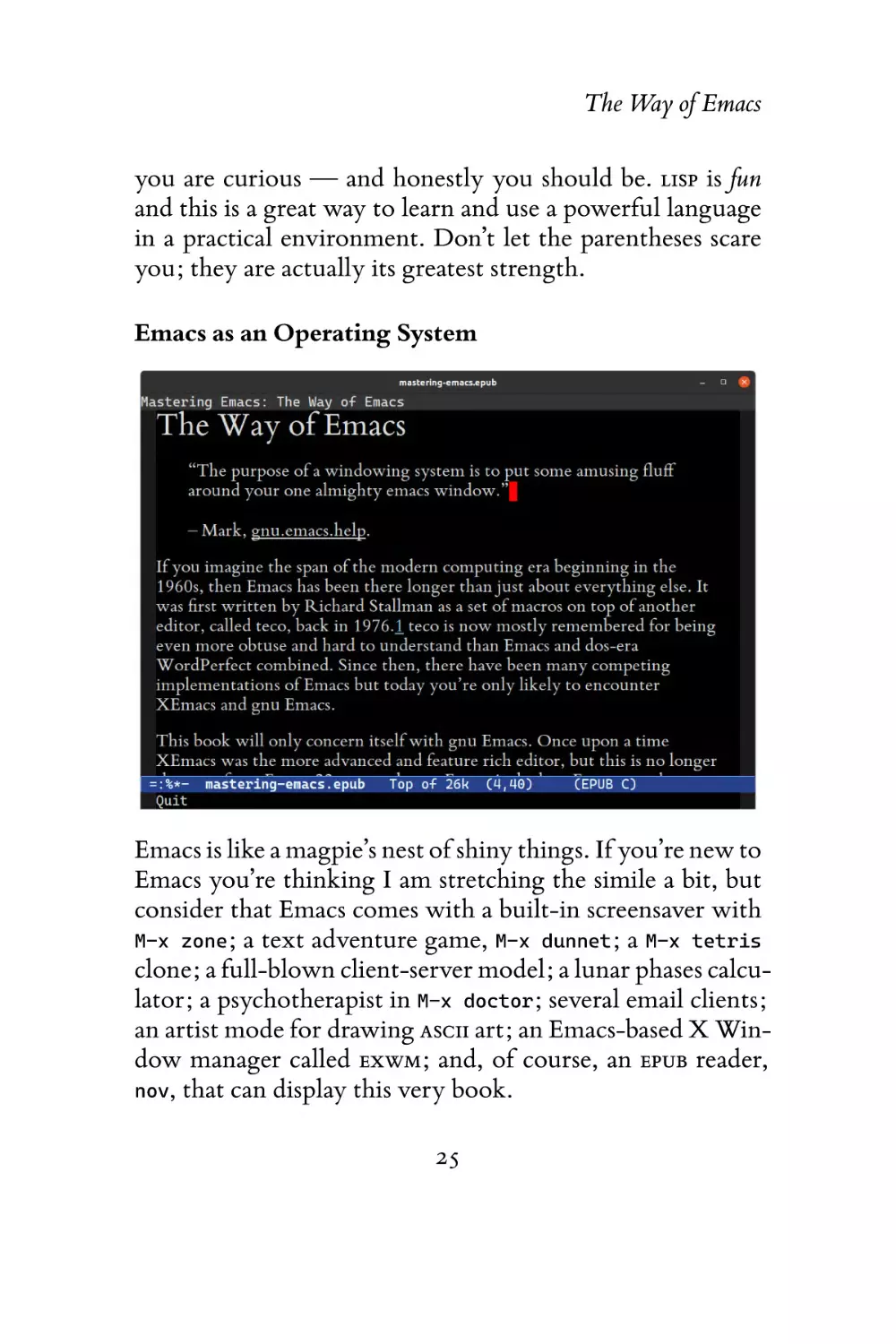
If you imagine the span of the modern computing era beginning in the 1960s, then Emacs has been there longer than
just about everything else. It was first written by Richard
Stallman as a set of macros on top of another editor, called
TECO, back in 1976.1 TECO is now mostly remembered for
being even more obtuse and hard to understand than Emacs
and DOS-era WordPerfect combined. Since then, there have
been many competing implementations of Emacs but today
you’re only likely to encounter XEmacs and GNU Emacs.
1 https://www.gnu.org/software/emacs/manual/html_mono/efaq.
html#Origin-of-the-term-Emacs

18

The Way of Emacs
This book will only concern itself with GNU Emacs. Once
upon a time XEmacs was the more advanced and feature
rich editor, but this is no longer the case: from Emacs 22 onwards GNU Emacs is the best Emacs out there. The history
of XEmacs and GNU Emacs is an interesting one. It was one
of the first major forks2 in a free software project. Today,
XEmacs is no longer maintained.
Note
To almost everyone, the word Emacs refers
specifically to GNU Emacs. I will only spell
out the full name when I am distinguishing
between different implementations. When I
mention Emacs, I always talk about GNU Emacs.

Because of Emacs’s age there are a number of… oddities.
Weird choices of terminology and historical anachronisms
persist because in most cases Emacs was ahead of the
editor-IDE curve for many decades and thus had to invent
its own terminology for things. There are talks of replacing
Emacs’s own vernacular with words familiar to everyone,
but that is still a long way off, if it ever happens.
Despite the lack of marketing; a small core of Emacs developers; and the anachronisms and terminology that predates
the modern Personal Computing-era; there are many people out there who just love using Emacs. Emacs’s strength is its
ability to adapt: and with that, I mean not only the software,
but the large body of volunteer maintainers and contributors who set the direction of Emacs. They work tirelessly –
2 https://www.jwz.org/doc/lemacs.html

19

The Way of Emacs
within the constraints of a product that is older than most of
its users – to stay abreast of changes in the wider world. The
myth of an ossified Emacs community and platform are just
that – a myth.
This chapter will talk about the Way of Emacs: the terminology and what Emacs means to a lot of people, and why understanding where Emacs comes from will make it easier to
adopt it.

Guiding Philosophy
Emacs is a tinkerer’s editor. Plain and simple. People
who hack on Emacs do it because almost every facet of
it is extensible. It is the original extensible, customizable,
self-documenting editor. If you come from other text
editors, the idea of being able to change anything may seem
like an unnecessary distraction from your work – and
indeed, a lot of Emacs hacking does happen at the expense
of one’s real job – but once you realize that you can shape
your editor to do what you want it to do, it opens up a
world of possibilities.
That means you can truly rebind all of Emacs’s keys to your
liking; you are not hidebound by your IDE’s undocumented
and buggy API nor the limitations that would follow if you
did change things — such as your custom navigation keys
not working in, say, the search & replace window or in the
internal help files. Truly, in Emacs, you can change everything — and people do. Vim users are migrating to Emacs
because, well, Emacs is often a better Vim than Vim.
20

The Way of Emacs
Emacs pulls you in. Once you start using Emacs for the editing, you realize that using Emacs for IrC, email, database access, organizing your thoughts, command-line shells, compiling your code or surfing the Internet is just as easy as editing text – and you get to keep your key bindings, theme and
all the power of Emacs and elisp to configure or alter the behavior of everything.
And when everything is seamlessly tied together you avoid
the usual context switches of going from application to application: most Emacs users use little more than the editor,
a browser and maybe a dedicated terminal application.
Emacs’s history
Emacs’s source code repository (now in Git)
stretches back over 30 years and has more than
130,000 commits and nearly 600 committers.

If you want to modify Emacs, or any of the myriad packages available to you, Emacs Lisp (also known informally as
elisp) is what you will have to write. There have been a few
attempts to graft other languages onto elisp and Emacs but
with no lasting effect. As it turns out, LISP is actually a perfect abstraction for a very advanced tool like Emacs. And
most modern languages wouldn’t necessarily stand the test
of time: TCL was briefly considered in the 90s as it was popular at the time — but that has the distinction of being even
more obscure than LISP, nowadays.
The only downside is that fiddling with your Emacs configuration is something you will have to learn to live with (and
in LISP no less, but as I explain in the next part that’s actually
21

The Way of Emacs
a good thing.) That’s why I reinforced the point that it’s a
tinkerer’s editor. If you hate the idea of tweaking anything
and want everything to work perfectly out of the box, you
have two options left:
Use a starter kit There are many free starter kits that come
equipped with additional packages and what the
author thinks are sensible default settings. They can
be a good way to start out but with the caveat that
you don’t know where Emacs ends and the starter
kits’ added functionality begins.
I recommend you look at one of the following starter
kits:

• Steve Purcell’s .emacs.d
https://github.com/purcell/emacs.d
• Bozhidar Batzov’s Prelude
https://github.com/bbatsov/prelude
If you want an opinionated kit with a strong slant towards Vim I recommend:
• Spacemacs, a very popular kit that combines Vim’s
modal editing with Emacs’s extensibility
https://spacemacs.org/
• Doom Emacs, like Spacemacs, is a full-fledged kit
https://github.com/hlissner/doom-emacs
Use the defaults Certainly an option, but Emacs ships with
neutral but old-fashioned defaults. You are expected

22

The Way of Emacs
to configure Emacs to your liking or let someone else
do the work for you. For an editor that is so radically
different from mainstream editors, the maintainers are
conservative about changing the defaults for fear of upsetting the old guard (who, of all people, should know
how to configure Emacs.)
Personally, I never used a starter kit – they did not
exist in the same way they do now when I started
nearly 20 years ago – but instead borrowed heavily
from other people’s .emacs files, as we called it back
then.
This approach is well-suited to people who want to
understand their editor end-to-end. I recommend you
look at starter kits – see the aforementioned kits for
good ideas – and borrow liberally from them.

LISP?
Emacs is powered by its own LISP implementation called
Emacs Lisp or just elisp. Many are put off or intimidated by
this esoteric language; that’s a shame, because it’s a practical
and fun way to learn LISP in an editor built up around the
idea of LISP as a singular machine. Every part of Emacs
can be inspected, evaluated or modified because the editor
is approximately 95 percent elisp and 5 percent C code.
It’s also a practical way to learn a radical paradigm: that
code and data are interchangeable and malleable; that the
language, owing to its simple syntax, is trivially extensible
with macros.
Unfortunately, there’s no getting around learning elisp at
23

The Way of Emacs
some point. In this book, I will talk about the Customize interface: a dynamically generated interface of customizable
options in Emacs. However, something as simple as rebinding a key means you’ll have to interact with elisp. But it’s
not all bad. Most of the problems you’re likely to encounter
have already been solved by someone else a long time ago;
it’s a simple matter of searching the Internet for a solution
to your problems.
Despite the relative unpopularity of elisp versus more “modern” languages like Python, Ruby and JavaScript, I doubt
Emacs would have had the same power of extensibility if
a more traditional imperative/object-oriented language had
been used. What makes LISP such a fantastic language is that
source code and data structures are intrinsically one and the
same: the LISP source code you read as a human is almost
identical to how the code is manipulated as a data structure
by LISP — the distinction between the questions “What is
data?” and “What is code?” are nil.
The data-as-code, the macro system and the ability to “advise” arbitrary functions – meaning you can modify the behavior of existing code without copying and modifying the
original – give you an unprecedented ability to alter Emacs
to suit your needs. What would in most software projects
be considered code smells or poor architecture is actually a
major benefit in Emacs: you can hook, replace or alter existing routines in Emacs to suit your needs without rewriting
large swathes of someone else’s source code.
This book will not teach elisp in any great detail: Emacs has
a built-in elisp introduction3 and I highly recommend it if
3 https://www.gnu.org/software/emacs/manual/eintr.html

24

The Way of Emacs
you are curious — and honestly you should be. LISP is fun
and this is a great way to learn and use a powerful language
in a practical environment. Don’t let the parentheses scare
you; they are actually its greatest strength.
Emacs as an Operating System

Emacs is like a magpie’s nest of shiny things. If you’re new to
Emacs you’re thinking I am stretching the simile a bit, but
consider that Emacs comes with a built-in screensaver with
M-x zone; a text adventure game, M-x dunnet; a M-x tetris
clone; a full-blown client-server model; a lunar phases calculator; a psychotherapist in M-x doctor; several email clients;
an artist mode for drawing ASCII art; an Emacs-based X Window manager called EXWM; and, of course, an EPUB reader,
nov, that can display this very book.
25

The Way of Emacs
When you run Emacs you are in fact launching a tiny C
core responsible for the low-level interactions with your operating system’s ABI. That includes mundane things like filesystem and network access; drawing things to the screen or
printing control codes to the terminal.
The cornerstone of Emacs though is the elisp interpreter —
without it, there is no Emacs. The interpreter is creaky and
old; it’s struggling to meet the growing demands of its users.
Modern Emacs users expect a lot from their humble interpreter: speed and asynchrony are the two main issues. The
interpreter runs in a single thread and intensive tasks will
lock the UI thread. There are workarounds, though. The issues, manifold though they are, do not deter people from
writing ever-more sophisticated packages. Recent advances
in Emacs’s core around native compilation of elisp code is renewing people’s faith of what is possible with modern tooling and skilled engineering.
When you write elisp you are not just writing snippets of
code run in a sandbox, isolated from everything — you are
altering a living system; an operating system running on an
operating system. Every variable you alter and every function you call is carried out by the very same interpreter you
use when you edit text.
Emacs is a hacker’s dream because it is one giant, mutable
state. Its simplicity is both a blessing and a curse. You can
re-define live functions; change variables left and right; and
you can query the system for its state at any time — state that
changes with every key stroke as Emacs responds to events
from your keyboard to your network stack. Emacs is selfdocumenting because it is the document. There are no other
26

The Way of Emacs
editors that can do that. No editor comes close.
And yet Emacs never crashes — not really, anyway.
Emacs has an uptime counter to prove that it doesn’t
(M-x emacs-uptime) — multi-month uptimes are not
uncommon.
So when you ask Emacs a question – as I will show you how
to do later – you are asking your Emacs what its state is. Because of this, Emacs has an excellent elisp debugger and unlimited access to every facet of Emacs’s own interpreter and
state — so it has excellent code completion too. Any time
you encounter a LISP expression you can tell Emacs to evaluate it, and it will: from adding numbers to setting variables
to downloading packages.

Extensibility
Extensibility is important, but emphasizing that importance
is difficult if you don’t know the scope of possibilities in
Emacs. I’ve included just a few examples of what Emacs can
do – or more importantly still, what Emacs can enable people
to do – here.
A speech interface for the blind For 25 years, Emacspeak4 has offered blind or visually impaired Emacs
users a way of interacting with Emacs, and the world,
through a speech interface that understands the
content of what appears on your screen. Emacspeak
will change the voice characteristics of the speech
engine to reflect different syntactic elements in source
4 https://emacspeak.sourceforge.net/

27

The Way of Emacs
code, or to emphasize layout, fonts or graphical icons.
For blind Emacs users, Emacspeak is a lifeline that has
enabled them to continue working by using Emacs’s
many tools, such as e-mail or web browsing.
The fact that this functionality has been around for 25
years is in itself impressive, but Emacs’s ability to support this sort of transformational software is beyond
inspiring.
Remote file editing Emacs’s TrAMP5 seamlessly lets you
edit remote files using a variety of network protocols,
including SSH, FTP, Docker, rclone, rsync, and more,
as though the files were local.
Shell access Emacs has a built-in ANSI-capable Terminal emulator; an Emacs wrapper around shells, such as bash;
and a full-blown shell called Eshell written entirely in
elisp.
ORG mode A to-do, agenda, project planner, literate
programming, note-taking (and more!) application.
It is widely considered the best text-based organizer ever
— a feat only surpassed by the fact that people switch
to Emacs just to use it.
Symbolic Calculator Reverse-Polish Notation calculator
capable of symbolic algebra, arbitrary precision computation, custom functions, matrix and unit-based
mathematics, and much more.
Music Player The Emacs Multimedia System (EMMS) is an
interactive media browser and music player.
5 Transparent Remote (file) Access, Multiple Protocol

28

The Way of Emacs
And much more Official or unofficial support for almost
every programming environment; built-in man page
and info reader; a very sophisticated directory and file
manager; seamless support for almost every major version control system; and thousands of other features,
large or small.

Important Conventions
There are some important Emacs conventions that I need to
talk about before we continue. It’s quite important that you
memorize them or at least refer back to this page if you’re
in doubt. They will crop up again and again in the book
and elsewhere and knowing them is paramount if you want
to make use of Emacs’s extensive, internal documentation.
This is not an exhaustive list of conventions used in Emacs
or even in this book. I will introduce specific terms and concepts throughout the book, though some terms transcend
specific topics and are therefore important to know beforehand.

29

The Way of Emacs

The Buffer
Most text editors and IDEs are file based: they display text from
a file, and they save the text to a file. That’s it.
In Emacs, all files are buffers, but not all buffers are files. If
you want a throw-away area to temporarily store snippets
from a log file, or manipulate text, or whatever your reason
— you just create and name a new buffer. Emacs won’t hassle
you for a filename. The buffer will exist in Emacs and only
Emacs. You have to explicitly save it to a file on disk to make
it persist.
Emacs uses these buffers for more than just editing text. It
can also act like an I/O device and talk to another process,
30

The Way of Emacs
such as a shell like bash or even Python.
Almost all of Emacs’s own commands act on buffers. So
when you tell Emacs to, for example, search & replace it
will actually search and replace on a buffer – maybe the
active buffer you’re writing in, or perhaps a temporary
duplicate – and not an opaque, internal data structure like
you might think. In Emacs, the buffer is the data structure. This
is an extremely powerful concept because the very same
commands you use to move around and edit in Emacs are
almost always the same ones you use behind-the-scenes in
elisp. So once you memorize Emacs’s own user commands,
you can use them in a simple function call to mimic what
you’d do by hand.

The Window and the Frame
When you look at a buffer on the screen it is displayed in
a window. But in Emacs, a window is just a tiled portion of
the frame, which is what most window managers call a window. In Emacs, it is the other way around; and yes, it’s very
confusing.
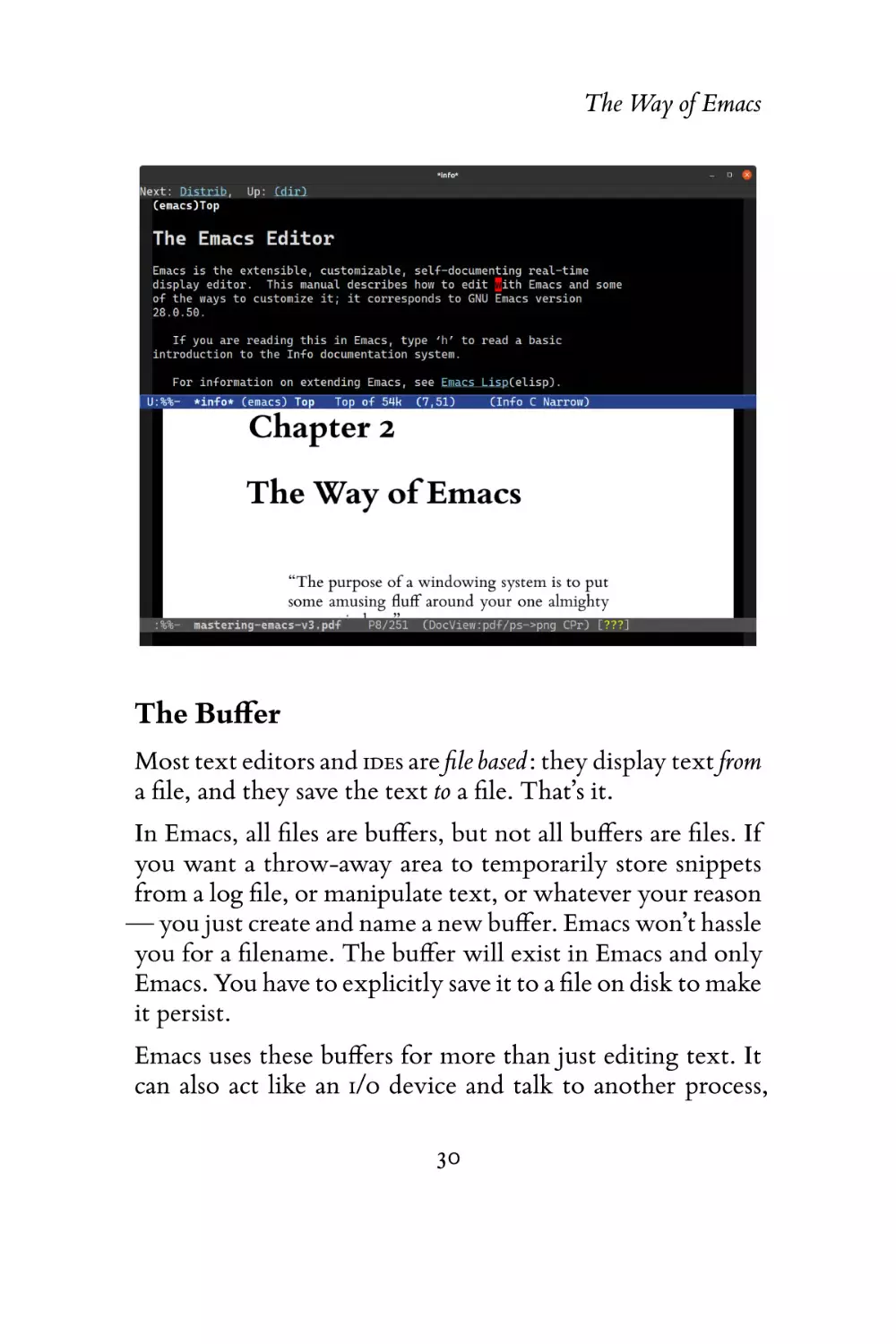
If you look at the screenshot above, you will see two windows and one frame. Each frame can have one or more windows, and each window can have exactly one buffer.
So, a buffer must be viewed in a window in order to be displayed to the user, and for the window to be visible to the
user it must be in a frame.
Note

31

The Way of Emacs
Think of it as a physical window having a frame,
each frame made up of window panes.
In Emacs, you are free to create as many frames as you like,
and in each frame you’re free to split and tile that frame into
multiple windows. If you use a large screen monitor (and
who doesn’t, these days), it is very beneficial to use Emacs’s
tiling system to show multiple buffers on the screen.
Modeline, Echo Area, and Minibuffer

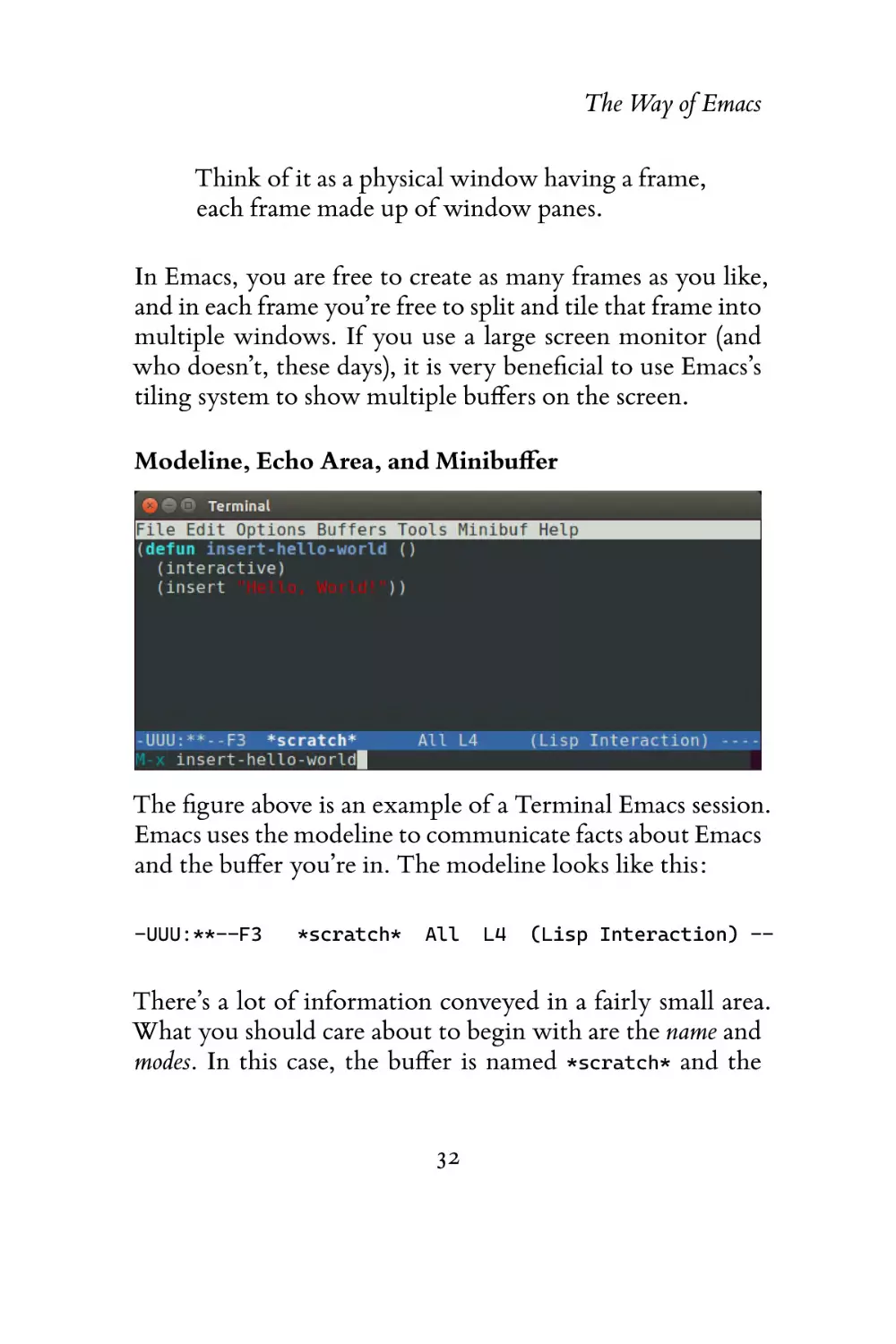
The figure above is an example of a Terminal Emacs session.
Emacs uses the modeline to communicate facts about Emacs
and the buffer you’re in. The modeline looks like this:
-UUU:**--F3

*scratch*

All

L4

(Lisp Interaction) --

There’s a lot of information conveyed in a fairly small area.
What you should care about to begin with are the name and
modes. In this case, the buffer is named *scratch* and the
32

The Way of Emacs
major mode is Lisp Interaction. Most editors have a similar
concept known as a status bar.
All sorts of optional information can be displayed in the modeline: laptop battery power, the current function or class
you’re in, what source control revision or branch you’re using, and much more.
The minibuffer is directly below the modeline and it is
where errors and general information are shown:
-UUU:**--F3

*scratch*

All

L4

(Lisp Interaction) --

M-x insert-hello-world

In this case, I have triggered Emacs’s extended command functionality – indicated by the M-x symbol, a concept that I will
talk about in the chapter on keys – and I’ve typed the command insert-hello-world into the M-x prompt.
The echo area and the minibuffer share the same spot on the
screen. The minibuffer is nearly identical to a normal buffer:
you can use most of your editing commands, and the oneline minibuffer will expand to multiple lines if necessary. It
is how you communicate with Emacs: if you want to search
for a string you write the string you want to search for in
the minibuffer. It supports a variety of complex completion
mechanisms to help you find what you need and is a tool
you will use often.

The Point and Mark
The point is just another word for the caret or cursor. The
Emacs documentation is rather inconsistent in its use of point
33

The Way of Emacs
or cursor; you will see both. Nevertheless, the point itself is
your current position in a buffer. In this book I will use █
to represent the point. Each buffer tracks the position of the
point separately, so if you switch between buffers the location of each point is remembered separately.
Note
In Emacs, we talk a lot about a “current buffer,”
which can mean two things – only one of which
is interesting to us, at the present – and that is
whichever buffer has the point (the other case is basically the same, but involves programmatically
changing the buffer in elisp.) A buffer that has
the point is the current buffer because it is the one
you write and move around in. Only one buffer
can ever be the current buffer at a time, and it is
this buffer that has the point.

The point, in Emacs, has more utility than just acting as
a visual marker for where characters you type end up on
the screen. It is also one part of a duo called the point and
mark. The point and mark represents the boundary for a
region, which is a contiguous block of text, usually, in the
current buffer. In other editors, it is called the selection or
the highlight. Most editors don’t have specific names for the
beginning and end of a region but in Emacs we do, and in
Selections and Regions I will talk more about the reason.
Tip

34

The Way of Emacs
Historically, Emacs did not show you the visible
region on the screen but instead you had to mentally visualize it. Emacs has supported visual regions for a very long time now, called the transient mark mode (or just TMM.) It is enabled by default. Surprisingly, there’s some value in not using TMM at all, but I will talk about that much
later.
But like the point, the mark is more than what it seems. It
serves as a boundary for the region, yes, but it is also a beacon
you can use to return to from other parts in the buffer. The
mark is typically invisible.

Killing, Yanking and CUA
The first – and perhaps most abhorrent, to beginners –
deviation from de-facto user interface standards is Emacs’s
clipboard system. Cut, copy and paste are known, almost
universally, to most as Ctrl+x or Shift+Delete; Ctrl+c or
Ctrl+Insert; and Ctrl+v or Shift+Insert, respectively.
In Emacs, the keys and the terminology differ greatly:
killing is cutting; yanking is pasting; and copying is
awkwardly known as saving to the kill ring (or just copy,
informally.)
The reasons, as before, are historical. Most of the keys and
terminology stem from IBM’s Common User Access6 (CUA)
and Apple. But the CUA was introduced in 1987, many years
6 https://en.wikipedia.org/wiki/IBM_Common_User_Access

35

The Way of Emacs
after Emacs had settled on its own terminology and standards.
In Selection Compatibility Modes, I will explain how you
can switch to modern clipboard keys, with certain caveats,
and why you shouldn’t do that. Instead, I’ll show you why
Emacs’s system is better for text editing.

.emacs.d, init.el, and .emacs
A favorite pastime of Emacs users is sharing with other
Emacs hackers little snippets of code or customizations that
make their lives easier.
Historically, these settings were kept in a file called .emacs,
but most keep their customizations in ~/.emacs.d/init.el
on Linux and %HOME%\init.el on Windows. Since Emacs
now writes several more files to your file system, they are
kept in a directory called .emacs.d to avoid cluttering your
home directory.
XDG Support in Emacs 27
Emacs 27 or later now supports the XDG
convention of storing user configuration in
~/.config/emacs/init.el on Linux platforms
that support it.

So, when people talk about their init file, or their “.emacs
file,” or if they tell you to put something in said file, that’s
what they’re referring to. If you are new to Emacs, you
should use ~/.emacs.d/init.el. When you add something
to the file you will need to tell Emacs to run it. There
36

The Way of Emacs
are many ways of doing this, and I will explain how in
Evaluating Elisp Code, but my preferred recommendation
for beginners is to close Emacs and restart it.
Note
Starter kits in Emacs are very common now.
They’re community additions to Emacs that
bundle many changes and even entire thirdparty packages and if you use one, you should
read their documentation for best practices on
where to store your own changes.

Emacs will not save changes for you. If you want Emacs to
keep changes, you must do it through the Customize interface. That means it is your responsibility to save changes you
want to keep to init.el. Likewise, if you made a mistake
and broke something in Emacs or if you made changes you
do not care for, simply quit and restart Emacs.

Major Modes and Minor Modes
Major modes in Emacs control how buffers behave. So, if
you want to edit Python code and you visit a file in Emacs
called helloworld.py, then Emacs will know, through a centralized register that maps file extensions to major modes,
that this is a Python file and it should use the Python major
mode. Each buffer will always have a major mode. The major
mode may be basic and offer no font locking (syntax highlighting) and no specific functionality, or it may be the complete
opposite and introduce font locking, an advanced indentation engine, and specialized commands.
37

The Way of Emacs
Note
Font Locking is the correct term for syntax highlighting in Emacs, and in turn is made up of faces
of properties (color, font, text size, and so on)
that the font locking engines use to pretty-print
the text.
The Emacs terms face and font lock predate the
more common terms you see used elsewhere.

You are free to change a buffer’s major mode at any time by
typing the command for another one. In addition to Emacs’s
register of file extensions and associated major modes, there
is another system for files with ambiguous (or no) file extensions at all: Emacs will scan the first portion of the file and
try to infer the major mode from that. Rarely, Emacs will
get it wrong and you will need to change it.
It’s important to remember that each buffer can have just
one major mode. Minor modes, by contrast, are typically
optional add-ons that you enable for some (or all) of your
buffers. One example is flyspell mode, a minor mode that spell
checks text as you write.
The major mode is always displayed in the modeline. Some
minor modes are also displayed in the modeline, but usually
only the ones that alter the buffer or how you interact with
it in some way.

38

Chapter 3
First Steps
I use Emacs, which might be thought of as a thermonuclear word processor.
– Neal Stephenson, In the Beginning… was the
Command Line.

Installing and Starting Emacs
Before I get into the nitty-gritty of installing Emacs, you
should check and see if it’s installed already. However, you
have to be extra vigilant if it is: it might be an ancient version.
Checking Emacs’s version
You can check Emacs’s version by typing emacs
--version.

As of 2020 the newest major version is GNU Emacs 27. If your
version of Emacs is version 23.x or older — upgrade. If it’s
39

First Steps
24.x or newer, then that’s generally fine for most things. Ideally you should try to stay current: major releases in Emacs
are infrequent enough that keeping abreast shouldn’t trouble you much. If you do upgrade, it’s rarely for the bug fixes
(because Emacs is actually extremely stable) but for the features and the fact that most package authors assume you’re
using the latest version. (Having said that, if you’re on a very
obscure platform it may not be possible for you to upgrade
at all.)
If you’re using XEmacs or another non-GNU Emacs, you really should switch. Fifteen years ago, XEmacs was leading
the pack but GNU Emacs caught up and exceeded the capabilities of XEmacs a long time ago.
Surprisingly, Emacs ran on some incredibly old platforms1
until Emacs 23.1 (released in July 2009), including the following: Tandem Integrity S2; Apollo SR10.x; the Acorn;
the Harris Night Hawk Series 1200 and Series 3000; and
about another two or three dozen more obscure platforms.
There are fewer today, but the Emacs maintainers are
serious about backwards compatibility and legacy support.
A hallmark of Emacs is its long held belief that breaking
compatibility should take multiple major releases from
deprecation to removal. Uncommonly, complaints stream
into the Emacs mailing lists that a piece of code they
wrote in the late 1980s suddenly broke because the Emacs
maintainers finally removed a long-obsoleted variable or
function.
Emacs supports most major platforms you are likely to use
yourself: BSD and Linux, Mac OSX, MS-DOS, and Microsoft
1 https://www.gnu.org/software/emacs/MACHINES

40

First Steps
Windows. I will not go into too great a detail on how to compile or build Emacs on operating systems other than Linux.
Emacs was made to be a cross platform editor but there are
always some trade-offs if you don’t run them on Linux. Mac
OSX, in particular, seems to attract a great deal of conflicting
advice on how to best run Emacs; the best advice I can offer
is to try out a few different approaches and find one that fits
you.
Microsoft Windows Emacs releases official builds for
Microsoft Windows on their official site.2 Extracting
and running the executable is all it takes.
Most external tool support will not work on
Windows. Functionality like built-in grep support
requires the GNU coreutils to be present. You can, however, run Emacs from Cygwin3 and get a Linux-like
environment on Windows that way. Alternatively,
the cross-compiled GnuWin324 project has almost every Linux command line program that runs natively
on Windows.
Another new opportunity that has sprung up is to use
the Windows Subsystem for Linux, a compatibility layer
that runs Linux natively on top of the subsystem in
Windows 10.
Mac OSX One approach (though there are several) is
to use an unofficial build of Emacs.5 There is also
2 https://ftp.gnu.org/gnu/emacs/windows/
3 https://www.cygwin.com/
4 https://gnuwin32.sourceforge.net/
5 https://emacsformacosx.com/

41

First Steps
Aquamacs but it differs from GNU Emacs quite a bit.
The topic itself is rather complex. Some prefer using
a package manager like homebrew and others do
not. Generally, people who use homebrew often use
the homebrew version of Emacs also. EmacsWiki’s
article6 on installing Emacs on Mac OSX is a good
place to start if you want to compile Emacs yourself.
Linux Emacs is almost always present in your distribution’s
package manager. Some distros are slow to update
to new minor releases (which are rarely minor at all,
adding a lot of new functionality and bug fixes) so it
may be worth your while to build from source.
On Ubuntu, it’s as easy as apt-get install emacsNN
where NN is the major version of Emacs: 24, 25, and
so on.
If you want to build your own version of Emacs from
source, I recommend you use apt-get build-dep
emacsNN to build and install Emacs’s dependencies.
From that point on it’s easy to follow the usual
configure, make, make install procedure outlined in the
build instructions.

Starting Emacs
Starting Emacs is as simple as running emacs from the command line. If you run the command from a window manager, then Emacs will launch as GUI Emacs — as opposed to
Terminal Emacs where Emacs is running inside a terminal.
6 https://www.emacswiki.org/emacs/EmacsForMacOS

42

First Steps
You can force Emacs to run in a terminal, even in a window
manager, by giving it the argument -nw, like so: emacs -nw.
There’s a host of command line switches you can pass to
Emacs, but you only need four to get started:
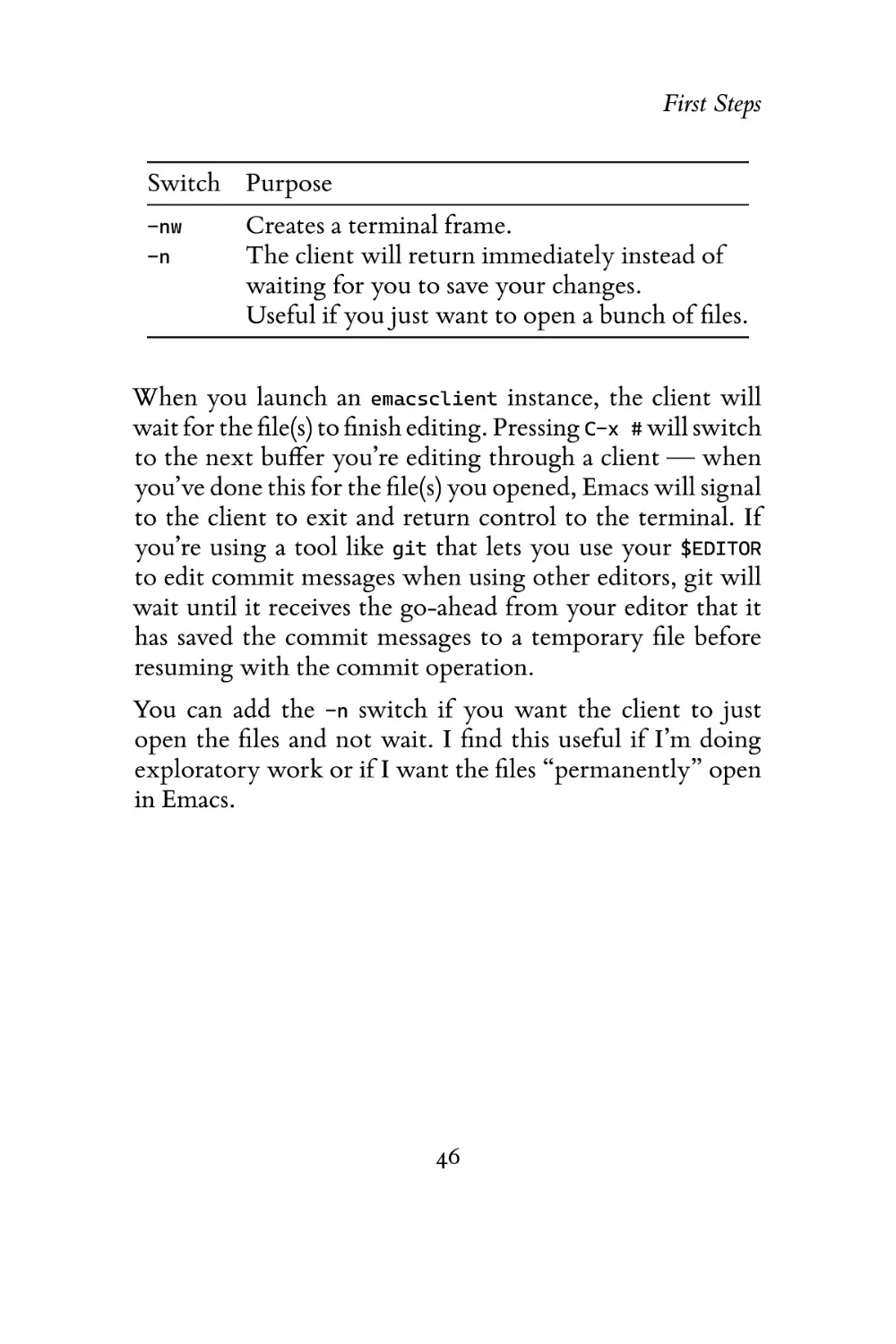
Switch Purpose
--help
-nw
-q
-Q

Display the help
Forces Emacs to run in terminal mode
Do not load an init file (such as init.el)
Does not load the site-wide startup file7 , your
init file, nor X resources

If Emacs is giving you error messages when you start it, you
can use -q to prevent your init file from loading. If that fixes
the errors — then you have a broken init file and should take
steps to remedy that: revert to an older version, comment
out code until it works, or ask for help.
The Emacs binary follows the usual command line conventions: emacs [switches] [file1, file2, ...].
The Emacs way is to keep it running and do all your editing in a dedicated Emacs instance. Emacs will typically start
slower than other editors (as it has a lot more packages and
features) as it’s designed for long-running sessions and not
quick edits.
7 The site-wide file is a global settings file like your own init file

43

First Steps
Emacs Client-Server

So, how do you deal with situations where you’re whiling
away at the command line but have to edit a file? Maybe
you’re writing an email from the command line or writing
a commit message — you’d want to use Emacs, and ideally
the same instance of Emacs you already have running. The
answer, ignoring the fact that Emacs has first-class support
for both email and source control systems, is Emacs’s clientserver mode.
Note
The client-server functionality is fantastic, but I
wouldn’t spend too much time playing around
with it until you’re comfortable with Emacs basics.

The myriad advantages of Emacs’s server mode are:
A persistent session means Emacs will re-use the same session instead of spawning a new, distinct copy of Emacs
every time.
It works well with $EDITOR by opening the files in your
shared Emacs session and automatically signalling the
calling program when the session finishes.
Fast file opening from the command line using the
emacsclient binary. The Emacs client will connect to
the local Emacs server instance and instruct it to open
the file.

44

First Steps
There are several ways of activating Emacs’s client-server
mode:
launches a server inside an alreadyrunning Emacs instance. The instance turns into a server
when you type this; there’s no visual feedback, per se, that
it’s running. When you exit this Emacs instance, it will shut
down the server also — so if you want a server daemon you
need the option below.
M-x server-start

will run Emacs as a daemon. It will call
as above, but will return control to your
terminal immediately and run in the background, waiting
for client requests.
emacs --daemon
server-start,

Emacs also ships with native support for systemd, if your
operating system supports it. Emacs 26 and up can configure
a systemd unit file automatically by running the command
systemctl --user enable emacs. Emacs’s daemon is then
managed by systemd.
If you go the server route, you cannot use the default emacs binary any more. That binary will spawn standalone instances
only. You must use the similarly-named emacsclient instead.
Set your $EDITOR environment variable to emacsclient and
things should just work from then on.
The emacsclient binary has its own set of switches you
should know about:
Switch Purpose
--help
-c

Displays the help.
Creates a graphical frame (if X is available)
or a terminal frame if X is unavailable.
45

First Steps
Switch Purpose
-nw
-n

Creates a terminal frame.
The client will return immediately instead of
waiting for you to save your changes.
Useful if you just want to open a bunch of files.

When you launch an emacsclient instance, the client will
wait for the file(s) to finish editing. Pressing C-x # will switch
to the next buffer you’re editing through a client — when
you’ve done this for the file(s) you opened, Emacs will signal
to the client to exit and return control to the terminal. If
you’re using a tool like git that lets you use your $EDITOR
to edit commit messages when using other editors, git will
wait until it receives the go-ahead from your editor that it
has saved the commit messages to a temporary file before
resuming with the commit operation.
You can add the -n switch if you want the client to just
open the files and not wait. I find this useful if I’m doing
exploratory work or if I want the files “permanently” open
in Emacs.

46

First Steps

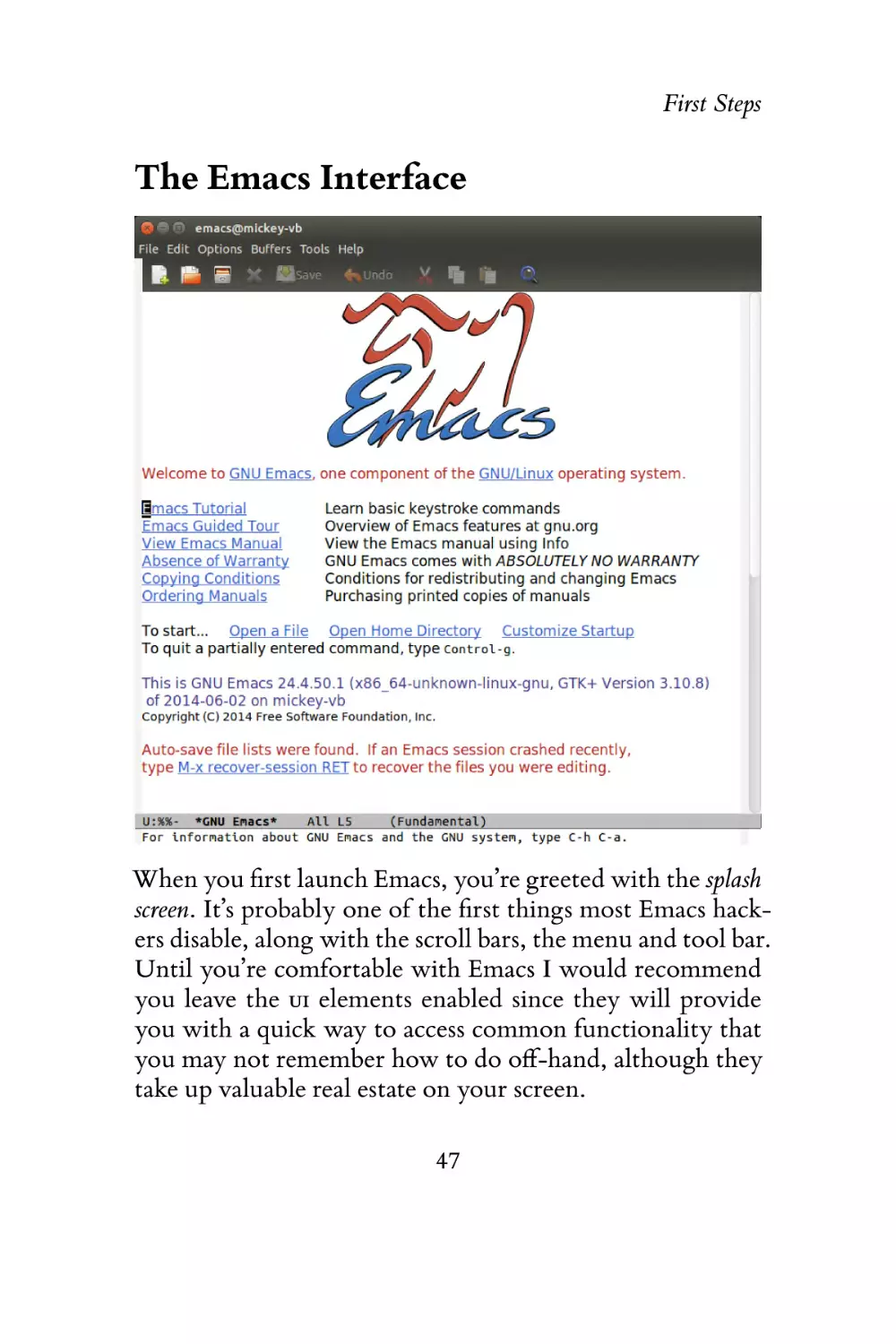
The Emacs Interface

When you first launch Emacs, you’re greeted with the splash
screen. It’s probably one of the first things most Emacs hackers disable, along with the scroll bars, the menu and tool bar.
Until you’re comfortable with Emacs I would recommend
you leave the UI elements enabled since they will provide
you with a quick way to access common functionality that
you may not remember how to do off-hand, although they
take up valuable real estate on your screen.
47

First Steps
If you’re using Emacs in the Terminal, you can still access
the menu bar by pressing F10.
If you don’t see a user interface similar to the figure above,
it’s most likely due to customizations made to your init file.
The quickest way to test this is to close Emacs and restart
it with emacs -q. If that fixes things, then it’s definitely customizations made to your Emacs. Most starter kits assume
you’re reasonably familiar with Emacs and they often disable
things like the menu bar and tool bar.
You are actually free to play around with Emacs now: the
arrows keys will work fine and, combined with the menu bar,
you can open and save files. Emacs will auto-detect most file
types and apply the correct major mode to it — if it doesn’t,
you may have to install third-party packages, which I will
talk about later.

Keys
The most important subject in Emacs. Emacs is famous for
two things: its obscure keyboard incantations and that it’s
the kitchen sink editor that can do everything. The comic
strip xkcd8 humorously referenced that part of Emacs lore.
A much older joke is that Emacs stands for “Escape Meta Alt
Control Shift.”
Nevertheless, key modifiers are a big part of day-to-day
Emacs use so being able to “decode” a string of keys is
important.
8 https://xkcd.com/378/

48

First Steps
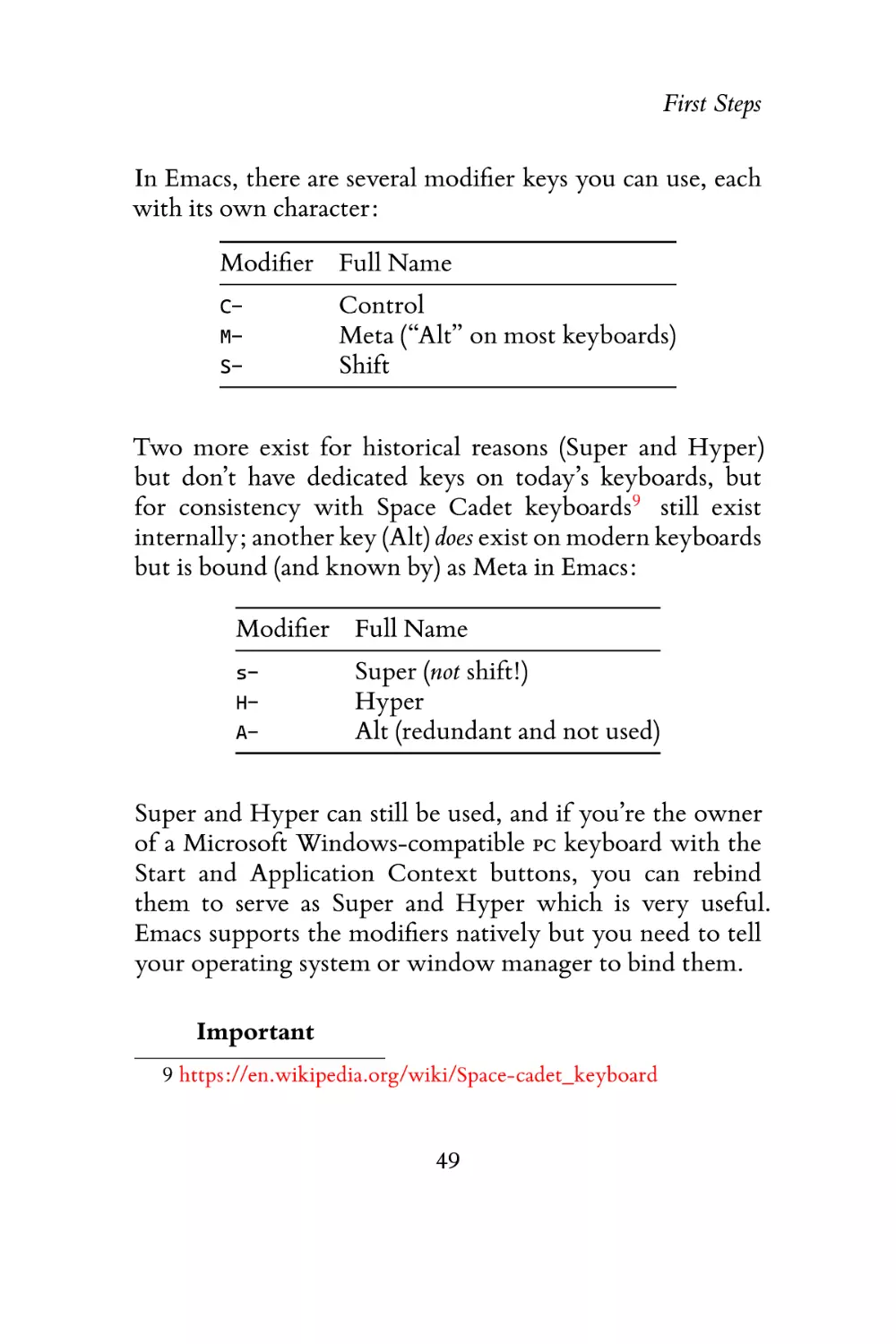
In Emacs, there are several modifier keys you can use, each
with its own character:
Modifier Full Name
CMS-

Control
Meta (“Alt” on most keyboards)
Shift

Two more exist for historical reasons (Super and Hyper)
but don’t have dedicated keys on today’s keyboards, but
for consistency with Space Cadet keyboards9 still exist
internally; another key (Alt) does exist on modern keyboards
but is bound (and known by) as Meta in Emacs:
Modifier Full Name
sHA-

Super (not shift!)
Hyper
Alt (redundant and not used)

Super and Hyper can still be used, and if you’re the owner
of a Microsoft Windows-compatible PC keyboard with the
Start and Application Context buttons, you can rebind
them to serve as Super and Hyper which is very useful.
Emacs supports the modifiers natively but you need to tell
your operating system or window manager to bind them.
Important
9 https://en.wikipedia.org/wiki/Space-cadet_keyboard

49

First Steps
Owing to the limitations of terminals, there are
some key bindings you simply cannot type if
you’re running Emacs in a terminal. My advice
is to run Emacs in a GUI, if at all possible.
Knowing the modifiers is only one half of the equation
though.
In Emacs, we formally define a key sequence (or just key) to
mean a sequence of keyboard (or mouse) actions and a complete key to mean one or more keyboard sequences that invoke
a command; if the sequence of keys is not a complete key, then
you have a prefix key. And if the key sequence is not recognized by Emacs at all it is invalid, and an error is displayed
in the echo area.
That’s a rather dry definition, so let’s look at a few examples.
C-d

calls a command named delete-char. To invoke it, hold
down control and press d. As the key is a complete key,
it will call the command delete-char and immediately
delete the character next to point.

C-M-d

is similar to the example above, but this time you
must hold down both control and meta before you
press d.

Let’s try a few prefix keys. Prefix keys are basically subdivisions — a way of grouping keys and increasing the number
of possible key combinations. For instance, the prefix key
C-x has several dozen keys bound to it. C-x is a prefix key
you will use all the time.
50

First Steps
in Emacs runs a command called find-file. The
way to interpret it is to first hold down control and
then press and release x. In your echo area, Emacs will
display – after a small idle period of about a second
– C-x- (with a dash at the end) which is Emacs’s way
of telling you that it expects additional keys. Finally,
type C-f which should be easy for you to do now: hold
down control and press f.
To type C-x C-f, you don’t have to release the control
key between each key — keeping control pressed
helps you maintain something I call tempo, which I
will talk about later.

C-x C-f

has two prefix keys: first C-x and then 8, which is a
subcategory to C-x. So 8 on its own wouldn’t do anything (it would just print the number 8) nor would C-x
or even C-x 8 — both are still prefix keys. The key is
complete only when you finish with P.
We call sets of keys that belong to a particular prefix
key key maps, which is how Emacs internally tracks
the mapping between a key and a command. In this
case, the key map C-x 8 has a variety of utility characters used in writing or mathematics but not bound on
most keyboards. For instance, C-x 8 P will insert the
paragraph symbol ¶.

C-x 8 P

C-M-%

is a tricky one for beginners. Using what you’ve
learned above, hold down control and alt (and as
you’ll remember from the table above, Meta is Alt)
but also shift. The % character is typically shared with

51

First Steps
a number on the keyboard number range and the
implication here is you must type shift also.
If you don’t press shift, you’re actually typing C-M-5
(on a US keyboard, anyway.)
It bears mentioning that this particular key is bound to
a popular command (M-x query-replace-regexp) and
is an example of a key that you cannot type in Terminal
Emacs because of the terminal’s technical limitations
(and not Emacs.)
and so on are occasionally written like this,
but also in angle brackets: <tab>, <f1>. It’s important
you don’t confuse TAB with the characters T A B. I will
only use the former notation to avoid ambiguities.

TAB, F1–F12

Hint
If you’re stuck, or in the unlikely event Emacs
has seized up, or if you have typed in a partial
command that you want to cancel — press C-g.
That’s the universal “bail me out” command in
Emacs.

Caps Lock as Control
One of the most important modifications you should make
to your environment is rebinding your caps lock key to control. You’re going to use the control key a lot and to avoid the
Emacs pinky I suggest you unbind your right control entirely
and instead use caps lock.
Yes, it’ll be an annoying transition but a worthwhile one
(that will, incidentally, serve you well outside of Emacs.)
52

First Steps
This change is necessary because on older keyboards10 the
control key occupied the space now used by the caps lock
key so reaching the left control key could be done without
straining your left pinky.
On Windows, I recommend you use SharpKeys.11 On
Ubuntu and Mac OSX, it’s built-in; go to the Keyboard
settings and change it. If you’re using another Linux
distribution you may have to fiddle with xmodmap.
M-x:

Execute Extended Command

Only a small portion of available commands in Emacs are
bound to actual keys. Most are not: they are rarely used, and
do not warrant a key binding; or maybe you have explicitly
overridden the key it was bound to, leaving it unbound; or
perhaps you forgot its key binding.
In essence, it’s common that you want to run seldom-used
commands. To do this press M-x (pronounced mex, M x, or
meta x.) In your minibuffer, a prompt will appear and you
are free to input the name of a command you wish to run.
When Emacs users say something like “run M-x lunar-phases
to see the lunar phases of the moon” what they’re saying is:
hold down meta and press x and the M-x prompt will appear
in your minibuffer (that’s the line at the very bottom of
Emacs.)
At this point you can type in the name of the command. Try
it, enter lunar-phases and press RET. The lunar-phases command will open a new window on your screen displaying
10 https://en.wikipedia.org/wiki/Space-cadet_keyboard
11 https://sharpkeys.codeplex.com/

53

First Steps
the lunar phases from today onward. You can type C-x
hide the buffer.

1

to

Hint
If you enter M-x by mistake, remember you can
type C-g to exit out again.

Emacs has built-in auto completion support so pressing TAB
will open a new window and list all the potential candidates.
As you type and press TAB, Emacs will automatically narrow
the list of candidates. If your partially-typed match only has
one candidate left when you press TAB, Emacs will complete
the whole name for you. You can also just press RET — it
completes like TAB but with the added benefit of running
the command if it’s the only candidate left.
You may think M-x is a special Emacs command but it’s actually not. It, too, is written in elisp and bound to a key just
like everything else.
Commands and functions
When I talk about commands, I’m talking about
a type of function that is accessible to the user.
For a function to be accessible to a user (notwithstanding the ability to evaluate any expression
in elisp) it must be interactive, which is an
Emacs term for a function that has additional
properties associated with it, rendering it usable
through the execute extended command (M-x)
interface and key bindings.

54

First Steps
So if you’re a package author, you have to
choose if a particular function is accessible to
the end-user through the M-x interface. Marking
it as interactive will make it accessible to end
users.
In other words, if it’s not interactive, you cannot
run it from M-x nor can you bind it to a key.

Universal Arguments
Some commands have alternate states, and to access them
you need to give them a universal argument (also called a prefix argument.) The universal argument is also known by its
key binding C-u. When you prefix another key binding (this
includes M-x by the way), you’re telling Emacs to modify the
functionality of that command. What happens next will depend on the command you’re invoking: some have zero, one
or even more universal argument states. If a command has
N states, you simply type C-u up to N times.
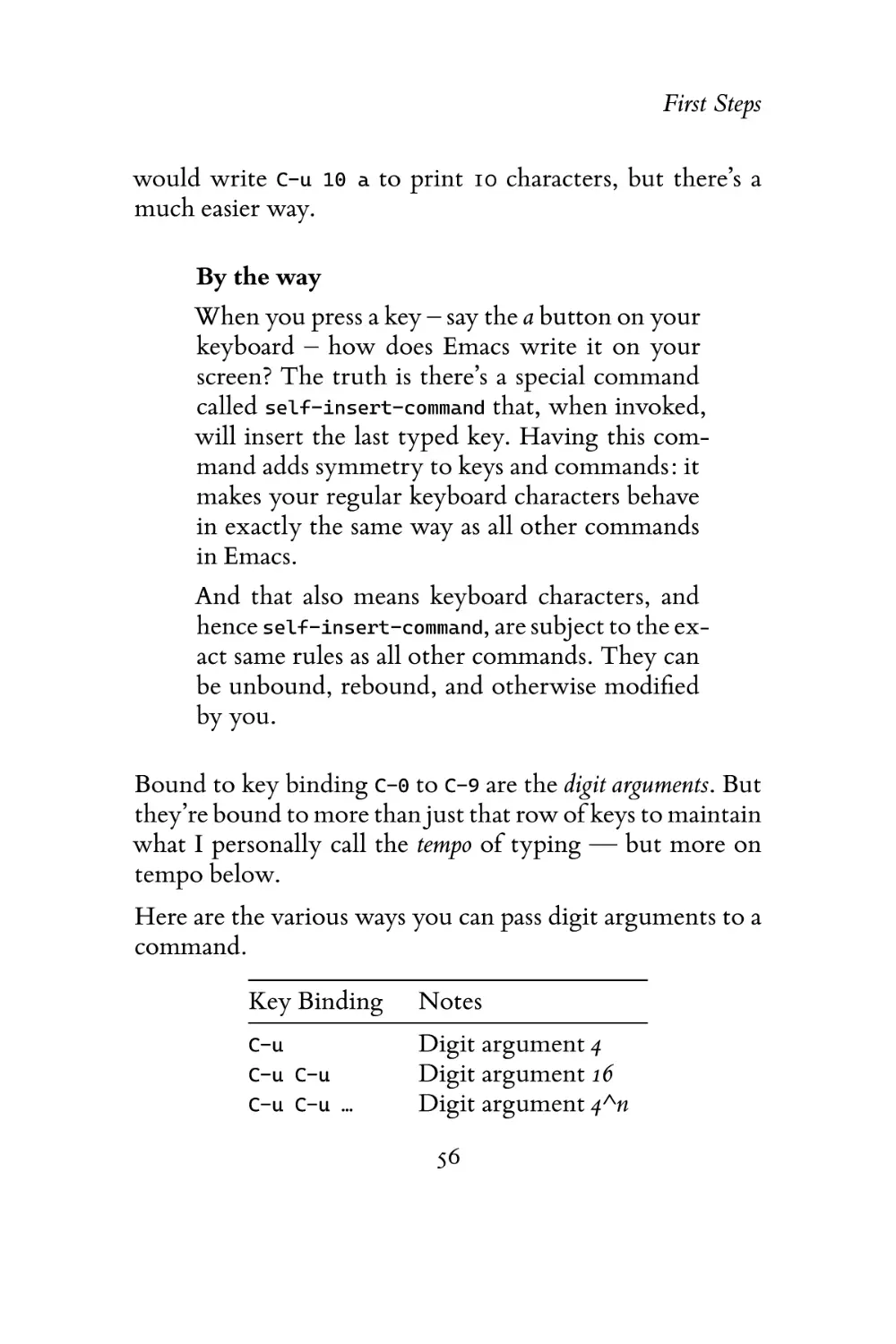
The universal argument is shorthand for the number 4. If
you type C-u a, Emacs will print aaaa on your screen. If you
type C-u C-u a, Emacs will display 16 characters (because 4
times 4 equals 16). Keep in mind that universal arguments on
their own are totally inactive. When you type them, Emacs
will, much like a prefix key, wait until you give it a followup command — and only then will Emacs apply the universal arguments.
Understanding that Emacs’s command states are merely
numbers is a handy thing to know because you can also pass
arbitrary numbers to commands. A lot of Emacs hackers
55

First Steps
would write C-u 10
much easier way.

a

to print 10 characters, but there’s a

By the way
When you press a key – say the a button on your
keyboard – how does Emacs write it on your
screen? The truth is there’s a special command
called self-insert-command that, when invoked,
will insert the last typed key. Having this command adds symmetry to keys and commands: it
makes your regular keyboard characters behave
in exactly the same way as all other commands
in Emacs.
And that also means keyboard characters, and
hence self-insert-command, are subject to the exact same rules as all other commands. They can
be unbound, rebound, and otherwise modified
by you.

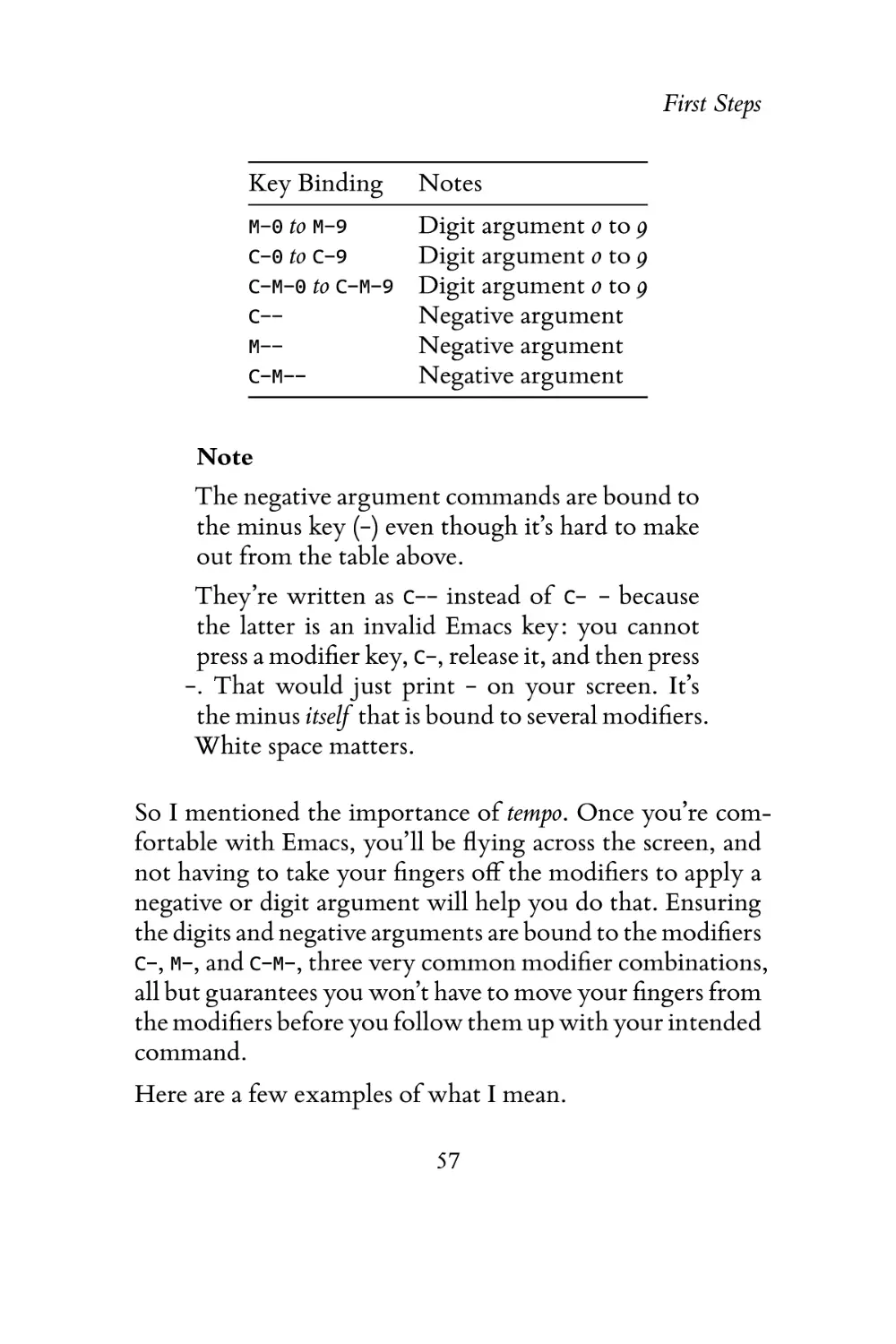
Bound to key binding C-0 to C-9 are the digit arguments. But
they’re bound to more than just that row of keys to maintain
what I personally call the tempo of typing — but more on
tempo below.
Here are the various ways you can pass digit arguments to a
command.
Key Binding

Notes

C-u

Digit argument 4
Digit argument 16
Digit argument 4^n

C-u C-u
C-u C-u …

56

First Steps
Key Binding

Notes

to M-9
Digit argument 0 to 9
to C-9
Digit argument 0 to 9
C-M-0 to C-M-9 Digit argument 0 to 9
C-Negative argument
M-Negative argument
C-M-Negative argument
M-0

C-0

Note
The negative argument commands are bound to
the minus key (-) even though it’s hard to make
out from the table above.
They’re written as C-- instead of C- - because
the latter is an invalid Emacs key: you cannot
press a modifier key, C-, release it, and then press
-. That would just print - on your screen. It’s
the minus itself that is bound to several modifiers.
White space matters.

So I mentioned the importance of tempo. Once you’re comfortable with Emacs, you’ll be flying across the screen, and
not having to take your fingers off the modifiers to apply a
negative or digit argument will help you do that. Ensuring
the digits and negative arguments are bound to the modifiers
C-, M-, and C-M-, three very common modifier combinations,
all but guarantees you won’t have to move your fingers from
the modifiers before you follow them up with your intended
command.
Here are a few examples of what I mean.
57

First Steps
kills the previous word before point. Without
M--, M-d would kill the word immediately following
point. The command has synergy with the negative
argument because you can keep your finger on the
meta key and press - d.
This combination maintains your tempo.

M-- M-d

does exactly the same but it will take you about
thrice as long to type. You have to press C--, release
the control key, and then press M- followed by d.
This combination breaks your tempo.

C-- M-d

A lot of people never bother working the digit and negative
arguments into their workflow, but I find them immensely
useful. Things like changing the casing on a word I
just typed are easily done by reversing the direction of a
command by giving it a negative argument.
Maintain your tempo and avoid moving your fingers
away from the home row.12 Negative arguments add
directionality to commands; digits add repetition or
change how a command works.

Discovering and Remembering Keys
If you can’t remember the exact command for something,
then Emacs can help. Let’s say you can’t remember how to
print the paragraph character ¶, but you do remember it’s
somewhere in the C-x 8 key map, then all you have to do is
12 If you touch type, a skill worth learning above all else.

58

First Steps
append C-h to any prefix key to get a list of all bindings that
belong to that key map.
Typing C-x 8 C-h will display a computer-generated list of
keys and their commands. This interface is hyperlinked and
part of Emacs’s self-documenting help system.
Key

Binding

C-x 8 "

Prefix Command

C-x 8 <

«

C-x 8 >

»

C-x 8 ?

¿

C-x 8 C

©

C-x 8 L

£

C-x 8 P

¶

C-x 8 R

®

C-x 8 S

§

C-x 8 Y

¥

Above is a subset of the commands you see when you request
the help page for C-x 8. If you see just a character in the Binding column, that means it’ll print the character when you
type that key.
However, Emacs will also tell you if there are more prefix
keys with further sub-levels; in this case, C-x 8 " has additional keys bound to it.
All these keys, hidden away in the dusty depths of Emacs, all
haphazardly bound to all conceivable permutations of keyboard characters, may seem like a strange thing particularly
if you come from modal editors like Vim.
59

First Steps
The legacy of a particular keyboard used in the early ’80s is
evident in the names Super, Hyper, and Meta.
Back then, most Emacs keys were bound to a larger range of
physical keyboard modifiers but when the keyboard maker
(and the business that made the machines the keyboards were
plugged into) went bust, Emacs had to change with the times.
Instead of undoing the cornerstone of Emacs, the developers
shuffled the keys around and made them work on normal,
boring PC keyboards.
So you’re probably thinking it’s a daunting task indeed to
memorize all those keys — but you don’t have to. I memorize what I use frequently (as we are wont to do with our
human brains) and leave the rest for Emacs to remember for
me.
Use Emacs’s help system if you forget a particular key
combination. You can always append C-h to a prefix
key.

Configuring Emacs
Tinkering with Emacs is every Emacs hacker’s favorite pastime. Go to Emacs meetups or talk to experienced Emacs
hackers and the conversation will inevitably drift towards
small changes and hacks they’ve made to make their lives
easier.
It’s fun (and rewarding) knowing that, if there’s an aspect
of your editor’s behavior that you don’t like that you can
simply change it — indeed, a whole book could be written
on the subject of changing Emacs.
60

First Steps
Throughout this book I will make suggestions of things to
change. Where possible I will use the Customize interface instead of the typical approach of suggesting elisp snippets.
If you want to change Emacs, you have two choices:
Use the Customize interface as it’s built-in and designed
to be user friendly. I say that, but a lot of people find it
cumbersome and hard to use. I think that’s a bit unfair:
it’s utilitarian and has to support a lot of arbitrary ways
of configuring fairly complicated features.
Not everything is supported by Customize. Since you
need to write elisp to change variables, and because of
the data-as-code paradigm LISP uses, you will find that
Customize can write elisp that it’s been shown how to
write, and then only for specific options. That makes
it a virtual impossibility to generalize an interface
across all of Emacs’s many, many settings. But most
of Emacs’s built-in packages support the Customize
interface and a lot of third-party packages do too.
I would strongly recommend you use the Customize interface, where possible, until you’re comfortable writing elisp.
Write elisp to alter what you want to customize. This is the
most powerful option but also the most complicated.
You’ll have to learn elisp (it’s not too hard, and writing
it is usually a lot of fun) to do this, but I think, in the
long run, it’s worth doing.
I still use the Customize interface myself when I
change font faces. There are hundreds of font faces

61

First Steps
in Emacs; everything from font lock faces (syntax
highlighting) to the color of the modeline, the fonts
to use for the info manual, and more.

The Customize Interface
The Customize interface is divided into groups and sub groups.
Each group typically represents one package, mode, or piece
of functionality. The top-level group is called Emacs and contains, as you would expect, all other groups.
To access the customize interface, type M-x customize. A
buffer called *Customize Group: Emacs* should appear
with a list of groups. This is one part of Emacs where
using a mouse can be beneficial; the interface has buttons,
hyperlinks and edit boxes much like a browser would. Click
around — explore the interface, and marvel at just how
much stuff there is to configure! And that’s just the things
exposed to the Customize interface.
Searching in Customize

If you’re using Emacs 24.1 or later, you can use
the Search bar at the top of the Customize interface to search for things by name.

62

First Steps

The Customize interface is rather byzantine but once you
understand how it works, it’s quite easy to use. The figure
above shows one face: font-lock-string-face. That’s the
actual elisp variable name for the face; the pretty-printed
name is Font Lock String Face and what you’ll see in the
figure above. To the immediate left is an arrow — it’s tiny
but it’ll hide/show each face. On a Terminal, it’s replaced
with the arguably more legible texts Hide or Show.
As a quick aside, the Customize interface is made up of
two things: faces and options. Options are a catch-all term for
things you can Customize that aren’t faces.
The font-lock-string-face governs the face for strings —
and what a string is depends on the mode in which it is used.
For most programming major modes, it’ll be for actual literal strings in the source code, but mode authors are free to
63

First Steps
use the font faces for whatever they please. Having said that,
most adhere to the naming standard for each face.

My personal foreground face color is OrangeRed. But there’s
nothing stopping me from adding additional attributes as
the figure above shows.
Supported colors

64

First Steps
If you’re using Emacs in a GUI, you are limited only by the color depth of the display
and you are free to pick any color from the
RGB color space. I use named colors, and to
see a list of supported names you can type
M-x list-colors-display. If you’re on a Terminal, you will be shown the colors supported by
your Terminal.
As of Emacs 26, 24-bit colors are also supported
in the Terminal in addition to the usual 16 or 256.
If you’re not seeing the colors you expect to see,
you should read the Info manual FAQ on how
to configure your Terminal:
Type M-x info-apropos then enter Colors on a
TTY. After a little while you should be presented
with a hyperlink to the FAQ that explains how to
configure your Terminal settings.
Making the changes in the Customize UI isn’t enough. You
have to apply the changes and optionally save them also. If
you don’t save them, the changes will not persist between
Emacs sessions. Pressing the aptly named Apply and Apply
and Save do just that. The Revert… button is similar but has
a few more options. You only need Revert This Session’s Customizations if you’re unhappy with the changes you have applied. Keep in mind it will only revert the options you have in
the current buffer — not all the customizations made globally.
Always remember that you can revert your changes until
you save. After that, you have to manually go through and

65

First Steps
undo or use the Revert… button’s Erase Customizations option.
All Customizations are stored in your init file by default (or
possibly a separate custom file) and like the rest of Emacs the
changes are stored as elisp code, making it possible for you
to go back and manually change the elisp.
Instead of navigating through the tree of groups, you can
use one of several shortcut commands:
M-x customize

displays the Customize interface and all the

groups.
opens a tree group browser. Much
like the regular Customize interface but without the
group descriptions.

M-x customize-browse

customizes options and faces
that you have changed but not saved. Useful if you
want to tweak things.

M-x customize-customized

displays all options changed since a
particular Emacs version. Good way to discover new
features and options.

M-x customize-changed

prompts for the name of a face to
Customize. I recommend you put your point on
the face you want to change. It’ll fill in the name
automatically.

M-x customize-face

prompts for a group name (e.g.,
to Customize.

M-x customize-group
python)

66

First Steps
customizes the major mode of your
current buffer. You should do this for every major
mode you use. It’s a quick way to change things and
gain an overview of what your major mode can do.

M-x customize-mode

Displays all your saved options and
faces. Extremely handy if you want to track down
and disable errant changes.

M-x customize-saved

M-x customize-themes

Shows a list of installed themes you

can switch to.
I encourage you to use the Customize interface to configure
Emacs. It only has a subset of things you can (or want) to
change, but it’s enough to get you started on the road to
personalizing Emacs.
As you continue to use and personalize Emacs you may eventually reach a point where your init file is unmanageable.
When that happens it’s common to split up your changes
into groups of related changes. However, this is a low priority task until you’re comfortable (and your init file splitting
at the seams) with Emacs.

Evaluating Elisp Code
Frequently, you will find or write snippets of elisp code on
the Internet and you’ll want to evaluate it — closing and
restarting Emacs every time is a chore.
There are a number of different ways of doing this and I have
only shown a few of the different methods available to you.

67

First Steps
You can read Evaluating Elisp in Emacs13 for a thorough study
of the subject.
Restarting Emacs is the simplest way, which I recommend
if you have broken something in Emacs or if you want
to be sure things work in a fresh environment.

will evaluate the entire buffer you’re in.
This is what I use to evaluate something.

M-x eval-buffer

M-x eval-region

evaluates just the region that you have

marked.
Important

You must remember that not all things will
be re-evaluated even if you tell Emacs to. This
is one annoying implementation detail that
confuses people. Some things, like defvar and
defcustom forms, are only set once. So, if you
evaluate the buffer, change a defvar’s default
value, then re-evaluate it, it won’t apply the
changes made to defvar. The only way to force
the change is to press C-M-x with your point in
each defvar or defcustom form.
If you don’t know exactly what I mean by all of
this then don’t worry. You can just restart Emacs
if you see any of those two forms in your snippet.
13 https://www.masteringemacs.org/article/evaluating-elisp-emacs

68

First Steps
Naturally, this is just scratching the surface in using Emacs to
evaluate your elisp code. You shouldn’t need to know much
more than this to deal with the odd bits of code you see and
want to try out. Don’t be afraid to explore Emacs’s capabilities this way; read Emacs’s own Introduction to Elisp manual.

The Package Manager
Since version 24, Emacs has shipped with a package manager that seamlessly displays and installs packages from centralized repositories. I credit this change, alongside sites like
Github, with rejuvenating Emacs’s 3rd-party ecosystem and,
in turn, Emacs itself.
It’s not all roses though: there is no one repository you can
use for all your needs. There’s the official GNU Emacs package repository, ELPA 14 , but its content is rather sparse, as
you have to physically sign over your copyrights to the FSF to
submit to it, and most people can’t or won’t do that. Therefore, almost all packages appear on MELPA, a volunteer-run
package repository. Thankfully, the package manager will
merge all the different listings into one.
As the repositories are privately owned by volunteers, they
may go down – temporarily or permanently – so I would
check the Emacs Wiki15 for a current list of repositories.
For now though, you can add this to your init file. It includes both ELPA and MELPA.
14 The Emacs Lisp Package Archive
15 https://www.emacswiki.org/emacs/ELPA

69

First Steps
(setq package-archives
'(("gnu" . "http://elpa.gnu.org/packages/")
("melpa" . "http://melpa.org/packages/")))

Now is a good time to make Emacs evaluate it. Execute the
command M-x eval-buffer with your init file as the current
buffer.
Next, type M-x package-list-packages and Emacs should retrieve the package listings from all two repositories above.
When it’s done, a new buffer will appear listing all the packages. Like a lot of ancillary buffers in Emacs, this one is also
hyperlinked. Have a browse — you can one-click install the
packages you care about from the detail page of a package.
Hint
If you know the name of the package, you
can use the shortcut M-x package-install and
enter the name in the minibuffer. And like
most minibuffer prompts, this one also has TAB
completion.
The package archive(s) change constantly and –
especially if you leave Emacs running for long
periods of time – your local copy becomes stale;
to remedy this, you can refresh the catalog by
typing M-x package-refresh-contents.

Color Themes
If you dislike the default color scheme in Emacs —
then good news, you can use a color theme. Type
70

First Steps
to see a list of your installed color
themes. There are more available for free from Emacs’s
package manager or sites like Github.
To install a theme with the package manager, open the
package manager (M-x package-list-packages) and go look
for themes; most will have the suffix -theme, and they act
and install like normal packages. Once you’ve installed the
themes you need, use the M-x customize-themes interface
to try them out. You can override specific colors you don’t
like by using the regular Customize interface described in
The Customize Interface. Changes made in the Customize
interface take precedence over the themes.
I should mention that you can have multiple themes active
at the same time, so make sure you are aware of this.
M-x customize-themes

Getting Help
As I mentioned earlier when I talked about keys, Emacs is a
sophisticated self-documenting editor. Every facet of Emacs
is searchable or describable. Learning how to do this is absolutely essential to mastering Emacs. The utility of knowing how
to find the answers to questions is something I cannot overstate enough. I use Emacs’s self-documenting functionality
all the time; to jog my memory, or to seek answers to questions I don’t know.
I still haven’t talked about the actual core of Emacs yet
(movement, editing, and so forth) because, although that’s
obviously critical to mastering Emacs, they are specific
skills that you could, with patience, acquire by using
Emacs’s self-documenting help systems.
71

First Steps
Knowing how to get help is critical because:
Emacs knows best Your Emacs configuration will differ
– sometimes just a little bit, other times a lot –
from other people’s Emacs configurations. Asking a
question on the Internet will only give you general
answers. If you rebind keys, only your Emacs knows
what the keys are.
You will discover more of Emacs I have stumbled upon
more cool features than I can count simply by exploring — maybe a time saving command hidden away in
a major mode, or a variable that changes the behavior
of a command I use frequently.
A lot of third-party packages may not have an
adequate user manual, forcing you to read the source
or investigate the commands and variables exposed
by the package.
It will help you solve problems I help people with Emacs
questions all the time, but I don’t know everything —
what I do know is where to look and how to read the
documentation.
It gives you confidence Not knowing how to do something in Emacs is normal but also confusing. But
being able to say that “oh, I don’t know how to do
this but I do know where I can look for help” — your
confidence in Emacs will go up in step with your
knowledge.

72

First Steps
Emacs’s help system is roughly divided into three parts and
knowing which one you need and when will save you time.

The Info Manual
Emacs’s own manuals (and indeed, all manuals in the GNU
ecosystem) are written in TeXinfo. If you have ever used the
command line tool info, you will have interacted with the
TeXinfo hypertext viewer. Emacs, obviously, has its own
info viewer. Emacs’s info manual contains more than just
topics relating to Emacs. By default, the info browser will
index all the other info manuals installed on your system —
things like the GNU coreutils manuals will also be present.
A lot of people dislike info and I’m not sure why. It works in
much the same way as a web browser, though the key bindings do differ.
To access Emacs’s info reader type M-x info or press C-h i.
info, the documentation browser, will appear and you are
free to use your mouse to click on the hyperlinks, or use
this table of keyboard shortcuts to navigate:
Key

Purpose

and ] Previous / next node
and r Go back / forward in history
n and p Previous / next sibling node
u
Goes up one level to a parent node
SPC
Scroll one screen at a time
TAB
Cycles through cross-references and links
RET
Opens the active link
m
Prompts for a menu item name and opens it
[
l

73

First Steps
Key

Purpose

q

Closes the info browser

Because info manuals have hierarchies, in much the same
way this and most other books do, you’ll want to use [ and
] to navigate if you’re reading an info manual end-to-end.
That’s equivalent to reading a book starting from a chapter,
moving through all the sub-chapters, sub-sub-chapters, and
so forth, in the order they were laid out.
Everyday reading
For everyday reading, you want SPC for browsing and reading as it “does what you want.” It
thumbs through a page until it reaches the end.
Then, it either picks the next sub node or the
next chapter. For browsing, use [ and ] to cycle
back and forth through nodes.

If, instead, you want to jump to the next or previous sibling
node you should use n and p. To go back or forward in history (much like a browser) use l and r.
The key u goes up one level to the parent; TAB cycles through
the hyperlinks, and RET opens them.
Most info manuals are also published in HTML versions online, so why use Emacs’s own reader? For one, you can use
Emacs’s universal bookmark system (and more on that later.)
You can bookmark almost everything in Emacs: info pages,
files, directories, and more. The other advantage is that it’s
74

First Steps
in Emacs, so keeping the info manual in a split window next
to you is particularly useful if you’re reading Emacs’s excellent An Introduction to Programming in Emacs Lisp and writing
code alongside it.
If you want to read up on a specific Emacs functionality, you
have to open the Emacs manual first. To do this, type C-h i
followed by m. When prompted for a menu item, type Emacs
for the Emacs manual or Emacs Lisp Intro for the introduction to elisp. As always, there is TAB completion. You can
also browse the master list of manuals and find the one you
want to read.
You can look up the documentation for a command
by typing C-h F and at the prompt enter the name of a
command. Emacs will jump to the correct place in the info
manual where the command is described.

Apropos
Emacs has an extensive apropos system that works in much
the same way as apropos does on the command line. The
apropos system is especially useful if you’re not entirely
sure what you’re looking for. There is a variety of niche
commands that only search particular aspects of Emacs’s
self-documenting internals.
Apropos is a useful tool to have in your toolbox. It shines
because you can narrow what you’re looking for to a particular area. If you’re looking for a variable, you can use the
apropos system that searches variables; if you are looking for
commands, you can search by command. And all of apropos
supports regular expressions.
75

First Steps
The most common one, bound to C-h a, is M-x apropos
-command. apropos-command shows all commands (and just the
commands, not functions) that match a given pattern.
For instance, you might be on the hunt for commands that
work on words (but more on what a “word” actually means
in What Constitutes a Word?) so entering C-h a followed by
-word$, is a good place to start. That will list all commands
that end with -word.
Here’s a subset of the output you would see if you ran that
command:
Command

Key

Purpose

ispell-word

M-$

kill-word

M-d

left-word

C-<left>

mark-word

M-@

Check spelling of word under
or before the cursor.
Kill characters forward until
encountering the end of a word.
Move point N words to the left
(to the right if N is negative.)
Set mark ArG words away
from point.

As you can see, you get the name of the command, the keys
bound to it (if any) and the purpose. Emacs has certain naming conventions and once you’re familiar with Emacs, you
will see certain patterns emerge. For instance, it’s common
to postfix a command with the syntactic unit or context it operates on: -word for words, -window for windows, and so on.
Hint

76

First Steps
Apropos can sort results by relevancy. To enable
this, add:
(setq apropos-sort-by-scores t)

to your init file.
There’s a wide range of apropos commands you can use to
query Emacs. apropos-command is perhaps the most useful
to a beginner. And it’ll let you search by pattern, which is
great if you only remember part of a command’s name but
not all of it. It’s also a fantastic way to accidentally discover
new features in Emacs. Giving apropos-command the .+ pattern (to match everything) yields approximately 8,000 commands that Emacs knows about — this amount however
will vary greatly depending on the number of packages you
have loaded and the features in Emacs you have activated.
Emacs has a range of specialist apropos commands that you
might find more suitable.
The thermonuclear option. This command
will display all symbols that match a given pattern.
Useful if you’re trying to track down both variables,
commands and functions relating to a pattern.

M-x apropos

or C-h a As I explained above, this
command will list only the commands.

M-x apropos-command

or C-h d Searches just the documentation. In Emacs parlance, that means the doc
string (documentation string) with which you can supply symbols. Occasionally useful.

M-x apropos-documentation

77

First Steps
Lists all variables and functions
defined in a library. This command can be useful if
you’re investigating a new mode or package as it lists
all the functions and variables defined in that library.

M-x apropos-library

Shows user options available
through the Customize interface. This is one way to
get the symbol names of Customize options, but
if you’re looking for ways to search the Customize
interface, you are better off using the Search box in
the Customize interface as it lets you customize the
matches as well. I never use it.

M-x apropos-user-option

Searches all symbols with a particular
value. If you’re looking for a variable that holds a
particular value, this command may be of use to you.
A potential use is if I know the value of a variable but
not the name or where it’s defined.

M-x apropos-value

If you’re unsure of what you are looking for – maybe you
only have part of a name, or you just remember a bit of the
documentation – then apropos is a tool that can help you.
I find apropos indispensable; it’s a great way to list all the
commands that match certain patterns and an even greater
way to discover new commands.

The Describe System
What captures the beauty of Emacs’s self-documenting nature is the describe system of commands. If you know what
you’re looking for, then describe will explain what it is. Every facet of Emacs – be it code written in elisp or the core
78

First Steps
layer written is C – is accessible and indexed through the describe system. From keys, to commands, character sets, coding systems, fonts, faces, modes, syntax tables and more —
it’s all there, neatly categorized.
The describe system is not static. Every time you query a
particular part of Emacs, it will fetch the required details
through an internal introspection layer which itself queries
Emacs’s own internal data structures. Both the introspection layer and internal data structures are queryable by
you through elisp. There are no “secrets” in Emacs —
sure, the documented API layer is the recommended way
of accessing Emacs’s own internal state, but unlike other
editors and IDEs you are not beholden to the package author
or Emacs maintainers. I think this embodiment of openness,
beautifully captured by the describe system, is one of the
best features of Emacs.
You can find the most important describe keys bound to the
C-h prefix key16 ; there’s more, a lot more actually, but I
think most of them are of limited utility to all but elisp writers.
I use the describe system constantly. In writing this book, I
have used both the info manual and apropos extensively, but
the describe system is what I use to double check that everything I have written is correct. If you ever find yourself
wondering what a symbol in Emacs does (be it a function, a
command, a variable or a mode) then describe will tell you.
The only slight downside to the doc string is that it assumes a
16 As I mentioned in the Keys chapter, you can follow up a prefix key
with C-h to list all the known bindings.

79

First Steps
technical audience: the info manual generally does not. It’s
not all bad, you don’t have to be an elisp expert to make sense
of the description but it will take a bit of time to familiarize
yourself with the terminology used in the doc strings.
Remember, the describe system describes a living system —
your personalized Emacs.
You need to memorize four describe keys as they are the
most important ones for day-to-day Emacs use.
or C-h m Displays the documentation
for the major mode (and any minor modes also
enabled) along with any keybindings introduced by
said modes. The describe command looks at your
current buffer.
This command should be your first port of call when
you’re using a new major mode. You will discover a lot
of Emacs’s functionality this way and it is absolutely
imperative that you use this command.
What it doesn’t do is list mode-specific commands that
are not bound to any key: they are simply not shown.

M-x describe-mode

or C-h f Describes a function.
Another command on the critical path to mastering
Emacs. Knowing what something does in Emacs (and
how to look it up) is useful but so is being able to
jump to the part of the code where it’s declared.
Describing a function will give you the elisp function
signature, the keys (if any) bound to it, a hyperlink to
where it’s declared, and a doc string.
If the function is a command, it will say it is interactive.

M-x describe-function

80

First Steps
or C-h v Describes a variable. Like
describe-function, this command is also important,
but perhaps less so as changing variables is not always
easy to do for a beginner. Nevertheless, being able to
read up on what a variable does is.

M-x describe-variable

or C-h k Describes what a key binding
does. Of all the commands, this is one of the most useful ones to memorize, and like M-x describe-function
it’s a command you will use frequently. If you’re
unsure what a key binding does, simply enter the
describe-key interface and re-type the key — and
Emacs will tell you what it does.
It’s worth remembering that some keys come from
major and minor modes and are not global. Therefore,
you may get a different answer depending on the
buffer in which you type the command.

M-x describe-key

Emacs does have a lot more describe commands but they’re
nowhere near as practical or useful for day-to-day use.
Knowing what you know now about the naming of
describe commands and how to find commands by patterns,
it should be a trivial17 exercise to list all of them.

17 Hint: apropos-command is a good place to start.

81

Chapter 4
The Theory of Movement
Escape Meta Alt Control Shift

– info.gnu.emacs
Getting around, and getting around efficiently, is as important as knowing how to edit text quickly and efficiently.
But movement in Emacs is more than characters in a
buffer; there’s a host of supplementary skills that make up
navigation, like understanding Emacs’s rather complicated
windowing system.
I wouldn’t expect you to remember and apply everything
you learn here right away. I’ve laid things out so you can
start at the beginning and work your way through, picking
up bits and pieces as you read. The most important part, as
I’ve stressed many times, is to give it time and practice —
take a moment in your day-to-day life to ask yourself if
there’s a better way of solving a problem with which you
are faced.
82

The Theory of Movement
Movement in Emacs is local, regional or global. Local movement is what you do when you edit and move around text
near to the point. A syntactic unit – a semi-formal term for
commands that operate on a group of characters – is a character, word, line, sentence, paragraph, balanced expression,
and so forth. Regional and local movement are similar but
regional movement involves whole functions or class definitions, if you are writing code; or chapters and such constructs, if you are writing prose. Global movement is anything that takes you from one buffer to another, or from
one window to the next.
The first thing a beginner sees is Emacs’s penchant for creating windows: when you view a help file, when you compile
a file, or when you open a shell. If you have never used a
tiling window manager (for that is exactly what Emacs is),
the idea of splitting and deleting windows may seem strange
— in other editors you may use split panes but you almost
never change it to suit the task at hand.
In Emacs, windows are transient; they come and go as you
need them. You can save your window configuration (and
there are several ways of doing this) but they were never
meant to be immutable, like so many editors — set once and
then never changed again. You have to get used to this. Now,
there are many variables you can use to fine-tune Emacs’s
windowing behavior, but you can’t really tweak your way
out of using Emacs’s windows. Some packages try to replace
windows with frames, with some success, but they are essentially hacks and I would recommend you avoid using them
at least until you’re comfortable with Emacs’s system.
Buffers are rarely killed (that is, closed) when they are no
83

The Theory of Movement
longer needed; most Emacs hackers will simply switch away
to something else, only to return to it when needed. That
may seem wasteful, but each buffer (aside from assorted
metadata and the buffer’s particular coding system) is only
slightly bigger than the byte size of the characters in it. A
typical Emacs session lasts weeks between restarts and most
Emacs hackers have many hundreds of buffers running
without issue.
No matter the task you’re doing in Emacs, you will need to
contend with the notion of buffers and windows and how to
handle them. Thankfully, that can be as easy or as complex,
depending on your expectations or how you want things set
up.

The Basics
By the way
Have you re-mapped Caps Lock to Control yet?
Read Caps Lock as Control to understand why
this is so important.

Learning the basic key bindings to find and save files, change
buffers, and the bare essentials of day-to-day use is the first
step on the path to mastering Emacs. However, you’re free
to use the menu bar to do this until you have committed
the keys to memory. One important thing to note about the
menu bar is that it won’t be clickable in a terminal (unless
you’re using Emacs 24.4 or later). Instead, you must press F10
to activate and navigate the menu bar with the keyboard.
84

The Theory of Movement
Note
Like I explained in Getting Help, If you don’t
see a menu bar (it should appear in both GUI and
Terminal Emacs) and you have made changes to
Emacs’s configuration – for instance, a starter kit
or a colleague’s init file – you can show it by typing M-x menu-bar-mode but you still need to track
down the part of your configuration where it’s
hidden.

Once you’re a legendary Emacs hacker, you will naturally
want to hide it as it takes up valuable screen real estate. Until then, please leave it enabled. I encourage you to leave it
enabled until you are confident enough in your Emacs skills
that you no longer need it.
Most major modes have their own menu bar entry as well,
improving the discoverability of the major mode. I used the
menu bar for a long time when I was starting out, and it
really helped me as I could focus on remembering important
commands like navigation and editing.
If you prefer a keyboard-only approach, the are a handful
of key bindings you must know to carry out basic tasks in
Emacs.
Key Binding Purpose
C-x C-f
C-x C-s
C-x b
C-x k
C-x C-b

Find (open) a file
Save the buffer
Switch buffer
Kill (close) a buffer
Display all open buffers
85

The Theory of Movement
Key Binding Purpose
C-x C-c
ESC ESC ESC

C-/
F10

Exits Emacs
Exits out of prompts,
regions, prefix arguments and
returns to just one window
Undo changes
Activates the menu bar 1

Emacs will guess the right major mode when you open files
based on its extension (and if that fails, by the content of
the file) and more or less work out of the box. Aside from
the key bindings above, you can start editing and moving
around with just the arrow keys like other editors.
Let’s talk about each command in turn as their simple actions
belie their complexity.
C-x C-f:

Find file

Opening a file in Emacs is called finding a file or even visiting a file. Having said that, it’s perfectly fine to say open also.
The reason is that Emacs really doesn’t distinguish between
opening an existing file and creating a new file. I use the terms
interchangeably.
So, if you type C-x C-f and enter /tmp/hello-world.txt,
Emacs will visit it, whether it’s there or not; if it isn’t, an
empty buffer is shown instead.
1 Required in Terminal Emacs

86

The Theory of Movement
Major mode load order

When you visit a file, Emacs will pick a major mode. Most
editors make a lot of assumptions about file extensions that
you cannot easily change. Emacs supports an array of detection mechanisms that can all be changed to suit your needs.
They are listed here in the order they are applied.
File-local variables are variables that Emacs can enable perfile if they present in the file. They can appear as headers:
-*- mode: mode-name-here; my-variable: value -*-

or footers:
Local Variables:
mode: mode-name-here
my-variable: value
End:

Emacs will also look at commented lines using that major mode’s comment syntax.
It is worth knowing that file variables read into Emacs
are local to that file’s buffer (meaning other buffers are
unaffected by it.) That means if you have particular
settings that apply only to that file, you can add them
to the header or footer and Emacs will load them automatically. In practical terms, that means everything
from indentation settings to more complex variables
are controllable from file variables.
87

The Theory of Movement
Because Emacs is in effect running code straight from a
file, all Emacs variables are divided into safe and unsafe
file variables: variables that are declared as safe – typically by Emacs maintainers – are evaluated automatically. For unsafe variables, you must first tell Emacs
what to do: you can ignore the variable; or evaluate
it once, temporarily, for that file only; or declare it as
safe.
Program loader directives or shebangs are also supported. If your file begins with #! – for instance
#!/usr/bin/env python or #!/bin/bash – then Emacs
will figure out the major mode and run it, if it is available in Emacs. The variable interpreter-mode-alist
lists the program loaders Emacs can detect.
Magic mode detection uses the magic-mode-alist variable
to see if the beginning of the file matches a pattern
stored in the magic mode variable. This detection
mode is particularly useful if you have no way of
annotating the file or predicting the filename or
extension ahead of time.
Automatic mode detection is how most major modes are
applied. Emacs has a very large registry of patterns that
match a file extension, file name or all or parts of a file’s
path, stored in the variable auto-mode-alist.
For instance, if you open /etc/passwd, Emacs will detect this and open the file with etc-passwd-generic-mode
major mode. If the filename ends with .zip, Emacs
will instead open the file in archive-mode.

88

The Theory of Movement
Although the different heuristics may look complicated, the
good news is the work is done for you. Emacs’s major mode
detection is rather sophisticated and it will almost always
pick the right thing for you.
Coding Systems and Line Endings

Emacs applies two other important heuristics you should
know about: coding systems and line endings.
Coding systems Emacs has excellent Unicode support
(type C-h h to see it demonstrated), including transparently reading and writing between different coding
systems, bidirectional right-to-left script support,
keyboard input method switching, and more.
To see the coding system in use for the current buffer,
you can type C-h C <RET>. Emacs will display a lot of
information, including all the coding systems associated with the buffer — but for files, they are almost
always set to the same coding system.
The modeline will also give you a rough idea:
U:**-

helloworld.c

92% of 5k

...

The first character, U, means the buffer helloworld.c
has a multi-byte coding system. If it said 1, it would
typically be part 1 of any number of ISO character encodings. The exact mnemonic will depend on which
of the hundreds of supported coding systems you are
using — hence why C-h C <RET> is a sure-fire way to
see what it is.
89

The Theory of Movement
Line endings When you open a file, Emacs will determine
the line endings used. If the file uses DOS line endings,
then they are preserved when you open the file and
when you save it. Likewise for UNIX and pre-OSX Macintosh encodings.
The modeline will tell you what line ending you are
using:
U:**-

helloworld.c

92% of 5k

...

The first character U, as explained above, indicates the
coding system. The : means it’s UNIX-style line endings.
For DOS it would say (DOS), and (Mac) for Macintoshes.
C-x C-s:

Save Buffer

In The Buffer, I explained that in Emacs a buffer need not
be a file on your file system, but it could be a transient buffer
used for things like network I/O or even just a scratch file for
processing text. So, what that means in practice is that you
can save any buffer in Emacs — even internal ones like a help
or a network I/O buffer.
When you ask Emacs to save a buffer, it will save it to the file
associated with the buffer – if, and only if, the buffer has a
filename associated – or ask you for a name if there isn’t one.
The latter instance will typically happen if you’re saving a
buffer that does not yet have a file assigned to it; maybe it’s a
temporary buffer or even the output from a help command.

90

The Theory of Movement
Writing a buffer to a file If you want to save a buffer to a
different file – akin to Save As… in other editors – you
can use the command C-x C-w to write to a new file.
Saving all files You can type C-x
to save each unsaved file.
C-x C-c:

s

and are asked, in turn,

Exits Emacs

You can exit Emacs – or just terminate your connection to
it, if you are using Emacs in client-server mode – but Emacs
will only exit after asking you if you want to save unsaved
files.
You have several options when Emacs asks you to save a file:
Key Binding Purpose
or yes
N or DEL
q or RET

Y

C-g
!
d

Saves the file
Skips current buffer
Aborts the save, continues with exit
Aborts save and the exit
Save all remaining buffers
Diff the file on the file system
with the one in the buffer

Most of the commands above are self-explanatory. Emacs
will traverse the entire list of unsaved files but not all unsaved
buffers. As you may recall from earlier, it is possible to have
buffers that are not attached to any one file.
And if you try to exit without saving, Emacs will always ask
you one last time if you want to proceed.
91

The Theory of Movement
C-x b: Switch Buffer

If you edit more than one file at a time – or switch between
documentation buffers or mode-specific buffers, such as
Python’s shell – knowing how to switch buffers quickly
and efficiently is very important.
Like Alt+TAB in most window managers, Emacs will remember the last buffer you visited so that, when you type C-x b,
the name of the former buffer is the default action — meaning
pressing RET will take you to it.
Switching buffers is second nature to Emacs hackers. Once
you’re comfortable with it, you won’t even think about;
you’ll switch through buffers quickly and instantaneously
without so much as a second thought.
Buffer naming conventions
Some buffers in Emacs interact with external
programs – perhaps a shell like bash – or they
hold transient information generated by Emacs
itself. To distinguish them from user-created
buffers, they have * characters in their names,
like so: *buffername*.

The fact that files and buffers are two distinct (but related)
concepts makes sense when you consider the nature of scratch
buffers — buffers that you create and use but don’t intend
to permanently save. For instance, if you want to run a keyboard macro or do extensive text editing on a region of code,
an Emacs hacker would copy it to a made-up scratch buffer
(created simply by switching to a buffer name that does not
92

The Theory of Movement
exist), do the requisite editing, and switch back to the original buffer.
Writing buffers to files If you later decide you want to
save the buffer to the file system, you can press C-x
C-s to save it.
Listing buffers One more useful command is C-x C-b. It
displays a list of all buffers running on your system.
Buffer Switching Alternatives

The built-in interface for buffer switching is rather poor; it
offers basic TAB-completion and some fuzzy matching, but
little else. In fact, completion tooling is so important to your
user experience that I recommend you set aside time to investigate completion frameworks that fit your workflow and
personality. If you are using a starter kit you may already
have one preconfigured and enabled in your Emacs.
Nevertheless, for most people starting out, I recommend
IDO if you are using Emacsen earlier than version 27, and
FIDO (a drop-in replacement) for versions 27 or later.
Regardless of the version, I use both and couldn’t live without them — indeed, most Emacs users will most certainly
have used IDO or something like it at some point.
For IDO Mode Type M-x ido-mode and then try C-x b or C-x
C-f again.
You can enable it permanently by customizing the option ido-mode:

93

The Theory of Movement
M-x customize-option RET ido-mode RET

You can also improve IDO’s fuzzy matching by
enabling flex matching:
M-x customize-option RET ido-enable-flex
-matching RET

And you can customize many more features by running M-x customize-group ido. For further reading on
this subject, I recommend you read Introduction to IDO
mode.2
For FIDO Mode (Emacs 27 or later) Type M-x fido-mode.
There are some completion options related to this
mode, but they are under the umbrella group
icomplete, the parent completion mechanism FIDO
is built in. To view them, type M-x customize-group
icomplete.
Additional Completion Frameworks
There are dozens of completion frameworks
available in the package manager today. Most
trade off one another, swapping one convenience or benefit for another: be it speed;
simplicity; features and integration with major
modes or external sources; search and completion methodology; or how results are presented
to the user.
2 https://www.masteringemacs.org/article/
introduction-to-ido-mode

94

The Theory of Movement
Some of the more common ones in addition to
FIDO and IDO include: Helm, ivy, Selectrum, Icicles, Icomplete.
What, and how, you complete or search for
information is a self-perpetuating debate in the
Emacs community, and a great way to explore
the different ways of combining and accessing
information and workflows. I recommend
you try most of these frameworks and see
what they’re capable of: they are true force
multipliers; especially the ones that merge
results from third-party sources (command line
tools, language servers, etc.)
C-x k: Kill

Buffer

Killing a buffer in Emacs means closing it. You don’t have to
kill buffers you don’t use. It’s perfectly normal to let them sit
in the background until you need them again. Normally, serious Emacs users have hundreds or even thousands of open
buffers at a time.
ESC ESC ESC: Keyboard Escape

The click your heels three times key. If you’re stuck somewhere
or want to “go back to normal” — then pressing ESC ESC
ESC will (probably) solve your problems.
All windows are deleted (meaning they’re hidden from
view), prompts are exited out of, special buffers are hidden,
prefix arguments are cancelled, and recursive editing levels
are unwound.
95

The Theory of Movement
C-/:

Undo

Undoing is a common activity and it is bound to several keys:
C-/, C-_, C-x u, Edit -> Undo, or even a physical undo button
if your keyboard has it.
Which command you prefer is up to you: I think C-/ is the
easiest to type, but if your character set is not US or UK,
then you may prefer another. Most beginner’s guides will
recommend you use C-x u or even C-_ but I find them harder
to type than C-/.
Unlike other editors, Emacs does not have a dedicated redo
command, and that has to do with Emacs’s unique undo system known as the undo ring.
Most editors feature a linear undo list: you can undo and
redo, but if you undo and then change the text, you will
lose the undone steps; they will be unrecoverable and lost
forever.
In Emacs, this is not the case. Every action you take is
recorded in the undo ring, and this includes the act of
undoing something. Emacs will group certain commands
together into one cohesive undo unit — like typing characters or repeating the same command many times in a row.
Some events will always “seal” the undo record and start
a new one. Pressing RET, backspace, or moving the point
around are three such examples.
Repeated undo commands will undo more and more things
but if you break the cycle – for instance by moving around
or editing text – Emacs will not resume from where you left
off. Instead, the items you just undid were added to the undo ring
as redo records. That means when you undo again, you will
96

The Theory of Movement
actually undo (redo) the actions you just did until you get to
the state you were at when you last stopped — then Emacs
will undo the rest of the changes in your buffer.
This means it’s next to impossible to lose undo history as
the act of undoing is itself an undo-able action. That means you
can undo a few things – say rewriting a paragraph in a document you’re writing – only to realize later on that, actually,
you liked the old text better. In other editors your undone
changes would be gone forever as they have linear undo lists;
in Emacs you simply undo your newly-written paragraphs
until Emacs returns your buffer to the state it was in before
you did your last undo.
Confused? That’s okay. It took me a long time to understand how this would work out in practice. As it’s impossible
to really lose any data with the undo ring, it’s easier to just
experiment; but remember that Emacs will keep undoing
things from the ring as long as you keep undoing commands
one after another. Only by breaking this “undo cycle” will
you be able to redo the undone changes. And the easiest way
to break the cycle is by simply moving your point.
Here’s a simple example. It’s not how Emacs’s undo ring actually retains undo information – it’s rather more complex
than that – but I think that level of detail is unnecessary.
As a writer, I have written and then rewritten some text and
my undo ring now looks like the one below. The ring is to be
read top to bottom, with each undo record separated by the
arrow, going from newest to oldest. When the END marker
is reached, the undo ring is empty and no more undo actions
are possible.
97

The Theory of Movement
“VI is the Roman numeral for 6”
--> “VI VI VI is the number of the beast”
--> END
*

This undo ring has two undo records in it, each one a line
of text. The head of the ring is the star, *. The head always
points to the latest undo record. If I undo once with C-/, my
undo ring now looks like this:
“VI is the Roman numeral for 6”
* “VI VI VI is the number of the beast”
--> END
The original quote is still in the undo ring; in fact, it hasn’t
really gone anywhere at all (though the text in the buffer has
changed to what * points at.) Instead, we’ve shifted the head
(*) to the other quote. If I did another undo step, I would
end up at END, and now my ring is empty. I’m not going to
do that though as I will instead write another quote:
“VI is a text editor”
And now my undo ring looks like this:
“VI is a text editor”
--> “VI is the Roman numeral for 6”
--> “VI VI VI is the number of the beast”
--> END
*

98

The Theory of Movement
The head of the undo ring has changed to point at the latest
quote I just entered, but the old quote I undid is still there.
If I type C-/, I will undo my latest quote and the one I undid
before would reappear.
Still confused? That’s normal. It’s a difficult concept to
“get” (and much harder to explain) but most Emacs
beginners will pick it up over time. The main point
to take away is that it’s almost impossible to break the
undo ring and lose information — so go ahead and
experiment. Chances are, to begin with, you only
care about undoing the most recent changes anyway.
By the way
You can download alternative undo implementations for Emacs. A popular one is Undo Tree.3

Window Management
Managing windows is another core skill you have to master. Honestly, despite the chapter introduction saying it was
rather complex, the truth of the matter is it isn’t: there are
only a few key bindings you need to learn. What makes it
complex – or to some people, downright infuriating – is the
reliance on windows in the first place, and how to get used
to the windowing concept.
Let’s take a look at the key bindings you need to know about.
3 https://www.emacswiki.org/emacs/UndoTree

99

The Theory of Movement
Key Binding Purpose
C-x 0
C-x 1
C-x 2
C-x 3
C-x o

Deletes the active window
Deletes other windows
Split window below
Split window right
Switch active window

These five keys are all you need to use, split and delete windows. There are more commands, as you’ll see below, but
to start with, you can get by with these five commands.
Undoing window changes
Sometimes you want to return to a past window
configuration. The mode, M-x winner-mode, remembers your window settings and lets you
undo and redo with C-c <left> and C-c <right>,
respectively.
To enable Winner mode permanently:
M-x customize-option RET winner-mode RET

Emacs will tile windows and generally ensure each new window is given roughly half the screen estate of the splitting
window. If you have just one window and you split to the
right, you now have two windows, each with a 50% share.
Deleting windows If you use C-x 0, then Emacs will delete
the active window – which is always the one where
the point is active – and if you type C-x 1, Emacs will
delete all other windows.

100

The Theory of Movement
Splitting windows A window is split either horizontally
or vertically (or “below” and “right”) with C-x 2 and
C-x 3, respectively. If you have a large monitor, you
may want to split vertically so you can have more than
one buffer visible at a time; you may even prefer additional subdivisions. I always split into two or even four
windows, arranged in a 2x2 grid.

Finally, to move between windows use the command C-x o.
I find it useful to rebind it to M-o as it’s such a common thing
to do. Add this to your init file:
(global-set-key (kbd "M-o") 'other-window)

Directional window selection
Some people prefer the windmove package that
ships with Emacs, as it lets you move in cardinal directions instead of cycling through all windows.
You can enable it by adding this to your init file:
(windmove-default-keybindings)

You can now switch windows with your shift
key by pressing S-<left>, S-<right>, S-<up>,
S-<down>.

101

The Theory of Movement

Working with Other Windows
Once you’re comfortable splitting and deleting windows,
you can build on that by acting on other windows. That
is, if you want to switch another window’s buffer, you
have to C-x o to the window, then use C-x b to change the
buffer. It’s a bit tedious and it breaks your tempo. The other
window in this case is the one immediately after the current
one when you run C-x o.
Key Binding Purpose
C-x 4 C-f
C-x 4 d
C-x 4 C-o
C-x 4 b
C-x 4 0
C-x 4 p

Finds a file in the other window
Opens M-x dired in the other window
Displays a buffer in the other window
Switches the buffer in the other window
and makes it the active window
Kills the buffer and window
Run project command in the other window

These commands are the most useful ones for operating on
other windows. There are a few more – you can use C-x 4
C-h to list them – but you won’t use them as often.
If you look closely at the key bindings in the table above,
you will see a symmetry between C-x 4 and C-x — indeed,
they are almost identical in binding and purpose. This is no
coincidence, and the symmetry will help you remember the
commands.

102

The Theory of Movement

Frame Management
You can create frames – what are called windows in other programs and window managers – and you may prefer to do
this if you use a tiling window manager or to take advantage of multi-monitor setups. Note that frames also work
in terminal Emacs.
The prefix key used for frames is C-x 5. Like the prefix key
for windows (C-x 4) the commands are mostly the same.
Key Binding Purpose
C-x 5 2
C-x 5 b
C-x 5 0
C-x 5 1
C-x 5 C-f
C-x 5 p
C-x 5 d
C-x 5 C-o

Create a new frame
Switch buffer in other frame
Delete active frame
Delete other frames
Finds a file in the other frame
Run project command in the other frame
Opens M-x dired in the other frame
Displays a buffer in the other frame

Switching buffers with multiple frames is seamless, if a
buffer is visible (it is displayed in a frame in a window)
Emacs will switch to the right frame where the buffer is
already visible.
Whether you choose to use frames or not is up to you. The
mechanics of dealing with multiple frames is slightly awkward in Emacs as all frames share the same Emacs session —
which is sometimes a blessing or a curse. I find frames useful with multi-monitor setups, but not so much elsewhere.
The usefulness of frames, I find, is limited by the already ex103

The Theory of Movement
cellent tiling window management system present in Emacs.
My only recommendation is to try it out and see if frames
fit your workflow.

Tab Bars and Tab Lines
One common complaint about Emacs was its lack of a native
“tab bar” – like the ones in web browsers and most other editors – but in Emacs 27 they added not one but two distinct
implementations that solve two common problems. It’s a
long time coming, but the implementation and user experience is sound and, in true Emacs fashion, utterly customizable to third-party package authors and users alike.
If you’re not using Emacs 27, you can find third-party implementations in the package manager: they are facsimiles of
the real thing, relying on a quirk in the Emacs rendering engine to provide a semblance of the real feature. But, if you
are the sort of person who prefers the mental model of seeing a row of tabs, then you will likely find either implementation useful.
Color Themes
If you’re using a theme that predates Emacs 27,
you may find the color scheme of your theme
does not extend to the new faces that govern the
tab bar and tab line modes. You can customize
them by typing M-x customize-apropos-faces
tab-.

104

The Theory of Movement
There are two new tab modes, and they each solve different
problems.

Tab Bar Mode
Tab Bars group tabs by window configurations. In Emacs, a window configuration is a collection of windows – size, location,
the buffer, and so on – that represents a layout of your Emacs
frame. Like most of things in Emacs, window configurations
are configurable and can be saved to disk, to a register (but
more on them much later) or indeed now to a tab bar.
In an IDE this would be referred to as workspaces or projects,
perhaps. If you often find yourself switching between entire
workflows – maybe an OrG mode agenda and planner along
with your email for one thing, and another for your coding
– then you’d have two distinct window configurations. The
Tab Bar mode makes it easy to organize your thoughts into
persistent window configurations.
One common complaint about Emacs – from new or experienced users alike – is the complexity in managing the windows as the system of splitting and where buffers appear is
opaque and hard to understand.
Tab Bar Mode takes aim at that complexity with an intuitive interface very similar to the Frame, Buffer and Window
Management commands I demonstrated earlier.
To enable tab bar mode you can customize M-x customize-option
RET tab-bar-mode; type M-x tab-bar-mode; or simply invoke
one of the key bindings below.
The prefix key for tab bar mode is C-x t.
105

The Theory of Movement
Key Binding

Purpose

C-x t 2

Create a new tab
Close the current tab
Select tab by name
Next Tab
Previous Tab
Rename Tab
Move tab one position to the right
Run project command in other tab
Execute command in other tab
Close all other tabs
Find file in other tab
Switch to buffer in other tab
Open Dired in other tab

C-x t 0
C-x t RET
C-x t o, C-<tab>
C-S-<tab>
C-x t r
C-x t m
C-x t p ...
C-x t t
C-x t 1
C-x t C-f, C-x t f
C-x t b
C-x t d

Like the frame, window, and buffer management key bindings, the tab bar bindings follow the same pattern: actions
that affect other tabs is akin to creating a new tab.
New tabs are named according to the buffer that triggered
their creation, and the active buffer thereafter. You can rename and move them around the tab bar as you see fit. If you
prefer, you can use C-x t RET to select tabs by their name;
likewise, you can switch to the next or previous tabs with
C-<tab>, C-S-<tab>, or the mouse.
If you dislike seeing the tab bar itself, you can hide it with
M-x customize-option RET tab-bar-show, and still benefit
from all the capabilities of the tab bar.
There are a handful of useful commands not bound to any
key.
106

The Theory of Movement
Command

Purpose

M-x tab-list

Shows an interactive tab list
Undoes a closed tab for each invocation
Switch to the last visited tab

M-x tab-undo
M-x tab-recent

I think tab bar mode shines if you prefer manicured window configurations and a simple set of tooling to manage
them. By including common utility functions like finding
a file; switching a buffer; opening dired, etc. they let you
jump from an existing tab bar configuration to a new one
quickly. Combine it with the ability to quickly close, rename or jump back and you can consider tabs like you would,
say, frames: a logical collection of windows and their state,
but without the hassle of managing multiple frames.
However, it’s not uncommon still for a window configuration to get out of order: earlier in Window Management
I talked about winner-mode, a way of undoing and redoing
recent window configurations. It’s not nearly as useful
with tab bars as it does not understand tab-specific window configurations. Instead, I recommend you enable
M-x tab-bar-history-mode with M-x customize-option RET
tab-bar-history-mode.
Tab bar history mode manages a tab-specific history of window configurations. Unfortunately the commands to step
through the history is not bound to anything. The snippet
below borrows the key bindings M-x winner-mode uses by default. If you want to use both, you should choose your own
key bindings4 .
4 Mastering Keybindings in Emacs is a detailed article on this subject.

107

The Theory of Movement
Add this to your init file:
(global-set-key (kbd "M-[") 'tab-bar-history-back)
(global-set-key (kbd "M-]") 'tab-bar-history-forward)

Now when a tab’s window configuration (or a buffer in one
of the windows) changes you can walk forward or backward
through that history.
For most workflows, window and tab bar management is all
you need to tame Emacs for your day-to-day needs.

Tab Line Mode
Unlike tab bar mode, the tab line mode is feature more
akin to the tabs you’ll find in a web browser. Like the tab
bar mode, its primary purpose is to group related things
together: by default the tab line will, when enabled, list
buffers previously opened in that window.
To enable it, type M-x customize-option
or M-x global-tab-line-mode.

RET global

-tab-line-mode;

There are only two key bindings worth learning.
Key Binding Purpose
C-x <left>
C-x <right>

Select previous buffer
Select next buffer

Using the key bindings you can cycle through the list of
buffers relevant to the window you call it from. By default
108

The Theory of Movement
that is a list of recent buffers, but you can customize that
with M-x customize-option tab-line-tabs-function and,
say, limit it to buffers of the same major mode. Useful
for cycling through one type of file in one window, for
instance.

Elemental Movement
Navigation Keys
The most elemental movement commands available to
you – and indeed, to every editor – are the humble arrow
keys. They work as you would expect, and if you’re new
to Emacs, I recommend you use them until you learn the
more advanced movement commands.
As with other editors, you can combine the arrow keys –
written as <left>, <right>, <up>, and <down> – with the control key to move by word. Simultaneously, the other navigation keys, like page up and page down, also work in Emacs.
Key Binding

Purpose

<left>,

Arrow keys move by character in all
four directions
As above, but by word
Insert key. Activates overwrite-mode
Delete key. Deletes the character after
point
Page up and Page down move up and down
nearly one full page
Moves to the beginning or end of line

…

C-<left>,

…

<insert>
<delete>
<prior>,
<next>
<home>, <end>

109

The Theory of Movement
Once you’re comfortable with the basics of Emacs – handling buffers, splitting and deleting windows, saving and
opening files – you should move away from using the navigation keys. Though they serve their purpose well, they are
too far away from the home row, and moving your right hand
away from the home row just to move the point around on the
screen is time consuming.
By the way
The page up/down buttons will scroll up or
down a screenful of text, retaining 2 lines of
text for context. You can change the amount of
overlap when you page through text by altering
the variable next-screen-context-lines directly
in your init file or by using Emacs’s customize
interface, like so: M-x customize-option, then
enter next-screen-context-lines.

If you regularly use shells like bash or other GNU readlineenabled terminal applications, then good news for you: by
default they use Emacs-style keys. Try it, M-f moves forward
by word. In fact, dozens of Emacs’s most commonly-used
commands5 exist in GNU readline, meaning the mental context switch is minimal and every terminal program that uses readline supports them.
5 The man page on readline has a complete list. But why not read the
man page in Emacs? M-x man RET readline RET

110

The Theory of Movement

Moving by Character
The arrow key equivalents in Emacs will seem positively
strange when you first encounter them. A lot of people wonder why Emacs would bind an action as common as moving
forward a character to C-f. The fact is if you know Emacs,
you’ll almost never move around by character.
Moving by character – and also by line, as that is technically
the smallest unit you can move up or down – is the smallest atomic movement you can make in a buffer. Character
movement is for finesse; made for precision movement, if
you like. Moving around a buffer by character is inefficient
and tedious; limited by the speed of your keyboard’s repeat
speed or how fast you can type it. That’s slow, and that slowness adds up as we often spend as much time moving around as
we do editing text. You should only use character movement
when it’s the most efficient command available. Moving by
word is great, but that won’t help you if you want to move
2 characters into a word.
The four basic movement commands are:
Key Binding Purpose
C-f
C-b
C-p
C-n

Move forward by character
Move backward by character
Move to previous line
Move to next line

As you can see, mnemonically, the assignments make sense
– p for previous, b for backwards – and all are bound under
the C- modifier.
111

The Theory of Movement
You can apply universal arguments to the character keys
and they will work as you expect. Type C-8 C-f and you
will move the point forward eight characters. You can even
combine the negative argument to reverse the direction
of the command — that may not make much sense with
movement keys, but some commands come with a forward
and backward command. Most act in just in one direction
– forward, that is – and the negative argument is the only
way to change this direction.
Learning Emacs’s own movement commands (as opposed
to using the navigation keys to the right on your keyboard)
makes sense when you look at how Emacs’s other movement commands work. I see experienced Emacs users
execute choreographed sequences of commands to do
interesting and complex actions only to stop dead in their
tracks to move their right hand away from the home row
and move the point around by character. At some point
you will realize how jarring (and how much it affects your
speed) it is and switch to Emacs’s own commands.

Moving by Line
The <home> and <end> keys move your point to the beginning
and end of a line, respectively, and the Emacs equivalents
are C-a and C-e. Both C-a and C-e behave exactly the same
as <home> and <end> (indeed, both sets of keys are bound to
the same command) but I cover the definition of a line in the
next chapter.

112

The Theory of Movement
Key Binding Purpose
C-a
C-e
M-m

Moves point to the beginning of the line
Moves point to the end of the line
Moves point to the first non-whitespace
character on this line

The last command, M-m, is pure gold dust. When you type
M-m, the point will move to the beginning of the line and
move forward until it encounters a non-whitespace character; ergo, if you’re on an indented line of code and you want
to change the identifier bar:
def foo():
bar = 42█

After you type M-m:
def foo():
█bar = 42

If you’re on a line without indentation, the command will
simply go to the beginning of the line.
Screen, Logical and Visual Lines

Emacs will, by default, wrap long lines to the right edge of
the window, but that raises an important question: where
does a line begin and end when it wraps?
The answer, unfortunately, requires a bit of explaining, and
the terminology? Well, it’s jumbled:
113

The Theory of Movement
Visual lines A visual line is defined as What You See. If you
open a file and a long line spans three wrapped lines in
your buffer, then you have three visual lines, each of
which is treated as a separate and distinct line by Emacs,
even if the underlying file has just one.
Logical lines A logical line is the opposite of a visual line.
Logical lines are governed by the content of the buffer
and nothing else; word wrapped or not, one long line
in a file is treated as one long line in Emacs.
Screen lines In some parts of Emacs’s documentation, you
may see the term screen lines used in conjunction with
logical lines. A screen line is identical to a visual line and
the terms are used interchangeably.

Historically, when Emacs wrapped a long line the C-p and
C-n commands for moving up or down a line didn’t change.
A long line (called a logical line) wrapped into three lines
(called visual lines) would still count as a single (logical)
line for moving up or down by line; the end result is that
you couldn’t use the line commands to move by visual lines.
Whether it was The Right Way was a polarizing thing,
indeed. You either loved it… or you altered Emacs.
And most people altered Emacs. The end result is today, in the latest versions of Emacs, the previous/next
line commands move by visual lines. You can switch to
the old behavior by typing M-x customize-option RET
line-move-visual.

114

The Theory of Movement
Adding to the complexity is the addition of Visual Line Mode,
a minor mode that builds on the concept of visual lines with
additional functionality.
Visual Line Mode wraps by word boundary resulting in
“cleaner” line wrapping like what you’d see in a traditional
word processor. The minor mode will also disable the
fringe indicators.
Additionally, Visual Line Mode replaces a number of movement and editing commands with visual equivalents. C-p
and C-n will behave as they do in default Emacs installations
with the line-move-visual option enabled. Furthermore,
commands like moving to the beginning and end of a line
(with C-a and C-e) now work on visual lines instead of logical
lines. The kill command (bound to C-k, but we haven’t
covered that command yet!) will also work on visual lines.
If you want this behavior – and I encourage you to try it out
and see if it fits your workflow – you can enable it globally
with M-x customize-option RET global-visual-line-mode
or in a buffer at a time by typing M-x visual-line-mode.
What if you don’t want word wrapping? You can toggle
word wrapping – called truncation in Emacs – with
M-x toggle-truncate-lines.
Displaying Line and Column Numbers

The display of line numbers is a workflow that
some people cannot live without. Emacs 26 introduces a new method of displaying and rendering
line numbers in a performant way. The feature is
115

The Theory of Movement
called M-x display-line-numbers-mode and you can enable it permanently with M-x customize-option RET
global-display-line-numbers-mode or M-x customize-option
RET display-line-numbers-mode.
The feature is extensible, as you’d expect, and comes
with a number of default line number counting methods
that you can configure with M-x customize-group RET
display-line-numbers. Both relative and absolute numbers
are possible, and you can configure a number of display
options that aid in counting and executing commands on
lines.
If you only want to see the current line number you’re on,
you can enable M-x line-number-mode instead. It displays
the current line your point is on in the mode line. Likewise,
there is also M-x column-number-mode to show the column
offset of the current line point is on.

Moving by Word
Like character movement, moving by words is almost identical; the mnemonics are the same for backward and forward
character, replacing only the C- modifier with M-.
Key Binding Purpose
M-f
M-b

Move forward by word
Move backward by word

If you’ve used other editors, the equivalent arrow keys are
C-<left> and C-<right>, and as I mentioned earlier they are
116

The Theory of Movement
also available to you in Emacs. In Emacs, word movement is
rather complex behind the scenes, and the exact behavior of
word movement is dictated by the major mode you’re using.
What Constitutes a Word?

What is a word? Simply thinking of it as a series of characters separated by whitespace is what most people think – and
therefore expect – but in Emacs the truth is a lot more complicated.
Mode writers in Emacs make assumptions about the
nature of the text in the buffer. What you would write in
M-x text-mode is different – and treated differently – from
what you’d write in M-x python-mode. So, mode authors
need a way of saying that in text-mode the period ‘.’ is a
sentence separator and an attribute separator in Python.
Indeed, every character – printable characters, including
Unicode code points – are given a meaning by the mode
author, directly or indirectly, in a registry that maps the
characters to a particular syntactic meaning. This registry is
called a syntax table, a concept that I will refer back to several
times to help you understand how it affects movement and
editing, but is otherwise only of interest to elisp hackers
and mode writers.
The syntax table keeps track of things like What characters
are used for comments? or What characters make up a word? and,
although obscured from view, affects every part of Emacs.
The syntax table alone decides the makeup of a word (or
symbol, punctuation, comment, etc.) as a syntactic unit. So
when you move the point around on the screen, it moves
117

The Theory of Movement
according to the syntax table and the general rules governing
forward-word and backward-word.
The syntax table
Every editor has an equivalent of Emacs’s syntax
table, but what sets Emacs apart from other editors is that you can inspect and change the syntax
table, which in turn will affect how your point
moves across the screen when you invoke certain
commands.
You can view your current buffer’s syntax table
by typing C-h s — it may take a while to load.
In it you will see a human readable version of
the characters and their assigned syntax class.
Movement Asymmetry

One more thing you should know about word movement
is that it’s not symmetric: typing M-f followed by M-b – in
theory it should take you back to your old position – is not
guaranteed. Emacs will cleverly skip symbols and punctuation
it encounters in the direction (forward or backward) you’re
moving.
Consider what happens when you type M-f to move forward
one word:
Before: Hello, █World.
After: Hello, World█.

118

The Theory of Movement
Because the characters succeeding the point, █, are all alphabetical characters, the word command behaves as you would
expect. Now look at what happens if we move the point to
the end of the line and type M-b to move backward one word:
Before: Hello, World.█
After: Hello, █World.

The word command is smart enough to realize that, although a period is not a word character, it should simply
ignore it as there is a word immediately before the punctuation.
Typing M-f after we type M-b will not take us back to our
original example:
Before: Hello, █World.
After: Hello, World█.

This reinforces my point that word commands are not symmetric. That will take a bit of getting used to. Emacs will
generally ignore non-word characters immediately following
the point in the direction you are travelling. For instance,
we skipped over the period, ., because it was a non-word character and it was the first character the point would encounter
going backwards. The reason for this behavior is simple: if
Emacs didn’t do this, then every non-word character the word
commands would encounter, in both text and code, would
count as a word of its own and end the movement command.
Here is a more extreme example — but one you may well
encounter in source code:
119

The Theory of Movement
print(add_two(num_table[10]))█

The point above is at the end of the line and if you type M-b
and move backward one word, you end up right before 10:
print(add_two(num_table[█10]))

This is because, as before, Emacs ignores symbols and punctuation if, and only if, it encounters them before it has encountered a word character. Moving forward again does not take
us back to the end of the line as we are already at a word:
print(add_two(num_table[10█]))

So, you might be wondering why this is a good thing. For
starters, you can follow up the original M-b with M-d to kill
the number 10 and because of the asymmetry you don’t
kill the ])) symbols (but much more on the kill commands
later.) Another reason is that it just does not make sense to
think of a word as separated by just white spaces — it raises
too many questions. What if there are many whitespaces
in a row and what about punctuation and symbols? When
you have to navigate a mix of symbols and text, like most
source code is, Emacs’s behavior is perfectly sensible; keep
tapping M-b and you move back consecutive words of text but
you conveniently skip any symbols you encounter in the
direction of travel. The one thing people find confusing is
the asymmetry; the rules seem insensible — but now that
you know how Emacs moves, its behavior should make a
lot more sense.
120

The Theory of Movement
Sub- and Superword Movement

If you edit a lot of code with CamelCase, you may want your
movement and edit commands to treat each sub-word – delineated by a capitalized letter – as its own word. Simultaneously, you may want the opposite: that text written_like_this which Emacs’s word movement commands usually –
but again this is all down to the syntax table and vagaries of
the major mode – treat as three distinct words (written, like,
and this) instead of just one.
Command

Purpose

M-x subword-mode

Minor mode that treats CamelCase
as distinct words
Minor mode that treats snake_case
as one word

M-x superword-mode

Global minor modes
There are global modes available for both and
you can enable them by typing:
M-x customize-option global-subword-mode
M-x customize-option global-superword-mode

When you enable M-x subword-mode, you enable special
movement, transpose and kill commands that operate on
each individual, capitalized word in CamelCase. If you write
a lot of code in languages that use CamelCase, you’ll find
subword mode useful.
121

The Theory of Movement
Glasses mode
There is a whimsical minor mode, M-x glasses-mode,
that visually (it does not alter your buffer text)
separates CamelCase words into Camel_Case.

The superword command, M-x superword-mode, is similar
but does the opposite: it rewires symbols (which usually, but
not always, include the underscore) so they’re considered
part of a word. Note that this command is not perfect.
Major mode authors decide what syntax class a character
like _ or . should fall under, and if they don’t set a character
like _ to be a symbol, the command will not work.

Moving by S-Expressions
Perhaps the most useful – but underused – feature in Emacs
is the ability to move by s-expression (or just sexp.) The cryptic name deserves an explanation: it’s a LISP term that, today,
covers a wide range of commands that operate on balanced
expressions.
Balanced expressions typically include:
Strings Programming languages being the primary example of strings, which are balanced expressions because
they begin and end with " or '.
Brackets In most major modes brackets are considered balanced as they have defined open and close characters:
[ and ], ( and ), { and }, < and >.

122

The Theory of Movement
Balanced expressions can span multiple lines – multi-line
strings for instance – and Emacs knows this.
Whether a particular set of characters defines a balanced expression will depend on your major mode, and the major
mode in turn will define these characteristics in the syntax
table I talked about earlier.
Like the word and character commands, these follow the
same mnemonic as before but with a different modifier. This
time it’s C-M-.
Key Binding Purpose
C-M-f
C-M-b

Move forward by s-expression
Move backward by s-expression

The usefulness of these commands cannot be overstated.
Consider this Python example; look where the point moves
when you press C-M-f
d = █{
'Hello': 'World',
'Foo': 'Bar',
}

After
d = {
'Hello': 'World',
'Foo': 'Bar',
}█

123

The Theory of Movement
Emacs knows that { and } in python-mode is a balanced expression – because of the syntax table – and thus treats { and }
as a balanced expression, and immediately moves to the end
brace when you type C-M-f.
Once you start thinking about code in terms of balanced expressions, you’ll see them everywhere. It’s not just in LISP
that you’ll find them useful; almost all major modes are full
of balanced expressions — and as an added bonus, the s-expr
movement commands act like the word commands when
you invoke them on “unbalanced” expressions such as regular text.
It’s absolutely vital that you learn how to use these commands.
Down and Up List

Key Binding Purpose
C-M-d
C-M-u

Move down into a list
Move up out of a list

Like the s-expression movement commands, the list commands were meant for LISP but have found a life outside that
language. When you press C-M-d, the point will jump into the
nearest balanced expression of parentheses ahead of where
the point currently is:
Before:
█result = foo(bar())

124

The Theory of Movement

After:
result = foo(█bar())

The point moves inside the nearest balanced expression. To
do this, the point will jump an arbitrary distance, and repeated calls will go deeper into nested structures and conversely C-M-u will go back up. Like the word commands, the
list commands are not symmetric; going up will take you up
one level but leave your point at the opening character:
Before:
result = foo(bar(█))
After:
result = foo(bar█())

Moving out of strings
In newer versions of Emacs, you can use C-M-u
inside a string to jump to the opening quote.

On their own, the commands do little more than jump in
and out of “list” expressions, but realize that combining this
behavior with another command, kill-sexp6 , will kill the
balanced expression in front of the point — so typing C-M-u
6 I will talk about killing text later on in the editing chapter.

125

The Theory of Movement
and C-M-k for kill-sexp will move up and kill the balanced
expression you were just in:
; Before:
(+ (* █5 2) (- 10 10))
; After going up one level with C-M-u:
(+ █(* 5 2) (- 10 10))
; After killing the s-expression with C-M-k:
(+ █ (- 10 10))

I use this functionality all the time; it’s one of Emacs’s hidden gems that will make you very productive, even if you
don’t program in LISP. For instance, languages like Python
use parentheses all over the place: for dictionaries, for tuples,
and for lists. Combine the list commands with C-M-k and you
can refactor large swathes of code easily and maintain your
tempo because most commands that work on balanced expressions are bound to the C-M- modifier.
Because C-M-d jumps into the next “list” expression following point – regardless of where it is in the buffer – it’s a
powerful tool for moving around as well. Like everything
in Emacs, realizing the potential of a command and committing it to working memory so you use it is hard, but the
reward is well worth it.
Forward and Backward List

Two more useful navigational aids are C-M-n and C-M-p. They
move to the next or the previous list expression in the same
126

The Theory of Movement
nested level.
Key Binding Purpose
C-M-n
C-M-p

Move forward to the next list
Move backward to the previous list

For instance, here’s what happens when you type C-M-n repeatedly:
(+ █(* 5 2) (- 10 10))
(+ (* 5 2)█ (- 10 10))
(+ (* 5 2) █(- 10 10))
(+ (* 5 2) (- 10 10)█)

As you can see, it moves from one expression to the next,
and this includes the beginning and end of the balanced
expression. Typing C-M-n again yields an error: we have
reached the end of balanced expressions at this nested level. If
we type C-M-u to move up the list:
█(+ (* 5 2) (- 10 10))

Now, we move out of the nested expression and into its parent. A subsequent call to C-M-n takes us to the end of the
balanced expression:
(+ (* 5 2) (- 10 10))█

127

The Theory of Movement
For LISP, the commands are invaluable. Nested parentheses
indicate hierarchy so LISP hackers require an efficient set of
tools to move up, down and around balanced expressions.
For all other programming languages, the utility depends
entirely on how frequently you encounter balanced expressions. In most languages – like C, Java, Python, or JavaScript
– they are very useful; it’s an elegant way of moving between
some balanced expressions like curly or square braces.

Other Movement Commands
I consider moving by character, line, word and s-expression
to be the most important movement commands. They have
the greatest utility across a wide range of editing tasks –
specifically programming and text editing – but there are
some movement commands that are best suited for specific
tasks — and whether or not they are useful to you depends
entirely on what you do.
Moving by Paragraph

Key Binding Purpose
M-}
M-{

Move forward to end of paragraph
Move backward to start of paragraph

The definition of a paragraph depends on who you ask and
your personal style, and Emacs tries to cater to most of them.
The paragraph commands themselves rely on a set of variables that define the beginning and end of a paragraph:
128

The Theory of Movement
Variable Name

Purpose

paragraph-start

Defines the beginning of a paragraph
using a large regular expression
Defines the paragraph separator as a
regular expression
Set by the command
M-x use-hard-newlines and defines
whether a hard newline defines a
paragraph

paragraph-separate
use-hard-newlines

I recommend you describe the variables (using C-h v) to get a
better picture of how Emacs’s paragraph system works. The
paragraph-start variable in particular is a jumble of regular
expressions that tries to do everything for everyone. By default, when you use M-} and M-{, Emacs will treat newlinedelimited blocks of text as a paragraph.
You can alter the behavior of the paragraph commands so
leading spaces mark the beginning of a new paragraph by
running M-x paragraph-indent-minor-mode.
The paragraph commands are useful in programming modes
also. A lot of developers group lines of code together and separate them from each other with blank lines making them an
ideal candidate for the paragraph commands.
Moving by Sentence

The sentence commands share symmetry with the line commands, replacing the C- modifier with M-:

129

The Theory of Movement
Key Binding Purpose
M-a
M-e

Move to beginning of sentence
Move to end of sentence

Like a paragraph, the definition of a sentence is a house style
that varies, but Emacs assumes you begin your sentences
with two whitespaces after a period:
This is one sentence. This is another.

You can alter this behavior by customizing (with
M-x customize-option) the following variables:
Variable Name

Purpose

sentence-end-double-space

Non-nil means a single space
does not end a sentence.
Non-nil means a sentence will
end without a period.
A string of characters that
end a sentence without
requiring spaces after.

sentence-end-without-period
sentence-end-without-space

The one you are most likely to customize is
-end-double-space.

sentence

Moving by Defun

The word defun is another piece of LISP arcana that stands for
define function — and in Emacs you will see it in places where
130

The Theory of Movement
commands act on functions.
Like the sentence and line commands, the defun commands
use C-M- as their modifier:
Key Binding Purpose
Move to beginning of defun
Move to end of defun

C-M-a
C-M-e

The defun commands move to the logical beginning or end
of the function point is in. I must point out that function is really a rather loose term. It doesn’t have to be a function but in
programming modes it’s usually functions, classes, or both;
for other modes, it might do other things — in reStructuredText, for instance, it will jump to the beginning and end of
a section or chapter.
Moving to the beginning of defun is really useful if you want
to, say, quickly change the name or function arguments of
a function in a programming language.
Consider the location of point:
int addtwo(int x)
{
return x + 2█;
}

Pressing
addtwo:

C-M-a

will take us to the beginning of defun,

█int addtwo(int x)

131

The Theory of Movement
{
return x + 2;
}

Subsequent calls to C-M-a will take you further and further
“up the chain” to a parent block, perhaps, or the top of the
file if you are at the root.
Moving by Pages

A page in Emacs is only tangentially related to the real-life
concept of a page. In Emacs, a page is anything delimited by
the character defined in the variable page-delimiter, which
by default is the control code ^L — better known as the ASCII
control code form feed. It is unlikely that you will ever use
these commands, so I would not worry about memorizing
them.
In some LISP circles, it is common to group things by pages
and as Emacs has close ties to the LISP community it comes
with a battery of commands to interact with pages.
Key Binding Purpose
C-x ]
C-x [

Moves forward one page
Moves backward one page

Discovering the page commands
Here’s one way to find page commands: C-h a
(for M-x apropos-command), then search for page$
to find all commands ending with the word
“page.”

132

The Theory of Movement
Knowing how to ask Emacs the right questions
– using apropos or the describe system – is the
cornerstone of Emacs mastery.

Scrolling
Like the arrow keys, the <prior> and <next> commands
(Pg. Up and Pg. Down respectively) have their own Emacs
equivalents, but Emacs’s scrolling mechanism is different
enough that some people find it frustrating. That’s because
Emacs will scroll by nearly full screens, where a full screen is
the number of lines visible in that window. To help with continuity when you scroll, Emacs will retain two or three lines
(as governed by the variable next-screen-context-lines) so
you don’t lose track of where you are.
Key Binding Purpose
C-v
M-v
C-M-v
C-M-S-v

C-v

Scroll down a near full screen
Scroll up a near full screen
Scroll down the other window
Scroll up the other window

and M-v work the same way as the navigational keys
and <next>.

<prior>

The odd ones out are the two commands that scroll the other
window. It’s a surprisingly useful command. I almost always
work with multiple windows and being able to scroll another window – containing a help buffer, or a log file, or
even another source code file – is a common thing for me to
do.
133

The Theory of Movement
Most editors lack this functionality; instead you have to:
Use the mouse With your mouse, move over the window,
and finally use the scroll wheel to scroll up and down,
or click and press <prior> and <next>.
Use the keyboard Switch to the other split window or tab,
use <prior> or <next> to scroll up and down.

In Emacs, you can use the other window scroll commands.
I don’t use C-M-S-v often. I find it easier to type C-M-- C-M-v
to reverse the direction of the scroll with a negative argument than typing C-M-S-v. The latter command requires a
particularly dexterous finger maneuver and if you scroll too
far, you have to swap finger positions so you can type C-M-v.
It’s far easier to use C-M-- and C-M-v.
Maintaining tempo
Notice that the negative argument command,
C-M--, is conveniently bound to the same modifier keys as C-M-v. Like I explained in the chapter
on universal arguments, this is no coincidence.
By binding the argument commands to all
major modifier combinations, you don’t have
to contort your fingers between commands to
prefix a command with an argument.

You can also scroll horizontally — or just left and right in
Emacs parlance:
134

The Theory of Movement
Key Binding Purpose
Scroll left
Scroll left
Scroll right
Scroll right

C-x <
C-<next>
C-<prior>
C-x >

If you edit a lot of text files with very long lines – CSV
files, perhaps – you may find it useful to first disable word
wrapping (or line truncation as it’s known in Emacs) with
M-x toggle-truncate-lines. I would not bother memorizing the horizontal scrolling commands unless you really
need them.
You can, of course, still use the mouse wheel to scroll,
though whether it works in the terminal or not will depend
on your system.
Two more commands are useful for moving around, namely
the ability to go to the beginning and end of the buffer:
Key Binding Purpose
M-<
M->

Move to the beginning of the buffer
Move to the end of the buffer

When you move to the beginning or end of the buffer,
Emacs will place the mark – an invisible location marker
– where you came from, so you can return to your old
position. For instance, if you type M-< to jump to the
beginning of the buffer, you can type C-u C-<SPC> to go
back. C-u, as you remember, is the universal argument; in this
135

The Theory of Movement
case, it sets a flag so that when you type C-<SPC> Emacs will
interpret that to mean jump to the last mark. The mark,
and its utility in Emacs, is a topic I will discuss a little bit
later.

Bookmarks and Registers
Bookmarks in Emacs work identically to the ones in your
web browser but with the notable exception of supporting a
wider variety of sources. That makes Emacs’s bookmarking
system flexible enough for you to bookmark files, M-x dired
directories, M-x man pages, Org mode, DocView (including
PDF files), and info manual pages. Because of Emacs’s TrAMP
system, it is therefore also possible to bookmark remote files
and directories for speedy access.
Bookmarks in Emacs are permanent, meaning they are automatically saved to a bookmark file in ~/.emacs.d/ called
bookmarks.
Bookmark file
The variable bookmark-default-file determines
where Emacs stores your bookmarks. The file is
plain text (elisp s-expressions, actually) meaning
it is possible to edit it manually (if you absolutely
must) or merge the files if you regularly add or
remove bookmarks from multiple machines.

136

The Theory of Movement
Key Binding Purpose
C-x r m
C-x r l
C-x r b

Set a bookmark
List bookmarks
Jump to bookmark

Bookmarks are a very efficient way of jumping to frequentlyused files or directories; it is also useful if there are sections of
Emacs’s manual that you want to return to frequently. And
because of the unified nature of Emacs – buffers – the three
are seamlessly stored and recalled from the same list of bookmarks. And best of all, like all things Emacs, the bookmark
system is flexible enough that elisp hackers can easily extend
it with custom handlers.
Registers, however, are different; they are the flip side of the
coin — where bookmarks are permanent, registers are transient. A register is a single-character store-and-recall mechanism for several types of data, including:
Window configurations and framesets You can store
and recall the layout of your window configuration,
though I would argue there are much better tools
(such as M-x winner-mode I talked about in Window
Management, and Tab Bar Mode) for the job.
Framesets are identical to window configurations but
hold information about Emacs’s frames instead.
Points The location of point is another thing you can store
in a register. If you are used to line-based bookmarks

137

The Theory of Movement
from other IDEs or editors, these are the closest equivalents in Emacs. Unfortunately, the key bindings (as
you will see below) diminish their usefulness.
Numbers and text Plain text is also storable; that is particularly useful if you want to insert more than one piece
of text, making the kill ring a less ideal candidate. You
can also store numbers, though the only distinction
between text and number is the ability to use simple
arithmetic (addition) on a register containing a number.

Key Binding Purpose
C-x r n
C-x r s
C-x r SPC
C-x r +
C-x r j
C-x r i
C-x r w
C-x r f

Store number in register
Store region in register
Store point in register
Increment number in register
Jump to register
Insert content of register
Store window configuration in register
Store frameset in register

A register is a single character only. When you want to store
or recall something, you are asked for a single character to
query. Before Emacs 24.4, you had no real way of knowing
what the registers contained (unless you had a good memory, that is) but now Emacs pops up a preview window after
register-preview-delay seconds (default 1 second).
C-x r s is the one I use most frequently. It stores the region
in a register – simple and useful – and C-x r i which inserts
138

The Theory of Movement
the content of a register at point. One important note about
C-x r i is that, prior to Emacs 24.4, it would put your point
at the beginning of the inserted text and not after, like C-y
(yank) would. That is now changed in Emacs 24.4 but for
earlier versions of Emacs you must give it a prefix argument
(C-u C-x r i) to place the point after.
You can store the point location with C-x r SPC, but to jump
to it you must use C-x r j; arguably C-x r i should Do The
Right Thing here and jump to the point if the register stores
a point. Instead, Emacs inserts the internal point location
which is not useful at all to anyone.
Both framesets and window configurations are storable but
I never use them myself. There are better packages out there
like M-x winner-mode as I talked about earlier.
To store a number, place the point before it and type C-x r
n. To increment it by prefix-numeric-value (default 1), type
C-x r + and to increment it by an arbitrary amount, give it
a numeric argument (and a negative one to decrement.) You
can recall a number register with C-x r i.
Both registers and bookmarks are useful and they serve two
different purposes. I would focus on memorizing the bookmark commands as they are more likely something you use
daily.

Selections and Regions
Selecting text is a common action, but in Emacs’s info documentation and describe system it’s referred to as the region. As

139

The Theory of Movement
I mentioned in The Point and Mark, a region boundary is
made up of the point and the mark.
Other editors make little or no distinction between the beginning and end of the region but in Emacs that distinction
is rather important. The region is always defined as the contiguous block of text between the point and the mark.
For a visual demonstration, try this in Emacs: press C-<SPC>
In the echo area, a message will appear saying “Mark Set.”
Now, move your point around the buffer – with the arrow
keys or the other movement commands I introduced earlier
– and watch as the region changes because it is now activated.
Press C-<SPC> again – or the universal get-out-of-trouble
command C-g – to deactivate the region. Note that the
region is always defined as the mark to the point, whether
the point comes before the mark or not. This functionality
is thus similar to what you see in other editors when you
hold down shift and move around with the arrow keys.
Therefore, when you make visual selections, you are using
Emacs’s Transient Mark Mode, also known as TMM. TMM came
about much later in Emacs’s history than you might think;
in fact, it was only recently switched on by default.
So what came before TMM? Well, for starters, you didn’t
have visual highlighting at all — so you had to remember
where you left the mark. And a lot of the commands didn’t
know about things like regions at all. Simple commands like
M-x replace-string that does a simple string replacement in
a buffer worked from the point to the end of the buffer, no
exceptions. So if you wanted to modify particular parts of
a buffer, you had to use Emacs’s cryptic narrowing commands
that shrink the visible content of a buffer to what you
140

The Theory of Movement
wanted the command to act on. As you can imagine, that
didn’t help beginners learn Emacs.
So, today you don’t have to worry about region narrowing
(for anything except specialized editing), nor do you have
to memorize the location of the mark as TMM will show you
the region.
However, the union of TMM and Emacs’s region system is
not perfect. The mark in Emacs is not just for the region.
It’s an important tool for jumping around in a buffer as some
commands that whisk you away from your current location
will leave a mark (a breadcrumb trail, effectively) on the mark
ring that you can return to later. One example would be M-<
and M-> – the commands for jumping to the beginning and
end of the buffer – they both mark your old position before
they jump so you can later return to your old position by
typing C-u C-<SPC>.
The mark ring
Like the undo ring, the mark ring contains all
the marks you have placed in a buffer — both
directly, using mark commands like C-<SPC>;
and indirectly, from commands like M-< and M->.
There is also the global mark ring for commands
that work across buffer boundaries.
You can tell when the mark ring has changed because the text Mark set (or a variation thereof )
appears in your echo area.

And because of this, the command C-<SPC> will set the mark
and with TMM enabled it also activates the region highlight141

The Theory of Movement
ing when you move the point around. That means if you just
want to set the mark just so you can return to it later (with
C-u C-<SPC>), you have to press C-<SPC> C-<SPC> — once to
set the mark, and once more to deactivate the region. Another gotcha is that some commands in Emacs that operate
on regions – text replace, changing text to uppercase in a region, and so on – work just fine even if the region isn’t activated
as Emacs will not check if the region is active ( just that you
are using TMM.)
Here are the keys needed to activate selection and jump to
the mark. If you are new to Emacs, feel free to use the shift
selection keys until you are comfortable with Emacs’s own
selection mechanism.
Key Binding Purpose
Sets the mark, and toggles the region
C-u C-<SPC>
Jumps to the mark, and repeated calls
go further back the mark ring
S+<left>, … Shift selection similar to other editors
C-x C-x
Exchanges the point and mark, and reactivates
your last region
C-<SPC>

The C-x C-x command (called exchange-point-and-mark) is
interesting. It reactivates the region from point – which is
your current location in the buffer – and wherever the mark
is; then, it swaps the point and mark positions. This command is especially useful if you want to reactivate the last
region or if you simply want to swap the position of mark
and point. Exchanging the point and mark is useful if you
want to edit text near the mark or point or if you simply
142

The Theory of Movement
want to reactivate the region between your last mark and
point.
Let’s finish with a list of simple rules to remember:
1. A region is a contiguous block bounded by the point and
mark.
2. You activate a region with C-<SPC>, which sets the
mark then activates the region (if you use TMM, and
you should!). Pressing C-<SPC> again deactivates the
region.
3. An active region follows the point as you move around
but breaks when you use a non-movement command.
4. The mark serves a dual purpose as a beacon you can
return to with C-u C-<SPC>, even one you set with
C-<SPC> Repeat calls to C-u C-<SPC> go further and
further back the mark ring.
5. Exchanging the point and mark with C-x C-x reactivates the region and switches your point and mark
around.
6. Some Emacs commands don’t care if the region isn’t
actually active and work anyway (so be careful).
As always, I encourage you to learn Emacs’s own commands
in time but if you are overwhelmed, you can use the mouse
to click-drag selections or use the arrow key selection with
S+<arrow key>.

Selection Compatibility Modes
To ease the transition to Emacs, there are several helper
modes you can enable to mimic the behavior of other
143

The Theory of Movement
editors. Emacs enables one or two of them by default now
as part of their drive to modernize Emacs. My personal
recommendation is to start off with what you know and
slowly wean yourself off the compatibility modes as you
improve your Emacs skills.
When the region is active and
you type text into the buffer, Emacs will delete the
selected text first. This behavior mimics most other
editors.
To enable (or disable) it, use the customize interface:

M-x delete-selection-mode

M-x customize-option RET delete-selection-mode

by default) Shifted
motion keys – both traditional navigation keys like
the arrow keys and Emacs’s own commands – activate
the region and extend it in the direction you are
moving.
The shift selection works differently from setting the
mark with C-<SPC>. When you shift select a region,
any non-shifted movement command will deactivate
the region. Like delete-selection-mode, this functionality mimics the behavior in other editors.
For instance, S-<left>, S-<right>, etc. will region select one character at a time, and C-S-f will do the same
but with Emacs’s own movement commands.

shift-select-mode (variable, enabled

To disable (or enable) it, use the customize
interface:
144

The Theory of Movement
M-x customize-option RET shift-select-mode

Probably, the most radical departure from
Emacs’s selection and clipboard system is CUA mode.
Named after IBM’s Common User Access, cua-mode lets
you use C-z, C-x, C-c, and C-v to undo, cut, copy and
paste like you would in other programs.
Because CUA mode and Emacs’s own prefix key bindings C-x and C-c conflict, CUA mode is disabled by default. If you enable it, the prefix keys C-x and C-c continue to work but with minor side effects and additional constraints:

M-x cua-mode

1. To type the prefixes C-x or C-c with an active region, you must double tap the prefix key in rapid
succession (e.g., C-x C-x).
2. To type the prefix key C-x or C-c followed by another key, you must type them in rapid succession or you will trigger a clipboard command.
3. Alternatively, to points 1 and 2, you can type the
prefix key with the S- modifier: C-S-x replacing
C-x and C-S-c replacing C-c.
CUA mode is one of those quality of life features that
will make or break Emacs adoption for some people.
If you’re one of them, by all means enable it! You can
always wean yourself off the CUA keys over time or simply live with the side effects I mentioned.
To enable (or disable) it, use the customize interface:
M-x customize-option RET cua-mode

145

The Theory of Movement
My personal recommendation is to learn Emacs’s own region commands (and more on that shortly) as Emacs was
never designed around the idea of CUA mode.7 Having said
that, eliminating barriers to entry – and this is something
the Emacs maintainers are working on – is more important
in the shorter term for a new Emacs user.

Setting the Mark
I have shown you how to activate the mark interactively
with the arrow keys (S+<arrow key>) and C-<SPC> but Emacs
has a host of mark commands that work on syntactic units
which, as you may recall from earlier, are things like words,
s-expressions and paragraphs.
Setting the mark with C-<SPC> is useful but it is cumbersome
to use. You have to set the mark, move to your desired location, and then run your command. Worse, it breaks your
tempo.
If you want to make precise selections, you are better off
using Emacs’s dedicated mark commands:
Key Binding

Purpose

M-h

Marks the next paragraph
Marks the whole buffer
Marks the next defun
Marks the next page
Marks the next word

C-x h
C-M-h
C-x C-p
M-@

7 There was one reason to use CUA mode and that was for its rectangle
mode functionality. In Emacs 24.4, that functionality is now built in and
does not require CUA mode any more.

146

The Theory of Movement
Key Binding
C-M-<SPC>

Purpose

and

C-M-@
C-<SPC>, C-g

Marks the next s-expression
Deactivates the region

All mark commands append to the existing selection if you
already have a region active. So if you want to mark two
words in a row, all you have to do is press M-@ twice or combine it with a numeric argument: M-2 M-@. Likewise, you
can reverse the direction by using the negative argument
modifier.
The append functionality is particularly useful since your
point remains static. Emacs simply moves the mark from one
position to the next. That makes it easy to do topical edits
like deleting the selection or executing a command against
it.
In the chapter What Constitutes a Word? I talked about
syntax tables and how a major mode’s syntax table affects
movement commands. A lot of mark commands are similar,
notably the M-x mark-word command M-@. However, some
mark commands are overridden in some major modes so
they work correctly for that particular mode. For instance,
in reStructuredText, the M-x mark-defun command bound
to C-M-h will select a whole chapter; this is sensible, as
there are no defuns (a LISP term for a function) in a text file.
Not all major modes support M-x mark-defun but most
modes supplied with Emacs do — ultimately it’s down to
the author of the major mode to tell Emacs how to mark
complex things like defuns.
147

The Theory of Movement
Deactivating the region
Remember, you can deactivate the region with
C-<SPC> or C-g, Emacs’s universal quit command.

I recommend you ignore C-x C-p (the key binding that
marks the next page). Focus on memorizing C-x h as that
marks the entire buffer; C-M-h, as that will mark the defun;
and C-M-<SPC>, as that will mark by s-expression and will,
in most cases, act the same if it encounters a word.
I use C-M-<SPC> all the time. Combine it with a negative argument (C-M-- C-M-<SPC>) to reverse the direction and you can
mark s-expressions in reverse easily too.
Finally, a lot of manual marking is redundant if you follow
it up with a kill8 command, as Emacs has its own kill
commands that act on syntactic units directly. I will go into
much greater detail about the kill command later on in The
Theory of Editing.

Searching and Indexing
Elemental movement commands act mostly on syntactic
units. Their primary purpose is to serve as successively
more precise tools for getting you from A to B — from
navigating by entire paragraphs or defuns down to moving
by a single character.
Often, however, you want to search for text. Maybe you
know exactly what you are looking for and maybe you are
not, but, regardless, you need tools to do this effectively.
8 As you may recall, the word kill means cut in Emacs.

148

The Theory of Movement

Isearch: Incremental Search
Emacs’s incremental search – or just Isearch – is a supremely
powerful search function bound to C-s and one you will use
a lot in your Emacs career. Beneath its simple exterior is a
sophisticated set of auxiliary commands:
Key Binding Purpose
C-s
C-r
C-M-s
C-M-r
RET
C-g

Begins an incremental search
Begins a backward incremental search
Begins a regexp incremental search
Begins a regexp backward incremental
search
Pick the selected match
Exit Isearch

Using Isearch is easy:
Pick a direction of search You can begin a forward or
backward Isearch with C-s or C-r, as per the table
above. The minibuffer will show I-search: or
I-search backward:.
If you previously searched for something, you can recall the last search term by repeating the Isearch command. So, if you want to recall the last search term,
you can type C-s C-s to first open Isearch and then recall the last search string. Emacs will automatically do
an incremental search when you do.
Begin typing Every key you press will trigger the incremental search engine to find the first match in the

149

The Theory of Movement
direction of your search that matches your search string.
When it encounters the first match, the incremental
search engine will highlight all other matches of that
search string in your buffer; if there are no matches
to your search string, Emacs will stop when it has
matched as much as it can and tell you it has failed.
Browse the matches If you have more than one match, or
if you simply want to walk through all the matches,
keep tapping the direction key (C-s or C-r) in which
you want to search. If you want to reverse the direction,
simply tap the other direction and Emacs will switch
directions.
If you reach the end of the matches – or if there are no
matches in your search direction – you can continue
the search from the beginning or end of the buffer (depending on the directionality of your search) by tapping the direction key again. The minibuffer will tell
you if it wrapped the search around to the other side.
Isearch will also tell you what part of your search
string failed to match and what parts didn’t, by
highlighting the failed match in red.9
Pick a match Once you are happy with a match, you can
terminate the search in two ways:
C-g

exits Isearch Terminates Isearch and returns
to your original position. If you have a search
string with only a partial match, it will first
return you to the last known match.

9 Although this will depend entirely on your color theme.

150

The Theory of Movement
RET

picks the selected match This also terminates
Isearch but it leaves you at the match you are at
and it drops a mark at your original location so
you can return to your former location with C-u
C-<SPC>.

Isearch is so useful that I strongly encourage you to use it for
movement as it is one of the quickest ways of moving around
text in Emacs. It is also one of my most used commands. I
use it hundreds of times a day, if not more. It takes a bit
of practice to commit the Isearch behavior to muscle memory but it is so worth it! It has two accessible keys – C-s and
C-r – and it is visual and instantaneous. There are no distractions and no ceremony, no modal dialog that pops up and
obscures your buffer, no fiddly radio buttons to change the
search direction, no mouse needed and no tabbing required
to operate it either.
Case folding
By default, Isearches are not case sensitive; lowercase searches will match uppercase and mixed
case. However, when you use one or more uppercase letters in your search, Emacs will automatically switch to a case-sensitive search. It’s
called case folding.
This is another one of those strange Emacs
features that nobody would think to implement
elsewhere. It’s also more useful than you would
think. You might be looking for an uppercase
string, but your search string doesn’t have to be.

151

The Theory of Movement
And if you really need case-sensitivity, all you
have to do is spell out the uppercase or mixed
case name and Emacs will only look for literal
matches. Of course, if you are looking for only
lowercase matches but no upper- or mixed
case matches, then you have no choice but to
disable case folding or use Isearch’s toggles to
temporarily enable case-sensitivity.
If you prefer, you can disable case folding
entirely:
M-x customize-option case-fold-search RET

Once you start using Isearch you’ll want to use its history
(formally called search ring) features more:
Isearch Key Binding Purpose
M-n
M-p
C-M-i
C-s C-s
C-r C-r

Move to next item in search history
Move to previous item in search history
“TAB”-complete search string against
previous search ring
Begins Isearch against last search
string
Begins backward Isearch against last
search string

The first two should be self-explanatory by now – as they
are universally available in all Emacs completions – but the
third one warrants a closer look.
152

The Theory of Movement
“TAB”-completion in Emacs
In Emacs, C-M-i is another “TAB”-completion
mechanism not unlike the one you see when
you press TAB in the M-x prompt. In modes that
support it – and do not forget, when you run
Isearch you are essentially interacting with a
mode – the command is typically bound to
complete-symbol, a generic completion mechanism that looks at the text at point and tries to
complete it against a known set of completions.
In Isearch’s case, pressing C-M-i will also trigger
the completion engine – but a different one
built for Isearch given its specialized nature –
but this time it’ll compare your Isearch search
string against your search history. Try it out.

Searching for strings at point is such a common occurrence
that there are dedicated commands to help you do just that:
Isearch Key Binding Purpose
C-w
C-M-y
M-s C-e
C-y

Add word at point to search string
Add character at point to search string
Add rest of line at point to search
string (Emacs 24.4 or later)
Yank (“paste”) from clipboard
to search string (Emacs 24.4 or later)

It’s common that you will find yourself at a word you want
to search for and, to save the hassle of typing it in manually,
you can just type C-w. Repeated invocations will add subse153

The Theory of Movement
quent words to the search string. I find C-M-y (which adds
one character at a time) to be of marginal use to most, but if
you edit a lot of text with foreign characters, you will find
it useful.
Important changes to key binds
If you are using an Emacs version older than
24.4,10 then you must replace C-y with M-y and
M-s C-e with C-y. The newer ordering makes a
lot more sense as the default yank command is
C-y outside of Isearch.

Isearch is an inclusive search and it will generally err on the
side of caution and match things that a more traditional,
stricter search, would not. You can control how Isearch
behaves using its toggles:
Isearch Key Binding Purpose
M-s c
M-s r
M-s w
M-s _
M-s <SPC>
M-s '

Toggles case-sensitivity
Toggles regular-expression mode
Toggles word mode
Toggles symbol mode
Toggles lax whitespace matching
Toggles character folding
(Emacs 25 or later)

Each toggle command only affects the current Isearch and
will not persist.
10 You can check by typing M-x

emacs-version.

154

The Theory of Movement
The case-sensitivity toggle (M-s c) simply turns on strict casesensitive matching — useful if you have case folding on by
default and you only occasionally need strict case search.
Toggling regular-expression mode with M-s r is akin to activating regexp Isearch with C-M-s or C-M-r, and vice versa.
The word and symbol toggles (M-s w and M-s _) alter Isearch
so word and symbol delimiters like . and - freely match
other delimiters.
For instance, consider a buffer with this text:
this-is-a-hyphenated-string

Searching for hyphenated string with C-s alone will not
yield a match, but if you re-run the search with C-s and then
toggle word search mode with M-s w, it will. Word search
is especially useful in languages where you want to match
two successive words separated by (possibly unknown)
word-delimiting characters, like this C example:
mystruct->foo = 42;

Searching for mystruct foo will match the element access
above if you toggle word search with M-s w.
In Emacs 25.1 you can now enable character folding with M-s
'. It’s quite neat: when you search for a Emacs will attempt
to match characters like á or å; it works for a wide range
of characters. You can enable it by default by Customizing
search-default-mode.
155

The Theory of Movement
Some of the toggles and commands I have covered are so
frequent that they have their own global keybindings:

156

The Theory of Movement
Key Binding Purpose
M-s w
M-s _
M-s .

Isearch forward for word
Isearch forward for symbol
Isearch forward for symbol at point
(Emacs 24.4 or later)

You should recognize the first two as they are the same key
bindings available to you inside Isearch itself. The last one,
M-s ., is only available as a global key binding. It begins a
forward Isearch for the symbol at point. This is useful if you
have the point on an identifier in your source code that you
want to search for elsewhere.
Learn Isearch It is a powerful search tool in its own right,
but it also lets you move around the buffer quickly
by searching for words near where you want to go.
Traditional text editors and IDEs attach too much edifice and complexity to the UI but in Emacs, Isearch
nearly eliminates the visual clutter and context switching and hence you keep your tempo.

157

The Theory of Movement

Occur: Print and Edit lines matching an
expression

Occur mode is a grep-like utility built into Emacs. Unlike
grep, it has far fewer functions and will by default only operate on the current buffer. What makes M-x occur great is
its speed and that it comes with Emacs, so you don’t have to
158

The Theory of Movement
call out to an external process. Occur will also preserve the
syntax highlighting in its match results.
Whereas Isearch incrementally walks you through every
match in a buffer, occur will instead create a new buffer
called *Occur* with all the match results in it.
You can activate occur globally and from within Isearch itself:
Key Binding Purpose
M-s o
M-s o

Occur mode
Activate occur on current search string
inside Isearch

Unlike Isearch, you’re asked for a regular expression
for which to search. Occur mode searches for lines that
match the regular expression and shows you the results
in a separate buffer. Occasionally, you may want context
lines – lines before and after the matching line itself –
and you can enable them by customizing the variable
list-matching-lines-default-context-lines.
Occur mode uses hyperlinks that jump to the matching line
when you left-click it with the mouse or press RET on your
keyboard. The occur mode used in the *Occur* buffer has a
number of useful keys you can use:
Occur Key Binding Purpose
M-n, M-p
<, >
g

Go to next and previous occurrence
Go to beginning and end of buffer
Revert the buffer, refreshing the
159

The Theory of Movement
Occur Key Binding Purpose
q
e
C-c C-c

search results
Quits occur mode
Switches to occur edit mode
Exits occur edit mode and
applies changes

The keys are only available in the occur buffer itself.
In Emacs, the key g will revert the buffer. What happens
when you do that depends on the mode, but it’s a common
Emacs convention to refresh the contents from the original
source. In this case, it will re-run the search on the buffer
with the same regular expression. The g command is worth
remembering as it’s such a common convention in Emacs.
The e key will switch the occur buffer to an editable state. This
is an unbelievably powerful editing construct that lets you
edit the text in-line in the occur buffer and then commit the
changes to the original source lines by typing C-c C-c.
The main advantage of the occur mode is that you get a
second buffer with the results, usually in a second window
next to your original buffer, and an at-a-glance view of the
matches and the ability to jump between the matching lines.
However, that requires that you keep switching to the other
window to select new matches; that is not only tedious, but
it ruins your tempo. To maintain your tempo, I suggest you
learn these two commands:

160

The Theory of Movement
Key Binding Purpose
M-g M-n
M-g M-p

Jump to next “error”
Jump to previous “error”

The purpose column says “error,” but that’s because the command names are M-x next-error and M-x previous-error.
In reality, they are general-purpose commands. When you
run M-x occur (or other specialized commands in Emacs
like M-x compile or M-x grep), Emacs remembers that and
makes M-g M-n and M-g M-p go up and down that list of
matches. The great thing about these commands is you
only have to remember those two and they will work with
the last-known occur, compile or grep search you did.
Multi-Occur

You can use the occur mode on multiple buffers with multioccur. The command M-x multi-occur-in-matching-buffers
takes a regular expression of buffers to match – for instance
\.py$ to search all Python buffers – but otherwise works the
same as M-x occur. There is also M-x multi-occur where you
explicitly select the buffers you want to search — also useful,
but slower to use as you have to manually select each buffer
on which to run occur.
With multi-occur you can use most of the commands I
explained earlier: that means you can edit (with e) across
the buffers you matched. Now combine it with Emacs’s
keyboard macros or search & replace and you have an
exceptionally powerful tool at your disposal.
161

The Theory of Movement

Imenu: Jump to definitions
Imenu is a generic indexing framework for jumping to
points of interest in a buffer. A major mode author will
write a snippet of elisp that generates a list of points of
interest – their name and where in the buffer they occur –
so when you invoke imenu with M-x imenu, you can jump
to any one of them.
Most, but not all, major modes support imenu. For programming modes, the most obvious points of interest are things
like functions and class definitions; other modes may make
use of them as well, such as mail programs or structured text
modes like Markdown or reStructuredText.
Imenu is another tool in your toolbox for medium and
long-distance movement. I find that I use it most when I am
not sure of where something is in a buffer; for jumping to
things I see on the screen, Isearch or elemental movement
commands might be better (and faster).
Oddly, imenu is not bound to any key at all. To use it, you
must type M-x imenu. That is unfortunate as I think it has
historically hampered its adoption since it is not bound to
any known or accessible key. As you will see as you explore
Emacs yourself, that is a common occurrence — so common
in fact that 20-year veterans still find new things in Emacs
that they had never heard about before.
I bind imenu to M-i. That key is already in use, however. The
existing command, M-x tab-to-tab-stop, will insert spaces
or tabs to get to the next tab stop, a concept that dates back
to – and hasn’t been used since – the era of the typewriter.
Personally, I have no use for such a thing and certainly not
162

The Theory of Movement
on such an accessible key.
To bind Imenu to M-i, add this to your init file:
(global-set-key (kbd "M-i") 'imenu)

Like most of Emacs’s completion prompts, Imenu only supports TAB-style completion out of the box. I recommend you
read the next chapter and use Helm’s Imenu support instead.

Helm: Incremental Completion and Selection

Helm is an amazing package. It’s a generic framework for
filter-as-you-type completion; that is, you begin typing and
163

The Theory of Movement
Helm will automatically filter and show you what matches
— not unlike Isearch’s real-time, incremental search.
What makes Helm so fantastic is that it comes with a lot of
completion commands out of the box. My personal recommendation is that you follow the installation instructions below and start using Helm right away. Helm is a radical departure from Emacs’s usual low-key completion mechanism –
particularly if you already have a workflow that works for
you – but Helm’s extensive selection of completion sources
and its filter-as-you-type is clearly superior to Emacs’s own TABbased completion mechanism for many (but not all) tasks.
How to install
Helm is a third-party package and does not ship
with Emacs. There are many ways of installing
it, but this is the easiest:

1. Ensure you have followed the instructions
in The Package Manager.
2. Run M-x package-install, then enter helm
and press RET.
3. Restart your Emacs.
All Helm commands share the prefix key C-x c. I can’t say I
am a big fan of that prefix key as a lot of the keys that follow
it make it an exercise in finger contortion. It is also remarkably close to C-x C-c — the command that exits Emacs.

164

The Theory of Movement
Prefix Key Binding Purpose
C-x c

Prefix key for all Helm completion
commands.

Exploring Helm

Helm is a deep and complex tool that rewards you if you
spend the time discovering what it can do.
The trick to discovering things in Emacs is to ask Emacs the
right questions. The right questions in this case are: What
commands does Helm make available to me? and Does Helm have
any key bindings?
Use apropos As I talked about in Apropos, apropos will list
all elisp symbols – variables, commands, elisp functions, and so on – that match the pattern you give it.
In this case, asking M-x apropos-command (using C-h a)
to show you all commands that match ^helm- would be
a good place to start. Likewise, M-x apropos-variable
will do the same but for variables.
Elisp does not have namespaces so package authors prefix their commands with the name of the package. As
the package name is Helm, it makes sense to use apropos
to find commands beginning with helm- — or more
precisely as the regular expression ^helm-.
Coincidentally, Helm has its own apropos completion engine: M-x helm-apropos. It will complete
commands and variables & functions — make sure
you only look in the Commands header as Functions
are internal elisp functions not meant for general use.

165

The Theory of Movement
Describe the prefix key I mentioned earlier that Helm has
its own prefix key, C-x c. In The Describe System, you
can tell Emacs to list all key bindings in a prefix key by
finishing a prefix key with C-h: C-x c C-h.

The two methods yield slightly different answers – because
you are in fact asking two different questions – so you
should do both.
And finally:
•

M-x apropos-command (C-h a)

is not limited to commands bound to a prefix key and it will happily show
you commands that are unbound (or even completely
unrelated if your search pattern is too generic) —
but this is still a great way of discovering hidden
commands, bound or not.
• Describing a prefix key with C-h will only show you
the commands bound to that prefix key. Occasionally,
you will discover commands that, although bound to
that prefix key, have nothing to do with the other commands.
Helm Bindings

Because of the sheer number of Helm commands, I will list
the ones I think are the most important. I encourage you
to follow the suggestions in Exploring Helm and explore
Emacs and Helm yourself.
Before I do that, I should talk about Helm actions. In Helm,
you can also carry out actions against the matches; the ac166

The Theory of Movement
tions available depend entirely on the completion you are
doing.
Helm has its own set of keys that you need to learn:
Helm Key Binding Purpose
RET
C-e
C-j
TAB
C-n, C-p
M-<, M->

Primary action
Secondary action
Tertiary action
Switch to action selector
Next and previous candidate
Beginning and end of completion list

RET is the primary (and most common) action you’d want to

carry out on the selected candidate. Usually, it will jump to,
open or display the candidate. The secondary action, if there
is one, is bound to C-e which you may remember is an elemental movement command that jumps to end of the line; the
command will still do that in Helm but only if your point
is not at the end of the line — if it is, it acts as the secondary
action.
Exiting Helm
To quickly exit Helm, press
get-out-of-anything key.

C-g,

the universal

The TAB key will switch to the action selector and list all
available actions for the selected candidate. Like the Helm
completion interface, the action interface is also filter-as-youtype.
167

The Theory of Movement
Here are some of the more useful Helm completion engines:
Key Binding Purpose
C-x c b
C-x c /
C-x c a
C-x c m
C-x c i
C-x c r
C-x c h r
C-x c M-x
C-x c M-s o
C-x c C-c g

Resumes last Helm command
Invokes the command line utility find
on the active buffer’s current directory
Completes M-x apropos results
Completion engine for the man page
program
Lists completions sourced from
M-x imenu or Semantic
Interactive regular expression builder
Search Emacs topics in M-x info
List completions sourced from M-x
Use Helm to match M-x occur patterns
Show matches from Google Suggest

Some of the Helm commands have positively byzantine key
bindings, like C-x c C-c g to show Google Suggest matches.
Even by Emacs standards, they’re obtuse.
Learning Helm will greatly improve your Emacs experience.
It comes with a powerful fuzzy search and a large range of
useful completion mechanisms. It also has its own burgeoning ecosystem of third-party packages.
The interesting thing about Emacs is the unexpected
productivity improvements you’ll get from things like the
Google Suggest completion mechanism. Why switch to a
web browser and search in the browser when you can do it
in Emacs and get as-you-type suggestions from Google?
168

The Theory of Movement

IDO: Interactively DO Things

As I talked about in Buffer Switching Alternatives, IDO mode
is a powerful minibuffer completion engine. Helm and IDO
overlap in purpose and some prefer to use one to the exclusion of the other; most use both but for different purposes:
IDO is a distraction-free, target-aware search Unlike
Helm, IDO does not use a separate buffer (and
window) to show completion matches. Instead, it
completes in-line in your minibuffer itself. This is
preferable, for things like buffer switching and file
finding, as you roughly know where you’re going and
for what you are looking. That is how I use IDO mode
and I think it’s a great way to start out; for almost
everyone out there, it is certainly a better choice than
the default TAB-based completion mechanism.

169

The Theory of Movement
However, IDO fails when you’re not entirely sure what
you are looking for; stepping through the matches
in the minibuffer is tedious when all you want is an
overview of everything that matches your query.
Helm is for in-depth searching and completion Helm
will open a transient buffer and window to display
matches and that greatly increases visual clutter and
distraction — that is not in itself bad if you are unsure
what you are looking for. But if you know what you
are doing – for instance you are in buffer foobar.txt
and you want to open widgets.c – IDO is a better
choice as you can seamlessly switch buffers and not
suffer the visual overhead.
Indeed, if you are a touch-typist you will quickly
reach a point where you jump from buffer to buffer
without so much as glancing at the minibuffer because
your primed intuition tells you that if you type C-x b
wc, IDO will flex match to widgets.c.
Helm excels when you don’t know exactly what you’re
looking for or if you require additional, contextual
awareness of similar matches.

I recommend you enable IDO mode for file and directory finding, and buffer switching by adding the following lines to
your init file:
(ido-mode 1)
(setq ido-everywhere t)
(setq ido-enable-flex-matching t)

170

The Theory of Movement
Now, when you find files or directories (C-x C-f and C-x d)
or switch buffers (with C-x b), you will use IDO’s far superior
completion mechanism. Of course, you are free to use Helm
as well if you prefer.
I recommend you learn just a couple of IDO’s extensive key
bindings.
File & Directory Switching

These keys are only available when you run a command that
requires you to pick a file or directory. That includes C-x
C-f and C-x d, respectively, but it also includes things like
file saving with C-x C-s:
Key Binding Purpose
C-s

and C-r

TAB
RET
C-d
//
~/
Backspace

Move to the next and previous match
Traditional non-IDO TAB-completion
Open selected match
Open M-x dired buffer in current
directory
Go to root directory /
Go to home directory ~
Delete a character or go up one
directory

Buffer Switching

Buffer switching is usually only encountered when you type
C-x b:

171

The Theory of Movement
Key Binding Purpose
C-s

and C-r

TAB
RET

Move to the next and previous match
Traditional non-IDO TAB-completion
Switch active buffer to selected match

Further reading
I recommend you read my article Introduction to
Ido Mode11 on my website for further, in-depth
information on how to use IDO mode.

Grep: Searching the file system
Searching files already open in Emacs is useful but more
often than not you want to search files that aren’t open in
Emacs and the command line utility grep is a great way to
do just that.
in Microsoft Windows
There is no like-for-like grep program in Windows – and the built-in one findstr, though
powerful, is not supported out of the box
by Emacs – so I recommend you install the
cross-compiled Windows versions of the GNU
Coreutils.12 They work splendidly in Windows
and they give you a reasonable Linux command
line facsimile in Windows.
grep

11 https://www.masteringemacs.org/article/
introduction-to-ido-mode
12 https://gnuwin32.sourceforge.net/packages/coreutils.htm

172

The Theory of Movement
How you interact with grep – or more generally with any external tool – depends on your editor. Many Vim users would
exit Vim or use a tool like tmux or screen and switch to a
terminal and run the command(s) and then return to Vim.
Emacs users prefer tools they can assimilate into Emacs. Using grep from inside Emacs is a major productivity-booster
as you’ll soon see.
ack, ag

and ripgrep
Though powerful, you may prefer something
other than grep, like ripgrep. You can find
third-party packages in the package manager
that supports them.

Emacs supports a large array of grep and grep-derivative
commands. None are bound to a key by default so you will
have to call the commands directly with M-x and later bind
the ones you use frequently to keys:
Command

Purpose

M-x grep

Prompts for arguments to pass to grep
Prompts for arguments to pass to grep
and find
Prompts for query and glob pattern to
search for with grep
Prompts for query and glob pattern
then recursively searches with grep
and find
Like M-x rgrep but searches
compressed gzip files

M-x grep-find
M-x lgrep
M-x rgrep

M-x rzgrep

173

The Theory of Movement
The grep commands fall into two categories:
Low-level commands like M-x grep and M-x grep-find.
They supply you with a suggested grep command
string and all you have to do is add the search pattern
and any additional options you require.
I don’t use them frequently. I usually want to search
for a pattern in a group of files and these commands
are too low-level for that. Occasionally, I want to call
grep with specific options and in that case I have no
choice but to use M-x grep or M-x grep-find.
High-level commands like M-x lgrep, M-x rgrep and M-x
rzgrep. They hide the command string completely
and instead ask you for the files you want to search
and the search string you want to match.
Emacs will also cleverly suggest a file type based on
your current buffer’s file type and Emacs will also look
at the current symbol your point is on and ask if you
want to search for that. That is convenient because you
often find yourself on or near an identifier or word
you want to search for and in that case you can just
type M-x rgrep and type RET twice to accept the defaults.
Grep Guesswork

The high-level commands – particularly rgrep – do a lot of
clever behind-the-scenes guesswork when it calls out to find.
First of all, Emacs runs on any number of platforms and it
has to work consistently on all of them. Not all platforms
174

The Theory of Movement
come with xargs, so Emacs will check for this and use find’s
own -exec switch instead. Quoting and escaping characters
in strings vary on platforms and shells — and Emacs needs
to work with all of them.
Windows note
On Windows, there is already a program called
find. To override the default choice in Emacs,
you should add this to your init file, making sure
to change C:\\gnuwin32\\bin\\ to the location
of GNU find and then restart Emacs:
(setenv "PATH" (concat "C:\\gnuwin32\\bin\\"
path-separator
(getenv "PATH")))

Another arrow in Emacs’s quiver is the ability to automatically pass negative matches to find. For instance, you don’t
want to search source control directories like .git or trash
files that yield false positives.
A lot of people use tools like ack or rg for the ease of which
you can include or exclude file patterns — but Emacs thankfully automates that tedium.
I encourage you to browse the grep category with Customize
and configure it to your liking:
M-x customize-group RET grep RET

Using the Grep Interface

175

The Theory of Movement
Key Binding Purpose
M-g M-n
M-g M-p

Jump to next match
Jump to previous match

Like I mentioned when I talked about M-x occur, you can
re-use the jump commands. As before, they are global and
work across buffer boundaries. They are worth knowing as
you can quickly and easily jump between matches in a *grep*
buffer. Emacs will open the files and jump to the right line if
they are not already open (and if they are, Emacs will simply
switch to the already-open file.)
Grepping in Emacs
Like everything in Emacs, it comes down to
modes and the major mode for grep is named
– you guessed it – grep-mode. What Emacs
actually does boils down to is piping the output
from grep to a buffer named *grep* followed by
a call to grep-mode. When activated, grep-mode
will highlight the matches and hyperlink them
to the line number and filename so you can
jump around.
If you look closely, the output in a *grep* buffer
looks identical to that of grep itself! You can test
this by opening a blank buffer (C-x b and then
pick a name not in use) and enter something like
this:
my_file.txt:10:This does not exist!

176

The Theory of Movement
and then type M-x grep-mode and watch as
Emacs will highlight the match as though it
were real output from grep. This is a common
pattern in Emacs: re-using the raw output
from a command is a low-tech but effective
approach.

Other Movement Commands
These movement commands are of limited day-to-day use
for most Emacs users. They are useful to know about and
one or two of them worth incorporating into your workflow once you are comfortable using all the other commands
in this chapter.
Key Binding Purpose
M-r
C-l
C-M-l
C-x C-n
C-u C-x C-n
M-g M-g
M-g TAB
M-g c

Re-positions the point to the top left,
middle left, or bottom left
Re-centers the point to the middle, top, or
bottom in the buffer
Re-positions the comment or definition
so it is in view in the buffer
Sets the goal column, the horizontal
position for the point
Resets the goal column, the horizontal
position for the point
Go to line
Go to column
Go to character position

177

The Theory of Movement
M-r and C-l are functionally similar. M-r will first move your

point to the beginning of the line and then alternate between
the top, the middle and the bottom of the buffer. All it does
is toggle between those three locations. C-l is similar only it
will scroll your window so the line point is on is re-centered as
the top, middle, or bottom. C-M-l is similar only it will intelligently try and re-position the window so the definition
or comment point is visible in the buffer. In other words, it
will try and scroll things into view.
I use C-l all the time. I use it to recenter the line I’m on so
I can see more of the buffer above or below the line I am on.
I encourage you to try out M-r and C-l.
The goal column command C-x C-n is of limited interest to
most people. When you move up or down a line, Emacs will
try to maintain your horizontal position as you move from
one line to the next. If you have a goal column set, Emacs
will not do that and instead make your point’s horizontal position match the goal column. So if you set the goal column
to 10 – by putting point on the 10th character – Emacs will
try (if the line is long enough!) to ensure your point is always
placed at the tenth character. To disable goal column, type
C-u C-x C-n.
Jumping to a line is frequent enough but because of things
like Emacs’s interactive compilation mode and built-in
support for things like grep, you don’t have to jump to
explicit lines as often as you’d have to if you used a simpler
editor. The command, bound to M-g M-g, works exactly as
you would expect: it asks you for a line to which to jump.
You can also give it a prefix argument, for instance M-5 M-5
M-g M-g, to jump to the 55th line — and make sure you use
178

The Theory of Movement
the M- digit argument to maintain your tempo.
The command M-g TAB does the same only it jumps to a particular column position instead. M-g c jumps to the absolute
position in the buffer starting from the beginning of the
buffer. If you want to jump to the 42nd character in a buffer,
you’d type M-g c or M-4 M-2 M-g c.

Conclusion
As the previous sub-chapters have shown, there are a multitude of ways you can move around in Emacs. Emacs is often
lambasted for being an operating system but a terrible text
editor, but that could not be farther from the truth; Emacs
is a highly sophisticated text editor and it easily rivals Vim
in capability — even if the two editors are functionally different in their approach. Emacs’s modifier keys are a form
of transient modality. Emacs is distinctly modal as your commands change with the modifier keys and remain so until
you release the modifier keys. The one thing that will make
the biggest difference is remapping Caps Lock to Control:
I could not live without this, even outside of Emacs. The
control keys are awkwardly placed if you’re a touch typist.
There is also a lot of symmetry to Emacs’s commands, particularly the elemental movement commands. Not all key
bindings make sense and there are silly oversights like not
binding M-x imenu to a key.
If you are new to Emacs, I suggest you keep using the arrow
keys. You can adopt Emacs’s movement commands one key
at a time. Eventually, you will slowly adopt certain Emacs179

The Theory of Movement
isms and you’ll soon realize that moving your right hand off
the home row to use the arrow keys is slowing you down.
My next suggestion is to experiment. Keep referring back
to the book until it’s muscle memory; keep experimenting
with different combinations and train your brain to recognize patterns. It’s all about muscle memory and pattern
matching — knowing that if you do this command, you’ll
get that outcome. Nobody mastered Emacs overnight and
Emacs mastery is a red herring anyway; it means a hundred
things to a hundred people.
Over the course of the chapter, I showed you how to look
things up using Emacs’s internal documentation – particularly apropos, C-h and the describe system – and that more than
anything will help you “master” Emacs. Forgetting the
name of a command or the key it is bound to is immaterial
if you know how to look up the answer in Emacs.
My final advice is about experimentation. Every time
you do something that you think you can do in a smarter
or more efficient way — have another read through the
book or search the Internet for advice. Most of my own
techniques and workflow grew organically as I realized that
particular problems I kept facing had solutions other than
the naive, manual way.

180

Chapter 5
The Theory of Editing
“An infinite number of monkeys typing into
GNU Emacs would never make a good program.”
– Linus Torvalds, Linux Kernel Coding Style Documentation
Editing in Emacs is perhaps even easier than learning how
to move around effectively in Emacs. Most day-to-day editing is writing or deleting text punctuated by specialist commands. Nevertheless, in Emacs, even mundane things like
deleting text or using the kill ring (the clipboard) are highly
optimized.
I think it’s more important that you master movement
first as that means you learn how to switch buffers and use
Emacs’s windowing system effectively. That is why I have
not talked about editing text at all, until now, two thirds
of the way through the book. Once you’re comfortable
opening and saving files and getting around in Emacs
181

The Theory of Editing
without losing track of what you were doing — then
you’re ready to tackle more advanced editing concepts.
If you are reading this chapter and are still using the navigation keys – the arrow keys, page up and down, and so on –
then that is fine too. You will find the experience a bit disjointed as a lot of what makes Emacs’s movement keys so effective is the near-harmonious relationship they have with
their text-editing counterparts.
This chapter will cover how to edit text; that includes traditional staples like search and replace; how to use the kill ring,
or clipboard; how to use text macros; and how to use text
transformation tools.

Killing and Yanking Text
Where other text editors merely cut text, in Emacs you kill it.
The terminology, as I talked about in Killing, Yanking and
CUA, is bizarre and predates most graphical user interfaces
entirely.
Discovering the Kill Commands
Use Emacs’s apropos functionality to find
additional kill commands not listed here.

Emacs’s kill commands use the same syntactic unit concept as
the movement commands do. Some of them also share modifier symmetry, making it easy to switch between kill commands.

182

The Theory of Editing
Key Binding

Purpose

C-d

Delete character
Delete previous character
Kill word
Kill rest of line
Kill sentence
Kill s-expression
Kill current line

<backspace>
M-d, C-<backspace>
C-k
M-k
C-M-k
C-S-<backspace>

The ones that stand out in the table above are C-d, which
deletes the next character; and <backspace>, which does the
same but backwards. All other commands kill and don’t delete.
The distinction is important: deleted text is not retained in
your kill ring whereas killed text is.
Digit Arguments and Negative Arguments Like
the
movement commands, you can use the digit arguments to kill more than one unit at a time. To
maintain your tempo, ensure you use the same digit
modifier as the modifier of the kill command you
want to call. If you want to kill 3 s-expressions with
C-M-k, type C-M-3 C-M-k.
The negative argument reverses direction, just like the
movement commands. Make no mistake: that is more
useful than it seems. I frequently finish writing something only to realize I want to move it elsewhere or,
perhaps, delete it entirely.
Consider this example:
s = make_upper_case("hello, world!"█)

183

The Theory of Editing
After C-M--

C-M-k:

s = make_upper_case(█)

The kill commands are useful, but there are generalist,
clipboard-equivalent commands in Emacs too:
Key Binding Kill Ring Purpose
C-w
M-w
C-M-w
C-y
M-y

Clipboard

Kill active region
cut
Copy to kill ring
copy
Append kill
Yank last kill
paste
Cycle through kill ring,
replacing yanked text

Killing versus Deleting
This one crucial difference between killing and deleting trips
up a lot of new Emacs users. In most editors, there is a clear
delineation between clipboard commands – that act solely
and exclusively on the selected text – and commands that
delete text. In Emacs, all commands will, with few exceptions like the two I mentioned above, kill text straight to
your kill ring. If you are new to Emacs, it will confuse you
and maybe even infuriate you. No other editor fiddles with
your clipboard content unless you explicitly tell it to — but
Emacs does, and it’s a great feature once you get used to it.
Emacs’s kill commands are best summarized with five simple
rules:
184

The Theory of Editing
Consecutive kills append to the kill ring. All kill commands append to the kill ring – that is to say they
append to the text in the kill ring – if, and only if,
the last command was also a kill command. If you
break the cycle, by moving or writing or running a
command, the next kill command will create a new
entry in the kill ring.
For instance, if you type M-d M-d M-d – killing three
words in a row – your kill ring will hold the three
words you killed when you next yank the text. If you
type M-d M-d M-d, then move to the next line with C-n
and kill another three words. Your last three words are
what you yank from the kill ring, not all six! The movement command broke the cycle.
As I mentioned earlier, this is often confusing to beginners but it’s a smart way of working as you don’t have
to select text first.
The kill ring can hold many items and like the undo ring
you cannot easily lose information in the kill ring; if
you kill something and then later on replace your first
kill entry with another kill, you have not lost your first
kill. It’s easily recoverable and in fact the kill ring is often used as a temporary and secondary “store” of snippets if you are rewriting text.
The kill ring is global and between all the buffers in
Emacs. You can view the kill ring – though legible
it’s meant to be machine-readable – by running C-h v
kill-ring.

185

The Theory of Editing
Killing is also deleting when you don’t care about the
killed text. The kill ring is as much a dumping
ground for unwanted text as it is a clipboard for
useful text. There are few outright commands that
delete text – Emacs will rarely put you in a position
where accidental data loss is likely – so that’s why all
bounds commands send text to the kill ring instead.
But that’s fine too: the kill ring is finite but larger
than you would ever likely care about. A near-infinite
kill ring that won’t forget your past kills is a powerful
feature if you choose to take advantage of it.
Forget the idea that your kill ring is precious — it’s
not.
Marking is unnecessary for most operations that involve
syntactic units. It’s far quicker to tap M-d three times
in a row to kill three words to the kill ring than mark
them with M-@ first and then kill with C-w.
There are two exceptions:

• If you want to copy (M-w) the region, it’s quicker
to mark first and then copy.
• If you want to kill or copy odd-shaped regions
that don’t conform to multiples of syntactic
units.
Kill appending is a versatile and unique feature in Emacs. I
often find myself re-factoring code or text and the ability to
kill text with the intent on moving it somewhere else – and
maybe rewriting or massaging some existing code or text
first – before yanking (with C-y) the text back.
186

The Theory of Editing
Appending to the kill ring
Occasionally, you want to append a new kill to
the existing one in the kill ring. This often happens if you want to kill different parts of a buffer
that are not one, contiguous region or series of
kill commands. To do this, first type C-M-w and
Emacs will tell you in the echo area that if the
next command is a kill command, it will append
to the kill ring.

Think back to how often you have found yourself wanting
to “collect” parts of text as you are re-factoring a function;
perhaps you want to collate several comments into one big
group. The kill ring lets you do that.
Killing Lines

If you want to kill the whole line, you should use
C-S-<backspace> — but that command won’t work in a
terminal as it is not possible owing to technical limitations
of the terminal emulator.
The other approach, and one favored by me, is to modify
the behavior of C-w – the command that kills the active region – so it kills the current line the point is on if there
are no active regions. I recommend you install the package
whole-line-or-region:
M-x package-install RET whole-line-or-region RET

Similarly, there is C-k, M-x kill-line, a command that kills
from point to the end of the line. The behavior is different from
187

The Theory of Editing
what most expect: C-k will not kill the newline character at
the end of the line; it is advantageous to keep this behavior
as the newline character is rarely desired when you want to
kill to the end of the line. Often C-k is, like the other syntactic unit commands, used when you want to restructure
or rewrite text. If the point is at the end of the line, the newline symbol is killed — so tapping C-k twice will kill the text
and the newline.
If you prefer, you can force C-k to kill the newline permanently by customizing Emacs:
M-x customize-option RET kill-whole-line RET

Or, you can call C-k with a numeric argument: C-1

C-k.

Yanking Text
In Emacs, you yank from the kill ring if you want to paste.
It’s fine to refer to it as paste in daily conversation but you
should probably learn the real Emacs terminology to make
it easier to find things in Emacs itself.
The two yank commands you want to know about are:
Key Binding Purpose
C-y
M-y

Clipboard

Yank last kill
paste
Cycle through kill ring,
replacing yanked text

Yanking works as you would expect: it inserts the current
188

The Theory of Editing
entry in the kill ring to the point in your active buffer. Repeat calls to yank will insert the same text.
As I mentioned before, the kill ring is a ring, like the undo
ring, and it remembers former kills so you can cycle through
them.
Cycling through the kill ring is easy:
1. Press C-y where you want the yanked text to appear.
2. Without executing another command – this includes
moving around and editing text – type M-y to step back
through Emacs’s kill ring.

Transposing Text
Transposing text is the act of swapping two syntactic units
of text with one another. At first glance you may think they
are of limited utility; but actually they are useful, and if
you spend the effort and master them, you will not regret
it. When you edit text, you often mistakenly swap words
(in prose) or, for instance, arguments to a function (in code).
Dedicated commands that swap things around are therefore
very useful.
When you transpose text, you do so using syntactic units in
much the same way you move or kill text:
Key Binding

Purpose

C-t

Transpose characters
Transpose words
Transpose s-expressions

M-t
C-M-t

189

The Theory of Editing
Key Binding

Purpose

C-x C-t

Transpose lines
Transpose paragraphs
Transpose sentences

M-x transpose-paragraphs
M-x transpose-sentences

When you call a transpose command, Emacs will first look
at where the point is and, depending on the exact transpose
command you issued, swap two syntactic units surrounding
the point.
How Emacs defines a syntactic unit in this case is a bit complicated as your major mode determines what a syntactic unit
is.
Negative arguments also work; so do digit arguments, but
not the way you would expect. When you give a digit argument to a transpose command it will get the Nth unit ahead
of the point (unless you also give it a negative argument, in
that case it is the other way around) and swap that unit with
the one immediately before the point. That is rarely useful.
C-t:

Transpose Characters

Transposing a character takes the character to the left and
right of the point and swaps them:
A█BC

After C-t:
BA█C

190

The Theory of Editing
Note that the point moved forward one character so you can
repeat calls to C-t to “pull” the character to the right:
BCA█

One important exception to this rule is when you are at the
end of a line. C-t will swap the two characters to the left of the
point:
BCA█

After C-t:
BAC█

This asymmetry is a surprisingly useful way of fixing typos
as they occur. Fixing mistyped characters with C-t is a useful
time saver as it saves you the effort of deleting both characters and retyping them.
M-t:

Transpose Words

Transposing two words with M-t works as you would expect
when the words are plain text, like this:
Hello █World

After M-t:
World Hello█

191

The Theory of Editing
Like transposing a character with C-t. the point moves forward as though you had typed M-f (M-x forward-word) and
that means you can “pull” a word to the right.
Where M-t really shines is when you use it with source code.
In What Constitutes a Word? the M-f and M-b movement
commands ignore symbols in the direction you are moving
in and M-t behaves the same way.
Consider this example Python code where we have a dictionary (a key-value hash map):
names = {
'Jerry':█ 'Seinfeld',
'Cosmo': 'Kramer',
}

With the point between the key and value, a call to M-t is
pure magic:
names = {
'Seinfeld': 'Jerry',
'Cosmo': 'Kramer',
}

As you can see, the key and value swapped places but the
symbols remained in place. Repeat it again and Emacs will
continue and swap Jerry with Cosmo; repeat it once more
and you swap Jerry and Kramer.
How Transposing Actually Works

192

The Theory of Editing
The M-t command is intrinsically linked to the
M-x forward-word (M-f) command. Greatly simplified, Emacs will call M-f two times: once with
a negative argument, to get the left-side word
to transpose; and once again without a negative
argument, to get the right-side word to transpose. The reality is a little more complicated but
not by much. It’s also an easy theory to test: call
M-- M-f and M-f from your original position –
making sure to move the point back to the original position between the calls – and you will find
the left and right edge of the words M-t will transpose.
If Emacs’s word movement behavior made no sense before, I
hope it makes a bit more sense now. It’s not to everyone’s liking but it is consistent across movement, kill and transpose.
It also works on prose:
Hello,█ World!

After M-t:
World, Hello█!

C-M-t: Transpose S-expressions

You can transpose s-expressions – balanced expressions
– with C-M-t and, like word transposition with M-t, the
mechanics are identical; the same forward & backward
193

The Theory of Editing
principles apply when the transposition function finds the
left and right edges.
Consider the following piece of LISP code:
(/ (+ 2 n)█ (* 4 n))

Calling C-M-t on it will swap the two forms’ positions:
(/ (* 4 n) (+ 2 n)█)

Like M-t from before, the concept is identical but the application differs. But C-M-t, much like M-x forward-sexp (C-M-f),
assumes the role of M-x transpose-word if there are no balanced expressions:
Hello,█ World!

And after C-M-t it becomes:
World, Hello█!

But consider what happens if we mix a balanced expression
with a word:
Hello,█ (insert name here)!

After C-M-t:
(insert name here), Hello█!

194

The Theory of Editing
So, C-M-t still works as you would expect. The usefulness is
apparent in code as well:
ages = {
'Seinfeld':█ 34,
}

As you would expect, Emacs transposes things correctly:
ages = {
34: 'Seinfeld'█,
}

The behavior is different compared with M-t. Consider the
same scenario as before but with M-t:
ages = {
'34': Seinfeld█,
}

The result is different indeed. Instead of transposing the entire balanced expression we swapped the words instead but
left the symbols behind.

Other Transpose Commands
You can also transpose other syntactic units – lines, paragraphs and sentences – and aside from transposing lines the
rest are harder, I think, to justify learning right away. The
paragraph and sentence commands are unbound, making
195

The Theory of Editing
them harder to use — the only way to use them is to invoke
them through M-x.
Transposing lines with C-x C-t is useful however. I use it frequently to re-order newline-based lists and it’s also useful for
swapping around variable assignments; changing the order
functions are called, and so on.

Filling and Commenting
Filling
If you write a lot of text, you occasionally have to manually
break paragraphs so the lines won’t exceed a certain length.
You can use Emacs’s fill functionality to do this for you, either manually or automatically as you write. The fill command is useful for more than just text. For instance, you can
fill comments or doc strings too so they fit in under 80 characters.
Key Binding

Purpose

M-q

Refills the paragraph
point is in
Sets the fill column width
Sets the fill prefix
Toggles auto-filling

C-x f
C-x .
M-x auto-fill-mode

I use paragraph filling, using M-q, often as I write comments
in code and it is common for major modes to set a fill width
(C-x f) with the best practices used for that programming
language or file type.
196

The Theory of Editing
Consider this quote by Sherlock Holmes in A Scandal in Bohemia that overruns the page:
'It is an old maxim of mine that when you excluded […]

After placing the point in the paragraph and typing M-q:
'It is an old maxim of mine that when you
have excluded the impossible, whatever
remains, however improbable, must be the
truth.'

If you type M-q with the prefix C-u, Emacs will attempt to
justify the text also:
'It is an old maxim

of mine that when you

have

impossible,

excluded

the

remains, however

whatever

improbable, must

be the

truth.'

Typing C-x f will prompt you for a fill width. As an example, for the quotes above I put the point on the column I
wanted the paragraph broken and pressed C-x f — approximately 42 characters. The fill width is the number of characters per line, but Emacs will not hyphenate words, so don’t
make the fill width too small or it won’t fill properly.
The fill prefix is an interesting feature. When you type C-x .,
Emacs will take every character on the current line up to point
and make it the fill prefix. A fill prefix is, as the name implies,
inserted before the lines when you fill a paragraph with M-q.
197

The Theory of Editing
To remove the fill prefix, place your point on an empty line
and type C-x ..
You can tell Emacs to automatically fill text as you write by
enabling M-x auto-fill-mode. I wouldn’t use it in programming modes (it doesn’t work well) and limit its use to text
modes.

Commenting
“If it was hard to write, it should be hard to understand.” If
you don’t agree with this controversial (yet remarkably common) trope about code commenting, you can use Emacs’s
comment commands to automate the tedium of commenting and uncommenting.
Key Binding

Purpose

M-;

Comment or uncomment DWIM1
Comment or uncomment line
Comments the region but as a box
Inserts new line and continues
with comment on a new line

C-x C-;
M-x comment-box
M-j, C-M-j

The two you are most likely to use for in situ commenting
are M-; and C-x C-;. If you type M-;, Emacs will insert a comment at the end of the line the point is on, and if you’re on
an empty line, Emacs will indent the comment according to
the major mode’s indentation rules.
1 DWIM stands for Do What I Mean — another way of saying Emacs
will try to guess what you want to do.

198

The Theory of Editing
M-;,

given a region, will toggle between commenting and
uncommenting it. The command, C-x C-;, is new in Emacs
24.4 and toggles comments on the whole line the point is on.
C-x C-; also works with a negative and digit argument.
Typing M-j or C-M-j with your point in a comment makes
Emacs break the line and insert a new comment. In that sense,
it is identical to fill prefix. This command is particularly useful if you write a lot of doc strings as Emacs is generally
smart enough to recognize comment prefixes that some doc
string formats require.
It bears mentioning that the Emacs fill commands I talked
about earlier understand and respect comment syntax so feel
free to use M-q in a comment.
If you are using the comment commands in a major mode
that does not have the requisite comment variables set up (see
table below), Emacs will ask you for a comment character to
use when you first run the command.
Variable Name

Purpose

comment-style

Style of comment to use
Association list of available
comment styles
Character(s) to mark start
of comment
Character(s) to mark end of
comment
Padding used (usually a space)
between comment character(s)
and the text

comment-styles
comment-start
comment-end
comment-padding

199

The Theory of Editing
All the variables above are customizable with M-x customize-option.
It is unlikely that you will ever have to change
comment-start or comment-end as they are almost always set
by the major mode authors. comment-style is useful if your
team – or personal preference – dictates one comment style
over another. To see a list of comment styles available, you
must interrogate the variable comment-styles by reading its
description in Customize or by using M-x describe-variable
(also bound to C-h v).

Search and Replace
When you search for text, you can do so either with regular expressions (see the next section Regular Expressions) or
without. Replacing text in Emacs is no different, but with
the added benefit of letting you leverage the power of elisp
in the replace portion of search and replace.
In that sense, Emacs is different from other editors: you can
use elisp and regexp capturing groups together — powerful,
if you know elisp. Emacs’s regular expression implementation is also different from PCrE,2 as I will explain later. It
follows the GNU standard for regular expressions with many
additions (and quite a few omissions) to make it suitable for
both package developers and Emacs users.
Emacs’s search and replace commands are:

2 PCrE stands for Perl-Compatible Regular Expressions — a style of
regexp invented by the Perl programming language.

200

The Theory of Editing
Key Binding

Purpose

C-M-%

Query regexp search and replace
Query search and replace
Search and replace
Regexp search and replace

M-%
M-x replace-string
M-x replace-regexp

You can also access Emacs’s search and replace from inside
Isearch:
Isearch Key Binding Purpose
C-M-%
M-%

Query regexp search and replace
Query search and replace

The query commands are interactive and will prompt you
for instruction at every match. Like Isearch, the interface
is rather spartan but utilitarian. It is also divided into two
parts: the prompts for search and replace, which work the
same way other prompts do and the interactive part where
you select each match.
When presented with a match, you can choose one of the
following options:
Query Key Binding Purpose
SPC, y
.
,
RET, q
!

Replaces one match, then continues
Replaces one match, then exits
Replace, but stay at current match
Exits without replacing match
Replaces all matches in buffer
201

The Theory of Editing
Query Key Binding Purpose
^
u, U

Moves point back to previous match
Undo last / all replacement(s)

The keys u and U are new to Emacs 25.

Case Folding
In Isearch: Incremental Search, I talked about case folding, a
clever feature in Emacs that intelligently matches string case
insensitively unless you search for a mixed case or uppercase
string, at which point it activates case-sensitive search. It’s a
great feature, and Emacs’s replace mechanism also uses it.
Consider a buffer with the following pseudo-code:
HELLO_WORLD = "Hello, World!"
function hello() {
print(HELLO_WORLD)
}

If we do a query replace with C-M-% for
the result of the buffer above is:
GOODBYE_WORLD = "Goodbye, World!"
function goodbye() {
print(GOODBYE_WORLD)
}

202

hello -> goodbye,

The Theory of Editing
As you can see, Emacs preserved the case of each replacement
match because we searched for hello and not Hello or HELLO.
If you searched for Hello or HELLO, Emacs would only replace
those literal matches because they contain uppercase characters.

Regular Expressions
Earlier, I alluded to the differences between PCrE and
Emacs. The long and the short of it is: Emacs’s regexp
engine is nowhere near as user-friendly as it could be. It’s
old, weathered and too entrenched – and heavily modified
to suit Emacs’s peculiar needs – to be easily replaced. For
instance, in PCrE-style engines the characters ( and ) are
meta-characters, meaning the engine will not treat them as
literal characters but as a capturing group. In Emacs, it is
the other way around. They are literal characters until you
escape them with a backslash (\) at which point they assume
the role as meta-characters.
In practical terms, that causes confusion in regexp building
for people unaccustomed to Emacs’s quirky regexp engine.
It’s even worse if you write elisp as you have to escape the
escape character as Emacs’s C-style string reader would otherwise trigger on backslashes.
I will not cover regular expressions in great detail since
that is a whole book onto itself. Instead, I will tell you how
Emacs’s regexp engine differs from modern ones.

203

The Theory of Editing
Backslashed Constructs

The following constructs require backslashes or Emacs will
treat them like literal characters:
Constructs Description
\|
\(, \)
\{, \}

Alternative
Capturing group
Repetition

Missing Features

Emacs does not support any kind of negative or positive lookahead or look-behind except specific, hard coded constructs.
More obscure regexp features like branch reset groups and
so forth are also missing. For most text editing, this is usually
not a huge problem.
One annoyance is the missing shorthand, \d, for the digit
class. You must use [0-9] in lieu of \d or the explicit class
[:digit:].
Emacs-only features

One area where Emacs’s regexp engine does shine is its support for match constructs and Unicode support:
Constructs Description
\<, \>
\_<, \_>
\scode

Matches beginning and end of word
Matches beginning and end of symbol
Matches any character whose syntax
table code is code
204

The Theory of Editing
Constructs Description
\Scode

Matches any character whose syntax
table code is not code

Matching symbols and words with \<, \> and \_<, \_> is especially useful in programming for ad hoc re-factoring. The
definition of a word and symbol is again down to Emacs’s
syntax table and thus major mode-dependant.
Both \s and \S are very useful as you can match characters
against a specific syntax class. The naming of each class is
really just a guideline as there is nothing stopping you from
declaring that the number 9 belongs in the whitespace class if
you are a major mode author.
Here is an abridged list of interesting syntax classes:
Whitespace characters (-) Includes, as you would expect,
your humble space but also newlines and usually
Unicode-equivalents like non-breaking space.
Word constituents (w) This is typically all lower- and
upper-case characters, digits, and equivalent Unicode
characters from non-Latin character sets.
Symbol constituents (_) Includes all word constituents
and additional symbols, like ! or _, used most often
in programming languages. This class more than any
other is likely to change depending on your major
mode.

205

The Theory of Editing
Punctuation characters (.) Includes the usual characters
like . and ;. Text modes and programming modes are
likely to differ greatly.
Open/close parenthesis (( and )) Any set of characters
that form a grouped pair. Most text and programming
modes include (), [] and {}.
String characters (") Includes any symbols that mark a contiguous block as a string. Double and single quotes, '
and ", are usually among them. Unicode characters
such as left and right versions, guillemots and so on
may also exist in this class.
Open/close comment characters (< and >) Any character,
or pair of characters, that define the boundary of a
comment. Some languages only support line-level
comments, in which case only < is used.

For instance, to match all whitespace characters you should
search for \s-. If you want to match all string quote characters – for example in Python where you can have both
'strings' and "strings" – use \s" to match all quote symbols. That makes it possible to transform (or merely find, as
these commands also work in regexp Isearch or Occur) text
bolstered by Emacs’s understanding of the syntax of your
major mode.
Determining a character’s syntax class
Emacs’s Unicode support is fantastic and as part
of its extensive Unicode support you have the
option of inspecting any character of your liking

206

The Theory of Editing
using C-u M-x what-cursor-position. To use it,
place your point on a character you want to inspect and either run the command or type C-u
C-x =. You will see an array of information including syntax class, font lock, Unicode name
and much more.
There are several types of capturing groups available in
Emacs:
Constructs Description
\1

to \9
to \#9

\#1

\?
\#
\&

Inserts text from group \N
Inserts text from group \N but
cast as an integer
(This is only useful in lisp forms)
Prompts for text input from user
Inserts a number incremented from 0
Inserts whole match string

The \#N capturing groups are of little use outside of an elisp
form. But \? is useful as it lets you replace matches with
strings that you enter manually. The \# group inserts a number starting from 0 that increments by 1 after every match.
Finally, \& simply inserts the entire match string.
Invoking Elisp

You can call out to elisp functions from within the replace
portion of the search and replace interface. Whether you
find it useful depends entirely on how well you know elisp
207

The Theory of Editing
(or how willing you are to experiment) and how often you
find yourself doing complex search and replace.
To call an elisp form, you use this format:
\,(form ...)

Where form is the name of a function you want to call.
There are some rules you must follow if you want to call out
to elisp:
Capturing groups are string types by default; passing a
string to an elisp function that expects another type,
like an integer, will result in an error.
You don’t need capturing groups if your function does
not require them. It is perfectly possible to replace a
match with the sole output from a function.
You can only call one form so if you want to call more
than one, you must wrap it in something like progn or
prog1 or use functions such as concat to concatenate
the results from multiple functions into one.
Do not quote the capturing groups as they are passed as
literal strings (if you use \N) or numbers (if you use
\#N) to Emacs’s interpreter.

Here are a few example replacement strings you can try out:

208

The Theory of Editing
Replace String

Description

\,(upcase \N)

Uppercases capturing group \N
Casts \#N to a number and
formats it as a decimal with two
decimal points

\,(format "%.2f" \#N)

Although it’s a powerful feature, it is situational. Most of
Emacs’s internal functions – just about anything that does
something interesting – operate on buffers and not strings as I
mentioned in The Buffer. That greatly lowers the usefulness
of this feature as you not only have to find a function that
does what you want, but you have to find one that works on
strings.
When I have needed this feature, I have inevitably resorted
to writing my own specialized functions that transform the
text the way I want. But that assumes a certain level of fluency in elisp. My advice would be to use Emacs’s keyboard
macros – a topic I will cover shortly – as they are far more
suited for complex editing tasks.

Changing Case
Case changing – capitalizing text or turning it into lower or
uppercase – is a common occurrence in both code and text.
Region Commands

Description

C-x C-u

Uppercases the region
Lowercases the region
Capitalizes the region

C-x C-l
M-x upcase-initials-region

209

The Theory of Editing
There is not much to say about the first two. When your
region is active, you can uppercase or lowercase the region.
Capitalizing the region actually means capitalizing every word
in the region — not just the first word in a sentence, line or
paragraph.
The case commands that act on words are far more interesting:
Key Binding Description
M-c
M-u
M-l

Capitalizes the next word
Uppercases the next word
Lowercases the next word

First of all, they are mnemonic and bound to what you could
call prime key real estate (easy to reach and type keys.)
They work exactly the same way other word commands
in Emacs work, and they respect the same syntax table
rules as the forward-word, mark-word, kill-word, and
transpose-words commands do.
Both digit arguments and negative arguments work as you
would expect. Like the other word-based commands, I recommend you commit these to memory. Forget memorizing the region commands. Unless you do a lot of regionbased casing, you are far more likely to change case wordby-word.
Maintaining your tempo when you use them is important as
you will typically use them as you write. M-- M-u will uppercase the last word you wrote, for instance, and M-b M-- M-u
will move back one word and uppercase the word before
210

The Theory of Editing
that. And of course you should not release meta between
keystrokes. So, with your thumb on the left meta key, your
other fingers are free to type b - u.
Consider this sentence. I want to insert a full stop and capitalize the next word:
█Hey how are you?

After typing M-f to move forward a word; . to insert a full
stop, and M-c to capitalize the next word:
Hey. How█ are you?

Likewise, here I finished typing an identifier — but it should
be uppercase because it points to a string constant:
print(greeting_string)█

In most major modes, _ is either punctuation or a symbol,
so it breaks the word; ergo, it would take two presses to
go backward with M-b to put the point at the beginning of
greeting_string. A simpler way instead of calling M-u twice
(to uppercase it) is to use the digit and negative arguments
M-- M-2 M-u:
print(GREETING_STRING)█

211

The Theory of Editing
With a bit of practice, you will be able to do it so quickly,
and intuitively, that it will take less than a second or two to
do. The other benefit is that it does not move your point;
you are free to continue writing. It may not seem like much
time saved but these things add up.
The case commands also work with non-Latin characters
since Emacs maps most Unicode characters to their correct
Unicode categories. In practical terms, that means Emacs
knows when it encounters a lowercase or uppercase character:
Greek: αβψδεφγ -> ΑΒΨΔΕΦΓ
Danish: abcdæøå -> ABCDÆØÅ

Unicode categories
Try M-x describe-categories to see a full list of
all Unicode categories.
Learn these commands and learn how to use them with a
negative argument also. It’s a common typo to mess up
word casing as you’re writing text or code; deleting
the word and starting over or manually fixing your
mistake is time-consuming.

Counting Things
There’s no need to call out to wc when you want to count
things as Emacs is perfectly capable of doing that too.

212

The Theory of Editing
Command

Description

M-x count-lines-region

Counts number of lines in
the region (before Emacs 24.1)
Counts number of patterns
that match in a region
Counts words, lines and chars
in the buffer (after Emacs 24.1)
Counts words, lines and chars
in the region (after Emacs 24.1)

M-x count-matches
M-x count-words
M-x count-words-region, M-=

Although there is more than one way of counting things, the
two worth memorizing are:
as it, unlike its unfortunate name implies,
also counts lines and characters. You may occasionally
want to count things in a region, in which case you can
use M-=.

M-x count-words

is also useful as it counts matches against
a regexp pattern you specify, either from point to the
end of buffer if no region is active, or just in the active
region.

M-x count-matches

Text Manipulation
Text manipulation is one aspect Emacs is especially good at,
and it has a variety of tools to help you. Massaging text files
for further processing or extracting pertinent information
from log files are both common things to do in Emacs. Although Emacs will never fully replace dedicated tools like
213

The Theory of Editing
and sed or languages like Python, it is a fine choice for
small and medium-sized tasks.

awk

Editable Occur
I introduced M-x occur in Occur: Print lines matching an
expression as a way of collating all lines that match a certain
pattern. One feature in occur mode that I did not talk about
is the ability to edit the matches and, after you finish, commit
the changes to their original lines.
To do this, you must first enter the editable occur mode by
typing e. You can then commit the changes you make by
typing C-c C-c. The possibilities are limitless. The feature is
especially great for keyboard macros and search & replace.

Deleting Duplicates
You can delete duplicate lines in Emacs and the best thing
about it is, unlike the command line utility uniq, the lines
don’t have to be adjacent for Emacs to detect duplicates. That
means you can delete duplicates without sorting the text.
Universal Argument Description
Without
C-u
C-u C-u
C-u C-u C-u

By default, M-x

Deletes first duplicate line
Deletes last duplicate line
Deletes only adjacent duplicates
Does not delete adjacent blank
lines
delete-duplicate-lines

214

deletes the first du-

The Theory of Editing
plicate line it encounters, starting from the top. With a single universal argument, it starts from the bottom and therefore deletes the last.

Flushing and Keeping Lines
Sometimes you want to filter lines in a region by a pattern;
whether that is to flush lines that match a pattern, or keep the
ones that do.
Both commands act on the active region so it is common –
if you want to do this on a whole buffer – to call C-x h to
select the entire buffer first.
Command

Description

M-x flush-lines

Flushes (deletes) all lines in a region
that match a pattern
Keeps all lines in a region that
match a pattern and removes all
non-matches

M-x keep-lines

Both commands accept a regexp pattern, and any match either flushes or keeps the line it is on — and not the pattern
itself (for that, use search & replace.)
I use the commands frequently when I process text. Keeping
lines that match a pattern is useful for large log files when
you want to, say, only show GET requests from a web server.

215

The Theory of Editing

Joining and Splitting Lines
Unlike the kill commands that act on lines (C-M-<backspace>
and C-k), these commands won’t alter your kill ring. They
are also more specialized, as they insert or remove lines without moving your point.
Key Binding Description
C-o
C-x C-o
C-M-o
M-^

Inserts a blank line after point
Deletes all blank lines after point
Splits a line after point, keeping
the indentation
Joins the line the point is on with
the one above

C-o is useful when you want to insert a newline immediately

after point. Unlike RET, your point will not follow onto the
next line. It will remain in its original position; sometimes
useful in text when you want to split a paragraph into two
and not move the point with RET.
Deleting blank lines is a common action. C-x
that, but it obeys three rules:

C-o

does just

Ignores your current line It will not remove the line the
point is on, even if it is empty. That means if you call
the command on a block of empty lines, it will always
leave exactly one empty line.
Remember this rule as it’s a great way to keep a consistent number of spacing between, say, paragraphs in
text or class and function definitions in code.

216

The Theory of Editing
Works ahead of the point So, when you call it on a
non-empty line, it will remove blank lines ahead of
the point. Unlike the previous rule, C-x C-o removes
all blank lines.
Lines with only whitespace and tabs are also removed
This is useful in languages where you often leave tabs
or whitespace characters alone on empty lines.
C-M-o is a niche command that you won’t use day-to-day. Un-

like C-o that inserts a newline after the point (called opening a
line), C-M-o does the same but it maintains the column offset
for the text.
Consider the difference between C-o and C-M-o:
All the world's a stage, █and all the …

After C-o:
All the world's a stage, █
and all the …

Now consider the original example, but using C-M-o instead:
All the world's a stage, █
and all the …

Note that the point remains in its original position.
Finally, the M-^ command does the opposite of C-o and C-M-o:
it adjoins the current line the point is on with the one right
217

The Theory of Editing
above. That is particularly useful if you want to collapse sentences into one large paragraph or join multi-line function
arguments into one line.
is clever enough to trim whitespace when you join two
lines together. That is to say, Emacs will trim whitespace so
that at least zero or one remain, depending on whether the
line you are adjoining has text on it or not. For blank lines
all whitespace is trimmed, and for lines with text all but one
space is trimmed.
M-^

Fill prefix
Typing C-M-o with a fill prefix active will split
the current line and insert the fill prefix on the
new line. Contrarily, M-^ removes fill prefixes
from lines that you join.

Whitespace Commands
Managing whitespace is an issue that recurs often when you
yank text from elsewhere or if you work with languages
where whitespace is significant.
Command

Description

M-x delete-trailing-

Deletes all trailing whitespace.

whitespace
M-SPC
M-x cycle-spacing
M-\

Deletes all but 1 space or tab
to the left and right of the point
As above but cycles through
all but one, all, and undo
Deletes whitespace around point
218

The Theory of Editing
is useful as it trims all whitespace, to the left or right
of the point, to a single whitespace character. M-\ does the
same, but removes all whitespace characters, leaving none.
M-x cycle-spacing cycles between leaving one, leaving none,
and restoring the original spacing.
M-SPC

You can tell Emacs to visibly show you whitespace characters and other typographic snafus, like trailing spaces or
overly long lines, using Emacs’s whitespace mode.
Whitespace Minor Mode

Command

Description

M-x whitespace-mode

Minor mode that highlights all
whitespace characters
Minor mode that displays newline
characters with a $
Displays a toggle menu of all
whitespace-mode options

M-x whitespacenewline-mode
M-x whitespacetoggle-options

Emacs’s whitespace minor mode overlays otherwise invisible whitespace characters with glyphs and colors so you can
tell them apart. It is especially useful if you want to find trailing whitespace, errant tab characters or “empty” lines with
whitespace in them.
Whitespace mode tracks the following: trailing spaces, tabs,
spaces, lines that are longer than whitespace-line-column
(typically 80 characters), newline characters, empty lines,
indentation (both tabs and spaces), spaces after tabs and
spaces before tabs. Basically, it tracks every conceivable
219

The Theory of Editing
combination that may cause syntax or typography errors.
I suggest you customize whitespace mode – particularly the
colors, as they are a bit full-on – by customizing the group
whitespace with M-x customize-group.
You can also use M-x whitespace-toggle-options and toggle
the styles you want whitespace-mode to highlight.
Whitespace Reporting and Cleanup
M-x

Command

Description

whitespace-report
whitespace-report-region
whitespace-clean-up
whitespace-clean-up-region

Shows whitespace issues
As above but for the region
Attempts automatic cleanup
As above but for the region

You can generate a report with M-x whitespace-report
(and similarly for regions) and see a succinct list of “issues”
present in your buffer or region. Furthermore, you can ask
Emacs to attempt a cleanup of the buffer or region with the
equivalent cleanup commands.

Keyboard Macros
You can record keystrokes and commands in Emacs and
save them for later playback as a keyboard macro. A keyboard
macro in Emacs is very different from a LISP macro and you
should not confuse the two.

220

The Theory of Editing
Macro recording is not a new invention. Most IDEs and text
editors have it, but few have one as advanced as the one in
Emacs. Emacs’s keyboard macros are especially powerful as
almost everything is recorded. There are few blind spots – none
of which you are likely to encounter – and that is what sets
it apart from IDEs and their mostly anemic macro recording.
Emacs’s macro recorder is itself written in lisp. That alone
speaks to the power of extensibility that Emacs offers, but it
also reinforces the extent you can inspect and record changes
made at a microscopic and macroscopic level in Emacs.

Basic Commands
Key Binding

Description

F3

Starts macro recording,
or inserts counter value
Stops macro recording
or plays last macro
Starts and stops macro recording
Plays last macro

F4
C-x (
C-x e

and C-x

)

You can begin recording with F3 and stop it with F4. The
other two keys are not as accessible and are there for backwards compatibility with wizened veteran users of Emacs.
When you start recording, you can stop by typing F4 (or
C-x ) or M-x kmacro-end-macro. You can also terminate the
macro with the universal quit command, C-g. Occasionally,
you may trigger an error in Emacs and that will also stop
recording. Examples include using M-g M-n (go to next error) when there are no more errors.
221

The Theory of Editing
When macro recording is in progress you will see, in your
modeline, the word Def. When you finish recording, you
can play it back immediately by typing C-x e or F4.
Recorded macros have their own macro ring, much like
the kill ring, undo ring, and history rings. That means
you won’t have to worry about accidentally overriding a
recorded macro if you start a new one. They are never truly
lost (unless you exit Emacs!) but you can explicitly save
them to disk.
You can also pass the universal argument and digit
arguments to the macro commands:
Key Binding Description
C-u F3
C-u F4

numeric F3
numeric F4

Starts recording but appends
to the last macro
Plays the second macro in the ring
Starts recording but sets counter
to numeric
Plays last macro numeric times

So, C-u and the digit arguments do different things. Numeric,
in this case, means numbers such as C-u 10 or M-10.
Appending to the last macro (C-u F3) is occasionally useful,
but passing a numeric argument to F4 is very useful since replaying the macro a set number of times is a frequent thing
indeed; so much so that passing digit 0 (C-0 F4 or C-u 0 F4,
for instance) will run the macro over and over again until it
terminates with an error, such as reaching the end of a buffer
or when a command in the macro triggers an error.
222

The Theory of Editing

Advanced Commands
There is an entire prefix key group, C-x C-k, dedicated to
Emacs’s macro functionality. There are many commands
and you are unlikely to ever use most of them.
Learn more
As always, you can append C-h to a prefix key
and Emacs will list all the keys bound to that prefix. Another way is to list all the commands with
apropos (C-h a) — the commands are all named
kmacro.
Interactive Macro Playback

Let’s start out with the counters. When you start recording,
Emacs will automatically initialize an internal counter to
zero, and every time you press F3 during the recording,
Emacs will insert the counter and then increment the
internal counter by 1. There are, of course, many creative
uses for the counter: creating numbered lists is the most
obvious.
Key Binding

Description

C-x C-k C-a

Adds to counter
Inserts counter
Sets counter
Sets format counter
Queries for user input while
recording

C-x C-k TAB, F3
C-x C-k C-c
C-x C-k C-f
C-x C-k q

223

The Theory of Editing
The counter commands above do more than this. C-x C-k
C-a adds a number to the counter, and, conversely, giving
it a negative number subtracts from the counter. Both F3
and C-x C-k TAB insert the counter value and increments it
by 1 but if you give it the universal argument C-u, it will
insert the last number and not increment the counter; very
useful if you need the same number used several times in one
recording.
Counter reset
Counters are only reset when you explicitly set
them or when you record a new macro. The
counter persists between macro playbacks

The command C-x C-k C-c explicitly sets the counter as opposed to merely adding to it like with C-x C-k C-a. Finally,
C-x C-k C-f is perhaps the most advanced of the counter
commands. It takes a format string and formats the counter
according to this string (type C-h f format for more information on format strings). So, for instance, you can decimalize the number or print it with leading or trailing zeros —
or anything similar, like inserting a plain number and text.
Make sure you do not wrap the text you pass to C-x C-k C-c
in quotes as they are automatically escaped.
The standout command is C-x C-k q. When you call it,
Emacs will tag that step in the macro recording and ask the
user for advice – in effect stopping the macro temporarily
to prompt the user – before continuing.

224

The Theory of Editing
Query Key Binding Description
Y
N
RET
C-l
C-r
C-M-c

Continues as normal
Skips the rest of the macro
Stops the macro entirely
Recenters the screen
Enters recursive edit
Exits recursive edit

Y and N continue or stop the current iteration of the macro. So

if you are executing more than one macro in a row, N would
skip the rest and restart at the beginning of the macro. Y
merely continues on as normal. RET stops the macro entirely
and halts further macro playback.
You can recenter the screen – which is not the same as the
usual C-l command – and Emacs will center the point in the
middle of the buffer.
Recursive Editing Recursive editing is an advanced topic.
When you enter recursive editing (C-r), Emacs will suspend
any on-going command – such as Isearch, search & replace
or a macro – and hand control back to you, the user. You
are then free to continue editing and otherwise use Emacs as
you would normally, but at any time you can type C-M-c and
Emacs will snap back to the earlier recursive step that you
entered and resume from then on. You can nest recursive
edits as many times as you reasonably like, and if you are
in recursive editing, you can see it in your modeline because
square brackets ([]) appear. You can force Emacs to abandon
all recursive editing levels by typing ESC ESC ESC. Note that,

225

The Theory of Editing
unlike most other things, C-g will not exit out of recursive
editing.
So, how do you use this in practice? One example is realizing
during Isearch or macro playback that you need to edit text,
send an e-mail or otherwise temporarily suspend what you are doing. C-r lets you do that. When you are finished, type C-M-c
to resume where you left off before. An extremely powerful
feature, it is worth knowing once you have mastered everything else in this book.
Saving and Recalling

Macros in Emacs are stored in a macro ring, a concept that you
should recognize from other parts of Emacs (like the kill ring
and undo ring.) Creating a new macro automatically stores
old macros in the macro ring without you having to do anything. The commands below let you save and recall from the
macro ring, edit and bind macros to keys, and more.
Key Binding

Description

C-x C-k C-n

Cycles macro ring to next
Cycles macro ring to previous
Names the last macro
Binds the last macro to a key
Edits last macro
Edits the last 300 keystrokes
Inserts macro as elisp

C-x C-k C-p
C-x C-k n
C-x C-k b
C-x C-k e
C-x C-k l
M-x insert-kbd-macro

Both C-x C-k C-n and C-x C-k C-p cycle the macro ring.
Emacs will helpfully display a portion of the macro when
226

The Theory of Editing
you do so you know which one is active.
You can name the macro with C-x C-k n, which is useful if
you want to save the macro to a file, as you can then open
your init file and call M-x insert-kbd-macro to save it. You
can also, temporarily, for the current session only, bind it to
a key with C-x C-k b.
Lossage
Emacs remembers the last 300 characters and
commands, called lossage, you typed. You can see
this list of characters by typing C-h l. You can
even save every keystroke you make in Emacs
– including sensitive things like passwords, so
beware – by typing M-x open-dribble-file. I
have absolutely no idea why it is named dribble
file.
Emacs 25.1: The lossage now also shows
the command. That makes lossage more
useful as you can now use the command
M-x kmacro-edit-lossage to create a macro and
see what each entry in the lossage corresponds
to as a command.

Macro editing is useful if you made mistakes. The C-x C-k
e command prints a list of macro commands that you edit as
though it were text, and when you finish, type C-c C-c to
commit the changes. A similar command is Emacs’s lossage. If
you ever want to turn actions you have completed (but forgot to record) into a macro, you can extract them from the
lossage buffer with C-x C-k l and transform it into a macro.
227

The Theory of Editing

Text Expansion
There are several built-in tools – and just as many third-party
ones – in Emacs that expand text. All of them serve a slightly
different purpose, but the goal is to minimize typing and
maximize automation.
Here are some of the ones available to you in Emacs:
Abbrev Expands abbreviations – such as func into function
– on a per-mode or global level. A very simplistic
expansion mechanism, its main advantage is that
it silently whiles away as you type, fixing typos
or expanding abbreviations. There is, like a lot of
Emacs’s other features, little graphical ceremony: no
whirligig graphics or other visual clutter to distract
you when it expands a keyboard shortcut — in fact,
it’s unlikely you’ll notice at all unless you are looking
for it.
You would typically use this for unambiguous corrections such as correcting typos.
DAbbrev, or dynamic abbreviations Similar to Abbrev
but it expands the previous word by dynamically
looking for things the word at point might expand
into. For instance, typing func in a buffer where
you have a lot of function definitions and DAbbrev
will expand it to function automatically when you
manually trigger the expansion mechanism.
Hippie expand A super-charged DAbbrev-replacement
that expands more than just words, but whole lines,

228

The Theory of Editing
lisp symbols, Abbrev abbreviations, file names and
file paths and other useful things. This feature is
exceptionally powerful and it’s a drop-in replacement
for Emacs’s default DAbbrev that also ships with
Emacs.
Skeletons A complex templating tool that combines simple elisp primitives – prompts, region wrapping, indentation and point positioning – with Abbrev-like expansion.
Although it has been a core part of Emacs for more
than 20 years, few use it. It’s a shame, really, as it’s very
powerful, but it requires patience or elisp knowledge
to use so almost no one does.
Tempo Yet another templating tool that ships with Emacs.
It is similar to Skeletons.
YASnippet A third-party package templating tool inspired
by the text editor TextMate’s template tool — and
TextMate itself borrowing heavily from other tools
before it. It uses a simple template language to create
snippets that you can trigger – with tab or space – and
expand into editable templates. It’s similar to Skeletons
but arguably much easier to use.
Autoinsert Inserts templates – much like skeletons – when
you create a new file that matches a certain file type. It
is useful when you want to auto generate boilerplate
content in a file, such as HTML tags like html, head, and
so on.

229

The Theory of Editing
Of all the choices above, I would focus my attention on
YAsnippet for templating, as it comes with a large array of
snippets for many major modes and Hippie Expand since it’s
a great productivity booster.
Neither Tempo nor Skeletons are not worth learning today unless you have a specific reason to. Abbrev is useful but only
suitable for word replacements as it lacks the facilities of the
more advanced text expansion tools I talked about above.
Autoinsert is also useful but it is again a package I would save
for later. When you have integrated YASnippet and Hippie
Expand into your workflow, you can add Abbrev and Autoinsert if you feel you need them. Most never bother with either,
even though they are useful.

Abbrev
Abbrev is the perfect tool for auto-correct-style features in
word processors. I use it to replace common misspellings and
to replace words like resume with résumé. However, it is unquestionably the wrong tool for the job if you want to use it
for more advanced things, such as complex text expansions
you would use in software development.
Part of what makes abbrev effective is that it is simple: it expands words without visual distractions — in fact, I rarely
notice that it corrects words.
Key Binding Description
C-x a l
C-x a g
C-x a i g

Adds mode-specific abbrev
Adds global abbrev
Adds mode-specific inverse abbrev
230

The Theory of Editing
Key Binding Description
C-x a i l

Adds global inverse abbrev

When you add an abbrev with C-x a g or C-x a l, Emacs
will look at the word before point and use that as the replacement word — that is, and I get confused myself, the word
you want it expanded to and not the trigger word. So, to replace
resume with résumé, you would type résumé and place your
point after the word and type, say, C-x a g and enter resume.
When you press SPC after typing resume, Emacs will replace
it with résumé.
The inverse commands do the opposite. You type the word
resume, enter C-x a i g, answer résumé and Emacs will expand resume into résumé.

DAbbrev and Hippie Expand
Hippie Expand is great. It has an almost preternatural ability
to expand the text at point into what you mean; no mean
feat when you consider how many expansions from which
there possibly are to choose.
Before I talk about Hippie Expand, let’s talk about how you
use DAbbrev, its lesser cousin and the default dynamic abbreviation tool in Emacs:
Key Binding Description
M-/
C-M-/

Expands word at the point
Expand, then show completions

231

The Theory of Editing
The key, M-/, is easy to type and repeated presses will cycle
through the list of choices. Repeat the command enough
times and it will revert back to the original word. And if
there are many choices to choose from, the C-M-/ command
will attempt to complete as much as it can and display a list
of completions if there is still more than one choice.
DAbbrev is not smart. It looks at other words in your buffer
and it attempts to complete the word at the point to one of
those. That does not make it useless – it is still useful – it’s
just that Hippie Expand is so much better.
To use Hippie Expand effectively, you should replace DAbbrev as the two – though it’s possible to use both – really
don’t complement one another at all. Add this to your init
file to switch to Hippie Expand:
(global-set-key [remap dabbrev-expand] 'hippie-expand)

Hippie Expand expands more than just words. The variable
hippie-expand-try-functions-list is an ordered list of expansion functions Hippie Expand will call with the text at
the point when you call M-/.
What I like most about Hippie Expand is the file name completion. It works exactly like your shell’s TAB-completion:
you type M-/ and Hippie Expand will try to complete the
filename or directory at the point. If you ever find yourself
inserting absolute paths or relative file names in code, configuration files or documentation — Hippie Expand will make
your life much easier.
Another great feature is its ability to complete whole lines.
It will fall back to word completion if it runs out of ideas,
232

The Theory of Editing
and if you regularly write elisp, then Hippie Expand will
guess if the text at the point is a potential elisp symbol and
automatically complete it for you also.
As with DAbbrev, repeated calls to M-/ cycles through all the
potential matches, but C-M-/ only shows completions found
by DAbbrev — there is no equivalent completion list for
Hippie Expand.
Actively using M-/ takes a bit of practice. You’ll have to develop an affinity for the sort of expansion rules that apply
when you call it. Learning Hippie Expand is so worth it since
it is a great time saver.
Customizing Hippie Expand

You can alter how Hippie Expand expands text. To do this,
customize the variable hippie-expand-try-functions-list,
but you have to know the name of the try function if you
want to add a new one.
To find a list of try functions, you should:
• Read the commentary in the source (M-x find-library,
then enter hippie-exp and read the documentation).
• Use Apropos. Look at the names of the try
functions and search for likely functions using
M-x apropos-function.
As always, both methods yield different answers so try both.

233

The Theory of Editing

Indenting Text and Code
When new programming languages appear, a major mode
for Emacs that does basic syntax highlighting and indentation appears almost immediately. Part of what makes that
possible is the ability to not only inherit (or re-use) indentation engines from other major modes but also the generic
indentation engines present in Emacs.
Older versions of Emacs, for some inexplicable reason,
wouldn’t indent by default when you pressed RET. That
(correctly) infuriated a lot of beginners. But in Emacs 24.4
a new minor mode called electric indent mode now handles
intelligent indentation when you press RET. (Before Emacs
24.4, you had to rebind a key; not difficult, but not a good
first impression either).
Controlling indentation is a tricky subject as it is heavily
mode-dependent. Some modes, like python-mode, cycle between possible indentation stops as indentation is semantically important in Python. Other languages, like C, come
with a battery of styles to appease everyone.
Unfortunately, there is no silver bullet here. Indentation is
a messy business, even in prescriptive languages like Python.
Some languages – such as YAML files – are so strict the
YAML readers won’t parse files if the indentation is slightly
off. That makes customization hard or just impractical to
implement — and that means compromises for you, the
writer. If the general advice I give here doesn’t work, first
read the manual and, only if that fails, inspect the variables
and functions exposed by the major mode.

234

The Theory of Editing
RET:

Indenting New lines

When you press RET Emacs will, as I alluded to earlier, insert a newline character and then invoke the major mode’s
indentation engine. For this to work, you have to enable the
minor mode M-x electric-indent-mode. Thankfully, it is automatically enabled in Emacs 24.4 — for earlier versions you
have to rebind the RET key:
(global-set-key (kbd "<RET>") 'newline-and-indent)

With electric indent, Emacs now also checks if you type certain block characters – like Python’s : or { and } in C – and
automatically re-indents the current line. The intended effect, then, is that, in the course of normal editing, your code
is correctly indented.
TAB:

Indenting the Current Line

When you press TAB, Emacs usually calls indent-for-tab-command,
a generic proxy command that either indents your code or
attempts to TAB-complete the word at the point.
Key and Command Description
TAB
M-i
M-x edit-tab-stops

Indents line using major mode’s
indentation command
Inserts spaces or tabs to next
tab stop
Edits tab stops

235

The Theory of Editing
Some major modes override the TAB key and instead
call their own specialized indent command — one example is the C major mode. However, pressing TAB (or
M-x indent-for-tab-command) will, if its heuristic determines that it should indent, call the indentation function
stored in the variable indent-line-function. The advantage
here is the generic nature of indent-for-tab-command —
it’s just there to pass on the work to either a completion
command or an indentation command.
The variable tab-always-indent governs Emacs’s behavior
when you press TAB. Usually, it just indents but it also has
a completion mechanism, though seldomly used.
Disabling tab characters
If you dislike the use of tab characters, and
if you prefer space, customize the variable
indent-tabs-mode.

Finally, when Emacs indents it calls the aforementioned
function in indent-line-function. The default function is
indent-relative, a command that inserts an actual tab character. Modes such as text-mode and fundamental-mode (the
default mode for a new, empty buffer) use indent-relative.
Most programming modes do not.
Changing the amount of indentation
The variable tab-width controls how many characters of spacing each tab uses. It also controls
the amount of whitespace to use if you disabled
indent-tabs-mode.

236

The Theory of Editing
There is also the concept of tab stops in Emacs and you
can edit the tab stops by typing M-x edit-tab-stops and
inserting : characters where you want Emacs to set the tab
point. Subsequent calls to M-i (which calls the command
M-x tabs-to-tab-stop) then insert tab stops, by way of
whitespace and tab characters.

Indenting Regions
Regions are even more difficult to indent. How do
you safely indent a region of Python code when block
indentation determines program flow? The answer is —
you don’t. There are two types of region indentation
commands: “intelligent” ones that ask your major mode’s
indentation engine for advice – something that works well
with languages like HTML or C – and plain, fixed-width
indentation for the rest.
Key and Command Description
TAB
C-M-\
C-x TAB

Indents a line or region as
per the major mode
Indents using major mode’s region
indent command
Rigidly indents

In an ideal world, pressing TAB with an active region is all you
need to re-indent it. Unfortunately, Emacs might not support that, or in some programming languages it is not physically possible to determine the correct indentation. Pressing
TAB follows most of the same rules as line indentation: Emacs
attempts to indent according to the indent-line-function
237

The Theory of Editing
and it falls back on simply inserting TAB characters (or whitespace, if you disabled indent-tabs-mode).
Typing C-M-\ explicitly indents the region; for some modes
it works identically to TAB and in others it doesn’t. If you give
the command a numeric argument, it will indent the region
to that column (i.e., the number of characters) and Emacs
will also use your fill prefix (if you have one) and fill the text
accordingly. C-M-\ is occasionally useful as it respects your
fill prefix. However, if you want to indent a fixed number
of columns, you should use C-x TAB.
explicitly indents the region a certain number of
columns. It also takes negative and numeric arguments.
However, if you don’t pass an argument, Emacs will
enter an arrow-key-driven indentation mode that lets
you interactively indent the region with S-<left> and
S-<right>.
C-x TAB

Sorting and Aligning
Both sorting and aligning text are common enough actions
that Emacs has its own set of commands that do both.

Sorting
Sorting in Emacs works a lot like the command line utility
sort. All commands sort lines, except the lone paragraph command.

238

The Theory of Editing
Command

Description

M-x sort-lines

Sorts alphabetically
Sorts field(s) lexicographically
Sorts field(s) numerically
Sorts column(s) alphabetically
Sorts paragraphs alphabetically,
Sorts by regexp-defined fields
lexicographically

M-x sort-fields
M-x sort-numeric-fields
M-x sort-columns
M-x sort-paragraphs
M-x sort-regexp-fields

M-x sort-lines sorts in ascending order, but if you call it
with a universal argument it will reverse the sort order.
When you sort by line, Emacs will call out to sort (as it is
much quicker) unless you are on Windows, in which case
Emacs does it internally.

Lexicographic and numeric
Lexicographic sorting is how most sorting
algorithms typically work. They look at the
character code for each character and sort by
those. That works fine for most things, except
numbers. Lexicographically, the number 4
comes after the number 23 because the ordinal
of 4 is greater than the ordinal 2 in 23.
To sort your numbers correctly, you must use
M-x sort-numeric-fields.

You can sort lexicographically or numerically using
M-x sort-fields and M-x sort-numeric-fields. You must
pick a column though. To do this, pass a numeric argument
239

The Theory of Editing
(starting from 1) to sort by that column. Columns are
whitespace-separated; one or more whitespaces together
signify a column delimiter.
So to sort the third column, type M-3 M-x sort-fields. You
can only sort by one column, and as I mentioned earlier,
each column must be whitespace delimited (To alter the column delimiter, you must use M-x sort-regexp-fields).
Sorting by columns with M-x sort-columns is the only way
to sort by more than one column, and then only successive
columns. To use it, place the point and mark in the beginning and end columns you want to sort and all lines from
point to mark are then sorted.
If you find yourself in need of sorting things not delimited
by whitespace, you have to use M-x sort-regexp-fields.
This command is rather complicated as it requires a good
working knowledge of elisp; it is also easy to only partially
sort a region and that will mess up your text.
Consider this CSV file of products:
Price,Product
$3.50,Cappuccino
$4.00,Caramel Latte
$2.00,Americano
$2.30,Macchiato
...

You cannot sort this data with the other sort commands as
they won’t work at all; the data is not whitespace-delimited.
To sort this, we need M-x sort-regexp-fields.
240

The Theory of Editing
Emacs’s internal sort routine needs a key – that is, what it
uses to sort, such as a field – and a record, which is typically
the whole line.
Here is how to sort the example above:
M-x sort-regexp-fields
Record: ^\([^,]+\),\([^,]+\)$
Key: \1

This first defines the record as two capturing groups, one for
each column, separated by a comma. The next step is to pick
the key – in this case, the first column containing the price
– to sort by.
The result looks like this:
Price,Product
$2.00,Americano
$2.30,Macchiato
$3.50,Cappuccino
$4.00,Caramel Latte

Sorting by regular expression is not something you will
need to do often, but when you do, it is a powerful tool.
One important caveat is that it is possible to partially sort a
line; if your search term looks like this:
M-x sort-regexp-fields

241

The Theory of Editing
Record: ^\([^,]+\)
Key: \1

And if you sort the original text, the output looks like this:
$2.00,Cappuccino
$2.30,Caramel Latte
$3.50,Americano
$4.00,Macchiato

Note that we have sorted the first column, yes, but the second
column remains unchanged! That is to say, we have sorted the
prices but not the associated products. Be careful.

Aligning
Text alignment in Emacs encompasses both justification and
columnated text. In fact, the alignment engine in Emacs is so
sophisticated that it is able to automatically align and justify
code based on regexp patterns.
Command

Description

M-x align

Aligns region based on align rules
Aligns section based on align rules
Aligns region based on regexp

M-x align-current
M-x align-regexp

The alignment commands work on regions, which by now
you are familiar with; or sections, a made-up concept unique
to some alignment commands like M-x align-current. A sec242

The Theory of Editing
tion is a group of consecutive lines for which the first matching
alignment rule applies. So, if there is a rule that aligns string
constants – like = in HELLO_WORLD_CONST = "Hello World"; –
then its section would be all consecutive lines that match
that rule.
There are many built-in alignment rules in Emacs, and when
you call M-x align on a region of text, Emacs scans the alignment rule list and finds the first one that matches all the criteria in the rule list: major mode, alignment regexp to try
and align, and so on. Unfortunately, the alignment rules
are hard to read and understand, and in practical terms that
means the feature is not as useful as it could be. Each alignment rule in Emacs – stored in align-rules-list – requires
a deep knowledge of regexp and a desire to peel apart the layers and figure out how the rule works. The Emacs maintainers missed an opportunity here by not requiring doc strings
for every alignment rule that explain how they work.
The benefit of M-x align-current is that you don’t have to
mark a region first. It figures out from the line the point is
on what rule applies and applies it to neighboring lines too
(if they also match that rule).
Here are some of the built-in rules in Emacs, organized by
major mode:
Python You can columnate assignments like so — notice
the alignment of =:
UNIVERSE_ANSWER_CONST = 42
UNIVERSE_QUESTION

= "What is The Answer ..."

243

The Theory of Editing
Lisp You can columnate alists in much the same way as the
Python example above:
((universe-answer

. 42)

(universe-question . "What is The Answer..."))

In both cases, I had my point on either line and typed
M-x align-current and Emacs figured out which rule to
apply.
Despite the usefulness of automatic alignment, it is unlikely
your scenario perfectly matches any of Emacs’s alignment
rules. For all other instances, you have to use Emacs’s flexible
M-x align-regexp and tell Emacs how you want your text
aligned.
There are two modes of operation when you use
M-x align-regexp: novice mode, which is what you see
when you run the command; and complex mode, when you
call it with C-u. The only situation wherein you are likely
to truly use the complex mode is when you want to do
multi-column alignment on the same line. Annoyingly,
that feature is not available in novice mode.
Consider the following text:
Cappuccino $2.00
Caramel Latte $2.30
Americano $3.50
Macchiato $4.00

To columnate the text and align the prices on the
M-x align-regexp:
244

$

with

The Theory of Editing
Align regexp: \$

And the output:
Cappuccino

$2.00

Caramel Latte $2.30
Americano

$3.50

Macchiato

$4.00

It gets harder if you want to align multiple columns. Consider this CSV text:
Price,Product,Qty Sold
$2.00,Cappuccino,289
$2.30,Caramel Latte,109
$3.50,Americano,530
$4.00,Macchiato,20

To columnate all three columns, you must use the complex
mode. So, type C-u M-x align-regexp. The first thing you
will notice is the prefilled suggestion:
Complex align using regexp: \(\s-*\)

The regexp matches – in a capturing group – zero or more
whitespace characters. The reason it does this is because a
file you want to align may have plenty of whitespace already
(perhaps you aligned it a short while ago and because you
changed the text it is now misaligned) so Emacs has to
match and capture existing whitespace around the character
245

The Theory of Editing
you want to align, and then re-align it correctly. When you
use novice mode, Emacs automatically inserts that regexp
before the character you want to align by; that means any
whitespace before your alignment character is removed —
so even in novice mode, the whitespace capturing group is
there.
So, to columnate on ‘,’ you must add ‘,’ to the beginning
or end of the existing regexp. Where you put it alters the
alignment outcome:
Put it before and Emacs will insert spacing to columnate
after the ‘,’.
You may want to do this with a symbol like ‘,’. If you
don’t, it will look like this:
Fooooo ,Bar
Bizz

,Buzz

Put it after and Emacs will insert spacing to columnate before the ‘,’.
You may want to do this with a symbol like $. If you
don’t, it will look like this:
Foobar Widget $ 15.00
Fizz Buzz $

10.00

So, for this, you want to answer the prompt like so:
Complex align using regexp: ,\(\s-*\)

246

The Theory of Editing
Next, pick the default answer:
Parenthesis group to modify (justify if negative): 1

There is only one capturing group, though for complex
alignment operations you may well have more than one
group.
Finally, the spacing. Emacs will use align-default-spacing
which defaults to the tab stops Emacs uses internally. It is
usually safe to leave this to its default, but you can enter a
number of absolute spacing and Emacs will try to follow it:
Amount of spacing (or column if negative): 1

Next – and this is the one you are likely to actually care
about – is whether Emacs should repeat the command
throughout the line. Answer yes if you want Emacs to
columnate all the ‘,’ symbols:
Repeat throughout the line: yes

The output now looks like this:
Price, Product,

Qty Sold

$2.00, Cappuccino,

289

$2.30, Caramel Latte, 109
$3.50, Americano,

530

$4.00, Macchiato,

20

247

The Theory of Editing
Emacs’s align commands are powerful and useful if you often
deal with unformatted text or code. The only downside is
that you have to wade through the complex mode to repeat
the alignment process more than once on a single line.

Other Editing Commands
Zapping Characters
Kill commands work well on structured text; they act
on syntactic units. But sometimes you want to kill to an
arbitrary character. The zap command, M-z, does just that.
When you invoke it, you are asked for a single character,
ahead of the point. Zap then kills up to (and including) the
character you typed:
http://www.example.com/█articles/?id=10

After zapping to /:
http://www.example.com/█?id=10

And like the kill commands from earlier, it also appends to
the kill ring. This is particularly useful as you can combine
it with both kill commands and negative & numeric arguments to control the amount of sequential zaps to do, and
the direction to do it in.
Zap alternative

248

The Theory of Editing
There

is

a third-party package called
zop-to-char that kills to the character but
does not include it. Look for it in the package
manager.

Many feel the zap command should kill up to the character
you type and not include it — I’m fine with the default behavior but you may not be. For me, it is a quick way to kill
text in conjunction with other commands so I don’t mind
that it is inclusive.

Spell Checking
There are several ways of spell checking in Emacs, and
they all serve different use cases. Spell checking in Emacs is,
surprisingly, not performed by Emacs itself. For Linux, the
choices are aspell and ispell and Emacs will choose aspell
over ispell as it is faster and more modern.
Keys and Commands

Description

M-$

Spell checks word at the point
Minor mode that highlights
spelling errors
As above, but only highlights
strings and doc strings in code
Runs spell check on buffer
Runs spell check on region

M-x flyspell-mode
M-x flyspell-prog-mode
M-x ispell-buffer
M-x ispell-region

Regardless of which spell checker you use, both are referred
to as ispell in Emacs.
249

The Theory of Editing
Spell checking on Windows
You need to install3 the aspell or ispell on Windows yourself for this functionality to work.

I use M-$ frequently for offhand corrections. When you use
it, Emacs will tell you if it thinks it is correct or not. If Emacs
thinks it is wrong, it will list suggestions to choose from and
Emacs will replace the original word.
Flyspell mode is useful and works identically to word processors — misspelled words are highlighted with squiggly
lines, and all. However, that mode is designed for text and
not code; for code, use M-x flyspell-prog-mode as it limits
spell checking to just your comments, strings and doc strings.
Again, a very nifty feature.
Spell checking TeX
If you write LaTeX or TeX often, you should
add this to your init file as it tells Emacs how to
parse TeX:
(add-hook 'tex-mode-hook
#'(lambda () (setq ispell-parser 'tex)))

Unfortunately, there is no Customize equivalent.
If you enable either Flyspell minor mode, it also enables a
secondary command bound to C-M-i (and C-.) that auto corrects the word at point. It picks the first likely match and corrects the word at the point; subsequent calls cycle through
3 ASpell can be found here https://aspell.net/win32/.

250

The Theory of Editing
the words — much quicker than M-$ as it insists on asking
you which correction you want.
Customize I recommend you customize this feature if you
use it a lot — particularly if you have specific dictionary requirements other than the default one used by
customizing the group ispell.

Quoted Insert
If you ever find yourself in need of inserting a literal TAB, RET
or ASCII control code character, then you need quoted insert,
bound to C-q.
Line feed vs carriage return
If you want to insert a literal newline symbol,
type C-q C-j as that is the newline – LINE FEED
– symbol and not your return key (which is a
CARRIAGE RETURN.)

Quoted insert is clever enough to highlight ASCII control
codes using the face escape-glyph4 so you can spot them
visually. Quoted insert does a literal insert of any character
you feed it — for example, C-q ESC inserts the ASCII control
code ^[, also known as ESCAPE.

4 Which, as you may recall, you can customize with
M-x customize-face.

251

Chapter 6
The Practicals of Emacs
“[…] Emacs outshines all other editing software in approximately the same way that the
noonday sun does the stars. It is not just bigger
and brighter; it simply makes everything else
vanish.”
– Neal Stephenson, In the Beginning… was the
Command Line.
In earlier chapters, I have almost exclusively talked about
the theoretical aspects of Emacs. Galvanizing your brain
and finding practical or novel applications is something else
though; for most, theory is not enough. In this final chapter,
I will show you what I call workflow — walkthroughs that
cover a specific area or problem in some depth.
Unlike the last two chapters, I won’t cover the commands
and features I introduce in this chapter in any great detail. I
leave that to you to discover on your own time. If you are
252

The Practicals of Emacs
still unsure how to do discover new features, then read on —
the first part of this chapter is Exploring Emacs.

Exploring Emacs
To truly master Emacs, you have to learn how to find things.
It is alpha and omega in Emacs. Manuals, books and blog
posts make assumptions about your editing environment —
about Emacs. Once you change variables, rebind keys or alter Emacs to suit your own needs, you create a unique combination of changes that few other people, if any, have. Therefore, to diagnose issues, or fix and change things you dislike,
you have to know how to find those things in the first place.
Let’s explore VC, Emacs’s Version Control interface. The VC
system is a powerful and underutilized facility in Emacs that
exposes a generic interface – for things like version history,
blaming, committing, pushing and pulling – that then talks
to your chosen version control system. VC is especially useful if you work regularly with more than one versioning
system.
If you weren’t aware of VC before and your first introduction
to it is reading about it now, how would you learn about it?

Reading the Manual
Unsurprisingly, Emacs’s manual is well-written and extensive. Let’s begin by opening Emacs’s manual about Version
Control.
1. Open the M-x

info

manual by typing C-h i.
253

The Practicals of Emacs
2. Navigate to the Emacs hyperlink and open it.
3. Search with C-s for version or version control.
Lo and behold, if you tap C-s enough times eventually
you’ll come across the Version Control manual that
way.
So, reading the manual works well — but not every feature
has a manual. And perhaps the chapters are buried in a subsub-sub-chapter out of easy reach. And third-party packages
almost never ship with info manuals.
Apropos for info manuals You can use the command
M-x info-apropos with a search pattern and Emacs
will crawl all known info manual pages looking
for matching patterns. If you are unsure of where
something is, this command is a powerful tool.

Using Apropos
In Apropos, I listed all the many ways of querying Emacs’s
documentation system using apropos. One of those apropos
commands will search the doc string – the documentation
string accompanying most variables and functions in Emacs
– and list the matching function or variable. Searching
Emacs’s documentation strings is the most scattered approach to finding things: you are literally searching plain
text documentation. To do this, use C-h d, which is the
apropos command that searches documentation.
Namespacing in Emacs Lisp

254

The Practicals of Emacs
Emacs Lisp, unlike other lisps, lacks namespacing. There is no separation of concerns using
modules or namespaces in Emacs. In practice,
it’s not a huge deal (there are bigger fish to fry)
but it does mean that, informally, packages in
Emacs prefix their symbols (functions, variables,
etc.) so they don’t clash.
Examples include python- for the Python major
mode; apropos- for apropos-related commands,
and so on.
Nevertheless, if you search for version
the first result is this:

control

with C-h d,

vc-mode
Function: Version Control minor mode. This
minor mode is automatically activated whenever
you visit a file under control of one of the
revision control systems in
`vc-handled-backends'.
VC commands are globally reachable under the
prefix `C-x v':

We now have a lead. The VC mode is vc-mode. However, we
want the prefix it uses and it is vc-.
Knowing that VC’s prefix is vc-, we can use M-x apropos
-command, bound to C-h a, to find all the VC commands:
255

The Practicals of Emacs
M-x apropos-command RET

Then at the prompt, enter:
Search for a command (word list or regexp): ^vc-

Emacs returns the results of the Apropos search:
vc-annotate

C-x v g

Display the edit history of the current
FILE using colors.
vc-check-headers

M-x ... RET

Check if the current file has any headers in it.
vc-clear-context

M-x ... RET

Clear all cached file properties.
[...]

You’ll see a list of commands along with a brief description
and the key binding, if any.
A quick browse through reveals a handful of interesting commands.
Keys and Commands

Description

C-x v

Prefix key for vcShows VC status for current dir
Displays diffs between file revs
Blames/annotates current file
Does next logical action
Prints commit log

M-x vc-dir, C-x v d
M-x vc-diff, C-x v =
M-x vc-annotate, C-x v g
M-x vc-next-action, C-x v v
M-x vc-print-log, C-x v l

256

The Practicals of Emacs
With these, it’s easy to see a trend. A lot of the commands
are bound to the prefix key C-x v. The next step would be
to see what commands are bound to the prefix key itself by
appending C-h.
C-h:

Exploring Prefix keys

In Discovering and Remembering Keys, I showed you that
appending C-h when you enter a partial (prefix) key lists all
the keys bound to that prefix key. C-x v is no exception: typing C-x v C-h lists all the keys bound to this prefix key.
Typing C-x v C-h yields this:
Global Bindings Starting With C-x v:
key

binding

C-x v +

vc-update

C-x v =

vc-diff

C-x v D

vc-root-diff

C-x v G

vc-ignore

C-x v I

vc-log-incoming

C-x v L

vc-print-root-log

C-x v O

vc-log-outgoing

C-x v a

vc-update-change-log

C-x v b

vc-switch-backend

[...]

The great thing about this command is that it is so easy to
type. If you forget that C-x v = diffs the current file with
the last file revision? No problem – C-x v C-h shows that
bound to C-x v = is M-x vc-diff. The other obvious benefit
257

The Practicals of Emacs
is it exposes you to commands you wouldn’t otherwise contemplate using, or even knew existed. Perhaps you have a
new need to, say, create a tag (C-x v s) and if you’re unsure
of what it’s called or what it is bound to – or indeed if such a
feature even exists in Emacs – then C-h may shed some light
on it.
C-h k: Describe

what a key does

On the other end of the spectrum is having a key and not
knowing what it does. The command C-h k takes a key binding and shows you what is bound to that command in the
active buffer. For instance, C-h k followed by C-x v v shows
you not only the name of the command but the doc string for
that command. Usually, the text is descriptive and explains
what the command does:
C-x v v runs the command vc-next-action (found
in global-map), which is an interactive
autoloaded compiled Lisp function in `vc.el'.
It is bound to C-x v v, <menu-bar> <tools> <vc>
<vc-next-action>.
(vc-next-action VERBOSE)
Do the next logical version control operation on
the current fileset. This requires that all
files in the current VC fileset be in the same
state. If not, signal an error.

258

The Practicals of Emacs
...

Shown above is the key binding and the command it runs.
It also shows you where the command was found – in this
case in the global map, because it is a global key – and the
library file containing the command. Next, all the keys (it
may have multiple bindings) it occupies are listed, followed
by the function arguments if you were to call the command
directly from lisp. And then, finally, is the documentation
string describing the command.
All this information is dynamically generated when you call
C-h k.
The slight downside of C-h k is that its intended audience are elisp hackers and not end users; the doc string
describes how the command works from a technical
perspective and that usually means explaining how each
argument, and other technical minutia of little relevance
to end users, works. But that’s usually not a problem for
a technically-minded person, even if you are not a lisp
developer.
Describing commands If you have the name of a command, such as vc-dir, you can use C-h f and Emacs
will describe what the command does.
C-h m: Finding

mode commands

If you run the command C-x v d, a new buffer appears showing you the version status of your current buffer’s repository;
things like untracked and modified files are shown here. But
259

The Practicals of Emacs
how do you interact with it? How do you discover how to
use VC’s status buffer?
The answer is C-h m, a help command that describes a mode.
It displays the documentation strings for all major and minor
modes active in the buffer you called it, alongside any keys
unique to those major and minor modes. In other words,
use this command to figure out what each major and minor
mode does (and what keys, if any, they expose).
So, calling C-h m inside a VC status buffer yields a plethora of
keys and documentation:
key

binding

C-c

Prefix Command

TAB

vc-dir-next-directory

C-k

vc-dir-kill-line

RET

vc-dir-find-file

...

From then on it’s a simple matter of clicking (with RET or the
mouse) on each hyperlink you are interested in.

Project Management
Historically, Emacs always looked at files in isolation and
never as a collection of related files. Despite the presence of
filesets – a part of Emacs since 2002, and yet so obscure
even the maintainers forgot about it – Emacs mostly left that
260

The Practicals of Emacs
role to directory-local variables1 and external tools like Makefile and friends. That made it hard for the Emacs maintainers
and the community to build a consistent narrative to working with multiple files, such as searching & replacing, compiling, and so on. That changed in Emacs 23 with EDE, a subset
of CEDET, itself a very complex suite of tools to give Emacs
IDE-like functionality.
What is CEDET?
CEDET is a collection of tools that offer language
parsing with semantic analysis and code completion; project management; code generation; diagramming; and more. It works well with C &
C++ and had a large following in that community, but never really caught on elsewhere. An
abridged version was included in Emacs 23.

Like CEDET, EDE never really caught on, and in the meantime
a large number of third-party libraries (like Projectile) flourished as multi-language projects became more common.
They also changed the notion of what project management
should be by basing it around the existence of a source
control repository instead of a static project file that you
selectively add or remove files from.
Despite the existence of EDE, Emacs 25 included – but it did
not reach maturity until Emacs 27 – a new project management tool with the imaginative name project.el. It’s similar
1 Emacs would read and evaluate a (configurable) subset of elisp if it
found a .dir-locals.el file. It’s a powerful concept, but a poor substitute for project management.

261

The Practicals of Emacs
to Projectile, and supports custom backends, but defaults to a
VC-based system2 to infer the files that belong to the project.
The project suite broadly offers these features out of the box:
Inferring files from VC-indexed files Emacs will automatically guess the files relevant to the project with the
assumption that if the file is indexed by the version
control system you are using, then it is probably relevant to the project user.
Root directory inferred from the VC home directory
Important, as file searches, linting tools, compile
commands, and so on are often executed relative to a
root directory.
Built-in support for enumerating project files For
searching and replacing across multiple files in the
project, or subsets of the project files.
Selection of commands that work with projects Such as
opening a M-x shell or M-x dired buffer; finding a file;
killing project-related buffers; or switching to another
project by name.

Though the details I listed here may seem low-level, they
are important: this is a sorely-missed feature in Emacs, and
laying a good foundation – which they have done – is important as uptake in the wider community is essential now that
it is here.
2 VC is the Version Control tool in Emacs I wrote about earlier.

262

The Practicals of Emacs
For most Emacs users this project package is all they need to
get started with project management in Emacs. To do so, all
you need is a Git or Hg repository. I recommend you give
this package a shot; if you find it lacking, then Projectile is an
excellent third-party package.
There’s a prefix keymap reserved just for projects bound to
C-x p:
Project Keys Description
C-x p p
C-x p b
C-x p f
C-x p k
C-x p g
C-x p r
C-x p c
C-x p v
C-x p s
C-x p d

Switch to other known projects
Switch to buffer
Find file3 in project
Kill project buffers
Search by regexp
Query regexp search and replace
Compile project
Open VC Dialog
Open a Shell
Open a Dired buffer

Unlike their more general counterparts, key bindings like
C-x p f and C-x p b work the same way but are of course
restricted to files known to your project. The same goes for
all the commands: they will act within the confines of the
project as defined by its backend — which, by default, is the
VC root directory and any files known to it.
3 IDO will not complete here by default if you use it. But FIDO will.

263

The Practicals of Emacs

Xref: Cross-References in Emacs
Xref is a unified platform to match symbols (like the one under point) to their definitions, and then present them to the
user so they can edit or jump to them. It does this with configurable backends that may change depending on the major
mode of the buffer you execute it in. It’s designed to work
with third-party packages, though it’s not widely adopted
yet, and tools that generate their own lists of symbol definitions.
Though introduced in Emacs 25, Xref is still finding its footing. It’s slowly replacing a number of ad hoc implementations that attempt a similar thing in various dusty corners
of Emacs.
The four most common commands you should know about
are:
Keys

Description

M-.

Find definitions at point
Pop marker4 and return
Find references matching a pattern
Find symbols matching a pattern

M-,
M-?
C-M-.

Xref does not come with useful symbol lookup backends
by default. If you invoke xref ’s find a definition with M-.,
you’re more likely asked to find a TAGS table file first if your
major mode does not have xref configured already. TAGS files
4 When commands like M-. whisk you away from where you were,
they leave behind markers that you can return to later.

264

The Practicals of Emacs
are an old-school way of generating identifiers and their locations and them storing them in large, static lookup tables on
your file system to improve performance. They are still useful if you work on astronomically large projects; for most
of us, tools that search your file system on the fly (or query a
Language Server) is usually all you need.
To get you started, I recommend you try the third-party
package dumb-jump which, despite its name, leverages
the speed of file searchers like grep, ack, ag or ripgrep
to find matches relevant to your major mode. For most
things it’s more than good enough. ripgrep in particular is
unfathomably fast on modern hardware and pairs well with
Emacs5 .
Once configured, you can jump to an identifier with M-. and
to return you can pop markers off the stack with M-,. If there
are multiple definitions, or if Emacs is not sure which one
is the best one, you’ll be shown a buffer of definitions that
match. You can also match against a regexp with C-M-..
Popping the Stack
A common set of terms in Emacs is to pop
something off the stack, referring to the Computer
Science concept of removing the most recently
added item to a list. You’ll see it here and there
in Emacs’s user-facing commands, like this one.

The M-? key binding may fall back to searching your project
directory with common file searching tools like grep if there
5 Have a look in the package manager; type
package list to find packages mentioning it.

265

M-s o ripgrep

in the

The Practicals of Emacs
is no other backend available. Usually, that is an OK starting
point.
The results are shown in an xref definitions buffer.
Xref Buffer Keys Description
RET
TAB
C-o
.
r

and ,

Jump to definition
Jump to definition, and hide xref
Show definition
Navigate up or down
Query search and replace regexp

Both . and , are useful for quickly browsing through lists of
matches to find the one you need. Emacs will jump to the
matches as you move through the list. Once you’re happy
with the selection you can press TAB to jump to the definition
at point and close the xref buffer.
Type r and you’re prompted for a regexp to search and replace with. It works the same as C-M-% that I talked about in
Search and Replace.
Xref and Dired
Xref is also available in Dired: you can type A to
search and Q to search & replace in marked files.

Working with Log Files
Poring over log files is a common activity and there are tools
in Emacs that makes it a snap to stay on top of them.
266

The Practicals of Emacs
Keys

Description

C-x C-f

Finds a file
Finds a file in read only mode
Toggles read only mode

C-x C-r
C-x C-q

Opening the log file is the first step. You may want to open
it read only; if the file is not writable, Emacs will open it
in M-x read-only-mode automatically. You can toggle it on
and off with C-x C-q. The reason you may want to disable
read only mode is so you can apply destructive changes to
the buffer, such as flushing or keeping lines:
Keys

Description

M-x flush-lines

Flushes lines matching a pattern
Keeps only lines matching a pattern
List lines matching a pattern

M-x keep-lines
M-s o

M-s o creates an Occur mode buffer matching a pattern. What

a lot of people never consider is that you can re-run M-s
on an Occur mode buffer to filter it further.

o

It’s easy to suffer pattern blindness and miss things if you
scroll through row after row of nearly-identical log entries.
Emacs’s highlighters are especially useful here, as they
highlight patterns in your buffer in different colors so you
can tell them apart:

267

The Practicals of Emacs
Keys

Description

M-s h p

Highlights a phrase
Highlights a regular expression
Highlights symbol at the point
Removes highlighting under the point

M-s h r
M-s h .
M-s h u

Highlighters are incredibly useful and, even if you don’t
commit the keys to memory, just know that they are all
named highlight- and are thus easy to execute, when you
need them, with M-x.
Log files are rarely static files: they are constantly changing
or appended to. You can enable a minor mode so Emacs refreshes a file if it changes on your file system. On newer versions of Emacs, it’ll use file change events (on Windows and
Linux) and polling on older systems that don’t support notifications.
Keys

Description

M-x auto-revert-mode

Reverts buffer when
file changes
Appends changes when
file changes

M-x auto-revert-tail-mode

Both modes are similar. M-x auto-revert-mode is useful if the
file content changes frequently. Emacs detects changes and
simply reloads the entire file. M-x auto-revert-tail-mode,
on the other hand, works the same way as tail -f: when
the file changes, the changes are appended to the end of the
buffer and Emacs will scroll accordingly.
268

The Practicals of Emacs

Browsing Other Files
There is, of course, nothing stopping you from applying
these concepts to other file types. For instance, Emacs ships
with auto compression mode – a passive mode enabled by default – that automatically de-compresses and re-compresses
files when you open and save them. Combine it with
M-x dired and you can browse compressed archives as
though they were directories.
Dired: Thumbnail Image Browser

You can type M-x image-dired and enter Emacs’s image
thumbnail browser. You’ll see a window with thumbnails
and a dired window with the files.
The thumbnail buffer comes with a large array of key bindings. Here are some of them:
Thumbnail Keys Description
C-f, C-b
C-p, C-n
d, m, u
t t, t u
RET
l, r

Move to the next or previous thumbnail
Move up or down a row of thumbnails
Delete, mark, or unmark (like Dired)
Tag or untag image
Open image
Rotate thumbnail left or right

The full-sized image buffer offers three key bindings:

269

The Practicals of Emacs
Image Keys Description
q
s
f

Quit
Resize image to window
Show in full size

Note, though, that opening the file from dired puts you in
Image Mode, a general-purpose image viewer (and far more
powerful), and not Dired Image Display Mode.
DocView: Viewing Rich Documents

If your system is relatively modern, and if you have the right
programs installed6 , you can take advantage of Emacs’s ability to render images and have it convert PDF and Open / MS
Office documents on-the-fly when you open them.
DocView Support
For a full list of what Emacs will attempt to
convert, you can type C-h v auto-mode-alist
and search for doc-view. You may remember
that variable from early on in the book where
we talked about Major mode load order.

To use DocView, open a PDF or other supported binary file
and Emacs will attempt to render it for you. When open,
some of the key bindings available to you are:
6 Which ones you need is platform specific, but M-x customize-group
will show you what you need. For most Linux distros, it
should work out of the box.
doc-view RET

270

The Practicals of Emacs
Keys

Description

n, p

Page up / page down
Page up / page down
Scroll down
Scroll up
Jump to first / last page
Enlarge, shrink or reset
Fit to width, height, page or window

<prior>, <next>
SPC
S-SPC
M-<, M->
+, -, 0
W, H, P, F

This is but a small subset of available key bindings. Of note is
SPC and S-SPC as they slowly advance through the document,
and are intended for documents that you are reading. Both
+ and - are useful for zooming in or out. You can also let
Emacs take care of the guesswork with W or H to resize the
document to fit the width or height of the window. F, on the
other hand, will resize your window to fit the document.
If the images look pixelated, you can increase the DPI with:
(setq doc-view-resolution 400)

Slide Show Viewer
Emacs 27 gained the command M-x doc-view
-presentation that turns a Doc View buffer
into a full screen slide show. You can navigate
between “slides” with n and p, and q to quit.

271

The Practicals of Emacs

TRAMP: Remote File Editing
Remote file editing is usually awkward: you have to interact
with a remote environment, usually using a terminal emulator, and almost always without the fidelity of a graphical
interface and your usual settings. Even though it’s trivial to
move your .emacs.d around with you, it is still awkward. For
all the improvements in technology, remote file editing usually involves trade-offs.
Emacs’s TrAMP7 system is a transparent proxy that aims to
solve most of the remote file interaction woes you are likely
to encounter. TrAMP is, without a doubt, the coolest feature in
Emacs.
TrAMP works by monitoring C-x C-f (and other commands)
and it detects when you try to access remote files using a special syntax not unlike what command line tools such as scp
use. What makes TrAMP great is its total transparency. If you
didn’t know Emacs had remote editing capabilities, you’d
never know. It is quick and seamless to reach out and edit
remote files.
All TrAMP connections follow this syntax:
/protocol:[user@]hostname[#port]:

TrAMP supports many protocols – both old and new – but
nowadays the one you are most likely to use is ssh or maybe
scp. For a full list of TrAMP protocols and how they work,
consult the variable tramp-methods or the info manual page
(tramp) Internal methods.
7 Transparent Remote (file) Access, Multiple Protocol

272

The Practicals of Emacs
Microsoft Windows
On Windows, your protocol choices differ. If
you don’t use Cygwin or a cross-compiled
version of OpenSSH, you will need to install
PuTTY’s plink.exe tool and use plink as the
protocol.

Although the server landscape is a lot more homogeneous
today than it was 25 years ago, TrAMP does a lot of behindthe-scenes work to ensure the remote shell delivers a consistent (and dependable) experience. The variable I mentioned
above, tramp-methods, controls how TrAMP handles each protocol type. If you work with obscure systems, you may have
to customize this variable.
Another nifty feature of TrAMP is that it parses your
~/.ssh/config file and autocompletes known hosts when
you have entered ssh as your protocol. You can, of course,
specify both a hostname, username, and port manually,
with the latter two being optional.
SSH config
If you use ssh, I strongly suggest you use the
configuration file as you can store all the connection and credential details in an easy to remember name.
For more information, type M-x man RET ssh_config to read the relevant manual page in
Emacs.

273

The Practicals of Emacs
Finally, to actually invoke TrAMP you must call it from the
root – typing // in FIDO or IDO mode will jump to the root –
and follow the format as above.
Helm
If you also use Helm, you can install a thirdparty package called helm-tramp that auto
generates all reasonable TrAMP configurations
you may want to use. You can also find TrAMP
extensions that add support for tools like
Docker.

Note that Emacs will not initiate a remote connection until
you enter the second :, like so:
/ssh:homer@powerplant:/var/log/reactor.log

The command above connects to the server powerplant using ssh as the protocol and homer as the user. It then opens
the file /var/log/reactor.log.
TrAMP comes with a default method (protocol) described
in tramp-default-method that removes the need to specify
the protocol TrAMP should use by default. However, as of
Emacs 26, you must indicate to Emacs that you want the
default method by typing /-:. I suggest you customize
it and change it from scp to ssh (or plink if you’re on
Windows.)

274

The Practicals of Emacs

The Default Directory and Remote Editing
Every buffer has a default-directory variable. The variable, in elisp terms, is buffer local. Each buffer has its own
default-directory variable as it is local to just that buffer
and not global (like variables are by default in Emacs).
When you type

in a buffer, Emacs looks to
default-directory and picks that directory as the default
one for opening new files. That is sensible as you may want
to open other files that share a directory with the current
buffer. Typing C-x C-f while editing a file in /etc means
you may want to open another file in /etc, so Emacs picks
that as your default directory.
C-x C-f

This feature works identically with TrAMP and remote files.
Invoking C-x C-f in a remotely-edited file and Emacs automatically queries the remote system and not your local one,
letting you easily open other remote files.
When you have opened a file, TrAMP does its magic behindthe-scenes and you’ll end up with a file in Emacs that looks
and seems much like a local one. The only visible way of
telling that a file is remote is the modeline: a @ appears before the file name and default-directory reflects the TrAMPannotated file path; try it, inspect the variable with C-h v.
So, you can edit files remotely, but because of the tight
integration between TrAMP and Emacs you can do so much
more. Invoking commands like M-x rgrep works seamlessly
with Emacs and TrAMP. The command is run on the remote
machine and the results are fed back to Emacs as though
you’d called the command locally.

275

The Practicals of Emacs
There is no end to the things you can call remotely. Here are
some of the commands that I use remotely:
All commands are tunnelled through the remote session so you can manage your files and directories with dired as though they were local.
You can even copy files between remote and local
dired sessions and TrAMP will transparently copy the
files across.

C-x d: Dired

You can enter a compile command,
such as make or python manage.py runserver, or
indeed anything you like. Emacs runs the command
remotely and the output is shown in the *compilation*
buffer. You can even run interactive servers remotely
with live feedback.

M-x compile: Compile

Both find and grep are called
remotely and, as with the other commands, the results
are displayed in Emacs. Hyperlinked files in the grep
output correctly open the remote file.

M-x rgrep: Grep Commands

Wrapper Starts a remote login
shell and hands you control of it. It works just like
M-x shell on a local machine but the shell in this case
is, obviously, on the remote machine. TAB-completion
– which in M-x shell is done by Emacs and not the
actual shell – also works.

M-x shell: Emacs’s Shell

Emacs’s elisp shell Eshell is a shell
written in Emacs lisp. It also transparently works
with remote TrAMP connections. In fact, you can cd
into remote directories straight from a local shell.

M-x eshell: EShell,

276

The Practicals of Emacs

Multi-Hops and User Switching
Another useful ability of TrAMP is account elevation with su
or sudo. This is extremely useful even for local files if you
want to edit a file as another user or root.
The ability to do this also neatly ties in with the concept
of multi-hops: connecting to a remote host through intermediate hosts. An example is if you have to access an internal
server but first have to connect through a public server for
added security; another is if you have to log in as one user
but then have to call out to sudo to edit a file as root on a
remote server.
Let’s start out with the simpler case of requesting sudo access
to /etc/fstab:
/sudo:root@localhost:/etc/fstab

As you can see, the syntax is identical to a normal remote
TrAMP connection — only we’re using sudo and we are connecting locally. You can usually omit root@ as TrAMP is clever
enough to guess it’s root. Keep in mind that this file is technically remote (in the TrAMP sense) so the usual rules about
default-directory apply. Opening files with C-x C-f in a remote buffer will open other files as sudo.
Multi-hopping in TrAMP is usually done by customizing
tramp-default-proxies-alist but I find it a bit fiddly; the
ad hoc syntax is much easier:
/ssh:homer@powerplant|sudo:powerplant:/root/salary.txt

277

The Practicals of Emacs
The example above connects to powerplant as homer.
Then, another ‘connection’ invokes sudo and opens
/root/salary.txt as a sudo’d user. It is very important that
you repeat the hostname in the sudo string or it will not
work. As before, remote files obey the same rules as earlier.
Commands like M-x shell will give you a root shell on
powerplant if invoked from the salary file.
Bookmarks
You can bookmark (see Bookmarks and Registers) remote files with C-x r m and TrAMP will
automatically reconnect if you re-open a bookmark later with C-x r b or C-x r l. Bookmarks
are extremely useful and a great time saver, especially for complex multi-hops.

Finally, I recommend you add this snippet to your init file. It
is a custom command that, when invoked as M-x sudo, uses
TrAMP to edit the current file as root:
(defun sudo ()
"Use TRAMP to `sudo' the current buffer"
(interactive)
(when buffer-file-name
(find-alternate-file
(concat "/sudo:root@localhost:"
buffer-file-name))))

From the above, it’s easy to tweak the string and build multihopped commands — if you are new to elisp and you need
multi-hops, consider it a fun first place to start learning.
278

The Practicals of Emacs
Conclusion TrAMP, in conjunction with Emacs’s built-in
shell support, and its windows and buffers, make it a
fine replacement for tmux & GNU screen-based work
flows. By keeping the remote file editing inside Emacs,
you unify your environment and you greatly lessen
the mental context switching of having disparate
Emacs sessions. TrAMP is a really powerful feature
in Emacs and one that is worth using over other
alternatives — it’ll never completely replace the
incumbent methods of remote editing but it’s a good
place to start.

EWW: Emacs Web Wowser
Long ago Emacs succumbed to Zawinski’s Law of Software
Envelopment that states, “Every program attempts to expand
until it can read mail. Those programs which cannot so expand are replaced by ones which can”, by having not one,
but many, mail clients built in.
Clearly, for the twenty-first century, we need to raise the
bar. So it should come as no great surprise that Emacs has a
built-in web browser, EWW — the Emacs Web Wowser.
EWW, under active development, is actually very useful. Its
renderer is limited to basic HTML and image support so it
is not terribly different from existing text-based browsers.
However, despite its limited renderer, it is excellent for
perusing technical documentation, quick web searches, and
browsing web sites you don’t want your boss to see.
Version compatibility

279

The Practicals of Emacs
EWW was first introduced in Emacs 24.4, but really hits its stride in Emacs 25 with many more
features and bug fixes. In Emacs 26 & 27 additional usability features were added.
To use EWW, simply type M-x eww and you are prompted
for an UrL or a search term. By default, the search engine
is DuckDuckGo, but you can Customize eww-search-prefix
and change it to something else. Starting with Emacs 27,
typing C-u M-x eww will create a new EWW buffer even if
one already exists.
External and internal browsing
You can instruct Emacs to open things
in a web browser with the command
M-x browse-url. Emacs will use the variable browse-url-default-browser, a function
that will attempt to guess the right browser to
use depending on your operating system and
installed browser.
You can customize the default browser by typing M-x customize-option browse-url-default-browser.

Navigation in EWW is mostly through the keyboard (as you
would expect from Emacs) but hyperlinks are clickable with
a mouse.
Keys

Description

TAB, S-TAB

Cycle to next/prev hyperlink
Quit EWW

q

280

The Practicals of Emacs
Keys

Description

&

Open page in with M-x browse-url
Show bookmarks
Add bookmark
Show browser history
Browse backward / forward in history
Semantic web navigation aids
Enable Reader mode
Browse link
Open link in external browser
Searches for point in EWW
Open link in new buffer (Emacs 26)
Switch to another EWW buffer (Emacs 26)
Copy link at point (Emacs 26)

B
b
H
l, r
p, n, u, t
R
RET
C-u RET
M-s M-w
M-RET
s
w

In all versions of Emacs the bookmark functionality is unfortunately separate from Emacs’s own bookmark utility that
work across all of Emacs — a shame, really, as a combined
one would be far more useful.
The most common commands to use is TAB and S-TAB to
open hyperlinks; and l and r as they are the ones you will
use to go backward and forward through the browser history.
The commands p, n, u and t only work if the web page semantically says which hyperlinks are the next and previous
ones.
You can switch to a reader mode with R. It’s very useful. It
strips out – or attempts to, but EWW gets it right most of the
time – all the distractions and leaves just the main body of
text. Great for reading.
281

The Practicals of Emacs
The command M-s M-w is also handy. It will take the active
region and send it to the default search engine (usually DuckDuckGo) and display the results in EWW.

Dired: Files and Directories
Both browsing and interacting with files and directories on
your file system are another task for which Emacs is eminently well-suited. Aside from editing local files the usual
way, and remote files using TrAMP, you can manipulate directories and files using Emacs’s directory editor, dired.
To access dired, you can do so in multiple ways:
From IDO mode You can type C-d when finding files with
C-x C-f to open a dired buffer in that file’s current directory.
As a command The command M-x dired opens a prompt
that asks you for the dired location to open. It defaults
to default-directory, the directory the current buffer
is in. As with TrAMP, if the file is remote Emacs will ask
you if you want a remote dired session.
As a key bind The key binding C-x d works identically to
the command above. The command, C-x 4 d, does the
same but in the other window.

When you open a dired buffer in Emacs, you’re greeted with
a view that looks similar to this:

282

The Practicals of Emacs
/usr/share/dict:
total used in directory 2328 available 187646744
drwxr-xr-x

2 root root

drwxr-xr-x 326 root root

4096 Feb 16 09:57 .
12288 Mar 27 11:43 ..

-rw-r--r--

1 root root 938848 Oct 23

2011 american-english

-rw-r--r--

1 root root 938969 Oct 23

2011 british-english

-rw-r--r--

1 root root

2014 select-wordlist

199 Jan 14

If you use the Linux command line, its output should look
familiar. That is because Emacs, in keeping with the spirit
of other commands like M-x grep, simply augment the output from existing command line utilities. In this case, it is
usually ls -al, but you can change the switches used by customizing dired-listing-switches.
Microsoft Windows
If you use Microsoft Windows, then don’t
worry. Emacs includes a ls emulation layer
written in elisp. Instead of calling out to ls,
Emacs will instead query the operating system
directly. The end result is a seamless interface
that works across platforms.

As I talked about earlier, the concept of The Buffer
and Emacs’s “augmentation” system is a powerful and
pragmatic way of talking to external programs. When
Emacs calls out to ls, the output is inserted into the buffer,
the dired-mode activated, and the text augmented with
highlighting and hyperlinks and other hidden properties
to help Emacs navigate the text mechanically. The major
283

The Practicals of Emacs
mode itself supplies the key bindings so that pressing RET
on a file opens it. Indeed, as with any buffer, you can copy
the output of dired as it is basically plain text.
Most Emacs beginners – and even intermediate users – never
really get to grips with dired. Most never get beyond navigating directories with it, which is a shame because behind
its simple exterior is a very complex and efficient system for
file and directory operations. Indeed, there are hundreds of
dired commands and dozens of interactions with other commands that work seamlessly with dired’s interface.

Navigation
Navigating dired is fairly straightforward and since it’s a
buffer, all your usual navigational aids work: Isearch, arrow
keys.
Keys

Description

RET

Visits the file or directory
Goes up one directory
Quits dired
Moves the point up/down a listing

^
q
n, p, C-n, C-p

However, ^ is the key you need if you want to go up one
directory to the parent of your current directory. The commands C-n and n & C-p and p go down or up a line but also
reorient your point so it is positioned right before the filename.
When you press RET, Emacs will visit the file or directory; if
it is a directory, a new dired buffer is opened. So pressing q
284

The Practicals of Emacs
after visiting a sub-directory should take you back to your
last dired buffer.

Marking and Unmarking
Marking and unmarking things is something you’ll do frequently if you want to carry out operations on multiple files
or directories.
Keys Description
m
u
U
d

Marks active
Unmarks active
Unmarks everything
Flags for deletion

An important distinction must be made between marking
and flagging for deletion: d flags for deletion (and a D is placed
next to the flagged item) and m marks. Marks are never affected by the delete command, and vice versa, except for one
command that deletes marked files. Marked files are highlighted with *.
Marking and flagging both advance the point to the next
item (as though you’d typed C-n) but you can reverse direction with a negative argument.
Discover more
There are so many commands in dired that listing all of them is not possible. I recommend you
apply the usual exploratory approaches (Apro-

285

The Practicals of Emacs
pos, describing the mode, listing keys bound to
prefixes) to discover the rest.
Alternatively, you can try out my package,
Discover, that adds descriptive popup menus
to Emacs. You can also browse my website
for detailed articles that cover various dired
features in great detail.
There are also mark commands that mark specific things:
Keys

Description

* m

Marks region
Unmarks region
Marks files by regexp
Marks files by extension
Toggles marking
Changes mark

* u
* %
* .
t, * t
* c

The prefix key * is full of mark commands. Shown above
are the four most practical ones for day-to-day use. The region keys mark or unmark every dired item touched by an
active region. The regexp and extension mark commands
are similarly useful, and you can use * t to toggle (invert)
the marks.
* c is special. It changes the mark symbol from old to new. So,

you can change * (the default mark symbol) to D and turn
the marked files into files flagged for deletion. However, as
deleting is practically the only thing you’d want to do with
flagged files, there is a special command that deletes flagged
286

The Practicals of Emacs
files and another that deletes marked ones too.

Operations
You can carry out actions – or operations – on either the active item (if there are no marked files in dired) or the marked
ones, if there are.
When you operate on marked files, Emacs will usually ask
you to confirm the action, and lists the affected files. Like
the mark commands, there are many operations you can do.
Let’s take a look at the basic ones first:
Keys (Marked files) Description
C
R
O
G
M
D
x
F
c

Copy files
Rename or move files
Change owner
Change group
Change permissions
Deletes marked (shown as *)
Deletes flagged (shown as D)
Visit files (requires dired-x)
Compress marked to a file
(Emacs 25 or later)

Most of the keys above are self-explanatory. Just remember
the difference between x and D if you want to delete files.
Copying or renaming between dired buffers
You can copy or rename (move) files between
two windows with dired buffers if you cus-

287

The Practicals of Emacs
tomize the option dired-dwim-target. Be
careful you don’t accidentally move files to an
errant dired buffer you forgot you had open —
I’ve made that mistake myself quite a few times!
There are also keys that don’t act on marked files specifically:
Keys Description
g
+
s
<, >
j

Refreshes dired buffer
Creates a sub-directory
Toggles sorting by name/date
Jump to prev/next directory
Jumps to file

Emacs (in versions prior to Emacs 25.1) will not track
changes made to the file system by default. Therefore, you
must explicitly refresh dired by typing g. This command,
incidentally, is the universal refresh, revert or rerun something
key. In Emacs 25.1 or newer, if your version of Emacs
is compiled with notification tracking, it will use your
operating system to track changes to directories with a
dired buffer automatically.
Dired-X
Some commands require dired-x. It’s a package
that for no good reason is not enabled by default that, unfortunately, you have to manually
enable. Add this to your init file for it to take
effect:

288

The Practicals of Emacs
(require 'dired-x)

With dired-x installed you can use F, which visits all marked
files. Importantly, it will attempt to open files and give each
file its own window — which you may not want. To avoid
this, and open them in the background, type C-u F.
Keys (Marked files) Description
M-s a C-s
Q
A
!
&

Begin isearch
Xref Query replace regexp
Xref Search by regexp
Synchronous shell command
Asynchronous shell command

Occasionally, you have to either search through or replace
text in files and you can multi-file Isearch with the rather
awkward key binding M-s a C-s. The command, Q, does
calls C-M-% – query replace regexp – on every marked file —
but don’t forget to save the changes (C-x s to query to save
every unsaved buffer).
Call ! with no marks and dired will attempt to guess the next
operation on that file if dired-x is enabled: If it’s a .zip file, it
will ask if you want to unzip it. If it’s a .patch file, Emacs
will call patch on it. There are many patterns specified in
the variable dired-guess-shell-alist-default. It is a very
useful feature.
With marks, the shell keys, ! and &, call out to a shell command. They take every marked file as arguments: either oneper-shell command, or all of them passed to one command,
289

The Practicals of Emacs
separated by spaces. The commands are then run either synchronously (with !) or asynchronously with &.
Consider this scenario: we have two files american-english
and british-english and depending on how you phrase the
shell command, the behavior changes. You can optionally
specify either * or ?. * works like a shell’s file glob pattern
and Emacs inserts all marked files as one long argument to a
single command:
echo *

Prints:
american-english british-english

Whereas:
echo ?

Prints:
american-english
british-english

The output, if there is any, is printed in the echo area if it
is only a few lines. Otherwise, it is redirected to a dedicated
buffer called *Shell Command Output*.

290

The Practicals of Emacs

Working Across Directories
A common thing indeed: how do you mark files in /foo/
but also /foo/bar/? The answer is the i command. Typing i
on a directory in dired inserts it in the same dired buffer as a
sub-directory. That means you can use the same mark and flag
commands across dired directories provided they are in the
same dired buffer. You can collapse a sub-directory – meaning commands won’t apply to it while it is collapsed – with
$.
By inserting multiple directories into a shared dired buffer,
you can not only glance at multiple directories at the same
time but you can also work on them as though they were one
large directory. This is another powerful but underutilized
feature in Emacs.
There is another approach, however, as typing i is tedious
and won’t work well if you recursively want to apply a dired
or shell command.
To get around that problem, you can use Emacs’s find wrapper commands. I consider these commands, combined with
the power of dired, to almost completely replace all direct
use of find and xargs. With dired’s shell command support
and extensive file operations, I can do in Emacs what most
people struggle to do well with find.
All commands take the output of find and build a dired
buffer relative to a starting directory. Emacs is clever enough
to notice the relative paths in what was the filename portion
of the buffer. All commands in dired work as usual.

291

The Practicals of Emacs
Commands

Description

find-dired

Calls find with a pattern
Calls find with -name
Calls find and grep
Uses Emacs and regexp to find files

find-name-dired
find-grep-dired
find-lisp-find-dired

The first three commands call out to find, the command
line utility. find-dired, like with the grep commands, is the
most basic one: you have to give it a find pattern and a starting directory. find-name-dired finds by shell glob patterns
against the filename only, starting in a particular directory
of your choosing. find-grep-dired matches all files but only
displays the ones that match a pattern passed to grep.
Microsoft Windows
Microsoft Windows has a choice of installing
cross-compiled binaries like GNUWin32 or
Cygwin or using find-lisp-find-dired.

The command find-lisp-find-dired is Emacs’s elisp implementation of find-dired. It works on any platform and require no external tools. In return, it is not as powerful. Also,
it uses Emacs’s regular expression engine, and not shell globbing.

Shell Commands
As the chapter on dired demonstrated, there are powerful
commands in Emacs that interact with the shell. For all other
292

The Practicals of Emacs
buffers, there are the far more general, but equally powerful,
shell commands that work on generic buffers.
Keys

Description

M-!

Calls shell command and prints output
As above, but inserts into buffer
Like M-! but asynchronous
Like C-u M-! but asynchronous
Pipes region to shell command
Likes M-| but replaces region

C-u M-!
M-&
C-u M-&
M-|
C-u M-|

You can invoke any shell command with M-! and Emacs will
print its output in the echo area, if the text is only a few lines
long; or a dedicated buffer called *Shell Command Output*
if you used M-!, and *Async Shell Command* if you used M-&.
Calling either command with a universal argument will instead insert the output into your current buffer at the point.
The M-| command is far more practical. It takes the region as
input and sends it to the standard input of a shell command
of your choosing and returns the output in much the same
way as M-!: either in the echo area or a dedicated buffer. Calling the command with a universal argument, the active region is replaced instead; that makes C-u M-| extremely useful
for offhand calls to commands like uniq or other command
line tools that modify their input.
Although M-& is asynchronous – that is, it won’t block
Emacs until it terminates – it is a rather poor choice for
long-running tasks. It’s far better to use M-x compile.

293

The Practicals of Emacs

Compiling in Emacs
Calling out to shell commands is meant for quick, one-off
commands and usually not something you regularly do,
over and over. For that purpose, you should consider
Emacs’s M-x compile command that, despite its name,
excels at more than just compilation.
Commands

Description

M-x compile

Runs a command, and tracks errors
Re-runs last command
Jumps to next/previous error (global)
Re-runs last command
Compile in the current project

M-x recompile
M-g M-n, M-g M-p
g
C-x p c

When you invoke M-x compile, you are asked for a command
and Emacs kindly assumes you’re using make. However, you
are free to replace it with any command of which you want
to track the output: unit tests, compiling, running a script
— you name it.
The main advantage of M-x compile is its helper command
M-x recompile, as it re-runs your last command. Compile
also tracks errors thanks to its pattern matching engine.
Like M-x grep and M-x occur, the M-g M-n and M-g M-p
commands will jump through a call stack or compiler error
log provided their formatting matches one Emacs knows.
Everything from Python to most compilers are known to
Emacs, so it will probably work for yours too.

294

The Practicals of Emacs

Shells in Emacs
Instead of using an external terminal emulator – or running
Emacs in a terminal just so you can use it with tmux or screen
– why not use Emacs as the “multiplexer” and use Emacs to
run your shell instead? Combined with TrAMP and Emacs’s
tiling window management and buffer support, you can replace almost all common use cases of dedicated terminal emulators.
There are three ways of interacting with shells – like bash –
in Emacs. One is a simple wrapper around an external, existing shell (like bash) called M-x shell; another is a complete
shell implementation written in elisp called M-x eshell; and
the third is a terminal emulator called M-x ansi-term.
All three are very powerful and each attempts to solve the
problem in their own special way. Whichever one you use
(and you may well end up using more than one) comes with
a number of trade-offs.
All three, however, use elisp to either communicate with an
external program, or to implement a shell in Emacs, or to interpret the terminal control codes needed to render complex,
interactive programs like top. All three also use Emacs’s powerful buffer paradigm – that by now you are quite familiar
with – to provide a unified interface for all three implementations.
The buffer paradigm is especially powerful here as the ability to communicate with external programs or directly with
the operating system is part of what makes Emacs such a powerful editor. You gain all the editing and movement commands, and the power of elisp, in a buffer that is simultane295

The Practicals of Emacs
ously used for more traditional things like text editing but
now also for far more advanced and specialized things like
interacting with bash. And because both extremes share a
common ground – the buffer – you don’t have to re-learn an
entirely new system; no more fretting with hand-selecting
text in a terminal emulator with a mouse just to copy it into
your text editor or web browser. In Emacs, it is all text and
all the movement and editing commands you are familiar
with work exactly the same here.
M-x shell: Shell

Mode

Shell mode in Emacs calls out to an external program – such
as bash on Linux or cmd.exe on Windows – and either redirects stdin, stdout and stderr on Windows, or through a
pseudo-terminal (on Linux) so you can interact with the underlying shell through Emacs.
Because Emacs redirects I/O, you gain all the benefits and
downsides that go with that, however. For instance, you cannot use your shell’s native TAB-completion mechanism. Instead, you have to use Emacs’s own (which is more powerful in some respects). The flip side to the coin is that a shell
mode buffer is entirely text: you can edit and delete output
from commands and you can kill and yank text to and from
the buffer with ease. That makes shell mode flexible but polarizing. Programs like top and man don’t work at all, or if
they do, they don’t work well.8
I personally use shell mode for almost all my command line
8 Thankfully, you can use M-x
for both.

proced

296

and M-x

man

as replacements

The Practicals of Emacs
needs. I use very few interactive terminal programs and
when I need to I can use Emacs’s M-x ansi-term for proper
terminal emulation.
The upsides: free-form text editing and movement because shell mode is just a simple buffer outweighing the
downsides.
GNU readline and defaults
Most Linux distributions use GNU readline – a library – to provide basic command prompt functionality, like: command history, search and replace commands and other useful features. They
are, by default, Emacs key bindings. If you know
one, you can mostly apply the same ones here
and vice versa. And that goes for general editing
and movement commands too.

Here are some of the most useful commands. Unfortunately,
they are all over the place in terms of bindings.
Keys

Description

M-p, M-n

Cycles through command history
Cycles through command history
ISearches history backward
Jumps to previous / next prompt
Saves command output to file
Kills command output to kill ring
Lists command history
Deletes forward char or sends ^D
Sends stop sub job

C-<up>, C-<down>
M-r
C-c C-p, C-c C-n
C-c C-s
C-c C-o
C-c C-l
C-d
C-c C-z

297

The Practicals of Emacs
Keys

Description

TAB

Completes at the point

Both M-p, M-n, C-<up> and C-<down> cycle through the command history in much the same way that using the up and
down arrow keys would in normal terminal emulators. In
Emacs, they literally move the point around in the buffer
though this always confuses people not used to shell mode.
is triggers the history reverse Isearch. It’s a very powerful command that is worth learning. C-d deletes a character
ahead of the point, as it would anywhere else. However, if
there is no input (meaning you haven’t typed anything at a
prompt), Emacs will send the control code EOF to terminate
the running program. Similarly, C-c C-z does the same as
C-z in bash does for job control.
M-r

One nifty feature of shell mode is the ability to save the output of the last command to a file with C-c C-s, and to send
it straight to your kill ring with C-c C-o.
TAB deserves its own special mention. Shells like bash feature

their own complex completion mechanisms, and not just for
files and paths. Emacs does too. You can complete things like
hostnames for commands like ssh or groups and owners for
chown.
M-x ansi-term:

Terminal Emulator

Emacs has its own ANSI-capable terminal emulator. Invoking
M-x ansi-term and selecting a shell, you can run interactive
programs like top or even vim and emacs.
298

The Practicals of Emacs
Its main downside is its slowness and some obscure terminal
emulation features are not supported.
Keys

Description

C-c C-j

Switches to line mode
Switches to character mode

C-c C-k

By default, ansi-term acts like a regular terminal emulator
and not like shell mode or a typical Emacs buffer. However,
you can switch between two different modes: line mode,
which is like a typical Emacs buffer; and character mode,
which is like a normal terminal emulator.
The default mode is character mode and that means most keys –
including keyboard characters, and not just Emacs key bindings – are sent directly to the underlying shell program, bypassing Emacs entirely. There is an escape character, C-c, that
Emacs intercepts so commands like C-c C-j and C-c C-k are
not sent to the sub-program. So if you want to send C-c to
the sub-program, you must type C-c C-c.
If you want the most faithful terminal experience in Emacs,
ANSI term is your best bet. I find the hassle of switching between line and character mode rather cumbersome so I prefer to use shell mode instead.
M-x eshell: Emacs’s Shell

It shouldn’t come as much of a surprise that someone has
written an entire shell in elisp. When you run M-x eshell, you
are using a shell that is written in elisp, that communicates,
299

The Practicals of Emacs
through Emacs, with the underlying host operating system
and provides an excellent facsimile to a typical Linux-style
bash shell, complete with elisp-emulated GNU coreutils commands like ls, cp, cd, and many more.
In practice, that means you get a consistent shell across all
platforms on which Emacs runs. Combined with native
TrAMP support and the ability to redirect the output of
commands straight into an Emacs buffer, you have a tool
that is versatile, powerful and very much in the spirit of
Emacs.
Eshell is more akin to shell mode than ANSI term. It does not
support interactive programs like top, preferring instead to
open a dedicated M-x ansi-term instance to run those programs when you call them from Eshell — a clever and pragmatic solution to the problem.
Another important difference is that although Eshell is
inspired by shells like bash, it is, in fact, its own shell
implementation with all the quirks, features and limitations
that go with it. It must be said that Eshell is an elisp shell
first and foremost, as every command you type into Eshell
is first filtered through Eshell’s own emulation layer, then
through Emacs’s own interactive commands, and then
finally through programs in your $PATH or in the current
directory. For instance, you can type dired . to open a
M-x dired session in the current directory, or find-file
todo.org to open todo.org in your currently-running
Emacs.

300

Chapter 7
Conclusion
“Emacs is the ground. We run around and act
silly on top of it, and when we die, may our remnants grace its ongoing incrementation.”
– Thien-Thi Nguyen, comp.emacs.
How do you master a text editor as diverse as Emacs?
The answer, surprisingly, is simple: by knowing how to ask
it the right questions. As I talked about in Emacs as an Operating System, the very fabric of Emacs is modifiable and
extensible through elisp. So, the only way to truly understand what happens in Emacs is to ask it — simple, but true.
And asking Emacs is what all Emacs masters do. Whether
it is to check what a key is bound to or what exactly a command does, it is part and parcel of what defines Emacs mastery.
Yes, knowledge of elisp is a big help but it is not an absolute
requirement.

301

Conclusion
Throughout this book, I have written about features and
functions and my own personal views on what is worth focusing on and what isn’t. That is the truly practical, overarching aspect to this book. The deeper lesson – and what was
ultimately the linchpin moment for me when I first started
learning Emacs – is understanding how to ask Emacs questions.
Not remembering a key or a command is perfectly natural,
especially when you’re still learning, but knowing that
Emacs can tell you what it does, even if you have heavily
modified or altered your key bindings, is what will ultimately help you truly master Emacs. Forgetting what C-x
r l does is immaterial when you can use C-h k to find out;
and partially remembering what something does is also not
important when you can append C-h to any prefix key to
describe all the keys bound to it.
The long-term goal of any Emacs user is to reach a point
where they can seek answers to questions they have by asking Emacs. Eventually, you’ll commit to muscle memory
the commands and keys you use most frequently, and the
rest, well, you can always look them up.
Use Emacs long enough – and those of you who have
reached this point already will probably agree with me –
and one day it just clicks. And when it does, it’s not because
you have managed to memorize a thousand key bindings.
It’s because Emacs is no longer an opaque box but a very
open and transparent one that you can peer into, modify
and observe the results of those changes.
The reading order of this book is presented in the same way
that I would teach someone Emacs if they sat next to me. Understanding the terminology is important as it lays a founda302

Conclusion
tion; next is the most basic of keys and commands so you
can use Emacs; and then comes the movement and editing
commands, followed by some practical examples to help reinforce what you have learned and to give you some ideas
on where to go from there.
Finally, I want to touch on what you should do once you feel
you have nothing more to learn from this book. The natural
next step is learn elisp; it’s a fun language, even if the LISP dialect lacks a lot of the bells and whistles of more modern
LISPs. Learn LISP and you’ll appreciate why curmudgeonly
old-timers decry “modern” programming languages as inferior versions of LISP — and they’re half-right, too. Once you
see LISP’s data-as-code concept in action – and you will as it
is used everywhere in Emacs – you’ll wonder why you never
learned it earlier.
Further Reading My own blog, Mastering Emacs, is full
of in depth articles that you should consider reading
next. A lot of the third-party packages like IDO mode
or Emacs’s Eshell are described in far greater detail on
the website.
https://www.masteringemacs.org/

Other Resources
Third-Party Packages and Tools
I use many third-party packages myself. Here’s just a short
list of some of the ones I find most useful.
303

Conclusion
•

nov,

an excellent EPUB reader for Emacs that you
should use to read this very book.
https://depp.brause.cc/nov.el/

• Magit, an excellent Git UI with a unique chord-based
key system.
https://www.magit.vc
• Multiple Cursors, places multiple points on your
screen and lets you edit all of them at the same time.
https://github.com/magnars/multiple-cursors.el
• LSP mode and EGlot, Language Server interfaces for
Emacs.
https://github.com/emacs-lsp/lsp-mode
https://github.com/joaotavora/eglot
• Helm, a powerful completion framework with many
built-in completers
https://emacs-helm.github.io/helm/
• Flycheck, a generic framework for linting and syntax
error checker your code. Comes pre-configured
dozens of tools.
https://www.flycheck.org/en/latest/
• OrG Mode, an exceptional organizer, diary and
agenda manager, literate programming tool, and
more. It’s built in, but you should definitely visit the
website and read their manual.
https://orgmode.org/
304

Conclusion
• YASnippet, a text snippet expansion tool.
http://joaotavora.github.io/yasnippet/
• Hydra, a package that lets you build flexible popup UIs
for key bindings.
https://github.com/abo-abo/hydra
• dumb-jump, jumps to definitions from symbols under
point. Infers the project and types of files and definitions to search for automatically. Good enough for
95% of use cases. Combine it with ripgrep.
https://github.com/jacktasia/dumb-jump
For tools, I recommended ripgrep several times as it’s so fast.
It also supports many different file formats by default, including OrG mode.

Communities
There are many community sites and blogs on the Internet.
Here is a non-exhaustive list of some of the ones I recommend.
Reddit There is a lively community of Emacs users on the
subreddit /r/emacs. Since I wrote the book in 2015,
the community has grown tremendously.
You can also find specialized subreddits for particular
areas of Emacs. /r/orgmode is also worth visiting.
StackExchange Emacs now has its own site on StackExchange:

305

Conclusion
https://emacs.stackexchange.com/
It is another great place to ask questions.
Blogs There are many excellent Emacs blogs nowadays. I
like the following:

• Sacha Chua
https://sachachua.com/blog/
• Irreal’s Emacs blog
https://irreal.org/blog/
• Artur Malabarba
https://endlessparentheses.com/
• Bozhidar Batzov
https://batsov.com/
• John Kitchin
https://kitchingroup.cheme.cmu.edu/blog/
However, almost all of the blogs above – and many
more – are found on the excellent Planet Emacs aggregator:
https://planet.emacsen.org/
Emacs And then there’s Emacs. It is, and always will be, the
authoritative source of information for your Emacs.

306