/




Text
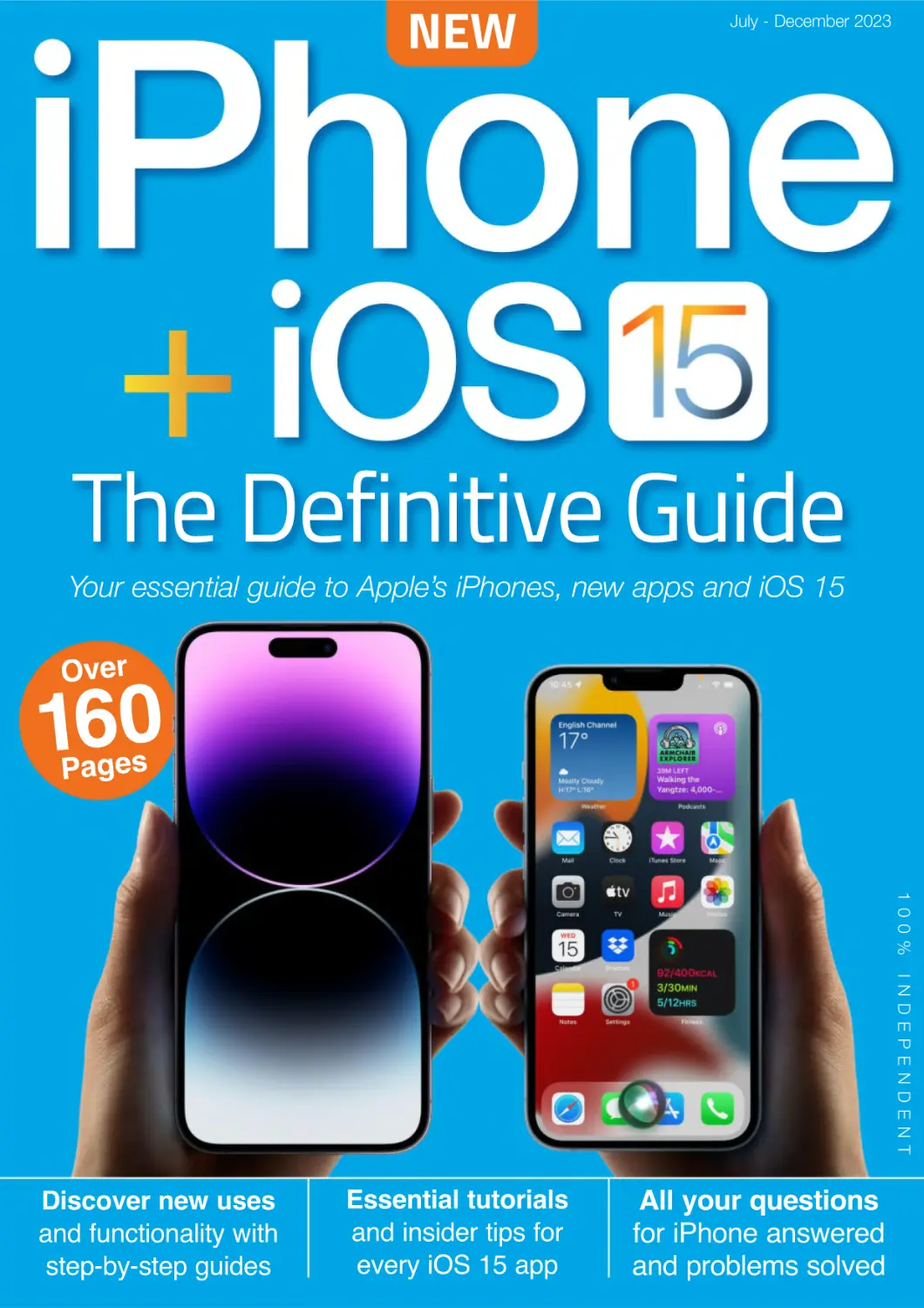
Over
160
Pages
Discover new uses
and functionality with
step-by-step guides
Essential tutorials
and insider tips for
every iOS 15 app
All your questions
for iPhone answered
and problems solved
iOS 15 takes your iPhone to new levels,
with solid updates to many of its key applications.
Safari, for example, gets an extensive makeover.
FaceTime boasts several improvements,
including Voice Isolation, which ignores ambient
sounds in favour of focusing on the speaker. A
new Grid View for voice chats keeps everyone
in view instead of shrinking those who haven’t
spoken for a while; and if your iPhone is new
enough, you can select Portrait Mode to blur the
background around you as you chat. There are
also improvements to iCloud, Messages,
Spotlight, Weather and more. New features are
thin on the ground with iOS 15 - far more
attention has been spent on polishing and
improving existing apps and capabilities. That’s
not to say there’s nothing that’s completely new.
The brand new Focus combines a whole series
of features designed to help you concentrate on
what’s important to you now. You can make
custom Focus settings for work, free time and
more. Look out too for Live Text, which lets you
copy words from images such as photographs
and paste it into documents such as notes,
emails and more. It’s all in iOS 15!
Can You Run iOS 15?
Older iPhones cannot be updated to the new
operating system, so if you want to upgrade
your iPhone to iOS 15, it must be one of the
following models. If you’re unsure which iPhone
you own, go to https://apple.co/35BofOC.
• iPhone 6s/6s Plus
• iPhone SE
• iPhone 7/7 Plus
• iPhone 8/8 Plus
• iPhone X
• iPhone XS/XS Max
• iPhone XR
• iPhone 11 / Pro / Max
• iPhone 12 / Pro / Max
• iPhone 13 / Pro / Max
• iPhone 14 / Pro / Max
Contents
6
First Steps with Your iPhone
40 Your iPhone’s Built-in Apps
8
Buttons and Ports – On Your iPhone
42
Mail App – For Your Emails
10
48
Safari App – Apple’s Web Browser
12
The iPhone 1 Range Explained
Set Up Your iPhone – Start With it
54
Reminders App – For Remembering
16
Your Apple ID – Set it Up and Use it
56
Messages App – For Texting
18
Using Face ID – and Touch ID Features
62
Using Memoji – For Fun Pictures
20
iOS 15 Home Screen – Organise it
64
Notes App – For Your Jottings
24
Internet Access – Surfing it
68
Calendar App – For Your Events
26
Setting Up Email – Configuring it
70
Contacts App – For Important Info
28
Phone Calls – Talk on it
72
Camera App – Take Taking Pictures
32
The Touchscreen – And How to Use it
76
Essential iPhone Camera Features
36
The Keyboard – Type on it
78
Photos App – Manage Your Snaps
38
Control Centre – Accessing it
82
Maps App – For Navigation
88
Translate App – For Other Languages
90
Health App – For Keeping Fit
92
Wallet App – For Easy Paying
94
Music App – For Your Sounds
98
Fitness App – For Exercise
10 Brand
New iPhones
Apple’s iPhone 1 range is here
,WKDVsome amazing new features
DQGXSJUDGHVWKDW\RXDUH
JRLQJWRHQMR\
100 Measure App – And Level Feature
102 TV App – For Your Viewing
104 Books App – Read Your eBooks
106 Podcasts App – For Audio Shows
108 Weather App – Come Rain or Shine
110
News App – Stories and Features
112
FaceTime App – For Internet Calls
116
Home App – Connected Gadgets
118
Clock App – Find the Time
120 iTunes Store – For Digital Media
122 The App Store – To Buy More Apps
124 Find My – Lost Your Phone?
4 | www.PCLpublications.com
Contents
134 Updating
iOS
If your iPhone is compatible, updating to
iOS 15 is really easy and we show you
step by step how it’s done. Get the best
out your iPhone and the new features
iOS 15 has to offer.
126 Your iPhone’s Advanced Functions
128 iCloud Drive – Cloud Computing
146 The Siri Assistant – A PA Feature
132
Using the Files App – Data Management
150 Dark Mode – A Screen Feature
134
Organise, Update – & Remove Apps
151 Sign in with Apple – A Security Feature
136 Live Text – Pics to Words
152 Customising – A Fun Feature
138 Spotlight – Searches and More
154 Screen Time – A Monitoring Feature
140 Personal Hotspot – With Your iPhone
156 Notification Centre – Information Feature
141 Picture in Picture – A Viewing Feature
159 Bluetooth – And AirDrop
142 Focus – Reduce Distractions
160 Troubleshooting & Maintenance
82 Maps App
Apple’s navigation specialist has had a big
overhaul for iOS 15. We’ll give you directions.
www.PCLpublications.com | 5
First Steps
with Your
iPhone.
For those who are new to the iPhone, this
section takes you through its basic
features and functions. With our help, you
can set up your iPhone for the first time,
including Face ID, Touch ID and your
Apple ID. We show you how to use the
Home screen, including Home-Screen
Widgets and App Library. Get to grips with
the touchscreen and the Control Centre,
make and receive phone calls and get
more from the iPhone’s keyboard.
Learn more
6 | www.PCLpublications.com
>
First Steps with Your iPhone
www.PCLpublications.com | 7
First Steps with Your iPhone
Buttons and Ports
On Your iPhone
What’s where on your iPhone? Here we show you the physical layout of the
range of iPhones currently on sale. Whether you have a brand new iPhone, or
an older iPhone with a Home button, this guide shows you what’s where.
Full Screen iPhones Models
This part of the iPhone contains much of
Apple’s latest technologies. In the high-end
iPhones, an infrared camera, flood illuminator,
Proximity sensor, Ambient light sensor and Dot
projector are all present; alongside a speaker,
microphone and front camera. The latter is
utilised by the Face ID feature.
1
1
2
2
This is the Ring/Silent switch. Click it to turn
Silent Mode on and off.
These are the volume buttons. The upper
one increases the volume, and the lower
button lowers it. In Apple’s Camera app, and
many third-party photography apps, you can also
use the volume buttons to take a photo, instead of
the on-screen shutter button.
3
4
3
This is the side button. On some iPhones, this
button is located on the top instead of on the
side. It’s a multi-function button that can summon
Siri, launch Face ID, access Apple Pay and more.
4
6
This is the SIM tray. Push a SIM tray ejector
tool, or a straightened paper clip, into the
small hole at the bottom to eject the tray so you
can insert, remove or replace the SIM card you
get from your mobile phone provider.
5
5
The screen is a high-resolution display
measuring between 5.4” and 6.5”
depending on your iPhone model. They all offer
True Tone and a wide colour display, with a great
range of colours available. Viewing angles are
great too, so even if you’re looking at it off-centre,
the colours don’t shift.
6
To the base of the latest iPhones range
you will find the Lightning Connector/audio
EarPods connection port, built-in microphone
and built-in stereo speakers. Older iPhones
might have a 3.5mm earphones port here too.
7
7
8 | www.PCLpublications.com
OO
Buttons and Ports
d
Advance icks
r
T
&
s
Tip
Rear Cameras.
The single, dual, or triple cameras
are found to the rear of the devices.
The dual and triple-camera models
boast wide-angle and telephoto
capabilities, with ultra-wide available
on three-lens iPhones; while all of
them have optical stabilisation for
better pictures.
The Lightning Connector
Current iPhones use a Lightning
connector for charging, syncing, and
(on the latest iPhones) for connecting
cabled earbuds using an adapter.
Home Button iPhones Models
2
4
1
3
5
Plus/Max Sizes
Some iPhone models come in two
sizes: a large version, known as the
Plus or the Max, and a regular version
that lacks this suffix. The larger-sized
iPhones, known as ‘phablets’, are
halfway between a phone and a tablet.
6
7
8
The rear-facing camera, flash and mic.
The specs of the camera, including the
number of lenses, depends on the model.
1
2
The front-facing camera for selfies and
FaceTime.
and hold this button to turn
3 Press
your iPhone on and off, or press it to
lock the screen.
4
The Ring/Silent switch. Click it to
activate and switch off Silent Mode.
5
These buttons control the volume, and
let you take pictures in camera apps.
6
The screen on older iPhones doesn’t
reach the top or bottom of the phone.
The Home button. Press it to get
back to the Home screen, and place
your finger on it to use the Touch ID
fingerprint reader.
7
8
The Lightning port, for connectivity
and charging.
OO
www.PCLpublications.com | 9
First Steps with Your iPhone
The iPhone 14 Pro
and Pro Max
Apple’s flagship phones
To no one’s surprise, the iPhone 14 range includes an iPhone 14 Pro and
iPhone 14 Pro Max. These are Apple’s high-end models, top-ofthe-range models for top-of-the-range needs. As expected, there was a
price increase over the launch prices of the iPhone 13 Pro and Pro Max,
but this wasn’t as hefty as we thought it might be. So let’s take a look at
the iPhone 14 Pro, and its larger stable mate, the iPhone 14 Pro Max.
New Colours
iPhone 14 Pro and iPhone 14 Pro Max are made from surgical grade stainless
steel, and are available in four new colours, namely space black, silver, gold, and
a gorgeous deep purple design that looks far better than the more lilac model in
the non-Pro iPhone 14 range.
Better Screens
Once again, the Pro iPhones come in two sizes; the
regular model, with a 6.1-inch screen (measured corner
to corner), and the larger Pro Max with a 6.7-inch display.
The screen makes significant advances over the
previous model. It has smaller borders and is brighter
than before, In fact, it has the highest outdoor peak
brightness in a smartphone, of up to 2000 nits, which is
twice as bright as iPhone 13 Pro.
But most significantly, it’s always on. Instead of
turning off when the iPhone is idle, it merely dims, so you
can still see the time and information like the new Lock
Screen widgets without picking up the phone or tapping
the display. This is made possible by some great new
power-efficient features. The screen refresh rate can go
as low as one hertz with a new low power mode, and
uses far less power when it does refresh. It works
intelligently too, with wallpaper photos dimming without
losing the correct skin tones.
The always-on display dims when the iPhone is idle.
Dynamic Island
Those who listened to the rumour mill
ahead of the iPhone 14 Pro/Pro Max’s
launch expected the notch atop the screen
to go in favour of a pill-shaped window a
little down from the top edge, but no one
predicted what we got. The new iPhone’s
Dynamic Island feature is arguably the most
innovative and exciting change to the user
interface we’ve seen in years.
This window, of course, houses the
TrueDepth camera, which has been
re-engineered to fit into a 30% smaller
space. For the first time, the proximity
sensor which powers Face ID is positioned
behind the display. This allows the Dynamic
Island window to do far more than house
the camera. Instead, it adapts dynamically
to show alerts, background activities,
notifications and current information too.
| www.pclpublications.com
For example, when you get a phone call,
the Dynamic Island expands to house the
notification about who’s calling, and also
the accept and reject call buttons. When
you use Face ID, it becomes
square-shaped as it shows you the
progress of your scan. It also shows when
your iPhone is muted, charging or playing
music, and shows upcoming directions
when using the Maps. It’s great for ongoing
background activities too, like a countdown
timer. It can also house iOS 16’s Live
Activities information too, such as the
current score in a sporting event or
keeping an eye on when your taxi will arrive.
The animations associated with
Dynamic Island are fluid and intuitive, and
they’re available to third-party developers
to use with their own apps too.
New iPhones
The iPhone 14 and iPhone 14 Plus
A new phone in five exciting colours
As expected, the Autumn refresh also brought us a regular iPhone 14 model with a
6.1-inch screen (measured corner to corner), but we also got an iPhone 14 Plus, a larger
model with a 6.7-inch screen. This is a first for the regular iPhone – previously, only the
iPhone’s Pro models came in regular and larger sizes. One thing we didn’t get is an
iPhone 14 mini. This is surprising considering the iPhone 12 and 13 series enjoyed a
smaller version, but perhaps they weren’t selling.
Whichever size of iPhone 14 you buy, it retains the ‘notch’ housing the TrueDepth
camera. No Dynamic Island here.
Five Exciting Colours
The iPhone 14 and iPhone 14 Plus come in five different colours; midnight, blue, starlight,
purple, and the fundraising (PRODUCT)RED, where some of the profits go to AIDS charities.
8QXVXDOO\IRUDQRQ3URPRGHOWKHL3KRQHFRPHV
in regular 6.1-inch and a ‘Plus’ 6.7-inch models.
Improved
Performance
The regular-sized
iPhone 14 offers
all-day battery life,
and the iPhone 14
Plus goes even
further, offering
the best battery
life ever in an iPhone.
At the heart of the iPhone 14/14
Plus is the Apple Silicon A15 Bionic
system-on-a-chip, which debuted last
year with the iPhone 13 Pro models. It
has a five-core GPU that’s 18% faster
than the iPhone 13’s. Its six-core CPU
offers two high-performance and four
high-efficiency cores, and it also
boasts a 16-core neural engine for
machine learning.
Also worth noting is the A15
Bionic’s custom Image Signal
Processor which powers some great
features in the iPhone 14/14 Plus
camera system.
The Build
Both sizes of the iPhone 14 are made from
aerospace-grade aluminium. They have an
updated internal design for better thermal
performance. This prevents overheating
during peak-needs use such as gaming, so
you can play for longer. The screens boast
Super Retina XDR displays with OLED
technology that supports 1200 nits of peak
HDR brightness, a 2,000,000:1 contrast
ratio, and Dolby Vision. And if you’re prone
to dropping your phone, you’ll be glad to
learn the Ceramic Shield front cover —
exclusive to iPhone and tougher than any
other smartphone glass — returns.
Action Mode
When recording video, Cinematic
Mode is now available in 4K at 30 fps
and 4K at 24 fps. Dolby Vision HDR is
available too, exclusive to iPhone. But
the best enhancement to video
recording is the new Action Mode.
Toggled on and off with a tap, Action Mode is a stabilisation tool that adjusts to
significant shakes, motion, and vibrations while you record your video. Where you
might expect footage to be shaky, it’s now silky smooth.
www.pclpublications.com |
First Steps with Your iPhone
Set Up Your iPhone
Start with it
If you’re setting up your new iPhone straight out of the box, follow this guide
DVZHWDNH\RXWKURXJKWKHH[WUHPHO\LPSRUWDQW¿UVWWLPHVHWXS/HDUQKRZ
to set up all the core functions of your iPhone, from switching it on for the
¿UVWWLPHWRPDNLQJ\RXU¿UVWSKRQHFDOO:KLFKHYHUPRGHORIL3KRQH\RX
own, with our help you’ll soon be up and running.
Inserting your Nano-SIM card
To activate your iPhone, you must
first insert the Nano-SIM card
provided by your mobile phone network
provider. An eSim card is non-removal
as detailed below.
1
Use a SIM eject tool like the one
pictured here, or maybe a
straightened paper clip, and insert it into
the small hole next to the SIM slot. The tray
then pops out as shown.
2
eSIM explained.
12 | www.PCLpublications.com
O OOO
Place the SIM card in the tray
(there’s only one way it can go in)
and slide the tray back in the slot. Push it
in firmly so it snaps into place. Your iPhone
should recognise it.
3
Set Up Your iPhone
The initial set up of your iPhone
The opening screen shows `Hello’ in
different languages. Press the
Home button or flick the screen up. Select
your language, followed by the country, or
region, in which you’re to use the phone.
If you already have an iPhone or an
iPad running iOS 11 or later handy,
you can set up your new iPhone by
bringing them together as shown to sign in
automatically. If not, tap Set Up Manually.
Choose your network from the list,
then enter the password supplied
with (or printed on) your router. Tap Next,
then on the next screen, tap Continue after
reading about Data & Privacy.
The next step is setting up your
Face ID (or on older iPhones, Touch
ID). If you wish to do this now, see the
tutorials later in this book for the relevant
step-by-step guides.
Choose a six-figure passcode
used to unlock your iPhone.
Alternatively, tap Passcode Options to
add a different type of code; or skip it
altogether (not recommended).
After setting your passcode, you
can transfer data from your other
phone (iPhone or Android) or a backup
if you wish. If this is your first iPhone,
choose the last option.
1
4
2
5
O OOO
3
6
www.PCLpublications.com | 13
First Steps with Your iPhone
Enter your Apple ID. This is your
email address and password. If you
don’t have one, tap the link below the
Password field and follow the tutorial on
Your Apple ID – How to Set it Up.
If you have other recent Apple
devices signed into the same Apple
ID you just used, you’re sent a verification
code. Read it off your other Apple device
and type it here. Agree to the T&Cs.
If you’ve previously had an iPhone,
you set it up in the same way as
before. Tap Continue to do so, or
Customise Settings to decline. Next is info
about staying up to date; tap Continue.
Do you wish to enable Location
Services; we suggest you should
because, whilst this enables your iPhone
to gather data about where you are, it is
essential for apps like Find My and Maps.
Do you set up Apple Pay now, or
later in the Wallet app? If you
decide to do it now, follow the on-screen
instructions. Naturally, if you don’t want to
use it at all, you can ignore this feature.
You can now train Siri to recognise
your voice. Again, if you want to do
it now, follow the on-screen instructions. If
not, tap Set Up Later in Settings; you can
do it any time you like.
7
10
14 |
8
11
OOOO
9
12
Set Up Your iPhone
You can now set up Screen Time, a
feature that gives you a weekly
report on how you use your iPhone.
There’s a full tutorial on it later in this
book. Set it up now, or later as you wish.
13
The next two screens ask if you
want to share iPhone Analytics and
iCloud Analytics with Apple and its
developers. It’s up to you, and you can
change your mind in Settings later.
14
Decide whether to use Light Mode
or Dark Mode (this is another
option you can change later, in Settings).
You’re then welcomed to the iPhone and
are ready to get started.
15
Erasing an iPhone.
If you need to erase all previously used settings and data from your iPhone,
you need to reset it to factory conditions then set it up using this tutorial.
Do you prefer to have your display
16 Zoomed, which shows larger text
and controls, or Standard, for more on
the screen? Decide here; you can
change it later in Settings.
From the home screen, go to Settings >
General. Tap Transfer or Reset iPhone
at the bottom. Now tap Erase All Content
and Settings. Back up when asked, if
you haven’t already, or just erase.
O OO O
Enter the passcode, tap Erase iPhone,
then again to confirm, and then enter the
Apple ID. You might need to get these
from the phone’s previous owner. Your
iPhone is then wiped.
www.PCLpublications.com | 15
First Steps with Your iPhone
Your Apple ID
Set Up and Use it
If you don’t already have a working Apple ID, and you didn’t register one while
setting up your iPhone, you should do so now. With it you can download
applications from the App Store, use FaceTime, buy music and movies from
iTunes and use many of the iPhone’s features and services. Without an Apple
ID, you won’t come close to getting the most from your iPhone.
Open the Settings application from
your iPhone’s Home screen and
scroll to the top of the screen. Tap the
Sign in to your iPhone option right at the
top of the list, then in the pop-up window,
tap ‘Don’t have an Apple ID or forgot it?’.
1
Tap Create Apple ID in the next
window and, when instructed,
enter your name in the fields provided. In
the next field, Date of Birth, set your
date with the wheels, and then tap Next
to move on to the next step.
2
Then, you’re asked whether you
want to use your current email
address (if you have one) for your Apple
ID. Tap Do not have an email address? if
you want to use the free iCloud address
that comes with your Apple ID.
3
iCloud email.
Your Apple ID gives you a free iCloud email address. You can use this email address on
your iPhone and also on any other Internet devices you have, such as Macs, PCs or
tablets, and through a browser at www.icloud.com. Best of all, you keep your iCloud
address even if you change your Internet provider.
16 | www.PCLpublications.com
OO
Your Apple ID
If you choose to use your new
iCloud address, you’re asked to
complete your email, which ends ‘@
icloud.com’. It may take a few tries
before you find one that hasn’t already
been taken but when you do, accept it
by tapping Continue.
Now you must choose your
password. As stated on the
screen, it must be at least eight
characters long and include at least one
number, one upper case (capital) letter
and one lower case letter. Make it
something you can easily remember.
Apple needs your phone number
so you can be contacted, via a
call or text message, to confirm your
identity. Use the number taken from your
SIM card, or tap Use a different number,
to choose another number for them to
phone or message. Tap Continue.
After tapping Next, you should
enter the six-figure verification
code that’s just been sent to your device
(or given to you in a call, if that was your
preferred choice). When you enter the
last digit, you automatically proceed to
the next step.
Agree to the terms and conditions
and your iPhone signs into iCloud
with your newly created Apple ID. When
it’s done, you must enter your iPhone’s
passcode, the one you use to unlock it
on the lock screen, to complete the
sign-in process.
When the sign-in process is
completed, you’re shown your
Apple ID screen. From here, you can tap
the initials at the top of the screen to
add a photo, tap iTunes & App Store, to
set up media and purchases, and set up
services like Family Sharing and iCloud.
4
7
5
8
OO
6
9
www.PCLpublications.com | 17
First Steps with Your iPhone
The Face ID and
Touch ID Features
iPhones with a top-to-bottom screen have Face ID. Most iPhones with a
Home button have Touch ID. You probably set up this service during the
initial setup, but here’s how to do it if you need help.
Setting up Face ID
Go to Settings > Face ID &
Passcode and enter your iPhone’s
passcode to continue. Tap Set Up Face
ID or Set Up Alternative Appearance, or
tap Reset Face ID to start afresh.
1
Position your face within the frame
as instructed, then move your head
in a circle until the small lines around your
face are all green. Tap continue, then
repeat for a second scan.
2
Your face is now registered with
Face ID. Tap Done to return to the
Settings screen, where you can
configure your iPhone’s Face ID feature
to your own personal requirements.
3
Setting up Touch ID
Go to Settings > Touch ID &
Passcode and enter your iPhone’s
passcode when instructed. Tap the Add a
Fingerprint link to start registering one of
your fingerprints with Touch ID.
1
18 |
Place a finger on the Home button
and follow the instructions, lifting
and replacing your finger until the
fingerprint is filled. Then do the same
again with the edges of your fingertip.
2
OO
When done, you return to the first
screen, from where you can add
another fingerprint if you wish. You can
also choose which iPhone features can be
activated using your Touch ID.
3
Face ID & Touch ID
Using Face ID
d
Advance icks
r
T
&
s
Tip
Adding More Faces or Fingers
Unlocking your iPhone
Making Purchases
With Face ID, simply look at your
phone and the lock springs open,
as you can see here. You can do it in any
lighting conditions, even total darkness.
If you have Touch ID, you can unlock
your phone by pressing the Home button
with a finger registered for Touch ID.
Open the iTunes Store, App Store or
Books Store and choose something
you wish to purchase. When you’re asked
to pay, double-click the Side button and
look at your iPhone. The purchase is made
and a checkmark is displayed to show
payment has been verified.
1
To add a new face to your Face ID,
maybe so your partner or children can
use your phone, open the Settings app
and go to Face ID & Passcode. When
instructed, type your passcode to
proceed. On the next screen, which
offers all sorts of customisation
options for Face ID, look for a link that
says ‘Set Up an Alternative
Appearance’. Tap it, and you’re invited
to set up Face ID again, just like you
did when you set up your own face in
Face ID. Tap the Get Started button
and follow the tips for setting up Face
ID offered earlier. You can have two
registered faces with Face ID.
2
If you have a Touch ID iPhone, you
can add more fingers; either your own,
or someone else’s whom you trust to
open and use your phone. Go to
Settings > Touch ID & Passcode, enter
your passcode and on the next screen,
tap Add a Finger. Follow the on-screen
instructions to add your finger – the
process is exactly the same as for the
first finger you registered. When you’re
done, you have two fingers registered
with Touch ID.
Giving Passwords
Using Apple Pay
When logging on to a
password-protected website, such
as a forum or a store where you have an
online account, tap the field where you
have to give a name or password, and
you’re asked to use Face ID or Touch ID
as applicable. Do so to fill these fields.
Make sure Apple Pay is turned on
in Settings > Face ID/Touch ID &
Passcode and that you’ve already set up
Apple Pay. To make a purchase, double
click the Side button or place your finger
on the Home button. Hold your phone
near the reader.
3
4
OO
www.PCLpublications.com | 19
First Steps with Your iPhone
iOS 15 Home Screen
Organise it
The Home screen is at the heart of your iPhone. It’s through the Home screen
you open apps, organise them into folders, edit and use Home screen widgets
and more. The previous release of the iOS operating system brought some
great new features such as the App Library and using Widgets on the Home
screen. Follow this guide to master your iPhone’s Home screen.
Home Screen Widgets
A Widget is a small piece of an
app which displays information
drawn from the app in question, making
it easily accessible. We’ve had them for
years on the Today screen (to the left of
the home screen) but their abilities have
now been greatly extended.
1
20 |
To add a Widget to the Home screen,
tap and hold an empty space until
the app icons start wobbling. Tap the + icon
in the top-left corner and you get a pop-up
window, from where you can select a
Widget. Tap the Widget you want to add and
see a preview and description.
2
O OOO
Swipe backwards and forwards
through these previews and choose
at what size you want the Widget to be
shown. Widgets come in three sizes,
based on the size of an app icon; 2x2,
2x4 and 4x4. The larger the Widget, the
more space it takes but the more it shows.
3
iOS 15 Home Screen
When you’ve chosen a Widget, tap
Add Widget at the bottom of the
window and the Widget is added to your
Home screen. With the apps wobbling,
you can drag and reposition a Widget just
like you can with an app icon. You can
add as many Widgets as you like too.
Tap a Widget on the Home screen
to open the app that created it. Tap
and hold it for a pop-up menu that allows
you to (among other things) edit the
Widget. For example, if you edit the
Reminders Widget, you can choose which
of your reminder lists is shown.
There are two ways to remove a
Widget. Tap and hold a blank space
on the Home screen to make the apps and
Widgets wobble, then tap the minus sign in
the top-left corner to remove it or tap and
hold the Widget itself and select Remove
Widget from the pop-up menu.
A Smart Stack is a series of
Widgets that appear as a single
Widget on the Home screen. When you
open the Widgets window, the Smart Stack
is at the top. Drag it onto your Home
screen, then swipe up and down on it to
scroll through the various Widgets on offer.
A Smart Stack automatically shows
the Widget it thinks you’ll find most
relevant, based on the way you use your
iPhone. For example, if you always check
the Weather app around midday for your
lunchtime walk, it will show the Weather
widget foremost at this time.
You can edit a Smart Stack on your
Home screen, adding and
removing individual widgets. Tap and hold
it until the menu appears, then tap the Edit
Stack option. Tap the minus sign next to
one of the Stack’s widgets to remove it, or
tap Plus (top left) to add one.
4
7
5
8
O OOO
6
9
www.PCLpublications.com | 21
First Steps with Your iPhone
The App Library
If you scroll your Home screens all
the way to the right, you find – as
the last Home screen – the App Library.
This looks like a page full of folders and in
a nutshell, that’s what it is but the folders
are assembled automatically by the iPhone
instead of by yourself.
Tap one of the larger app icons
inside an App Library folder to open
that app. If you tap a group of four small
icons, found in the bottom-right corners of
the folders, the folder opens instead. Tap
somewhere other than an app icon to get
back to the App Library.
The App Library sorts your apps
into categories, such as Education,
Games, Lifestyle, Entertainment and more.
There’s a category called Recently Added
for apps you’ve downloaded recently and
Suggestions, which picks apps for you
based on previous usage.
Like other pages on the Home
screen, you can hold a space
between apps and make them wobble, then
tap an X in the top-left corner of the app
icon to delete it; and drag apps out of the
folders too. Tap four small icons while
wobbling to access that page; still wobbling.
Tap the Search field at the top of
the App Library screen for a list of
every app on your iPhone, which you can
search. Scroll this list up and down and
the keyboard disappears, allowing you to
browse your iPhone apps in their entirety,
in alphabetical order.
To hide specific Home Screen
pages on the Home Screen (not
App Library), tap and hold a space
between icons to make them wobble. Tap
the dots icon at the foot of the screen, then
uncheck any Home Screen pages you wish
to hide or check them to show them again.
1
4
22 |
2
5
OOOO
3
6
iOS 15 Home Screen
Home Screen Folders
On this page, we have the iWork
and iLife apps and also iTunes U.
Let’s bring them together into a single
folder, greatly reducing the amount of
space they take up on the Home screen.
Tap and hold any app icon, then
select Edit Home Screen from the
menu that pops up. You return to the
Home screen, but now the apps wobble
and display a ‘-’ in the top left corner.
Drag one of the app icons you want
to put in the new folder onto another
app you intend to keep in the folder. When
a border appears around them, let go. A
new folder is then formed.
Tap the new folder with the two
apps inside to open it. It’s
automatically given a name but you can
tap this and edit it if you want to call your
folder something different. If you wish, you
can tap the ‘X’ icon to the right of the
name (which here is ‘Productivity’) to clear
the title field and then start from scratch.
Tap the screen outside the folder to
get back to the Home screen, from
where you can drag more apps into the
folder. If it contains more than can be
displayed, they’re arranged in pages, like
your Home screen. Look for the dots at the
foot of the folder and swipe right and left
to navigate through folder pages.
To remove an app from a folder,
open the folder from the Home
screen, tap and hold the app, choose
Rearrange Apps then drag it out of the
folder. When the last app is removed, the
folder disappears. Press the Home button,
or tap the Done icon (top right) to stop the
app icons wobbling.
1
4
2
5
O OO O
3
6
www.PCLpublications.com | 23
First Steps with Your iPhone
Internet Access
Surfing it
The iPhone connects to the Internet automatically whenever you use
the App Store, Mail, iTunes Store, Safari, YouTube or any other app that
requires it. There are two ways of taking your iPhone online: via a Wi-Fi
connection or a 3G/4G/5G mobile network. In this guide, we show you how
to set up both, and also how to check your Wi-Fi signal strength.
Joining a Wi-Fi network
To activate Wi-Fi go to Settings >
Wi-Fi and turn it on. The iPhone
searches for all networks in range. If at
home, pick your home network and enter
the security details, the password should
be supplied with your router.
1
If you’re at a public hotspot that has
no security, you can just connect. If
it’s password protected, which is far more
likely, you need to get the network name
and the passcode from whoever is
providing the Wi-Fi service.
2
From now on, whenever you’re in
range of this Wi-Fi service the
iPhone automatically connects without
any prompting. If more than one is in
range, the iPhone rejoins the last
network it joined.
3
You can follow these tips for joining a public Wi-Fi service as well as for your home network. Ask the service provider for
the Wi-Fi network’s details, such as its name and password. You log on automatically next time you use this network
but if the password has changed, you must enter the new one.
24 |
OO
Internet Access
Joining a mobile 5G, 4G or 3G network
When the iPhone connects to the
Internet using the mobile data
network, you will see the 3G, 4G, 5G,
EDGE or GPRS icon in the status bar at the
top-right corner of the screen.
1
If you travel outside your usual
mobile network coverage, you can
still use 3G, 4G or 5G. To do this, turn Data
Roaming on: Settings > Mobile Data >
Mobile Data Options. Charges may apply.
2
You can monitor your mobile
network data usage by going to
Settings > Mobile Data and then scrolling
down to the Mobile Data section. The data
settings vary depending on the carrier.
3
d
e
c
n
a
v
d
A
s
k
c
i
r
T
&
Tips
Password Sharing
Wi-Fi Assist
Signal Strength
Wi-Fi Assist switches to a mobile
connection when Wi-Fi is unreliable. It’s
found in Settings > Mobile Data, and is on
by default. To avoid large bills, it doesn’t
work when Data Roaming, and it won’t
work with some video apps.
To check the strength of your current Wi-Fi
connection, look at the Wi-Fi icon found in
the top right corner of the screen. The
more bars that are solid, as opposed to
being greyed out, the stronger the
iPhone’s Wi-Fi connection.
OO
You can share a Wi-Fi password from
your Apple device with another Apple
device that wants to join the same
network. Both devices must have Wi-Fi
and Bluetooth turned on, and neither
should be running a Personal Hotspot.
They need to be signed into their
respective Apple IDs, and have the
other person’s email address in their
Contacts app. They also must be within
Bluetooth range, and be unlocked.
When the new device tries to connect
to the network, a pop-up invites the
one that’s
already on
there to share
the password.
Tap Share
Password to
do so.
www.PCLpublications.com | 25
First Steps with Your iPhone
Setting Up Email
Configuring it
Your iPhone’s Mail app can send and receive emails from all of your email
accounts. It’s easy to set up and use with an iCloud, Gmail, Yahoo, AOL or
Outlook email address. If you want to add your Internet Service Provider’s
own email account, it is a little more complicated. Here we take you through
setting up each type of email account on your Apple smartphone.
Setting up accounts.
For most of the popular web-based email services such as Gmail and Yahoo, the iPhone automatically enters most of the settings
needed for you to access your account. We’ve put together these steps that cover each of the Internet’s key email providers. Just
follow this guide and you’ll soon be emailing from your iPhone.
Setting up an iCloud email account
Tap the Settings icon and scroll
down. Tap the Mail option, then
Accounts. From here tap Add Account
then tap the iCloud link and enter your
Apple ID and Password. If you don’t have
an Apple ID, tap Create a New Apple ID
instead and follow the instructions. Tap
Next to automatically verify your details.
1
26 |
If you have Two-Factor
Authentication on, you must
authenticate now. Enter the verification
code or tap the link and follow the
instructions if you didn’t get one. If you’re
asked whether you want to allow iCloud to
access your location and use Find My
iPhone, we suggest you agree.
2
OO
You’re then taken to this screen,
where you can select which of your
iPhone’s apps use the iCloud. Slide the
Mail link to the On position. Deactivate any
applications you don’t want to sync with
iCloud (you can always reactivate them
later), and then tap Save in the top right
corner to complete the setup.
3
Setting Up Email
Setting up Gmail, Yahoo, AOL and Hotmail accounts
Tap the Settings icon on your
iPhone’s Home screen. Scroll
down and click on Mail, then Accounts,
then Add Account. This takes you to the
list of email accounts that you can
configure on your iPhone, such as iCloud
or Google accounts.
1
From this screen, tap on either the
Gmail, Yahoo, AOL or Microsoft
Hotmail link (the process is the same). On
this screen you need to enter your name,
email address and your password for this
account. Finally enter a description of the
account. Click the Next link to continue.
2
From this screen, you can select
which features of your email
account you also wish to sync with your
iPhone. When you have made your
selections, and are happy to continue, all
you have to do to complete the process is
tap the Save link and you are ready to go.
3
Setting up other types of email account
Go to Settings > Mail > Accounts >
Add Account once more. If you
wish to add a Microsoft Exchange
account, tap the Exchange option on the
screen shown above. If it’s a service
provided by your ISP (Internet Service
Provider), tap Other at the bottom.
1
You will have to visit the support
website of your email provider and
seek out their help in setting up either a
POP or IMAP email account on your
iPhone. As these details are all different for
each provider, we can, alas, only send you
in their direction for help.
2
OO
Once you have obtained all the
required information from your email
provider, you must then enter these details
as requested. When complete, you are
ready to go; your iPhone contacts the
email server in question and downloads
any emails you have for this account.
3
www.PCLpublications.com | 27
First Steps with Your iPhone
Phone Calls
Talk on it
With all the games, apps, videos, Internet browsing, email and photography
available on your iPhone, one might be excused for forgetting it can also
make and receive telephone calls. In this next section we take you through
making and answering calls, and show you a few of the iPhone’s clever
phone-related features such as placing calls on hold and using voicemail.
Dialling a number from the keypad
Tap the Phone app icon and then
select the keypad link from the five
options at the bottom of the screen.
Enter the phone number by tapping the
on-screen digits; the number is shown as
you enter it at the top of the screen.
1
If this number is important and is
likely to be used often, tap the Add
Number link found under the phone
number at the top of the screen to add it
to your contacts list. If not, tap the green
button to make the call.
2
The call automatically connects
when your contact answers the
phone at their end. To end the call, tap
the End Call button, the red one; you’re
returned to the keypad screen and the
call is terminated.
3
If you’re ringing another Apple device, you can use the FaceTime app’s audio mode to make a call over the Internet
using Wi-Fi or 3G/4G/5G. There are no call costs, though mobile Internet costs might apply. See our tutorial on the
FaceTime app later on for more information on making FaceTime Audio and Video calls.
28 | www.PCLpublications.com
O OOO
Phone Calls
Making a call from your contacts list
Tap the Phone icon and select
Contacts. Scroll up and down until
you find the number you wish to dial.
Alternatively, enter the name of your
contact into the Search bar.
1
Once you’ve found the contact
you wish to call, simply tap their
name to be taken to their contact page.
To dial them up, tap their phone number
to place your call.
When you’ve finished your
conversation, tap the End Call
button, the red one showing the
telephone receiver, to hang up; or wait
for your contact to do the same.
To answer the call, if your iPhone is
in sleep mode, move the slider to
the far right to accept the call. If you
receive a call when you are using your
iPhone, you can decline it by pressing the
red button or accept via the green one.
To go hands-free for the duration
of this call, simply press the
Speaker button on the upper right. This
switches the outgoing sound to the main
speakers, allowing you to talk without
holding the phone.
2
3
Answering a call
Incoming calls appear as a
notification at the top of the screen;
you can accept or decline it. When you get a
call you either see the name of the contact
or the number displayed. If the number is
withheld, the word “Blocked” appears.
1
2
O OOO
3
www.PCLpublications.com | 29
First Steps with Your iPhone
Placing a call on hold
During a call, you can place the
caller on hold by pressing Mute,
pausing the conversation without actually
hanging up the phone. To return to the
call, tap Mute again.
1
Should a second caller ring when
you’re on a call, you have an
option (the big red button) called
Decline, which cuts off the second caller
but lets them leave a voice message.
2
By selecting the Hold & Accept
option, you place the original
caller on hold, allowing you to answer
the second call before returning to the
first one by tapping swap.
3
Dialling a number from a secondary source
If you find a telephone number on a
web page in Safari, the number is in
a button. Tap on it to place the call.
1
30 | www.PCLpublications.com
You’ll see a confirmation request.
Tap Call to ring the desired number
without having to use the number pad.
2
OOOO
The call is placed, just as it would be
if you’d typed it yourself or tapped a
number found in your Contacts app.
3
Phone Calls
Placing calls from a message or note
d
Advance icks
r
T
&
s
Tip
Blocking callers
If you have a message, email, note,
or document containing a phone
number, you can place a call to it by
tapping the highlighted, underlined
number then tapping Call.
1
You will now place the call in the
same manner as you have done
previously. Please note that you receive no
confirmation warning when you’re using
this method of calling.
2
Setting up and using your voicemail
Nuisance callers are the bane of every
iPhone owner’s life. It seems like hardly a
day goes by when a call centre rings up
asking if you want to change your energy
supplier, consider life insurance or sign
up for some service or another. Worse
still are fraudulent calls claiming to be
from your bank or the tax office, when it’s
really a criminal gang trying to get you to
part with your money. Or maybe you’re
getting menacing or harassing calls from
a stalker or an ex-partner? Thankfully, in
iOS, you can block incoming phone
numbers quickly and easily.
To block a number that has called
your iPhone, in the Phone app, tap
Recents and then tap the ‘i’ next to the
caller you wish to block. Now tap Block
this Caller, at the bottom of the screen.
The phone number is added to your
Blocked Contacts list, and can no longer
contact you.
To view and edit your Blocked
Contacts list, go to Settings > Phone >
Blocked Contacts. You see a list of
numbers you’ve blocked. Swipe a
number left and tap Unblock to remove it
from this list. If you want to call or send a
message to a number on your list, tap the
chevron to its right.
Another useful feature is sending
unknown callers, that is, phone numbers
that aren’t in your Contacts app and with
whom you haven’t interacted in the past,
directly to your voicemail so you don’t
have to deal with them there and then.
This is a Settings option, so go to
Settings > Phone > Silence Unknown
Callers and turn it on. If you find it doesn’t
suit you, you can always turn it off again.
To listen to your Voicemail
messages, tap the Phone app and
click Voicemail at the bottom of the screen,
then tap Call Voicemail. A call is made to
your voicemail service.
1
To customise your message, tap
the Voicemail button. If there’s a
Greeting link on the next screen, follow it.
If not, listen to your voice mails and follow
the recorded instructions.
2
O OO O
www.PCLpublications.com | 31
First Steps with Your iPhone
The Touchscreen
And How to Use it
The iPhone’s touchscreen supports more than one touch, that is, you can
SODFHPRUHWKDQRQH¿QJHURQLWDQGWKHVFUHHQUHFRJQLVHVWKHLUSUHVHQFH
and movement. This allows for touchscreen gestures, which are achieved
E\SODFLQJRQHRUPRUH¿QJHURQWKHVFUHHQDQGVZLSLQJSLQFKLQJ
spreading gesture and more. Here’s a guide to gestures and what they do.
Touchscreen actions
Touch
Touch and hold
Drag
The iPhone has a capacitive touchscreen,
which means it’s sensitive to the tiny
electrical charges in our bodies. With this
type of screen, you only have to tap it, not
press down hard with your finger. To activate
items on the screen such as applications
and settings icons, type letters and symbols
using the on-screen keyboard or to press
on-screen buttons, you simply (gently) touch
them with your finger.
Touch and hold is useful in a number of
different situations. You touch and hold an
item on the screen by touching it and not
lifting your finger until an action occurs. The
action in question depends on where
you’re using the gesture. For example, if
you touch and hold a web link, you’re
presented with a menu giving you the
chance to open it in Safari, add it to your
Reading List, copy it or share it.
You can customise your iPhone’s Home
screen. To drag items around the screen
and reorder them, hold an icon, and in the
pop-up menu, tap Rearrange Apps. You can
then put your finger on an app icon and,
without lifting your finger, slide it across the
screen until you reach the required position.
Lift your finger off the screen and the item
drops into that location (if it’s free), moving
the other icons out of the way.
32 |
O OOO
The Touchscreen
Swipe or scroll
Double-tap
Pinch to zoom
Many of the menus or web pages that you
can access on the iPhone require you to
scroll. To swipe or slide, quickly move your
finger across the surface of the screen,
without pausing when you first touch it. For
example, the main Photos app lets you
slide the screen left to right to scroll through
your pics, and in some Calendar views you
can swipe quickly across the screen to
change the range of time visible.
There are several places in apps where a
double-tap is used. Tapping twice quickly
on a web page, map or other screen will
zoom in for easier viewing. You can
double-tap a section of a web page in
the browser to zoom it to fit the width of
the screen. Double-tapping after pinching
to zoom in some applications, such as
the browser, reflows a column of text to fit
the width of the screen.
In some applications (such as Maps,
Safari, and Photos), you can zoom in
and out by placing two fingers on the
screen at once and pinching them
together (to zoom out) or spreading
them apart (to zoom in). This also works
to zoom in and out in the Camera app.
Just use the gesture in the viewing area
when you’re ready to take a photo to
give an optical zoom effect.
Switch keyboards
Swipe up for Home screen
Swipe for the App Switcher
When the keyboard is active, you can
switch to alternative keyboards by tapping
and holding the globe in the lower left.
From the pop-up window, switch to a
foreign, or third-party keyboard from the
App Store, use emojis and more.
On previous iPhones, you could get to the
Home screen by pressing the Home button.
As newer iPhones don’t have a Home
button, a new gesture is required. Simply
swipe all the way up from the bottom of the
screen and the Home page is revealed.
Previously achieved with a double-tap on
the Home button, to get to the App
Switcher, swipe up from the bottom of the
screen and when your finger is halfway up,
hold it steady until the other apps arrive,
as seen here. You can then lift your finger.
O OOO
www.PCLpublications.com | 33
First Steps with Your iPhone
Quitting apps
Switch between apps
Control Centre
Whichever iPhone you own, to quit an app
from the App Switcher screen, drag its
preview window off the top of the screen. To
dismiss the App Switcher, tap a preview to
go to that app, or anywhere other than the
preview screens to go to the Home screen.
A neat trick on the iPhone is switching
between open apps without going to the
App Switcher. Swipe your finger right or
left along the foot of the screen to cycle
through your apps, arranged in the order
they were launched.
With a Home button, open Control Centre
by swiping up from foot of the screen,
and close it by tapping the chevron at the
top. With no Home button, swipe in from
top right corner, and dismiss by tapping
anywhere other than on Control Centre.
Stop apps from wiggling
Accessing Siri
Restart your iPhone
Tap and hold an app on the Home screen
and select ‘Edit Home Screen’ to start the
apps wiggling, at which point they can be
moved or deleted; but instead of pressing
the Home button to return to regular use, you
now tap the Done link in the top right corner.
Siri is another feature that previously
required the Home button, so needs a new
method of activation on the iPhone. Press
and hold the Side button until Siri appears.
When you’re done, tap the Side button
again to close the feature.
To restart a newer iPhone with no Home
button, press and hold both the Side button
on the right and the Volume button on the left.
On older iPhones, press and hold the side or
top button. This screen appears, from where
you shut down your iPhone with the slider.
34 |
OOO O
The Touchscreen
Cut, Copy and Paste
Undo and Redo
Summon Formatting Bar
There are three key editing gestures, all of
which use three fingers. After carrying out
any of these gestures, a small window
appears telling you what you’ve done.
The gestures are: Copy – three-finger pinch;
Cut – three-finger double pinch; Paste –
three-finger spread.
To undo the last thing you edited, swipe
the screen left with three fingers.
Alternatively, you can tap the screen with
three fingers to perform the same task. If
you decide you’ve made a mistake with
your undo, simply swipe right with three
fingers to redo the edit.
If you find the editing gestures too fiddly
to use on the iPhone’s screen, you can
use another new gesture to summon the
Formatting Bar. Tap and hold with three
fingers and it appears, at the top of the
screen, offering icons to undo, redo, cut,
copy and paste.
Move the Cursor
Select a block of text
Drag scrollbar
If you want to move the cursor around the
screen, simply tap and hold it, in its
current position, to pick it up, then drag it
to where you want it to go and then lift
your finger to place it. Double-tap and
hold to select text between the cursor’s
old position and its new one.
Another way to select a block of text is to
double-tap and hold a word at the start
or end of the block you wish to select,
and then drag your finger over the words
you wish to highlight. When you’ve
selected it, lift your finger to finish; the
text you want is highlighted.
Scroll a screen and a scrollbar appears
on its right. The height of the grey bar
represents the current screen’s position
in the document or page. Lift your finger
and place it on the scrollbar, and you
can drag it up and down for more
efficient screen scrolling.
OOO O
www.PCLpublications.com | 35
First Steps with Your iPhone
The Keyboard
Type on it
When it comes to using your iPhone, the keyboard is second only in
importance to the touchscreen. If you familiarise yourself with the iPhone’s
virtual keyboard features, you can get so much more out of your Apple
smartphone. This guide teaches you how to use the virtual keyboard, and its
features such as voice input and additional languages.
Once you’ve opened the on-screen
keyboard, you can enter text by
simply tapping on the keys as you would
on any similar typing device. It’s really
easy and intuitive to use.
1
To add digits and punctuation to
your text, just tap the 123 key
located on the lower-left side of the
keyboard. An additional tap on the key
above brings up more symbols.
2
When you start to type a word, the
iPhone tries to complete it for you
and displays its predictions in a bar above
the keyboard. Tap one of the suggestions
to finish the word.
3
Shift key options.
Tap the Shift key to switch to capital letters for the next key press only.
Double-tap to lock it in caps mode, like a caps lock on a manual
typewriter. In caps mode, tap the Shift key once to return to normal
typing. The Shift key’s graphic changes depending on whether it’s in
regular, caps-next or caps-lock mode.
36 | www.PCLpublications.com
OO
The Keyboard
When sending messages or
emails, predictive text learns your
choice of language and suggests the
correct word for the tone of what it is
you’re writing. Tap on the word to use it.
4
This predictive text feature also
recognises if you are replying to a
question that can be answered “Yes” or
“No”. As before, simply tap to select the
answer that suits your reply.
5
Notice the Microphone icon on or
under the keyboard. This is the
Voice Dictation key. Tap this and simply
speak the text you wish to enter; it
appears on-screen in real-time.
6
Swipe Keyboard.
Additional keyboards can be
7 accessed by tapping and holding
the Globe icon and selecting an option.
You can (de)activate predictive text from
the Keyboard Settings link.
To add third-party keyboards,
8 download the Keyboard app from
the App Store. From Settings, go to:
General > Keyboard > Keyboards > Add
New Keyboard and select the app.
OO
A new feature is the Swipe keyboard.
Instead of tapping each key individually,
you can drag your finger from letter to
letter, without lifting it, until you get to
the end of a word.
www.PCLpublications.com | 37
First Steps with Your iPhone
Control Centre
Accessing it
To access the Control Centre, swipe down from the top right corner, or if you
have an older iPhone model, swipe up from the bottom of the screen. The
iOS 15 Control Centre has some great features, which we look at here.
Control Centre in Focus
In this box, you can turn
on and off (clockwise,
from top left) Airplane Mode,
Mobile Data, Bluetooth and
Wi-Fi. If you have 3D Touch,
deep press the main box for
more options.
Your iPhone’s volume
control. Run your finger
up and down the slider to
adjust the sound. Do a deep
press to open a bigger version
of the volume control slider.
1
6
Tap here to lock the
screen in its current
orientation, so it doesn’t
switch between landscape
and portrait mode when you
turn the iPhone. Tap it again
to switch off the screen
orientation lock.
To mirror your screen,
maybe to your Apple TV,
tap here and select the target
from the window.
2
1
This box shows what
2 you’re currently listening
to. Here we’re listening to the
radio, so we can play/pause
and skip forward or backward
ten seconds. Deep press for
more options, including volume
control and external speakers.
7
3
5
4
6
3
Tap here to access the
Screen Mirroring menu,
which shows a list of devices
to which you can mirror your
iPhone’s screen. Tap one of
them and the iPhone screen
is shown on that device.
4
Tap here to open the
Clock app and go straight
to its Timer feature. Deep press
for access to an instant timer.
9
7
Tap here to open the
Calculator app. Tap and
hold to see, and if you wish,
copy, the result of the last
calculation you completed.
10
8
9
10
11
Tap this to access the
Camera app. Deep press
it to access photography
options within the Camera app,
such as selfies, video recording
and the Slo-Mo function.
11
12
This is the brightness
control. Run your finger
up and down it to raise or
lower the brightness, or deep
press for a bigger version of
the slider and instant access
to Night Shift Mode.
5
38 |
Tap here to use the LED
on the back of your
iPhone as a torch. Deep
press for a slider that lets you
adjust the light’s brightness.
8
Tap here for the controls
for your favourite HomeKit
gadgets. It’s a useful way to use
Home controls without going
through the app.
12
OO
Control Centre
Access Bluetooth
& Wi-Fi.
Deep press icons
The music controls
If you tap and hold a Control Centre icon,
it usually gives access to further functions.
For example, the Camera icon provides
the window shown here, and gives you
instant access to selfies, video recording,
and portrait photography.
Just like before, the music controls show you
the currently playing song. You can skip
forwards and backwards or play/pause from
the Control Centre icon, but a long press
gives access to more comprehensive
controls and also the album art.
Night Shift mode
Airplane mode
Customisation
Tap and hold the brightness slider to
access a larger version, and also three
icons underneath. These are: (left to right)
toggle between Light and Dark Mode,
Night Shift (to reduce blue light) and
toggle True Tone screen.
The iPhone’s Airplane Mode switches off
its Wi-Fi and Bluetooth connections, as
required by some airlines. It’s also useful
even if you’re not flying: for example, if
your battery is low and you’re reading an
iBook, Airplane Mode can save power.
Go to Settings > Control Centre and you
can delete Control Centre icons you never
use and add others, if you wish, using the
‘+’ and ‘-‘ icons. You can also reorder the
controls by tapping and holding their
three-line icons and dragging.
OO
In Control Centre, tap and hold the top
left box to open the larger window, then
tap and hold the Wi-Fi or Bluetooth icon
to switch between networks or BT
devices. You can also access their
Settings screens from these windows.
www.PCLpublications.com | 39
Your iPhone’s
Built-in Apps.
One of the best things about the iPhone is
the amazing range of apps that come
bundled with its operating system, iOS 15.
You can send and receive emails with
Mail, surf the web with Safari, find your
way around with Maps, and more. Several
apps get some great new features in iOS
15. Look out for hashtags in Notes and
Reminders, some awesome new
FaceTime features and a great way of
using Maps to find your way around. The
Weather app has had an upgrade too,
offering far more information than before.
Learn more
40 | www.PCLpublications.com
>
Your iPhone’s Built-in Apps
www.PCLpublications.com | 41
Your iPhone’s Built-in Apps
Mail App
For Your Emails
Email on the go has revolutionised communication. The iPhone has a
versatile email app that can handle multiple email addresses spread over
multiple accounts and services, and keep track of all your contacts as well.
Mail in Focus
This screen, in Mail,
shows your Inbox. Tap
the Mailbox link to go back
and choose another mailbox,
such as Drafts, Sent, Junk or
VIP emails.
1
1
2
The Edit link puts an
empty circle to the left
of each email. You can tap
these circles to add a tick,
and then action multiple
emails at once.
4
2
3
Tap here to flag your
email, that is, mark it for
later reference. If you swipe
left on an email that’s already
been flagged, this icon then
reads ‘Unflag’.
7
These are your emails,
listed in the order they
arrived. Tap on one to open
and read it. Emails with blue
dots to their left have not yet
been opened and read. Pull
down on the screen to get
new mail.
3
Tap here to search your
emails. You can type a
name, a subject or something
from the body of an email,
and suggestions are offered
as you type.
4
Drag an email to the left
and you can tap one of
the revealed icons labelled
More, Flag or Delete. Drag it
further to delete it
immediately. Drag it right
instead and you can mark the
email as Read or Unread.
Tap here to delete an
email, moving it to your
Bin mailbox. If you do so by
accident and want it back,
tap the Mailboxes link, then
Bin. Drag the email to the left
again, then tap More and then
in the pop-up window, tap
Move so you can move it back
to your inbox.
8
5
6
7
8
5
42 |
Tap More here for a
pop-up window giving
options to Reply to the email;
Forward it; Mark it as read,
unread, flagged or junk; get a
notification when receiving
replies to this email; and
Move it to another mailbox.
6
Tap this icon to show
only unread emails and
again to return to showing all
emails, read and unread.
9
Tap this icon to open a
new blank email for you
to fill in and send. Tap and
hold it for a list of draft emails,
which you’ve started to type
then saved for later.
10
10
9
OOOOOO
Mail App
Sending an email using the iPhone’s Mail app
Tap the pen-and-paper icon (bottom
right) for a new, blank email. Type
the recipient’s email address in the To
field. If you’ve previously corresponded
with them or they’re in your contacts, you
can type their name instead. Tap the Plus
on the right of the To field to choose
someone from your Contacts app.
1
You can add more than one recipient,
by entering multiple email addresses
in the To field. The email is sent to all of
them. The app offers auto-complete
suggestions as you type, and if a person
has more than one email address, you can
tap a chevron next to the name to choose
which address to use.
2
Tap the Cc/Bcc field and you can
copy even more people in.
Addresses in the To and Cc (carbon copy)
field are visible to all recipients of the
email, but those in the Bcc (blind carbon
copy) field are withheld, so only you know
they were included. The Reply All function
doesn’t reply to bcc’d addresses.
3
Replying to or forwarding an email
Type the email’s subject and the
4 content of the message and you’re
done. Tap the up-pointing Arrow icon in the
top-right corner to send it. A progress bar at
the foot of the screen shows it’s on its way
and when it’s gone, you get a sound effect.
You can see the sent email in the Sent folder.
Open the email you want to reply to.
Click the Arrow icon (bottom of the
screen). A pop-up window appears, with a
range of options; pull it up to see the full
window. ‘Reply’ sends your response to
the sender alone. ‘Reply All’ sends it to
everyone who got the original email.
‘Forward’ sends it to a third party.
1
O OOOOO
Tap the Cc/Bcc field and you can
copy even more people in. Addresses
in the To and Cc (carbon copy) field are
visible to all recipients of the email but those
in the Bcc (blind carbon copy) field are
withheld. Type the email’s subject and the
content of the message and you’re done.
Tap the up-pointing Arrow icon to send it.
2
www.PCLpublications.com | 43
Your iPhone’s Built-in Apps
Deleting emails in the Mail app
To delete an email swipe it left and
tap Delete, or swipe it further to the
left and delete it in one stroke. To delete
multiple emails, tap the Edit link (top
right). Circles appear next to the emails.
Tap those you want to delete, or tap
Select All in the top left to tick all the
emails at once. Tap Bin.
1
Binned emails aren’t immediately
removed from your iPhone. Tap
Mailboxes (top left), then tap the Bin icon
to see emails you recently threw away. Tap
Edit (top right), select emails you want to
move or delete then choose the Move or
Delete link as appropriate. Note the Select
All link in the top left.
2
Sending attachments
Tap in the body of an email and tap
1 the cursor (top right of the keyboard)
for these icons. They are; Attach Photo, Take
& Attach Photo, Formatting, Attach
Document, Scan Document and Markup.
Tap one. When sending photos, a window
pops up showing available photos and
videos. Tap all those you wish to send. When
finished, tap the ‘X’ to go back to the email.
44 |
Mute thread.
You can mute an email thread by
opening the Reply menu, and tapping
Mute. Alternatively, from your inbox,
swipe the email left, tap More, and
then tap Mute. To unmute, repeat
these procedures and tap Unmute.
Create
Reminders.
If you’re sending documents, you’re
2 taken to the Files app. Again, tap all
those you want to send then tap ‘X’. You
can delete attachments you’ve added to
an email before sending it; and add your
message above or below the attachment
too. If someone sends you an email with
an attachment, you can tap it to open it
and then tap Share for a range of options.
OOOOOO
You can create reminders directly from
Mail. Tap and hold the body of the
email until the pop-up bubble appears.
Tap Share in this pop-up bubble, and
from the menu, tap Reminders. You
can edit the title, add notes and choose
which Reminders list it will go. Tap Add
when you’re done, and the reminder is
added to your Reminders app.
Mail App
Formatting controls
d
Advance icks
r
T
&
s
Tip
Adding VIP senders to Mail
Find an email from the person you want to
add to your VIP list, and open it. Tap the
name of the person who sent it to open a
list of options. Tap Add to VIP to add the
person to your VIP list. Emails from VIP
contacts are starred for easy spotting.
Tap the body of your email, then
tap the chevron (top right of
keyboard) to bring up the controls. Tap
the ‘Aa’ icon for the formatting controls.
With the first row, you can use bold,
italics, underlining and crossed-out text.
1
Tap Default Font to change the font
used in your email. The other
formatting options change the size and
colour of the text, justify it left, right and
centre, and make a list or set an indent, or
reduce/increase the quote level.
2
Downloading new emails
To manually refresh your inbox, pull
the screen down until you see the
swirl (seen here at the top). This shows the
app is checking for emails. When it stops,
the check is complete with all your new
emails downloaded to your iPhone.
1
You can set Mail to check for new
emails automatically. Go to Settings
> Mail > Accounts > Fetch New Data. Set
mail accounts to Push to have new emails
sent straight to your phone, or Fetch to
have Mail check at a set interval.
2
OOO OOO
In the Mailboxes screen, VIP is listed as
a separate mailbox; tap it to see emails
from everyone on your VIP list. They
appear in your inbox too, but this is a
quick way to access mails from your
most important correspondents. Tap the
‘i’ icon to the right of the VIP mailbox to
see a list of people you’ve added to your
VIP list. On this screen, tap a person’s
name to go to their Contacts card.
www.PCLpublications.com | 45
Your iPhone’s Built-in Apps
Coloured flags.
You can use a range of colours to flag
your emails, which are synced across
your devices. Open the email in
question, tap the arrow icon at the
foot of the screen, tap Flag, and
choose a colour.
Block sender.
When you get an email from someone
you want to block, tap their name at the
top of the email and from the screen that
pops up, tap Block this Contact. Their
email address is added to your blocked
list. In Settings > Mail > Blocked Sender
Options you can set what happens to
them. In Settings > Mail > Blocked you
can add new numbers or addresses, or
unblock by swiping left.
46 | www.PCLpublications.com
Using signatures
Go to Settings > Mail > Signature. By
default, your signature reads, ‘Sent
from my iPhone’. Tap it and you can edit it
to read whatever you like. If you have more
than one email account, you can set
separate signatures for each.
1
Tap Mail in the top left corner to go
back to the Mail settings. In the
Signature section, you see your new
signature. Next time you write an email,
your new signature is used instead of the
default email signature.
2
Mail markup
Open a new email and add the
attachment you wish to annotate. If
the keyboard isn’t up already, tap the body
of the email, then the chevron in the top
right to bring up the tools. Tap Markup at
the end of the row.
1
OOOOOO
You can then use the tools to mark
up the picture. Tap and hold a tool
for customisation options, tap the colour
wheel to change colours and tap the
arrows in the top left for undo-redo. The +
icon gives more tools.
2
Mail App
d
Advance icks
r
T
&
s
Tip
Privacy features
According to Apple, emails sent to you
may include hidden pixels that give the
email’s sender information about you.
Merely opening the email allows
information to be collected by the sender,
including your IP address, how many
times you opened the email, whether you
forwarded it and more. This data can be
collated, and ultimately creates a profile
of your online behaviour and might even
identify your location.
Long press on email
Searching emails
In your Mail app’s inbox, tap and hold an
email for a pop-up menu. Slide this menu
upwards to see all the options it offers,
which includes reply, forward, notify, mute,
move, or delete it altogether. Tap Mark..
and you can flag it, mark it as read/
unread, or move it to junk.
Using the search field at the top of the
screen, you can search your emails. You
can search all mailboxes or just one. If
you look for a person, you can search for
emails from, to, or mentioning that
person. There are more features than
ever in the Mail app’s search.
The Mail Privacy Protection feature stops
this happening. When it’s switched on,
email senders, including Apple, cannot
glean this information from your email
activities. As Apple puts it, “When you
receive an email in the Mail app, rather
than downloading remote content when
you open an email, Mail Privacy Protection
downloads remote content in the
background by default regardless of how
you engage with the email. Apple does not
learn any information about the content.”
All remote content is downloaded through
proxy servers too, so the sender can never
see your IP address.
To activate Mail Privacy Protection, go
to Settings > Mail > Privacy Protection
and switch it on.
Email notifications
Email unsubscribe
If you’ve turned off notifications for your
Mail app but want a notification for
replies to a specific email you’re
sending, tap its reply button and then
tap Notify Me to activate Notifications.
The email is then badged with a bell.
Repeat to turn them off again.
These days, it’s a lot easier to unsubscribe
from mailing lists. If Mail sees that an email
has been produced by such a list, it
automatically adds an Unsubscribe link at
the top of the email. Tap this link if you
want to remove yourself from that
particular mailing list.
OOOOO O
If you subscribe to iCloud you also get
a feature called Hide My Email, which
isn’t available to those who only have a
free iCloud account. With this feature,
you can send an email without the
recipient ever knowing your actual
email address. To use it, go to Settings
> [Your Name] > iCloud > Hide My
Email. Tap ‘+ Create New Address’ and
you can get a unique email address
that forwards emails to your own email
inbox, but can be deleted at any time.
So, for example, if you want to enter a
competition without giving your ‘real’
email address, use Hide My Email to
create a new one, and if the organiser
sends you endless spam, you can
delete the spoof email address and get
rid of them in one go. Easy!
www.PCLpublications.com | 47
Your iPhone’s Built-in Apps
Safari App
For Web Browsing
Safari is the iPhone’s bundled web browser, and it’s had an overhaul for
iOS 15. Designed to make it easier to use with one hand, it shifts the URL
and tabs to the bottom, adds a new Start page and more.
Safari in Focus
A web page can contain
words, pictures, videos,
icons and more. Tap a link on
a web page, such as the
pictures here and icons atop
the page, to go to a new page.
You can also scroll the screen
up and down by dragging it
with one finger.
1
TheURL, tabs and tools
are now down here,
instead of at the top of the
browser. This window settles
into the bottom of the screen
when not in use; tap it to return
to seeing the larger window
again. Swipe the window left
and right to cycle through your
open tabs. Tap it to type a new
URL or get to the Start page,
and deep press it for more
options which appear in a
floating window.
2
1
The aA icon gives
access to the Reader
view, and lets you increase
or decrease the size of the
text on the page. It also fives
access to a range of
settings options.
3
2
3
5
48 | www.PCLpublications.com
4
6
7
Tapping the curly arrow
here reloads the web
page you’re currently looking
at. It’s useful if it hasn’t loaded
correctly or if it needs
updating, such as a news or
live sports page.
4
8
O OOOOO
These chevrons let you
move forwards and
backwards through your
browsing history; left to go back
to the previous page, and right
to go forward again. They only
appear when needed; if either
or both aren’t there, there’s
nothing to navigate forwards
and/or backwards to.
5
This is the Sharing icon.
Tap here for an
expanded range of options,
including sending the page by
AirDrop, Messages, Mail and
more; and accessing the
Reader view if available,
Bookmark and Favourites
options and more. If there’s a
feature you used to use in
Safari but can’t find in the
iOS 15 version, it can probably
be found here.
6
The Book icon gives
access to your
Bookmarks, Reading List and
web browsing History.
7
Tap and hold this, the tabs
icon, to give you a pop-up
menu offering a new tab, a new
private tab, options to close this
tab or all open tabs and more.
A quick tap on the icon takes
you to iOS 15’s Tabs screen.
The tabs you have open in
Safari are now arranged as
thumbnails instead of a stack.
8
Safari
Navigating the iOS 15 Safari app – learn this first
If the URL window has collapsed
into the bottom of the screen, tap
it to get the larger window. Swipe the
URL bar left and right to cycle between
your open tabs, without having to open
the Tabs screen and selecting one of
the thumbnails.
Tap the URL bar to see the Start
page. Edit the URL or type a new
one, or tap an icon showing your favourite
websites. Scroll up to see websites that
have been shared with you, your Reading
List and more. Tap Cancel (top right) to
get back to web browsing.
Tap the Sharing icon for a large
menu; scroll it up to see all the
options. At the top, you can share the
website using AirDrop, Messages and
more. Tap the Options link to set the format
its sent in. The Bookmark and Find on Page
options are found here.
Tap the Tabs icon to see all your
open tabs as thumbnails. Tap the X
in the top-right corner of a tab to close it,
tap a thumbnail to open that tab and drag
and drop them to reorder. Use the Search
field to search open tabs, and tap + to
add a new one.
On the Tabs screen (see Step 4),
tap the chevron in the bubble at the
foot of the screen for this menu. Here you
can create a group of tabs containing all
the open tabs, open a new empty tabs
group which syncs across your devices or
switch to Private Browsing.
A deep tap on the tabs icon brings
up a menu of tabs options without
going to the Tabs screen. You can open a
Tab Group or a new Private tab, close the
tab or all open tabs or move the currently
open tab to one of your Tab Groups, all
from this screen.
1
4
2
5
O OOOOO
3
6
www.PCLpublications.com | 49
Your iPhone’s Built-in Apps
Using Bookmarks
To bookmark a website for later
use, tap the Sharing icon, scroll up
the pop-up menu and tap the Add
Bookmark option. You’re taken to a new
screen, which is titled ‘Add Bookmark’.
1
Here you can edit the title by which
the site is bookmarked, and tap
Favourites to choose a different folder to
save it to. When you’re done, tap Save (in
the top-right corner).
2
To access a bookmarked page,
open a new tab, and tap the book
icon at the bottom. Navigate to the site
you want, and tap it. To delete a
bookmark, swipe it left and tap Delete.
3
History and Reading List
If you come across an interesting
site that you don’t have time to read
right now, add it to your Reading List. Tap
the Sharing icon, and scroll up to Add to
Reading List; then tap it.
1
50 |
To open a site in your Reading List,
open a new tab, and scroll the Start
screen until you find your Reading List
sites. Tap one to open it, deep tap for
options including Delete.
2
O OOOOO
To access recently viewed sites, tap
and hold one of the chevrons under
the URL bubble and they pop up. Tap and
hold the URL bubble for quick access to
Bookmark and Reading List options.
3
Safari
Safari Extensions
d
Advance icks
r
T
&
s
Tip
Privacy Report
Safari works very hard on looking after
your privacy. For a report on how the
browser has recently taken action to
protect your privacy, tap the Sharing
icon and scroll to Privacy Report. Tap it
and you get all sorts of information on
trackers that have been prevented from
profiling you and a list of websites that
have been involved in tracking.
Extensions are popular in the Mac
version of Safari, and now they’re
available on the iPhone. Open Settings >
Safari > Extensions. To install a new
extension, tap More Extensions.
1
Rotate screen.
You’re taken to the Safari Extensions
section of the App Store. Find one
you like and add it. To turn off an
extension, go back to the screen from the
previous step and tap the switch.
2
Private Browsing
Private Browsing leaves no trace of
where you’ve been. To switch between
regular and private modes, tap and
hold the Tabs icon, then tap the New
Private Tab option. To switch between
modes, tap the Tabs icon, then the
small chevron in the bottom bar.
Return to Old Layout
If you dislike the new Safari layout, with
the URL and toolbar at the bottom of the
screen, open the Settings app and tap
the Safari option. Scroll to the Tabs
section, showing two line drawings of an
iPhone, marked Tab Bar and Single
Tab. Tab Bar is selected by default, but
if you tap Single Tab, you return Safari
to its old layout.
Password monitoring
If you’re using a password that has
been compromised by a data breach,
that is, it has turned up when a website
was hacked, Safari warns you and
advises you to change it. Your saved
passwords are regularly checked
against a list of breached passwords,
and the whole process is secure and
private. Even Apple doesn’t see your
password information.
Pages can be oriented landscape or
portrait by rotating the iPhone. Most of
the time, you’ll probably use the
regular portrait view, but if the website
is very text heavy, it might be more
comfortable to read it in landscape. In
Landscape Mode, the tabs and tools
appear at the top of the screen.
O OO OOO
www.PCLpublications.com | 51
Your iPhone’s Built-in Apps
Tab Groups
It’s now possible to save a group
of tabs, so you can collect them
according to subject and open or close
them as a group. To save all your
currently open tabs as a group, tap the
tabs icon in the URL bubble at the foot of
the screen, tap the chevron in the middle
of the bubble to open this menu and tap
New Tab Group from X Tabs.
1
The other way of making a Tab
Group is, on the screen in the
previous step, tap New Empty Tab Group,
after which you can add a name for it.
Then, when you wish to save a website to
this Tab Group, tap the tabs icon, then
deep press the thumbnail for the site in
question. Choose Move to Tab Group, then
tap the name of the group to add it.
2
To open a group of tabs, tap the
tabs icon in the toolbar at the foot
of the screen, then on the tabs screen,
tap and hold the chevron in the middle of
the toolbar. You can then tap one of your
Tab Groups to open every tab in that
group. To go back to the tabs you had
open before opening your Tab Group, tap
X Tabs further up the menu.
3
Searching for and Copying Text
Reader view
You can search a web page for text.
Tap the Sharing icon in the URL
bubble, and scroll to Find on Page. Tap it,
then enter the word or phrase you wish to
look for on the open web page. To the right
of the Search field, you’re shown how
many instances of the word or term are
found on the page.
In Reader View, a website is cut back to the
bare minimum, so you can read or print it
easily. Not all sites support Reader View. To
switch to it, where available, tap the aA icon
and choose Show Reader View. If it’s
greyed, Reader View is not supported on
that site. To get back to normal, tap aA and
select Hide Reader View.
1
52 |
Tap the chevrons next to the Search
field to cycle through the instances
where the word or phrase appears on the
page. To copy selected text (whether you
searched for it or just highlighted it), deep
tap the URL bubble and select Copy. To
paste it in the Safari Search field, tap
Paste and Search.
2
OOOOOO
Safari
AutoFill
Translate
d
Advance icks
r
T
&
s
Tip
Safari settings
Here are some other things you can
change in Settings > Safari.
Page Zoom: Set your browser to be
zoomed in or out of a website by
default.
Request Desktop Site: Switch it on
and Safari always shows the desktop
version of a website, not the mobile one
Reader: Switch it on to automatically
use the Reader View on websites.
Go to Settings > Safari > AutoFill > My Info,
and select your own Contacts card from
the list that appears. From now on, when
filling in a web form, the AutoFill option is
available; tap it and fill in the form from your
Contacts card. You can save credit cards
too, but not the security number on the
reverse of the card.
If you’re looking at a foreign-language
website and would prefer to read it in
your native language, tap the aA icon,
and select Translate Website... On the
next screen, you’re shown a list of
languages you can translate it into. The
site’s details are sent to Apple, and a
translation is then sent to your iPhone.
Play a Video
Add to Home Screen
Camera/Microphone/Location: Do you
want websites to have access to these
things? By default they have to ask, but
you can change this to Deny or Allow
Language: You can switch to another
language for Safari if you wish
Downloads: Set where documents and
data downloaded in Safari is saved. By
default, it’s your Downloads folder in
your iCloud Drive.
Search Engine: By default, Safari uses
Google as a search engine. This setting
lets you change this to DuckDuck Go,
Yahoo or Bing and more.
Block Pop-Ups: Find the Block
Pop-Ups setting and tap the switch to
turn off those irritating pop-ups that
appear over websites.
Some websites offer videos that can be
played within the website itself, instead of
sending you to a video hosting site like
YouTube. Tap the Play icon to watch the
video. Tap the video and the controls are
shown. Typical controls include pause/
play, scrub through the video and open in
full screen mode.
You can add a website to your Home
screen, so it appears as an icon. When
you tap that icon, the website opens in
Safari. To save a website to your Home
Screen, tap the Sharing icon and then
select Add to Home Screen. You’re then
allowed to edit the name of the page if
you wish. Tap Add to add it.
Block All Cookies: Sites can no longer
leave cookies on your phone.
Clear History and Website Data: Tap
this link and you can wipe your website
history, cookies and other browsing
data; for the sake of your privacy.
O OOOOO
www.PCLpublications.com | 53
Your iPhone’s Built-in Apps
Reminders App
For Remembering
With the Reminders app you can set up reminders, assign them to lists
DQGWULJJHUQRWL¿FDWLRQVDWDVSHFL¿FWLPHDQGGDWHRUZKHQ\RXDUULYHDWRU
GHSDUWIURPDVSHFL¿FORFDWLRQ+HUH¶VKRZWRJHWPRUHIURPLW
Reminders in Focus
Use the Search field to
search your reminders.
Titles, notes, people, locations
and more are searched.
1
2
1
Tap this link and you can
edit your lists; delete them
with the minus sign, reorder by
dragging the Three-line icon up
and down and tap the ‘i’ icon to
rename a list, change its colour
and choose a new icon.
2
3
These are your smart lists.
‘Today’ is all your reminders
scheduled for that day,
‘Scheduled’ shows reminders
that are scheduled for any day,
‘All’ lists all of your reminders,
and ‘Flagged’ shows reminders
to which you’ve added a flag.
3
4
These are your lists. They
can be called anything
you like. Tap one to open it
and see the individual
reminders you’ve added, mark
reminders you’ve done as
complete, and add new ones.
4
5
6
7
54 | www.PCLpublications.com
You can share a
Reminders list with
someone else, as long as they
have a Mac or iOS device. The
list then appears in their own
Reminders app, and any edits
you make are also made on
their list, and vice versa.
These numbers on the
right of each list represent
the number of outstanding
reminders that are contained in
it. When you mark one as done,
it’s removed.
6
You can now create a
reminder directly from the
app’s front page, instead of
having to open a list first. Just
tap here to create a reminder
and assign it to a list.
7
Tap here to create a new
list, which appears in the
My Lists section of the
Reminders home page. You
can move ‘individual
reminders to another list.
8
Reminders
on the web.
5
8
OO
If you sync your Reminders
with iCloud, you can look at
them from any computer
with a web browser. Just
go to www.icloud.com and
enter your Apple ID, and
tap the Reminders icon to
get to them.
Reminders
Creating and using Reminders
To create a new list, on the home
page tap the Add List link in the
bottom right. Add a title for your list
(anything you like) and tap one of the
coloured circles to give it a colour. Scroll
up and pick an icon or an emoji for the
list too. Tap Done when finished.
1
To add a reminder to a list, tap it
then tap New Reminder. Add a
name and, if you wish, tap the ‘i’ icon next
to it to add notes, a URL, or a flag, set a
priority, Date and Time to schedule a
reminder and more. When you’ve carried
out the task, tap the circle to its left.
2
Tap the Add Image link near the
bottom of the Details screen and
you can add a photo from your Photos
app, take a new one, or scan a document.
This picture appears in your list,
associated with that particular reminder.
Tap to enlarge it.
3
User Tags.
Tap the # icon and type a word, and it
becomes a hashtag. These are used to
help organise your reminders. On the
front page, scroll up and there’s a
section called Tags. Tap one of your
tags to see all the reminders you’ve
tagged with that word.
From the Details screen you can
add Subtasks to a reminder,
breaking down the item of which you need
reminding into smaller tasks. In your
reminders list, they appear in a collapsible
list under the reminder in question, and
can also be marked completed.
4
To share a list with another Mac or
iOS user, open the list and tap the
Three-dots icon (top right). In the menu, tap
Share List, then choose how you want to
share. Reminders created in iOS 13 and
macOS Catalina or later aren’t compatible
with earlier versions of iOS and macOS.
5
OO
www.PCLpublications.com | 55
Your iPhone’s Built-in Apps
Messages App
For Texting
Messages is one of the most popular apps on your iPhone. You can use it
to send regular text messages, or free iMessages to others with an Apple
device; and also to send pictures, videos and audio messages.
Messages in Focus
Tap here to take you back
to the list of message
conversations. Tap one of them
to open, and if you wish,
continue that conversation;
such as the chat you see here.
When an outgoing
message has reached
its reader, it’s labelled
‘Delivered’. After it has been
opened, this is replaced by
the date or, if more recent, the
time it was read.
1
6
2
1
This is the person you’re
chatting to. The picture is
drawn from your Contacts app
and is replaced by an initial if
it’s not available. Tap this pic
for more options, including
sharing your location, making
a call or video call, send an
email and more.
3
2
Tap the video camera
icon here for a pop-up
menu, offering FaceTime Audio
and FaceTime Video calls. Tap
one to make that call.
Tap the camera icon to
open the Camera app.
Take a new picture and add it
to your message.
7
4
5
3
6
7
8
9
10
Tap and hold the icon here
to record and send an
audio message instead of text.
10
If you want to send an
emoji, such as a smiling
face or an object like the coffee
cup seen above, tap and hold
this key and then choose the
emoji keyboard from the pop-up.
11
5
56 |
Type your message in this
field. When you’re ready
to send, tap the blue arrow that
appears at the right-hand side
of the text field when you’ve
typed something in here.
9
Your outgoing messages
4 are on the right, incoming
ones on the left. Received
messages are grey. Sent
messages are blue if sent to
another Apple device using the
free iMessage service, and
green if they’re sent to
non-Apple devices as regular
SMS messages.
Messages can contain
attachments such as
photos, videos or small
pictures called emojis, such
as smiley faces or the coffee
cup picture seen within the
message here.
This icon toggles between
the App Drawer, which is
seen below, and the predictive
text bar found over the
keyboard in a number of apps.
8
11
12
OOOOOO
Tap here to dictate your
message instead of typing
it. Your words are converted to
text as you speak.
12
Messages
Sending a new message
d
Advance icks
r
T
&
s
Tip
Photo Management
The way the Messages app deals with
photos and other attachments has been
overhauled for iOS 15.
Tap the Pen and paper icon in the
top right corner to open a new
message. In the To field, type the mobile
number or email address of the person you
want to message. If that person is in your
Contacts app, type their name instead, or
use the + icon on the left.
1
If the To field turns blue, it can be
sent through iMessage (free). If it
turns green, it’s sent as a regular text
message. If it turns red, the device you
entered can’t receive a message. When
the other person is typing a reply, three
dots in a speech bubble appear.
2
Voice and video messages
To send a voice message, tap and
hold the wave form icon to the right
of the text field. Speak your message and
release when you’re done. You can review
your message by tapping the Play icon,
and then send it by tapping the
up-pointing arrow. If you’re not happy
with it, delete it using the X icon.
1
To send video messages, tap the
Camera icon to open the Camera
app, from where you can select Video and
record your movie in the usual way. When
you’re finished, either tap the blue arrow to
send, Done to add text before sending,
Play to review it, or Retake if you dislike
the recording and want to try again.
2
O O OOOO
To send a photo, tap the Photos App
icon at the bottom of a Messages
conversation and you see a grid of
photographs from your Photos App. Tap
as many as you like to select them. You
can now choose which order their placed
in your message. Just tap them in your
chosen order, and they’re numbered
instead of ticked. To unselect a
photograph, simply tap it a second time
and the number disappears. When
you’re ready, tap Add in the top-right
corner and the photos are added to your
outgoing message. Here, you can scroll
the pictures left and right to review them.
Each has a cross in the top-right corner
– tap it to remove that particular picture.
You can then add your text message in
the comment field. Press the up-pointing
arrow to send it, as always.
Attachments that are sent by or
received by you appear in your
Messages conversation as a stack.
Above this stack is a small icon followed
by the number of items in that stack;
and for received items, to the right of
the stack is an icon that looks like the
the Sharing icon upside down. To flick
through the items in your stack, tap the
stack and swipe them left and right. Tap
the icon and number of items above the
stack to see them all as a grid. Tap the
inverted Sharing icon to download the
photos to your Photos app.
www.PCLpublications.com | 57
Your iPhone’s Built-in Apps
Group Messages
You can add multiple recipients to
start a group conversation, just by
typing more than one person’s name or
number in the To field of a new message.
When group messaging, the name of the
sender appears above each message so
you can see who said what.
1
Access unique controls by tapping
the People icons at the top of the
screen, then tapping ‘i’. Tap the Change
Name and Photo link under the icons to
rename the group, and give it a picture of
its own. Swipe a name left and tap Remove
to delete someone from the group.
2
Pinned Messages Details Window
Tap and hold a conversation, or swipe it
right, then tap Pin to keep it at the top of
your Messages screen. The circular
conversations at the top of this screen
are pinned; you can have up to nine. To
unpin a pinned conversation, tap and
hold it, and then tap Unpin.
58 |
Open a message and tap the icon pic at
the top for the details screen. From here,
you can initiate an audio or video call,
send an email, access that persons
Contacts card (info), send or share your
location and more. Scroll up for
attachments to and from that person.
OOOOOO
Tap People and then tap Add
Contact to add someone to the
group. Use location links to let everyone
know where you are. Type a name of
someone in the group to send the message
to that person alone. Long tap a message
to reply directly to that specific message.
3
Messages Profiles
On the Messages screen, tap Edit
(top-left) for a pop-up. Tap Edit Name and
Photo. Tap your initials to choose a photo
or a memoji, and set your display name.
You can then turn on Name and Photo
Sharing, so this name and photo are
shared when messaging.
Messages
The App Drawer
d
Advance icks
r
T
&
s
Tip
Shared with You
A new addition for iOS 15, Shared with
You makes attachments such as
photos, videos, links, news articles,
music, TV shows and more available in
their respective apps as well as in the
Messages conversation. Photographs,
for example, appear in the Photos app.
The apps in question are as follows:
Photos & Videos: In the Photos app,
tap For You and scroll to Shared with
You. Tap See All to take a look at every
photo that’s been shared with you in
Messages. To save some to your main
Photos collection, tap Select, tap the
ones you want to save, then tap the
Sharing icon. Choose a save option
from there.
Basics
Stickers
Tap the App icon next to the text field to
open the App Drawer. Tap on the blue app
icon on the left to go to the App Store
where you can get stickers, games and
apps to use in your messages. Some of
these sticker packs are free too.
Tap the Stickers icon (showing a face and
hearts) to access your stickers. Scroll the
top row right or left to choose from memoji,
animoji and sticker packs you’ve installed
yourself. Scroll the bottom two rows up and
down to choose a sticker.
Web Links: Unsurprisingly, shared web
links are found in the Safari app. Open
Safari, tap the Tabs icon and then the
Plus icon to open a new tab showing
the Start page. Scroll it up to get to the
Shared with You section, which shows
web links that were shared with you,
and the person who shared them.
Apple Music: The Music app also has
a Shared with You section, which
collates and displays links shared from
Apple Music through Messages. To find
this Shared with You section, go to
Listen Now and scroll up.
Apple TV Links: If someone shares an
Apple TV link with you in Messages,
you can pick it up in the Shared with
You section of the Apple TV app. Find it
under Watch Now.
Apple News Links: If someone
messages you a link to an Apple News
article, it’s found in the News app, in the
Today section. The Shared with You
links are found near the top of this
collation, underneath Top Stories.
Music
Images
To share something you listened to on
Apple’s Music streaming service, tap the
Music icon and then tap the album or
song you want to share to send a link.
This can only be played if the recipient is
an Apple Music subscriber too.
Tap the Magnifying glass icon for a
selection of images for your messages.
There are all sorts of animated pictures on
offer; scroll up for more. You can also use
the search bar at the top of the images to
find exactly what you want.
OOO OOO
Podcasts: Finally, an Apple Podcasts
link shared in Messages also turns up in
the Shared with You section of the
Podcasts app. To find it, open the
Podcasts app, tap Listen Now at the
foot of the screen, and scroll up.
www.PCLpublications.com | 59
Your iPhone’s Built-in Apps
More great Messages features
Using emojis
The hold bubble
Rich links
Emojis, including smiley faces, can be
found by tapping and holding the
keyboard’s Globe icon and selecting Emoji.
Slide them right and left for more. An emoji
sent on its own is shown larger.
Tap and hold on a message you’ve received
and a bubble appears above it. This bubble
offers a range of options. You can like or
unlike the message with a thumb icon, send
a heart, a laugh or question mark and more.
When someone sends you a web link in a
Messages conversation, you get a
preview of the website, right there in the
message. All you have to do is tap the link
to go straight to the linked site in Safari.
Search features
Scribble and draw
Pull down the Messages screen to see the
Messages app’s search field. Tap it, and
you’re offered recent people, links, photos,
and locations. Start to type, and these
suggestions are streamlined, and
conversations are added.
Turn the iPhone into landscape orientation
and on the virtual keyboard, tap the
‘squiggle’ key in the bottom right. You get
a pad on which you can make finger
drawings or write scribbled messages. Tap
Done to put it in your message.
Business chat
Dictation
Apple Pay
Business Chat lets businesses connect with
customers using Messages. You can chat to a
salesperson or customer services, schedule
an appointment or make purchases. Start a
Business Chat conversation from Safari, Maps,
Spotlight and Siri.
If you’re tired of typing, you can use the
keyboard’s microphone key to dictate your
message instead. Tap it, then speak what
you want to say and it appears in the text
field. The more you use it, the more
accurate the text-to-speech function gets.
You can send money through Apple Pay
in Messages, assuming your iPhone is
capable of using this feature. Tap the
Apple Pay icon and follow the instructions
to send money. This feature is not yet
available in every territory.
60 |
OOOOOO
Messages
Using Memoji and Animoji (requires Face ID iPhone)
With the iPhone’s new animated
emoji, or Animoji feature, you can
become one of the many characters
available. In Messages, open the App
Drawer with the ‘A’ icon as shown and tap
the monkey face at the bottom of the screen.
Slide left and right to cycle through
your Memojis and Animojis, or to
get a better look at them, swipe up from
the line shown above the currently
selected Animoji to view the full range. Tap
‘+’ to create a new Memoji.
Hold the phone in front of you, so
you’re in full view of the front-facing
camera and watch the emoji. When you turn
your head, open and close your mouth, blink
or stick out your tongue, the emoji’s
animations do so too, following your lead.
To record your animated message,
tap the red circular button found to
the bottom right of the emoji. If it isn’t
there, you’re not holding the iPhone in front
of your face. To stop the recording, tap the
button (now a square) again.
A message can be up to 30
seconds long. When you’ve finished
recording, you can send it with the blue
arrow (bottom right), play it with the curly
arrow above it or bin it by tapping the red
trash can above the curly arrow.
This is what an animoji looks like
when you receive it. Recording and
sending them is exclusive to iPhones with
Face ID, but you can receive and play
them on other Apple gear. You can even
watch them on your Mac’s Messages app.
1
4
2
5
OOOOOO
3
6
www.PCLpublications.com | 61
Your iPhone’s Built-in Apps
Using Memoji
For Fun Pictures
A Memoji is a cartoon representation of you, created on your iPhone. You
can design them to look like you and use them as both stickers and Animojis.
With iOS 15 there are new features such as over 40 new choices of clothing,
options for the disabled to represent themselves accurately, and more. As
Memojis need a TrueDepth camera, only iPhones with Face ID can use them.
Making a Memoji
Open the Messages app. Tap the
Memoji icon in the app drawer
and scroll all the way to the right until
you see the Plus icon. Tap it to start your
Memoji. Note: if the Memoji icon isn’t
there, your iPhone is likely too old and
cannot use Memojis.
1
62 |
Under a blank face you see a
slider. Using this slider, the colour
options and diagrams, build your Memoji
any way you wish. Choose a hairstyle and
colour, add glasses if you wear them, and
more. You can make as many Memojis as
you like so have fun and get creative.
2
OO
When you’re finished, tap Done.
Your Memoji is added to your
Animoji collection, from where it can be
used in the usual way, just as if it was a
regular Animoji. You can use it as a
sticker, an animated emoji or in the
FaceTime app for video chat.
3
Memoji
Using Memoji
Next to the Memoji, on the left, is an
icon showing three dots. Tap it and
you can edit your Memoji, duplicate it so
you can edit it while keeping the original or
delete it if you no longer want it.
You record with a Memoji in exactly
the same way as you do with an
Animoji. First of all, select your Memoji and
tap the red record button to the bottom
right of the Memoji.
Record up to 30 seconds of
speech, with the Memoji following
your expressions. When you’re done, tap
the blue arrow to use the message or the
bin to delete it.
You can use a Memoji (or indeed an
Animoji) as a sticker too. Just
navigate to your Memoji, pull the required
face and then tap it to add it to your
regular text message.
Alternatively, tap and hold your
Memoji and drag it onto your
message. While it’s stuck to your finger,
you can resize and rotate it before
attaching it to your message.
Both the FaceTime app and the
Messages camera feature have a
star-shaped icon (bottom left) that lets you
add effects, including your Memojis, to
your pics and videos.
1
4
2
5
OO
3
6
www.PCLpublications.com | 63
Your iPhone’s Built-in Apps
Notes App
For Your Jottings
Notes is great. Not only can you store your scribblings, you can also create
checklists and tables, add videos and pics, share notes with others and
even collaborate on a note. You can password-protect a note for privacy too.
Notes in Focus
Tap this link to go back to
the folder containing the
currently open note. As you
can see, that’s the iCloud
folder, which is synced across
your Apple devices, including
your iPhone. You can then tap
another folder on the Folders
screen to open it, and look at
the notes inside.
1
3
2
1
At the top of a note, you
can see the date and
time when the note in question
was last edited. Drag the note
down to get this information.
2
4
The three-dots icon opens
a window containing a lot
of options, including sharing the
note, inviting people to
collaborate on it and deleting it
from your Notes app; all of
which were previously available
directly from this screen.
3
5
Various typographic
options are available. You
can underline, bold and italicise
text, turn it into a title or heading,
justify it right, left or centre,
make a list using numbers or
bullet points, and more.
4
6
7
8
A note can contain both
text and attachments such
as the photo seen here. A video
attachment can also be used
and you can save a location
from the Maps app to a note.
Tapping a location attachment
opens it in the Maps app.
5
Highlight a list of items in
your note and then tap
this icon here to turn it into a
handy checklist.
6
This icon gives you
access to a range of
attachment-related options,
namely Scan Documents, Take
Photo or Video, and Choose
Photo or Video from those
already stored on your iPhone.
7
The Markup icon. Tap it to
open an art toolbar that
lets you make simple sketches
and drawings on a note or its
attachments. You can scribble
or sketch on an existing note,
or on a blank one, as you wish.
8
Tap here to open a new,
blank note for you to fill in
and save.
9
Gallery view.
9
Tap the three-dots Action icon when looking at
a list of notes to see a View as Gallery option.
Tap it to switch between viewing the notes as
thumbnails or as a list.
64 | www.PCLpublications.com
O OOO
Notes
Getting started with the Notes app
When you first open Notes, you
see a list of previously saved
notes. If you haven’t made any yet, this
list is, of course, empty. To create a new
note, tap the pen-and-paper icon in the
bottom right corner.
1
Tap on the note and the keyboard
appears. The first line you type
appears as a header. The icons shown
above the keyboard are: Add a Grid,
Format, Make a Checklist, Add an
Attachment and Markup respectively.
2
Tap the chevron in the top left corner
for a list of the folders in which your
notes are stored. If you want to sync notes
via iCloud, they have to be in the iCloud
section. Tap the folder icon (bottom right) to
create a new folder.
3
More features of the Notes app
Double-tap to select a word or
triple-tap to highlight a paragraph
and drag the handles to select more or
less text if necessary. You bring up a
contextual menu offering formatting and
attachment options too.
1
The first icon in the tools above the
keyboard sets up a table. You can
type in every cell and tap the three-dot
icons for a pop-up menu to add or delete
rows and columns. You can drag rows and
columns after tapping this too.
2
O OOO
Highlight some text then tap the ‘Aa’
icon for the formatting options. You
can justify it right, left or centred, turn it into
a title or a heading, make it bold, italicised,
underlined or crossed out and more. Tap ‘x’
to go back to the note.
3
www.PCLpublications.com | 65
Your iPhone’s Built-in Apps
Highlight text and tap the tick icon
to turn it into a checklist. An empty
circle appears next to each item in the
checklist. Tap this circle to put a tick in it.
This way, you can check off items on the
list as you do them. You can, of course,
tap a ticked circle to remove the tick again.
You can tap and hold a checklist’s
circle and drag it up and down the
list. Tap and hold for a contextual menu,
then tap Checklist and you can opt to
delete ticked items, or send them to the
bottom. See Settings > Notes > Sort
Ticked Items too.
The camera icon brings up a
sub-menu about attachments. The
first option in this menu lets you add a
photo or video from your Photos app to the
note. The second option lets you take a
new photo or video on your iPhone, and
then add it directly to the note.
The third option lets you use the
camera to scan a document and
add it to the note. You can turn the flash
on or off, choose colour, greyscale or
B&W with the circles icon and have the
shutter trip automatically or manually.
Tap the pen in a circle icon to add a
sketch to your note. It brings up
drawing tools, which you use to draw and
colour. Tap the circle on the right to
change pen colour and opacity. Note the
Undo and Redo tools above the sketch.
Tap a photo or attachment in a note,
then tap the pen icon in the
top-right and you can draw on the
attachment using the markup tools as
seen in the last step. Tap the Plus sign for
extra annotation tools, as shown here.
4
7
66 |
5
8
OOOO
6
9
Notes
The Action menu
Tap on the three-dots icon found at the top of the screen for the action menu. Its contents are slightly different
when you’re looking at a folder but if you tap it when you have a note open, this is what you see.
1
Scan and Pin note
4
Send a copy
The Scan icon is another way to
access the document scanner. Tap Pin to
pin your note to the top of the folder list or
if it’s already pinned, tap here to unpin it.
Lock and Delete
2
The Lock icon password protects
notes. Go to Settings > Notes > Password
and set a password to lock a note. Delete
will of course delete the note.
This is the Sharing option. Tap it
and you can send a copy to someone else
using a variety of methods; or print it, save
it to files and more.
1
3
Share note
5
Find in note
8
Handwriting feedback
You can collaborate on a note or
folder with other people, with edits made
by any party visible to all. Tap here and
invite them to join.
A search option. This searches only
in the note you currently have open rather
than all the notes; so it’s really useful for
searching long notes.
2
3
4
5
6
7
8
6
Move a note
Tap here and you see a list of
folders. Tap one of them to move the note
into that folder or tap New Folder to create
a new folder to use.
7
Lines & grids
If you want to add some lines of
various spacing or a grid to your note,
tap here and choose a design from the
menu that appears.
O OO O
If you’ve written on the screen
using Markup, those words should be
searchable. Help Apple improve its
algorithms by sending feedback.
www.PCLpublications.com | 67
Your iPhone’s Built-in Apps
Calendar App
For Your Events
Calendar is great for organising your life. You can add events and
appointments, schedule alerts, invite contacts to events and sync Calendar
with other calendar apps. It can remind you about upcoming events too.
Calendar in Focus
Tap this link to go back to
the month view, showing
the whole of the month.
1
1
3
4
5
Here you see the days of
the month, with the
currently displayed day
highlighted. So here we’re
looking at 12th November.
2
2
6
This icon gives you a
list of upcoming events,
displayed according to their
date and time.
7
3
Tap here to search the
Calendar app, looking at
titles and content in your
calendar entries.
4
8
Tap here to create a new
5 calendar event, setting
the date, time and title, as well
as whether it repeats (for
example, with birthdays and
anniversaries), which
calendar it’s in, when it starts
and ends and more.
The day, date, month and
year currently open are
shown here for easy reference.
6
All-day events such as
public holidays and
birthdays are listed at the top
of a day’s list of calendar
events. You can tap this all-day
entry for more information.
7
This event is to take
place between 1pm and
3pm on the date in question.
Tap the event for more details
and options.
8
Wherever you are in the
Calendar app, tapping
the Today link takes you back
to the current day’s entries, as
seen here.
9
You can set up more
than one calendar, so
your events can be sorted into
categories such as work,
home and whatever else you
choose. Tap here for a list of
your calendars.
10
Invitations to join shared
calendars arrive in your
inbox, which you can reach by
tapping the link found in the
bottom right corner here.
11
Emailing events.
9
68 | www.PCLpublications.com
10
To send an event from a Mac, drag it off your Calendar
app onto your desktop (this doesn’t delete the event from
the Calendar app), where it appears as a .ics file, then
send it by email.
11
OO
Calendar
Exploring the Calendar app
Tap the Calendar link at the bottom
of the screen to see a list of all your
calendars set up on your iPhone. Each has
a circle next to it. Tap this circle to turn a
calendar on and off, showing and hiding
their entries on the main screen. This is
useful if your Calendar app is getting
crowded and difficult to navigate.
Tap the ‘i’ to the right of a calendar
for this screen, where you can edit
the calendar’s name, change its colour,
choose whether it produces alerts and
whether it should be made public. Tap the
Add Person link to share it with someone,
after which you can add and edit events
on that particular calendar.
To add an event, tap the plus
symbol to the top right of the
screen. Enter a title and location for the
event in the field provided, choose a start
and end date and time, set whether the
event is to repeat either daily, weekly,
every two weeks, monthly or yearly and
decide whether you want an alert.
If you choose to receive an alert,
you can set when you want it to
trigger. You can also enter notes or details
in the bottom field, which is useful as the
Calendar app’s search facility can find text
in these notes. When all details have been
confirmed, tap Done to finish.
To edit an event, tap the event and
then tap the Edit button that appears
at the top right of the screen. From here
you can tap on any of the fields to change
the details. To delete an event, tap it, tap
the Edit button then the red Delete Event
button at the bottom of the screen.
To invite other people to this event,
tap Edit, then Add Invitees. Tap the
+ icon and navigate your contacts, or just
type in their details in the To field. Enter as
many as you like, then tap Done and
they’re all contacted. If they accept, the
event is added to their own calendar.
1
4
2
5
OO
3
6
www.PCLpublications.com | 69
Your iPhone’s Built-in Apps
Contacts App
For Important Info
The Contacts app is your iPhone’s versatile digital address book. You can
use it to store all your family, personal and professional contacts; and with
iCloud, so their details are synced between all of your Apple devices.
Contacts in Focus
Tap this link to go back to
your list of contacts,
arranged in alphabetical order.
1
The name and picture of
your currently open
contact. If you don’t yet have
a picture here, the person’s
initials are shown on a grey
background.
2
Tap Edit to add, remove
or change information
on the contact card. You can
add things like birthdays and
social media addresses as
well phone numbers, street
addresses and more.
3
2
1
3
4
5
You can add as many
email addresses as you
need to a contact (for home,
work and more). Tap an email
address to open a blank
email, with that address
already in the To field.
6
70 |
You can write anything
you like in the Notes
section found here. The notes
are searched when using the
Search Field, so it’s a useful
way of keeping yourself
more organised.
9
6
7
These icons let you
communicate with your
contact directly from the
Contacts app. Tap to send a
message, make a call, make
a video call or send an email.
A greyed icon means the
feature is unavailable.
Phone numbers for the
contact. You can add
numbers for home, work,
mobile and more. Tap a
number to make a call to it.
You can add addresses
for home, work and
more. A preview from the
Maps app is shown. Tap it to
open the Maps app at the
location of that address.
8
4
5
If your contact has a
home page, whether a
personal or business site, you
can add it here. Tap to open it
in Safari.
7
Tap here to send a
message to your
contact using the iPhone’s
Messages app.
10
8
The Share Contact
feature lets you send
your contact’s details to a
third party, by email,
messages, AirDrop and more.
The recipient can then open
and save that contact card to
their device.
11
9
10
Add your contact’s
message details, phone
number, email addresses,
and/or other details to your list
of favourites found in the
Phone app.
12
11
12
O O
Contacts
Adding new contacts
d
Advance icks
r
T
&
s
Tip
Assign a ringtone
You can assign an individual ringtone or
text alert to a specific contact, so you
always know when that person calls or
texts. Open their contact card, tap Edit
(top right) and scroll to Ringtone and Text
Tone. If you haven’t changed them
already, they’re set at ‘Default’.
To add a new contact, press the
Plus icon in the top right corner.
Enter details such as the name, phone
number and address by tapping the
green plus links in the contact card. Tap
the silhouette to add a photo, or emoji if
you prefer. If you want to enter something
that isn’t on the card, scroll to the bottom
and tap Add Field.
1
You can also assign individual
ringtones and text tones, by tapping
these fields and choosing one. When
you’re finished, tap Done and your new
contact is added to your list. Pull this list
down for a search field you can use to
look for contacts by name, address, phone
number or just about anything else
entered on the card.
2
Merging duplicates
Open one of the accounts that you
want to merge, and then tap Edit
in the top right. Now scroll to the bottom
of the contact card and tap the Link
Contacts option as shown here.
1
Choose the contact you wish to link
it with and tap it. Repeat this
process for all the person’s profiles, and all
their details then appear in a single entry
in your Contacts app.
2
OO
Tap the one you want to change and
select a new one. This tone is now used
for incoming calls or messages from that
contact. You can also turn on Emergency
Bypass, which lets that contact get
through to you even when your phone is
on Do Not Disturb.
www.PCLpublications.com | 71
Your iPhone’s Built-in Apps
Camera App
For Taking Pictures
Here we show you how to make the most of the iPhone’s cameras. With
the Camera app, you can take amazing still pictures, record regular and
slow-motion videos, make panoramic shots, take live photos and more.
Camera in Focus (older iPhone’s interfaces may vary)
Tap the flash icon to turn
it on or off, to suit current
lighting conditions.
1
1
2
3
4
5
Tap this to change the
Night Mode setting. A
slider lets you switch from Auto
to manually setting the time
length of the photo, but there’s
no real need to do so.
2
Tap the inverted ‘V’ icon
to open a row of control
icons under the picture. These
give greater control over things
like the flash and HDR feature.
3
HDR stands for High
Dynamic Range. It
averages the exposure by taking
photos at different exposures in
a short burst and then
combining them into a single
image. This icon turns it on or off.
4
6
A Live Photo adds a few
seconds of video to the
still picture, giving it a mildly
animated feel. Tap this icon to
toggle it on and off.
5
7
Tap the screen to set a
focal point. The camera
focuses on whatever’s in this part
of the picture. Move your finger
up and down the screen to adjust
the brightness slider to its right.
6
If your iPhone has the
feature, tap here to choose
from wide angled (0.5x) regular
(1x) and zoom (2x) pictures.
7
Use this slider to switch
between the various
picture settings offered by the
Camera app.
8
Tap here to open the last
photo or video you took.
You can delete it straight away
if it wasn’t what you want.
9
Tap here to take a photo
or to start a video
recording. You can use the
Volume buttons instead too.
10
This icon switches
between using the front
and rear cameras.
11
8
More Controls.
9
72 | www.PCLpublications.com
10
Tap the chevron (3)
for a row of icons that
give you greater control over some of the camera’s
functions. These are (left to right); Flash; Night Mode; Live
Photos; Aspect Ratio; Change Exposure; Shutter Timer;
Camera Filters; High Dynamic Range.
11
O OOO
Camera
Capturing still photographs and video explained
Open the Camera app. To flip
between the front and back
cameras, tap the circular icon (bottom
right). To switch between video and stills,
use the slider under the image; moving
between Time-lapse, Slo-Mo, Video, Photo,
Portrait and Pano.
Zoom in and out using pinch and
spread gestures on the screen. To
take a photo, tap the big white button or a
Volume button. For Burst Mode, (multiple
images at once), on older iPhones tap and
hold the Shutter button. See the next
section for newer iPhones’ Burst Mode.
To record a video, set the slider to
the Video option. Tap the red
on-screen button to start recording. While
recording, tap the white button (bottom left
or right, depending on iPhone) to take a
still photo. Tap the red button (now a
square) to stop recording.
You can also shoot video footage
in Slo-Mo (slow motion). It’s shot in
exactly the same way as regular video,
as explained in Step 3, but with the
Slo-Mo option chosen using the slider,
as shown here.
The final option available on the
slider is the Time-lapse feature.
Tap the shutter and you can now take
frame-long videos at set time intervals,
showing the passing of time. It’s a really
great feature to use.
To take a square photo, move the
slider to the Photo option and tap the
chevron atop the screen. Tap the ratio in the
controls that appear (4:3 by default), and
change to 1:1 for a square photograph.
Ideal for Instagram and profile photos.
1
4
2
5
O OOO
3
6
www.PCLpublications.com | 73
Your iPhone’s Built-in Apps
The Pano option is for the
panoramic camera feature. Tap the
shutter and move the iPhone along the
on-screen marker, you can take a
continuous horizontal image. Tap the
arrow to reverse its direction.
7
You can access real-time filters for
your photos and videos, giving
them various effects. Tap the icon (top
right corner) and select a filter. Used
correctly, these filters can really add to
your digital photography.
8
For additional features, return to
the Settings app. From this link
select Photos & Camera. You can then
access facilities that greatly assist you in
your composition, such as an overlay grid
and video settings.
9
Taking and editing Live Photos
Live Photos capture a few seconds
of video and sound from before and
after the still is taken, for an animated
photo. To turn it on and off, turn the slider
below the image to Photo, then tap the
circles icon in the top bar.
1
74 |
You can touch any part of a Live
Photo and it comes alive, showing
you the few seconds of video captured
either side of the still image. It works like
this if you use your Live Photo as a Lock
screen picture too.
2
OOO O
To edit a Live Photo, open it in
Photos, tap Edit and on newer
iPhones, tap the Live Photos icon at the
bottom. You can drag in the ends of the
slider, cutting off superfluous frames, and
tap a frame and set it as the key image.
3
Camera
More Great Camera Features
Reading QR codes
Manual focus
Optical zoom
You can read a QR code with the Camera
app. A QR code is a machine-readable
pattern made up of black and white
squares that typically opens a URL. To
scan one, hover the camera over the code.
There’s no need to press the Shutter
button. In the latest versions of the
Camera app, Apple has added a frame
around the code, making it easier to scan.
When you get a notification, tap it to
activate the QR code.
While taking a photo, tap the screen. The
yellow box that appears is the focal point
of the picture, where the iPhone focuses
when you press the Shutter button. If you
want to move the yellow box and focus on
another part of the photo, simply tap that
area of the screen. The box moves to this
section, making it the new focal point.
With the focus box on the screen, you can
also alter the brightness of the photo by
dragging a finger up to increase the
exposure or down to decrease it.
The optical zoom works on any iPhone
with at least two cameras on the rear.
When lining up your photo, there’s an icon
at the foot of the viewer which lets you
choose between ‘1x’, ‘2x’ and in some
cases, ‘0.5x’. The ‘1x’ setting is normal
size, with no zoom. ‘2x’ is twice as close,
using an optical zoom; there’s no loss of
quality. Tap this icon and a wheel appears,
allowing you to zoom in up to 10x, but
anything over 2x is digital zoom, that is,
the pixels are blown up with an inevitable
loss of quality. If you have a ‘0.5x’ setting,
that’s a wide-angled lens that makes
things look further away.
Portrait Lighting #1
Portrait Lighting #2
Set the slider to Portrait, and
choose from Natural Light, Studio
Light, Contour Light, Stage Light,
Stage Light Mono or High Key Light
Mono on the wheel that appears.
These settings recreate the sort of
lighting setup a professional studio
photographer might use. When you
turn the wheel, the lighting is
applied in real-time, so you can see
immediately what affect the
changes have on your portrait. Find
one you like or if you don’t want to
apply Portrait Lighting yet, choose
Natural Light. Now shoot the
picture in the usual way. Note, you
can’t hold the button for multiple
pics in Burst Mode whilst taking a Portrait Lighting shot.
You can apply lighting effects to your picture after it’s been taken, as
long as it was taken in the Portrait option. Open the picture in Photos
and tap Edit. Tap the icon at the foot of the photo and choose an
option from the lighting wheel.
The Portrait Lighting modes
allow you to adjust the intensity
of a Portrait Lighting effect.
Choose a Portrait mode and
drag your finger up and down
the screen. High intensity shots
smooth out the skin and sharpen
the details, while low intensities
are subtler.
Look out to for High-Key Mono, a
new Portrait Lighting effect found
on the far right of the effects
wheel. This gives a very striking
black and white image, overlaid
on a plain white background.
The look is sophisticated; just the
thing for arty photos.
Something else to play with when using Portrait Lighting is focal
range. Tap the ‘f’ in a circle in the top-right corner, and you can use
the slider that appears to change the amount of the picture that’s in
focus. You can, for example, have the subject of your picture sharply
in focus and the background blurred, for some great effects.
O OO O
www.PCLpublications.com | 75
Your iPhone’s Built-in Apps
Camera Features on the Latest iPhones
The latest high-end iPhones have excellent
cameras, and a revised interface for the
Camera app to help you make the most of
them. The Zoom function is implemented a
little differently; there’s a QuickTake feature to
let you quickly film a video without changing
modes and the Burst Mode needs a new
Those Cameras in Focus
12MP Telephoto Camera
77mm focal length
f/2.8 aperture 3x optical zoom
Six-element lens
Optical image stabilisation
Focus Pixels
12MP Ultra Wide Camera
13mm f/1.8 aperture
Six-element lens
¿HOGRIYLHZ
gesture too. There are extra controls, including
the famous Night Mode, and you can take a
wider image using Capture Outside the Frame.
While most of the Camera app is just like it is
on other iPhones running iOS 13 or later, these
are the new features and interface changes
and how to use them.
Volume Up for
Burst Photography
You can use the Volume Up button to take ‘burst’
photos, that is, a series of snaps taken in quick
succession by holding down the button. Activate this
option in Settings > Camera, by turning on the Use
Volume Up for Bursts switch.
12MP Wide Camera
26 mm f/1.5 aperture
Seven-element lens
Optical image stabilisation
100% Focus Pixels
Prioritise Faster Shooting
To take one snap after another
without a pause, you can set your
Camera app to prioritise faster
shooting over better pictures, so the
iPhone spends less time processing
the picture you just took in order to
get ready for the next shot. Go to
Settings > Camera and flick the
Prioritise Faster Shooting switch. This
feature works intelligently, so if you’re
not taking rapid photos, the iPhone
still prioritises processing the picture.
You can have the Camera app prioritise
taking pictures faster over quality.
76 | www.PCLpublications.com
You can use the iPhone’s Volume Up button for burst
photography, as long as it’s switched on in Settings.
Wide Angle and Zoom
Open the Camera app, and at the foot or side of the
viewfinder (depending on how you’re holding your phone),
you’ll find zoom controls. On the iPhone 11, there are two
buttons: 0.5x and 1x. The iPhone 11 Pro and Pro Max add
a third button: 2x. Tap ‘.5’ for 0.5x, wide-angled
photography. Tap ‘2’ for 2x, zoom photos. Tap and hold any
of these buttons for a control wheel.
If you want to take a wide-angled shot, simply choose a
number lower than ‘1’ on the zoom wheel as shown.
Choose a zoom of up to
2x optical, or 10x digital
using the zoom wheel.
Camera Features
Burst Photos
There’s a different way of taking ‘burst’
photos, that is, a series of pictures, one
after another. Instead of simply holding
down the Shutter button, as was the case
for older iPhones, you now tap the Shutter
button and drag your finger towards the
thumbnail of the previous picture you
took. Lift your finger to stop taking
pictures. If you decide to delete one,
you’re asked whether you want to erase
just the one photo or the entire burst.
A ‘burst’ of photos
is a series of snaps
taken one after
the other, in quick
succession.
You can delete
an entire burst of
pictures at once;
tap the thumbnail
for the option.
QuickTake Videos
To take a QuickTake video, hold the Shutter
button (or the physical Volume control button)
and you record a video, even in photo mode.
To stop recording, lift your finger. To continue
recording without holding your finger on the
screen, slide it towards the Lock icon and
release. You then stop recording by tapping
the Shutter button again.
There’s offer an easy way of taking videos
without changing your camera settings. It’s
great for taking a video quickly.
Night Mode
When taking a photo in the dark, and the iPhone’s camera decides your
picture needs a longer exposure than usual, a moon icon appears in the top
left corner. Tap it to activate Night Mode. If it’s really dark, it might activate
automatically. When enabled, the Night Mode icon has a yellow background
and the exposure time is shown. Increase or decrease this by dragging the
slider under the picture, from ‘Off’ to a maximum time (in seconds) determined
by how dark it is. When you’re ready, tap the Shutter button to take your photo.
Here, Night Mode
is switched off.
Slofies:
Slow-Motion Selfies
Switch to the front-facing camera, and use the
selection wheel to select Slo-mo. The slofie
video is recorded at 120 frames per second and
is automatically in wide-angle, so you can
capture far more of what’s around you.
The yellow icon shows Night Mode is on. Tap it
to set a longer or shorter exposure time with the
wheel found above (portrait) or to the right of
(landscape) the shutter button.
www.PCLpublications.com | 77
Your iPhone’s Built-in Apps
Photos App
For Managing Snaps
The Photos app is more than just a photo manager. It’s also a very powerful
image editor, where you can colour correct, enhance, crop and generally
improve your snaps. Here we take you through its various tools.
Photos in Focus
This is the name of the
Photos album you have
open (or in this case, where the
pics were taken, as we’re
looking at all the photos and
not a single album), and the
dates between which the
photos contained in that album
were all taken.
1
1
2
3
Tap here to select
photos. You can pick out
as many as you like, and
dragging your finger will select
multiple photos more easily.
2
4
Tap the three-dots icon
3 for a pop-up that lets you
zoom in and out, set the
thumbnails, filter pictures, show
them on a map and more.
These are your pictures.
Tap the Select link, then
tap photos to select and
unselect them. Tap and hold
a picture for a pop-up that
lets you Copy, Select, Share
or Favourite it.
4
The total number of
5 photos and videos you
have in your Photos app.
5
6
View your photos
according to the year,
month, or day they were taken,
or look at all your photos.
6
7
8
78 | www.PCLpublications.com
9
10
O OOO
Tap the Photos icon in
the bar at the foot of the
screen for the page shown
here, which displays all the
pictures and videos in your
Photos app as thumbnails.
7
The For You icon takes
you to a screen offering
a selection of pics as Featured
Photos, a summary of pictures
you’ve shared (Shared Album
Activity), and suggestions on
photos you should share.
8
This gives access to your
photo albums, including
ones you’ve created yourself
and standard albums, such as
People, which groups photos
according to the folks in them
and Places, showing where
the pics were taken. Scroll to
the foot of the screen for smart
albums showing media
according to type, Imports,
Hidden photos, Recently
Deleted and more.
9
Searching has been
greatly improved in the
newer releases of Photos, with
multiple search terms catered
for. You can search for items
and themes such as
‘Christmas’ and ‘cat’ and find
photos containing those
objects or items.
10
Photos
Editing techniques made easy
Open a photo. To bring up the key
editing tools, tap Edit (top right). If
the image can’t be edited for any reason,
you can duplicate it and edit the copy, as
shown here. Tap the ‘Duplicate and Edit’
link to proceed.
Tap the wand to automatically
freshen up your shot, using the
Photos app’s editing algorithms. The
crossed-out eye in the top-right is for
getting rid of red-eye. The three-dots icon
next to it lets you use Markup.
The various tools available let you
3 set the brightness, contrast and
saturation of the photo, crop or rotate it,
set a filter to give it a whole new look and
more. Experiment with them and you’ll
soon master the editing tools.
You can use the Photo app’s
4 editing tools on videos taken on
your iPhone, as well as photos. You can
also trim the start and end of the footage;
tap and drag the handles at the start
and/or end of the video.
1
2
O OOO
General tips for
the Photos app.
Open a photo by tapping it. Zoom in
and out using the pinch and slide
gestures. Drag a zoomed picture to
move it around. Swipe through your
photos by dragging the open image
left or right to move to the next one.
To delete a single photo or video, open
it and tap the trash icon. If it’s not
there, the photo was added to your
iPhone through syncing and cannot be
deleted in this way. Tap the
arrow-in-a-box icon for sharing options.
www.PCLpublications.com | 79
Your iPhone’s Built-in Apps
Creating new albums
d
Advance icks
r
T
&
s
Tip
iCloud photos
You can upload photo albums to your
iCloud online storage space and invite
others to take a look at them. Just the thing
if you’re on vacation and you want to share
your snaps with friends and family.
Ɣ L&ORXG3KRWRVIHDWXUHPXVWEHWXUQHG
on before you can use it, so go to
Settings > [your name] > iCloud >
Photos and make sure iCloud Photo
Sharing is on. You don’t need to have
Photo Stream on.
To create a new photo album, on the
main Photos page, tap Select (top
right). Select the images you want to add to
the new album by tapping individually or
dragging your finger over them.
1
Tap the Share icon, then select Add
to Album or Add to Shared Album.
You can then add them to an existing
album, if you have any made or make a
new one, give it a name and then save it.
2
Record your location
Ɣ2SHQWKH3KRWRVDSSDQGQDYLJDWHWR
the photo thumbnails. Tap Select and
tick the images you wish to share. When
all your images are ticked, tap the
Sharing icon in the bottom left corner.
Ɣ 7DS$GGWR6KDUHG$OEXPIRUD
pop-up. Tap Shared Album at the foot
of the pop-up to choose whether to
add it to an existing album or start a
new one. If you choose the latter, give
the album a name.
Ɣ ,I\RX¶UHVWDUWLQJDQHZVKDUHGDOEXP
you’re then invited to add people with
whom you want to share it. If they’re in
your Contacts, just type their names.
Completion suggestions are offered;
tap one to choose it.
Ɣ 7DS1H[WDQG\RXFDQFRPPHQWRQ
your new shared album if you wish.
When you’re done, tap Post in the top
right of the window. An alert is sent to
those you’ve invited to see it; they can
accept or decline as they please.
Ɣ 7RPDNHFKDQJHVWRWKDWDOEXPLQ
Photos, tap the Albums icon then find
the album in question under Shared
Albums. You can manage your photos
here or tap the silhouette icon in the
top-right to change its settings and/or
invite more people.
In Settings Privacy > Location
Services turn Location Services
on. Take a picture in the Camera app
and you’re asked to allow it to use your
location. Tap Allow and the location in
which it was taken is recorded.
1
80 |
Close the Camera app, open the
Photos app and tap Albums at the
bottom of the screen; then tap Places.
You’re shown all the locations where you
have taken photos. Tap each location to
see the images you have taken there.
2
OOOO
Photos
More features of the Photos app
Add captions.
Filtering your photos.
You can now add a caption
to a photo. Open it and
swipe up to reveal the
caption field, where you can
type whatever you like. It’s a
great way of reminding
yourself who or what’s in the
picture, what you were up to
when you took it and other
such comments and ideas.
On the main Photos screen,
tap All Photos and then tap
the three dots in the top-right
corner. From the pop-up, tap
Filters and you can restrict
your viewing to Favourites,
Edited, Photos only, Videos
only or All Items. With a filter
in place, only those pictures
are displayed.
The image picker.
Deep zooming.
When you access the
Photos app from elsewhere
in iOS, such as when
adding a photo to a
message or email, you use
the image picker. You can
find the picture you want
with smart searches.
When zooming into the
photo, by placing two fingers
on the screen and spreading
them apart, you can go very
deep into the picture to see
fine details up close.
Better zooming.
Live Photos.
Zooming into photographs
has been improved in the
latest version of the Photos
app. You can now zoom in
further, showing much more
of your photographs’ fine
detail on the screen. As
always, spread to zoom in
and pinch to zoom out of an
individual photograph.
Live Photos offer a few
seconds of video before
reaching the still picture. To
find your Live Photos, tap
Albums at the foot of the
screen, and under Media
Types, you’ll find a link for
Live Photos.
Flexible album viewing.
Mighty Memories.
Viewing an album in the
Photos app is now more
versatile. Open an album,
tap the three-dots icon and
select the Sort option. You
can then view the pictures
according to when they
were taken or set up a
custom order. It’s great for
managing your snaps.
The Memories feature is great
at choosing appropriate
photos and movies. It’s also
great at displaying them, and
there’s a wide range of tracks
to play in the background too.
O OO O
www.PCLpublications.com | 81
Your iPhone’s Built-in Apps
Maps App
For Navigation
Maps is a superb navigational tool. Making great use of the iPhone’s
location awareness, it gives an accurate map of your location, shows
GLUHFWLRQVWRZKHUH\RXZDQWWRJRDQGKHOSV\RX¿QGORFDODPHQLWLHV
Maps in Focus
Tap the folded map icon
for a pop-up window,
where you can switch
between four map types;
Explore, Driving, Public
Transport and Satellite view.
1
1
2
Tap this arrow icon to focus
the map on your current
location. Tap it again and the
map rotates as you move, so the
direction your travelling is always
‘up’. A third tap returns it to its
default function.
2
The blue dot shows your
current location on the
map and the direction you’re
facing. The smaller the blue
circle around it, the more
accurate the location is.
3
3
Use the search bar found
here to look for a location
or nearby feature; we looked
for Fast Food. Tap the Search
field without typing anything for
a list of recent searches and
popular search options such
as Petrol Stations, Restaurants,
Shops and Bars.
4
5
4
6
7
Current weather
information is shown
here. Go to Settings > Maps
and turn on Air Quality Index
and this is then shown here
too. Deep press on this data
for a window showing more
weather information, drawn
from the Weather app.
5
The ‘X’ icon collapses the
bottom window panel,
giving you a better look at the
main map screen; or you can
simply swipe it down.
6
Use these buttons to filter
and fine-tune your search,
for example, restricting a
search to specific fast food
outlets, and changing how
they’re sorted.
7
We’re looking for fast
food, so nearby burger
and pizza places are shown
here. The list offers information
on the establishments shown
on the map. Tap one, on the
panel here or on the map for
more details.
8
A word of warning.
Like any sat-nav, Maps is not infallible.
It’s up to you to make sure you follow
road signs and the road laws. By all
means follow the Maps app but don’t
neglect your basic road skills.
8
82 | www.PCLpublications.com
O OOOOO
Maps
Using route planning and navigation
Enter the name of the place you want
to go to, in the Search field at the foot
of the screen. Choose the destination option
you’re looking for if necessary, and then tap
the blue button showing an estimated
journey time. Alternative routes are then
shown as lighter blue lines: switch between
routes by tapping one.
If your starting point isn’t your current
whereabouts, tap My Location at the
top of the sidebar and change it. You also
can change your intended mode of
transport using the icons near the top of the
on-screen window. These icons are for (in
turn) driving, walking, public transport,
cycling and sharing rides.
Scroll the bottom panel up for a link
to options for the transport mode
you’ve chosen. For example, Driving
Options lets you plan your journey,
avoiding toll roads or motorways. When
ready, tap the green Go button. Your ETA,
estimated travel time and total distance are
displayed at the foot of the screen.
If you need to break your journey,
tap the chevron in the bottom-right
then tap Add a Stop. A list of options
appears, such as Fast Food, Petrol
Stations and Banks. Tap the option you
wish to stop for, and a list of nearby
amenities appears. Choose one, tap Go
next to it and a new route is planned.
When you’ve done what it is you
stopped for, on the Maps screen, tap
the blue strip at the top labelled ‘Resume
Route to [Destination]’. The originally
planned route is resumed. Another option
available on the bottom panel is Share ETA.
Tap it to share your expected time of arrival
with friends and contacts.
If there’s a problem and you need to
change your route on the fly, tap the
chevron on the left of the bottom panel for
the options, and tap the End Route button.
You can then tap Directions to your
destination again on the next screen and
choose an alternative route when Maps
recalculates your journey.
1
4
2
5
O OOOOO
3
6
www.PCLpublications.com | 83
Your iPhone’s Built-in Apps
The public transport feature
Cycling and
Electric Cars.
Two features that are gradually being
rolled out in Maps, but aren’t yet
available in all territories, are travelling by
bicycle and driving an electric car.
For cyclists, choosing a bike as your
mode of transport gives you route
planning that takes account of dedicated
cycle paths and road elevations. If there’s
a dedicated cycling route available, your
route plan will take you down it as an
alternative to using the road. And you’re
warned about big hills too, so there are
no nasty surprises on the way.
Choose a destination, and tap the
train icon for public transport
routes. You can journey using more than
one method of public transport. Scroll the
window up and untick anything you’d
rather not use. Find the route you want
and tap its Go button.
1
Tap on a train or subway station
on the map for a pop-up showing
a list of forthcoming departures from
that station. Tap on a service for more
information. Transit and flight information
is now updated in real time, so check
back often for the latest information.
2
For those who drive an electric car, the
route planning features are largely the
same as they are for petrol cars, but for
fuel stops you’re shown recharging
stations along your journey instead of
petrol stations.
Unfortunately, both of these features are
limited to certain locations and journeys
at the moment, but they’ll roll out in other
territories with time.
You’re guided along your route just
like you were in the earlier tutorial
about Turn By Turn Navigation. You’re
instructed when to get on a train, where to
go from the station when you get off, which
bus to catch and more.
3
Buildings such as subway stations
have been carefully surveyed, so
Maps shows not only their location but
also all the entrances and exits to that
station. It can even show maps of their
indoor areas and features as well.
4
OOOOOO
84 |
Maps
More great Maps features
Traffic information.
When following a driving route, traffic information is incorporated into the route information,
so you know what to expect. For example, sections of your route where traffic jams are
expected are coloured red. Workman signs means there are scheduled roadworks
happening. Tap a workman icon and then tap the information icon for more details.
d
Advance icks
r
T
&
s
Tip
Features and Favourites
Type a location in the search field to find
it. This can be a town or city to which
you wish to travel, an address or
postcode you’re looking for, or a local
service or facility like a train station or a
museum. When looking for the latter, a
list of nearby establishments is given and
they’re located on the map.
3D features
In Satellite view, tap the 3D icon (top right) to switch to a 3D
perspective. Zoom in and out, and twist to explore, tap 2D to
return to a flat map. Also, after accessing a city’s details, if
there’s a button marked ‘Flyover’, you can tap it and watch a
3D flyover tour.
Favourite locations are listed under the
search field. If you’ve identified your home
address in Contacts, that’s already there,
and you can add your work too. Tap Add to
add more locations to your favourites,
where they’re always to hand and easily
selected when using the Maps app. To add
a location or feature to your Favourites, tap
the three-dots icon near the top of the
guide, next to the blue button, and choose
Add to Favourites.
Guides.
Swipe up the information panel to see My Guides; groups of favourite places you’ve
saved for later use. By default, you have a Guide called My Places. Tap New Guide to
start a new one. Type a name for your Guide, then tap Create. You can then search
for and add as many locations as you like. Tap the Share icon and you can share the
entire collection with someone else too.
Alternatively, scroll the guide all the
way to the bottom and tap Add to
Favourites there.
OOO OOO
www.PCLpublications.com | 85
Your iPhone’s Built-in Apps
Enhanced details
AR walking instructions
When using Maps on your iPhone or on
CarPlay, the 3D city maps have been
enhanced. New on-screen details make
things like turnings, bike lanes and
pedestrian crossings more apparent. On
public transport, nearby stations are
made clearer, and Maps lets you know
when you’ve arrived at your station.
If you have an iPhone with at least
an A12 chip (XS/XS Max/XR or
later), and are in a city where the service
is available, you can use augmented
reality to find your way around. After
inputting where you want to go, in the
application’s Street View, scan local
buildings with your iPhone.
1
Maps works out where you are
and superimposes walking
directions onto the screen as shown.
This feature will roll out in London, Los
Angeles, New York, Philadelphia, San
Diego, San Francisco Bay Area and
Washington DC by the end of 2021, with
other territories following.
2
Leave and arrive times
When planning a journey, it’s
possible to set it up for a future
date. After entering your destination and
mapping the routes, tap the small button
labelled Leaving Now, found above the
methods of transport icons.
1
You’re shown a calendar and a
time. You can tap a new date on
the calendar, using the chevrons at the
top to change the month if necessary.
Tap the time and you can set it to a
departure time of your choosing.
2
OOOOOO
86 |
Tap the Arrive By tab at the top of
the screen, and you can set a time
by which you must arrive at your
destination. Tap Done when you’ve
finished, and your chosen Leave or Arrive
Time is incorporated into the route timings.
3
Maps
User accounts
d
Advance icks
r
T
&
s
Tip
All Around the World
The Maps app includes a beautiful
interactive globe which you can spin,
explore and zoom into on your iPhone. To
access the globe, simply open the Maps
app, and pinch until the map zooms out
so far that you can see the Earth as a
whole. Drag your finger around it to rotate
the globe in 360 degrees.
You can store your Maps settings
and preferences in your user
account. It’s easy to do. First of all, tap
the circular icon, which might be your
initials or a picture, which is found to the
right of the Maps app’s Search field.
1
On the next screen, you can look
at your Favourites, Guides,
Reports and Preferences; just choose
one of the options. You can, of course,
edit these details, make reports and set
preferences, all of which are saved.
2
Find a piece of the world you’d like to
explore, and you can zoom in by placing
two fingers on the screen and moving
them apart. As you fall closer and closer
to the Earth, the planet’s natural features
are highlighted as well as cities and
countries. Mountains, for example, are
located on the map. Tap one and you’re
shown information such as its elevation
above sea level and how long it is from
the bottom of the mountain to its summit.
Weather warnings.
With climate change and global warning, flash
floods are becoming more common. Thankfully,
the Maps app warns you of adverse weather
conditions such as this. If your route is likely to
take you through an area where a flood is
current or imminent, for example, you get a
weather warning and an alternative route that
avoids the problem. Tap one of these on-screen
warnings for more details of what the issue is,
and you’re shown the warning on the route on
which it occurs. Tap More on this warning, and
more information is offered. If you want to learn
even more about the problem, this screen will
offer a link to The Weather Channel.
OOOOOO
www.PCLpublications.com | 87
Your iPhone’s Built-in Apps
Translate App
For Other Languages
The Translate app lets you translate foreign languages into your native
WRQJXHRQWKHÀ\DQGDOVRWUDQVODWH\RXURZQODQJXDJHLQWRVRPHWKLQJHOVH
It’s fast, private and a great boon to holidaymakers and business travellers.
Translate in Focus
These are the languages
you’re currently translating
out of (left) and into (right). Tap
the down-pointing chevrons to
choose another language.
1
1
2
This is the last thing you
typed into Translate.
This is the translation of
the English you typed in.
As you selected German at the
top of the screen, it’s
translated into German.
3
2
These icons are; Switch
to full-screen mode for
the translation; save the
translation as a favourite; and
look up a highlighted word in
the dictionary.
4
3
4
5
5
Tap Play to read the
translation out loud.
This is where you type the
text you wish to be
translated. Tap here to bring up
the virtual keyboard.
6
6
Tap here and speak what
you want to be translated
instead of typing it. The app
listens, and when you stop
speaking, translates.
7
Tap this action button for
options to automatically
Play Translations, and/or
Detect Language.
8
Tap here to get to the
main Translation screen,
which is the one we’re
looking at here.
9
Tap here for the
Conversation mode, in
which two people can take it in
turns to speak in their own
language, and have it
translated into the other’s.
10
The Favourites tab gives
access to translations
you’ve previously saved for
later use, and also recent
translations. Swipe them left for
various options.
11
Attention Mode.
7
9
88 | www.PCLpublications.com
8
10
In landscape mode, there’s an icon in the bottom-left corner
showing outward-pointing arrows. Tap it and you’re shown
translated text in Attention Mode, with larger words. Tap the speech
bubbles (right) to go back to
Conversation Mode and the
Play icon (left) to speak the
translation out loud.
11
OO
Translate App
Using the Translate app
Tap one of the buttons atop the
screen to choose one of the
languages you wish to use, then do the
same with the other. They’re arranged in
alphabetical order, and the currently
chosen language is ticked.
If you need to work offline, for
privacy or because of Internet
connection issues, while you’re online tap
one of the language buttons and at the
bottom of the list, tap Manage Languages.
To download one, tap its arrow icon.
Having chosen your languages, tap
the microphone icon at the foot of
the screen and speak whatever it is you
want to translate. The app listens to what
you say, then offers a translation in text as
well as reading it out loud.
Alternatively, tap where it says
‘Enter Text’ to bring up the
keyboard. You can then type a word or
phrase in your native language. This is
also translated as text and read out as a
spoken-word translation.
In the translation window, tap the
Play icon to have it read out again
or tap the star outline to add it to your
favourite phrases. Tap the Favourites icon
at the foot of the screen to review recent
translations and your favourites.
Tap the book icon under a
translation for the dictionary. Now
tap on a word in your translation to have it
defined and its grammar and usage
explained. This is very useful if you’re
trying to learn a new language.
1
4
2
5
OO
3
6
www.PCLpublications.com | 89
Your iPhone’s Built-in Apps
Health App
For Keeping Fit
The Health app is great for keeping all of your personal medical information
LQRQHSODFH
DQGIRUWUDFNLQJ\RXUH[HUFLVHDQG¿WQHVVUHJLPHV<RXFDQ
store clinical documents too. If you have an Apple Watch, the Health app
UHDOO\FRPHVLQWRLWVRZQZLWK¿WQHVVWUDFNLQJLQ$FWLYLW\EXWLWKDVSOHQW\WR
offer even if you don’t use Apple’s amazing smartwatch.
First of all, set up your Health Profile.
It should appear automatically the
first time you open the app, but if it doesn’t,
tap the icon in the top right corner of the
Summary screen and add your information
and details. Tap Done when finished.
1
The main Summary screen,
accessed by tapping the Summary
icon at the bottom, starts with your
Favourites. To configure, tap the Edit link and
choose the items you want to use. Note the
Existing and All tabs.
2
In the Browse tab, tap Activity and then
Activity again for your Activity data,
which is taken from your Apple Watch. It
shows how you’re getting on filling your rings
today, and how your activity level compares
over the last week, month and year.
3
Medical ID.
The Medical ID option, found by scrolling down the main Summary screen, is a great way of
storing useful private medical information about you that might be used in an emergency. It can
be accessed from the iPhone’s emergency dialler when the phone is locked, so a doctor or an
ambulance crew can retrieve it even if you’re not in a position to unlock your phone yourself.
90 | www.PCLpublications.com
OO
Health App
Sharing Tab.
d
Advance icks
r
T
&
s
Tip
More Features of the Health App
Apps: At the foot of the Summary screen
is a list of apps that have relevance to,
and can interact with, the Health app. Tap
one to be taken to its page on the App
Store, from where you can purchase it
and download it to your iPhone.
Browse: Tap the Browse icon at the foot
of the screen for more health information
and data. They’re arranged into
categories, so you can easily find what
you’re looking for. There’s also a search
field available too.
Scroll down the Summary page and
highlights are offered, such as how
many minutes you’ve been exercising, and
how many flights of stairs you’ve climbed.
Tap one for a more detailed analysis. The
data for these pages can be added
manually or by other apps.
4
Walking health
The Sharing tab, introduced with iOS
15, lets you share your health data with
family, caregivers or a care team. Tap
Sharing at the foot of the screen, then
tap Share with Someone and choose
who to share with. Tap Apps and you
can choose which apps are shared.
Trends
Hardware: If you have health peripherals
such as smart scales, they might be
compatible with the Health app. Open the
device’s own app, and see if Health is
listed. If it is, configure what information
the apps can share.
Health Records: At the foot of the
Browse window is a category called
Health Records. If your healthcare
provider makes such data available,
you can add them to the Health app
here. This feature isn’t yet available in
all territories.
Cycle Tracking: This feature found
under the Browse tab lets women
analyse their menstrual health and
predict the date of their next period. The
app can send notifications, and also
predict fertile times too.
Sleep Monitoring: Under Summary, look
for Set Up Sleep. If you wear a compatible
sleep monitor, you can have its information
sent to your Health app, where your sleep
patterns can be recorded.
Articles: Scroll the Summary tab to near
the bottom and you find a series of
articles about health. Tap one to read it.
They’re a useful way of learning about the
relevance of some of the information
offered in the Health app.
In Summary, scroll down to Walking
Steadiness Notifications and tap Set Up.
When you’ve done it, the iPhone
measures your walking and notifies you if
you’re walking unsteadily, which is an
indicator that you’re likely to have a fall
some time in the next 12 months.
According to Apple, ‘Trends gives users a
way to focus attention on meaningful
changes in personal health metrics’. In
Summary, look for Trend Notifications and
tap Enable. You can get notifications about
significant changes in your exercise
averages, stairs climbed and more.
OO
Health Records: If your healthcare
provider has compatible healthcare
records, they can be shared with the
Health app. Under Browse, scroll up and
under Health Records, tap Add Account
and follow the on-screen instructions.
www.PCLpublications.com | 91
Your iPhone’s Built-in Apps
Wallet App
For Easy Paying
With Apple Pay, you can leave your wallet at home and shop with your
L3KRQH,QVWHDGRISLFNLQJWKURXJK\RXUSXUVHRUZDOOHWWU\LQJWR¿QGWKH
correct credit card, you can store your payment cards on your iPhone 6 or
later versions and use them to make payments at the tills. Here’s how to set
up and use this exciting new Apple easy payment service.
How to store credit and debit card information
To use Apple Pay, you need at least
an iPhone 6, 6 Plus or SE; or an
Apple Watch connected to a compatible
iOS device. Apple Watches are compatible
with the iPhone 5 or later, including the
iPhone SE and require at least iOS 8. You
can make Apple Pay payments online with
an iPad Pro, iPad Air 2 or an iPad Mini 3.
1
Credit or debit cards are added to
Apple Pay through the Wallet app.
To add a new card, use your iSight
camera to take a photograph of the card
in question. Just keep it in the frame as
advised on screen, and the card is
photographed and its information stored.
Or type the information in manually.
2
Your credit and debit cards are
then stored in Wallet, ready to use
with Apple Pay. You can add the credit or
debit card from your iTunes account
simply by typing in the card’s security
code. The first card you enter becomes
the default payment card, but you can
change this in Settings if you wish.
3
e-Tickets.
Some places, like airlines and movie theatres, offer e-tickets. Order your tickets online and
they can be emailed directly to you and stored in the Wallet app. When you arrive, you
simply open the app and your e-ticket can be scanned, just like a paper ticket.
92 | www.PCLpublications.com
OO
Wallet
Using Apple Pay on the iPhone
After you’ve registered your payment
cards, to use Apple Pay, wave your
iPhone over the contactless payments
reader. On an X-series iPhone, use Face ID
to confirm your identity, but with earlier
iPhones, hold your finger on the Home
button so your identity can be confirmed
using the fingerprint scanner.
1
There’s no need to open the Wallet
app to use Apple Pay. You don’t
even have to unlock your iPhone; the
service works even if it’s in sleep mode
and the display is blank. You do not have
to look at your screen to know the
payment has been accepted either. It’s
confirmed with a vibration and a beep.
2
More Wallet features
Apple Pay is private and secure.
Apple doesn’t store details of your
transactions, and recent purchases are
available for you to review in your Wallet
app. If you lose your iPhone, you can
suspend Apple Pay using the Find My
app on a compatible device. Simply tap
Mark as Lost.
3
Forthcoming
Features.
Transactions
Settings
Tap a card, and transactions you’ve made
with that card are listed underneath. Not
every bank issues this information, but if yours
does, you can see both what you’ve spent
and where, using the Apple Pay service.
In Settings > Wallet & Apple Pay, you can
configure the feature to suit your needs. Set
up an Express Travel Card for travel
terminals, choose your default card, change
your shipping address and more.
OO
New features gradually being rolled out
for Wallet include the ability to store a
driver’s licence in the app, and also room
key cards for compatible hotels. These
features will appear in the USA first.
www.PCLpublications.com | 93
Your iPhone’s Built-in Apps
Music App
For Your Sounds
With the Music app and a subscription to Apple Music, you can stream
tunes over the Internet to your iPhone. Choose from an amazing library of
over 50 million songs, with no limit to how many you listen to.
Music in Focus
This is the main page of
the Apple Music
streaming service, where
albums, artists and playlists
tailored to your tastes are
suggested for your listening.
1
1
2
Tap here to see your
account details. You can
change your username to a
specific Music app nickname,
choose more of your favourite
artists, replace the silhouette
with a photo and add some
personal details.
2
Top Picks is a range of
3 playlists from bands and
artists curated by the Music app
to match your tastes, gleaned
from what you’ve listened to.
Tap one to play the tracks.
3
The mini-player shows
4 the track you’re currently
playing. You can tap it to
expand it to full-screen size,
with all the usual audio
controls available to use.
4
You can use the skip
5 track and pause/play
controls here without having to
open the mini-player first.
5
The Listen Now page is
accessed here. This is
your gateway to the Apple
Music streaming service. It’s
this page we’re looking at in
this annotation, which is why
it’s coloured red.
6
Tap this icon to get to
Apple Music’s Browse
page, where you can check
out the songs and albums that
have recently been added to
the Apple Music service.
7
Tap here to access Apple
Music’s radio stations,
including Apple’s exclusive
Beats 1 station. Radio
programmes are streamed
over the Internet.
8
Your own music library.
Music you’ve bought from
iTunes, ripped from your CD
collection or downloaded using
the Apple music streaming
service is found here.
9
The useful search facility.
Look for artists, albums
and songs. It searches both
your own music library and the
Apple Music service.
10
Turn on Apple Music.
6
7
94 | www.PCLpublications.com
8
9
If the Apple Music icons aren’t in your Music app, go to Settings >
Music and tap the switch marked ‘Show Apple Music’.
10
O OOO
Music
Getting started with Apple Music
Tap the Listen Now icon found at
the bottom of the screen and tap
the Choose Your Plan to begin the sign-up
process for the Apple Music service. You
get your first three months of Apple Music
for free but if you decide to remain a
member after this initial trial period, you’re
charged a set monthly fee.
You must then choose a plan. You
can take out an Individual Apple
Music Membership for £9.99/$9.99/9.99 €, a
Family membership for up to six members
of your household for £14.99/$14.99/14.99 €
or a Student account for £4.99/$4.99/4.99.
The Family memberships can use Apple’s
Family Sharing feature.
If you’re not already signed in with
your Apple ID, you must do so now.
Type your details as instructed, then tap
the OK link. You must then verify your
payment details. Again, follow the
on-screen instructions and do so, then
when requested, confirm your purchase
of an Apple Music subscription.
You see this screen, where you can
identify musical genres that you like.
Tap on the dots representing your favourite
types of music. Tap twice for genres you
especially like. When you’re done, click
Next and repeat the process for bands
and artists as offered. Tap Done.
If you want to register a unique
Apple Music nickname, first tap the
silhouette icon in the top right to get to your
account. Tap on your own name at the top
of this screen and on the next one, tap Edit
and enter the nickname of your choice.
When finished, tap Done in the top right.
To cancel, during or after the end of
your three-month trial, open Apple
Music and tap the account icon (top right)
for your account details. Tap View Apple ID,
tap Subscriptions, Apple Music Subscription
then the Cancel Trial link. Cancel before your
trial expires and you pay nothing.
1
4
2
5
O OOO
3
6
www.PCLpublications.com | 95
Your iPhone’s Built-in Apps
Using Apple Music and the Music app
Tap the Listen Now icon, in the
bottom-left corner, to get to a screen
offering suggestions of bands and albums
based on the choices you made whilst
setting up Apple Music. These suggestions
are playlists and albums. Tap one, then
choose a track or an album to play. The
music is then streamed to your iPhone.
Having chosen an album or a
playlist, tap a track to play it. When
it’s finished, the next track plays, in the
order shown on the list. Use Shuffle to play
them in a random order. Tap the three dots
icon and then the heart icon to identify it as
one of your favourites. This improves the
Music app’s later suggestions.
The ubiquitous Share button is also
found by tapping the three-dots
icon. Use it and you’re given the
opportunity to share a link by AirDrop,
Message, Twitter, Facebook, Mail and
more. You can tap the track currently
playing and then the three-dots icon to
share an individual song too.
Tap on the name of an artist to get
to their home page, which offers
access to more of their work and also
some information on the artist in question.
Use the Three-dots icon on this page to
get to this pop-up window, from which
you can share the artist or make a station
based on their music.
All your own music, whether ripped
from your CD collection, bought
from iTunes or downloaded through
Apple Music, is found in the Library
section. Tap the Library icon to access it.
You can have your music collection
ordered according to artists, albums,
songs and more. Just follow the links.
You can download music for offline
listening. To add an album tap the
Add icon, or tap the three-dots icon, then
Add to Library. The album is downloaded
to your iPhone. To play it tap Library, then
Downloaded Music. If you cancel your
Apple Music subscription, this music is
lost and can no longer be played.
1
4
96 |
2
5
OOOO
3
6
Music
d
Advance icks
r
T
&
s
Tip
Duplicate song warning
If you attempt to add a song to a playlist
when the song in question is already
there, you now get a warning. You can
add them again if you really want to,
there’s no need to do so by accident now.
The tracks are downloaded to your
iPhone as shown. To remove them,
go to Library > Downloaded Music and
open the album or track in question, then
tap the three-dots icon. At the top of the
pop-up window is the Delete from Library
link. Tap it and the songs go.
7
Throughout the app, the mini-player
sits above the icons at the foot of
the screen. Tap it to open this full-sized
play screen. The three icons at the bottom
are for displaying the song’s lyrics if
available, changing the output source and
a list of what songs are playing next.
8
Music’s time- synced lyrics
To create a playlist, go to Library and
tap Playlists at the top of the screen.
Tap New Playlist, then add a title and
description; if you wish, add a picture by
tapping the camera icon. You can then add
songs from your library by tapping the Add
Songs link. Then use the plus sign next to
tracks you want to add.
9
To change the output source for
your music (that is, what you’re
listening to it through), open the Control
Centre and tap and hold the audio
controls. Tap the icon in the top right of
the next window. You can choose between
your iPhone’s speakers and connected
headphones or speakers.
10
O OO O
When listening to a song, tap the
mini-player to get the full-screen player,
and then tap the bottom left icon, the
quote marks in a speech bubble. You get
the lyrics, synced with the song. This
feature isn’t available on every track, but
it’s great fun for those that have it.
www.PCLpublications.com | 97
Your iPhone’s Built-in Apps
Fitness App
For Exercise
7KH$SSOH:DWFKLVDQDPD]LQJ¿WQHVVWUDFNHUDQG\RXFDQXVHLWZLWK\RXU
iPhone to keep an eye on your exercise regime. The Fitness app on both
WKHZDWFKDQGWKHL3KRQHNHHSDFDUHIXOWUDFNRIKRZ¿WDQGDFWLYH\RXDUH
Fitnenss App in Focus
This is the main page of
the Activity app and it
shows you a summary of your
recent activities. It also shows
you today’s date.
1
1
The Activity section
features information drawn
from your Apple Watch. It starts
afresh each day, so what you
see are today’s figures.
2
2
Here you can see how
many calories you’ve
used up today, how many
minutes you’ve spent
exercising and how many times
you’ve stood up and moved
around for at least two minutes.
3
3
4
5
This is the same
information discussed in
‘3’, but represented as
part-completed rings. You can
set up your Apple Watch to
display these rings on the
watch face if you wish.
4
Your recent workouts are
displayed here. Again,
the information is gleaned
from your Apple Watch.
Workouts might include walks,
runs, cycling, rowing
machines and more.
5
Scroll further up the
screen up to see Trends,
which shows how your exercise
regime is improving or falling
back over time and Awards
won by completing workouts.
6
7
If you want to share
your Activity information
with someone else, tap here
and follow the on-screen
instructions. It shows a
summary of your activities,
including where you are with
your rings, your workouts
and more.
8
Needs More Data.
6
7
98 | www.PCLpublications.com
8
Tap the Trends tab, then scroll
up and you might see
categories that aren’t recording
information. This might be
because you haven’t carried
out enough workouts in the
category in question. An Apple
Watch that’s too old will fail to
record some categories too.
OO
The Summary icon takes
you to this screen.
Activity
When you buy an Apple Watch
and pair it with your iPhone, the
Activity app automatically syncs between
the two devices. Information recorded on
your Apple Watch can then be reviewed
on your iPhone’s Activity app.
Open the Activity section to see how
much exercise you’ve done. Your
Move, Exercise and Stand goals are shown
as rings, which close as you go. Tap the
icons across the top to see your exercise
data throughout the week.
Tap Show More next to Workouts
to see how your most recent
sessions went. You can review your
average and total time and calories
ratings, and if you tap an individual
workout, you can see even more details.
The Trends feature lets you see
whether your exercise rates are
going up or down over the last 90 days.
You can see whether you’re maintaining
or improving your active life or falling
behind your previously earned stats.
Go to the Awards section at the foot
of the main screen and you can see
various awards and medals, which you can
earn as you exercise. It’s a great way of
setting a goal for you to aim at as you
pursue your active life.
To share activity information, tap
the Sharing icon, tap ‘+’ and invite
friends. They need to accept. If you have
at least iOS 12 and watchOS 5, you can
challenge your friends to exercise
competitions too.
1
4
2
5
3
6
OO
www.PCLpublications.com | 99
Your iPhone’s Built-in Apps
Measure App
And Level Feature
The Measure app makes use of the iPhone’s augmented reality features.
,WDOVRLQFOXGHVDJUHDWVSLULWOHYHO<RXFDQ¿QGWKH0HDVXUHDSSRQ\RXU
home screen, but if it isn’t there, your iPhone isn’t powerful enough to run it.
Measure App in Focus
The back arrow undoes
the last command but
doesn’t clear all the points of a
multi-point measurement.
1
1
2
The Clear button gets rid
of all the current
measurements so you can
move on to the next one.
2
The onscreen Shutter
button is used to take a
photo of what you’ve just
measured for future reference.
6
Measure is designed to
calculate the distance
between fixed points such as
the length of a table or width
of a chair.
Tap the ruler icon to
access the Measure
app’s object measuring
feature, as seen here.
You will need to direct
Measure to the object
you’d like to measure by
hovering over it.
Tap the spirit level icon to
switch to the Measure
app’s spirit level feature,
covered over the page.
3
3
The + button is used to
specify the start and
end points that Measure
should use when measuring
your object.
5
4
7
8
Measuring regular shapes.
Some objects you
measure will be square
or oblong. Measure can
automatically recognise
such regular shapes.
When it does, a yellow
mask appears on the
shape it recognises, and
an extra ‘Add a rectangle’
option appears beneath
the + button. Tap this and
then line up the iPhone
accurately to calculate
the fixed area.
4
5
7
100 | www.PCLpublications.com
6
8
OO
Measure
Make the most of Measure
Measure is only available on iPhones
powerful enough to run it. Tap
Measure to open it. You’re asked to
move your iPhone around so it can
get a feel for the space you’re in.
When the virtual box disappears,
Measure is ready to use.
Move your iPhone towards the
object you want to size up. When
Measure recognises a straight
line, a white circle with a dot
appears. Move the iPhone so the
dot hovers at one end of what
you’re measuring, then tap the +
button on the screen.
To add more endpoints to the
item you’re currently measuring,
move your iPhone to the next
point, tap + again, and then move
the iPhone back to the last
measured point and tap +. You
should now have two linked lines,
each with their lengths listed.
Measure’s markers can shift as you
manoeuvre your iPhone to line up each
point. If so, tap the back arrow to undo the
last measurement or Clear to start again. You
get a prompt to ‘Move your iPhone to
resume’ if you pause while using the app.
Keeping things level.
With the Measure app, you can use your iPhone as a handy
spirit level. Just tap the Level icon in the bottom-right and
place your iPhone on the object you’re checking. With the
iPhone flat, you see two circles, which are positioned one on
top of the other if the object is level. Using an edge, you can
see the angle of a slope.
HGJHRQDÀDW
3ODFHWKHL3KRQHRQLWV
or table, and it tells
lf
she
a
surface such as
– it slopes.
all
you how much – if at
:LWKWKHL3KRQHSODFHGÀDW
on a surface, circles are used
WRVKRZLILW¶VQRWÀDWDQGLQ
which direction it slopes.
OO
:KHQÀDWDJDLQVWDYHUWLFDO
surface, the degree of lean is
shown. The level turns green
when there’s no slope or lean.
www.PCLpublications.com | 101
Your iPhone’s Built-in Apps
TV App
For Your Viewing
The TV app brings your viewing into one app, making it easier and more
convenient to subscribe to third-party TV channels and enjoy all your
movies and TV shows under a single app. It also gives access to Apple’s
TV+ subscription service for exclusive Apple-created content. Here we take
a look at the new app and how to watch shows on your iPhone.
Finding and viewing TV shows
From the main screen, tap the top
right icon (silhouette or your photo) for
this window, from where you can manage
your account (tap your name), manage
services to which you’ve subscribed, or add
funds or gift cards to your Apple account, to
spend on apps and media.
1
102 |
Tapping Connected Apps shows
the TV and catch-up apps you
downloaded from the App Store, and that
are linked to your TV app. Tap the switch
to unlink an app and stop its content
appearing in your TV app. If you don’t
have any, download some now.
2
OO
Tap Account in the top left corner
to go back to the previous window.
Then tap Done, in the top right corner, to
get to here. This is Watch Now, the TV
app’s main page. Use the tabs at the top
if you wish to focus solely on Movies,
regular TV Shows or Kids.
3
TV
On the Watch Now screen, shows
are arranged in rows. Scroll them
left and right for more. Up Next, offers
programmes and series you’re part way
through watching and content you’ve
recently bought. What to Watch, is
suggestions based on past viewings.
Scroll the Watch Now page further
up for content deemed the best of
the apps you have linked to your TV app.
You can watch them here instead of
closing TV and opening the app in
question. Scroll up still further for more
suggestions, arranged in categories.
At the foot of the screen, you can
find icons labelled Originals and
Library. The Originals icon takes you to
programmes offered on the the Apple
TV+ subscription service. The Library icon
is for shows you’ve already bought and/or
downloaded onto your phone.
You can buy or rent a show or
movie you don’t yet own, directly
from the TV app. Just tap its icon and
then choose whether to buy or rent it,
paying from your Apple ID account. Scroll
up for more information, including trailers
you can watch for free.
Naturally, you can use the Search
feature, found in the bottom right
corner, to look for content you own or
that’s available to buy/rent. Just type a
search term. Possible results are offered
as you go, so you should soon find what
you’re looking for.
When watching a show or movie,
tap the screen to bring up the
controls. The X in the top left corner
closes the video; top right lets you set the
volume. At the bottom are controls for
play/pause and to skip 15 seconds
forward or backward.
4
7
5
8
OO
6
9
www.PCLpublications.com | 103
Your iPhone’s Built-in Apps
Books App
For Your eBooks
The Books app turns your iPhone into a fully featured eBook reader. You
can buy new eBooks directly from the Books app, read them on your
iPhone, bookmark pages, make notes and even add PDF documents.
Books in Focus
Tap the chevron to close
the a book and go back
to your eBooks library. When
you open the book again, it’s
on the last page you viewed.
1
2
1
3
4
5
This icon gives you
2 access to the book’s
contents and also any
bookmarks and notes you
made whilst reading it.
Tap here for a pop-up
window that lets you
change the font and font size,
adjust the brightness, change
the page colour, set the text to
scroll up and down rather than
turn pages like a physical
book, and toggle the
automatic Night Theme option.
3
7
6
8
Tap here to search for a
word, phrase or page
number in the book you
currently have open.
4
Tap here to place or
remove a bookmark. The
book stays open at the last
page you read when you close
the app, so there’s no need to
bookmark for this purpose.
5
9
10
104 | www.PCLpublications.com
Tap on the left side of the
iPhone’s screen to go
back to the previous page in the
book you’re currently reading.
6
Tap the middle part of
the screen to show or
hide the on-screen controls.
7
Tap the right side of the
screen to go forward to
the next page.
8
This scroll bar lets you
scroll through the book.
Information shown is the
current page you’re on, along
with how many pages are in
the book and how far you have
to go until the end of the
chapter. With picture books,
this scroll bar gives previews
of the pages too.
9
After scrolling through
the pages using the
slider, this link takes you back
to the last open page you
looked at beforehand.
10
This is the number of
pages remaining in the
current chapter.
11
Thumbnail scrolling.
Many books show you thumbnails of the pages as you scroll
through them. This can be useful if you’re looking for a
specific page in a picture book.
11
OO
Books
More Books features
d
Advance icks
r
T
&
s
Tip
Buying books
To buy digital books, tap Book Store at
the foot of the screen to see titles listed
under categories such as Staff Picks,
recommendations For You, New &
Trending and more. Tap Browse Sections
at the top to look at specific genres. To
buy a book, tap on it, then the price, then
Buy Book. Tap Sample for a free taster.
Sign into iTunes if requested.
Adding PDFs
The Three-dots Icon
You can add PDFs to the Books app. Email
it to yourself as an attachment, open the
email and tap the PDF. Tap the Share icon
in the bottom left corner, and then tap More
> Books. On a Mac, you add them by
opening Books, going to File > Add to
Library and navigating to the document. It
can then be opened on any device using
the same Apple ID.
In several places in the app, you see an
icon showing three dots beneath a book
cover. Tap this for a range of options. Tap
the Remove icon to hide a book you’ve
purchased, or delete a downloaded book,
so it appears but with a cloud in the corner
(you can download it again later). On a
document, you can delete it from your
iPhone or from all your connected devices.
Tap Library to see your books. Open one
by tapping on it. Tap Collections for filter
options. The icon on the right above the
books switches between list and cover
view. To remove books, tap Edit (top
right), tap a book or books, then tap the
dustbin. Books you bought but aren’t on
your iPhone are marked by a cloud. Tap it
to download again; you won’t pay twice.
Audiobooks
Having a book read to you
The Books app has its own Audiobooks tab.
On the main Books screen, tap it to be
taken to the Audiobooks store. Tap the icon
in the top right corner to be taken to a new
screen, from where you can browse
audiobooks according to genre, charts,
bestsellers and more. Tap on an audiobook
for an in-depth description, the opportunity
to buy it or add it to your wish list, or listen
to a free sample.
Have your books read to you using a feature
called VoiceOver. Go to Settings >
Accessibility > VoiceOver and switch
VoiceOver on. Go back to Accessibility (tap
once to highlight, then double-tap to go
back) and tap scroll with three fingers to find
Accessibility Shortcut. Select the VoiceOver
option, which can then be switched on or off
by triple-pressing the Home button. Not
every book is VoiceOver compatible.
OO
www.PCLpublications.com | 105
Your iPhone’s Built-in Apps
Podcasts App
For Audio Shows
7KH3RGFDVWVDSSPDNHV¿QGLQJOLVWHQLQJWRZDWFKLQJDQGGRZQORDGLQJ
podcasts easier than ever. There’s a wealth of interesting podcasts to
FKRRVHIURPWRR+HUH¶VKRZWR¿QGDQGHQMR\WKHPRQ\RXUL3KRQH
Podcasts in Focus
This is your Library. Tap
one of the links under
this title to see shows you’re
subscribed to, a show’s
individual episodes and more.
1
2
1
Tap the three-dots icon
2 for a menu that lets you
save a New Station, Add a
Show by URL or Edit Library.
3
4
Tap Shows to see the list
of shows to which
you’ve subscribed.
3
5
Tap Saved to see
individual episodes
you’ve saved for later listening.
6
4
The Downloaded link
5 takes you to episodes
you’ve downloaded to your
iPhone for offline use.
The Latest Episodes
link shows episodes
recently added to your
subscribed podcasts.
6
The Podcasts Player. Tap
this strip for a full set of
controls for the podcast
you’re currently listening to.
7
Tap here for a list of the
podcasts to which you’re
currently subscribed. Tap one
of them to see individual
shows in that podcast.
8
Browse available
podcasts, with popular
and featured podcasts shown
prominently. Find one you like
and then listen in, or you can
subscribe to it.
9
This icon takes you to
the Library screen, the
one shown here.
10
Search available
podcasts here. Maybe
search for a subject that
interests you or a person who
makes a good show. Most
podcasts are free.
11
Subscriptions Available.
7
8
9
106 | www.PCLpublications.com
10
Many popular Podcasts now
have a pay threshold, offering
additional content and access
for a regular fee. These are
purchased via the same
methods as the App Store.
11
OO
Podcasts
To find a podcast that interests you,
first tap Browse at the foot of the
screen. Podcasts are divided into categories
to make it easier to find your favourite
subjects. The search feature is there for
when you want to be more specific
regarding any niche content.
Tap a podcast to open its episode
list. You don’t have to follow or
subscribe to enjoy its individual episodes.
Just find one you like the look of, tap its
Play button to listen to it, and its three-dots
icon for options to download it and/or
follow or subscribe for more.
To follow (being free content) or
subscribe (paid) to a podcast, tap
the + icon (top right). In the Library section
you see your chosen podcast with the
rest. Tap on a subscribed podcast to
navigate its available episodes. Tap and
hold or deep tap for these options.
Tap the Three-dots icon in an open
Podcast, as shown, and a pop-up
window lets you unfollow, unsubscribe,
delete the podcast, share it or change
the settings; which affects things like
whether you get notifications for new
episodes and more.
To share with a friend, open the
podcast from your library. Tap the
three-dots icon, then Share Show via your
choice of methods, message, email and so
on. Podcasts that are shared with you in
through Messages are shown in the Listen
Now section, under Shared with You.
The Search option at the foot of the
screen is a great way of looking for
podcasts in subjects that interest you, and
as well as searching, you can look through
categories of podcasts on subjects that
interest you, the is a wealth of content for
you to enjoy.
1
4
2
5
OO
3
6
www.PCLpublications.com | 107
Your iPhone’s Built-in Apps
Weather App
Come Rain or Shine
Apple recently acquired the popular weather app Dark Sky, and with iOS 15,
some of its features are incorporated into Apple’s own Weather app. It’s now
a much more comprehensive guide to what to expect when outdoors.
Weather in Focus
This is the town that’s
currently featured; the
weather forecast below it is
for here.
1
This is the current
recorded temperature in
the town or area you’re
currently looking at.
1
2
2
This is the highest and
lowest the forcast
temperatures should reach for
the day. Which should give you
an idea of whether it’s getting
warmer, colder or staying
reasonably stable.
3
3
An hourly forecast,
predicting the weather
and the temperature. Slide it
left to see later forecasts. The
icon showing the weather
might be cloudy, sunny,
raining and more, and
sunrise/sunset times are also
shown in this window.
4
4
5
Your ten-day weather
forecast for the town or
area in focus. Scroll the screen
up to see later days, and also
for more weather information
such as air pollution, wind
direction and more.
5
Tap this, the Maps icon,
to see your current town
or area on a Maps screen, with
weather information overlaid.
6
Every dot in this bar is a
town or area you’ve saved
to your Weather app. The first is
the location icon, and it shows
the weather at your current
location. Tap the dots to cycle
through your saved locations,
getting the weather for those too.
7
Tap this icon to list all
your saved locations on
a single screen. Tap one of
them to open the full Weather
page for that town or area.
8
Weather Notifications.
6
108 | www.PCLpublications.com
7
Scroll the screen all the way to the
bottom, or tap the icon in the
bottom-right corner, and you can
set up Weather Notifications. After
allowing the Weather app access to
your location, the app sends you
notifications when it’s about to rain
or snow where you currently are.
8
OO
Weather App
Tap the three lines icon in the bottom
right to see towns you’ve saved. To
save a new one, find it using the Search
field and tap Add (top-right corner).
In the Stay Dry box, tap Turn On
Notifications for alerts about
oncoming rain or snow in your location. To
delete a town from the list, swipe it right.
Tap the three dots (top right) for
options to edit your list of towns, set
notifications, switch between °C and °F and
report an issue or problem.
Open a town, and scroll up for all
sorts of information such as
hour-by-hour weather, a ten-day forecast, air
pollution, temperature, wind and more.
You can cycle through your saved
towns and current location by swiping
the screen left and right. Current Location is
on the far-left.
Tap the folding map icon in the
bottom-left of the screen to access a
local map, showing temperatures in your
locale and the nearby area.
1
4
2
5
OO
3
6
www.PCLpublications.com | 109
Your iPhone’s Built-in Apps
News App
Stories and Features
If you regularly trawl the web for news and features on subjects that interest
you, the News app should be a welcome addition. It gathers stories from
numerous sources into one place for quick and easy reading.
News in Focus
Today’s date, which is
always important on a
digital news app.
This is the Today icon.
It takes you back to the
screen shown here.
This is Today, the News
app’s main page. Scroll
for top stories, trending stories
and more.
This icon reads
‘News+’, and is your
gateway to Apple’s paid-for
subscription service that
collates news, features and
information from magazines
and newspapers from all
over the world. Your first
month is free.
1
1
2
You can watch videos
directly from the News
app. Just tap the Play button
and the video plays, right
there in the story.
3
2
Stories in the News app
4 are tagged with how
long ago they were uploaded
to the Internet, so you know
how recent your stories are.
Front-page news stories
are usually illustrated
with photos, videos or other
such graphics. If you scroll the
page, you get to see a range
of news stories, trending
stories, top videos and articles
selected especially for you.
3
4
6
5
110 | www.PCLpublications.com
8
7
Tap the Following icon
for a list of news
sources and subjects you
currently follow. From there,
you can add new sources
and subjects, delete those
you’re no longer interested in,
search the News app, review
your saved stories and
manage the channels and
topics you’ve blocked.
8
Tap here to search the
News app and its
articles for words or phrases.
9
Plus/Max Sized iPhones.
5
7
6
When you turn the
News app into
landscape mode you
get a sidebar showing
the channels you’re
following and more.
9
OO
News
Getting started
with News.
Today and Spotlight/Weekend icons
To get the most from News, first set
it up to your specific requirements.
On the Today screen, tap a news
story to open it on your iPhone, so
you can read it in its entirety. With the
news story open, you can also change
the font size (top right icon showing two
‘A’s). Tap the chevron, top left, to go back
to the Today screen.
At the top of an open news story
is the three-dots icon. Tap it and
use the thumbs icons for liking and
disliking a story. This helps Siri tailor
stories and suggestions to your tastes.
You can also copy and save a story,
alongside many more options.
Scroll down the Today screen for
more categories. Top Stories are
today’s most important news items. For
You is news and features tailored to your
tastes. Trending Stories are tales doing
the rounds on social media. Videos are
collected on the Today screen too.
Tap the Following icon for a list of
news sources and titles you’re
currently following. Tap and hold one for
a pop-up that lets you go to, unfollow or
block a channel. Scroll down and tap
Discover Channels & Topics for
suggestions of more things to follow.
1
Tap Continue to open the News app. It’s
on the Today page. Tap Channels
(bottom right) to see Siri’s suggestions.
Tap the heart icon next to topics you like
and the crossed heart next to ones you
dislike. Slide an option left to remove or
ignore it. Pull down to search.
Under Suggestions, tap See All. You’re
shown a list of subjects Siri thinks you
might like, based on your Safari
browsing history and what you’ve done
in other apps. Tap the heart for subjects
that interest you, and the crossed out
heart for those you don’t want to see.
3
OO
2
4
www.PCLpublications.com | 111
Your iPhone’s Built-in Apps
FaceTime App
For Internet Calls
Your iPhone’s FaceTime app can make audio and video calls, and with
iOS 15, they can be to Android and Windows devices as well as other Apple
gear. As FaceTime calls are made over the Internet, they’re free. You can
even make group calls, with several people appearing on screen at once for
a party chat. There’s some great new features for iOS 15 too.
First Steps with FaceTime
To start a FaceTime conversation
from the Contacts app, first find the
contact card of the person you wish to call.
If that person’s email or phone number are
registered with FaceTime, you can see
FaceTime icons for both audio (the
telephone receiver) and video (the camera).
Tap one to make the call.
1
There are several ways of starting a
FaceTime call from the FaceTime
app. Tap the New FaceTime button (top
right). Add the name of the person you want
to call (or their phone number or email
address if they’re not in your Contacts), then
tap a button for either a video or audio
FaceTime call.
2
The FaceTime app also shows a list
of recent FaceTime calls, showing
whether they were audio or video. If you tap
one of these, you can make that same call
again. A name in red means the call was not
answered. If you tap the ‘i’ to the right of the
name, you get their Contacts card within the
FaceTime app.
3
Portrait Video.
Hold the iPhone sideways and you can video chat in Landscape Mode, as shown. If you
have an iPhone XS or later, you can activate Portrait Mode, with the background blurred.
Just tap your own video feed, then tap the silhouette icon in the top-left corner to activate
and deactivate Portrait Mode. Tap the arrows icon to shrink your window again.
112 | www.PCLpublications.com
OOOO
FaceTime
Another way to start a FaceTime
chat is tap the Create Link button
(top left). You can then add names
manually, add them from the suggestions
offered by the FaceTime app, and send
them by Messages, Mail and more. The
recipient can then initiate a FaceTime call
with you from their end.
4
During a FaceTime video call, tap
the screen to show and hide
controls. The icons on the small screen
(you) are for effects and to switch
cameras respectively. The icons on the
main screen (them) are Message;
Speaker on/off; mic on/off; camera on/off.
The red End button ends the call.
5
The white button at the bottom-left of
the screen takes a live photograph of
the person you’re calling, which is found in
your Photos app. This is a photo, not a
screenshot, so the FaceTime controls do not
appear in the picture. If the button is not
there, go to Settings > FaceTime and turn
FaceTime Live Photos on.
6
Windows &
Android.
Tap the screen to show the controls
and swipe the control window down
to see the full range of options. You can
end the call, or add more people by
tapping the Add People link or by tapping
Share Link and then sending it to others,
who can then ask to join the conversation,
turning it into a group chat.
7
The icon that looks a bit like a
five-pointed star, found in the bottom
left corner of the screen or at the bottom
left of your picture, is for effects. Tap it and
you can choose all sorts of fun things to
modify your video feed. Tap the arrows
icon to return to the chat, and the effects
icon to remove the effects.
8
O OOO
It’s now possible to answer FaceTime
calls on Windows and Android devices.
You can’t download a FaceTime app
and initiate calls on those devices, but
when the Apple user is on at least iOS
15, iPadOS 15 or macOS Monterey,
FaceTime Links can be sent to
non-Apple devices and answered on
the Google Chrome web browser.
First of all, an Apple user needs to
make a link using the Create Link
button in FaceTime, then send it to the
Android or Windows user, probably by
email. When they get the link, they
need to open it in Chrome. They can
then join the FaceTime call in the usual
way, right from their browser.
www.PCLpublications.com | 113
Your iPhone’s Built-in Apps
Group FaceTime Chats
The easiest way to start a Group
Chat is to open the FaceTime app,
tap Create Link and then send it to those
you want to invite, either by tapping Add
Name or using the buttons below it.
Swipe up for more options. You can
send the link through apps such as
Mail, Facebook, Messages, Twitter and
more, or copy it for later use. Recipients
tap the link to join the chat.
You can also copy the link and then
send it to people you want to join a
group chat at a later time; maybe by email
or as a Calendar event. When the time
arrives, they can tap the link and chat.
During a one-to-one call, you can
also invite another person to join.
Tap the screen to show controls, swipe the
control panel down and tap Add Person.
Type their details and send.
You can watch a group chat in Grid
View. To switch between views, tap
the screen to get the controls, tap the
names of the people in the chat and tap
the Grid View button.
You can even Group FaceTime from
an Apple Watch or a HomePod
speaker, though as these devices don’t
have built-in cameras, you are limited to
audio chat only.
1
4
114 |
2
5
O OO O
3
6
FaceTime
d
Advance icks
r
T
&
s
Tip
Mic Modes.
There are new microphone modes to
choose from in FaceTime audio calls.
While in conversation, open the Control
Centre in the usual way and tap the Mic
Mode button. As well as the Standard
option, you can also opt for Voice
Isolation or Wide Spectrum. Voice
Isolation focuses the outgoing sound on
your own voice, cutting out ambient
noise in the background. During a
keynote demonstration, Apple
successfully conducted a FaceTime call
with a leaf blower being used in the
background. Wide Spectrum does
exactly the opposite, taking in sounds
from all around the room, and not just
your own voice. Just the thing if you
have music on that you want to share
over video chat, for example.
Spacial Audio
In order to make FaceTime video calls
seem more natural and comfortable, Apple
has incorporated a feature called Spacial
Audio into the app. This makes each
person’s speech seem to come from the
area of the screen where their video is
situated, making for a much more lifelike
and organic conversation.
Coming Soon: SharePlay
SharePlay is a brand new FaceTime
feature that was expected to launch with
iOS 15, iPadOS 15 and macOS Monterey,
but unfortunately, it has been delayed and
did not debut with the 2021 Apple
operating systems.
Settings.
In Settings > FaceTime, you can switch
Speaking prominence on or off,
depending on whether you want the
person who last spoke to be more
prominent, turn the Live Photos button
on and off and also activate Eye
Contact, which makes it look like a
person is looking directly at you instead
of at their own screen.
With SharePlay, you can get together with
your friends to watch a movie or listen to
an album together over FaceTime. When
listening to an album, for example, during a
FaceTime call you can press Play in Apple
Music. The album then plays for everyone
in the call on their own devices, with all of
the gear used playing the tracks in sync so
you don’t get an irritating echo. You’re still
connected in FaceTime, so you can chat
about the album as well as listen to it.
Anyone in the chat can add songs to a
queue too.
It works for movie night too. While on a
FaceTime call, launch a streaming app,
press Play and you and your friends are
watching the movie, again in sync so no
one’s stream is ahead or behind the
others. Once more, you’re still on the
FaceTime call, so you can chat about it as
you watch. With Picture in Picture mode,
you can even open another app such as
Safari and order a pizza while watching the
film. Best of all, if you have an Apple TV,
you can beam the movie to the big screen
while using FaceTime on your iPhone,
iPad or Mac without losing sync.
SharePlay will be included in future
releases of iOS 15, iPadOS 15 and
macOS Monterey. We can hardly wait.
OOOO
www.PCLpublications.com | 115
Your iPhone’s Built-in Apps
Home App
Connected Gadgets
The Internet of Things involves controlling your household appliances and
electronic gadgets remotely, over the Internet. HomeKit-compatible devices
can be controlled directly from the Home application. Here’s how.
Home in Focus
Tap the home icon in the
top left corner of the
screen for a pop-up allowing you
to access your Home Settings
and your Room Settings. Home
Settings cover the whole of the
house, while Room Settings let
you set up specific rooms and
groups of rooms.
1
1
2
3
The Plus icon gives
another pop-up, from
which you can add a HomeKitcompatible accessory; or add
a scene or group of
instructions to your accessories
activated with a single tap.
2
4
This is the current name of
your home. To change it,
tap the Home icon (1), Home
Settings and then tap the Name
field to edit or change the
current name.
5
3
6
These status icons give
4 important information
gleaned from your HomeKitcompatible accessories. You
can tell at a glance, for
example, whether a light is on,
what the temperature is or
whether a motion sensor is
picking up movement.
Your favourite scenes. A
scene is a series of
actions activated together. For
example, ‘I’m Home’ might
turn on HomeKit-compatible
lights, use a HomeKit-
5
7
116 | www.PCLpublications.com
8
9
OO
compatible plug socket to
switch on the TV or stereo and
turn on the heating.
Conversely, ‘I’m Leaving’ might
turn them all off.
Here we see your favourite
HomeKit-compatible
accessories, added to the Home
app by yourself. Tap on one of
them for that individual gadgets’
controls. This is a great way of
accessing your smart devices
from a single app, but they all
have to be HomeKit-compatible.
6
The Home icon here takes
you to your home’s
overview, as seen here. On this
screen, you can add new
scenes and accessories, as
well as activating and controlling
those you’ve already added.
7
Tap here to see the
accessories you’ve
grouped into a single room.
This is useful if, for example,
you have HomeKit lights all
over the house. You can tap a
room and turn on the lights
registered to that room alone.
8
Tap Automation to set
accessories to function
automatically at given times
or use Apple TV or HomePod
to control your accessories
when your iPhone or other
Apple devices aren’t nearby,
and more options.
9
Home
Adding HomeKit accessories
When you first open the Home app,
you see this screen. The app is
currently empty, as no accessories have
been added. To change the name
(currently My Home) or the wallpaper, tap
the Home icon and select Home Settings.
1
Adding a device to Home is easy.
After tapping the Add Accessory
button, use the iPhone’s camera to scan
the HomeKit Code that comes with the
device; then follow the on-screen
instructions to add it to your Home app.v
2
The bottom right icon (Automation)
lets you set timers, actions and
more. What these timers and actions do
depends on what kit you’ve incorporated
into your Home app. You need to read
their instructions for details.
3
Using gadgets and scenes
When you’ve added some
accessories, you can access their
controls directly from the Home app, without
having to open their own companion app.
You can also set up automations involving
that particular gadget, again from their
Home app controls.
1
To set up a scene, tap Add Scene
on the Home app’s front page, and
give it a short, descriptive title. Tap Add
Accessories and choose which of your
gadgets you want to include, and follow
the on-screen instructions to construct a
scene around them.
2
OO
If more than one person in the
house needs to control the
HomeKit accessories, you can share
Home app settings. Tap the home icon
on the landing page, and tap Home
Settings. Under People, tap the Invite
link to invite others to share your app.
3
www.PCLpublications.com | 117
Your iPhone’s Built-in Apps
Clock App
Find the Time
The Clock app might not be the most spectacular feature on your iPhone
but it does a lot more than simply tell the time. With our guide, you can
set alarms, check the time in cities all over the world and even use it as a
stopwatch and countdown timer. Just the thing if you’re travelling light and
you don’t want to weigh yourself down by carrying a separate alarm clock.
Setting alarms
Tap the Alarm tab at the bottom of
the clock screen to start editing
your alarms. To set a new alarm, use the
‘+’ icon (top right). This opens an Add
Alarm window. Use the two wheels to
pick a time for the alarm to sound. You
can also choose which days the alarm
plays, the sound, whether it can be
snoozed and what it’s called. When
you’ve set an alarm in the Clock app, an
alarm clock icon appears at the top of
the Home screen to show that it’s active.
1
118 |
The Stopwatch
You can set an alarm to repeat at
the same time on specific days of
the week or never repeat. To turn each
alarm on or off independently, tap the On/
Off button. Alternatively you can remove or
edit an alarm. Use Edit and either tap the
time you want to amend or the minus
button to delete that alarm from your
listings. A deleted alarm is permanently
lost, so if you need it again, turn it off
using the on-off switch mentioned earlier
and turn it on again later.
2
OO
Tap Stopwatch at the foot of the screen.
Tap the green Start button to start the
stopwatch, then the red button that
replaces it to stop it again. The grey
Reset button on the left clears the
readout. While the stopwatch is running,
the grey button reads Lap. Tap this to
record the current time without stopping
the readout. This is great for recording
the time of each lap of a race, before
tapping Stop as the competitor crosses
the finish line.
Clock
d
Advance icks
r
T
&
s
Tip
Stop Playing
The World Clock
Open World Clock, and use the
plus sign (top right corner) to add
another clock. The available time zones
are listed. Scroll up and down, or better
still, use the search field at the top of the
screen to find the time zone you need.
You can add as many new clocks as you
want, from cities all over the world.
1
Clocks are shown on the World
Clock page, with the current time in
the city in question and the time difference
in hours. Swipe a clock left to delete it. Tap
Edit (top left) and delete clocks by tapping
the minus sign. Reorder them by dragging
up and down the list using the three-line
icon to their right.
2
There’s a great feature in the Clock app
that’s very easy to miss. At the foot of the
screen, tap Timer in the bottom right
corner of the screen. Now tap the When
Timer Ends link. You see a list of all the
tones you can have played when the
countdown timer reaches zero. Scroll this
list all the way down, as far as it will go.
You see an option called ‘Stop Playing’.
If you tap this option, instead of activating
a tone when the timer ends, it simply
stops playing whatever music, podcast
or other such audio that’s currently
playing on your iPhone.
This is a really useful feature that’s great
for when you’re tucking up in bed, and
want to go to sleep listening to music or
the radio. Just play your sounds on your
iPhone, and set a timer to Stop Playing
after a certain time. You can drift away to
some light jazz or classical music without
having it play all night.
Sleep Feature
Countdown Timer
Tap the Timer icon in the bottom
right of the Clock app screen to
open the Countdown Timer. Use the
wheels to set a time from which to count
down. You can set a timer that counts
down from a minimum of one minute and
a maximum time of 23 hours, 59 minutes.
1
Tap When Timer Ends to choose an
alarm sound. Tap a sound to hear it
and when you’ve chosen, tap Set in the
top right corner. Tap Start to begin the
countdown. You can pause and resume it
at any time using the green button or
cancel the timer with the grey one.
2
OO
The Bedtime feature
is no longer in the
Clock app. Instead, it’s
in Health. Open the
Alarm page in Clock,
and next to Sleep/
Wake Up, tap Set Up.
Then follow the
on-screen instructions
to set up in Health.
www.PCLpublications.com | 119
Your iPhone’s Built-in Apps
iTunes Store
For Buying Media
You can buy and download media for your iPhone at the iTunes Store. You
can also buy or rent movies and TV shows and sample short snippets of
songs before buying them. It’s your one-stop shop for digital entertainment.
iTunes in Focus
Tap here for a pop-up
window that lets you filter
music according to its genre.
Available genres include
Blues, Classical, Country, jazz,
metal, rock, greatest hits and
more. Choose the Tones
option to view ringtones.
1
2
3
1
Tap the Featured tab to
see what’s hot and
what’s new. The Charts tab
gives you the best selling
songs, albums and music
videos on the iTunes Store.
2
Tap here for your wish list,
songs you’ve identified
using Siri (see the Siri guide for
more details) and tracks you
listened to as previews.
3
4
Tap here if you’re
interested in buying or
renting movies. This part of
the iTunes Store adds a rental
option for renting movies
instead of buying.
7
This icon takes you to the
TV Shows section, where
you can buy individual shows
or an entire season of a
programme you like.
8
Scroll this line of albums
left and right for more
options, or tap See All to
open the New Music page.
The Search option. It
searches throughout the
iTunes Store, so search results
can potentially show music,
movies, TV shows, books and
more, regardless of where you
were in the store when you did
the search.
The iTunes Store’s shop
window. Tap a price to
buy a song or album or tap
the cover or name of the item
for more details. On the
information screen, you can
also play a sample of the
song by tapping its name.
This icon gives access to
the ringtones section of
the store, the Genius option for
suggestions of new music,
movies and TV, a list of
purchased items and a view
of your current downloads
from the App Store.
4
5
5
This icon opens the iTunes
Store’s Music page. This is
where you can buy new music
to listen to on your iPhone.
6
9
10
iTunes Store Gift cards.
6
7
120 | www.PCLpublications.com
8
9
10
You can redeem an iTunes Store Gift Card by scrolling up and
tapping Redeem at the foot of the screen.
OO
iTunes Store
d
Advance icks
r
T
&
s
Tip
Buying Media
You can buy albums or tracks and play
them on your iPhone.
Previewing music
Complete album/season
You can preview a track simply by tapping
its name on the purchase screen. A short
excerpt from that song is played, shown
by the gradually filling circle with a square
in it to its left. Tap that square to stop the
preview. If the track name isn’t a blue link,
it can’t be previewed.
If you’ve already bought a few songs from
an album or episodes from a TV show
season and decide you want the rest
when you buy the album or season, the
price is adjusted accordingly; based on
what you’ve already spent on individual
tracks from that album or season.
Buying movies
Buying TV shows
Tap Films at the foot of the screen and find
one you want. You can choose between
HD and SD versions, watch a trailer and
buy or rent it. Rented movies delete 30
days after renting or 48 hours after you
start to watch it, whichever is sooner.
Buying TV shows is similar to buying
music, in that you can buy an individual
show or an entire season, it’s up to you.
You can choose between HD (high
definition) and the usually-cheaper SD
(standard definition) if both are available.
OO
Find the album or song you want and tap
on it. You can see a review if available.
When looking at a complete album, a track
list is also shown. From here, you can tap
the price at the top, for the whole album or
an individual track’s price to buy a song.
If asked to sign in with your Apple ID, do
so. The album or track is then
downloaded to your Music app, from
where you can play it on your iPhone. For
more reviews of that album, tap the
Reviews tab. For more by that artist or
similar music, tap the Related tab.
www.PCLpublications.com | 121
Your iPhone’s Built-in Apps
The App Store
For Buying More Apps
The App Store is where you download and install new apps for your
iPhone. You can get games, productivity software, entertainment
applications and more. Many App Store apps are free too.
App Store in Focus
The App Store’s Today
screen gives you the
pick of the best of the new
releases, chosen every day
by Apple’s editors. Scroll up
for the apps that were chosen
on previous days.
1
2
1
Tap here to get to your
account details, redeem
a card, send an app as a gift,
update apps, and check on
the apps you’ve previously
purchased, or sign out of the
App Store.
2
These are the apps, and
a feature highlighting a
range of apps, that have
been chosen by Apple’s
editors as the choice of the
day. Tap one for information
on that particular app, and
the opportunity to get it.
3
Tap here to get to the
Today screen, as seen
here. The Today screen is a
great way of finding out
what’s new and exciting on
the App Store, so you will
probably want to visit it often.
4
3
Gaming apps have their
own category, which
you reach by tapping the
Games icon.
5
Tapping the Apps icon
takes you to the apps
page, where you find
non-gaming apps. Scroll up
and down and browse by
category if you wish. Scroll this
page all the way to the bottom
to redeem iTunes gift cards.
6
This icon takes you to
the Apple Arcade
subscription service. For a set
monthly fee of
£4.99/$4.99/4,99 €, you can
play ad-free games on Macs,
iOS devices, iPads and Apple
TV. You can play as many or
as few as you want. It’s a little
like Apple Music, but for great
gaming experiences.
7
You can search for an
app or a game using the
search field. You can search
for an app by name, by what
it does (e.g. word processor),
by the developer and more.
8
Updates available.
4
5
122 | www.PCLpublications.com
6
7
If you’re not using automatic updates,
when app updates are available, a
badge appears on the App Store icon
and also next to Item 2.
8
OO
App Store
Buying apps on the App Store
d
Advance icks
r
T
&
s
Tip
Updating apps
If you have apps on your iPhone for
which updates are available, the App
Store app, and the icon in its top right
corner, are badged with the number of
apps that can be updated. Tap it, then
update individual apps by tapping their
Update button; or do them all together
by tapping the Update All link.
Open the App Store app. Find the
app you want to buy, either by
browsing the Today, Games or Apps
section, or using the search facility if you
know what you want.
1
You can tap the app for more
information. To download the app,
tap its Buy (or for free apps, ‘Get’) button.
Sign in with Touch ID or Face ID using the
Side button if asked to do so.
2
Downloading purchased apps
Apps you have previously purchased but
aren’t currently on your iPhone can be
downloaded for free. Tap on your account
icon in the top right, then on the
Purchased link, and you’re shown your
apps. You can view all your apps or only
those Not on This iPhone. Tap its icon
showing a cloud with a down-pointing
arrow to download an app to your iPhone.
The app downloads. The Buy/Get
button turns into a circle forming
around a square to show its progress,
and then turns into an Open button. Tap
it to open the app.
3
Tap the chevron (top left) to go
back to the App Store, then swipe
up (on an older iPhone, press the Home
button) to go back to the Home screen,
where your new app is now found.
4
OO
www.PCLpublications.com | 123
Your iPhone’s Built-in Apps
Find My
Friends and Gear
The Find My app arose from the fusion of two older applications, Find
0\)ULHQGVDQG)LQG0\L3KRQH:LWKLW\RXFDQ¿QGORVWRUVWROHQ$SSOH
devices, including iPhones, iPads and Macs, and wipe them clean if they’re
lost for good. You can also locate your friends or family members on the
map; just the thing if you’re all on a day out and at risk of losing each other.
The People tab
Tap the People icon at the foot of
the screen. To start sharing your
location with friends or family members,
tap Start Sharing Location. Enter the
name, Apple ID email, or phone number
of the person you want to share with.
1
As is usual, you can tap the + sign
to the right and select a person
from your Contacts app. Add as many
people as you wish, and tap the Send link.
Then you can choose whether to share for
an hour, the rest of the day or indefinitely.
2
The people you shared your
location with can now see you as a
blue spot on the map. Pinch and spread to
zoom in and out. Tap a name for options.
From here, you can tap Contact to bring
up their card from your Contacts app.
3
Returning the favour.
When someone shares their location with you, you’re given a notification. Tap this
and you can quickly and easily choose to return the favour, and share your
location with them.
124 | www.PCLpublications.com
OO
Find My
Other options available on this
screen are: ask for their location,
stop sharing your own or remove them
from the people you’re sharing with. Tap
Notifications to let them know when you
leave or arrive.
4
Still on the Notifications screen, tap
the name of someone whose
location you’re sharing, then tap one of
the options atop the screen. You can
choose a location and be notified when
they leave, arrive or is not there.
5
Tap a friend’s name, that isn’t
currently sharing their own location
with you, and then tap Ask To Follow
Location to request they do so. If they
comply, they also appear on the map, along
with yourself and others who are sharing.
6
Devices and Items
The Me tab.
You can trace the location of your
1 devices, such as Macs, iPads and
iPhones, through the Devices icon at the
foot of the screen. Items such as
AirPods and AirTags, are located using
the Items icon.
Devices shows Apple gear signed
2 into the same Apple ID as your
iPhone. Items must be added manually;
tap Items at the foot of the screen, tap
‘+’ and follow the on-screen and
supplied instructions.
OO
Tap the Me tab at the foot of the screen
for a range of options and info. You’re
told where you are, given the option of
naming that location (work, home,
school, and so on), and can also stop
sharing your location too.
www.PCLpublications.com | 125
Your iPhone’s
Advanced
Functions.
Now you’ve mastered the iPhone’s basics and
its amazing range of apps, it’s time to explore
its more advanced features. Live Text is a
great new feature that lets you scan writing
from photographs, handwritten notes and
more, and turn them into editable text. Siri is a
great digital personal assistant, iCloud lets
you sync your settings and data, plus you can
use your iPhone as a personal hotspot to get
your Mac or iPad online. We also show you
how to customise your iPhone, monitor it with
Screen Time and more.
Learn more
126 | www.PCLpublications.com
>
Your iPhone’s Advanced Functions
www.PCLpublications.com | 127
Your iPhone’s Advanced Functions
iCloud Drive
Cloud Computing
iCloud Drive is Apple’s own cloud computing service and it comes free with
the iPhone. With iCloud Drive, you can sync your documents across all of
your Apple devices and even access them through a web browser; they’re
all found on your iPhone in the Files application. If your free space isn’t
enough, you can buy more for a set monthly fee.
An introduction to iCloud Drive and the Files app
In the Settings app, tap your name
at the top of the screen, tap iCloud
and scroll down to iCloud Drive. If it isn’t
on already, turn it on. You can now save
your files in the cloud and access them
from any Internet device.
1
Open the Files app and under
Locations, tap iCloud Drive. Here
you see the files stored on your iCloud
Drive, arranged by their apps. iCloud Drive
is also accessible through other Apple
devices, and www.icloud.com.
2
You can open an iCloud document
on your iPhone, if you have the
iPhone version of the app that created it.
Just open the folder for the app in
question (here we’re looking at Pages)
and tap a document to open it.
3
Documents contained in your iCloud Drive are kept in sync across your devices. If you make a change on one device,
when you open that particular document on another, that change is already there. So, for example, you can work on a
document on your Mac at home, then edit it on your iPhone on the bus.
128 | www.PCLpublications.com
O OOO
iCloud Drive
When you open an iCloud
document on your iPhone, it’s
downloaded to your smartphone. It then
opens in the usual way, so you can edit,
modify and generally work on the
document on your iPhone.
Edits and changes you make on
the iPhone are also made on the
cloud copy of the document. This means
if you edit it on the go on your phone,
then open it on your Mac at home, the
changes are there.
Tap and hold a document until you
get the pop-up menu. From here,
you can copy the document, duplicate it,
delete it, rename it, share it, move it to
another folder, and more. If you don’t see
all the options, scroll up and down.
This pop-up menu also lets you
share a document, right from your
Files app. You can email it, add it to
Notes, send it to another Apple device
with AirDrop and let others collaborate on
it using Add People.
The menu that pops up when you
tap and hold iCloud docs also lets
you tag a document with a coloured icon.
Tagged documents can be found by
tapping their colour in the Tags section in
the Browse window.
Open an iCloud Drive folder and tap
the three-dots icon in the top-right
corner, above the search field. This opens a
menu from where you can create a new
folder, connect to an external server, change
how document icons are displayed and more.
4
7
5
8
O OOO
6
9
www.PCLpublications.com | 129
Your iPhone’s Advanced Functions
iCloud backups
Open the Settings app from the
Home screen and tap your name at
1 the top. Tap iCloud, then near the top of
the options list, look for an option called
‘iCloud Backup’. Tap this option to go to
the next screen.
1
Switch on iCloud Backup. This
means your computer no longer
backs up your iPhone when you sync
with iTunes. Tap OK in the pop-up window
to confirm you want to use iCloud
backups now instead.
2
Your iPhone now automatically
backs up to iCloud when
connected to a power source and on a
Wi-Fi network. There’s also a link to Back
Up Now. Tap it whenever you want to do
an immediate back up.
3
Upgrading your subscription
Open the Settings app, tap your
name at the top of the screen, then
tap iCloud. Tap Manage Storage. You’re
told what iCloud storage plan you’re on. If
you want to change your plan, tap
Change Storage Plan link.
1
130 |
A window shows your current plan
and other available options. You
get 5GB free of charge, but if you want
more, there are plenty of paid-for iCloud+
plans that increase your total storage
space for a set monthly fee.
2
OOOO
If you find you have more storage
than you need, you can
downgrade by tapping Downgrade
Options at the foot of the pop-up window.
Either way, choose your new plan then
tap Buy/Done (top right).
3
iCloud Drive
Configuring iCloud
d
Advance icks
r
T
&
s
Tip
iCloud+
When you register for an Apple ID, you
automatically get 5GB of iCloud storage
for free. But if you upgrade this storage,
for a set monthly fee, you also get extra
features, collectively known as iCloud+.
Private Relay: When this is active, your
Safari browsing is encrypted and sent
through two separate Internet relays.
The user experience is the same, but
websites and snoopers are unable to
obtain your IP address or build a profile
of your web activities. Go to Settings >
[Your Name] > iCloud > Private Relay to
switch it on.
To use a photo with your iCloud
account, go to Settings > [your
name] and tap the grey circle at the top.
Take a photo or add one from your Photos
library. If you don’t have one yet, just leave
it; you can come back and take or add
one whenever you choose.
1
Go to Settings > [your name] >
iCloud for a list of apps that can be
kept in sync with iCloud. Switch on the
ones you want to sync. Their data and
settings are then kept synchronised with all
your Apple gear, so changes made on one
device are also applied on your others.
2
Hide My Email: Go to Settings > [Your
Name] > iCloud > Hide my email to
create a unique email address to use
when you don’t want to reveal your
actual email address. Emails sent to this
new address are forwarded to your
Apple ID email address. You can delete
a Hide My Email address at any time,
and no longer receive emails sent to it.
Custom Email Domain: If you want to
customise your iCloud email address,
and allow family members to also use
this domain (the part of your email
address after the ‘@‘). So, for example,
if you run a bike shop you might prefer
to use fredbloggs@townbikestore.com
instead of fredbloggs@icloud.com.
In the Settings app, after tapping
your name and then iCloud, scroll
down the list of apps that you can sync in
iCloud. After the preinstalled Apple apps,
you see a list of all the apps you’ve
installed yourself that can be synced.
Switch this syncing on or off as you please.
3
Tap the Keychain link and you can
turn on the iCloud Keychain
service here. This stores things like
passwords, usernames and credit card
information; for example, when you log on
to an online forum, you won’t need to
keep typing your details every time.
4
OOO O
HomeKit Secure Video: Store video
footage from surveillance cameras on your
iCloud. This footage does not take up any
of your regular iCloud storage space.
Remember, to use these extra features
offered by iCloud+, you must be using a
paid-for iCloud service. iCloud+ is not
available for free iCloud users.
www.PCLpublications.com | 131
Your iPhone’s Advanced Functions
Using the Files App
Data Management
We’ve already dipped into what the Files app can do in our iCloud tutorial,
but now it’s time to take a deeper look at its capabilities. The Files app
boasts an impressive range of features. It now boasts better, Mac-like
searches, the ability to read external drives, share folders and also zip and
XQ]LS¿OHVZKLFKLVJUHDWIRUVHQGLQJWKHPE\HPDLO
Features of the Files app
When you first open the Files app,
you see two icons at the foot of the
screen. The Recents icon shows you
documents you’ve recently opened, and
also gives access to those you’ve shared
and tagged with a colour. The Browse icon
lets you look through your files.
1
The Files app has an improved
search facility. You can restrict your
search to recents, files on iCloud Drive, or
the specific app whose folder you’ve
opened, and can also add ‘tokens’ to restrict
the search to (for example) specific file types
or production dates (e.g. ‘last week’).
2
The first four options on the Browse
screen include On My iPhone
(documents you’ve stored locally) iCloud
Drive (documents stored on your iCloud
service), Shared (files shared with you)
and Recently Deleted (recover things
you’ve deleted in error).
3
The Cloud icon.
If a document is stored on your iCloud but not on your iPhone, there’s a Cloud icon in the top
right corner of its thumbnail. Tap the thumbnail to download the document to your iPhone, and
then open it so you can edit and modify it on your phone, with your changes synced to iCloud.
132 | www.PCLpublications.com
OO
Files App
d
Advance icks
r
T
&
s
Tip
Compress files
You can compress a folder by tapping
and holding it and then selecting
Compress from the pop-up menu. To
compress a group of files, tap the
three-dots icon (top right), select them,
tap the three-dots icon in the bottom
right, then select the Compress option.
Tap and hold a folder in the Files app
for a pop-up menu. Tap Favourites to
add the folder to your Favourites. These
appear on the first page of the Browse
page, for easy access. To remove the item
from Favourites, tap and hold the folder in
iCloud Drive and then tap Unfavourite.
4
The Downloads folder, which is in
iCloud Drive, and also your Favourites
by default, shows items you’ve downloaded
on your iPhone, from Safari for example.
These items are, of course, synced with your
Mac and other iOS devices, where they’re
also found in Downloads.
5
A compressed archive is shown as a
Zip file. Tap to uncompress it, or tap
and hold it for the pop-up menu, which
again lets you carry out a range of
tasks. Zipping files and then tapping
the pop-up’s Share option is great for
sending a group of files by Messages,
email or more.
Tap the three-dots icon (top right)
then Select on the pop-up menu.
Tap one or more items or folders. A group
of icons appear at the foot of the screen.
You can share, duplicate, move, or delete
selected files. The new three-dots icon
(bottom right) brings up a contextual menu.
6
To share a document stored on your
iCloud with other people, tap and
hold it, then tap Share in the pop-up.
Choose a method of sharing, such as Mail,
Messages, AirDrop and more. Choose the
iWorks app that created the document and
a collaboration option is available.
7
OO
www.PCLpublications.com | 133
Your iPhone’s Advanced Functions
Organise, Update
& Remove Apps
If you want to upgrade your iPhone to the free iOS 15 operating system,
follow this guide. It’s always a good idea to keep iOS and your apps up to
date, to take advantage of new features. Upgrading your iPhone’s operating
system is as easy as following these simple steps, which work whenever
Apple releases a new version of iOS for your iPhone.
Updating iOS and Apps
When a new version of iOS is
available, the Settings app is
badged. Open it, go to General > Software
Update and your iPhone checks with
Apple to check if there’s a new version for
you. If there is, it gives you an option to
Download and Install. Tap the link to do so.
1
The update downloads. When
advised to do so, tap Install Now;
you might need to connect your iPhone to a
power source if the battery is low. After
your update has installed, your iPhone
restarts. Of course, if you turn on Automatic
Updates, all this is done for you.
2
When app updates are available,
your App Store app is badged.
Open it, and tap the badged icon in the
top-right corner. On the next screen, you
can update individual apps by tapping
their Update button, or tap the Update
All link to update all the apps at once.
3
The iPhone’s iOS operating system is regularly updated, as are the apps that run on it. New updates can bring new
features, and also fix bugs that might have caused problems with the older version of the app or iOS, so it’s always
worth keeping your iPhone up-to-date. It’s best to do this at home on your Wi-Fi network, so you don’t use up your
mobile data downloading new versions of apps.
134 | www.PCLpublications.com
OO
Organise, Update
Arranging apps
d
Advance icks
r
T
&
s
Tip
Offloading apps
If you need to delete an app without
losing its data, go to Settings > General
> iPhone Storage. Scroll down and tap
the app you want to offload.
To change the order of the app
icons on your home screen, first of
all, tap and hold on an individual app. A
pop-up window appears.
1
Tap Edit Home Screen. The app
icons wobble and show a X in the
corner. You can drag them to rearrange.
Tap Done when you’ve finished.
2
Deleting apps
Tap Offload App and the app itself is
removed, but data such as your settings
or saved games are not. When you
download the app again, it’s still there.
The simplest way to delete an app
or widget is to tap and hold its icon
and, from the pop-up menu, select the
Delete App option. It disappears.
1
If you have several to delete, tap
Edit Home Screen instead. Tap the on every app or widget you want to delete,
then tap Done (top right).
2
OO
www.PCLpublications.com | 135
Your iPhone’s Advanced Functions
Live Text
Pics to Words
Live Text is a great feature that lets your iPhone identify and copy editable
text from your environment, simply by pointing your camera at it. You can
also copy text from photographs you’ve already taken. When you’ve copied
the text, you can paste it into any app that uses editable words, such as
Notes, Mail, Messenger and more. You can even copy handwriting.
Using Live Text
Using the Camera app, point your
iPhone’s camera at a piece of text
or numerals, such as the picture here.
The text is identified, and a ‘page’ icon
appears in the bottom-right. Tap this icon.
1
136 |
The text is lifted, and a menu appears
giving you the chance to copy it,
select more text, look it up, translate it or
share it. You can also tap and drag to select
a portion of the text instead of all of it.
2
OO
You can copy and paste it into any
app that uses text, or share it
directly to that app. It sometimes needs
a little editing, especially if the original
text is presented in an unusual font.
3
Live Text
Tap a text field in an app that
utilises text and in a pop-up
menu, you can select Scan Text. You
can then use your camera to copy text
from your environment, directly into the
app’s text field.
Live Text can read from photos
you’ve already taken too. Just
open the picture in question in the
Camera app, and tap a piece of text.
You can drag handles to select the exact
text you want.
You can copy previously
non-editable text from
photographs in a variety of places on
your iPhone. Here, for example, we’re
copying from a picture found on a
website using the Safari app.
If you tap and hold on a
telephone number in the Camera
app or in a photo you’ve previously
taken, Live Text reads the number and
gives you a pop-up from which you can
call, message and more.
You can also tap and hold a URL
to open the site in Safari, or tap
and hold an email address for a menu
that lets you send an email, send a
message, make a FaceTime call, copy
the address and more.
Live Text can even copy and paste
handwritten text. Just the thing if
you want to send a recipe from your
notebook by email. Handwritten text
might require a little editing before it’s
completely correct.
4
7
5
8
OO
6
9
www.PCLpublications.com | 137
Your iPhone’s Advanced Functions
Spotlight
Searches and More
Spotlight Search can do more than you think. When you type a Spotlight
search, it searches throughout your phone. Search for an app and you
can launch it without tapping it on the Home screen. Search for a person,
and you can get taken straight to that individual’s Contacts card. It does an
excellent job of looking for pictures in your Photos app too.
Searching for Photos
Type (or at least, start to type)
‘Photos’ and you can open the
Photos app, or see photographs taken
from apps, including the Photos app. Tap
Show More next to Photos from Apps to
see more pictures.
1
You can look for specific subjects
within your photos if you wish.
Here we’ve searched for ‘cats’. In the
search results are pictures taken from the
Photos app; tap Search in App and you’ll
see the results in Photos.
2
You can be more specific too. By
searching for ‘Summer Alison’, for
example, we see pictures of Alison that were
taken during the Summer months. Of course,
we could use that search in other apps too,
such as Mail and Safari.
3
Accessing Spotlight.
To access the Spotlight feature on your iPhone, swipe down from the Lock
screen or the Home screen. Alternatively, on the Home screen, swipe all the
way to the left, as far as you can go. You reach the screen with your Widgets
on, and also a Search field atop the screen. Tap that Search field for Spotlight.
138 | www.PCLpublications.com
OO
Spotlight
Other Spotlight Features
d
Advance icks
r
T
&
s
Tip
Customising Spotlight
To customise your Spotlight feature, go
to Settings > Siri & Search. Ignore the
first set of controls, collectively labelled
Ask Siri, and instead scroll down to
Content from Apple. Here you can
choose whether to include
Apple-curated content in the Spotlight
search. Just tap the switch labelled
Show in Spotlight to turn this content on
and off.
You can search for and open an
app from Spotlight, but also install
and delete them too. Enter the name of
an app you don’t have installed, and you
get an App Store link. Tap it to go
straight to the app.
1
Search for someone in your
Contacts app, and you see their
name and/or photograph in the results
screen. You can send a message, start a
video or audio call from here, or tap the
name and see more details.
3
To delete an app from Spotlight,
type the name of the app in
question, and when its icon appears, tap
and hold it. A pop-up window appears.
From here, you can share the app using
the Share icon, or delete it.
2
Tap the mic in the Search field to
dictate your search instead of typing
it. You can ask questions in Spotlight, and
potential sources of an answer are offered.
Tap Safari, for example, and the question is
automatically searched for.
4
OO
Scroll down further, and you can see a
list of all the apps on your iPhone. If you
want to exclude one of them from the
Spotlight search, tap on that app for a
series of options. It’s the section
labelled ‘While Searching’ we’re
interested in here. If you turn off the first
option, Show App in Search, the
application in question will no longer
appear in Siri suggestions when you
search in Spotlight. If you turn off the
second option, Show Content in Search,
content drawn from that app will no
longer appear in Spotlight searches. For
example, if you turn off Show Content in
Search for the News app, Spotlight
searches will no longer offer stories
drawn from the News app.
www.PCLpublications.com | 139
Your iPhone’s Advanced Functions
Personal Hotspot
With Your iPhone
You can use your iPhone as a Wi-Fi hotspot, and take your tablet, laptop or
other Internet device online using your iPhone’s cellular connection.
First of all, open Settings > Mobile Data >
Personal Hotspot or Settings > Personal
Hotspot, depending on what version of iOS
you’re using. Make sure it’s switched on,
and Allow Others to Join is on. Make a note
of the Wi-Fi password, which you might
need later. Now you must connect the
device you wish to take online through your
iPhone, using Wi-Fi, Bluetooth or USB.
Using Wi-Fi.
On the computer or tablet you wish to take
online, open your Wi-Fi settings and look
for the name of your iPhone in the list of
available networks. Connect to it, and use
the Wi-Fi password shown on your
iPhone’s screen; the one you made a note
of earlier. If you’re using an Apple device
logged into the same Apple ID as your
iPhone, the password might not be
necessary. A connection is made, and your
device can access the Internet using your
iPhone’s mobile data plan.
Using USB.
Connect your iPhone to the device you
want to take online with a USB cable. If the
device in question is a Mac, go to System
Preferences > Network, then select iPhone
USB as your network. If it’s a different
computer or tablet, follow the
manufacturers’ instructions for connecting
to the Internet using a USB device.
140 | www.PCLpublications.com
Using Bluetooth.
This works for Macs, PCs and more, but
for iOS/iPadOS devices, use a Wi-Fi
connection. On your iPhone, go to Settings
> Bluetooth and make sure it’s on. Make
sure the other devices’ Bluetooth is on too.
If you see the device you want to connect
in the Other Devices section, tap it and
make a Bluetooth connection. If you don’t,
make sure Bluetooth is switched on for that
device too.
• On a Mac, click the Bluetooth icon in the
menu bar, select your iPhone from the list
then opt for Connect to Network.
• On a Windows PC, click on the Bluetooth
icon in the Notification area and select Join
A Personal Area Network. Right-click on
your iPhone, hover the pointer over
‘Connect using’ and select ‘Access point’.
Personal Hotspot & Picture in Picture
Picture in Picture
A Viewing Feature
You can now shut down a video page on your iPhone and continue
ZDWFKLQJRQDÀRDWLQJZLQGRZZKLOHXVLQJRWKHUDSSV,WZRUNVIRUUHJXODU
videos such as a website’s videos, the TV app and also when in a FaceTime
video call. It’s a great way to continue watching while doing something else
on your iPhone and it’s easy too. Here’s how it works.
While watching a video or in a
FaceTime video call, swipe the
screen up or tap the Home button to get
back to the Home screen. The video
continues to play in a floating window
on top of whatever is open on your
screen on your iPhone.
1
Tap screen for controls; play,
pause, 15 secs and scrub through
the video. Tap the video to hide and
show on-screen controls. The icon in the
middle lets you pause and play the
video and you can skip forward and
backward 15 seconds too.
2
Close window or back to full size
You can drag the floating window
into any corner of the screen. Tap the X
icon in the top-left to close it or tap the
Picture-in-Picture icon in the top-right to
leave the iPhone’s Picture-in-Picture mode
and return to full-screen viewing.
3
Turn it off.
Some people dislike the Picture in Picture feature, as they find they keep
activating it accidentally. If you’re such a person, you’ll be glad to know you can
can turn off Picture-in-Picture in the Settings app. Open Settings, and go to
General > Picture in Picture. There’s only one control offered; a switch titled,
‘Start PiP Automatically’. Tap the switch to turn the feature off.
www.PCLpublications.com | 141
Your iPhone’s Advanced Functions
Focus
Reduce Distractions
Focus takes Do Not Disturb to the next level, with customisable categories
that let you concentrate on what’s important at the time. For example, you
might set up a Work focus that blocks social media and leisure apps but lets
through things that might be relevant to your job, or Gym which only lets
¿WQHVVQRWL¿FDWLRQVWKURXJK+HUH¶VKRZWRXVHLW
Go to Settings > Focus. Some
categories are already offered.
There’s a regular Do Not Disturb, and
‘Focuses’ for Driving; Personal; Sleep and
Work. Turn on Share Across Devices to
sync settings across your Apple gear.
1
Tap one of the Focuses to set it up.
Under Allowed People, tap Add and
on the next screen, tick anyone you wish to
get through without being blocked when
the Focus is active. You can choose an
entire group or none from Other People too.
2
Tap Allow or Allow None to continue to
the next screen, where you can do the
same for Apps and allow certain apps to still
send you notifications, even when the Focus
in question is active. Tap a switch to allow
Time Sensitive notifications too.
3
Focus in Control Centre.
The most convenient way to switch on a Focus is from the Control Centre. Open
Control Centre and tap the Focus button. You see the Focuses you’ve set up. Tap
one to turn it on or off. Tap the three dots icon for options, including a Settings link
which takes you to the Settings screen for that particular Focus.
142 | www.PCLpublications.com
OO
Focus
After tapping Allow or Allow none,
you might get a screen or
screens like this one. We’re setting up
the Sleep focus, so we’re invited to set
up various other things pertaining to
getting a good night’s sleep. They’re
optional; it’s up to you.
When you’re done, your Focus is
ready. If you’ve turned on Share
Across Devices, its settings sync to your
Mac, iPad and other Apple gear, and
when you activate that Focus on one
device, it’s active on them all. Now move to
the next screen.
Set Focus Status on or off, to alert
those who try to contact you but are
blocked by the Focus. You can also hide
badges and pages on the Home screen
when the Focus is on, and/or show
blocked notifications on the lock screen.
You can also delete the Focus here.
In Settings > Focus, tap the ‘+’ in
the top-right corner to set up a new
Focus, which isn’t listed in the preset ones.
Choose one of the focuses listed, or tap
Custom to add one that’s completely new;
to be named by yourself.
Type a name for your Focus in the
field at the top of the screen. You
can then choose a colour for the icon, from
a range of ten, and also the icon’s picture.
Scroll up this screen to see the entire range
of icons from which you can choose.
From then on, the setup procedure is
the same as before; choose people
and apps you want to allow through when
your Focus is active. To activate a Focus from
Settings, go to Settings > Focus, tap the
Focus in question and switch it on (top right).
4
7
5
8
OO
6
9
www.PCLpublications.com | 143
Your iPhone’s Advanced Functions
The Do Not Disturb Focus
Go to Settings > Focus > Do Not
Disturb. From here, you can switch
Do Not Disturb on manually or set it to
automatically turn on and off according to
a schedule that you can set up for your
requirements. Switch on the Turn On
Automatically option if you wish to do this.
To change the times, tap the current
times and turn on the Schedule
button. Tap one of the two times as
shown, and then set your new time using
the wheels that appear. Choose which
days of the week you wish the schedule to
apply to, then tap Back when finished.
Under Allowed Notifications, you
can choose people and apps that
still get through when your iPhone is set to
Do Not Disturb. Under Also Allow, you can
set up groups from your Contacts app to
override Do Not Disturb, and also allow
repeated calls to get through.
Under Settings > Focus > Do Not
Disturb, you can set whether you
want people who contact you to know
you’re on Do Not Disturb mode. Tap Focus
Status and turn it on or off. When Focus
Status is on, those who message you are
told you have notifications silenced.
Under Home Screen, you can opt to
hide Notification badges and/or
display a specific Home page while Do Not
Disturb is active. Under Lock Screen, you
can dim the Lock screen and/or show
silenced notifications on it. These last two
steps apply to some other Focuses as well.
If you have an Apple Watch, you can
activate Do Not Disturb directly from
your wrist. Just swipe up from the bottom of
the watch face to get the control panel, and
tap the Do Not Disturb icon as shown. This
simultaneously activates Do Not Disturb on
both your watch and your phone.
1
4
144 |
2
5
OO
3
6
Do Not Disturb
Dim Lock Screen.
In Settings > Focus > Do Not Disturb >
Lock Screen, you can turn on Dim Lock
Screen. This dims the Lock Screen,
blocks calls, and silences notifications
until the scheduled time ends.
When Do Not Disturb is on, a Moon
icon and notification is shown on the
iPhone’s Lock screen. Tap this notification
and a pop-up appears, inviting you to turn off
the Do Not Disturb feature. You can also turn
it off using Control Centre or Settings, of
course, but the Lock screen might be quicker.
7
In Do Not Disturb mode, your
iPhone doesn’t light up, ring or
vibrate while on the Lock screen. Alarms
still sound, so if you have set one using
the Clock or other such application, it still
goes off at the appropriate time.
Notifications still arrive, but silently.
8
Do Not Disturb while driving
Using the
Control Centre.
You can activate Do Not Disturb from
the Control Centre. Swipe down from
the top right corner of the screen (or up
from the bottom on an iPhone with a
Home button), and tap the moon icon
on the Focus button to activate Do Not
Disturb manually.
In Settings > Focus > Driving,
under While Driving, you can
activate Do Not Disturb While Driving
either manually, or automatically when
your phone senses you’re in a car, or
when your phone is connected to in-car
Bluetooth device or through CarPlay.
1
You can also add people or
groups of people whose
messages and calls get through even
when you have Do Not Disturb activated.
Under Settings > Focus > Driving, tap
Allowed Notifications, navigate to those
you want to allow, and tick them.
2
OO
www.PCLpublications.com | 145
Your iPhone’s Advanced Functions
The Siri Assistant
A PA Feature
Siri has a great new compact design. Your personal digital assistant no longer
takes over the whole screen but lets you concentrate on what you’re doing.
What follows is a short guide that takes you through the task of activating and
using Siri and using some of its more advanced features like setting alarms,
checking appointments, looking things up and identifying a song.
How to activate and speak to Siri
To open Siri, hold down the Home
button or the Side button on Face ID
iPhones. Siri now appears at the foot of the
screen; as you can see here.
1
Begin speaking and the coloured
icon reverberates to let you know
that Siri can hear you. If it doesn’t, tap it
to talk to Siri again.
2
You can also access Siri by saying
“Hey Siri” and then speaking your
request. Tap the answer shown to open
the app that created it.
Siri learning.
The more you use Siri, the more it learns about you, your voice and the sort of words you
use. The digital assistant gets used to your accent and also your way of speaking. Over
time, Siri has become better at understanding natural language and expressions, making it
easier to use and far more useful to you.
146 | www.PCLpublications.com
O OOO
3
The Siri Assistant
What Siri can do for you
Check appointments
Look things up
Add things up
Siri can tell you if you have any
appointments on any particular date, or
even within a time frame. Say to Siri
something like “What’s my schedule for
April?” and it tells you how many
appointments you have in that month and
lists them on screen. If you want to be
more specific, say “What are my
appointments today?” or “What’s my
schedule for June 19th?”
To look things up using Siri, speak to Siri
as you would if you were asking a human
being. For example, ‘Which planet is the
largest?’ ‘Why does snow fall?’ or ‘What
movies has Clint Eastwood starred in?’
Siri uses the source it thinks best able to
answer the question. If you want to use a
particular search engine, simply say the
name before the question: “Google, how
far is it to the Sun?”
Siri is particularly good at maths
questions, from general things like “What
is six multiplied by nine?” to more
real-world problems such as splitting a
restaurant bill, “What is 96 divided by
five?” If that isn’t impressive enough for
you, try something harder like “What is
the square root of 45,051?” Just for a
laugh, ask “What is zero divided by
zero?” Maths has never been more fun.
Turn alarms on or off
Siri in third-party apps
Identify a song
Siri makes common tasks easier but don’t
forget there are many other things that
your personal assistant can help you with.
Rather than fumbling about late at night to
turn your morning alarm on or off, simply
raise the phone to your ear, wait for the
beeps and say “Turn on (or off) my
alarm”. Siri confirms it.
Apple has made Siri available to
third-party developers. You can now
operate non-Apple apps using the Siri
assistant. For example, you can say “Send
a message using WhatsApp” and Siri
opens the WhatsApp messenger, or “Book
me an Uber” and a car is booked for you.
More will follow soon.
Siri is not only there to search for content
on the web, it also lets you identify a song
using the Shazam audio recognition
software. While a song is playing, activate
Siri and ask, “What is this song?” Siri
searches, finds the title and then links you
to its entry in iTunes to give you the
chance to buy it.
O OOO
www.PCLpublications.com | 147
Your iPhone’s Advanced Functions
d
e
c
n
a
v
d
A
s
k
c
i
r
T
Tips &
Siri dictation commands
Siri also understands dictation as well
as words, so if you are dictating an
email, for instance, this useful list of
dictation commands that Siri recognises
will prove very useful.
Play music
Get directions
Siri can find and play music. You can tell Siri
to play your music in a few different ways.
The simplest is to say “Play <track name>”.
You can also use commands such as “Play
drum and bass” or “Play my exercise
playlist”. Assuming that you have some
music defined as drum and bass or a
playlist called Exercise, they start to play. It
can source music from the Apple Music
streaming service on your iPhone too.
Siri really comes into its own as a personal
assistant when you need directions. Just
ask “How do I get home?”, “Show me the
way to <address>” or “Which way is it to
work?”, and Siri summons the Maps app,
giving you directions. You can even ask,
“Where is the nearest pub”, or train station,
or other such facility, and if Siri finds an
appropriate venue, follow up with “How do I
get there?” Siri understands perfectly.
Show me pictures of...
Send messages
Siri can search both your Photos app and
the web for pictures. Ask (for example),
“Show me pictures of sunsets”, and Siri
searches Photos for suitable pics. Ask
“Show me pictures on the web of
sunsets”, and you get results from Safari.
Tap on a picture for a bigger preview and
tap again to open it in Safari.
To send a message using Siri, say, “Tell
[person] [message]”, eg. “Tell my wife I’ll
be late.” When dictating a message,
speak the punctuation. For example,
“Hello comma I have arrived full stop”. Siri
then produces the message and asks if
you’re ready to send. Say “Yes” or tap
‘Send’ and it’s sent.
148 |
OOOO
New line - Move to the next line
New paragraph - Start a new paragraph
All caps - Make the next word all
uppercase
All caps on ... all caps off - Make part of
what you say uppercase
No caps - Make the next word
lowercase
No caps on ... no caps off - Make sure
part of what you say is all lowercase
Space bar - Prevent a hyphen from
appearing in a normally hyphenated
word
Period - .
Comma - ,
Apostrophe - ‘
Exclamation mark - !
Question mark - ?
Ampersand - &
Asterisk - *
Open parenthesis - (
Close parenthesis - )
Open bracket - [
Close bracket - ]
Open brace - {
Close brace - }
Dash: Hyphen Em dash —
Percent sign - %
Copyright sign - ©
Registered sign - ®
Section sign - §
Dollar sign - $
Cent sign - ¢
Pound Sterling sign - £
Degree sign - °
Caret - ^
At sign - @
Pound sign - #
Greater than sign - >
Less than sign - <
Forward slash - /
Back slash - \
Vertical bar - |
Smiley - :-)
Frowny face) - :-(
Wink - ;-)
The Siri Assistant
Siri Shortcuts
Using Siri Shortcuts and the new Shortcuts app you can get even more from Apple’s personal digital assistant. With a little
practice, you can design all sorts of helpful shortcuts, grouping instructions under a single command on your iPhone.
The Shortcuts app is completely
free, with no in-app purchases
necessary. If it’s not already on your iPhone,
you can go to the App Store to download
and install it. When it’s downloaded, open
the app to continue.
You can make your own Siri
commands. In the My Shortcuts tab,
tap All Shortcuts then the plus icon (top
right) to start. From here, you can construct a
chain of actions; in our example, we search
for local cafés then get directions.
If you haven’t already, tap the field at
the top of the screen and give the
shortcut a name. Make it a clear, specific
name that can’t be confused with other
actions. To test it’s working, press the Play
icon at the foot of the screen.
Run your shortcut by activating Siri
and speaking the phrase you chose
earlier. Your shortcuts are synced over
iCloud, so a Shortcut created on your
iPhone appears on any device signed into
the same iCloud account.
You can also explore, download and
use a range of pre-written Shortcuts
created by other iPhone users. To access
these go to the Gallery by tapping its icon at
the foot of the main screen. There are also
Shortcuts sites on the web.
When you find a Shortcut you like, tap
Get Shortcut to download it to your
Shortcuts app. You can also tap Show
Actions to take a look at how it was made,
which is a great way to learn about writing
your own Shortcuts.
1
4
2
5
OOO O
3
6
www.PCLpublications.com | 149
Your iPhone’s Advanced Functions
Dark Mode
A Screen Feature
If you prefer a darker screen on your iPhone, perhaps to reduce screen
glare in the middle of the day or to make it easier on the eyes after the sun
goes down, Dark Mode is for you. It’s easy to set up and use.
To set up and use Dark Mode,
open System Preferences (the app
with the grey icon showing cogs), and
scroll up. Tap the Display and Brightness
link; it’s in the third set of links, and has
a blue double-A icon.
At the top of the screen, you see
the Light and Dark options; tap one
to choose it, immediately making the
screen light or dark. This is the option you
use to change the screen between Light
and Dark Mode on a permanent basis.
Under the Light and Dark pictures,
there’s a switch labelled ‘Automatic’.
If you want the light and dark modes to
toggle automatically, turn it on by tapping
this switch. Do so and an Options link
appears under the Automatic switch.
By default, Light Mode is activated
in the morning before switching to
Dark Mode in the evening, roughly
sunrise to sunset. Tap Custom Schedule,
and you can change the time at which
Dark mode activates and deactivates.
Tap Light Appearance, then tap the
time as listed to bring up the
numerical keyboard. Type in the time at
which you wish to activate the iPhone’s
Light Mode, and tap the AM/PM switch to
change between morning and afternoon.
Now tap Dark Appearance and set
the time at which you wish Dark Mode
to activate. You can then tap Back to go back
to the Settings app. You can change these
settings again later if you wish, and turn
Automatic switching on and off.
1
4
150 |
2
5
3
6
Dark Mode & Sign in with Apple
Sign in with Apple
A Security Feature
For a while now, third-party developers have been able to offer the option of
signing into their apps using your Facebook and Google accounts instead
of using your email address and a unique password; which you might well
forget at a later date. Apple has now got in on the act with Sign in with Apple
and it’s more secure and private than its competitors.
When setting up a new account,
some apps and websites let you
sign in with your social media and online
accounts such as Facebook, Google and
Windows Live. Where available, you can
also sign in using your Apple ID.
1
You sign in with Apple using your
Face ID our Touch ID. Your account
is created on the website or app in
question, without you having to type in
your details and come up with a
password. It’s very convenient and quick.
2
If you’re signing in to an app and
you don’t want to give them your
email address, you can register using a
random address generated by Apple,
and forwarded to your iCloud email. This
can be deleted whenever you choose.
3
Security control.
Sign in with Apple is authenticated using Face ID or Touch ID, so you only have to look
at your iPhone or place your finger on the Home button to prove it’s you accessing your
account. It’s simple, convenient, and very quick to do.
www.PCLpublications.com | 151
Your iPhone’s Advanced Functions
Customising
A Fun Feature
If you want to change the look and feel of your iPhone, you can customise
it to suit your requirements. Changing the wallpaper gives you a new
background both behind the Home screen icons and on the Lock screen.
<RXFDQDOVRFKDQJHWKHULQJWRQHVDQGHYHQDVVLJQDVSHFL¿FWRQHWRD
contact, so you always know when that person is calling. Here’s how to do it.
Changing your Wallpaper
Go to Settings > Wallpaper and tap
Choose a New Wallpaper. Choose
from Dynamic, Stills, Live, or a pic from the
Photos app. Dynamic wallpapers are
lightly animated, Stills are static and Live
wallpapers give more movement.
1
152 |
Tap the pictures found under the
Dynamic, Stills and Live options to
navigate your way through your Photos
app’s images. Choose a photograph by
tapping on it, then drag and pinch to move
and scale it to fit your screen.
2
OO
If the wallpaper is animated, the icon
next to Cancel switches the animation
off. The icon next to the Set button turns the
Perspective Zoom on and off. Tap Set, and
choose to use the new wallpaper on the
Home screen, Lock screen, or both.
3
Customising
Changing your Ringtones
d
Advance icks
r
T
&
s
Tip
Assign Ringtone
You can assign a specific ringtone to a
contact, so when that person calls, the
chosen ringtone is played instead of the
standard one you’ve set for your
iPhone. First, open the person’s details
in the Contacts app.
Tap Edit in the top right corner of the
contact details. Find the Ringtone option,
which is currently set to Default and tap
it. You can now choose a new ringtone;
this change only applies to this contact.
In the Settings app, tap Sounds &
Haptics. From this list here, you can
change the sound effects for all your key
app alerts, such as the ringtone for
incoming calls and text tones, as well as
customising when it vibrates.
To change a ringtone or alert sound,
find the sound in question from the
list and tap it. You’re shown a new screen,
from where you can change the vibration
pattern, go to the Tones Store, or change
the tone to a different one.
To sample a new tone, tap it on the
list; It’s ticked and a sample is
played, ringtones are in a list below Alert
Tones and can also be sampled, when
you’ve ticked the sounds you want, just
close the Settings app.
You can buy new ringtones directly
from your iPhone. Go to Settings >
Sound & Haptics and tap the Ringtone
option, now tap Tone Store for options. Tap
Tones to see a range of ringtones that are
available to purchase.
1
3
2
4
OO
www.PCLpublications.com | 153
Your iPhone’s Advanced Functions
Screen Time
A Monitoring Feature
With Screen Time, you can check what you’ve been doing on your iPhone and
for how long, plus set limits for your own, or your children’s iPhone usage. If
you’re worried about spending too long on social media, this feature is for you.
Screen Time in Focus
To open Screen Time, go
to Settings > Screen Time.
You can also get to the Widgets
screen by swiping right from the
Lock screen, or the Home
screen, and tapping the Screen
Time widget near the bottom.
1
1
A summary of how you’ve
2 been using your iPhone
on each day of the week. Tap
a bar to see how much you
used it on that day. Also shown
is your daily average time, and
whether this is up or down.
2
This link takes you to a
more detailed breakdown
of what you’ve been doing with
your phone, and when.
3
3
Tap here to schedule
downtime for your
iPhone. During this time, only
apps you choose to exclude
can be used. It’s great if you
think you’re spending too
much time on your iPhone.
4
4
5
6
This option lets you limit
your interactions with
specific contacts, both during
‘regular’ and downtime periods.
Again, this lets you limit your
own iPhone use.
6
Tap here to identify apps
you wish to exclude from
downtime, or time limits.
Phone, Messages, FaceTime,
and Maps are always allowed
by default, but you can edit
this list.
7
Tap here for passcodeprotected restrictions that
can be used to block any
inappropriate content. Just the
thing if your kids are allowed to
use your iPhone.
8
More options.
7
Scroll the Screen Time page up for two more useful
options. Share Across Devices combines Screen Time
settings for all your Apple
gear that’s signed into the
same Apple ID, and Turn Off
Screen Time switches the
feature off completely.
8
154 | www.PCLpublications.com
Tap here to limit the time
you spend on certain
apps or categories of apps. At
last, you can break that
Facebook habit with a little help
from Screen Time.
5
OO
Screen Time
Setting up and using Screen Time
First of all, go to Settings > Screen
Time. The first time you open this
setting, you get a window telling you
what this new iPhone feature can do.
Have a read, then tap Continue.
Screen Time lets you monitor and
regulate your child’s iPhone use as
well as review your own. If this is your
child’s iPhone, you can tap this option and
set up various parental controls.
Tap the graph for more details. Tap
the tabs at the top to switch
between today and the last seven days. If
you have more than one Apple device, tap
Devices (top right) to choose one.
Tap on an app in this overview to
see how long you’ve been using it
recently, broken down by time on the
Today view and by days on the Last 7
Days page. Tap Add Limits to limit the time
you can spend on this app.
Scroll up on the summary page and
you can see how many times you’ve
picked up your iPhone during the last day
or the last seven days and also how many
notifications you’ve received on your
iPhone in that time.
Tap an app listed under
‘Notifications’ and you can change
your notifications settings for that app. For
example, you can choose what sort of
notifications you want and whether they
make a sound on arrival.
1
4
2
5
OO
3
6
www.PCLpublications.com | 155
Your iPhone’s Advanced Functions
1RWL¿FDWLRQ&HQWUH
Information Feature
7KH1RWL¿FDWLRQ&HQWUHLQL26KDVKDGDJUHDWYLVXDOUHGHVLJQ1RZ
ZKHQ\RXJHWQRWL¿FDWLRQVIURPSHRSOHVXFKDVLQFRPLQJPHVVDJHVWKHLU
SKRWRLVGLVSOD\HGQH[WWRWKHQRWL¿FDWLRQ1RWL¿FDWLRQVIURPDSSVKDYH
ELJJHULFRQVVKRZLQJZKLFKDSSVHQWWKHPDQGQRQXUJHQWQRWL¿FDWLRQVFDQ
be collated and delivered when you’re not as busy.
Using the Notification Centre
To access the Notification Centre,
swipe your finger down from the top
of the screen. Notifications are arranged in
stacks according to the app that sent
them. Tap one of these stacks to open it
and see its notifications.
1
To clear a single notification, swipe
it left and tap the Clear button. To
delete all notifications received from a
given app, tap the X next to the app
name and then the Clear button that
replaces it. All those notifications go.
2
Notification options.
If you swipe a notification left, you get the Options and Clear
buttons. However, if you continue to drag it even further left,
you can swipe it off the screen entirely, deleting it without
having to tap the Clear button.
156 | www.PCLpublications.com
O OO
Swipe an incoming notification left
and tap Options to mute
notifications from that app for an hour or
the rest of the day, view the settings for
that app’s notifications or turn off
notifications for that app altogether.
3
1RWL¿FDWLRQ&HQWUH
Organising your notifications
Go to Settings > Notifications for a
list of apps that produce
notifications. Tap one. Alternatively, swipe a
notification from the Notifications Centre
and tap Options > Settings to get directly
to that app’s notification settings.
1
You can edit the way that app
sends notifications. These changes
are fairly self-explanatory. The changes
can be implemented on an app-by-app
basis, so you can switch off notifications
on one app but retain them for the others.
2
Turning Badges on puts a red
circle on the app’s Home screen
icon, showing how many notifications it
currently has. Show as Banners puts an
incoming notification on the screen as a
temporary or persistent bar (your choice).
3
Previewing notifications
Do a long press (tap and hold) on
a notification to get a preview of
the notification in question. The available
options offered to you depend on which
app sent you the notification.
1
Here, we did a long touch on a
notification from the News app,
giving us a preview along with a picture
of the article to which it refers. Tap it to
read the article in the app.
2
O OO
Preview a Message or Mail
notification and you can reply from
within the notification, instead of having to
access the app itself. It’s a very convenient
way of sending a quick reply.
3
www.PCLpublications.com | 157
Your iPhone’s Advanced Functions
Accessing Notifications when in-app
d
e
c
n
a
v
d
A
s
k
c
i
r
T
Tips &
Notification Summary
If you’d prefer non-urgent notifications,
such as tweets and Facebook
notifications from friends, to appear at a
more convenient time – for example,
outside working hours – you can bundle
these non-urgent notifications and have
them sent when you choose.
Many iPhone applications send
notifications can be accessed while
using another application. When one
arrives, access it by placing your finger on
the notification and swiping down.
1
Tap the notification to be taken
straight to the app. Here, swiping
down the notification lets you reply to a
message, whilst tapping it takes you
directly to the Messages app.
2
Using application-based notifications
First of all, Open the Settings app and
then tap the Notifications option. At the
top of this list is an option called
Scheduled Summary. Tap this, and on
the next screen, tap the switch to turn
on this option. You’re shown an intro
screen explaining how Notification
Summary works and what it achieves.
Tap the blue Continue button to start the
setup process.
You’re then invited to choose which
apps to include in the summary. Tap
Show More at the bottom of this screen
and you’re shown all the apps you can
bundle in this way. Direct messages and
time-sensitive notifications are always
sent immediately. Tap the circle next to
the apps whose notifications you wish to
bundle, then tap ‘Add [X] Apps’ at the
foot of the screen.
Next, you must set a schedule. You can
choose when you receive your
summary. You can choose more than
one time; just set a time for your first
and second summaries, then tap Add
Summary if you want to add more. Your
bundle of notifications that aren’t time
sensitive, sent by the apps you chose
earlier, are sent at these times.
When you’re done, tap Turn On
Notification Summary and you’re
finished. You can edit your choices,
including arrival times and apps in the
summary, in Settings > Notifications >
Scheduled Summary. You can turn it off
by tapping the Scheduled Summary
switch here too.
Open the Mail app and check
through your mail. When a mail
contains additional contact details that
you don’t already have in your Contacts
app, you receive a notification like the
one shown here.
1
158 |
If you tap the notification, you’re
shown the contact card for the
person in question, with the new
information gleaned from the email shown
as a suggestion. If you accept the
change, tap Update (top right).
2
OOO
1RWL¿FDWLRQV %OXHWRRWK
Bluetooth
And AirDrop
$LU'URSLVJUHDWIRUVKDULQJ¿OHVZLUHOHVVO\DQGZLWK%OXHWRRWK\RXFDQ
pair and connect your iPhone with wireless devices such as speakers,
headphones and keyboards. Here’s how to use both these features.
Using AirDrop for file transfer
Send files to other Apple devices
using AirDrop. Switch on Wi-Fi and
Bluetooth, then go to Settings > General >
AirDrop and decide whether receiving via
AirDrop is on or off, share only with
Contacts, or share with everyone.
1
Select a file, photo, or video you want
to send by AirDrop, and open it. Tap
the Sharing icon (the page with the
up-pointing arrow), and then tap AirDrop in
the pop-up window. Tap the person to which
you want to send the file, and it’s sent.
2
If you accept AirDrops from
everyone, when you’re sent an
AirDrop file, you have to accept it first.
AirDropped files are accessible from their
host apps: Safari links open via Safari,
photos via the Photos app, etc.
3
Pairing and Unpairing with Bluetooth
Bluetooth can wirelessly connect
your iPhone with devices such as
speakers, headphones and keyboards.
The item you wish to pair with must be put
in Pairing Mode. To do this, follow the
manufacturer’s instructions.
1
Go to Settings > Bluetooth, and the
device you’re pairing should be
listed. Tap it and the two devices pair.
Pairing only needs to be done once. You
don’t have to pair your Bluetooth device
every time you use it.
2
To unpair a device, in Settings >
Bluetooth, tap the ‘i’ icon next to the
device in question. You can then
disconnect it (assuming it’s currently
connected) or tap ‘Forget this Device’ to
unpair it completely.
3
www.PCLpublications.com | 159
Your iPhone’s Advanced Functions
Troubleshooting
& Maintenance
Your iPhone is very reliable but even the best tech goes wrong sometimes.
If you’re having problems, try one of these tips and tricks. It may get you up
and running again without having to go to the Apple Store.
Close an application
Restart your iPhone
Force reboot
If an application has frozen or is running
very slowly, try forcing it to quit. On an
iPhone with no Home button, on the Home
screen swipe from the bottom to half-way
up the screen. If your phone has a Home
button, Quickly press it twice. Either way,
you get to a screen showing your open
apps. Find the faulty one and swipe it off
the top of the screen.
This tip solves most iPhone issues, and
indeed, most tech issues in general, so
always start with this if you’re having a
problem.To restart an iPhone with no
Home button, press and hold the Side and
top Volume buttons. On older iPhones,
press and hold the side or the top button.
This screen appears, from where you can
shut down your iPhone with the slider.
If your phone is frozen and you can’t restart
the normal way, try a force reboot. If you’re
on an iPhone 8, 8 Plus or an iPhone without
a Home button, press and release the
volume up button, press and release the
volume down button then press and hold
the side button (perform these presses
quickly). On an iPhone 7 or 7 Plus, press
and hold the side button and the volume
down button. On an iPhone SE, iPhone 6s
or anything older, hold down the Home and
side buttons. Whichever phone it is, this
forces the iPhone to restart and the Apple
logo appears.
Clean your SIM
Dodgy connections might be caused by a dirty or dislodged
SIM. Insert a paperclip or a purpose-built SIM removal tool
into the small hole on the side of the iPhone to eject the SIM
tray. Clean your SIM card with a dry cloth and replace it.
160 | www.PCLpublications.com
OO
Troubleshooting & Maintenance
Reset network settings
More resets
Battery issues
If you’re having connectivity issues and
rebooting the iPhone didn’t help, try going
to Settings > General > Transfer or Reset
Phone and tapping Reset > Reset
Network Settings. You have to re-enter
your Wi-Fi passwords but it could well get
you up and running again.
If resetting your network settings fails, go to
Settings > General > Transfer or Reset
Phone and tap Reset > Reset All Settings.
You need to re-enter your settings but your
data is intact. To wipe the iPhone clean and
start again by tapping Erase All Content and
Settings and reload from a backup.
If you’re running short on battery power, go
to Settings > Battery and switch on Low
Power Mode to reduce battery
consumption. If you’re having general
battery issues, go to Settings > Battery and
tap Battery Health to see what condition
it’s in. The battery might need replacing.
Bluetooth issues
Dirty ports
Cleaning your iPhone
If a Bluetooth device is playing up, first of
all, go to Settings > Bluetooth and turn
Bluetooth off, count to ten and turn it on
again. If this fails, find the device in
question in the My Devices list and tap the
‘i’ icon to its right. Tap Forget This Device
to unpair it, then pair it again.
Pocket lint sometimes gets into the
Lightning port or the headphone socket. If
you’re having trouble, try cleaning these
ports by poking out the lint with a plastic
toothpick or other such non-metal device.
It’s surprising how much can accumulate,
preventing the plugs from inserting correctly.
If you need to clean your iPhone, use a
soft, lint-free cloth. If you must use a liquid,
make sure it’s a 70 per cent isopropyl
alcohol wipe or a Clorox disinfecting wipe.
Avoid abrasives and never use bleach.
Never let a liquid get into your iPhone’s
Lightning or earphone port.
OO
www.PCLpublications.com | 161
Get Your Exclusive
FREE Gift Worth
£9.99 Here!
Download
Your FREE
Copy of
Tech Shopper
Magazine
Head over to your web
browser and follow these
simple instructions...
1/ Enter the following URL: www.pclpublications.com/exclusives
2/ Sign up/in and from the listings of our exclusive customer
downloads, highlight the Tech Shopper Magazine option.
3/ Enter your unique download code (Listed below) in the “Enter
download code” bar.
4/ Click the Download Now! Button and your file will automatically
download.
5/ Your file is a high resolution PDF file, which is compatible with
the majority of customer devices/platforms.
Exclusive Download Code: PCL37862RE
NOTE: This is a limited reader offer running from 1st J˨˟y 2023 to 1st ʷ˘˖ember 2023.
Terms and conditions apply and can be found at www.pclpublications.com
Want to master your iPhone?
Then don’t miss our NEW iOS & iPhone
magazine on digital platforms NOW!
Visit us at: www.pclpublications.com
&$% A#
#
!#!#"
)308?94@6A0/ A)<5@;73>A ?2?>@6A
?.?><8A6?9>;?03>?=:A0/ A?:?=AA)=7'@>2<.9
A"!"A)<5@;73>A ?2?>@6A(88A;?.4>9A;@9@;+@6-A%=A5<;>A=1A>4?9A
5308?7<>?=:A2</A0@A;@5;=637@6A?:A<:/A1=;2*A9>=;@6A?:A<A;@>;?@+<8
9/9>@2A=;A?:>@.;<>@6A?:>=A<:/A=>4@;A5308?7<>?=:*A6<><0<9@A=;A
7=22@;7?<8A5;=.;<29A,?>4=3>A>4@A@ 5;@99A,;?>>@:A5@;2?99?=:A=1
>4@A5308?94@;-A :6@;A:=A7?;7329><:7@9A94=386A>4?9A5308?7<>?=:A<:6
?>9A7=:>@:>9A0@A;@9=86*A8=<:@6A=3>A=;A39@6A?:A<:/A1=;2A0/A,</A=1
>;<6@A,?>4=3>A>4@A5308?94@;9A,;?>>@:A5@;2?99?=:-A4?8@A,@A5;?6@A
=3;9@8+@9A=:A>4@A3<8?>/A=1A>4@A?:1=;2<>?=:A,@A5;=+?6@*A)<5@;73>
?2?>@6A;@9@;+@9A>4@A;?.4>A:=>A>=A0@A4@86A;@95=:9?08@A1=;A<:/A
2?9><'@9A=;A?:<773;<7?@9A1=3:6A,?>4?:A>4@A>@ >A=1A>4?9A5308?7<>?=:3@A>=A>4@A:<>3;@A=1A>4@A>@74A?:639>;/*A>4@A5308?94@;A7<::=>A
.3<;<:>@@A>4<>A<88A<559A<:6A9=1>,<;@A,?88A,=;'A=:A@+@;/A+@;9?=:A=1
6@+?7@-A&>A;@2<?:9A>4@A53;74<9@;9A9=8@A;@95=:9?0?8?>/A>=A6@>@;2?:@
>4@A93?><0?8?>/A=1A>4?9A0=='A<:6A?>9A7=:>@:>A1=;A,4<>@+@;A53;5=9@-A
@A<6+?9@A<88A5=>@:>?<8A03/@;9A>=A74@7'A8?9>?:.A5;?=;A>=A53;74<9@
1=;A7=:1?;2<>?=:A=1A<7>3<8A7=:>@:>-A(88A@6?>=;?<8A=5?:?=:A4@;@?:A?9
>4<>A=1A>4@A;@+?@,@;A#A<9A<:A?:6?+?63<8A#A<:6A?9A:=>A;@5;@9@:><>?+@A=1
>4@A5308?94@;A=;A<:/A=1A?>9A<11?8?<>@9-A
4@;@1=;@A>4@A5308?94@;A4=869
:=A;@95=:9?0?8?>/A?:A;@.<;6A>=A@6?>=;?<8A=5?:?=:A<:6A7=:>@:>
4?9A?9A<:A?:6@5@:6@:>A5308?7<>?=:A<:6A<9A9374A6=@9A:=>A
:@7@99<;?8/A;@18@7>A>4@A+?@,9A=;A=5?:?=:9A=1A>4@A5;=637@;9A=1A<559
=;A5;=637>9A7=:><?:@6A,?>4?:-A
4?9A5308?7<>?=:A?9A:=>A@:6=;9@6A=;
<99=7?<>@6A?:A<:/A,</A,?>4A(558@A=;A<:/A<99=7?<>@A=;A<11?8?<>@
7=25<:/- (88A7=5/;?.4>9*A>;<6@2<;'9A<:6A;@.?9>@;@6A>;<6@2<;'9A
1=;A>4@A;@95@7>?+@A7=253>@;A9=1>,<;@A<:6A4<;6,<;@A7=25<:?@9A
<;@A<7':=,8@6.@6-A?)4=:@*A?$*A?)<6*A?)<6$*A
<7*A
<7=='*
?
<7*A?
<7A);=*A
<7A);=*A
<7A2?:?A<;@A>;<6@2<;'9A=1A(558@A&:7-*A
;@.?9>@;@6A?:A>4@A $A<:6A=>4@;A7=3:>;?@9-A
?)4=:@*A?$A
A A"!"
#"!"A(558@A&:7-A
@8@+<:>A.;<54?7A?2<.@;/A;@5;=637@6A,?>4A7=3;>@9/A=1A(558@-
(66?>?=:<8A?2<.@9A7=:><?:@6A,?>4?:A>4?9A5308?7<>?=:A<;@A
;@5;=637@6A3:6@;A8?7@:7@A1;=2A$43>>@;9>=7'(:/A?2<.@9A;@5;=637@6A=:A>4@A1;=:>A7=+@;A<;@A9=8@8/A1=;A6@9?.:
53;5=9@9A<:6A<;@A:=>A;@5;@9@:><>?+@A=1A7=:>@:>-A
);?7@9*A?:>@;:<>?=:<8A<+<?8<0?8?>/*A;<>?:.9*A>?>8@9A<:6A7=:>@:>A<;@A
930@7>A>=A74<:.@-A(88A?:1=;2<>?=:A,<9A7=;;@7>A<>A>?2@A=1A
5308?7<>?=:-A$=2@A7=:>@:>A2</A4<+@A0@@:A5;@+?=398/A5308?94@6A
?:A=>4@;A+=832@9A=;A>?>8@9
@.?9>@;@6A?:A:.8<:6AA<8@9A%= A!!
(
&$&%AAA =;A=3;A8<>@9>A2@6?<A5<7'9A58@<9@A7=:><7> A
<2@9A<8@A#A.<8@5785308?7<>?=:9-7=2
=;A@2<?8A#A<6+@;>?9?:.5785308?7<>?=:9-7=2
&%
%(
&%( A &%$&%AA)<5@;73>A ?2?>@6A4<9A2<:/A.;@<>
5308?7<>?=:9A<:6A<88A<;@A<+<?8<08@A1=;A8?7@:9?:.A,=;86,?6@-A
=;A2=;@A?:1=;2<>?=:A@2<?8 A.<8@5785308?7<>?=:9-7=2