/


Author: Blum R. Bresnahan C.
Tags: software computer technology linux linux operating system tutorial
ISBN: 9781394364947
Year: 2026

Text
sa
000000000
re s jbj ®0as0aa00
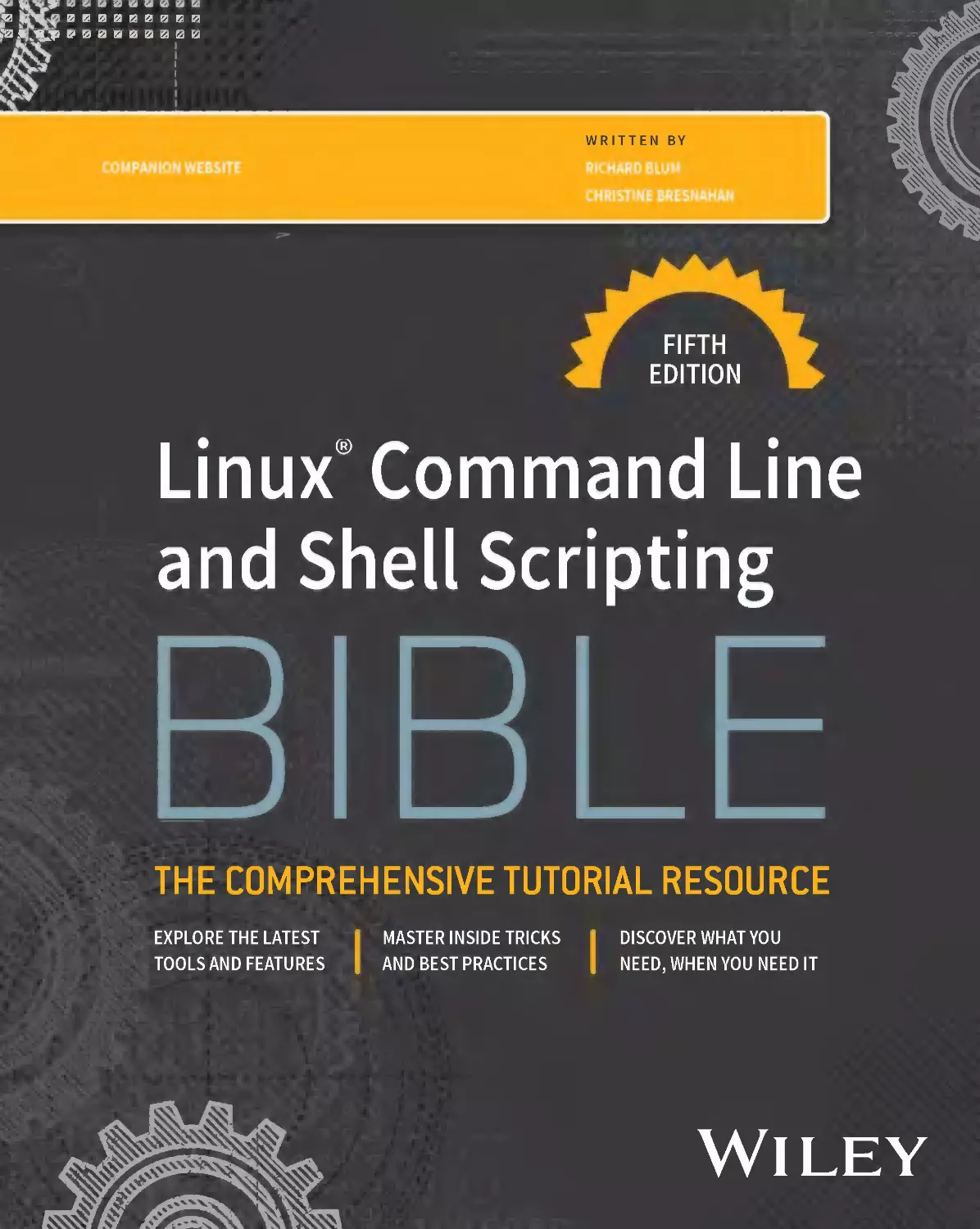
WRITTEN BY
COMPANION WEBSITE
RICHARD BLUM
Linux' Command Line
and Shell Scripting
THE COMPREHENSIVE TUTORIAL RESOURCE
$ EXPLORE THE LATEST
TOOLSAND FEATURES
MASTER INSIDE TRICKS
AND BEST PRACTICES
DISCOVER WHAT YOU
NEED, WHEN YOU NEED IT
Wiley
JBq
FIFTH
EDITION
Sa
CHRISTINE BRESNAHAN
Linux® Command Line and
Shell Scripting
BIBLE
Linux® Command Line and
Shell Scripting
BIBLE
THE COMPREHENSIVE TUTORIAL RESOURCE
Richard Blum
Christine Bresnahan
Fifth Edition
Wiley
Copyright © 2026 by John Wiley & Sons, Inc. All rights reserved, including rights for text and data mining and training of
artificial intelligence technologies or similar technologies.
Published by John Wiley & Sons, Inc., Hoboken, New Jersey.
No part of this publication may be reproduced, stored in a retrieval system, or transmitted in any form or by any means,
electronic, mechanical, photocopying, recording, scanning, or otherwise, except as permitted under Section 107 or 108
of the 1976 United States Copyright Act, without either the prior written permission of the Publisher, or authorization
through payment of the appropriate per-copy fee to the Copyright Clearance Center, Inc., 222 Rosewood Drive, Danvers,
MA 01923, (978) 750-8400, fax (978) 750-4470, or on the web at www.copyright.com. Requests to the Publisher for
permission should be addressed to the Permissions Department, John Wiley & Sons, Inc., 111 River Street, Hoboken,
NJ 07030, (201) 748-6011, fax (201) 748-6008, or online at http://www.wiley.com/go/permission.
The manufacturer’s authorized representative according to the EU General Product Safety Regulation is Wiley-VCH GmbH,
Boschstr. 12, 69469 Weinheim, Germany, e-mail: Product_Safety@wiley.com.
Trademarks: Wiley and the Wiley logo are trademarks or registered trademarks of John Wiley & Sons, Inc. and/or its
affiliates in the United States and other countries and may not be used without written permission. All other trademarks
are the property of their respective owners. John Wiley & Sons, Inc. is not associated with any product or vendor
mentioned in this book.
Limit of Liability/Disclaimer of Warranty: While the publisher and the authors have used their best efforts in preparing
this work, including a review of the content of the work, neither the publisher nor the authors make any representations
or warranties with respect to the accuracy or completeness of the contents of this work and specifically disclaim all
warranties, including without limitation any implied warranties of merchantability or fitness for a particular purpose.
Certain AI systems have been used in the creation of this work. No warranty may be created or extended by sales
representatives, written sales materials or promotional statements for this work. The fact that an organization, website,
or product is referred to in this work as a citation and/or potential source of further information does not mean that
the publisher and authors endorse the information or services the organization, website, or product may provide or
recommendations it may make. This work is sold with the understanding that the publisher is not engaged in rendering
professional services. The advice and strategies contained herein may not be suitable for your situation. You should
consult with a specialist where appropriate. Further, readers should be aware that websites listed in this work may have
changed or disappeared between when this work was written and when it is read. Neither the publisher nor authors
shall be liable for any loss of profit or any other commercial damages, including but not limited to special, incidental,
consequential, or other damages.
For general information on our other products and services or for technical support, please contact our Customer Care
Department within the United States at (800) 762-2974, outside the United States at (317) 572-3993 or
fax (317) 572-4002.
Wiley also publishes its books in a variety of electronic formats. Some content that appears in print may not be available
in electronic formats. For more information about Wiley products, visit our web site at www.wiley.com.
Library of Congress Cataloging-in-Publication Data has been applied for:
Print ISBN: 9781394364947
EPDF ISBN: 9781394364961
EPUB ISBN: 9781394364954
OBOOK ISBN: 9781394406364
Cover Design: Wiley
Cover Image: © aleksandarvelasevic/Getty Images
To the Lord God Almighty, “in whom
are hidden all the treasures of
wisdom and knowledge.”
—Colossians 2:3
About the Authors
Richard Blum has worked in the IT industry for more than 35 years as both a systems and
a network administrator. During that time, he’s had the opportunity to work with lots of
different computer products, including Windows, NetWare, Cisco, Avaya, different flavors
of UNIX, and of course, Linux. Over the years he’s also volunteered for several nonprofit
organizations to help support small networks that had little financial support. Rich is the
author of many Linux-based books for total Linux geeks and teaches online courses in
Linux and web programming. When he’s not busy being a computer nerd, Rich enjoys playing
piano and bass guitar and spending time with his wife, Barbara, and their two daughters,
Katie Jane and Jessica.
Christine Bresnahan started working with computers more than 30 years ago in the IT
industry as a systems administrator. Christine is an adjunct professor at Ivy Tech Community
College, where she teaches Linux certification and Python programming classes. She also writes
books and produces instructional resources for the classroom. During her downtime, Christine
enjoys spending time with her husband and family, hiking, and gardening.
vii
About the Technical Editor
Daniel Wilson has worked as an IT professional for over 38 years. His background ranges from
software development, *NIX Engineer and Oracle DBA, consulting, security and as an author/
co-author for several books on UNIX (Linux, Solaris, and HP-UX) and the Oracle database.
He currently works as a Cloud Information System Security Officer (ISSO).
ix
Acknowledgments
irst, all glory and praise go to God, who through His Son, Jesus Christ, makes all
things possible and gives us the gift of eternal life.
F
Many thanks go to the fantastic team of people at John Wiley & Sons for their
outstanding work on this project. Thanks to Kenyon Brown, the acquisitions editor, for
offering us the opportunity to work on this book. Also thanks to Christine O’Connor, the
managing editor, and Karen Weller, the project manager, for keeping things on track and
making the book more presentable. The technical editor, Dan Wilson, did an amazing job of
double-checking all of the work in this book, in addition to making suggestions to improve
the content. Thanks Dan!
We would also like to thank Carole Jelen at Waterside Productions, Inc., for arranging this
opportunity for us, and for helping us out in our writing careers.
Christine would like to thank her husband, Timothy, for his encouragement, patience, and
willingness to listen, even when he has no idea what she is talking about. Rich would like to
thank his wife, Barbara, for the life-sustaining baked goods she readily prepared to help him
keep up his energy while writing!
xi
Contents at a Glance
Introduction.................................................................................................................................... xxxi
Part I: The Linux Command Line................................................................... 1
Chapter
Chapter
Chapter
Chapter
Chapter
Chapter
Chapter
Chapter
Chapter
Chapter
1:
2:
3:
4:
5:
6:
7:
8:
9:
10:
Starting with Linux Shells......................................................................................................... 3
Getting to the Shell................................................................................................................... 17
Basic Bash Shell Commands..................................................................................................... 37
More Bash Shell Commands
69
Understanding the Shell ......................................................................................................... 93
Using Linux Environment Variables...................................................................................... 113
Understanding Linux File Permissions................................................................................. 137
Managing Filesystems
161
Installing Software
181
Working with Editors.............................................................................................................201
Part II: Shell Scripting Basics ................................................................. 229
Chapter
Chapter
Chapter
Chapter
Chapter
Chapter
11: Basic Script Building ............................................................................................................. 231
12: Using Structured Commands ................................................................................................ 257
13: More Structured Commands ................................................................................................. 291
14: Handling User Input.............................................................................................................. 319
15: Presenting Data ..................................................................................................................... 347
16: Script Control ......................................................................................................................... 369
Part III: Advanced Shell Scripting ............................................................. 397
Chapter
Chapter
Chapter
Chapter
Chapter
Chapter
17:
18:
19:
20:
21:
22:
Creating Functions................................................................................................................ 399
Writing Scripts for Graphical Desktops............................................................................... 421
Introducing sed and gawk .................................................................................................... 449
Regular Expressions .............................................................................................................. 477
Advanced sed .........................................................................................................................497
Advanced gawk ...................................................................................................................... 527
xiii
Contents at a Glance
Part IV: Working with Alternative Shells ..................................................... 555
Chapter 23:
Chapter 24:
Chapter 25:
The zsh Shell .......................................................................................................................... 557
The tcsh Shell......................................................................................................................... 583
The Korn Shell ........................................................................................................................ 611
Appendix A: Quick Guide to Bash Commands ............................................................................ 633
Appendix B: Quick Guide to sed and gawk ...................................................................................647
Index .............................................................................................................................................659
xiv
Contents
Introduction...................................................................................................................... xxxi
Part I: The Linux Command Line
1
Chapter 1: Starting with Linux Shells....................................................................................3
Investigating Linux................................................................................................................... 3
Looking into the Linux kernel.................................................................................... 4
System memory management........................................................................... 5
Software program management........................................................................ 5
Hardware management ...................................................................................... 6
Filesystem management .................................................................................... 6
The GNU utilities........................................................................................................... 7
The core GNU utilities ....................................................................................... 8
The shell .............................................................................................................. 8
The Linux desktop environment ................................................................................ 9
The X Window software ..................................................................................... 9
The KDE Plasma desktop ................................................................................. 10
The GNOME desktop........................................................................................... 11
Other desktops ................................................................................................. 12
Examining Linux Distributions............................................................................................. 13
Core Linux distributions ........................................................................................... 13
Specialized Linux distributions ............................................................................... 14
Summary ................................................................................................................................ 15
Chapter 2:
Getting to the Shell......................................................................................... 17
Reaching the Command Line ................................................................................................
Console terminals.......................................................................................................
Graphical terminals ...................................................................................................
Accessing the CLI via a Linux Console Terminal .................................................................
Accessing the CLI via Graphical Terminal Emulation ..........................................................
Using the GNOME Terminal Emulator....................................................................................
Accessing the GNOME terminal ................................................................................
The menu bar ..............................................................................................................
Using the Konsole Terminal Emulator .................................................................................
Accessing Konsole ......................................................................................................
The menu bar ..............................................................................................................
Summary ................................................................................................................................
xv
17
18
18
19
21
22
22
24
28
28
29
34
Contents
Chapter 3:
Basic Bash Shell Commands ........................................................................ 37
Starting the Shell .................................................................................................................. 37
Using the Shell Prompt......................................................................................................... 38
Interacting with the Bash Manual ....................................................................................... 39
Navigating the Filesystem ..................................................................................................... 40
Looking at the Linux filesystem .............................................................................. 40
Traversing directories ................................................................................................ 44
Using absolute directory references.............................................................. 44
Using relative directory references ............................................................... 45
Listing Files and Directories ................................................................................................. 47
Displaying a basic listing ........................................................................................... 47
Displaying a long listing ........................................................................................... 49
Filtering listing output ............................................................................................. 50
Handling Files ........................................................................................................................ 52
Creating files .............................................................................................................. 52
Copying files............................................................................................................... 52
Using command-line completion .............................................................................. 54
Linking files ............................................................................................................... 55
Renaming files............................................................................................................ 57
Deleting files .............................................................................................................. 58
Managing Directories............................................................................................................. 59
Creating directories ................................................................................................... 59
Deleting directories ................................................................................................... 60
Viewing File Contents ............................................................................................................ 62
Viewing the file type ................................................................................................. 62
Viewing the whole file ............................................................................................... 63
Using the cat command ................................................................................... 63
Using the more command................................................................................ 64
Using the less command ................................................................................. 65
Viewing parts of a file ............................................................................................... 65
Using the tail command................................................................................... 65
Using the head command................................................................................ 67
Summary ................................................................................................................................ 67
Chapter 4:
More Bash Shell Commands .......................................................................... 69
Monitoring Programs ............................................................................................................. 69
Peeking at the processes ........................................................................................... 69
UNIX-style parameters .................................................................................... 70
BSD-style parameters ...................................................................................... 72
The GNU long parameters................................................................................. 74
Real-time process monitoring ................................................................................... 75
Stopping processes ..................................................................................................... 77
The kill command............................................................................................. 78
The pkill command ........................................................................................... 79
xvi
Contents
Monitoring Disk Space .........................................................................................................
Mounting media ........................................................................................................
The mount command ......................................................................................
The umount command ....................................................................................
Using the df command ...............................................................................................
Using the du command .............................................................................................
Working with Data Files........................................................................................................
Sorting data.................................................................................................................
Searching for data ......................................................................................................
Compressing data .......................................................................................................
Archiving data ............................................................................................................
Summary ................................................................................................................................
Chapter 5:
79
79
80
82
82
83
84
85
86
88
89
91
Understanding the Shell ................................................................................ 93
Investigating Shell Types...................................................................................................... 93
Exploring Parent and Child Shell Relationships .................................................................. 96
Looking at process lists and subshells.................................................................... 99
Creatively using subshells ....................................................................................... 101
Investigating background mode ................................................................... 101
Putting process lists into the background.................................................. 102
Looking at co-processing ............................................................................... 103
Understanding External and Built-In Commands .............................................................. 104
Looking at external commands............................................................................... 104
Looking at built-in commands ................................................................................ 106
Using the history command........................................................................... 107
Using command aliases ................................................................................. 109
Summary ............................................................................................................................... 111
Chapter 6:
Using Linux Environment Variables .............................................................. 113
Exploring Environment Variables.........................................................................................113
Looking at global environment variables .............................................................. 114
Looking at local environment variables................................................................. 116
Setting User-Defined Variables............................................................................................ 117
Setting local user-defined variables ....................................................................... 117
Setting global environment variables.................................................................... 118
Removing Environment Variables ....................................................................................... 120
Uncovering Default Shell Environment Variables .............................................................. 121
Setting the PATH Environment Variable.............................................................................. 126
Locating System Environment Variables .............................................................................128
Understanding the login shell process................................................................... 128
Viewing the /etc/profile file .......................................................................... 128
Viewing the $HOME startup files .................................................................. 130
Understanding the interactive shell process ........................................................ 131
Understanding the noninteractive shell process.................................................. 132
Making environment variables persistent............................................................. 133
xvii
Contents
Learning about Variable Arrays ........................................................................................... 134
Summary ............................................................................................................................... 135
Chapter 7:
Understanding Linux File Permissions .......................................................... 137
Exploring Linux Security...................................................................................................... 137
The /etc/passwd file.................................................................................................. 138
The /etc/shadow file.................................................................................................. 139
Adding a new user.....................................................................................................140
Removing a user........................................................................................................ 143
Modifying a user ....................................................................................................... 144
usermod ............................................................................................................ 144
passwd and chpasswd ...................................................................................... 145
chsh, chfn, and chage
145
Using Linux Groups .............................................................................................................. 147
The /etc/group file ..................................................................................................... 147
Creating new groups ................................................................................................. 148
Modifying groups ...................................................................................................... 149
Decoding File Permissions ................................................................................................... 150
Using file permission symbols ................................................................................ 150
Default file permissions ........................................................................................... 151
Changing Security Settings ................................................................................................. 153
Changing permissions............................................................................................... 153
Changing ownership ................................................................................................. 155
Sharing Files ......................................................................................................................... 156
Using Access Control Lists................................................................................................... 158
Summary ............................................................................................................................... 160
Chapter 8:
Managing Filesystems
161
Exploring Linux Filesystems
161
Exploring the Linux filesystem evolution ............................................................. 161
Looking at the ext filesystem ....................................................................... 162
Looking at the ext2 filesystem .................................................................... 162
Digging into journaling filesystems ....................................................................... 162
Looking at the ext3 filesystem .................................................................... 163
Looking at the ext4 filesystem .................................................................... 163
Looking at the JFS filesystem ....................................................................... 163
Looking at XFS ................................................................................................ 164
Understanding the volume-managing filesystems ............................................... 164
Looking at the ZFS filesystem....................................................................... 164
Looking at the Btrfs filesystem.................................................................... 165
Looking at the Stratis filesystem ................................................................. 165
Working with Filesystems.....................................................................................................165
Creating partitions ................................................................................................... 166
Looking at the fdisk utility ..................................................................................... 166
Working with gdisk ................................................................................................... 168
xviii
Contents
The GNU parted command.........................................................................................170
Creating a filesystem ................................................................................................ 170
Checking and repairing a filesystem ..................................................................... 172
Managing Logical Volumes .................................................................................................. 174
Exploring the LVM layout ......................................................................................... 174
Physical volume ............................................................................................... 174
Volume group .................................................................................................. 174
Logical volume ................................................................................................ 175
Understanding the LVM in Linux ........................................................................... 175
Create the PVs ................................................................................................. 176
Create a VG....................................................................................................... 176
Create an LV .....................................................................................................177
Using the Linux LVM................................................................................................. 178
Format and mount an LV ............................................................................... 178
Growing or shrinking your VGs and LVs....................................................... 178
Summary ............................................................................................................................... 179
Chapter 9:
Installing Software ....................................................................................... 181
Exploring Package Management .......................................................................................... 181
Inspecting the Debian-Based Systems................................................................................ 182
Managing packages with apt ...................................................................................183
Installing software packages with apt ................................................................... 185
Upgrading software with apt ...................................................................................187
Uninstalling software with apt ............................................................................... 188
The apt repositories .................................................................................................. 189
Understanding the Red Hat-Based Systems....................................................................... 190
Listing installed packages....................................................................................... 190
Installing software with dnf.................................................................................... 191
Upgrading software with dnf ...................................................................................192
Uninstalling software with dnf............................................................................... 193
Dealing with broken dependencies......................................................................... 193
RPM repositories........................................................................................................ 193
Managing Software Using Containers ................................................................................. 194
Using snap containers...............................................................................................195
Using flatpak containers.......................................................................................... 197
Summary ............................................................................................................................... 198
Chapter 10:
Working with Editors .................................................................................. 201
Visiting the vim Editor ........................................................................................................ 201
Checking your vim package..................................................................................... 202
Exploring vim basics................................................................................................. 203
Editing data............................................................................................................... 206
Copying and pasting................................................................................................. 206
Searching and substituting ..................................................................................... 207
xix
Contents
Navigating the nano Editor ................................................................................................. 208
Exploring the Emacs Editor ................................................................................................. 210
Checking your Emacs package ................................................................................ 210
Using Emacs on the console..................................................................................... 212
Exploring the basics of Emacs ....................................................................... 212
Editing data .....................................................................................................214
Copying and pasting ...................................................................................... 214
Searching and replacing ................................................................................ 215
Using buffers in Emacs ...................................................................................215
Using windows in the Emacs console mode................................................. 217
Using Emacs in a GUI ................................................................................................ 217
Exploring the KDE Family of Editors ...................................................................................218
Looking at the KWrite editor ...................................................................................219
Looking at the Kate editor ...................................................................................... 220
Exploring the GNOME Editor ................................................................................................ 223
Starting gedit ............................................................................................................ 224
Understanding the basic gedit features ................................................................. 225
Summary ............................................................................................................................... 227
Part II: Shell Scripting Basics
Chapter 11:
229
Basic Script Building ................................................................................ 231
Using Multiple Commands ................................................................................................... 231
Creating a Script File ............................................................................................................ 232
Displaying Messages ............................................................................................................. 234
Using Variables ..................................................................................................................... 235
Environment variables ............................................................................................. 235
User variables ............................................................................................................ 237
Command substitution............................................................................................. 238
Redirecting Input and Output............................................................................................. 240
Output redirection.....................................................................................................240
Input redirection....................................................................................................... 241
Employing Pipes ................................................................................................................... 242
Performing Math................................................................................................................... 245
Using the expr command.......................................................................................... 245
Using brackets ...........................................................................................................247
A floating-point solution ......................................................................................... 248
The basics of bc................................................................................................ 248
Using bc in scripts .......................................................................................... 250
Exiting the Script .................................................................................................................252
Checking the exit status .......................................................................................... 252
The exit command...................................................................................................... 253
Summary ............................................................................................................................... 255
xx
Contents
Chapter 12:
Using Structured Commands...................................................................... 257
Working with the if-then Statement ...................................................................................257
Exploring the if-then-else Statement...................................................................................260
Nesting ifs .............................................................................................................................261
Trying the test Command .....................................................................................................264
Using numeric comparisons ..................................................................................... 267
Using string comparisons .........................................................................................268
Looking at string equality .............................................................................268
Looking at string order
269
Looking at string size
272
Using file comparisons............................................................................................. 273
Checking directories ...................................................................................... 273
Checking whether an object exists .............................................................. 274
Checking for a file .......................................................................................... 275
Checking for read access................................................................................ 277
Checking for empty files................................................................................ 277
Checking whether you can write to a file................................................... 278
Checking whether you can run a file ...........................................................280
Checking ownership ....................................................................................... 281
Checking default group membership ............................................................ 281
Checking file date........................................................................................... 282
Considering Compound Testing ........................................................................................... 283
Working with Advanced if-then Features ........................................................................... 284
Using single parentheses.......................................................................................... 284
Using double parentheses.........................................................................................286
Using double brackets...............................................................................................287
Considering the case Command ........................................................................................... 288
Summary ............................................................................................................................... 289
Chapter 13:
More Structured Commands ...................................................................... 291
Looking at the for Command ...............................................................................................291
Reading values in a list............................................................................................ 292
Reading complex values in a list .............................................................................293
Reading a list from a variable................................................................................. 295
Reading values from a command.............................................................................296
Changing the field separator ...................................................................................297
Reading a directory using wildcards ..................................................................... 298
Trying the C-Style for Command
300
Understanding the C language for command ........................................................ 300
Using multiple variables........................................................................................... 302
Exploring the while Command............................................................................................. 302
Understanding the basic while format ................................................................... 303
Using multiple test commands................................................................................ 304
Using the until Command.....................................................................................................305
Nesting Loops........................................................................................................................ 306
xxi
Contents
Looping on File Data ............................................................................................................ 309
Controlling the Loop ............................................................................................................ 310
The break command .................................................................................................. 310
Breaking out of a single loop ........................................................................ 310
Breaking out of an inner loop ....................................................................... 312
Breaking out of an outer loop ....................................................................... 312
The continue command............................................................................................. 313
Processing the Output of a Loop ......................................................................................... 316
Summary ............................................................................................................................... 317
Chapter 14:
Handling User Input ................................................................................... 319
Passing Parameters............................................................................................................... 319
Reading parameters.................................................................................................. 319
Reading the script name .......................................................................................... 322
Testing parameters ................................................................................................... 323
Using Special Parameter Variables ...................................................................................... 324
Counting parameters ................................................................................................ 324
Grabbing all the data ................................................................................................ 326
Being Shifty.......................................................................................................................... 328
Working with Options...........................................................................................................329
Finding your options ................................................................................................ 329
Processing simple options.............................................................................. 329
Separating options from parameters ............................................................ 330
Processing options with values .................................................................... 332
Using the getopt command ...................................................................................... 333
Looking at the command format .................................................................. 334
Using getopt in your scripts .......................................................................... 335
Advancing to getopts ................................................................................................ 337
Standardizing Options ......................................................................................................... 339
Getting User Input ............................................................................................................... 340
Reading basics ...........................................................................................................340
Timing out.................................................................................................................. 342
Reading with no display .......................................................................................... 343
Reading from a file................................................................................................... 344
Summary ............................................................................................................................... 345
Chapter 15:
Presenting Data ......................................................................................... 347
Understanding Input and Output ....................................................................................... 347
Standard file descriptors.......................................................................................... 348
STDIN .................................................................................................................348
STDOUT.............................................................................................................. 349
STDERR .............................................................................................................. 350
Redirecting errors .....................................................................................................350
Redirecting errors only...................................................................................350
Redirecting errors and data .......................................................................... 351
xxii
Contents
Redirecting Output in Scripts ............................................................................................. 351
Temporary redirections ............................................................................................ 352
Permanent redirections............................................................................................ 352
Redirecting Input in Scripts ................................................................................................ 354
Creating Your Own Redirection ........................................................................................... 354
Creating output file descriptors .............................................................................. 355
Redirecting file descriptors ..................................................................................... 355
Creating input file descriptors ................................................................................ 356
Creating a read/write file descriptor ..................................................................... 357
Closing file descriptors ............................................................................................ 358
Listing Open File Descriptors ...............................................................................................359
Suppressing Command Output ............................................................................................ 361
Using Temporary Files...........................................................................................................361
Creating a local temporary file ............................................................................... 362
Creating a temporary file in /tmp .......................................................................... 363
Creating a temporary directory............................................................................... 364
Logging Messages.................................................................................................................. 365
Summary ............................................................................................................................... 366
Chapter 16:
Script Control .............................................................................................369
Handling Signals................................................................................................................... 369
Signaling the Bash shell........................................................................................... 369
Generating signals.....................................................................................................370
Interrupting a process.................................................................................... 370
Pausing a process............................................................................................ 371
Trapping signals........................................................................................................ 372
Trapping a script exit ...............................................................................................373
Modifying or removing a trap................................................................................. 374
Running Scripts in Background Mode ................................................................................ 377
Running in the background..................................................................................... 377
Running multiple background jobs......................................................................... 379
Running Scripts Without a Hang-Up...................................................................................380
Controlling the Job .............................................................................................................. 381
Viewing jobs .............................................................................................................. 382
Restarting stopped jobs ........................................................................................... 384
Being Nice .............................................................................................................................385
Using the nice command .......................................................................................... 385
Using the renice command....................................................................................... 386
Running Like Clockwork ...................................................................................................... 387
Scheduling a job using the at command ................................................................387
Understanding the at command format....................................................... 387
Retrieving job output..................................................................................... 388
Listing pending jobs ...................................................................................... 390
Removing jobs ................................................................................................. 390
xxiii
Contents
Scheduling regular scripts....................................................................................... 391
Looking at the cron table............................................................................... 391
Building the cron table...................................................................................392
Viewing cron directories ................................................................................ 392
Looking at the anacron program................................................................... 393
Starting scripts with a new shell ........................................................................... 394
Summary ............................................................................................................................... 396
Part III: Advanced Shell Scripting
Chapter 17:
397
Creating Functions .................................................................................... 399
Exploring Basic Script Functions ......................................................................................... 399
Creating a function .................................................................................................. 400
Using functions......................................................................................................... 400
Returning a Value from a Function..................................................................................... 402
The default exit status............................................................................................. 403
Using the return command ...................................................................................... 404
Using function output ............................................................................................. 405
Using Variables in Functions................................................................................................ 406
Passing parameters to a function........................................................................... 406
Handling variables in a function ........................................................................... 408
Global variables ............................................................................................... 408
Local variables................................................................................................. 410
Investigating Array Variables and Functions......................................................................411
Passing arrays to functions ..................................................................................... 411
Returning arrays from functions ........................................................................... 412
Considering Function Recursion .......................................................................................... 413
Creating a Library .................................................................................................................414
Using Functions on the Command Line .............................................................................. 416
Creating functions on the command line.............................................................. 417
Defining functions in the .bashrc file.................................................................... 417
Directly defining functions .......................................................................... 418
Sourcing function files...................................................................................418
Summary ............................................................................................................................... 419
Chapter 18:
Writing Scripts for Graphical Desktops ..................................................... 421
Creating Text Menus ............................................................................................................. 421
Create the menu layout............................................................................................ 422
Create the menu functions ...................................................................................... 423
Add the menu logic .................................................................................................. 424
Putting it all together............................................................................................... 424
Using the select command ....................................................................................... 426
xxiv
Contents
Doing Windows ..................................................................................................................... 427
The dialog package ................................................................................................... 428
The msgbox widget.......................................................................................... 429
The yesno widget ............................................................................................ 429
The inputbox widget ....................................................................................... 431
The textbox widget .......................................................................................... 431
The menu widget ............................................................................................ 432
The fselect widget ........................................................................................... 433
The dialog options .....................................................................................................434
Using the dialog command in a script.................................................................... 436
Getting Graphic .................................................................................................................... 438
The KDE environment ...............................................................................................438
kdialog widgets ...............................................................................................439
Using kdialog .................................................................................................. 440
The GNOME environment .......................................................................................... 442
zenity widgets................................................................................................. 442
Using zenity in scripts ................................................................................. 444
Summary ............................................................................................................................... 446
Chapter 19:
Introducing sed and gawk .......................................................................... 449
Manipulating Text.................................................................................................................449
Getting to know the sed editor ............................................................................... 449
Defining an editor command in the command line ................................... 450
Using multiple editor commands in the command line ............................. 451
Reading editor commands from a file ..........................................................452
Getting to know the gawk program ........................................................................ 453
Visiting the gawk command format.............................................................. 453
Reading the program script from the command line ................................ 454
Using data field variables .............................................................................. 455
Using multiple commands in the program script ........................................456
Reading the program from a file................................................................... 456
Running scripts before processing data ...................................................... 457
Running scripts after processing data ........................................................ 458
Looking at the sed Editor Basic Commands........................................................................ 459
Introducing more substitution options.................................................................. 459
Substituting flags........................................................................................... 459
Replacing characters ...................................................................................... 461
Using addresses......................................................................................................... 461
Addressing the numeric line ......................................................................... 461
Using text pattern filters............................................................................... 462
Grouping commands ....................................................................................... 463
Deleting lines............................................................................................................. 464
Inserting and appending text................................................................................. 466
xxv
Contents
Changing lines ...........................................................................................................468
Transforming characters .......................................................................................... 469
Printing revisited...................................................................................................... 470
Printing lines .................................................................................................. 470
Printing line numbers .................................................................................... 471
Listing lines ..................................................................................................... 472
Using files with sed .................................................................................................. 473
Writing to a file...............................................................................................473
Reading data from a file ................................................................................ 474
Summary ............................................................................................................................... 475
Chapter 20:
Regular Expressions ................................................................................... 477
Exploring Regular Expressions ............................................................................................ 477
A definition ............................................................................................................... 477
Types of regular expressions.................................................................................... 478
Defining BRE Patterns ......................................................................................................... 479
Plain text ................................................................................................................... 479
Special characters .....................................................................................................481
Anchor characters .....................................................................................................482
Starting at the beginning.............................................................................. 482
Looking for the ending...................................................................................483
Combining anchors ......................................................................................... 483
The dot character ...................................................................................................... 484
Character classes ....................................................................................................... 485
Negating character classes ...................................................................................... 487
Using ranges .............................................................................................................. 487
Special character classes.......................................................................................... 488
The asterisk ............................................................................................................... 489
Trying Out Extended Regular Expressions.......................................................................... 491
The question mark.....................................................................................................491
The plus sign.............................................................................................................. 492
Using braces............................................................................................................... 493
The pipe symbol ........................................................................................................ 494
Grouping expressions ................................................................................................ 495
Summary ............................................................................................................................... 495
Chapter 21:
Advanced sed ............................................................................................. 497
Looking at Multiline Commands.......................................................................................... 497
Navigating the next command................................................................................ 498
Using the single-line next command ........................................................... 498
Combining lines of text..................................................................................499
Navigating the multiline delete command ............................................................ 501
Navigating the multiline print command.............................................................. 502
Holding Space .......................................................................................................................504
xxvi
Contents
Negating a Command............................................................................................................ 505
Changing the Flow ............................................................................................................... 508
Branching................................................................................................................... 509
Testing ........................................................................................................................ 511
Replacing via a Pattern........................................................................................................ 512
Using the ampersand ................................................................................................ 512
Replacing individual words ..................................................................................... 513
Placing sed Commands in Scripts.........................................................................................514
Using wrappers........................................................................................................... 514
Redirecting sed output ............................................................................................ 515
Creating sed Utilities............................................................................................................ 516
Spacing with double lines ....................................................................................... 516
Spacing files that may have blanks........................................................................ 517
Numbering lines in a file .........................................................................................518
Printing last lines .....................................................................................................519
Deleting lines............................................................................................................. 521
Deleting consecutive blank lines.................................................................. 521
Deleting leading blank lines ......................................................................... 522
Deleting trailing blank lines......................................................................... 522
Removing HTML tags ................................................................................................ 523
Summary ............................................................................................................................... 525
Chapter 22:
Advanced gawk ........................................................................................... 527
Using Variables ..................................................................................................................... 527
Built-in variables....................................................................................................... 528
The field and record separator variables...................................................... 528
Data variables.................................................................................................. 531
User-defined variables ............................................................................................. 534
Assigning variables in scripts ....................................................................... 534
Assigning variables on the command line .................................................. 534
Working with Arrays............................................................................................................. 535
Defining array variables .......................................................................................... 536
Iterating through array variables........................................................................... 536
Deleting array variables ........................................................................................... 537
Considering Patterns ............................................................................................................ 538
Regular expressions.................................................................................................. 538
The matching operator............................................................................................. 539
Mathematical expressions ....................................................................................... 539
Understanding Structured Commands ................................................................................ 540
The if statement ........................................................................................................ 540
The while statement.................................................................................................. 542
The do-while statement ............................................................................................ 543
The for statement ...................................................................................................... 544
Printing with Formats...........................................................................................................544
xxvii
Contents
Using Built-in Functions ...................................................................................................... 547
Mathematical functions ........................................................................................... 547
String functions........................................................................................................ 549
Time functions...........................................................................................................551
Trying Out User-Defined Functions..................................................................................... 551
Defining a function .................................................................................................. 552
Using your functions ................................................................................................ 552
Creating a function library...................................................................................... 553
Summary ............................................................................................................................... 554
Part IV: Working with Alternative Shells
Chapter 23:
555
The zsh Shell ............................................................................................. 557
History of the zsh Shell ....................................................................................................... 557
Installing the zsh Shell........................................................................................................ 558
Parts of the zsh Shell ...........................................................................................................559
Shell options.............................................................................................................. 559
Shell state ........................................................................................................ 560
Shell emulation ............................................................................................... 561
Initialization................................................................................................... 562
Scripts and functions..................................................................................... 562
The zsh shell files...................................................................................................... 563
The shell startup files .................................................................................... 563
The shell login files......................................................................................... 564
The interactive shell files .............................................................................. 564
The shell logout files...................................................................................... 565
Environment variables ............................................................................................. 566
Built-in commands ................................................................................................... 571
Core built-in commands ..................................................................................571
Add-in modules................................................................................................ 574
Viewing, adding, and removing modules ..................................................... 575
Scripting with zsh.................................................................................................................577
Mathematical operations.......................................................................................... 577
Performing calculations..................................................................................577
Mathematical functions................................................................................. 578
Structured commands...............................................................................................578
Functions ................................................................................................................... 579
Summary ............................................................................................................................... 582
Chapter 24:
The tcsh Shell ............................................................................................. 583
What Is the tcsh Shell?........................................................................................................ 583
Installing the tcsh Shell ...................................................................................................... 584
The tcsh Shell Components ................................................................................................. 584
Command line parameters ....................................................................................... 585
The tcsh files ............................................................................................................. 586
xxviii
Contents
Login files........................................................................................................ 586
Shell startup files ........................................................................................... 587
Logout files ...................................................................................................... 588
Environment variables ............................................................................................. 589
Special shell variables .................................................................................... 589
Shell environment variables ......................................................................... 595
Setting variables in tcsh .......................................................................................... 598
Using the set command ................................................................................. 598
Using the setenv command.............................................................................599
Built-in commands ................................................................................................... 600
Scripting in tcsh ................................................................................................................... 603
Working with variables ............................................................................................ 603
Array variables ................................................................................................ 603
Handling mathematical operations.............................................................. 603
Working with structured commands....................................................................... 604
The if statement formats ............................................................................... 604
The foreach command ..................................................................................... 607
The while command .........................................................................................607
The switch command ...................................................................................... 608
Summary ............................................................................................................................... 609
Chapter 25:
The Korn Shell ........................................................................................... 611
The Korn Shell History ........................................................................................................ 611
Installing the ksh93 Shell ................................................................................................... 612
Understanding Parts of the ksh93 Shell .............................................................................613
Command line parameters
613
Default files ............................................................................................................... 615
Environment variables
615
Random numbers ............................................................................................ 617
Defining the variable type ........................................................................... 618
Using arrays ..................................................................................................... 619
Compound variables ....................................................................................... 620
Special variable subscripts.............................................................................621
Built-in commands ................................................................................................... 622
Scripting in the ksh93 Shell ................................................................................................ 625
Mathematical operations.......................................................................................... 625
Performing calculations................................................................................. 625
Mathematical functions................................................................................. 627
Structured commands...............................................................................................628
The if-then-else statement.............................................................................. 628
The while and until loops ............................................................................... 630
Command redirection................................................................................................ 630
Discipline functions ................................................................................................. 631
Summary ............................................................................................................................... 632
xxix
Contents
Appendix A:
Quick Guide to Bash Commands ................................................................ 633
Reviewing Built-In Commands ............................................................................................ 633
Looking at Common Bash Commands..................................................................................636
Assessing Environment Variables......................................................................................... 640
Appendix B:
Quick Guide to sed and gawk .................................................................... 647
The sed Editor .......................................................................................................................647
Starting the sed editor............................................................................................. 647
sed commands............................................................................................................ 648
Substitution .....................................................................................................648
Addressing ....................................................................................................... 648
Deleting lines .................................................................................................. 649
Inserting and appending text ....................................................................... 649
Changing lines................................................................................................. 650
Using the transform command ......................................................................650
Printing lines .................................................................................................. 651
Writing to a file ............................................................................................... 651
Reading from a file ......................................................................................... 651
The gawk Program.................................................................................................................652
The gawk command format ...................................................................................... 652
Using gawk .................................................................................................................. 652
Reading the program script from the command line ................................ 652
Using multiple commands in the program script ........................................653
Reading the program from a file................................................................... 653
Running scripts before processing data ...................................................... 653
Running scripts after processing data ........................................................ 653
The gawk variables ................................................................................................... 654
Using the built-in variables .......................................................................... 654
Assigning variables in scripts .......................................................................655
Assigning variables in the command line................................................... 656
The gawk program features...................................................................................... 656
Regular expressions ....................................................................................... 656
The matching operator ...................................................................................656
Mathematical expressions.............................................................................. 656
Structured commands .................................................................................... 657
Index ................................................................................................................................ 659
xxx
,>r
Introduction
elcome to the fifth edition of Linux Command Line and Shell Scripting Bible. Like all books in
the Bible series, you can expect to find both hands-on tutorials and real-world information,
as well as reference and background information that provides a context for what you are
learning. This book is a fairly comprehensive resource on the Linux command line and shell commands.
By the time you have completed Linux Command Line and Shell Scripting Bible, you will be well
prepared to write your own shell scripts that can automate practically any task on your Linux system.
W
Who Should Read This Book__________________________
If you’re a systems administrator in a Linux environment (whether with servers on-premise or in
the cloud), you’ll benefit greatly by knowing how to write shell scripts. The book doesn’t walk you
through the process of setting up a Linux system, but after you have it running, you’ll want to start
automating some of the routine administrative tasks. That’s where shell scripting comes in, and
that’s where this book helps you out. This book demonstrates how to automate any administrative
task using shell scripts, from monitoring system statistics and data files to generating reports for
your boss.
If you’re a home Linux enthusiast, you’ll also benefit from Linux Command Line and Shell Scripting
Bible. Nowadays, it’s easy to get lost in the graphical world of prebuilt widgets. Most desktop Linux
distributions try their best to hide the Linux system from the typical user. However, sometimes
you must know what’s going on under the hood. This book shows you how to access the Linux
command line prompt and what to do when you get there. Often, performing simple tasks, such as
file management, can be done more quickly from the command line than from a fancy graphical
interface. You can use a wealth of commands from the command line, and this book shows you how
to use them.
How This Book Is Organized__________________________
This book leads you through the basics of the Linux command line and into more complicated topics,
such as creating your own shell scripts. The book is divided into four parts, each one building on the
previous parts.
xxxi
Introduction
Part I assumes that you either have a Linux system running or are looking into getting a Linux
system. Chapter 1, “Starting with Linux Shells,” describes the parts of a total Linux system
and shows how the shell fits in. After describing the basics of the Linux system, this part
continues with the following:
■
■
■
■
■
■
■
■
■
Using a terminal emulation package to access the shell (Chapter 2)
Introducing the basic shell commands (Chapter 3)
Using more advanced shell commands to peek at system information (Chapter 4)
Understanding what the shell is used for (Chapter 5)
Working with shell variables to manipulate data (Chapter 6)
Understanding the Linux filesystem and security (Chapter 7)
Working with Linux filesystems from the command line (Chapter 8)
Installing and updating software from the command line (Chapter 9)
Using the Linux editors to start writing shell scripts (Chapter 10)
In Part II, you begin writing shell scripts. As you go through the chapters, you’ll do the
following:
■
■
■
■
■
■
Learn how to create and run shell scripts (Chapter 11)
Alter the program flow in a shell script (Chapter 12)
Iterate through code sections (Chapter 13)
Handle data from the user in your scripts (Chapter 14)
See different methods for storing and displaying data from your script (Chapter 15)
Control how and when your shell scripts run on the system (Chapter 16)
Part III dives into more advanced areas of shell script programming, including these things:
■
■
■
■
■
■
Creating your own functions to use in all your scripts (Chapter 17)
Utilizing the Linux graphical desktop for interacting with your script users (Chapter 18)
Using advanced Linux commands to filter and parse data files (Chapter 19)
Using regular expressions to define data (Chapter 20)
Learning advanced methods of manipulating data in your scripts (Chapter 21)
Working with advanced features of scripting to generate reports from raw data (Chapter 22)
The last section of the book, Part IV, discusses a few of the other shells you may run across in
the Linux environment. In this part, you will learn these things:
■
■
■
xxxii
How to write shell scripts using the newer zsh shell (Chapter 23)
How the tcsh shell differs from the Bash shell, and how to convert your scripts for the
tcsh shell (Chapter 24)
Work with the Korn shell, learning the command line commands, and how to write shell
scripts (Chapter 25)
Introduction
Conventions and features
You will find many different organizational and typographical features throughout this book
designed to help you get the most out of the information.
Tips and warnings
Whenever the authors want to bring something important to your attention, the information
appears in a Warning.
Warning
This information is important and is set off in a separate paragraph with a special icon. Warnings provide information
about things to watch out for, whether simply inconvenient or potentially hazardous to your data or systems.
For additional items of interest that relate to the chapter text, the authors use Tips.
Tip
Tips provide additional, ancillary information that is helpful, but somewhat outside of the current presentation of
information.
Minimum Requirements__________________________
Linux Command Line and Shell Scripting Bible doesn’t focus on any specific Linux distribution,
so you can follow along in the book using any Linux system you have available. The bulk of
the book references the Bash shell, which is the default shell for most Linux systems.
Downloading Sample Scripts_____________________
The book’s companion website, https://www.wiley.com/go/linuxbible5e, contains
all the sample scripts found in the chapters so you don’t need to type them by hand. It also
has some extra scripts showing more advanced shell scripting examples that aren’t shown in
the chapters.
xxxiii
Introduction
Where to Go from Here__________________________
After you’ve finished reading Linux Command Line and Shell Scripting Bible, you’re well on
your way to incorporating Linux commands in your daily Linux work. In the ever-changing
world of Linux, it’s always a good idea to stay in touch with new developments. Often, Linux
distributions change, adding new features and removing older ones. To keep your knowledge
of Linux fresh, always stay well informed. Find a good Linux forum site and monitor
what’s happening in the Linux world. Many popular Linux news sites, such as Slashdot and
DistroWatch, provide up-to-the-minute information about new advances in Linux.
xxxiv
Part I
The Linux Command Line
IN THIS PART
Chapter 6
Using Linux Environment Variables
Chapter 1
Starting with Linux Shells
Chapter 7
Understanding Linux File Permissions
Chapter 2
Getting to the Shell
Chapter 8
Managing Filesystems
Chapter 3
Basic Bash Shell Commands
Chapter 9
Installing Software
Chapter 4
More Bash Shell Commands
Chapter 10
Working with Editors
Chapter 5
Understanding the Shell
Starting with Linux
Shells
IN THIS CHAPTER
Investigating Linux
Understanding parts of the Linux kernel
Exploring the Linux desktop
Examining Linux distributions
efore you can dive into working with the Linux command line and shells, it’s a good idea
to first understand what Linux is, where it came from, and how it works. This chapter walks
you through what Linux is and explains where the shell and command line fit in the overall
Linux picture.
B
Investigating Linux__________________________________
If you’ve never worked with Linux before, you may be confused as to why there are so many different
versions of it available. We’re sure that you’ve heard various terms such as distribution, LiveDVD, and
GNU when looking at Linux packages and been confused. Wading through the world of Linux for the
first time can be a tricky experience. This chapter takes some of the mystery out of the Linux system
before you start working on commands and scripts.
For starters, four main parts make up a Linux system:
■
■
■
■
The Linux kernel
The GNU utilities
A graphical desktop environment
Application software
Each of these four parts has a specific job in the Linux system. Each one of the parts by itself isn’t
very useful. Figure 1.1 shows a basic diagram of how the parts fit together to create the overall Linux
system.
3
Part I: The Linux Command Line
FIGURE 1.1
The Linux system.
This section describes these four main parts in detail and gives you an overview of how they
work together to create a complete Linux system.
Looking into the Linux kernel
The core of the Linux system is the kernel. The kernel controls all the hardware and software
on the computer system, allocating hardware when necessary and executing software when
required.
If you’ve been following the Linux world at all, no doubt you’ve heard the name Linus Torvalds.
Linus is the person responsible for creating the first Linux kernel software while he was a
student at the University of Helsinki. He intended it to be a copy of the UNIX system, at the
time a popular operating system used at many universities.
After developing the Linux kernel, Linus released it to the Internet community and solicited
suggestions for improving it. This simple process started a revolution in the world of computer
operating systems. Soon Linus was receiving suggestions from students as well as professional
programmers from around the world.
Allowing anyone to change programming code in the kernel would result in complete chaos.
To simplify things, Linus acted as a central point for all improvement suggestions. It was
ultimately Linus’s decision whether or not to incorporate suggested code in the kernel.
4
Chapter 1: Starting with Linux Shells
This same concept is still in place with the Linux kernel code, except that instead of just Linus
controlling the kernel code, a team of developers has taken on the task.
The kernel is primarily responsible for four main functions:
■
■
■
■
1
System memory management
Software program management
Hardware management
Filesystem management
The following sections explore each of these functions in more detail.
System memory management
One of the primary functions of the operating system kernel is memory management. Not only
does the kernel manage the physical memory available on the server, but it can also create and
manage virtual memory, or memory that does not actually exist.
It does this by using space on the hard disk, called the swap space. The kernel swaps the
contents of virtual memory locations back and forth from the swap space to the actual physical
memory. This allows the system to think there is more memory available than what physically
exists.
Software program management
The Linux operating system calls a running program a process. A process can run in the
foreground, displaying output on a display, or it can run in background, behind the scenes.
The kernel controls how the Linux system manages all the processes running on the system.
The kernel creates the first process, called the init process, to start all other processes on the
system. When the kernel starts, it loads the init process into virtual memory. As the kernel
starts each additional process, it gives the process a unique area in virtual memory to store the
data and code that the process uses.
A few different types of init process implementations are available in Linux, but these days
the two most popular are
■
■
SysVinit: The SysVinit (SysV) initialization method, the original method used by Linux,
was based on the UNIX System V initialization method. Although it is not used by many
Linux distributions these days, you still may find it around in older Linux distributions.
Systemd: The systemd initialization method, created in 2010, has become the most
popular initialization and process management system used by Linux distributions.
Note
In Chapter 4, “More Bash Shell Commands,” you see how to use the ps command to view the processes currently
running on the Linux system.
5
Part I: The Linux Command Line
Hardware management
Still another responsibility of the kernel is hardware management. Any device that the Linux
system must communicate with needs driver code inserted inside the kernel code. The driver
code allows the kernel to pass data back and forth to the device, acting as an intermediary
between applications and the hardware. Two methods are used for inserting device driver code
in the Linux kernel:
■
■
Drivers compiled in the kernel
Driver modules added to the kernel
Previously, the only way to insert device driver code was to recompile the kernel. Each time
you added a new device to the system, you had to recompile the kernel code. This process
became even more inefficient as Linux kernels supported more hardware. Fortunately, Linux
developers devised a better method to insert driver code into the running kernel.
Programmers developed the concept of kernel modules to allow you to insert driver code into
a running kernel without having to recompile the kernel. Also, a kernel module could be
removed from the kernel when the device was finished being used. This greatly simplified and
expanded using hardware with Linux.
The Linux system identifies hardware devices as special files, called device files. There are three
classifications of device files:
■
■
■
Character: Devices that handle data one character at a time, such as terminals.
Block: Devices that handle data in blocks, such as disk drives.
Network: Devices that handle data in packets, such as network cards.
Linux creates special files, called nodes, for each device on the system. All communication
with the device is performed through the device node. Each node has a unique number pair
that identifies it to the Linux kernel. The number pair includes a major and a minor device
number. Similar devices are grouped into the same major device number. The minor device
number is used to identify a specific device within the major device group.
Filesystem management
Unlike some other operating systems, the Linux kernel can support different types of
filesystems to read and write data to and from hard drives. Besides having over a dozen
filesystems of its own, Linux can read to and write from filesystems used by other operating
systems, such as Microsoft Windows. The kernel must be compiled with support for all types
of filesystems that the system will use. Table 1.1 lists the standard filesystems that a Linux
system can use to read and write data.
Any hard drive that a Linux server accesses must be formatted using one of the filesystem
types listed in Table 1.1.
The Linux kernel interfaces with each filesystem using the Virtual File System (VFS). This
provides a standard interface for the kernel to communicate with any type of filesystem.
VFS caches information in memory as each filesystem is mounted and used.
6
Chapter 1: Starting with Linux Shells
TABLE 1.1
Linux Filesystems
Filesystem
Description
ext
Linux Extended filesystem—the original Linux filesystem
ext2
Second extended filesystem; provided advanced features over ext
ext3
Third extended filesystem; supports journaling
ext4
Fourth extended filesystem; supports advanced journaling
eCryptfs
The Enterprise Cryptographic File System, encrypts stored data automatically
btrfs
A newer, high-performance filesystem that supports journaling and large files
exfat
The extended Windows filesystem, used mainly for SD cards and USB sticks
HFS
The Hierarchical File System, created by Apple for macOS systems
jfs
IBM’s journaling filesystem
ISO9660
ISO 9660 filesystem (CD-ROMs)
minix
MINIX filesystem
msdos
Microsoft FAT16
nfs
Network File System
ntfs
Support for Microsoft NT filesystem
proc
Access to system information
smb
Samba SMB filesystem for network access
sysv
Older UNIX filesystem
swap
The virtual memory space on a hard drive
tmpfs
The temporary filesystem, creates a filesystem in memory
ufs
BSD filesystem
umsdos
UNIX-like filesystem that resides on top of ms-dos
vfat
Windows 95 filesystem (FAT32)
XFS
High-performance 64-bit journaling filesystem
ZFS
The Zetabyte File System created by Sun Microsystems
1
The GNU utilities
Besides having a kernel to control hardware devices, a computer operating system needs
utilities to perform standard functions, such as controlling files and programs. Although Linus
created the Linux system kernel, he had no system utilities to run on it. Fortunately for him,
at the same time he was working, a group of people were working together on the Internet
trying to develop a standard set of computer system utilities that mimicked the popular UNIX
operating system.
7
Part I: The Linux Command Line
The GNU organization (GNU stands for GNUs Not UNIX) developed a complete set of UNIX
utilities but had no kernel system to run them on. Although the bundling of the Linux kernel
and GNU utilities is often just called Linux, you will see some Linux purists on the Internet
refer to it as the GNU/Linux system to give credit to the GNU organization for its contributions
to the cause.
The core GNU utilities
The GNU project was mainly designed for UNIX system administrators to have a UNIX-like
environment available. This focus resulted in the project porting many common UNIX system
command-line utilities. The core bundle of utilities supplied for Linux systems is called the
coreutils package.
The GNU coreutils package consists of three parts:
■
■
■
Utilities for handling files
Utilities for manipulating text
Utilities for managing processes
Each of these three main groups of utilities contains several utility programs that are
invaluable to the Linux system administrator and programmer. This book covers each of the
utilities contained in the GNU coreutils package in detail.
The shell
The GNU/Linux shell is a special interactive utility. It provides a way for users to start
programs, manage files on the filesystem, and manage processes running on the Linux system.
The core of the shell is the command prompt. The command prompt is the interactive part
of the shell. It allows you to enter text commands, and then it interprets the commands and
executes them in the kernel.
The shell contains a set of internal commands that you use to control tasks such as copying
files, moving files, renaming files, displaying the programs currently running on the system,
and stopping programs running on the system. Besides the internal commands, the shell allows
you to enter the name of a program at the command prompt. The shell passes the program
name to the kernel to start it.
You can also group shell commands into files to execute as a program. Those files are called
shell scripts. Any command that you can execute from the command line can be placed in a
shell script and run as a group of commands. This provides great flexibility in creating utilities
for commonly run commands or processes that require several commands grouped together.
Quite a few Linux shells are available to use on a Linux system. Different shells have different
characteristics, some being more useful for creating scripts and some being more useful for
managing processes. The default shell used in all Linux distributions is the Bash shell. The
Bash shell was developed by the GNU project as a replacement for the standard UNIX shell,
called the Bourne shell (after its creator). The Bash shell name is a play on this wording,
referred to as the “Bourne again shell.”
8
Chapter 1: Starting with Linux Shells
In addition to covering the Bash shell, this book covers a few other popular shells. Table 1.2
lists the different shells examined here.
table
1.2
Linux Shells
Shell
Description
korn
A programming shell compatible with the Bourne shell but supporting advanced
programming features like associative arrays and floating-point arithmetic
tcsh
A shell that incorporates elements from the C programming language into shell scripts
zsh
An advanced shell that incorporates features from Bash, tcsh, and korn, providing
advanced programming features, shared history files, and themed prompts
1
Most Linux distributions include more than one shell, although usually they pick one of them
to be the default. If your Linux distribution includes multiple shells, feel free to experiment
with different shells and see which one fits your needs.
The Linux desktop environment
In the early days of Linux (the early 1990s), all that was available was a simple text interface
to the Linux operating system. This text interface allowed administrators to start programs,
control program operations, and move files around on the system.
With the popularity of Microsoft Windows, computer users expected more than the old text
interface to work with. This spurred more development in the open-source software
community, and the Linux graphical desktops emerged.
Linux is famous for being able to do things in more than one way, and no place is this more
relevant than in graphical desktops. In Linux you can choose from a plethora of graphical
desktops. The following sections describe a few popular ones.
The X Window software
Two basic elements control your video environment—the video card in your PC and your
monitor. To display fancy graphics on your computer, the Linux software needs to know how to
talk to both of them. The X Window software is the core element in presenting graphics.
The X Window software is a low-level program that works directly with the video card and
monitor in the PC and controls how Linux applications can present fancy windows and graphics
on your computer.
Linux isn’t the only operating system that uses X Window; versions have been written for
many different operating systems. In the Linux world, a few software packages can implement
it. Two X Window packages are most commonly used in Linux:
■
■
X.org
Wayland
9
Part I: The Linux Command Line
The X.org package is older of the two, based on the original UNIX X Window System version 11
(often called X11). These days, though, most Linux distributions have migrated to the newer
Wayland software, which is more secure and easier to maintain.
The core X Window software produces a graphical display environment but nothing else.
Although this is fine for running individual applications, it is not too useful for day-to-day
computer use. There is no desktop environment allowing users to manipulate files or launch
programs. To do that, you need a desktop environment on top of the X Window system
software.
The KDE Plasma desktop
The K Desktop Environment (KDE) was first released in 1996 as an open source project to
produce a graphical desktop similar to the Microsoft Windows environment. The KDE
desktop incorporates all the features you are probably familiar with if you are a Windows user.
Figure 1.2 shows the current version, called KDE Plasma, running in the openSUSE 15.6 Linux
distribution.
FIGURE 1.2
The KDE Plasma desktop on an openSUSE Linux system.
10
Chapter 1: Starting with Linux Shells
The KDE Plasma desktop allows you to place both application and file icons in a special area on
the desktop. If you single-click an application icon, the Linux system starts the application.
If you single-click a file icon, the KDE desktop attempts to determine what application to start
to handle the file.
1
The bar at the bottom of the desktop is called the Panel. The Panel consists of four parts:
■
■
■
■
The K menu: Much like the Windows Start menu, the K menu contains links to start
installed applications.
Program shortcuts: These are quick links to start applications directly from the Panel.
The taskbar: The taskbar shows icons for applications currently running on the desktop.
Applets: These are small applications that have an icon in the Panel that can often
change depending on information from the application.
All of the Panel features are similar to what you would find in Windows. In addition to the
desktop features, the KDE project has produced a wide assortment of applications that run in
the KDE environment.
The GNOME desktop
The GNU Network Object Model Environment (GNOME) is another popular Linux desktop
environment. First released in 1999, GNOME has become the default desktop environment for
many Linux distributions.
Note
The GNOME desktop underwent a radical change with version 3, released in 2011. It departed from the standard look
and feel of most desktops using standard menu bars and taskbars to make the interface more user-friendly across
multiple platforms, such as tablets and mobile phones. This change led to controversy, resulting in the development
of other desktops based on the GNOME version 2 code, but slowly many Linux enthusiasts accepted the new look and
feel of the GNOME 3 desktop.
Figure 1.3 shows the standard GNOME desktop used in the Ubuntu 24.04 Linux distribution.
The GNOME 3 desktop cleans up the desktop interface by reducing the available menus to just
three:
■
■
■
Activities: Displays favorites, as well as any running application icons.
Calendar: Shows the current date/time, along with any system notification messages.
System: Shows network connections, system settings, and options to restart the system.
The GNOME 3 desktop was designed to work on multiple types of devices, so you won’t find a
lot of menus. To launch applications, you must search for them using the Activities Overview,
which is a search feature on the Activities menu.
Not to be outdone by KDE, the GNOME developers have also produced a host of graphical
applications that integrate with the GNOME desktop.
11
Part I: The Linux Command Line
FIGURE 1.3
A GNOME 3 desktop on an Ubuntu Linux system.
Other desktops
One of the main features of Linux is choice, and nowhere is that more evident than in the
graphical desktop world. There are a plethora of graphical desktops available in the Linux
world. If you’re not happy with the default desktop in your Linux distribution, it usually
doesn’t take much effort to change it to something else!
Table 1.3 shows some of the other Linux graphical desktop environments that you can install
on your Linux system.
table
12
1.3
Other Linux Graphical Desktops
Desktop
Description
Cinnamon
A popular desktop based on GNOME version 2, used in Linux Mint
MATE
Another desktop based on GNOME version 2, used in Arch Linux
Fluxbox
A bare-bones desktop that doesn’t include a Panel, only a pop-up menu to
launch applications
Xfce
A desktop that’s similar to the GNOME 2 desktop but with fewer graphics for
low-memory environments
Chapter 1: Starting with Linux Shells
f
Desktop
Description
JWM
Joe’s Window Manager, a very lightweight desktop ideal for low-memory and
low-disk space environments
fvwm
Supports some advanced desktop features such as virtual desktops and
Panels, but runs in low-memory environments
fvwm95
Derived from fvwm but made to look like a Windows 95 desktop
।
1
k
Most of these graphical desktop environments are not as fancy as the KDE Plasma and GNOME 3
desktops, but they provide basic graphical functionality just fine.
Examining Linux Distributions_____________________
Now that you have seen the four main components required for a complete Linux system,
you may be wondering how you are going to get them all together to make a Linux system.
Fortunately, there are people who have already done that for you.
A complete Linux system package is called a distribution. Numerous Linux distributions are
available to meet just about any computing requirement you could have. Most distributions
are customized for a specific user group, such as business users, multimedia enthusiasts,
software developers, or average home users. Each customized distribution includes the software
packages required to support specialized functions, such as audio- and video-editing software
for multimedia enthusiasts, or compilers and integrated development environments (IDEs) for
software developers.
The different Linux distributions are often divided into two categories:
■
■
Full-core Linux distributions
Specialized distributions
The following sections describe these types of Linux distributions and show examples in each
category.
Core Linux distributions
A core Linux distribution contains a kernel, one or more graphical desktop environments, and
just about every Linux application that is available, precompiled for the kernel. It provides
one-stop shopping for a complete Linux installation. Table 1.4 shows some popular core Linux
distributions.
In the early days of Linux, a distribution was released as a set of floppy disks. You had to
download groups of files and then copy them onto disks. It would usually take 20 or more
disks to make an entire distribution! Needless to say, this was a painful experience.
Nowadays, Linux distributions are released as an ISO image file. The ISO image file is a
complete disk image of a DVD as a single file. There are several ways to get a Linux system
13
Part I: The Linux Command Line
table
1.4
Core Linux Distributions
Distribution
Description
Slackware
One of the original Linux distribution sets; popular with Linux geeks
Red Hat
Exterprise
A commercial business distribution used mainly for Internet servers
Gentoo
A distribution designed for advanced Linux users, containing only Linux source
code
openSUSE
Different distributions for business and home use
Debian
Popular with Linux experts and commercial Linux products
running from a DVD image. One method is to use a software application to either burn the
ISO image file onto a DVD or create a bootable USB stick. You then just boot your workstation
from the DVD or USB stick to install Linux. Another method that is becoming more popular
these days is to use a virtual server package, such as Oracle’s VirtualBox, to boot a virtual
Linux server on top of an existing host operating system, such as Microsoft Windows or macOS.
With the virtual server you can boot your Linux distribution directly from the ISO image file,
without having to burn a DVD. This makes installing Linux much easier.
However, beginners still often run into problems when they install one of the core Linux
distributions. To cover just about any situation in which someone might want to use Linux,
a single distribution has to include lots of application software. They include everything
from high-end Internet database servers to common games.
Although having lots of options available in a distribution is great for Linux geeks, it can
become a nightmare for beginning Linux users. Most core distributions ask a series of
questions during the installation process to determine which applications to load by default,
what hardware is connected to the PC, and how to configure the hardware. Beginners often
find these questions confusing. As a result, they often either load way too many programs
on their computer or don’t load enough and later discover that their computer won’t do what
they want it to.
Fortunately for beginners, there’s a much simpler way to install Linux.
Specialized Linux distributions
A new subgroup of Linux distributions has started to appear. These are typically based on one
of the main distributions but contain only a subset of applications that would make sense for
a specific area of use.
In addition to providing specialized software (such as only office products for business users),
customized Linux distributions attempt to help beginning Linux users by autodetecting and
autoconfiguring common hardware devices. This makes installing Linux a much more enjoyable
process.
Table 1.5 shows some of the specialized Linux distributions available and what they specialize in.
14
Chapter 1: Starting with Linux Shells
table
1.5
Specialized Linux Distributions
Distribution
Description
Rocky
A free distribution built from the Red Hat Enterprise Linux source code
Ubuntu
A free distribution for school and home use
MX Linux
A free distribution for home use
Linux Mint
A free distribution for home entertainment use
Puppy Linux
A free small distribution that runs well on older PCs
1
That’s just a small sampling of specialized Linux distributions. There are literally hundreds of
specialized Linux distributions, and more are popping up all the time on the Internet. No
matter your specialty, you’ll probably find a Linux distribution made for you.
Many of the specialized Linux distributions are based on the Debian Linux distribution. They
use the same installation files as Debian but package only a small fraction of a full-blown
Debian system.
Note
Most Linux distributions also have a LiveDVD version available. The LiveDVD version is a self-contained ISO image file
that you can burn onto a DVD (or USB stick) to boot up a running Linux system directly, without having to install it on
your hard drive. Depending on the distribution, the LiveDVD contains either a small subset of applications or, in the
case of specialized distributions, the entire system. The benefit of the LiveDVD is that you can test it with your system
hardware before going through the trouble of installing the system.
Summary______________________________________
This chapter discussed the Linux system and the basics of how it works. The Linux kernel is
the core of the system, controlling how memory, programs, and hardware all interact with
one another. The GNU utilities are also an important piece in the Linux system. The Linux
shell, which is the main focus of this book, is part of the GNU core utilities. The chapter also
discussed the final piece of a Linux system, the Linux desktop environment. Things have
changed over the years, and Linux now supports several graphical desktop environments.
The chapter also discussed the various Linux distributions. A Linux distribution bundles the various
parts of a Linux system into a simple package that you can easily install on your PC. The Linux
distribution world consists of full-blown Linux distributions that include just about every application
imaginable, as well as specialized Linux distributions that only include applications focused on a
special function. The Linux LiveDVD craze has created another group of Linux distributions that
allow you to easily test-drive Linux without even having to install it on your hard drive.
In the next chapter, you learn what you need to start your command line and shell scripting
experience. You’ll see what you have to do to get to the Linux shell utility from your fancy
graphical desktop environment. These days, that’s not always an easy thing.
15
Getting to the Shell
IN THIS CHAPTER
Accessing the command line
Reaching the CLI via a Linux console terminal
Reaching the CLI via a graphical terminal emulator
Using the GNOME terminal emulator
Using the Konsole terminal emulator
n the old days of Linux, system administrators, programmers, and system users all sat at something
called a Linux console terminal entering shell commands and viewing text output. These days, with
graphical desktop environments, it’s getting harder to find a shell prompt on the system in order to
enter shell commands. This chapter discusses what is required to reach a command-line environment.
And it walks you through a few terminal emulation packages you may run into in the various Linux
distributions.
I
Reaching the Command Line_________________________
Before the days of graphical desktops, the only way to interact with a UNIX system was through a text
command-line interface (CLI) provided by the shell. The CLI allowed text input only and could display
only text and rudimentary graphics output.
Because of these restrictions, output devices were not very fancy. Often, you needed only a simple
dumb terminal to interact with the UNIX system. A dumb terminal was usually nothing more than a
monitor and keyboard connected to the UNIX system via a communication cable (usually a multiwire
serial cable). This simple combination provided an easy way to enter text data into the UNIX system
and view text results.
As you well know, things are significantly different in today’s Linux environment. Just about every
Linux desktop distribution uses some type of graphical desktop environment. However, to enter shell
commands, you still need a text display to access the shell’s CLI. The problem now is getting to one.
Sometimes finding a way to get a CLI in a Linux distribution is not an easy task.
17
Part I: The Linux Command Line
Console terminals
One way to get to a CLI is to access the Linux system via text mode. This provides nothing
more than a simple shell CLI on the monitor, just like the days before graphical desktops.
This mode is called the Linux console because it emulates the old days of a hard-wired console
terminal and is a direct interface to the Linux system.
When the Linux system starts, it automatically creates several virtual consoles. A virtual
console is a terminal session that runs in Linux system memory. Instead of having several
dumb terminals connected to the computer, most Linux distributions start five or six (or
sometimes even more) virtual consoles that you can access from a single computer keyboard
and monitor.
Graphical terminals
The alternative to using a virtual console terminal is to use a terminal emulation package from
within the Linux graphical desktop environment. A terminal emulation package simulates
working on a console terminal but within a desktop graphical window. Figure 2.1 shows an
example of a terminal emulator running in a Linux graphical desktop environment.
FIGURE 2.1
A simple terminal emulator running on a Linux desktop.
18
Chapter 2: Getting to the Shell
Accessing the CLI via a Linux Console Terminal______
In the early days of Linux, when you booted up your system, you would see a login prompt on
your monitor and that’s all. As mentioned earlier, this is called the Linux console. It was the
only place you could enter commands for the system.
Even though several virtual consoles are created at boot time, many Linux desktop
distributions switch to a graphical environment after the boot sequence completes. This
provides the user with a graphical login and desktop experience. For these systems, accessing a
virtual console is done manually.
On most Linux distributions, you can access one of the Linux virtual consoles using a simple
keystroke combination. Usually, you must hold down the Ctrl+Alt key combination and then
press a function key (F1 through F7) for the virtual console you want to use. Function key F2
produces virtual console 2, key F3 produces virtual console 3, key F4 produces virtual console 4,
and so on.
Note
Linux distributions typically use the Ctrl+Alt key combination with a function key to reach the graphical interface.
Ubuntu and Rocky Linux both use F3. However, it is best to test and see where your distribution puts the graphical
interface, especially on older distribution versions.
Text mode virtual consoles use the whole screen and start with the text login screen displayed.
An example of a text login screen from a virtual console is shown in Figure 2.2.
Notice in Figure 2.2 the word tty3 at the end of the first text line. The 3 in tty3 indicates
that it is virtual console 3 and was reached by pressing the Ctrl+Alt+F3 key sequence. tty
stands for teletypewriter. Teletypewriter is an old term, indicating a machine used for sending
messages.
Note
Not all Linux distributions show the virtual console’s tty number at the login screen. If you are logged into a virtual
console, you can enter the command tty and press Enter to see which virtual console you are currently using.
Entering commands is covered in Chapter 3, “Basic Bash Shell Commands.”
You log into a console terminal by entering your user ID after the login: prompt and typing
your password after the Password: prompt. If you have never logged in this way before, be
aware that typing your password is a different experience than in a graphical environment. In
a graphical environment, you may see dots or asterisks indicating the password characters as
you type. However, at the virtual console, nothing is displayed when you type your password.
19
2
Part I: The Linux Command Line
FIGURE 2.2
Note
Keep in mind that, within the Linux virtual console, you do not have the ability to run any graphical programs.
After logging into a virtual console, you are taken to the Linux CLI, and you can switch to
another virtual console without losing your current active session. You can switch between all
the virtual consoles, with multiple active sessions running. This feature provides a great deal
of flexibility while you work at the CLI.
Additional flexibility deals with the virtual console’s appearance. Even though it is a text mode
console terminal, you can modify the text and background colors.
For example, it may be easier on your eyes to set the background of the terminal to white and
the text to black. After you have logged in, you can accomplish this modification in a couple
of ways. One way is to type in the command setterm --inversescreen on and press
the Enter key. You can also turn it off using the off option.
Another way is to type two commands, one after the other. Type setterm --background
white and press Enter, and then type setterm --foreground black and press Enter.
Be careful because when you change your terminal background first, it may be hard to see the
commands you are typing.
20
Chapter 2: Getting to the Shell
With the commands in the preceding paragraph, you are not turning features on and off,
as with --inversescreen. Instead, you have a choice of eight colors. The choices are
black, red, green, yellow, blue, magenta, cyan, and white (which looks gray on
some distributions). You can get rather creative with your plain text mode console terminals.
Table 2.1 shows some options you can use with the setterm command to help improve your
console terminal’s readability or appearance.
TABLE 2.1
setterm Options for Foreground and Background Appearance
Option
Parameter Choices
Description
--background
black, red, green,
yellow, blue, magenta,
cyan, or white
Changes the terminal’s background
color to the one specified
--foreground
black, red, green,
yellow, blue, magenta,
cyan, or white
Changes the terminal’s foreground
color, specifically text, to the one
specified
--inversescreen
on or off
Switches the background color to the
foreground color and the foreground
color to the background color
--reset
None
Changes the terminal appearance
back to its default setting and clears
the screen
--store
None
Sets the current terminal’s foreground
and background colors as the values
to be used for --reset
Virtual console terminals are great for accessing the CLI outside the GUI. However,
sometimes you need to access the CLI and run graphical programs. Using a terminal
emulation package solves this problem and is a popular way to access the shell CLI from
within the GUI. The following sections describe common software packages that provide
graphical terminal emulation.
Accessing the CLI via Graphical Terminal Emulation
The graphical desktop environment offers a great deal more variety for CLI access than the
virtual console terminal does. Many terminal emulator applications are available for the
graphical environment. Each package provides its own unique set of features and options.
Some popular graphical terminal emulator applications are listed in Table 2.2 along with
their websites.
21
Part I: The Linux Command Line
table
2. 2
Popular Graphical Terminal Emulator Packages
Name
Website
Alacritty
github.com/alacritty/alacritty
cool-retro-term
github.com/Swordfish90/cool-retro-term
GNOME Terminal
help.gnome.org/users/gnome-terminal/stable/
Konsole
konsole.kde.org
kitty
sw.kovidgoyal.net/kitty
rxvt-unicode
software.schmorp.de/pkg/rxvt-unicode.html
st
st.suckless.org
Terminator
gnometerminator.blogspot.com
Terminology
enlightenment.org/about-terminology.md
Tilda
github.com/lanoxx/tilda
xterm
invisible-island.net/xterm
Xfce4-terminal
docs.xfce.org/apps/terminal/start
Yakuake
kde.org/applications/system/org.kde.yakuake
Although many graphical terminal emulator applications are available, the focus in this
chapter is on the default terminals used in the GNOME and KDE Plasma desktops.
Using the GNOME Terminal Emulator______________
GNOME Terminal is the GNOME Shell desktop environment’s default terminal emulator. Many
distributions, such as Red Hat Enterprise Linux (RHEL), Rocky, and Ubuntu, use the GNOME
Shell desktop environment by default and therefore use GNOME Terminal by default. It is fairly
easy to use and a good terminal emulator for individuals who are new to Linux. This section
walks you through the various parts of accessing, configuring, and using GNOME Terminal.
Accessing the GNOME terminal
In the GNOME Shell desktop environment, accessing GNOME Terminal is fairly straightforward.
For some Linux distributions (such as Rocky Linux), there’s an icon in the Activities Favorites
bar. If it’s not there in your Linux distribution (such as in Ubuntu), don’t fret; just click the
Activities icon in the upper-right corner of the desktop window. When the search bar appears,
click within the bar to access it and type terminal. The results of these actions are shown in
Figure 2.3.
Notice in the previous figure that GNOME Terminal application icon is named Terminal. Click
the icon to open the terminal emulator. An open GNOME Terminal application on an Ubuntu
24.04 distribution is shown in Figure 2.4.
When you are done using the terminal emulator application, you close it just like other
desktop windows: by clicking the x in the window’s upper-right corner.
22
Chapter 2: Getting to the Shell
FIGURE 2.3
Finding GNOME Terminal on Ubuntu 24.04.
2
FIGURE 2.4
GNOME Terminal on Ubuntu.
23
Part I: The Linux Command Line
GNOME Terminal application’s appearance may vary between Linux distributions. This is
typically due to the application’s default configuration (covered later in this chapter).
Tip
If you are using a different desktop environment than GNOME Shell (and have GNOME Terminal installed), be aware
that you may not have a search feature. In these cases, use the environment’s menu system to look for GNOME
Terminal. It is typically named Terminal.
The menu bar
The GNOME Terminal menu bar contains the configuration and customization options you need
to make your GNOME Terminal just the way you want it. The following tables briefly describe
the configuration options in the menu bar and shortcut keys associated with them.
Tip
If the GNOME Terminal window does not display its menu bar, right-click in the terminal emulator session area and
click Show Menubar in the drop-down menu.
Table 2.3 shows the configuration options available within the GNOME Terminal File menu
system. The File menu item contains items to create and manage your overall CLI terminal
sessions.
table
2.
3
The File Menu
Name
Shortcut Key
Description
New Tab
Shift+Ctrl+T
Starts a new shell session in a new tab in the existing
GNOME Terminal window
New Window
Shift+Ctrl+N
Starts a new shell session in a new GNOME Terminal
window
Close Tab
Shift+Ctrl+W
Closes the current tab in the GNOME Terminal
window
Close Window
Shift+Ctrl+Q
Closes the current GNOME Terminal window
Notice that, as in a network browser, you can open new tabs within the GNOME Terminal
session to start a whole new CLI session. Each tab session is considered to be an independent
CLI session.
24
Chapter 2: Getting to the Shell
Tip
You don’t always have to click through the menu to reach options in the File menu. Some of the File menu selections
are also available by right-clicking in the terminal emulator session area.
2
The Edit menu contains items, listed in Table 2.4, for handling text within the tabs. You can
copy and paste text anywhere within the session window.
table
2.
4
The Edit Menu
Name
Shortcut Key
Description
Copy
Shift+Ctrl+C
Copies selected text to the GNOME clipboard
Copy as HTML
None
Copies selected text, along with its font and color, to the
GNOME clipboard
Paste
Shift+Ctrl+V
Pastes text from the GNOME clipboard into a session
Select All
None
Selects output in the entire scrollback buffer
Preferences
None
Edits the current session profile
Copying and pasting commands in the terminal is useful if you are lacking in keyboarding
skills. Thus, the keyboard shortcuts for the GNOME Terminal Copy and Paste functions are
worth memorizing.
Note
GNOME Terminal retains a history, formally called a scrollback buffer, for each tab. The history contains output
text that has scrolled out of the terminal viewing area. By default, the last 1,000 lines in the scrollback buffer are
retained. You can scroll back through the scrollback buffer by simply using the scrollbar in the viewing area. Also,
you can scroll back line by line by pressing the Shift+Up Arrow or scroll back a page (24 lines) at a time by pressing
Shift+Page Up. The Select All option in the Edit menu allows you to select everything in the scrollback buffer for
copying.
Note
As you read through these GNOME Terminal menu options, keep in mind that your Linux distribution’s GNOME Terminal
may have slightly different menu options available. This is because several Linux distributions use older versions of
GNOME Terminal. You can find the version number by clicking Help in the menu bar and selecting About from the
drop-down menu.
25
Part I: The Linux Command Line
The View menu contains items for controlling how the CLI session windows appear, as listed in
Table 2.5. These options can be helpful for individuals with visual impairment.
table
2.
5
The View Menu
Name
Shortcut Key
Description
Show Menubar
None
Toggles on/off the menu bar display
Full Screen
F11
Toggles on/off the terminal window filling the entire desktop
Zoom In
Ctrl++
Enlarges the font size in the window incrementally
Normal Size
Ctrl+0
Returns the font size to default
Zoom Out
Ctrl+-
Reduces the font size in the window incrementally
Be aware that if you toggle off the menu bar display, the session’s menu bar disappears.
However, you can easily get the menu bar to display again by right-clicking in any terminal
session window and selecting the Show Menubar option.
The Search menu contains items for conducting simple searches within the terminal session,
as listed in Table 2.6. These searches are similar to ones you may have conducted in a network
browser or word processor.
table
2.
6
The Search Menu
Name
Shortcut Key
Description
Find
Shift+Ctrl + F
Opens the Find window to provide designated text search
options
Find Next
Shift+Ctrl+G
Searches forward from the current terminal session location
for designated text
Find Previous
Shift+Ctrl+H
Searches backward from the current terminal session
location for designated text
Clear Highlight
Shift+Ctrl+J
Removes highlighting of found text
The Terminal menu contains options for controlling the terminal emulation session features, as
listed in Table 2.7. There are no shortcut keys to access these items.
The Reset option is extremely useful. One day, you may accidently cause your terminal
session to display random characters and symbols. When this occurs, the text is unreadable. It
is typically caused by displaying a nontext file to the screen. You can quickly get the terminal
session back to normal by selecting Reset or Reset and Clear.
Note
Keep in mind that when you adjust your terminal’s size, such as by using the 80x24 setting in the Terminal menu,
the actual size is determined by factors such as the character font in use. It’s a good idea to play around with the
different settings to find a size that suits your taste.
26
Chapter 2: Getting to the Shell
table
2.
7
The Terminal Menu
Name
Description
Set Title...
Changes the title that appears at the top of the tab
Read-Only
Toggles on/off the terminal session accepting keyboard strokes; it does not
enable/disable keyboard shortcuts
Reset
Sends the reset terminal session control code
Reset and Clear
Sends the reset terminal session control code and clears terminal session
screen
80x24
Adjusts the current terminal window size to 80 columns wide by 24 rows high
80x43
Changes the current terminal window size to 80 columns wide by 43 rows
high
132x24
Adjusts the current terminal window size to 132 columns wide by 24 rows high
132x43
Changes the current terminal window size to 132 columns wide by 43 rows
high
2
The Tabs menu provides items for controlling the location of the tabs and selecting which tab
is active, as listed in Table 2.8. This menu displays only when you have more than one tab
session open.
table
2.
8
The Tabs Menu
Name
Shortcut Key
Description
Previous Tab
Ctrl + Page Up
Makes the previous tab in the list active
Next Tab
Ctrl+Page Down
Makes the next tab in the list active
Move Terminal Left
Shift+Ctrl+Page Up
Shuffles the current tab in front of the
previous tab
Move Terminal Right
Shift+Ctrl+Page Down
Shuffles the current tab in front of the next
tab
Detach Terminal
None
Removes the tab and starts a new GNOME
Terminal window using this tab session
Finally, the Help menu contains two menu options:
■
■
Contents provides a full GNOME Terminal manual so that you can research individual
GNOME Terminal items and features.
About shows you the current GNOME Terminal application version that’s running.
Besides the GNOME terminal emulator package, another commonly used package is Konsole.
In many ways, Konsole is similar to GNOME Terminal. However, enough differences exist to
warrant its own section.
27
Part I: The Linux Command Line
Using the Konsole Terminal Emulator
The KDE project created its own terminal emulation package called Konsole. The Konsole
application incorporates basic terminal emulation features, along with more advanced ones
expected from a graphical application. This section describes Konsole features and shows you
how to use them.
Accessing Konsole
The Konsole application is the default terminal emulator for the KDE desktop environment,
Plasma. You can easily access it via the KDE environment’s menu system. In other desktop
environments, accessing the Konsole is typically done via search features.
In the KDE desktop environment (Plasma), you start the Konsole terminal emulator by clicking
the icon labeled Application Launcher in the lower-left corner of the screen. Then click
Applications ^ System ^ Konsole.
Note
You may see two or more terminal menu options within the Plasma menu environment. If you do, the Terminal menu
option with the word Konsole beneath is the Konsole terminal emulator application.
In the GNOME Shell desktop environment, the Konsole application is typically not installed by
default. If Konsole has been installed, you can access it via the GNOME Shell search feature.
Click the Activities icon in the upper-right corner of the desktop window. When the search
bar appears, click your mouse within the bar to access it and type konsole. If the terminal
emulator is available on your system, you will see the Konsole icon displayed.
Note
You may not have the Konsole terminal emulation package installed on your system. If you would like to install it, see
Chapter 9, “Installing Software,” to learn how to install software via the command line.
Click the Konsole icon with your mouse to open the terminal emulator. An open Konsole
application on an openSUSE Leap 15.6 distribution is shown in Figure 2.5.
Remember that, in most desktop environments, you can create a keyboard shortcut to access
applications such as Konsole. The command you need to type for the shortcut in order to start
up the Konsole terminal emulator is konsole. Also, if the Konsole application is installed, you
can start it from another terminal emulator by typing konsole and pressing Enter.
Tip
In the Plasma desktop environment, the Konsole terminal emulator application already has a default keyboard
shortcut: Ctrl+Alt+T.
28
Chapter 2: Getting to the Shell
FIGURE 2.5
The Konsole terminal emulator in openSUSE Leap 15.6.
2
The Konsole terminal emulator, similar to GNOME Terminal, has several configuration options
provided by menus and shortcut keys. The following section describes these various features.
The menu bar
The Konsole menu bar contains the configuration and customization options you need to easily
view and change features in your terminal emulation session. The following tables briefly
describe the menu options and associated shortcut keys.
Tip
If the Konsole menu bar is not currently displayed, you can press Ctrl+Shift+M to enable it.
The File menu provides options for starting a new tab in the current window or in a new
window, as listed in Table 2.9.
Notice that Konsole offers two handy options for saving information from your shell session:
Save Output As and Print Screen. The Print Screen function allows you to print the displayed
text to a system printer or save it as a PDF file.
29
Part I: The Linux Command Line
table
2.
9
The File Menu
Name
Shortcut Key
Description
New Window
Ctrl+Shift+N
Starts a new shell session in a new Konsole
Terminal window
New Tab
Ctrl+Shift+T
Starts a new shell session in a new tab in the
existing Konsole Terminal window
Clone Tab
None
Starts a new shell session in a new tab in
the existing Konsole Terminal window that
attempts to duplicate the current tab
Save Output As
Ctrl+Shift+S
Saves the current tab’s output in its scrollback
buffer as either a text or an HTML file
Print Screen
Ctrl+Shift+P
Prints the current tab’s displayed text
Open File Manager
None
Opens the default file browser application
Close Session
Ctrl+Shift+W
Closes the current tab session
Close Window
Ctrl+Shift+Q
Closes the current Konsole window
Note
As you read through these Konsole menu options, keep in mind that your Linux distribution’s Konsole application may
have very different menu options available. This is because some Linux distributions have kept older versions of the
Konsole terminal emulation package.
The Edit menu provides options for handling text in the session. Also, managing tab names is
in this options list, as listed in Table 2.10.
table
30
2.1
0
The Edit Menu
Name
Shortcut Key
Description
Copy
Ctrl+Shift+C
Copies selected text to the Konsole clipboard
Paste
Ctrl+Shift+V
Pastes text from the Konsole clipboard into a session
Select All
None
Selects all the text in the current tab
Select Mode
None
Allows you to toggle between using the mouse and
using keyboard navigation keys
Copy Input To
None
Starts/stops session input copies to chosen additional
sessions
Send Signal
None
Sends the selected signal from the drop-down menu to
the current tab’s shell process or other process
Chapter 2: Getting to the Shell
Name
Shortcut Key
Description
Configure or
Rename Tab
Ctrl+Alt+S
Modifies the session tab title bar setting
ZModem
Upload
Ctrl+Alt+U
Starts the process of uploading a selected file, if the
ZMODEM file transfer protocol is supported
Find
Ctrl+Shift+F
Opens the Find window to provide scrollback buffer text
search options
Find Next
F3
Finds the next text match in more recent scrollback
buffer history
Find Previous
Shift+F3
Finds the next text match in older scrollback buffer
history
2
Konsole provides an excellent method for tracking what function is taking place in each tab
session. Using the Rename Tab option, you can name a tab to match its current task. This
helps in tracking which open tab session is performing what job.
Note
Konsole also utilizes a scrollback buffer for retaining a history of previously entered commands.
The View menu contains items for controlling individual session views in the Konsole Terminal
window, as listed in Table 2.11. In addition, options are available that aid in monitoring
terminal session activity.
table
2.1
1
The View Menu
Name
Shortcut Key
Description
Split View
None
Controls a multiple tab session display within the
current Konsole window
Detach Current Tab
Ctrl+Shift+L
Removes a tab session and starts a new Konsole
window using this tab session
Detach Current View
Ctrl+Shift+H
Removes the current tab session’s view and starts
a new Konsole window with it
Save Tab Layout
None
Saves the current tabs in a file that you can load to
recall the tab configurations
Load Tab Layout
None
Reads a previously saved tab layout
One-shot monitors
None
Sets a special message when an activity occurs in
the tab session, then disables it
Monitor for Silence
Ctrl+Shift+I
Toggles on/off a special message when no activity
is occurring in the tab session
Continued
31
Part I: The Linux Command Line
table
2.11
Continued
Name
Shortcut Key
Description
Monitor for Activity
Ctrl+Shift+A
Toggles on/off a special message when activity
starts occurring in the tab session
Monitor for Process
Finishing
None
Toggles on/off a special message when the
current process finishes and returns a command
prompt
Read-only
None
Toggles on/off the terminal session accepting
keyboard strokes; does not enable/disable
keyboard shortcuts
Allow Mouse Tracking
None
Toggles on/off the ability to follow the mouse
pointer in the window
Enlarge Font
Ctrl++
Enlarges the font size in the window
incrementally
Reset Font Size
Ctrl+Alt+0
Returns the font size to default
Shrink Font
Ctrl+-
Reduces the font size in the window incrementally
Set Encoding
None
Selects the character set used to send and display
characters
Clear Scrollback
None
Removes the text in the current session’s
scrollback buffer
Clear Scrollback and
Reset
Ctrl+Shift+K
Removes the text in the current session’s
scrollback buffer and resets the terminal window
Full Screen Mode
F11
Toggles on/off the terminal window filling the
entire monitor display area
The Monitor for Silence option is used for indicating tab silence. Tab silence occurs when no
new text appears in the current tab session for about seven seconds. This allows you to switch
to another tab while waiting for application’s output to stop.
Tip
The Konsole application provides a simple menu when you right-click in the active session area. Several menu items
are available in this easy-to-access menu.
The Bookmarks menu options provide a way to manage bookmarks set in the Konsole window,
as listed in Table 2.12. A bookmark enables you to save your active session’s directory location
and then easily return there in either the same session or a new session.
32
Chapter 2: Getting to the Shell
table
2.1
2
The Bookmarks Menu
Name
Shortcut Key
Description
Add Bookmark
Ctrl+Shift+B
Creates a new bookmark at the current
directory location
Bookmark Tabs as Folder
None
Creates a new bookmark for all current
terminal tab sessions
New Bookmark Folder
None
Creates a new bookmark storage folder
2
The Plugins menu allows you to enable or disable plugin features installed in Konsole. By
default there are two plugins installed:
■
■
Show Quick Commands: Opens a panel where you can add and manage shortcuts for
frequently used commands.
Show SSH Manager: Opens a panel where you can manage SSH connections.
The Settings menu allows you to customize and manage your profiles. The options are listed
in Table 2.13. Profiles allow a user to automate the running of commands, set up the session’s
appearance, configure the scrollback buffer, and so on. Also, within the Settings menu, you
can add a little more functionality to your shell sessions.
table
2.1
3
The Settings Menu
Name
Shortcut
Key Description
Create New Profile
None
Opens the Edit Profile window to provide
profile configuration options
Switch Profile
None
Applies to the current tab a selected profile
Manage Profiles
None
Opens the Manage Profiles window to
provide profile management options
Window Color Scheme
None
Allows you to select from a list of preset
color schemes
Show Menubar
Ctrl+Shift+M
Toggles on/off menu bar display
Toolbars Shown
None
Displays a list of the current toolbars where
you can enable/disable individual toolbars
Configure Language
None
Allows you to set the language character set
to use for the Konsole session
Configure Keyboard Shortcuts
None
Creates Konsole command keyboard
shortcuts
Configure Toolbars
None
Allows you to customize the toolbars in your
Konsole session
Configure Notifications
None
Creates custom Konsole notifications
Configure Konsole
Ctrl+Shift+,
Configures many Konsole features
33
Part I: The Linux Command Line
Configure Notifications allows you to associate specific events that can occur within a session
with different actions, such as playing a sound. When one of the events occurs, the defined
action (or actions) is taken.
The Help menu provides the full Konsole handbook (if KDE handbooks were installed in your
Linux distribution) and the standard About Konsole dialog box. See Table 2.14.
table
2.1 4
The Help Menu
Name
Shortcut Key
Description
Konsole Handbook
None
Contains the full Konsole Handbook
What’s This?
Shift+F1
Contains help messages for terminal widgets
Find Action
Ctrl+Alt+I
Allows you to search through the list of
Konsole menu actions
Report Bug
None
Opens the Submit Bug Report form
Donate
None
Opens the KDE donation page within a web
browser
Switch Application Language
None
Opens the Switch Application’s Language
form
About Konsole
None
Displays information about the Konsole
application, including its current version
About KDE
None
Displays information about the KDE desktop
environment
Rather extensive documentation is provided to help you use the Konsole terminal emulator
package within the Help menu. If you want to report a program bug, the Bug Report form is
handy.
Summary
To start learning Linux command-line commands, you need access to a CLI. In the world
of graphical interfaces, this can sometimes be challenging. This chapter discussed various
interfaces you should consider to get to the Linux command line.
First, this chapter discussed the difference between accessing the CLI via a virtual console
terminal (a terminal outside the GUI) and a graphical terminal emulation package (a terminal
inside the GUI). The chapter briefly looked at the basic differences between these two access
methods.
Next, it explored in detail accessing the CLI via a virtual console terminal, including specifics
on how to change console terminal configuration options such as background color.
34
Chapter 2: Getting to the Shell
After looking at virtual console terminals, the chapter traveled through accessing the CLI via
a graphical terminal emulator. Primarily, it covered two types of terminal emulators: GNOME
Terminal and Konsole.
This chapter also covered the GNOME Shell desktop project’s GNOME terminal emulation
package. GNOME Terminal is typically installed by default on the GNOME Shell desktop
environment. It provides convenient ways to set many terminal features through menu options
and shortcut keys.
The chapter also discussed the KDE desktop project’s Konsole terminal emulation package. The
Konsole application is typically installed by default on the KDE desktop environment (Plasma).
It provides several nice features, such as the ability to monitor a terminal for silence.
In the next chapter, you start looking at the Linux command-line commands. The chapter
walks you through the commands necessary to navigate around the Linux filesystem and to
create, delete, and manipulate files.
35
2
CHAPTER
Basic Bash Shell
Commands
IN THIS CHAPTER
Interacting with the shell
Using the Bash manual
Traversing the filesystem
Listing files and directories
Managing files and directories
Viewing file contents
he default shell used in many Linux distributions is the GNU Bash shell. This chapter describes
the basic features available in the Bash shell, such as the Bash manual, command-line completion,
and how to display a file’s contents. The chapter walks you through how to work with Linux files
and directories using the basic commands provided by the Bash shell. If you’re already comfortable
with the basics in the Linux environment, feel free to skip this chapter and go to Chapter 4 to see
more advanced commands.
T
Starting the Shell____________________________________
The GNU Bash shell is a program that provides interactive access to the Linux system. It runs as a
regular program and is normally started whenever a user logs into a terminal. The shell that the system
starts depends on your user ID configuration.
The /etc/passwd file contains a list of all the system user accounts, along with basic configuration
information about each user. Here’s a sample entry from an /etc/passwd file:
christine:x:1001:1001::/home/christine:/bin/bash
Every entry has seven data fields, each separated by a colon ( :). The system uses the data in these
fields to assign specific features for the user. Most of these entries are discussed in more detail in
Chapter 7, “Understanding Linux File Permissions.” For now, just pay attention to the last field, which
specifies the user’s shell program.
37
Part I: The Linux Command Line
Note
Although the focus is on the GNU Bash shell, additional shells are reviewed in this book. Part IV, “Working with
Alternative Shells,” covers working with other shells, such as zsh, tcsh, and korn.
In the earlier /etc/passwd sample entry, the user christine has /bin/bash set as
their default shell program. This means when christine logs into the Linux system, the
GNU Bash shell program is automatically started.
Although the Bash shell program is automatically started at login, whether a shell
command-line interface (CLI) is presented depends on which login method is used. If you
use a virtual console terminal to log in, the CLI prompt is automatically presented, and you
can begin to type shell commands. However, if you log into the Linux system via a graphical
desktop environment, you need to start a graphical terminal emulator to access the shell CLI
prompt.
Using the Shell Prompt___________________________
After you start a terminal emulation package or log into a Linux virtual console, you get
access to the shell CLI prompt. The prompt is your gateway to the shell. This is the place where
you enter shell commands.
The default prompt symbol for the Bash shell is the dollar sign ($). This symbol indicates that
the shell is waiting for you to enter text. Different Linux distributions use different formats
for the prompt. On this Ubuntu 24.04 Linux system, the shell prompt looks like this:
rich@ubuntu2404:~$
On the Rocky 9 Linux system, it looks like this:
rich@rocky9 ~$
Besides acting as your access point to the shell, the prompt can provide additional helpful
information. In the two preceding examples, the current user ID name, rich, is shown in
the prompt. Also, the name of the system is shown, ubuntu2404 on the Ubuntu system and
rocky9 on the Rocky Linux machine. You’ll learn later in this chapter about additional items
shown in the prompt.
Tip
If you are new to the CLI, keep in mind that, after you type a shell command at the prompt, you need to press the
Enter key for the shell to act upon your command.
The shell prompt is not static. It can be changed to suit your needs. Chapter 6, “Using Linux
Environment Variables,” covers modifying your shell CLI prompt configuration.
38
Chapter 3: Basic Bash Shell Commands
Think of the shell CLI prompt as a helpmate, assisting you with your Linux system, giving you
helpful insights, and letting you know when the shell is ready for new commands. Another
helpful item in the shell is the Bash manual.
Interacting with the Bash Manual__________________
Most Linux distributions include an online manual for looking up information on shell
commands, as well as lots of other GNU utilities included in the distribution. You should
become familiar with the manual, because it’s invaluable for working with commands,
especially when you’re trying to figure out various command-line parameters.
The man command provides access to the manual pages stored on the Linux system. Entering
the man command followed by a specific command name provides that utility’s manual entry.
Figure 3.1 shows an example of looking up the hostname command’s manual pages. This page
was reached by typing the command man hostname.
FIGURE 3.1
Manual pages for the hostname command.
39
3
Part I: The Linux Command Line
Notice the hostname command’s SYNOPSIS section in Figure 3.1. It provides a brief
overview of the different command-line parameters available for the command. While an
explanation of each parameter is provided later in the OPTIONS section, even those are
somewhat terse. The Bash manual is not a step-by-step guide but instead a quick reference.
Tip
If you are new to the Bash shell, you may find that the man pages are not very helpful at first. However, get into
the habit of using them, especially to read the first paragraph or two of a command’s description section.
Eventually, you will learn the technical lingo, and the man pages will become more helpful to you.
When you use the man command to view a command’s manual, the information is displayed
with something called a pager. A pager is a utility that allows you to view text a page (or a
line) at a time. Thus, you can page through the man pages by pressing the spacebar, or you
can go line by line using the Enter key. In addition, you can use the arrow keys to scroll
forward and backward through the man information (assuming that your terminal emulation
package supports the arrow key functions).
When you are finished with the man pages, press the Q key to quit. When you leave the man
pages, you receive a shell CLI prompt, indicating the shell is waiting for your next command.
Tip
The Bash manual even has reference information on itself. Type man to see information concerning the man pages.
Navigating the Filesystem________________________
When you log into the system and reach the shell command prompt, you are usually
placed in your home directory. Often, you want to explore other areas in the Linux
system besides just your home directory. This section describes how to do that using
shell commands. To start, you need to take a tour of just what the Linux filesystem
looks like so you know where you are going.
Looking at the Linux filesystem
If you’re new to the Linux system, you may be confused by how it references files and
directories, especially if you’re used to the way the Microsoft Windows operating system does
that. Before exploring the Linux system, it helps to have an understanding of how it’s laid out.
The first difference you’ll notice is that Linux does not use drive letters in pathnames. In the
Windows world, the partitions on physical drives installed on the computer determine the
pathname of the file. Windows assigns a letter to each physical disk drive partition, and each
one contains its own directory structure for accessing files stored on it.
For example, in Windows you may be used to seeing the file paths such as
C:\Users\Rich\Documents\test.doc
40
Chapter 3: Basic Bash Shell Commands
The Windows file path tells you exactly which physical disk partition contains the file named
test.doc. For example, if you saved test.doc on a flash drive, designated by the letter E,
the file path would be E:\test.doc. This path indicates that the file is located at the root
of the drive assigned the letter E.
This is not the method used by Linux. Linux stores files within a single directory structure,
called a virtual directory. The virtual directory contains file paths from all the storage devices
installed on the computer, merged into a single directory structure.
The Linux virtual directory structure contains a single base directory, called the root.
Directories and files beneath the root directory are listed based on the directory path used to
get to them, similar to the way Windows does it.
Tip
You’ll notice that Linux uses a forward slash (/) instead of a backward slash (\) to denote directories in file paths.
The backslash character in Linux denotes an escape character and causes all sorts of problems when you use it in a
file path. This may take some getting used to if you’re coming from a Windows environment.
In Linux, as depicted in Figure 3.2, you will see file paths similar to this:
/home/rich/Documents/test.doc
FIGURE 3.2
A Linux virtual directory file path.
This indicates that the file test.doc is in the directory Documents, under the directory
rich, which is contained in the directory home. Notice that the path doesn’t provide any
information as to which physical disk the file is stored on.
The tricky part about the Linux virtual directory is how it incorporates each storage device.
The first hard drive installed in a Linux system is called the root drive. The root drive
contains the virtual directory core. Everything else builds from there.
41
3
Part I: The Linux Command Line
On the root drive, Linux can use special directories as mount points. Mount points are
directories in the virtual directory where you can assign additional storage devices. Linux
causes files and directories to appear within these mount point directories, even though they
are physically stored on a different drive.
System files are often physically stored on the root drive. User files are typically stored on a
separate drive or drives, as shown in Figure 3.3.
FIGURE 3.3
The Linux file structure.
Figure 3.3 shows two hard drives on the computer. One hard drive (Disk 1) is associated
with the root of the virtual directory. Other hard drives can be mounted anywhere in the
virtual directory structure. In this example, the second hard drive (Disk 2) is mounted at
the location /home, which is where the user directories are located.
The Linux filesystem structure originally evolved from the UNIX file structure. In a Linux
filesystem, common directory names are used for common functions. Table 3.1 lists some
common Linux virtual top-level directory names and their contents.
On the Rocky 9 Linux system, the root virtual directory typically has these top-level
directories within it:
afs boot
bin dev
etc
home
lib
lib64
lost+found
media
mnt
opt
proc
root
run
sbin
srv
sys
tmp
usr
var
The /usr directory deserves some special attention, because it is a secondary directory
grouping, containing read-only files that are sharable. It often contains user commands, source
code files, games, and so on. Here is an example of the /usr directory on a Rocky 9 Linux
system:
bin
42
games
include
lib
lib64
libexec
local
sbin
share
src
tmp
Chapter 3: Basic Bash Shell Commands
table
3.1
Common Linux Directory Names
Directory
Usage
/
Root of the virtual directory, where normally, no files are placed
/bin
Binary directory, where many GNU user-level utilities are stored
/boot
Boot directory, where boot files are stored
/dev
Device directory, where Linux creates device nodes
/etc
System configuration files directory
/home
Home directory, where Linux creates user directories, which are optional
/lib
Library directory, where system and application library files are stored
/libname
Library directory(ies), where alternative format system and application library
files are stored, which is optional
/media
Media directory, a common place for mount points used for removable media
/mnt
Mount directory, a common place used for temporarily mounting filesystems
/opt
Optional directory, where third-party software packages are stored
/proc
Process directory, where current kernel, system, and process information is
stored
/root
Root user’s home directory, which is optional
/run
Run directory, where runtime data is held during system operation
/sbin
System binary directory, where many GNU admin-level utilities are stored
/srv
Service directory, where local services store their files
/sys
System directory, where devices, drivers, and some kernel feature information is
stored
/tmp
Temporary directory, where temporary work files can be created and destroyed
/usr
User directory, a secondary directory hierarchy
/var
Variable directory, for files that change frequently, such as log files
3
The common Linux directory names are based on the Filesystem Hierarchy Standard (FHS).
Many Linux distributions maintain compliance with FHS. Therefore, you should be able to
easily find files on any FHS-compliant Linux system.
Note
The FHS is occasionally updated. You may find that some Linux distributions are still using an older FHS standard,
whereas other distributions only partially implement the current standard. To keep up to date on the FHS standard,
visit its official home at refspecs.linuxfoundation.org/fhs.shtml.
43
Part I: The Linux Command Line
When you log into your system and reach a shell CLI prompt, your session starts in your home
directory. Your home directory is a unique directory assigned to your user account. When a
user account is created, the system normally assigns a unique directory for the account
(see Chapter 7).
You can move around the virtual directory using a graphical interface. However, to move
around the virtual directory from a CLI prompt, you need to learn to use the cd command.
Traversing directories
You use the change directory command (cd) to move your shell session to another directory in
the Linux filesystem. The cd command syntax is pretty simple: cd destination.
The cd command may take a single argument, destination, which specifies the directory
name you want to go to. If you don’t specify a destination on the cd command, it takes you
to your home directory.
The destination argument can be expressed using two different methods. One method is
using an absolute directory reference. The other method uses a relative directory reference.
The following sections describe each of these methods. The differences between these two
methods are important to understand as you traverse the filesystem.
Using absolute directory references
You can reference a directory name within the virtual directory system using an absolute
directory reference. The absolute directory reference defines exactly where the directory is in
the virtual directory structure, starting at the root. Think of the absolute directory reference
as the full name for a directory.
An absolute directory reference always begins with a forward slash (/), indicating the virtual
directory system’s root. Thus, to reference user binaries contained within the usr directory’s
bin subdirectory, you would use
/usr/bin
With the absolute directory reference, there’s no doubt as to exactly where you want to go. To
move to a specific location in the filesystem using the absolute directory reference, you just
specify the full pathname in the cd command:
[rich@rocky9 ~]$ cd /usr/bin
[rich@rocky9 bin]$
Notice in the preceding example that the prompt originally had a tilde (~) in it. After the
change to a new directory occurred, the tilde was replaced by bin. This is where a CLI prompt
can help you keep track of where you are in the virtual directory structure. The tilde indicates
that your shell session is located in your home directory. After you move out of your home
directory, the partial directory reference is shown in the prompt (if the prompt has been
configured to do so).
44
Chapter 3: Basic Bash Shell Commands
Note
If your shell CLI prompt does not show your shell session’s current location, then it has not been configured to do so.
Chapter 6 shows you how to make configuration changes, if you desire modifications to your CLI prompt.
3
If your prompt has not been configured to show the shell session’s current absolute directory
location, you can display the location via a shell command. The pwd command displays the
shell session’s current directory location, which is called the present working directory or
current working directory. An example of using the pwd command is shown here:
[rich@rocky9 bin] pwd
/usr/bin
[rich@rocky9 bin]$
Tip
It is a good habit to use the pwd command whenever you change to a new present working directory. Because
many shell commands operate on the present working directory, you always want to make sure you are in the correct
directory before issuing a command.
If you’re just working within your own home directory structure, often using absolute directory
references can get tedious. For example, if you’re already in the directory /home/rich, it
seems somewhat cumbersome to have to type the command
cd /home/rich/Documents
just to get to your Documents directory. Fortunately, there’s a simpler solution.
Using relative directory references
Relative directory references allow you to specify a destination directory reference relative to
your current location. A relative directory reference doesn’t start with a forward slash (/).
Instead, a relative directory reference starts with either a directory name (if you’re traversing
to a directory under your current directory) or a special character. For example, if you are in
your home directory and want to move to your Documents subdirectory, you can use the cd
command along with a relative directory reference:
rich@rocky9 ~]$ pwd
/home/rich
[rich@rocky9 ~]$ cd Documents
[rich@rocky9 Documents]$ pwd
/home/rich/Documents
[rich@rocky9 Documents]$
In the preceding example, note that no forward slash (/) was used. Instead, a relative
directory reference was used, and the present work directory was changed from /home/rich
to /home/rich/Documents, with much less typing.
45
Part I: The Linux Command Line
Tip
If you are new to the command line and the Linux directory structure, it is recommended that you stick with absolute
directory references for a while. After you become more familiar with the directory layout, switch to using relative
directory references.
You can use a relative directory reference with the cd command in any directory containing
subdirectories. You can also use a special character to indicate a relative directory location.
The two special characters used for relative directory references are
■
■
The single dot (.) to represent the current directory
The double dot (..) to represent the parent directory
You can use the single dot, but it doesn’t make sense to use it with the cd command. Later in
the chapter, you see how another command uses the single dot for relative directory references
effectively.
The double-dot character is extremely handy when you’re trying to traverse a directory
hierarchy. For example, if you are in the Documents directory under your home directory and
need to go to your Downloads directory, also under your home directory, you can do this:
[rich@rocky9 Documents]$ pwd
/home/rich/Documents
[rich@rocky9 Documents]$ cd ../Downloads
[rich@rocky9 Downloads]$ pwd
/home/rich/Downloads
[rich@rocky9 Downloads]$
The double-dot character takes you back up one level to your home directory; then the
/Downloads portion of the command takes you back down into the Downloads directory.
You can use as many double-dot characters as necessary to move around. For example, if you
are in your home directory (/home/rich) and want to go to the /etc directory, you could
type the following:
[rich@rocky9 ~]$ cd ../../etc
[rich@rocky9 etc]$ pwd
/etc
[rich@rocky9 etc]$
Of course, in a case like this, you actually have to do more typing rather than just typing the
absolute directory reference, /etc. Thus, use a relative directory reference only if it makes
sense to do so.
Note
It’s helpful to have a long informative shell CLI prompt, as used in this chapter section. However, for clarity purposes,
a simple $ prompt is used in the rest of the book’s examples.
46
Chapter 3: Basic Bash Shell Commands
Now that you know how to traverse the directory system and confirm your present working
directory, you can start to explore what’s contained within the various directories. The next
section takes you through the process of looking at files within the directory structure.
3
Listing Files and Directories______________________
To see what files are available on the system, use the list command (ls). This section
describes the ls command and the options available to format the information it can display.
Displaying a basic listing
The ls command in its most basic form displays the files and directories located in your
current directory:
$ ls
Desktop
Documents
$
Downloads my_script Public
Music
Pictures
Templates
test_file
Videos
Notice that the ls command produces the listing in alphabetical order (in columns rather
than rows). If you’re using a terminal emulator that supports color, the ls command may
also show different types of entries in different colors. The LS_COLORS environment
variable controls this feature. (Environment variables are covered in Chapter 6.) Different
Linux distributions set this environment variable depending on the capabilities of the
terminal emulator.
If you don’t have a color terminal emulator, you can use the -F parameter with the ls
command to easily distinguish files from directories. Using the -F parameter produces the
following output:
$ ls -F
Desktop/
Documents/
$
Downloads/ my_script* Public/
Music/
Pictures/
Templates/
test_file
Videos/
The -F parameter flags the directories with a forward slash (/), to help identify them in
the listing. Similarly, it marks executable files (like the my_script file in the preceding
code) with an asterisk (*), to help you more easily find files that can be run on the
system.
The basic ls command can be somewhat misleading. It shows the files and directories
contained in the current directory, but not necessarily all of them. Linux often uses hidden
files to store configuration information. In Linux, hidden files are files with filenames starting
with a period (.). These files don’t appear in the default ls listing. Thus, they are called
hidden files.
47
Part I: The Linux Command Line
To display hidden files along with normal files and directories, use the -a parameter. Here is
an example of using the -a parameter with the ls command:
$ ls -a
.
..
.bash_history
.bash_logout
$
.bash_profile
.bashrc
.cache
.config
Desktop
Documents
Downloads
.esd_auth
.ICEauthority
.local
.mozilla
Music
my_script
Pictures
.pki
Public
Templates
test_file
Videos
All the files beginning with a period, hidden files, are now shown. Notice that four files begin
with.bash. These are hidden files that are used by the Bash shell environment and are
covered in detail in Chapter 6.
The -R parameter is another option you can use with the ls command. Called the recursive
option, it shows files that are contained within subdirectories in the current directory. If you
have lots of subdirectories, this can be quite a long listing. Here’s a simple example of what
the -R parameter produces. The -F option was tacked on to help you see the file types:
$ ls -F -R
Desktop/
Documents/
Downloads/
Music/
my_script*
Pictures/
Public/
Templates/
test_file
Videos/
./Desktop:
./Documents:
./Downloads:
./Music:
ILoveLinux.mp3*
./Pictures:
./Public:
./Templates:
./Videos:
$
Notice that the -R parameter shows the contents of the current directory, which are the files
from a user’s home directory shown in earlier examples. It also shows each subdirectory in the
user’s home directory and their contents. The only subdirectory containing a file is the Music
subdirectory, and it contains the executable file, ILoveLinux.mp3.
Tip
Option parameters don’t have to be entered separately, as shown in the previous example: ls
often be combined as follows: ls
48
-fr.
-F
-R. They can
Chapter 3: Basic Bash Shell Commands
In the previous example, there were no subdirectories within subdirectories. If there had been
further subdirectories, the -R parameter would have continued to traverse those as well. As
you can imagine, for large directory structures, this can become quite a long listing.
Displaying a long listing
In the basic listings, the ls command doesn’t produce much information about each file. For
listing additional information, another popular parameter is -l. The -l parameter produces a
long listing format, providing more information about each file in the directory:
$ ls -l
total 8
drwxr-xr-x.
drwxr-xr-x.
drwxr-xr-x.
drwxr-xr-x.
-rwxrw-r--.
drwxr-xr-x.
drwxr-xr-x.
drwxr-xr-x.
-rw-rw-r--.
drwxr-xr-x.
$
2
2
2
2
1
2
2
2
1
2
christine christine
christine christine
christine christine
christine christine
christine christine
christine christine
christine christine
christine christine
christine christine
christine christine
6
6
6
28
74
6
6
6
74
6
Feb
Feb
Feb
Feb
Feb
Feb
Feb
Feb
Feb
Feb
20
20
20
29
29
20
20
20
29
20
14:23 Desktop
14:23 Documents
14:23 Downloads
15:42 Music
15:49 my_script
14:23 Pictures
14:23 Public
14:23 Templates
15:50 test_file
14:23 Videos
The long listing format lists each file and directory on a single line. Along with the filename,
the listing shows additional useful information. The first line in the output shows the total
number of allocated blocks for the files within the directory (8). After that, each line contains
the following information about each file (or directory):
■
■
■
■
■
■
■
■
The file type, such as directory (d), file (-), linked file (l), character device (c), or
block device (b)
The file permissions (see Chapter 6)
The number of file hard links (see the section “Linking files” in this chapter)
The file owner username
The file primary group name
The file byte size
The last time the file was modified
The filename or directory name
The -l parameter is a powerful tool to have. Armed with this parameter, you can see most of
the information you need for any file or directory.
Tip
If you want to view the long listing for only one file, simply tack on the file’s name to your ls
-l command.
However, if you want to see such a listing for a directory, and not its contents, you not only need to add its name to
the command, but also add the -d switch, as in: ls
-ld Directory-Name.
49
Part I: The Linux Command Line
The ls command has lots of parameters that can come in handy as you do file management. If
you type man ls at the shell prompt, you see several pages of available parameters for you to
use to modify the ls command output.
Don’t forget that you can also combine many of the parameters. You can often find a
parameter combination that not only displays the desired output, but is also easy to
remember, such as ls -alF.
Filtering listing output
As you’ve seen in the examples, by default the ls command lists all the non-hidden directory
files. Sometimes, this can be overkill, especially when you’re just looking for information on a
few files.
Fortunately, the ls command also provides a way for you to define a filter on the command
line. It uses the filter to determine which files or directories it should display in the output.
Before using the filter command, let’s create some files to play with via the touch command
(covered in the next section). If the file already exists, the command won’t hurt the file:
$ touch my_script my_scrapt my_file
$ touch fall fell fill full
$ ls
Desktop
Downloads fell
full
my_file
Documents fall
fill
Music my_scrapt
$
my_script
Pictures
Public
Templates
test_file
Videos
The filter works as a simple text-matching string. Include the filter after any command-line
parameters you want to use:
$ ls -l my_script
-rwxrw-r--. 1 christine christine 74 Feb 29 16:12 my_script
$
When you specify the name of a specific file as the filter, the ls command only shows that
file’s information. Sometimes, you might not know the exact filename you’re looking for. The
ls command also recognizes standard wildcard characters and uses them to match patterns
within the filter:
■
■
A question mark (?) represents one character.
An asterisk (*) represents any number of characters.
The question mark can be used to replace exactly one character anywhere in the filter string.
For example:
$ ls -l my_scr?pt
-rw-rw-r--. 1 christine christine 0 Feb 29 16:12 my_scrapt
-rwxrw-r--. 1 christine christine 74 Feb 29 16:12 my_script
$
50
Chapter 3: Basic Bash Shell Commands
The filter my_scr?pt matched two files in the directory. Similarly, the asterisk can be used
to match zero or more characters:
$ ls -l my*
-rw-rw-r--.
-rw-rw-r--.
-rwxrw-r--.
$
1 christine christine
0 Feb 29
1 christine christine
0 Feb 29
1 christine christine 74 Feb 29
16:12 my_file
16:12 my_scrapt
16:12 my_script
3
Using the asterisk finds three different files, starting with the name my. As with the question
mark, you can place the asterisks anywhere in the filter:
$ ls -l my_s*t
-rw-rw-r--. 1 christine christine 0 Feb 29 16:12 my_scrapt
-rwxrw-r--. 1 christine christine 74 Feb 29 16:12 my_script
$
Using the asterisk and question mark in the filter is called file globbing. File globbing is
the processing of pattern matching using wildcards. The wildcards are officially called
metacharacter wildcards. You can use more metacharacter wildcards for file globbing than just
the asterisk and question mark. You can also use brackets:
$ touch my_scrypt
$ ls -l my_scr[ay]pt
-rw-rw-r--. 1 christine christine 0 Feb 29 16:12 my_scrapt
-rw-rw-r--. 1 christine christine 0 Feb 29 16:18 my_scrypt
$
This example used the brackets along with two potential choices for a single character in that
position, a or y. The brackets represent a single character position and give you multiple
options for file globbing. You can list choices of characters, as shown in the preceding
example, and you can specify a range of characters, such as an alphabetic range [a-i]:
$ ls f*ll
fall fell fill
$ ls f[a-i]ll
fall fell fill
$
full
Also, you can specify what should not be included in the pattern match by using the
exclamation point (!):
$ ls -l f[!a]ll
-rw-rw-r--.
1 christine christine
-rw-rw-r--.
1 christine christine
-rw-rw-r--.
1 christine christine
$
0 Feb 29
0 Feb 29
0 Feb 29
16:12 fell
16:12 fill
16:12 full
File globbing is a powerful feature when searching for files. It can also be used with other shell
commands besides ls. You’ll find out more about this later in the chapter.
51
Part I: The Linux Command Line
Handling Files__________________________________
The shell provides many file manipulation commands on the Linux filesystem. This section
walks you through the basic shell commands you need to handle files.
Creating files
Every once in a while you run into a situation where you need to create an empty file. For
example, sometimes applications expect a log file to be present before they can write to it. In
these situations, you can use the touch command to easily create an empty file:
$ touch test_one
$ ls -l test_one
-rw-rw-r--. 1 christine christine 0 Feb 29 17:24 test_one
$
The touch command creates the new file you specify and assigns your username as the file
owner. Notice in the preceding example that the file size is zero because the touch command
just created an empty file.
The touch command can also be used to change the modification time. This is done without
changing the file contents:
$ ls -l test_one
-rw-rw-r--. 1 christine christine 0 Feb 29 17:24 test_one
$ touch test_one
$ ls -l test_one
-rw-rw-r--. 1 christine christine 0 Feb 29 17:26 test_one
$
The modification time of test_one is now updated to 17:26 from the original time,
17:24.
Creating empty files and altering file timestamps is not something you will do on a Linux
system daily. However, copying files is an action you will do often while using the shell.
Copying files
Copying files and directories from one location in the filesystem to another is a common
practice for system administrators. The cp command provides this feature.
In its most basic form, the cp command uses two parameters—the source object and the
destination object: cp source destination.
When both the source and destination parameters are filenames, the cp command
copies the source file to a new destination file. The new file acts like a new file, with an
updated modification time:
$ cp test_one test_two
$ ls -l test_one test_two
-rw-rw-r--. 1 christine christine 0 Feb 29 17:26 test_one
-rw-rw-r--. 1 christine christine 0 Feb 29 17:46 test_two
$
52
Chapter 3: Basic Bash Shell Commands
The new file test_two shows a different modification time than the test_one file. If the
destination file already exists, the cp command may not prompt you to this fact. It is best to
add the -i option to force the shell to ask whether you want to overwrite a file:
$ ls -l test_one test_two
-rw-rw-r--. 1 christine christine 0 Feb 29 17:26 test_one
-rw-rw-r--. 1 christine christine 0 Feb 29 17:46 test_two
$
$ cp -i test_one test_two
cp: overwrite 'test_two'? n
$
3
If you don’t answer y, the file copy does not proceed. You can also copy a file into a
preexisting directory:
$ cp -i test_one /home/christine/Documents/
$
$ ls -l /home/christine/Documents/
total 0
-rw-rw-r--. 1 christine christine 0 Feb 29 17:48 test_one
$
The new file is now under the Documents directory, using the same filename as the original.
Note
The preceding example uses a trailing forward slash (/) on the destination directory name. Using the slash indicates
that Documents is a directory and not a file. This is helpful for clarity purposes and is important when copying
single files. If the forward slash is not used and the subdirectory /home/christine/Documents does not
exist, a file named Documents is created within the current directory and no error message is displayed. That is
problematic, so use a trailing forward slash on your destination directory names.
This last example used an absolute directory reference, but you can just as easily use a relative
directory reference:
$ cp -i test_two Documents/
$ ls -l Documents/
total 0
-rw-rw-r--. 1 christine christine 0 Feb 29 17:48 test_one
-rw-rw-r--. 1 christine christine 0 Feb 29 17:51 test_two
$
Earlier in this chapter, you read about the special symbols that can be used in relative
directory references. One of them, the single dot (.), is great to use with the cp command.
Remember that the single dot represents your current working directory. If you need to copy a
file with a long source object name to your current working directory, the single dot can
simplify the task:
$ cp /etc/NetworkManager/NetworkManager.conf .
$ ls *.conf
NetworkManager.conf
$
53
Part I: The Linux Command Line
It’s hard to see that single dot! If you look closely, you’ll see it at the end of the first example
code line. Using the single dot symbol is much easier than typing a full destination object
name when you have long source object names.
The -R parameter is a powerful cp command option. It allows you to recursively copy the
contents of an entire directory in one command:
$ ls -l Documents/
total 0
-rw-rw-r--. 1 christine christine
-rw-rw-r--. 1 christine christine
$
$ cp -R Documents/ NewDocuments/
$ ls -l NewDocuments/
total 0
-rw-rw-r--. 1 christine christine
-rw-rw-r--. 1 christine christine
$
0 Feb 29 17:48 test_one
0 Feb 29 17:51 test_two
0 Feb 29 17:55 test_one
0 Feb 29 17:55 test_two
The NewDocuments directory did not exist prior to the cp -R command. It was created
with the cp -R command, and the entire Documents directory’s contents were copied into
it. Notice that all the files in the new NewDocuments directory have new dates associated
with them. Now NewDocuments is a complete copy of the Documents directory.
Tip
There are many more cp command parameters than those described here. Remember that you can see all the
I different parameters available for the cp command by typing man cp.
You can also use wildcard metacharacters in your cp commands:
$ ls
Desktop
fall full
my_scrapt NetworkManager.conf
Public
Documents fell Music
my_script NewDocuments
Templates
Downloads fill my_file
my_scrypt Pictures
test_file
$
$ cp my* NewDocuments/
$ ls NewDocuments/
my_file my_scrapt my_script my_scrypt test_one test_two
$
test_one
test_two
Videos
This command copied any files that started with my to NewDocuments. Now the directory
contains six files instead of just two.
When copying files, another shell feature can help you besides the single dot and wildcard
metacharacters. It is called command-line completion.
Using command-line completion
When working at the command line, you can easily mistype a command, directory name, or
filename. In fact, the longer a directory reference or filename, the greater the chance you will
mistype it.
54
Chapter 3: Basic Bash Shell Commands
This is where command-line completion (also called tab completion) can be a lifesaver. Tab
completion allows you to start typing a filename or directory name and then press the Tab key
to have the shell complete it for you:
$ touch really_ridiculously_long_file_name
$
$ cp really_ridiculously_long_file_name NewDocuments/
$ ls NewDocuments/
my_file
my_script really_ridiculously_long_file_name
my_scrapt my_scrypt test_one
$
3
test_two
After creating a file with a very long name in the preceding example, I typed the cp really
command and pressed the Tab key, and the shell autocompleted the rest of the filename for
me! Of course, the destination directory had to be typed, but still tab completion saved the
command from several potential typographical errors.
The trick to using command-line completion is to give the shell enough filename characters
so it can distinguish the desired file from other files. For example, if another filename started
with really, pressing the Tab key would not autocomplete the filename. Instead, you would
hear a beep. If this happens, you can press the Tab key again, and the shell shows you all the
filenames starting with really. This feature allows you to see what needs to be typed for tab
completion to work properly.
Linking files
Linking files is a great option available in the Linux filesystem. If you need to maintain two
(or more) copies of the same file on the system, instead of having separate physical copies,
you can use one physical copy and multiple virtual copies, called links. A link is a placeholder
in a directory that points to the real location of the file. Two types of file links are available in
Linux:
■
■
A symbolic link
A hard link
A symbolic link, also called a soft link, is simply a physical file that points to another file
somewhere in the virtual directory structure. The two symbolically linked together files do not
share the same contents.
To create a symbolic link, the original file must already exist. You then use the ln command
with the -s option to create the symbolic link:
$ ls -l test_file
-rw-rw-r--. 1 christine christine 74 Feb 29 15:50 test_file
$
$ ln -s test_file slink_test_file
$
$ ls -l *test_file
lrwxrwxrwx. 1 christine christine 9 Mar 4 09:46 slink_test_file -> test_file
-rw-rw-r--. 1 christine christine 74 Feb 29 15:50 test_file
$
55
Part I: The Linux Command Line
In the preceding example, notice that the name of the symbolic link, slink_test_file, is
listed second in the ln command. The —> symbol displayed after the symbolic link file’s name
in its long listing (ls -l) shows that it is symbolically linked to the test_file file.
Also note the symbolic link’s file size versus the data file’s file size. The symbolic link,
slink_test_file, is only 9 bytes, whereas the test_file is 74 bytes. This is because
slink_test_file is only pointing to test_file. They do not share contents and are two
physically separate files.
Another way to tell that these linked files are separate physical files is by viewing their inode
number. The inode number of a file or directory is a unique identification number that the
kernel assigns to each object in the filesystem. To view a file or directory’s inode number, add
the -i parameter to the ls command:
$ ls -i *test_file
1415020 slink_test_file
$
1415523 test_file
The example shows that the test file’s inode number is 1415523, whereas the slink_test_
file inode number is different (it is 1415020). Thus, they are different files.
A hard link creates a separate virtual file that contains information about the original file and
where to locate it. However, the two files are actually the same physical file. To create a hard
link, again the original file must exist, except that this time no parameter is needed on the ln
command:
$ ls -l *test_one
-rw-rw-r--. 1 christine christine 0 Feb 29 17:26 test_one
$
$ ln test_one hlink_test_one
$
$ ls -li *test_one
1415016 -rw-rw-r--. 2 christine christine 0 Feb 29 17:26 hlink_test_one
1415016 -rw-rw-r--. 2 christine christine 0 Feb 29 17:26 test_one
$
The preceding example, after creating the hard link file, used the ls -li command to show
both the inode numbers and a long listing for the *test_one. Notice that both files, which
are hard-linked together, share the name inode number. This is because they are physically the
same file. Their file size is exactly the same size as well.
Note
You can only create a hard link between files on the same physical medium. To create a link between files under
separate physical mediums, you must use a symbolic link.
You may find symbolic and hard links difficult concepts. Fortunately, renaming files, the topic
of the next section, is a great deal easier to understand.
56
Chapter 3: Basic Bash Shell Commands
Renaming files
In the Linux world, renaming files is called moving files. The mv command is available to move
both files and directories to another location or a new name:
$ ls -li f?ll
1414976 -rw-rw-r--.
1415004 -rw-rw-r--.
1415005 -rw-rw-r--.
1415011 -rw-rw-r--.
$
$ mv fall fzll
$
$ ls -li f?ll
1415004 -rw-rw-r--.
1415005 -rw-rw-r--.
1415011 -rw-rw-r--.
1414976 -rw-rw-r--.
$
1
1
1
1
christine
christine
christine
christine
christine
christine
christine
christine
0
0
0
0
Feb
Feb
Feb
Feb
29
29
29
29
16:12
16:12
16:12
16:12
fall
fell
fill
full
1
1
1
1
christine
christine
christine
christine
christine
christine
christine
christine
0
0
0
0
Feb
Feb
Feb
Feb
29
29
29
29
16:12
16:12
16:12
16:12
fell
fill
full
fzll
3
Notice that moving the file changed the name from fall to fzll, but it kept the same inode
number and timestamp value. This is because mv affects only a file’s name.
You can also use mv to change a file’s location:
$ ls -li /home/christine/fzll
1414976 -rw-rw-r--. 1 christine christine 0 Feb 29 16:12 /home/christine/fzll
$
$ ls -li /home/christine/NewDocuments/fzll
ls: cannot access '/home/christine/NewDocuments/
fzll': No such file or directory
$
$ mv /home/christine/fzll /home/christine/NewDocuments/
$
$ ls -li /home/christine/NewDocuments/fzll
1414976 -rw-rw-r--. 1 christine christine 0 Feb 29 16:12
/home/christine/NewDocuments/fzll
$
$ ls -li /home/christine/fzll
ls: cannot access '/home/christine/fzll': No such file or directory
$
The preceding example moved the fzll file from /home/christine to /home/
christine/NewDocuments using the mv command. Again, there were no changes to the
file’s inode number or timestamp value.
Tip
As with the cp command, you can use the -i option on the mv command. Thus, you are asked before the command
attempts to overwrite any preexisting files.
57
Part I: The Linux Command Line
The only change was to the file’s location. The fzll file no longer exists in /home/
christine, because a copy of it was not left in its original location, as the cp command
would have done.
You can use the mv command to move a file’s location and rename it, all in one easy step:
$ ls -li NewDocuments/fzll
1414976 -rw-rw-r--. 1 christine christine 0 Feb 29 16:12 NewDocuments/fzll
$
$ mv /home/christine/NewDocuments/fzll /home/christine/fall
$
$ ls -li /home/christine/fall
1414976 -rw-rw-r--. 1 christine christine 0 Feb 29 16:12 /home/christine/fall
$
$ ls -li /home/christine/NewDocuments/fzll
ls: cannot access '/home/christine/NewDocuments/fzll': No such file or directory
$
This example moved the file fzll from a subdirectory, NewDocuments, to the home
directory, /home/christine, and renamed it fall. Neither the timestamp value nor the
inode number changed. Only the location and name were altered.
You can also use the mv command to move entire directories and their contents:
$ ls NewDocuments
my_file
my_script really_ridiculously_long_file_name test_two
my_scrapt my_scrypt test_one
$
$ mv NewDocuments OldDocuments
$
$ ls NewDocuments
ls: cannot access 'NewDocuments': No such file or directory
$
$ ls OldDocuments
my_file
my_script really_ridiculously_long_file_name test_two
my_scrapt my_scrypt test_one
$
The directory’s entire contents are unchanged. The only thing that changed was the name of
the directory.
Once you know how to rename...err...move files with the mv command, you realize how simple
it is to accomplish. Another easy, but potentially dangerous, task is deleting files.
Deleting files
Most likely at some point you’ll want to be able to delete existing files. Whether it’s to clean
up a filesystem or to remove temporary work data, you always have opportunities to delete
files.
58
Chapter 3: Basic Bash Shell Commands
In the Linux world, deleting is called removing. The command to remove files in the Bash shell
is rm. The basic form of the rm command is simple:
$ rm -i fall
rm: remove regular empty file 'fall'? y
$ ls fall
ls: cannot access 'fall': No such file or directory
$
3
Notice that the -i command parameter prompts you to make sure that you’re serious about
removing the file. The shell has no recycle bin or trashcan. After you remove a file, it’s gone
forever. Therefore, a good habit is to always tack on the -i parameter to the rm command.
You can also use wildcard metacharacters to remove groups of files. However, again, use that
-i option to protect yourself:
$ rm -i f?ll
rm:
removeregular empty
rm:
removeregular empty
rm:
removeregular empty
$ ls f?ll
ls: cannot access 'f?ll':
$
file
file
file
'fell'? y
'fill'? y
'full'? y
No such file or directory
One other feature of the rm command, if you’re removing lots of files and don’t want to be
bothered with the prompt, is to use the -f parameter to force the removal. Just be careful!
Managing Directories____________________________
Linux has a few commands that work for both files and directories (such as the cp command)
and some that work only for directories. To create a new directory, you need to use a specific
command, which is covered in this section. Removing directories can get interesting, so that is
covered in this section as well.
Creating directories
Creating a new directory in Linux is easy—just use the mkdir command:
$ mkdir New_Dir
$ ls -ld New_Dir
drwxrwxr-x. 2 christine christine 6 Mar
$
6 14:40 New_Dir
The system creates a new directory named New_Dir. Notice in the new directory’s long listing
that the directory’s record begins with a d. This indicates that New_Dir is a directory.
Occasionally, you may need to create directories and subdirectories in “bulk.” To do this, add
the -p option to the mkdir command as shown here:
$ mkdir -p New_Dir/SubDir/UnderDir
$ ls -R New_Dir
59
Part I: The Linux Command Line
New_Dir:
SubDir
New_Dir/SubDir:
UnderDir
New_Dir/SubDir/UnderDir:
$
The -p option on the mkdir command makes any missing parent directories as needed. A
parent directory is a directory that contains other directories at the next level down the
directory tree.
Of course, after you make something, you need to know how to delete it. This is especially
useful if you created a directory in the wrong location.
Deleting directories
Removing directories can be tricky, and for good reason. There are lots of opportunities for bad
things to happen when you start deleting directories. The shell tries to protect you from
accidental catastrophes as much as possible.
The basic command for removing a directory is rmdir:
$ mkdir Wrong_Dir
$ touch Wrong_Dir/newfile
$
$ rmdir Wrong_Dir/
rmdir: failed to remove 'Wrong_Dir/': Directory not empty
$
By default, the rmdir command works only for removing empty directories. Because we created
a file, newfile, in the Wrong_Dir directory, the rmdir command refuses to remove it.
To use rmdir to remove this directory, you must remove the file first. Then you can use the
rmdir command on the now empty directory:
$ rm -i Wrong_Dir/newfile
rm: remove regular empty file 'Wrong_Dir/newfile'? y
$ rmdir Wrong_Dir/
$ ls Wrong_Dir
ls: cannot access 'Wrong_Dir': No such file or directory
$
The rmdir has no -i option to ask if you want to remove the directory. This is one reason it
is helpful that rmdir removes only empty directories.
You can also use the rm command on entire nonempty directories. Using the -r option allows
the command to descend into the directory, remove the files, and then remove the directory
itself:
$ mkdir TestDir
$ touch TestDir/fileone TestDir/filetwo
$ ls TestDir
60
Chapter 3: Basic Bash Shell Commands
fileone filetwo
$ rm -ir TestDir
rm: descend into directory 'TestDir'? y
rm: remove regular empty file 'TestDir/fileone'? y
rm: remove regular empty file 'TestDir/filetwo'? y
rm: remove directory 'TestDir'? y
$ ls TestDir
ls: cannot access 'TestDir': No such file or directory
$
3
This also works for descending into multiple subdirectories and is especially useful when you
have lots of directories and files to delete:
$ touch New_Dir/testfile
$ ls -FR New_Dir
New_Dir:
SubDir/ testfile
New_Dir/SubDir:
UnderDir/
New_Dir/SubDir/UnderDir:
$
$ rm -iR New_Dir
rm: descend into directory 'New_Dir'? y
rm: descend into directory 'New_Dir/SubDir'? y
rm: remove directory 'New_Dir/SubDir/UnderDir'? y
rm: remove directory 'New_Dir/SubDir'? y
rm: remove regular empty file 'New_Dir/testfile'? y
rm: remove directory 'New_Dir'? y
$
Although this works, it’s somewhat awkward. Notice that you still must verify each and every
file that is removed. For a directory with lots of files and subdirectories, this can become
tedious.
Note
For the rm command, the -r parameter and the -R parameter work exactly the same—they recursively traverse
through the directory removing files. It is unusual for a shell command to have different cased parameters with the
same function.
The ultimate solution for quickly deleting a directory tree is the rm -rf command. It gives
no warnings and no messages, and it just deletes the directory specified and all its contents.
This, of course, is an extremely dangerous tool to have. Use it sparingly, and only after triple
checking to make sure that you’re doing exactly what you want to do!
In the last few sections, you learned about managing both files and directories. So far the
chapter has covered everything you need to know about files, except for how to peek inside
them.
61
Part I: The Linux Command Line
Viewing File Contents___________________________
You can use several commands for looking inside files without having to pull out a text editor
utility (see Chapter 10, “Working with Editors”). This section demonstrates a few of those
commands.
Viewing the file type
Before you go charging off trying to display a file, you need to get a handle on what type of
file it is. If you attempt to display a binary file, you may get lots of gibberish on your screen
and possibly even lock up your terminal emulator.
The file command is a handy little utility to have around. It can peek inside a file and
determine just what kind of file it is:
$ file .bashrc
.bashrc: ASCII text
$
The file in the preceding example is a text file. The file command determined not only
that the file contains text but also the character code format of the text file, ASCII.
This following example shows a file that is simply a directory. Thus, the file command gives
you another method to distinguish a directory:
$ file Documents
Documents/: directory
$
This third file command example shows a file that is a symbolic link. Note that the file
command even tells you to which file it is symbolically linked:
$ file slink_test_file
slink_test_file: symbolic link to test_file
$
The following example shows what the file command returns for a script file. Although the
file is ASCII text, because it’s a script file, you can execute (run) it on the system:
$ file my_script
my_script: Bourne-Again shell script, ASCII text executable
$
The final example is a binary executable program. The file command determines the
platform that the program was compiled for and what types of libraries it requires. This is an
especially handy feature if you have a binary executable program from an unknown source:
$ file /usr/bin/ls
/usr/bin/ls: ELF 64-bit LSB shared object, x86-64, version 1
62
(SYSV),
Chapter 3: Basic Bash Shell Commands
dynamically linked, interpreter /lib64/ld-linux-x86-64.so.2,
for GNU/Linux 3.2.0,[...]
$
Now that you know a quick method for viewing a file’s type, you can start displaying and
viewing files.
3
Viewing the whole file
If you have a large text file on your hands, you may want to be able to see what’s inside it.
Linux has three different commands that can help you here.
Using the cat command
The cat command is a handy tool for displaying all the data inside a text file:
$ cat test_file
Hello World
Hello World again
Hello World a third time
How are you World?
$
Nothing too exciting, just the contents of the text file. However, the cat command has a few
parameters that can help you out.
The -n parameter numbers all the lines for you:
$ cat -n test_file
1 Hello World
2 Hello World again
3 Hello World a third time
4 How are you World?
5
$
That feature will come in handy when you’re examining scripts. If you just want to number the
lines that have text in them, the -b parameter is for you:
$ cat -b test_file
1 Hello World
2 Hello World again
3 Hello World a third time
4 How are you World?
$
For large files, the cat command can be somewhat annoying. The text in the file just quickly
scrolls off the display without stopping. Fortunately, there is a simple way to solve this
problem.
63
Part I: The Linux Command Line
Using the more command
The main drawback of the cat command is that you can’t control what’s happening after you
start it. To solve that problem, developers created the more command. The more command
displays a text file but stops after it displays each page of data. For example, the more
/etc/profile command produced the sample more screen shown in Figure 3.4.
FIGURE 3.4
Using the more command to display a text file.
#
/etc/profile
#
#
System wide environment and startup programs, for login setup
Functions and aliases go in /etc/bashrc
# It's NOT a good idea to change this file unless you know what you
# are doing. It's much better to create a custom.sh shell script in
# /etc/profile.d/ to make custom changes to your environment, as this
# will prevent the need for merging in future updates.
pathmunge () {
case “:${PATH}:" in
*:"$1":♦)
*)
if ( "$2" = -after" ] ; then
PATH=$PATH:$1
else
PATH=$1:SPATH
fi
esac
}
|--More--(29%) |
Notice at the bottom of the screen in Figure 3.4 that the more command displays a tag
showing that you’re still in the more application and how far along (29%) in the text file you
are. This is the prompt for the more command.
Tip
If you’re following along with the examples and your Linux system does not have the /etc/profile file or it’s
rather short, try using more on the /etc/passwd file instead. Type more /etc/passwd and press Enter at
your shell prompt.
The more command is a pager utility. Earlier in this chapter you learned that a pager utility
displays selected Bash manual pages when you use the man command. Similarly to navigating
through the man pages, you can use more to navigate through a text file by pressing the
spacebar or you can go forward line by line using the Enter key. When you are finished
navigating through the file using more, type q to quit.
64
Chapter 3: Basic Bash Shell Commands
The more command allows some rudimentary movement through the text file. For more
advanced features, try the less command.
Using the less command
From its name, it sounds like it shouldn’t be as advanced as the more command. However,
the less command name is actually a play on words and is an advanced version of the more
command (the less command name comes from the phrase “less is more”). It provides several
very handy features for scrolling both forward and backward through a text file, as well as
some pretty advanced searching capabilities.
The less command can also display a file’s contents before it finishes reading the entire file.
The cat and more commands cannot do this.
The less command operates much the same as the more command, displaying one screen
of text from a file at a time. It supports the same command set as the more command, plus
many more options.
Tip
To see all the options available for the less command, view its man pages by typing man less. You can do the
same for the more command to see the reference material concerning its various options.
One set of features is that the less command recognizes the up and down arrow keys as well
as the Page Up and Page Down keys (assuming that you’re using a properly defined terminal).
This gives you full control when viewing a file.
Note
The less utility is typically the pager service used for the man pages. Thus, the more you learn about less, the
easier it will be for you to navigate through various commands’ man pages.
Viewing parts of a file
Often the data you want to view is located either right at the top or buried at the bottom of
a text file. If the information is at the top of a large file, you still need to wait for the cat or
more command to load the entire file before you can view it. If the information is located at
the bottom of a file (such as a log file), you need to wade through thousands of lines of text
just to get to the last few entries. Fortunately, Linux has specialized commands to solve both
of these problems.
Using the tail command
The tail command displays the last lines in a file (the file’s “tail”). By default, it shows the
last ten lines in the file.
65
3
Part I: The Linux Command Line
For these examples, I created a text file containing 15 text lines. It is displayed here in its
entirety using the cat command:
$ cat log_file
line1
line2
line3
line4
Hello World - line5
line6
line7
line8
line9
Hello again World - line10
line11
line12
line13
line14
Last Line - line15
$
Now that you have seen the entire text file, you can see the effect of using tail to view the
file’s last ten lines:
$ tail log_file
line6
line7
line8
line9
Hello again World - line10
line11
line12
line13
line14
Last Line - line15
$
You can change the number of lines shown using tail by including the -n parameter. In
this example, only the last two lines of the file are displayed, by adding -n 2 to the tail
command:
$ tail -n 2 log_file
line14
Last Line - line15
$
The -f parameter is a pretty cool feature of the tail command. It allows you to peek
inside a file as the file is being used by other processes. The tail command stays active and
continues to display new lines as they appear in the text file. This is a great way to monitor
the system log files in real-time mode.
66
Chapter 3: Basic Bash Shell Commands
Using the head command
The head command does what you’d expect; it displays a file’s first group of lines (the file’s
“head”). By default, it displays the first 10 lines of text:
$ head log_file
line1
line2
line3
line4
Hello World - line5
line6
line7
line8
line9
Hello again World - line10
$
3
Similar to the tail command, the head command supports the -n parameter so that you
can alter what’s displayed. Both commands also allow you to simply type a dash along with
the number of lines to display, as shown here:
$ head -3 log_file
line1
line2
line3
$
Usually the beginning of a file doesn’t change, so the head command doesn’t support the -f
parameter feature as the tail command does. The head command is a handy way to just
peek at the beginning of a file.
Summary
This chapter covered the basics of working with the Linux filesystem from a shell prompt. It
began with a discussion of the Bash shell and showed you how to interact with the shell. The
command-line interface (CLI) uses a prompt string to indicate when it’s ready for you to enter
commands.
The shell provides a wealth of utilities you can use to create and manipulate files. Before you
start playing with files, you should understand how Linux stores them. This chapter discussed
the basics of the Linux virtual directory and showed you how Linux references storage media
devices. After describing the Linux filesystem, the chapter walked you through using the cd
command to move around the virtual directory.
After showing you how to get to a directory, the chapter demonstrated how to use the ls
command to list the files and subdirectories. Lots of parameters can customize the output
of the ls command. You can obtain information on both files and directories by using this
command.
67
Part I: The Linux Command Line
The touch command is useful for creating empty files and for changing the access or
modification times on an existing file. You also learned about using the cp command to copy
existing files from one location to another. You walked through the process of linking files
instead of copying them, providing an easy way to have the same file in two locations without
making a separate copy. The ln command provides this linking ability.
Next, you learned how to rename files (called moving) in Linux using the mv command and
saw how to delete files (called removing) using the rm command. You also saw how to perform
the same tasks with directories, using the mkdir and rmdir commands.
Finally, this chapter closed with a discussion on viewing the contents of files. The cat, more,
and less commands provide easy methods for viewing the entire contents of a file, whereas
the tail and head commands are great for peeking inside a file to just see a small portion
of it.
The next chapter continues the discussion on Bash shell commands. You’ll look at more
advanced administrator commands that come in handy as you administer your Linux system.
68
CHAPTER
4
More Bash Shell
Commands
IN THIS CHAPTER
Managing processes
Getting disk statistics
Mounting new disks
Sorting data
Archiving data
hapter 3 covered the basics of rummaging through the Linux filesystem and working with
the files and directories. File and directory management is a major feature of the Linux shell;
however, we should look at some more things before we start our script programming. This
chapter digs into the Linux system management commands, showing you how to peek inside your
Linux system using command-line commands. After that, it shows you a few handy commands that you
can use to work with data files on the system.
C
Monitoring Programs_________________________________
One of the toughest jobs of being a Linux system administrator is keeping track of what’s running on
the system—especially now, when graphical desktops take a handful of programs just to produce a
single desktop. There are always a lot of programs running on the system.
Fortunately, a few command-line tools are available that can help make life easier for you. This section
covers a few of the basic tools you’ll need to know to manage programs on your Linux system.
Peeking at the processes
When a program runs on the system, it’s referred to as a process. To examine these processes, you
must become familiar with the ps command, the Swiss Army Knife of utilities. It can produce lots of
information about all the programs running on your system.
69
Part I: The Linux Command Line
Unfortunately, with this robustness comes complexity—in the form of numerous parameters—
making the ps command probably one of the most difficult commands to master. Most system
administrators find a subset of these parameters that provide the information they want and
then stick with using only those.
That said, however, the basic ps command doesn’t provide all that much information:
$ ps
PID TTY
3081 pts/0
3209 pts/0
$
TIME CMD
00:00:00 bash
00:00:00 ps
Not too exciting. By default the ps command shows only the processes that belong to the
current user and that are running on the current terminal. In this case, only the Bash shell
was running (remember, the shell is just another program running on the system) and, of
course, the ps command itself.
The basic output shows the process ID (PID) of the programs, the terminal (TTY) that they are
running from, and the CPU time the process has used.
Note
The tricky feature of the ps command (and the part that makes it so complicated) is that at one time there were
two versions of it. Each version had its own set of command-line parameters controlling what information it displayed
and how. Recently, Linux developers have combined the two ps command formats into a single ps program (and of
course added their own touches).
The GNU ps command that’s used in Linux systems supports three types of command-line
parameters:
■
■
■
UNIX-style parameters, which are preceded by a dash
BSD-style parameters, which are not preceded by a dash
GNU long parameters, which are preceded by a double dash
The following sections examine the three different parameter types and show examples of how
they work.
UNIX-style parameters
The UNIX-style parameters originated with the original ps command that ran on the AT&T
UNIX systems invented by Bell Labs. These parameters are shown in Table 4.1.
70
Chapter 4: More Bash Shell Commands
TABLE 4.1
The ps Command UNIX Parameters
Parameter
Description
-A
Show all processes.
-N
Show the opposite of the specified parameters.
-a
Show all processes except session headers and processes without a terminal.
-d
Show all processes except session headers.
-e
Show all processes.
-C
cmslist
Show processes contained in the list
4
cmdlist.
-G grplist
Show processes with a group ID listed in
-U
userlist
Show processes owned by a user ID listed in
-g
grplist
Show processes by session or by group ID contained in
grplist.
userlist.
-p pidlist
Show processes with PIDs in the list pidlist.
-s
sesslist
Show processes with a session ID in the list
-t
ttylist
Show processes with a terminal ID in the list
-u
userlist
Show processes by an effective user ID in the list
sesslist.
ttylist.
userlist.
Use extra full output.
-F
-O
grplist.
format
Display specific columns in the list
format,
along with the default columns.
-M
Display security information about the process.
-c
Show additional scheduler information about the process.
-f
Display a full format listing.
-j
Show job information.
Display a long listing.
-l
-o
format
Display only specific columns listed in
format.
-y
Don’t show process flags.
-Z
Display the security context information.
-H
Display processes in a hierarchical format (showing parent processes).
-n namelist
Define the values to display in the
-w
Use wide output format, for unlimited width displays.
-L
Show process threads.
-V
Display the version of ps.
wchan
output column.
71
Part I: The Linux Command Line
That’s a lot of parameters, and remember, there are still more! The key to using the ps
command is to memorize not all the available parameters but only those you find most useful.
Most Linux system administrators have their own sets of commonly used parameters that they
remember for extracting pertinent information. For example, if you need to see everything
running on the system, use the -ef parameter combination (the ps command lets you
combine parameters together like this):
$ ps -ef
UID
root
root
root
root
root
root
root
...
rich
rich
rich
$
PID
1
2
3
4
5
6
7
PPID
0
0
2
2
2
2
2
C
0
0
0
0
0
0
0
2209
1438
0 12:17 ?
2221
2325
2209
2221
0 12:17 pts/0
0 12:20 pts/0
STIME
12:14
12:14
12:14
12:14
12:14
12:14
12:14
TTY
?
?
?
?
?
?
?
TIME CMD
00:00:02 /sbin/init splash
00:00:00 [kthreadd]
00:00:00 [rcu_gp]
00:00:00 [rcu_par_gp]
00:00:00 [kworker/0:0-events]
00:00:00 [kworker/0:0H-kblockd]
00:00:00 [kworker/0:1-events]
00:00:01 /usr/libexec/
gnome-terminal00:00:00 bash
00:00:00 ps -ef
Quite a few lines have been cut from the output to save space, but as you can see, lots of
processes run on a Linux system. This example uses two parameters: the -e parameter, which
shows all of the processes running on the system, and the -f parameter, which expands the
output to show a few useful columns of information:
■
■
■
■
■
■
■
■
UID: The user responsible for launching the process
PID: The process ID of the process
PPID: The PID of the parent process (if a process is started by another process)
C: Processor utilization over the lifetime of the process
STIME: The system time when the process started
TTY: The terminal device from which the process was launched
TIME: The cumulative CPU time required to run the process
CMD: The name of the program that was started
This produces a reasonable amount of information, which is what many system administrators
like to see.
BSD-style parameters
Now that you’ve seen the UNIX parameters, let’s take a look at the BSD-style parameters.
The Berkeley Software Distribution (BSD) was a version of UNIX developed at (of course) the
University of California, Berkeley. It has many subtle differences from the AT&T UNIX system,
thus sparking many UNIX wars over the years. The BSD version of the ps command parameters
are shown in Table 4.2.
72
Chapter 4: More Bash Shell Commands
table
4.2
The ps Command BSD Parameters
f
Parameter
Description
T
Show all processes associated with this terminal.
A
Show all processes associated with any terminal.
G
Show all processes, including session headers.
R
Show only running processes.
X
Show all processes, even those without a terminal device assigned.
U
userlist
Show processes owned by a user ID listed in
userlist.
p pidlist
Show processes with a PID listed in pidlist.
t
ttylist
Show processes associated with a terminal listed in
O
format
List specific columns in
format
Display data in the register format.
Z
Include security information in the output.
J
Show job information.
L
Use the long format.
format
ttylist.
to display along with the standard columns.
X
o
4
Display only columns specified in
format.
S
Use the signal format.
U
Use the user-oriented format.
V
Use the virtual memory format.
N namelist
Define the values to use in the
O
Define the order in which to display the information columns.
order
wchan
column.
S
Sum numerical information, such as CPU and memory usage, for child
processes into the parent process.
C
Display the true command name (the name of the program used to start the
process).
E
Display any environment variables used by the command.
F
Display processes in a hierarchical format, showing which processes started
which processes.
Don’t display the header information.
H
k
sort
Define the column(s) to use for sorting the output.
N
Use numeric values for user and group IDs, along with wchan information.
W
Produce wide output for wider terminals.
H
Display threads as if they were processes.
M
Display threads after their processes.
L
List all format specifiers.
V
Display the version of ps.
73
Part I: The Linux Command Line
As you can see, a lot of overlap exists between the UNIX and BSD types of parameters. Most of
the information you can get from one you can also get from the other. Most of the time, you
choose a parameter type based on which format you’re more comfortable with (for example, if
you were used to a BSD environment before using Linux).
When you use the BSD-style parameters, the ps command automatically changes the output to
simulate the BSD format. Here’s an example using the l parameter:
$ ps l
F
UID
4
1000
4
1000
0 1000
0 1000
0 1000
$
PID
1491
1496
1538
2221
2410
PPID PRI
1415 20
1491 20
1491 20
2209 20
2221 20
NI
VSZ
RSS WCHAN STAT
0 163992 6580 poll_s Ssl+
0 225176 58712 ep_pol Sl+
0 192844 15768 poll_s Sl+
0
10608 4740 do_wai Ss
0
11396
1156 R+
TTY
tty2
tty2
tty2
pts/0
pts/0
TIME
0:00
0:05
0:00
0:00
0:00
COMMAND
/usr/li
/usr/li
/usr/li
bash
ps l
Notice that while many of the output columns are the same as the UNIX-style parameters,
there are a few different ones:
■
■
■
VSZ: The size in kilobytes of the process in memory
RSS: The physical memory that a process has used that isn’t swapped out
STAT: A multicharacter state code representing the current process state
The GNU long parameters
Finally, the GNU developers put their own touches on the new, improved ps command by
adding a few more options to the parameter mix. Some of the GNU long parameters copy
existing UNIX- or BSD-style parameters, whereas others provide new features. Table 4.3 lists
the available GNU long parameters.
The ps Command GNU Parameters
TABLE 4.3
Parameter
Description
--deselect
Show all processes except those listed in the command line.
--Group
Show processes whose group ID is listed in
--User
userlist
--group
--pid
grplist
pidlist
Show processes whose user ID is listed in
grplist.
userlist.
Show processes whose effective group ID is listed in
Show processes whose parent process ID is listed in
--sid
sidlist
Show processes whose session ID is listed in
--tty
ttylist
Show processes whose terminal device ID is listed in
userlist
grplist.
Show processes whose process ID is listed in pidlist.
--ppid pidlist
--user
74
grplist
pidlist.
sidlist.
Show processes whose effective user ID is listed in
ttylist.
userlist.
Chapter 4: More Bash Shell Commands
Parameter
Description
--format
format
Display only columns specified in the format.
--context
Display additional security information.
--cols
Set screen width to
n
columns.
Set screen width to
n
columns.
n
--columns
n
--cumulative
Include stopped child process information.
--forest
Display processes in a hierarchical listing showing parent processes.
--headers
Repeat column headers on each page of output.
--no-headers
Don’t display column headers.
--lines
Set the screen height to
n
n
n
lines.
rows.
--rows
n
Set the screen height to
--sort
order
Define the column(s) to use for sorting the output.
--width n
Set the screen width to
--help
Display the help information.
--info
Display debugging information.
--version
Display the version of the ps program.
n
4
columns.
You can combine GNU long parameters with either UNIX- or BSD-style parameters to customize
your display. One cool feature of GNU long parameters that I really like is the --forest
parameter. It displays the hierarchical process information but uses ASCII characters to draw
cute charts:
1981
3078
3080
3081
16676
?
?
?
pts/0
pts/0
00:00:00 sshd
00:00:00 \
sshd
00:00:00
\_ sshd
00:00:00
\_ bash
00:00:00
\_ ps
This format makes tracing child and parent processes a snap
Real-time process monitoring
The ps command is great for gleaning information about processes running on the system,
but it has one drawback. The ps command can display information for only a specific point in
time. If you’re trying to find trends about processes that are frequently swapped in and out of
memory, it’s hard to do that with the ps command.
Instead, the top command can solve this problem. The top command displays process
information similarly to the ps command, but it does so in real-time mode. Figure 4.1 is a
snapshot of the top command in action.
75
Part I: The Linux Command Line
FIGURE 4.1
The output of the top command while it is running.
rich(J>ubuntu2404: -
A
Q
=
-
o
x
top • 98:38:21 up 6 min, 1 user, load average: 0.24, 9.53, 9.30
Tasks: 241 total,
1 running, 240 sleeping,
0 stopped,
o zombie
XCpu(s):
1.1 us, 1.9 sy, 0.0 ni, 96.7 id, 0.9 wa, 0.9 hi, 0.3 si, 0.0 st
MiB Men : 10974.9 total,
8135.3 free,
1638.5 used,
1501.9 buff/cache
MiB Swap:
4096.0 total,
4096.0 free,
0.O used.
9336.4 avail Men
PID
2845
1670
4672
3566
9
171
1472
2958
3139
3556
4726
1
2
3
4
5
6
USER
rich
nysql
rich
rich
root
root
root
rich
rich
rich
rich
root
root
root
root
root
root
PR NI
VIRT
SHR S
RES
20
0 4949064 394728 139428 S
20
0 2376064 397872 36348 S
20
0 554S68 53336 42632 S
0 218740
3044
2760 5
29
0
0
0
20
0 I
20
0
0
0
0 I
0 289584
2448
20
2320 S
20
0 388840 11900
6796 S
20
0 421476 29148 18112 S
20
0 218224
3196
2912 S
20
0
14536
5892
3716 R
23440 14232
9240 S
20
0
0
0
0
20
0 5
0
0
0
20
0 S
0 -20
0
0
0 I
0 -20
0
0
0 I
0 -20
0
0
0 I
%CPU
13.6
3.3
2.0
1.0
0.3
0.3
0.3
0.3
0.3
0.3
0.3
0.0
0.0
0.0
0.0
0.0
0.0
%MEM
3.5
3.5
0.5
0.0
0.0
0.0
0.0
0.1
0.3
0.0
0.1
0.1
0.0
0.0
0.0
0.0
0.0
TIME+
0:46.55
0:15.29
0:01.59
0:02.95
0:00.49
0:00.77
0:00.54
0:01.74
0:02.56
0:00.62
0:00.07
0:02.58
0:00.03
0:00.00
0:00.00
0:00.00
0:00.00
COMMAND
gnome-shell
nysqld
gnone-terminalVBoxClient
kworker/0:l-events
kworker/ul9:2-eve+
VBoxDRMClient
ibus-daemon
ibus-extensionVBoxClient
top
systemd
kthreadd
pool workqueue re+
kworker/R-rcu_gp
kworker/R-sync_wq
kworker/R-slub fl+
The first section of the output shows general system information. The first line shows the
current time, how long the system has been up, the number of users logged in, and the load
average on the system.
The load average appears as three numbers, the one-minute, five-minute, and 15-minute load
averages. The higher the values, the more load the system is experiencing. It’s not uncommon
for the one-minute load value to be high for short bursts of activity. If the 15-minute load
value is high, your system may be in trouble.
Note
The trick in Linux system administration is defining what exactly a high load average value is. This value depends on
what’s normally running on your system and the hardware configuration. What’s high for one system might be normal
for another. The best practice is to note the load levels of your system under normal conditions, which will make it
easier to detect when your system is under load.
The second line shows general process information (called tasks in top): how many processes
are running, sleeping, stopped, and zombie. (When the program terminates, but it is waiting for
the parent program to clear it out of the process table. This is often confused with an orphan
process, which is when the parent process has died, but the child process is still active.)
76
Chapter 4: More Bash Shell Commands
The next line shows general CPU information. The top display breaks down the CPU utilization
into several categories depending on the owner of the process (user versus system processes)
and the state of the processes (running, idle, or waiting).
Following that, there are two lines that detail the status of the system memory. The first
line shows the status of the physical memory in the system, how much total memory there
is, how much is currently being used, and how much is free. The second memory line shows
the status of the swap memory area in the system (if any is installed), with the same
information.
Finally, the next section shows a detailed list of the currently running processes, with some
information columns that should look familiar from the ps command output:
■
■
■
■
■
■
■
■
■
■
■
■
PID: The process ID of the process
USER: The username of the owner of the process
PR: The priority of the process
NI: The nice value of the process
VIRT: The total amount of virtual memory used by the process
RES: The amount of physical memory the process is using
SHR: The amount of memory the process is sharing with other processes
S: The process status (D = interruptible sleep, R = running, S = sleeping, T = traced or
stopped, or Z = zombie)
%CPU: The share of CPU time that the process is using
%MEM: The share of available physical memory the process is using
TIME+: The total CPU time the process has used since starting
COMMAND: The command-line name of the process (program started)
By default, when you start top it sorts the processes based on the %CPU value. You can
change the sort order by using one of several interactive commands while top is running.
Each interactive command is a single character you can press while top is running that
changes the behavior of the program. Pressing F allows you to select the field to use to sort
the output, and pressing d allows you to change the polling interval. Press q to exit the top
display. You have lots of control over the output of the top command. Using this tool, you
can often find offending processes that have taken over your system. Of course, once you find
one, the next job is to stop it, which brings you to the next topic.
Stopping processes
A crucial part of being a system administrator is knowing when and how to stop a process.
Sometimes a process gets hung up and just needs a gentle nudge to either get going again or
stop. Other times, a process runs away with the CPU and refuses to give it up. In both cases,
you need a command that will allow you to control a process. Linux follows the UNIX method
of interprocess communication.
77
4
Part I: The Linux Command Line
In Linux, processes communicate with each other using signals. A process signal is a
predefined message that processes recognize and may choose to ignore or act on. The
developers program how a process handles signals. Most well-written applications have
the ability to receive and act on the standard UNIX process signals. There are 31 different
signals used in Linux. Table 4.4 shows the ones you’ll most likely use when trying to manage
programs.
table
4.4
Linux Process Signals
Signal
Name
Description
1
HUP
Hang up.
2
INT
Interrupt.
3
QUIT
Stop running.
9
KILL
Unconditionally terminate.
15
TERM
Terminate if possible.
18
CONT
Continue to run in background.
19
STOP
Stop unconditionally.
A few different commands are available in Linux that allow you to send process signals to
running processes. This section discusses the two most common ones: kill and pkill.
The kill command
The kill command allows you to send signals to processes based on their process ID (PID). By
default, the kill command sends a TERM signal to all the PIDs listed on the command line.
Unfortunately, you can use only the process PID instead of its command name, making the
kill command difficult to use sometimes.
To send a process signal, you must either be the owner of the process or be logged in as the
root user:
$ kill 3940
-bash: kill:
$
(3940)
- Operation not permitted
The TERM signal tells the process to stop running. Unfortunately, if you have a runaway
process, most likely it will ignore the request. When you need to get forceful, the -s
parameter allows you to specify other signals (using either their name or their signal number).
As you can see from the following example, no output is associated with the kill command:
# kill -s HUP 3940
#
78
Chapter 4: More Bash Shell Commands
To see if the command was effective, you have to perform another ps or top command to
see if the offending process stopped, or you can echo the special $? system variable, which
returns the exit status of the command. An exit status of 0 indicates that the command
succeeded.
4
The pkill command
The pkill command is a powerful way to stop processes by using their names rather than the
PID numbers. The pkill command allows you to use wildcard characters as well, making it a
very useful tool when you’ve got a system that’s gone awry:
# pkill http*
#
This example will kill all the processes that start with http, such as the httpd services for
the Apache Web Server.
Caution
Be extremely careful using the pkill command when logged in as the root user. It’s easy to get carried away with
wildcard characters and accidentally stop important system processes. This could lead to a damaged filesystem.
Monitoring Disk Space___________________________
Another important task of the system administrator is to keep track of the disk usage on the
system. Whether you’re running a simple Linux desktop or a large Linux server, you’ll need to
know how much space you have for your applications.
A few command-line commands are available that you can help you manage the media
environment on your Linux system. This section describes the core commands you’ll likely run
into during your system administration duties.
Mounting media
As discussed in Chapter 3, “Basic Bash Shell Commands,” the Linux filesystem combines all
media disks into a single virtual directory. Before you can use a new media disk on your
system, you need to place it in the virtual directory. This task is called mounting.
In today’s graphical desktop world, most Linux distributions have the ability to automatically
mount specific types of removable media. A removable media device is a medium that
(obviously) can be easily removed from the PC, such as DVDs and USB memory sticks.
If you’re not using a distribution that automatically mounts and unmounts removable media,
you’ll have to do it yourself. This section describes the Linux command-line commands that
help you manage your removable media devices.
79
Part I: The Linux Command Line
The mount command
Oddly enough, the command used to mount media is called mount. By default, the mount
command displays a list of media devices currently mounted on the system. However, the
newer version of the kernel mounts lots of virtual filesystems for management purposes,
besides your standard storage devices. This can make the default output of the mount
command very cluttered and confusing. If you know the filesystem type used for your drive
partitions, you can filter that out using this command:
$ mount -t ext4
/dev/sda5 on / type ext4 (rw,relatime,errors=remount-ro)
$ mount -t vfat
/dev/sda2 on /boot/efi type vfat
(rw,relatime,fmask=0077,dmask=0077,codepage=437,iocharset=iso88591,
shortname=mixed,errors=remount-ro)
/dev/sdb1 on /media/rich/54A1-7D7D type vfat
(rw,nosuid,nodev,relatime,uid=1000,gid=1000,fmask=0022,dmask=0022,
codepage=437,
iocharset=iso8859-1,shortname=mixed,showexec,utf8,flush,
errors=remountro,uhelper=udisks2)
$
The mount command provides four pieces of information:
■
■
■
■
The
The
The
The
device filename of the media
mount point in the virtual directory where the media is mounted
filesystem type
access status of the mounted media
The last entry in the preceding example is a USB memory stick that the GNOME desktop
automatically mounted at the /media/rich/54A1-7D7D mount point. The vfat filesystem
type shows that it was formatted for a Microsoft Windows PC.
To manually mount a media device in the virtual directory, you need to be logged in as the
root user, or use the sudo command to run the command as the root user. The following is the
basic command for manually mounting a media device:
mount -t type device directory
The type parameter defines the filesystem type the disk was formatted under. Linux
recognizes numerous filesystem types. If you share removable media devices with your
Windows PCs, the types you’re most likely to run into are
■
■
■
■
80
vfat: Windows FAT32 filesystem with support for long filenames
ntfs: Windows advanced filesystem used in Windows NT and later operating systems
exfat: Windows filesystem optimized for removable media
iso9660: The standard CD-ROM and DVD filesystem
Chapter 4: More Bash Shell Commands
Note
Most USB memory sticks are formatted using the vfat filesystem. If you need to mount a data CD or DVD, you’ll have
to use the iso9660 filesystem type.
4
The next two parameters define the location of the device file for the media device and the
location in the virtual directory for the mount point. For example, to manually mount the
USB memory stick at device /dev/sdb1 at location /media/disk, you’d use the following
command:
mount -t vfat /dev/sdb1 /media/disk
Once a media device is mounted in the virtual directory, the root user will have full access
to the device, but access by other users will be restricted. You can control who has access to
the device using directory permissions (discussed in Chapter 7, “Understanding Linux File
Permissions”).
In case you need to use some of the more exotic features of the mount command, the
available parameters are shown in Table 4.5.
TABLE 4.5
Parameter
The mount Command Parameters
Description
-a
Mount all filesystems specified in the /etc/fstab file.
-f
Causes the mount command to simulate mounting a device but not actually
mount it.
-F
When used with the -a parameter, mount all filesystems at the same time.
-v
Verbose mode; explains all the steps required to mount the device.
-i
Don’t use any filesystem helper files under /sbin/mount.filesystem.
-l
Add the filesystem labels automatically for ext2, ext3, ext4, or XFS filesystems.
-n
Mount the device without registering it in the /etc/mtab mounted device file.
-p
num
For encrypted mounting, reads the passphrase from the file descriptor num.
-s
Ignore any mount options not supported by the filesystem.
-r
Mount the device as read-only.
-w
Mount the device as read-write (the default).
-L
-U
label
uuid
Mount the device with the specified
label.
Mount the device with the specified
uuid.
-O
When used with the -a parameter, limit the set of filesystems applied.
-o
Add specific options to the filesystem.
81
Part I: The Linux Command Line
The -o option allows you to mount the filesystem with a comma-separated list of additional
options. The popular options to use are as follows:
■
ro: Mount as read-only.
■
rw: Mount as read-write.
■
user: Allow an ordinary user to mount the filesystem.
■
check=none : Mount the filesystem without performing an integrity check.
■
loop: Mount a file.
The umount command
To remove a removable media device, you should never just remove it from the system. Instead,
you should always unmount it first.
Tip
Linux doesn’t allow you to eject a mounted CD or DVD. If you ever have trouble removing a CD or DVD from the drive,
I most likely it means it is still mounted in the virtual directory. Unmount it first, and then try to eject it.
The command used to unmount devices is umount (yes, there’s no “n” in the command, which
gets confusing sometimes). The format for the umount command is pretty simple:
umount
[directory | device ]
The umount command gives you the choice of defining the media device by either its device
location or its mounted directory name. If any program has a file open on a device, the system
won’t let you unmount it.
# umount /home/rich/mnt
umount: /home/rich/mnt: device is busy
umount: /home/rich/mnt: device is busy
# cd /home/rich
# umount /home/rich/mnt
# ls -l mnt
total 0
#
In this example, the command prompt was still in a directory within the filesystem structure,
so the umount command couldn’t unmount the image file. Once the command prompt was
moved out of the image file filesystem, the umount command was able to successfully
unmount the image file.
Using the df command
Sometimes you need to see how much disk space is available on an individual device. The df
command allows you to easily see what’s happening on all the mounted disks:
$ df -t ext4 -t vfat
Filesystem
1K-blocks
82
Used Available Use% Mounted on
Chapter 4: More Bash Shell Commands
/dev/sda5
/dev/sda2
/dev/sdb1
$
19475088
524272
983552
7326256
4
247264
11136508
524268
736288
40% /
1% /boot/efi
26% /media/rich/54A1-7D7D
The df command shows each mounted filesystem that contains data. Similar to the mount
command, the df command shows any of the virtual filesystems mounted by the kernel, so
I’ve filtered those out from the listing by specifying the filesystem type using the -t options.
The command displays the following:
■
■
■
■
■
■
The device location of the device
How many 1024-byte blocks of data it can hold
How many 1024-byte blocks are used
How many 1024-byte blocks are available
The amount of used space as a percentage
The mount point where the device is mounted
A few different command-line parameters are available with the df command, most of which
you’ll never use. One popular parameter is -h, which shows the disk space in human-readable
form, usually as an M for megabytes or a G for gigabytes:
$ df -h
Filesystem
/dev/sda5
/dev/sda2
/dev/sdb1
$
19G
512M
961M
Size Used Avail Use% Mounted on
7.0G
11G 40% /
4.0K 512M
1%
/boot/efi
242M 720M 26% /media/rich/54A1-7D7D
Now instead of having to decode those ugly block numbers, all of the disk sizes are shown
using “normal” sizes. The df command is invaluable in troubleshooting disk space problems on
the system.
Note
Remember that the Linux system always has processes running in the background that handle files. The values from
the df command reflect what the Linux system thinks are the current values at that point in time. It’s possible that
you have a process running that has created or deleted a file but has not released the file yet. This value is not
included in the free space calculation.
Using the du command
With the df command, it is easy to see when a disk is running out of space. The next problem
for the system administrator is to know what to do when that happens.
Another useful command to help you out is the du command. The du command shows the
disk usage for a specific directory (by default, the current directory). This is a quick way to
determine if you have any obvious disk hogs on the system.
83
4
Part I: The Linux Command Line
By default, the du command displays all the files, directories, and subdirectories under
the current directory, and it shows how many disk blocks each file or directory takes. For a
standard-sized directory, this can be quite a listing. Here’s a partial listing of using the du
command:
$ du
484
8
8
8
24
368
384
424
8
8
32
72
128
384
8
8
16
40
8
./.gstreamer-0.10
./Templates
./Download
./.ccache/7/0
./.ccache/7
./.ccache/a/d
./.ccache/a
./.ccache
./Public
./.gphpedit/plugins
./.gphpedit
./.gconfd
./.nautilus/metafiles
./.nautilus
./Videos
./Music
./.config/gtk-2.0
./.config
./Documents
The number at the left of each line is the number of disk blocks that each file or directory
takes. Notice that the listing starts at the bottom of a directory and works its way up through
the files and subdirectories contained within the directory.
The du command by itself can be somewhat useless. It’s nice to be able to see how much disk
space each individual file and directory takes up, but it can be meaningless when you have to
wade through pages and pages of information before you find what you’re looking for.
You can use the following command-line parameters with the du command to make things a
little more legible:
■
■
■
-c: Produce a grand total of all the files listed.
-h: Print sizes in human-readable form, using K for kilobyte, M for megabyte, and G for
gigabyte.
-s: Summarize each argument.
The next step for the system administrator is to use some file-handling commands for
manipulating large amounts of data. That’s exactly what the next section covers.
Working with Data Files__________________________
When you have a large amount of data, it’s often difficult to handle the information and
make it useful. As you saw with the du command in the previous section, it’s easy to get data
overload when working with system commands.
84
Chapter 4: More Bash Shell Commands
The Linux system provides several command-line tools to help you manage large amounts of
data. This section covers the basic commands that every system administrator—as well as any
everyday Linux user—should know to make their lives easier.
4
Sorting data
One popular function that comes in handy when working with large amounts of data is the
sort command. The sort command does what it says—it sorts data.
By default, the sort command sorts the data lines in a text file using standard sorting rules
for the language you specify as the default for the session:
$ cat file1
one
two
three
four
five
$ sort file1
five
four
one
three
two
$
Pretty simple. However, by default, the sort command interprets numbers as characters and
performs a standard character sort rather than a numerical sort. To sort numbers, use the -n
parameter.
Table 4.6 shows other handy sort parameters you can use.
TABLE 4.6
The sort Command Parameters
Single
Dash
Double Dash
Description
-b
--ignore-leading-blanks
Ignore leading blanks when sorting.
-C
--check=quiet
Don’t sort, but don’t report if data is out of sort
order.
-c
--check
Don’t sort, but check if the input data is already
sorted. Report if not sorted.
-d
--dictionary-order
Consider only blanks and alphanumeric characters;
don’t consider special characters.
-f
--ignore-case
By default, sort orders capitalized letters first. This
parameter ignores case.
Continued
85
Part I: The Linux Command Line
table
4.6
Continued
Single
Dash
Double Dash
Description
-g
--general-numeric-sort
Use general numerical value to sort.
-i
--ignore-nonprinting
Ignore nonprintable characters in the sort.
-k
--key=POS1[,POS2]
Sort based on position pos1 and end at pos2 if
specified.
-M
--month-sort
Sort by month order using three-character month
names.
-m
--merge
Merge two already sorted data files.
-n
--numeric-sort
Sort by string numerical value.
-o
--output=file
Write results to the specified file.
-R
--random-sort
Sort by a random hash of keys.
--random-source=FILE
Specify the file for random bytes used by the -R
parameter.
-r
--reverse
Reverse the sort order (descending instead of
ascending).
-S
--buffer-size=SIZE
Specify the amount of memory to use.
-s
--stable
Disable last-resort comparison.
-T
--temporarydirection=DIR
Specify a location to store temporary working files.
-t
--field-separator=SEP
Specify the character used to distinguish key
positions.
-u
--unique
With the -c parameter, check for strict ordering;
without the -c parameter, output only the first
occurrence of two similar lines.
-z
--zero-terminated
End all lines with a
line.
null
character instead of a new
The -k and -t parameters are handy when sorting data that uses fields, such as the /etc/
passwd file. The -r option also sorts the values in descending order so that you can easily
see what files are taking up the most space in your directory.
Searching for data
Often in a large file, you have to look for a specific line of data buried somewhere in the
middle of the file. Instead of manually scrolling through the entire file, you can let the grep
command search for you. The command-line format for the grep command is
grep [options] pattern [file]
86
Chapter 4: More Bash Shell Commands
The grep command searches either the input or the file you specify for lines that contain
characters that match the specified pattern. The output from grep is the lines that contain
the matching pattern.
Here are two simple examples of using the grep command with the file1 file used in the
“Sorting data” section:
4
$ grep three file1
three
$ grep t file1
two
three
$
The first example searches the file1 file for text matching the pattern three. The grep
command produces the line that contains the matching pattern. The next example searches
the file1 file for the text matching the pattern t. In this case, two lines matched the
specified pattern, and both are displayed.
Because of the popularity of the grep command, it has undergone lots of development
changes over its lifetime. Many features have been added to the grep command. If you look
over the man pages for the grep command, you’ll see how versatile it is.
If you want to reverse the search (output lines that don’t match the pattern), use the -v
parameter:
$ grep -v t file1
one
four
five
$
If you need to find the line numbers where the matching patterns are found, use the -n
parameter:
$ grep -n t file1
2:two
3:three
$
If you just need a count of how many lines contain the matching pattern, use the -c
parameter:
$ grep -c t file1
2
$
If you need to specify more than one matching pattern, use the -e parameter to specify each
individual pattern. For example, this example outputs lines that contain either the string t or
the string f:
$ grep -e t -e f file1
two
87
Part I: The Linux Command Line
three
four
five
$
By default, the grep command uses basic UNIX-style regular expressions to match patterns.
A UNIX-style regular expression uses special characters to define how to look for matching
patterns. For a more detailed explanation of regular expressions, see Chapter 20, “Regular
Expressions.”
Here’s a simple example of using a regular expression in a grep search:
$ grep [tf]
two
three
four
five
$
file1
The square brackets in the regular expression indicate that grep should look for matches that
contain either a t or an f character. Without the regular expression, grep would search for
text that would match the string tf.
The egrep command is an offshoot of grep, which allows you to specify POSIX-extended
regular expressions, which contain more characters for specifying the matching pattern (again,
see Chapter 20 for more details). The fgrep command is another version that allows you to
specify matching patterns as a list of fixed-string values, separated by newline characters. This
allows you to place a list of strings in a file and then use that list in the fgrep command to
search for the strings in a larger file.
Compressing data
If you’ve done any work in the Microsoft Windows world, no doubt you’ve used zip files. It
became such a popular feature that Microsoft eventually incorporated it into the Windows
operating system starting with XP. The zip utility allows you to easily compress large files
(both text and executable) into smaller files that take up less space.
Linux contains several file compression utilities. Although this may sound great, it often leads
to confusion and chaos when trying to download files. Table 4.7 lists the file compression
utilities available for Linux.
The compress file compression utility is not often found on Linux systems. If you download
a file with a .Z extension, you can usually install the compress package (called ncompress
in many Linux distributions) using the software installation methods discussed in Chapter 9,
“Installing Software,” and then uncompress the file with the uncompress command. The
gzip utility is the most popular compression tool UNIX in Linux.
88
Chapter 4: More Bash Shell Commands
TABLE 4.7
Linux File Compression Utilities
Utility
File Extension
Description
bzip2
.bz2
Uses the Burrows-Wheeler block sorting text compression
algorithm and Huffman coding
compress
.Z
Original UNIX file compression utility; starting to fade away
into obscurity
gzip
.gz
The GNU Project’s compression utility; uses Lempel-Ziv-Welch
coding
xz
.xz
A general-purpose compression utility gaining in popularity
zip
.zip
The UNIX version of the PKZIP program for Windows
7-zip
.7z
Known for its high compression rate (2%-10% better than zip)
4
The gzip package is a creation of the GNU Project in their attempt to create a free version of
the original UNIX compress utility. This package includes these files:
■
gzip for compressing files
■
gzcat for displaying the contents of compressed text files
■
gunzip for uncompressing files
These utilities work the same way as the bzip2 utilities:
$ gzip myprog
$ ls -l my*
-rwxrwxr-x 1 rich rich 2197 2007-09-13 11:29 myprog.gz
$
The gzip command compresses the file you specify on the command line. You can also specify
more than one filename or even use wildcard characters to compress multiple files at once:
$ gzip my*
$ ls -l my*
-rwxr--r--rwxr-xr-x
-rwxr--r--rwxr--r-$
1 rich
1 rich
1 rich
1 rich
rich
rich
rich
rich
103 Sep 6 13:43 myprog.c.gz
5178 Sep 6 13:43 myprog.gz
59 Sep 6 13:46 myscript.gz
60 Sep 6 13:44 myscript2.gz
The gzip command compresses every file in the directory that matches the wildcard pattern.
Archiving data
Although the zip command works great for compressing and archiving data into a single
file, it’s not the standard utility used in the UNIX and Linux worlds. By far the most popular
archiving tool used in UNIX and Linux is the tar command.
89
Part I: The Linux Command Line
The tar command was originally used to write files to a tape device for archiving. However, it
can also write the output to a file, which has become a popular way to archive data in Linux.
Here is the format of the tar command:
tar function [options] objectl object2 ...
The function parameter defines what the tar command should do, as shown in Table 4.8.
TABLE 4.8
The tar Command Functions
Function
Long Name
Description
-A
--concatenate
Append an existing tar archive file to another existing tar
archive file.
-c
--create
Create a new tar archive file.
-d
--diff
Check the differences between a tar archive file and the
filesystem.
--delete
Delete from an existing tar archive file.
-r
--append
Append files to the end of an existing tar archive file.
-t
--list
List the contents of an existing tar archive file.
-u
--update
Append files to an existing tar archive file that are newer
than a file with the same name in the existing archive.
-x
--extract
Extract files from an existing archive file.
Each function uses options to define a specific behavior for the tar archive file. Table 4.9 lists
the common options that you can use with the tar command.
TABLE 4.9
90
The tar Command Options
Option
Description
-C
dir
Change to the specified directory.
-f
file
Output results to file (or device) called
file.
-j
Redirect output to the bzip2 command for compression.
-J
Redirect output to the xz command for compression.
-p
Preserve all file permissions.
-v
List files as they are processed.
-z
Redirect the output to the gzip command for compression.
-Z
Redirect the output to the compress command for compression.
Chapter 4: More Bash Shell Commands
These options are usually combined to create the following scenarios. First, you’ll want to
create an archive file using this command:
tar -cvf test.tar test/ test2/
4
This command creates an archive file called test.tar containing the contents of both the
test directory and the test2 directory. Next, the command
tar -tf test.tar
lists (but doesn’t extract) the contents of the tar file test.tar. Finally, the command
tar -xvf test.tar
extracts the contents of the tar file test.tar. If the tar file was created from a directory
structure, the entire directory structure is re-created starting at the current directory.
As you can see, using the tar command is a simple way to create archive files of entire
directory structures. This is a common method for distributing source code files for open
source applications in the Linux world.
Tip
If you download open source software, often you’ll see filenames that end in .tgz. These are gzipped tar files, and
they can be extracted using the tar
-zxvf
filename.tgz command.
Summary
This chapter discussed some of the more advanced Bash commands used by Linux system
administrators and programmers. The ps and top commands are vital in determining the
status of the system, allowing you to see what applications are running and how many
resources they are consuming.
In this day of removable media, another popular topic for system administrators is mounting
storage devices. The mount command allows you to mount a physical storage device into the
Linux virtual directory structure. To remove the device, you use the umount command.
Finally, the chapter discussed various utilities used for handling data. The sort utility easily
sorts large data files to help you organize data, and the grep utility allows you to quickly
scan through large data files looking for specific information. A few file compression utilities
are available in Linux, including gzip and zip. Each one allows you to compress large files to
help save space on your filesystem. The Linux tar utility is a popular way to archive directory
structures into a single file that can easily be ported to another system.
The next chapter takes a closer look at shell processes in Linux. Linux provides a few different
ways of spawning shells, with each method providing different features.
91
CHAPTER
5
Understanding the Shell
IN THIS CHAPTER
Investigating shell types
Understanding the parent/child shell relationship
Using subshells creatively
Investigating built-in shell commands
ow that you know a few shell basics, such as reaching the shell and rudimentary commands, it’s
time to explore the actual shell process. To understand it, you need to know how it operates in
different circumstances.
N
A shell is not just a CLI. It is a complicated interactive running program. Entering commands and
using the shell to run scripts can raise some interesting and confusing issues. Understanding the shell
process and its relationships helps you resolve these issues or avoid them altogether.
This chapter takes you through learning about the shell process and how it operates in various
situations. You explore how subshells are created as well as the relationship to their parent shell. The
different commands that create child processes are examined along with those that don’t (built-in
commands). The chapter also covers some shell tips and tricks you can try to make your CLI experience
more productive.
Investigating Shell Types_____________________________
The shell program that the system starts when you log into the system depends on your user ID
configuration. In the /etc/passwd file, the user ID has its default shell program listed in field #7 of
its entry. This default shell program is started when the user either logs into a virtual console terminal
or starts a terminal emulator in the GUI.
In the following example, the user christine has the GNU Bash shell as their default shell program:
$ cat /etc/passwd
[...]
christine:x:1001:1001::/home/christine:/bin/bash
$
93
Part I: The Linux Command Line
The Bash shell program (bash) typically resides in the /usr/bin directory on modern Linux
systems. However, on your Linux system you may find it in the /bin directory. The which
bash command can help here by providing the directory and filename to use for the Bash
shell:
$ which bash
/usr/bin/bash
$
A long listing reveals that the bash file (the Bash shell) is an executable program via the
trailing asterisk (*) on the file’s name:
$ ls -lF /usr/bin/bash
-rwxr-xr-x. 1 root root 1219248 Nov
$
8 11:30 /usr/bin/bash*
Note
Typically on modern Linux systems, the /bin directory is symbolically linked to the /usr/bin/ directory, which
is why the user christine has /bin/bash listed as their default shell program, but the Bash shell program
actually resides in the /usr/bin/ directory. Symbolic (soft) links are covered in Chapter 3, “Basic Bash Shell
Commands.”
On most Linux systems, you’ll find the various installed shells that can be used as the user’s
default shell within the /etc/shells file, as shown here from an Ubuntu 24.04 system:
$ cat /etc/shells
# /etc/shells: valid login shells
/bin/sh
/usr/bin/sh
/bin/bash
/usr/bin/bash
/bin/rbash
/usr/bin/rbash
/usr/bin/dash
/bin/zsh
/usr/bin/zsh
/usr/bin/zsh
$
A user can set any of these different shell programs on this system as their shell. However,
due to its popularity, it is rare to use any other shell instead of Bash as an account’s default
interactive shell. The default interactive shell, also called a login shell, starts whenever a user
logs into a virtual console terminal or starts a terminal emulator in the GUI.
Another shell, sh, is the default system shell. The default system shell is used for system shell
scripts, such as those needed at startup.
94
Chapter 5: Understanding the Shell
Often, you see a distribution with its default system shell (sh) pointing to the Bash shell
using a soft link. An example of this is shown here on a CentOS distribution:
$ which sh
/usr/bin/sh
$ ls -l /usr/bin/sh
lrwxrwxrwx. 1 root root 4 Nov
$
5
8 11:30 /usr/bin/sh -> bash
However, be aware that on some distributions, the default system shell is linked differently,
such as on this Ubuntu distribution:
$ which sh
/usr/bin/sh
$ ls -l /usr/bin/sh
lrwxrwxrwx 1 root root 4 Mar 10 18:43 /usr/bin/sh -> dash
$
In this case, the default system shell, /usr/bin/sh, points to the specialized Debian dash
shell, instead of the Bash shell.
Tip
For Bash shell scripts, these two different shells, default interactive shell and default system shell, can cause
problems. Be sure to read about the important syntax needed for a Bash shell script’s first line in Chapter 11, “Basic
Script Building,” to avoid these issues.
You are not forced to stick with your default interactive shell. You can start any shell available
on your distribution simply by typing its name. However, there’s no fanfare or message displayed
to indicate what shell you are currently using. But help is available from the $0 variable. The
echo $0 command will display the name of your current shell, providing the needed reference.
Note
The echo $0 command shows the current shell in use only when issued at a shell prompt. If it's used in a shell
script, it will display the script’s name instead. This is covered in Chapter 14, “Handling User Input.”
With the handy $0 variable, you can display the shell you are currently using, start the Dash
shell by typing the dash command, and show the new shell’s name via echo $0 again:
$ echo $0
-bash
$
$ dash
$
$ echo $0
dash
$
95
Part I: The Linux Command Line
Note
In the previous example, notice the dash (-) in front of the bash response from the first echo $0 command. This
indicates that this shell is the user’s login shell.
The $ prompt is a CLI prompt for the Dash shell. You can leave the Dash shell program (and
the Bash shell for that matter) by typing the exit command:
$ echo $0
dash
$ exit
$ echo $0
-bash
$
Jumping back and forth through the various shells seems simple, but there is more to the
action happening behind the scenes. To explain this process, the next section explores the
relationship between a login shell program and a newly started shell program.
Exploring Parent and Child Shell Relationships______
The default interactive shell (login shell) that starts when a user logs into a virtual console
terminal or starts a terminal emulator in the GUI is a parent shell. As you have read so far in
this book, a parent shell process provides a CLI prompt and waits for commands to be entered.
When the bash command (or other shell program name) is entered at the CLI prompt, a new
shell program is created. This is a child shell. A child shell also has a CLI prompt and waits for
commands to be entered.
Because you do not see any relevant messages when you type bash and spawn a child shell,
another command can help bring clarity. The ps command was covered in Chapter 4, “More
Bash Shell Commands.” Using this with the -f option before and after entering a child shell is
useful:
$ ps -f
UID
christi+
christi+
$
$ bash
$
$ ps -f
UID
christi+
christi+
christi+
$
PID
6160
7141
PID
6160
7142
7164
PPID C STIME TTY
6156 0 11:01 pts/1
6160 0 12:51 pts/1
PPID
6156
6160
7142
C
0
0
0
STIME
11:01
12:52
12:52
TTY
pts/1
pts/1
pts/1
TIME CMD
00:00:00 -bash
00:00:00 ps -f
TIME
00:00:00
00:00:00
00:00:00
CMD
-bash
bash
ps -f
The first use of ps -f shows two processes. One process has a process ID of 6160 (second
column) and is running the Bash shell program (last column). The second process (process ID
7141) is the actual ps -f command running.
96
Chapter 5: Understanding the Shell
Note
A process is a running program. The Bash shell is a program, and when it runs, it is a process. A running shell is
simply one type of process. Therefore, when reading about running a Bash shell, you often see the word “shell” and
5
the word “process” used interchangeably.
In the previous example, after the bash command is entered, a child shell is created. The
second ps -f is executed from within the child shell. From this display, you can see that two
Bash shell programs are running. The first Bash shell program, the parent shell process, has
the original process ID (PID) of 6160. The second Bash shell program, the child shell process,
has a PID of 7142. Note that the child shell has a parent process ID (PPID) of 6160, denoting
that the parent shell process is its parent. Figure 5.1 diagrams this relationship.
FIGURE 5. 1
Parent and child Bash shell processes.
When a child shell process is spawned, only some of the parent’s environment is copied to the
child’s shell environment. This can cause problems with items such as variables. Preventing
such problems is covered in Chapter 6, “Using Linux Environment Variables.”
A child shell can be created from another child shell:
$ ps -f
UID
PID
christi+ 7650
christi+ 7686
$
$ bash
$ bash
$ bash
$
$ ps --forest
PID TTY
7650 pts/0
7687 pts/0
7709 pts/0
7731 pts/0
7753 pts/0
$
PPID
7649
7650
C STIME TTY
0 16:01 pts/0
0 16:02 pts/0
TIME CMD
00:00:00 -bash
00:00:00 ps -f
TIME CMD
00:00:00 bash
00:00:00 \_ bash
00:00:00
\_ bash
00:00:00
\_ bash
00:00:00
\_ ps
97
Part I: The Linux Command Line
In the preceding example, the bash command was entered three times. Effectively, this
created three subshells. The ps --forest command shows the nesting of these subshells.
Figure 5.2 also shows this subshell nesting.
FIGURE 5.
2
Subshell nesting.
The Bash shell program can use command-line options to modify the shell’s start. Table 5.1
lists a few of these available switches to use with the bash command.
TABLE 5.1
The bash Command-Line Options
Option
Description
-c
Read commands from
string
string
and process them
-i
Start an interactive shell, allowing input from the user
-l
Act as if invoked as a login shell
-r
Start a restricted shell, limiting the user to the default directory
-s
Read commands from the standard input
You can find more help on the bash command and even more command-line parameters by
typing man bash. The bash --help command provides additional assistance as well.
98
Chapter 5: Understanding the Shell
Tip
If you’d like to see the version of the Bash shell, just type bash - -version at the command line. This doesn’t
create a subshell but instead displays the current version of your system’s GNU Bash shell program.
5
You can gracefully exit out of a child shell by entering the exit command. Not only does the
exit command allow you to leave child shells, but you can log out of your current virtual
console terminal or terminal emulation software as well. Just type exit in the parent shell,
and you gracefully exit the CLI.
Looking at process lists and subshells
On a single line, you can designate a list of commands to be run one after another. This is
done by entering a command list using semicolons (;) between the commands:
$ pwd ; ls test* ; cd /etc ; pwd ; cd ; pwd ; ls my*
/home/christine
test_file test_one test_two
/etc
/home/christine
my_file my_scrapt my_script my_scrypt
$
In the preceding example, the commands all execute one after another with no problems.
However, while using commands in this manner is called a list, it is not a process list. For a
command list to be considered a process list, the commands must be encased in parentheses:
$ (pwd ; ls test* ; cd /etc ; pwd ; cd ; pwd ; ls my*)
/home/christine
test_file test_one test_two
/etc
/home/christine
my_file my_scrapt my_script my_scrypt
$
Although adding the parentheses may not appear to be a big difference, they do cause a very
different effect. Adding parentheses and turning the command list into a process list creates a
subshell to execute the commands. A subshell is a complete copy of the parent shell. Unlike a
child shell, a subshell includes all of the environment variables set in the parent shell.
Note
A process list is a command grouping type. Another command grouping type puts the commands between curly
brackets and ends the command list with a semicolon (;). The syntax is as follows: { command; }. Using curly
brackets for command grouping does not create a subshell as a process list does.
99
Part I: The Linux Command Line
To indicate if a subshell was spawned, a command using an environment variable is needed
here. (Environment variables are covered in detail in Chapter 6.) The command needed is
echo $BASH_SUBSHELL. If it returns 0, then there is no subshell. If it returns 1 or more, a
subshell was created.
First, the example using just a command list is executed with the echo $BASH_SUBSHELL
tacked onto the end:
$ pwd ; ls test* ; cd /etc ; pwd ; cd ; pwd ; ls my* ; echo $BASH_SUBSHELL
/home/christine
test_file test_one test_two
/etc
/home/christine
my_file my_scrapt my_script my_scrypt
0
$
At the very end of the commands’ output, you can see the number zero (0) is displayed. This
indicates that a subshell was not created to execute these commands.
The results are different using a process list. The list is executed with echo $BASH_
SUBSHELL tacked onto the end:
$ (pwd ; ls test* ; cd /etc ; pwd ; cd ; pwd ; ls my* ; echo $BASH_SUBSHELL)
/home/christine
test_file test_one test_two
/etc
/home/christine
my_file my_scrapt my_script my_scrypt
1
$
In this case, the number one (1) is displayed at the output’s end. This indicates a subshell was
indeed created and used for executing these commands.
Thus, a process list is a command grouping enclosed with parentheses, which creates a
subshell to execute the command(s). You can even create a grandchild subshell by embedding
parentheses within a process list:
$ (pwd ; echo $BASH_SUBSHELL)
/home/christine
1
$ (pwd ; (echo $BASH_SUBSHELL))
/home/christine
2
$
Notice in the first process list, the number one (1) is displayed indicating a subshell as you
would expect. However, in the example’s second process list, additional parentheses were
included around the echo $BASH_SUBSHELL command. These additional parentheses caused
another subshell to be created for the command’s execution. Thus, a number two (2) was
displayed, indicating a subshell within a subshell.
100
Chapter 5: Understanding the Shell
Subshells are often used for multiprocessing in shell scripts. However, entering a subshell
is an expensive method. (In this situation, expensive means that more resources, such as
memory and processing power, are consumed.) It can also significantly slow down completion
of the task. Subshell issues exist also for an interactive CLI shell session, which is not truly
multiprocessing, because the terminal gets tied up with the subshell’s I/O.
Creatively using subshells
At the interactive shell CLI, you have more productive ways to use subshells. Process lists,
co-processes, and pipes (covered in Chapter 11) all use subshells. Each can be used effectively
within the interactive shell.
One productive subshell method in the interactive shell uses background mode. Before you
learn how to use background mode and subshells together, you need to understand background
mode.
Investigating background mode
Running a command in background mode allows the command to be processed and frees up
your CLI for other use. A classic command to demonstrate background mode is the sleep
command.
The sleep command accepts as a parameter the number of seconds you want the process to
wait (sleep). This command is often used to introduce pauses in shell scripts. The sleep 10
command causes the session to pause for ten seconds and then return a shell CLI prompt:
$ sleep 10
$
To put a command into background mode, the & character is tacked onto its end. Putting the
sleep command into background mode allows a little investigation with the ps command:
$ sleep 3000&
[1] 2542
$
$ ps -f
UID
PID
christi+ 2356
christi+ 2542
christi+ 2543
$
PPID
2352
2356
2356
C
0
0
0
STIME
13:27
13:44
13:44
TTY
pts/0
pts/0
pts/0
TIME
00:00:00
00:00:00
00:00:00
CMD
-bash
sleep 3000
ps -f
The sleep command was told to sleep for 3000 seconds (50 minutes) in the background
(&). When it was put into the background, two informational items were displayed before the
shell CLI prompt was returned. The first informational item is the background job’s number (1)
displayed in brackets. The second item is the background job’s process ID (2542).
The ps command was used to display the various processes. Notice that the sleep 3000
command is listed. Also note that its process ID (PID) in the second column is the same PID
displayed when the command went into the background, 2542.
101
5
Part I: The Linux Command Line
In addition to the ps command, you can use the jobs command to display background
job information. The jobs command displays your processes (jobs) currently running in
background mode:
$ jobs
[1]+ Running
$
sleep 3000 &
The jobs command shows the job number (1) in brackets. It also displays the job’s current
status (Running) as well as the command itself (sleep 3000 &).
You can see even more information by using the -l (lowercase L) parameter on the jobs
command. The -l parameter displays the command’s PID in addition to the other information:
$ jobs -l
[1]+ 2542 Running
$
sleep 3000 &
Tip
When you have more than one background process running, there is some additional helpful information to show
which background job was started last. The most recently started job has a plus sign (+) next to its job number
in the jobs command’s display. And the second newest process will have a minus sign (-) to provide you with
additional information.
When the background job is finished, its completion status is displayed the next time you
press the Enter key at the command line:
$
[1]+
$
Done
sleep 3000
Background mode is very handy. And it provides a method for creating useful subshells at
the CLI.
Putting process lists into the background
By placing process lists into the background, you can do large amounts of multiprocessing
within a subshell. A side benefit is that your terminal is not tied up with the subshell’s I/O.
As stated earlier, a process list is a command or series of commands executed within a
subshell. Using a process list including sleep commands and displaying the BASH_
SUBSHELL variable operates as you would expect:
$ (sleep 2 ; echo $BASH_SUBSHELL ; sleep 2)
1
$
In the preceding example, a two-second pause occurs, the number one (1) is displayed
indicating a single subshell level (child shell), and then another two-second pause occurs
before the prompt returns. Nothing too dramatic here.
102
Chapter 5: Understanding the Shell
Putting the same process list into background mode can cause a slightly different effect with
command output:
$ (sleep 2 ; echo $BASH_SUBSHELL ; sleep 2)&
[1] 2553
$ 1
[1]+
$
Done
5
( sleep 2; echo $BASH_SUBSHELL; sleep 2 )
Putting the process list into the background causes a job number and process ID to appear, and
the prompt returns. However, the odd event is that the displayed number one (1), indicating a
single-level subshell, is displayed next to the prompt! Don’t let this confuse you. Simply press
the Enter key, and you get another prompt back.
Using a process list in background mode is one creative method for using subshells at the CLI.
This allows you to be more productive with fewer keystrokes.
Of course, the process list of sleep and echo commands are just for example purposes.
Creating backup files with tar (see Chapter 4) is a more practical example of using
background process lists effectively:
$ (tar -cf Doc.tar Documents ; tar -cf Music.tar Music)&
[1] 2567
$
$ ls *.tar
Doc.tar Music.tar
[1]+ Done
( tar -cf Doc.tar Documents;
tar -cf Music.tar Music )
$
Putting a process list in background mode is not the only way to use subshells creatively at
the CLI. Co-processing is another method.
Looking at co-processing
Co-processing does two things at the same time. It spawns a subshell in background mode and
it executes a command within that subshell.
To perform co-processing, the coproc command is used along with the command to be
executed in the subshell:
$ coproc sleep 10
[1] 2689
$
Co-processing performs almost identically to putting a command in background mode, except
for the fact that it creates a subshell. You’ll notice that when the coproc command and its
parameters were entered, a background job was started. The background job number (1) and
process ID (2689) were displayed on the screen.
103
Part I: The Linux Command Line
The jobs command allows you to display the co-processing status:
$ jobs
[1]+ Running
$
coproc COPROC sleep 10 &
From the preceding example, you can see the background command executing in the subshell
is coproc COPROC sleep 10. The COPROC is a name given to the process by the coproc
command. You can set the name yourself by using extended syntax for the command:
$ coproc My_Job { sleep 10; }
[1] 2706
$
$ jobs
[1]+ Running
coproc My_Job { sleep 10;
$
} &
By using the extended syntax, the co-processing name was set to My_Job. Be careful here,
because the extended syntax is a little tricky. Make sure you place a space after the first
curly bracket ({) and before the start of your command. Also, the command must end with
a semicolon (;). And you must put a space after the semicolon and before the closing curly
bracket (}).
Note
Co-processing allows you to get very fancy and send/receive information to the process running in the subshell.
The only time you need to name a co-process is when you have multiple co-processes running and you need to
communicate with them all. Otherwise, just let the coproc command set the name to the default, coproc.
Using subshells can provide flexibility as well as convenience. Understanding their behavior is
important in order to reach these goals. Command actions are also important to understand.
In the next section, the behavioral differences between built-in and external commands are
explored.
Understanding External and Built-In Commands
While learning about the GNU Bash shell, you likely have heard the term built-in command. It
is important to understand both shell built-in and non-built-in (external) commands. Built-in
commands and non-built-in commands operate very differently.
Looking at external commands
An external command, sometimes called a filesystem command, is a program that exists outside
of the Bash shell. In other words, they are not built into the shell program. An external
command program is typically located in the /bin, /usr/bin, /sbin, or /usr/sbin
directories.
104
Chapter 5: Understanding the Shell
The ps command is an external command. You can find its filename by using the which and
type commands:
$ which ps
/usr/bin/ps
$
$ type ps
ps is /usr/bin/ps
$
$ ls -l /usr/bin/ps
-rwxr-xr-x. 1 root root 142216 May 11
$
5
2019 /usr/bin/ps
Whenever an external command is executed, a child process is created. This action is termed
forking. Conveniently, the external command ps displays its current parent as well as its own
forked child processes:
$ ps -f
UID
christi+
christi+
$
PID PPID
2367 2363
4242 2367
C STIME TTY
0 10:47 pts/0
0 13:48 pts/0
TIME CMD
00:00:00 -bash
00:00:00 ps -f
Because it is an external command, when the ps command executes, a child process is
created. In this case, the ps command’s PID is 4242, and the parent PID is 2367. The Bash
shell process, which in this case is the parent process, has a PID of 2367. Figure 5.3 illustrates
the forking that occurs when an external command is executed.
FIGURE 5.
3
External command forking.
Whenever a process must fork, it takes time and effort to set up the new child process’s
environment. Thus, external commands can be a little expensive.
Note
If you fork a child process or create a subshell, you can still communicate with it via signaling, which is extremely
helpful in both the command line and in writing shell scripts. Signaling allows process communication via signals.
Signals and signaling are covered in Chapter 16, “Script Control.”
105
Part I: The Linux Command Line
When using a built-in command, no forking is required. Therefore, built-in commands are less
expensive.
Looking at built-in commands
Built-in commands are different in that they do not need a child process to execute. They were
compiled into the shell, and thus are part of the shell’s toolkit. No external program file exists
to run them.
Both the cd and exit commands are built into the Bash shell. You can tell a command is
built-in by using the type command:
$ type cd
cd is a shell builtin
$
$ type exit
exit is a shell builtin
$
Because they do not need to fork a child process to execute or open a program file, built-in
commands are faster and more efficient. A list of GNU Bash shell built-in commands is
provided in Appendix A.
Be aware that some commands have multiple flavors. For example, echo and pwd both have
a built-in command flavor as well as an external command flavor. These flavors are slightly
different. To see multiple flavors for commands, use the -a option on the type command:
$ type -a echo
echo is a shell builtin
echo is /usr/bin/echo
$
$ which echo
/usr/bin/echo
$
$ type -a pwd
pwd is a shell builtin
pwd is /usr/bin/pwd
$
$ which pwd
/usr/bin/pwd
$
Using the type -a command shows both types (built-in and external) for each of the two
commands. Note that the which command shows only the external command file.
Tip
To use the external command for a command that has multiple flavors, directly reference the file. For example, to use
the pwd external command, type /usr/bin/pwd.
106
Chapter 5: Understanding the Shell
Using the history command
The Bash shell keeps track of the most recent commands you have used. You can recall these
commands and even reuse them. A helpful built-in command that lets you explore and manage
these previously issued commands is the history command.
To see a list of recently used commands, type the history command with no options:
$ history
1 ps -f
2 pwd
3 ls
4 coproc ( sleep 10; sleep 2 )
5 jobs
6 ps --forest
7 ls
8 ps -f
9 pwd
10 ls -l /usr/bin/ps
11 history
12 cd /etc
13 pwd
14 ls
15 cd
16 type -a pwd
17 which pwd
18 type -a echo
19 which echo
20 ls
[...]
$
In this example, the listing is snipped and only the first 20 commands are shown. Typically,
the last 1,000 commands are kept in history. That’s a lot of commands!
Tip
You can set the number of commands to keep in the Bash history. To do so, you need to modify an environment
i variable called histsize (see Chapter 6).
You can recall and reuse the last command in your history list. This can save time and typing.
To recall and reuse your last command, type !! and press the Enter key:
$ ps --forest
PiD TTY
2367 pts/0
5240 pts/0
$
$ !!
TiME CMD
00:00:00 bash
00:00:00 \_ ps
107
5
Part I: The Linux Command Line
ps --forest
PID TTY
2367 pts/0
5241 pts/0
$
TIME CMD
00:00:00 bash
00:00:00 \_ ps
When !! was entered, the Bash shell first displayed the command it was recalling from the
shell’s history. And after the command was displayed, it was executed.
Command history is kept in the hidden .bash_history file, which is located in each user’s
home directory:
$ pwd
/home/christine
$
$ ls .bash_history
.bash_history
$
Be aware that during your CLI session, the bash command history is stored in memory. It is
only written out into the history file when the shell is exited:
$ history
1 ps -f
2 pwd
[...]
38 exit
39 history
40 ps --forest
41 ps --forest
42 pwd
43 ls .bash_history
44 history
$
$ cat .bash_history
ps -f
pwd
[...]
ls
history
exit
$
Notice when the history command is run, the last commands displayed do not match final
commands in the .bash_history file. There were six additional commands issued, which
are not recorded in the history file.
You can force the command history to be written to the .bash_history file without
leaving a shell session. In order to impose this write, use the -a option on the history
command.
108
Chapter 5: Understanding the Shell
Note
H
If you have multiple terminal sessions open, you can still append .bash_history in each open session using the
history -a command. However, the histories are not automatically updated for your other open terminal sessions.
This is because the .bash_history file is read-only when a terminal session is first started. To force the .bash_
history file to be reread and a terminal session’s history in memory to be updated, use the history -n command.
You can recall any command from the history list. Just enter an exclamation point and the
command’s number from the history list:
$ history
1
ps -f
2
pwd
[...]
39 history
40 cat .bash_history
41 ps --forest
42 pwd
43 ps -f
44 history
45 cat .bash_history
46 history -a
47 history
48 cat .bash_history
49 history
$
$ !42
pwd
/home/christine
$
Command number 42 was pulled from history list. Notice that similar to executing the last
command in history, the Bash shell first displays the command it is recalling from the shell’s
history. After the command is displayed, it is executed.
Tip
If for some reason, you need to clear out command history, it’s simple to do. Just type history -c and the
contents of the current history are wiped. Next enter history -a to also clear out the .bash_history file.
Using Bash shell command history can be a great timesaver. You can do even more with the
built-in history command. Be sure to view the Bash manual pages for history by typing
man history.
Using command aliases
The alias command is another useful built-in shell command. A command alias allows you to
create an alias name for common commands (along with their parameters) to help keep your
typing to a minimum.
109
H
5
Part I: The Linux Command Line
Most likely, your Linux distribution has already set some common command aliases for you. To
see a list of the active aliases, use the alias command along with the -p parameter:
$ alias -p
[...]
alias l='ls -CF'
alias la='ls -A'
alias ll='ls -alF'
alias ls='ls --color=auto'
$
Notice that, on this Ubuntu Linux distribution, an alias is used to override the standard ls
command. It automatically provides the --color=auto parameter, which will cause the ls
command to use color coding (for example, directories may be shown in blue), if the terminal
supports colorization. The LS_COLORS environment variable controls the color codes used
(environment variables are covered in Chapter 6).
Tip
When jumping between various distributions, be cautious using color coding to help you determine which listed name
is a directory and which is a file. Because color codes are not standardized, it’s best to use the ls -F command to
see the file’s type code instead.
You can create your own aliases using the alias command:
$ alias li='ls -i'
$
$ li
34665652 Desktop
1414976 Doc.tar
34665653 Documents
51693739 Downloads
1415016 hlink_test_one
1415021 log_file
51693757 Music
1414978 Music.tar
1415525 my_file
1415524 my_scrapt
1415519 my_script
1415015 my_scrypt
$
1415018
50350618
1414981
16789591
1415019
1415020
1415551
1415523
1415016
1415017
16789592
NetworkManager.conf
OldDocuments
Pictures
Public
really_ridiculously_long_file_name
slink_test_file
Templates
test_file
test_one
test_two
Videos
After you define an alias value, you can use it at any time in your shell, including in shell
scripts. Be aware that because command aliases are built-in commands, an alias is valid only
for the shell process in which it is defined:
$ alias li='ls -i'
$
$ bash
$ li
110
Chapter 5: Understanding the Shell
bash: li: command not found...
$
5
Tip
If needed, you can turn off an alias by typing unalias alias-name at the command line. Keep in mind, if the
alias wasn’t set by you, it will be turned back on the next time you log into the system. You can also modify your
environment files to permanently disable an alias. Environment files are covered in Chapter 6.
Fortunately, you can make an alias value permanent across subshells. The next chapter covers
how to do that, along with environment variables.
Summary______________________________________
This chapter discussed the complicated interactive program, the GNU Bash shell. It covered
understanding the shell process and its relationships, including how subshells are spawned and
their relationship to the parent shell. The chapter also explored commands that create child
processes and commands that don’t.
The default interactive shell is normally started whenever a user logs into a terminal. The
shell that the system starts depends on a user ID configuration. Typically, it is /usr/bin/
bash. The default system shell, /usr/bin/sh, is used for system shell scripts, such as those
needed at startup.
A subshell or child shell can be spawned using the bash command. They are also created
when a process list or the coproc command is used. Using subshells at the command line can
allow for creative and productive use of the CLI. Subshells can be nested, spawning grandchild
shells and great-grandchild shells. Creating a subshell is an expensive process because a new
environment for the shell must be created as well.
Finally, you looked at two different types of shell commands: built-in and external commands.
External commands create a child process with a new environment, but a built-in command
does not. This causes external commands to be more expensive to use. Because a new
environment is not needed, built-in commands are more efficient and not affected by any
environment changes.
Shells, subshells, processes, and forked processes are all affected by environment variables.
How the variables affect and can be used within these different contexts are explored in the
next chapter.
111
CHAPTER
6
Using Linux Environment
Variables
IN THIS CHAPTER
Looking at environment variables
Creating your own local variables
Removing variables
Exploring default shell environment variables
Setting the PATH environment variable
Locating environment files
Using variable arrays
inux environment variables help define your Linux shell experience. Many programs and scripts
use environment variables to obtain system information and store temporary data as well as
configuration information. Environment variables are set in lots of places on the Linux system,
and it’s helpful to know their locations.
L
This chapter walks you through the world of Linux environment variables, showing where they are, how
to use them, and even how to create your own. The chapter concludes with how to use variable arrays.
Exploring Environment Variables
The Bash shell uses a feature called environment variables to store information about the shell session
and the working environment (thus the name environment variables). This feature also allows you to
store data in memory that can be easily accessed by any program or script running from the shell. It is
a handy way to store needed persistent data.
There are two environment variable types in the Bash shell:
■
■
Global variables
Local variables
113
Part I: The Linux Command Line
This section describes each type of environment variable and shows how to view and use them.
Note
Even though the Bash shell uses specific environment variables that are consistent, different Linux distributions often
add their own environment variables. The environment variable examples you see in this chapter may differ slightly
from what’s available on your specific distribution. If you run into an environment variable not covered here, check
your Linux distribution’s documentation.
Looking at global environment variables
Global environment variables are visible from the shell session and from any spawned child
subshells. Local variables are available only in the shell that creates them. This fact makes
global environment variables useful in applications that create child subshells, which require
parent shell information.
The Linux system sets several global environment variables when you start your Bash session.
(For more details about which variables are started at that time, see the “Locating System
Environment Variables” section later in this chapter.) The system environment variables almost
always use all capital letters to differentiate them from user-defined variables.
To view global environment variables, use the env or the printenv command:
$ printenv
[_]
USER=christine
[_]
PWD=/home/christine
HOME=/home/christine
[_]
TERM=xterm
SHELL=/bin/bash
[_]
HISTSIZE=1000
[_]
$
So many global environment variables get set for the Bash shell that the display had to be
snipped. Not only are many set during the login process, but how you log in can affect which
ones are set as well.
To display an individual environment variable’s value, you can use the printenv command,
but not the env command:
$ printenv HOME
/home/christine
114
Chapter 6: Using Linux Environment Variables
$
$ env HOME
env: 'HOME': No such file or directory
$
6
You can also use the echo command to display a variable’s value. When referencing an
environment variable in this case, you must place a dollar sign ($) before the environment
variable name:
$ echo $HOME
/home/christine
$
Using the dollar sign along with the variable name does more than just display its current
definition when used with the echo command. The dollar sign before a variable name allows
the variable to be passed as a parameter to various other commands:
$ ls $HOME
Desktop
Doc.tar
Documents
Downloads
hlink_test_one
log_file
$
Music
Music.tar
my_file
my_scrapt
my_script
my_scrypt
NetworkManager.conf
OldDocuments
Pictures
Public
really_ridiculously_long_file_name
slink_test_file
Templates
test_file
test_one
test_two
Videos
As mentioned earlier, global environment variables are also available to any process’s subshells:
$ bash
$ ps -f
UID
PID
christi+ 2770
christi+ 2981
christi+ 3003
$
$ echo $HOME
/home/christine
$ exit
exit
$
PPID
2766
2770
2981
C
0
4
0
STIME
11:19
11:37
11:37
TTY
pts/0
pts/0
pts/0
TIME
00:00:00
00:00:00
00:00:00
CMD
-bash
bash
ps -f
In this example, after spawning a subshell using the bash command, the HOME environment
variable’s current value is shown. It is set to the exact same value, /home/christine, as it
was in the parent shell.
115
Part I: The Linux Command Line
Looking at local environment variables
Local environment variables, as their name implies, can be seen only in the local process
in which they are defined. Even though they are local, they are just as important as global
environment variables. In fact, the Linux system also defines standard local environment
variables for you by default. However, you can also define your own local variables. These, as
you would assume, are called user-defined local variables.
Trying to see the local variables list is a little tricky at the CLI. Unfortunately, there isn’t a
command that displays only these variables. The set command displays all variables defined
for a specific process, including both local and global environment variables as well as
user-defined variables:
$ set
BASH=/bin/bash
[...]
HOME=/home/christine
[...]
PWD=/home/christine
[...]
SHELL=/bin/bash
[...]
TERM=xterm
[...]
USER=christine
[...]
colors=/home/christine/.dircolors
my_variable='Hello World'
[...]
_command ()
{
[_]
$
All the global environment variables displayed using the env or printenv command appear
in the set command’s output. The additional environment variables are the local environment
and user-defined variables. Also included in the set command’s output are local shell
functions, such as the _command function listed in the previous display. Shell functions are
covered in Chapter 17, “Creating Functions.”
Note
The differences between the env, printenv, and set commands are subtle. The set command displays global
and local environment variables, user-defined variables, and local functions. It also sorts the display alphabetically.
The env and printenv are different from set in that they do not sort the variables, nor do they include
local environment variables, local user-defined variables, or local shell functions. Used in this context, env and
printenv produce duplicate listings. However, the env command has additional functionality that printenv
does not have, making it the slightly more powerful command.
116
Chapter 6: Using Linux Environment Variables
Setting User-Defined Variables____________________
You can set your own variables directly from the Bash shell. This section shows you how to
create your own variables and reference them from an interactive shell or shell script program.
6
Setting local user-defined variables
After you start a Bash shell (or spawn a shell script), you’re allowed to create local
user-defined variables that are visible within your shell process. You can assign either a
numeric or a string value to an environment variable by assigning the variable to a value using
the equals sign:
$ my_variable=Hello
$ echo $my_variable
Hello
$
That was simple! Now, any time you need to reference the my_variable user-defined
variable’s value, just reference it by the name $my_variable.
If you need to assign a string value that contains spaces, you must use a single or double
quotation mark to delineate the beginning and the end of the string:
$ my_variable=Hello World
bash: World: command not found...
$
$ my_variable="Hello World"
$ echo $my_variable
Hello World
$
Without the quotation marks, the Bash shell assumes that the next word (World) is another
command to process. Notice that for the local variable you defined, you use lowercase letters,
whereas the system environment variables you’ve seen so far have all used uppercase letters.
Caution
The standard Bash shell convention is for all environment variables to use uppercase letters. If you are creating a
local variable for yourself and your own shell scripts, use lowercase letters. Variables are case sensitive. By keeping
your user-defined local variables lowercase, you avoid the potential disaster of redefining a system environment
variable.
It’s extremely important that you not use spaces between the variable name, the equals sign,
and the value. If you put any spaces in the assignment, the Bash shell interprets the value as
a separate command:
$ my_variable = "Hello World"
bash: my_variable: command not found...
$
117
Part I: The Linux Command Line
After you set a local variable, it’s available for use anywhere within your shell process.
However, if you spawn another shell, it’s not available in the child shell:
$ my_variable="Hello World"
$
$ bash
$ echo $my_variable
$ exit
exit
$ echo $my_variable
Hello World
$
In this example, a child shell was spawned via the bash command. The user-defined
my_variable was not available in the child shell. This is demonstrated by the blank line
returned after the echo $my_variable command. After the child shell was exited and
returned to the original shell, the local variable was available.
Similarly, if you set a local variable in a child process, after you leave the child process, the
local variable is no longer available:
$ echo $my_child_variable
$ bash
$ my_child_variable="Hello Little World"
$ echo $my_child_variable
Hello Little World
$ exit
exit
$ echo $my_child_variable
$
The local variable set within the child shell doesn’t exist after a return to the parent shell. You
can change this behavior by turning your local user-defined variable into a global variable.
Setting global environment variables
Global environment variables are visible from any child process created by the parent process
that sets the variable. The method used to create a global environment variable is to first
create a local variable and then export it to the global environment.
This is done by using the export command and the variable name (minus the dollar sign):
$
$
$
$
$
I
118
my_variable="I am Global now"
export my_variable
echo $my_variable
am Global now
Chapter 6: Using Linux Environment Variables
$ bash
$ echo $my_variable
I am Global now
$ exit
exit
$ echo $my_variable
I am Global now
$
6
After defining and exporting the local variable my_variable, a child shell was started by
the bash command. The child shell was able to properly display the my_variable variable’s
value. The variable kept its value, because the export command made it global.
Tip
To keep typing to a minimum, you can set the variable and export it all in one command. Using the previous example,
you would type export my_variable="i am Global Now" and press Enter at the command line.
Changing a global environment variable within a child shell does not affect the variable’s value
in the parent shell:
$ export my_variable="I am Global now"
$ echo $my_variable
I am Global now
$
$ bash
$ echo $my_variable
I am Global now
$ my_variable="Null"
$ echo $my_variable
Null
$ exit
exit
$
$ echo $my_variable
I am Global now
$
After defining and exporting the my_variable variable, a subshell was started by the
bash command. The subshell properly displayed the value of the my_variable global
environment variable. The variable’s value was then changed by the child shell. However,
the variable’s value was modified only within the child shell, and not in the parent’s shell
environment.
A child shell cannot even use the export command to change the parent shell’s global
variable’s value:
$ echo $my_variable
I am Global now
119
Part I: The Linux Command Line
$
$ bash
$ export my_variable="Null"
$ echo $my_variable
Null
$ exit
exit
$
$ echo $my_variable
I am Global now
$
Even though the child shell redefined and exported the my_variable variable, the parent
shell’s my_variable variable kept its original value.
Removing Environment Variables
Of course, if you can create a new environment variable, it makes sense that you can also
remove an existing environment variable. You can do this with the unset command. When
referencing the environment variable in the unset command, remember not to use the dollar
sign:
$
$
I
$
$
$
my_variable="I am going to be removed"
echo $my_variable
am going to be removed
unset my_variable
echo $my_variable
$
Tip
It can be confusing to remember when to use and when not to use the dollar sign with environment variables. Just
remember this: If you are doing anything with the variable, use the dollar sign. If you are doing anything to the
variable, don’t use the dollar sign. The exception to this rule is using printenv to display a variable’s value, which
does not require the dollar sign.
When dealing with global environment variables, things get a little tricky. If you’re in a child
process and unset a global environment variable, it applies only to the child process. The
global environment variable is still available in the parent process:
$ export my_variable="I am Global now"
$ echo $my_variable
I am Global now
$
120
Chapter 6: Using Linux Environment Variables
$
$
I
$
$
bash
echo $my_variable
am Global now
unset my_variable
echo $my_variable
6
$ exit
exit
$ echo $my_variable
I am Global now
$
Just as with modifying a variable, you cannot unset it in a child shell and have the variable be
unset in the parent’s shell.
Uncovering Default Shell Environment Variables
The Bash shell uses specific environment variables by default to define the system
environment. You can always count on these variables being set or available to be set on
your Linux system. Because the Bash shell is a derivative of the original UNIX Bourne shell,
it also includes environment variables originally defined in that shell.
Table 6.1 shows the environment variables that the Bash shell provides that are compatible
with the original UNIX Bourne shell.
table
6.
1
The Bash Shell Bourne Variables
Variable
Description
CDPATH
A colon-separated list of directories used as a search path for the cd command
HOME
The current user’s home directory
IFS
A list of characters that separates fields used by the shell to split text strings
MAIL
The filename for the current user’s mailbox (the Bash shell checks this file for new
mail)
MAILPATH
A colon-separated list of multiple filenames for the current user’s mailbox (the
Bash shell checks each file in this list for new mail)
OPTARG
The value of the last option argument processed by the getopt command
OPTIND
The index value of the last option argument processed by the getopt command
PATH
A colon-separated list of directories where the shell looks for commands
PS1
The primary shell command-line interface’s prompt string
PS2
The secondary shell command-line interface’s prompt string
Besides the default Bourne environment variables, the Bash shell provides several variables
of its own, as shown in Table 6.2.
121
Part I: The Linux Command Line
table
122
6.
2
The Bash Shell Environment Variables
Variable
Description
BASH
The full pathname to execute the current instance of the Bash shell
BASH_ALIASES
An associative array of currently set aliases
BASH_ARGC
A variable array that contains the number of parameters being
passed to a subroutine or shell script
BASH_ARGV
A variable array that contains the parameters being passed to a
subroutine or shell script
BASH_ARGV0
A variable that contains the name of either the shell or, if used
within a script, the shell script’s name
BASH_CMDS
An associative array of locations of commands the shell has
executed
BASH_COMMAND
The shell command currently being or about to be executed
BASH_COMPAT
A value designating the shell’s compatibility level
BASH_ENV
When set, each Bash script attempts to execute a startup file
defined by this variable before running
BASH_EXECUTION_
STRING
The command(s) passed using the bash command’s -c option
BASH_LINENO
A variable array containing the source code line number of the
currently executing shell function
BASH_LOADABLE_PATH
A colon-separated list of directories where the shell looks for
dynamically loadable built-ins
BASH_REMATCH
A read-only variable array containing patterns and their sub
patterns for positive matches using the regular expression
comparison operator, =~
BASH_SOURCE
A variable array containing the source code filename of the
currently executing shell function
BASH_SUBSHELL
The current nesting level of a subshell environment (the initial
value is 0)
BASH_VERSINFO
A variable array that contains the individual major and minor
version numbers of the current instance of the Bash shell
BASH_VERSION
The version number of the current instance of the Bash shell
BASH_XTRACEFD
If set to a valid file descriptor (0, 1, 2), trace output generated from
the 'set -x' debugging option can be redirected; this is often
used to separate trace output into a file
BASHOPTS
A list of Bash shell options that are currently enabled
BASHPID
Process ID of the current Bash process
CHILD_MAX
A setting that controls the number of exited child status values for
the shell to track
Chapter 6: Using Linux Environment Variables
T
Variable
Description
COLUMNS
Contains the terminal width of the terminal used for the current
instance of the Bash shell
COMP_CWORD
An index into the variable COMP_WORDS, which contains the
current cursor position
COMP_LINE
The current command line
COMP_POINT
The index of the current cursor position relative to the beginning
of the current command
COMP_KEY
The final key used to invoke the current completion of a shell
function
COMP_TYPE
An integer value representing the type of completion attempted
that caused a completion shell function to be invoked
COMP_WORDBREAKS
The Readline library word separating characters for performing
word completion
COMP_WORDS
An array variable that contains the individual words on the current
command line
COMPREPLY
An array variable that contains the possible completion codes
generated by a shell function
COPROC
An array variable that holds an unnamed co-process’s I/O file
descriptors
DIRSTACK
An array variable that contains the current contents of the directory
stack
EMACS
Indicates the emacs shell buffer is executing and line editing is
disabled, when set to 't'
EPOCHREALTIME
Contains the number of seconds since the UNIX Epoch (00:00:00
UTC on 1 January 1970) with micro-seconds included
EPOCHSECONDS
Contains the number of seconds since the UNIX Epoch (00:00:00
UTC on 1 January 1970) without micro-seconds
ENV
When set, executes the startup file defined before a Bash shell
script runs (it is used only when the Bash shell has been invoked in
POSIX mode)
EUID
The numeric effective user ID of the current user
EXECIGNORE
A colon-separated list of filters that determine executable files
to ignore (such as shared library files), when employing path in a
search
FCEDIT
The default editor used by the fc command
FIGNORE
A colon-separated list of suffixes to ignore when performing
filename completion
FUNCNAME
The name of the currently executing shell function
।
6
Continued
123
Part I: The Linux Command Line
table
124
6.2
Continued
Variable
Description
FUNCNEST
Sets the maximum allowed function nesting level, when set to a
number greater than 0 (if it is exceeded, the current command
aborts)
GLOBIGNORE
A colon-separated list of patterns defining the set of filenames to
be ignored by filename expansion
GROUPS
A variable array containing the list of groups of which the current
user is a member
histchars
Up to three characters, which control history expansion
HISTCMD
The history number of the current command
HISTCONTROL
Controls which commands are entered in the shell history list
HISTFILE
The name of the file in which to save the shell history list (.bash_
history by default)
HISTFILESIZE
The maximum number of lines to save in the history file
HISTIGNORE
A colon-separated list of patterns used to decide which commands
are ignored for the history file
HISTSIZE
The maximum number of commands stored in the history list
HISTTIMEFORMAT
Used as a formatting string to print each command’s timestamp in
Bash history, if set and not null
HOSTFILE
Contains the name of the file that should be read when the shell
needs to complete a hostname
HOSTNAME
The name of the current host
HOSTTYPE
A string describing the machine the Bash shell is running on
IGNOREEOF
The number of consecutive EOF characters the shell must receive
before exiting (if this value doesn’t exist, the default is 1)
INPUTRC
The name of the Readline initialization file (the default is
.inputrc)
INSIDE_EMACS
Set only when process is running in an Emacs editor shell buffer
and can disable line editing (disablement of line editing also
depends on the value in the term variable)
LANG
The locale category for the shell
LC_ALL
Overrides the lang variable, defining a locale category
LC_COLLATE
Sets the collation order used when sorting string values
LC_CTYPE
Determines the interpretation of characters used in filename
expansion and pattern matching
LC_MESSAGES
Determines the locale setting used when interpreting double
quoted strings preceded by a dollar sign
LC_NUMERIC
Determines the locale setting used when formatting numbers
Chapter 6: Using Linux Environment Variables
Variable
Description
LC_TIME
Determines the locale setting used when formatting data and time
LINENO
The line number in a script currently executing
LINES
Defines the number of lines available on the terminal
MACHTYPE
A string defining the system type in cpu-company-system
format
MAILCHECK
How often (in seconds) the shell should check for new mail (the
default is 60)
MAPFILE
An array variable that holds read-in text from the mapfile
command when no array variable name is given
OLDPWD
The previous working directory used in the shell
OPTERR
If set to 1, the Bash shell displays errors generated by the
getopts command
OSTYPE
A string defining the operating system the shell is running on
PIPESTATUS
A variable array containing a list of exit status values from the
processes in the foreground pipeline
POSIXLY_CORRECT
If set, Bash starts in POSIX mode.
PPID
The process ID (PID) of the Bash shell’s parent process
6
PROMPT_COMMAND
If set, the command to execute before displaying the primary prompt
PROMPT_DIRTRIM
An integer used to indicate the number of trailing directory names
to display when using the \w and \W prompt string escapes (the
directory names removed are replaced with one set of ellipses)
PS0
If set, contents are displayed by the interactive shell after the
command is entered but before command is executed
PS3
The prompt to use for the select command
PS4
The prompt displayed before the command line is echoed if the
Bash -x parameter is used
PWD
The current working directory
RANDOM
Returns a random number between 0 and 32767 (assigning a
value to this variable seeds the pseudo-random number generator)
READLINE_LINE
Readline buffer contents when using bind -x command
READLINE_POINT
Readline buffer content insertion point’s current position when
using bind -x command
REPLY
The default variable for the read command
SECONDS
The number of seconds since the shell was started (assigning a
value resets the timer to the value)
SHELL
The full pathname to the Bash shell currently in use
SHELLOPTS
A colon-separated list of enabled Bash shell options
Continued
125
Part I: The Linux Command Line
table
6.2
Continued
Variable
Description
SHLVL
Indicates the shell level, incremented by one each time a new Bash
shell is started
TIMEFORMAT
A format specifying how the shell displays time values
TMOUT
The value of how long (in seconds) the select and read
commands should wait for input (the default of 0 indicates to
wait indefinitely)
TMPDIR
Directory name where the Bash shell creates temporary files for
its use
UID
The numeric real user ID of the current user
You may notice that not all default environment variables are shown when the set command
is used. When not in use, a default environment variable is not required to contain a value.
Note
Whether or not a default environment variable is in use on your system sometimes depends on the version of the
Bash shell running. For example, epochrealtime is only available on Bash shell version 5 and above. You can
view your Bash shell’s version number by typing bash - -version and pressing Enter at the CLI.
Setting the PATH Environment Variable_____________
When you enter an external command (see Chapter 5, “Understanding the Shell”) in the shell
CLI, the shell must search the system to find the program. The PATH environment variable
defines the directories it searches looking for commands and programs. On this Ubuntu 24.04
Linux system, the PATH environment variable looks like this:
$ echo $PATH
/usr/local/sbin:/usr/local/bin:/usr/sbin:/usr/bin:
/sbin:/bin:/usr/games:/usr/local/games:/snap/bin
$
The directories in the PATH are separated by colons. And this shows that there are nine
directories where the shell looks for commands and programs.
If a command’s or program’s location is not included in the PATH variable, the shell cannot
find it without an absolute directory reference. If the shell cannot find the command or
program, it produces an error message:
$ myprog
myprog: command not found
$
126
Chapter 6: Using Linux Environment Variables
The problem is that sometimes applications place their executable programs in directories
that aren’t in the PATH environment variable. The trick is to ensure your PATH environment
variable includes all the directories where your applications reside.
6
Note
Some script builders use the env command as the first line in a Bash shell script (covered in Chapter 11, “Basic
Script Building”) as in the following: #!/usr/bin/env bash. The advantage of this method is that the env
utility searches for the bash shell program within the
$path
directories, making the script more portable to other
Linux distributions.
You can add new search directories to the existing PATH environment variable without having
to rebuild it from scratch. The individual directories listed in the PATH are separated by
colons. All you need to do is reference the original PATH value, add a colon (:), and type in
the new directory using an absolute directory reference. On a CentOS Linux system, it looks
something like this:
$ ls /home/christine/Scripts/
myprog
$ echo $PATH
/home/christine/.local/bin:/home/christine/bin:/usr/local/bin:/usr/bin:/usr/
local/sbin:/usr/sbin
$
$ PATH=$PATH:/home/christine/Scripts
$
$ myprog
The factorial of 5 is 120
$
By adding the directory to the PATH environment variable, you can execute your program
from anywhere in the virtual directory structure:
$ cd /etc
$ myprog
The factorial of 5 is 120
$
Tip
If you want your program’s location to be available to subshells, be sure to export your modified path environment
variable. Also, if you have a directory that contains programs your scripts frequently access, you can improve
performance by adding the directory to the front of the path environment variable instead of at the end.
Changes to the pATH variable last only until you exit the system or the system reboots.
The changes are not persistent. In the next section, you see how you can make changes to
environment variables permanent.
127
Part I: The Linux Command Line
Locating System Environment Variables____________
The Linux system uses environment variables for many purposes. You know now how to
modify system environment variables and create your own variables. The trick is in how these
environment variables are made persistent.
When you start a Bash shell by logging into the Linux system, by default Bash checks several
files for commands. These files are called startup files or environment files. The startup files
that Bash processes depend on the method you use to start the Bash shell. You can start a
Bash shell in three ways:
■
■
■
As a default login shell at login time
As an interactive shell that is started by spawning a subshell
As a noninteractive shell to run a script
The following sections describe the startup files that the Bash shell executes in each of these
startup methods.
Understanding the login shell process
When you log into the Linux system, the Bash shell starts as a login shell. The login shell
typically looks for five different startup files to process commands from:
■
/etc/profile
■
$HOME/.bash_profile
■
$HOME/.bashrc
■
$HOME/.bash_login
■
$HOME/.profile
The /etc/profile file is the main default startup file for the Bash shell on the system. All
users on the system execute this startup file when they log in.
Note
Be aware that some Linux distributions use pluggable authentication modules (PAM). In this case, before the Bash
shell is started, PAM files are processed, including ones that may contain environment variables. PAM file examples
include the /etc/environment file and the $HOME/.pam_environment file. Find more information
about PAM at www.linux-pam.org. The other four startup files are specific for each user, located in the home
($home)
directory, and can be customized for an individual user’s requirements. Let’s look closer at these files.
Viewing the /etc/profile file
The /etc/profile file is the main default startup file for the Bash shell. Whenever you log
into the Linux system, Bash executes the commands in the /etc/profile startup file first.
128
Chapter 6: Using Linux Environment Variables
Different Linux distributions place different commands in this file. On this Ubuntu 24.04 Linux
system, the file looks like this:
$ cat /etc/profile
# /etc/profile: system-wide .profile file for the Bourne shell
# and Bourne compatible shells (bash(1), ksh(1), ash(1), ...).
if
(sh(1))
6
[ "${PS1-}" ]; then
if [ "${BASH-}" ] && [ "$BASH" != "/bin/sh" ]; then
# The file bash.bashrc already sets the default PS1.
# PS1='\h:\w\$ '
if [ -f /etc/bash.bashrc ]; then
. /etc/bash.bashrc
fi
else
if [ "'id -u'" -eq 0 ]; then
PS1='# '
else
PS1='$ '
fi
fi
fi
if [ -d
for i
if
.
fi
done
unset
fi
$
/etc/profile.d ]; then
in /etc/profile.d/*.sh; do
[ -r $i ]; then
$i
i
Most of the commands and syntax you see in this file are covered in more detail in Chapter 12,
“Using Structured Commands,” and later chapters. Each distribution’s /etc/profile file
has different settings and commands. For example, notice that a file is mentioned in this
Ubuntu distribution’s /etc/profile file, called /etc/bash.bashrc. It contains system
environment variables.
However, not all Linux distributions handle system environment variables the same way. In the
Rocky 9 distribution’s /etc/profile file, no /etc/bash.bashrc file is called. Instead,
it sets and exports some system environment variables (HISTSIZE; HOSTNAME) within itself.
Both distributions’ /etc/profile files use a certain feature. It is a for statement that
iterates through any files located in the /etc/profile.d directory (for statements are
discussed in detail in Chapter 13, “More Structured Commands”). This provides a place for the
Linux system to store application-specific and/or administrator-customized startup files that
129
Part I: The Linux Command Line
are executed by the shell when you log in. On this Ubuntu 24.04 Linux system, the following
files are in the /etc/profile.d directory:
$ ls /etc/profile.d
e.d
01-locale-fix.sh
apps-bin-path.sh
bash_completion.sh
cedilla-portuguese.sh
debuginfod.csh
$
debuginfod.sh
gnome-session_gnomerc.sh
im-config_wayland.sh
vte-2.91.sh
vte.csh
xdg_dirs_desktop_session.sh
Z99-cloudinit-warnings.sh
Z99-cloud-locale-test.sh
Notice that several files are related to specific applications on the system. Most applications
create two startup files—one for the Bash shell (using the.sh extension) and one for the
C shell (using the.csh extension).
Viewing the $HOME startup files
The remaining startup files are all used for the same function—to provide a user-specific
startup file for defining user-specific environment variables. Most Linux distributions use only
one or two of these four startup files:
■
$HOME/.bash_profile
■
$HOME/.bashrc
■
$HOME/.bash_login
■
$HOME/.profile
Notice that all four files start with a dot, making them hidden files (they don’t appear in a
normal ls command listing). Because they are in the user’s $HOME directory, each user can
edit the files and add their own environment variables that are active for every Bash shell
session they start.
Note
Environment files are one area where Linux distributions vary greatly. Not every
$home
file listed in this section exists
for every user. For example, some users may have only the $HOME/.bash_profile file. This is normal.
The first file found in the following ordered list is run, and the rest are ignored:
$HOME/.bash_profile
$HOME/.bash_login
$HOME/.profile
Notice that $HOME/.bashrc is not in this list. This is because it is typically run from one of
the other files.
130
Chapter 6: Using Linux Environment Variables
Tip
Remember that
$home
represents a user’s home directory. Also, the tilde (~) is used to represent a user’s home
directory.
6
This Rocky 9 Linux system contains the following in the.bash_profile file:
$ cat $HOME/.bash_profile
# .bash_profile
# Get the aliases and functions
if [ -f ~/.bashrc ]; then
. ~/.bashrc
fi
#
$
User specific environment and startup programs
The.bash_profile startup file first checks to see if the startup file,.bashrc, is present in
the $HOME directory. If it’s there, the startup file executes the commands in it.
Caution
As shown earlier, often applications that you install using a distribution package (such as apt for Ubuntu or dnf for
Rocky) typically add their own profiles to the /etc/profile.d directory. However, that may not always be the
case. Since applications install using root privileges, they can (and sometimes do) modify or even overwrite the
.bash_profile user profiles directly. Be careful if you customize your .bash_profile file and watch for
unintended changes!
Understanding the interactive shell process
If you start a Bash shell without logging into a system (if you just type bash at a CLI prompt,
for example), you start what’s called an interactive shell. The interactive shell, like the login
shell, provides a CLI prompt for you to enter commands.
If Bash is started as an interactive shell, it doesn’t process the /etc/profile file. Instead,
it checks for the.bashrc file in the user’s $HOME directory only.
On this Rocky 9 Linux distribution, the file looks like this:
$ cat $HOME/.bashrc
# .bashrc
# Source global definitions
if [ -f /etc/bashrc ]; then
131
Part I: The Linux Command Line
. /etc/bashrc
fi
# User specific environment
PATH="$HOME/.local/bin:$HOME/bin:$PATH"
export PATH
# Uncomment the following line if you don't like
feature:
# export SYSTEMD_PAGER=
systemctl's auto-paging
# User specific aliases and functions
if [ -d ~/.bashrc.d ]; then
for rc in ~/.bashrc.d/*; do
if [ -f "$rc" ]; then
. "$rc"
fi
done
fi
unset rc
$
The .bashrc file does two things. First, it checks for a common bashrc file in the /etc
directory. Second, it provides a place for the user to enter personal command aliases (discussed
in Chapter 5) and script functions (described in Chapter 17).
Understanding the noninteractive shell process
The last type of shell is a noninteractive shell. This is the shell where the system can start
to execute a shell script. This is different in that there isn’t a CLI prompt to worry about.
However, you may want to run specific startup commands each time you start a script on your
system.
Tip
Scripts can be executed in different ways. Only some execution methods start a subshell. You’ll learn about the
I different shell execution methods in Chapter 11.
To accommodate that situation, the Bash shell provides the BASH_ENV environment variable.
When the shell starts a noninteractive shell process, it checks this environment variable for
the startup filename to execute. If one is present, the shell executes the file’s commands,
which typically include variables set for the shell scripts.
On this Rocky 9 Linux distribution, this environment value is not set by default. When a
variable is not set, the printenv command simply returns the CLI prompt:
$ printenv BASH_ENV
$
132
Chapter 6: Using Linux Environment Variables
On this Ubuntu 24.04 distribution, the BASH_ENV variable isn’t set either. Remember that,
when a variable is not set, the echo command displays a blank line and returns the CLI
prompt:
$ echo $BASH_ENV
6
$
So, if the BASH_ENV variable isn’t set, how do the shell scripts get their environment
variables? Remember that some shell script execution methods start a subshell, also called a
child shell (see Chapter 5). A child shell inherits its parent shell’s exported variables.
For example, if the parent shell was a login shell and had variables set and exported in the
/etc/profile, /etc/profile.d/*.sh, and $HOME/.bashrc files, the child shell for
the script inherits these exported variables.
Tip
Any variables set, but not exported, by the parent shell are local variables. Local variables are not inherited by a
subshell.
For scripts that do not start a subshell, the variables are already available in the current shell.
Thus, even if BASH_ENV is not set, both the current shell’s local and global variables are
present to be used.
Making environment variables persistent
Now that you know you way around the various shell process types and their various
environment files, locating the permanent environment variables is much easier. You can also
set your own permanent global or local variables using these files.
For global environment variables (those variables needed by all the users on a Linux system),
it may be tempting to put new or modified variable settings in /etc/profile, but this is a
bad idea. The file could be changed when your distribution is upgraded, and you would lose all
the customized variable settings.
It is a better idea to create a file ending with.sh in the /etc/profile.d/ directory. In
that file, place all your new or modified global environment variable settings.
On most distributions, the best place to store an individual user’s persistent Bash shell
variables is in the $HOME/.bashrc file. This is true for all shell process types. However, if
the BASH_ENV variable is set, keep in mind that unless it points to $HOME/.bashrc, you
may need to store a user’s variables for noninteractive shell types elsewhere.
Note
User environment variables for graphical interface elements, such as the GUI client, may need to be set in different
configuration files than where Bash shell environment variables are set.
133
Part I: The Linux Command Line
Recall in Chapter 5 that the command alias settings are also not persistent. You can also
store your personal alias settings in the $HOME/.bashrc startup file to make them
permanent.
Learning about Variable Arrays___________________
A really cool feature of environment variables is that they can be used as arrays. An array is
a variable that can hold multiple values. Values can be referenced either individually or as a
whole for the entire array.
To set multiple values for an environment variable, just list them in parentheses, with values
separated by spaces:
$ mytest=(zero one two three four)
$
Not much excitement there. If you try to display the array as a normal environment variable,
you’ll be disappointed:
$ echo $mytest
zero
$
Only the first value in the array appears. To reference an individual array element, you must
use a numerical index value, which represents its place in the array. The numeric value is
enclosed in square brackets, and everything after the dollar sign is encased by curly brackets:
$ echo ${mytest[2]}
two
$
Tip
Environment variable arrays start with an index value of 0. This can be confusing.
To display an entire array variable, you use the asterisk wildcard character as the index value:
$ echo ${mytest[*]}
zero one two three four
$
You can also change the value of an individual index position:
$ mytest[2]=seven
$ echo ${mytest[2]}
seven
$
134
Chapter 6: Using Linux Environment Variables
You can even use the unset command to remove an individual value within the array, but be
careful, because this gets tricky. Consider this example:
$ unset mytest[2]
$ echo ${mytest[*]}
zero one three four
$
$ echo ${mytest[2]}
6
$ echo ${mytest[3]}
three
$
This example uses the unset command to remove the value at index value 2. When you
display the array, it appears that the other index values just dropped down one. However, if
you specifically display the data at index value 2, you see that that location is empty.
You can remove the entire array just by using the array name in the unset command:
$ unset mytest
$ echo ${mytest[*]}
$
Sometimes variable arrays just complicate matters, so they’re often not used in shell script
programming. They’re not very portable to other shell environments, which is a downside if you
do lots of shell programming for different shells. Some Bash system environment variables use
arrays (such as BASH_VERSINFO), but overall you probably won’t run into them very often.
Summary
This chapter examined the world of Linux environment variables. Global environment variables
can be accessed from any child shell spawned by the parent shell in which they’re defined.
Local environment variables can be accessed only from the process in which they’re defined.
The Linux system uses both global and local environment variables to store information about
the system environment. You can access this information from the shell command-line interface,
as well as within shell scripts. The Bash shell uses the system environment variables defined
in the original UNIX Bourne shell, as well as lots of other environment variables. The PATH
environment variable defines the search pattern the Bash shell takes to find an executable
command. You can modify the PATH environment variable to add your own directories.
You can also create global and local environment variables for your own use. After you create
an environment variable, it’s accessible for the entire duration of your shell session.
135
Part I: The Linux Command Line
The Bash shell executes several startup files when it starts up. These startup files can contain
environment variable definitions to set standard environment variables for each Bash session.
When you log into the Linux system, the Bash shell accesses the /etc/profile startup file
and local startup files for each user. Users can customize these files to include environment
variables and startup scripts for their own use.
Finally, the chapter discussed the use of environment variable arrays. These environment
variables can contain multiple values in a single variable. You can access the values either
individually by referencing an index value or as a whole by referencing the entire environment
variable array name.
The next chapter dives into the world of Linux file permissions. This is possibly the most
difficult topic for novice Linux users. However, to write good shell scripts, you need to
understand how file permissions work and be able to use them on your Linux system.
136
CHAPTER
7
Understanding Linux File
Permissions
IN THIS CHAPTER
Understanding Linux security
Decoding the permissions
Working with Linux groups
o system is complete without some form of security. A mechanism must be available to protect
files from unauthorized viewing or modification. The Linux system follows the UNIX method of
file permissions, allowing individual users and groups access to files based on a set of security
settings for each file and directory. This chapter discusses how to use the Linux file security system to
protect data when necessary and share data when desired.
N
Exploring Linux Security______________________________
The core of the Linux security system is the user account. Each individual who accesses a Linux system
should have a unique user account assigned. The permissions users have to objects on the system
depend on the user account they log in with.
User permissions are tracked using a user ID (often called a UID), which is assigned to an account
when it’s created. The UID is a numerical value, unique for each user. However, you don’t log into a
Linux system using your UID. Instead, you use a login name. The login name is an alphanumeric text
string of eight characters or fewer that the user uses to log into the system (along with an associated
password).
The Linux system uses special files and utilities to track and manage user accounts on the system.
Before you can discuss file permissions, you need to examine how Linux handles user accounts. This
section describes the files and utilities required for user accounts so that you can understand how to
use them when working with file permissions.
137
Part I: The Linux Command Line
The /etc/passwd file
The Linux system uses a special file to match the login name to a corresponding UID value.
This file is called /etc/passwd. The /etc/passwd file contains several pieces of
information about the user. Here’s what a typical /etc/passwd file looks like on a Linux
system:
$ cat /etc/passwd
root:x:0:0:root:/root:/bin/bash
bin:x:1:1:bin:/bin:/sbin/nologin
daemon:x:2:2:daemon:/sbin:/sbin/nologin
adm:x:3:4:adm:/var/adm:/sbin/nologin
lp:x:4:7:lp:/var/spool/lpd:/sbin/nologin
sync:x:5:0:sync:/sbin:/bin/sync
shutdown:x:6:0:shutdown:/sbin:/sbin/shutdown
halt:x:7:0:halt:/sbin:/sbin/halt
...
rich:x:500:500:Rich Blum:/home/rich:/bin/bash
mama:x:501:501:Mama:/home/mama:/bin/bash
katie:x:502:502:katie:/home/katie:/bin/bash
jessica:x:503:503:Jessica:/home/jessica:/bin/bash
mysql:x:27:27:MySQL Server:/var/lib/mysql:/bin/bash
$
The list can be very long, so I’ve truncated the file from the system. The root user account
is the administrator for the Linux system and is always assigned UID 0. As you can see, the
Linux system creates lots of user accounts for various functions that aren’t actual users. These
are called system accounts. A system account is a special account that services running on
the system use to gain access to resources on the system. All services that run in background
mode need to be logged into the Linux system under a system user account.
Before security became a big issue, these services often just logged in using the root user
account. Unfortunately, if an unauthorized person broke into one of these services, they
instantly gained access to the system as the root user. To prevent this, now just about every
service that runs in the background on a Linux server has its own user account to log in with.
This way, if a troublemaker does compromise a service, they still can’t necessarily get access to
the whole system.
Linux reserves UIDs below 500 for system accounts. Some services even require specific UIDs to
work properly. When you create accounts for normal users, most Linux systems assign the first
available UID starting at 500 (although this is not necessarily true for all Linux distributions,
such as Ubuntu, which starts at 1000).
You probably noticed that the /etc/passwd file contains lots more than just the login name
and UID for the user. The fields of the /etc/passwd file contain the following information:
■
■
■
■
138
The login username
The password for the user
The numerical UID of the user account
The numerical group ID (GID) of the user’s primary group
Chapter 7: Understanding Linux File Permissions
■
■
■
A text description of the user account (called the comment field)
The location of the $HOME directory for the user
The default shell for the user
The password field in the /etc/passwd file is set to an x. This doesn’t mean that all the
user accounts have the same password. In the old days of Linux, the /etc/passwd file
contained an encrypted version of the user’s password. However, since lots of programs need
to access the /etc/passwd file for user information, this became somewhat of a security
problem. With the advent of software that could easily decrypt encrypted passwords, hackers
had a field day trying to break user passwords stored in the /etc/passwd file. Linux
developers needed to rethink that policy.
Now, most Linux systems hold user passwords in a separate file (called the shadow file, located
at /etc/shadow). Only special programs (such as the login program) are allowed access to
this file.
As you can see, the /etc/passwd file is a standard text file. You can use any text editor
to manually perform user management functions (such as adding, modifying, or removing
user accounts) directly in the /etc/passwd file. However, this is an extremely dangerous
practice. If the /etc/passwd file becomes corrupted, the system won’t be able to read it,
and it will prevent anyone (even the root user) from logging in. Instead, it’s safer to use the
standard Linux user management utilities to perform all user management functions.
The /etc/shadow file
The /etc/shadow file provides more control over how the Linux system manages passwords.
Only the root user has access to the /etc/shadow file, making it more secure than the
/etc/passwd file.
The /etc/shadow file contains one record for each user account on the system. A record
looks like this:
rich:$1$.FfcK0ns$f1UgiyHQ25wrB/hykCn020:11627:0:99999:7:::
Each /etc/shadow file record includes nine fields:
■
■
■
■
■
■
■
■
■
The login name corresponding to the login name in the /etc/passwd file
The password, stored as a hash value.
The number of days since January 1, 1970, that the password was last changed
The minimum number of days before the password can be changed
The number of days before the password must be changed
The number of days before password expiration that the user is warned to change the
password
The number of days after a password expires before the account will be disabled
The date (stored as the number of days since January 1, 1970) since the user account
was disabled
A field reserved for future use
139
7
Part I: The Linux Command Line
Note
Linux tracks dates using the old UNIX timestamp feature, which uses an integer value representing the day and time
as the number of seconds since January 1, 1970. This comes in handy for doing “date math,” since UNIX timestamps
are stored as integer values.
Using the shadow password system, the Linux system has much finer control over user
passwords. It can control how often a user must change their password and when to disable
the account if the password hasn’t been changed.
Tip
The shadow password file doesn’t store the password as plain text. Instead, it runs a hash algorithm against the
password text and saves the result. The hash value isn’t technically an encryption, as the plain text password can’t be
derived from the hash value. Instead, the system applies the same hash algorithm to the password value you enter at
login and compares the result to the stored value.
Adding a new user
The primary tool used to add new users to your Linux system is useradd. This command
provides an easy way to create a new user account and set up the user’s $HOME directory
structure all at once. The useradd command uses a combination of system default values and
command-line parameters to define a user account. To see the system default values used on
your Linux distribution, enter the useradd command with the -D parameter:
# useradd -D
GROUP=100
HOME=/home
INACTIVE=-1
EXPIRE=
SHELL=/bin/bash
SKEL=/etc/skel
CREATE_MAIL_SPOOL=yes
#
Note
The default values for the useradd command are set using the /etc/default/useradd file. Also, further
security settings are defined in the /etc/login.defs file. You can tweak these files to change the default
security behavior on your Linux system.
140
Chapter 7: Understanding Linux File Permissions
The -D parameter shows what defaults the useradd command uses if you don’t specify them
in the command line when creating a new user account. This example shows the following
default values:
■
■
■
■
■
■
■
The new user will be added to a common group with group ID 100.
The new user will have a HOME account created in the directory /home/loginname.
The account will not be disabled when the password expires.
The new account will not be set to expire at a set date.
The new account will use the Bash shell as the default shell.
The system will copy the contents of the /etc/skel directory to the user’s $HOME
directory.
The system will create a file in the mail directory for the user account to receive mail.
The useradd command allows an administrator to create a default $HOME directory
configuration and then uses that as a template to create the new user’s $HOME directory.
This allows you to place default files for the system in every new user’s $HOME directory
automatically. In the Ubuntu Linux system, the /etc/skel directory has the following files:
$ ls -al /etc/skel
total 32
drwxr-xr-x
2 root
drwxr-xr-x 135 root
-rw-r--r-1 root
-rw-r--r-1 root
-rw-r--r-1 root
-rw-r--r-1 root
$
root 4096 2025-04-29 08:26 .
root 12288 2025-09-23 18:49 ..
root
220 2025-04-18 21:51 .bash_logout
root 3103 2025-04-18 21:51 .bashrc
root
179 2025-03-26 08:31 examples.desktop
root
675 2025-04-18 21:51 .profile
You should recognize these files from Chapter 6, “Using Linux Environment Variables.” These
are the standard startup files for the Bash shell environment. The system automatically copies
these default files into every user’s $HOME directory you create.
You can test this by creating a new user account using the default system parameters and then
looking at the $HOME directory for the new user:
# useradd -m test
# ls -al /home/test
total 24
drwxr-xr-x 2 test test 4096 2025-09-23 19:01 .
drwxr-xr-x 4 root root 4096 2025-09-23 19:01 ..
-rw-r--r-- 1 test test 220 2025-04-18 21:51 .bash_logout
-rw-r--r-- 1 test test 3103 2025-04-18 21:51 .bashrc
-rw-r--r-- 1 test test 179 2025-03-26 08:31 examples.desktop
-rw-r--r-- 1 test test 675 2025-04-18 21:51 .profile
#
For many Linux distributions the useradd command doesn’t create a $HOME directory by default,
but the -m command-line option tells it to create the $HOME directory. You can change that
behavior within the /etc/login.defs file. As you can see in the example, the useradd
command created the new $HOME directory using the files contained in the /etc/skel directory.
141
7
Part I: The Linux Command Line
Note
To run the user account administration commands in this chapter, you either need to be logged in as the special root
user account or use the sudo command to run the commands as the root user account.
If you want to override a default value or behavior when creating a new user, you can do that
with command-line parameters. These are shown in Table 7.1.
TABLE 7.1
The useradd Command-Line Parameters
Parameter
Description
-c
Add text to the new user’s comment field.
comment
-d home_dir
Specify a different name for the home directory other than the login
name.
-e
expire_date
Specify a date, in YYYY-MM-DD format, when the account will expire.
-f
inactive_days
Specify the number of days after a password expires when the account
will be disabled. A value of 0 disables the account as soon as the
password expires; a value of -1 disables this feature.
-g
initial_group
Specify the group name or GID of the user’s login group.
-G group . . .
Specify one or more supplementary groups the user belongs to.
-k
Copy the /etc/skel directory contents into the user’s $HOME
directory (must use -m as well).
-m
Create the user’s $home directory.
-M
Don’t create a user’s $home directory (used if the default setting is to
create one).
-n
Create a new group using the same name as the user’s login name.
-r
Create a system account.
-p passwd
Specify a default password for the user account.
-s
shell
Specify the default login shell.
-u
uid
Specify a unique UID for the account.
As you can see, you can override all the system default values when creating a new user
account just by using command-line parameters. However, if you find yourself having to
override a value all the time, it’s easier to just change the system’s default value.
You can change the system’s default new user values by using the -D parameter, along with a
parameter representing the value you need to change. These parameters are shown in
Table 7.2.
142
Chapter 7: Understanding Linux File Permissions
TABLE 7.2
The useradd Change Default Values Parameters
Parameter
Description
-b
default_home
Change the location where users’ home directories are created.
-e
expiration_date
Change the expiration date on new accounts.
-f
inactive
Change the number of days after a password has expired before the
account is disabled.
-g
group
Change the default group name or GID used.
-s
shell
Change the default login shell.
7
Changing the default values is a snap:
# useradd -D -s /bin/tsch
# useradd -D
GROUP=100
HOME=/home
INACTIVE=-1
EXPIRE=
SHELL=/bin/tsch
SKEL=/etc/skel
CREATE_MAIL_SPOOL=yes
#
Now, the useradd command will use the tsch shell as the default login shell for all new user
accounts you create.
Removing a user
If you want to remove a user from the system, the userdel command is what you need. By
default, the userdel command removes only the user information from the /etc/passwd
and /etc/shadow files. It doesn’t remove any files the account owns on the system.
If you use the -r parameter, userdel will remove the user’s $HOME directory, along with the
user’s mail directory. However, there may still be other files owned by the deleted user account
on the system. This can be a problem in some environments.
Here’s an example of using the userdel command to remove an existing user account:
# userdel -r test
# ls -al /home/test
ls: cannot access /home/test: No such file or directory
#
After using the -r parameter, the user’s old /home/test directory no longer exists.
143
Part I: The Linux Command Line
Caution
Be careful when using the -r parameter in an environment with lots of users. You never know if a user had important
$home directory that are used by someone else or another program. Always check before
$home directory!
files stored in their
removing a user’s
Modifying a user
Linux provides a few utilities for modifying the information for existing user accounts.
Table 7.3 shows these utilities.
table
7.3
User Account Modification Utilities
Command
Description
usermod
Edit user account fields and specify primary and s econdary group membership.
passwd
Change the password for an existing user.
chpasswd
Read a file of login name and password pairs and update the passwords.
chage
Change the password’s expiration date.
chfn
Change the user account’s comment information.
chsh
Change the user account’s default shell.
Each utility provides a specific function for changing information about user accounts. The
following sections describe each of these utilities.
usermod
The usermod command is the most robust of the user account modification utilities. It
provides options for changing most of the fields in the /etc/passwd file. To do that, you
just need to use the command-line parameter that corresponds to the value you want to
change. The parameters are mostly the same as the useradd parameters (such as -c to
change the comment field, -e to change the expiration date, and -g to change the default
login group). However, a few additional parameters might come in handy:
■
-l changes the login name of the user account
■
-L locks the account so the user can’t log in
■
-p changes the password for the account
■
-U unlocks the account so that the user can log in
The -L parameter is especially handy. Use it to lock an account so that a user can’t log in
without having to remove the account and the user’s data. To return the account to normal,
just use the -U parameter.
144
Chapter 7: Understanding Linux File Permissions
passwd and chpasswd
A quick way to change just the password for a user is the passwd command:
# passwd test
Changing password for user test.
New UNIX password:
Retype new UNIX password:
passwd: all authentication tokens updated successfully.
#
7
If you just use the passwd command by itself, it will change your own password. Any user in
the system can change their own password, but only the root user can change someone else’s
password.
The -e option is a handy way to force a user to change the password on the next login. This
allows you to set the user’s password to a simple value and then force them to change it to
something harder that they can remember.
If you ever need to do a mass password change for lots of users on the system, the chpasswd
command can be a lifesaver. The chpasswd command reads a list of login name and password
pairs (colon-separated) from the standard input, automatically encrypts the password, and
sets it for the user account. You can also use the redirection command to redirect a file of
username:password pairs into the command:
#
#
chpasswd < users.txt
chsh, chfn, and chage
The chsh, chfn, and chage utilities are used for specific account modification functions.
The chsh command allows you to quickly change the default login shell for a user. You must
use the full pathname for the shell and not just the shell name:
# chsh -s /bin/csh test
Changing shell for test.
Shell changed.
#
The chfn command provides a standard method for storing information in the comments field
in the /etc/passwd file. Instead of just inserting random text, such as names or nicknames,
or even just leaving the comment field blank, the chfn command uses specific information
from the old UNIX finger command to store information in the comment field.
Note
Because of security concerns, most Linux distributions don’t install the finger command by default. Be aware that
installing it may open your system to attack vulnerabilities.
145
Part I: The Linux Command Line
If you use the chfn command with no parameters, it queries you for the appropriate values to
enter in the comment field:
# chfn test
Changing finger information for test.
Name []: Ima Test
Office []: Director of Technology
Office Phone []: (123)555-1234
Home Phone []: (123)555-9876
Finger information changed.
#
If you now check the entry in the /etc/passwd file, it looks like this:
# grep test /etc/passwd
test:x:504:504:Ima Test,Director of Technology,(123)5551234,(123)555-9876:/home/test:/bin/csh
#
Caution
While the chfn command is still valid, these days it’s recommended to not have any information in the comment
section of the /etc/passwd file, not even full names. This can just provide additional information for an attacker
to glean from your system.
Finally, the chage command helps you manage the password aging process for user accounts.
There are several parameters to set individual values, as shown in Table 7.4.
TABLE 7.4
The chage Command Parameters
Parameter
Description
-d
Set the number of days since the password was last changed.
-E
Set the date the password will expire.
-I
Set the number of days of inactivity after the password expires to lock the account.
-m
Set the minimum number of days between password changes.
-M
Set the maximum number of days the password is valid.
-W
Set the number of days before the password expires that a warning message
appears.
The chage date values can be expressed using one of two methods:
■
■
A date in YYYY-MM-DD format
A numerical value representing the number of days since January 1, 1970
One neat feature of the chage command is that it allows you to set an expiration date for an
account. Using this feature, you can create temporary user accounts that automatically expire
146
Chapter 7: Understanding Linux File Permissions
on a set date, without your having to remember to delete them! Expired accounts are similar
to locked accounts. The account still exists, but the user can’t log in with it.
Using Linux Groups
7
User accounts are great for controlling security for individual users, but they aren’t so good at
allowing groups of users to share resources. To accomplish this, the Linux system uses another
security concept, called groups.
Group permissions allow multiple users to share a common set of permissions for an object
on the system, such as a file, directory, or device (more on that later in the “Decoding File
Permissions” section).
Linux distributions differ somewhat on how they handle default group memberships. Some
Linux distributions create just one group that contains all the user accounts as members. You
need to be careful if your Linux distribution does this, because your files may be readable by
all other users on the system. Other distributions create a separate user account for each user
to provide a little more security.
Each group has a unique GID, which, like UIDs, is a unique numerical value on the system.
Along with the GID, each group has a unique group name. There are a few group utilities you
can use to create and manage your own groups on the Linux system. This section discusses
how group information is stored and how to use the group utilities to create new groups and
modify existing groups.
The /etc/group file
Just like user accounts, group information is stored in a file on the system. The /etc/group
file contains information about each group used on the system. Here are a few examples from
a typical /etc/group file on a Linux system:
root:x:0:root
bin:x:1:root,bin,daemon
daemon:x:2:root,bin,daemon
sys:x:3:root,bin,adm
adm:x:4:root,adm,daemon
rich:x:500:
mama:x:501:
katie:x:502:
jessica:x:503:
mysql:x:27:
test:x:504:
Like UIDs, GIDs are assigned using a special format. Groups used for system accounts are
assigned GIDs below 500, and user groups are assigned GIDs starting at 500. The /etc/group
file uses four fields:
■
■
The group name
The group password
147
Part I: The Linux Command Line
■
■
The GID
The list of user accounts that belong to the group
The group password allows a non-group member to temporarily become a member of the group
by using the password. This feature is not used all that commonly, but it does exist.
Since the /etc/group file is a standard text file, you can manually edit it to add and modify
group memberships. However, be careful that you don’t make any typos or you could corrupt
the file and cause problems for your system. Instead, it’s safer to use the usermod command
(discussed earlier in the “Exploring Linux Security” section) to add a user account to a group.
Before you can add users to different groups, you must create the groups.
Note
The list of user accounts is somewhat misleading. You’ll notice that there are several groups in the list that don’t have
any users listed. This isn’t because they don’t have any members. When a user account uses a group as the primary
group in the /etc/passwd file, the user account doesn’t appear in the /etc/group file as a member. This has
caused confusion for more than one system administrator over the years!
Creating new groups
The groupadd command allows you to create new groups on your system:
# /usr/sbin/groupadd shared
# tail /etc/group
haldaemon:x:68:
xfs:x:43:
gdm:x:42:
rich:x:500:
mama:x:501:
katie:x:502:
jessica:x:503:
mysql:x:27:
test:x:504:
shared:x:505:
#
When you create a new group, no users are assigned to it by default. The groupadd command
doesn’t provide an option for adding user accounts to the group. Instead, to add new users, use
the usermod command:
# /usr/sbin/usermod -G shared rich
# /usr/sbin/usermod -G shared test
# tail /etc/group
haldaemon:x:68:
xfs:x:43:
gdm:x:42:
rich:x:500:
mama:x:501:
148
Chapter 7: Understanding Linux File Permissions
katie:x:502:
jessica:x:503:
mysql:x:27:
test:x:504:
shared:x:505:rich, test
#
7
The shared group now has two members, test and rich. The -G parameter in usermod
appends the new group to the list of groups for the user account.
Note
If you change the user groups for an account that is currently logged into the system, the user will have to log out and
then back in for the group changes to take effect.
Caution
Be careful when assigning groups for user accounts. If you use the -g parameter, the group name you specify
replaces the primary group assigned to the user account in the /etc/passwd file. The -G parameter adds the
group to the list of groups the user belongs to, keeping the primary group intact.
Modifying groups
As you can see from the /etc/group file, there isn’t too much information about a group
for you to modify. The groupmod command allows you to change the GID (using the -g
parameter) or the group name (using the -n parameter) of an existing group:
# groupmod -n sharing shared
# tail /etc/group
haldaemon:x:68:
xfs:x:43:
gdm:x:42:
rich:x:500:
mama:x:501:
katie:x:502:
jessica:x:503:
mysql:x:27:
test:x:504:
sharing:x:505:test,rich
#
When changing the name of a group, the GID and group members remain the same, and only
the group name changes. Because all security permissions are based on the GID, you can
change the name of a group as often as you want without adversely affecting file security.
149
Part I: The Linux Command Line
Decoding File Permissions_______________________
Now that you know about users and groups, it’s time to decode the cryptic file permissions
you’ve seen when using the ls command. This section describes how to decipher the
permissions and where they come from.
Using file permission symbols
As you’ll recall from Chapter 3, “Basic Bash Shell Commands,” the ls command allows you to
see the file permissions for files, directories, and devices on the Linux system:
$ ls -l
total 68
-rw-rw-r--rw-rw-r--rw-rw-r--rw-rw-r--rwxrwxr-x
-rw-rw-r-drwxrwxr-x
drwxrwxr-x
$
1
1
1
1
1
1
2
2
rich
rich
rich
rich
rich
rich
rich
rich
rich
50 2025-09-13 07:49 file1.gz
rich
23 2025-09-13 07:50 file2
rich
48 2025-09-13 07:56 file3
rich
34 2025-09-13 08:59 file4
rich 4882 2025-09-18 13:58 myprog
rich 237 2025-09-18 13:58 myprog.c
rich 4096 2025-09-03 15:12 test1
rich 4096 2025-09-03 15:12 test2
The first field in the output listing is a code that describes the permissions for the files and
directories. The first character in the field defines the type of the object:
■
- for files
■
d for directories
■
l for links
■
c for character devices
■
b for block devices
■
p for named pipes
■
s for network sockets
After that, there are three sets of three characters. Each set of three characters defines an
access permission triplet for the object:
■
r for read permission
■
w for write permission
■
x for execute permission
If a permission is denied, a dash appears in the location. The three sets relate to the three
levels of security for the object:
■
■
■
150
The owner of the object
The group that owns the object
Everyone else on the system
Chapter 7: Understanding Linux File Permissions
This is broken down in Figure 7.1.
FIGURE 7.1________________________________________________________________________
The Linux file permissions.
—
Read
Write
Execute
Read
Write
Execute
Read
Write
Execute
r
w
x
r
w
—
r
—
—
Owner
Group
7
Others
The easiest way to discuss this is to take an example and decode the file permissions one by
one:
-rwxrwxr-x 1 rich engr 4882 2025-09-18 13:58 myprog
The myprog file has the following sets of permissions:
■
rwx for the file owner (set to the login name rich)
■
rwx for the file group owner (set to the group name engr)
■
r-x for everyone else on the system
These permissions indicate that the user login name rich can read, write, and execute the
file (considered full permissions). Likewise, members in the group engr can also read, write,
and execute the file. However, anyone else not in the engr group can only read and execute
the file; the w is replaced with a dash, indicating that write permissions are not assigned to
this security level.
Default file permissions
You may be wondering about where these file permissions come from. The answer is umask.
The umask command sets the default permissions for any file or directory you create:
$ touch newfile
$ ls -al newfile
-rw-r--r-1 rich
$
rich
0 Sep 20 19:16 newfile
The touch command created the file using the default permissions assigned to my user
account. The umask command shows and sets the default permissions:
$ umask
0022
$
Unfortunately, the umask command setting isn’t overtly clear, and trying to understand
exactly how it works makes things even muddier. The first digit represents a special security
feature assigned to the file. You learn more about that later in this chapter in the “Sharing
Files” section.
151
Part I: The Linux Command Line
The next three digits represent the octal values of the umask for a file or directory. To
understand how umask works, you first need to understand octal mode security settings.
Octal mode security settings take the three rwx permission values and convert them into
a 3-bit binary value, represented by a single octal value. In the binary representation, each
position is a binary bit. Thus, if the read permission is the only permission set, the value
becomes r--, relating to a binary value of 100, indicating the octal value of 4. Table 7.5
shows the possible combinations you’ll run into.
table
7.5
Linux File Permission Codes
Permissions
Binary
Octal
Description
---
000
0
No permissions
--x
001
1
Execute-only permission
-w-
010
2
Write-only permission
-wx
011
3
Write and execute permissions
r--
100
4
Read-only permission
r-x
101
5
Read and execute permissions
rw-
110
6
Read and write permissions
rwx
111
7
Read, write, and execute permissions
Octal mode takes the octal permissions and lists three of them in order for the three security
levels (user, group, and everyone). Thus, the octal mode value 664 represents read and write
permissions for the user and group but read-only permission for everyone else.
Now that you know about octal mode permissions, the umask value becomes even more
confusing. The octal mode shown for the default umask on my Linux system is 0022, but the
file I created had an octal mode permission of 644. How did that happen?
The umask value is just that, a mask. It masks out the permissions you don’t want to give
to the security level. You have to dive into some octal arithmetic to figure out the rest of the
story.
The umask value is subtracted from the full permission set for an object. The full permission
for a file is mode 666 (read/write permission for all), but for a directory it’s 777 (read/write/
execute permission for all).
Thus, in the example, the file starts out with permissions 666, and the umask of 022 is
applied, leaving a file permission of 644.
The umask value is normally set in the /etc/profile startup file (see Chapter 6). You can
specify a different default umask setting using the umask command:
$ umask 026
$ touch newfile2
152
Chapter 7: Understanding Linux File Permissions
$ ls -l newfile2
-rw-r---- 1 rich
$
0 Sep 20 19:46 newfile2
rich
When you set the umask value to 026, the default file permissions became 640, so the new
file is now restricted to read-only for the group members, and everyone else on the system has
no permissions to the file.
The umask value also applies to making new directories:
$ mkdir newdir
$ ls -l
drwxr-x--x
2 rich
$
rich
4096 Sep 20 20:11 newdir/
Because the default permissions for a directory are 777, the resulting permissions from the
umask are different from those of a new file. The 026 umask value is subtracted from 777,
leaving the 751 directory permission setting.
Changing Security Settings
If you’ve already created a file or directory and need to change the security settings on it, a
few different utilities for this purpose are available in Linux. This section shows you how to
change the existing permissions, the default owner, and the default group settings for a file or
directory.
Changing permissions
The chmod command allows you to change the security settings for files and directories. The
format of the chmod command is
chmod options mode file
The mode parameter allows you to set the security settings using either octal or symbolic
mode. The octal mode settings are pretty straightforward; just use the standard three-digit
octal code you want the file to have:
$ chmod 760 newfile
$ ls -l newfile
-rwxrw--- 1 rich
$
rich
0 Sep 20 19:16 newfile
The octal file permissions are automatically applied to the file indicated. The symbolic mode
permissions are not so easy to implement.
Instead of using the normal string of three sets of three characters, the chmod command
takes a different approach. The following is the format for specifying a permission in symbolic
mode:
[ugoa...][[ + - = ][rwxXstugo...]
153
7
Part I: The Linux Command Line
Makes perfectly good sense, doesn’t it? The first group of characters defines to whom the new
permissions apply:
■
u for the user
■
g for the group
■
o for others (everyone else)
■
a for all of the above
Next, a symbol is used to indicate whether you want to add the permission to the existing
permissions (+), subtract the permission from the existing permission (-), or set the
permissions to the value (=).
Finally, the third symbol is the permission used for the setting. You may notice that there are
more than the normal rwx values here. The additional settings are as follows:
■
■
■
■
■
■
X to assign execute permissions only if the object is a directory or if it already had
execute permissions
s to set the SUID or SGID on execution
t to setthe sticky bit
u to set the permissions to the owner’s permissions
g to set the permissions to the group’s permissions
o to setthe permissions to the other’s permissions
Using these permissions looks like this:
$ chmod o+r newfile
$ ls -l newfile
-rwxrw-r-1 rich
$
rich
0 Sep 20 19:16 newfile
The o+r entry adds the read permission to the existing other’s permissions, so that other users
besides the owner and group can read the file.
$ chmod u-x newfile
$ ls -l newfile
-rw-rw-r-1 rich
$
rich
0 Sep 20 19:16 newfile
The u-x entry removes the execute permission that the user already had. Note that the
settings for the ls command indicate if a file has execution permissions by adding an asterisk
to the filename.
The options parameters provide a few additional features to augment the behavior of the
chmod command. The -R parameter performs the file and directory changes recursively. You
can use wildcard characters for the filename specified, changing the permissions on multiple
files with just one command.
154
Chapter 7: Understanding Linux File Permissions
Changing ownership
Sometimes you need to change the owner of a file, such as when someone leaves an
organization or a developer creates an application that needs to be owned by a system account
when it’s in production. Linux provides two commands for doing that. The chown command
makes it easy to change the owner of a file, and the chgrp command allows you to change
the default group of a file.
The format of the chown command is
chown options owner[:group] file
You can specify either the login name or the numeric UID for the new owner of the file:
# chown dan newfile
# ls -l newfile
-rw-rw-r-1 dan
#
rich
0 Sep 20 19:16 newfile
Simple. The chown command also allows you to change both the user and group of a file:
#
#
#
chown dan:shared newfile
ls -l newfile
rw-rw-r-1 dan
shared
0 Sep 20 19:16 newfile
If you really want to get tricky, you can just change the default group for a file:
#
#
#
chown :rich newfile
ls -l newfile
rw-rw-r-1 dan
rich
0 Sep 20 19:16 newfile
Finally, if your Linux system uses individual group names that match user login names, you
can change both with just one entry:
#
#
#
chown test: newfile
ls -l newfile
rw-rw-r-1 test
test
0 Sep 20 19:16 newfile
The chown command uses a few different option parameters. The -R parameter allows you to
make changes recursively through subdirectories and files, using a wildcard character. The -h
parameter also changes the ownership of any files that are symbolically linked to the file.
Note
Only the root user can change the owner of a file. Any user can change the default group of a file, but the user must
be a member of the groups the file is changed from and to.
155
7
Part I: The Linux Command Line
The chgrp command provides an easy way to change just the default group for a file or
directory:
$ chgrp shared newfile
$ ls -l newfile
-rw-rw-r-1 rich
$
shared
0 Sep 20 19:16 newfile
Now any member in the shared group can write to the file. This is one way to share files on a
Linux system. However, sharing files among a group of people on the system can get tricky.
The next section discusses how to do this.
Sharing Files___________________________________
As you’ve probably already figured out, creating groups is the way to share access to files
on the Linux system. However, for a complete file-sharing environment, things are more
complicated.
As you’ve already seen in the “Decoding File Permissions” section, when you create a new
file, Linux assigns the file permissions of the new file using your default UID and GID. To
allow others access to the file, you need to either change the security permissions for the
everyone security group or assign the file a different default group that contains other
users.
This can be a pain in a large environment if you want to create and share documents among
several people. Fortunately, there’s a simple solution for how to solve this problem.
Linux stores three additional bits of information for each file and directory:
■
■
■
The set user ID (SUID): When a file is executed by a user, the program runs under the
permissions of the file owner.
The set group ID (SGID): For a file, the program runs under the permissions of the file
group. For a directory, new files created in the directory use the directory group as the
default group.
The sticky bit: When applied to a directory, only file owners can delete or rename the
files in the directory.
The SGID bit is important for sharing files. By enabling the SGID bit, you can force all new
files created in a shared directory to be owned by the directory’s group and now the individual
user’s group.
The SGID is set using the chmod command. It’s added to the beginning of the standard
three-digit octal value (making a four-digit octal value), or you can use the symbol s in
symbolic mode.
If you’re using octal mode, you’ll need to know the arrangement of the bits, shown in
Table 7.6.
156
Chapter 7: Understanding Linux File Permissions
TABLE 7.6
The chmod SUID, SGID, and Sticky Bit Octal Values
Binary
Octal
Description
000
0
All bits are cleared.
001
1
The sticky bit is set.
010
2
The SGID bit is set.
011
3
The SGID and sticky bits are set.
100
4
The SUID bit is set.
101
5
The SUID and sticky bits are set.
110
6
The SUID and SGID bits are set.
111
7
All bits are set.
f
■7
7
So, to create a shared directory that always sets the directory group for all new files, all you
need to do is set the SGID bit for the directory:
$ mkdir testdir
$ ls -l
drwxrwxr-x
2 rich
$ chgrp shared testdir
$ chmod g+s testdir
$ ls -l
drwxrwsr-x
2 rich
$ umask 002
$ cd testdir
$ touch testfile
$ ls -l
total 0
-rw-rw-r-1 rich
$
rich
4096 Sep 20 23:12 testdir/
shared
4096 Sep 20 23:12 testdir/
shared
0 Sep 20 23:13 testfile
The first step is to create a directory that you want to share using the mkdir command. Next,
you use the chgrp command to change the default group for the directory to a group that
contains the members who need to share files. Finally, you set the SGID bit for the directory to
ensure that any files created in the directory use the shared group name as the default group.
For this environment to work properly, all of the group members need to have their umask
values set to make files writable by group members. In the preceding example, the umask is
changed to 002 so that the files are writable by the group.
After all that’s done, any member of the group can go to the shared directory and create a new
file. As expected, the new file uses the default group of the directory, not the user account’s
default group. Now any user in the shared group can access this file.
157
Part I: The Linux Command Line
Tip
A common security practice is to look for instances where SUID and SGID are used in programs and try to remove
those permissions due to the security risks they present.
Using Access Control Lists
The basic Linux method of permissions has one drawback in that it’s somewhat limited. You
can assign permissions for a file or directory only to a single group or user account. In a
complex business environment with different groups of people needing different permissions
to files and directories, that doesn’t work.
Linux developers have devised a more advanced method of file and directory security called an
access control list (ACL). The ACL allows you to specify a list of multiple user or groups and the
permissions that are assigned to them. Just like the basic security method, ACL permissions
use the same read, write, and execute permission bits but can now be assigned to multiple
users and groups.
To use the ACL feature in Linux, you use the setfacl and getfacl commands. The
getfacl command allows you to view the ACLs assigned to a file or directory:
$ touch test
$ ls -l
total 0
-rw-r---- 1 rich rich 0 Apr 19 17:33 test
$ getfacl test
# file: test
# owner: rich
# group: rich
user::rwgroup::r-other::--$
If you’ve only assigned basic security permissions to the file, those still appear in the
getfacl output, as shown in this example.
To assign permissions for additional users or groups, you use the setfacl command:
setfacl
[options] rule filenames
The setfacl command allows you to modify the permissions assigned to a file or directory
using the -m option, or remove specific permissions using the -x option. You define the rule
with three formats:
u[ser]:uid:perms
g[roup]:gid:perms
o[ther]::perms
158
Chapter 7: Understanding Linux File Permissions
To assign permissions for additional user accounts, use the user format; for additional groups,
use the group format; and for others, use the other format. For the uid or gid values, you
can use the numerical user ID or group ID, or the names. Here’s an example:
$ setfacl -m g:sales:rw test
$ ls -l
total 0
-rw-rw--- + 1 rich rich 0 Apr 19 17:33 test
$
7
This example adds read and write permissions for the sales group to the test file. Notice
that there’s no output from the setfacl command. When you list the file, only the standard
owner, group, and other permissions are shown, but note that there’s a plus sign (+) added to
the permissions list. This indicates that the file has additional ACLs applied to it. To view the
additional ACLs, use the getfacl command again:
$ getfacl test
# file: test
# owner: rich
# group: rich
user::rwgroup::r-group:sales:rwmask::rwother::--$
The getfacl output now shows that there are permissions assigned to two groups. The
default file group (rich) is assigned read permissions, but now the sales group has read
and write permissions to the file. To remove the permissions, use the -x option:
$ setfacl -x g:sales test
$ getfacl test
# file: test
# owner: rich
# group: rich
user::rwgroup::r-mask::r-other::--$
Linux also allows you to set a default ACL on a directory that is automatically inherited by any
file created in the directory. This feature is called inheritance.
To create a default ACL on a directory, start the rule with d: followed by the normal rule
definition. That looks like this:
$ sudo setfacl -m d:g:sales:rw /sales
This example assigns the read and write permissions to the sales group for the /sales
directory. Now all files created in that folder will automatically be assigned read and write
permissions for the sales group.
159
Part I: The Linux Command Line
Summary
This chapter discussed the command-line commands you need to know to manage the Linux
security on your system. Linux uses a system of user IDs and group IDs to protect access
to files, directories, and devices. Linux stores information about user accounts in the
/etc/passwd file and information about groups in the /etc/group file. Each user is
assigned a unique numeric user ID, along with a text login name to identify the user in the
system. Groups are also assigned unique numerical group IDs, and text group names. A group
can contain one or more users to allow shared access to system resources.
Several commands are available for managing user accounts and groups. The useradd
command allows you to create new user accounts, and the groupadd command allows you to
create new group accounts. To modify an existing user account, use the usermod command.
Similarly, the groupmod command is used to modify group account information.
Linux uses a complicated system of bits to determine access permissions for files and
directories. Each file contains three security levels of protection: the file’s owner, a default
group that has access to the file, and a level for everyone else on the system. Each security
level is defined by three access bits: read, write, and execute. The combination of three bits is
often referred to by the symbols rwx, for read, write, and execute. If a permission is denied,
its symbol is replaced with a dash (such as r-- for read-only permission).
The symbolic permissions are often referred to as octal values, with the three bits combined
into one octal value and three octal values representing the three security levels. The
umask command is used to set the default security settings for files and directories created
on the system. The system administrator normally sets a default umask value in the
/etc/profile file, but you can use the umask command to change your umask value
at any time.
The chmod command is used to change security settings for files and directories. Only
the file’s owner can change permissions for a file or directory. However, the root user can
change the security settings for any file or directory on the system. The chown and chgrp
commands can be used to change the default owner and group of the file.
The chapter also discussed how to use the set GID bit to create a shared directory. The SGID bit
forces any new files or directories created in a directory to use the default group name of the
parent directory, not that of the user who created them. This provides an easy way to share
files between users on the system.
Finally, the chapter provided a primer on using the Linux access control list (ACL) feature to
assign more detailed and advanced permissions to files and directories. The getfacl and
setfacl commands provide access to this feature.
Now that you’re up to speed with file permissions, it’s time to take a closer look at how to
work with the actual filesystem in Linux. The next chapter shows you how to create new
partitions in Linux from the command line and then how to format the new partitions so that
they can be used in the Linux virtual directory.
160
CHAPTER
Managing Filesystems
IN THIS CHAPTER
Exploring Linux filesystems
Working with filesystems
Managing logical volumes
hen you’re working with your Linux system, one of the decisions you’ll need to make is what
filesystem to use for the storage devices. Most Linux distributions provide a default filesystem
for you at installation time, and most beginning Linux users just use it without giving the
topic another thought.
W
Although using the default filesystem choice isn’t necessarily a bad thing, sometimes it helps to know
the other options available to you. This chapter discusses the different filesystem options you
have available in the Linux world and shows you how to create and manage them from the Linux
command line.
Exploring Linux Filesystems
Chapter 3, “Basic Bash Shell Commands,” discussed how Linux uses a filesystem to store files and
folders on a storage device. The filesystem provides a way for Linux to bridge the gap between the ones
and zeros stored in the hard drive and the files and folders you work with in your applications.
Linux supports several types of filesystems to manage files and folders. Each filesystem implements the
virtual directory structure on storage devices using slightly different features. This section walks you
through the strengths and weaknesses of common filesystems used in the Linux environment as well as
some history regarding them.
Exploring the Linux filesystem evolution
The original Linux system used a simple filesystem that mimicked the functionality of the UNIX
filesystem. This section discusses its improvements through time.
161
Part I: The Linux Command Line
Looking at the ext filesystem
The original filesystem introduced with the Linux operating system was called the extended
filesystem (or just ext for short). It provides a basic UNIX-like filesystem for Linux, using
virtual directories to handle physical devices and storing data in fixed-length blocks on the
physical devices.
The ext filesystem used a system called inodes to track information about the files stored in the
virtual directory. The inode system created a separate table on each physical device, called the
inode table, to store file information. Each stored file in the virtual directory had an entry in
the inode table. The extended part of the name comes from the additional data that it tracked
on each file, which consisted of these items:
■
■
■
■
■
■
The filename
The file size
The owner of the file
The group the file belongs to
Access permissions for the file
Pointers to each disk block that contains data from the file
Linux referenced each inode in the inode table using a unique number (called the inode
number), assigned by the filesystem as data files were created. The filesystem used the inode
number to identify the file rather than having to use the full filename and path.
Looking at the ext2 filesystem
The original ext filesystem had quite a few limitations, such as restraining files to only 2 GB
in size. Not too long after Linux was introduced, the ext filesystem was upgraded to create the
second extended filesystem, called ext2.
The ext2 filesystem maintained the same ext filesystem structure but expanded its abilities:
■
■
■
Created, modified, and last accessed time values for files were added to the inode table
The maximum file size allowed was increased to 2 TB, and then later to 32 TB
Disk blocks were allocated in groups when a file was saved
The ext2 filesystem too had limitations. If something happened to the system between a file
being stored and the inode table being updated, a potential result was losing the file’s data
location on the disk. The ext2 filesystem was notorious for experiencing these corruptions due
to system crashes and power outages. And it wasn’t long before developers were exploring a
different avenue of Linux filesystems.
Digging into journaling filesystems
Journaling filesystems provide a new level of safety to the Linux system. Instead of writing
data directly to the storage device and then updating the inode table, journaling filesystems
write file changes into a temporary file (called the journal) first. After data is successfully
written to the storage device and the inode table, the journal entry is deleted.
162
Chapter 8: Managing Filesystems
If the system should crash or suffer a power outage before the data can be written to the
storage device, the journaling filesystem just reads through the journal file and processes any
uncommitted data.
Linux commonly uses three different methods of journaling, each with different levels of
protection. These are shown in Table 8.1.
table
8.1
8
Journaling Filesystem Methods
Method
Description
Data mode
Both inode and file data are journaled. Low risk of losing data, but poor
performance.
Ordered mode
Only inode data is written to the journal, but not removed until file data
is successfully written. Good compromise between performance and
safety.
Writeback mode
Only inode data is written to the journal; no control over when the file
data is written. Higher risk of losing data but still better than not using
journaling.
The data mode journaling method is by far the safest for protecting data, but it is also the
slowest. All the data written to a storage device must be written twice, once to the journal
and again to the actual storage device. This can cause poor performance, especially for systems
that do a lot of data writing.
Over the years, a few different journaling filesystems have appeared in Linux. The following
sections briefly describe the popular Linux journaling filesystems available.
Looking at the ext3 filesystem
The ext3 filesystem is a descendant of ext2. It supports files up to 2 TB, with a total filesystem
size of 32 TB. By default, it uses the ordered mode method of journaling, but the other modes
are available via command-line options. It doesn’t provide any recovery from accidental file
deletion or allow data compression by default.
Looking at the ext4 filesystem
A still popular descendant of ext3, the ext4 filesystem supports files up to 16 tebibytes (TiB),
with a total filesystem size of 1 exbibyte (EiB). By default, it uses the ordered mode method
of journaling, but the other modes are available via command-line options. It supports
encryption, compression, and unlimited subdirectories within a single directory. Old ext2 and
ext3 filesystems can be mounted as if they were ext4 to improve their performance.
Looking at the JFS filesystem
Possibly one of the oldest journaling filesystems around, the Journaled File System (JFS) was
developed by IBM in 1990 for its AIX (Advanced Interactive Executive) flavor of UNIX. However,
it wasn’t until its second version that it was ported to the Linux environment.
163
Part I: The Linux Command Line
Note
The official IBM name of the second version of the JFS filesystem is JFS2, but most Linux systems refer to it as just
JFS.
The JFS filesystem uses the ordered journaling method, storing only the inode table data in
the journal and not removing it until the actual file data is written to the storage device.
Looking at XFS
The X filesystem (XFS) was created by Silicon Graphics for their (now defunct) advanced
graphical workstations. This filesystem provides some advanced high-performance features that
make it still popular in Linux.
The XFS filesystem uses the writeback mode of journaling, which provides high performance
but does introduce an amount of risk because the actual data isn’t stored in the journal file.
Understanding the volume-managing filesystems
With journaling, you must choose between safety and performance. Although data mode
journaling provides the highest safety, performance suffers because both inode and data
is journaled. With writeback mode journaling, performance is acceptable but safety is
compromised.
For filesystems, an alternative to journaling is a technique called copy-on-write (COW). COW
offers both safety and performance via snapshots. For modifying data, a clone or writable
snapshot is used. Instead of writing modified data over current data, the modified data is put
in a new filesystem location.
Note
A true COW system modifies the old data only when the data modification is completed. If old data is never
overwritten, the proper term to call this action is a redirect-on-write (ROW). However, ROWs are typically called COWs.
Though disk sizes have grown significantly over the years, the need for more space is constant.
Storage pools, which are created from one or more disks or disk partitions, provide the ability
to create what appears to be a single disk, called a volume. These storage pools allow volumes
to be grown as needed, providing flexibility and a lot less downtime.
Filesystems with COW, snapshot, and volume-management features are gaining in popularity.
Two of the most popular, Btrfs and ZFS, are briefly reviewed in the following sections, as well
as a relatively new filesystem, Stratis.
Looking at the ZFS filesystem
The ZFS filesystem was initially released in 2005 by Sun Microsystems for the OpenSolaris
operating system. It began being ported to Linux in 2008 and was finally available for Linux
production use in 2012.
164
Chapter 8: Managing Filesystems
ZFS is a stable filesystem that competes well against ext4. It boasts data integrity verification
along with automatic repair, provides a maximum file size of 16 exabytes, and provides a 256
quadrillion zettabytes maximum storage size. That’s one large filesystem!
In the past, its biggest detractor was that ZFS did not have a GNU General Public License (GPL)
and thus couldn’t be included in the Linux kernel (although due to its popularity, some Linux
distributions included it as an option). However, due to a complicated history involving the
demise of Sun, the ZFS filesystem has been ported to an open source project by the OpenZFS
project, and it is freely available for use in Linux.
Looking at the Btrfs filesystem
The Btrfs filesystem (typically pronounced butter-fs) is also called the B-tree filesystem. Oracle
started development on Btrfs in 2007. It was based on many of ext4’s journaling features but
offered improvements in reliability. Over time, additional developers joined in and helped Btrfs
quickly rise toward the top of the popular filesystems list. This popularity is due to stability
and ease of use, as well as the ability to dynamically resize a mounted filesystem.
While the openSUSE Linux distribution established Btrfs as its default filesystem, in 2017 Red
Hat deprecated it, meaning that it would no longer support the filesystem (as of RHEL version
8 and beyond). Unfortunately, for those organizations that were married to RHEL, it meant
that Btrfs was not the filesystem of choice.
Looking at the Stratis filesystem
When Red Hat deprecated Btrfs, the decision was made to create a new filesystem, Stratis.
But you cannot accurately call Stratis a filesystem using the standard definition. Instead,
it provides more of a management perspective. The storage pools it maintains are made up
of one or more XFS filesystems. It also offers COW functionality like the more traditional
volume-management filesystems, such as ZFS and Btrfs. The terms “ease of use” and “advanced
storage features” are often used to describe it.
Note
XFS in recent years has been improving its COW offerings. For example, it now has an always_cow mode, which
causes XFS to not overwrite original data when it is modified.
Stratis was first offered for inspection in Fedora 29 (released in 2018), and it was considered to
be a technological preview feature in RHEL v8. As of RHEL 9.3, released in November 2023, Red
Hat fully supports using Stratis in a production environment.
Working with Filesystems_________________________
Linux provides a few utilities that make it easier to work with filesystems from the command
line. You can add new filesystems or change existing filesystems from the comfort of your
own keyboard. This section walks you through the commands for managing filesystems from a
command-line environment.
165
8
Part I: The Linux Command Line
Creating partitions
To start out, you need to create a partition on the storage device to contain the filesystem.
The partition can be an entire disk or a subset of a disk that will contain a portion of the
virtual directory.
Several utilities are available that can help you organize and manage partitions. The three CLI
programs covered in this section are
■
fdisk
■
gdisk
■
GNU parted
Sometimes, the hardest part of creating a new disk partition is trying to find the physical disk
on your Linux system. Linux uses a standard format for assigning device names to hard drives,
and you need to be familiar with the format before partitioning a drive:
■
■
■
SATA drives and SCSI drives: Linux uses /dev/sdx, where x is a letter based on the
order the drive is detected (a for the first drive, b for the second, and so on).
SSD NVMe drives: The device name format is /dev/nvmeNn#, where N is a number
based on the order the drive is detected, starting at 0. The # is the number assigned to
the drive’s namespace structure, starting at 1.
IDE drives: Linux uses /dev/hdx, where x is a letter based on the order the drive is
detected (a for the first drive, b for the second, and so on).
Once you have the correct drive name, you can consider which partitioning tool to use. The
following sections take a look at three choices.
Looking at the fdisk utility
The fdisk utility is an older but powerful tool for creating and managing partitions on any
drive. However, fdisk handles disks only up to 2 TB in size. If you have a disk larger than
that, you can use either the gdisk or the GNU parted utility instead.
Note
If this is the first time you’re partitioning the storage device, fdisk gives you a warning that a partition table is not
on the device.
The fdisk command is an interactive program that allows you to enter commands to walk
through the steps of partitioning a hard drive. To start the fdisk utility, you need to specify
the device name of the storage device you want to partition, and you need to have super user
privileges (be logged in as the root user or use the sudo command).
# whoami
root
# fdisk /dev/sda
Welcome to fdisk (util-linux 2.37.4).
Changes will remain in memory only, until you decide to write them.
Be careful before using the write command.
166
Chapter 8: Managing Filesystems
Command (m for help):
The fdisk program uses its own command line that allows you to submit commands to work
with the drive partitions. Table 8.2 shows the common commands you can use.
TABLE 8.2
8
Common fdisk Commands
Command
Description
a
Toggles a bootable flag
b
Edits a bad disk label
c
Toggles the DOS compatibility flag
d
Deletes a partition
g
Creates a new empty GPT partition table
G
Creates an IRIX (SGI) partition table
l
Lists known partition types
m
Prints this menu
n
Adds a new partition
o
Creates a new empty DOS partition table
p
q
Quits without saving changes
s
Creates a new empty Sun disk label
Prints the partition table
t
Changes a partition’s system ID (or type)
u
Changes display/entry units
v
Verifies the partition table
w
Writes table to disk and exit
x
Extra functionality (experts only)
The p command displays the current partition scheme on the selected drive:
Command (m for help): p
Disk /dev/sda: 20 GiB, 21474836480 bytes, 41943040 sectors
Units: sectors of 1 * 512 = 512 bytes
Sector size (logical/physical): 512 bytes / 512 bytes
I/O size (minimum/optimal): 512 bytes / 512 bytes
Disklabel type: dos
Disk identifier: 0x8a136eb4
Device
/dev/sda1
/dev/sda2
Boot
*
Start
End Sectors Size Id Type
2048 2099199 2097152
1G 83 Linux
2099200 41943039 39843840
19G 8e Linux LVM
Command (m for help):
167
Part I: The Linux Command Line
In this example, the /dev/sda drive is sectioned into two partitions, sda1 and sda2. The
first partition is allocated about 1 GB of space (shown in the Size column), while the second is
allocated a little over 19 GB of space.
The fdisk command is somewhat rudimentary in that it doesn’t allow you to alter the size of
an existing partition; all you can do is delete the existing partition and rebuild it from scratch.
Tip
Some distributions and older distribution versions do not automatically inform your Linux system of a new partition
after it is made. In this case, you need to use either the partprobe or hdparm command (see their man pages)
or reboot your system so that it reads the updated partition table.
If you make any changes to the drive partitions, you must exit using the w command to write
the changes to the drive. To quit without making any modifications, use the q command:
Command (m for help): q
#
The following example makes a new partition on the /dev/sdb drive to use in the “Creating
a filesystem” section later in this chapter:
$ sudo fdisk /dev/sdb
[sudo] password for christine:
[...]
Command (m for help): n
Partition type
p
primary (0 primary, 0 extended, 4 free)
e
extended (container for logical partitions)
Select (default p): p
Partition number (1-4, default 1): 1
First sector (2048-4194303, default 2048):
Last sector, +sectors or +size{K,M,G,T,P} (2048-4194303, default 4194303):
Created a new partition 1 of type 'Linux' and of size 2 GiB.
Command (m for help): w
The partition table has been altered.
Calling ioctl() to re-read partition table.
Syncing disks.$
Now a new disk partition, /dev/sdb1, is ready for formatting. Be aware when creating a new
disk partition with fdisk—you don’t have to type in any information. Instead, just press
Enter to accept the displayed defaults.
Working with gdisk
If you’re working with drives that use the GUID Partition Table (GPT) indexing method, you
can use the gdisk program:
168
Chapter 8: Managing Filesystems
$ sudo gdisk /dev/sda
[sudo] password for christine:
GPT fdisk (gdisk) version 1.0.7
Partition table scan:
MBR: MBR only
BSD: not present
APM: not present
GPT: not present
8
***************************************************************
Found invalid GPT and valid MBR; converting MBR to GPT format
in memory. THIS OPERATION IS POTENTIALLY DESTRUCTIVE! Exit by
typing 'q' if you don't want to convert your MBR partitions
to GPT format!
***************************************************************
[...]
Command (? for help): q
$
The gdisk program identifies the type of formatting used on the drive. If the drive doesn’t
currently use the GPT method, gdisk offers you the option to convert it to a GPT drive.
Warning
Be careful with converting the drive method specified for your drive. The method you select must be compatible with
the system firmware (BIOS or UEFI). If not, your drive will not be able to boot.
The gdisk program also uses its own command prompt, allowing you to enter commands to
manipulate the drive layout, as shown in Table 8.3.
TABLE 8.3
Common gdisk Commands
Command
Description
b
Backs up GPT data to a file
c
Changes a partition’s name
d
Deletes a partition
i
Shows detailed information on a partition
l
Lists known partition types
n
Adds a new partition
o
Creates a new empty GUID partition table (GPT)
p
q
Quits without saving changes
r
Recovery and transformation options (experts only)
Prints the partition table
Continued
169
Part I: The Linux Command Line
table
8.3
Continued
Command
Description
s
Sorts partitions
t
Changes a partition’s type code
v
Verifies disk
w
Writes table to disk and exits
x
Extra functionality (experts only)
?
Prints this menu
You’ll notice that many of the gdisk commands are similar to those in the fdisk program,
making it easier to switch between the two programs.
The GNU parted command
The GNU parted program provides yet another command-line interface (CLI) for working with
drive partitions. Unlike the fdisk and gdisk programs, the commands within this utility are
more word-like:
$ sudo parted
GNU Parted 3.5
Using /dev/sda
Welcome to GNU Parted! Type 'help' to view a list of commands.
(parted) print
Model: ATA VBOX HARDDISK (scsi)
Disk /dev/sda: 21.5GB
Sector size (logical/physical): 512B/512B
Partition Table: msdos
Disk Flags:
Number
1
2
Start
1049kB
1075MB
End
1075MB
21.5GB
Size
1074MB
20.4GB
Type
primary
primary
File system
ext4
Flags
boot
lvm
(parted) quit
$
One of the selling features of the parted program is that it allows you to modify existing
partition sizes so you can easily shrink or grow partitions on the drive.
Creating a filesystem
Before you can store data on the partition, you must format it with a filesystem so that
Linux can use it. Each filesystem type uses its own command-line program to format
partitions. Table 8.4 lists the utilities used for the filesystems discussed in this chapter.
170
Chapter 8: Managing Filesystems
table
8.4
Command-Line Programs to Create Filesystems
Utility
Purpose
mkefs
Creates an ext filesystem
mke2fs
Creates an ext2 filesystem
mkfs.ext3
Creates an ext3 filesystem
mkfs.ext4
Creates an ext4 filesystem
jfs_mkfs
Creates a JFS filesystem
mkfs.xfs
Creates an XFS filesystem
mkfs.zfs
Creates a ZFS filesystem
mkfs.btrfs
Creates a Btrfs filesystem
8
Not all filesystem utilities are installed by default. To determine whether you have a particular
filesystem utility, use the type command:
$ type mkfs.ext4
mkfs.ext4 is /usr/sbin/mkfs.ext4
$
$ type mkfs.btrfs
-bash: type: mkfs.btrfs: not found
$
The preceding example shows that the mkfs.ext4 utility is available. However, the Btrfs
utility is not.
Tip
Check if the Linux distribution you are using supports the filesystem you want to create. If it is supported and its
filesystem utilities are not currently furnished, you can install the needed software and utilities. See Chapter 9,
“Installing Software,” for more details.
All the filesystem commands allow you to create a default filesystem with just the simple
command and no options, but you’ll need to have super user privileges:
$ sudo mkfs.ext4 /dev/sdb1
[sudo] password for christine:
mke2fs 1.46.5 (30-Dec-2021)
Creating filesystem with 524032 4k blocks and 131072 inodes
[...]
Creating journal (8192 blocks): done
Writing superblocks and filesystem accounting information: done
$
171
Part I: The Linux Command Line
The new filesystem uses the ext4 filesystem type, which is a journaling filesystem in Linux.
Notice that part of the creation process was to create the new journal.
Tip
Each filesystem utility command has lots of command-line options that allow you to customize just how the filesystem
is created in the partition. To see all the command-line options available, use the man command (see Chapter 3) to
display the manual pages for the filesystem command you want to use.
After you create the filesystem for a partition, the next step is to mount it on a virtual
directory mount point so that you can store data there. You can mount the new filesystem
anywhere in your virtual directory where you need the extra space.
$ mkdir /home/christine/part
$
$ sudo mount -t ext4 /dev/sdb1 /home/christine/part
[sudo] password for christine:
$
$ lsblk -f /dev/sdb
NAME
FSTYPE LABEL UUID
MOUNTPOINT
sdb
1—sdbl ext4
a8d1d[...]
/home/christine/part
$
The mkdir command (Chapter 3) creates the mount point in the virtual directory, and the
mount command adds the new hard drive partition to the mount point. The -t option on the
mount command indicates what filesystem type, ext4, you are mounting. And the lsblk
-f command allows you to see the newly formatted and mounted partition.
Warning
This method of mounting a filesystem only temporarily mounts the filesystem. When you reboot your Linux system, the
filesystem doesn’t automatically mount. To force Linux to automatically mount the new filesystem at boot time, add
the new filesystem to the /etc/fstab file.
Now that the filesystem is mounted within the virtual directory system, it can start to be used
on a regular basis. Unfortunately, with regular use comes the potential for serious problems,
such as filesystem corruption. The next section looks at how to deal with these issues.
Checking and repairing a filesystem
Even with modern filesystems, things can go wrong if power is unexpectedly lost or if a
wayward application locks up the system while file access is in progress. Fortunately, some
command-line tools are available to help you attempt to restore the filesystem to order.
Each filesystem has its own recovery command for interacting with the filesystem. That has
the potential of getting ugly, because more and more filesystems are available in the Linux
172
Chapter 8: Managing Filesystems
environment, making for lots of individual commands you have to know. Fortunately, a
common frontend program can determine the filesystem on the storage device and use the
appropriate filesystem recovery command based on the filesystem being recovered.
The fsck command is used to check and repair most Linux filesystem types, including ones
discussed earlier in this chapter. The format of the command is
8
fsck options filesystem
You can list multiple filesystem entries on the command line to check. Filesystems are
referenced using several methods, such as the device name or its mount point in the virtual
directory. However, the device must be unmounted before you use fsck on it.
Tip
Although you can use the fsck command on journaling filesystems, it is arguable as to whether filesystems that
employ COW need it. In fact, the ZFS filesystem does not even have an interface to the fsck utility. The fsck.xfs
and fsck.btrfs commands are nothing but stubs, and they do nothing. For COW filesystems, check the man
pages for their individual filesystem repair tool(s), if you need advanced repair options.
The fsck command uses the /etc/fstab file to automatically determine the filesystem on
a storage device that’s normally mounted on the system. If the storage device isn’t normally
mounted (e.g., if you just created a filesystem on a new storage device), you need to use the
-t command-line option to specify the filesystem type. Table 8.5 lists the other commonly
used command-line options available.
TABLE 8.5
The fsck Commonly Used Command-Line Options
Option
Description
-a
Automatically repairs the filesystem if errors are detected
-A
Checks all the filesystems listed in the /etc/fstab file
-N
Doesn’t run the check; only displays what checks would be performed
-r
Prompts to fix if errors found
-R
Skips the root filesystem if using the -A option
-t
Specifies the filesystem type to check
-V
Produces verbose output during the checks
-y
Automatically repairs the filesystem if errors are detected
You may notice that some of the command-line options are redundant. That’s part of the
problem with trying to implement a common frontend for multiple commands. Some of the
individual filesystem repair commands have additional options that can be used.
173
Part I: The Linux Command Line
You run the fsck command only on unmounted filesystems. For most filesystems, just unmount the filesystem to
check it and then remount it when you’re finished. However, because the root filesystem contains all the core Linux
commands and log files, you can’t unmount it on a running system.
This is a time where having a Linux Live CD, DVD, or USB comes in handy! Just boot your
system with the Linux Live media, and then run the fsck command on the root filesystem.
This section has showed you how to handle filesystems contained in physical storage devices.
Linux also provides a few ways to create logical storage devices for filesystems. The next
section examines how you can use a logical storage device for your filesystems.
Managing Logical Volumes_______________________
Data has a habit of increasing. If you create your filesystems using standard partitions on hard
drives, trying to add space to an existing filesystem can be somewhat of a painful experience.
If no more space is available on that hard drive, you’re stuck having to get a larger hard drive
and manually moving the existing filesystem to the new drive.
What would come in handy is a way to dynamically add more space to an existing filesystem
by just adding a partition from another hard drive to the existing filesystem. The Linux Logical
Volume Management or Manager (LVM) allows you to do just that. It provides an easy way for you
to manipulate disk space on a Linux system without having to rebuild entire filesystems. This
section covers logical volumes and various terms and offers practical steps for setting them up.
Exploring the LVM layout
LVM allows multiple partitions to be grouped together and used as a single partition for
formatting, mounting on the Linux virtual directory structure, storing data, and so on. You
can also add partitions to a logical volume as your data needs grow.
LVM has three primary parts, covered in the next few sections. Each part plays an important
role in creating and maintaining logical volumes.
Physical volume
A physical volume (PV) is created using the LVM’s pvcreate command. This utility designates
an unused disk partition (or whole drive) to be used by LVM. The LVM structures, a volume
label, and metadata are added to the partition during this process.
Volume group
A volume group (VG) is created using the LVM’s vgcreate command, which adds PVs to a
storage pool. This storage pool is used in turn to build various logical volumes.
174
Chapter 8: Managing Filesystems
You can have multiple volume groups. When you use the command to add a PV(s) to a VG,
volume group metadata is added to the PV during this process.
A disk’s partition, designated as a PV, can only belong to a single VG. However, a disk’s other
partitions, also designated as PVs, can belong to other VGs.
Logical volume
A logical volume (LV) is created using the LVM’s lvcreate command. This is the final object
in logical volume creation. An LV consists of storage space chunks from a VG pool. It can be
formatted with a filesystem, mounted, and used just like a typical disk partition.
While you can have multiple VGs, each LV is created from only one designated VG. However,
you can have multiple LVs sharing a single VG. You can resize (grow or reduce) an LV using the
appropriate LVM commands. This feature adds a great deal of flexibility to your data storage
management.
There are many ways to divide up and manage your data storage media using LVM. The next
section dives into the details of creating and managing these volumes.
Understanding the LVM in Linux
The lvm utility is an interactive utility for creating and managing LVs. If it’s not installed, you
can install it via the lvm2 package (see Chapter 9). You do not need to enter the lvm utility
to access the various LVM tools. Instead, you can access the tools directly at the CLI,
as covered in this section.
Note
The 2 in lvm2 or LVM 2 refers to version 2 of LVM. It includes some additional features and an improved design over
LVM version 1 (lvm1). LVM2 is used in this chapter.
To set up a logical volume for the first time:
1.
Create physical volumes.
2.
Create a volume group.
3.
Create a logical volume.
4.
Format the logical volume.
5.
Mount the logical volume.
Important considerations are involved in the first three steps of setting up your logical
volume. Each decision you make in the early steps will determine how flexible and easy it is
to manage your LVs.
175
8
Part I: The Linux Command Line
Create the PVs
Before designating drives as PVs, ensure that they are partitioned and currently unused. You
designate the partitions as a PV using the pvcreate command along with super user privileges:
$ lsblk
NAME
r 1
[...]
sdb
1—sdbl
sdc
1—sdcl
sdd
1—sddl
sde
1—sdel
MAJ:MIN RM
8:16
8:17
8:32
8:33
8:48
8:49
8:64
8:65
11:0
0
0
0
0
0
0
0
0
1
SIZE RO TYPE MOUNTPOINT
2G
2G
1G
1023M
1G
1023M
1G
1023M
1024M
0
0
0
0
0
0
0
0
0
disk
part
disk
part
disk
part
disk
part
rom
sr0
$
$ sudo pvcreate /dev/sdc1 /dev/sdd1 /dev/sde1
[sudo] password for christine:
Physical volume "/dev/sdc1" successfully created.
Physical volume "/dev/sdd1" successfully created.
Physical volume "/dev/sde1" successfully created.
$
It’s wise to set up more than one PV. The whole point of LVM is having additional storage
media to add on the fly to your LVs. Once you have PVs set up, create a VG.
Create a VG
Any PV can be added to a volume group. The command to use is vgcreate.
Tip
You can designate more than one PV during the VG creation process. If you need to add PVs to a VG at a later time,
use the vgextend command.
Common practice names the first VG vg00, the next one vg01, and so on. However, it’s
your choice what to name your volume group. Because many distributions set up LVM during
installation for the virtual directory structure’s root (/), it’s a good idea to check for any
current VGs on your system using the vgdisplay command:
$ sudo vgdisplay
--- Volume group
VG Name
System ID
Format
[...]
$
176
cl
lvm2
Chapter 8: Managing Filesystems
Notice in the preceding example that a VG named c1 is already set up. Thus, you’re safe to use
the vg00 name for the first volume group:
$ sudo vgcreate vg00 /dev/sdc1 /dev/sdd1
Volume group "vg00" successfully created
$
8
In the preceding example, only two of the PVs were used to create the VG—vg00: /dev/
sdc1 and /dev/sdd1. Now that the VG storage pool contains at least one PV, you can create
an LV.
Create an LV
To create a logical volume, use the lvcreate command. The resulting storage volume’s size is
set using the -L option, which uses space from the designated VG storage pool:
$ sudo lvcreate -L 1g -v vg00
[sudo] password for christine:
Archiving volume group "vg00" metadata (seqno 1).
Creating logical volume lvol0
[...]
Logical volume "lvol0" created.
$
Notice that the first LV from this VG’s default name is lvol0. Its full device pathname is /
dev/vg00/lvol0.
Note
If for some reason a VG does not have enough partition space to give to the LV for the designated size, the
lvcreate command will not make the LV. Instead, you will receive an insufficient
free
space
error message.
Once the LV is created, use the lvdisplay command to show its information. Notice that the
full pathname is used to designate the logical volume to the command:
$ sudo lvdisplay /dev/vg00/lvol0
[sudo] password for christine:
--- Logical volume --LV Path
/dev/vg00/lvol0
LV Name
lvol0
VG Name
vg00
1]
LV Size
1.00 GiB
[...]
$
Besides the lvdisplay command, you can use the lvs and lvscan commands to display
information on all your systems’ LVs. It’s nice to have options.
177
Part I: The Linux Command Line
Using the Linux LVM
Once your LV is created, you can treat it as if it is a regular partition. Of course, it is different
in that you can grow or shrink this partition on the fly as needed. But before you can do any
of that, you need to attach your LV to the virtual directory structure.
Format and mount an LV
There is nothing special you have to do to the LV in order to make a filesystem on it and
mount it to the virtual directory structure:
$ sudo mkfs.ext4 /dev/vg00/lvol0
[sudo] password for christine:
[...]
Writing inode tables: done
Creating journal (8192 blocks): done
Writing superblocks and filesystem accounting information: done
$ mkdir my_LV
$ sudo mount -t ext4 /dev/vg00/lvol0 my_LV
$ ls my_LV
lost+found
$
Now that all the various LVM parts are created and the LV is attached to your virtual directory
structure, you can use it as needed. Keep in mind that you’ll want to add a record to the /
etc/fstab file so that your new LV is mounted automatically when the system boots.
Growing or shrinking your VGs and LVs
The time comes when you’ll need to increase a VG’s or LV’s size. It may be due to increasing
data on the volume, or it could be a new application being installed. However, you may
want to shrink a VG or LV. If you don’t have access to a fancy graphical interface to handle
these activities on your Linux LVM environment, all is not lost. Table 8.6 lists the common
commands that are available to accomplish these tasks.
table
8.6
The Growing and Shrinking LVM Commands
Command
Function
vgextend
Adds physical volumes to a volume group
vgreduce
Removes physical volumes from a volume group
lvextend
Increases the size of a logical volume
lvreduce
Decreases the size of a logical volume
Using these command-line programs, you have more control over your Linux LVM environment.
Be sure to consult their man pages for additional details.
178
Chapter 8: Managing Filesystems
Tip
To see all the various LVM commands available, type lvm help at the CLI and press Enter.
8
Using these various command-line programs, you have full control over your Linux LVM
environment. And you gain the added flexibility that LVM provides.
Summary______________________________________
Working with storage devices in Linux requires that you know a bit about filesystems. Knowing
how to create and work with filesystems from the command line can come in handy as you
work on Linux systems. This chapter discussed how to handle filesystems from the Linux
command line.
Before you can install a filesystem on a storage device, you must prepare the drive. The
fdisk, gdisk, and parted commands are used to partition storage devices to get them
ready for the filesystem. When you partition the storage device, you must define what type of
filesystem will be used on it.
After you partition a storage device, you can use one of several filesystems for the partition.
Popular Linux filesystems include journaling or volume-managing features, making them less
prone to errors and problems.
One limiting factor to creating filesystems directly on a storage device partition is that you
can’t easily change the size of the filesystem if you run out of disk space. However, Linux
supports logical volume management, a method of creating virtual partitions across multiple
storage devices, which allows you to easily expand an existing filesystem without having to
completely rebuild it.
Now that you’ve seen the core Linux command-line commands, it’s close to the time to
start creating some shell script programs. However, before you start coding, we need to
discuss another element: installing software. If you plan to write shell scripts, you need an
environment in which to create your masterpieces. The next chapter discusses how to install
and manage software packages from the command line in different Linux environments.
179
Installing Software
IN THIS CHAPTER
Exploring package management
Inspecting Debian-based systems
Understanding the Red Hat-based systems
Managing software using containers
n the old days of Linux, installing software could be a painful experience. Fortunately, the Linux
developers have made life a little easier by bundling software into prebuilt packages that are much
easier to install. However, there’s still a little work on your part to get the software packages
installed, especially if you want to do so from the command line. This chapter looks at the various
package management systems available in Linux and the command-line tools used for software
installation, management, and removal.
I
Exploring Package Management_______________________
Before diving into the world of Linux software package management, this chapter goes through a few
of the basics. Each of the major Linux distributions utilizes some form of package management system
to control installing software applications and libraries. A package management system uses a database
that keeps track of the following:
■
■
■
What software packages are installed on the Linux system
What files have been installed for each package
Versions of each of the software packages installed
Software packages are stored on servers, called repositories, and are accessed across the Internet via
package management system utilities running on your local Linux system. You can use these utilities to
search for new software packages or even updates to software packages already installed on the system.
A software package will often have dependencies, or other packages that must be installed first for the
software to run properly. The package management system utilities will detect these dependencies and
offer to install any additionally needed software packages before installing the desired package.
181
Part I: The Linux Command Line
The downside to a package management system is that there isn’t a single standard utility.
Whereas all the Bash shell commands discussed so far in this book will work no matter which
Linux distribution you use, this is not true with software package management.
The package management system utilities and their associated commands are vastly different
between the various Linux distributions. The two primary package management system base
utilities commonly used in the Linux world are dpkg and rpm.
Debian-based distributions such as Ubuntu and Linux Mint use, at the base of their package
management system utilities, the dpkg command. This command interacts directly with the
package management system on the Linux system and is used for installing, managing, and
removing software packages.
The Red Hat-based distributions, such as Fedora, CentOS, Rocky, and openSUSE, use the rpm
command at the base of their package management system. Similar to the dpkg command, the
rpm command can list installed packages, install new packages, and remove existing software.
Note that these two commands are the core of their respective package management system,
not the entire package management system itself. Many Linux distributions that use the dpkg
or rpm methods have built additional specialty package management system utilities on top
of these base commands to make your life much easier. The following sections walk through
various package management system utility commands you’ll run into in the popular Linux
distributions.
Inspecting the Debian-Based Systems_____________
The dpkg command is at the core of the Debian-based family of package management system
tools. It provides options to install, update, and remove DEB package files on your Linux
system.
The dpkg command assumes that you have the DEB package file either downloaded onto your
local Linux system or available as a URL. More often than not, that isn’t the case. Usually
you’ll want to install an application package from the repository for your Linux distribution.
To do that, you’ll use the Advanced Package Tool (APT) suite of tools:
■
apt-cache
■
apt-get
apt
■
The apt command is essentially a frontend for the apt-cache and apt-get commands.
The nice thing about APT is that you don’t need to remember which tool to use when—it
covers everything you need to do with package management. The basic format for the apt
command is
apt
[options]
command
The command defines the action for apt to take. If needed, you can specify one or more
options to fine-tune what happens. This section looks at how to use the APT command-line
tool to work with the software packages on your Linux system.
182
Chapter 9: Installing Software
Managing packages with apt
A common task faced by Linux system administrators is to determine which packages are
already installed on the system. The apt list command displays all the packages available
in the repository, but by adding the --installed option, you can limit the output to only
those packages already installed on your system:
$ apt --installed list
Listing... Done
accountsservice/noble,now 23.13.9-2ubuntu6 amd64 [installed,automatic]
acl/noble-updates,now 2.3.2-1build1.1 amd64 [installed,automatic]
adduser/noble,now 3.137ubuntu1 all [installed,automatic]
adwaita-icon-theme/noble,now 46.0-1 all [installed,automatic]
alsa-base/noble,now 1.0.25+dfsg-0ubuntu7 all [installed,automatic]
alsa-topology-conf/noble,now 1.2.5.1-2 all [installed,automatic]
alsa-ucm-conf/noble-updates,now 1.2.10-1ubuntu5.4 all [installed,automatic]
alsa-utils/noble,now 1.2.9-1ubuntu5 amd64 [installed,automatic]0
$
As you can guess, the list of installed packages will be very long, so I’ve abbreviated the
output to show just a sample of what the output looks like. Next to the package name is
additional information about the package, such as the version name, and whether the package
is installed and flagged for automatic upgrades.
If you already know the packages on your system and want to quickly display detailed
information about a particular package, use the show command:
apt show package_name
Here’s an example of displaying the details of the zsh package:
$ apt show zsh
Package: zsh
Version: 5.9-6ubuntu2
Priority: optional
Section: shells
Origin: Ubuntu
Maintainer: Ubuntu Developers <ubuntu-devel-discuss@lists.ubuntu.com>
Original-Maintainer: Debian Zsh Maintainers <pkg-zsh-devel@lists.alioth.debian.
org>
Bugs: https://bugs.launchpad.net/ubuntu/+filebug
Installed-Size: 2,489 kB
Depends: zsh-common (= 5.9-6ubuntu2), libc6 (>= 2.38), libcap2 (>= 1:2.10),
libtinfo6 (>= 6), debianutils (>= 5.3-1~)
Recommends: libgdbm6t64 (>= 1.16), libncursesw6 (>= 6), libpcre2-8-0 (>= 10.22)
Suggests: zsh-doc
Homepage: https://www.zsh.org/
Download-Size: 812 kB
APT-Manual-Installed: yes
APT-Sources: http://us.archive.ubuntu.com/ubuntu noble/main amd64 Packages
Description: shell with lots of features
Zsh is a UNIX command interpreter (shell) usable as an
183
9
Part I: The Linux Command Line
interactive login shell and as a shell script command
processor. Of the standard shells, zsh most closely resembles
ksh but includes many enhancements. Zsh has command-line editing,
built-in spelling correction, programmable command completion,
shell functions (with autoloading), a history mechanism, and a
host of other features.
$
Note
The apt show command does not indicate that the package is installed on the system. It shows only detailed
package information from the software repository.
One detail you cannot get with apt is a listing of all the files associated with a particular
software package. To get this list, you need to use the dpkg command itself:
dpkg -L package_name
Here’s an example of using dpkg to list all the files installed as part of the acl package:
$ dpkg -L acl
/.
/usr
/usr/bin
/usr/bin/chacl
/usr/bin/getfacl
/usr/bin/setfacl
/usr/share
/usr/share/doc
/usr/share/doc/acl
/usr/share/doc/acl/copyright
/usr/share/man
/usr/share/man/man1
/usr/share/man/man1/chacl.1.gz
/usr/share/man/man1/getfacl.1.gz
/usr/share/man/man1/setfacl.1.gz
/usr/share/man/man5
/usr/share/man/man5/acl.5.gz
/usr/share/doc/acl/changelog.Debian.gz
$
You can also do the reverse—find what package a particular file belongs to:
dpkg --search absolute_file_name
Note that you need to use an absolute file reference for this to work:
$ dpkg --search /usr/bin/getfacl
acl: /usr/bin/getfacl
$
The output shows that the getfacl file was installed as part of the acl package.
184
Chapter 9: Installing Software
Installing software packages with apt
Now that you know more about listing software package information on your system, this
section walks you through a software package installation. First, you’ll want to determine the
package name to install. How do you find a particular software package? Use apt with the
search command:
apt search package_name
The beauty of the search command is that you do not need to insert wildcards around
package_name. Wildcards are implied. By default, the search command displays packages
that contain the search term in either the package name or the package description, which
can be misleading at times. If you want to limit the output to only package names, include the
--names-only option:
$ apt --names-only search zsh
Sorting... Done
Full Text Search... Done
fizsh/noble 1.0.9-1 all
Friendly Interactive ZSHell
python3-colcon-zsh/noble 0.5.0-1 all
collective construction meta build tool - zsh extension
zsh/noble,now 5.9-6ubuntu2 amd64
shell with lots of features
[installed]
zsh-antidote/noble 1.9.4-1 all
ZSH plugin manager
zsh-antigen/noble 2.2.3-5 all
manage your zsh plugins
zsh-autosuggestions/noble 0.7.0-1 all
Fish-like fast/unobtrusive autosuggestions for zsh
zsh-common/noble,now 5.9-6ubuntu2 all [installed,automatic]
architecture independent files for Zsh
zsh-dev/noble 5.9-6ubuntu2 amd64
shell with lots of features (development files)
zsh-doc/noble 5.9-6ubuntu2 all
zsh documentation - info/HTML format
zsh-static/noble 5.9-6ubuntu2 amd64
shell with lots of features (static link)
zsh-syntax-highlighting/noble 0.7.1-2 all
Fish shell like syntax highlighting for zsh
185
9
Part I: The Linux Command Line
zsh-theme-powerlevel9k/noble 0.6.7-4 all
powerlevel9k is a theme for zsh which uses powerline fonts
$
Once you find the package you’d like to install, installing it using apt is as easy as this:
apt install package_name
The output will show basic information about the package and ask if you want to proceed with
the installation:
$ sudo apt install zsh
Reading package lists... Done
Building dependency tree... Done
Reading state information... Done
The following packages were automatically installed and are no longer required:
libllvm17t64 python3-netifaces
Use 'sudo apt autoremove' to remove them.
Suggested packages:
zsh-doc
The following NEW packages will be installed:
zsh
0 upgraded, 1 newly installed, 0 to remove and 1 not upgraded.
Need to get 812 kB of archives.
After this operation, 2,489 kB of additional disk space will be used.
Get:1 http://us.archive.ubuntu.com/ubuntu noble/main amd64 zsh amd64
5.9- 6ubuntu2 [812 kB]
Fetched 812 kB in 1s (1,137 kB/s)
Selecting previously unselected package zsh.
(Reading database ... 209759 files and directories currently installed.)
Preparing to unpack .../zsh_5.9-6ubuntu2_amd64.deb ...
Unpacking zsh (5.9-6ubuntu2) ...
Setting up zsh (5.9-6ubuntu2) ...
Processing triggers for debianutils (5.17build1) ...
Processing triggers for man-db (2.12.0-4build2) ...
$
Note
Before the apt command in the preceding listing, the sudo command is used. The sudo command allows you
to run a command as the root user. You can use the sudo command to run administrative tasks, such as installing
software.
To check if the installation processed properly, just use the list command with the
--installed option again. You should see the package appear, indicating that it is
installed.
Notice that when installing the requested package, apt asked to install other packages as
well. This is because apt automatically resolves any necessary package dependencies and
installs the needed additional library and software packages. This is a wonderful feature
included in many package management systems.
186
Chapter 9: Installing Software
Upgrading software with apt
While apt helps protect you from problems installing software, trying to coordinate a
multiple-package update with dependencies can get tricky. To safely upgrade all the software
packages on a system with any new versions in the repository, use the upgrade command:
apt upgrade
Notice that this command doesn’t take any software package names as an argument. That’s
because the upgrade option will upgrade all the installed packages to the most recent
version available in the repository, which is safer for system stabilization.
Here’s a sample output from running the apt upgrade command:
$ sudo apt upgrade
Reading package lists... Done
Building dependency tree... Done
Reading state information... Done
Calculating upgrade... Done
The following packages were automatically installed and are no longer required:
libllvm17t64 python3-netifaces
Use 'sudo apt autoremove' to remove them.
Get more security updates through Ubuntu Pro with 'esm-apps' enabled:
php-symfony-config libzvbi-common php-symfony-dependency-injection libcjson1
php-symfony-cache php-symfony-var-exporter libpostproc57 php-twig
libavcodec60 libzvbi0t64 libavutil58 libswscale7
php-symfony-expression-language libswresample4 libavformat60 libavfilter9
php-symfony-filesystem
Learn more about Ubuntu Pro at https://ubuntu.com/pro
The following NEW packages will be installed:
linux-headers-6.11.0-26-generic linux-hwe-6.11-headers-6.11.0-26
linux-hwe-6.11-tools-6.11.0-26 linux-image-6.11.0-26-generic
linux-modules-6.11.0-26-generic linux-modules-extra-6.11.0-26-generic
linux-tools-6.11.0-26-generic
The following upgrades have been deferred due to phasing:
ubuntu-drivers-common
The following packages will be upgraded:
apparmor apparmor-profiles apparmor-utils binutils binutils-common
binutils-x86-64-linux-gnu cloud-init distro-info-data fwupd ghostscript
gir1.2-glib-2.0 gir1.2-gtk-3.0 gir1.2-gtk-4.0 gir1.2-javascriptcoregtk-4.1
gir1.2-javascriptcoregtk-6.0 gir1.2-mutter-14 gir1.2-soup-3.0
gir1.2-webkit-6.0 gir1.2-webkit2-4.1 gnome-control-center
gnome-control-center-data gnome-control-center-faces gnome-shell
gnome-shell-common gnome-shell-extension-ubuntu-dock grub-common grub-pc
grub-pc-bin grub2-common gtk-update-icon-cache intel-microcode
libabsl20220623t64 libapparmor1 libarchive13t64 libbinutils libctf-nobfd0
...
122 upgraded, 7 newly installed, 0 to remove and 1 not upgraded.
73 standard LTS security updates
Need to get 880 MB of archives.
After this operation, 319 MB of additional disk space will be used.
Do you want to continue? [Y/n]
187
9
Part I: The Linux Command Line
In the output, notice that apt lists the packages that will be upgraded, but also any new
packages that are required to be installed because of upgrades.
The upgrade command won’t remove any packages as part of the upgrade process. If a
package needs to be removed as part of an upgrade, use this command:
apt full-upgrade
Although this may seem like an odd thing, sometimes it’s required to remove packages to keep
things synchronized between distribution upgrades.
Note
Obviously, running apt’s upgrade option is something you should do on a regular basis to keep your system up
to date. However, it is especially important to run it after a fresh distribution installation. Usually there are lots of
security patches and updates that are released since the last full release of a distribution. Also, it’s recommended
to run the update option first, which updates the repository listing to ensure apt is working with the latest
I repositories.
Uninstalling software with apt
Getting rid of software packages with apt is as easy as installing and upgrading them.
The only real choice you have to make is whether or not to keep the software’s data and
configuration files around afterward.
To remove a software package but not the data and configuration files, use apt’s remove
command. To remove a software package and the related data and configuration files, use the
purge option:
$ sudo apt purge zsh
Reading package lists... Done
Building dependency tree... Done
Reading state information... Done
The following packages were automatically installed and are no longer required:
libllvm17t64 python3-netifaces zsh-common
Use 'sudo apt autoremove' to remove them.
The following packages will be REMOVED:
zsh*
0 upgraded, 0 newly installed, 1 to remove and 123 not upgraded.
After this operation, 2,489 kB disk space will be freed.
Do you want to continue? [Y/n] y
(Reading database ... 209817 files and directories currently installed.)
Removing zsh (5.9-6ubuntu2) ...
Processing triggers for debianutils (5.17build1) ...
Processing triggers for man-db (2.12.0-4build2) ...
(Reading database ... 209759 files and directories currently installed.)
Purging configuration files for zsh (5.9-6ubuntu2) ...
$
188
Chapter 9: Installing Software
Notice, as part of the purge output, that apt warns you that there are a few packages that
were installed as a dependency that weren’t removed automatically, just in case they might
be required for some other package. If you’re sure the dependency packages aren’t required by
anything else, you can remove them using the autoremove command:
9
$ sudo apt autoremove
Reading package lists... Done
Building dependency tree... Done
Reading state information... Done
The following packages will be REMOVED:
libllvm17t64 python3-netifaces zsh-common
0 upgraded, 0 newly installed, 3 to remove and 123 not upgraded.
After this operation, 140 MB disk space will be freed.
Do you want to continue? [Y/n] y
(Reading database ... 209759 files and directories currently installed.)
Removing libllvm17t64:amd64 (1:17.0.6-9ubuntu1) ...
Removing python3-netifaces:amd64 (0.11.0-2build3) ...
Removing zsh-common (5.9-6ubuntu2) ...
Processing triggers for man-db (2.12.0-4build2) ...
Processing triggers for libc-bin (2.39-0ubuntu8.4) ...
$
The autoremove command will check for all packages that are marked as dependencies and
no longer required.
The apt repositories
The default software repository locations for apt are set up for you when you install your
Linux distribution. The repository locations are stored in the /etc/apt/sources
.list.d/ubuntu.sources file.
In many cases, you will never need to add/remove a software repository, so you won’t need
to touch this file. However, apt will only pull software from these repositories. Also, when
searching for software to install or update, apt will only check these repositories. If you need
to include some additional software repositories for your package management system, this is
the place to do it.
Tip
The Linux distribution developers work hard to make sure package versions added to the repositories don’t conflict
with one another. Usually it’s safest to upgrade or install a software package from the repository. Even if a newer
version is available elsewhere, you may want to hold off installing it until that version is available in your Linux
distribution’s repository.
The frontend interface, apt, provides intelligent command-line options for working with the
Debian-based dpkg utility. Now it’s time to take a look at the Red Hat-based distributions’
rpm utility and its various frontend interfaces.
189
Part I: The Linux Command Line
Understanding the Red Hat-Based Systems________
Like the Debian-based distributions, the Red Hat-based systems have several frontend tools
available. The common ones are
■
yum: Used in Red Hat, Rocky, and Fedora
■
zypper: Used in openSUSE
■
dnf: An updated version of yum with some additional features
These frontends are all based on the rpm command-line tool. The following section discusses
how to manage software packages using these various rpm-based tools. The focus is on dnf,
but the other packages use similar commands and formats.
Listing installed packages
To find out what is currently installed on your system, type the following command at the
shell prompt:
dnf list installed
The information will probably whiz by you on the display screen, so it’s best to redirect the
installed software listing into a file. You can then use the more or less command (or a GUI
editor) to look at the list in a controlled manner.
dnf list installed > installed_software
To find out detailed information for a particular software package, dnf really shines. Not only
will it give you a very verbose description of the package, but with another simple command,
you can see whether the package is installed:
$ dnf list xterm
Last metadata expiration check: 0:00:16 ago on Tue 27 May 2025 18:44:02 PM EDT.
Available Packages
xterm.x86_64
366-9.el9
appstream
$ dnf list installed xterm
Error: No matching Packages to list
$ dnf list installed bash
Installed Packages
bash.x86_64
$
5.1.8-9.el9
@BaseOS
Finally, if you need to find out which software package provides a particular file on your
filesystem, the versatile dnf can do that, too! Just enter this command:
dnf provides file_name
Here’s an example of trying to determine what software provided the /usr/bin/gzip file:
$ dnf provides /usr/bin/gzip
Last metadata expiration check: 0:02:19 ago on Tue 27 May 2025 18:44:02 PM EDT.
190
Chapter 9: Installing Software
gzip-1.12-1.el9.x86_64 : The GNU data compression program
Repo
: @System
Matched from:
Filename
: /usr/bin/gzip
9
gzip-1.12-1.el9.x86_64 : The GNU data compression program
Repo
: baseos
Matched from:
Filename
: /usr/bin/gzip
$
dnf checked two separate repositories: the local system and the default fedora repository.
Installing software with dnf
Installing a software package using dnf is incredibly easy. The following is the basic command
for installing a software package, all its needed libraries, and package dependencies from a
repository:
dnf install package_name
Here’s an example of installing the zsh package, which provides an alternative command-line
shell:
$ sudo dnf install zsh
Last metadata expiration check: 0:00:32 ago on Tue 27 May 2025 18:48:16 PM
EDT.
Dependencies resolved.
Package
Architecture
Installing:
zsh
x86_64
Version
Repository
Size
5.8-9.el9
baseos
2.9 M
Transaction Summary
Install
1 Package
Total download size: 2.9 M
Installed size: 7.6 M
Is this ok [y/N]: y
Downloading Packages:
zsh-5.8-9.el9.x86_64.rpm
1.5 MB/s | 2.9 MB
00:01
-------------------------------------------------------------------------------Total
1.4 MB/s | 2.9 MB
00:02
Running transaction check
Transaction check succeeded.
Running transaction test
Transaction test succeeded.
Running transaction
191
Part I: The Linux Command Line
Preparing
Installing
Running scriptlet
Verifying
zsh-5.8-9.el9.x86_64
zsh-5.8-9.el9.x86_64
zsh-5.8-9.el9.x8664
1/1
1/1
1/1
1/1
Installed:
zsh-5.8-9.el9.x8664
Complete
$
Note
Before the dnf command in the preceding listing, the sudo command is used. This command allows you to switch to
the root user to run the command. You should only switch to root user temporarily in order to run administrative tasks,
such as installing and updating software.
You can begin to see that one of dnf’s strengths is that it uses very logical and user-friendly
commands.
Upgrading software with dnf
In most Linux distributions, when you’re working away in the GUI, you get those nice little
notification icons telling you a software upgrade to a new version is needed. Here at the
command line, it takes a little more work.
To see the list of all the available upgrades for your installed packages, type the following
command:
dnf list upgrades
It’s always nice to get no response to this command because it means you have nothing to
upgrade! However, if you do discover that a particular software package needs upgrading, type
the following command:
dnf upgrade package_name
If you’d like to upgrade all the packages listed in the upgrade list, just enter the following
command:
dnf upgrade
Note
One nice extra feature in dnf is the upgrade-minimal command. It upgrades a package to the latest bug fix
or security patch version instead of the latest and greatest version.
192
Chapter 9: Installing Software
Uninstalling software with dnf
The dnf tool also provides an easy way to uninstall software you no longer want on your
system:
dnf remove package_name
This command removes the application files but keeps any configuration files associated
with the package. If you want to remove the configuration files as well, use the rpmconf
--clean command after using the dnf remove command.
While life is considerably easier with package management system packages, it’s not always
problem free. Occasionally things do go wrong. Fortunately, there’s help.
Dealing with broken dependencies
Sometimes, as multiple software packages are loaded, a software dependency for one
package can get overwritten by the installation of another package. This is called a broken
dependency.
If this should happen on your system, first try the following command:
dnf clean all
Then try to use the upgrade option in the dnf command. Sometimes, just cleaning up any
misplaced files can help.
If that doesn’t solve the problem, try the following command:
dnf repoquery --deplist package_name
This command displays all the package’s library dependencies and which software package
provides them. Once you know the libraries required for a package, you can then install them.
Here’s an example of determining the dependencies for the xterm package:
# dnf repoquery --deplist xterm
#
Note
The yum tool’s upgrade command includes support for the - -skip-broken option. It skips over broken
packages but tries to continue upgrading other packages. The dnf tool does this automatically.
RPM repositories
Just like the apt systems, dnf has its software repositories set up at installation. For most
purposes, these preinstalled repositories will work just fine for your needs. But if and when
the time comes that you need to install software from a different repository, here are some
things you will need to know.
193
Part I: The Linux Command Line
A wise system administrator sticks with approved repositories. An approved repository is one that is sanctioned by the
distribution’s official site. If you start adding unapproved repositories, you lose the guarantee of stability. And you will
be heading into broken dependencies territory.
To see which repositories you are currently pulling software from, type the following
command:
dnf repolist
If you don’t find a repository you need software from, then you will need to do a little
configuration file editing. There are two places where the dnf repository definitions can be
located:
■
■
In the /etc/dnf/dnf.conf configuration file
As separate files in the /etc/yum.repos.d directory
Good repository sites such as rpmfusion.org will lay out all the steps necessary to use
them. Sometimes these repository sites will offer an RPM file that you can download and
install. The installation of the RPM file will do all the repository setup work for you. Now
that’s convenient!
Managing Software Using Containers
Although package management systems have certainly made software installation in the Linux
world much easier, they do have their drawbacks. To start with, as you’ve already seen in
this chapter, there are multiple competing package management systems. So for application
developers to distribute an application that can be installed in all Linux distributions, they
must create multiple versions to distribute.
But there’s even more complexity than that. Every application has some type of library
functions that it depends on to run. When developers create a Linux application, they must
take into consideration which library files are available in most Linux distributions, and not
only that, but also which versions of the library files. Although package management systems
can track dependencies, as you can guess, this can quickly turn into a nightmare for software
developers trying to get their applications working in most Linux distributions.
With cloud computing came a new paradigm in how applications can be packaged: as
application containers. An application container creates an environment where all the files
required for an application to run are bundled together, including runtime library files. The
developer can then release the application container as a single package and be guaranteed
that it’ll run just fine on any Linux system.
While several competing application container standards have emerged, the following sections
take a look at two of the more popular ones: snap and flatpak.
194
Chapter 9: Installing Software
Using snap containers
Canonical, the creators of the Ubuntu Linux distribution, have developed an application
container format called snap. The snap packaging system bundles all the files required for an
application into a single snap distribution file. The snapd application runs in the background,
and you use the snap command-line tool to query the snap database to display installed snap
packages, as well as to install, upgrade, and remove snap packages.
To check whether snap is running on your system, use the snap version command:
$ snap version
snap
2.68.4
snapd
2.68.4
series 16
ubuntu 24.04
kernel 6.11.0-21-generic
$
If snap is running, you can see a list of the currently installed snap applications by using the
snap list command:
$ snap list
Name
Version
bare
1.0
core18
20250123
core22
20250408
docker
27.5.1
firefox
139.0-2
firmware-updater
0+git.22198be
gnome-42-2204
0+git.38ea591
gtk-common-themes
0.1-81-g442e511
snap-store
0+git.90575829
snapd
2.68.4
snapd-desktop-integration 0.9
$
Rev
5
2855
1963
3064
6227
167
202
1535
1270
24505
253
Tracking
latest/stable
latest/stable
latest/stable
latest/stable
latest/stable
latest/stable/.
latest/stable/.
latest/stable/.
latest/stable/.
latest/stable
latest/stable/.
Publisher
canonical
canonical
canonical
canonical
mozilla
canonical
canonical
canonical
canonical
canonical
canonical
Notes
base
base
base
snapd
-
To search the snap repository for new applications, use the snap find command:
$ snap find solitaire
Name
Version
Publisher
Notes
solitaire
1.1
1bsyl
as known as Patience or Klondike
solitaire-ultra
1.0.0
marisag1967
solitaire-antics ultimate 1.0
marisag1967
kmahjongg
0.9.25041
kde
kshisen
1.11.25041 kde
Tile Game
kpat
25.04.1
kde
gnome-mahjongg
48.1
ken-vandine
board
Summary
usual Solitaire card game,
Solitaire game for Windows
Collection of card games
Mahjong Solitaire
Shisen-Sho Mahjongg-like
Solitaire card game
Match tiles and clear the
195
9
Part I: The Linux Command Line
freecell-solitaire
game
1.1
1bsyl
-
FreeCell Solitaire, card
$
To view more information about a snap application (called a snap for short), use the snap
info command:
$ snap info solitaire
name:
solitaire
summary:
usual Solitaire card game, as known as Patience or Klondike
publisher: Sylvain Becker (1bsyl)
store-url: https://snapcraft.io/solitaire
contact:
sylvain.becker@gmail.com
license:
Proprietary
description: |
This is the usual Solitaire card game. Also known as Patience or Klondike.
snap-id: 0rnkesZh4jFy9oovDTvL661qVTW4iDdE
channels:
latest/stable:
1.1 2020-12-14 (5) 44MB latest/candidate: 1.0 2017-05-17 (2) 11MB latest/beta:
1.0 2017-05-17 (2) 11MB latest/edge:
1.0 2017-05-17 (2) 11MB $
To install a new snap, use the snap install command:
$ sudo snap install solitaire
[sudo] password for rich:
solitaire 1.1 from Sylvain Becker (1bsyl) installed
$
Notice that you must have root user privileges to install snap. In Ubuntu, that means using
the sudo command.
Note
When you install a snap, the snapd program mounts it as a drive. You can see the new snap mount by using the
mount command.
If you need to remove a snap, just use the snap remove command:
$ sudo snap remove solitaire
solitaire removed
$
As the snap is removed, you’ll see some messages about the progress of the removal.
196
Chapter 9: Installing Software
Note
Instead of removing a snap, you can just disable it without removing it. Just use the snap disable command. To
reenable the snap, use the snap enable command.
9
Using flatpak containers
The flatpak application container format was created as an independent open source project
with no direct ties to any specific Linux distribution. That said, battle lines have already been
drawn, with Red Hat, CentOS, Rocky, and Fedora oriented toward using flatpak instead of
Canonical’s snap container format.
If you’re using a Linux distribution that supports flatpak, you can list the installed application
containers using the flatpak list command:
$ flatpak list
$
In this Rocky distribution, there aren’t any flatpak application containers installed by default.
To find an application in the flatpak repository, you use the flatpak search command:
$ flatpak search solitaire
Name
Description
Aisleriot So... Play many differe.
Solitaire game co.
PySolFC
TriPeaks NEUE Patience game
Application ID
Version
Branch Remotes
org.gnome.Aisleriot
3.22.35
stable flathub
.orge.pysolfc.PySolFC 3.2.0
stable flathub
.imoguz.tripeaks_neue 0.9.2
stable flathub
stable flathub
TriPeaks
A Tri Peaks solit.
.mimoguz.TriPeaks-GDX 1.2.3
KPatience
Solitaire card ga.
org.kde.kpat
25.04.1
stable flathub
KMahjongg
Mahjong Solitaire
org.kde.kmahjongg
0.9.25041
stable flathub
Simon Tatham.
Puzzle game colle.
.ark.sgtatham.puzzles 20230408
Peg-E
Jump pegs to elim.
org.gottcode.Peg-E
1.3.5
stable flathub
Mahjongg
Match tiles and c.
org.gnome.Mahjongg
48.1
stable flathub
KShisen
Shisen-Sho Mahjon.
org.kde.kshisen
1.11.25041 stable flathub
stable flathub
$
The output from the command trims some of the information to help simplify things. When
working with a container, you must use its Application ID value and not its name. To install
the application, use the flatpak install command:
$ sudo flatpak install org.gnome.Aisleriot
[sudo] password for rich:
Looking for matches^
Required runtime for org.gnome.Aisleriot/x86_64/stable (runtime/org.gnome.Platform/
x86_64/48)
found in remote flathub
Do you want to install it?
[Y/n]: y
org.gnome.Aisleriot permissions:
ipc
fallback-x11
pulseaudio
wayland
x11
dri
197
Part I: The Linux Command Line
Branch
Op Remote
1.
[+] org.freedesktop.Platform.GL.default
24.08
i flathub 155.3 MB / 155.7 MB
ID
Download
2.
[+] org.freedesktop.Platform.GL.default
24.08extra i flathub
3.
[+] org.freedesktop.Platform.openh264
2.5.1
i flathub 913.7 kB / 971.4 kB
4.
[+] org.gnome.Aisleriot.Locale
stable
i flathub
5.
[+] org.gnome.Platform.Locale
48
i flathub
6.
[+] org.gnome.Platform
48
i flathub 340.5 MB / 398.3 MB
7.
[+] org.gnome.Aisleriot
stable
i flathub
23.9 MB / 155.7 MB
7.5 kB / 1.3 MB
18.6 kB / 387.8 MB
17.9 MB / 24.3 MB
Installation complete.
$
The installation automatically installs any dependencies required for the package. To check if
the installation went well, you can use the flatpak list command again:
$ flatpak list
Name
Application ID
Version Branch
Installation
Freedesktop SDK
...reedesktO'p.Platform.GL.default
25.0.5
24.08
system
Freedesktop SDK
^.reedesktop.Platform.GL.default
25.0.5
24.08extra system
Cisco Systems, Inc.
.„.freedesktop.Platform.openh264
2.5.1
2.5.1
The GNOME Project
org.gnome.Aisleriot
3.22.35 stable
GNOME Application Platform ve~ org.gnome.Platform
system
system
system
48
$
And finally, to remove an application container, use the flatpak uninstall command:
$ sudo flatpak uninstall org.gnome.Aisleriot
[sudo] password for rich:
1.
2.
ID
[-] org.gnome.Aisleriot
[-] org.gnome.Aisleriot.Locale
Branch
stable
stable
Op
r
r
Uninstall complete.
$
Using application containers is similar to using package management systems, but what
goes on behind the scenes is fundamentally different. However, the end result is that you
have an application installed on your Linux system that can be easily maintained and
upgraded.
Summary______________________________________
This chapter discussed how to work with a software package management system to install,
update, or remove software from the command line. Most of the Linux distributions use fancy
GUI tools for software package management, but you can also perform package management
from the command line.
198
Chapter 9: Installing Software
The Debian-based Linux distributions use the dpkg utility to interface with the package
management system from the command line and use the apt-cache and apt-get utilities
to interface with a common repository to easily download and install new software. A frontend
to these utilities is apt. It provides simple command-line options for working with software
packages in the dpkg format.
The Red Hat-based Linux distributions are based on the rpm utility but use different frontend
tools at the command line. Red Hat, CentOS, Rocky, and Fedora use dnf for installing and
managing software packages. The openSUSE distribution uses zypper for managing software.
Application containers are a relatively new player in software package management. An
application container bundles all the files necessary for an application to run in one installable
package. This means the application doesn’t rely on any external dependencies such as library
files, and the container bundle can be installed in any Linux distribution and run. Currently
the two most popular container packages are snap, common in the Ubuntu Linux distribution,
and flatpak, used in Red Hat Linux environments.
The next chapter takes a look at the various editors available in Linux distributions. As you
get ready to start working on shell scripts, it will come in handy to know what editors are
available to use.
199
9
CHAPTER
Working with Editors
IN THIS CHAPTER
Visiting the vim editor
Navigating the nano editor
Exploring the Emacs editor
Exploring the KDE family of editors
Exploring the GNOME editor
efore you start your shell scripting career, it’s wise to gain proficiency using at least one text
editor in Linux. Using features such as searching, cutting, and pasting allows you to develop
your shell scripts more quickly.
B
You have the choice of several editors. Many individuals find a particular editor whose functionality
they love and use that one exclusively. This chapter provides a brief sampling of a few of the text
editors you can employ in the Linux world.
Visiting the vim Editor_______________________________
The vi editor was one of the early editors used on UNIX systems. It uses the console graphics mode to
emulate a text-editing window, allowing you to see the lines of your file; move around within the file;
and insert, edit, and replace text.
Although it is quite possibly the most complicated editor in the world (at least in the opinion of
those who hate it), vi provides many features that have made it a staple for programmers and system
administrators for decades.
When the GNU Project ported the vi editor to the open source world, they chose to make some
improvements to it. Because it extended the original vi editor found in the UNIX world, the developers
also renamed it, to “vi improved” or vim.
This section walks you through the basics of using the vim editor to edit your text shell script files.
201
Part I: The Linux Command Line
Checking your vim package
Before you begin your exploration of the vim editor, it’s a good idea to determine what vim
package your Linux system has installed. On some distributions, you will have the full vim
package installed and an alias for the vi command, as shown on this Fedora distribution:
$ alias vi
alias vi='vim'
$
$ which vim
/usr/bin/vim
$
$ ls -l /usr/bin/vim
-rwxr-xr-x. 1 root root 3522560 Nov 11 14:08 /usr/bin/vim
$
Notice that the program file’s long listing does not show any linked files (see Chapter 3, “Basic
Bash Shell Commands,” for more information on linked files). If the vim program is linked,
it may be linked to a less than full-featured editor. Thus, it’s a good idea to check for linked
files.
On other distributions, you will find various flavors of the vim editor. Notice on this Ubuntu
distribution that not only is there no alias for the vi command, but the /usr/bin/vi
program file belongs to a series of file links:
$ alias vi
-bash: alias: vi: not found
$
$ which vi
/usr/bin/vi
$
$ ls -l /usr/bin/vi
lrwxrwxrwx 1 root root 20 Apr 23 14:33 /usr/bin/vi ->
/etc/alternatives/vi
$
$ ls -l /etc/alternatives/vi
lrwxrwxrwx 1 root root 17 Apr 23 14:33 /etc/alternatives/vi ->
/usr/bin/vim.tiny
$
$ readlink -f /usr/bin/vi
/usr/bin/vim.tiny
$
Thus, when the vi command is entered, the /usr/bin/vim.tiny program is executed.
The vim.tiny program provides only a few vim editor features. If you are serious about
trying out the vim editor and are using a distribution that uses a vim alternative, such as
vim.tiny, consider installing the basic vim package for more vim features.
202
Chapter 10: Working with Editors
Note
Notice in the preceding example that, instead of having to use the ls -l command multiple times to find a series
of linked files’ final object, you can use the readlink -f command. It immediately produces the linked file series’
10
final object.
Software package management is covered in detail in Chapter 9, “Installing Software.”
Installing the basic vim package on this Ubuntu distribution is fairly straightforward:
$ sudo apt install vim
[sudo] password for rich:
[...]
The following additional packages will be installed:
vim-common vim-runtime vim-tiny xxd
Suggested packages:
ctags vim-doc vim-scripts indent
The following NEW packages will be installed:
vim vim-runtime
The following packages will be upgraded:
vim-common vim-tiny xxd
3 upgraded, 2 newly installed, 0 to remove and 120 not upgraded.
Need to get 10.4 MB of archives.
After this operation, 41.6 MB of additional disk space will be used.
Do you want to continue? [Y/n] y
[...]
Setting up vim-common (2:9.1.0016-1ubuntu7.8) ...
Setting up vim-runtime (2:9.1.0016-1ubuntu7.8) ...
Setting up vim (2:9.1.0016-1ubuntu7.8) ...
[...]
Processing triggers for man-db (2.12.0-4build2) ...
$
$ readlink -f /usr/bin/vi
/usr/bin/vim.basic
$
The basic vim editor is now installed on this Ubuntu distribution, and the /usr/bin/vi
program file’s link was automatically changed to point to /usr/bin/vim.basic. Thus,
when the vi command is entered on this Ubuntu system, the basic vim editor is used instead
of tiny vim.
Exploring vim basics
The vim editor works with data in a memory buffer. To start the vim editor, just type the vim
command (or vi if there’s an alias or linked file) and the name of the file you want to edit:
$ vi myprog.c
203
Part I: The Linux Command Line
If you start vim without a filename or if the file doesn’t exist, vim opens a new buffer area
for editing. If you specify an existing file on the command line, vim reads the entire file’s
contents into a buffer area, where it is ready for editing, as shown in Figure 10.1.
FIGURE 10.1
The vim main window.
The vim editor detects the terminal type for the session (see Chapter 2, “Getting to the Shell,”
for the different types of terminal sessions available in Linux and uses a full-screen mode to
consume the entire console window for the editor area.
The initial vim edit window shows the contents of the file (if there is anything) along with a
message line at the bottom of the window. If the file contents don’t take up the entire screen,
vim places a tilde (~) on lines that are not part of the file (as shown in Figure 10.1).
The message line at the bottom indicates information about the edited file, depending on the
file’s status and the default settings in your vim installation. If the file is new, the message
[New File] appears.
The vim editor has three modes of operation:
■
■
■
204
Command mode
Insert mode
Ex mode
Chapter 10: Working with Editors
When you first open a file (or start a new file) for editing, the vim editor enters command
mode (sometimes called normal mode). In command mode, the vim editor interprets keystrokes
as commands (more on those later).
In insert mode, vim places the letter, number, or symbol of the keys you type at the current
cursor location in the buffer. To enter insert mode, enter i. To get out of insert mode and go
back into command mode, press the Esc key on your keyboard.
In command mode, you can move the cursor around the text area by using the arrow keys (as
long as your terminal type is detected properly by vim). If you happen to be on an unusual
terminal connection that doesn’t have the arrow keys defined, all hope is not lost. The vim
editor includes commands for moving the cursor:
■
h moves left one character.
■
j moves down one line (the next line in the text).
■
k moves up one line (the previous line in the text).
■
l moves right one character.
Moving around within large text files line by line can get tedious. Fortunately, vim provides a
few commands to help speed things along:
■
■
■
■
■
Press PageDown (or Ctrl+F) to move forward one screen of data.
Press PageUp (or Ctrl+B) to move backward one screen of data.
Enter G to move to the last line in the buffer.
Enter num G to move to the line number num in the buffer.
Enter gg to move to the first line in the buffer.
The vim editor has a special feature within command mode called Ex mode. This mode
provides an interactive command line where you can enter additional commands to control
the actions in vim. To get to Ex mode, press the colon key (:) in command mode. The
cursor moves to the message line, and a colon (:) appears, waiting for you to enter a
command.
Within Ex mode are several commands for saving the buffer to the file and exiting vim:
■
q quits if no changes have been made to the buffer data.
■
q! quits and discards any changes made to the buffer data.
■
w filename saves the file under a different filename.
■
wq saves the buffer data to the file and quits.
After seeing just a few basic vim commands, you might understand why some people loathe
the vim editor. To use vim to its fullest, you must know plenty of obscure commands. However,
after you get a few of the basic vim commands down, you can quickly edit files directly
from the command line, no matter what type of environment you’re in. Due to its enormous
functionality and despite its steep learning curve, the vim editor maintains its popularity. It is
still considered one of the top 10 text editors.
205
10
Part I: The Linux Command Line
Editing data
While in command mode, the vim editor provides several commands for editing the data in the
buffer. Table 10.1 lists some common editing commands for vim.
table
10.1
vim Editing Commands
Command
Description
x
Deletes the character at the current cursor position
dd
Deletes the line at the current cursor position
dw
Deletes the word at the current cursor position
d$
Deletes to the end of the line from the current cursor position
J
Deletes the line break at the end of the line at the current cursor position (joins lines)
u
Undoes the previous edit command
a
Appends data after the current cursor position
A
Appends data to the end of the line at the current cursor position
r
char
Replaces a single character at the current cursor position with
R
text
Overwrites the data at the current cursor position with
text,
char
until you press Esc
Some of the editing commands also allow you to use a numeric modifier to indicate how
many times to perform the command. For example, the command 2x deletes two characters,
starting from the current cursor position, and the command 5dd deletes five lines, starting
at the line from the current cursor position.
Note
Be careful when trying to use the keyboard’s Backspace or Delete key while in the vim editor’s command mode. The
vim editor usually recognizes the Delete key only as the functionality of the x command, deleting the character at the
current cursor location. Usually, the vim editor doesn’t recognize the Backspace key in command mode as a deleting
action, but instead as a method to move the cursor back one space.
Copying and pasting
A standard editor feature is the ability to cut or copy data and paste it elsewhere in the
document. The vim editor provides a way to do this.
Cutting and pasting is relatively easy. You’ve already seen the commands in Table 10.1 that
can remove data from the buffer. However, when vim removes data, it actually keeps it stored
in a separate area. While in command mode, that data is retrievable by using the p command.
For example, use the dd command to delete a line of text, move the cursor to the buffer
location where you want to place it, and then use the p command. The p command inserts
206
Chapter 10: Working with Editors
the text after the line at the current cursor position. You can do this with any command that
removes text while in command mode.
Copying text is a little bit trickier. The copy command in vim is y (for yank). You can
use the same second character with y as with the d command (yw to yank a word, y$ to
yank to the end of a line). After you yank the text, move the cursor to the location where
you want to place the text and use the p command. The yanked text now appears at that
location.
Yanking is tricky in that you can’t see what happened because you’re not affecting the text
that you yank. You never know for sure what you yanked until you paste it somewhere. But
there’s another feature in vim that helps you out.
While in command mode, the visual mode highlights text as you move the cursor. You can
use visual mode to select text to yank for pasting. To enter visual mode, move the cursor to
the location where you want to start yanking and press v. Notice that the text at the cursor
position is now highlighted. Next, move the cursor to cover the text you want to yank (you
can even move down lines to yank more than one line of text). As you move the cursor, vim
highlights the text in the yank area. After you’ve covered the text you want to copy, enter
y to activate the yank command. Now that you have the text in the register, just move the
cursor to where you want to paste and use the p command.
Searching and substituting
You can easily search for data in the buffer using the vim search command. To enter a search
string, press the forward slash (/) key. The cursor goes to the message line, and vim displays
a forward slash. Enter the text you want to find and press the Enter key. The vim editor
responds with one of three actions:
■
■
■
If the word appears after the current cursor location, it jumps to the first location where
the text appears.
If the word doesn’t appear after the current cursor location, it wraps around the end of
the file to the first location in the file where the text appears (and indicates this with
a message).
If the text isn’t found, vim produces an error message stating that the text was not
found in the file.
If the word appears, to continue searching for the same word, press the forward slash character
and then press the Enter key, or you can use n, which stands for next.
Note
Are you more familiar with writing scripts and programs on a Microsoft Windows platform with an integrated
development environment (IDE)? If so, Microsoft’s Visual Studio Code is available on Linux. (I’ll wait a minute for you
to reread that last sentence.) Yes, Microsoft offers Visual Studio for Linux. You can find information about installing
it on your particular Linux distribution at code.visualstudio.com/docs/setup/linux. If desired, you
can add the VSCodeVim plugin to Visual Studio and have all the vim commands at your fingertips.
207
10
Part I: The Linux Command Line
The substitute command, performed within Ex mode, allows you to quickly replace (substitute)
one word for another in the text. To get to the substitute command, you must be in command
mode. The format for the substitute command is :s/old/new/. The vim editor jumps to the first
occurrence of the text (old in this case) and replaces it with the new text (shown here as new).
You can make a few modifications to the substitute command to replace more than one
occurrence of the text:
■
:s/old/new/g replaces all occurrences of old in a line.
■
:n,ms/old/new/g replaces all occurrences of old between line numbers n and m.
■
:%s/old/new/g replaces all occurrences of old in the entire file.
■
:%s/old/new/gc replaces all occurrences of old in the entire file, but prompts for
each occurrence.
As you can see, for a console mode text editor, vim contains quite a few advanced features.
Because nearly every Linux distribution includes it, it’s a good idea to at least know the basics
of the vim editor so that you can always edit scripts, no matter where you are or what you
have available.
Navigating the nano Editor_______________________
In contrast to vim, which is a complicated editor with powerful features, nano is a simple
editor. For individuals who need a simple console mode text editor that is easy to navigate,
nano is the tool to use. It’s also a great text editor for those who are just starting on their
Linux command-line adventure.
The nano text editor is a clone of the UNIX systems’ Pico editor. Although Pico also is a light
and simple text editor, it is not licensed under the GPL. Not only is the nano text editor
licensed under the GPL, it is also part of the GNU project.
The nano text editor is installed on most Linux distributions by default. Everything about the
nano text editor is easy. To open a file at the command line with nano, enter
$ nano myprog.c
If you start nano without a filename or if the file doesn’t exist, nano simply opens a new buffer
area for editing. If you specify an existing file on the command line, nano reads the entire
contents of the file into a buffer area, where it is ready for editing, as shown in Figure 10.2.
Notice at the bottom of the nano editor window, there are various commands with brief
descriptions. These commands are the nano control commands. The caret (^) symbol
represents the Ctrl key. Therefore, ^X stands for the keyboard sequence Ctrl+X.
Tip
Though the nano control commands list capital letters in the keyboard sequences, you can use lowercase or
uppercase characters for control commands.
208
Chapter 10: Working with Editors
FIGURE 10.2
The nano editor window.
10
Having most of the basic commands listed right in front of you is great—no need to memorize
what control command does what. Table 10.2 presents the various nano control commands.
table
10.2
nano Control Commands
Command
Description
Ctrl+C
Displays the cursor’s position within the text editing buffer
Ctrl+G
Displays nano’s main help window
Ctrl+J
Justifies the current text paragraph
Ctrl+K
Cuts the text line and stores it in the cut buffer
Ctrl+O
Writes out the current text editing buffer to a file
Ctrl+R
Reads a file into the current text editing buffer
Ctrl+T
Starts the available spell checker
Ctrl+U
Pastes text stored in the cut buffer and places it in the current line
Ctrl+V
Scrolls the text editing buffer to the next page
Ctrl+W
Searches for word or phrases within the text editing buffer
Ctrl+X
Closes the current text editing buffer, exits nano, and returns to the shell
Ctrl+Y
Scrolls the text editing buffer to the previous page
209
Part I: The Linux Command Line
The control commands listed in Table 10.2 are really all you need. However, if you desire more
powerful control features than those listed, nano has them. To see more control commands,
press Ctrl+G in the nano text editor to display its main help window containing additional
control commands.
Note
Some of these additional commands available in nano are called Meta-key sequences. In the nano documentation,
they are denoted by the letter M. For example, you’ll find the key sequence to undo the last task denoted as m-u in
the nano help system. But don’t press the M key to accomplish this. Instead, M represents either the Esc, Alt, or Meta
key, depending on your keyboard’s configuration. Thus, you might press the Alt+U key combination to undo the last
task within nano.
Even more features are available through command-line options to control the nano editor.
Creating a backup file before editing is one nice selection. Type man nano to see these
additional command-line options for starting nano.
The vim and nano text editors offer a choice between powerful and simple console mode text
editors. However, neither offers the ability to use graphical features for editing. Some text
editors can operate in both worlds, as explored in the next section.
Exploring the Emacs Editor_______________________
The Emacs editor was an extremely popular editor for Digital Equipment Corporation (DEC)
computers in the late 1970s. Developers liked it so much that they ported it to the UNIX
environment, and then to the Linux environment, where its official name is GNU Emacs.
Though currently not as popular as vim, it still has its place in the world.
The Emacs editor started out life as a console editor, much like vim, but was migrated to the
graphical world. The original console mode editor is still available, but it can use a graphical
window to allow editing text in a graphical environment. Typically, when you start the Emacs
editor from a command line, the editor determines whether you have a graphical session. If
you do, it starts in graphical mode. If you don’t, it starts in console mode.
This section describes both the console mode and graphical mode Emacs editors so that you’ll
know how to use either one if you want (or need) to.
Checking your Emacs package
Many distributions do not come with the Emacs editor installed by default. You can check
your Red Hat-based distribution by using the which and/or dnf list command (use
yum list on older versions of Red Hat-based distributions), as shown on this CentOS
distribution:
$ which emacs
/usr/bin/which: no emacs in (/home/christine/.local/bin:
210
Chapter 10: Working with Editors
/home/christine/bin:/usr/local/bin:/usr/bin:/usr/local/sbin:
/usr/sbin)
$
$ dnf list emacs
[...]
Available Packages
emacs.x86_64[...]
$
10
The emacs editor package is not currently installed on this CentOS distribution. However, it is
available to be installed. (For a more thorough discussion on displaying installed software, see
Chapter 9.)
For a Debian-based distribution, check for the Emacs editor package by using the which and/
or apt show command, as shown on this Ubuntu distribution:
$ which emacs
$
$ apt show emacs
Package: emacs
[...]
Description: GNU Emacs editor (metapackage)
GNU Emacs is the extensible self-documenting text editor.
This is a metapackage that will always depend on the latest
recommended Emacs variant (currently emacs-gtk).
$
The which command operates a little differently here. When it does not find the installed
command, it simply returns the Bash shell prompt. The emacs editor package for this
Ubuntu distribution can be installed. The following shows the Emacs editor being installed
on Ubuntu:
$ sudo apt install emacs
[sudo] password for christine:
Reading package lists... Done
[...]
Do you want to continue? [Y/n] Y
[...]
$
$ which emacs
/usr/bin/emacs
$
Now when the which command is used, it points to the emacs program file. The Emacs editor
is ready for use on this Ubuntu distribution.
For the CentOS distribution, install the Emacs editor using the dnf install or yum
install command:
$ sudo yum install emacs
[sudo] password for christine:
[...]
Dependencies resolved.
211
Part I: The Linux Command Line
[_]
Is this ok [y/N]: Y
Downloading Packages:
[...]
Complete!
$
$ which emacs
/usr/bin/emacs
$
With the Emacs editor successfully installed on your Linux distribution, you can begin to
explore its different features, starting with using it on the console.
Using Emacs on the console
The console mode version of Emacs is another editor that uses lots of key commands to
perform editing functions. The Emacs editor uses key combinations involving the Ctrl key and
the Meta key. In most terminal emulator packages, the Meta key is mapped to the Alt key.
The official Emacs documents abbreviate the Ctrl key as C- and the Meta key as M-. Thus, the
Ctrl+X key combination is shown in the document as C-x. This chapter section uses the Emacs’
documentation format.
Exploring the basics of Emacs
To edit a file using Emacs, enter the following from the command line:
$ emacs myprog.c
The Emacs window in the console appears and loads the file into the active buffer, as shown in
Figure 10.3.
Note
If you run Emacs in a graphical desktop environment, some commands in this section work differently than described.
To use Emacs’ console mode in a graphical desktop environment, use the emacs -nw command. If you want to use
Emacs’s graphical features, see the section “Using Emacs in a GUI.”
Unlike the vim editor, where you move into and out of insert mode and switch between
entering commands and inserting text, the Emacs editor has only one mode. If you type a
printable character, Emacs inserts it at the current cursor position. If you type a command,
Emacs executes the command.
To move the cursor around the buffer area, you can use the arrow keys and the PageUp and
PageDown keys, assuming that Emacs detected your terminal emulator correctly. If not, these
commands move the cursor around:
212
■
C-p moves up one line (the previous line in the text).
■
C-b moves left (back) one character.
Chapter 10: Working with Editors
FIGURE 10.3
Editing a file using the Emacs editor in console mode.
10
■
C-f moves right (forward) one character.
■
C-n moves down one line (the next line in the text).
The following commands make longer jumps within the text:
■
M-f moves right (forward) to the next word.
■
M-b moves left (backward) to the previous word.
■
C-a moves to the beginning of the current line.
■
C-e moves to the end of the current line.
■
M-a moves to the beginning of the current sentence.
■
M-e moves to the end of the current sentence.
■
M-v moves back one screen of data.
■
C-v moves forward one screen of data.
■
M-< moves the first line of the text.
■
M-> moves to the last line of the text.
You should know these commands for saving the editor buffer back into the file and exiting
Emacs:
■
C-x C-s saves the current buffer contents to the file.
■
C-z exits Emacs but keeps it running in your session so you can come back to it.
■
C-x C-c exits Emacs and stops the program.
213
Part I: The Linux Command Line
You’ll notice that two of these features require two key combinations. The C-x command is
called the extend command. This provides yet another whole set of commands to work with.
Editing data
The Emacs editor is pretty robust about inserting and deleting text in the buffer. To insert
text, just move the cursor to the location where you want to insert the text and start typing.
To delete text, Emacs uses the Backspace key to delete the character before the current cursor
position and the Delete key to delete the character at the current cursor location.
The Emacs editor also has commands for cutting text. The Emacs documentation calls this
killing text, but I’ll stick with the friendlier cutting terminology.
The difference between deleting text and cutting text is that when you cut text, Emacs places
it in a temporary area where you can retrieve it (see the next section, “Copying and pasting”).
Deleted text is gone forever.
These commands are for cutting text in the buffer:
■
M-Backspace cuts the word before the current cursor position.
■
M-d cuts the word after the current cursor position.
■
C-k cuts from the current cursor position to the end of the line.
■
M-k cuts from the current cursor position to the end of the sentence.
Tip
If you happen to make a mistake when cutting text, the C-/ command undoes the cut command and returns the
data to the state it was in before you cut it.
The Emacs editor also includes a fancy way of mass-cutting text. Just move the cursor to the
start of the area you want to cut and press either the C-@ or C-spacebar keys. Then move the
cursor to the end of the area you want to cut and enter C-w. All the text between the two
locations is cut.
Copying and pasting
You’ve seen how to cut data from the Emacs buffer area; now it’s time to see how to paste it
somewhere else. Unfortunately, if you use the vim editor, this process may confuse you when
you use the Emacs editor.
In an unfortunate coincidence, pasting data in Emacs is called yanking. In the vim editor,
copying is called yanking, which is what makes this a difficult thing to remember if you
happen to use both editors.
After you cut data using one of the cut commands, move the cursor to the location where you
want to paste the data and use the C-y command. This yanks the text out of the temporary
214
Chapter 10: Working with Editors
area and pastes it at the current cursor position. The C-y command yanks the text from the
last cut command. If you’ve performed multiple cut commands, you can cycle through them
using the M-y command.
To copy text, just yank it back into the same location you cut it from and then move to the new
location and use the C-y command again. You can yank text back as many times as you desire.
Searching and replacing
You search for text in the Emacs editor by using the C-s and C-r commands. The C-s
command performs a forward search in the buffer area from the current cursor position to the
end of the buffer, whereas the C-r command performs a backward search in the buffer area
from the current cursor position to the start of the buffer.
When you enter either the C-s or the C-r command, a prompt appears in the bottom line,
querying you for the text to search. You can perform two types of searches in Emacs.
■
■
In an incremental search, the Emacs editor performs the text search in real-time mode
as you type the word. When you type the first letter, it highlights all the occurrences
of that letter in the buffer. When you type the second letter, it highlights all the occur
rences of the two-letter combination in the text and so on until you complete the text
you’re searching for.
In a non-incremental search, press the Enter key after the C-s or C-r command. This
locks the search query into the bottom line area and allows you to type the search text
in full before searching.
To replace an existing text string with a new text string, you must use the M-x command. This
command requires a text command, along with parameters.
The text command is replace-string. After typing the command, press the Enter key, and
Emacs queries you for the existing text string. After entering that, press the Enter key again
and Emacs queries you for the new replacement text string.
Using buffers in Emacs
The Emacs editor allows you to edit multiple files at the same time by having multiple buffer
areas. You can load files into a buffer and switch between buffers while editing.
To load a new file into a buffer while you’re in Emacs, use the C-x C-f commands. This is the
Emacs find-file mode, called Dired. It takes you to the bottom line in the window and allows
you to enter the name of the file you want to start to edit. If you don’t know the name or
location of the file, just press the Enter key. This brings up a file browser in the edit window,
as shown in Figure 10.4.
From here, you can browse to the file you want to edit. To traverse up a directory level, go to
the double dot entry and press the Enter key. To traverse down a directory, go to the directory
entry and press Enter. When you’ve found the file you want to edit, press Enter and Emacs
loads it into a new buffer area.
215
10
Part I: The Linux Command Line
FIGURE 10.4
The Emacs file browser.
Tip
When you start the file browser in the edit window, you may decide you don’t want to open a file. In this case, enter q
to quit the file browser window.
You can list the active buffer areas by entering the C-x C-b extended command combination.
The Emacs editor splits the editor window and displays a list of buffers in the bottom window.
Emacs provides two buffers in addition to your main editing buffer:
■
■
A scratch area called scratch
A message area called Messages
The scratch area allows you to enter LISP programming commands as well as enter notes to
yourself. The messages area shows messages generated by Emacs while operating. If any errors
occur while using Emacs, they appear in the messages area.
You can switch to a different buffer area in the window in two ways:
■
■
216
Use C-x C-b to open the buffer listing window. Use C-x b and then type *Buffer
List* to switch to that window. Use the arrow keys to move the cursor to the buffer
area you want and press the Enter key.
Use C-x b to type the name of the buffer area you want to switch to.
Chapter 10: Working with Editors
When you select the option to switch to the buffer listing window, Emacs opens the buffer area
in a new window area. The Emacs editor allows you to have multiple windows open in a single
session. The following section discusses how to manage multiple windows in Emacs.
Using windows in the Emacs console mode
The console mode of the Emacs editor was developed many years before the idea of graphical
windows appeared. However, it was advanced for its time in that it could support multiple
editing windows within the main Emacs window.
You can split the Emacs editing window into multiple windows by using one of two commands:
■
C-x 2 splits the window horizontally into two windows.
■
C-x 3 splits the window vertically into two windows.
To move from one window to another, use the C-x o command. Notice that when you
create a new window, Emacs uses the buffer area from the original window in the new
window. After you move into the new window, you can use the C-x C-f command to
load a new file or use one of the commands to switch to a different buffer area in the new
window.
To close a window, move to it and use the C-x 0 (that’s a zero) command. If you want to close
all the windows except the one you’re in, use the C-x 1 (that’s a numerical one) command.
Using Emacs in a GUI
If you use Emacs from a GUI environment (such as in the GNOME Shell desktop), it starts in
graphical mode, as shown in Figure 10.5.
If you’ve already used Emacs in console mode, you should be fairly familiar with the graphical
mode. All the key commands are available as menu bar items. The Emacs menu bar contains
the following items:
■
■
■
■
■
■
■
File allows you to open files in the window, create new windows, close windows, save
buffers, and print buffers.
Edit allows you to cut and copy selected text to the clipboard, paste clipboard data to
the current cursor position, search for text, and replace text.
Options provides settings for many more Emacs features, such as highlighting, word
wrap, cursor type, and setting fonts.
Buffers lists the current buffers available and allows you to easily switch between
buffer areas.
Tools provides access to the advanced features in Emacs, such as the command-line
interface access, spell checking, comparing text between files (called diff), sending an
email message, and accessing the calendar and calculator.
C allows advanced settings for highlighting C program syntax, compiling, running, and
debugging the code.
Help provides the Emacs manual online for help on specific Emacs functions.
217
10
Part I: The Linux Command Line
FIGURE 10.5
The Emacs graphical window.
The graphical Emacs window is an example of an older console application that made the migration
to the graphical world. Now that many Linux distributions provide graphical desktops (even on
servers that don’t need them), graphical editors are becoming more commonplace. Popular Linux
desktop environments (such as KDE Plasma and GNOME Shell) have also provided graphical text
editors specifically for their environments, and they are covered in the rest of this chapter.
Exploring the KDE Family of Editors_______________
If you’re using a Linux distribution that uses the KDE Plasma desktop environment, you have
a couple of options when it comes to text editors. The KDE project officially supports two
popular text editors:
■
■
KWrite: A single-screen text-editing package
Kate: A full-featured, multiwindow text-editing package
Both of these editors are graphical text editors that contain many advanced features. The
Kate editor also provides extra niceties not often found in standard text editors. This section
describes each of the editors and shows some of the features you can use to help with your
shell script editing.
218
Chapter 10: Working with Editors
Looking at the KWrite editor
The basic editor for the KDE Plasma environment is KWrite. It provides simple word processing
style text editing, along with support for code syntax highlighting and editing. The default
KWrite editing window is shown in Figure 10.6.
FIGURE 10.6___________________________________________
The default KWrite window editing a shell script program.
You can’t tell from Figure 10.6, but the KWrite editor recognizes several types of programming
languages and uses color coding to distinguish constants, functions, and comments. The
KWrite editing window provides full cut and paste capabilities, using the mouse and the arrow
keys. As in a word processor, you can highlight and cut (or copy) text anywhere in the buffer
area and paste it at any other place.
Tip
Typically, KWrite is no longer installed by default on the KDE desktop environment. However, you can easily install it
(see Chapter 9) on Plasma or other desktop environments, where available. The package name is kwrite.
To edit a file using KWrite, you can either select KWrite from the KDE menu system on
your desktop (some Linux distributions even create a Panel icon for it) or start it from the
command-line prompt:
$ kwrite factorial.sh
219
10
Part I: The Linux Command Line
The kwrite command has several command-line parameters you can use to customize how it
starts. Here are few of the more practical ones:
■
--stdin causes KWrite to read data from the standard input device instead of a file.
■
--encoding specifies a character encoding type to use for the file.
■
--line specifies a line number in the file to start at in the editor window.
■
--column specifies a column number in the file to start at in the editor window.
The KWrite editor provides both a menu bar and a toolbar at the top of the edit window,
allowing you to select features and change configuration settings of the KWrite editor.
The Appearance feature allows you to set several features that control how the text appears
in the text editor window. You can enable word wrap, line count (great for programmers),
and word count from here. With the Fonts & Colors feature, you can customize the
complete color scheme for the editor, determining what colors to make each category of
text in the program code. There are also several customizations you can choose, such as
encoding and mode, so you don’t have to set them via the menu system each time you
open a file.
Looking at the Kate editor
The Kate editor is the flagship editor for the KDE project. It uses the same core text editor as
the KWrite application (so most of those features are the same), but it incorporates lots of
other features into a single package, including a multiple document interface (MDI).
Tip
If you find that the Kate editor has not been installed with your KDE desktop environment, you can easily install it
(see Chapter 9). The package name that contains Kate is kdesdk.
When you start the Kate editor from the Plasma menu system, you see the main Kate editor
window, shown in Figure 10.7.
You’ll notice the window looks very similar to the KWrite editing window shown previously
in Figure 10.6. However, there are differences. For example, the left side frame shows the
Documents icon. Clicking this icon opens a new interface called the Documents List, shown in
Figure 10.8, which allows you to switch between open documents, create new documents, and
explore other files to open.
Kate also supports several external plugin applications, which can be activated in the Plugin
Manager window, shown in Figure 10.9. You reach this feature by choosing Settings ^
Configure ^ Kate ^ Plugins. In this window, you can select various plugins to make your shell
scripting environment more productive.
One great feature of the Kate editor is the built-in terminal plugin (Terminal too view),
which provides a terminal window, shown in Figure 10.10. The terminal icon at the bottom of
220
Chapter 10: Working with Editors
FIGURE 10.7
The main Kate editing window.
10
FIGURE 10.8
The Kate documents list.
221
Part I: The Linux Command Line
FIGURE 10.9
The Kate Plugin Manager.
FIGURE 10.10
The Kate built-in terminal window.
222
Chapter 10: Working with Editors
the text editor’s window starts the built-in terminal emulator in Kate (using the KDE Konsole
terminal emulator is covered in Chapter 2).
Tip
10
If you don’t see the terminal icon at the bottom of the Kate window, most likely you have not activated the
Terminal too view plugin. Once you have reached the Plugin Manager window (described earlier) and have
selected the Terminal too view plugin, be sure to click the Apply icon to activate this feature.
This terminal emulator feature horizontally splits the current editing window, creating a
new window with Konsole running in it. You can now enter command-line commands, start
programs, or check on system settings without having to leave the editor! To close the
terminal window, just type exit at the command prompt.
As you can tell from the terminal feature, Kate also supports multiple windows. The Window
menu bar item (View) provides options to perform these tasks, such as the following:
■
■
■
■
Create a new Kate window using the current session
Split the current window vertically to create a new window
Split the current window horizontally to create a new window
Close the current window
The View menu also allows you to control the editor window’s functionality such as displaying
various tools, changing the font size, and showing nonprintable characters. Kate is rich in
features.
Note
The Kate editor handles files in sessions. You can have multiple files open in a session, and you can have multiple
sessions saved through the Sessions menu. When you start Kate, you can recall saved sessions. This allows you to
easily manage files from multiple projects by using separate workspaces for each project.
Kate and KWrite work well side by side. Kate is a rich MDI editor that acts as an IDE, making it
useful for creating and editing shell scripts. KWrite, on the other hand, launches quickly while
providing nearly as much power as Kate, so that you can make fast fixes to your scripts. Both
editors have their place in the world.
Exploring the GNOME Editor______________________
If you’re working on a Linux system with the GNOME Shell desktop environment, there’s a
graphical text editor that you can use as well. The gedit text editor is a basic text editor, with
a few advanced features thrown in just for fun. This section walks you through the features of
gedit and demonstrates how to use it for your shell script programming.
223
Part I: The Linux Command Line
Starting gedit
In the GNOME Shell desktop environment, accessing gedit is fairly straightforward. Click
the Activities icon in the upper-right corner of the desktop window. When the search bar
appears, click within the bar to access it, type gedit or text editor, and then click Text
Editor.
Tip
If gedit is not installed by default on your desktop environment, you can easily install it (see Chapter 9). The package
name is gedit. You should install the gedit plugins as well, because they provide powerful and advanced features.
Their package name, as you might have already guessed, is gedit-plugins.
If desired, you can start gedit from the command-line prompt in a GUI terminal emulator:
$ gedit factorial.sh myprog.c
When you start gedit with multiple files, it loads all the files into separate buffers
and displays each one as a tabbed window within the main editor window, as shown in
Figure 10.11.
FIGURE 10.11
The gedit main editor window.
224
Chapter 10: Working with Editors
In Figure 10.11, the left frame in the gedit main editor window shows the documents you’re
currently editing. The right side shows the tabbed window that contains the buffer text
of the second file. If you hover your mouse pointer over each tab, a dialog box appears,
showing the full pathname of the file, the MIME type, and the character set encoding it
uses.
Tip
You can quickly jump between the gedit tabs by clicking the tab. If you prefer shortcut keys, pressing
Ctrl+Alt+PageDown will put you into the tab buffer on the right. Pressing Ctrl+Alt+PageUp will take you to the left.
Understanding the basic gedit features
Modern versions of gedit don’t use a menu bar. Instead, they use a menu system accessible
through a collapsed menu icon (also called a hamburger button) in the title bar that allows
you to control files, manage your editing session, configure settings, and so on. This is shown
in Figure 10.12.
FIGURE 10.12
The gedit menu system.
225
10
Part I: The Linux Command Line
These menu items are available:
■
■
■
■
■
■
■
■
■
■
■
■
■
New Window opens a new editing window instead of a tab.
Save As saves the current buffered file to a new filename.
Save All saves all the tabs’ contents to disk.
Find opens the Find Text dialog box, which allows you to customize a text search and
highlights the found text.
Find and Replace displays the Find/Replace pop-up window, which allows you to cus
tomize a text search and replace.
Clear Highlight removes the highlighting of found text.
Go to Line opens the Go to Line dialog box, which moves the cursor to the entered line
number of the text.
View opens a submenu that displays the Documents List/File Manager (Side Panel),
Embedded Terminal (Bottom Panel), and syntax highlighting (Highlight Mode) features.
You can turn each feature on or off by selecting it from the list.
Tools displays a submenu allowing the activation of a spell checker (Check Spelling).
For here, you can change the spell checker’s language (Set Language), see highlights of
misspellings (Highlight Misspelled Words), see the text stats (Document Statistics), and
select a particular date and time format for insertion (Insert Date And Time).
Preferences opens a pop-up window providing customization of the gedit editor’s oper
ation, including such choices as displaying the line numbers, tab stops, text fonts and
colors, and activated gedit plugins.
Keyboard Shortcuts displays a brief list of available gedit keyboard shortcuts.
Help provides access to the full gedit manual.
About Text Editor shows information concerning the gedit version, description, web
site, and so on.
One item not on the menu is a basic save feature that lets you save the text in the current tab
buffer with its original filename. That’s because gedit conveniently provides a Save icon on the
title bar. Just click the icon and the file is saved. If you prefer to use the keyboard, the Ctrl+S
shortcut provides the same function.
Note
Your Linux desktop environment may have an older or newer version of gedit than the one shown in these figures. In
that case, your gedit text editor could have diverse options or the same options available in slightly different menu
locations. Consult your distribution’s gedit Help menu for more assistance.
226
Chapter 10: Working with Editors
Summary______________________________________
When it comes to creating shell scripts, you need some type of text editor. Several popular
text editors are available for the Linux environment. The most popular editor in the UNIX
world, vi, has been ported to the Linux world as the vim editor. The vim editor provides simple
text editing from the console, using a rudimentary full-screen graphical mode. The vim editor
provides many advanced editor features, such as text searching and replacement.
Another editor that has been ported from the UNIX world to Linux is the nano text editor. The
vim editor can be rather complex, but the nano editor offers simplicity. The nano editor allows
quick text editing in console mode.
Another popular UNIX editor—Emacs—has also made its way to the Linux world. The Linux
version of Emacs has both a console and a graphical mode, making it the bridge between the
old world and the new. The Emacs editor provides multiple buffer areas, allowing you to edit
multiple files simultaneously.
The KDE project created two editors for use in the KDE Plasma desktop. The KWrite editor is
a simple editor that provides basic text-editing features, along with a few advanced features,
such as syntax highlighting for programming code and line numbering. The Kate editor
provides more advanced features for programmers. One great feature in Kate is a built-in
terminal window. You can open a command-line interface session directly in the Kate editor
without having to open a separate terminal emulator window. The Kate editor also allows you
to open multiple files, providing different windows for each opened file.
The GNOME Project also provides a graphical text editor for programmers. The gedit editor
provides some advanced features such as code syntax highlighting and line numbering, but
it was designed to be a bare-bones editor. To spruce up the gedit editor, developers created
plugins, which expand the features available in gedit. Plugins include a spell checker, a
terminal emulator, and a file browser.
This wraps up the background chapters on working with the command line in Linux. The next
part of the book dives into the shell-scripting world. The next chapter starts off by showing
you how to create a shell script file and how to run it on your Linux system. It also shows
you the basics of shell scripts, allowing you to create simple programs by stringing multiple
commands together into a script you can run.
227
10
Part II
Shell Scripting Basics
IN THIS PART
Chapter 14
Handling User Input
Chapter 11
Basic Script Building
Chapter 15
Presenting Data
Chapter 12
Using Structured Commands
Chapter 16
Script Control
Chapter 13
More Structured Commands
CHAPTER
Basic Script Building
IN THIS CHAPTER
Using multiple commands
Creating a script file
Displaying messages
Using variables
Redirecting input and output
Employing pipes
Performing math
Exiting the script
ow that you’ve learned the basics of the Linux system and the command line, it’s time to start
coding. This chapter discusses the basics of writing shell scripts. You’ll need to know these basic
concepts before you can start writing your own shell script masterpieces.
N
Using Multiple Commands____________________________
So far you’ve seen how to use the command-line interface (CLI) prompt of the shell to enter commands
and view the command results. The key to shell scripts is the ability to enter multiple commands and
process the results from each command, even possibly passing the results of one command to another.
The shell allows you to chain commands together into a single step.
If you want to run two commands together, you can enter them on the same prompt line, separated
with a semicolon:
$ date ; who
Sun Jun 01 15:36 :09 EST 2025
Christine tty2
2025-06-01
Samantha tty3
2025-06-01
Timothy tty1
2025-06-01
user
tty7
2025-06-01
user
pts/0
2025-06-01
$
15:26
15:26
15:26
14:03
15:21
(:0)
(:0.0)
231
Part II: Shell Scripting Basics
If you entered this code, congratulations, you just wrote a shell script! This simple script uses
just two Bash shell commands. The date command runs first, displaying the current date and
time, followed by the output of the who command, showing who is currently logged on to the
system. Using this technique, you can string together as many commands as you want, up to
the maximum command-line character count of 255 characters.
Although using this technique is fine for small scripts, it has a major drawback in that you
have to enter the entire command at the command prompt every time you want to run it.
Instead of having to manually enter the commands on a command line, you can combine
them into a simple text file. When you need to run the commands, you just simply run the
text file.
Creating a Script File____________________________
To place shell commands in a text file, first you’ll need to use a text editor (see Chapter 10,
“Working with Editors”) to create a file and then enter the commands into the file.
When creating a shell script file, you should specify the shell you are using in the first line of
the file. The format for this is
#!/bin/bash
In a normal shell script line, the pound sign (#) is used as a comment line. A comment line in
a shell script isn’t processed by the shell. However, the first line of a shell script file is a special
case, and the pound sign followed by the exclamation point tells the shell what shell to run the
script under (yes, you can be using a Bash shell and run your script using another shell).
After you indicate the shell, commands are entered onto each line of the file, followed by a
carriage return. As mentioned, comments can be added by using the pound sign. An example
looks like this:
#!/bin/bash
# This script displays the date and who's logged on
date
who
And that’s all there is to it. You can use the semicolon and put both commands on the same
line if you want to, but in a shell script, you can list commands on separate lines. The shell
will process commands in the order in which they appear in the file.
Also notice that another line was included that starts with the pound symbol and adds
a comment. Lines that start with the pound symbol (other than the first #! line) aren’t
interpreted by the shell. This is a great way to leave comments for yourself (and others) about
what’s happening in the script so that when you come back to it two years later you can easily
remember what you did.
Save this script in a file called test1, and you are almost ready. There are still a couple of
things to do before you can run your new shell script file.
If you try running the file now, you’ll be somewhat disappointed to see this:
232
Chapter 11: Basic Script Building
$ test1
bash: test1: command not found
$
The first hurdle to jump is getting the Bash shell to find your script file. If you remember from
Chapter 6, “Using Linux Environment Variables,” the shell uses an environment variable called
PATH to find commands. A quick look at the PATH environment variable demonstrates the
problem:
$ echo $PATH
/usr/kerberos/sbin:/usr/kerberos/bin:/usr/local/bin:/usr/bin
:/bin:/usr/local/sbin:/usr/sbin:/sbin:/home/user/bin $
The PATH environment variable is set to look for commands only in a handful of directories.
To get the shell to find the test1 script, you need to do one of two things:
■
■
Add the directory where the shell script file is located to the PATH environment variable.
Use an absolute or relative file path to reference the shell script file in the prompt.
Tip
Some Linux distributions add the $HOME/bin directory to the path environment variable. This creates a place in
every user’s $home directory to put files where the shell can find them to execute.
This example uses the second method to tell the shell exactly where the script file is located.
Remember that to reference a file in the current directory, you can use the single dot operator
in the shell:
$ ./test1
bash: ./test1: Permission denied
$
Now the shell found the shell script file just fine, but there’s another problem. The shell
indicated that you don’t have permission to execute the file. A quick look at the file
permissions should show you what’s going on here:
$ ls -l test1
-rw-r--r-1 user
$
user
73 Jun 02 15:36 test1
When the new test1 file was created, the umask value determined the default permission
settings for the new file. Because the umask variable is set to 022 (see Chapter 7,
“Understanding Linux File Permissions”), the system created the file with only read/write
permissions for the file’s owner.
The next step is to give the file owner permission to execute the file, using the chmod
command (see Chapter 7):
$ chmod u+x test1
$ ./test1
233
11
Part II: Shell Scripting Basics
Sun Jun 01 15:38 :19 EST 2025
Christine tty2
2025-06-01
Samantha tty3
2025-06-01
Timothy tty1
2025-06-01
user
tty7
2025-06-01
user
pts/0
2025-06-01
15:26
15:26
15:26
14:03
15:21
(:0)
(:0.0) $
Success! Now all the pieces are in place to execute the new shell script file.
Displaying Messages____________________________
Most shell commands produce their own output, which is displayed on the console monitor
where the script is running. Many times, however, you will want to add your own text
messages to help the script user know what is happening within the script. You can do this
with the echo command. The echo command can display a simple text string if you add the
string following the command:
$ echo This is a test
This is a test
$
Notice that by default you don’t need to use quotes to delineate the string you’re displaying.
However, sometimes this can get tricky if you are using quotes within your string:
$ echo Let's see if this'll work
Lets see if thisll work
$
The echo command uses either double or single quotes to delineate text strings. If you use
them within your string, you need to use one type of quote within the text and the other type
to delineate the string:
$ echo "This is a test to see if you're paying attention"
This is a test to see if you're paying attention
$ echo 'Rich says "scripting is easy".'
Rich says "scripting is easy".
$
Now all of the quotation marks appear properly in the output.
You can add echo statements anywhere in your shell scripts where you need to display
additional information:
$ cat test1
#!/bin/bash
# This script displays the date and who's logged on
echo The time and date are:
date
echo "Let's see who's logged into the system:"
who
$
234
Chapter 11: Basic Script Building
When you run this script, it produces the following output:
$ ./test1
The time and date are:
Sun Jun 01 15:41:13 EST 2025
Let's see who's logged into the system:
Christine tty2
2025-06-01 15:26
Samantha tty3
2025-06-01 15:26
Timothy tty1
2025-06-01 15:26
user
tty7
2025-06-01 14:03 (:0)
user
pts/0
2025-06-01 15:21 (:0.0)
$
11
That’s nice, but what if you want to echo a text string on the same line as the command
output? You can use the -n parameter for the echo statement to do that. Just change the
first echo statement line to this:
echo -n "The time and date are:
"
You’ll need to use quotes around the string to ensure that there’s a space at the end of the
echoed string. The command output begins exactly where the string output stops. The output
will now look like this:
$ ./test1
The time and date are: Sun Jun 01 15:42:23 EST 2025
Let's see who's logged into the system:
Christine tty2
2025-06-01 15:26
Samantha tty3
2025-02-01 15:26
Timothy
tty1
2025-06-01 15:26
user
tty7
2025-06-01 14:03 (:0)
user
pts/0
2025-06-01 15:21 (:0.0)
$
Perfect! The echo command is a crucial piece of shell scripts for interacting with users. You’ll
find yourself using it in many situations, especially when you want to display the values of
script variables. Let’s look at that next.
Using Variables_______________________________
Just running individual commands from the shell script is useful, but doing so has its
limitations. Often you’ll want to incorporate other data in your shell commands to process
information. You can do this by using variables. Variables allow you to temporarily store
information within the shell script for use with other commands in the script. This section
shows how to use variables in your shell scripts.
Environment variables
You’ve already seen one type of Linux variable in action. Chapter 6 described the environment
variables available in the Linux system. You can access these values from your shell scripts as well.
235
Part II: Shell Scripting Basics
The shell maintains environment variables that track specific system information, such as the
name of the system, the name of the user logged into the system, the user’s system ID (called
the UID), the default home directory of the user, and the search path used by the shell to find
programs. You can display a complete list of active environment variables available by using
the set command:
$ set
BASH=/bin/bash
...
HOME=/home/Samantha
HOSTNAME=localhost.localdomain
HOSTTYPE=i386
IFS=$' \t\n'
IMSETTINGS_INTEGRATE_DESKTOP=yes
IMSETTINGS_MODULE=none
LANG=en_US.utf8
LESSOPEN='|/usr/bin/lesspipe.sh %s'
LINES=24
LOGNAME=Samantha
...
You can tap into these environment variables from within your scripts by using the environment
variable’s name preceded by a dollar sign. This is demonstrated in the following script:
$ cat test2
#!/bin/bash
# display user information from the system.
echo "User info for userid: $USER"
echo UID: $UID
echo HOME: $HOME
$
The $USER, $UID, and $HOME environment variables are used to display the pertinent
information about the logged-in user. The output should look something like this:
$ chmod u+x test2
$ ./test2
User info for userid: Samantha
UID: 1001
HOME: /home/Samantha
$ $
Notice that the environment variables in the echo commands are replaced by their current
values when the script is run. Also notice that this code places the $USER system variable
within the double quotation marks in the first string and that the shell script was still able
to figure out what it meant. There is a drawback to using this method, however. Look at what
happens in this example:
$ echo "The cost of the item is $15"
The cost of the item is 5
That is obviously not what was intended. Whenever the script sees a dollar sign within quotes,
it assumes you’re referencing a variable. In this example, the script attempted to display the
236
Chapter 11: Basic Script Building
variable $1 (which was not defined) and then the number 5. To display an actual dollar sign,
you must precede it with a backslash character:
$ echo "The cost of the item is \$15"
The cost of the item is $15
That’s better. The backslash allowed the shell script to interpret the dollar sign as an actual
dollar sign, and not a variable. The next section shows how to create your own variables in
your scripts.
Note
You may also see variables referenced using the format ${variable}. The extra braces around the variable name
are often used to help identify the variable name from the dollar sign.
User variables
In addition to the environment variables, a shell script allows you to set and use your own
variables within the script. Setting variables allows you to temporarily store data and use it
throughout the script, making the shell script more like a real computer program.
User variables can be any text string of up to 20 letters, digits, or underscore characters. User
variables are case sensitive, so the Var1 variable is different from the var1 variable. This
little rule often gets novice script programmers in trouble.
Values are assigned to user variables using an equals sign. No spaces can appear between the
variable, the equals sign, and the value (another trouble spot for novices). Here are a few
examples of assigning values to user variables:
var1=10
var2=-57
var3=testing
var4="still more testing"
The shell script stores all variable values as text strings; it’s up to the individual commands in
the shell to determine the data type used for the variable value. Variables defined within the
shell script maintain their values throughout the life of the shell script but are deleted when
the shell script completes.
Just like system variables, user variables can be referenced using the dollar sign:
$ cat test3
#!/bin/bash
# testing variables
days=10
guest="Katie"
echo "$guest checked in $days days ago"
days=5
guest="Jessica"
echo "$guest checked in $days days ago"
$
237
11
Part II: Shell Scripting Basics
Running the script produces the following output:
$ chmod u+x test3
$ ./test3
Katie checked in 10 days ago
Jessica checked in 5 days ago
$
Each time the variable is referenced, it produces the value currently assigned to it. It’s
important to remember that when referencing a variable value, you use the dollar sign, but
when referencing the variable to assign a value to it, you do not use the dollar sign. Here’s an
example of what I mean:
$ cat test4
#!/bin/bash
# assigning a variable value to another variable
value1=10
value2=$value1
echo The resulting value is $value2
$
When you use the value of the value1 variable in the assignment statement, you must still
use the dollar sign. This code produces the following output:
$ chmod u+x test4
$ ./test4
The resulting value is 10
$
If you forget the dollar sign and make the value2 assignment line look like this
value2=value1
you get the following output:
$ ./test4
The resulting value is value1
$
Without the dollar sign, the shell interprets the variable name as a normal text string, which
is most likely not what you wanted.
Command substitution
One of the most useful features of shell scripts is the ability to extract information from the
output of a command and assign it to a variable. Once you assign the output to a variable, you
can use that value anywhere in your script. This comes in handy when you’re processing data
in your scripts.
There are two ways to assign the output of a command to a variable:
■
■
238
The backtick character (')
The $() format
Chapter 11: Basic Script Building
Be careful with the backtick character—it is not the normal single quotation mark character
you are used to using for strings. Because it is not used very often outside of shell scripts, you
may not even know where to find it on your keyboard. You should become familiar with it,
because it’s a crucial component of many shell scripts. Hint: On a U.S. keyboard, it is usually
on the same key as the tilde symbol (~).
Command substitution allows you to assign the output of a shell command to a variable.
Though this doesn’t seem like much, it is a major building block in script programming.
You must surround the entire command-line command with either the backtick characters:
testing='date'
or use the $() format:
testing=$(date)
The shell runs the command within the command substitution characters and assigns the
output to the testing variable. Notice that there aren’t any spaces between the assignment
equals sign and the command substitution character. Here’s an example of creating a variable
using the output from a normal shell command:
$ cat test5
#!/bin/bash
testing=$(date)
echo "The date and time are:
$
" $testing
The testing variable receives the output from the date command, and it is used in the
echo statement to display it. Running the shell script produces the following output:
$ chmod u+x test5
$ ./test5
The date and time are:
$
Sun Jun 01 15:45:25 EDT 2025
That’s not all that exciting in this example (you could just as easily put the command in the echo
statement), but once you capture the command output in a variable, you can do anything with it.
Here’s a popular example of how command substitution is employed to capture the current
date and use it to create a unique filename in a script:
#!/bin/bash
# copy the /usr/bin directory listing to a log file
today=$(date +%y%m%d)
ls /usr/bin -al > log.$today
The today variable is assigned the output of a formatted date command. This is a common
technique used to extract date information for log filenames. The +%y%m%d format instructs
the date command to display the date as a two-digit year, month, and day:
$ date +%y%m%d
250601
$
239
11
Part II: Shell Scripting Basics
The script assigns the value to a variable, which is then used as part of a filename. The file
itself contains the redirected output (discussed later in the “Redirecting Input and Output”
section) of a directory listing. After running the script, you should see a new file in your
directory:
-rw-r--r--
1 user
user
769 Jun 01 16:15 log.250601
The log file appears in the directory using the value of the $today variable as part of the
filename. The contents of the log file are the directory listing from the /usr/bin directory. If
the script is run the next day, the log filename will be log.250602, thus creating a new file
for the new day.
Warning
Command substitution creates what’s called a subshell to run the enclosed command. A subshell is a separate child
shell generated from the shell that’s running the script. Because of that, any variables that you create in the script
won’t be available to commands running in the subshell.
Subshells are also created if you run a command from the command prompt using the ./ path, but they aren’t
created if you just run the command without a path. However, if you use a built-in shell command, that doesn’t
generate a subshell. Be careful when running scripts from the command prompt!
Redirecting Input and Output_____________________
There are times when you’d like to save the output from a command instead of just having it
displayed on the monitor. The Bash shell provides a few different operators that allow you to
redirect the output of a command to an alternative location (such as a file). Redirection can
be used for input as well as output, redirecting a file to a command for input. This section
describes what you need to do to use redirection in your shell scripts.
Output redirection
The most basic type of redirection is sending output from a command to a file. The Bash shell
uses the greater-than symbol (>) for this:
command > outputfile
Anything that would appear on the monitor from the command instead is stored in the output
file specified:
$ date > test6
$ ls -l test6
-rw-r--r-1 user
user
$ cat test6
Sun Jun 01 16:56:58 EDT 2025
$
29 Jun 01 16:56 test6
The redirect operator created the test6 file (using the default umask settings) and
redirected the output from the date command to the test6 file. If the output file already
exists, the redirect operator overwrites the existing file with the new file data:
240
Chapter 11: Basic Script Building
$ who > test6
$ cat test6
rich
pts/0
$
Jun 01 16:55
11
Now the contents of the test6 file contain the output from the who command.
Sometimes, instead of overwriting the file’s contents, you may need to append output from a
command to an existing file—for example, if you’re creating a log file to document an action on
the system. In this situation, you can use the double greater-than symbol (>>) to append data:
$ date >> test6
$ cat test6
rich
pts/0
Jun 01 16:55
Sun Jun 01 17:02:14 EDT 2025
$
The test6 file still contains the original data from the who command processed earlier—plus
now it contains the new output from the date command.
Input redirection
Input redirection is the opposite of output redirection. Instead of taking the output of
a command and redirecting it to a file, input redirection takes the contents of a file and
redirects it to a command.
The input redirection symbol is the less-than symbol (<):
command < inputfile
The easy way to remember this is that the command is always listed first in the command
line, and the redirection symbol “points” to the way the data is flowing. The less-than symbol
indicates that the data is flowing from the input file to the command.
Here’s an example of using input redirection with the wc command:
$ wc < test6
2
11
$
60
The wc command provides a count of text in the data. By default, it produces three values:
■
■
■
The number of lines in the text
The number of words in the text
The number of bytes in the text
By redirecting a text file to the wc command, you can get a quick count of the lines, words,
and bytes in the file. The example shows that there are 2 lines, 11 words, and 60 bytes in the
test6 file.
There’s another method of input redirection, called inline input redirection. This method allows
you to specify the data for input redirection on the command line instead of in a file. This
may seem somewhat odd at first, but there are a few applications for this process (such as
those shown in the “Performing Math” section later).
241
Part II: Shell Scripting Basics
The inline input redirection symbol is the double less-than symbol (<<). Besides this symbol,
you must specify a text marker that delineates the beginning and end of the data used
for input. You can use any string value for the text marker, but it must be the same at the
beginning of the data and at the end of the data:
command << marker
data
marker
When you use inline input redirection on the command line, the shell will prompt for data
using the secondary prompt, defined in the PS2 environment variable (see Chapter 6). Here’s
how this looks when you use it:
$ wc <<
> test
> test
> test
> EOF
3
$
EOF
string 1
string 2
string 3
9
42
The secondary prompt continues to prompt for more data until you enter the string value
for the text marker. The wc command performs the line, word, and byte counts of the data
supplied by the inline input redirection.
Employing Pipes________________________________
There are times when you need to send the output of one command to the input of another
command. This is possible using redirection, but somewhat clunky:
$ rpm -qa > rpm.list
$ sort < rpm.list
aajohan-comfortaa-fonts-3.001-10.el9.noarch
aardvark-dns-1.12.2-1.el9_5.x86_64
abattis-cantarell-fonts-0.301-4.el9.noarch
accountsservice-0.6.55-10.el9.x86_64
accountsservice-libs-0.6.55-10.el9.x86_64
acl-2.3.1-4.el9.x86_64
adcli-0.9.2-1.el9.x86_64
adobe-mappings-cmap-20171205-12.el9.noarch
adobe-mappings-cmap-deprecated-20171205-12.el9.noarch
adobe-mappings-pdf-20180407-10.el9.noarch
adobe-source-code-pro-fonts-2.030.1.050-12.el9.1.noarch
...
The rpm command manages the software packages installed on systems using the Red Hat
Package Management system (RPM), such as the Rocky system, as shown. When used with
the -qa parameters, it produces a list of the existing packages installed, but not necessarily
in any specific order. If you’re looking for a specific package or group of packages, it can be
difficult to find this using the output of the rpm command.
242
Chapter 11: Basic Script Building
Using the standard output redirection, the output was redirected from the rpm command to a
file called rpm.list. After the command finished, the rpm.list file contained a list of all
the installed software packages on this system. Next, input redirection was used to send the
contents of the rpm.list file to the sort command to sort the package names alphabetically.
11
That was useful, but again, a somewhat clunky way of producing the information. Instead
of redirecting the output of a command to a file, you can redirect the output to another
command. This process is called piping.
Like the command substitution backtick ('), the symbol for piping is not used often outside of
shell scripting. The symbol is two vertical lines, one above the other. However, the pipe symbol
often looks like a single vertical line in print (|). On a U.S. keyboard, it is usually on the same
key as the backslash (\). The pipe is put between the commands to redirect the output from
one to the other:
command1
| command2
Don’t think of piping as running two commands back to back. The Linux system actually runs
both commands at the same time, linking them together internally in the system. As the first
command produces output, it’s sent immediately to the second command. No intermediate files
or buffer areas are used to transfer the data.
Now, using piping you can easily pipe the output of the rpm command directly to the sort
command to produce your results:
$ rpm -qa | sort
aajohan-comfortaa-fonts-3.001-10.el9.noarch
aardvark-dns-1.12.2-1.el9_5.x86_64
abattis-cantarell-fonts-0.301-4.el9.noarch
accountsservice-0.6.55-10.el9.x86_64
accountsservice-libs-0.6.55-10.el9.x86_64
acl-2.3.1-4.el9.x86_64
adcli-0.9.2-1.el9.x86_64
adobe-mappings-cmap-20171205-12.el9.noarch
adobe-mappings-cmap-deprecated-20171205-12.el9.noarch
adobe-mappings-pdf-20180407-10.el9.noarch
adobe-source-code-pro-fonts-2.030.1.050-12.el9.1.noarch
Unless you’re a (very) quick reader, you probably couldn’t keep up with the output generated
by this command. Because the piping feature operates in real time, as soon as the rpm
command produces data, the sort command gets busy sorting it. By the time the rpm
command finishes outputting the data, the sort command already has the data sorted and
starts displaying it on the monitor.
There’s no limit to the number of pipes you can use in a command. You can continue piping
the output of commands to other commands to refine your operation.
In this case, because the output of the sort command zooms by so quickly, you can use one
of the text-paging commands (such as less or more) to force the output to stop at every
screen of data:
$ rpm -qa | sort | more
243
Part II: Shell Scripting Basics
This command sequence runs the rpm command, pipes the output to the sort command, and
then pipes that output to the more command to display the data, stopping after every screen
of information. This now lets you pause and read what’s on the display before continuing, as
shown in Figure 11.1.
FIGURE 11
.1
Using piping to send data to the more command.
To get even fancier, you can use redirection along with piping to save your output to a file:
$ rpm -qa | sort > rpm.list
$ more rpm.list
aajohan-comfortaa-fonts-3.001-10.el9.noarch
aardvark-dns-1.12.2-1.el9_5.x86_64
abattis-cantarell-fonts-0.301-4.el9.noarch
accountsservice-0.6.55-10.el9.x86_64
accountsservice-libs-0.6.55-10.el9.x86_64
acl-2.3.1-4.el9.x86_64
adcli-0.9.2-1.el9.x86_64
adobe-mappings-cmap-20171205-12.el9.noarch
adobe-mappings-cmap-deprecated-20171205-12.el9.noarch
adobe-mappings-pdf-20180407-10.el9.noarch
adobe-source-code-pro-fonts-2.030.1.050-12.el9.1.noarch
adwaita-cursor-theme-40.1.1-3.el9.noarch
adwaita-gtk2-theme-3.28-14.el9.x86_64
adwaita-icon-theme-40.1.1-3.el9.noarch
244
Chapter 11: Basic Script Building
As expected, the data in the rpm.list file is now sorted!
By far, one of the most popular uses is piping the results of commands that produce long output
to the more command. This is especially common with the ls command, as shown in Figure 11.2.
FIGURE 11
11
.2
Using the more command with the ls command.
The ls -l command produces a long listing of all the files in the directory. For directories
with lots of files, this can be quite a listing. By piping the output to the more command, you
force the output to stop at the end of every screen of data.
Performing Math________________________________
Another feature crucial to any programming language is the ability to manipulate numbers.
Unfortunately, for shell scripts this process is a bit awkward. You have two ways to perform
mathematical operations in your shell scripts.
Using the expr command
Originally, the Bourne shell provided a special command that was used for processing
mathematical equations. The expr command allowed the processing of equations from the
command line, but it is extremely clunky:
$ expr 1 + 5
6
245
Part II: Shell Scripting Basics
The expr command recognizes a few different mathematical and string operators, shown in
Table 11.1.
TABLE 11.1
The expr Command Operators
Operator
Description
ARG1 | ARG2
Returns arg1 if neither argument is null or 0; otherwise, returns arg2
ARG1 & ARG2
Returns arg1 if neither argument is null or 0; otherwise, returns 0
ARG1 < ARG2
Returns 1 if arg1 is less than arg2; otherwise, returns 0
ARG1 <= ARG2
Returns 1 if arg1 is less than or equal to arg2; otherwise, returns 0
ARG1 = ARG2
Returns 1 if arg1 is equal to arg2; otherwise, returns 0
ARG1 != ARG2
Returns 1 if arg1 is not equal to arg2; otherwise, returns 0
ARG1 >= ARG2
Returns 1 if arg1 is greater than or equal to arg2; otherwise, returns 0
ARG1 > ARG2
Returns 1 if arg1 is greater than arg2; otherwise, returns 0
ARG1 + ARG2
Returns the arithmetic sum of arg1 and arg2
ARG1 - ARG2
Returns the arithmetic difference of arg1 and arg2
ARG1 * ARG2
Returns the arithmetic product of arg1 and arg2
ARG1 / ARG2
Returns the arithmetic quotient of arg1 divided by arg2
ARG1 % ARG2
Returns the arithmetic remainder of arg1 divided by arg2
STRING : REGEXP
Returns the pattern match if regexp matches a pattern in
string
match STRING REGEXP
Returns the pattern match if regexp matches a pattern in
string
substr STRING POS
LENGTH
Returns the substring
(starting at 1)
length
characters in length, starting at position
index STRING CHARS
Returns position in string where
length STRING
Returns the numeric length of the string string
+ TOKEN
Interprets token as a string, even if it’s a keyword
(EXPRESSION)
Returns the value of expression
chars
pos
is found; otherwise, return 0
The standard operators work fine in the expr command, but the problem occurs when using them
from a script or the command line. Many of the expr command operators have other meanings in
the shell (such as the asterisk). Using them in the expr command produces odd results:
$ expr 5 * 2
expr: syntax error
$
To solve this problem, you need to use the shell escape character (the backslash) to identify any
characters that may be misinterpreted by the shell before being passed to the expr command:
246
Chapter 11: Basic Script Building
$ expr 5 \* 2
10
$
Now that’s really starting to get ugly! Using the expr command in a shell script is equally
cumbersome:
$ cat test6
#!/bin/bash
# An example of using the expr command
var1=10
var2=20
var3=$(expr $var2 / $var1)
echo The result is $var3
To assign the result of a mathematical equation to a variable, you have to use command
substitution to extract the output from the expr command:
$ chmod u+x test6
$ ./test6
The result is 2
$
Fortunately, the Bash shell has an improvement for processing mathematical operators, as you
learn in the next section.
Using brackets
The Bash shell includes the expr command to stay compatible with the Bourne shell; however,
it also provides a much easier way of performing mathematical equations. In Bash, when
assigning a mathematical value to a variable, you can enclose the mathematical equation using
a dollar sign and square brackets ($[ operation ]):
$ var1=$[1 + 5]
$ echo $var1
6
$ var2=$[$var1 * 2]
$ echo $var2
12
$
Using brackets makes shell math much easier than with the expr command. The same
technique also works in shell scripts:
$ cat test7
#!/bin/bash
var1=100
var2=50
var3=45
var4=$[$var1 * ($var2 - $var3)]
echo The final result is $var4
$
247
11
Part II: Shell Scripting Basics
Running this script produces the following output:
$ chmod u+x test7
$ ./test7
The final result is 500
$
Also, notice that when using the square brackets method for calculating equations you don’t need
to worry about the multiplication symbol, or any other characters, being misinterpreted by the
shell. The shell knows that it’s not a wildcard character because it is within the square brackets.
There’s one major limitation to performing math in the Bash shell script. Take a look at this
example:
$ cat test8
#!/bin/bash
var1=100
var2=45
var3=$[$var1 / $var2]
echo The final result is $var3
$
Now run it and see what happens:
$ chmod u+x test8
$ ./test8
The final result is 2
$
The Bash shell mathematical operators support only integer arithmetic. This is a huge
limitation if you’re trying to do any sort of real-world mathematical calculations.
Note
The z shell (zsh) provides full floating-point arithmetic operations. If you require floating-point calculations in your
shell scripts, you might consider checking out the z shell (discussed in Chapter 23, “The zsh Shell”).
A floating-point solution
There are several solutions for overcoming the Bash integer limitation. The most popular
solution uses the built-in Bash calculator, called bc.
The basics of bc
The Bash calculator is actually a programming language that allows you to enter floating-point
expressions at a command line and then interprets the expressions, calculates them, and
returns the result. The Bash calculator recognizes the following:
■
■
■
248
Numbers (both integer and floating point)
Variables (both simple variables and arrays)
Comments (lines starting with a pound sign or the C language /* */ pair)
Chapter 11: Basic Script Building
■
■
■
Expressions
Programming statements (such as if-then statements)
Functions
11
You can access the Bash calculator from the shell prompt using the bc command:
$ bc
bc 1.07.1
Copyright 1991-1994, 1997, 1998, 2000, 2004, 2006, 2008, 2012-2017 Free
Software
Foundation, Inc.
This is free software with ABSOLUTELY NO WARRANTY.
For details type 'warranty'.
12 * 5.4
64.8
3.156 * (3 + 5)
25.248
quit
$
The example starts out by entering the expression 12 * 5.4. The Bash calculator returns the
answer. Each subsequent expression entered into the calculator is evaluated, and the result is
displayed. To exit the Bash calculator, you must enter quit.
The floating-point arithmetic is controlled by a built-in variable called scale. You must set
this value to the desired number of decimal places you want in your answers or you won’t get
what you were looking for:
$ bc -q
3.44 / 5
0
scale=4
3.44 / 5
.6880
quit
$
The default value for the scale variable is 0. Before the scale value is set, the Bash
calculator provides the answer to zero decimal places. After you set the scale variable value
to 4, the Bash calculator displays the answer to four decimal places. The -q command-line
parameter suppresses the lengthy welcome banner from the Bash calculator.
In addition to normal numbers, the Bash calculator understands variables:
$ bc -q
var1=10
var1 * 4
40
var2 = var1 / 5
print var2
2
quit
$
249
Part II: Shell Scripting Basics
Once a variable value is defined, you can use the variable throughout the Bash calculator
session. The print statement allows you to print variables and numbers.
Using bc in scripts
Now you may be wondering how the Bash calculator is going to help you with floating-point
arithmetic in your shell scripts. Do you remember your friend the backtick character? Yes, you
can use the command substitution character to run a bc command and assign the output to a
variable! The basic format to use is this:
variable=$(echo "options; expression"
| bc)
The first portion, options, allows you to set variables. If you need to set more than one
variable, separate them using the semicolon. The expression parameter defines the
mathematical expression to evaluate using bc. Here’s a quick example of doing this in a script:
$ cat test9
#!/bin/bash
var1=$(echo " scale=4; 3.44 / 5"
echo The answer is $var1
$
| bc)
This example sets the scale variable to four decimal places and then specifies a specific
calculation for the expression. Running this script produces the following output:
$ chmod u+x test9
$ ./test9
The answer is .6880
$
Now that’s fancy! You aren’t limited to just using numbers for the expression value. You can
also use variables defined in the shell script:
$ cat test10
#!/bin/bash
var1=100
var2=45
var3=$(echo "scale=4; $var1 / $var2"
echo The answer for this is $var3
$
| bc)
The script defines two variables, which are used within the expression sent to the bc
command. Remember to use the dollar sign to signify the value for the variables and not the
variables themselves. The output of this script is as follows:
$ ./test10
The answer for this is 2.2222
$
And of course, once a value is assigned to a variable, that variable can be used in yet another
calculation:
$ cat test11
#!/bin/bash
var1=20
250
Chapter 11: Basic Script Building
var2=3.14159
var3=$(echo "scale=4; $var1 * $var1"
var4=$(echo "scale=4; $var3 * $var2"
echo The final result is $var4
$
| bc)
| bc)
This method works fine for short calculations, but sometimes you need to get more involved
with your numbers. If you have more than just a couple of calculations, it gets confusing
trying to list multiple expressions on the same command line.
There’s a solution to this problem. The bc command recognizes input redirection, allowing
you to redirect a file to the bc command for processing. However, this also can get confusing,
since you’d need to store your expressions in a file.
The best method is to use inline input redirection, which allows you to redirect data directly
from the command line. In the shell script, you assign the output to a variable:
variable=$(bc << EOF
options
statements
expressions
EOF
)
The EOF text string indicates the beginning and end of the inline redirection data. Remember
that the command substitution characters are still needed to assign the output of the bc
command to the variable.
Now you can place all of the individual Bash calculator elements on separate lines in the script
file. Here’s an example of using this technique in a script:
$ cat test12
#!/bin/bash
var1=10.46
var2=43.67
var3=33.2
var4=71
var5=$(bc << EOF
scale = 4
a1 = ( $var1 * $var2)
b1 = ($var3 * $var4)
a1 + b1
EOF
)
echo The final answer for this mess is $var5
$
Placing each option and expression on a separate line in your script makes things cleaner and
easier to read and follow. The EOF string indicates the start and end of the data to redirect to
251
11
Part II: Shell Scripting Basics
the bc command. Of course, you need to use the command substitution characters to indicate
the command to assign to the variable.
You’ll also notice in this example that you can assign variables within the Bash calculator. It’s
important to remember that any variables created within the Bash calculator are valid only
within the Bash calculator and can’t be used in the shell script.
Exiting the Script________________________________
So far, these sample scripts terminated pretty abruptly. When I was done with the last
command, I just ended the script. However, there’s a more elegant way of completing things.
Every command that runs in the shell uses an exit status to indicate to the shell that it’s
done processing. The exit status is an integer value between 0 and 255 that’s passed by the
command to the shell when the command finishes running. You can capture this value and use
it in your scripts.
Checking the exit status
Linux provides the $? special variable that holds the exit status value from the last
command that executed. You must view or use the $? variable immediately after the
command you want to check. It changes values to the exit status of the last command
executed by the shell:
$ date
Sun Jun 01 16:01:30 EDT 2025
$ echo $?
0
$
By convention, the exit status of a command that successfully completes is 0. If a command
completes with an error, then a positive integer value is placed in the exit status:
$ asdfg
-bash: asdfg: command not found
$ echo $?
127
$
The invalid command returns an exit status of 127. There’s not really a standard convention
to Linux error exit status codes. However, there are a few guidelines you can use, as shown in
Table 11.2.
An exit status value of 126 indicates that the user didn’t have the proper permissions set to
execute the command:
$ ./myprog.c
-bash: ./myprog.c: Permission denied
$ echo $?
126
$
252
Chapter 11: Basic Script Building
table
11.2
Linux Exit Status Codes
Code
Description
0
Successful completion of the command
1
General unknown error
2
Misuse of shell command
126
Command can’t execute
127
Command not found
128
Invalid exit argument
128+x
Fatal error with Linux signal x
130
Command terminated with Ctrl+C
255
Exit status out of range
Another common error you’ll encounter occurs if you supply an invalid parameter to a
command:
$ date %t
date: invalid date '%t'
$ echo $?
1
$
This generates the general exit status code of 1, indicating that an unknown error occurred in
the command.
The exit command
By default, your shell script will exit with the exit status of the last command in your script:
$ ./test6
The result is 2
$ echo $?
0
$
You can change that to return your own exit status code. The exit command allows you to
specify an exit status when your script ends:
$ cat test13
#!/bin/bash
# testing the exit status
var1=10
var2=30
var3=$[ $var1 + var2 ]
echo The answer is $var3
exit 5
$
253
Part II: Shell Scripting Basics
When you check the exit status of the script, you’ll get the value used as the parameter of the
exit command:
$ chmod u+x test13
$ ./test13
The answer is 40
$ echo $?
5
$
You can also use variables in the exit command parameter:
$ cat test14
#!/bin/bash
# testing the exit status
var1=10
var2=30
var3=$[ $var1 + var2 ]
exit $var3
$
When you run this command, it produces the following exit status:
$ chmod u+x test14
$ ./test14
$ echo $?
40
$
You should be careful with this feature, however—the exit status codes can only go up to
255. Watch what happens in this example:
$ cat test14b
#!/bin/bash
# testing the exit status
var1=10
var2=30
var3=$[ $var1 * var2 ]
echo The value is $var3
exit $var3
$
Now when you run it, you get the following:
$ ./test14b
The value is 300
$ echo $?
44
$
The exit status code is reduced to fit in the 0-255 range. The shell does this by using modulo
arithmetic. The modulo of a value is the remainder after a division. The resulting number is
the remainder of the specified number divided by 256. In the case of 300 (the result value),
the remainder is 44, which is what appears as the exit status code.
254
Chapter 11: Basic Script Building
In the next chapter, you see how you can use the if-then statement to check the error
status returned by a command and determine whether the command was successful.
Summary
11
The Bash shell script allows you to string commands together into a script. The most basic way
to create a script is to separate multiple commands on the command line using a semicolon. The
shell executes each command in order, displaying the output of each command on the monitor.
You can also create a shell script file, placing multiple commands in the file for the shell to
execute in order. The shell script file must define the shell used to run the script. This is done
in the first line of the script file, using the #! symbol, followed by the full path of the shell.
Within the shell script you can reference environment variable values by using a dollar sign in
front of the variable. You can also define your own variables for use within the script, and you
can assign values and even the output of a command by using the backtick character or the
$() format. The variable value can be used within the script by placing a dollar sign in front
of the variable name.
The Bash shell allows you to redirect both the input and output of a command from the
standard behavior. You can redirect the output of any command from the monitor display
to a file by using the greater-than symbol, followed by the name of the file to capture the
output. You can append output data to an existing file by using two greater-than symbols. The
less-than symbol is used to redirect input to a command. You can redirect input from a file to
a command.
The Linux pipe command (the broken bar symbol) allows you to redirect the output of a
command directly to the input of another command. The Linux system runs both commands at
the same time, sending the output of the first command to the input of the second command
without using any redirect files.
The Bash shell provides a couple of ways for you to perform mathematical operations in
your shell scripts. The expr command is a simple way to perform integer math. In the
Bash shell, you can also perform basic math calculations by enclosing equations in square
brackets, preceded by a dollar sign. To perform floating-point arithmetic, you need to use the
bc calculator command, redirecting input from inline data and storing the output in a user
variable.
Finally, this chapter discussed how to use the exit status in your shell script. Every command
that runs in the shell produces an exit status. The exit status is an integer value between
0 and 255 that indicates whether or not the command completed successfully, and if not,
what the reason may have been. An exit status of 0 indicates that the command completed
successfully. You can use the exit command in your shell script to declare a specific exit
status upon the completion of your script.
So far in your shell scripts, things have proceeded in an orderly fashion from one command to
the next. In the next chapter, you see how you can use some logic flow control to alter which
commands are executed within the script.
255
Using Structured Commands
IN THIS CHAPTER
Working with the if-then statement
Exploring the if-then-else statement
Nesting ifs
Trying the test command
Considering compound testing
Working with advanced if-then features
Considering the case command
n Chapter 11, “Basic Script Building,” the shell processed each individual command in the order
it appeared within a shell script. Although this works out fine for sequential operations, many
programs require some sort of logic flow control between the commands in the script.
I
There is a whole command class that allows the shell to skip over script sections based on tested
conditions and alter the operation flow. These commands are generally referred to as structured
commands.
Quite a few structured commands are available in the Bash shell, so I break them up into different
chapters. This chapter looks at if-then and case statements.
Working with the if-then Statement____________________
The most basic type of structured command is the if-then statement. The if-then statement has
the following format:
if c ommand
then
commands
fi
If you’re using if-then statements in other programming languages, this format may be somewhat
confusing. In other programming languages, the object after the if statement is an equation that is
evaluated for a TRUE or FALSE value. That’s not how the Bash shell if statement works.
257
Part II: Shell Scripting Basics
The Bash shell if statement runs the command defined on the if line. If the exit status of
the command (see Chapter 11) is 0 (the command completed successfully), the commands
listed under the then section are executed. If the exit status of the command is anything
else, the then commands aren’t executed, and the Bash shell moves on to the next command
in the script. The fi statement sets the if-then statement’s end.
Here’s a simple example to demonstrate this concept:
$ cat test1.sh
#!/bin/bash
# testing the if statement
if pwd
then
echo "It worked"
fi
$
This script uses the pwd command on the if line. If the command completes successfully, the
echo statement should display the text string. If you run this script from the command line,
you get these results:
$ ./test1.sh
/home/christine/scripts
It worked
$
The shell executed the pwd command listed on the if line. Because the exit status was 0, it
also executed the echo statement listed in the then section.
Here’s another example:
$ cat test2.sh
#!/bin/bash
# testing an incorrect command
if IamNotaCommand
then
echo "It worked"
fi
echo "We are outside the if statement"
$
$ ./test2.sh
./test2.sh: line 3: IamNotaCommand: command not found
We are outside the if statement
$
In this example, I deliberately used a nonexistent command, IamNotaCommand, in the if
statement line. Because this is an incorrect command, it produces an exit status that’s non-0.
Thus, the Bash shell skips the echo statement in the then section. Also notice that the error
message generated from running the command in the if statement still appears in the script’s
output. There may be times when you don’t want an error statement to appear. Chapter 15,
“Presenting Data,” discusses how to avoid such statements.
258
Chapter 12: Using Structured Commands
Note
You might see an alternative form of the if-then statement used in some scripts:
if
command;
then
12
commands
fi
By putting a semicolon (;) at the end of the command to evaluate, you can include the then statement on the
same line, which looks closer to how if-then statements are handled in some other programming languages.
You are not limited to just one command in the then section. You can list commands just as
you do in the rest of the shell script. The Bash shell treats the commands as a block, executing
all of them when the command in the if statement line returns a 0 exit status or skipping all
of them when the command returns a non-0 exit status:
$ cat test3.sh
#!/bin/bash
# testing multiple commands in the then block
#
testuser=christine
#
if grep $testuser /etc/passwd
then
echo "This is my first command in the then block."
echo "This is my second command in the then block."
echo "I can even put in other commands besides echo:"
ls /home/$testuser/*.sh
fi
echo "We are outside the if statement"
$
The if statement line uses the grep comment to search the /etc/passwd file to see if a
specific username is currently used on the system. If there’s a user with that logon name, the
script displays some text and then lists the Bash scripts in the user’s $HOME directory:
$ ./test3.sh
christine:x:1001:1001::/home/christine:/bin/bash
This is my first command in the then block.
This is my second command in the then block.
I can even put in other commands besides echo:
/home/christine/factorial.sh
We are outside the if statement
$
However, if you set the testuser variable to a user who doesn’t exist on the system, nothing
within the then code block executes:
$ cat test3.sh
#!/bin/bash
# testing multiple commands in the then block
259
Part II: Shell Scripting Basics
#
testuser=NoSuchUser
#
if grep $testuser /etc/passwd
then
echo "This is my first command in the then block."
echo "This is my second command in the then block."
echo "I can even put in other commands besides echo:"
ls /home/$testuser/*.sh
fi
echo "We are outside the if statement"
$
$ ./test3.sh
We are outside the if statement
$
It’s not all that exciting. It would be nice if you could display a little message saying that the
username wasn’t found on the system. Well, you can, using another feature of the if-then
statement, discussed next.
Exploring the if-then-else Statement_______________
In the if-then statement, you have only one option for whether a command is successful.
If the command returns a non-0 exit status code, the Bash shell just moves on to the next
command in the script. In this situation, it would be nice to be able to execute an alternate
set of commands. That’s exactly what the if-then-else statement is for.
The if-then-else statement provides another group of commands in the statement:
if command
then
commands
else
commands
fi
When the command in the if statement line returns with a 0 exit status code, the commands
listed in the then section are executed, just as in a normal if-then statement. When the
command in the if statement line returns a non-0 exit status code, the Bash shell executes
the commands in the else section.
Now you can copy and modify the test script to include an else section:
$ cp test3.sh test4.sh
$
$ nano test4.sh
$
$ cat test4.sh
#!/bin/bash
# testing the else section
#
260
Chapter 12: Using Structured Commands
testuser=NoSuchUser
#
if grep $testuser /etc/passwd
then
echo "The script files in the home directory of $testuser are:"
ls /home/$testuser/*.sh
echo
else
echo "The user $testuser does not exist on this system."
echo
fi
echo "We are outside the if statement"
$
$ ./test4.sh
The user NoSuchUser does not exist on this system.
12
We are outside the if statement
$
That’s more user-friendly. Just like the then section, the else section can contain multiple
commands. The fi statement delineates the end of the else section.
Nesting ifs_____________________________________
Sometimes, you must check for several situations in your script code. For these situations, you
can nest the if-then statements.
To check if a logon name is not in the /etc/passwd file and yet a directory for that user
still exists, use a nested if-then statement. In this case, the nested if-then statement is
within the primary if-then-else statement’s else code block:
$ cat test5.sh
#!/bin/bash
# testing nested ifs
#
testuser=NoSuchUser
#
if grep $testuser /etc/passwd
then
echo "The user $testuser account exists on this system."
echo
else
echo "The user $testuser does not exist on this system."
if ls -d /home/$testuser/
then
echo "However, $testuser has a directory."
fi
fi
echo "We are outside the nested if statements."
261
Part II: Shell Scripting Basics
$ ls -d /home/NoSuchUser/
/home/NoSuchUser/
$
$ ./test5.sh
The user NoSuchUser does not exist on this system.
/home/NoSuchUser/
However, NoSuchUser has a directory.
We are outside the nested if statements.
$
The script correctly finds that although the login name has been removed from the /etc/
passwd file, the user’s directory is still on the system. The problem with using this manner
of nested if-then statements in a script is that the code can get hard to read, and the logic
flow becomes difficult to follow.
Note
The ls command has some additional useful command options (and option combinations) used in this chapter:
■
-d shows only the directory information, not the directory’s contents.
■
-sh displays the file’s size in a human-readable format.
■
-g shows the file’s long listing minus the owner name.
■
-o displays the file’s long listing minus the group name.
The ls command was first covered in Chapter 3, “Basic Bash Shell Commands.”
Instead of having to write separate if-then statements, you can use an alternative version
of the else section, called elif. The elif continues an else section with another
if-then statement:
if command1
then
commands
elif command2
then
more commands
fi
The elif statement line provides another command to evaluate, similar to the original
if statement line. If the exit status code from the elif command is 0, Bash executes the
commands in the second then statement section. Using this method of nesting provides
cleaner code with an easier-to-follow logic flow:
$ cat test5.sh
#!/bin/bash
# testing nested ifs - using elif
#
testuser=NoSuchUser
#
if grep $testuser /etc/passwd
262
Chapter 12: Using Structured Commands
then
echo "The user $testuser account exists on this system."
echo
elif ls -d /home/$testuser/
then
echo "The user $testuser has a directory,"
echo "even though $testuser doesn't have an account."
fi
echo "We are outside the nested if statements."
12
$ ./test5.sh
/home/NoSuchUser/
The user NoSuchUser has a directory,
even though NoSuchUser doesn't have an account.
We are outside the nested if statements.
$
The problem with this script is that if the account is gone as well as the directory, you get no
notifications of these facts. You can fix this problem and even take the script a step further by
having it check for both a nonexistent user with a directory and a nonexistent user without a
directory. You accomplish this by adding an else statement within the nested elif:
$ cat test5.sh
#!/bin/bash
# testing nested ifs - using elif and else
#
testuser=NoSuchUser
#
if grep $testuser /etc/passwd
then
echo "The user $testuser account exists on this system."
echo
elif ls -d /home/$testuser/
then
echo "The user $testuser has a directory,"
echo "even though $testuser doesn't have an account."
else
echo "The user $testuser does not exist on this system,"
echo "and no directory exists for the $testuser."
fi
echo "We are outside the nested if statements."
$
$ ./test5.sh
/home/NoSuchUser/
The user NoSuchUser has a directory,
even though NoSuchUser doesn't have an account.
We are outside the nested if statements.
$
263
Part II: Shell Scripting Basics
$ sudo rmdir /home/NoSuchUser/
[sudo] password for christine:
$
$ ./test5.sh
ls: cannot access '/home/NoSuchUser/': No such file or directory
The user NoSuchUser does not exist on this system,
and no directory exists for the NoSuchUser.
We are outside the nested if statements.
$
Before the /home/NoSuchUser directory was removed and the test script executed the
elif statement, a 0 exit status was returned. Thus, the statements within the elif’s then
code block were executed. After the /home/NoSuchUser directory was removed, a non-0
exit status was returned for the elif statement. This caused the statements in the else
block within the elif block to be executed.
Note
Keep in mind that, with an elif statement, any else statements immediately following it are only for that elif
code block. They are not part of a preceding if-then statement code block.
You can continue to string elif statements together, creating one huge if-then-elif
conglomeration:
if command1
then
command set 1
elif command2
then
command set 2
elif command3
then
command set 3
elif command4
then
command set 4
fi
Each block of commands is executed depending on which command returns the 0 exit status
code. Remember that the Bash shell executes the if statements in order, and only the first
one that returns a 0 exit status results in the then section being executed.
Even though the code looks cleaner with elif statements, it still can be confusing to follow
the script’s logic. Later in the “Considering the case Command” section, you’ll see how to use
the case command instead of having to nest lots of if-then statements.
Trying the test Command
So far, all you’ve seen in the if statement line are normal shell commands. You might
be wondering if the Bash if-then statement can evaluate any condition other than a
command’s exit status code.
264
Chapter 12: Using Structured Commands
The answer is no, it can’t. However, a neat utility available in the Bash shell helps you
evaluate other things using the if-then statement.
The test command provides a way to test different conditions in an if-then statement.
If the condition listed in the test command evaluates to TRUE, the test command exits
with a 0 exit status code. This makes the if-then statement behave in much the same way
that if-then statements work in other programming languages. If the condition is false, the
test command exits with a non-0 exit status code, which causes the if-then statement to
exit.
The format of the test command is pretty simple:
test condition
The condition is a series of parameters and values that the test command evaluates. When
used in an if-then statement, the test command looks like this:
if test condition
then
commands
fi
If you leave out the condition portion of the test command statement, it exits with a
non-0 exit status code (False) and triggers any else block statements:
$ cat test6.sh
#!/bin/bash
# testing the test command
#
if test
then
echo "No expression returns a True"
else
echo "No expression returns a False"
fi
$
$ ./test6.sh
No expression returns a False
$
When you add a condition, it is tested by the test command. For example, using the test
command, you can determine whether a variable has content. A simple condition expression is
needed to determine whether a variable has content:
$ cat test6.sh
#!/bin/bash
# testing if a variable has content
#
my_variable="Full"
#
if test $my_variable
then
265
12
Part II: Shell Scripting Basics
echo "The my_variable variable has content and returns a True."
echo "The my_variable variable content is: $my_variable"
else
echo "The my_variable variable doesn't have content,"
echo "and returns a False."
fi
$
$ ./test6.sh
The my_variable variable has content and returns a True.
The my_variable variable content is: Full
$
The my_variable variable contains content (Full), so when the test command checks
the condition, the exit status returns a 0. This triggers the statements in the then code
block.
As you would suspect, the opposite occurs when the variable does not contain content:
$ cat test6.sh
#!/bin/bash
# testing if a variable has content
#
my_variable=""
#
if test $my_variable
then
echo "The my_variable variable has content and returns a True."
echo "The my_variable variable content is: $my_variable"
else
echo "The my_variable variable doesn't have content,"
echo "and returns a False."
fi
$
$ ./test6.sh
The my_variable variable doesn't have content,
and returns a False.
$
The Bash shell provides an alternative way of testing a condition without declaring the test
command in an if-then statement:
if [ condition ]
then
commands
fi
The square brackets define the test condition. Be careful; you must have a space after the first
bracket and a space before the last bracket, or you’ll get an error message.
The test command and test conditions can evaluate three classes of conditions:
■
■
■
266
Numeric comparisons
String comparisons
File comparisons
Chapter 12: Using Structured Commands
The next sections describe how to use each of these test classes in your if-then statements.
Using numeric comparisons
The most common test evaluation method is to perform a comparison of two numeric values.
Table 12.1 shows the list of condition parameters used for testing two values.
TABLE 12.1
The test Numeric Comparisons
Description
Comparison
n1
-eq
n2
Checks if n1 is equal to
n1
-ge
n2
Checks if n1 is greater than or equal to
n1
-gt
n2
Checks if n1 is greater than
n1
-le
n2
Checks if n1 is less than or equal to
n1
-lt
n2
Checks if n1 is less than
n1
-ne
n2
Checks if n1 is not equal to
n2
n2
n2
n2
n2
n2
The numeric test conditions can be used to evaluate both numbers and variables. Here’s an
example of doing that:
$ cat numeric_test.sh
#!/bin/bash
# Using numeric test evaluations
#
value1=10
value2=11
#
if [ $value1 -gt 5 ]
then
echo "The test value $value1 is greater than 5."
fi
#
if [ $value1 -eq $value2 ]
then
echo "The values are equal."
else
echo "The values are different."
fi
$
The first test condition:
if
[ $value1 -gt 5 ]
tests if the value of the value1 variable is greater than 5. The second test condition:
267
12
Part II: Shell Scripting Basics
if
[ $value1 -eq $value2 ]
tests if the value of the value1 variable is equal to the value of the value2 variable. Both
numeric test conditions evaluate as expected:
$ ./numeric_test.sh
The test value 10 is greater than 5
The values are different
$
Warning
For test conditions, the only numbers the Bash shell can handle are integers. Although you can use floating-point
values for commands, such as echo, they will not work properly in test conditions.
Using string comparisons
Test conditions also allow you to perform comparisons on string values. Performing
comparisons on strings can get tricky, as you’ll see. Table 12.2 shows the comparison functions
you can use to evaluate two string values.
TABLE 12.2
The test String Comparisons
Comparison
Description
Checks if str1 is the same as string
str1
=
str1
!=
str1
<
str2
Checks if str1 is less than
str1
>
str2
Checks if str1 is greater than
str2
str2
Checks if str1 is not the same as
str2
str2
str2
str2
-n
str1
Checks if str1 has a length greater than zero
-z
str1
Checks if str1 has a length of zero
The following sections describe the different string comparisons that are available.
Looking at string equality
The equal and not equal conditions are fairly self-explanatory with strings. It’s pretty easy to
know when two string values are the same or not:
$ cat string_test.sh
#!/bin/bash
# Using string test evaluations
#
testuser=christine
#
if [ $testuser = christine ]
then
echo "The testuser variable contains: christine"
else
echo "The testuser variable contains: $testuser"
268
Chapter 12: Using Structured Commands
fi
$
$ ./string_test.sh
The testuser variable contains: christine
$
12
Also, using the not equals string comparison allows you to determine whether or not two
strings have the same value:
$ cat string_not_test.sh
#!/bin/bash
# Using string test not equal evaluations
#
testuser=rich
#
if [ $testuser != christine ]
then
echo "The testuser variable does NOT contain: christine"
else
echo "The testuser variable contains: christine"
fi
$
$ ./string_not_test.sh
The testuser variable does NOT contain: christine
$
Keep in mind that the test comparison takes all punctuation and capitalization into account
when comparing strings for equality.
Looking at string order
Trying to determine if one string is less than or greater than another is where things start
getting tricky. Two problems often plague shell programmers when they’re trying to use the
greater-than or less-than features of test conditions:
■
■
The greater-than and less-than symbols must be escaped, or the shell uses them as
redirection symbols, with the string values as filenames.
The greater-than and less-than order is not the same as that used with the sort
command.
The first item can result in a huge problem that often goes undetected when programming
your scripts. Here’s an example of what sometimes happens to novice shell script programmers:
$ cat bad_string_comparison.sh
#!/bin/bash
# Misusing string comparisons
#
string1=soccer
string2=zorbfootball
#
if [ $string1 > $string2 ]
then
echo "$string1 is greater than $string2"
269
Part II: Shell Scripting Basics
else
echo "$string1 is less than $string2"
fi
$
$ ./bad_string_comparison.sh
soccer is greater than zorbfootball
$
$ ls z*
zorbfootball
$
By just using the greater-than symbol itself in the script, no errors are generated, but the
results are wrong. The script interpreted the greater-than symbol as an output redirection
(see Chapter 15). Thus, it created a file called zorbfootball. Because the redirection
completed successfully, the test condition returns a 0 exit status code, which the if
statement evaluates as though things completed successfully!
To fix this problem, you need to properly escape the greater-than symbol using a backslash
(\):
$ cat good_string_comparison.sh
#!/bin/bash
# Properly using string comparisons
#
string1=soccer
string2=zorbfootball
#
if [ $string1 \> $string2 ]
then
echo "$string1 is greater than $string2"
else
echo "$string1 is less than $string2"
fi
$
$ rm -i zorbfootball
rm: remove regular empty file 'zorbfootball'? y
$
$ ./good_string_comparison.sh
soccer is less than zorbfootball
$
$ ls z*
ls: cannot access 'z*': No such file or directory
$
Now that answer is more along the lines of what you would expect from the string comparison.
Note
The soccer string is less than the zorbfootball string, because test comparisons use each character’s
Unicode numeric value. Lowercase s equates to 115, whereas z is 122. Thus, s is less than z, and therefore,
soccer is less than zorbfootball.
270
Chapter 12: Using Structured Commands
The second issue is a little more subtle, and you may not even run across it unless you are
working with uppercase and lowercase letters. The sort command handles uppercase letters
opposite to the way the test conditions consider them:
$ cat SportsFile.txt
Soccer
soccer
$
$ sort SportsFile.txt
soccer
Soccer
$
$ cat sort_order_comparison.sh
#!/bin/bash
# Testing string sort order
#
string1=Soccer
string2=soccer
#
if [ $string1 \> $string2 ]
then
echo "$string1 is greater than $string2"
else
echo "$string1 is less than $string2"
fi
$
$
$ ./sort_order_comparison.sh
Soccer is less than soccer
$
12
Capitalized letters are treated as less than lowercase letters in test comparisons. However, the
sort command does the opposite. When you put the same strings in a file and use the sort
command, the lowercase letters appear first. This is due to different ordering techniques.
Test comparisons use standard Unicode ordering, using each character’s Unicode numeric value
to determine the sort order. The sort command uses the sorting order defined for the system
locale language settings. For the English language, the locale settings specify that lowercase
letters appear before uppercase letters in sorted order.
Note
The test command and test expressions use the standard mathematical comparison symbols for string comparisons
and text codes for numerical comparisons. This is a subtle feature that many programmers manage to get reversed. If
you use the mathematical comparison symbols for numeric values, the shell interprets them as string values and may
not produce the correct results.
271
Part II: Shell Scripting Basics
Looking at string size
The -n and -z comparisons are handy when you’re trying to evaluate whether a variable
contains data:
$ cat variable_content_eval.sh
#!/bin/bash
# Testing string length
#
string1=Soccer
string2=''
#
if [ -n $string1 ]
then
echo "The string '$string1'
else
echo "The string '$string1'
fi
#
if [ -z $string2 ]
then
echo "The string '$string2'
else
echo "The string '$string2'
fi
#
if [ -z $string3 ]
then
echo "The string '$string3'
else
echo "The string '$string3'
fi
$
$ ./variable_content_eval.sh
The string 'Soccer' is NOT empty
The string '' IS empty
The string '' IS empty
$
is NOT empty"
IS empty"
IS empty"
is NOT empty"
IS empty"
is NOT empty"
This example creates two string variables. The string1 variable contains a string, and the
string2 variable is created as an empty string. The following comparisons are made:
if
[ -n $string1 ]
The preceding code determines whether the string1 variable is non-zero in length, which it
is, so its then section is processed.
if
[ -z $string2 ]
This preceding code determines whether the string2 variable is zero in length, which it is,
so its then section is processed.
if
272
[ -z $string3 ]
Chapter 12: Using Structured Commands
The preceding code determines whether the string3 variable is zero in length. This variable
was never defined in the shell script, so it indicates that the string length is still zero, even
though it wasn’t defined.
12
Warning
Empty and uninitialized variables can have catastrophic effects on your shell script tests. If you’re not sure of the
contents of a variable, it’s always best to test if the variable contains a value using -n or -z before using it in a
numeric or string comparison.
Using file comparisons
The last category of test comparisons is quite possibly the most powerful and most used
comparisons in shell scripting. This category allows you to test the status of files and
directories on the Linux filesystem. Table 12.3 lists these comparisons.
TABLE 12.3
The test File Comparisons
Comparison
Description
-d
file
Checks if
file
exists and is a directory
-e
file
Checks if
file
exists
-f
file
Checks if
file
exists and is a file
-r
file
Checks if
file
exists and is readable
-s
file
Checks if
file
exists and is not empty
-w
file
Checks if
file
exists and is writable
-x
file
Checks if
file
exists and is executable
-O
file
Checks if
file
exists and is owned by the current user
-G
file
Checks if file exists and the default group is the same as the
current user
file1
-nt
file2
Checks if
file1
is newer than
file1
-ot
file2
Checks if
file1
is older than
file2
file2
These conditions give you the ability to check filesystem files within shell scripts. They are
often used in scripts that access files. Because they’re used so often, let’s look at each of these
individually.
Checking directories
The -d test checks to see if a specified directory exists on the system. This is usually a good
thing to do if you’re trying to write a file to a directory or before you try to change to a
directory location:
$ cat jump_point.sh
#!/bin/bash
# Look before you leap
273
Part II: Shell Scripting Basics
#
jump_directory=/home/Torfa
#
if [ -d $jump_directory ]
then
echo "The $jump_directory directory exists."
cd $jump_directory
ls
else
echo "The $jump_directory directory does NOT exist."
fi
$
$ ./jump_point.sh
The /home/Torfa directory does NOT exist.
$
The -d test condition checks to see if the jump_directory variable’s directory exists. If it
does, it proceeds to use the cd command to change to the current directory and performs a
directory listing. If it does not, the script emits a warning message and exits the script.
Checking whether an object exists
The -e comparison allows you to check if either a file or directory object exists before you
attempt to use it in your script:
$ cat update_file.sh
#!/bin/bash
# Check if either a directory or file exists
#
location=$HOME
file_name="sentinel"
#
if [ -d $location ]
then
echo "OK on the $location directory"
echo "Now checking on the file, $file_name..."
if [ -e $location/$file_name ]
then
echo "OK on the file, $file_name."
echo "Updating file's contents."
date >> $location/$file_name
#
else
echo "File, $location/$file_name, does NOT exist."
echo "Nothing to update."
fi
#
else
echo "Directory, $location, does NOT exist."
echo "Nothing to update."
fi
$
$ ./update_file.sh
274
Chapter 12: Using Structured Commands
OK on the /home/christine directory
Now checking on the file, sentinel...
File, /home/christine/sentinel, does NOT exist.
Nothing to update.
$
$ touch /home/christine/sentinel
$
$ ./update_file.sh
OK on the /home/christine directory
Now checking on the file, sentinel...
OK on the file, sentinel.
Updating file's contents.
$
12
The first check uses the -e comparison to determine whether the user has a $HOME directory.
If so, the next -e comparison checks to determine whether the sentinel file exists in the
$HOME directory. If the file doesn’t exist, the shell script notes that the file is missing and
that there is nothing to update.
To ensure that the update will work, the sentinel file was created and the shell script
was run a second time. This time, when the conditions are tested, both the $HOME and the
sentinel file are found, and the current date and time are appended to the file.
Checking for a file
The -e comparison works for both files and directories. To ensure that the object specified is a
file and not a directory, you must use the -f comparison:
$ cat dir-or-file.sh
#!/bin/bash
# Check if object exists and is a directory or a file
#
object_name=$HOME
echo
echo "The object being checked: $object_name"
echo
#
if [ -e $object_name ]
then
echo "The object, $object_name, does exist,"
#
if [ -f $object_name ]
then
echo "and $object_name is a file."
#
else
echo "and $object_name is a directory."
fi
#
else
echo "The object, $object_name, does NOT exist."
fi
$
275
Part II: Shell Scripting Basics
$ ./dir-or-file.sh
The object being checked: /home/christine
The object, /home/christine, does exist,
and /home/christine is a directory.
$
First, this script uses the -e comparison to test whether $HOME exists. If it does, it uses -f
to test whether it’s a file. If it isn’t a file (which of course it isn’t), a message is displayed
stating that it is a directory.
A slight modification to the object_name variable, replacing the directory $HOME with a
file, $HOME/sentinel, causes a different outcome:
$ nano dir-or-file.sh
$
$ cat dir-or-file.sh
#!/bin/bash
# Check if object exists and is a directory or a file
#
object_name=$HOME/sentinel
echo
echo "The object being checked: $object_name"
echo
#
if [ -e $object_name ]
then
echo "The object, $object_name, does exist,"
#
if [ -f $object_name ]
then
echo "and $object_name is a file."
#
else
echo "and $object_name is a directory."
fi
#
else
echo "The object, $object_name, does NOT exist."
fi
$
$ ./dir-or-file.sh
The object being checked: /home/christine/sentinel
The object, /home/christine/sentinel, does exist,
and /home/christine/sentinel is a file.
$
Now when the script is run, the -f test on $HOME/sentinel exits with a 0 status,
triggering the then statement, which in turn outputs the message and /home/
christine/sentinel is a file.
276
Chapter 12: Using Structured Commands
Checking for read access
Before trying to read data from a file, it’s usually a good idea to test whether you can read
from the file first. You do this with the -r comparison:
$ cat can-I-read-it.sh
#!/bin/bash
# Check if you can read a file
#
pwfile=/etc/shadow
echo
echo "Checking if you can read $pwfile..."
#
# Check if file exists and is a file.
#
if [ -f $pwfile ]
then
# File does exist. Check if can read it.
#
if [ -r $pwfile ]
then
echo "Displaying end of file..."
tail $pwfile
#
else
echo "Sorry, read access to $pwfile is denied."
fi
#
else
echo "Sorry, the $pwfile file does not exist."
fi
$
$ ./can-I-read-it.sh
12
Checking if you can read /etc/shadow...
Sorry, read access to /etc/shadow is denied.
$
The /etc/shadow file contains the encrypted passwords for system users, so it’s not readable
by normal users on the system. The -r comparison determined that read access to the file
wasn’t allowed, so the test command failed and the Bash shell executed the else section of
the if-then statement.
Checking for empty files
You should use -s comparison to check whether a file is empty, especially if you don’t want
to remove a file that’s not empty. Be careful because when the -s comparison succeeds, it
indicates that a file has data in it:
$ cat is-it-empty.sh
#!/bin/bash
# Check if a file is empty
277
Part II: Shell Scripting Basics
#
file_name=$HOME/sentinel
echo
echo "Checking if $file_name file is empty..."
echo
#
# Check if file exists and is a file.
#
if [ -f $file_name ]
then
# File does exist. Check if it is empty.
#
if [ -s $file_name ]
then
echo "The $file_name file exists and has data in it."
echo "Will not remove this file."
#
else
echo "The $file_name file exits, but is empty."
echo "Deleting empty file..."
rm $file_name
fi
#
else
echo "The $file_name file does not exist."
fi
$
$ ls -sh $HOME/sentinel
4.0K /home/christine/sentinel
$
$
$ ./is-it-empty.sh
Checking if /home/christine/sentinel file is empty...
The /home/christine/sentinel file exists and has data in it.
Will not remove this file.
$
First, the -f comparison tests whether the file exists. If it does exist, the -s comparison is
triggered to determine whether the file is empty. An empty file will be deleted. You can see
from the ls -sh command that the sentinel file is not empty (4.0 K), and therefore the
script does not delete it.
Checking whether you can write to a file
The -w comparison determines whether you have permission to write to a file. The
can-I-write-to-it.sh script is simply an update of the can-I-read-it.sh script.
Now instead of checking if you can read the item_name file, this script checks to see
whether you have permission to write to the file:
278
Chapter 12: Using Structured Commands
$ cat can-I-write-to-it.sh
#!/bin/bash
# Check if a file is writable
#
item_name=$HOME/sentinel
echo
echo "Checking if you can write to $item_name..."
#
# Check if file exists and is a file.
#
if [ -f $item_name ]
then
# File does exist. Check if can write to it.
#
if [ -w $item_name ]
then
echo "Writing current time to $item_name"
date +%H%M >> $item_name
#
else
echo "Sorry, write access to $item_name is denied."
fi
#
else
echo "Sorry, the $item_name does not exist"
echo "or is not a file."
fi
$
$ ls -o $HOME/sentinel
-rw-rw-r-- 1 christine 32 May 25 17:08 /home/christine/sentinel
$
$ ./can-I-write-to-it.sh
12
Checking if you can write to /home/christine/sentinel...
Writing current time to /home/christine/sentinel
$
The item_name variable is set to $HOME/sentinel, and this file allows user write
access (see Chapter 7, “Understanding Linux File Permissions,” for more information on file
permissions). Thus, when the script is run, the -w test expressions returns a non-0 exit status
and the then code block is executed, which writes a timestamp into the sentinel file.
When the sentinel file user’s write access is removed via chmod, the -w test expression
returns a non-0 status, and a timestamp is not written to the file:
$ chmod u-w $HOME/sentinel
$
$ ls -o $HOME/sentinel
-r--rw-r-- 1 christine 37 May 29 12:07 /home/christine/sentinel
$
$ ./can-I-write-to-it.sh
279
Part II: Shell Scripting Basics
Checking if you can write to /home/christine/sentinel...
Sorry, write access to /home/christine/sentinel is denied.
$
The chmod command could be used again to grant the write permission back to the user. This
would make the write test expression return a 0 exit status and allow a write attempt to the
file.
Checking whether you can run a file
The -x comparison is a handy way to determine whether you have execute permission for a
specific file. Although this may not be needed for most commands, if you run lots of scripts
from your shell scripts, it could be useful:
$ cat can-I-run-it.sh
#!/bin/bash
# Check if you can run a file
#
item_name=$HOME/scripts/can-I-write-to-it.sh
echo
echo "Checking if you can run $item_name..."
#
# Check if file is executable.
#
if [ -x $item_name ]
then
echo "You can run $item_name."
echo "Running $item_name..."
$item_name
#
else
echo "Sorry, you cannot run $item_name."
#
fi
$
$ ./can-I-run-it.sh
Checking if you can run /home/christine/scripts/can-I-write-to-it.sh...
You can run /home/christine/scripts/can-I-write-to-it.sh.
Running /home/christine/scripts/can-I-write-to-it.sh...
[...]
$
$ chmod u-x can-I-write-to-it.sh
$
$ ./can-I-run-it.sh
Checking if you can run /home/christine/scripts/can-I-write-to-it.sh...
Sorry, you cannot run /home/christine/scripts/can-I-write-to-it.sh.
$
This example shell script uses the -x comparison to test whether you have permission to
execute the can-I-write-to-it.sh script. If so, it runs the script. After successfully
280
Chapter 12: Using Structured Commands
running the can-I-write-to-it.sh script the first time, the permissions were changed.
This time, the -x comparison failed, because the execute permission had been removed for the
can-I-write-to-it.sh script.
12
Checking ownership
The -O comparison allows you to easily test whether you’re the owner of a file:
$ cat do-I-own-it.sh
#!/bin/bash
# Check if you own a file
#
if [ -O /etc/passwd ]
then
echo "You are the owner of the /etc/passwd file."
#
else
echo "Sorry, you are NOT /etc/passwd file's owner."
#
fi
$
$ whoami
christine
$
$ ls -o /etc/passwd
-rw-r--r-- 1 root 2842 Apr 23 15:25 /etc/passwd
$
$ ./do-I-own-it.sh
Sorry, you are NOT /etc/passwd file's owner.
$
The script uses the -O comparison to test whether the user running the script is the owner of
the /etc/passwd file. The script is run under a user account other than root, so the test
fails.
Checking default group membership
The -G comparison checks the group of a file, and it succeeds if it matches the default group
for the user. This can be somewhat confusing because the -G comparison checks only the
script user’s default group and not all the groups to which the user belongs. Here’s an example:
$ cat check_default_group.sh
#!/bin/bash
# Compare file and script user's default groups
#
if [ -G $HOME/TestGroupFile ]
then
echo "You are in the same default group as"
echo "the $HOME/TestGroupFile file's group."
#
else
281
Part II: Shell Scripting Basics
echo "Sorry, your default group and $HOME/TestGroupFile"
echo "file's group are different."
#
fi
$
$ touch $HOME/TestGroupFile
$
$ ls -g $HOME/TestGroupFile
-rw-rw-r-- 1 christine 0 May 29 13:58 /home/christine/TestGroupFile
$
$ ./check_default_group.sh
You are in the same default group as
the /home/christine/TestGroupFile file's group.
$
$ groups
christine adm cdrom sudo dip plugdev lpadmin lxd sambashare
$
$ chgrp adm $HOME/TestGroupFile
$
$ ls -g $HOME/TestGroupFile
-rw-rw-r-- 1 adm 0 May 29 13:58 /home/christine/TestGroupFile
$
$ ./check_default_group.sh
Sorry, your default group and /home/christine/TestGroupFile
file's group are different.
$
The first time the script is run, the $HOME/TestGroupFile file is in the christine
group and the -G comparison succeeds. Next, the group is changed to the adm group, of
which the user is also a member. However, the -G comparison failed, because it compares only
the user’s default group, not any additional group memberships.
Checking file date
The last set of comparisons deal with comparing the creation times of two files. This comes in
handy when writing scripts to install software. Sometimes, you don’t want to install a file that
is older than a file already installed on the system.
The -nt comparison determines whether a file is newer than another file. If a file is newer, it
has a more recent file creation time. The -ot comparison determines whether a file is older
than another file. If the file is older, it has an older file creation time:
$ cat check_file_dates.sh
#!/bin/bash
# Compare two file's creation dates/times
#
if [ $HOME/Downloads/games.rpm -nt $HOME/software/games.rpm ]
then
echo "The $HOME/Downloads/games.rpm file is newer"
echo "than the $HOME/software/games.rpm file."
#
else
282
Chapter 12: Using Structured Commands
echo "The $HOME/Downloads/games.rpm file is older"
echo "than the $HOME/software/games.rpm file."
#
fi
$
$ ./check_file_dates.sh
The /home/christine/Downloads/games.rpm file is newer
than the /home/christine/software/games.rpm file.
$
12
Neither of these comparisons in the script checks whether the files exists first. That’s a
problem. Try this test:
$ rm $HOME/Downloads/games.rpm
$
$ ./check_file_dates.sh
The /home/christine/Downloads/games.rpm file is older
than the /home/christine/software/games.rpm file.
$
This little example demonstrates that if one of the files doesn’t exist, the -nt comparison
returns incorrect information. It’s imperative to ensure that the files exist before trying to use
them in the -nt or -ot comparison.
Considering Compound Testing___________________
The if-then statement allows you to use Boolean logic to combine tests. You can use these
two Boolean operators:
■
[ condition1 ]
&&
[ condition2 ]
■
[ condition1 ]
||
[ condition2 ]
The first Boolean operation uses the AND Boolean operator to combine two conditions. Both
conditions must be met for the then section to execute.
Note
Boolean logic is a method that reduces potential returned values to either true or false.
The second Boolean operation uses the OR Boolean operator to combine two conditions. If
either condition evaluates to a TRUE condition, the then section is executed.
The following shows the AND Boolean operator in use:
$ cat AndBoolean.sh
#!/bin/bash
# Testing an AND Boolean compound condition
#
if [ -d $HOME ] && [ -w $HOME/newfile ]
then
283
Part II: Shell Scripting Basics
echo "The file exists and you can write to it."
#
else
echo "You cannot write to the file."
#
fi
$
$ ls -l $HOME/newfile
ls: cannot access '/home/christine/newfile': No such file or directory
$
$ ./AndBoolean.sh
You cannot write to the file.
$
$ touch $HOME/newfile
$
$ ./AndBoolean.sh
The file exists and you can write to it.
$
Using the AND Boolean operator, both of the comparisons must be met. The first comparison
checks to see if the $HOME directory exists for the user. The second comparison checks to
see if there’s a file called newfile in the user’s $HOME directory and if the user has write
permissions for the file. If either of these comparisons fails, the if statement fails, and
the shell executes the else section. If both of the comparisons succeed, the if statement
succeeds, and the shell executes the then section.
Working with Advanced if-then Features___________
Three additions to the Bash shell provide advanced features that you can use in if-then
statements:
■
■
■
Single parentheses for running the command in a subshell
Double parentheses for mathematical expressions
Double square brackets for advanced string handling functions
The following sections describe each of these features in more detail.
Using single parentheses
Single parentheses allow you to use subshells in your if statement comparisons. Subshells
were covered in Chapter 5, “Understanding the Shell.” This is the format of the single
parentheses test command:
(command)
Before the Bash shell executes command, it creates a subshell in which to run the command.
If the command completes its task successfully, the exit status (covered in Chapter 11) is set
to 0, and the commands listed under the then section are executed. If the exit status of the
command is anything else, the then commands aren’t executed. Here’s a script to test using
subshells:
284
Chapter 12: Using Structured Commands
$ cat SingleParentheses.sh
#!/bin/bash
# Testing a single parentheses condition
#
echo $BASH_SUBSHELL
#
if (echo $BASH_SUBSHELL)
then
echo "The subshell command operated successfully."
#
else
echo "The subshell command was NOT successful."
#
fi
$
$ ./SingleParentheses.sh
0
1
The subshell command operated successfully.
$
12
When the script runs the echo $BASH_SUBSHELL command the first time (prior to the
if statement), it completes the operation within the current shell. The command displays
a 0, indicating there is no subshell in use. (The $BASH_SUBSHELL environment variable
is covered in Chapter 5.) Within the if statement, the script performs the command in a
subshell and the echo $BASH_SUBSHELL command shows a 1, indicating a subshell was
used. This subshell operation completes successfully, triggering the then command.
Warning
While you can use process lists (covered in Chapter 5) within the if test statement, unexpected results may occur.
If all the process list’s commands fail except the last command, the subshell will set the exit status to 0, and the
commands listed under the then section will run.
Modifying the script slightly, here’s an example of an unsuccessful command run in a subshell:
$ cat SingleParentheses.sh
#!/bin/bash
# Testing a single parentheses condition
#
#echo $BASH_SUBSHELL
#
if (cat /etc/PASSWORD)
then
echo "The subshell command operated successfully."
#
else
echo "The subshell command was NOT successful."
#
fi
285
Part II: Shell Scripting Basics
$
$ ./SingleParentheses.sh
cat: /etc/PASSWORD: No such file or directory
The subshell command was NOT successful.
$
Because the subshell command contained an incorrect filename in its operation, the exit status
was not set to 0. Thus, the else command was triggered instead of the then command.
Using double parentheses
The double parentheses command allows you to incorporate advanced mathematical formulas
in your comparisons. The test command allows for only simple arithmetic operations in the
comparison. The double parentheses command provides more mathematical symbols, which
programmers who have used other programming languages may be familiar with using. Here’s
the format of the double parentheses command:
(( expression ))
The expression term can be any mathematical assignment or comparison expression.
Besides the standard mathematical operators that the test command uses, the additional
operators shown in Table 12.4 are available for use in the double parentheses command.
table
12.4
The Double Parentheses Command Symbols
Symbol
Description
val++
Post-increment
val--
Post-decrement
++val
Pre-increment
--val
Pre-decrement
!
Logical negation
~
Bitwise negation
**
Exponentiation
<<
Left bitwise shift
>>
Right bitwise shift
&
Bitwise Boolean and
|
Bitwise Boolean
&&
Logical and
||
Logical
or
or
You can use the double parentheses command in an if statement, as well as in a normal
command in the script for assigning values:
286
Chapter 12: Using Structured Commands
$ cat DoubleParentheses.sh
#!/bin/bash
# Testing a double parentheses command
#
val1=10
#
if (( $val1 ** 2 > 90 ))
then
(( val2 = $val1 ** 2 ))
echo "The square of $val1 is $val2,"
echo "which is greater than 90."
#
fi
$
$ ./DoubleParentheses.sh
The square of 10 is 100,
which is greater than 90.
$
12
Notice that you don’t need to escape the greater-than symbol in the expression within the
double parentheses. This is yet another advanced feature besides the double parentheses
command.
Using double brackets
The double bracket command provides advanced features for string comparisons. Here’s the
double bracket command format:
[[ expression ]]
The double bracketed expression uses the standard string comparison used in the test
evaluations. However, it provides an additional feature that the test evaluations don’t—pattern
matching.
Note
Double brackets work fine in the Bash shell. Be aware, however, that not all shells support double brackets.
In pattern matching, you can define a regular expression (discussed in detail in Chapter 20,
“Regular Expressions”) that’s matched against the string value:
$ cat DoubleBrackets.sh
#!/bin/bash
# Using double brackets for pattern matching
#
#
if [[ $BASH_VERSION == 5.* ]]
then
echo "You are using the Bash Shell version 5 series."
287
Part II: Shell Scripting Basics
fi
$
$ ./DoubleBrackets.sh
You are using the Bash Shell version 5 series.
$
Notice in the preceding script that double equals signs (==) are used. These double equals
signs designate the string to the right (5.*) as a pattern, and pattern matching rules are
applied. The double bracket command matches the $BASH_VERSION environment variable to
see whether it starts with a 5. string. If so, the comparison succeeds, and the shell executes
the then section commands.
Considering the case Command___________________
Often, you’ll find yourself trying to evaluate a variable’s value, looking for a specific value
within a set of possible values. In this scenario, you end up having to write a lengthy
if-then-else statement, like this:
$ cat LongIf.sh
#!/bin/bash
# Using a tedious and long if statement
#
if [ $USER == "rich" ]
then
echo "Welcome $USER"
echo "Please enjoy your visit."
elif [ $USER == "barbara" ]
then
echo "Hi there, $USER"
echo "We're glad you could join us."
elif [ $USER == "christine" ]
then
echo "Welcome $USER"
echo "Please enjoy your visit."
elif [ $USER == "tim" ]
then
echo "Hi there, $USER"
echo "We're glad you could join us."
elif [ $USER = "testing" ]
then
echo "Please log out when done with test."
else
echo "Sorry, you are not allowed here."
fi
$
$ ./LongIf.sh
Welcome christine
Please enjoy your visit.
$
288
Chapter 12: Using Structured Commands
The elif statements continue the if-then checking, looking for a specific value for the
single comparison variable.
Instead of having to write all the elif statements to continue checking the same variable
value, you can use the case command. The case command checks multiple values of a single
variable in a list-oriented format:
case variable in
pattern1 | pattern2) commands1;;
pattern3) commands2;;
*) default commands;;
esac
The case command compares the variable specified against the different patterns. If the
variable matches the pattern, the shell executes the commands specified for the pattern. You
can list more than one pattern on a line, using the bar operator to separate each pattern. The
asterisk symbol is the catch all for values that don’t match any of the listed patterns. Here’s an
example of converting the if-then-else program to using the case command:
$ cat ShortCase.sh
#!/bin/bash
# Using a short case statement
#
case $USER in
rich | christine)
echo "Welcome $USER"
echo "Please enjoy your visit.";;
barbara | tim)
echo "Hi there, $USER"
echo "We're glad you could join us.";;
testing)
echo "Please log out when done with test.";;
*)
echo "Sorry, you are not allowed here."
esac
$
$ ./ShortCase.sh
Welcome christine
Please enjoy your visit.
$
The case command provides a much cleaner way of specifying the various options for each
possible variable value.
Summary_____________________________________
Structured commands allow you to alter the normal flow of shell script execution. The most
basic structured command is the if-then statement. This statement provides a command
evaluation and performs other commands based on the evaluated command’s output.
289
12
Part II: Shell Scripting Basics
You can expand the if-then statement to include a set of commands the Bash shell executes
if the specified command fails as well. The if-then-else statement executes commands
only if the command being evaluated returns a non-0 exit status code.
You can also link if-then-else statements together, using the elif statement. The elif
is equivalent to using an else if statement, providing for additional checking of whether
the original command that was evaluated failed.
In most scripts, instead of evaluating a command, you’ll want to evaluate a condition, such
as a numeric value, the contents of a string, or the status of a file or directory. The test
command provides an easy way for you to evaluate all these conditions. If the condition
evaluates to a TRUE condition, the test command produces a 0 exit status code for the
if-then statement. If the condition evaluates to a FALSE condition, the test command
produces a non-0 exit status code for the if-then statement.
The square bracket is a special Bash command that is a synonym for the test command. You
can enclose a test condition in square brackets in the if-then statement to test for numeric,
string, and file conditions.
The double parentheses command provides advanced mathematical evaluations using
additional operators. The double square bracket command allows you to perform advanced
string pattern-matching evaluations.
Finally, this chapter discussed the case command, which is a shorthand way of performing
multiple if-then-else commands, checking the value of a single variable against a list of
values.
The next chapter continues the discussion of structured commands by examining the shell
looping commands. The for and while commands let you create loops that iterate through
commands for a given period of time.
290
More Structured Commands
IN THIS CHAPTER
Looking at the for command
Trying the C-style for command
Exploring the while command
Using the until command
Nesting loops
Looping on file data
Controlling the loop
Processing the output of a loop
n the previous chapter, you saw how to manipulate the flow of a shell script program by checking
the output of commands and the values of variables. This chapter continues to look at structured
commands that control the flow of your shell scripts. You’ll see how you can perform repeating
processes, commands that can loop through a set of commands until an indicated condition has been met.
This chapter discusses and demonstrates the for, while, and until Bash shell looping commands.
I
Looking at the for Command__________________________
Iterating through a series of commands is a common programming practice. Often, you need to
repeat a set of commands until a specific condition has been met, such as processing all the files in a
directory, all the users on a system, or all the lines in a text file.
The Bash shell provides the for command to allow you to create a loop that iterates through a series
of values. Each iteration performs a defined set of commands using one of the values in the series.
Here’s the basic format of the Bash shell for command:
forvarin l ist
do
commands
done
291
Part II: Shell Scripting Basics
You supply the series of values used in the iterations in the list parameter. You can specify
the values in the list in several ways.
In each iteration, the var variable contains the current value in the list. The first iteration
uses the first item in the list, the second iteration the second item, and so on, until all the
items in the list have been used.
The commands entered between the do and done statements can be one or more standard
Bash shell commands. Within the commands, the $var variable contains the value of the
current list item for the iteration.
Note
If you prefer, you can include the do statement on the same line as the for statement, but you must separate it
from the list items using a semicolon: for var in list;
do.
I mentioned that there are several ways to specify the values in the list. The following sections
show the various ways.
Reading values in a list
The most basic use of the for command is to iterate through a list of values defined within
the for command itself:
$ cat test1
#!/bin/bash
# basic for command
for test in Alabama Alaska Arizona Arkansas California Colorado
do
echo The next state is $test
done
$ ./test1
The next state is Alabama
The next state is Alaska
The next state is Arizona
The next state is Arkansas
The next state is California
The next state is Colorado
$
Each time the for command iterates through the list of values provided, it assigns the $test
variable the next value in the list. The $test variable can be used just like any other script
variable within the for command statements. After the last iteration, the $test variable
remains valid throughout the remainder of the shell script. It retains the last iteration value
(unless you change its value):
292
Chapter 13: More Structured Commands
$ cat test1b
#!/bin/bash
# testing the for variable after the looping
for test in Alabama Alaska Arizona Arkansas California Colorado
do
echo "The next state is $test"
done
echo "The last state we visited was $test"
test=Connecticut
echo "Wait, now we're visiting $test"
$ ./test1b
The next state is Alabama
The next state is Alaska
The next state is Arizona
The next state is Arkansas
The next state is California
The next state is Colorado
The last state we visited was Colorado
Wait, now we're visiting Connecticut
$
13
The $test variable retained its value and allowed me to change the value and use it outside
of the for command loop, as any other variable would.
Reading complex values in a list
Things aren’t always as easy as they seem with the for loop. There are times when you run
into data that causes problems. Here’s a classic example of what can cause problems for shell
script programmers:
$ cat badtest1
#!/bin/bash
# another example of how not to use the for command
for test in I don't know if this'll work
do
echo "word:$test"
done
$ ./badtest1
word:I
word:dont know if thisll
word:work
$
Ouch, that hurts. The shell saw the single quotation marks within the list values and
attempted to use them to define a single data value, and it really messed things up in the
process.
293
Part II: Shell Scripting Basics
You have two ways to solve this problem:
■
■
Use the escape character (the backslash) to escape the single quotation mark.
Use double quotation marks to define the values that use single quotation marks.
Neither solution is all that fantastic, but each one helps solve the problem:
$ cat test2
#!/bin/bash
# solutions to the quote problem
for test in I don\'t know if "this'll" work
do
echo "word:$test"
done
$ ./test2
word:I
word:don't
word:know
word:if
word:this'll
word:work
$
In the first problem value, you added the backslash character to escape the single quotation
mark in the don't value. In the second problem value, you enclosed the this'll value in
double quotation marks. Both methods worked fine to distinguish the value.
Another problem you may run into is dealing with multiword values. Remember that the for
loop assumes that each value is separated with a space. If you have data values that contain
spaces, you run into yet another problem:
$ cat badtest2
#!/bin/bash
# another example of how not to use the for command
for test in Nevada New Hampshire New Mexico New York North Carolina
do
echo "Now going to $test"
done
$ ./badtest2
Now going to Nevada
Now going to New
Now going to Hampshire
Now going to New
Now going to Mexico
Now going to New
Now going to York
Now going to North
Now going to Carolina
$
294
Chapter 13: More Structured Commands
Oops, that’s not exactly what I wanted. The for command separates each value in the list
with a space. If there are spaces in the individual data values, you must accommodate them
using double quotation marks:
$ cat test3
#!/bin/bash
# an example of how to properly define values
13
for test in Nevada "New Hampshire" "New Mexico" "New York"
do
echo "Now going to $test"
done
$ ./test3
Now going to Nevada
Now going to New Hampshire
Now going to New Mexico
Now going to New York
$
Now the for command can properly distinguish between the different values. Also, notice
that when you use double quotation marks around a value, the shell doesn’t include the
quotation marks as part of the value.
Reading a list from a variable
Often what happens in a shell script is that you accumulate a list of values stored in a variable
and then need to iterate through the list. You can do this using the for command as well:
$ cat test4
#!/bin/bash
# using a variable to hold the list
list="Alabama Alaska Arizona Arkansas Colorado"
list=$list" Connecticut"
for state in $list
do
echo "Have you ever visited $state?"
done
$ ./test4
Have you ever visited Alabama?
Have you ever visited Alaska?
Have you ever visited Arizona?
Have you ever visited Arkansas?
Have you ever visited Colorado?
Have you ever visited Connecticut?
$
The $list variable contains the standard text list of values to use for the iterations. Notice
that the code also uses another assignment statement to add (or concatenate) an item to the
295
Part II: Shell Scripting Basics
existing list contained in the $list variable. This is a common method for adding text to the
end of an existing text string stored in a variable.
Reading values from a command
Another way to generate values for inclusion in the list is to use the output of a command.
You use command substitution to execute any command that produces output and then use
the output of the command in the for command:
$ cat test5
#!/bin/bash
# reading values from a file
file="states.txt"
for state in $(cat $file)
do
echo "Visit beautiful $state"
done
$ cat states.txt
Alabama
Alaska
Arizona
Arkansas
Colorado
Connecticut
Delaware
Florida
Georgia
$ ./test5
Visit beautiful Alabama
Visit beautiful Alaska
Visit beautiful Arizona
Visit beautiful Arkansas
Visit beautiful Colorado
Visit beautiful Connecticut
Visit beautiful Delaware
Visit beautiful Florida
Visit beautiful Georgia
$
This example uses the cat command in the command substitution to display the contents of
the states.txt file. Notice that the states.txt file includes each state on a separate
line, not separated by spaces. The for command still iterates through the output of the cat
command one line at a time, assuming that each state is on a separate line. However, this
doesn’t solve the problem of having spaces in data. If you list a state with a space in it, the
for command still takes each word as a separate value. There’s a reason for this, which you
look at in the next section.
296
Chapter 13: More Structured Commands
Note
The test5 code example assigned the filename to the variable using just the filename without a path. This requires
that the file be in the same directory as the script. If this isn’t the case, you need to use a full pathname (either
13
absolute or relative) to reference the file location.
Changing the field separator
The cause of this problem is the special environment variable IFS, the internal field separator.
The IFS environment variable defines a list of characters the Bash shell uses as field
separators. By default, the Bash shell considers the following characters as field separators:
■
■
■
A space
A tab
A newline
If the Bash shell sees any of these characters in the data, it assumes that you’re starting a new
data field in the list. When working with data that can contain spaces (such as filenames),
this can be annoying, as you saw in the previous script example.
To solve this problem, you can temporarily change the IFS environment variable values in
your shell script to restrict the characters the Bash shell recognizes as field separators. For
example, if you want to change the IFS value to recognize only the newline character, you
need to do this:
IFS=$'\n'
Adding this statement to your script tells the Bash shell to ignore spaces and tabs in data
values. Applying this technique to the previous script yields the following:
$ cat test5b
#!/bin/bash
# reading values from a file
file="states.txt"
IFS=$'\n'
for state in $(cat $file)
do
echo "Visit beautiful $state"
done
$ ./test5b
Visit beautiful Alabama
Visit beautiful Alaska
Visit beautiful Arizona
Visit beautiful Arkansas
Visit beautiful Colorado
297
Part II: Shell Scripting Basics
Visit
Visit
Visit
Visit
Visit
Visit
Visit
$
beautiful
beautiful
beautiful
beautiful
beautiful
beautiful
beautiful
Connecticut
Delaware
Florida
Georgia
New York
New Hampshire
North Carolina
Now the shell script can use values in the list that contain spaces.
Warning
When working on long scripts, you may change the ifs value in one place and then forget about it and assume the
default value elsewhere in the script. A safe practice to get into is to save the original ifs value before changing it
and then restore it when you’re finished.
This technique can be coded like this:
IFS.OLD=$IFS
IFS=$'\n'
<use
the new
IFS value
in code>
IFS=$IFS.OLD
This ensures that the ifs value is returned to the default value for future operations within the script.
Other excellent applications of the IFS environment variable are possible. Suppose you want
to iterate through values in a file that are separated by a colon (such as in the /etc/passwd
file). You just need to set the IFS value to a colon:
IFS=:
If you want to specify more than one IFS character, just string them together on the
assignment line:
IFS=$'\n':;"
This assignment uses the newline, colon, semicolon, and double quotation mark characters as
field separators. There’s no limit to how you can parse your data using the IFS characters.
Reading a directory using wildcards
Finally, you can use the for command to automatically iterate through a directory of files. To
do this, you must use a wildcard character in the file or pathname. This forces the shell to use
file globbing. File globbing is the process of producing filenames or pathnames that match a
specified wildcard character.
This feature is great for processing files in a directory when you don’t know all the filenames:
$ cat test6
#!/bin/bash
298
Chapter 13: More Structured Commands
# iterate through all the files in a directory
for file in /home/rich/test/*
do
13
if [ -d "$file" ]
then
echo "$file is a directory"
elif [ -f "$file" ]
then
echo "$file is a file"
fi
done
$ ./test6
/home/rich/test/dir1 is a directory
/home/rich/test/myprog.c is a file
/home/rich/test/myprog is a file
/home/rich/test/myscript is a file
/home/rich/test/newdir is a directory
/home/rich/test/newfile is a file
/home/rich/test/newfile2 is a file
/home/rich/test/testdir is a directory
/home/rich/test/testing is a file
/home/rich/test/testprog is a file
/home/rich/test/testprog.c is a file
$
The for command iterates through the results of the /home/rich/test/* listing. The
code tests each entry using the test command (using the square bracket method) to see if
it’s a directory (i.e., it’s using the -d parameter) or a file (i.e., it’s using the -f parameter).
For more, see Chapter 11, “Basic Script Building.”
Notice in this example that I did something different in the if statement tests:
if
[ -d "$file" ]
In Linux, it’s perfectly legal to have directory and filenames that contain spaces. To
accommodate that, you should enclose the $file variable in double quotation marks. If you
don’t, you’ll get an error if you run into a directory or filename that contains spaces:
./test6: line 6:
./test6: line 9:
[: too many arguments
[: too many arguments
The Bash shell interprets the additional words as arguments within the test command, causing
an error.
You can also combine the directory search method and the list method in the same for
statement by listing a series of directory wildcards in the for command:
$ cat test7
#!/bin/bash
# iterating through multiple directories
for file in /home/rich/.b* /home/rich/badtest
299
Part II: Shell Scripting Basics
do
if [ -d "$file" ]
then
echo "$file is a directory"
elif [ -f "$file" ]
then
echo "$file is a file"
else
echo "$file doesn't exist"
fi
done
$ ./test7
/home/rich/.backup.timestamp is a file
/home/rich/.bash_history is a file
/home/rich/.bash_logout is a file
/home/rich/.bash_profile is a file
/home/rich/.bashrc is a file
/home/rich/badtest doesn't exist
$
The for statement first uses file globbing to iterate through the list of files that result from
the wildcard character; then it iterates through the next file in the list. You can combine any
number of wildcard entries in the list to iterate through.
Warning
Notice that you can enter anything in the list data. Even if the file or directory doesn’t exist, the for statement
attempts to process whatever you place in the list. This can be a problem when you’re working with files and
directories. You have no way of knowing if you’re trying to iterate through a nonexistent directory. It’s always a good
idea to test each file or directory before trying to process it.
Trying the C-Style for Command___________________
If you’ve done any programming using the C programming language, you’re probably surprised
by the way the Bash shell uses the for command. In the C language, a for loop normally
defines a variable, which it then alters automatically during each iteration. Typically,
programmers use this variable as a counter and either increment or decrement the counter by
1 in each iteration. The Bash for command can also provide this functionality. This section
shows you how to use a C-style for command in a Bash shell script.
Understanding the C language for command
The C language for command has a method for specifying a variable, a condition that must
remain true for the iterations to continue, and a method for altering the variable for each
iteration. When the specified condition becomes false, the for loop stops. The condition
equation is defined using standard mathematical symbols. For example, consider the following
C language code:
300
Chapter 13: More Structured Commands
for (i = 0; i < 10; i++)
{
printf("The next number is %d\n", i);
}
This code produces a simple iteration loop, where the variable i is used as a counter. The first
section assigns a default value to the variable. The middle section defines the condition under
which the loop will iterate. When the defined condition becomes false, the for loop stops
iterations. The last section defines the iteration process. After each iteration, the expression
defined in the last section is executed. In this example, the i variable is incremented by 1
after each iteration.
The Bash shell also supports a version of the for loop that looks similar to the C-style for
loop, although it does have some subtle differences, including a couple of things that will
confuse shell script programmers. Here’s the basic format of the C-style Bash for loop:
for (( variable assignment ; condition ; iteration process ))
The format of the C-style for loop can be confusing for Bash shell script programmers,
because it uses C-style variable references instead of the shell-style variable references. Here’s
what a C-style for command looks like:
for (( a = 1; a < 10; a++ ))
Notice that there are a couple of things that don’t follow the standard Bash shell for method:
■
■
■
The assignment of the variable value can contain spaces.
The variable in the condition isn’t preceded with a dollar sign.
The equation for the iteration process doesn’t use the expr command format.
The shell developers created this format to more closely resemble the C-style for command.
Although this is great for C programmers, it can throw even expert shell programmers into a
tizzy. Be careful when using the C-style for loop in your scripts.
Here’s an example of using the C-style for command in a Bash shell program:
$ cat test8
#!/bin/bash
# testing the C-style for loop
for (( i=1; i <= 10; i++ ))
do
echo "The next number is $i"
done
$ ./test8
The next number is 1
The next number is 2
The next number is 3
The next number is 4
The next number is 5
The next number is 6
The next number is 7
The next number is 8
301
13
Part II: Shell Scripting Basics
The next number is 9
The next number is 10
$
The for loop iterates through the commands using the variable defined in the for loop (the
letter i in this example). In each iteration, the $i variable contains the value assigned in the
for loop. After each iteration, the loop iteration process is applied to the variable, which in
this example increments the variable by 1.
Using multiple variables
The C-style for command also allows you to use multiple variables for the iteration. The loop
handles each variable separately, allowing you to define a different iteration process for each
variable. Although you can have multiple variables, you can define only one condition in the
for loop:
$ cat test9
#!/bin/bash
# multiple variables
for (( a=1, b=10; a <= 10; a++, b-- ))
do
echo "$a - $b"
done
$ ./test9
1 - 10
2 - 9
3 - 8
4 - 7
5 - 6
6 - 5
7 - 4
8 - 3
9 - 2
10 - 1
$
The a and b variables are each initialized with different values, and different iteration
processes are defined. While the loop increases the a variable, it decreases the b variable for
each iteration.
Exploring the while Command
The while command is somewhat of a cross between the if-then statement and the for
loop. The while command allows you to define a command to test and then loop through a
set of commands for as long as the defined test command returns a 0 exit status. It tests the
302
Chapter 13: More Structured Commands
test command at the start of each iteration. When the test command returns a non-0 exit
status, the while command stops executing the set of commands.
Understanding the basic while format
13
Here’s the format of the while command:
while test command
do
other commands
done
The test command defined in the while command is the exact same format as used in
if-then statements (see Chapter 11). As in the if-then statement, you can use any
normal Bash shell command, or you can use the test command to test for conditions, such
as variable values.
The key to the while command is that the exit status of the test command specified must
change, based on the commands run during the loop. If the exit status never changes, the
while loop will get stuck in an infinite loop.
The most common use of the test command is to use brackets to check a value of a shell
variable that’s used in the loop commands:
$ cat test10
#!/bin/bash
# while command test
var1=10
while [ $var1 -gt 0 ]
do
echo $var1
var1=$[ $var1 - 1 ]
done
$ ./test10
10
9
8
7
6
5
4
3
2
1
$
The while command defines the test condition to check for each iteration:
while
[ $var1 -gt 0 ]
303
Part II: Shell Scripting Basics
As long as the test condition is true, the while command continues to loop through the
commands defined. Within the commands, the variable used in the test condition must be
modified, or you’ll have an infinite loop. This example uses shell arithmetic to decrease the
variable value by 1:
var1=$[ $var1 - 1 ]
The while loop stops when the test condition is no longer true.
Using multiple test commands
The while command allows you to define multiple test commands on the while statement
line. Only the exit status of the last test command is used to determine when the loop stops.
This can cause some interesting results if you’re not careful. Here’s an example:
$ cat test11
#!/bin/bash
# testing a multicommand while loop
var1=10
while echo $var1
[ $var1 -ge 0 ]
do
echo "This is inside the loop"
var1=$[ $var1 - 1 ]
done
$ ./test11
10
This is inside the loop
9
This is inside the loop
8
This is inside the loop
7
This is inside the loop
6
This is inside the loop
5
This is inside the loop
4
This is inside the loop
3
This is inside the loop
2
This is inside the loop
1
This is inside the loop
0
This is inside the loop
-1
$
304
Chapter 13: More Structured Commands
Pay close attention to what happened in this example. Two test commands were defined in the
while statement:
while echo $var1
[ $var1 -ge 0 ]
The first test simply displays the current value of the var1 variable. The second test uses
brackets to determine the value of the var1 variable. Inside the loop, an echo statement
displays a simple message, indicating that the loop was processed. Notice when you run the
example how the output ends:
This is inside the loop
-1
$
The while loop executed the echo statement when the var1 variable was equal to 0 and then
decreased the var1 variable value. The test commands were then executed for the next iteration.
The echo test command was executed, displaying the value of the var1 variable, which is now
less than 0. It’s not until the shell executes the test command that the while loop terminates.
This demonstrates that in a multicommand while statement, all the test commands are
executed in each iteration, including the last iteration when the last test command fails. Be
careful of this. Another thing to be careful of is how you specify the multiple test commands.
Note that each test command is on a separate line!
Using the until Command
The until command works in exactly the opposite way from the while command. The
until command requires that you specify a test command that normally produces a non-0
exit status. As long as the exit status of the test command is non-0, the Bash shell executes
the commands listed in the loop. When the test command returns a 0 exit status, the loop
stops.
As you would expect, the format of the until command is
until test commands
do
other commands
done
Similar to the while command, you can have more than one test command in the until
command statement. Only the exit status of the last command determines if the Bash shell
executes the other commands defined.
The following is an example of using the until command:
$ cat test12
#!/bin/bash
# using the until command
305
13
Part II: Shell Scripting Basics
var1=100
until [ $var1 -eq 0 ]
do
echo $var1
var1=$[ $var1 - 25 ]
done
$ ./test12
100
75
50
25
$
This example tests the var1 variable to determine when the until loop should stop. As
soon as the value of the variable is equal to 0, the until command stops the loop. The same
caution I warned you about for the while command applies when you use multiple test
commands with the until command:
$ cat test13
#!/bin/bash
# using the until command
var1=100
until echo $var1
[ $var1 -eq 0 ]
do
echo Inside the loop: $var1
var1=$[ $var1 - 25 ]
done
$ ./test13
100
Inside the loop: 100
75
Inside the loop: 75
50
Inside the loop: 50
25
Inside the loop: 25
0
$
The shell executes the test commands specified and stops only when the last command is true.
Nesting Loops__________________________________
A loop statement can use any other type of command within the loop, including other loop
commands. This is called a nested loop. Take care when you use nested loops, because you’re
performing an iteration within an iteration, which multiplies the number of times commands
are being run. If you don’t pay close attention to this, it can cause problems in your scripts.
306
Chapter 13: More Structured Commands
Here’s a simple example of nesting a for loop inside another for loop:
$ cat test14
#!/bin/bash
# nesting for loops
13
for (( a = 1; a <= 3; a++ ))
do
echo "Starting loop $a:"
for (( b = 1; b <= 3; b++ ))
do
echo "
Inside loop: $b"
done
done
$ ./test14
Starting loop 1:
Inside loop: 1
Inside loop: 2
Inside loop: 3
Starting loop 2:
Inside loop: 1
Inside loop: 2
Inside loop: 3
Starting loop 3:
Inside loop: 1
Inside loop: 2
Inside loop: 3
$
The nested loop (also called the inner loop) iterates through its values for each iteration of the
outer loop. Notice that there’s no difference between the do and done commands for the two
loops. The Bash shell knows that when the first done command is executed, it refers to the
inner loop and not the outer loop.
The same applies when you mix loop commands, such as placing a for loop inside a while
loop:
$ cat test15
#!/bin/bash
# placing a for loop inside a while loop
var1=5
while [ $var1 -ge 0 ]
do
echo "Outer loop: $var1"
for (( var2 = 1; $var2 < 3; var2++ ))
do
var3=$[ $var1 * $var2 ]
echo "
Inner loop: $var1 * $var2 = $var3"
done
var1=$[ $var1 - 1 ]
307
Part II: Shell Scripting Basics
done
$ ./test15
Outer loop: 5
Inner loop: 5 *1
Inner loop: 5 *
Outer loop: 4
Inner loop: 4 *
Inner loop: 4 *
Outer loop: 3
Inner loop: 3 *
Inner loop: 3 *
Outer loop: 2
Inner loop: 2 *
Inner loop: 2 *
Outer loop: 1
Inner loop: 1 *
Inner loop: 1 *
Outer loop: 0
Inner loop: 0 *
Inner loop: 0 *
$
=5
2 = 10
1 =4
2 =8
1 =3
2 =6
1 =2
2 =4
1 =1
2 =2
1 =0
2 =0
Again, the shell distinguished between the do and done commands of the inner for loop
from the same commands in the outer while loop.
If you really want to test your brain, you can even combine until and while loops:
$ cat test16
#!/bin/bash
# using until and while loops
var1=3
until [ $var1 -eq 0 ]
do
echo "Outer loop: $var1"
var2=1
while [ $var2 -lt 5 ]
do
var3=$(echo "scale=4; $var1 / $var2" | bc)
echo "
Inner loop: $var1 / $var2 = $var3"
var2=$[ $var2 + 1 ]
done
var1=$[ $var1 - 1 ]
done
$ ./test16
Outer loop: 3
Inner loop: 3 /1= 3.0000
Inner loop: 3 /
2 = 1.5000
Inner loop: 3 /
3 = 1.0000
Inner loop: 3 /
4 = .7500
Outer loop: 2
308
Chapter 13: More Structured Commands
Inner loop:
Inner loop:
Inner loop:
Inner loop:
Outer loop: 1
Inner loop:
Inner loop:
Inner loop:
Inner loop:
$
2
2
2
2
/1
/2
/3
/4
=
=
=
=
2.0000
1.0000
.6666
.5000
1
1
1
1
/1
/2
/3
/4
=
=
=
=
1.0000
.5000
.3333
.2500
13
The outer until loop starts with a value of 3 and continues until the value equals 0. The
inner while loop starts with a value of 1 and continues as long as the value is less than
5. Each loop must change the value used in the test condition, or the loop will get stuck
infinitely.
Looping on File Data____________________________
Often, you must iterate through items stored inside a file. This requires combining two of the
techniques covered:
■
■
Using nested loops
Changing the IFS environment variable
By changing the IFS environment variable, you can force the for command to handle each
line in the file as a separate item for processing, even if the data contains spaces. After you’ve
extracted an individual line in the file, you may have to loop again to extract data contained
within it.
The classic example of this is processing data in the /etc/passwd file. This requires that
you iterate through the /etc/passwd file line by line and then change the IFS variable
value to a colon so that you can separate the individual components in each line.
The following is an example of doing just that:
#!/bin/bash
# changing the IFS value
IFS.OLD=$IFS
IFS=$'\n'
for entry in $(cat /etc/passwd)
do
echo "Values in $entry -"
IFS=:
for value in $entry
do
echo "
$value"
done
done
$
309
Part II: Shell Scripting Basics
This script uses two different IFS values to parse the data. The first IFS value parses the
individual lines in the /etc/passwd file. The inner for loop next changes the IFS value to
the colon, which allows you to parse the individual values within the /etc/passwd lines.
When you run this script, you get something like this:
Values in rich:x:501:501:Rich Blum:/home/rich:/bin/bash rich
x
501
501
Rich Blum
/home/rich
/bin/bash
Values in katie:x:502:502:Katie Blum:/home/katie:/bin/bash katie
x
502
502
Katie Blum
/home/katie
/bin/bash
The inner loop parses each individual value in the /etc/passwd entry. This is also a great
way to process comma-separated data, which is often how a spreadsheet data is imported.
Controlling the Loop_____________________________
You might be tempted to think that after you start a loop, you’re stuck until the loop finishes
all its iterations. This is not true. A couple of commands help control what happens inside a
loop:
■
■
The break command
The continue command
Each command has a different use in controlling the operation of a loop. The following
sections describe how you can use these commands to control the operation of your loops.
The break command
The break command is a simple way to escape a loop in progress. You can use the break
command to exit any type of loop, including while and until loops.
You can use the break command in several situations. This section shows each of these
methods.
Breaking out of a single loop
When the shell executes a break command, it attempts to break out of the loop that’s
currently processing:
310
Chapter 13: More Structured Commands
$ cat test17
#!/bin/bash
# breaking out of a for loop
for var1 in 1 2 3 4 5 6 7 8 9 10
do
if [ $var1 -eq 5 ]
then
break
fi
echo "Iteration number: $var1"
done
echo "The for loop is completed"
$ ./test17
Iteration number: 1
Iteration number: 2
Iteration number: 3
Iteration number: 4
The for loop is completed
$
13
The for loop should normally have iterated through all the values specified in the list.
However, when the if-then condition was satisfied, the shell executed the break
command, which stopped the for loop.
This technique also works for while and until loops:
$ cat test18
#!/bin/bash
# breaking out of a while loop
var1=1
while [ $var1 -lt 10 ]
do
if [ $var1 -eq 5 ]
then
break
fi
echo "Iteration: $var1"
var1=$[ $var1 + 1 ]
done
echo "The while loop is completed"
$ ./test18
Iteration: 1
Iteration: 2
Iteration: 3
Iteration: 4
The while loop is completed
$
The while loop terminated when the if-then condition was met, executing the break
command.
311
Part II: Shell Scripting Basics
Breaking out of an inner loop
When you’re working with multiple loops, the break command automatically terminates the
innermost loop you’re in:
$ cat test19
#!/bin/bash
# breaking out of an inner loop
for (( a = 1; a < 4;
do
echo "Outer loop:
for (( b = 1; b <
do
if [ $b -eq 5 ]
then
break
fi
echo "
Inner
done
done
$ ./test19
Outer loop: 1
Inner loop: 1
Inner loop: 2
Inner loop: 3
Inner loop: 4
Outer loop: 2
Inner loop: 1
Inner loop: 2
Inner loop: 3
Inner loop: 4
Outer loop: 3
Inner loop: 1
Inner loop: 2
Inner loop: 3
Inner loop: 4
$
a++ ))
$a"
100; b++ ))
loop: $b"
The for statement in the inner loop specifies to iterate until the b variable is equal
to 100. However, the if-then statement in the inner loop specifies that when the b
variable value is equal to 5, the break command is executed. Notice that even though the
inner loop is terminated with the break command, the outer loop continues working as
specified.
Breaking out of an outer loop
There may be times when you’re in an inner loop but need to stop the outer loop. The break
command includes a single command-line parameter value:
break n
312
Chapter 13: More Structured Commands
where n indicates the level of the loop to break out of. By default, n is 1, indicating to break
out of the current loop. If you set n to a value of 2, the break command stops the next level
of the outer loop:
$ cat test20
#!/bin/bash
# breaking out of an outer loop
for (( a = 1; a < 4;
do
echo "Outer loop:
for (( b = 1; b <
do
if [ $b -gt 4 ]
then
break 2
fi
echo "
Inner
done
done
$ ./test20
Outer loop: 1
Inner loop: 1
Inner loop: 2
Inner loop: 3
Inner loop: 4
$
13
a++ ))
$a"
100; b++ ))
loop: $b"
Now when the shell executes the break command, the outer loop stops.
The continue command
The continue command is a way to prematurely stop processing commands inside a loop but
not terminate the loop completely. This allows you to set conditions within a loop where the
shell won’t execute commands. Here’s a simple example of using the continue command in a
for loop:
$ cat test21
#!/bin/bash
# using the continue command
for (( var1 = 1; var1 < 15; var1++ ))
do
if [ $var1 -gt 5 ] && [ $var1 -lt 10 ]
then
continue
fi
echo "Iteration number: $var1"
done
$ ./test21
313
Part II: Shell Scripting Basics
Iteration
Iteration
Iteration
Iteration
Iteration
Iteration
Iteration
Iteration
Iteration
Iteration
$
number:
number:
number:
number:
number:
number:
number:
number:
number:
number:
1
2
3
4
5
10
11
12
13
14
When the conditions of the if-then statement are met (the value is greater than 5 and less
than 10), the shell executes the continue command, which skips the rest of the commands
in the loop but keeps the loop going. When the if-then condition is no longer met, things
return to normal.
You can use the continue command in while and until loops, but be extremely careful
with what you’re doing. Remember that when the shell executes the continue command, it
skips the remaining commands. If you’re incrementing your test condition variable in one of
those conditions, bad things happen:
$ cat badtest3
#!/bin/bash
# improperly using the continue command in a while loop
var1=0
while echo "while iteration: $var1"
[ $var1 -lt 15 ]
do
if [ $var1 -gt 5 ] && [ $var1 -lt 10 ]
then
continue
fi
echo "
Inside iteration number: $var1"
var1=$[ $var1 + 1 ]
done
$ ./badtest3 | more
while iteration: 0
Inside iteration number: 0
while iteration: 1
Inside iteration number: 1
while iteration: 2
Inside iteration number: 2
while iteration: 3
Inside iteration number: 3
while iteration: 4
Inside iteration number: 4
while iteration: 5
Inside iteration number: 5
314
Chapter 13: More Structured Commands
while
while
while
while
while
while
while
while
while
while
while
$
iteration:
iteration:
iteration:
iteration:
iteration:
iteration:
iteration:
iteration:
iteration:
iteration:
iteration:
6
6
6
6
6
6
6
6
6
6
6
13
You’ll want to make sure you redirect the output of this script to the more command so that
you can stop things. Everything seems to be going just fine until the if-then condition is
met and the shell executes the continue command. When the shell executes the continue
command, it skips the remaining commands in the while loop. Unfortunately, that’s where
the $var1 counter variable that is tested in the while test command is incremented. That
means that the variable isn’t incremented, as you can see from the continually displaying
output.
As with the break command, the continue command allows you to specify what level of
loop to continue with a command-line parameter:
continue n
where n defines the loop level to continue. Here’s an example of continuing an outer for
loop:
$ cat test22
#!/bin/bash
# continuing an outer loop
for (( a = 1; a <= 5; a++ ))
do
echo "Iteration $a:"
for (( b = 1; b < 3; b++ ))
do
if [ $a -gt 2 ] && [ $a -lt 4 ]
then
continue 2
fi
var3=$[ $a * $b ]
echo "
The result of $a * $b is $var3"
done
done
$ ./test22
Iteration 1:
The result of 1 * 1 is 1
The result of 1 * 2 is 2
Iteration 2:
The result of 2 * 1 is 2
315
Part II: Shell Scripting Basics
The result
Iteration 3:
Iteration 4:
The result
The result
Iteration 5:
The result
The result
$
of 2 * 2 is 4
of 4 * 1 is 4
of 4 * 2 is 8
of 5 * 1 is 5
of 5 * 2 is 10
The if-then statement uses the continue command to stop processing the commands
inside the loop but continue the outer loop:
if [ $a -gt 2 ]
then
continue 2
fi
&& [ $a -lt 4 ]
Notice in the script output that the iteration for the value 3 doesn’t process any inner loop
statements because the continue command stopped the processing, but it continues with
the outer loop processing.
Processing the Output of a Loop_________________
Finally, you can either pipe or redirect the output of a loop within your shell script. You do
this by adding the processing command to the end of the done command:
for file in /home/rich/*
do
if [ -d "$file" ]
then
echo "$file is a directory"
elif
echo "$file is a file"
fi
done > output.txt
Instead of displaying the results on the monitor, the shell redirects the results of the for
command to the output.txt file.
Consider the following example of redirecting the output of a for command to a file:
$ cat test23
#!/bin/bash
# redirecting the for output to a file
for (( a = 1; a < 10; a++ ))
do
echo "The number is $a"
done > test23.txt
316
Chapter 13: More Structured Commands
echo "The command is finished."
$ ./test23
The command is finished.
$ cat test23.txt
The number is 1
The number is 2
The number is 3
The number is 4
The number is 5
The number is 6
The number is 7
The number is 8
The number is 9
$
13
The shell creates the test23.txt file and redirects the output of the for command only to
the file. The shell displays the echo statement after the for command just as normal.
The same technique also works for piping the output of a loop to another command:
$ cat test24
#!/bin/bash
# piping a loop to another command
for state in "North Dakota" Connecticut Illinois Alabama Tennessee
do
echo "$state is the next place to go"
done | sort
echo "This completes our travels"
$ ./test24
Alabama is the next place to go
Connecticut is the next place to go
Illinois is the next place to go
North Dakota is the next place to go
Tennessee is the next place to go
This completes our travels
$
The state values aren’t listed in any particular order in the for command list. The output of the
for command is piped to the sort command, which changes the order of the for command
output. Running the script indeed shows that the output was properly sorted within the script.
Summary______________________________________
Looping is an integral part of programming. The Bash shell provides three looping commands
that you can use in your scripts.
The for command allows you to iterate through a list of values—supplied within the
command line, contained in a variable, or obtained by using file globbing—to extract file and
directory names from a wildcard character.
317
Part II: Shell Scripting Basics
The while command provides a method to loop based on the condition of a command,
using either ordinary commands or the test command, which allows you to test conditions of
variables. As long as the command (or condition) produces a 0 exit status, the while loop
continues to iterate through the specified set of commands.
The until command also provides a method to iterate through commands, but it bases its
iterations on a command (or condition) producing a non-0 exit status. This feature allows you
to set a condition that must be met before the iteration stops.
You can combine loops in shell scripts, producing multiple layers of loops. The Bash shell
provides the continue and break commands, which allow you to alter the flow of the
normal loop process based on different values within the loop.
The Bash shell also allows you to use standard command redirection and piping to alter the
output of a loop. You can use redirection to redirect the output of a loop to a file or piping
to redirect the output of a loop to another command. This provides a wealth of features with
which you can control your shell script execution.
The next chapter explores how to interact with your shell script user. Often, shell scripts aren’t
completely self-contained. They require some sort of external data that must be supplied at
the time you run them. The next chapter discusses different methods with which you can
provide real-time data to your shell scripts for processing.
318
CHAPTER
Handling User Input
IN THIS CHAPTER
Passing parameters
Using special parameter variables
Being shifty
Working with options
Standardizing with options
Getting user input
o far you’ve seen how to write scripts that interact with data, variables, and files on the Linux
system. Sometimes, you need to write a script that has to interact with the person running the
script. The Bash shell provides a few different methods for retrieving data from people, including
command-line parameters (data values added after the command), command-line options (single-letter
values that modify the behavior of the command), and the capability to read input directly from the
keyboard. This chapter discusses how to incorporate these various methods into your Bash shell scripts
to obtain data from the person running your script.
S
Passing Parameters_________________________________
The most basic method of passing data to your shell script is to use command-line parameters.
Command-line parameters allow you to add data values to the command line when you execute the
script:
$ ./addem 10 30
This example passes two command-line parameters (10 and 30) to the addem script. The script
handles the command-line parameters using special variables. The following sections describe how to
use command-line parameters in your Bash shell scripts.
Reading parameters
The Bash shell assigns special variables, called positional parameters, to all of the command-line
parameters entered. This includes the name of the script the shell is executing. The positional
319
Part II: Shell Scripting Basics
parameter variables are standard numbers, with $0 being the script’s name, $1 being the first
parameter, $2 being the second parameter, and so on, up to $9 for the ninth parameter.
Here’s a simple example of using one command-line parameter in a shell script:
$ cat positional1.sh
#!/bin/bash
# Using one command-line parameter
#
factorial=1
for (( number = 1; number <= $1; number++ ))
do
factorial=$[ $factorial * $number ]
done
echo The factorial of $1 is $factorial
exit
$ ./positional1.sh 5
The factorial of 5 is 120
$
You can use the $1 variable just like any other variable in the shell script. The shell script
automatically assigns the value from the command-line parameter to the variable, so you don’t
need to do anything special.
If you want to enter more command-line parameters for your script, each parameter must
be separated by a space on the command line. And the shell assigns each parameter to the
appropriate variable:
$ cat positional2.sh
#!/bin/bash
# Using two command-line parameters
#
product=$[ $1 * $2 ]
echo The first parameter is $1.
echo The second parameter is $2.
echo The product value is $product.
exit
$
$ ./positional2.sh 2 5
The first parameter is 2.
The second parameter is 5.
The product value is 10.
$
In the preceding example, the command-line parameters used were both numerical values. You
can also use text strings as parameters:
$ cat stringparam.sh
#!/bin/bash
# Using one command-line string parameter
#
echo Hello $1, glad to meet you.
320
Chapter 14: Handling User Input
exit
$
$ ./stringparam.sh world
Hello world, glad to meet you.
$
The shell passes the string value entered into the command line to the script. However, you’ll
have a problem if you try to do this with a text string that contains spaces:
$ ./stringparam.sh big world
Hello big, glad to meet you.
$
Remember that each of the parameters is separated by a space, so the shell interpreted the
space as just separating the two values. To include a space as a parameter value, you must use
quotation marks (either single or double quotation marks):
$ ./stringparam.sh 'big world'
Hello big world, glad to meet you.
$
$ ./stringparam.sh "big world"
Hello big world, glad to meet you.
$
Note
The quotation marks used when you pass text strings as parameters are not part of the data. They just delineate the
beginning and the end of the data.
If your script needs more than nine command-line parameters, you can continue, but the
variable names change slightly. After the ninth variable, you must use braces around the
variable number, such as ${10}. Here’s an example of doing that:
$ cat positional10.sh
#!/bin/bash
# Handling lots of command-line parameters
#
product=$[ ${10} * ${11} ]
echo The tenth parameter is ${10}.
echo The eleventh parameter is ${11}.
echo The product value is $product.
exit
$
$ ./positional10.sh 1 2 3 4 5 6 7 8 9 10 11 12
The tenth parameter is 10.
The eleventh parameter is 11.
The product value is 110.
$
321
14
Part II: Shell Scripting Basics
This technique allows you to add as many command-line parameters to your scripts as you
could possibly need.
Reading the script name
You can use the $0 parameter to determine the script name the shell started from the
command line. This can come in handy if you’re writing a utility that has multiple functions or
that produces log messages.
$ cat positional0.sh
#!/bin/bash
# Handling the $0 command-line parameter
#
echo This script name is $0.
exit
$
$ bash positional0.sh
This script name is positional0.sh.
$
However, there is a potential problem. When using a different command to run the shell script,
the command becomes entangled with the script name in the $0 parameter:
$ ./positional0.sh
This script name is ./positional0.sh.
$
An additional issue occurs when the actual string passed is the full script path, and not just
the script’s name. In this case, the $0 variable gets set to the full script path and name:
$ $HOME/scripts/positional0.sh
This script name is /home/christine/scripts/positional0.sh.
$
If you want to write a script that only uses the script’s name, you’ll have to do a little work
to strip off whatever path is used to run the script or any entangled commands. Fortunately,
there’s a handy little command available that does just that. The basename command returns
just the script’s name without the path:
$ cat posbasename.sh
#!/bin/bash
# Using basename with the $0 command-line parameter
#
name=$(basename $0)
#
echo This script name is $name.
exit
$
$ ./posbasename.sh
This script name is posbasename.sh.
$
322
Chapter 14: Handling User Input
Now that’s much better. You can use this technique to write a script that produces log
messages identifying when it ran:
$ cat checksystem.sh
#!/bin/bash
# Using the $0 command-line parameter in messages
#
scriptname=$(basename $0)
#
echo The $scriptname ran at $(date) >> $HOME/scripttrack.log
exit
$
$ ./checksystem.sh
$ cat $HOME/scripttrack.log
The checksystem.sh ran at Thu 04 Jun 2020 10:01:53 AM EDT
$
14
Having a script that identifies itself is useful for tracking down script problems, auditing the
system, and producing log messages.
Testing parameters
Be careful when using command-line parameters in your shell scripts. If the script is run
without the needed parameters, bad things can happen:
$ ./positional1.sh
./positional1.sh: line 5: ((: number <= : syntax error:
operand expected (error token is "<= ")
The factorial of is 1
$
When the script assumes there is data in a parameter variable and no data is present, most
likely you’ll get an error message from your script. This is a poor way to write scripts. Always
check your parameters to make sure the data is there before using it:
$ cat checkpositional1.sh
#!/bin/bash
# Using one command-line parameter
#
if [ -n "$1" ]
then
factorial=1
for (( number = 1; number <= $1; number++ ))
do
factorial=$[ $factorial * $number ]
done
echo The factorial of $1 is $factorial
else
echo "You did not provide a parameter."
fi
exit
323
Part II: Shell Scripting Basics
$
$ ./checkpositional1.sh
You did not provide a parameter.
$
$ ./checkpositional1.sh 3
The factorial of 3 is 6
$
In this example, the -n test evaluation was used to check for data in the $1 command-line
parameter. In the next section, you learn about another way to check command-line
parameters.
Using Special Parameter Variables________________
A few special Bash shell variables track command-line parameters. This section describes what
they are and how to use them.
Counting parameters
As you saw in the last section, you should verify command-line parameters before using them
in your script. For scripts that use multiple command-line parameters, this checking can get
tedious.
Instead of testing each parameter, you can count how many parameters were entered on the
command line. The Bash shell provides a special variable for this purpose.
The $# variable contains the number of command-line parameters included when the script
was run. You can use this special variable anywhere in the script, just like a normal variable:
$ cat countparameters.sh
#!/bin/bash
# Counting command-line parameters
#
if [ $# -eq 1 ]
then
fragment="parameter was"
else
fragment="parameters were"
fi
echo $# $fragment supplied.
exit
$
$ ./countparameters.sh
0 parameters were supplied.
$
$ ./countparameters.sh Hello
1 parameter was supplied.
$
$ ./countparameters.sh Hello World
2 parameters were supplied.
$
324
Chapter 14: Handling User Input
$ ./countparameters.sh "Hello World"
1 parameter was supplied.
$
Now you have the ability to test the number of parameters present before trying to use them:
14
$ cat addem.sh
#!/bin/bash
# Adding command-line parameters
#
if [ $# -ne 2 ]
then
echo Usage: $(basename $0) parameter1 parameter2
else
total=$[ $1 + $2 ]
echo $1 + $2 is $total
fi
exit
$
$ ./addem.sh
Usage: addem.sh parameter1 parameter2
$
$ ./addem.sh 17
Usage: addem.sh parameter1 parameter2
$
$ ./addem.sh 17 25
17 + 25 is 42
$
The if-then statement uses the -ne evaluation to perform a numeric test of the
command-line parameters supplied. If the correct number of parameters isn’t present, an error
message displays showing the correct usage of the script.
This variable also provides a cool way of grabbing the last parameter on the command line
without having to know how many parameters were used. However, you need to use a little
trick to get there.
If you think this through, you might think that because the $# variable contains the value of
the number of parameters, using the variable ${$#} would represent the last command-line
parameter variable. Try that and see what happens:
$ cat badlastparamtest.sh
#!/bin/bash
# Testing grabbing the last parameter
#
echo The number of parameters is $#
echo The last parameter is ${$#}
exit
$
$ ./badlastparamtest.sh one two three four
The number of parameters is 4
The last parameter is 2648
$
325
Part II: Shell Scripting Basics
Obviously, something went wrong. It turns out that you can’t use the dollar sign within the
braces. Instead, you must replace the dollar sign with an exclamation mark. Odd, but it works:
$ cat goodlastparamtest.sh
#!/bin/bash
# Testing grabbing the last parameter
#
echo The number of parameters is $#
echo The last parameter is ${!#}
exit
$
$ ./goodlastparamtest.sh one two three four
The number of parameters is 4
The last parameter is four
$
$ ./goodlastparamtest.sh
The number of parameters is 0
The last parameter is ./goodlastparamtest.sh
$
Perfect. It’s important to notice that, when there weren’t any parameters on the command line,
the $# value was 0, but the ${!#} variable returns the script name used on the command
line.
Grabbing all the data
In some situations you want to grab all the parameters provided on the command line. Instead
of having to mess with using the $# variable to determine how many parameters are on the
command line and having to loop through them all, you can use a couple of other special
variables.
The $* and $@ variables provide easy access to all your parameters. Both of these variables
include all the command-line parameters within a single variable.
The $* variable takes all the parameters supplied on the command line as a single word. The
word contains each of the values as they appear on the command line. Basically, instead of
treating the parameters as multiple objects, the $* variable treats them all as one parameter.
The $@ variable, on the other hand, takes all the parameters supplied on the command line as
separate words in the same string. It allows you to iterate through the values, separating out
each parameter supplied. This is most often accomplished using a for loop.
It can easily get confusing trying to figure out how these two variables operate. Let’s look at
the difference between the two:
$ cat grabbingallparams.sh
#!/bin/bash
# Testing different methods for grabbing all the parameters
#
echo
echo "Using the \$* method: $*"
326
Chapter 14: Handling User Input
echo
echo "Using the \$@ method: $@"
echo
exit
$
$ ./grabbingallparams.sh alpha beta charlie delta
14
Using the $* method: alpha beta charlie delta
Using the $@ method: alpha beta charlie delta
$
Notice that on the surface, both variables produce the same output, showing all the
command-line parameters provided at once. The following example demonstrates where the
differences are:
$ cat grabdisplayallparams.sh
#!/bin/bash
# Exploring different methods for grabbing all the parameters
#
echo
echo "Using the \$* method: $*"
count=1
for param in "$*"
do
echo "\$* Parameter #$count = $param"
count=$[ $count + 1 ]
done
#
echo
echo "Using the \$@ method: $@"
count=1
for param in "$@"
do
echo "\$@ Parameter #$count = $param"
count=$[ $count + 1 ]
done
echo
exit
$
$ ./grabdisplayallparams.sh alpha beta charlie delta
Using the $* method: alpha beta charlie delta
$* Parameter #1 = alpha beta charlie delta
Using the $@
$@ Parameter
$@ Parameter
$@ Parameter
$@ Parameter
method: alpha beta charlie delta
#1 = alpha
#2 = beta
#3 = charlie
#4 = delta
$
327
Part II: Shell Scripting Basics
Now we’re getting somewhere. By using the for command to iterate through the special
variables, you can see how they each treat the command-line parameters differently. The $*
variable treated all the parameters as a single parameter, whereas the $@ variable treated each
parameter separately. This is a great way to iterate through command-line parameters.
Being Shifty
Another tool you have in your Bash shell toolbelt is the shift command. The Bash shell
provides the shift command to help you manipulate command-line parameters. The shift
command literally shifts the command-line parameters in their relative positions.
When you use the shift command, it moves each parameter variable one position to the left
by default. Thus, the value for variable $3 is moved to $2, the value for variable $2 is moved
to $1, and the value for variable $1 is discarded (note that the value for variable $0, the
program name, remains unchanged).
This is another great way to iterate through command-line parameters. You can just operate on
the first parameter, shift the parameters over, and then operate on the first parameter again.
Here’s a short demonstration of how this works:
$ cat shiftparams.sh
#!/bin/bash
# Shifting through the parameters
#
echo
echo "Using the shift method:"
count=1
while [ -n "$1" ]
do
echo "Parameter #$count = $1"
count=$[ $count + 1 ]
shift
done
echo
exit
$
$ ./shiftparams.sh alpha bravo charlie delta
Using the
Parameter
Parameter
Parameter
Parameter
shift method:
#1 = alpha
#2 = bravo
#3 = charlie
#4 = delta
$
The script performs a while loop, testing the length of the first parameter’s value. When
the first parameter’s length is 0, the loop ends. After testing the first parameter, the shift
command is used to shift all the parameters one position.
328
Chapter 14: Handling User Input
Note
Be careful when working with the shift command. When a parameter is shifted out, its value is lost and can’t be
recovered.
14
Alternatively, you can perform a multiple location shift by providing a parameter to the
shift command. Just provide the number of places you want to shift:
$ cat bigshiftparams.sh
#!/bin/bash
# Shifting multiple positions through the parameters
#
echo
echo "The original parameters: $*"
echo "Now shifting 2..."
shift 2
echo "Here's the new first parameter: $1"
echo
exit
$
$ ./bigshiftparams.sh alpha bravo charlie delta
The original parameters: alpha bravo charlie delta
Now shifting 2...
Here's the new first parameter: charlie
$
By using values in the shift command, you can easily skip over parameters you don’t need
in certain situations.
Working with Options____________________________
If you’ve been following along in the book, you’ve seen several Bash commands that provide both
parameters and options. Options are single letters preceded by a dash that alter the behavior of a
command. This section shows three methods for working with options in your shell scripts.
Finding your options
On the surface, there’s nothing all that special about command-line options. They appear
on the command line immediately after the script name, just the same as command-line
parameters. In fact, if you want, you can process command-line options the same way you
process command-line parameters.
Processing simple options
In the shiftparams.sh script earlier, you saw how to use the shift command to work
your way down the command-line parameters provided with the script program. You can use
the same technique to process command-line options.
329
Part II: Shell Scripting Basics
As you extract each individual parameter, use the case statement (see Chapter 12, “Using
Structured Commands”) to determine when a parameter is formatted as an option:
$ cat extractoptions.sh
#!/bin/bash
# Extract command-line options
#
echo
while [ -n "$1" ]
do
case "$1" in
- a) echo "Found the
- b) echo "Found the
- c) echo "Found the
* ) echo "$1 is not
esac
shift
done
echo
exit
$
$ ./extractoptions.sh -a -b -c
Found
Found
Found
-d is
the
the
the
not
-a
-b
-c
an
-a
-b
-c
an
option"
option"
option"
option"
;;
;;
;;
;;
-d
option
option
option
option
$
The case statement checks each parameter for valid options. When one is found, the
appropriate commands are run in the case statement.
This method works, no matter which order the options are presented on the command line:
$ ./extractoptions.sh -d -c -a
-d is not an option
Found the -c option
Found the -a option
$
The case statement processes each option as it finds it in the command-line parameters. If
any other parameters are included on the command line, you can include commands in the
catch all part of the case statement to process them.
Separating options from parameters
Often you’ll run into situations where you’ll want to use both options and parameters for a shell
script. The standard way to do this in Linux is to separate the two with a special character code
that tells the script when the options are finished and when the normal parameters start.
330
Chapter 14: Handling User Input
For Linux, this special character is the double dash (--). The shell uses the double dash to
indicate the end of the option list. After seeing the double dash, your script can safely process
the remaining command-line parameters as parameters and not options.
To check for the double dash, simply add another entry in the case statement:
14
$ cat extractoptionsparams.sh
#!/bin/bash
# Extract command-line options and parameters
#
echo
while [ -n "$1" ]
do
case "$1" in
- a) echo "Found the -a option" ;;
- b) echo "Found the -b option" ;;
- c) echo "Found the -c option" ;;
- -) shift
break;;
* ) echo "$1 is not an option" ;;
esac
shift
done
#
echo
count=1
for param in $@
do
echo "Parameter #$count: $param"
count=$[ $count + 1 ]
done
echo
exit
$
This script uses the break command to break out of the while loop when it encounters the
double dash. Because you’re breaking out prematurely, you need to ensure that you stick in
another shift command to get the double dash out of the parameter variables.
For the first test, try running the script using a normal set of options and parameters:
$ ./extractoptionsparams.sh -a -b -c test1 test2 test3
Found
Found
Found
test1
test2
test3
the -a
the -b
the -c
is not
is not
is not
option
option
option
an option
an option
an option
$
331
Part II: Shell Scripting Basics
The results show that the script assumed that all the command-line parameters were options
when it processed them. Next, try the same thing, only this time using the double dash to
separate the options from the parameters on the command line:
$ ./extractoptionsparams.sh -a -b -c -- test1 test2 test3
Found the -a option
Found the -b option
Found the -c option
Parameter #1: test1
Parameter #2: test2
Parameter #3: test3
$
When the script reaches the double dash, it stops processing options and assumes that any
remaining parameters are command-line parameters.
Processing options with values
Some options require an additional parameter value. In these situations, the command line
looks something like this:
$ ./testing.sh -a test1 -b -c -d test2
Your script must be able to detect when your command-line option requires an additional
parameter and be able to process it appropriately. Here’s an example of how to do that:
$ cat extractoptionsvalues.sh
#!/bin/bash
# Extract command-line options and values
#
echo
while [ -n "$1" ]
do
case "$1" in
- a) echo "Found the -a option" ;;
- b) param=$2
echo "Found the -b option with parameter value $param"
shift;;
- c) echo "Found the -c option" ;;
- -) shift
break;;
* ) echo "$1 is not an option" ;;
esac
shift
done
#
echo
count=1
332
Chapter 14: Handling User Input
for param in $@
do
echo "Parameter #$count: $param"
count=$[ $count + 1 ]
done
exit
$
$ ./extractoptionsvalues.sh -a -b BValue -d
14
Found the -a option
Found the -b option with parameter value BValue
- d is not an option
$
In this example, the case statement defines three options that it processes. The -b option
also requires an additional parameter value. Because the parameter being processed is $1,
you know that the additional parameter value is located in $2 (because all the parameters are
shifted after they are processed). Just extract the parameter value from the $2 variable. Of
course, because you used two parameter spots for this option, you also need to run the shift
command to shift one additional position.
Just as with the basic feature, this process works no matter what order you place the options
in (just remember to include the appropriate option parameter with each option):
$ ./extractoptionsvalues.sh -c -d -b BValue -a
Found the -c option
- d is not an option
Found the -b option with parameter value BValue
Found the -a option
$
Now you have the basic ability to process command-line options in your shell scripts, but there
are limitations. For example, this doesn’t work if you try to combine multiple options in one
parameter:
$ ./extractoptionsvalues.sh -ac
- ac is not an option
$
It is a common practice in Linux to combine options, and if your script is going to be
user-friendly, you’ll want to offer this feature for your users as well. Fortunately, there’s
another method for processing options that can help you.
Using the getopt command
The getopt command is a great tool to have handy when processing command-line options
and parameters. It reorganizes the command-line parameters to make parsing them in your
script easier.
333
Part II: Shell Scripting Basics
Looking at the command format
The getopt command can take a list of command-line options and parameters, in any form,
and automatically turn them into the proper format. It uses the following command format:
getopt optstring parameters
The optstring is the key to the process. It defines the valid option letters that can be used
in the command line. It also defines which option letters require a parameter value.
First, list each command-line option letter you’re going to use in your script in the
optstring. Then place a colon after each option letter that requires a parameter value. The
getopt command parses the supplied parameters based on the optstring you define.
Warning
A more advanced version of the getopt command, called getopts (notice it is plural), is available. The
getopts command is covered later in this chapter. Because of their nearly identical spelling, it’s easy to get these
two commands confused. Be careful!
Here’s a simple example of how getopt works:
$ getopt ab:cd -a -b BValue -cd test1 test2
-a -b BValue -c -d -- test1 test2
$
The optstring defines four valid option letters: a, b, c, and d. A colon (:) is placed
behind the letter b in order to require option b to have a parameter value. When the getopt
command runs, it examines the provided parameter list (-a -b BValue -cd test1
test2) and parses it based on the supplied optstring. Notice that it automatically
separated the -cd options into two options and inserted the double dash to separate the
additional parameters on the line.
If you specify a parameter option not in the optstring, by default the getopt command
produces an error message:
$ getopt ab:cd -a -b BValue -cde test1 test2
getopt: invalid option -- 'e'
-a -b BValue -c -d -- test1 test2
$
If you prefer to just ignore the error messages, use getopt with the -q option:
$ getopt -q ab:cd -a -b BValue -cde test1 test2
-a -b 'BValue' -c -d -- 'test1' 'test2'
$
Note that the getopt command options must be listed before the optstring. Now you
should be ready to use this command in your scripts to process command-line options.
334
Chapter 14: Handling User Input
Using getopt in your scripts
You can use the getopt command in your scripts to format any command-line options or
parameters entered for your script. It’s a little tricky, however, to use.
The trick is to replace the existing command-line options and parameters with the formatted
version produced by the getopt command. The way to do that is to use the set command.
You saw the set command back in Chapter 6, “Using Linux Environment Variables.” The set
command works with the different variables in the shell.
One of the set command’s options is the double dash (--). The double dash instructs set
to replace the command-line parameter variables with the values on the set command’s
command line.
The trick then is to feed the original script’s command-line parameters to the getopt
command and then feed the output of the getopt command to the set command. This will
replace the original command-line parameters with the nicely formatted ones from getopt. It
looks something like this:
set -- $(getopt -q ab:cd "$@")
Now the values of the original command-line parameter variables are replaced with the output
from the getopt command, which formats the command-line parameters for you.
Using this technique, you can now write scripts that handle your command-line parameters for
you:
$ cat extractwithgetopt.sh
#!/bin/bash
# Extract command-line options and values with getopt
#
set -- $(getopt -q ab:cd "$@")
#
echo
while [ -n "$1" ]
do
case "$1" in
- a) echo "Found the -a option" ;;
- b) param=$2
echo "Found the -b option with parameter value $param"
shift;;
- c) echo "Found the -c option" ;;
- -) shift
break;;
* ) echo "$1 is not an option" ;;
esac
shift
done
#
echo
count=1
335
14
Part II: Shell Scripting Basics
for param in $@
do
echo "Parameter #$count: $param"
count=$[ $count + 1 ]
done
exit
$
You’ll notice that this is basically the same script as in extractoptionsvalues.sh.
The only thing that changed is the addition of the getopt command to help format the
command-line parameters.
Now when you run the script with complex options, things work much better:
$ ./extractwithgetopt.sh -ac
Found the -a option
Found the -c option
$
And of course, all the original features work just fine as well:
$ ./extractwithgetopt.sh -c -d -b BValue -a test1 test2
Found
-d is
Found
Found
the
not
the
the
-c
an
-b
-a
Parameter #1:
Parameter #2:
$
option
option
option with parameter value 'BValue'
option
'test1'
'test2'
Now things are looking pretty fancy. However, there’s still one small bug that lurks in the
getopt command. Check out this example:
$ ./extractwithgetopt.sh -c -d -b BValue -a "test1 test2" test3
Found
-d is
Found
Found
the
not
the
the
-c
an
-b
-a
option
option
option with parameter value 'BValue'
option
Parameter #1: 'test1
Parameter #2: test2'
Parameter #3: 'test3'
$
The getopt command isn’t good at dealing with parameter values that have spaces and
quotation marks. It interpreted the space as the parameter separator, instead of following the
double quotation marks and combining the two values into one parameter. Fortunately, this
problem has another solution.
336
Chapter 14: Handling User Input
Advancing to getopts
The getopts command (notice that it is plural) is built into the Bash shell. It looks much
like its getopt cousin but has some expanded features.
Unlike getopt, which produces one output for all the processed options and parameters
found in the command line, the getopts command works on the existing shell parameter
variables sequentially.
It processes the parameters it detects in the command line one at a time, each time it’s called.
When it runs out of parameters, it exits with an exit status greater than 0. This makes it great
for using in loops to parse all the parameters on the command line.
Here’s the format of the getopts command:
getopts optstring variable
The optstring value is similar to the one used in the getopt command. Valid option letters
are listed in the optstring, along with a colon if the option letter requires a parameter value.
To suppress error messages, start the optstring with a colon. The getopts command places
the current parameter in the variable defined in the command line.
The getopts command uses two environment variables. The OPTARG environment
variable contains the value to be used if an option requires a parameter value. The OPTIND
environment variable contains the value of the current location within the parameter
list where getopts left off. This allows you to continue processing other command-line
parameters after finishing the options.
Let’s look at a simple example that uses the getopts command:
$ cat extractwithgetopts.sh
#!/bin/bash
# Extract command-line options and values with getopts
#
echo
while getopts :ab:c opt
do
case "$opt" in
a) echo "Found the -a option" ;;
b) echo "Found the -b option with parameter value $OPTARG";;
c) echo "Found the -c option" ;;
*) echo "Unknown option: $opt" ;;
esac
done
exit
$
$ ./extractwithgetopts.sh -ab BValue -c
Found the -a option
Found the -b option with parameter value BValue
Found the -c option
$
337
14
Part II: Shell Scripting Basics
The while statement defines the getopts command, specifying what command-line options
for which to look, along with the variable name (opt) to store them in for each iteration.
You’ll notice something different about the case statement in this example. When the
getopts command parses the command-line options, it strips off the leading dash, so you
don’t need leading dashes in the case definitions.
The getopts command offers several nice features. For starters, you can include spaces in
your parameter values:
$ ./extractwithgetopts.sh -b "BValue1 BValue2" -a
Found the -b option with parameter value BValue1 BValue2
Found the -a option
$
Another nice feature is that you can run the option letter and the parameter value together
without a space:
$ ./extractwithgetopts.sh -abBValue
Found the -a option
Found the -b option with parameter value BValue
$
The getopts command correctly parsed the BValue value from the -b option. In addition,
the getopts command bundles any undefined option it finds in the command line into a
single output, the question mark:
$ ./extractwithgetopts.sh -d
Unknown option: ?
$
$ ./extractwithgetopts.sh -ade
Found the -a option
Unknown option: ?
Unknown option: ?
$
Any option letter not defined in the optstring value is sent to your code as a question
mark.
The getopts command knows when to stop processing options and leave the parameters for
you to process. As getopts processes each option, it increments the OPTIND environment
variable by 1. When you’ve reached the end of the getopts processing, you can use the
OPTIND value with the shift command to move to the parameters:
$ cat extractoptsparamswithgetopts.sh
#!/bin/bash
# Extract command-line options and parameters with getopts
#
338
Chapter 14: Handling User Input
echo
while getopts :ab:cd opt
do
case "$opt" in
a) echo "Found the -a option" ;;
b) echo "Found the -b option with parameter value $OPTARG";;
c) echo "Found the -c option" ;;
d) echo "Found the -d option" ;;
*) echo "Unknown option: $opt" ;;
esac
done
#
shift $[ $OPTIND - 1 ]
#
echo
count=1
for param in "$@"
do
echo "Parameter $count: $param"
count=$[ $count + 1 ]
done
exit
$
$ ./extractoptsparamswithgetopts.sh -db BValue test1 test2
14
Found the -d option
Found the -b option with parameter value BValue
Parameter 1: test1
Parameter 2: test2
$
Now you have a full-featured command-line option and parameter processing utility you can
use in all your shell scripts!
Standardizing Options___________________________
When you create your shell script, obviously you’re in control of what happens. It’s completely
up to you as to which letter options you select to use and how you choose to use them.
However, a few letter options have achieved a somewhat standard meaning in the Linux world.
If you leverage these options in a shell script, your scripts will be more user-friendly.
Table 14.1 shows some of the common meanings for command-line options used in Linux.
You’ll probably recognize most of these option meanings just from working with the various
bash commands throughout the book. Using the same meaning for your options helps
users interact with your script without having to worry about determining what options to
use when.
339
Part II: Shell Scripting Basics
TABLE 14.1
Common Linux Command-Line Options
Option
Description
-a
Shows all objects
-c
Produces a count
-d
Specifies a directory
-e
Expands an object
-f
Specifies a file to read data from
-h
Displays a help message for the command
-i
Ignores text case
-l
Produces a long format version of the output
-n
Uses a non-interactive (batch) mode
-o
Specifies a file to which all output is redirected
-q
Runs in quiet mode
-r
Processes directories and files recursively
-s
Runs in silent mode
-v
Produces verbose output
-x
Excludes an object
-y
Answers yes to all questions
Getting User Input_____________________________
Although providing command-line options and parameters is a great way to get data from
your script users, sometimes your script needs to be more interactive. You may need to ask
a question while the script is running and wait for a response from the person running your
script. The Bash shell provides the read command just for this purpose.
Reading basics
The read command accepts input either from standard input (such as from the keyboard) or
from another file descriptor. After receiving the input, the read command places the data
into a variable. Here’s the read command at its simplest:
$ cat askname.sh
#!/bin/bash
# Using the read command
#
echo -n "Enter your name: "
read name
echo "Hello $name, welcome to my script."
exit
$
340
Chapter 14: Handling User Input
$ ./askname.sh
Enter your name: Richard Blum
Hello Richard Blum, welcome to my script.
$
That’s pretty simple. Notice that the echo command that produced the prompt uses the -n
option. This suppresses the newline character at the end of the string, allowing the script user
to enter data immediately after the string, instead of on the next line. This gives your scripts
a more form-like appearance.
In fact, the read command includes the -p option, which allows you to specify a prompt
directly in the read command line:
$ cat askage.sh
#!/bin/bash
# Using the read command with the -p option
#
read -p "Please enter your age: " age
days=$[ $age * 365 ]
echo "That means you are over $days days old!"
exit
$
$ ./askage.sh
Please enter your age: 30
That means you are over 10950 days old!
$
You’ll notice in the first example that when a name was entered, the read command assigned
both the first name and last name to the same variable. The read command assigns all data
entered at the prompt to a single variable, or you can specify multiple variables. Each data
value entered is assigned to the next variable in the list. If the list of variables runs out before
the data does, the remaining data is assigned to the last variable:
$ cat askfirstlastname.sh
#!/bin/bash
# Using the read command for multiple variables
#
read -p "Enter your first and last name: " first last
echo "Checking data for $last, $first..."
exit
$
$ ./askfirstlastname.sh
Enter your first and last name: Richard Blum
Checking data for Blum, Richard...
$
You can also specify no variables on the read command line. If you do that, the read
command places any data it receives in the special environment variable called REPLY:
$ cat asknamereply.sh
#!/bin/bash
# Using the read command with REPLY variable
341
14
Part II: Shell Scripting Basics
#
read -p "Enter your name: "
echo
echo "Hello $REPLY, welcome to my script."
exit
$
$ ./asknamereply.sh
Enter your name: Christine Bresnahan
Hello Christine Bresnahan, welcome to my script.
$
The REPLY environment variable contains all the data entered in the input, and it can be
used in the shell script like any other variable.
Timing out
Be careful when using the read command. Your script may get stuck waiting for the script
user to enter data. If the script must go on regardless of whether any data was entered, you
can use the -t option to specify a timer. The -t option specifies the number of seconds for
the read command to wait for input. When the timer expires, the read command returns a
non-0 exit status:
$ cat asknametimed.sh
#!/bin/bash
# Using the read command with a timer
#
if read -t 5 -p "Enter your name: " name
then
echo "Hello $name, welcome to my script."
else
echo
echo "Sorry, no longer waiting for name."
fi
exit
$
$ ./asknametimed.sh
Enter your name: Christine
Hello Christine, welcome to my script.
$
$ ./asknametimed.sh
Enter your name:
Sorry, no longer waiting for name.
$
Because the read command exits with a non-0 exit status when the timer expires, it’s easy to
use the standard structured statements, such as an if-then statement or a while loop, to
track what happened. In this example, when the timer expires, the if statement fails, and the
shell executes the commands in the else section.
Instead of timing the input, you can also set the read command to count the input
characters. When a preset number of characters has been entered, the script automatically
342
Chapter 14: Handling User Input
continues (the user does not have to press the Enter key), assigning the entered data to the
variable:
$ cat continueornot.sh
#!/bin/bash
# Using the read command for one character
#
read -n 1 -p "Do you want to continue [Y/N]? " answer
#
case $answer in
Y | y) echo
echo "Okay. Continue on...";;
N | n) echo
echo "Okay. Goodbye"
exit;;
esac
echo "This is the end of the script."
exit
$
$ ./continueornot.sh
Do you want to continue [Y/N]? Y
Okay. Continue on...
This is the end of the script.
$
$ ./continueornot.sh
Do you want to continue [Y/N]? n
Okay. Goodbye
$
14
This example uses the -n option with the value of 1, instructing the read command to
accept only a single character before continuing. As soon as you press the single character to
answer, the read command accepts the input and passes it to the variable. You don’t need to
press the Enter key.
Reading with no display
Sometimes you need input from the script user, but you don’t want that input to display on
the monitor. The classic example is when entering passwords, but there are plenty of other
types of data that you need to hide.
The -s option prevents the data entered in the read command from being displayed on the
monitor; actually, the data is displayed, but the read command sets the text color to the
same as the background color. Here’s an example of using the -s option in a script:
$ cat askpassword.sh
#!/bin/bash
# Hiding input data
#
read -s -p "Enter your password:
echo
echo "Your password is $pass"
exit
" pass
343
Part II: Shell Scripting Basics
$
$ ./askpassword.sh
Enter your password:
Your password is Day31Bright-Test
$
The data typed at the input prompt doesn’t appear on the monitor but is assigned to the
variable for use in the script.
Reading from a file
Finally, you can also use the read command to read data stored in a file on the Linux system.
Each call to the read command reads a single line of text from the file. When no more lines
are left in the file, the read command exits with a non-0 exit status.
The tricky part is getting the data from the file to the read command. The most common
method is to pipe (|) the result of the cat command of the file directly to a while command
that contains the read command. Here’s an example:
$ cat readfile.sh
#!/bin/bash
# Using the read command to read a file
#
count=1
cat $HOME/scripts/test.txt | while read line
do
echo "Line $count: $line"
count=$[ $count + 1 ]
done
echo "Finished processing the file."
exit
$
$ cat $HOME/scripts/test.txt
The quick brown dog jumps over the lazy fox.
This is a test. This is only a test.
O Romeo, Romeo! Wherefore art thou Romeo?
$
$ ./readfile.sh
Line 1: The quick brown dog jumps over the lazy fox.
Line 2: This is a test. This is only a test.
Line 3: O Romeo, Romeo! Wherefore art thou Romeo?
Finished processing the file.
$
The while command loop continues processing lines of the file with the read command,
until the read command exits with a non-0 exit status.
344
Chapter 14: Handling User Input
Summary______________________________________
This chapter explained three methods for retrieving data from the script user. Command-line
parameters allow users to enter data directly on the command line when they run the script.
The script uses positional parameters to retrieve the command-line parameters and assign
them to variables.
The shift command allows you to manipulate the command-line parameters by rotating
them within the positional parameters. This command allows you to easily iterate through the
parameters without knowing how many parameters are available.
You can use three special variables when working with command-line parameters. The shell
sets the $# variable to the number of parameters entered on the command line. The $*
variable contains all the parameters as a single string, and the $@ variable contains all the
parameters as separate words. These variables come in handy when you’re trying to process
long parameter lists.
Besides parameters, your script users can use command-line options to pass information to
your script. Command-line options are single letters preceded by a dash. Different options can
be assigned to alter the behavior of your script.
The Bash shell provides three ways to handle command-line options. You can iterate through
the options using the positional parameter variables, processing each option as it appears
on the command line. Use the getopt command to convert command-line options and
parameters into a standard format that you can process in your script. Or you can use
the getopts command, which provides more advanced processing of the command-line
parameters.
An interactive method to obtain data from your script users is the read command. The read
command allows your scripts to query users for information and wait. The read command
places any data entered by the script user into one or more variables, which you can use
within the script.
Several options are available for the read command that allow you to customize the data
input into your script, such as using hidden data entry, applying timed data entry, and
requesting a specific number of input characters.
The next chapter looks further into how Bash shell scripts output data. So far, you’ve seen how
to display data on the monitor and redirect it to a file. The next chapter explores a few other
options that you can use not only to direct data to specific locations but also to direct specific
types of data to specific locations. This will help make your shell scripts look professional!
345
14
CHAPTER
Presenting Data
IN THIS CHAPTER
Understanding input and output
Redirecting output in scripts
Redirecting input in scripts
Creating your own redirection
Listing open file descriptors
Suppressing command output
Using temporary files
Logging messages
o far the scripts shown in this book display information either by echoing data to the monitor
or by redirecting data to a file. Chapter 11, “Basic Script Building,” demonstrated how to redirect
the output of a command to a file. This chapter expands on that topic by showing you how you
can redirect the output of your script to different locations on your Linux system.
S
Understanding Input and Output
So far, you’ve seen two methods for displaying the output from your scripts:
■
■
Displaying output on the monitor screen
Redirecting output to a file
Both methods produced an all-or-nothing approach to data output. There are times, however, when
it would be nice to display some data on the monitor and other data in a file. For these instances, it
comes in handy to know how Linux handles input and output so that you can get your script output to
the right place.
The following sections describe how to use the standard Linux input and output system to your
advantage, to help direct script output to specific locations.
347
Part II: Shell Scripting Basics
Standard file descriptors
The Linux system handles every object as a file. This includes the input and output process.
Linux identifies each file object using a file descriptor. The file descriptor is a non-negative
integer that uniquely identifies open files in a session. Each process is allowed to have up to
nine open file descriptors at a time. The Bash shell reserves the first three file descriptors
(0, 1, and 2) for special purposes. These are shown in Table 15.1.
table
Linux Standard File Descriptors
15.1
File Descriptor
Abbreviation
Description
0
STDIN
Standard input
1
STDOUT
Standard output
2
STDERR
Standard error
These three special file descriptors handle the input and output from your script. The shell
uses them to direct the default input and output in the shell to the appropriate location,
which by default is usually your monitor. The following sections describe each of these
standard file descriptors in greater detail.
STDIN
The STDIN file descriptor references the standard input to the shell. For a terminal interface,
the standard input is the keyboard. The shell receives input from the keyboard on the STDIN
file descriptor and processes each character as you type it.
When you use the input redirect symbol (<), Linux replaces the standard input file descriptor
with the file referenced by the redirection. It reads the file and retrieves data just as if it were
typed on the keyboard.
Many Bash commands accept input from STDIN, especially if no files are specified on the
command line. Here’s an example of using the cat command with data entered from STDIN:
$ cat
this is
this is
this is
this is
a
a
a
a
test
test
second test.
second test.
When you enter the cat command on the command line by itself, it accepts input from
STDIN. As you enter each line, the cat command echoes the line to the display.
However, you can also use the STDIN redirect symbol to force the cat command to accept
input from another file other than STDIN:
$ cat
This
This
This
$
348
<
is
is
is
testfile
the first line.
the second line.
the third line.
Chapter 15: Presenting Data
Now the cat command uses the lines that are contained in the testfile file as the input.
You can use this technique to input data to any shell command that accepts data from STDIN.
STDOUT
The STDOUT file descriptor references the standard output for the shell. On a terminal interface,
the standard output is the terminal monitor. All output from the shell (including programs and
scripts you run in the shell) is directed to the standard output, which is the monitor.
Most Bash commands direct their output to the STDOUT file descriptor by default. As shown
in Chapter 11, you can change that using output redirection:
$ ls -l > test2
$ cat test2
total 20
rw-rw-r-- 1 rich rich 53 2025-06-20 11:30 test
rw-rw-r-- 1 rich rich 0 2025-06-20 11:32 test2
rw-rw-r-- 1 rich rich 73 2025-06-20 11:23 testfile
$
With the output redirection symbol, all the output that normally would go to the monitor is
instead redirected to the designated redirection file by the shell.
You can also append data to a file. You do this using the >> symbol:
$ who >> test2
$ cat test2
total 20
-rw-rw-r-- 1 rich rich 53 2025-06-20 11:30 test
-rw-rw-r-- 1 rich rich 0 2025-06-20 11:32 test2
-rw-rw-r-- 1 rich rich 73 2025-06-20 11:23 testfile
rich
pts/0
2025 -06-20 15: 34 (192 .168.1.2)
$
The output generated by the who command is appended to the data already in the test2 file.
However, if you use the standard output redirection for your scripts, you can run into a
problem. Here’s an example of what can happen in your script:
$ ls -al badfile > test3
ls: cannot access badfile: No such file or directory
$ cat test3
$
When a command produces an error message, the shell doesn’t redirect the error message
to the output redirection file. The shell creates the output redirection file, but the error
message appears on the monitor screen, not in the file. Notice that there isn’t an error
when trying to display the contents of the test3 file. The test3 file is created just fine,
but it’s empty.
The shell handles error messages separately from the normal output. If you’re creating a shell
script that runs in background mode, often you must rely on the output messages being sent
to a log file. Using this technique, if any error messages occur, they don’t appear in the log
file. You need to do something different.
349
15
Part II: Shell Scripting Basics
STDERR
The shell handles error messages using the special STDERR file descriptor. The STDERR
file descriptor references the standard error output for the shell. This is where the
shell sends error messages generated by the shell or programs and scripts running in
the shell.
By default, the STDERR file descriptor points to the same place as the STDOUT file descriptor
(even though they are assigned different file descriptor values). This means that, by default,
all error messages go to the monitor display.
However, as you saw in the example, when you redirect STDOUT, this doesn’t automatically
redirect STDERR. When working with scripts, you’ll often want to change that behavior,
especially if you’re interested in logging error messages to a log file.
Redirecting errors
You’ve already seen how to redirect the STDOUT data by using the redirection symbol.
Redirecting the STDERR data isn’t much different; you just need to define the
STDERR file descriptor when you use the redirection symbol. You can do this in a
couple of ways.
Redirecting errors only
As you saw in Table 15.1, the STDERR file descriptor is set to the value 2. You can select
to redirect only error messages by placing this file descriptor value immediately before the
redirection symbol. The value must appear immediately before the redirection symbol or it
doesn’t work:
$ ls -al badfile 2> test4
$ cat test4
ls: cannot access badfile: No such file or directory
$
Now when you run the command, the error message doesn’t appear on the monitor. Instead,
the output file contains any error messages that are generated by the command. Using this
method, the shell redirects the error messages only, not the normal data. Here’s another
example of mixing STDOUT and STDERR messages in the same output:
$ ls -al test badtest test2 2> test5
-rw-rw-r-- 1 rich rich 158 2025-06-20 11:32 test2
$ cat test5
ls: cannot access test: No such file or directory
ls: cannot access badtest: No such file or directory
$
The ls command tries to find information on three files—test, badtest, and test2.
The normal STDOUT output from the ls command goes to the default STDOUT file
descriptor, which is the monitor. Because the command redirects file descriptor 2 output
(STDERR) to an output file, the shell sends any error messages generated directly to the
specified redirection file.
350
Chapter 15: Presenting Data
Redirecting errors and data
If you want to redirect both errors and the normal output, you need to use two redirection
symbols. You need to precede each with the appropriate file descriptor for the data you want
to redirect and then have them point to the appropriate output file for holding the data:
$ ls -al test test2 test3 badtest 2> test6 1> test7
$ cat test6
ls: cannot access test: No such file or directory
ls: cannot access badtest: No such file or directory
$ cat test7
-rw-rw-r-- 1 rich rich 158 2025-06-20 11:32 test2
-rw-rw-r-- 1 rich rich
0 2025-06-20 11:33 test3
$
The shell redirects the normal output of the ls command that would have gone to STDOUT to
the test7 file using the 1> symbol. Any error messages that would have gone to STDERR are
redirected to the test6 file using the 2> symbol.
You can use this technique to separate normal script output from any error messages that
occur in the script. This allows you to easily identify errors without having to wade through
thousands of lines of normal output data.
Alternatively, if you want, you can redirect both STDERR and STDOUT output to the same output
file. The Bash shell provides a special redirection symbol just for this purpose, the &> symbol:
$ ls -al test test2 test3 badtest &> test7
$ cat test7
ls: cannot access test: No such file or directory
ls: cannot access badtest: No such file or directory
-rw-rw-r-- 1 rich rich 158 2025-06-20 11:32 test2
-rw-rw-r-- 1 rich rich
0 2025-06-20 11:33 test3
$
When you use the &> symbol, all the output generated by the command is sent to the same
location, both data and errors. Notice that one of the error messages is out of order from
what you’d expect. The error message for the badtest file (the last file to be listed) appears
second in the output file. The Bash shell automatically gives error messages a higher priority
than the standard output. This allows you to view the error messages together, rather than
having them scattered throughout the output file.
Redirecting Output in Scripts_____________________
You can use the STDOUT and STDERR file descriptors in your scripts to produce output in
multiple locations simply by redirecting the appropriate file descriptors. There are two methods
for redirecting output in the script:
■
■
Temporarily redirecting each line
Permanently redirecting all commands in the script
The following sections describe how each of these methods works.
351
15
Part II: Shell Scripting Basics
Temporary redirections
If you want to purposely generate error messages in your script, you can redirect an individual
output line to STDERR. You just need to use the output redirection symbol to redirect the
output to the STDERR file descriptor. When you redirect to a file descriptor, you must precede
the file descriptor number with an ampersand (&):
echo "This is an error message" >&2
This line displays the text wherever the STDERR file descriptor for the script is pointing,
instead of the normal STDOUT. The following is an example of a script that uses this feature:
$ cat test8
#!/bin/bash
# testing STDERR messages
echo "This is an error" >&2
echo "This is normal output"
$
If you run the script as normal, you don’t notice any difference:
$ ./test8
This is an error
This is normal output
$
Remember that, by default, Linux directs the STDERR output to STDOUT. However, if you
redirect STDERR when running the script, any text directed to STDERR in the script is
redirected:
$ ./test8 2> test9
This is normal output
$ cat test9
This is an error
$
Perfect! The text displayed using STDOUT appears on the monitor, whereas the echo
statement text sent to STDERR is redirected to the output file.
This method is great for generating error messages in your scripts. If someone uses your
scripts, they can easily redirect the error messages using the STDERR file descriptor, as shown.
Permanent redirections
If you have lots of data that you’re redirecting in your script, it can get tedious having to
redirect every echo statement. Instead, you can tell the shell to redirect a specific file
descriptor for the duration of the script by using the exec command:
$ cat test10
#!/bin/bash
# redirecting all output to a file
exec 1>testout
352
Chapter 15: Presenting Data
echo "This is a test of redirecting all output"
echo "from a script to another file."
echo "without having to redirect every individual line"
$ ./test10
$ cat testout
This is a test of redirecting all output
from a script to another file.
without having to redirect every individual line
$
15
The exec command starts a new shell and redirects the STDOUT file descriptor to a file. All
output in the script that goes to STDOUT is instead redirected to the file.
You can also redirect the STDOUT in the middle of a script:
$ cat test11
#!/bin/bash
# redirecting output to different locations
exec 2>testerror
echo "This is the start of the script"
echo "now redirecting all output to another location"
exec 1>testout
echo "This output should go to the testout file"
echo "but this should go to the testerror file" >&2
$
$ ./test11
This is the start of the script
now redirecting all output to another location
$ cat testout
This output should go to the testout file
$ cat testerror
but this should go to the testerror file
$
The script uses the exec command to redirect any output going to STDERR to the file
testerror. Next, the script uses the echo statement to display a few lines to STDOUT.
After that, the exec command is used again to redirect STDOUT to the testout file.
Notice that even when STDOUT is redirected, you can still specify the output from an echo
statement to go to STDERR, which in this case is still redirected to the testerror file.
This feature can come in handy when you want to redirect the output of just parts of a script
to an alternative location, such as an error log. There’s just one problem you run into when
using this.
After you redirect STDOUT or STDERR, you can’t easily redirect them back to their original
location. If you need to switch back and forth with your redirection, you need to learn a trick.
The “Creating Your Own Redirection” section later in this chapter discusses this trick and how
to use it in your shell scripts.
353
Part II: Shell Scripting Basics
Redirecting Input in Scripts
You can use the same technique used to redirect STDOUT and STDERR in your scripts to
redirect STDIN from the keyboard. The exec command allows you to redirect STDIN from a
file on the Linux system:
exec 0< testfile
This command informs the shell that it should retrieve input from the testfile file instead
of STDIN. This redirection applies any time the script requests input. Here’s an example of
this in action:
$ cat test12
#!/bin/bash
# redirecting file input
exec 0< testfile
count=1
while read line
do
echo "Line #$count: $line"
count=$[ $count + 1 ]
done
$ ./test12
Line #1: This is the first line.
Line #2: This is the second line.
Line #3: This is the third line.
$
Chapter 14, “Handling User Input,” showed you how to use the read command to read
data entered from the keyboard by a user. By redirecting STDIN from a file, when the
read command attempts to read from STDIN, it retrieves data from the file instead of the
keyboard.
This is an excellent technique to read data in files for processing in your scripts. A common
task for Linux system administrators is to read data from log files for processing. This is the
easiest way to accomplish that task.
Creating Your Own Redirection____________________
When you redirect input and output in your script, you’re not limited to the three default
file descriptors. I mentioned that you could have up to nine open file descriptors in the shell.
The other six file descriptors are numbered from 3 through 8 and are available for you to use
as either input or output redirection. You can assign any of these file descriptors to a file
and then use them in your scripts as well. This section shows you how to use the other file
descriptors in your scripts.
354
Chapter 15: Presenting Data
Creating output file descriptors
You assign a file descriptor for output by using the exec command. As with the standard file
descriptors, after you assign an alternative file descriptor to a file location, that redirection
stays permanent until you reassign it. Here’s a simple example of using an alternative file
descriptor in a script:
$ cat test13
#!/bin/bash
# using an alternative file descriptor
exec 3>test13out
echo "This should display on the monitor"
echo "and this should be stored in the file" >&3
echo "Then this should be back on the monitor"
$ ./test13
This should display on the monitor
Then this should be back on the monitor
$ cat test13out
and this should be stored in the file
$
The script uses the exec command to redirect file descriptor 3 to an alternative file location.
When the script executes the echo statements, they display on STDOUT as you would expect.
However, the echo statements that you redirect to file descriptor 3 go to the alternative file.
This allows you to keep normal output for the monitor and redirect special information to
files, such as log files.
You can also use the exec command to append data to an existing file instead of creating a
new file:
exec 3>>test13out
Now the output is appended to the test13out file instead of creating a new file.
Redirecting file descriptors
Here’s the trick to help you bring back a redirected file descriptor. You can assign an
alternative file descriptor to a standard file descriptor, and vice versa. This means that you
can redirect the original location of STDOUT to an alternative file descriptor and then redirect
that file descriptor back to STDOUT. This might sound somewhat complicated, but in practice
it’s fairly straightforward. This example will clear things up for you:
$ cat test14
#!/bin/bash
# storing STDOUT, then coming back to it
exec 3>&1
exec 1>test14out
355
15
Part II: Shell Scripting Basics
echo "This should store in the output file"
echo "along with this line."
exec 1>&3
echo "Now things should be back to normal"
$
$ ./test14
Now things should be back to normal
$ cat test14out
This should store in the output file
along with this line.
$
This example is a little crazy, so let’s walk through it piece by piece. First, the script redirects
file descriptor 3 to the current location of file descriptor 1, which is STDOUT. This means that
any output sent to file descriptor 3 goes to the monitor.
The second exec command redirects STDOUT to a file. The shell now redirects any output
sent to STDOUT directly to the output file. However, file descriptor 3 still points to the
original location of STDOUT, which is the monitor. If you send output data to file descriptor 3
at this point, it still goes to the monitor, even though STDOUT is redirected.
After sending some output to STDOUT, which points to a file, the script then redirects STDOUT
to the current location of file descriptor 3, which is still set to the monitor. This means that
now STDOUT points to its original location, the monitor.
This method can get confusing, but it’s a common way to temporarily redirect output in script
files and then set the output back to the normal settings.
Creating input file descriptors
You can redirect input file descriptors exactly the same way as output file descriptors. Save the
STDIN file descriptor location to another file descriptor before redirecting it to a file; when
you’re finished reading the file, you can restore STDIN to its original location:
$ cat test15
#!/bin/bash
# redirecting input file descriptors
exec 6<&0
exec 0< testfile
count=1
while read line
do
echo "Line #$count: $line"
count=$[ $count + 1 ]
done
exec 0<&6
356
Chapter 15: Presenting Data
read -p "Are you done now? " answer
case $answer in
Y|y) echo "Goodbye";;
N|n) echo "Sorry, this is the end.";;
esac
$ ./test15
Line #1: This is the first line.
Line #2: This is the second line.
Line #3: This is the third line.
Are you done now? y
Goodbye
$
15
In this example, file descriptor 6 is used to hold the location for STDIN. The script then
redirects STDIN to a file. All the input for the read command comes from the redirected
STDIN, which is now the input file.
When all the lines have been read, the script returns STDIN to its original location by
redirecting it to file descriptor 6. The script tests to make sure that STDIN is back to normal
by using another read command, which this time waits for input from the keyboard.
Creating a read/write file descriptor
As odd as it may seem, you can also open a single file descriptor for both input and output. You
can then use the same file descriptor to both read data from a file and write data to the same file.
You need to be especially careful with this method, however. As you read and write data to
and from a file, the shell maintains an internal pointer, indicating where it is in the file. Any
reading or writing occurs where the file pointer last left off. This can produce some interesting
results if you’re not careful. Look at this example:
$ cat test16
#!/bin/bash
# testing input/output file descriptor
exec 3<> testfile
read line <&3
echo "Read: $line"
echo "This is a test line" >&3
$ cat testfile
This is the first line.
This is the second line.
This is the third line.
$ ./test16
Read: This is the first line.
$ cat testfile
This is the first line.
This is a test line
ine.
This is the third line.
$
357
Part II: Shell Scripting Basics
This example uses the exec command to assign file descriptor 3 for both input and output
sent to and from the testfile file. Next, it uses the read command to read the first line
in the file, using the assigned file descriptor, and then it displays the line of data that’s been
read in STDOUT. After that, it uses the echo statement to write a line of data to the file
opened with the same file descriptor.
When you run the script, at first things look just fine. The output shows that the script read
the first line in the testfile file. However, if you display the contents of the testfile
file after running the script, you see that the data written to the file overwrote the existing
data.
When the script writes data to the file, it starts where the file pointer is located. The
read command reads the first line of data, so it left the file pointer pointing to the first
character in the second line of data. When the echo statement outputs data to the file,
it places the data at the current location of the file pointer, overwriting whatever data
was there.
Closing file descriptors
If you create new input or output file descriptors, the shell automatically closes them when
the script exits. There are situations, however, when you need to manually close a file
descriptor before the end of the script.
To close a file descriptor, redirect it to the special symbol &-. This is how it looks in the script:
exec 3>&-
This statement closes file descriptor 3, preventing it from being used any more in the script.
Here’s an example of what happens when you try to use a closed file descriptor:
$ cat badtest
#!/bin/bash
# testing closing file descriptors
exec 3> test17file
echo "This is a test line of data" >&3
exec 3>&echo "This won't work" >&3
$ ./badtest
./badtest: 3: Bad file descriptor
$
After you close the file descriptor, you can’t write any data to it in your script or the shell
produces an error message.
There’s yet another thing to be careful of when closing file descriptors. If you open the same
output file later on in your script, the shell replaces the existing file with a new file. This
358
Chapter 15: Presenting Data
means that if you output any data, it overwrites the existing file. Consider the following
example of this problem:
$ cat test17
#!/bin/bash
# testing closing file descriptors
15
exec 3> test17file
echo "This is a test line of data" >&3
exec 3>&-
cat test17file
exec 3> test17file
echo "This'll be bad" >&3
$ ./test17
This is a test line of data
$ cat test17file
This’ll be bad
$
After sending a data string to the test17file file and closing the file descriptor, the script
uses the cat command to display the contents of the file. So far, so good. Next, the script
reopens the output file and sends another data string to it. When you display the contents of
the output file, all you see is the second data string. The shell overwrote the original output file.
Listing Open File Descriptors
With only nine file descriptors available to you, you’d think that it wouldn’t be hard to keep things
straight. Sometimes, however, it’s easy to get lost when trying to keep track of which file descriptor
is redirected where. To help you keep your sanity, the Bash shell provides the lsof command.
The lsof command lists all the open file descriptors on the entire Linux system. This includes
files open by all the processes running in the background, as well as any user accounts logged
in to the system.
Plenty of command-line parameters and options are available to help filter out the lsof
output. The most commonly used are -p, which allows you to specify a process ID (PID), and
-d, which allows you to specify the file descriptor numbers to display, separated by commas.
To easily determine the current PID of the process, you can use the special environment
variable $$, which the shell sets to the current PID. The -a option is used to perform a
Boolean AND of the results of the other two options, to produce the following:
$ lsof -a -p
COMMAND PID
bash
3344
bash
3344
bash
3344
$
$$ -d 0,1,2
USER
FD
TYPE DEVICE SIZE NODE NAME
rich
0u
CHR 136,0
2 /dev/pts /0
rich
1u
CHR 136,0
2 /dev/pts /0
rich
2u
CHR 136,0
2 /dev/pts /0
359
Part II: Shell Scripting Basics
This shows the default file descriptors (0, 1, and 2) for the current process (the Bash shell).
The default output of lsof contains several columns of information, described in Table 15.2.
TABLE 15.2
Default lsof Output
Column
Description
COMMAND
The first nine characters of the name of the command in the process
PID
The process ID of the process
USER
The login name of the user who owns the process
FD
The file descriptor number and access type (r (read), w (write),
u (read/write))
TYPE
The type of file (CHR (character), BLK (block), DIR (directory),
REG (regular file))
DEVICE
The device numbers (major and minor) of the device
SIZE
If available, the size of the file
NODE
The node number of the local file
NAME
The name of the file
The file type associated with STDIN, STDOUT, and STDERR is character mode. Because the
STDIN, STDOUT, and STDERR file descriptors all point to the terminal, the name of the output
file is the device name of the terminal. All three standard files are available for both reading and
writing (although it does seem odd to be able to write to STDIN and read from STDOUT).
Now, let’s look at the results of the lsof command from inside a script that’s opened a couple
of alternative file descriptors:
$ cat test18
#!/bin/bash
# testing lsof with file descriptors
exec 3> test18file1
exec 6> test18file2
exec 7< testfile
lsof -a -p $$ -d0,1,2,3,6,7
$ ./test18
COMMAND PID USER
FD
TYPE DEVICE SIZE
NODE NAME
test18
3594 rich
0u
CHR 136,0
2 /dev/pts/0
test18
3594 rich
1u
CHR 136,0
2 /dev/pts/0
test18
3594 rich
2u
CHR 136,0
2 /dev/pts/0
test18
3594 rich
3w
REG 253,0
0 18 /home/rich/test18file1
test18
3594 rich
6w
REG 253,0
0 11 /home/rich/test18file2
test18
3594 rich
7r
REG 253,0
73 33 /home/rich/testfile
$
360
Chapter 15: Presenting Data
The script creates three alternative file descriptors, two for output (3 and 6) and one for input
(7). When the script runs the lsof command, you can see the new file descriptors in the
output. The filename shows the complete pathname for the files used in the file descriptors. It
shows each of the files as type REG, which indicates that they are regular files on the filesystem.
15
Suppressing Command Output
Sometimes, you may not want to display any output from your script. This often occurs if
you’re running a script as a background process (see Chapter 16, “Script Control”). If any error
messages occur from the script while it’s running in the background, the shell emails them
to the owner of the process. This can get tedious, especially if you run scripts that generate
minor nuisance errors.
To solve that problem, you can redirect STDERR to a special file called the null file. The null
file is pretty much what it says it is—a file that contains nothing. Any data that the shell
outputs to the null file is not saved; thus, the data is lost.
The standard location for the null file on Linux systems is /dev/null. Any data you redirect
to that location is thrown away and doesn’t appear:
$ ls -al > /dev/null
$ cat /dev/null
$
This is a common way to suppress any error messages without actually saving them:
$ ls -al badfile test16 2> /dev/null
-rwxr--r-1 rich
rich
$
135 Jun 20 19:57 test16*
You can also use the /dev/null file for input redirection as an input file. Because the
/dev/null file contains nothing, it is often used by programmers to quickly remove data
from an existing file without having to remove the file and re-create it:
$ cat testfile
This is the first line.
This is the second line
This is the third line.
$ cat /dev/null > testfile
$ cat testfile
$
The file testfile still exists on the system, but now it is empty. This is a common method
used to clear out log files that must remain in place for applications to operate.
Using Temporary Files____________________________
The Linux system contains a special directory location reserved for temporary files. Linux uses
the /tmp directory for files that don’t need to be kept indefinitely. Most Linux distributions
configure the system to automatically remove any files in the /tmp directory at bootup.
361
Part II: Shell Scripting Basics
Any user account on the system has privileges to read and write files in the /tmp directory.
This feature provides an easy way for you to create temporary files that you don’t necessarily
have to worry about cleaning up.
There’s even a specific command to use for creating a temporary file. The mktemp command
allows you to easily create a unique temporary file in the /tmp folder. The shell creates
the file but doesn’t use your default umask value (see Chapter 7, “Understanding Linux File
Permissions”). Instead, it only assigns read and write permissions to the file’s owner and makes
you the owner of the file. After you create the file, you have full access to read and write to and
from it from your script, but no one else can access it (other than the root user, of course).
Creating a local temporary file
By default, mktemp creates a file in the local directory. To create a temporary file in a local
directory with the mktemp command, you just need to specify a filename template. The
template consists of any text filename, plus six X’s appended to the end of the filename:
$ mktemp testing.XXXXXX
$ ls -al testing*
-rw------ 1 rich
rich
$
0 Jun 20 21:30 testing.UfIi13
The mktemp command replaces the six X’s with a six-character code to ensure that the
filename is unique in the directory. You can create multiple temporary files and be assured
that each one is unique:
$ mktemp testing.XXXXXX
testing.1DRLuV
$ mktemp testing.XXXXXX
testing.lVBtkW
$ mktemp testing.XXXXXX
testing.PgqNKG
$ ls -l testing*
-rw----- 1 rich
-rw----- 1 rich
-rw----- 1 rich
-rw----- 1 rich
$
rich
rich
rich
rich
0
0
0
0
Jun
Jun
Jun
Jun
20
20
20
20
21:57
21:57
21:30
21:57
testing.1DRLuV
testing.PgqNKG
testing.UfIi13
testing.lVBtkW
As you can see, the output of the mktemp command is the name of the file that it creates.
When you use the mktemp command in a script, you’ll want to save that filename in a
variable so that you can refer to it later on in the script:
$ cat test19
#!/bin/bash
# creating and using a temp file
tempfile=$(mktemp test19.XXXXXX)
exec 3>$tempfile
362
Chapter 15: Presenting Data
echo "This script writes to temp file $tempfile"
echo
echo
echo
exec
"This is the first line" >&3
"This is the second line." >&3
"This is the last line." >&3
3>&-
15
echo "Done creating temp file. The contents are:"
cat $tempfile
rm -f $tempfile 2> /dev/null
$ ./test19
This script writes to temp file test19.vCHoya
Done creating temp file. The contents are:
This is the first line
This is the second line.
This is the last line.
$ ls -al test19*
-rwxr--r-1 rich
rich
356 Jun 20 22:03 test19
$
The script uses the mktemp command to create a temporary file and assigns the filename to
the $tempfile variable. It then uses the temporary file as the output redirection file for
file descriptor 3. After displaying the temporary filename on STDOUT, it writes a few lines to
the temporary file, and then it closes the file descriptor. Finally, it displays the contents of the
temporary file and then uses the rm command to remove it.
Creating a temporary file in /tmp
The -t option forces mktemp to create the file in the temporary directory of the system.
When you use this feature, the mktemp command returns the full pathname used to create
the temporary file, not just the filename:
$ mktemp -t test.XXXXXX
/tmp/test.xG3374
$ ls -al /tmp/test*
-rw------ 1 rich rich 0 2025-06-20 18:41 /tmp/test.xG3374
$
Because the mktemp command returns the full pathname, you can then reference the temporary
file from any directory on the Linux system, no matter where it places the temporary directory:
$ cat test20
#!/bin/bash
# creating a temp file in /tmp
tempfile=$(mktemp -t tmp.XXXXXX)
echo "This is a test file." > $tempfile
echo "This is the second line of the test." >> $tempfile
363
Part II: Shell Scripting Basics
echo "The temp file is located at: $tempfile"
cat $tempfile
rm -f $tempfile
$ ./test20
The temp file is located at: /tmp/tmp.Ma3390
This is a test file.
This is the second line of the test.
$
When mktemp creates the temporary file, it returns the full pathname to the environment
variable. You can then use that value in any command to reference the temporary file.
Warning
The /tmp directory is called temporary because the Linux operating system will automatically delete files stored
there. While different Linux systems use different rules for how long temporary files are kept, at a minimum, each time
the system is rebooted, it cleans out the /tmp directory. Don’t count on any files you create in the /tmp directory
to be there after your script runs!
Creating a temporary directory
The -d option tells the mktemp command to create a temporary directory instead of a file.
You can then use that directory for whatever purposes you need, such as creating additional
temporary files:
$ cat test21
#!/bin/bash
# using a temporary directory
tempdir=$(mktemp -d dir.XXXXXX)
cd $tempdir
tempfile1=$(mktemp temp.XXXXXX)
tempfile2=$(mktemp temp.XXXXXX)
exec 7> $tempfile1
exec 8> $tempfile2
echo "Sending data to directory $tempdir"
echo "This is a test line of data for $tempfile1"
echo "This is a test line of data for $tempfile2"
$ ./test21
Sending data to directory dir.ouT8S8
$ ls -al
total 72
drwxr-xr-x
3 rich
rich
4096 Jun 21
drwxr-xr-x
9 rich
rich
4096 Jun 21
drwx----2 rich
rich
4096 Jun 21
-rwxr--r-1 rich
rich
338 Jun 21
$ cd dir.ouT8S8
[dir.ouT8S8]$ ls -al
total 16
364
>&7
>&8
22:20
09:44
22:20
22:20
./
../
dir.ouT8S8/
test21
Chapter 15: Presenting Data
drwx----2 rich
rich
4096 Jun
drwxr-xr-x
3 rich
rich
4096 Jun
-rw-----1 rich
rich
44 Jun
-rw-----1 rich
rich
44 Jun
[dir.ouT8S8]$ cat temp. N5F3O6
This is a test line of data for temp.N5F3O6
[dir.ouT8S8]$ cat temp.SQslb7
This is a test line of data for temp.SQslb7
[dir.ouT8S8]$
21
21
21
21
22:20 ./
22:20 ../
22:20 temp.N5F3O6
22:20 temp.SQslb7
15
The script creates a directory in the current directory and uses the cd command to change to
that directory before creating two temporary files. The two temporary files are then assigned
to file descriptors and used to store output from the script.
Logging Messages______________________________
Sometimes, it’s beneficial to send output both to the monitor and to a file for logging. Instead
of having to redirect output twice, you can use the special tee command.
The tee command is like a T-connector for pipes. It sends data from STDIN to two
destinations at the same time. One destination is STDOUT. The other destination is a filename
specified on the tee command line:
tee filename
Because tee redirects data from STDIN, you can use it with the pipe command to redirect
output from any command:
$ date | tee testfile
Sat Jun 21 18:56:21 EDT 2025
$ cat testfile
Sat Jun 21 18:56:21 EDT 2025
$
The output appears in STDOUT and is written to the specified file. Be careful; by default, the
tee command overwrites the output file on each use:
$ who | tee testfile
rich
pts/0
$ cat testfile
rich
pts/0
$
2025-06-20 18:41
(192.168.1.2)
2025-06-20 18:41
(192.168.1.2)
If you want to append data to the file, you must use the -a option:
$ date | tee -a testfile
Sat Jun 21 18:58:05 EDT 2025
$ cat testfile
rich
pts/0
2025-06-201 18:41
Sat Jun 21 18:58:05 EDT 2025
$
(192.168.1.2)
365
Part II: Shell Scripting Basics
Using this technique, you can save the data in files and display the data on the monitor for
your users:
$ cat test22
#!/bin/bash
# using the tee command for logging
tempfile=test22file
echo
"This is the start of the test" | tee $tempfile
echo
"This is the second line of the test" | tee -a $tempfile
echo
"This is the end of the test" | tee -a $tempfile
$ ./test22
This is the start of the test
This is the second line of the test
This is the end of the test
$ cat test22file
This is the start of the test
This is the second line of the test
This is the end of the test
$
Now you can save a permanent copy of your output at the same time as you’re displaying it to
your users.
Summary
Understanding how the Bash shell handles input and output can come in handy when creating
your scripts. You can manipulate both how the script receives data and how it displays data,
to customize your script for any environment. You can redirect the input of a script from the
standard input (STDIN) to any file on the system. You can also redirect the output of the
script from the standard output (STDOUT) to any file on the system.
Besides the STDOUT, you can redirect any error messages your script generates by redirecting
the STDERR output. This is accomplished by redirecting the file descriptor associated with the
STDERR output, which is file descriptor 2. You can redirect STDERR output to the same file
as the STDOUT output or to a completely separate file. This enables you to separate normal
script messages from any error messages generated by the script.
The Bash shell allows you to create your own file descriptors for use in your scripts. You can
create file descriptors 3 through 8 and assign them to any output file you desire. After you
create a file descriptor, you can redirect the output of any command to it, using the standard
redirection symbols.
The Bash shell also allows you to redirect input to a file descriptor, providing an easy way to
read data contained in a file into your script. You can use the lsof command to display the
active file descriptors in your shell.
Linux systems provide a special file, called /dev/null, to allow you to redirect output that
you don’t want. The Linux system discards anything redirected to the /dev/null file. You
366
Chapter 15: Presenting Data
can also use this file to produce an empty file by redirecting the contents of the /dev/null
file to the file.
The mktemp command is a handy feature of the Bash shell that allows you to easily create
temporary files and directories. Simply specify a template for the mktemp command, and it
creates a unique file each time you call it, based on the file template format. You can also
create temporary files and directories in the /tmp directory on the Linux system, which is a
special location that isn’t preserved between system boots.
The tee command is a convenient way to send output both to the standard output and to a
log file. This enables you to display messages from your script on the monitor and store them
in a log file at the same time.
In Chapter 16, you’ll see how to control and run your scripts. Linux provides several methods
for running scripts other than directly from the command-line interface prompt. You’ll see how
to schedule your scripts to run at a specific time, as well as learn how to pause them while
they’re running.
367
15
Script Control
IN THIS CHAPTER
Handling signals
Running scripts in background mode
Running scripts without a hang-up
Controlling the job
Being nice
Running like clockwork
s you start building advanced scripts, you’ll probably wonder how to run and control them
on your Linux system. So far in this book, the only way we’ve run scripts is directly from the
command-line interface in real-time mode. This isn’t the only way to execute scripts in Linux.
Quite a few options are available for running your shell scripts. There are also options for controlling
your scripts. Various control methods include sending signals to your script, modifying a script’s
priority, and switching the run mode while a script is running. This chapter examines the various ways
you can control your shell scripts.
A
Handling Signals____________________________________
Linux uses signals to communicate with processes running on the system. Chapter 4, “More Bash Shell
Commands,” described the different Linux signals and how the Linux system uses these signals to stop,
start, and kill processes. You can control the operation of your shell script by programming the script
to perform certain commands when it receives specific signals.
Signaling the Bash shell
There are more than 30 Linux signals that can be generated by the system and applications.
Table 16.1 lists the most common Linux system signals that you’ll run across in your shell
script writing.
369
Part II: Shell Scripting Basics
table
16.1
Linux Signals
Value
Description
1
SIGHUP
Hangs up the process
2
SIGINT
Interrupts the process
3
SIGQUIT
Stops the process
Signal
9
SIGKILL
Unconditionally terminates the process
15
SIGTERM
Terminates the process if possible
18
SIGCONT
Continues a stopped process
19
SIGSTOP
Unconditionally stops, but doesn’t terminate, the process
20
SIGTSTP
Stops or pauses the process, but doesn’t terminate it
By default, the Bash shell ignores any SIGQUIT (3) and SIGTERM (15) signals it receives
(so an interactive shell cannot be accidentally terminated). However, the Bash shell does not
ignore any received SIGHUP (1) and SIGINT (2) signals.
If the Bash shell receives a SIGHUP signal, such as when you leave an interactive shell, it
exits. Before it exits, however, it passes the SIGHUP signal to any processes started by the
shell, including any running shell scripts.
With a SIGINT signal, the shell is just interrupted. The Linux kernel stops giving the shell
processing time on the CPU. When this happens, the shell passes the SIGINT signal to any
processes started by the shell to notify them of the situation.
As you probably have noticed, the shell passes these signals on to your shell script program for
processing. However, a shell script’s default behavior does not govern these signals, which may
have an adverse effect on the script’s operation. To avoid this situation, you can program your
script to recognize signals and perform commands to prepare the script for the consequences
of the signal.
Generating signals
The Bash shell allows you to generate two basic Linux signals using key combinations on the
keyboard. This feature comes in handy if you need to stop or pause a runaway script.
Interrupting a process
The Ctrl+C key combination generates a SIGINT signal and sends it to any processes currently
running in the shell. You can test this by running a command that normally takes a long
time to finish and pressing the Ctrl+C key combination:
$ sleep 60
AC
$
370
Chapter 16: Script Control
The sleep command pauses the shell’s operation for the specified number of seconds and
returns the shell prompt. The Ctrl+C key combination sends a SIGINT signal, which simply
stops the current process running in the shell. By pressing the Ctrl+C key combination before
the time passed (60 seconds), you can permanently terminate the sleep command.
16
Pausing a process
Instead of terminating a process, you can pause it in the middle of whatever it’s doing.
Sometimes, this can be a dangerous thing (for example, if a script has a file lock open on
a crucial system file), but often it allows you to peek inside what a script is doing without
actually terminating the process.
The Ctrl+Z key combination generates a SIGTSTP signal, stopping any processes running in
the shell. Stopping a process is different than terminating the process. Stopping the process
leaves the program in memory and able to continue running from where it left off. In the
“Controlling the Job” section later in this chapter, you learn how to restart a process that’s
been stopped.
When you use the Ctrl+Z key combination, the shell informs you that the process has been
stopped:
$ sleep 60
AZ
[1]+ Stopped
$
sleep 60
The number in the square brackets is the job number assigned by the shell. The shell refers to
each process running in the shell as a job and assigns each job a unique number within the
current shell. It assigns the first started process job number 1, the second job number 2, and
so on.
If you have a stopped job assigned to your shell session, Bash warns you the first time you try
to exit the shell:
$ sleep 70
AZ
[2]+ Stopped
$
$ exit
logout
There are stopped jobs.
$
sleep 70
You can view the stopped jobs using the ps command:
$
F
0
0
0
0
$
ps
S
S
T
T
R
-l
UID
1001
1001
1001
1001
PID
1509
1532
1533
1534
PPID
1508
1509
1509
1509
[ ...]
[ ...]
[ ...]
[ ...]
[ ...]
TTY
pts/0
pts/0
pts/0
pts/0
TIME
00:00:00
00:00:00
00:00:00
00:00:00
CMD
bash
sleep
sleep
ps
371
Part II: Shell Scripting Basics
In the S column (process state), the ps command shows the stopped job’s state as T. This
indicates the command either is being traced or is stopped.
If you really want to exit the shell with a stopped job (or jobs) still active, just type the exit
command again. The shell exits, terminating the stopped job.
Alternately, now that you know the PID of the stopped job(s), you can use the kill command
to send a SIGKILL (9) signal to terminate it:
$ kill -9 1532
[1]- Killed
$ kill -9 1533
[2]+ Killed
$
sleep 60
sleep 70
Each time the shell produces a prompt, it also displays the status of any jobs that have
changed states in the shell. After you kill a job, the shell displays a message showing that the
job was killed while running and then provides the prompt.
Note
On some Linux systems, when you kill the job, you initially don’t get any response. However, the next time you do
something that produces a shell prompt (such as pressing the Enter key), you’ll see a message indicating that the job
was killed.
Trapping signals
Instead of allowing your script to leave signals ungoverned, you can trap them when they
appear and perform other commands. The trap command allows you to specify which Linux
signals your shell script can watch for and intercept from the shell. If the script receives
a signal listed in the trap command, it prevents it from being processed by the shell and
instead handles it locally.
The format of the trap command is
trap commands signals
On the trap command line, you just list the commands you want the shell to execute, along
with a space-separated list of signals you want to trap. You can specify the signals either by
their numeric value or by their Linux signal name.
Here’s a simple example of using the trap command to capture the SIGINT signal and
govern the script’s behavior when the signal is sent:
$ cat trapsignal.sh
#!/bin/bash
#Testing signal trapping
#
trap "echo ' Sorry! I have trapped Ctrl-C'" SIGINT
372
Chapter 16: Script Control
#
echo This is a test script.
#
count=1
while [ $count -le 5 ]
do
echo "Loop #$count"
sleep 1
count=$[ $count + 1 ]
done
#
echo "This is the end of test script."
exit
$
16
The trap command used in this example displays a simple text message each time it detects
the SIGINT signal. Trapping this signal makes this script impervious to the user attempting
to stop the program by using the Bash shell keyboard Ctrl+C command:
$ ./trapsignal.sh
This is a test script.
Loop #1
Loop #2
AC Sorry! I have trapped Ctrl-C
Loop #3
AC Sorry! I have trapped Ctrl-C
Loop #4
Loop #5
This is the end of test script.
$
Each time the Ctrl+C key combination was used, the script executed the echo statement
specified in the trap command instead of not managing the signal and allowing the shell to
stop the script.
Warning
If a command in your script is interrupted by a signal, using trap with a specified command will not necessarily
allow the interrupted command to continue where it left off. To keep critical operations flowing in your scripts, use
trap with a null specification along with a list of the signals to trap, such as
trap
""
SIGINT
Using trap in this way allows the script to completely ignore signal interruptions and continue its important work.
Trapping a script exit
Besides trapping signals in your shell script, you can trap them when the shell script exits.
This is a convenient way to perform commands just as the shell finishes its job.
373
Part II: Shell Scripting Basics
To trap the shell script exiting, just add the EXIT signal to the trap command:
$ cat trapexit.sh
#!/bin/bash
#Testing exit trapping
#
trap "echo Goodbye..." EXIT
#
count=1
while [ $count -le 5 ]
do
echo "Loop #$count"
sleep 1
count=$[ $count + 1 ]
done
#
exit
$
$ ./trapexit.sh
Loop #1
Loop #2
Loop #3
Loop #4
Loop #5
Goodbye...
$
When the script gets to the normal exit point, the trap is triggered, and the shell executes
the command you specify on the trap command line. The EXIT trap also works if you
prematurely exit the script:
$ ./trapexit.sh
Loop #1
Loop #2
Loop #3
ACGoodbye...
$
Because the SIGINT signal isn’t in the trap command list, when the Ctrl+C key combination
is used to send that signal, the script exits. However, before the script exits, because the EXIT
is trapped, the shell executes the trap command.
Modifying or removing a trap
To handle traps differently in various sections of your shell script, you simply reissue the
trap command with new options:
$ cat trapmod.sh
#!/bin/bash
#Modifying a set trap
#
374
Chapter 16: Script Control
trap "echo ' Sorry...Ctrl-C is trapped.'" SIGINT
#
count=1
while [ $count -le 3 ]
do
echo "Loop #$count"
sleep 1
count=$[ $count + 1 ]
done
#
trap "echo ' I have modified the trap!'" SIGINT
#
count=1
while [ $count -le 3 ]
do
echo "Second Loop #$count"
sleep 1
count=$[ $count + 1 ]
done
#
exit
$
16
After the signal trap is modified, the script manages the signal or signals differently. However,
if a signal is received before the trap is modified, the script processes it per the original trap
command:
$ ./trapmod.sh
Loop #1
AC Sorry...Ctrl-C is trapped.
Loop #2
Loop #3
Second Loop #1
Second Loop #2
AC I have modified the trap!
Second Loop #3
$
Tip
If you try out the trap command in your interactive shell session, you can view what signals are being trapped by
i issuing trap
-p. If nothing displays, your shell session is handling signals in the default manner.
You can also remove a set trap. Add two dashes after the trap command and a list of the
signals you want to return to default behavior:
$ cat trapremoval.sh
#!/bin/bash
#Removing a set trap
#
375
Part II: Shell Scripting Basics
trap "echo ' Sorry...Ctrl-C is trapped.'" SIGINT
#
count=1
while [ $count -le 3 ]
do
echo "Loop #$count"
sleep 1
count=$[ $count + 1 ]
done
#
trap -- SIGINT
echo "The trap is now removed."
#
count=1
while [ $count -le 3 ]
do
echo "Second Loop #$count"
sleep 1
count=$[ $count + 1 ]
done
#
exit
$
Note
You can use a single dash instead of a double dash after the trap command to remove signals traps. Both the
single and double dash work properly.
After the signal trap is removed, the script handles the SIGINT signal in its default manner,
terminating the script. However, if a signal is received before the trap is removed, the script
processes it per the original trap command:
$ ./trapremoval.sh
Loop #1
Loop #2
AC Sorry...Ctrl-C is trapped.
Loop #3
The trap is now removed.
Second Loop #1
Second Loop #2
AC
$
In this example, the first Ctrl+C key combination was used to attempt to terminate the script
prematurely. Because the signal was received before the trap was removed, the script executed
the command specified in the trap. After the script executed the trap removal, then Ctrl+C
could prematurely terminate the script.
376
Chapter 16: Script Control
Running Scripts in Background Mode______________
Sometimes, running a shell script directly from the command line is inconvenient. Some
scripts can take a long time to process, and you may not want to tie up the command-line
interface as it executes. While the script is running, you can’t do anything else in your
terminal session. Fortunately, there’s a simple solution to that problem.
16
When you use the ps -e command, you see a whole bunch of different processes running on
the Linux system:
$ ps -e
PID TTY
1 ?
2 ?
3 ?
4 ?
[]
[...]
2585 pts/0
$
TIME
00:00:02
00:00:00
00:00:00
00:00:00
CMD
systemd
kthreadd
rcu_gp
rcu_par_gp
00:00:00 ps
Obviously, all these processes are not running on your terminal. In fact, many are not running
on any terminal—they are running in the background. In background mode, a process runs
without being associated with a STDIN, STDOUT, and STDERR on a terminal session (see
Chapter 15, “Presenting Data”).
You can exploit this feature with your shell scripts as well, allowing them to run behind the
scenes and not lock up your terminal session. The following sections describe how to run your
scripts in background mode on your Linux system.
Running in the background
Running a shell script in background mode is a fairly easy thing to do. To run a shell script in
background mode from the command-line interface, just place an ampersand symbol (&) after
the command:
$ cat backgroundscript.sh
#!/bin/bash
#Test running in the background
#
count=1
while [ $count -le 5 ]
do
sleep 1
count=$[ $count + 1 ]
done
#
exit
$
$ ./backgroundscript.sh &
[1] 2595
$
377
Part II: Shell Scripting Basics
When you place the ampersand symbol after a command, it separates the command from the
current shell and runs it as a separate background process on the system. The first thing that
displays is the line
[1] 2595
The number in the square brackets is the job number (1) assigned by the shell to the
background process. The next number is the process ID (PID) the Linux system assigns to the
process. Every process running on the Linux system must have a unique PID.
As soon as the system displays these items, a new command-line interface prompt appears. You
are returned to the current shell, and the command you executed runs safely in background
mode. At this point, you can enter new commands at the prompt.
When the background process finishes, it displays a message on the terminal:
[1]+
Done
./backgroundscript.sh
This shows the job number and the status of the job (Done), along with the command used to
start the job (minus the &).
Be aware that while the background process is running, it still uses your terminal monitor for
STDOUT and STDERR messages:
$ cat backgroundoutput.sh
#!/bin/bash
#Test running in the background
#
echo "Starting the script..."
count=1
while [ $count -le 5 ]
do
echo "Loop #$count"
sleep 1
count=$[ $count + 1 ]
done
#
echo "Script is completed."
exit
$
$ ./backgroundoutput.sh &
[1] 2615
$ Starting the script...
Loop #1
Loop #2
Loop #3
Loop #4
Loop #5
Script is completed.
[1]+
$
378
Done
./backgroundoutput.sh
Chapter 16: Script Control
You’ll notice from the example that the output from the backgroundoutput.sh script
displays. The output intermixes with the shell prompt, which is why Starting the
script appears next to the $ prompt.
You can still issue commands while this output is occurring:
16
$ ./backgroundoutput.sh &
[1] 2719
$ Starting the script...
Loop #1
Loop #2
Loop #3
pwd
/home/christine/scripts
$ Loop #4
Loop #5
Script is completed.
[1]+
$
Done
./backgroundoutput.sh
While the backgroundoutput.sh script is running in the background, the pwd
command was entered. The script’s output, the typed command, and the command’s output
all intermixed with each other’s output display. This can be confusing! It is a good idea to
redirect STDOUT and STDERR (Chapter 15) for scripts you will be running in the background
to avoid this messy display.
Running multiple background jobs
You can start any number of background jobs at the same time from the command-line
prompt:
$ ./testAscript.sh &
[1] 2753
$ This is Test Script #1.
$ ./testBscript.sh &
[2] 2755
$ This is Test Script #2.
$ ./testCscript.sh &
[3] 2757
$ And... another Test script.
$ ./testDscript.sh &
[4] 2759
$ Then...there was one more Test script.
$
379
Part II: Shell Scripting Basics
Each time you start a new job, the Linux system assigns it a new job number and PID. You can
see that all the scripts are running using the ps command:
$ ps
PID
1509
2753
2754
2755
2756
2757
2758
2759
2760
2761
TTY
pts/0
pts/0
pts/0
pts/0
pts/0
pts/0
pts/0
pts/0
pts/0
pts/0
TIME
00:00:00
00:00:00
00:00:00
00:00:00
00:00:00
00:00:00
00:00:00
00:00:00
00:00:00
00:00:00
CMD
bash
testAscript.sh
sleep
testBscript.sh
sleep
testCscript.sh
sleep
testDscript.sh
sleep
ps
$
You must be careful when using background processes from a terminal session. Notice in the
output from the ps command that each of the background processes is tied to the terminal
session (pts/0) terminal. If the terminal session exits, the background process also exits.
Note
Earlier in this chapter I mentioned that when you attempt to exit a terminal session, a warning is issued if there are
stopped processes. However, with background processes, only some terminal emulators remind you that a background
job is running, before you attempt to exit the terminal session.
If you want your script to continue running in background mode after you have logged off the
console, there’s something else you need to do. The next section discusses that process.
Running Scripts Without a Hang-Up_______________
Sometimes, you may want to start a shell script from a terminal session and let the script run
in background mode until it finishes, even if you exit the terminal session. You can do this by
using the nohup command.
The nohup command blocks any SIGHUP signals that are sent to the process it is protecting.
This prevents the process from exiting when you exit your terminal session.
The format used for the nohup command is as follows:
nohup command
Here’s an example using a shell script launched into the background as the command:
$ nohup ./testAscript.sh &
[1] 1828
$ nohup: ignoring input and appending output to 'nohup.out'
$
380
Chapter 16: Script Control
As with a normal background process, the shell assigns the command a job number, and the
Linux system assigns a PID number. The difference is that when you use the nohup command,
the script ignores any SIGHUP signals sent by the terminal session if you close the session.
Because the nohup command disassociates the process from the terminal, the process
loses the STDOUT and STDERR output links. To accommodate any output generated by the
command, the nohup command automatically redirects STDOUT and STDERR messages to a
file called nohup.out.
Note
If possible, the nohup.out file is created in your current working directory. Otherwise, it is created in your
$home
directory.
The nohup.out file contains all the output that would normally be sent to the terminal
monitor. After the process finishes running, you can view the nohup.out file for the output
results:
$ cat nohup.out
This is Test Script #1.
$
The output appears in the nohup.out file just as if the process ran on the command line.
Note
If you run another command using nohup, the output is appended to the existing nohup.out file. Be careful
when running multiple commands from the same directory, because all the output is sent to the same nohup.out
file, which can get confusing.
With the use of nohup, you can run scripts in the background, log out of your terminal
session to accomplish other tasks without stopping the script process, and check on its output
later. There’s even more flexibility to managing your background jobs, which is covered next.
Controlling the Job
Earlier in this chapter, you saw how to use the Ctrl+C key combination to stop a job running in
the shell. After you stop a job, the Linux system lets you either kill or restart it. You can kill
the process by using the kill command. Restarting a stopped process requires that you send
it a SIGCONT signal.
The function of starting, stopping, killing, and resuming jobs is called job control. With job
control, you have full control over how processes run in your shell environment. This section
describes the commands used to view and control jobs running in your shell.
381
16
Part II: Shell Scripting Basics
Viewing jobs
The key command for job control is the jobs command. The jobs command allows you
to view the current jobs being handled by the shell. Though it doesn’t contain the jobs
command, the following script demonstrates the command’s power:
$ cat jobcontrol.sh
#!/bin/bash
#Testing job control
#
echo "Script Process ID: $$"
#
count=1
while [ $count -le 5 ]
do
echo "Loop #$count"
sleep 10
count=$[ $count + 1 ]
done
#
echo "End of script..."
exit
$
The script uses the $ variable to display the PID that the Linux system assigns to the script;
then it goes into a loop, sleeping for 10 seconds at a time for each iteration.
You can start the script from the command-line interface and then stop it using the Ctrl+Z key
combination:
$ ./jobcontrol.sh
Script Process ID: 1580
Loop #1
Loop #2
Loop #3
AZ
[1]+ Stopped
$
./jobcontrol.sh
Using the same script, another job is started as a background process, using the ampersand
symbol. To make life a little easier, the output of that script is redirected to a file so that it
doesn’t appear on the screen:
$ ./jobcontrol.sh > jobcontrol.out &
[2] 1603
$
The jobs command enables you to view the jobs assigned to the shell, as shown here:
$ jobs
[1]+ Stopped
[2]- Running
$
382
./jobcontrol.sh
./jobcontrol.sh > jobcontrol.out &
Chapter 16: Script Control
The jobs command shows both the stopped and the running jobs, along with their job
numbers and the commands used in the jobs.
16
Note
You probably noticed the plus and minus signs in the jobs command output. The job with the plus sign is
considered the default job. It would be the job referenced by any job control commands, if a job number wasn’t
specified in the command line.
The job with the minus sign is the job that would become the default job when the current default job finishes
processing. There will be only one job with the plus sign and one job with the minus sign at any time, no matter how
many jobs are running in the shell.
You can view the various jobs’ PIDs by adding the -l parameter (lowercase L) to the jobs
command:
$ jobs -l
[1]+ 1580 Stopped
[2]1603 Running
$
./jobcontrol.sh
./jobcontrol.sh > jobcontrol.out &
The jobs command uses a few different command-line parameters, including the ones shown
in Table 16.2.
TABLE 16.2
The jobs Command Parameters
Parameter
Description
-l
Lists the PID of the process along with the job number
-n
Lists only jobs that have changed their status since the last notification from
the shell
-p
Lists only the PIDs of the jobs
-r
Lists only running jobs
-s
Lists only stopped jobs
If you need to remove stopped jobs, use the kill command to send a SIGKILL (9) signal to
the correct PID. It’s a good idea to double-check that you have an accurate process number to
avoid stopping processes that need to keep running:
$ jobs -l
[1]+ 1580 Stopped
$
$ kill -9 1580
[1]+ Killed
$
./jobcontrol.sh
./jobcontrol.sh
383
Part II: Shell Scripting Basics
It’s a little tedious to check and recheck for correct PIDs. So in the next section, you learn how
to use commands to interact with the default process using no PID or job number.
Restarting stopped jobs
Under Bash job control, you can restart any stopped job as either a background process or a
foreground process. A foreground process takes over control of the terminal you’re working on,
so be careful about using that feature.
To restart a job in background mode, use the bg command:
$ ./jobcontrol.sh
Script Process ID: 3343
Loop #1
AZ
[1]+ Stopped
$ bg
[1]+ ./jobcontrol.sh &
Loop #2
$ jobs
[1]+ Running
$ Loop #3
./jobcontrol.sh
./jobcontrol.sh &
Because the job was the default job, indicated by the plus sign, only the bg command was
needed to restart it in background mode. Notice that no PID is listed when the job is moved
into background mode.
If you have additional jobs, you need to use the job number along with the bg command to
control the ones that are not the default job:
$ jobs
$ ./jobcontrol.sh
Script Process ID: 3381
Loop #1
AZ
[1]+ Stopped
$ ./jobcontrol.sh
Script Process ID: 3387
Loop #1
AZ
[2]+ Stopped
$ bg 2
[2]+ ./jobcontrol.sh &
Loop #2
$ jobs
[1]+ Stopped
[2]- Running
$
./jobcontrol.sh
./jobcontrol.sh
./jobcontrol.sh
./jobcontrol.sh &
The command bg 2 was used to send the second job into background mode. Notice that when
the jobs command was used, it listed both jobs with their status, even though the default
job is not currently in background mode.
384
Chapter 16: Script Control
To restart a job in foreground mode, use the fg command, along with the job number, if it’s
not the first job:
$ jobs
[1]+ Stopped
$
$ fg
./jobcontrol.sh
Loop #3
Loop #4
Loop #5
End of script...
./jobcontrol.sh
16
$
Because the job is running in foreground mode, the output appears on the terminal, and the
command-line prompt does not appear until the script finishes.
Being Nice_____________________________________
In a multitasking operating system (which Linux is), the kernel is responsible for assigning
CPU time for each process running on the system. The scheduling priority is the amount of
CPU time the kernel assigns to the process relative to the other processes. By default, all user
processes started from the shell have the same scheduling priority on the Linux system.
The scheduling priority, also called the nice value, is an integer value. It ranges from -20
(the highest priority) to +19 (the lowest priority). By default, the Bash shell starts all user
processes with a scheduling priority of 0.
Tip
It’s confusing to remember that -20 (the lowest value) is the highest priority, and 19 (the highest value) is the lowest
priority. Just remember the phrase, “Nice guys finish last.” The “nicer” or higher you are in value, the lower your
chance of getting the CPU.
Sometimes, you want to change the scheduling priority of a shell script—lowering its priority
so that it doesn’t take as much processing power away from other running programs or giving it
a higher priority so that it gets more CPU time. You can do this by using the nice command.
Using the nice command
The nice command allows you to set the scheduling priority of a command as you start it.
To make a command run with less priority, just use the -n command-line option for nice to
specify a new priority level:
$ nice -n 10 ./jobcontrol.sh > jobcontrol.out &
[2] 16462
$
385
Part II: Shell Scripting Basics
$ ps -p 16462 -o pid,ppid,ni,cmd
PID
PPID NI CMD
16462
1630 10 /bin/bash ./jobcontrol.sh
$
Notice that you must use the nice command on the same line as the command you are
starting. The output from the ps command confirms that the nice value (column NI) has been
set to 10.
The nice command causes the script to run at a lower priority. However, if you try to increase
the priority of one of your commands, you might be in for a surprise:
$ nice -n -5 ./jobcontrol.sh > jobcontrol.out &
[2] 16473
$ nice: cannot set niceness: Permission denied
$ ps -p 16473 -o pid,ppid,ni,cmd
PID
PPID NI CMD
16473
1630 0 /bin/bash ./jobcontrol.sh
$
The nice command prevents normal system users from increasing the priority of their
commands. Notice that the job does run, even though the attempt to raise its priority with
the nice command failed. Only the root user or users with superuser privileges can elevate a
job’s priority.
You don’t have to use the -n option with the nice command. You can simply type the
priority, preceded by a dash:
$ nice -10 ./jobcontrol.sh > jobcontrol.out &
[2] 16520
$
$ ps -p 16520 -o pid,ppid,ni,cmd
PID
PPID NI CMD
16520
1630 10 /bin/bash ./jobcontrol.sh
$
However, this can get confusing when the priority is a negative number, because a double-dash
is required. It’s best just to use the -n option to avoid confusion.
Using the renice command
Sometimes, you’d like to change the priority of a command that’s already running on the
system. The renice command helps in this situation. It allows you to specify the PID of a
running process to change its priority:
$ ./jobcontrol.sh > jobcontrol.out &
[2] 16642
$
$ ps -p 16642 -o pid,ppid,ni,cmd
PID
PPID NI CMD
16642
1630 0 /bin/bash ./jobcontrol.sh
$
386
Chapter 16: Script Control
$ renice -n 10 -p 16642
16642 (process ID) old priority 0, new priority 10
$
$ ps -p 16642 -o pid,ppid,ni,cmd
PID
PPID NI CMD
16642
1630 10 /bin/bash ./jobcontrol.sh
$
16
The renice command automatically updates the scheduling priority of the running process.
As with the nice command, the renice command has some limitations for those without
superuser privileges—you can only renice processes that you own, and only to a lower
priority. However, the root user account and those users with superuser privileges can use the
renice command to change any process to any priority.
Running Like Clockwork
When you start working with scripts, you may want to run a script at some time in the
future—usually at a time when you’re not there. The Linux system provides ways to run a
script at a preselected future time: the at command, the cron table, and anacron. Each
method uses a different technique for scheduling when and how often to run scripts. The
following sections describe each of these methods.
Scheduling a job using the at command
The at command allows you to specify one future time when the Linux system will run a
script. The at command submits a job to a queue with directions on when the shell should run
the job.
The at daemon, atd, runs in the background and checks the job queue for jobs to run. Many
Linux distributions start this daemon automatically at boot time, but some (such as Red
Hat-based distributions) don’t even have the package installed. If your distribution doesn’t
have it, and you’d like to install it (see Chapter 9, “Installing Software”), the package name is,
as you might suppose, at.
The atd daemon checks a special directory on the system (usually /var/spool/at or /
var/spool/cron/atjobs) for jobs submitted using the at command. By default, the atd
daemon checks this directory every 60 seconds. When a job is present, the atd daemon checks
the time the job is set to be run. If the time matches the current time, the atd daemon runs
the job.
The following sections describe how to use the at command to submit jobs to run and how to
manage these jobs.
Understanding the at command format
The basic at command format is pretty simple:
at
[-f filename]
time
387
Part II: Shell Scripting Basics
By default, the at command submits input from STDIN to the queue. You can specify a
filename used to read commands (your script file) using the -f parameter.
The ti me parameter specifies when you want the Linux system to run the job. If you specify a
time that has already passed, the at command runs the job at that time on the next day.
You can get pretty creative with how you specify the time. The at command recognizes lots of
different time formats:
■
■
■
A standard hour and minute, such as 10:15
An a.m./p.m. indicator, such as 10:15PM
A specific named time, such as now, noon, midnight, or teatime (4 p.m.)
In addition to specifying the time to run the job, you can include a specific date using a few
different date formats:
■
■
■
A standard date format, such as MMDDYY, MM/DD/YY, or DD.MM.YY
A text date, such as Jul 4 or Dec 25, with or without the year
A time increment:
■
Now + 25 minutes
■
10:15PM tomorrow
■
10:15 + 7 days
Tip
Several different date and time formats are available for use with the at command. All of them are conveniently
described in the /usr/share/doc/at/timespec file.
When you use the at command, the job is submitted to a job queue. The job queue holds the
jobs submitted by the at command for processing. There are 52 different job queues available
for different priority levels. Job queues are referenced using lowercase letters, a through z,
and uppercase letters A through Z, with A queue being a different queue than a queue.
The higher alphabetically the job queue letter, the lower the priority (higher nice value) the
job will run under. By default, at jobs are submitted to the at job’s a queue. If you want to
run a job at a lower priority, you can specify a different queue letter using the -q parameter.
And if you want your jobs to consume as little CPU as possible compared to other current
processes, you’ll want to put your job into the z (lowercase Z) queue.
Retrieving job output
When an at job runs on the Linux system, there’s no monitor associated with the job. Instead,
the Linux system uses the email address of the user who submitted the at job as STDOUT
and STDERR. Any output destined to STDOUT or STDERR is mailed to the user via the mail
system.
388
Chapter 16: Script Control
Here’s a simple example using the at command to schedule a job to run on a Rocky Linux
distribution:
$ cat tryat.sh
#!/bin/bash
# Trying out the at command
#
echo "This script ran at $(date +%B%d,%T)"
echo
echo "This script is using the $SHELL shell."
echo
sleep 5
echo "This is the script's end."
#
exit
$
$ at -f tryat.sh now
warning: commands will be executed using /bin/sh
job 9 at Mon Jul 14 16:19:00 2025
$
16
The at command displays the job number assigned to the job along with the time the job is
scheduled to run. The -f option tells what script file to use, and the now time designation
directs at to run the script immediately.
Note
Don’t let that warning message from the at command cause you concern. Because this script has #!/bin/bash
as its first line, the commands in this shell script will be executed by the Bash shell.
Using email for the at command’s output is inconvenient at best. The at command sends
email via the sendmail application. If your system does not use sendmail, you won’t get any
output! Therefore, it’s best to redirect STDOUT and STDERR in your scripts (see Chapter 15)
when using the at command, as the following example shows:
$ cat tryatout.sh
#!/bin/bash
# Trying out the at command redirecting output
#
outfile=$HOME/scripts/tryat.out
#
echo "This script ran at $(date +%B%d,%T)" > $outfile
echo >> $outfile
echo "This script is using the $SHELL shell." >> $outfile
echo >> $outfile
sleep 5
389
Part II: Shell Scripting Basics
echo "This is the script's end." >> $outfile
#
exit
$
$ at -M -f tryatout.sh now
warning: commands will be executed using /bin/sh
job 10 at Mon Jul 14 16:20:00 2025
$ cat $HOME/scripts/tryat.out
This script ran at July14,16:20:08
This script is using the /bin/bash shell.
This is the script's end.
$
If you don’t want to use email or redirection with at, it is best to add the -M option to
suppress any output generated by jobs using the at command.
Listing pending jobs
The atq command allows you to view which jobs are pending on the system:
$ at -M -f tryatout.sh teatime
warning: commands will be executed using
job 11 at Tue Jul 15 16:00:00 2025
$ at -M -f tryatout.sh tomorrow
warning: commands will be executed using
job 12 at Tue Jul 15 16:21:00 2025
$ at -M -f tryatout.sh 20:30
warning: commands will be executed using
job 13 at Mon Jul 14 20:30:00 2025
$ at -M -f tryatout.sh now+1hour
warning: commands will be executed using
job 14 at Mon Jul 14 17:21 :00 2025
$ atq
11
Tue Jul 15 16:00:00 2025 a rich
12
Tue Jul 15 16:21:00 2025 a rich
13
Mon Jul 14 20:30:00 2025 a rich
14
Mon Jul 14 17:21:00 2025 a rich
$
/bin/sh
/bin/sh
/bin/sh
/bin/sh
The job listing from the atq command shows the job number, the date and time the system
will run the job, and the job queue in which the job is stored.
Removing jobs
After you know the information about what jobs are pending in the job queues, you can use
the atrm command to remove a pending job. Just specify the job number you want to remove:
$ atq
11
Tue Jul 15 16:00:00 2025 a rich
12
Tue Jul 15 16:21:00 2025 a rich
390
Chapter 16: Script Control
13
Mon
14
Mon
$ atrm 12
$ atq
11
Tue
13
Mon
14
Mon
$
Jul 14 20:30:00 2025 a rich
Jul 14 17:21:00 2025 a rich
Jul 15 16:00:00 2025 a rich
Jul 14 20:30:00 2025 a rich
Jul 14 17:21:00 2025 a rich
16
You can only remove jobs that you submit for execution. Jobs submitted by others to at are
off-limits for removal by you.
Scheduling regular scripts
Using the at command to schedule a script to run at a future preset time is great, but what if
you need that script to run at the same time every day or once a week or once a month? Instead
of having to continually submit at jobs, you can use another feature of the Linux system.
The Linux system uses the cron program to schedule jobs that need to run on a regular basis.
The cron program runs in the background and checks special tables, called cron tables, for
jobs that are scheduled to run.
Looking at the cron table
The cron table uses a special format for allowing you to specify when a job should be run.
The format for the cron table is
minutepasthour hourofday dayofmonth month dayofweek command
The cron table allows you to specify entries as values, as ranges of values (such as 1-5), or as
a wildcard character (the asterisk). For example, if you want to run a command at 10:15 every
day, you use this cron table entry:
15 10 * * * command
The wildcard character used in the dayofmonth, month, and dayofweek fields indicates
that cron will execute the command every day of every month at 10:15. To specify a
command to run at 4:15 p.m. every Monday, you would use military time (1 p.m. is 13, 2 p.m.
is 14, 3 p.m. is 15, and so on), as in the following:
15 16 * * 1 command
You can specify the dayofweek entry either as a three-character text value (mon, tue, wed,
thu, fri, sat, sun) or as a numeric value, with 0 and 7 representing Sunday and 6 being
Saturday.
Here’s another example. To execute a command at 12 noon on the first day of every month,
you would use the following format:
00 12 1 * * command
The dayofmonth entry specifies a date value (1-31) for the month.
391
Part II: Shell Scripting Basics
Tip
The astute reader might be wondering just how you would be able to set a command to execute on the last day of every
month because you can’t set the dayofmonth value to cover every month’s last day. A common method is to add an
if-then statement that uses the date command to check if tomorrow’s date is the first day of the month (01):
00
12 28-31
* *
if
[
"$(date +%d -d tomorrow)"
=
01
]
;
then command ;
fi
This line checks on the potential last days of a month (28-31) at 12 noon to see if it is indeed the last day of the
month, and if so, cron runs command.
Another method replaces command with a controlling script and runs it on potential last days of the month. The
controlling script contains an if-then statement to check if tomorrow’s date is the first day of the month. When
tomorrow is the 1st, the controlling script issues the command to execute the script that must run on the month’s last day.
The command list must specify the full command pathname or shell script to run. You can add
any command-line parameters or redirection symbols you like, as a regular command line:
15 10 * * * /home/christine/backup.sh > backup.out
The cron program runs the script using the user account that submitted the job. Thus, you
must have the proper permissions to access the script (or command) and output files specified
in the command listing.
Building the cron table
Each system user can have their own cron table (including the root user) for running
scheduled jobs. Linux provides the crontab command for handling the cron table. To list an
existing cron table, use the -l parameter:
$ crontab -l
no crontab for rich
$
By default, each user’s cron table file doesn’t exist. To add entries to your cron table,
use the -e parameter. When you do that, the crontab command starts a text editor
(see Chapter 10, “Working with Editors”) with the existing cron table (or an empty file
if it doesn’t yet exist).
Viewing cron directories
When you create a script that has less precise execution time needs, it is easier to use one
of the preconfigured cron script directories. There are four basic directories: hourly, daily,
monthly, and weekly.
$ ls /etc/cron.*ly
/etc/cron.daily:
/etc/cron.hourly:
0anacron
392
Chapter 16: Script Control
/etc/cron.monthly:
/etc/cron.weekly:
$
Thus, if you have a script that needs to be run one time per day, just copy the script to the
daily directory and cron executes it each day.
Looking at the anacron program
The only problem with the cron program is that it assumes that your Linux system
is operational 24 hours a day, 7 days a week. Unless you’re running Linux in a server
environment, this may not necessarily be true.
If the Linux system is turned off at the time a job is scheduled to run in the cron table, the
job doesn’t run. The cron program doesn’t retroactively run missed jobs when the system
is turned back on. To resolve this issue, many Linux distributions include the anacron
program.
If anacron determines that a job has missed a scheduled running, it runs the job as soon as
possible. This means that if your Linux system is turned off for a few days, when it starts back
up any jobs scheduled to run during the time it was off are automatically run. With anacron,
you’re guaranteed that a job is run, which is why it is often used instead of cron to manage
scheduled jobs.
The anacron program deals only with programs located in the cron directories, such as
/etc/cron.monthly. It uses timestamps to determine if the jobs have been run at the
proper scheduled interval. A timestamp file exists for each cron directory and is located in
/var/spool/anacron :
$ ls /var/spool/anacron
cron.daily cron.monthly cron.weekly
$
$ sudo cat /var/spool/anacron/cron.daily
[sudo] password for rich:
20250325
$
The anacron program has its own table (usually located at /etc/anacrontab) to check
the job directories:
$ cat /etc/anacrontab
# /etc/anacrontab: configuration file for anacron
#
See anacron(8) and anacrontab(5)
for details.
SHELL=/bin/sh
PATH=/sbin:/bin:/usr/sbin:/usr/bin
MAILTO=root
# the maximal random delay added to the base delay of the jobs
393
16
Part II: Shell Scripting Basics
RANDOM_DELAY=45
# the jobs will be started during the following hours only
START_HOURS_RANGE=3-22
# period in days
delay in minutes
job-identifier
command
1
5
cron.daily
nice run-parts /etc/cron.daily
7
25
cron.weekly
nice run-parts /etc/cron.weekly
@monthly 45
cron.monthly
nice run-parts /etc/cron.monthly
$
The basic format of the anacron table is slightly different from that of the cron table:
period delay identifier command
The period entry defines how often the jobs should be run, specified in days. The anacron
program uses this entry to check against the jobs’ timestamp file. The delay entry specifies
how many minutes after the system starts the anacron program should run missed scripts.
Note
The anacron utility does not run scripts located in the /etc/cron.hourly directory. This is because the
anacron program does not deal with scripts that have execution time needs of less than daily.
The identifier entry is a unique non-blank character string—for example, cron.weekly.
It is used to uniquely identify the job in log messages and error emails. The command entry
contains the run-parts program and a cron script directory name. The run-parts program
is responsible for running any script in the directory passed to it.
The at, cron, and anacron utilities all have their place in keeping your scripts running at
their scheduled time. However, you may want a script’s execution triggered when a user starts
a new Bash shell instead of at a particular time on the clock. The next section looks at this
process.
Starting scripts with a new shell
The ability to run a script every time a user starts a new Bash shell (even just when a specific
user starts a Bash shell) can come in handy. Sometimes, you want to set shell features for a
shell session or ensure that a specific file has been set.
Recall the user’s startup files run when they log into the Bash shell (covered in detail in
Chapter 6, “Using Linux Environment Variables”). Also remember that not every distribution
has all the startup files. Essentially, the first file found in the following ordered list is run, and
the rest are ignored:
394
■
$HOME/.bash_profile
■
$HOME/.bash_login
■
$HOME/.profile
Chapter 16: Script Control
Therefore, you should place any scripts you want run at login time in the first file listed for
your distribution.
The Bash shell runs the.bashrc file any time a new shell is started. You can test this by
adding a simple echo statement to the.bashrc file in your home directory and starting a
new shell. On a Rocky Linux system, the.bashrc file would look like this:
$ cat $HOME/.bashrc
# .bashrc
# Source global definitions
if [ -f /etc/bashrc ]; then
. /etc/bashrc
fi
# User specific environment
if ! [[ "$PATH" =~ "$HOME/.local/bin:$HOME/bin:" ]]
then
PATH="$HOME/.local/bin:$HOME/bin:$PATH"
fi
export PATH
# Uncomment the following line if you don't like systemctl's auto-paging
feature:
# export SYSTEMD_PAGER=
# User specific aliases and functions
if [ -d ~/.bashrc.d ]; then
for rc in ~/.bashrc.d/*; do
if [ -f "$rc" ]; then
. "$rc"
fi
done
fi
unset rc
echo “I’m in a new shell!”
$
Now when you start a new shell, you’ll see your message:
$ bash
I’m in a new shell!
$ exit
exit
The .bashrc file is also typically run from one of the Bash startup files. Because the.bashrc
file runs both when you log into the Bash shell and when you start a Bash shell, if you need a
script to run in both instances, place your shell script or the call to execute your script inside
this file.
395
16
Part II: Shell Scripting Basics
Summary
The Linux system allows you to control your shell scripts by using signals. The Bash shell
accepts signals and passes them on to any process running under the shell process. Linux
signals allow you to easily kill a runaway process or temporarily pause a long-running process.
You can use the trap statement in your scripts to catch signals and perform commands. This
feature provides a simple way to control whether a user can interrupt your script while it’s
running.
By default, when you run a script in a terminal session shell, the interactive shell is suspended
until the script completes. You can cause a script or command to run in background mode by
adding an ampersand sign (&) after the command name. When you run a script or command
in background mode, the interactive shell returns, allowing you to continue entering more
commands.
Any background processes you start are still tied to your terminal session. If you exit the
terminal session, the background processes also exit. To prevent this from happening, use
the nohup command. This command intercepts any signals intended for the command that
would stop it—for example, when you exit the terminal session. This allows scripts to continue
running in background mode even if you exit the terminal session.
When you move a process to background mode, you can still control what happens to it. The
jobs command allows you to view processes started from the shell session. After you know
the job ID of a background process, you can use the kill command to send Linux signals to
the process or use the fg command to bring the process back to the foreground in the shell
session. You can suspend a running foreground process by using the Ctrl+Z key combination
and place it back in background mode by using the bg command.
The nice and renice commands allow you to change the priority level of a process. By
giving a process a lower priority, you give other higher-priority processes more time from the
CPU. This comes in handy when running long processes that can take a lot of CPU time.
In addition to controlling processes while they’re running, you can determine when a process
starts on the system. Instead of running a script directly from the command-line interface
prompt, you can schedule the process to run at an alternative time. You can accomplish this in
several different ways. The at command enables you to run a script once at a preset time. The
cron program provides an interface that can run scripts at a regularly scheduled interval. And
the anacron utility ensures scripts that need to run are executed in a timely manner.
Finally, the Linux system provides script files for you to use for scheduling your scripts to run
whenever a user starts a new Bash shell. Similarly, the startup files, such as.bashrc, are
located in every user’s home directory to provide a location to place scripts and commands that
run with a new shell.
In the next chapter, which introduces the Part III: Advanced Shell Scripting section, you learn
how to write script functions. Script functions allow you to write code blocks once and then
use them in multiple locations throughout your script. This keeps your code cleaner and makes
script updates much easier.
396
Part III
Advanced Shell Scripting
IN THIS PART
Chapter 20
Regular Expressions
Chapter 17
Creating Functions
Chapter 21
Advanced sed
Chapter 18
Writing Scripts for Graphical Desktops
Chapter 22
Advanced gawk
Chapter 19
Introducing sed and gawk
Creating Functions
IN THIS CHAPTER
Exploring basic script functions
Returning a value from a function
Using variables in functions
Investigating array variables and functions
Considering function recursion
Creating a library
Using functions on the command line
ften while writing shell scripts, you’ll find yourself using the same code in multiple locations.
If it’s just a small code snippet, it’s usually not that big of a deal. However, rewriting large
chunks of code multiple times in your shell script can get tiring. The Bash shell provides a way
to help you out by supporting user-defined functions. You can encapsulate your shell script code into
a function and use it as many times as you want, anywhere in your script. This chapter walks you
through the process of creating your own shell script functions and demonstrates how to use them in
other shell script applications.
O
Exploring Basic Script Functions______________________
As you start writing more complex shell scripts, you’ll find yourself reusing parts of code that perform
specific tasks. Sometimes, it’s something simple, such as displaying a text message and retrieving an
answer from the script users. Other times, it’s a complicated calculation that’s used multiple times in
your script as part of a larger process.
In each of these situations, it can get tiresome writing the same blocks of code over and over in your
script. It would be nice to just write the block of code once and be able to refer to that block of code
anywhere in your script without having to rewrite it.
399
Part III: Advanced Shell Scripting
The Bash shell provides a feature allowing you to do just that. Functions are blocks of script
code that you assign a name to and reuse anywhere in your code. Whenever you need to use
that block of code in your script, you simply use the function name you assigned it (referred
to as calling the function). This section describes how to create and use functions in your
shell scripts.
Creating a function
You can use one of two formats to create functions in Bash shell scripts. The first format uses
the function keyword, along with the function name you assign to the block of code:
function name {
commands
}
The name attribute defines a unique name assigned to the function. Each function you define
in your script must be assigned a unique name.
The commands are one or more Bash shell commands that make up your function. When you
call the function, the Bash shell executes each of the commands in the order they appear in
the function, just as in a normal script.
The second format for defining a function in a Bash shell script more closely follows how
functions are defined in other programming languages:
name() {
commands
}
The empty parentheses after the function name indicate that you’re defining a function. The
same naming rules apply in this format as in the original shell script function format.
Using functions
To use a function in your script, specify the function name on a line, just as you would any
other shell command:
$ cat test1
#!/bin/bash
# using a function in a script
function func1 {
echo "This is an example of a function"
}
count=1
while [ $count -le 5 ]
do
func1
count=$[ $count + 1 ]
done
400
Chapter 17: Creating Functions
echo "This is the end of the loop"
func1
echo "Now this is the end of the script"
$
$ ./test1
This is an example of a function
This is an example of a function
This is an example of a function
This is an example of a function
This is an example of a function
This is the end of the loop
This is an example of a function
Now this is the end of the script
$
17
Each time you reference the func1 function name, the Bash shell returns to the func1
definition and executes any commands you defined there.
The function definition doesn’t have to be the first thing in your shell script, but be careful. If
you attempt to use a function before it’s defined, you’ll get an error message:
$ cat test2
#!/bin/bash
# using a function located in the middle of a script
count=1
echo "This line comes before the function definition"
function func1 {
echo "This is an example of a function"
}
while [ $count -le 5 ]
do
func1
count=$[ $count + 1 ]
done
echo "This is the end of the loop"
func2
echo "Now this is the end of the script"
function func2 {
echo "This is an example of a function"
}
$
$ ./test2
This line comes before the function definition
This is an example of a function
This is an example of a function
This is an example of a function
This is an example of a function
401
Part III: Advanced Shell Scripting
This is an example of a function
This is the end of the loop
./test2: func2: command not found
Now this is the end of the script
$
The first function, func1, was defined after a couple of statements in the script, which is
perfectly fine. When the func1 function was used in the script, the shell knew where to find it.
However, the script attempted to use the func2 function before it was defined. Because the
func2 function wasn’t defined, when the script reached the place where the function was
used, it produced an error message.
You also need to be careful about your function names. Remember, each function name must
be unique, or you’ll have a problem. If you redefine a function, the new definition overrides
the original function definition, without producing any error messages:
$ cat test3
#!/bin/bash
# testing using a duplicate function name
function func1 {
echo "This is the first definition of the function name"
}
func1
function func1 {
echo "This is a repeat of the same function name"
}
func1
echo "This is the end of the script"
$
$ ./test3
This is the first definition of the function name
This is a repeat of the same function name
This is the end of the script
$
The original definition of the func1 function works fine, but after the second definition of
the func1 function, any subsequent uses of the function utilize the second definition.
Returning a Value from a Function_________________
The Bash shell treats functions like mini-scripts, complete with an exit status (see Chapter 11,
“Basic Script Building”). There are three ways you can generate an exit status for your
functions.
402
Chapter 17: Creating Functions
The default exit status
By default, the exit status of a function is the exit status returned by the last command in the
function. After the function executes, you use the standard $? variable to determine the exit
status of the function:
$ cat test4
#!/bin/bash
# testing the exit status of a function
func1() {
echo "trying to display a non-existent file"
ls -l badfile
}
echo "testing the function: "
func1
echo "The exit status is: $?"
$
$ ./test4
testing the function:
trying to display a non-existent file
ls: badfile: No such file or directory
The exit status is: 1
$
The exit status of the function is 1 because the last command in the function failed. However,
you have no way of knowing whether any of the other commands in the function completed
successfully. Look at this example:
$ cat test4b
#!/bin/bash
# testing the exit status of a function
func1() {
ls -l badfile
echo "This was a test of a bad command"
}
echo "testing the function:"
func1
echo "The exit status is: $?"
$
$ ./test4b
testing the function:
ls: badfile: No such file or directory
This was a test of a bad command
The exit status is: 0
$
403
17
Part III: Advanced Shell Scripting
This time, because the function ended with an echo statement that completed successfully,
the exit status of the function is 0, even though one of the commands in the function failed.
Using the default exit status of a function can be a dangerous practice. Fortunately, there are
a couple of other solutions.
Using the return command
The Bash shell uses the return command to exit a function with a specific exit status. The
return command allows you to specify a single integer value to define the function exit
status, providing an easy way for you to programmatically set the exit status of your function:
$ cat test5
#!/bin/bash
# using the return command in a function
function dbl {
read -p "Enter a value: " value
echo "doubling the value"
return $[ $value * 2 ]
}
dbl
echo "The new value is $?"
$
The dbl function doubles the integer value contained in the $value variable provided by the
user input. It then returns the result using the return command, which the script displays
using the $? variable.
You must be careful, however, when using this technique to return a value from a function.
Keep the following two tips in mind to avoid problems:
■
■
Remember to retrieve the return value as soon as the function completes.
Remember that an exit status must be in the range of 0-255.
If you execute any other commands before retrieving the value of the function using the $?
variable, the return value from the function is lost. Remember that the $? variable returns the
exit status of the last executed command.
The second problem defines a limitation for using this return value technique. Because an exit
status must be less than 256, the result of your function must produce an integer value less
than 256. Any value over that returns an error value:
$ ./test5
Enter a value: 200
doubling the value
The new value is 1
$
You cannot use this return value technique if you need to return either larger integer values
or a string value. Instead, you need to use another method, demonstrated in the next section.
404
Chapter 17: Creating Functions
Using function output
Just as you can capture the output of a command to a shell variable, you can also capture the
output of a function to a shell variable. You can use this technique to retrieve any type of
output from a function to assign to a variable:
result=$(dbl)
This command assigns the output of the dbl function to the $result shell variable. Here’s
an example of using this method in a script:
$ cat test5b
#!/bin/bash
# using the echo to return a value
function dbl {
read -p "Enter a value:
echo $[ $value * 2 ]
}
" value
result=$(dbl)
echo "The new value is $result"
$
$ ./test5b
Enter a value: 200
The new value is 400
$
$ ./test5b
Enter a value: 1000
The new value is 2000
$
The new function now uses an echo statement to display the result of the calculation. The
script just captures the output of the dbl function instead of looking at the exit status for
the answer.
There’s a subtle trick that this example demonstrates. You’ll notice that the db1 function
really outputs two messages. The read command outputs a short message querying the
user for the value. The Bash shell script is smart enough to not consider this as part of
the STDOUT output and ignores it. If you had used an echo statement to produce this
query message to the user, it would have been captured by the shell variable as well as the
output value.
Note
Using this technique, you can also return floating-point and string values, making this an extremely versatile method
for returning values from functions.
405
17
Part III: Advanced Shell Scripting
Using Variables in Functions
You might have noticed in the test5 example in the previous section that I used a variable
called $value within the function to hold the value that it processed. When you use variables
in your functions, you need to be somewhat careful about how you define and handle them.
This is a common cause of problems in shell scripts. This section goes over a few techniques for
handling variables, both inside and outside your shell script functions.
Passing parameters to a function
As mentioned earlier in the “Returning a Value from a Function” section, the Bash shell treats
functions just like mini-scripts. This means that you can pass parameters to a function just
like a regular script (see Chapter 14, “Handling User Input”).
Functions can use the standard parameter environment variables to represent any parameters
passed to the function on the command line. For example, the name of the function is defined
in the $0 variable, and any parameters on the function command line are defined using the
variables $1, $2, and so on. You can also use the special variable $# to determine the number
of parameters passed to the function.
When specifying the function in your script, you must provide the parameters on the same
command line as the function, like this:
func1 $value1 10
The function can then retrieve the parameter values using the parameter environment
variables. Here’s an example of using this method to pass values to a function:
$ cat test6
#!/bin/bash
# passing parameters to a function
function addem {
if [ $# -eq 0
then
echo -1
elif [ $# -eq
then
echo $[ $1
else
echo $[ $1
fi
}
]
||
[ $# -gt 2 ]
1 ]
+ $1 ]
+ $2 ]
echo -n "Adding 10 and 15:
value=$(addem 10 15)
echo $value
406
"
Chapter 17: Creating Functions
echo -n "Let's try adding just one number: "
value=$(addem 10)
echo $value
echo -n "Now try adding no numbers: "
value=$(addem)
echo $value
echo -n "Finally, try adding three numbers: "
value=$(addem 10 15 20)
echo $value
$
$ ./test6
Adding 10 and 15: 25
Let's try adding just one number: 20
Now try adding no numbers: -1
Finally, try adding three numbers: -1
$
17
The addem function in the text6 script first checks the number of parameters passed to it
by the script. If there aren’t any parameters or if there are more than two parameters, addem
returns a value of -1. If there’s just one parameter, addem adds the parameter to itself for the
result. If there are two parameters, addem adds them together for the result.
Because the function uses the special parameter environment variables for its own parameter
values, it can’t directly access the script parameter values from the command line of the script.
The following example fails:
$ cat badtest1
#!/bin/bash
# trying to access script parameters inside a function
function badfunc1 {
echo $[ $1 * $2 ]
}
if [ $# -eq 2 ]
then
value=$(badfunc1)
echo "The result is $value"
else
echo "Usage: badtest1 a b"
fi
$
$ ./badtest1
Usage: badtest1 a b
$ ./badtest1 10 15
./badtest1: *
: syntax error: operand expected (error token is "*
")
The result is
$
407
Part III: Advanced Shell Scripting
Even though the function uses the $1 and $2 variables, they aren’t the same $1 and $2
variables available in the main part of the script. Instead, if you want to use those values in
your function, you have to manually pass them when you call the function:
$ cat test7
#!/bin/bash
# trying to access script parameters inside a function
function func7 {
echo $[ $1 * $2 ]
}
if [ $# -eq 2 ]
then
value=$(func7 $1 $2)
echo "The result is $value"
else
echo "Usage: badtest1 a b"
fi
$
$ ./test7
Usage: badtest1 a b
$ ./test7 10 15
The result is 150
$
When you pass the $1 and $2 variables to the function, they become available for the
function to use, just like any other parameter.
Handling variables in a function
One thing that causes problems for shell script programmers is the scope of a variable. The
scope is where the variable is visible. Variables defined in functions can have a different scope
than regular variables—that is, they can be hidden from the rest of the script.
Functions use two types of variables:
■
■
Global
Local
The following sections describe how to use both types of variables in your functions.
Global variables
Global variables are variables that are valid anywhere within the shell script. If you define a
global variable in the main section of a script, you can retrieve its value inside a function.
Likewise, if you define a global variable inside a function, you can retrieve its value in the
main section of the script.
408
Chapter 17: Creating Functions
By default, any variables you define in the script are global variables. Variables defined outside
a function can be accessed within the function just fine:
$ cat test8
#!/bin/bash
# using a global variable to pass a value
17
function dbl {
value=$[ $value * 2 ]
}
read -p "Enter a value: " value
dbl
echo "The new value is: $value"
$
$ ./test8
Enter a value: 450
The new value is: 900
$
The $value variable is defined outside the function and assigned a value outside the function.
When the dbl function is called, the variable and its value are still valid inside the function. When
the variable is assigned a new value inside the function, that new value is still valid when the
script references the variable.
This practice can be dangerous, however, especially if you intend to use your functions
in different shell scripts. It requires that you know exactly what variables are used in the
function, including any variables used to calculate values not returned to the script. Here’s an
example of how things can go bad:
$ cat badtest2
#!/bin/bash
# demonstrating a bad use of variables
function func1 {
temp=$[ $value + 5 ]
result=$[ $temp * 2 ]
}
temp=4
value=6
func1
echo "The result is $result"
if [ $temp -gt $value ]
then
echo "temp is larger"
else
echo "temp is smaller"
fi
$
409
Part III: Advanced Shell Scripting
$ ./badtest2
The result is 22
temp is larger
$
Because the $temp variable was used in the function, its value is compromised in the script,
producing a result that you may not have intended. There’s an easy way to solve this problem
in your functions, as shown in the next section.
Local variables
Instead of using global variables in functions, any variables that the function uses internally
can be declared as local variables. To do that, simply add the local keyword in front of the
variable declaration:
local temp
You can also use the local keyword in an assignment statement while assigning a value to
the variable:
local temp=$[ $value + 5 ]
The local keyword ensures that the variable is limited to only within the function. If a
variable with the same name appears outside the function in the script, the shell keeps the
two variable values separate. That means you can easily keep your function variables separate
from your script variables and share only the ones you want to share:
$ cat test9
#!/bin/bash
# demonstrating the local keyword
function func1 {
local temp=$[ $value + 5 ]
result=$[ $temp * 2 ]
}
temp=4
value=6
func1
echo "The result is $result"
if [ $temp -gt $value ]
then
echo "temp is larger"
else
echo "temp is smaller"
fi
$
$ ./test9
The result is 22
temp is smaller
$
410
Chapter 17: Creating Functions
Now when you use the $temp variable within the func1 function, it doesn’t affect the value
assigned to the $temp variable in the main script.
Investigating Array Variables and Functions_________
Chapter 5, “Understanding the Shell,” discussed an advanced way of allowing a single variable
to hold multiple values by using arrays. Using array variable values with functions is a little
tricky, and there are some special considerations. This section describes a technique that
allows you to use array variable values with functions.
Passing arrays to functions
The art of passing an array variable to a script function can be confusing. If you try to pass
the array variable as a single parameter, it doesn’t work:
$ cat badtest3
#!/bin/bash
# trying to pass an array variable
function testit {
echo "The parameters are: $@"
thisarray=$1
echo "The received array is ${thisarray[*]}"
}
myarray=(1 2 3 4 5)
echo "The original array is: ${myarray[*]}"
testit $myarray
$
$ ./badtest3
The original array is: 1 2 3 4 5
The parameters are: 1
The received array is 1
$
If you try using the array variable as a function parameter, the function picks up only the first
value of the array variable.
To solve this problem, you must disassemble the array variable into its individual values
and use the values as function parameters. Inside the function, you can reassemble all the
parameters into a new array variable. Here’s an example of doing this:
$ cat test10
#!/bin/bash
# array variable to function test
function testit {
local newarray
newarray=('echo "$@"')
echo "The new array value is: ${newarray[*]}"
}
411
17
Part III: Advanced Shell Scripting
myarray=(1 2 3 4 5)
echo "The original array is ${myarray[*]}"
testit ${myarray[*]}
$
$ ./test10
The original array is 1 2 3 4 5
The new array value is: 1 2 3 4 5
$
The script uses the $myarray variable to hold all the individual array values to place them
all on the command line for the function. The function then rebuilds the array variable from
the command-line parameters. Once inside the function, the array can be used just like any
other array:
$ cat test11
#!/bin/bash
# adding values in an array
function addarray {
local sum=0
local newarray
newarray=('echo "$@"')
for value in ${newarray[*]}
do
sum=$[ $sum + $value ]
done
echo $sum
}
myarray=(1 2 3 4 5)
echo "The original array is: ${myarray[*]}"
arg1=$(echo ${myarray[*]})
result=$(addarray $arg1)
echo "The result is $result"
$
$ ./test11
The original array is: 1 2 3 4 5
The result is 15
$
The addarray function iterates through the array values, adding them together. You can put
any number of values in the myarray array variable, and the addarray function adds them.
Returning arrays from functions
Passing an array variable from a function back to the shell script uses a similar technique. The
function uses an echo statement to output the individual array values in the proper order,
and the script must reassemble them into a new array variable:
$ cat test12
#!/bin/bash
# returning an array value
412
Chapter 17: Creating Functions
function arraydblr {
local origarray
local newarray
local elements
local i
origarray=($(echo "$@"))
newarray=($(echo "$@"))
elements=$[ $# - 1 ]
for (( i = 0; i <= $elements; i++ ))
{
newarray[$i]=$[ ${origarray[$i]} * 2 ]
}
echo ${newarray[*]}
}
17
myarray=(1 2 3 4 5)
echo "The original array is: ${myarray[*]}"
arg1=$(echo ${myarray[*]})
result=($(arraydblr $arg1))
echo "The new array is: ${result[*]}"
$
$ ./test12
The original array is: 1 2 3 4 5
The new array is: 2 4 6 8 10
The script passes the array value, using the $arg1 variable to the arraydblr function. The
arraydblr function reassembles the array into a new array variable, and it makes a copy for
the output array variable. It then iterates through the individual array variable values, doubles
each value, and places it into the copy of the array variable in the function.
The arraydblr function then uses the echo statement to output the individual values
of the array variable values. The script uses the output of the arraydblr function to
reassemble a new array variable with the values.
Considering Function Recursion___________________
One feature that local function variables provide is self-containment. A self-contained function
doesn’t use any resources outside the function, other than the variables that the script passes
to it in the command line.
This feature enables the function to be called recursively, which means that the function calls
itself to reach an answer. Usually, a recursive function has a base value that it eventually
iterates down to. Many advanced mathematical algorithms use recursion to reduce a complex
equation down one level repeatedly, until they get to the level defined by the base value.
The classic example of a recursive algorithm is calculating factorials. A factorial of a number is
the value of the preceding numbers multiplied with the number. Thus, to find the factorial of 5,
you’d perform the following equation:
5! = 1 * 2 * 3 * 4 * 5 = 120
413
Part III: Advanced Shell Scripting
Using recursion, the equation is reduced to the following format:
x! = x *
(x-1)!
or in English, the factorial of x is equal to x times the factorial of x-1. This can be expressed
in a simple recursive script:
function factorial {
if [ $1 -eq 1 ]
then
echo 1
else
local temp=$[ $1 - 1 ]
local result='factorial $temp'
echo $[ $result * $1 ]
fi
}
The factorial function uses itself to calculate the value of the factorial:
$ cat test13
#!/bin/bash
# using recursion
function factorial {
if [ $1 -eq 1 ]
then
echo 1
else
local temp=$[ $1 - 1 ]
local result=$(factorial $temp)
echo $[ $result * $1 ]
fi
}
read -p "Enter value: " value
result=$(factorial $value)
echo "The factorial of $value is: $result"
$
$ ./test13
Enter value: 5
The factorial of 5 is: 120
$
Using the factorial function is easy. Having created a function like this, you may want to use
it in other scripts. Next, you see how to do that efficiently.
Creating a Library_____________________________
It’s easy to see how functions can help save typing in a single script, but what if you just
happen to use the same single code block between scripts? It’s obviously challenging if you
have to define the same function in each script, only to use it one time in each script.
414
Chapter 17: Creating Functions
There’s a solution for that problem! The Bash shell allows you to create a library file for your
functions and then reference that single library file in as many scripts as you need to.
The first step in the process is to create a common library file that contains the functions you
need in your scripts. Here’s a simple library file called myfuncs that defines three simple
functions:
$ cat myfuncs
# my script functions
function addem {
echo $[ $1 + $2 ]
}
function multem {
echo $[ $1 * $2 ]
}
function divem {
if [ $2 -ne 0 ]
then
echo $[ $1 / $2 ]
else
echo -1
fi
}
$
The next step is to include the myfuncs library file in your script files that want to use any
of the functions. This is where things get tricky.
The problem is with the scope of shell functions. As with environment variables, shell
functions are valid only for the shell session in which you define them. If you run the
myfuncs shell script from your shell command-line interface prompt, the shell creates a new
shell and runs the script in that new shell. This defines the three functions for that shell, but
when you try to run another script that uses those functions, they aren’t available.
This applies to scripts as well. If you try to just run the library file as a regular script file, the
functions don’t appear in your script:
$ cat badtest4
#!/bin/bash
# using a library file the wrong way
./myfuncs
result=$(addem 10 15)
echo "The result is $result"
$
$ ./badtest4
./badtest4: addem: command not found
The result is
$
415
17
Part III: Advanced Shell Scripting
The key to using function libraries is the source command. The source command executes
commands within the current shell context instead of creating a new shell to execute them.
You use the source command to run the library file script inside your shell script. Doing so
makes the functions available to the script.
The source command has a shortcut alias, called the dot operator. To source the myfuncs
library file in a shell script, you just need to add the following line:
.
./myfuncs
It may be hard to see, but there is a period (a dot) before the ./myfuncs command. This
example assumes that the myfuncs library file is located in the same directory as the shell
script. If not, you need to use the appropriate path to access the file. Here’s an example of
creating a script that uses the myfuncs library file:
$ cat test14
#!/bin/bash
# using functions defined in a library file
. ./myfuncs
value1=10
value2=5
result1=$(addem $value1 $value2)
result2=$(multem $value1 $value2)
result3=$(divem $value1 $value2)
echo "The result of adding them is: $result1"
echo "The result of multiplying them is: $result2"
echo "The result of dividing them is: $result3"
$
$ ./test14
The result of adding them is: 15
The result of multiplying them is: 50
The result of dividing them is: 2
$
The script successfully uses the functions defined in the myfuncs library file.
Using Functions on the Command Line_____________
You can use script functions to create some pretty complex operations. Sometimes, it would be
nice to be able to use these functions directly on the command-line interface.
Just as you can use a script function as a command in a shell script, you can also use a script
function as a command in the command-line interface. This is a nice feature because after you
define the function in the shell, you can use it from any directory on the system; you don’t
have to worry about a script being in your PATH environment variable. The trick is to get the
shell to recognize the function. You can do that in a couple of ways.
416
Chapter 17: Creating Functions
Creating functions on the command line
Because the shell interprets commands as you type them, you can define a function directly
on the command line. You can do that in two ways.
17
The first method defines the function all on one line:
$ function divem { echo $[ $1 / $2 ];
$ divem 100 5
20
$
}
When you define the function on the command line, you must remember to include a
semicolon at the end of each command so that the shell knows where to separate commands:
$ function doubleit { read -p "Enter value: " value; echo $[
$value * 2 ]; }
$
$ doubleit
Enter value: 20
40
$
The other method is to use multiple lines to define the function. When you do that, the Bash
shell uses the secondary prompt to ask you for more commands. Using this method, you don’t
need to place a semicolon at the end of each command; just press the Enter key.
$ function multem {
> echo $[ $1 * $2 ]
> }
$ multem 2 5
10
$
When you use the brace at the end of the function, the shell knows that you’re finished
defining the function.
Warning
Be extremely careful when creating functions on the command line. If you use a function with the same name as a
built-in command or another command, the function overrides the original command.
Defining functions in the .bashrc file
The obvious downside to defining shell functions directly on the command line is that when
you exit the shell, your function disappears. For complex functions, this can become a problem.
A much simpler method is to define the function in a place where it is reloaded by the shell
each time you start a new shell.
417
Part III: Advanced Shell Scripting
The best place to do that is the .bashrc file. The Bash shell looks for this file in your home
directory each time it starts, whether interactively or as the result of starting a new shell from
within an existing shell.
Directly defining functions
You can define the functions directly in the .bashrc file in your home directory. Most Linux
distributions already define some things in the .bashrc file, so be careful not to remove those
items. Just add your functions to the bottom of the existing file. Here’s an example of doing that:
$ cat .bashrc
# .bashrc
# Source global definitions
if [ -r /etc/bashrc ]; then
. /etc/bashrc
fi
function addem {
echo $[ $1 + $2 ]
}
$
The function doesn’t take effect until the next time you start a new Bash shell. After you do
that, you can use the function anywhere on the system.
Sourcing function files
Just as in a shell script, you can use the source command (or its alias, the dot operator) to
add functions from an existing library file to your .bashrc script:
$ cat .bashrc
# .bashrc
# Source global definitions
if [ -r /etc/bashrc ]; then
. /etc/bashrc
fi
. /home/rich/libraries/myfuncs
$
Make sure that you include the proper pathname to reference the library file for the Bash shell
to find. The next time you start a shell, all the functions in your library are available at the
command-line interface:
$ addem 10 5
15
$ multem 10 5
50
$ divem 10 5
2
$
418
Chapter 17: Creating Functions
Even better, the shell also passes any defined functions to child shell processes so that your
functions are automatically available for any shell scripts you run from your shell session. You
can test this by writing a script that uses the functions without defining, or sourcing, them:
$ cat test15
#!/bin/bash
# using a function defined in the .bashrc file
17
value1=10
value2=5
result1=$(addem $value1 $value2)
result2=$(multem $value1 $value2)
result3=$(divem $value1 $value2)
echo "The result of adding them is: $result1"
echo "The result of multiplying them is: $result2"
echo "The result of dividing them is: $result3"
$
$ ./test15
The result of adding them is: 15
The result of multiplying them is: 50
The result of dividing them is: 2
$
Even without sourcing the library file, the functions worked perfectly in the shell script.
Summary______________________________________
Shell script functions allow you to place script code that’s repeated throughout the script in a
single place. Instead of having to rewrite blocks of code, you can create a function containing
the code block and then just reference the function name in your script. The Bash shell jumps
to the function code block whenever it sees the function name used in the script.
You can even create script functions that return values. This allows you to create functions
that interact with the script, returning both numeric and character data. Script functions can
return numeric data by using the exit status of the last command in the function or by using
the return command. The return command lets you programmatically set the exit status
of your function to a specific value based on the results of the function.
Functions can also return values using the standard echo statement. You can capture
the output data using the backtick character as you would any other shell command. This
enables you to return any type of data from a function, including strings and floating-point
numbers.
You can use shell variables within your functions, assigning values to variables and retrieving
values from existing variables. This allows you to pass any type of data both into and out
of a script function from the main script program. Functions also allow you to define local
variables, which are accessible only from within the function code block. Local variables let
you create self-contained functions, which don’t interfere with any variables or processes used
in the main shell script.
419
Part III: Advanced Shell Scripting
Functions can also call other functions, including themselves. When a function calls itself, it is
called recursion. A recursive function often has a base value that is the terminal value of the
function. The function continues to call itself with a decreasing parameter value until the base
value is reached.
If you use lots of functions in your shell scripts, you can create library files of script functions.
The library files can be included in any shell script file by using the source command, or its
alias, the dot operator. This approach is called sourcing the library file. The shell doesn’t run the
library file but makes the functions available within the shell that runs the script. You can use
this same technique to create functions that you can use on the normal shell command line.
You can either define functions directly on the command line or add them to your .bashrc
file so that they are available for each new shell session you start. This is a handy way to create
utilities that can be used no matter what your PATH environment variable is set to.
The next chapter discusses the use of text graphics in your scripts. In this day of modern
graphical interfaces, a plain-text interface often doesn’t cut it. The Bash shell provides some
easy ways to incorporate simple graphics features into your scripts to help spice things up.
420
CHAPTER
Writing Scripts for Graphical
Desktops
IN THIS CHAPTER
Creating text menus
Doing Windows
Getting graphic
ver the years, shell scripts have acquired a reputation for being dull and boring. This doesn’t
have to be the case, especially if you plan on running your scripts in a graphical environment.
There are plenty of ways to interact with your script user that don’t rely on the read and echo
statements. This chapter dives into a few methods you can use to add life to your interactive scripts so
that they don’t look so old-fashioned.
O
Creating Text Menus_________________________________
The most common way to create an interactive shell script is to utilize a menu. Offering your users a
choice of various options helps guide them through what the script can and can’t do.
Menu scripts usually clear the display area and then show a list of available options. The user can
select an option by pressing an associated letter or number assigned to each option. Figure 18.1 shows
the layout of a sample menu.
The core of a shell script menu is the case command (see Chapter 12, “Using Structured Commands”).
The case command performs specific commands, depending on what character your user selects
from the menu.
The following sections walk you through the steps you should follow to create a menu-based shell script.
421
Part III: Advanced Shell Scripting
FIGURE 18.1
Displaying a menu from a shell script.
Create the menu layout
The first step in creating a menu is, obviously, to determine what elements you want to appear
in the menu and lay them out the way that you want them to appear.
Before creating the menu, it’s usually a good idea to clear the monitor display. Doing so
enables you to display your menu in a clean environment without distracting text.
The clear command uses the terminal settings information of your terminal session (see
Chapter 2, “Getting to the Shell”) to clear any text that appears on the monitor. After the
clear command, you can use the echo command to display your menu elements.
By default, the echo command can display only printable text characters. When you’re
creating menu items, it’s often helpful to use nonprintable items, such as the tab and newline
characters. To include these characters in your echo command, you must use the -e option.
Thus, the command
echo -e "1.\tDisplay disk space"
results in the output line
1.
Display disk space
This greatly helps in formatting the layout of the menu items. With just a few echo commands,
you can create a reasonable-looking menu:
clear
echo
echo -e "\t\t\tSys Admin Menu\n"
echo -e "\t1. Display disk space"
echo -e "\t2. Display logged on users"
422
Chapter 18: Writing Scripts for Graphical Desktops
echo -e "\t3. Display memory usage"
echo -e "\t0. Exit menu\n\n"
echo -en "\t\tEnter option: "
The -en option on the last line displays the line without adding the newline character at the
end. This gives the menu a more professional look, because the cursor stays at the end of the
line waiting for the user’s input.
The last part of creating the menu is to retrieve the input from the user. This is done using
the read command (see Chapter 14, “Handling User Input”). Because you are expecting only
single-character input, the nice thing to do is to use the -n option in the read command
to retrieve only one character. Doing so allows the user to enter a number without having to
press the Enter key:
read -n 1 option
Next, you need to create your menu functions.
Create the menu functions
Shell script menu options are easier to create as a group of separate functions. This approach
enables you to create a simple, concise case command that is easy to follow.
To do that, you must create separate shell functions for each of your menu options. The first
step in creating a menu shell script is to determine what functions you want your script to
perform and lay them out as separate functions in your code.
It is common practice to create stub functions for functions that aren’t implemented yet. A
stub function is a function that doesn’t contain any commands yet or possibly just an echo
statement indicating what should be there eventually:
function diskspace {
clear
echo "This is where the diskspace commands will go"
}
The stub function enables your menu to operate smoothly while you work on the individual
functions. You don’t have to code all the functions for your menu to work. You’ll notice that
the function starts with the clear command. This enables you to start the function on a
clean monitor screen, without the menu showing.
One thing that helps out in the shell script menu is to create the menu layout itself as a
function:
function menu {
clear
echo
echo -e "\t\t\tSys Admin Menu\n"
echo -e "\t1. Display disk space"
echo -e "\t2. Display logged on users"
echo -e "\t3. Display memory usage"
echo -e "\t0. Exit program\n\n"
423
18
Part III: Advanced Shell Scripting
echo -en "\t\tEnter option:
read -n 1 option
"
}
This strategy enables you to easily redisplay the menu at any time just by calling the menu
function.
Add the menu logic
Now that you have your menu layout and functions, you need to create the programming logic
to put the two together. As mentioned earlier, this requires the case command.
The case command should call the appropriate function according to the character selection
expected from the menu. It’s always a good idea to use the default case command character
(the asterisk) to catch any incorrect menu entries.
The following code illustrates the use of the case command in a typical menu:
menu
case $option in
0)
break ;;
1)
diskspace ;;
2)
whoseon ;;
3)
memusage ;;
*)
clear
echo "Sorry, wrong selection";;
esac
This code first uses the menu function to clear the monitor screen and display the menu.
The read command in the menu function pauses until the user presses a character on the
keyboard. After that’s been done, the case command takes over. The case command calls
the appropriate function based on the returned character. After the function completes, the
case command exits.
Putting it all together
Now that you’ve seen all the parts that make up a shell script menu, let’s put them together
and see how they all interoperate. Here’s an example of a full menu script:
$ cat menu1
#!/bin/bash
# simple script menu
function diskspace {
clear
df -k
}
424
Chapter 18: Writing Scripts for Graphical Desktops
function whoseon {
clear
who
}
18
function memusage {
clear
cat /proc/meminfo
}
function menu {
clear
echo
echo -e "\t\t\tSys Admin Menu\n"
echo -e "\t1. Display disk space"
echo -e "\t2. Display logged on users"
echo -e "\t3. Display memory usage"
echo -e "\t0. Exit program\n\n"
echo -en "\t\tEnter option: "
read -n 1 option
}
while [ 1 ]
do
menu
case $option in
0)
break ;;
1)
diskspace ;;
2)
whoseon ;;
3)
memusage ;;
*)
clear
echo "Sorry, wrong selection";;
esac
echo -en "\n\n\t\t\tHit any key to continue"
read -n 1 line
done
clear
$
This menu creates three functions to retrieve administrative information about the Linux
system using common commands. It uses a while loop to continually loop through the
menu until the user selects option 0, which uses the break command to break out of the
while loop.
You can use this template to create any shell script menu interface. It provides a simple way to
interact with your users.
425
Part III: Advanced Shell Scripting
Using the select command
You may have noticed that half the challenge of creating a text menu is creating the menu
layout and retrieving the answer that you enter. The Bash shell provides a handy little utility
for you that does all this work automatically.
The s elect command allows you to create a menu from a single command line and then
retrieve the entered answer and automatically process it. The format of the select command
is as follows:
select variable in list
do
commands
done
The list parameter is a space-separated list of text items that build the menu. The select
command displays each item in the list as a numbered option and then displays a special
prompt, defined by the PS3 environment variable, for the selection.
Here’s a simple example of the select command in action:
$ cat smenu1
#!/bin/bash
# using select in the menu
function diskspace {
clear
df -k
}
function whoseon {
clear
who
}
function memusage {
clear
cat /proc/meminfo
}
PS3="Enter option: "
select option in "Display disk space" "Display logged on users" ~CA
"Display memory usage" "Exit program"
do
case $option in
"Exit program")
break ;;
"Display disk space")
diskspace ;;
"Display logged on users")
whoseon ;;
426
Chapter 18: Writing Scripts for Graphical Desktops
"Display memory usage")
memusage ;;
*)
clear
echo "Sorry, wrong selection";;
esac
done
clear
$
18
The select statement must all be on one line in the code file. That’s indicated by the
continuation character (~CA) in the listing. When you run the program, it automatically
produces the following menu:
$ ./smenu1
1) Display disk space
2) Display logged on users
Enter option:
3) Display memory usage
4) Exit program
When you use the select command, remember that the result value stored in the variable
is the entire text string and not the number associated with the menu item. The text string
values are what you need to compare in your case statements.
Doing Windows
Using text menus is a step in the right direction, but there’s still so much missing in
these interactive scripts, especially if you compare them to the graphical Windows world.
Fortunately, some resourceful people out in the open source world have helped us out.
The dialog package is a nifty little tool originally created by Savio Lam and currently
maintained by Thomas E. Dickey. This package re-creates standard Windows dialogs in a text
environment using ANSI escape control codes. You can easily incorporate these dialogs in your
shell scripts to interact with your script users. This section describes the dialog package and
demonstrates how to use it in shell scripts.
Note
The dialog package isn’t installed in all Linux distributions by default. If it’s not installed by default, because of its
popularity it’s almost always included in the software repository. Check your specific Linux distribution documentation
for how to load the dialog package. For the Ubuntu Linux distribution, the following command installs it:
sudo apt-get
install
dialog
To install the dialog package in Red Hat-based systems, such as Rocky Linux, use the dnf command:
sudo dnf
install
dialog
The package installer installs the dialog package plus any libraries required for it to work on your system.
427
Part III: Advanced Shell Scripting
The dialog package
The dialog command uses command-line parameters to determine what type of Windows
widget to produce. A widget is the dialog package term for a type of Windows element. The
dialog package currently supports the types of widgets shown in Table 18.1.
TABLE 18.1
The dialog Widgets
Widget
Description
calendar
Provides a calendar from which to select a date
checklist
Displays multiple entries where each entry can be turned on or off
Form
Allows you to build a form with labels and text fields to be filled out
fselect
Provides a file selection window to browse for a file
gauge
Displays a meter showing a percentage of completion
infobox
Displays a message without waiting for a response
inputbox
Displays a single text form box for text entry
inputmenu
Provides an editable menu
Menu
Displays a list of selections from which to choose
msgbox
Displays a message and requires the user to click an OK button
pause
Displays a meter showing the status of a specified pause period
passwordbox
Displays a single text box that hides entered text
passwordform
Displays a form with labels and hidden text fields
radiolist
Provides a group of menu items where only one item can be selected
tailbox
Displays text from a file in a scroll window using the tail command
tailboxbg
Same as tailbox, but operates in background mode
textbox
Displays the contents of a file in a scroll window
timebox
Provides a window to select an hour, minute, and second
yesno
Provides a simple message with Yes and No buttons
As you can see from Table 18.1, you can choose from lots of different widgets to give your
scripts a professional look with little effort.
To specify a specific widget on the command line, use the double dash format:
dialog --widget parameters
where widget is the widget name, as listed in Table 18.1, and parameters defines the size
of the widget window and any text required for the widget.
428
Chapter 18: Writing Scripts for Graphical Desktops
Each dialog widget provides output in two forms:
■
■
Using STDERR
Using the exit code status
The exit code status of the dialog command determines the button selected by the user.
If an OK or Yes button is selected, the dialog command returns a 0 exit status. If a Cancel
or No button is selected, the dialog command returns a 1 exit status. You can use the
standard $? variable to determine which button was clicked in the dialog widget.
If a widget returns any data, such as a menu selection, the dialog command sends the data
to STDERR. You can use the standard Bash shell technique of redirecting the STDERR output
to another file or file descriptor:
dialog --inputbox "Enter your age:" 10 20 2>age.txt
This command redirects the text entered in the text box to the age.txt file.
The following sections look at some examples of the more common dialog widgets you’ll use in
your shell scripts.
The msgbox widget
The msgbox widget is the most common type of dialog. It displays a simple message in a
window and waits for the user to click an OK button before disappearing. The following format
is required to use a msgbox widget:
dialog --msgbox text height width
The text parameter is any string you want to place in the window. The dialog command
automatically wraps the text to fit the size of the window you create, using the height and
width parameters. If you want to place a title at the top of the window, you can also use the
--title parameter, along with the text of the title. Here’s an example of using the msgbox
widget:
$ dialog --title Testing --msgbox "This is a test" 10 20
After you enter this command, the message box appears on the screen of the terminal
emulator session you’re using. Figure 18.2 shows what this looks like.
If your terminal emulator supports the mouse, you can click the OK button to close the dialog.
You can also use keyboard commands to simulate a click—just press the Enter key.
The yesno widget
The yesno widget takes the msgbox widget one step further, allowing the user to answer
a yes/no question displayed in the window. It produces two buttons at the bottom of the
window—one for Yes and another for No. The user can switch between buttons by using the
mouse, the Tab key, or the keyboard arrow keys. To select the button, the user can press either
the spacebar or the Enter key.
429
18
Part III: Advanced Shell Scripting
FIGURE 18.2
Using the msgbox widget in the dialog command.
Here’s an example of using the yesno widget:
$ dialog --title "Please answer" --yesno "Is this thing on?" 10 20
$ echo $?
1
$
This code produces the widget shown in Figure 18.3.
FIGURE 18.3
Using the yesno widget in the dialog command.
The exit status of the dialog command is set depending on which button the user selects. If the
No button is clicked, the exit status is 1, and if the Yes button is clicked, the exit status is 0.
430
Chapter 18: Writing Scripts for Graphical Desktops
The inputbox widget
The inputbox widget provides a simple text box area for the user to enter a text string. The
dialog command sends the value of the text string to STDERR. You must redirect that to
retrieve the answer. Figure 18.4 shows what the inputbox widget looks like.
FIGURE 18.4
The inputbox widget.
As you can see in Figure 18.4, the inputbox provides two buttons—OK and Cancel. If the
Cancel button is clicked, the exit status of the command is 1; otherwise, the exit status is 0:
$ dialog --inputbox "Enter your age:" 10 20 2>age.txt
$ echo $?
0
$ cat age.txt
12$
You’ll notice that when you use the cat command to display the contents of the text file,
there’s no newline character after the value. This way, you can easily redirect the file contents
to a variable in a shell script to extract the string entered by the user.
The textbox widget
The textbox widget is a great way to display lots of information in a window. It produces a
scrollable window containing the text from a file specified in the parameters:
$ dialog --textbox /etc/passwd 15 45
The contents of the /etc/passwd file are shown within the scrollable text window, as
illustrated in Figure 18.5.
431
18
Part III: Advanced Shell Scripting
FIGURE 18.5
The textbox widget.
You can use the arrow keys to scroll left and right, as well as up and down in the text file.
The bottom line in the window shows the location percentage within the file that you’re
viewing. The textbox widget contains only a single Exit button, which you select to exit
the widget.
The menu widget
The menu widget allows you to create a window version of the text menu created earlier in
this chapter. You simply provide a selection tag and the text for each item:
$ dialog --menu "Sys Admin Menu" 20 30 10 1 "Display disk space"
2 "Display users" 3 "Display memory usage" 4 "Exit" 2> test.txt
The first parameter defines a title for the menu. The next two parameters define the height
and width of the menu window, and the third parameter defines the number of menu items
that appear in the window at one time. If there are more menu items, you can scroll through
them using the arrow keys.
Following those parameters, you must add menu item pairs. The first element is the tag used
to select the menu item. Each tag should be unique for each menu item and can be selected
by pressing the appropriate key on the keyboard. The second element is the text used in the
menu. Figure 18.6 demonstrates the menu produced by the sample command.
If the user selects a menu item by pressing the appropriate key for the tag, that menu item is
highlighted but not selected. A selection isn’t made until the OK button is selected by using
either the mouse or the Enter key. The dialog command sends the selected menu item text
to STDERR, which you can redirect as needed.
432
Chapter 18: Writing Scripts for Graphical Desktops
FIGURE 18.6
The menu widget with menu items.
18
The fselect widget
There are several fancy built-in widgets provided by the dialog command. The fselect
widget is extremely handy when working with filenames. Instead of forcing the user to type
a filename, you can allow them to use the fselect widget to browse to the file location and
select the file, as shown in Figure 18.7.
FIGURE 18.7
The fselect widget.
433
Part III: Advanced Shell Scripting
The fselect widget format looks like this:
$ dialog --title "Select a file" --fselect $HOME/ 10 50 2>file.txt
The first parameter after the fselect option is the starting folder location used in the
window. The fselect widget window consists of a directory listing on the left side, a file
listing on the right side that shows all the files in the selected directory, and a simple text box
that contains the currently selected file or directory. You can manually type a filename in the
text box, or you can use the directory and file listings to select one (use the spacebar to select
a file to add to the text box).
The dialog options
In addition to the standard widgets, you can customize lots of different options in the
dialog command. You’ve already seen the --title parameter in action. This parameter
allows you to set a title for the widget that appears at the top of the window.
Lots of other options allow you to completely customize both the appearance and the behavior
of your windows. Table 18.2 shows the options available for the dialog command.
The dialog Command Options
TABLE 18.2
Option
Description
--add-widget
Proceeds to the next dialog unless the Esc key has been
pressed or the Cancel button clicked
--aspect
Specifies the width/height aspect ratio of the window
ratio
--backtitle
title
Specifies the starting location of the top-left corner of the
window
--begin x y
--cancel-label
label
Specifies an alternative label for the Cancel button
Clears the display using the default dialog background color
--clear
--colors
Embeds ANSI color codes in dialog text
--cr-wrap
Allows newline characters in dialog text and forces a line wrap
--create-rc
file
--default-item
--exit-label
Dumps a sample configuration file to the specified file
Makes the default of a yes/no dialog No
--defaultno
434
Specifies a title to display on the background, at the top of the
screen
string
label
Sets the default item in a checklist, form, or menu dialog
Specifies an alternative label for the Exit button
--extra-button
Displays an extra button between the OK and Cancel buttons
--extra-label
Specifies an alternative label for the Extra button
label
--help
Displays the dialog command help message
--help-button
Displays a Help button after the OK and Cancel buttons
Chapter 18: Writing Scripts for Graphical Desktops
Option
Description
--help-label
label
Specifies an alternative label for the Help button
--help-status
Writes the checklist, radiolist, or form information after the help
information if the Help button was clicked
--ignore
Ignores options that dialog does not recognize
--input-fd
Specifies a file descriptor other than stdin
fd
--insecure
Changes the password widget to display asterisks when typing
--item-help
Adds a help column at the bottom of the screen for each tag in
a checklist, radiolist, or menu for the tag item
--keep-window
Doesn’t clear old widgets from the screen
--max-input
Specifies a maximum string size for the input; the default is 2048
size
--nocancel
Suppresses the Cancel button
--no-collapse
Doesn’t convert tabs to spaces in dialog text
Places the tailboxbg dialog in the background and disables
for the process
--no-kill
sighup
--no-label
Specifies an alternative label for the No button
label
--no-shadow
Doesn’t display shadows for dialog windows
--ok-label
Specifies an alternative label for the OK button
label
--output-fd
Specifies an output file descriptor other than
fd
stderr
--print-maxsize
Prints the maximum size of dialog windows allowed to the
output
--print-size
Prints the size of each dialog window to the output
--print-version
Prints the dialog version to output
--separate-output
Outputs the result of a checklist widget one line at a time
with no quoting
--separator
Specifies a string that separates the output for each widget
string
--separate-widget
string
Specifies a string that separates the output for each widget
--shadow
Draws a shadow to the right and bottom of each window
--single-quoted
Uses single quoting if needed for the checklist output
--sleep
Delays for the specified number of seconds after processing
the dialog window
sec
--stderr
Sends output to stderr—the default behavior
--stdout
Sends output to
--tab-correct
Converts tabs to spaces
--tab-len n
Specifies the number of spaces a tab character uses; the
default is 8
stdout
Continued
435
18
Part III: Advanced Shell Scripting
table
Continued
18.2
Description
Option
--timeout
--title
sec
title
Specifies the number of seconds before exiting with an error
code if no user input
Specifies the title of the dialog window
--trim
Removes leading spaces and newline characters from dialog text
--visit-items
Modifies the tab stops in the dialog window to include the list
of items
--yes-label
Specifies an alternative label for the Yes button
label
The --backtitle option is a handy way to create a common title for your menu through
the script. If you specify it for each dialog window, it persists throughout your application,
creating a professional look for your script.
As you can tell from Table 18.2, you can overwrite any of the button labels in your dialog
window. This feature allows you to create just about any window situation you need.
Using the dialog command in a script
Using the dialog command in your scripts is a snap. Just remember two things:
■
■
Check the exit status of the dialog command if a Cancel or No button is available.
Redirect STDERR to retrieve the output value.
If you follow these two rules, you’ll have a professional-looking interactive script in no time.
Here’s an example using dialog widgets to reproduce the system admin menu created earlier in
the chapter:
$ cat menu3
#!/bin/bash
# using dialog to create a menu
temp=$(mktemp -t test.XXXXXX)
temp2=$(mktemp -t test2.XXXXXX)
function diskspace {
df -k > $temp
dialog --textbox $temp 20 60
}
function whoseon {
who > $temp
dialog --textbox $temp 20 50
}
436
Chapter 18: Writing Scripts for Graphical Desktops
function memusage {
cat /proc/meminfo > $temp
dialog --textbox $temp 20 50
}
18
while [ 1 ]
do
dialog --menu "Sys Admin Menu" 20 30 10 1 "Display disk space" 2
"Display users" 3 "Display memory usage" 0 "Exit" 2> $temp2
if [ $? -eq 1 ]
then
break
fi
selection=$(cat $temp2)
case $selection in
1)
diskspace ;;
2)
whoseon ;;
3)
memusage ;;
0)
break ;;
*)
dialog --msgbox "Sorry, invalid selection" 10 30
esac
done
rm -f $temp 2> /dev/null
rm -f $temp2 2> /dev/null
$
The script uses the while loop with a constant true value to create an endless loop displaying
the menu dialog. This means that, after every function, the script returns to displaying the
menu.
The menu dialog includes a Cancel button, so the script checks the exit status of the dialog
command in case the user clicks the Cancel button to exit. Because it’s in a while loop,
exiting is as easy as using the break command to jump out of the while loop.
The script uses the mktemp command to create two temporary files for holding data for the
dialog commands. The first one, $temp, is used to hold the output of the df, who, and
meminfo commands so that they can be displayed in the textbox dialog (see Figure 18.8).
The second temporary file, $temp2, is used to hold the selection value from the main menu
dialog.
Now this is starting to look like a real application that you can show off to people!
437
Part III: Advanced Shell Scripting
FIGURE 18.8
The meminfo command output displayed using the textbox dialog option.
Getting Graphic________________________________
If you’re looking for even more graphics for your interactive scripts, you can go one step
further. Both the KDE and GNOME desktop environments (see Chapter 1, “Starting with Linux
Shells”) have expanded on the dialog command idea and include commands that produce X
Windows graphical widgets for their respective environments.
This section describes the kdialog and zenity packages, which provide graphical window
widgets for the KDE and GNOME desktops, respectively.
The KDE environment
The KDE graphical environment includes the kdialog package by default. The kdialog package
uses the kdialog command to generate standard windows, similar to the dialog-style
widgets, within your KDE desktop. However, instead of having the clunky feel to them, these
windows blend right in with the rest of your KDE application windows. This allows you to
produce Windows-quality user interfaces directly from your shell scripts.
Note
Just because your Linux distribution uses the KDE desktop doesn’t necessarily mean it has the kdialog package
installed by default. You may need to manually install it from the distribution repository.
438
Chapter 18: Writing Scripts for Graphical Desktops
kdialog widgets
Just like the dialog command, the kdialog command uses command-line options to
specify what type of window widget to use. Here is the format of the kdialog command:
kdialog display-options window-options arguments
18
The display-options options allow you to customize the window widget, such as add a
title or change the colors. The window-options options are what allow you to specify what
type of window widget to use. The available options are shown in Table 18.3.
kdialog Window Options
TABLE 18.3
Option
Description
--checklist
A checklist menu, with status specifying whether the
item is checked
title
[tag item status]
--error
--menu
Error message box
text
--inputbox
text
Menu selection box title and a list of items identified
by a tag
[tag item]
title
--msgbox
Input text box where you can specify the default value
using the init value
[init]
Simple message box with specified text
text
--password
Password input text box that hides user input
text
--radiolist
A radiolist menu, with status specifying whether the
item is selected
title
[tag item status]
Returns items on separate lines for checklist and
radiolist menus
--separate-output
--sorry
Sorry message box
text
--textbox
Text box displaying the contents of file, alternatively
specified by width and height
[width]
file
[height]
--title
Specifies a title for the TitleBar area of the dialog
window
title
--warningyesno
Warning message box with Yes and No buttons
text
--warningcontinuecancel
--warningyesnocancel
--yesno
text
Warning message box with Continue and Cancel
buttons
Warning message box with Yes, No, and Cancel
buttons
Question box with Yes and No buttons
text
--yesnocancel
text
text
Question box with Yes, No, and Cancel buttons
439
Part III: Advanced Shell Scripting
As you can see from Table 18.3, all the standard window dialog types are represented. However,
when you use a kdialog window widget, it appears as a separate window in the KDE desktop,
not inside the terminal emulator session.
The checklist and radiolist widgets allow you to define individual items in the lists
and whether they are selected by default:
$kdialog --checklist "Items I need" 1 "Toothbrush" on 2 "Toothpaste"
off 3 "Hairbrush" on 4 "Deodorant" off 5 "Slippers" off
The resulting checklist window is shown in Figure 18.9.
FIGURE 18.9
A kdialog checklist dialog window.
The items specified as “on” are highlighted in the checklist. To select or deselect an item in
the checklist, just click it. If you click the OK button, the kdialog command sends the tag
values to STDOUT:
"1" "3"
$
When you press the Enter key, the kdialog box appears with the selections. When you click the
OK or Cancel button, the kdialog command returns each tag as a string value to STDOUT
(these are the "1" and "3" values you see in the output). Your script must be able to parse
the resulting values and match them with the original values.
Using kdialog
You can use the kdialog window widgets in your shell scripts similarly to how you use the
dialog widgets. The big difference is that the kdialog window widgets output values using
STDOUT instead of STDERR.
440
Chapter 18: Writing Scripts for Graphical Desktops
This script converts the system admin menu created earlier into a KDE application:
$ cat menu4
#!/bin/bash
# using kdialog to create a menu
18
temp=$(mktemp -t temp.XXXXXX)
temp2=$(mktemp -t temp2.XXXXXX)
function diskspace {
df -k > $temp
kdialog --textbox $temp 1000 10
}
function whoseon {
who > $temp
kdialog --textbox $temp 500 10
}
function memusage {
cat /proc/meminfo > $temp
kdialog --textbox $temp 300 500
}
while [ 1 ]
do
kdialog --menu "Sys Admin Menu" "1" "Display disk space" "2" "Display
users" "3" "Display memory usage" "0" "Exit" > $temp2
if [ $? -eq 1 ]
then
break
fi
selection=$(cat $temp2)
case $selection in
1)
diskspace ;;
2)
whoseon ;;
3)
memusage ;;
0)
break ;;
*)
kdialog --msgbox "Sorry, invalid selection"
esac
done
$
441
Part III: Advanced Shell Scripting
The script using the kdialog command isn’t very different from the one using the dialog
command. The resulting main menu is shown in Figure 18.10.
FIGURE 18.10
The sys admin menu script using kdialog.
Now your simple shell script looks just like a real KDE application! There’s no limit to what you
can do with your interactive scripts now.
The GNOME environment
The GNOME graphical environment supports two popular packages that can generate standard
windows:
■
■
gdialog
zenity
By far, zenity is the most commonly available package found in most GNOME desktop Linux
distributions (it’s installed by default in both Ubuntu and CentOS). This section describes the
features of zenity and demonstrates how to use it in your shell scripts.
zenity widgets
As you would expect, zenity allows you to create different window widgets by using
command-line options. Table 18.4 shows the various widgets that zenity can produce.
table
442
18.4
The zenity Window Widgets
Option
Description
--calendar
Displays a full month calendar
--entry
Displays a text entry dialog window
--error
Displays an error message dialog window
--file-selection
Displays a full pathname and filename dialog window
--info
Displays an informational dialog window
Chapter 18: Writing Scripts for Graphical Desktops
Option
Description
--list
Displays a checklist or radiolist dialog window
--notification
Displays a notification icon
--progress
Displays a progress bar dialog window
--question
Displays a yes/no question dialog window
--scale
Displays a scale dialog window with a sliding bar to select the value
within a range
--text-info
Displays a text box containing text
--warning
Displays a warning dialog window
।
k4
18
The zenity command-line program works somewhat differently than the kdialog and
dialog programs. Many of the widget types are defined using additional options on the
command line, instead of including them as arguments to an option.
The zenity command does offer some pretty cool advanced dialog windows. The
--calendar option produces a full month calendar, as shown in Figure 18.11.
FIGURE 18.11
The zenity calendar dialog window.
Calendar selection
Select a date from below.
Calendar:
>
July
<
Sun
<
MonTue Wed Thu
2025
>
Fri
Sat
30
1
2
3
4
5
6
7
8
9
10
11
12
13
14 IS
16
17
18 Q
20
21 22
23
24
2S
27
28 29
30
31
29
Cancel
r
26
OK
When you select a date from the calendar, the zenity command returns the value to
STDOUT, just like kdialog:
$ zenity --calendar
7/19/2025
$
443
k__
Part III: Advanced Shell Scripting
Another pretty cool window in zenity is the file selection option, shown in Figure 18.12.
FIGURE 18.
12
The zenity file selection dialog window.
C*ccH
3) Recent
li rich
Q Home
® Oocume...
* «MP
{' Downloads
B tempfhes
10 Feb
n Music
B Temputes
Si Jul 2024
W Pictures
B videos
31 Jul 2024
31 Jul 2024
B Videos
aget*
2b>tes
Text
12 59
Q<v... A
fletrt
ii bytes
Text
1306
menul
721 bytes Program 12 55
+ Other io...
• menus
73? bytes Progrem 1300
menus
901 bytes Program 1319
You can use the dialog window to browse to any directory location on the system (as long as
you have the privileges to view the directory) and select a file. When you select a file, the
zenity command returns the full file and pathname:
$ zenity --file-selection
/home/ubuntu/menu5
$
With tools like that at your disposal, the sky’s the limit with your shell script creations!
Using zenity in scripts
As you would expect, zenity performs well in shell scripts. Unfortunately, the creators of zenity
chose not to follow the option convention used in dialog and kdialog, so converting any
existing interactive scripts to zenity may prove challenging.
When converting the system admin menu from kdialog to zenity, you have to manipulate the
widget definitions quite a bit:
$cat menu5
#!/bin/bash
# using zenity to create a menu
temp=$(mktemp -t temp.XXXXXX)
temp2=$(mktemp -t temp2.XXXXXX)
444
Chapter 18: Writing Scripts for Graphical Desktops
function diskspace {
df -k > $temp
zenity --text-info --title "Disk space" --filename=$temp
--width 750 --height 10
}
18
function whoseon {
who > $temp
zenity --text-info --title "Logged in users" --filename=$temp
--width 500 --height 10
}
function memusage {
cat /proc/meminfo > $temp
zenity --text-info --title "Memory usage" --filename=$temp
--width 300 --height 500
}
while [ 1 ]
do
zenity --list --radiolist --title "Sys Admin Menu" --column "Select"
--column "Menu Item" FALSE "Display disk space" FALSE "Display users"
FALSE "Display memory usage" FALSE "Exit" > $temp2
if [ $? -eq 1 ]
then
break
fi
selection=$(cat $temp2)
case $selection in
"Display disk space")
diskspace ;;
"Display users")
whoseon ;;
"Display memory usage")
memusage ;;
Exit)
break ;;
*)
zenity --info "Sorry, invalid selection"
esac
done
$
Because zenity doesn’t support the menu dialog window, I used a radiolist type window for the
main menu, as shown in Figure 18.13.
445
Part III: Advanced Shell Scripting
FIGURE 18. 13__________________________________________
The system admin menu using zenity.
Sys Admin Menu
Select items from the list below.
Select
Menu Item
Display disk space
Display users
Display memory usage
Exit
Cancel
OK
The radiolist uses two columns, each with a column heading. The first column includes the
radio buttons, and the second column is the item text. The radiolist also doesn’t use tags for
the items. When you select an item, the full text of the item is returned to STDOUT. This
makes life a little more interesting if you use the case command. You must use the full text
from the items in the case options. If there are any spaces in the text, you need to use
quotation marks around the text.
Using the zenity package, you can add a Windows feel to your interactive shell scripts in the
GNOME desktop.
Summary______________________________________
Interactive shell scripts have a reputation for being dull and boring. You can change that by
using a few techniques and tools available on most Linux systems. First, you can create menu
systems for your interactive scripts by using the case command and shell script functions.
The menu command allows you to paint a menu, using the standard echo command, and read
a response from the user, using the read command. The case command then selects the
appropriate shell script function based on the value entered.
The dialog program provides several prebuilt text widgets for creating Windows-like objects
on a text-based terminal emulator. You can create dialogs for displaying text, entering text,
and choosing files and dates by using the dialog program. Doing so brings even more life to
your shell script.
446
Chapter 18: Writing Scripts for Graphical Desktops
If you’re running your shell scripts in a graphical X Windows environment, you can utilize
even more tools in your interactive scripts. For the KDE desktop, there’s the kdialog
program. This program provides simple commands to create window widgets for all the basic
window functions. For the GNOME desktop, there are the gdialog and zenity programs.
Each of these programs provides window widgets that blend into the GNOME desktop just like a
real Windows application.
The next chapter dives into the subject of editing and manipulating text data files. Often the
biggest use of shell scripts revolves around parsing and displaying data in text files such as
log and error files. The Linux environment includes two very useful tools, sed and gawk, for
working with text data in your shell scripts. The next chapter introduces you to these tools
and shows the basics of how to use them.
447
18
Introducing sed and gawk
IN THIS CHAPTER
Manipulating text
Looking at the sed editor basic commands
y far, one of the most common functions for which people use shell scripts is to work with text
files. Between examining log files, reading configuration files, and handling data elements, shell
scripts can help automate the mundane tasks of manipulating any type of data contained in
text files. However, trying to manipulate the contents of text files using just shell script commands is
somewhat awkward. If you perform any type of data manipulation in your shell scripts, you want to
become familiar with the sed and gawk tools available in Linux. These tools can greatly simplify any
data-handling tasks you need to perform.
B
Manipulating Text___________________________________
Chapter 10, “Working with Editors,” demonstrated how to edit text files using different editor programs
available in the Linux environment. These editors enable easy manipulation of text contained in a text
file by using simple commands or clicks of the mouse.
There are times, however, when you’ll find yourself wanting to manipulate text in a text file on the
fly, without having to pull out a full-fledged interactive text editor. In these situations, it’s useful to
have a simple command-line editor that can easily format, insert, modify, and delete text elements
automatically.
The Linux system provides two common tools for doing just that. This section covers the two most
popular command-line editors used in the Linux world, sed and gawk.
Getting to know the sed editor
The sed editor is called a stream editor, as opposed to a normal interactive text editor. In an
interactive text editor, such as vim, keyboard commands are used interactively to insert, delete, or
replace text in the data. A stream editor edits a stream of data based on a set of rules supplied ahead
of time.
449
Part III: Advanced Shell Scripting
The sed editor can manipulate data in a stream based on commands either entered into the
command line or stored in a command text file. The sed editor operates as follows:
1.
Read one data line from the input.
2.
Match that data with the supplied editor commands.
3.
Change data in the stream as specified in the commands.
4.
Output the new data to STDOUT.
After the stream editor matches and enacts all the commands against a line of data, it reads
the next line of data and repeats the process. After the stream editor processes all the lines of
data in the stream, it terminates.
Because the commands are applied sequentially line by line, the sed editor makes only one
pass through the data stream to make the edits. This feature makes the sed editor much
faster than an interactive editor and provides the ability to make quick changes to file data.
Here’s the format for using the sed command:
sed options script file
The options parameter allows you to customize the behavior of the sed command and
includes the options shown in Table 19.1.
TABLE 19.1
The sed Command Options
Option
Description
-e
commands
Adds additional sed commands to run while processing the input
-f
file
Adds the commands specified in the file to the commands run while
processing the input
-n
Doesn’t produce output for each command, but waits for the print
(p) command
The script parameter specifies a single command to apply against the data stream. If more than
one command is required, you must use either the -e option to specify them in the command
line or the -f option to specify them in a separate file. Numerous commands are available for
manipulating data. We examine some of the basic commands used by the sed editor in this
chapter and then look at some of the more advanced commands in Chapter 21, “Advanced sed.”
Defining an editor command in the command line
By default, the sed editor applies the specified commands to the STDIN input stream. This
allows you to pipe data directly to the sed editor for processing. Here’s a quick example
demonstrating how to do this:
$ echo "This is a test"
This is a big test
$
450
| sed 's/test/big test/'
Chapter 19: Introducing sed and gawk
This example uses the s command in the sed editor. The s command substitutes a second
text string for the first text string pattern specified between the forward slashes. In this
example, the words big test were substituted for the word test.
When you run this example, it should display the results almost instantaneously. That’s the
power of using the sed editor. You can make multiple edits to data in about the same time it
takes for some of the interactive editors just to start up!
Of course, this simple test demonstrated an edit of one data line. The same speedy results
occur when editing complete files of data, as shown here:
$ cat data1.txt
The quick
brown fox jumps over
The quick
brown fox jumps over
The quick
brown fox jumps over
The quick
brown fox jumps over
$
$ sed 's/dog/cat/' data1.txt
The quick
brown fox jumps over
The quick
brown fox jumps over
The quick
brown fox jumps over
The quick
brown fox jumps over
$
the
the
the
the
lazy
lazy
lazy
lazy
dog.
dog.
dog.
dog.
the
the
the
the
lazy
lazy
lazy
lazy
cat.
cat.
cat.
cat.
The sed command executes and returns the data very quickly. As it processes each line of
data, the results are displayed. You’ll start seeing results before the sed editor completes
processing the entire file.
It’s important to note that the sed editor doesn’t modify the data in the text file itself; it
only sends the modified text to STDOUT. If you look at the text file, it still contains the
original data:
$ cat data1.txt
The quick brown fox
The quick brown fox
The quick brown fox
The quick brown fox
$
jumps
jumps
jumps
jumps
over
over
over
over
the lazy
the lazy
the lazy
the lazy
dog.
dog.
dog.
dog.
Using multiple editor commands in the command line
To execute more than one command from the sed command line, use the -e option:
$ sed -e 's/brown/red/;
The quick red fox jumps
The quick red fox jumps
The quick red fox jumps
The quick red fox jumps
$
s/dog/cat/' data1.txt
over the lazy cat
over the lazy cat
over the lazy cat
over the lazy cat
Both commands are applied to each line of data in the file. The commands must be separated
with a semicolon (;), and there shouldn’t be any spaces between the end of the first command
and the semicolon.
451
19
Part III: Advanced Shell Scripting
Instead of using a semicolon to separate the commands, you can use the secondary prompt in
the Bash shell. Just enter the first single quotation mark to open the sed program script (also
called the sed editor command list), and Bash continues to prompt you for more commands
until you enter the closing quotation mark:
$ sed -e '
> s/brown/green/
> s/fox/toad/
> s/dog/cat/' data1.txt
The quick
greentoad jumps
The quick
greentoad jumps
The quick
greentoad jumps
The quick
greentoad jumps
$
over
over
over
over
the
the
the
the
lazy cat.
lazy cat.
lazy cat.
lazy cat.
You must remember to finish the command on the same line where the closing single
quotation mark appears. After the Bash shell detects the closing quotation mark, it processes
the command. After it starts, the sed command applies each command you specified to each
data line in the text file.
Reading editor commands from a file
Finally, if you have lots of sed commands you want to process, it is often easier to store them
in a separate file. Use the -f option to specify the file in the sed command:
$ cat script1.sed
s/brown/green/
s/fox/toad/
s/dog/cat/
$
$ sed -f script1.sed
The quick green toad
The quick green toad
The quick green toad
The quick green toad
$
data1.txt
jumps over
jumps over
jumps over
jumps over
the
the
the
the
lazy cat.
lazy cat.
lazy cat.
lazy cat.
In this case, a semicolon is not placed after each command. The sed editor knows that each
line contains a separate command. As with entering commands on the command line, the sed
editor reads the commands from the specified file and applies them to each line in the data file.
Tip
It’s easy to confuse sed editor script files with Bash shell scripts or other text files. To eliminate confusion, it is
considered good form to use the .sed file extension on any sed script files.
You’ll look at some other sed editor commands that come in handy for manipulating data in
the “Looking at the sed Editor Basic Commands” section. Before that, let’s quickly look at the
other Linux data editor.
452
Chapter 19: Introducing sed and gawk
Getting to know the gawk program
Although the sed editor is a handy tool for modifying text files on the fly, it has its
limitations. Often, a more advanced tool is needed for manipulating data in a file, one that
provides a more programming-like environment allowing the modification and reorganization
of data in a file. This is where gawk comes in.
Note
The gawk program is not installed by default on all distributions. If your Linux distribution does not have the gawk
program, install the gawk package using Chapter 9, “Installing Software,” as a guide.
The gawk program is the GNU version of the original awk program in UNIX. The gawk program
takes stream editing one step further than the sed editor by providing a programming language
instead of just editor commands. Within the gawk programming language, you can:
■
■
■
■
Define variables to store data.
Use arithmetic and string operators to operate on data.
Use structured programming concepts, such as if-then statements and loops, to add
logic to your data processing.
Generate formatted reports by extracting data elements within the data file and reposi
tioning them in another order or format.
The gawk program’s report-generating capabilities are often used for extracting data elements
from large, bulky text files and formatting them into a readable report. The perfect example
of this is formatting program log files. Trying to dig through lines of errors in a log file can be
difficult. The gawk program allows the filtering of data elements you want to view from the
log file, and then formats them in a manner that makes reading the important data easier.
Visiting the gawk command format
Here’s the basic format of the gawk program:
gawk options program file
Table 19.2 shows a few options available with the gawk program.
TABLE 19.2
The gawk Options
Option
Description
-F
fs
Specifies a file separator for delineating data fields in a line
-f
file
Specifies a filename to read the program from
-v
var=value
-L [keyword]
Defines a variable and default value used in the gawk program
Specifies the compatibility mode or warning level for gawk
453
19
Part III: Advanced Shell Scripting
The command-line options provide an easy way to customize features in the gawk program.
You’ll look more closely at some of these as you explore gawk basics.
The power of gawk is in the program script. You can write scripts to read the data within a
text line and then manipulate and display the data to create any type of output report.
Reading the program script from the command line
A gawk program script is defined by opening and closing braces. You must place script
commands between the two braces ({}). If you incorrectly use a parenthesis instead of a brace
to enclose your gawk script, error messages, similar to the following, are generated:
$ gawk '(print "Hello World!")'
gawk: cmd. line:1: (print "Hello World!")
gawk: cmd. line:1:
A syntax error
gawk: cmd. line:2: (print "Hello World!")
gawk: cmd. line:2:
A unexpected newline or
end of string
$
Because the gawk command line assumes that the script is a single text string, you must also
enclose your script in single quotation marks. Here’s an example of a simple gawk program
script specified on the command line:
$ gawk '{print "Hello World!"}'
The program script defines a single command, the print command. The print command
does what it says: it prints text to STDOUT. If you try running this command, you’ll be
somewhat disappointed, because nothing happens right away. Because no filename was defined
in the command line, the gawk program retrieves data from STDIN. When you run the
program, it just waits for text to come in via STDIN.
If you type a line of text and press the Enter key, gawk runs the text through the
program script. Just like the sed editor, the gawk program executes the program script
on each line of text available in the data stream. Because the program script is set to
display a fixed text string, no matter what text you enter in the data stream, you get the
same text output:
$ gawk '{print "Hello World!"}'
This is a test
Hello World!
hello
Hello World!
Goodbye
Hello World!
This is another test
Hello World!
To terminate the gawk program, you must signal that the data stream has ended. The Bash
shell provides a key combination to generate an end-of-file (EOF) character. The Ctrl+D key
454
Chapter 19: Introducing sed and gawk
combination generates an EOF character in Bash. Using that key combination terminates the
gawk program and returns you to a command-line interface prompt.
Using data field variables
One of the primary features of gawk is its ability to manipulate data in the text file. It does
this by automatically assigning a variable to each data element in a line. By default, gawk
assigns the following variables to each data field it detects in the line of text:
■
$0 represents the entire line of text.
■
$1 represents the first data field in the line of text.
■
■
$2 represents the second data field in the line of text.
$n represents the nth data field in the line of text.
Each data field is determined in a text line by a field separation character. When gawk reads
a line of text, it delineates each data field using the defined field separation character. The
default field separation character in gawk is any whitespace character (such as the tab or
space characters).
Here’s an example gawk program that reads a text file and displays only the first data field
value:
$ cat data2.txt
One line of test text.
Two lines of test text.
Three lines of test text.
$
$ gawk '{print $1}' data2.txt
One
Two
Three
$
This program uses the $1 field variable to display only the first data field for each line of text.
For reading a file that uses a different field separation character, specify the character by using
the -F option:
$ gawk -F:
root
daemon
bin
[...]
christine
sshd
$
'{print $1}' /etc/passwd
This short program displays the first data field in the password file on the system. Because the
/etc/passwd file uses a colon (:) to separate the data fields, to separate each data element,
I used the field separation character (-F:) in the gawk options.
455
19
Part III: Advanced Shell Scripting
Using multiple commands in the program script
A programming language wouldn’t be very useful if you could execute only one command. The
gawk programming language allows the combination of commands into a normal program.
To use multiple commands in the program script specified on the command line, just place a
semicolon between each command:
$ echo "My name is Rich"
My name is Christine
$
| gawk '{$4="Christine"; print $0}'
The first command assigns a value to the $4 field variable. The second command then prints
the entire data field. Notice from the output that the gawk program replaced the fourth data
field in the original text with the new value.
You can also use the secondary prompt to enter your program script commands one line at
a time:
$ gawk '{
> $4="Christine";
> print $0}'
My name is Rich
My name is Christine
$
After you open with a single quotation mark, the Bash shell provides the secondary prompt to
prompt us for more data. I added these commands one at a time on each line until I entered
the closing single quotation mark. Because no filename was defined in the command line, the
gawk program retrieves data from STDIN. When I ran the program, it waited for text to come
in via STDIN. To exit the program, press the Ctrl+D key combination to signal the end of the
data and get back to a shell prompt.
Reading the program from a file
Like the sed editor, the gawk editor allows you to store your programs in a file and refer to
them in the command line:
$ cat script2.gawk
{print $1 "'s home directory is " $6}
$
$ gawk -F: -f script2.gawk /etc/passwd
root's home directory is /root
daemon's home directory is /usr/sbin
bin's home directory is /bin
[...]
christine's home directory is /home/christine
sshd's home directory is /run/sshd
$
The script2.gawk program script uses the print command again to print the /etc/
passwd file’s home directory data field (field variable $6) and the username data field (field
variable $1).
456
Chapter 19: Introducing sed and gawk
You can specify multiple commands in the program file. To do so, just place each command on
a separate line. You don’t need to use semicolons:
$ cat script3.gawk
{
text = "'s home directory is "
print $1 text $6
}
$
$ gawk -F: -f script3.gawk /etc/passwd
root's home directory is /root
daemon's home directory is /usr/sbin
bin's home directory is /bin
[...]
christine's home directory is /home/christine
sshd's home directory is /run/sshd
$
19
The script3.gawk program script defines a variable, text, to hold a text string used in
the print command. Notice that gawk programs don’t use a dollar sign when referencing a
variable’s value, as a shell script does.
Running scripts before processing data
The gawk program also allows you to specify when the program script is run. By default, gawk
reads a line of text from the input and then executes the program script on the data in the line
of text. Sometimes, you may need to run a script before processing data, such as to create a
header section for a report. The BEGIN keyword is used to accomplish this. It forces gawk to
execute the program script specified after the BEGIN keyword, before gawk reads the data:
$ gawk 'BEGIN {print "Hello World!"}'
Hello World!
$
This time the print command displays the text before reading any data. However, after it
displays the text, it quickly exits without waiting for any data.
The reason for this is that the BEGIN keyword only applies the specified script before it
processes any data. If you want to process data with a normal program script, you must define
the program using another script section:
$ cat data3.txt
Line 1
Line 2
Line 3
$
$ gawk 'BEGIN {print "The data3 File Contents:"}
> {print $0}' data3.txt
The data3 File Contents:
Line 1
Line 2
Line 3
$
457
Part III: Advanced Shell Scripting
Now after gawk executes the BEGIN script, it uses the second script to process any file data.
Be careful when doing this—both of the scripts are still considered one text string on the
gawk command line. You need to place your single quotation marks accordingly.
Running scripts after processing data
Like the BEGIN keyword, the END keyword allows you to specify a program script that gawk
executes after reading the data:
$ gawk 'BEGIN {print "The data3 File Contents:"}
> {print $0}
> END {print "End of File"}' data3.txt
The data3 File Contents:
Line 1
Line 2
Line 3
End of File
$
When the gawk program is finished printing the file contents, it executes the commands
in the END script. This is a great technique to use to add footer data to reports after all the
normal data has been processed.
You can put all these elements together into a nice little program script file to create a full
report from a simple data file:
$ cat
BEGIN
print
print
print
FS=":"
}
script4.gawk
{
"The latest list of users and shells"
"UserID \t Shell"
"------ \t -------- "
{
print $1 "
}
\t "
$7
END {
print "This concludes the listing"
}
$
This file uses the BEGIN script to create a header section for the report. It also defines a
special variable called FS. This is yet another way to define the field separation character. This
way, you don’t have to depend on the script’s user to define the field separation character in
the command-line options.
Here’s a somewhat truncated output from running this gawk program script:
$ gawk -f script4.gawk /etc/passwd
The latest list of users and shells
458
Chapter 19: Introducing sed and gawk
UserID
Shell
root
/bin/bash
daemon
/usr/sbin/nologin
[...]
christine
/bin/bash
sshd
/usr/sbin/nologin
This concludes the listing
$
19
As expected, the BEGIN script created the header text, the program script processed the
information from the specified data file (the /etc/passwd file), and the END script
produced the footer text. The \t within the print command produces some nicely formatted
tabbed output.
This gives you a small taste of the power available through using simple gawk scripts.
Chapter 22, “Advanced gawk,” describes some more basic programming principles available
for your gawk scripts, along with some even more advanced programming concepts you can
use in your gawk program scripts to create professional-looking reports from even the most
cryptic data files.
Looking at the sed Editor Basic Commands_________
The key to successfully using the sed editor is to know its myriad of commands and formats,
which help you customize your text editing. This section describes some of the basic
commands and features you can incorporate into your script to start using the sed editor.
Introducing more substitution options
I’ve already covered how to use the s command to substitute new text for the text in a line.
However, a few additional options are available for the s command that can help make your
life easier.
Substituting flags
There’s a caveat to how the s command replaces matching patterns in the text string. Watch
what happens in this example:
$ cat data4.txt
This is a test of the test script.
This is the second test of the test script.
$
$ sed 's/test/trial/' data4.txt
This is a trial of the test script.
This is the second trial of the test script.
$
The s command works fine in replacing text in multiple lines, but by default, it replaces only
the first occurrence in each line. To get the s command to work on different occurrences of
459
Part III: Advanced Shell Scripting
the text, you must use a substitution flag. The substitution flag is set after the substitution
command strings:
s/pattern/replacement/flags
Four types of substitution flags are available:
■
■
■
■
A number, indicating the pattern occurrence for which new text should be substituted
g, indicating that new text should be substituted for all occurrences of the existing
text
p, indicating that the contents of the original line should be printed
w file, which means to write the results of the substitution to a file
In the first type of substitution, you can specify which occurrence of the matching pattern the
sed editor should substitute new text for:
$ sed 's/test/trial/2' data4.txt
This is a test of the trial script.
This is the second test of the trial script.
$
As a result of specifying a 2 as the substitution flag, the sed editor replaces the pattern only
in the second occurrence in each line. The g substitution flag enables you to replace every
occurrence (global) of the pattern in the text:
$ sed 's/test/trial/g' data4.txt
This is a trial of the trial script.
This is the second trial of the trial script.
$
The p substitution flag prints a line that contains a matching pattern in the substitute
command. This is most often used in conjunction with the -n sed option:
$ cat data5.txt
This is a test line.
This is a different line.
$
$ sed -n 's/test/trial/p' data5.txt
This is a trial line.
$
The -n option suppresses output from the sed editor. However, the p substitution flag
outputs any line that has been modified. Using the two in combination produces output only
for lines that have been modified by the substitute command.
The w substitution flag produces the same output but stores the output in the specified file:
$ sed 's/test/trial/w test.txt' data5.txt
This is a trial line.
This is a different line.
$
$ cat test.txt
This is a trial line.
$
460
Chapter 19: Introducing sed and gawk
The normal output of the sed editor appears in STDOUT, but only the lines that include the
matching pattern are stored in the specified output file.
Replacing characters
Sometimes, you run across characters in text strings that aren’t easy to use in the substitution
pattern. One popular example in the Linux world is the forward slash (/).
Substituting pathnames in a file can get awkward. For example, if you wanted to substitute
the C shell for the Bash shell in the /etc/passwd file, you’d have to do this:
$ sed 's/\/bin\/bash/\/bin\/csh/' /etc/passwd
Because the forward slash is used as the string delimiter, you must use a backslash to escape it
if it appears in the pattern text. This often leads to confusion and mistakes.
To solve this problem, the sed editor allows you to select a different character for the string
delimiter in the substitute command:
$ sed 's!/bin/bash!/bin/csh!' /etc/passwd
In this example, the exclamation point (!) is used for the string delimiter, making the
pathnames much easier to read and understand.
Using addresses
By default, the commands you use in the sed editor apply to all lines of the text data. If you
want to apply a command only to a specific line or a group of lines, you must use line addressing.
There are two forms of line addressing in the sed editor:
■
■
A numeric range of lines
A text pattern that matches text within a line
Both forms use the same format for specifying the address:
[address]command
You can also group more than one command together for a specific address:
address {
command1
command2
command3
}
The sed editor applies each of the commands you specify only to lines that match the address
specified. This section demonstrates using both of these addressing techniques in your sed
editor scripts.
Addressing the numeric line
When using numeric line addressing, you reference lines using their line position in the text
stream. The sed editor assigns the first line in the text stream as line number 1 and continues
sequentially for each new line.
461
19
Part III: Advanced Shell Scripting
The address you specify in the command can be a single line number or a range of lines
specified by a starting line number, a comma, and an ending line number. Here’s an example of
specifying a line number to which the sed command will be applied:
$ cat data1.txt
The quick brown fox
The quick brown fox
The quick brown fox
The quick brown fox
$
$ sed '2s/dog/cat/'
The quick
brown fox
The quick
brown fox
The quick
brown fox
The quick
brown fox
$
jumps
jumps
jumps
jumps
over
over
over
over
data1.txt
jumps over
jumps over
jumps over
jumps over
the
the
the
the
the
the
the
the
lazy
lazy
lazy
lazy
lazy
lazy
lazy
lazy
dog
dog
dog
dog
dog.
cat.
dog.
dog.
The sed editor modified the text only in line 2 per the address specified. Here’s another
example, this time using a range of line addresses (lines 2 through 3):
$ sed '2,3s/dog/cat/' data1.txt
The quick brown fox jumps over
The quick brown fox jumps over
The quick brown fox jumps over
The quick brown fox jumps over
$
the
the
the
the
lazy
lazy
lazy
lazy
dog.
cat.
cat.
dog.
If you want to apply a command to a group of lines starting at some point within the text but
continuing to the end of the text, you can use a dollar sign in place of the last address range
number:
$ sed '2,$s/dog/cat/' data1.txt
The quick brown fox jumps over
The quick brown fox jumps over
The quick brown fox jumps over
The quick brown fox jumps over
$
the
the
the
the
lazy
lazy
lazy
lazy
dog.
cat.
cat.
cat.
Because you may not know how many lines of data are in the text, the dollar sign often comes
in handy.
Using text pattern filters
The other method of restricting the lines to which a command is applied is a bit more
complicated. The sed editor allows the specification of a text pattern, and it uses it as a filter
to determine to which lines the command is applied. This is the format:
/pattern/command
You must encapsulate the pattern you specify in forward slashes. The sed editor applies the
command only to lines that contain the text pattern you specify.
462
Chapter 19: Introducing sed and gawk
For example, if you want to change the default shell for only the user rich, you’d use the
sed command:
$ grep /bin/bash /etc/passwd
root:x:0:0:root:/root:/bin/bash
christine:x:1001:1001::/home/christine:/bin/bash
rich:x:1002:1002::/home/rich:/bin/bash
$
$ sed '/rich/s/bash/csh/' /etc/passwd
root:x:0:0:root:/root:/bin/bash
daemon:x:1:1:daemon:/usr/sbin:/usr/sbin/nologin
[...]
christine:x:1001:1001::/home/christine:/bin/bash
sshd:x:126:65534::/run/sshd:/usr/sbin/nologin
rich:x:1002:1002::/home/rich:/bin/csh
$
19
The command was applied only to the line with the matching text pattern. Although using a
fixed text pattern may be useful for filtering specific values, as in the previous example, it’s
somewhat limited in what you can do with it. The sed editor uses a feature called regular
expressions in text patterns to allow you to create patterns that get pretty involved.
Regular expressions allow you to create advanced text pattern-matching formulas to match
all sorts of data. These formulas combine a series of wildcard characters, special characters,
and fixed text characters to produce a concise pattern that can match just about any text
situation. Regular expressions are one of the trickier parts of shell script programming, and
Chapter 20, “Regular Expressions,” covers them in great detail.
Grouping commands
If you need to perform more than one command on an individual line, group the commands
together using braces. The sed editor processes each command listed on the address line(s):
$ sed '2{
> s/fox/toad/
> s/dog/cat/
> }' data1.txt
The quick brown
The quick brown
The quick brown
The quick brown
$
fox jumps over the lazy dog.
toad jumps over the lazy cat.
fox jumps over the lazy dog.
fox jumps over the lazy dog.
Both commands are processed only against the address. And of course, you can specify an
address range before the grouped commands:
$ sed '3,${
> s/brown/green/
> s/fox/toad/
> s/lazy/sleeping/
> }' data1.txt
463
Part III: Advanced Shell Scripting
The
The
The
The
$
quick
quick
quick
quick
brown
brown
green
green
fox jumps over the lazy dog.
fox jumps over the lazy dog.
toad jumps over the sleeping dog
toad jumps over the sleeping dog
The sed editor applies all the commands to all the lines in the address range.
Deleting lines
The text substitution command isn’t the only command available in the sed editor. If you
need to delete specific lines of text in a text stream, you can use the delete command.
The delete (d) command pretty much does what it says. It deletes any text lines that match
the addressing scheme supplied. Be careful with the d command, because if you forget to
include an addressing scheme, all the lines are deleted from the stream:
$ cat data1.txt
The quick brown fox
The quick brown fox
The quick brown fox
The quick brown fox
$
$ sed 'd' data1.txt
$
jumps
jumps
jumps
jumps
over
over
over
over
the
the
the
the
lazy
lazy
lazy
lazy
dog
dog
dog
dog
The d command is obviously most helpful when used in conjunction with a specified address.
This allows you to remove specific lines of text from the data stream, either by line number:
$ cat data6.txt
This is line number 1
This is line number 2
This is the 3rd line.
This is the 4th line.
$
$ sed '3d' data6.txt
This is line number 1.
This is line number 2.
This is the 4th line.
$
or by a specific range of lines:
$ sed '2,3d' data6.txt
This is line number 1.
This is the 4th line.
$
or by using the special end-of-file character:
$ sed '3,$d' data6.txt
This is line number 1.
This is line number 2.
$
464
Chapter 19: Introducing sed and gawk
The pattern-matching feature of the sed editor also applies to the delete (d) command:
$ sed '/number 1/d' data6.txt
This is line number 2.
This is the 3rd line.
This is the 4th line.
$
19
The sed editor removes the line containing text that matches the pattern you specify.
Note
Remember that the sed editor doesn’t touch the original file. Any lines you delete are gone only from the sed
editor’s output. The original file still contains the “deleted” lines.
You can also delete a range of lines using two text patterns, but be careful if you do this. The
first pattern you specify “turns on” the line deletion, and the second pattern “turns off”
the line deletion. The sed editor deletes any lines between the two specified lines (including
the specified lines):
$ sed '/1/,/3/d' data6.txt
This is the 4th line.
$
In addition, you must be careful because the delete feature “turns on” whenever the sed
editor detects the start pattern in the data stream. This may produce an unexpected result:
$ cat data7.txt
This is line number 1.
This is line number 2.
This is the 3rd line.
This is the 4th line.
This is line number 1 again; we want to keep it.
This is more text we want to keep.
Last line in the file; we want to keep it.
$
$ sed '/1/,/3/d' data7.txt
This is the 4th line.
$
The second occurrence of a line with the number 1 in it triggered the delete (d) command
again, deleting the rest of the lines in the data stream, because the stop pattern wasn’t
recognized. Of course, the other obvious problem occurs if you specify a stop pattern that
never appears in the text:
$ sed '/3/,/5/d' data7.txt
This is line number 1.
This is line number 2.
$
465
Part III: Advanced Shell Scripting
Because the delete feature “turned on” at the first pattern match but never found the end
pattern match, it didn’t “turn off.” And the entire rest of the data stream was deleted.
Inserting and appending text
As you would expect, like any other editor, the sed editor allows you to insert and append
text lines to the data stream. However, the difference between the two actions can be
confusing:
■
■
The insert (i) command adds a new line before the specified line.
The append (a) command adds a new line after the specified line.
What is confusing about these two commands is their formats. You can’t always use these
commands on a single command line. You sometimes must specify the line to insert or append
the line to insert on a separate line. Here’s the format for doing this:
sed '[address]command\
new line'
The text in new line appears in the sed editor output in the place you specify. Remember
that when you use the insert (i) command, the text appears before the data stream text:
$ echo "Test Line 2"
Test Line 1
Test Line 2
$
| sed 'i\Test Line 1'
And when you use the append (a) command, the text appears after the data stream text:
$ echo "Test Line 2"
Test Line 2
Test Line 1
$
| sed 'a\Test Line 1'
When you use the sed editor from the command-line interface prompt, you get the secondary
prompt to enter the new line of data. You must complete the sed editor command on this
line. After you enter the ending single quotation mark, the Bash shell processes the command:
$ echo "Test Line 2"
> Test Line 1'
Test Line 1
Test Line 2
$
| sed 'i\
This works well for adding text before or after the text in the data stream, but what about
adding text inside the data stream?
To insert or append data inside the data stream lines, you must use addressing to tell the sed
editor where you want the data to appear. You can specify only a single line address when
using these commands. You can match either a numeric line number or a text pattern, but you
cannot use a range of addresses. This is logical, because you can only insert or append before
or after a single line, and not a range of lines.
466
Chapter 19: Introducing sed and gawk
Here’s an example of inserting a new line before line 3 in the data stream:
$ cat data6.txt
This is line number 1
This is line number 2
This is the 3rd line.
This is the 4th line.
$
$ sed '3i\
> This is an inserted line.
> ' data6.txt
This is line number 1.
This is line number 2.
This is an inserted line.
This is the 3rd line.
This is the 4th line.
$
19
Here’s an example of appending a new line after line 3 in the data stream:
$ sed '3a\
> This is an appended line.
> ' data6.txt
This is line number 1.
This is line number 2.
This is the 3rd line.
This is an appended line.
This is the 4th line.
$
This uses the same process as the insert (i) command; it just places the new text line after
the specified line number. If you have a multiline data stream and you want to append a
new line of text to the end of a data stream, just use the dollar sign, which represents the
last line of data:
$ sed '$a\
> This line was added to the end of the file.
> ' data6.txt
This is line number 1.
This is line number 2.
This is the 3rd line.
This is the 4th line.
This line was added to the end of the file.
$
The same idea applies if you want to add a new line at the beginning of the data stream. Just
insert (i) a new line before line number 1.
To insert or append more than one line of text, you must use a backslash on each line of new
text until you reach the last text line where you want to insert or append text:
$ sed '1i\
> This is an inserted line.\
467
Part III: Advanced Shell Scripting
> This is another inserted line.
> ' data6.txt
This is an inserted line.
This is another inserted line.
This is line number 1.
This is line number 2.
This is the 3rd line.
This is the 4th line.
$
Both of the specified lines are added to the data stream.
Changing lines
The change (c) command allows you to change the contents of an entire line of text in the
data stream. It works the same way as the insert and append commands in that you must
specify the new line separately from the rest of the sed command:
$ sed '2c\
> This is a changed line of text.
> ' data6.txt
This is line number 1.
This is a changed line of text.
This is the 3rd line.
This is the 4th line.
$
In the preceding example, the sed editor changes the text in line number 2. You can also use
a text pattern for the address:
$ sed '/3rd line/c\
> This is a changed line of text.
> ' data6.txt
This is line number 1.
This is line number 2.
This is a changed line of text.
This is the 4th line.
$
The text pattern change (c) command changes any line of text in the data stream that it
matches.
$
I
I
I
I
I
I
$
$
>
>
468
cat data8.txt
have 2 Infinity Stones
need 4 more Infinity Stones
have 6 Infinity Stones!
need 4 Infinity Stones
have 6 Infinity Stones...
want 1 more Infinity Stone
sed '/have 6 Infinity Stones/c\
Snap! This is changed line of text.
' data8.txt
Chapter 19: Introducing sed and gawk
I have 2 Infinity Stones
I need 4 more Infinity Stones
Snap! This is changed line of text.
I need 4 Infinity Stones
Snap! This is changed line of text.
I want 1 more Infinity Stone
$
19
You can use an address range in the change command, but the results may not be what you
expect:
$ cat data6.txt
This is line number 1.
This is line number 2.
This is the 3rd line.
This is the 4th line.
$
$ sed '2,3c\
> This is a changed line of text.
> ' data6.txt
This is line number 1.
This is a changed line of text.
This is the 4th line.
$
Instead of changing both lines with the text, the sed editor uses the single line of text to
replace both lines.
Transforming characters
The transform (y) command is the only sed editor command that operates on a single
character. The transform command uses the format
[address]y/inchars/outchars/
The transform command performs a one-to-one mapping of the inchars and outchars
values. The first character in inchars is converted to the first character in outchars.
The second character in inchars is converted to the second character in outchars. This
mapping continues throughout the length of the specified characters. If inchars and
outchars are not the same length, the sed editor produces an error message.
Here’s a simple example of using the transform (y) command:
$ cat data9.txt
This is line 1.
This is line 2.
This is line 3.
This is line 4.
This is line 5.
This is line 1 again.
This is line 3 again.
This is the last file line.
$
469
Part III: Advanced Shell Scripting
$ sed 'y/123/789/' data9.txt
This is line 7.
This is line 8.
This is line 9.
This is line 4.
This is line 5.
This is line 7 again.
This is line 9 again.
This is the last file line
$
As you can see from the output, each instance of the characters specified in the inchars
pattern has been replaced by the character in the same position in the outchars pattern.
The transform (y) command is a global command; that is, it performs the transformation on
any character found in the text line automatically, without regard to the occurrence:
$ echo "Test #1 of try #1."
Test #6 of try #6.
$
| sed 'y/123/678/'
The sed editor transformed both instances of the matching character 1 in the text line. You
can’t limit the transformation to a specific occurrence of the character.
Printing revisited
The “Introducing more substitution options” section showed you how to use the p flag with
the substitution (s) command to display lines that the sed editor changed. In addition, three
commands can be used to print information from the data stream:
■
■
■
The print (p) command to print a text line
The equals sign (=) command to print line numbers
The list (l) command to list a line
The following sections look at these three printing commands in the sed editor.
Printing lines
Like the p flag in the substitution (s) command, the print (p) command prints a line in the
sed editor output. On its own, this command doesn’t offer much excitement:
$ echo "This is a test."
This is a test.
This is a test.
$
| sed 'p'
All it does is print the data text that you already know is there. The most common use for the
print command is printing lines that contain matching text from a text pattern:
$ cat data6.txt
This is line number 1
This is line number 2
This is the 3rd line.
470
Chapter 19: Introducing sed and gawk
This is the 4th line.
$
$ sed -n '/3rd line/p' data6.txt
This is the 3rd line.
$
By using the -n option on the command line, you can suppress all the other lines and print
only the line that contains the matching text pattern.
You can also use this as a quick way to print a subset of lines in a data stream:
$ sed -n '2,3p' data6.txt
This is line number 2.
This is the 3rd line.
$
You can also use the print (p) command when you need to see a line before it gets altered,
such as with the substitution (s) or change (c) command. You can create a script that
displays the line before it’s changed:
$ sed -n '/3/{
> p
> s/line/test/p
> }' data6.txt
This is the 3rd line.
This is the 3rd test.
$
This sed editor command searches for lines that contain the number 3 and executes two
commands. First, the script uses the p command to print the original version of the line; then
it uses the s command to substitute text, along with the p flag to print the resulting text. The
output shows both the original line text and the new line text.
Printing line numbers
The equals sign (=) command prints the current line number for the line within the data
stream. Line numbers are determined by using the newline character in the data stream.
Each time a newline character appears in the data stream, the sed editor assumes that it
terminates a line of text:
$ cat data1.txt
The quick brown fox
The quick brown fox
The quick brown fox
The quick brown fox
$
$ sed '=' data1.txt
1
The quick brown fox
2
The quick brown fox
3
The quick brown fox
jumps
jumps
jumps
jumps
over
over
over
over
the
the
the
the
lazy
lazy
lazy
lazy
dog
dog
dog
dog
jumps over the lazy dog.
jumps over the lazy dog.
jumps over the lazy dog.
471
19
Part III: Advanced Shell Scripting
4
The quick brown fox jumps over the lazy dog.
$
The sed editor prints the line number before the actual line of text. The = command comes in
handy if you’re searching for a specific text pattern in the data stream:
$ cat data7.txt
This is line number 1.
This is line number 2.
This is the 3rd line.
This is the 4th line.
This is line number 1 again; we want to keep it.
This is more text we want to keep.
Last line in the file; we want to keep it.
$
$ sed -n '/text/{
> =
> p
> }' data7.txt
6
This is more text we want to keep.
$
By using the -n option, you can have the sed editor display both the line number and text
for the line that contains the matching text pattern.
Listing lines
The list (l) command allows you to print both the text and nonprintable characters in a data
stream. Any nonprintable characters are shown using either their octal values, proceeded by a
backslash, or the standard C-style nomenclature for common nonprintable characters, such as
\t for tab characters:
$ cat data10.txt
This
line
contains
This line does contain tabs.
$
$ sed -n 'l' data10.txt
This\tline\tcontains\ttabs.$
This line does contain tabs.$
$
tabs.
The tab character locations are shown with the \t. The dollar sign at the end of each line
indicates the newline character. If you have a data stream that contains an escape character,
the list (l) command displays it (using the octal code if necessary):
$ cat data11.txt
This line contains an escape character.
$
$ sed -n 'l' data11.txt
This line contains an escape character. \a$
$
472
Chapter 19: Introducing sed and gawk
The data11.txt file contains an escape control code, which generates a bell sound. When
the cat command is used to display the text file, the escape control code isn’t shown;
only the sound is generated (if the computer’s sound is turned on). However, using the list
command, the escape control code used is displayed.
19
Using files with sed
The substitution (s) command contains flags that allow you to work with files. There are also
regular sed editor commands that let you do that without having to substitute text.
Writing to a file
The write (w) command is used to write lines to a file. Here’s the format for the write command:
[address]w filename
The filename can be specified as either a relative or absolute pathname, but in either case,
the person running the sed editor must have write permissions for the file. The address can
be any type of addressing method used in sed, such as a single line number, a text pattern, or
a range of line numbers or text patterns.
Here’s an example that prints only the first two lines of a data stream to a text file:
$ sed '1,2w test.txt' data6.txt
This is line number 1.
This is line number 2.
This is the 3rd line.
This is the 4th line.
$
$ cat test.txt
This is line number 1.
This is line number 2.
$
Of course, if you don’t want the lines to display on STDOUT, you can use the -n option for
the sed command.
This is a great tool to use if you need to create a data file from a master file on the basis of
common text values, such as those in a mailing list:
$ cat data12.txt
Blum, R
Browncoat
McGuiness, A Alliance
Bresnahan, C Browncoat
Harken, C
Alliance
$
$ sed -n '/Browncoat/w Browncoats.txt' data12.txt
$
$ cat Browncoats.txt
Blum, R
Browncoat
Bresnahan, C Browncoat
$
The sed editor writes to a destination file only the data lines that contain the text pattern.
473
Part III: Advanced Shell Scripting
Reading data from a file
You’ve already seen how to insert data into and append text to a data stream from the
sed command line. The read (r) command allows you to insert data contained in a
separate file.
Here’s the format of the read command:
[address]r filename
The filename parameter specifies either an absolute or relative pathname for the file that
contains the data. You can’t use a range of addresses for the read (r) command. You can
specify only a single line number or text pattern address. The sed editor inserts the text from
the file after the address.
$ cat data13.txt
This is an added line.
This is a second added line.
$
$ sed '3r data13.txt' data6.txt
This is line number 1.
This is line number 2.
This is the 3rd line.
This is an added line.
This is a second added line.
This is the 4th line.
$
The sed editor inserts into the data stream all the text lines in the data file. The same
technique works when using a text pattern address:
$ sed '/number 2/r data13.txt' data6.txt
This is line number 1.
This is line number 2.
This is an added line.
This is a second added line.
This is the 3rd line.
This is the 4th line.
$
If you want to add text to the end of a data stream, just use the dollar sign address symbol:
$ sed '$r data13.txt' data6.txt
This is line number 1.
This is line number 2.
This is the 3rd line.
This is the 4th line.
This is an added line.
This is a second added line.
$
474
Chapter 19: Introducing sed and gawk
A cool application of the read (r) command is to use it in conjunction with a delete (d)
command to replace a placeholder in a file with data from another file. For example, suppose
that you had a form stored in a text file that looked like this:
$ cat notice.std
Would the following people:
LIST
please report to the ship's captain.
$
19
The form letter uses the generic placeholder LIST in place of a list of people. To insert the list
of people after the placeholder, you just use the read (r) command. However, this still leaves
the placeholder text in the output. To remove that, just use the delete (d) command. The
result looks like this:
$ sed '/LIST/{
> r data12.txt
> d
> }' notice.std
Would the following people:
Blum, R
Browncoat
McGuiness, A Alliance
Bresnahan, C Browncoat
Harken, C
Alliance
please report to the ship's captain.
$
Now the placeholder text is replaced with the list of names from the data file.
Summary______________________________________
Shell scripts can do lots of work on their own, but it’s often difficult to manipulate data with
just a shell script. Linux provides two handy utilities to help with handling text data. The sed
editor is a stream editor that quickly processes data on the fly as it reads it. You must provide
the sed editor with a list of editing commands, which it applies to the data.
The gawk program is a utility from the GNU organization that mimics and expands on the
functionality of the UNIX awk program. The gawk program contains a built-in programming
language that you can use to write scripts to handle and process data. You can use the gawk
program to extract data elements from large data files and output them in just about any
format you desire. This makes processing large log files a snap, as well as creating custom
reports from data files.
A crucial element of using both the sed and gawk programs is knowing how to use regular
expressions. Regular expressions are key to creating customized filters for extracting and
manipulating data in text files. The next chapter dives into the often misunderstood world of
regular expressions, showing you how to build regular expressions for manipulating all types
of data.
475
CHAPTER
Regular Expressions
IN THIS CHAPTER
Exploring regular expressions
Defining BRE patterns
Trying out extended regular expressions
he key to successfully working with sed and gawk in your shell script is your comfort using
regular expressions. They are not always easy things to use, because trying to filter specific data
from a large batch of data can (and often does) get complicated. This chapter describes how to
create regular expressions in both sed and gawk that can filter out just the data you need.
T
Exploring Regular Expressions_________________________
The first step to understanding regular expressions is to define just exactly what they are. This section
explains what a regular expression is and describes how Linux uses regular expressions.
A definition
A regular expression is a pattern template you define that a Linux utility uses to filter text. A Linux
utility (such as sed or gawk) matches the regular expression pattern against data as that data flows
into the utility. If the data matches the pattern, it’s accepted for processing. If the data doesn’t match
the pattern, it’s rejected. This is illustrated in Figure 20.1.
The regular expression pattern uses wildcard characters to represent one or more characters in the data
stream. There are plenty of instances in Linux where you can specify a wildcard character to represent
data you don’t know about. You’ve already seen an example of using wildcard characters with the Linux
ls command for listing files and directories (see Chapter 3, “Basic Bash Shell Commands”).
477
Part III: Advanced Shell Scripting
FIGURE 20.1______________________________________
Matching data against a regular expression pattern.
The asterisk wildcard character allows you to list only files that match a certain characteristic.
For example:
$ ls -al da*
-rw-r--r--rw-r--r--rw-r--r--rw-r--r--rw-r--r--rw-r--r--rw-r--r-$
1
1
1
1
1
1
1
rich
rich
rich
rich
rich
rich
rich
rich
rich
rich
rich
rich
rich
rich
45
25
180
45
73
79
187
Nov
Dec
Nov
Nov
Nov
Nov
Dec
26
4
26
26
27
28
4
12:42
12:40
12:42
12:44
12:31
14:01
09:45
data
data.tst
data1
data2
data3
data4
datatest
The da* parameter instructs the ls command to list only the files whose name starts with
“da.” There can be any number of characters after the “da” in the filename (including none).
The ls command reads the information regarding all the files in the directory but displays
only the ones that match the wildcard character.
Regular expression wildcard patterns work in a similar way. The regular expression pattern
contains text and/or special characters that define a template for sed and gawk to follow
when matching data. You can use different special characters in a regular expression to define
a specific pattern for filtering data.
Types of regular expressions
The biggest problem with using regular expressions is that there isn’t just one set of
them. Several different applications use different types of regular expressions in the Linux
environment. These include such diverse applications as programming languages (Java, Perl,
and Python), Linux utilities (such as sed, gawk, and the grep utility), and mainstream
applications (such as the MySQL and PostgreSQL database servers).
A regular expression is implemented using a regular expression engine. A regular expression
engine is the underlying software that interprets regular expression patterns and uses those
patterns to match text.
478
Chapter 20: Regular Expressions
While there are many different regular expression engines in the Linux world, the two most
popular ones are
■
■
The POSIX Basic Regular Expression (BRE) engine
The POSIX Extended Regular Expression (ERE) engine
20
Most Linux utilities at a minimum conform to the POSIX BRE engine specification, recognizing
all the pattern symbols it defines. Unfortunately, some utilities (such as sed) conform only
to a subset of the BRE engine specifications. This is due to speed constraints, because sed
attempts to process text in the data stream as quickly as possible.
The POSIX ERE engine is often found in programming languages that rely on regular expressions
for text filtering. It provides advanced pattern symbols as well as special symbols for common
patterns, such as matching digits, words, and alphanumeric characters. gawk uses the ERE
engine to process its regular expression patterns.
Because there are so many different ways to implement regular expressions, it’s hard to present
a single, concise description of all the possible regular expressions. The following sections
discuss the most commonly found regular expressions and demonstrate how to use them in
sed and gawk.
Defining BRE Patterns__________________________
The most basic BRE pattern is matching text characters in a data stream. This section
demonstrates how you can define text in the regular expression pattern and what to expect
from the results.
Plain text
Chapter 18, “Writing Scripts for Graphical Desktops,” demonstrated how to use standard text
strings in sed and gawk to filter data. Here’s an example to refresh your memory:
$ echo "This is
This is a test
$ echo "This is
$
$ echo "This is
This is a test
$ echo "This is
$
a test"
| sed -n '/test/p'
a test"
| sed -n '/trial/p'
a test"
| gawk '/test/{print $0}'
a test"
| gawk '/trial/{print $0}'
The first pattern defines a single word, “test.” sed and gawk scripts each use their own
version of the print command to print any lines that match the regular expression pattern.
Because the echo statement contains the word “test” in the text string, the data stream text
matches the defined regular expression pattern, and sed displays the line.
The second pattern again defines just a single word, this time the word “trial.” Because the
echo statement text string doesn’t contain that word, the regular expression pattern doesn’t
match, so neither sed nor gawk prints the line.
479
Part III: Advanced Shell Scripting
You probably already noticed that the regular expression doesn’t care where in the data stream
the pattern occurs. It also doesn’t matter how many times the pattern occurs. After the regular
expression can match the pattern anywhere in the text string, it passes the string along to the
Linux utility that’s using it.
The key is matching the regular expression pattern to the data stream text. It’s important to
remember that regular expressions are extremely picky about matching patterns. The first rule
to remember is that regular expression patterns are case sensitive. This means they’ll match
only those patterns with the proper case of characters:
$ echo "This is a test"
$
$ echo "This is a test"
This is a test
$
| sed -n '/this/p'
| sed -n '/This/p'
The first attempt failed to match because the word “this” doesn’t appear in all lowercase in
the text string, whereas the second attempt, which uses the uppercase letter in the pattern,
worked just fine.
You don’t have to limit yourself to whole words in the regular expression. If the defined text
appears anywhere in the data stream, the regular expression matches the following:
$ echo "The books are expensive"
The books are expensive
$
| sed -n '/book/p'
Even though the text in the data stream is “books,” the data in the stream contains the
regular expression “book,” so the regular expression pattern matches the data. Of course, if
you try the opposite, the regular expression fails:
$ echo "The book is expensive"
$
| sed -n '/books/p'
The complete regular expression text didn’t appear in the data stream, so the match failed,
and sed didn’t display the text.
You also don’t have to limit yourself to single text words in the regular expression. You can
include spaces and numbers in your text string as well:
$ echo "This is line number 1"
This is line number 1
$
| sed -n '/ber 1/p'
Spaces are treated just like any other character in the regular expression:
$ echo "This is line number1"
$
480
| sed -n '/ber 1/p'
Chapter 20: Regular Expressions
If you define a space in the regular expression, it must appear in the data stream. You can
even create a regular expression pattern that matches multiple contiguous spaces:
$ cat data1
This is a normal line of text.
This is a line with too many spaces.
$ sed -n '/ /p' data1
This is a line with too many spaces.
$
20
The line with two spaces between words matches the regular expression pattern. This is a great
way to catch spacing problems in text files!
Special characters
As you use text strings in your regular expression patterns, there’s something you need to be
aware of. There are a few exceptions when defining text characters in a regular expression.
Regular expression patterns assign a special meaning to a few characters. If you try to use
these characters in your text pattern, you won’t get the results you were expecting.
These special characters are recognized by regular expressions:
.*[]A${}\+?|()
As the chapter progresses, you’ll find out just what these special characters do in a regular
expression. For now, however, just remember that you can’t use these characters by themselves
in your text pattern.
If you want to use one of the special characters as a text character, you need to escape it.
When you escape the special characters, you add a special character in front of it to indicate
to the regular expression engine that it should interpret the next character as a normal text
character. The special character that does this is the backslash character (\).
For example, if you want to search for a dollar sign in your text, just precede it with a
backslash character:
$ cat data2
The cost is $4.00
$ sed -n '/\$/p' data2
The cost is $4.00
$
Because the backslash is a special character, if you need to use it in a regular expression
pattern, you need to escape it as well, producing a double backslash:
$ echo "\ is a special character"
\ is a special character
$
| sed -n '/\\/p'
481
Part III: Advanced Shell Scripting
Finally, although the forward slash isn’t a regular expression special character, if you use it in
your regular expression pattern in sed or gawk, you get an error:
$ echo "3 / 2" | sed -n '///p'
sed: -e expression #1, char 2: No previous regular expression
$
To use a forward slash, you need to escape that as well:
$ echo "3 / 2"
3 / 2
$
| sed -n '/\//p'
Now sed can properly interpret the regular expression pattern, and all is well.
Anchor characters
As shown in the “Plain text” section, by default, when you specify a regular expression
pattern, if the pattern appears anywhere in the data stream, it matches. You can use two
special characters to anchor a pattern to either the beginning or the end of lines in the data
stream.
Starting at the beginning
The caret character (^) defines a pattern that starts at the beginning of a line of text in the
data stream. If the pattern is located any place other than the start of the line of text, the
regular expression pattern fails.
To use the caret character, you must place it before the pattern specified in the regular
expression:
$ echo "The book store"
$
$ echo "Books are great"
Books are great
| sed -n '/Abook/p'
| sed -n '/ABook/p'
$
The caret anchor character checks for the pattern at the beginning of each new line of data, as
determined by the newline character:
$ cat data3
This is a test line.
this is another test line.
A line that tests this feature.
Yet more testing of this
$ sed -n '/Athis/p' data3
this is another test line.
$
As long as the pattern appears at the start of a new line, the caret anchor catches it.
482
Chapter 20: Regular Expressions
If you position the caret character in any place other than at the beginning of the pattern, it
acts like a normal character and not as a special character:
$ echo "This A is a test"
This A is a test
$
| sed -n '/s A/p'
20
Because the caret character is listed last in the regular expression pattern, sed uses it as a
normal character to match text.
Note
If you need to specify a regular expression pattern using only the caret character, you don’t have to escape it with a
backslash. However, if you specify the caret character first, followed by additional text in the pattern, you need to use
the escape character before the caret character.
Looking for the ending
The opposite of looking for a pattern at the start of a line is looking for it at the end of a line.
The dollar sign ($) special character defines the end anchor. Add this special character after a
text pattern to indicate that the line of data must end with the text pattern:
$ echo "This is a good book" | sed -n '/book$/p'
This is a good book
$ echo "This book is good" | sed -n '/book$/p'
$
The problem with an ending text pattern is that you must be careful what you’re looking for:
$ echo "There are a lot of good books"
| sed -n '/book$/p'
$
Making the word “book” plural at the end of the line means that it no longer matches the
regular expression pattern, even though “book” is in the data stream. The text pattern must
be the last thing on the line for the pattern to match.
Combining anchors
In some common situations, you can combine the start and the end anchors on the same line.
In the first situation, suppose you want to look for a line of data containing only a specific
text pattern:
$ cat data4
this is a test of using both anchors
I said this is a test
this is a test
I'm sure this is a test.
$ sed -n '/Athis is a test$/p' data4
this is a test
$
sed ignores the lines that include other text besides the specified text.
483
Part III: Advanced Shell Scripting
The second situation may seem a little odd at first but is extremely useful. By combining both
anchors in a pattern with no text, you can filter blank lines from the data stream. Consider
this example:
$ cat data5
This is one test line.
This is another test line.
$ sed '/A$/d' data5
This is one test line.
This is another test line.
$
The regular expression pattern that is defined looks for lines that have nothing between the
start and the end of the line. Because blank lines contain no text between the two newline
characters, they match the regular expression pattern. sed uses the d command to delete
lines that match the regular expression pattern, thus removing all blank lines from the text.
This is an effective way to remove blank lines from documents.
The dot character
The dot special character is used to match any single character except a newline character. The
dot character must match a character, however; if there’s no character in the place of the dot,
then the pattern fails.
Let’s look at a few examples of using the dot character in a regular expression pattern:
$ cat data6
This is a test of a line.
The cat is sleeping.
That is a very nice hat.
This test is at line four.
at ten o'clock we'll go home.
$ sed -n '/.at/p' data6
The cat is sleeping.
That is a very nice hat.
This test is at line four.
$
You should be able to figure out why the first line in the data file failed to match and why
the second and third lines in the data file passed. The fourth line is a little tricky. Notice that
it matched the at, but there’s no character in front of it to match the dot character. Ah, but
there is! In regular expressions, spaces count as characters, so the space in front of the at
matches the pattern. The fifth line proves this, by putting the at in the front of the line,
which fails to match the pattern.
484
Chapter 20: Regular Expressions
Character classes
The dot special character is great for matching a character position against any character, but
what if you want to limit what characters to match? This is called a character class in regular
expressions.
You can define a class of characters that would match a position in a text pattern. If one of
the characters from the character class is in the data stream, it matches the pattern.
To define a character class, you use square brackets. The brackets should contain any character
you want to include in the class. You then use the entire class within a pattern just like any
other wildcard character. This takes a little getting used to at first, but after you catch on, it
can generate some pretty amazing results.
The following is an example of creating a character class:
$ sed -n '/[ch]at/p' data6
The cat is sleeping.
That is a very nice hat.
$
Using the same data file as in the dot special character example, you get a different result.
This time we managed to filter out the line that just contained the word at. The only words
that match this pattern are “cat” and “hat.” Also notice that the line that started with
“at” didn’t match as well. There must be a character in the character class that matches the
appropriate position.
Character classes come in handy if you’re not sure which case a character is in:
$ echo "Yes"
Yes
$ echo "yes"
yes
$
| sed -n '/[Yy]es/p'
| sed -n '/[Yy]es/p'
You can use more than one character class in a single expression:
$ echo "Yes"
Yes
$ echo "yEs"
yEs
$ echo "yeS"
yeS
$
| sed -n '/[Yy] [Ee] [Ss]/p'
| sed -n '/[Yy] [Ee] [Ss]/p'
| sed -n '/[Yy] [Ee] [Ss]/p'
The regular expression used three character classes to cover both lower and upper cases for all
three character positions.
485
20
Part III: Advanced Shell Scripting
Character classes don’t have to contain just letters; you can use numbers in them as well:
$ cat data7
This line doesn't contain a number.
This line has 1 number on it.
This line a number 2 on it.
This line has a number 4 on it.
$ sed -n '/[0123]/p' data7
This line has 1 number on it.
This line a number 2 on it.
$
The regular expression pattern matches any lines that contain the numbers 0, 1, 2, or 3. Any
other numbers are ignored, as are lines without numbers in them.
You can combine character classes to check for properly formatted numbers, such as phone
numbers and ZIP codes. However, when you’re trying to match a specific format, you must be
careful. Here’s an example of a ZIP code match gone wrong:
$ cat data8
60633
46201
223001
4353
22203
$ sed -n '
>/[0123456789][0123456789][0123456789][0123456789][0123456789]/p
>' data8
60633
46201
223001
22203
$
This might not have produced the result you were thinking of. It did a fine job of filtering
out the number that was too short to be a ZIP code, because the last character class didn’t
have a character to match against. However, it still passed the six-digit number, even though
I defined only five character classes.
Remember that the regular expression pattern can be found anywhere in the text of the data
stream. You may always have additional characters besides the matching pattern characters.
If you want to ensure that you match against only five numbers, you need to delineate them
somehow, either with spaces, or as in this example, by showing that they’re at the start and
end of the line:
$ sed -n '
> /A[0123456789][0123456789][0123456789][0123456789][0123456789]$/p
> ' data8
60633
46201
22203
$
486
Chapter 20: Regular Expressions
Now that’s much better! Later in this chapter, you’ll learn how to simplify this even further.
One extremely popular use for character classes is parsing words that might be misspelled,
such as data entered from a user form. You can easily create regular expressions that can
accept common misspellings in data:
20
$ cat data9
I need to have some maintenence done on my car.
I'll pay that in a seperate invoice.
After I pay for the maintenance my car will be as good as new.
$ sed -n '
> /maint[ea]n[ae]nce/p
> /sep[ea]r[ea]te/p
> ' data9
I need to have some maintenence done on my car.
I'll pay that in a seperate invoice.
After I pay for the maintenance my car will be as good as new.
$
The two sed print commands in this example utilize regular expression character classes to
help catch the misspelled words, “maintenence” and “seperate,” in the text. The same regular
expression pattern also matches the properly spelled occurrence of “maintenance.”
Negating character classes
In regular expression patterns, you can also reverse the effect of a character class. Instead of
looking for a character contained in the class, you can look for any character that’s not in the
class. To do that, just place a caret character at the beginning of the character class range:
$ sed -n '/[Ach]at/p' data6
This test is at line four.
$
By negating the character class, the regular expression pattern matches any character that’s
neither a “c” nor an “h,” along with the text pattern. Because the space character fits this
category, it passed the pattern match. However, even with the negation, the character class
must still match a character, so the line with the “at” in the start of the line still doesn’t
match the pattern.
Using ranges
You may have noticed when I showed the ZIP code example earlier that it was somewhat
awkward having to list all the possible digits in each character class. Fortunately, you can use
a shortcut so you don’t have to do that.
You can use a range of characters within a character class by using the dash symbol. Just
specify the first character in the range, a dash, and then the last character in the range.
The regular expression includes any character that’s within the specified character range,
according to the character set used by the Linux system (see Chapter 2, “Getting to the
Shell”).
487
Part III: Advanced Shell Scripting
Now you can simplify the ZIP code example by specifying a range of digits:
$ sed -n '/A[0-9][0-9][0-9][0-9][0-9]$/p' data8
60633
46201
45902
$
That saved lots of typing! Each character class matches any digit from 0 to 9. The pattern fails
if a letter is present anywhere in the data:
$ echo "a8392"
$
$ echo "1839a"
$
$ echo "18a92"
$
| sed -n '/A[0-9][0-9][0-9][0-9][0-9]$/p'
| sed -n '/A[0-9][0-9][0-9][0-9][0-9]$/p'
| sed -n '/A[0-9][0-9][0-9][0-9][0-9]$/p'
The same technique works with letters:
$ sed -n '/[c-h]at/p' data6
The cat is sleeping.
That is a very nice hat.
$
The new pattern “[c-h]at” matches words where the first letter is between the letter “c” and
the letter “h.” In this case, the line with only the word “at” failed to match the pattern.
You can also specify multiple, noncontinuous ranges in a single character class:
$ sed -n '/[a-ch-m]at/p' data6
The cat is sleeping.
That is a very nice hat.
$
The character class allows the ranges “a” through “c,” and “h” through “m,” to appear before
the at text. This range would reject any letters between “d” and “g”:
$ echo "I'm getting too fat."
| sed -n '/[a-ch-m]at/p'
$
This pattern rejected the “fat” text, as it wasn’t in the specified range.
Special character classes
In addition to defining your own character classes, the BRE contains special character classes
you can use to match against specific types of characters. Table 20.1 describes the BRE special
characters you can use.
488
Chapter 20: Regular Expressions
table
20.1
BRE Special Character Classes
Description
Class
[[:alpha:]]
Matches any alphabetical character, either upper or lowercase
[[:alnum:]]
Matches any alphanumeric character 0-9, A-Z, or a-z
[[:blank:]]
Matches a space or Tab character
[[:digit:]]
Matches a numerical digit from 0 through 9
[[:lower:]]
Matches any lowercase alphabetical character a-z
[[:print:]]
Matches any printable character
[[:punct:]]
Matches a punctuation character
[[:space:]]
Matches any whitespace character: space, Tab, NL (newline), FF (formfeed),
VT (vertical tab), or CR (carriage return)
[[:upper:]]
Matches any uppercase alphabetical character A-Z
20
You use the special character classes just as you would a normal character class in your regular
expression patterns:
$ echo "abc" | sed -n '/[[:digit:]]/p'
$
$ echo "abc" | sed -n '/[[:alpha:]]/p'
abc
$ echo "abc123" | sed -n '/[[:digit:]]/p'
abc123
$ echo "This is, a test" | sed -n '/[[:punct:]]/p'
This is, a test
$ echo "This is a test" | sed -n '/[[:punct:]]/p'
$
Using the special character classes is an easy way to define ranges. Instead of having to use a
range [0-9], you can use [[:digit:]].
The asterisk
Placing an asterisk after a character signifies that the character must appear zero or more
times in the text to match the pattern:
$ echo "ik" | sed -n '/ie*k/p'
ik
$ echo "iek" | sed -n '/ie*k/p'
iek
489
Part III: Advanced Shell Scripting
$ echo "ieek" | sed -n '/ie*k/p'
ieek
$ echo "ieeek" | sed -n '/ie*k/p'
ieeek
$ echo "ieeeek" | sed -n '/ie*k/p'
ieeeek
$
This pattern symbol is commonly used for handling words that have a common misspelling or
variations in language spellings. For example, if you need to write a script that may be used in
either American or British English, you could write:
$ echo "I'm
I'm getting
$ echo "I'm
I'm getting
$
getting a color TV" | sed -n '/colou*r/p'
a color TV
getting a colour TV" | sed -n '/colou*r/p'
a colour TV
The u* in the pattern indicates that the letter u may or may not appear in the text to
match the pattern. Similarly, if you know of a word that is commonly misspelled, you can
accommodate it by using the asterisk:
$
I
$
I
$
echo "I ate a potatoe with my lunch." | sed -n '/potatoe*/p'
ate a potatoe with my lunch.
echo "I ate a potato with my lunch." | sed -n '/potatoe*/p'
ate a potato with my lunch.
Placing an asterisk next to the possible extra letter allows you to accept the misspelled word.
Another handy feature is combining the dot special character with the asterisk special
character. This combination provides a pattern to match any number of any characters. It’s
often used between two text strings that may or may not appear next to each other in the
data stream:
$ echo "this is a regular pattern expression"
> /regular.*expression/p'
this is a regular pattern expression
$
| sed -n '
Using this pattern, you can easily search for multiple words that may appear anywhere in a
line of text in the data stream.
The asterisk can also be applied to a character class. Doing so allows you to specify a group or
range of characters that can appear more than once in the text:
$ echo "bt" | sed -n '/b[ae]*t/p'
bt
$ echo "bat" | sed -n '/b[ae]*t/p'
bat
$ echo "bet" | sed -n '/b[ae]*t/p'
bet
490
Chapter 20: Regular Expressions
$ echo "btt" | sed -n '/b[ae]*t/p'
btt
$ echo "baat" | sed -n '/b[ae]*t/p'
baat
$ echo "baaeeet" | sed -n '/b[ae]*t/p'
baaeeet
$ echo "baeeaeeat" | sed -n '/b[ae]*t/p'
baeeaeeat
$ echo "baakeeet" | sed -n '/b[ae]*t/p'
$
20
As long as the a and e characters appear in any combination between the b and t characters
(including not appearing at all), the pattern matches. If any other character outside of the
defined character class appears, the pattern match fails.
Trying Out Extended Regular Expressions_______
The POSIX ERE patterns include a few additional symbols that are used by some Linux
applications and utilities. gawk recognizes the ERE patterns, but sed doesn’t.
Caution
Remember that the regular expression engines in sed and gawk are different. gawk can use most of the extended
regular expression pattern symbols, and it can provide some additional filtering capabilities that sed doesn’t have.
However, because of this, it is often slower in processing data streams.
This section describes the more commonly found ERE pattern symbols that you can use in your
gawk program scripts.
The question mark
The question mark is similar to the asterisk, but with a slight twist. The question mark
indicates that the preceding character can appear zero or one time, but that’s all. It doesn’t
match repeating occurrences of the character:
$ echo
bt
$ echo
bet
$ echo
$
$ echo
$
"bt"
| gawk '/be?t/{print $0}'
"bet"
| gawk '/be?t/{print $0}'
"beet"
"beeet"
| gawk '/be?t/{print $0}'
| gawk '/be?t/{print $0}'
If the e character doesn’t appear in the text, or as long as it appears only once in the text, the
pattern matches.
491
Part III: Advanced Shell Scripting
As with the asterisk, you can use the question mark symbol along with a character class:
$ echo
bt
$ echo
bat
$ echo
$
$ echo
bet
$ echo
$
$ echo
$
$ echo
$
"bt"
| gawk '/b[ae]?t/{print $0}'
"bat"
| gawk '/b[ae]?t/{print $0}'
"bot"
| gawk '/b[ae]?t/{print $0}'
"bet"
| gawk '/b[ae]?t/{print $0}'
"baet"
| gawk '/b[ae]?t/{print $0}'
"beat"
| gawk '/b[ae]?t/{print $0}'
"beet"
| gawk '/b[ae]?t/{print $0}'
If zero or one character from the character class appears, the pattern match passes. However, if
both characters appear or if one of the characters appears twice, the pattern match fails.
The plus sign
The plus sign is another pattern symbol that’s similar to the asterisk, but with a different
twist than the question mark. The plus sign indicates that the preceding character can
appear one or more times but must be present at least once. The pattern doesn’t match if the
character is not present:
$ echo
beeet
$ echo
beet
$ echo
bet
$ echo
$
"beeet"
| gawk '/be+t/{print $0}'
"beet"
| gawk '/be+t/{print $0}'
"bet"
"bt"
| gawk '/be+t/{print $0}'
| gawk '/be+t/{print $0}'
If the e character is not present, the pattern match fails. The plus sign also works with
character classes, the same way as the asterisk and question mark do:
$ echo
$
$ echo
bat
$ echo
bet
$ echo
beat
$ echo
beet
$ echo
beeat
$
492
"bt"
| gawk '/b[ae]+t/{print $0}'
"bat"
| gawk '/b[ae]+t/{print $0}'
"bet"
| gawk '/b[ae]+t/{print $0}'
"beat"
| gawk '/b[ae]+t/{print $0}'
"beet"
| gawk '/b[ae]+t/{print $0}'
"beeat"
| gawk '/b[ae]+t/{print $0}'
Chapter 20: Regular Expressions
This time, if either character defined in the character class appears, the text matches the
specified pattern.
Using braces
Curly braces are available in ERE to allow you to specify a limit on a repeatable regular
expression. This is often referred to as an interval. You can express the interval in two formats:
■
m—The regular expression appears exactly m times.
■
m,n—The regular expression appears at least m times, but no more than n times.
This feature allows you to fine-tune exactly how many times you allow a character (or
character class) to appear in a pattern.
Caution
By default, gawk doesn’t recognize regular expression intervals. You must specify the - -re-interval
command-line option for gawk to recognize regular expression intervals.
Here’s an example of using a simple interval of one value:
$ echo "bt" | gawk --re-interval '/be{1}t/{print $0}'
$
$ echo "bet" | gawk --re-interval '/be{1}t/{print $0}'
bet
$ echo "beet" | gawk --re-interval '/be{1}t/{print $0}'
$
By specifying an interval of 1, you restrict the number of times the character can be present
for the string to match the pattern. If the character appears more times, the pattern match
fails.
Often, specifying the lower and upper limits comes in handy:
$ echo
$
$ echo
bet
$ echo
beet
$ echo
$
"bt"
| gawk --re-interval '/be{1,2}t/{print $0}'
"bet"
| gawk --re-interval '/be{1,2}t/{print $0}'
"beet"
"beeet"
| gawk --re-interval '/be{1,2}t/{print $0}'
| gawk --re-interval '/be{1,2}t/{print $0}'
In this example, the e character can appear once or twice for the pattern match to pass;
otherwise, the pattern match fails.
493
20
Part III: Advanced Shell Scripting
The interval pattern match also applies to character classes:
$ echo
$
$ echo
bat
$ echo
bet
$ echo
beat
$ echo
beet
$ echo
$
$ echo
$
$ echo
$
"bt"
| gawk --re-interval '/b[ae]{1,2}t/{print $0}'
"bat"
| gawk --re-interval '/b[ae]{1,2}t/{print $0}'
"bet"
| gawk --re-interval '/b[ae]{1,2}t/{print $0}'
"beat"
| gawk --re-interval '/b[ae]{1,2}t/{print $0}'
"beet"
| gawk --re-interval '/b[ae]{1,2}t/{print $0}'
"beeat"
| gawk --re-interval '/b[ae]{1,2}t/{print $0}'
"baeet"
| gawk --re-interval '/b[ae]{1,2}t/{print $0}'
"baeaet"
| gawk --re-interval '/b[ae]{1,2}t/{print $0}'
This regular expression pattern matches if there are exactly one or two instances of the letter
a or e in the text pattern, but it fails if there are any more in any combination.
The pipe symbol
The pipe symbol allows to you to specify two or more patterns that the regular expression engine
uses in a logical OR formula when examining the data stream. If any of the patterns match the
data stream text, the text passes. If no pattern matches, the data stream text fails.
Here’s the format for using the pipe symbol:
expr1|expr2|...
Here’s an example:
$ echo "The cat is asleep" | gawk '/cat|dog/{print $0}'
The cat is asleep
$ echo "The dog is asleep" | gawk '/cat|dog/{print $0}'
The dog is asleep
$ echo "The sheep is asleep" | gawk '/cat|dog/{print $0}'
$
This example looks for the regular expression “cat” or “dog” in the data stream. You can’t
place any spaces within the regular expressions and the pipe symbol, or they’re added to the
regular expression pattern.
The regular expressions on either side of the pipe symbol can use any regular expression
pattern, including character classes, to define the text:
$ echo "He has a hat."
He has a hat.
$
| gawk '/[ch]at|dog/{print $0}'
This example would match “cat,” “hat,” or “dog” in the data stream text.
494
Chapter 20: Regular Expressions
Grouping expressions
Regular expression patterns can also be grouped by using parentheses. When you group a
regular expression pattern, the group is treated like a standard character. You can apply a
special character to the group just as you would to a regular character. For example:
20
$ echo "Sat" | gawk '/Sat(urday)?/{print $0}'
Sat
$ echo "Saturday" | gawk '/Sat(urday)?/{print $0}'
Saturday
$
The grouping of the “urday” ending along with the question mark allows the pattern to match
either the full day name “Saturday” or the abbreviated name “Sat.”
It’s common to use grouping along with the pipe symbol to create groups of possible pattern
matches:
$ echo
cat
$ echo
cab
$ echo
bat
$ echo
bab
$ echo
$
$ echo
$
"cat"
gawk '/(c|b)a(b t)/{print $0}
"cab"
gawk '/(c|b)a(b t)/{print $0}
"bat"
gawk '/(c|b)a(b t)/{print $0}
"bab"
gawk '/(c|b)a(b t)/{print $0}
"tab"
gawk '/(c|b)a(b t)/{print $0}
"tac"
gawk '/(c|b)a(b t)/{print $0}
The pattern (c|b)a(b|t) matches any combination of the letters in the first group along
with any combination of the letters in the second group.
Summary
If you manipulate data files in shell scripts, you need to become familiar with regular
expressions. Regular expressions are implemented in Linux utilities, programming languages,
and applications using regular expression engines. A host of different regular expression
engines is available in the Linux world. The two most popular are the POSIX Basic Regular
Expression (BRE) engine and the POSIX Extended Regular Expression (ERE) engine. sed
conforms mainly to the BRE engine, whereas gawk utilizes most features found in the ERE
engine.
A regular expression defines a pattern template that’s used to filter text in a data stream.
The pattern consists of a combination of standard text characters and special characters. The
special characters are used by the regular expression engine to match a series of one or more
characters, similar to how wildcard characters work in other applications.
495
Part III: Advanced Shell Scripting
By combining characters and special characters, you can define a pattern to match almost any
type of data. You can then use sed or gawk to filter specific data from a larger data stream or
to validate data received from data entry applications.
The next chapter digs deeper into using sed to perform advanced text manipulation. Lots of
advanced features are available in sed that make it useful for handling large data streams and
filtering out just what you need.
496
CHAPTER
21
Advanced sed
IN THIS CHAPTER
Looking at multiline commands
Holding space
Negating a command
Changing the flow
Replacing via a pattern
Placing sed commands in scripts
Creating sed utilities
hapter 19, “Introducing sed and gawk,” showed you how to use the basics of the sed editor to
manipulate text in data streams. The basic sed editor commands are capable of handling most
of your everyday text-editing requirements. This chapter looks at the more advanced features
that the sed editor has to offer. These are features that you might not use as often. But when you
need them, it’s nice to know that they’re available as well as how to use them.
C
Looking at Multiline Commands
When using the basic sed editor commands, you may have noticed a limitation. All the sed editor
commands perform functions on a single line of data. As the sed editor reads a data stream, it divides
the data into lines based on the presence of newline characters. The sed editor handles the data lines
one at a time, processing the defined script commands on the data line and then moving on to the
next line and repeating the processing.
Sometimes, you need to perform actions on data that spans more than one line. This is especially true
if you’re trying to find or replace a phrase.
For example, if you’re looking for the phrase Linux System Administrators Group in your
data, it’s quite possible that the phrase’s words can be split onto two lines. If you processed the text
using a normal sed editor command, it would be impossible to detect the split phrase.
497
Part III: Advanced Shell Scripting
Fortunately, the designers behind the sed editor thought of that situation and devised
a solution. The sed editor includes three special commands that you can use to process
multiline text:
■
N adds the next line in the data stream to create a multiline group for processing.
■
D deletes a single line in a multiline group.
■
P prints a single line in a multiline group.
The following sections examine these multiline commands more closely and demonstrate how
you can use them in your scripts.
Navigating the next command
Before you can examine the multiline next (N) command, you first need to look at how the
single-line version of the next command works. After that, it’s much easier to understand how
the multiline version of the next command operates.
Using the single-line next command
The single-line next (n) command tells the sed editor to move to the next line of text in the
data stream, without going back to the beginning of the commands. Remember that normally
the sed editor processes all the defined commands on a line before moving to the next line of
text in the data stream. The single-line next (n) command alters this flow.
This may sound somewhat complicated, and sometimes it is. In this example, a data file
contains five lines, two of which are blank. The goal is to remove the first blank line, which
is after the header line, but leave the second blank line intact. If you write a sed script to
delete blank lines, both blank lines are removed, which is not what you wanted:
$ cat data1.txt
Header Line
Data Line #1
End of Data Lines
$
$ sed '/A$/d' data1.txt
Header Line
Data Line #1
End of Data Lines
$
Because the line you want to remove is blank, there is no text you can search for to uniquely
identify the line. The solution is to use the single-line next (n) command. In this next
example, the script looks for a unique line that contains the word Header. After the script
identifies that line, the n command moves the sed editor to the next line of text, which is
the blank line.
498
Chapter 21: Advanced sed
$ sed '/Header/{n ; d}' data1.txt
Header Line
Data Line #1
End of Data Lines
$
21
At that point, the sed editor continues processing the command list, which uses the d
command to delete the empty line. When the sed editor reaches the end of the command
script, it reads the next line of text from the data stream and starts processing commands
from the top of the command script. The sed editor does not find another line with the word
Header; thus, no further lines are deleted.
Combining lines of text
Now that you’ve seen the single-line next (n) command, you can look at the multiline version. The
single-line next command moves the next line of text from the data stream into the processing
space (called the pattern space) of the sed editor. The multiline version of the next command
(which uses a capital N) adds the next line of text to the text already in the pattern space.
This has the effect of combining two lines of text from the data stream into the same pattern
space. The lines of text are still separated by a newline character, but the sed editor can now
treat both lines of text as one line.
Here’s a demonstration of how the multiline (N) command operates:
$ cat data2.txt
Header Line
First Data Line
Second Data Line
End of Data Lines
$
$ sed '/First/{ N ; s/\n/ / }' data2.txt
Header Line
First Data Line Second Data Line
End of Data Lines
$
The sed editor script searches for the line of text that contains the word First in it. When
it finds the line, it uses the N command to combine the next line with that line in the pattern
space. It then uses the substitution (s) command to replace the newline character (\n) with
a space. The result is that the two lines in the text file appear as one line in the sed editor
output.
This has a practical application if you’re searching for a text phrase that may be split between
two lines in the data file. Here’s an example:
$ cat data3.txt
On Tuesday, the Linux System
499
Part III: Advanced Shell Scripting
Admin group meeting will be held.
All System Admins should attend.
Thank you for your cooperation.
$
$ sed 's/System Admin/DevOps Engineer/' data3.txt
On Tuesday, the Linux System
Admin group meeting will be held.
All DevOps Engineers should attend.
Thank you for your cooperation.
$
The substitution (s) command is looking for the specific two-word phrase System Admin in
the text file. In the single line where the phrase appears, everything is fine; the substitution
command can replace the text. But in the situation where the phrase is split between two
lines, the substitution command doesn’t recognize the matching pattern.
The N command helps solve this problem:
$ sed 'N ; s/System.Admin/DevOps Engineer/' data3.txt
On Tuesday, the Linux DevOps Engineer group meeting will be held.
All DevOps Engineers should attend.
Thank you for your cooperation.
$
By using the multiline (N) command to combine the next line with the line where the first
word is found, you can detect when a line split occurs in the phrase.
Notice that the substitution (s) command uses a wildcard pattern (.) between the word
System and the word Admin to match both the space and the newline situation. However,
when it matched the newline character, it removed it from the string, causing the two lines to
merge into one line. This may not be exactly what you want.
To solve this problem, you can use two substitution commands in the sed editor script, one to
match the multiline occurrence and one to match the single-line occurrence:
$ sed 'N
> s/System\nAdmin/DevOps\nEngineer/
> s/System Admin/DevOps Engineer/
> ' data3.txt
On Tuesday, the Linux DevOps
Engineer group meeting will be held.
All DevOps Engineers should attend.
Thank you for your cooperation.
$
The first substitution command specifically looks for the newline character between the two
search words and includes it in the replacement string. This allows you to add the newline
character in the same place in the new text.
500
Chapter 21: Advanced sed
There’s still one subtle problem with this script, however. The script always reads the next line
of text into the pattern space before executing the sed editor commands. When it reaches
the last line of text, there isn’t a next line of text to read, so the N command causes the sed
editor to stop. If the matching text is on the last line in the data stream, the commands don’t
catch the matching data:
$ cat data4.txt
On Tuesday, the Linux System
Admin group meeting will be held.
All System Admins should attend.
$
$ sed 'N
> s/System\nAdmin/DevOps\nEngineer/
> s/System Admin/DevOps Engineer/
> ' data4.txt
On Tuesday, the Linux DevOps
Engineer group meeting will be held.
All System Admins should attend.
$
Because the System Admin text appears in the last line in the data stream, the multiline
(N) command misses it, as there isn’t another line to read into the pattern space to combine.
You can easily resolve this problem by moving the single-line editing commands before the
multiline command and having only the editing commands for the multiple lines appear after
the N, like this:
$ sed '
> s/System Admin/DevOps Engineer/
> N
> s/System\nAdmin/DevOps\nEngineer/
> ' data4.txt
On Tuesday, the Linux DevOps
Engineer group meeting will be held.
All DevOps Engineers should attend.
$
Now, the substitution (s) command that looks for the phrase in a single line works just fine
on the last line in the data stream, and the substitution command after the multiline (N)
command covers the occurrence in the middle of the data stream.
Navigating the multiline delete command
Chapter 19 touched on the topic of the single-line delete (d) command. The sed editor uses
it to delete the current line in the pattern space. If you’re working with the N command,
however, you must be careful when using the single-line delete command:
$ sed 'N ; /System\nAdmin/d' data4.txt
All System Admins should attend.
$
501
21
Part III: Advanced Shell Scripting
The delete (d) command looked for the words System and Admin in separate lines and deleted
both of the lines in the pattern space. This may or may not have been what you intended.
The sed editor provides the multiline delete (D) command, which deletes only the first line in
the pattern space. It removes all characters up to and including the newline character:
$ sed 'N ; /System\nAdmin/D' data4.txt
Admin group meeting will be held.
All System Admins should attend.
$
The second line of text, added to the pattern space by the N command, remains intact. This
comes in handy if you need to remove a line of text that appears before a line that you find a
data string in.
Here’s an example of removing a blank line that appears before the first line in a data
stream:
$ cat data5.txt
Header Line
First Data Line
End of Data Lines
$
$ sed '/a$/{N ; /Header/D}' data5.txt
Header Line
First Data Line
End of Data Lines
$
This sed editor script looks for blank lines and then uses the N command to add the next line
of text into the pattern space. If the new pattern space contents contain the word Header,
the D command removes the first line in the pattern space. Without the combination of the N
and D commands, it would be impossible to remove the first blank line without removing all
other blank lines.
Navigating the multiline print command
By now, you’re probably catching on to the difference between the single-line and multiline
versions of the commands. The multiline print command (P) follows along using the same
technique. It prints only the first line in a multiline pattern space. This includes all characters
up to the newline character in the pattern space. It is used in much the same way as the
single-line p command to display text when you use the -n option to suppress output from
the script.
$ sed -n 'N ; /System\nAdmin/P' data3.txt
On Tuesday, the Linux System
$
502
Chapter 21: Advanced sed
When the multiline match occurs, the P command prints only the first line in the pattern
space. The power of the multiline P command comes into play when you combine it with the N
and D multiline commands.
The D command has a unique feature in that after deleting the first line from the pattern
space, it forces the sed editor to return to the beginning of the script and repeat the
commands on the current pattern space (it doesn’t read a new line of text from the data
stream). By including the N command in the command script, you can effectively single-step
through the pattern space, matching multiple lines together.
Next, by using the P command, you can print the first line, and then using the D command,
you can delete the first line and loop back to the beginning of the script. When you are back
at the script’s beginning, the N command reads in the next line of text and starts the process
all over again. This loop continues until you reach the end of the data stream, as shown in
removing the data corruption in this file:
$ cat corruptData.txt
Header Line#
@
Data Line #1
Data Line #2#
@
End of Data Lines#
@
$
$ sed -n '
> N
> s/#\n@//
> P
> D
> ' corruptData.txt
Header Line
Data Line #1
Data Line #2
End of Data Lines
$
The data file has been corrupted with # at some lines’ ends followed by @ on the next line. To
fix this issue, using sed the Header Line# line is loaded into the pattern space, and then
the multiline next (N) command loads the second line (@), appending it to the first line within
the space. The substitution (s) command removes the offending data (#\n@) by replacing it
with a null. Next, the P command prints only the now cleaned-up first line within the pattern
space. The delete (D) command removes this first line from the space and goes back to the
beginning of the script, where the next N command reads the third line (Data Line #1) of
text into the pattern space and the editing loop continues.
503
21
Part III: Advanced Shell Scripting
Holding Space__________________________________
The pattern space is an active buffer area that holds the text examined by the sed editor while it
processes commands. However, it isn’t the only space available in the sed editor for storing text.
The sed editor utilizes another buffer area called the hold space. You can use the hold space
to temporarily hold lines of text while working on other lines in the pattern space. The five
commands associated with operating with the hold space are shown in Table 21.1.
TABLE 21.1
The sed Editor Hold Space Commands
Command
Description
h
Copies pattern space to hold space
H
Appends pattern space to hold space
g
Copies hold space to pattern space
G
Appends hold space to pattern space
x
Exchanges contents of pattern and hold spaces
These commands let you copy text from the pattern space to the hold space. This frees up the
pattern space to load another string for processing.
Usually, after using the h or H command to move a string to the hold space, eventually you
want to use the g, G, or x command to move the stored string back into the pattern space
(otherwise, you wouldn’t have cared about saving it in the first place).
With two buffer areas, trying to determine what line of text is in which buffer area can
sometimes get confusing. Here’s a short example that demonstrates how to use the h and
g commands to move data back and forth between the sed editor buffer spaces:
$ cat data2.txt
Header Line
First Data Line
Second Data Line
End of Data Lines
$
$ sed -n '/First/ {
> h ; p ;
> n ; p ;
> g ; p }
> ' data2.txt
First Data Line
Second Data Line
First Data Line
$
504
Chapter 21: Advanced sed
Let’s look at the preceding code example step-by-step:
1.
The sed script uses a regular expression in the address to filter the line containing the
word First.
2.
When the line containing the word First appears, the initial command in {}, the
h command, copies the line in the pattern space to the hold space. At this point, the
pattern space and the hold space have the same data.
3.
The p command then prints the contents of the pattern space (First Data Line),
which is still the line that was copied into the hold space.
4.
The n command retrieves the next line in the data stream (Second Data Line) and
places it in the pattern space. Now the pattern space has different data than the hold space.
5.
The p command prints the contents of the pattern space (Second Data Line).
6.
The g command places the contents of the hold space (First Data Line) back into
the pattern space, replacing the current text. The pattern space and the hold space now
have the same data again.
7.
The p command prints the current contents of the pattern space (First Data Line).
By shuffling the text lines around using the hold space, you can force the First Data
Line to appear after the Second Data Line in the output. If you just drop the first p
command, you can output the two lines in reverse order:
$ sed -n '/First/ {
> h ;
> n ; p
> g ; p }
> ' data2.txt
Second Data Line
First Data Line
$
This is the start of something useful. You can use this technique to create a sed script that
reverses an entire file of text data! To do that, however, you need to see the negating feature
of the sed editor, which is what the next section is all about.
Negating a Command___________________________
Chapter 19 showed that the sed editor applies commands either to every text line in the
data stream or to lines specifically indicated by either a single address or an address range.
You can also configure a command to not apply to a specific address or address range in the
data stream.
505
21
Part III: Advanced Shell Scripting
The exclamation mark (!) command is used to negate a command. This means in situations
where the command would normally have been activated, it isn’t. Here’s an example
demonstrating this feature:
$ sed -n '/Header/!p' data2.txt
First Data Line
Second Data Line
End of Data Lines
$
The normal p command would have printed only the line in the data2 file that contained the
word Header. By adding the exclamation mark, the opposite happens—all lines in the file are
printed except the one that contained the word Header.
Using the exclamation mark comes in handy in several applications. Recall that earlier in the
chapter, the “Navigating the next command” section showed a situation where a sed editor
command wouldn’t operate on the last line of text in the data stream because there wasn’t a
line after it. You can use the exclamation point to fix that problem:
$ cat data4.txt
On Tuesday, the Linux System
Admin group meeting will be held.
All System Admins should attend.
$
$ sed 'N;
> s/System\nAdmin/DevOps\nEngineer/
> s/System Admin/DevOps Engineer/
> ' data4.txt
On Tuesday, the Linux DevOps
Engineer group meeting will be held.
All System Admins should attend.
$
$ sed '$!N;
> s/System\nAdmin/DevOps\nEngineer/
> s/System Admin/DevOps Engineer/
> ' data4.txt
On Tuesday, the Linux DevOps
Engineer group meeting will be held.
All DevOps Engineers should attend.
$
This example shows the exclamation mark used with the N command, along with the dollar
sign ($) special address. The dollar sign represents the last line of text in the data stream, so
when the sed editor reaches the last line, it doesn’t execute the N command. However, for all
other lines, it does execute the command.
Using this technique, you can reverse the order of text lines in a data stream. To reverse the
order of the lines as they appear in the text stream (display the last line first and the first line
last), you need to do some fancy footwork using the hold space.
506
Chapter 21: Advanced sed
To accomplish this, use sed to
1.
Place a text line in the pattern space.
2.
Copy the line from the pattern space into the hold space.
3.
Put the next line of text in the pattern space.
4.
Append the hold space to the pattern space.
5.
Copy everything in the pattern space into the hold space.
6.
7.
21
Repeat Steps 3 through 5 until you’ve put all the lines in reverse order in the hold
space.
Retrieve and print the lines.
Figure 21.1 shows what this looks like in more detail.
FIGURE 21.1
Reversing the order of a text file using the hold space.
Data File
Pattern Space
Hold Space
When using this technique, you do not want to print lines as they are processed. This means
using the -n command-line option for sed. The next thing to determine is how to append
the hold space text to the pattern space text. This is done by using the G command. The only
507
Part III: Advanced Shell Scripting
problem is that you don’t want to append the hold space to the first line of text processed.
This is easily solved by using the exclamation mark command:
1!G
The next step is to copy the new pattern space (the text line with the appended reverse lines)
into the hold space. This is simple enough; just use the h command.
When you have the entire data stream in the pattern space in reverse order, you just need to
print the results. You know you have the entire data stream in the pattern space when you’ve
reached the last line in the data stream. To print the results, just use the following command:
$p
Those are the pieces you need to create a line-reversing sed editor script. Now you can try it
out in a test run:
$ cat data2.txt
Header Line
First Data Line
Second Data Line
End of Data Lines
$
$ sed -n '{1!G ; h ; $p }' data2.txt
End of Data Lines
Second Data Line
First Data Line
Header Line
$
The sed editor script performed as expected. The output from the script reverses the original
lines in the text file. This demonstrates the power of using the hold space in your sed scripts.
It provides an easy way to manipulate the order of lines in the script output.
Note
In case you’re wondering, a Bash shell command can perform the function of reversing a text file. The tac command
displays a text file in reverse order. You probably noticed the clever name of the command because it performs the
reverse function of the cat command.
Changing the Flow______________________________
Normally, the sed editor processes commands starting at the top and proceeding toward the
end of the script (the exception is the D command, which forces the sed editor to return to
the top of the script without reading a new line of text). The sed editor provides a method
for altering the flow of the command script, producing a result similar to that of a structured
programming environment.
508
Chapter 21: Advanced sed
Branching
In the previous section, you saw how the exclamation mark command is used to negate
the effect of a command on a line of text. The sed editor provides a way to negate an
entire section of commands, based on an address, an address pattern, or an address range.
This allows you to perform a group of commands only on a specific subset within the data
stream.
Here’s the format of the branch (b) command:
[address]b [label]
The address parameter determines which line or lines of data trigger the branch (b)
command. The label parameter defines the location within the script to which to branch. If
the label parameter is not present, the branch (b) command skips the line or lines of data
that triggered the branch and goes on to process the other text lines.
Here is an example using the address parameter with the branch command but no label:
$ cat data2.txt
Header Line
First Data Line
Second Data Line
End of Data Lines
$
$ sed '{2,3b ;
> s/Line/Replacement/}
> ' data2.txt
Header Replacement
First Data Line
Second Data Line
End of Data Replacements
$
The branch (b) command skips the substitution commands for the second and third lines in
the data stream.
Instead of going to the end of the script, you can define a label providing a location for
the branch command to jump. Labels start with a colon and can be up to seven characters in
length:
:label2
To specify the label, just add it after the b command. Using labels allows you to provide
alternative commands to process data that match the branch address but still process other
text lines using the original commands in the script:
$
>
>
>
>
sed '{/First/b jump1 ;
s/Line/Replacement/
:jump1
s/Line/Jump Replacement/}
' data2.txt
509
21
Part III: Advanced Shell Scripting
Header Replacement
First Data Jump Replacement
Second Data Replacement
End of Data Replacements
$
The branch (b) command specifies that the program should jump to the script line labeled
jump1 if the matching text First appears in the line. If the branch command address
doesn’t match, the sed editor continues processing commands in the script, including the
command after the branch label, jump1. (Thus, both substitution commands are processed on
lines that don’t match the branch address.)
If a line matches the branch address, the sed editor branches to the labeled line,
jump1. Thus, only the last substitution command is executed for lines matching the branch
address.
The example shows branching to a label further down in the sed script. You can also branch
to a label that appears earlier in the script, thus creating a looping effect:
$ echo "This, is, a, test, to, remove, commas."
> sed -n {'
> :start
> s/,//1p
> b start
> }'
This is, a, test, to, remove, commas.
This is a, test, to, remove, commas.
This is a test, to, remove, commas.
This is a test to, remove, commas.
This is a test to remove, commas.
This is a test to remove commas.
AC
$
|
Each script iteration removes the first occurrence of a comma from the text string and prints
the string. There’s one catch to this script—it never ends. This situation creates an endless
loop, searching for commas until you manually stop it by sending a signal with the Ctrl+C key
combination.
To prevent this problem, specify an address pattern for the branch (b) command. If the
pattern isn’t present, the branching stops:
$ echo "This, is, a, test, to, remove, commas."
> sed -n {'
> :start
> s/,//1p
> /,/b start
> }'
This is, a, test, to, remove, commas.
This is a, test, to, remove, commas.
510
|
Chapter 21: Advanced sed
This
This
This
This
$
is
is
is
is
a
a
a
a
test,
test
test
test
to, remove, commas.
to, remove, commas.
to remove, commas.
to remove commas.
Now the branch command branches only if there’s a comma in the line. After the last comma
has been removed, the branch (b) command doesn’t execute, allowing the script to properly
finish.
Testing
Similar to the branch command, the test (t) command is also used to modify the flow of
the sed editor script. Instead of jumping to a label based on an address, the test (t)
command jumps to a label based on the outcome of a preceding substitution command.
If the substitution command successfully matches and substitutes a pattern, the test
command branches to the specified label. If the substitution command doesn’t match the
specified pattern, the test command doesn’t branch.
The test (t) command uses the same format as the branch command:
[address]t
[label]
As with the branch command, if you don’t specify a label, sed jumps to the end of the
script’s commands, but only if the test succeeds.
The test (t) command provides a cheap way to perform a basic if-then statement on the
text in the data stream. For example, if you don’t need to make a substitution if another
substitution was made, the test command, without a specified label, can help:
$ sed '{s/First/Matched/ ; t
> s/Line/Replacement/}
> ' data2.txt
Header Replacement
Matched Data Line
Second Data Replacement
End of Data Replacements
$
The first substitution command looks for the pattern text First. If it matches the pattern
in the line, it replaces the text, and the test (t) command jumps over the second substitution
command. If the first substitution command doesn’t match the text pattern, the second
substitution command is processed.
Using the test command, you can clean up the loop we tried using the branch command:
$ echo "This, is, a, test, to, remove, commas."
> sed -n '{
> :start
> s/,//1p
|
511
21
Part III: Advanced Shell Scripting
> t start
> }'
This is, a, test, to, remove, commas.
This is a, test, to, remove, commas.
This is a test, to, remove, commas.
This is a test to, remove, commas.
This is a test to remove, commas.
This is a test to remove commas.
$
When there are no more comma substitutions to make, the test command doesn’t branch, and
the processing ends.
Replacing via a Pattern__________________________
I’ve covered how to use patterns in the sed commands to replace text in the data stream.
However, when using wildcard characters, it’s not easy to know exactly what text will match
the pattern.
For example, say that you want to place double quotation marks around a word you match in a
line. That’s simple enough if you’re just looking for one word in the pattern to match:
$ echo "The cat sleeps in his hat."
> sed 's/cat/"cat"/'
The "cat" sleeps in his hat.
$
|
But what if you use a wildcard character (.) in the pattern to match more than one word?
$ echo "The cat sleeps in his hat."
> sed 's/.at/".at"/g'
The ".at" sleeps in his ".at".
$
|
The substitution string used the dot wildcard character to match any occurrence of a letter
followed by “at.” Unfortunately, the replacement string doesn’t match the wildcard character
value of the matching word.
Using the ampersand
The sed editor has a solution for you. The ampersand symbol (&) is used to represent the
matching pattern in the substitution command. Whatever text matches the pattern defined,
you can use the ampersand symbol to recall it in the replacement pattern. This lets you
manipulate whatever word matches the pattern defined:
$ echo "The cat sleeps in his hat."
> sed 's/.at/"&"/g'
The "cat" sleeps in his "hat".
$
512
|
Chapter 21: Advanced sed
When the pattern matches the word cat, "cat" appears in the substituted word. When it
matches the word hat, "hat" appears in the substituted word.
Replacing individual words
The ampersand symbol retrieves the entire string that matches the pattern you specify in the
substitution command. Sometimes, you’ll want to retrieve only a subset of the string. You can
do that, too, but it’s a little tricky.
The sed editor uses parentheses to define a substring component within the substitution
pattern. You can then reference each substring component using a special character in
the replacement pattern. The replacement character consists of a backslash and a number.
The number indicates the substring component’s position. The sed editor assigns the first
component the character \1, the second component the character \2, and so on.
Note
When you use parentheses in the substitution command, you must use the escape character to identify them as
grouping characters and not normal parentheses. This is the reverse of when you escape other special characters.
Look at an example of using this feature in a sed editor script:
$ echo "The Guide to Programming" |
> sed '
> s/\(Guide to\) Programming/\1 DevOps/'
The Guide to DevOps
$
This substitution command uses one set of parentheses around Guide To identifying it as a
substring component. It then uses the \1 in the replacement pattern to recall the first identified
component. This isn’t too exciting, but it can really be useful when working with wildcard patterns.
Suppose you need to replace a phrase with just a single word that’s a substring of the phrase,
but that substring just happens to be using a wildcard character. In such cases, using substring
components is a lifesaver:
$ echo "That furry cat is pretty." |
> sed 's/furry \(.at\)/\1/'
That cat is pretty.
$
$ echo "That furry hat is pretty." |
> sed 's/furry \(.at\)/\1/'
That hat is pretty.
$
In this situation, you can’t use the ampersand symbol, because it would replace the entire
matching pattern. The substring component provides the answer, allowing you to select just
which part of the pattern to use as the replacement pattern.
513
21
Part III: Advanced Shell Scripting
This feature can be especially helpful when you need to insert text between two or more
substring components. Here’s a script that uses substring components to insert a comma in
long numbers:
$ echo "1234567" | sed '{
> :start
> s/\(.*[0-9]\)\([0-9]\{3\}\)/\1,\2/
> t start}'
1,234,567
$
The script divides the matching pattern into two components:
.*[0-9]
[0-9]{3}
This pattern looks for two substrings. The first substring is any number of characters ending in
a digit. The second substring is a series of three digits (see Chapter 20, “Regular Expressions,”
for information about how to use braces in a regular expression). If this pattern is found in
the text, the replacement text puts a comma between the two components, each identified by
its component position. The script uses the test (t) command to iterate through the number
until all commas have been put in their proper place.
Placing sed Commands in Scripts_________________
Now that you’ve seen the various parts of the sed editor, it’s time to put them together and
use them in your shell scripts. This section demonstrates some of the features that you should
know about when using the sed editor in your Bash shell scripts.
Using wrappers
You may have noticed that trying to implement a sed editor script can be cumbersome,
especially if the script is long. Instead of having to retype the entire script each time you
want to use it, you can place the sed editor command in a shell script wrapper. The wrapper
acts as a go-between for the sed editor script and the command line. A shell script wrapper,
ChangeScriptShell.sh, was used in Chapter 19 as a practical example.
Once inside the shell script, you can use normal shell variables and parameters with your sed
editor scripts. Here’s an example of using the command-line parameter variable as the input to
a sed script:
$ cat reverse.sh
#!/bin/bash
# Shell wrapper for sed editor script
# to reverse test file lines.
#
sed -n '{1!G; h; $p}' $1
#
exit
$
514
Chapter 21: Advanced sed
The shell script called reverse.sh uses the sed editor script to reverse text lines in a data
stream. It uses the $1 shell parameter to retrieve the first parameter from the command line,
which should be the name of the file to reverse:
$ cat data2.txt
Header Line
First Data Line
Second Data Line
End of Data Lines
$
$ ./reverse.sh data2.txt
End of Data Lines
Second Data Line
First Data Line
Header Line
$
21
Now you can easily use the sed editor script on any file without having to constantly retype
the entire sed command line.
Redirecting sed output
By default, the sed editor outputs the results of the script to STDOUT. You can employ all
the standard methods of redirecting the output of the sed editor in your shell scripts.
You can use dollar sign/parentheses, $(), to redirect the output of your sed editor command
to a variable for use later in the script. The following is an example of using the sed script to
add commas to the result of a numeric computation:
$ cat fact.sh
#!/bin/bash
# Shell wrapper for sed editor script
# to calculate a factorial, and
# format the result with commas.
#
factorial=1
counter=1
number=$1
#
while [ $counter -le $number ]
do
factorial=$[ $factorial * $counter ]
counter=$[ $counter + 1 ]
done
#
result=$(echo $factorial |
sed '{
:start
s/\(.*[0-9]\)\([0-9]\{3\}\)/\1,\2/
t start
515
Part III: Advanced Shell Scripting
}')
#
echo "The result is $result"
#
exit
$
$ ./fact.sh 20
The result is 2,432,902,008,176,640,000
$
After you use the normal factorial calculation script, the result of that script is used as
the input to the sed editor script, which adds commas. This value is then used in the
echo statement to produce the result. And how nice to now have that long sed script
within a Bash shell script so that you can use it without typing all the sed commands in
again!
Creating sed Utilities____________________________
As you’ve seen in the short examples presented so far in this chapter, you can do lots of cool
data-formatting things with the sed editor. This section shows a few handy well-known sed
editor scripts for performing common data-handling functions.
Spacing with double lines
To start things off, look at a simple sed script to insert a blank line between lines in a text
file:
$ sed 'G' data2.txt
Header Line
First Data Line
Second Data Line
End of Data Lines
$
That was pretty simple! The key to this trick is the default value of the hold space. Recall that
the G command simply appends the contents of the hold space to the current pattern space
contents. When you start the sed editor, the hold space contains an empty line. By appending
that to an existing line, you create a blank line after the existing line.
You may have noticed that this script also adds a blank line to the last line in the data stream,
producing a blank line at the end of the file. If you want to get rid of this, you can use the
negate symbol and the last line symbol to ensure that the script doesn’t add the blank line to
the last line of the data stream:
$ sed '$!G' data2.txt
Header Line
516
Chapter 21: Advanced sed
First Data Line
Second Data Line
End of Data Lines
$
21
Now that looks a little better. As long as the line isn’t the last line, the G command appends
the contents of the hold space. When the sed editor gets to the last line, it skips the G
command.
Spacing files that may have blanks
To take double spacing one step further, what if the text file already has a few blank lines
but you want to double-space all the lines? If you use the previous script, you’ll get some
areas that have too many blank lines, because each existing blank line gets doubled:
$ cat data6.txt
Line one.
Line two.
Line three.
Line four.
$
$ sed '$!G' data6.txt
Line one.
Line two.
Line three.
Line four.
$
Now you have three blank lines where the original blank line was located. The solution to this
problem is to first delete any blank lines from the data stream and then use the G command
to insert new blank lines after all the lines. To delete existing blank lines, you just need to use
the d command with a pattern that matches a blank line:
/A$/d
This pattern uses the start line tag (the caret) and the end line tag (the dollar sign). Adding
this pattern to the script produces the desired results:
$ sed '/A$/d ; $!G' data6.txt
Line one.
Line two.
517
Part III: Advanced Shell Scripting
Line three.
Line four.
$
Perfect! It works just as desired.
Numbering lines in a file
Chapter 19 showed you how to use the equals sign to display the line numbers of lines in the
data stream:
$ sed '=' data2.txt
1
Header Line
2
First Data Line
3
Second Data Line
4
End of Data Lines
$
This can be a little awkward to read, because the line number is on a line above the actual
line in the data stream. A better solution is to place the line number on the same line as
the text.
Now that you’ve seen how to combine lines using the N command, it shouldn’t be too hard to
utilize that information in the sed editor script. The trick to this utility, however, is that you
can’t combine the two commands in the same script.
After you have the output for the equals sign command, you can pipe the output to another
sed editor script that uses the N command to combine the two lines. You also need to use
the substitution (s) command to replace the newline character with either a space or a Tab
character. Here’s what the final solution looks like:
$
1
2
3
4
$
sed '=' data2.txt | sed 'N; s/\n/ /'
Header Line
First Data Line
Second Data Line
End of Data Lines
Now that looks much better. This is a great little utility to have around when you’re working
on programs where you need to see the line numbers used in error messages.
There are Bash shell commands that can also add line numbers. However, they add some
additional (and potentially unwanted) spacing:
$ nl data2.txt
1 Header Line
518
Chapter 21: Advanced sed
2
3
4
First Data Line
Second Data Line
End of Data Lines
$
$ cat -n data2.txt
1 Header Line
2 First Data Line
3 Second Data Line
4 End of Data Lines
$
$ nl data2.txt | sed 's/
1 Header Line
2 First Data Line
3 Second Data Line
4 End of Data Lines
$
21
//; s/\t/ /'
The sed editor script handles the output without any additional spacing. But if you want to
use these utilities, sed is there to help you remove any unwanted spacing!
Printing last lines
So far, this chapter has covered how to use the p command to print all the lines in a data
stream or just lines that match a specific pattern. What if you just need to work with the last
few lines of a long listing, such as a log file?
The dollar sign represents the last line of a data stream, so it’s easy to display just the last
line:
$ sed -n '$p' data2.txt
End of Data Lines
$
Now, how can you use the dollar sign symbol to display a set number of lines at the end of the
data stream? The answer is to create a rolling window.
A rolling window is a common way to examine blocks of text lines in the pattern space by
combining them using the N command. The N command appends the next line of text to
the text already in the pattern space. After you have a block of 10 text lines in the pattern
space, you can check to see if you’re at the end of the data stream using the dollar sign. If
you’re not at the end, continue adding more lines to the pattern space while removing the
original lines (remember the D command, which deletes the first line in the pattern space).
By looping through the N and D commands, you add new lines to the block of lines in the
pattern space while removing old lines. The branch (b) command is the perfect fit for the loop.
To end the loop, just identify the last line and use the q command to quit.
519
Part III: Advanced Shell Scripting
Here’s what the final sed editor script looks like:
$ cat data7.txt
Line1
Line2
Line3
Line4
Line5
Line6
Line7
Line1
Line2
Line3
Line4
Line5
Line6
Line7
Line8
Line9
Line10
Line11
Line12
Line13
Line14
Line15
$
$ sed '{
> :start
> $q ; N ; 11,$D
> b start
> }' data7.txt
Line6
Line7
Line8
Line9
Line10
Line11
Line12
Line13
Line14
Line15
$
The script first checks whether the line is the last line in the data stream. If it is, the quit
(q) command stops the loop. The N command appends the next line to the current line in the
pattern space. The 11,$D command deletes the first line in the pattern space if the current
line is after line 10. This creates the sliding window effect in the pattern space. Thus, the sed
program script displays only the last 10 lines of the data7.txt file.
520
Chapter 21: Advanced sed
Deleting lines
Another useful utility for the sed editor is to remove unwanted blank lines in a data stream.
It’s easy to remove all the blank lines from a data stream, but it takes a little ingenuity to
selectively remove blank lines. This section shows you three quick sed editor scripts that you
can use to help remove unwanted blank lines from your data.
Deleting consecutive blank lines
It can be a nuisance when extra blank lines crop up in data files. Often you have a data file
that contains blank lines, but sometimes a data line is missing and produces too many blank
lines (as you saw in the double-spacing example earlier).
The easiest way to remove consecutive blank lines is to check the data stream using a range
address. Chapter 19 covered how to use ranges in addresses, including how to incorporate
patterns in the address range. The sed editor executes the command for all lines that match
within the specified address range.
The key to removing consecutive blank lines is to create an address range that includes a
non-blank line and a blank line. If the sed editor comes across this range, it shouldn’t delete
the line. However, for lines that don’t match that range (two or more blank lines in a row), it
should delete the lines.
Here’s the script to do this:
/./,/A$/Jd
The range is /./ to /A$/. The start address in the range matches any line that contains at
least one character. The end address in the range matches a blank line. Lines within this
range aren’t deleted.
Here’s the script in action:
$ cat data8.txt
Line one.
Line two.
Line three.
Line four.
$
$ sed '/./,/A$/!d' data8.txt
Line one.
Line two.
521
21
Part III: Advanced Shell Scripting
Line three.
Line four.
$
No matter how many blank lines appear between lines of data in the file, the output places
only one blank line between the lines.
Deleting leading blank lines
It is also a nuisance when data files contain multiple blank lines at the start of the file. Often
when you are trying to import data from a text file into a database, the blank lines create null
entries, throwing off any calculations using the data.
Removing blank lines from the top of a data stream is not a difficult task. Here’s the script
that accomplishes that function:
/./,$!d
The script uses an address range to determine which lines are deleted. The range starts with
a line that contains a character and continues to the end of the data stream. Any line within
this range is not deleted from the output. This means that any lines before the first line that
contain a character are deleted.
Look at this simple script in action:
$ cat data9.txt
Line one.
Line two.
$
$ sed '/./,$!d' data9.txt
Line one.
Line two.
$
The test file contains two blank lines before the data lines. The script successfully removes
both of the leading blank lines while keeping the blank line within the data intact.
Deleting trailing blank lines
Unfortunately, deleting trailing blank lines is not as simple as deleting leading blank lines.
Just like printing the end of a data stream, deleting blank lines at the end of a data stream
requires a little ingenuity and looping.
Before beginning the discussion, take a look at the script:
sed '{
:start
/A\n*$/{$d; N; b start }
}'
522
Chapter 21: Advanced sed
This may look a little odd to you at first. Notice that there are braces within the normal script
braces. This allows you to group commands together within the overall command script. The
group of commands applies to the specified address pattern. The address pattern matches
any line that contains only a newline character. When one is found, if it’s the last line, the d
command deletes it. If it’s not the last line, the N command appends the next line to it, and
the branch (b) command loops to the beginning to start over.
Here’s the script in action:
$ cat data10.txt
Line one.
Line two.
$
$ sed '{
> :start
> /A\n*$/{$d; N; b start}
> }' data10.txt
Line one.
Line two.
$
The script successfully removed the blank lines from the end of the text file.
Removing HTML tags
These days, it’s not uncommon to download text from a website to save or use as data in an
application. Sometimes, however, when you download text from the website, you also get
the HTML tags used to format the data. This can be a problem when all you want to see is
the data.
A standard HTML web page contains several different types of HTML tags, identifying
formatting features required to properly display the page information. Here’s a sample of what
an HTML file looks like:
$ cat data11.txt
<html>
<head>
<title>This is the page title</title>
</head>
<body>
<p>
This is the <b>first</b> line in the Web page.
This should provide some <i>useful</i>
information to use in our sed script.
</body>
</html>
$
523
21
Part III: Advanced Shell Scripting
HTML tags are identified by the less-than and greater-than symbols. Most HTML tags come in
pairs. One tag starts the formatting process (for example, <b> for bolding), and another tag
stops the formatting process (for example, </b> to turn off bolding).
Removing HTML tags creates a problem, however, if you’re not careful. At first glance, you’d
think that the way to remove HTML tags would be to just look for a text string that starts
with a less-than symbol (<), ends with a greater-than symbol (>), and has data in between
the symbols:
s/<.*>//g
Unfortunately, this command has some unintended consequences:
$ sed 's/<.*>//g' data11.txt
This is the line in the Web page.
This should provide some
information to use in our sed script.
$
Notice that the title text is missing, along with the text that was bolded and italicized.
The sed editor literally interpreted the script to mean any text between the less-than and
greater-than sign, including other less-than and greater-than signs! Each time the text was
enclosed in HTML tags (such as <b>first</b>), the sed script removed the entire text.
The solution to this problem is to have the sed editor ignore any embedded greater-than
signs between the original tags. To do that, you can create a character class that negates the
greater-than sign. This changes the script to
s/<[A>]*>//g
This script now works properly, displaying the data you need to see from the web page HTML
code:
$ sed 's/<[A>]*>//g' data11.txt
This is the page title
This is the first line in the Web page.
This should provide some useful
information to use in our sed script.
$
524
Chapter 21: Advanced sed
That’s a little better. To clean things up some, you can add a delete command to get rid of
those pesky blank lines:
$ <?b Start?>sed 's/<[A>]*>//g ; /A$/d' data11.txt<?b End?>
This is the page title
This is the first line in the Web page.
This should provide some useful
information to use in our sed script.
$
21
Now that’s much more compact; there’s only the data you need to see.
Summary
The sed editor provides some advanced features that allow you to work with text patterns
across multiple lines. This chapter showed you how to use the multiline next (N) command
to retrieve the next line in a data stream and place it in the pattern space. Once it’s in the
pattern space, you can perform complex substitution (s) commands to replace phrases that
span more than one line of text.
The multiline delete (D) command allows you to remove the first line when the pattern space
contains two or more lines. This is a convenient way to iterate through multiple lines in the
data stream. Similarly, the multiline print (P) command allows you to print just the first line
when the pattern space contains two or more lines of text. The combination of the multiline
commands allows you to iterate through the data stream and create a multiline substitution
system.
Next, the chapter covered the hold space. The hold space allows you to set aside a line of text
while processing more lines of text. You can recall the contents of the hold space at any time
and either replace the text in the pattern space or append the contents of the hold space to
the text in the pattern space. Using the hold space allows you to sort through data streams,
reversing the order of text lines as they appear in the data.
Next you learned about the various sed editor flow control commands. The branch (b)
command provides a way for you to alter the normal flow of sed editor commands in
the script, creating loops or skipping commands under certain conditions. The test (t)
command provides an if-then type of statement for your sed editor command scripts.
The test (t) command branches only if a prior substitution (s) command succeeds in
replacing text in a line.
The chapter continued with a discussion of how to use sed scripts in your shell scripts. A
common technique for large sed scripts is to place the script in a shell wrapper. You can use
command-line parameter variables within the sed script to pass shell command-line values.
This creates an easy way to utilize your sed editor scripts directly from the command line, or
even from other shell scripts.
525
Part III: Advanced Shell Scripting
This chapter concluded with a look at creating common sed utilities, which allow you to
do lots of processing of text files. Some features include numbering lines in a file in a more
human-readable format, printing last text file lines, and removing HTML tags.
The next chapter digs deeper into the gawk world. The gawk program supports many
features of higher-level programming languages. You can create some pretty involved data
manipulation and reporting programs just by using gawk. The next chapter describes the
various programming features and demonstrates how to use them to generate your own fancy
reports from simple data.
526
Advanced gawk
IN THIS CHAPTER
Using variables
Working with arrays
Considering patterns
Understanding structured commands
Printing with formats
Using built-in functions
Trying out user-defined functions
hapter 19, “Introducing sed and gawk,” introduced the gawk program and demonstrated
the basics of using it to produce formatted reports from raw data files. This chapter dives
more deeply into customizing gawk to produce reports. The gawk program is a full-fledged
programming language, providing features that allow you to write advanced programs to manipulate
data. If you are jumping into the shell script world from another programming language, you should
feel right at home with gawk. In this chapter, you see how to use the gawk programming language to
write programs to handle just about any data-formatting task you’ll run into.
C
Using Variables_____________________________________
One important feature of any programming language is the ability to store and recall values using
variables. The gawk programming language supports two different types of variables:
■
■
Built-in variables
User-defined variables
Several built-in variables are available for you to use in gawk. The built-in variables contain information
used in handling the data fields and records in the data file. You can also create your own variables
in your gawk programs. The following sections walk you through how to use variables in your gawk
programs.
527
Part III: Advanced Shell Scripting
Built-in variables
The gawk program uses built-in variables to reference specific features within the program
data. This section describes the built-in variables available for you to use in your gawk
programs and demonstrates how to use them.
The field and record separator variables
Chapter 19 demonstrated one type of built-in variable available in gawk, the data field
variables. The data field variables allow you to reference individual data fields within a data
record using a dollar sign and the numerical position of the data field in the record. Thus, to
reference the first data field in the record, you use the $1 variable. To reference the second
data field, you use the $2 variable, and so on.
Data fields are delineated by a field separator character. By default, the field separator
character is a whitespace character, such as a space or a tab. Chapter 19 showed how to change
the field separator character either on the command line by using the -F command-line
parameter or within the gawk program by using the special FS built-in variable.
The FS built-in variable belongs to a group of built-in variables that control how gawk
handles fields and records in both input data and output data. Table 22.1 lists the built-in
variables contained in this group.
TABLE 22.1
The gawk Data Field and Record Variables
Variable
Description
FIELDWIDTHS
A space-separated list of numbers defining the exact width (in spaces) of each
data field
FS
Input field separator character
RS
Input record separator character
OFS
Output field separator character
ORS
Output record separator character
The FS and OFS variables define how your gawk program handles data fields in the data
stream. You’ve already seen how to use the FS variable to define what character separates data
fields in a record. The OFS variable performs the same function but for the output by using
the print command.
By default, gawk sets the OFS variable to a space, so when you use the command
print $1,$2,$3
you see the output as
field1 field2 field3
528
Chapter 22: Advanced gawk
You can see this in the following example:
$ cat data1
data11,data12,data13,data14,data15
data21,data22,data23,data24,data25
data31,data32,data33,data34,data35
$ gawk 'BEGIN{FS=","} {print $1,$2,$3}' data1
data11 data12 data13
data21 data22 data23
data31 data32 data33
$
22
The print command automatically places the value of the OFS variable between each data
field in the output. By setting the OFS variable, you can use any string to separate data fields
in the output:
$ gawk 'BEGIN{FS=","; OFS="-"} {print $1,$2,$3}' data1
data11-data12-data13
data21-data22-data23
data31-data32-data33
$ gawk 'BEGIN{FS=","; OFS="--"} {print $1,$2,$3}' data1
data11--data12--data13
data21--data22--data23
data31--data32--data33
$ gawk 'BEGIN{FS=","; OFS="<-->"} {print $1,$2,$3}' data1
data11<-->data12<-->data13
data21<-->data22<-->data23
data31<-->data32<-->data33
$
The FIELDWIDTHS variable allows you to read records without using a field separator
character. In some applications, instead of using a field separator character, data is placed
in specific columns within the record. In these instances, you must set the FIELDWIDTHS
variable to match the layout of the data in the records.
Once you set the FIELDWIDTHS variable, gawk ignores the FS and calculates data fields
based on the provided field width sizes. Here’s an example using field widths instead of field
separator characters:
$ cat data1b
1005.3247596.37
115-2.349194.00
05810.1298100.1
$ gawk 'BEGIN{FIELDWIDTHS="3 5 2 5"}{print $1,$2,$3,$4}' data1b
100 5.324 75 96.37
115 -2.34 91 94.00
058 10.12 98 100.1
$
The FIELDWIDTHS variable defines four data fields, and gawk parses the data record accordingly.
The string of numbers in each record is split based on the defined field width values.
529
Part III: Advanced Shell Scripting
Warning
It’s important to remember that once you set the fieldwidths variable, those values must remain constant. This
method can’t accommodate variable-length data fields.
The RS and ORS variables define how your gawk program handles records in the data stream.
By default, gawk sets the RS and ORS variables to the newline character. The default RS
variable value indicates that each new line of text in the input data stream is a new record.
Sometimes you run into situations where data fields are spread across multiple lines in the
data stream. A classic example of this is data that includes an address and phone number, each
on a separate line:
Ima Test
123 Main Street
Chicago, IL 60601
(312)555-1234
If you try to read this data using the default FS and RS variable values, gawk will read each
line as a separate record and interpret each space in the record as a field separator. This isn’t
what you intended.
To solve this problem, you need to set the FS variable to the newline character. This indicates
that each line in the data stream is a separate field and that all of the data on a line belongs
to the data field. However, when you do that, you don’t know where a new record starts.
To solve this problem, set the RS variable to an empty string and then leave a blank line
between data records in the data stream. The gawk program will interpret each blank line as a
record separator.
The following is an example of using this technique:
$ cat data2
Ima Test
123 Main Street
Chicago, IL 60601
(312)555-1234
Frank Tester
456 Oak Street
Indianapolis, IN
(317)555-9876
46201
Halee Example
4231 Elm Street
Detroit, MI 48201
(313)555-4938
$ gawk 'BEGiN{FS="\n"; RS=""} {print $1,$4}' data2
Ima Test (312)555-1234
Frank Tester (317)555-9876
Halee Example (313)555-4938
$
530
Chapter 22: Advanced gawk
Perfect—the gawk program interpreted each line in the file as a data field and the blank lines
as record separators.
Data variables
Besides the field and record separator variables, gawk provides some other built-in variables
to help you know what’s going on with your data and to extract information from the shell
environment. Table 22.2 shows the other built-in variables in gawk.
TABLE 22.2
More gawk Built-in Variables
Variable
Description
ARGC
The number of command-line parameters present.
ARGIND
The index in argv of the current file being processed.
ARGV
An array of command-line parameters.
CONVFMT
The conversion format for numbers (see the printf statement). The default
value is %.6 g.
ENVIRON
An associative array of the current shell environment variables and their
values.
ERRNO
The system error if an error occurs when reading or closing input files.
FILENAME
The filename of the data file used for input to the gawk program.
FNR
The current record number in the data file.
IGNORECASE
If set to a non-zero value, ignore the case of characters in strings used in the
gawk command.
NF
The total number of data fields in the data file.
NR
The number of input records processed.
OFMT
The output format for displaying numbers. The default is %.6g., which displays
the value in either floating-point or scientific notation, whichever is shorter,
using up to six decimal places.
RLENGTH
The length of the substring matched in the match function.
RSTART
The start index of the substring matched in the match function.
You should recognize a few of these variables from your shell script programming. The ARGC
and ARGV variables allow you to retrieve the number of command-line parameters and their
values from the shell. This can be a little tricky, however, since gawk doesn’t count the
program script as part of the command-line parameters:
$ gawk 'BEGIN{print ARGC,ARGV[1]}' data1
2 data1
$
531
22
Part III: Advanced Shell Scripting
The ARGC variable indicates that there are two parameters on the command line. This includes
the gawk command and the data1 parameter (remember, the program script doesn’t count as
a parameter). The ARGV array starts with an index of 0, which represents the command. The
first array value is the first command-line parameter after the gawk command.
Tip
Note that unlike shell variables, when you reference a gawk variable in the script, you don’t add a dollar sign before
the variable name.
The ENVIRON variable may seem a little odd to you. It uses an associative array to retrieve
shell environment variables. An associative array uses text for the array index values instead
of numeric values.
The text in the array index is the shell environment variable. The value of the array is the
value of the shell environment variable. The following is an example of this:
$ gawk '
> BEGIN{
> print ENVIRON["HOME"]
> print ENVIRON["PATH"]
> }'
/home/rich
/usr/local/sbin:/usr/local/bin:/usr/sbin:/usr/bin:/sbin:/bin:/usr/games:/usr/
local/games:/snap/bin
$
The ENVIRON["HOME"] variable retrieves the HOME environment variable value from the
shell. Likewise, the ENVIRON["PATH"] variable retrieves the PATH environment variable
value. You can use this technique to retrieve any environment variable value from the shell to
use in your gawk programs.
The FNR, NF, and NR variables come in handy when you’re trying to keep track of data fields
and records in your gawk program. Sometimes you’re in a situation where you don’t know
exactly how many data fields are in a record. The NF variable allows you to specify the last
data field in the record without having to know its position:
$ gawk 'BEGIN{FS=":"; OFS=":"} {print $1,$NF}' /etc/passwd
root:/bin/bash
daemon:/usr/sbin/nologin
bin:/usr/sbin/nologin
sys:/usr/sbin/nologin
sync:/bin/sync
games:/usr/sbin/nologin
man:/usr/sbin/nologin
rich:/bin/bash
$
532
Chapter 22: Advanced gawk
The NF variable contains the numerical value of the last data field in the data file. You can
then use it as a data field variable by placing a dollar sign in front of it.
The FNR and NR variables are similar to each other but slightly different. The FNR variable
contains the number of records processed in the current data file. The NR variable contains the
total number of records processed. Let’s look at a couple of examples to see this difference:
$ gawk
data11
data21
data31
data11
data21
data31
$
'BEGIN{FS=","}{print $1,"FNR="FNR}' data1 data1
FNR=1
FNR=2
FNR=3
FNR=1
FNR=2
FNR=3
In this example, the gawk program command line defines two input files. (It specifies the
same input file twice.) The script prints the first data field value and the current value of the
FNR variable. Notice that the FNR value was reset to 1 when the gawk program processed the
second data file.
Now, let’s add the NR variable and see what that produces:
$ gawk '
> BEGIN {FS=","}
> {print $1,"FNR="FNR,"NR="NR}
> END{print "There were",NR,"records processed"}' data1 data1
data11 FNR=1 NR=1
data21 FNR=2 NR=2
data31 FNR=3 NR=3
data11 FNR=1 NR=4
data21 FNR=2 NR=5
data31 FNR=3 NR=6
There were 6 records processed
$
The FNR variable value was reset when gawk processed the second data file, but the NR
variable maintained its count into the second data file. The bottom line is that if you’re using
only one data file for input, the FNR and NR values will be the same. If you’re using multiple
data files for input, the FNR value will be reset for each data file, and the NR value will keep
count throughout all the data files.
Note
You’ll notice when using gawk that often the gawk script can become larger than the rest of your shell script.
In the examples in this chapter, for simplicity, I just run the gawk scripts directly from the command line, using the
multiline feature of the shell. When you use gawk in a shell script, you should place different gawk commands on
separate lines. Doing so will make it much easier for you to read and follow, rather than trying to cram it all onto one
line in the shell script. Also, if you find yourself using the same gawk scripts in different shell scripts, remember you
can save the gawk script in a separate file and reference it using the -f parameter (see Chapter 19).
533
22
Part III: Advanced Shell Scripting
User-defined variables
Just like any other self-respecting programming language, gawk allows you to define your
own variables for use within the program code. A gawk user-defined variable name can be any
number of letters, digits, and underscores, but it can’t begin with a digit. It is also important
to remember that gawk variable names are case sensitive.
Assigning variables in scripts
Assigning values to variables in gawk programs is similar to doing so in a shell script, using an
assignment statement:
$ gawk '
> BEGIN{
> testing="This is a test"
> print testing
> }'
This is a test
$
The output of the print statement is the current value of the testing variable. Like shell
script variables, gawk variables can hold either numeric or text values:
$ gawk '
> BEGIN{
> testing="This is a test"
> print testing
> testing=45
> print testing
> }'
This is a test
45
$
In this example, the value of the testing variable is changed from a text value to a numeric
value.
Assignment statements can also include mathematical algorithms to handle numeric values:
$ gawk 'BEGIN{x=4; x= x * 2 + 3; print x}'
11
$
As you can see from this example, the gawk programming language includes the standard
mathematical operators for processing numerical values. These can include the remainder
symbol (%) and the exponentiation symbol (using either ^ or **).
Assigning variables on the command line
You can also use the gawk command line to assign values to variables for the gawk program.
This allows you to set values outside of the normal code, changing values on the fly. Here’s an
example of using a command-line variable to display a specific data field in the file:
$ cat script1
BEGIN{FS=","}
534
Chapter 22: Advanced gawk
{print $n}
$ gawk -f script1 n=2 data1
data12
data22
data32
$ gawk -f script1 n=3 data1
data13
data23
data33
$
22
This feature allows you to change the behavior of the script without necessitating that you
change the actual script code. The first example displays the second data field in the file,
whereas the second example displays the third data field, just by setting the value of the n
variable in the command line.
There’s one problem with using command-line parameters to define variable values. When you
set the variable, the value isn’t available in the BEGIN section of the code:
$ cat script2
BEGIN{print "The starting value is",n; FS=","}
{print $n}
$ gawk -f script2 n=3 data1
The starting value is
data13
data23
data33
$
You can solve this by using the -v command-line parameter. This allows you to specify
variables that are set before the BEGIN section of code. The -v command-line parameter must
be placed before the script code in the command line:
$ gawk -v n=3 -f script2 data1
The starting value is 3
data13
data23
data33
$
Now the n variable contains the value set in the command line during the BEGIN section of
code.
Working with Arrays______________________________
Many programming languages provide arrays for storing multiple values in a single variable.
The gawk programming language provides the array feature using associative arrays.
Associative arrays are different from numerical arrays in that the index value can be any text
string. You don’t have to use sequential numbers to identify data elements contained in the
array. Instead, an associative array consists of a hodgepodge of strings referencing values.
535
Part III: Advanced Shell Scripting
Each index string must be unique and uniquely identifies the data element that’s assigned
to it. If you’re familiar with other programming languages, this is the same concept as hash
maps or dictionaries.
The following sections walk you through using associative array variables in your gawk
programs.
Defining array variables
You can define an array variable using a standard assignment statement. The format of the
array variable assignment is
var[index]
= element
where var is the variable name, index is the associative array index value, and element is
the data element value. Here are some examples of array variables in gawk:
capital["Illinois"] = "Springfield"
capital["Indiana"] = "Indianapolis"
capital["Ohio"] = "Columbus"
When you reference an array variable, you must include the index value to retrieve the
appropriate data element value:
$ gawk 'BEGIN{
> capital["Illinois"] = "Springfield"
> print capital["Illinois"]
> }'
Springfield
$
When you reference the array variable, the data element value appears. This also works with
numeric data element values:
$ gawk 'BEGIN{
> var[1] = 34
> var[2] = 3
> total = var[1]
> print total
> }'
37
$
+ var[2]
As you can see from this example, you can use array variables just as you would any other
variable in the gawk program.
Iterating through array variables
The problem with associative array variables is that you might not have any way of knowing
what the index values are. Unlike numeric arrays, which use sequential numbers for index
values, an associative array index can be anything.
536
Chapter 22: Advanced gawk
If you need to iterate through an associate array in gawk, you can use a special format of the
for statement:
for (var in array)
{
statements
}
22
The for statement loops through the statements, each time assigning the variable var the
next index value from the array associative array. It’s important to remember that the variable
is the value of the index and not the data element value. You can easily extract the data
element value by using the variable as the array index:
$ gawk 'BEGIN{
> var["a"] = 1
> var["g"] = 2
> var["m"] = 3
> var["u"] = 4
> for (test in var)
> {
> print "Index:",test," - Value:",var[test]
> }
> }'
Index:
u - Value: 4
Index:
m - Value: 3
Index:
a - Value: 1
Index:
g - Value: 2
$
Notice that the index values aren’t returned in any particular order, but they each reference
the appropriate data element value. This is somewhat important to know, since you can’t count
on the returned values being in the same order, just that the index and data values match.
Deleting array variables
Removing an array index from an associative array requires a special command:
delete array[index]
The delete command removes the associative index value and the associated data element
value from the array:
$
>
>
>
>
>
>
>
>
gawk 'BEGIN{
var["a"] = 1
var["g"] = 2
for (test in var)
{
print "Index:",test," - Value:",var[test]
}
delete var["g"]
print "---"
537
Part III: Advanced Shell Scripting
> for (test in var)
> print "Index:",test," - Value:",var[test]
> }'
Index: a - Value: 1
Index: g - Value: 2
--
Index: a - Value: 1
$
Once you delete an index value from the associative array, you can’t retrieve it.
Considering Patterns_____________________________
The gawk program supports several types of matching patterns to filter data records, in much
the same way as the sed editor. Chapter 19 already showed two special patterns in action. The
BEGIN and END keywords are special patterns that execute statements before or after the data
stream data has been read. Similarly, you can create other patterns to execute statements when
matching data appears in the data stream.
This section demonstrates how to use matching patterns in your gawk scripts to limit what
records a program script applies to.
Regular expressions
Chapter 20, “Regular Expressions,” showed how to use regular expressions as matching
patterns. You can use either a basic regular expression (BRE) or an extended regular expression
(ERE) to filter which lines in the data stream the program script applies to.
When you’re using a regular expression, it must appear before the left brace of the program
script that it controls:
$ gawk 'BEGIN{FS=","} /11/{print $1}' data1
data11
$
The regular expression /11/ matches records that contain the string 11 anywhere in the data
fields. The gawk program matches the defined regular expression against all the data fields in
the record, including the field separator character:
$ gawk 'BEGIN{FS=","} /,d/{print $1}' data1
data11
data21
data31
$
This example matches the comma used as the field separator in the regular expression. This
is not always a good thing. It can lead to problems trying to match data specific to one data
field that may also appear in another data field. If you need to match a regular expression to a
specific data instance, you should use the matching operator.
538
Chapter 22: Advanced gawk
The matching operator
The matching operator allows you to restrict a regular expression to a specific data field in
the records. The matching operator is the tilde symbol (~). You specify the matching operator,
along with the data field variable, and the regular expression to match:
$1 ~ /Adata/
The $1 variable represents the first data field in the record. This expression filters records
where the first data field starts with the text data. The following is an example of using the
matching operator in a gawk program script:
$ gawk 'BEGIN{FS=","} $2 ~ /Adata2/{print $0}' datal
data21,data22,data23,data24,data25
$
The matching operator compares the second data field with the regular expression /Adata2/,
which indicates the string starts with the text data2.
This is a powerful tool that is commonly used in gawk program scripts to search for specific
data elements in a data file:
$ gawk -F: '$1 ~ /rich/{print $1,$NF}' /etc/passwd
rich /bin/bash
$
This example searches the first data field for the text rich. When it finds the pattern in a
record, it prints the first and last data field values of the record.
You can also negate the regular expression match by using the ! symbol:
$1 !~ /expression/
If the regular expression isn’t found in the record, the program script is applied to the record
data:
$ gawk -F: '$1 !~ /rich/{print $1,$NF}' /etc/passwd
root /bin/bash
daemon /bin/nologin
bin /bin/nologin
sys /bin/nologin
--- output truncated --$
In this example, the gawk program script prints the user ID and shell for all of the entries in
the /etc/passwd file that don’t match the user ID rich!
Mathematical expressions
In addition to regular expressions, you can use mathematical expressions in the matching
pattern. This feature comes in handy when matching numerical values in data fields.
539
22
Part III: Advanced Shell Scripting
For example, if you want to display all the system users who belong to the root users group
(group number 0), you could use this script:
$ gawk -F:
root
$
'$4 == 0{print $1}' /etc/passwd
The script checks for records where the fourth data field contains the value 0. On this Linux
system there’s just one user account that belongs to the root user group.
You can use any of the normal mathematical comparison expressions:
■
x == y: Value x is equal to y.
■
x <= y: Value x is less than or equal to y.
■
x < y: Value x is less than y.
■
x >= y: Value x is greater than or equal to y.
■
x > y: Value x is greater than y.
You can also use expressions with text data, but you must be careful. Unlike regular
expressions, expressions are an exact match. The data must match exactly with the pattern:
$ gawk -F,
$
$ gawk -F,
data11
$
'$1 == "data"{print $1}' data1
'$1 == "data11"{print $1}' data1
The first test doesn’t match any records because the first data field value isn’t data in any of
the records. The second test matches one record with the value data11.
Understanding Structured Commands_____________
The gawk programming language supports the usual cast of structured programming
commands. This section describes each of these commands and demonstrates how to use them
within a gawk programming environment.
The if statement
The gawk programming language supports the standard if-then-else format of the
if statement. You must define a condition for the if statement to evaluate, enclosed in
parentheses. If the condition evaluates to a TRUE condition, the statement immediately
following the if statement is executed. If the condition evaluates to a FALSE condition, the
statement is skipped. This can use the format
if
(condition)
statement1
or you can place it on one line, like this:
if
540
(condition) statement1
Chapter 22: Advanced gawk
Here’s a simple example demonstrating this format:
$ cat data4
10
5
13
50
34
$ gawk '{if ($1> 20) print $1}' data4
50
34
$
22
Not too complicated. If you need to execute multiple statements in the if statement, you
must enclose them with braces:
$ gawk '{
> if ($1> 20)
> {
> x = $1 * 2
> print x
> }
> }' data4
100
68
$
Be careful that you don’t confuse the if statement braces with the braces used to start and
stop the program script. The gawk program can detect missing braces and will produce an
error message if you mess up:
$ gawk '{
> if ($1> 20)
> {
> x = $1 * 2
> print x
> }' data4
gawk: cmd. line:7:
gawk: cmd. line:7:
$
(ENDOF FILE)
parseerror
The gawk if statement also supports the else clause, allowing you to execute one or more
statements if the if statement condition fails. Here’s an example of using the else clause:
$ gawk '{
> if ($1> 20)
> {
> x = $1 * 2
> print x
> } else
> {
> x = $1 / 2
> print x
541
Part III: Advanced Shell Scripting
> }}' data4
5
2.5
6.5
100
68
$
You can use the else clause on a single line, but you must use a semicolon after the if
statement section:
if
(condition) statement1; else statement2
Here’s the same example using the single-line format:
$ gawk '{if ($1> 20) print $1 * 2; else print $1 / 2}' data4
5
2.5
6.5
100
68
$
This format is more compact but can be harder to follow.
The while statement
The while statement provides a basic looping feature for gawk programs. The following is the
format of the while statement:
while (condition)
{
statements
}
The while loop allows you to iterate over a set of data, checking a condition that stops the
iteration. This is useful if you have multiple data values in each record that you must use in
calculations:
$ cat data5
130 120 135
160 113 140
145 170 215
$ gawk '{
> total = 0
> i = 1
> while (i < 4)
> {
> total += $i
> i++
> }
> avg = total / 3
> print "Average:",avg
542
Chapter 22: Advanced gawk
> }' data5
Average: 128.333
Average: 137.667
Average: 176.667
$
The while statement iterates through the data fields in the record, adding each value to the
total variable and then incrementing the counter variable, i. When the counter value is equal
to 4, the while condition becomes FALSE, and the loop terminates, dropping through to
the next statement in the script. That statement calculates the average; then the average is
printed. This process is repeated for each record in the data file.
The gawk programming language supports using the break and continue statements in
while loops, allowing you to jump out of the middle of the loop:
$ gawk '{
> total = 0
> i = 1
> while (i < 4)
> {
> total
+= $i
> if (i
== 2)
> break
> i++
> }
> avg = total / 2
> print "The average of the first
> }' data5
The average of the first two data
The average of the first two data
The average of the first two data
$
two data elements is:",avg
elements is: 125
elements is: 136.5
elements is: 157.5
The break statement is used to break out of the while loop if the value of the i variable is 2.
The do-while statement
The do-while statement is similar to the while statement but performs the statements
before checking the condition statement. The following is the format for the do-while
statement:
do
{
statements
} while (condition)
This format guarantees that the statements are executed at least one time before the condition
is evaluated. This comes in handy when you need to perform statements before evaluating the
condition:
$ gawk '{
> total = 0
543
22
Part III: Advanced Shell Scripting
> i = 1
> do
> {
> total += $i
> i++
> } while (total < 150)
> print total }' data5
250
160
315
$
The script reads the data fields from each record and totals them until the cumulative value
reaches 150. If the first data field is over 150 (as seen in the second record), the script is
guaranteed to read at least the first data field before evaluating the condition.
The for statement
The for statement is a common method used in many programming languages for looping.
The gawk programming language supports the C-style of for loops:
for( variable assignment; condition; iteration process)
This helps simplify the loop by combining several functions in one statement:
$ gawk '{
> total = 0
> for (i = 1; i < 4; i++)
> {
> total += $i
> }
> avg = total / 3
> print "Average:",avg
> }' data5
Average: 128.333
Average: 137.667
Average: 176.667
$
By defining the iteration counter in the for loop, you don’t have to worry about incrementing
it yourself as you did when using the while statement.
Printing with Formats
You may have noticed that the print statement doesn’t exactly give you much control over
how gawk displays your data. About all you can do is control the output field separator
character (OFS). If you’re creating detailed reports, often you’ll need to place data in a specific
format and location.
544
Chapter 22: Advanced gawk
The solution is to use the formatted printing command, called printf. If you’re familiar
with C programming, the printf command in gawk performs the same way, allowing you to
specify detailed instructions on how to display data.
The following is the format of the printf command:
22
printf "format string", var1, var2
The format string is the key to the formatted output. It specifies exactly how the
formatted output should appear, using both text elements and format specifiers. A format
specifier is a special code that indicates what type of variable is displayed and how to display
it. The gawk program uses each format specifier as a placeholder for each variable listed in the
command. The first format specifier matches the first variable listed, the second matches the
second variable, and so on.
The format specifiers use the following format:
%[modifier]control-letter
where control-letter is a one-character code that indicates what type of data value will
be displayed, and modifier defines an optional formatting feature.
Table 22.3 lists the control letters that can be used in the format specifier.
table
22.3
Format Specifier Control Letters
Control Letter
Description
c
Displays a number as an ASCII character
d
Displays an integer value
i
Displays an integer value (same as d)
e
Displays a number in scientific notation
f
Displays a floating-point value
g
Displays either scientific notation or floating point, whichever is shorter
o
Displays an octal value
s
Displays a text string
x
Displays a hexadecimal value
X
Displays a hexadecimal value, but using capital letters for A through F
Thus, if you need to display a string variable, you’d use the format specifier %s. If you need to
display an integer variable, you’d use either %d or %i (%d is the C-style for decimals). If you
want to display a large value using scientific notation, you’d use the %e format specifier:
$ gawk 'BEGIN{
> x = 10 * 100
> printf "The answer is: %e\n", x
545
Part III: Advanced Shell Scripting
> }'
The answer is: 1.000000e+03
$
In addition to the control letters, there are three modifiers that you can use for even more
control over your output:
■
■
■
width: A numeric value that specifies the minimum width of the output field. If the
output is shorter, printf pads the output with spaces with spaces, using right justi
fication for the text. If the output is longer than the specified width, it overrides the
width value.
prec: A numeric value that specifies the number of digits to the right of the decimal
place in floating-point numbers, or the maximum number of characters displayed in a
text string.
- (minus sign): The minus sign indicates that left justification should be used instead
of right justification when placing data in the formatted space.
When using the printf statement, you have complete control over how your output appears.
For example, in the “Built-in variables” section, the print command was used to display data
fields from the records:
$ gawk 'BEGIN{FS="\n"; RS=""} {print $1,$4}' data2
Ima Test (312)555-1234
Frank Tester (317)555-9876
Halee Example (313)555-4938
$
You can use the printf command to help format the output so that it looks better. First,
let’s convert the print command to a printf command and see what that does:
$ gawk 'BEGIN{FS="\n"; RS=""} {printf "%s %s\n", $1, $4}' data2
Ima Test
(312)555-1234
Frank Tester
(317)555-9876
Halee
(313)555-4938
$
That produces the same output as the print command. The printf command uses the %s
format specifier as a placeholder for the two string values.
Notice that you have to manually add the newline character at the end of the printf
command to force a new line. Without it, the printf command will continue to use the same
line on subsequent prints.
This is useful if you need to print multiple things on the same line but using separate printf
commands:
$ gawk 'BEGIN{FS=","} {printf "%s ", $1} END{printf "\n"}' data1
data11 data21 data31
$
Each of the printf outputs appears on the same line. To be able to terminate the line, the
END section prints a single newline character.
546
Chapter 22: Advanced gawk
Next, let’s use a modifier to format the first string value:
$ gawk 'BEGIN{FS="\n"; RS=""} {printf "%16s
Ima Test
(312)555-1234
Frank Tester
(317)555-9876
Halee Example
(313)555-4938
$
%s\n", $1, $4}' data2
22
By adding the 16 modifier value, you force the output for the first string to use 16 spaces. By
default, the printf command uses right justification to place the data in the format space.
To make it left justified, just add a minus sign to the modifier:
$ gawk 'BEGIN{FS="\n"; RS=""} {printf "%-16s
Ima Test
(312)555-1234
Frank Tester
(317)555-9876
Halee Example
(313)555-4938
$
%s\n", $1, $4}' data2
Now that looks pretty professional!
The printf command also comes in handy when dealing with floating-point values. By
specifying a format for the variable, you can make the output look more uniform:
$ gawk '{
> total = 0
> for (i = 1; i < 4; i++)
> {
> total += $i
> }
> avg = total / 3
> printf "Average: %5.1f\n",avg
> }' data5
Average: 128.3
Average: 137.7
Average: 176.7
$
By using the %5.1f format specifier, you can force the printf command to round the
floating-point values to a single decimal place.
Using Built-in Functions__________________________
The gawk programming language provides quite a few built-in functions that perform common
mathematical, string, and even time functions. You can utilize these functions in your gawk
programs to help cut down on the coding requirements in your scripts. This section walks you
through the different built-in functions available in gawk.
Mathematical functions
If you’ve done programming in any type of language, you’re probably familiar with using
built-in functions in your code to perform common mathematical functions. The gawk
programming language doesn’t disappoint those looking for advanced mathematical features.
547
Part III: Advanced Shell Scripting
Table 22.4 shows the mathematical built-in functions available in gawk.
TABLE 22.4
The gawk Mathematical Functions
Description
Function
atan2(x,
y)
The arctangent of x / y, with
x
and
y specified
in radians.
cos(x)
The cosine of x, with
exp(x)
The exponential of x.
int(x)
The integer part of x, truncated toward 0.
log(x)
The natural logarithm of x.
rand()
A random floating-point value larger than 0 and less than 1.
sin(x)
The sine of x, with
sqrt(x)
The square root of x.
srand(x)
Specify a seed value for calculating random numbers.
x specified
x specified
in radians.
in radians.
Although gawk does not have an extensive list of mathematical functions, it does provide
some of the basic elements you need for standard mathematical processing. The int()
function produces the integer portion of a value, but it doesn’t round the value. It behaves
much like a floor function found in other programming languages. It produces the nearest
integer to a value between the value and 0.
This means that the int() function of the value 5.6 will return 5, while the int() function
of the value -5.6 will return -5.
The rand() function is great for creating random numbers, but you’ll need to use a trick to get
meaningful values. The rand() function returns a random number, but only between the values
0 and 1 (not including 0 or 1). To get a larger number, you’ll need to scale the returned value.
A common method for producing larger integer random numbers is to create an algorithm that
uses the rand() function, along with the int() function:
x = int(10 * rand())
This returns a random integer value between (and including) 0 and 9. Just substitute the 10
in the equation with the upper limit value for your application, and you’re ready to go.
Be careful when using some of the mathematical functions, because the gawk programming
language does have a limited range of numeric values it can work with. If you go over that
range, you’ll get an error message:
$ gawk 'BEGIN{x=exp(100); print x}'
26881171418161356094253400435962903554686976
$ gawk 'BEGIN{x=exp(1000); print x}'
gawk: warning: exp argument 1000 is out of range
inf
$
548
Chapter 22: Advanced gawk
The first example calculates the exponential of 100, which is a very large number but within
the range of the system. The second example attempts to calculate the exponential of 1000,
which goes over the numerical range limit of the system and produces an error message.
Besides the standard mathematical functions, gawk also provides a few functions for bitwise
manipulating of data:
■
and(v1, v2): Performs a bitwise AND of values v1 and v2.
■
compl(val): Performs the bitwise complement of val.
■
lshift(val, count): Shifts the value val count number of bits left.
■
or(v1, v2): Performs a bitwise OR of values v1 and v2.
■
rshift(val, count): Shifts the value val count number of bits right.
■
xor(v1, v2): Performs a bitwise XOR of values v1 and v2.
The bit-manipulation functions are useful when working with binary values in your data.
String functions
The gawk programming language also provides several functions you can use to manipulate
string values, shown in Table 22.5.
The gawk String Functions
TABLE 22.5
Function
Description
asort(s [,d])
Sorts an array s based on the data element values. The index values
are replaced with sequential numbers indicating the new sort order.
Alternatively, the new sorted array is stored in array d if specified.
asorti(s [,d])
Sorts an array s based on the index values. The resulting array
contains the index values as the data element values, with
sequential number indexes indicating the sort order. Alternatively,
the new sorted array is stored in array d if specified.
gensub(r,
s, h
gsub(r,
[,t])
s
index(s,
[,
r
Searches either the variable $0 or the target string t if supplied, for
matches of the regular expression r. If h is a string beginning with
either g or G, replaces the matching text with s. If h is a number, it
represents which occurrence of r to replace.
Searches either the variable $0, or the target string t if supplied, for
matches of the regular expression r. If found, substitute the string s
globally.
Returns the index of the string
t)
length([s])
match(s,
t])
[,a])
t
in string s, or 0 if not found.
Returns the length of string s, or if not specified, the length of $0.
Returns the index of the string s where the regular expression
occurs. If array a is specified, it contains the portion of s that
matches the regular expression.
r
split(s,
a
[,r])
Splits s into array a using either the FS (field separator) character, or
the regular expression r if supplied. Returns the number of fields.
Continued
549
22
Part III: Advanced Shell Scripting
table
Continued
22.5
Function
Description
sprintf(format,
variables)
Returns a string similar to the output of printf using the
and variables supplied.
sub(r,
Searches either the variable $0 or the target string t, for matches
of the regular expression r. If found, substitutes the string s for the
first occurrence.
s
[,t])
substr(s,
i
[,n])
format
Returns the nth character substring of s, starting at index i. If n is
not supplied, the rest of s is used.
tolower(s)
Converts all characters in
s
to lowercase.
toupper(s)
Converts all characters in
s
to uppercase.
Some of the string functions are relatively self-explanatory:
$ gawk 'BEGIN{x = "testing"; print toupper(x); print length(x)
TESTING
7
$
}'
However, some of the string functions can get pretty complicated. The asort and asorti
functions are new gawk functions that allow you to sort an array variable based on either
the data element values (asort) or the index values (asorti). Here’s an example of using
asort:
$ gawk 'BEGIN{
> var["a"] = 1
> var["g"] = 2
> var["m"] = 3
> var["u"] = 4
> asort(var, test)
> for (i in test)
> print "Index:",i," - value:",test[i]
> }'
Index: 4 - value: 4
Index: 1 - value: 1
Index: 2 - value: 2
Index: 3 - value: 3
$
The new array, test, contains the newly sorted data elements of the original array, but the
index values are now changed to numerical values, indicating the proper sort order.
The split function is a great way to push data fields into an array for further processing:
$ gawk 'BEGIN{ FS=","}{
> split($0, var)
> print var[1], var[5]
> }' data1
550
Chapter 22: Advanced gawk
data11 data15
data21 data25
data31 data35
$
The new array uses sequential numbers for the array index, starting with index value 1
containing the first data field.
Time functions
The gawk programming language contains a few functions to help you deal with time values,
shown in Table 22.6.
TABLE 22.6
The gawk Time Functions
Function
Description
mktime(datespec)
Converts a date specified in the format yyyy mm dd hh mm ss
[dst] into a timestamp value
strftime(format [,
timestamp])
Formats either the current time of day timestamp or a timestamp
if provided into a formatted day and date, using the date() shell
function format
systime()
Returns the timestamp for the current time of day
The time functions are often used when working with log files that contain dates that you
need to compare. By converting the text representation of a date to the epoch time (the
number of seconds since midnight, January 1, 1970), you can easily compare dates.
The following is an example of using the time functions in a gawk program:
$ gawk 'BEGIN{
> date = systime()
> day = strftime("%A, %B %d, %Y", date)
> print day
> }'
Monday, July 28, 2025
$
This example uses the systime function to retrieve the current epoch timestamp from the
system and then uses the strftime function to convert it into a human-readable format
using the shell command’s date format characters.
Trying Out User-Defined Functions
You’re not limited to just using the built-in functions available in gawk. You can create your
own functions for use in your gawk programs. This section shows you how to define and use
your own functions in your gawk programs.
551
Part III: Advanced Shell Scripting
Defining a function
To define your own function, you must use the function keyword:
function name([variables])
{
statements
}
The function name must uniquely identify your function. You can pass one or more variables
into the function from the calling gawk program:
function printthird()
{
print $3
}
This function will print the third data field in the record.
The function can also return a value using the return statement:
return value
The value can be a variable or an equation that evaluates to a value:
function myrand(limit)
{
return int(limit * rand())
}
You can assign the value returned from the function to a variable in the gawk program:
x = myrand(100)
The variable will contain the value returned from the function.
Using your functions
When you define a function, it must appear by itself before you define any programming
sections (including the BEGIN section). This may look a little odd at first, but it helps keep
the function code separate from the rest of the gawk program:
$ gawk
> function myprint()
> {
> printf "%-16s - %s\n", $1, $4
> }
> BEGIN{FS="\n"; RS=""}
> {
> myprint()
> }' data2
Ima Test
- (312)555-1234
Frank Tester
- (317)555-9876
Halee Example
- (313)555-4938
$
552
Chapter 22: Advanced gawk
The function defines the myprint() function, which formats the first and fourth data fields
in the record for printing. The gawk program then uses the function to display the data from
the data file.
Once you define a function, you can use it as often as necessary in the program section of the
code. This saves lots of work when using long algorithms.
Creating a function library
Obviously, having to rewrite your gawk functions every time you need them is not all that
pleasant of an experience. However, gawk provides a way for you to combine your functions
into a single library file that you can use in all your gawk programming.
First, you need to create a file that contains all your gawk functions:
$ cat funclib
function myprint()
{
printf "%-16s - %s\n", $1, $4
}
function myrand(limit)
{
return int(limit * rand())
}
function printthird()
{
print $3
}
$
The funclib file contains three function definitions. To use them, you need to use the -f
command-line parameter. Unfortunately, you can’t combine the -f command-line parameter
with an inline gawk script, but you can use multiple -f parameters on the same command
line.
Thus, to use your library, just create a file that contains your gawk program and specify both
the library file and your program file on the command line:
$ cat script4
BEGIN{ FS="\n"; RS=""}
{
myprint()
}
$ gawk -f funclib -f script4 data2
Ima Test
- (312)555-1234
Frank Tester
- (317)555-9876
Halee Example
- (313)555-4938
$
Now all you need to do is add the funclib file to your gawk command line whenever you
need to use a function defined in the library.
553
22
Part III: Advanced Shell Scripting
Summary______________________________________
This chapter walked you through the more advanced features of the gawk programming
language. Every programming language requires using variables, and gawk is no different. The
gawk programming language includes some built-in variables that you can use to reference
specific data field values and retrieve information about the number of data fields and records
processed in the data file. You can also create your own variables for use in your scripts.
The gawk programming language also provides many of the standard structured commands
you’d expect from a programming language. You can easily create fancy programs using
if-then logic, while, do-while, and for loops. Each of these commands allows you
to alter the flow of your gawk program script to iterate through data field values to create
detailed data reports.
The printf command is a great tool to have if you need to customize your report output. It
allows you to specify the exact format for displaying data from the gawk program script. You
can easily create formatted reports, placing data elements in exactly the correct position.
Finally, this chapter discussed the many built-in functions available in the gawk programming
language and showed you how to create your own functions. The gawk program contains
many useful functions for handling mathematical features, such as standard square roots and
logarithms, as well as trigonometric functions. There are also several string-related functions
that make extracting substrings from larger strings a breeze.
You aren’t limited to the built-in functions in the gawk program. If you’re working on an
application that uses lots of specialized algorithms, you can create your own functions to
process the algorithms and then use those functions in your own code. You can also set up a
library file containing all the functions you use in your gawk programs, saving you time and
effort in all your coding.
The final part of this book switches gears a little. It examines a few other shell environments
you may run into in your Linux shell-scripting endeavors. Although the Bash shell is the most
common shell used in Linux, it’s not the only shell. It helps to know a little about some of the
other shells available and how they differ from the Bash shell.
554
Part IV
Working with Alternative
Shells
IN THIS PART
Chapter 23
The zsh Shell
Chapter 24
The tcsh Shell
Chapter 25
The Korn Shell
The zsh Shell
IN THIS CHAPTER
History of the zsh shell
Installing the zsh shell
Parts of the zsh shell
Scripting with zsh
hile the Bash shell is by far the most popular shell used in Linux, it’s not the only shell
available. As with just about everything in Linux, there’s more than one way to do things.
This chapter takes a look at one of the the newer shells, the zsh shell. The zsh shell provides
some amazing features and sets the bar pretty high for any future shell development. This chapter
discusses what makes the zsh shell so unique and walks through the various features available in your
zsh shell scripts.
W
History of the zsh Shell_______________________________
The zsh shell is an open-source UNIX shell developed by Paul Falstad. It takes ideas from the Bourne,
Bash, and tcsh shells and adds many unique features to create a full-blown advanced shell designed for
programmers. Some of the features that make the zsh shell unique include:
■
■
■
Improved shell option handling
Shell compatibility modes
Loadable modules
Of all these, the loadable modules feature is the most advanced thought in shell design. As you’ve
seen in the previous shell chapters, each shell contains a set of built-in commands that are available
without the need of external utility programs. The benefit of built-in commands is execution speed.
The shell doesn’t have to load a utility program into memory before running it; the built-in commands
are already in the shell memory, ready to go.
The zsh shell provides a core set of built-in commands, plus the ability to add additional command
modules. Each command module provides a set of additional built-in commands for specific
557
Part IV: Working with Alternative Shells
circumstances, such as network support and advanced math functions. You can add only the
modules you think you need for your specific situation.
This feature provides a great way to either limit the size of the zsh shell for situations that
require a small shell size and few commands or expand the number of available built-in
commands for situations that require faster execution speeds.
Installing the zsh Shell___________________________
Due to its popularity, the zsh shell is available in the repository of most Linux distributions. To
install it in Debian-based Linux (such as Ubuntu), use the apt command as root:
rich@ubuntu2404:~$ sudo apt install zsh
[sudo] password for rich:
Reading package lists... Done
Building dependency tree... Done
Reading state information... Done
The following additional packages will be installed:
zsh-common
Suggested packages:
zsh-doc
The following NEW packages will be installed:
zsh zsh-common
0 upgraded, 2 newly installed, 0 to remove and 68 not upgraded.
Need to get 4,985 kB of archives.
After this operation, 19.1 MB of additional disk space will be used.
Do you want to continue? [Y/n]
And likewise, for Red Hat-based distributions, use the dnf command as root:
rich@rocky9 ~]$ sudo dnf install zsh
Last metadata expiration check: 0:00:43 ago on Wed 03 Sep 2025 03:27:48 PM EDT.
Dependencies resolved.
Package
Installing:
zsh
Architecture
Version
Repository
Size
x86_64
5.8-9.el9
baseos
2.9 M
Transaction Summary
Install
1 Package
Total download size: 2.9 M
Installed size: 7.6 M
Is this ok [y/N]:
Once you have the zsh shell installed, starting it is as easy as using the zsh command from
the command line. When you start the zsh shell for the first time, you'll be prompted to create
a configuration file, as shown in Figure 23.1.
558
Chapter 23: The zsh Shell
FIGURE 23.1
The zsh configuration menu.
23
Selecting option 2 copies a default configuration file to the user’s zsh configuration file and
proceeds to the zsh command prompt:
rich@ubuntu2404:~$ zsh
rich@ubuntu2404 ~ % exit
rich@ubuntu2404:~$
To go back to the Bash shell, just type the exit command. To make the zsh shell the default
login shell for a user account, use the chsh command. For example, to change the default
login shell for the test1 user account enter, you type:
rich@ubuntu2404:~$ sudo chsh -s /bin/zsh test1
rich@ubuntu2404:~$
Now when the test1 user logs in, they’ll get the zsh shell as their default login shell.
Parts of the zsh Shell____________________________
This section walks you through the basics of the zsh shell, showing the built-in commands
that are available (or can be added by installing modules), as well as the command line
parameters and environment variables used by the zsh shell.
Shell options
Most shells use command line parameters to define the behavior of the shell. The zsh shell uses
a few command line parameters to define the operation of the shell, but mostly it uses options
to customize the behavior of the shell. You can set shell options either on the command line
or within the shell itself using the set command.
559
Part IV: Working with Alternative Shells
Table 23.1 lists the command line parameters available for the zsh shell.
TABLE 23.1
Parameter
The zsh Shell Command Line Parameters
Description
-c
Execute only the specified command and exit.
-i
Start as an interactive shell, providing a command line interface prompt.
-s
Force the shell to read commands from STDIN.
-o
Specify command line options.
While this may seem like a small set of command line parameters, the -o parameter is
somewhat misleading. It allows you to set shell options that define features within the shell.
By far the zsh shell is the most customizable shell available. There are lots of features that you
can alter for your shell environment. The different options fit into several general categories:
■
■
■
■
■
■
■
■
■
■
■
■
■
Changing directories: Options that control how the cd and dirs commands handle
directory changes.
Completion: Options that control command completion features.
Expansion and globbing: Options that control file expansion in commands.
History: Options that control command history recall.
Initialization: Options that control how the shell handles variables and startup files
when started.
Input/output: Options that control command handling.
Job control: Options that dictate how the shell handles and starts jobs.
Option aliases: Special options that can be used as aliases for other option names.
Prompting: Options that define how the shell works with command line prompts.
Scripts and functions: Options that control how the shell processes shell scripts and
defines shell functions.
Shell emulation: Options that allow you to set the behavior of the zsh shell to mimic
the behavior of other shell types.
Shell state: Options that define what type of shell to start.
zle: Options for controlling the zsh line editor (zle) feature.
With this many different categories of shell options, you can imagine just how many actual
options the zsh shell supports. The following sections show a sampling of the different zsh
shell options available for you to use when customizing your zsh shell environment.
Shell state
There are six different zsh shell options that define the type of shell to start:
■
560
interactive (-i): Provides a command line interface prompt for entering built-in com
mands and program names.
Chapter 23: The zsh Shell
■
■
■
■
■
login (-l): The default zsh shell type. Processes the zsh shell startup files and provides
a command line interface prompt.
privileged (-p): The default if the effective user ID (UID) of the user is not the same
as the real UID (the user has become the root user). This option disables the user
startup files.
restricted (-r): Restricts the user to a specified directory structure in the shell.
shin_stdin (-s): Commands are read from STDIN.
single_command (-t): Executes a single command from STDIN and exits.
The shell states define whether the shell starts with a command line interface prompt, and
what access the user has within the shell.
Shell emulation
The shell emulation options allow you to customize the zsh shell to perform similar to the csh
or ksh shells. These options are as follows:
■
■
■
■
■
■
■
■
■
■
■
■
■
■
■
bsd_echo: Make the echo statement compatible with the C shell echo command.
csh_junkie_history: Using the history command without a specifier references the
previous command.
csh_junkie_loops: Allow while and for loops to use end like the C shell instead of
do and done.
csh_junkie_quotes: Change the rules of using single and double quotation marks to
match the C shell.
csh_nullcmd: Don’t use the values of the NULLCMD and READNULLCMD variables when
executing redirections with no commands.
ksh_arrays: Use Korn-style arrays, starting numeric arrays at 0 and require braces to
reference array elements.
ksh_autoload: Emulate the Korn shell autoload function feature.
ksh_option_print: Emulate the Korn shell method of printing options.
ksh_typeset: Alter the way that the typeset command arguments are processed.
posix_builtins: Use the builtin command to execute built-in commands.
sh_file_expansion: Perform filename expansion before any other expansion.
sh_nullcmd: Don’t use the NULLCMD and READNULLCMD variables when performing
redirections.
sh_option_letters: Interpret single letter shell command line options similar to the
Korn shell.
sh_word_split: Perform field splitting on unquoted parameter expansions.
traps_async: While waiting for a program to exit, handle signals and run traps
immediately.
By having multiple options, you can pick and choose which csh or ksh shell feature you need
to emulate in your zsh shell, instead of having to emulate the entire shell.
561
23
Part IV: Working with Alternative Shells
Initialization
There are a few options for handling the shell startup features:
■
■
■
■
all_export: All parameters and variables are exported to child shell processes
automatically.
global_export: Parameters exported to the environment will not be made local to the
function.
global_rcs: If not set, the zsh shell doesn’t run the global startup files, but it still runs
local startup files.
rcs: If not set, the zsh shell runs the /etc/zshenv startup file, but no others.
The initialization options allow you to specify which (if any) zsh shell startup files are run in
your shell environment. You can also set these values within startup files themselves to limit
which ones the shell executes.
Scripts and functions
The scripts and functions options allow you to customize the shell scripting environment in
the zsh shell. This is a handy way to set the way functions perform within the shell.
■
■
■
■
■
■
■
■
■
■
■
■
■
c_bases: Display hexadecimal numbers in C format (0xdddd) instead of shell format
(16#dddd).
err_exit: If a command exits with a non-zero exit status, perform the command in the
ZERR trap and exit.
err_return: If a command has a non-zero exit status, return immediately from the
enclosing function.
eval_lineno: If set, the line numbers of expressions evaluated using the eval built-in
command are tracked separately from the rest of the shell environment.
exec: Execute commands. If this option isn’t set, read commands and report errors, but
don’t execute the commands.
function_argzero: Set $0 to the name of the function or script.
local_options: If set, when a shell function returns, all of the options that were set
before the function are restored.
local_traps: If set, when a signal trap is set within a function, the previous status of
the trap is restored when the function exits.
multios: Perform implicit tees or cats when multiple redirections are attempted.
octal_zeroes: Interpret any integer string starting with a zero as an octal number.
typeset_silent: If not set, using typeset with the name of a parameter displays the
current value of the parameter.
verbose: Displays shell input lines as they are read by the shell.
xtrace: Displays commands and their arguments as the shell executes them.
The zsh shell allows you to customize lots of features that occur when you’re exiting functions
defined in the shell.
562
Chapter 23: The zsh Shell
The zsh shell files
The zsh shell uses files at both login and logout to allow you to preset variables and features of
the zsh shell. The zsh shell automatically looks for several default files for setting environment
variables and executing commands. If any of the default files exist, the zsh shell executes them
at specific instances. There are four types of default files the zsh shell can handle:
■
■
■
■
Shell startup files
Login files
Interactive files
Logout files
This section examines the myriad of possible files you can use for your zsh shell.
The shell startup files
When you start a new zsh shell as a login shell (either by logging into the system or by
running the zsh shell program), the zsh shell looks for commands in two files.
The default system-wide zsh shell startup file is:
/etc/zshenv
After executing this file (if it exists), the zsh shell proceeds to the user’s $HOME directory and
looks for the file:
$HOME/.zshenv
You can test the order in which the zsh shell executes these files by performing a simple test
using the echo statement in each file:
% zsh
This is the /etc/zshenv file.
This is the .zshenv file in HOME.
When I started a new zsh shell, it executed the /etc/zshenv file first, then the .zshenv
file in the $HOME directory.
The shell startup files also execute if you use the zsh shell for a shell script:
% cat test1
#!/bin/zsh
# test run a script
echo "This is a test"
% ./test1
This is the /etc/zshenv file.
This is the .zshenv file in HOME.
This is a test
Notice that before the output of the shell script appears, you see the echo statements from
the zsh shell startup files.
563
23
Part IV: Working with Alternative Shells
Note
Some Linux distributions (such as Debian) create a zsh directory under the /etc directory to contain all of the zsh
shell startup files, instead of placing them directly in the /etc folder.
The shell login files
If you use the zsh shell as a login shell, it first looks for and executes two files:
■
/etc/zlogin
■
/etc/zprofile
These files are executed for all users who use the zsh shell as their login shell. The files should
contain system-wide environment variables that should be set for all users and executable
programs that all users should use (such as the umask command to set default file and
directory permissions). Most likely if you’re using a Linux distribution that supports the zsh
shell, these files already exist for setting system environment variables at login.
After executing this file, the zsh shell looks for two files in each user’s $HOME directory:
■
$HOME/.zlogin
■
$HOME/.zprofile
These files can contain user-specific environment variable settings and executable commands
that an individual user wants to run when logging in to the system, before the command line
interface prompt appears.
Any environment variable settings you make in the $HOME/.zprofile shell will override
any system-wide settings made in the /etc/zprofile file, and similarly for the .zlogin
files. You can test the order in which the zsh shell executes these files by adding a simple
echo statement to each one and then logging in:
% zsh -l
This is the
This is the
This is the
This is the
This is the
This is the
/etc/zshenv file.
.zshenv file in HOME.
/etc/zprofie file.
.zprofile file in HOME.
/etc/zlogin file.
.zlogin file in HOME.
As you can see from the example, the zsh shell executes the zshenv files first, then the
zprofile files, and finally the zlogin files.
The interactive shell files
If you start an interactive zsh shell session, there’s another set of files that can hold startup
variables and commands:
564
■
/etc/zshrc
■
$HOME/.zshrc
Chapter 23: The zsh Shell
The zsh shell executes these files immediately after the startup files when starting an
interactive shell:
% zsh
This is
This is
This is
This is
the
the
the
the
/etc/zshenv file.
.zshenv file in HOME.
/etc/zshrc file.
.zshrc file in HOME.
23
Since a login shell is also an interactive shell, the zsh shell executes the contents of the
zshrc files as well:
% zsh -l
This is the
This is the
This is the
This is the
This is the
This is the
This is the
This is the
/etc/zshenv file.
.zshenv file in HOME.
/etc/zprofie file.
.zprofile file in HOME.
/etc/zshrc file.
.zshrc file in HOME.
/etc/zlogin file.
.zlogin file in HOME.
Notice the order in which the zsh shell executes the files. The zshrc file pair is executed
after the zprofile files, but before the zlogin files.
The shell logout files
Besides the login and startup files, the zsh shell also has the ability to execute commands
in files when you log out from an interactive or login shell session. These files can be in the
following locations:
■
/etc/zlogout
■
$HOME/.zlogout
As you probably figured out by now, every user on the system executes the commands in the
/etc/zlogout file at logout, while each individual user has a unique $HOME/.zlogout file.
The zsh shell will execute any commands in these files before logging out of the current shell.
This doesn’t include just exiting from an interactive shell. Thus, if you just start another
zsh shell from an existing shell session, the zsh shell won’t execute the logout files when
you exit the shell. However, if you start a login shell, the logout files should execute upon
exiting:
% zsh -l
This is the
This is the
This is the
This is the
This is the
This is the
/etc/zshenv file.
.zshenv file in HOME.
/etc/zprofie file.
.zprofile file in HOME.
/etc/zshrc file.
.zshrc file in HOME.
565
Part IV: Working with Alternative Shells
This is
This is
% exit
This is
This is
the /etc/zlogin file.
the .zlogin file in HOME.
the .zlogout file in HOME.
the /etc/zlogout file.
Notice that the shell executes the .zlogout file before the global zlogout file, which is in
the opposite order from the other zsh file types.
Environment variables
Just like any other shell, the zsh provides standard environment variables for tracking system
and shell information. The zsh uses a combination of lowercase variable names and uppercase
variable names.
There are a few environment variables for which the zsh shell provides both a lowercase and
uppercase version. The reason for this is in the way the zsh handles arrays, and compatibility
with other shells.
The zsh shell uses a space-separated list of words to define an array. Many Bourne shellderived shells use a colon to separate array elements in multi-value variables, such as the
PATH variable in the Bash shell.
To maintain compatibility, the zsh shell provides a lowercase path variable, which uses the
zsh-style array, and an uppercase PATH variable, which uses the Bourne-style array. Table 23.2
lists the environment variables found in the zsh shell.
table
23
Variable
566
.2
The zsh Environment Variables
Description
!
The process ID of the last background command.
#
The number of parameters specified on the command line.
$
The process ID of the shell.
*
An array containing the command line positional parameters.
-
Options set on the command line.
argv
An array containing the command line positional parameters.
ARGV0
The value of argv[0] of external commands, which is usually the command
name.
BAUD
The baud rate of the current connection.
cdpath
An array of directories used for the search path in the cd command.
CDPATH
The same as cdpath, but using a colon as the field separator.
COLUMNS
The number of columns in the terminal session.
Chapter 23: The zsh Shell
Variable
Description
CPUTYPE
The microprocessor class or model of the system.
DIRSTACKSIZE
The maximum size of the directory stack.
EGID
The effective group ID of the shell process.
ENV
If the shell is invoked as a Bourne or Korn shell, this variable contains the
location of the zprofile file.
ERRNO
The error status of the most recently failed system call.
EUID
The effective user ID of the shell process.
FCEDIT
The default editor used in the command history editor.
fignore
An array of file suffixes to ignore during file completion.
FIGNORE
The same as fignore, but using a colon as the field separator.
fpath
An array of directories specifying the search path for functions.
23
FPATH
The same as fpath, but using a colon as the field separator.
GID
The real group ID of the shell process.
histchars
Characters used by the history command.
HISTCMD
The current history line number.
HISTFILE
The file to save the history in when exiting an interactive shell.
HISTSIZE
The maximum number of events allowed in the history file.
HOME
The user’s default working directory.
HOST
The current hostname.
IFS
The internal file separators, defaults to space, tab, newline, and the nul
character.
KEYTIMEOUT
The time the shell waits (in hundredths of a second) for another key to be
pressed when reading multi-character sequences.
LANG
The locale category for any category not covered by a LC variable.
LC_ALL
The locale category that overrides all other defined locale categories.
LC_COLLATE
The locale category used to determine character collation.
LC_CTYPE
The locale category used to determine character handling functions.
LC_MESSAGES
The locale category used to display messages.
LC_NUMERIC
The locale category used to display decimal point and thousands separator
characters.
LC_TIME
The locale category used to display dates and time.
LINES
The number of lines in the terminal session.
LINENO
The line number of the current command in the script or shell function.
LISTMAX
The number of matches to list in the line editor before asking for more.
Continued
567
Part IV: Working with Alternative Shells
table
568
23.2
Continued
Variable
Description
LOGCHECK
The interval in seconds between checking for inactivity using the watch
parameter.
LOGNAME
The login name corresponding to the current shell session.
MAIL
If set the shell checks for mail in the specified file.
MAILCHECK
The interval in seconds between mail checks.
mailpath
An array of filenames to check for mail.
MAILPATH
The same as mailpath, but using a colon as the field separator.
manpath
An array of directories not used by the zsh shell (relates to manpath used in
the Bourne shell).
MANPATH
The same as manpath, but using a colon as the field separator.
module_path
An array of directories used by zmodload to load new zsh modules.
MODULE_PATH
The same as module_path, but using a colon as the field separator.
NULLCMD
The command name to assume if a redirection is specified with no
command. The default is the cat command.
path
An array of directories to search for commands.
PATH
The same as path, but using a colon as the field separator.
POSTEDIT
A string to display whenever exiting the line editor.
prompt
The primary prompt string used by the shell.
PROMPT
The same as prompt.
PROMPT2
The secondary prompt string used when more input is required for a command.
PROMPT3
The selection prompt used in a select loop.
PROMTP4
The trace prompt used when tracing a command.
PS1
The same as
prompt.
PS2
The same as
prompt2.
PS3
The same as
prompt3.
PS4
The same as
prompt4.
psvar
An array whose first nine values are referenced by the associated prompt
strings.
PSVAR
The same as psvar, but using a colon as the field separator.
RANDOM
A random number generator for integers between 0 and 32767.
READNULLCMD
The default command name if an input redirection is specified with no
command. The default is the more command.
REPORTTIME
Array of commands to report timing statistics for.
Chapter 23: The zsh Shell
Variable
Description
reply
Reserved for passing string values between shell scripts and functions.
REPLY
The same as reply, but uses an array value rather than string values.
RPROMPT
A prompt displayed on the right side of the command line interface.
RPS1
The same as RPROMPT.
RPROMPT2
A prompt displayed on the right side of the command line interface when
more input is required for a command.
RPS2
The same as
SAVEHIST
The maximum number of events to save in the history file.
SECONDS
The number of seconds since the shell was created.
SHLVL
The level of subshells invoked.
SPROMPT
The prompt used for spelling corrections.
।
23
rprompt2.
STTY
The value used to set up TTY sessions for the shell.
TERM
The type of terminal used for the shell session.
TIMEFMT
The format to use to process time requests.
TMOUT
The amount of time (in seconds) before issuing an alarm if no commands are
entered.
TMPREFIX
The pathname prefix used for all temporary files. The default is /tmp/zsh.
USERNAME
The user login name corresponding to the real user ID of the shell process.
watch
An array of login and logout events to report.
WATCH
The same as watch, but using a colon as the field separator.
WATCHFMT
The format of the report generated if the watch variable is set.
WORDCHARS
A list of nonalphabetic characters considered part of a word by the line editor.
ZBEEP
A string of characters sent to the display instead of generating a beep for an
alarm.
ZDOTDIR
The directory to search for zsh personal startup files. The default is the
$home directory.
As you can see from Table 23.2, the zsh shell provides some unique features in the
environment variables. One of my favorites is the right prompt (RPROMPT) variable.
The RPROMPT variable displays a prompt on the right side of the command line interface:
% RPROMPT='%d'
% cd test
r
/home/test
/home/test
/home/test/test
569
k__
Part IV: Working with Alternative Shells
The right prompt displays the defined prompt (set to the current working directory in this
example) on the far right if the space isn’t needed to display text. If the shell needs to display
text, it doesn’t display the right prompt.
The zsh shell supports the typeset command, which allows you to declare attributes for a
variable before using it. Table 23.3 shows the options available for the zsh typeset command.
table
23
.3
The typeset Command Parameters
Parameter
Description
-a
Creates a numerical array variable.
-A
Creates an associative array variable.
-E
Creates a double-precision floating-point variable and displays it using scientific
notation.
-f
Defines a function name instead of a variable.
-F
Create a double-precision floating-point variable and displays it using fixed-point
decimal notation.
-h
Creates a hidden special variable.
-H
Doesn’t display the value of the variable.
-I
Creates an integer data type variable.
-l
Converts the variable value to lowercase.
-L
Left-justifies by removing leading blanks from a variable.
-r
Makes the specified variables read-only.
-R
Right-justifies by adding blanks on the left.
-t
Tags the specified variables.
-u
Converts the variable value to uppercase.
-U
Keeps only the first occurrence for each duplicated value in a numerical array.
-x
Marks the specified variable for automatic export.
-Z
Right-justifies using leading zeros.
As you can see from the typeset command parameters, the zsh shell supports arrays, both
numeric and associative. If you’re used to using numeric arrays in the Bash and ksh shells,
you’ll have to be a little careful when using them in the zsh shell. The zsh shell starts arrays
with an index value of 1 instead of 0:
% mytest=(one two three four)
% echo ${mytest[1]}
one
% echo ${mytest[2]}
two
570
Chapter 23: The zsh Shell
Creating an associative array is also slightly different in the zsh shell. You must first declare it
using the typeset command:
% typeset -A test
Once you’ve declared the variable as being an associative array, you can define keys and values.
This is where things are a little different. In the zsh shell, you just alternate listing the keys
and values:
variable=( key1 value1 key2 value2 ...)
Thus, to add data to the test array, do this:
% test=( fruit banana vegetable carrot age 18 )
% echo ${test[fruit]}
banana
% echo ${test[age]}
18
Because of this syntax, every key must be assigned a value in the zsh associative array.
Built-in commands
The zsh shell is unique in that it allows you to expand the built-in commands available in the
shell. This provides for a wealth of speedy utilities at your fingertips for a host of different
applications.
This section describes the core built-in commands, along with the various modules available at
the time of this writing.
Core built-in commands
The core of the zsh shell contains the basic built-in commands you’re used to seeing in other
shells. Table 23.4 describes these built-in commands.
table
23.4
The zsh Core Built-In Commands
Command
Description
alias
Defines an alternate name for a command and arguments.
autoload
Preloads a shell function into memory for quicker access.
bg
Executes a job in background mode.
bindkey
Binds keyboard combinations to commands.
builtin
Executes the specified built-in command instead of an executable file of the
same name.
bye
The same as exit.
Continued
571
23
Part IV: Working with Alternative Shells
table
572
23.4
Continued
Command
Description
cd
Changes the current working directory.
chdir
Changes the current working directory.
command
Executes the specified command as an external file instead of a function or
built-in command.
declare
Sets the data type of a variable (same as typeset).
dirs
Displays the contents of the directory stack.
disable
Temporarily disables the specified hash table elements.
disown
Removes the specified job from the job table.
echo
Displays variables and text.
emulate
Sets zsh to emulate another shell, such as the Bourne, Korn, or C shells.
enable
Enables the specified hash table elements.
eval
Executes the specified command and arguments in the current shell process.
exec
Executes the specified command and arguments, replacing the current shell
process.
exit
Exits the shell with the specified exit status. If none is specified, uses the exit
status of the last command.
export
Allows the specified environment variable names and values to be used in child
shell processes.
false
Returns an exit status of 1.
fc
Selects a range of commands from the history list.
fg
Executes the specified job in foreground mode.
float
Sets the specified variable for use as a floating-point variable.
functions
Sets the specified name as a function.
getln
Reads the next value in the buffer stack and place it in the specified variable.
getopts
Retrieves the next valid option in the command line arguments and places it in
the specified variable.
hash
Directly modifies the contents of the command hash table.
history
Lists the commands contained in the history file.
integer
Sets the specified variable for use as an integer value.
jobs
Lists information about the specified job, or all jobs assigned to the shell process.
kill
Sends a signal (the default is
let
Evaluates a mathematical operation and assigns the result to a variable.
limit
Sets or displays resource limits.
local
Sets the data features for the specified variable.
sigterm)
to the specified process or job.
Chapter 23: The zsh Shell
Command
Description
log
Displays all users currently logged in who are affected by the watch parameter.
logout
Same as exit, but works only when the shell is a login shell.
popd
Removes the next entry from the directory stack.
print
Displays variables and text.
23
printf
Displays variables and text using C-style format strings.
pushd
Changes the current working director and puts the previous directory in the
directory stack.
pushln
Places the specified arguments into the editing buffer stack.
pwd
Displays the full pathname of the current working directory.
read
Reads a line and assigns data fields to the specified variables using the IFS
characters.
readonly
Assigns a value to a variable that can’t be changed.
rehash
Rebuilds the command hash table.
set
Sets options or positional parameters for the shell.
setopt
Sets the options for a shell.
shift
Reads and deletes the first positional parameter, then shifts the remaining ones
down one position.
source
Finds the specified file and copies its contents into the current location.
suspend
Suspends the execution of the shell until it receives a sigcont signal.
test
Returns an exit status of 0 if the specified condition is true.
times
Displays the cumulative user and system times for the shell and processes that
run in the shell.
trap
Blocks the specified signals from being processed by the shell and executes
the specified commands if the signals are received.
true
Returns a 0 exit status.
ttyctl
Locks and unlocks the display.
type
Displays how the specified command would be interpreted by the shell.
typeset
Sets or displays attributes of variables.
ulimit
Sets or displays resource limits of the shell or processes running in the shell.
umask
Set or displays the default permissions for creating files and directories.
unalias
Removes the specified command alias.
unfunction
Removes the specified defined function.
unhash
Removes the specified command from the hash table.
unlimit
Removes the specified resource limit.
Continued
573
Part IV: Working with Alternative Shells
table
23.4
Continued
Command
Description
unset
Removes the specified variable attribute.
unsetopt
Removes the specified shell option.
wait
Waits for the specified job or process to complete.
whence
Displays how the specified command would be interpreted by the shell.
where
Displays the pathname of the specified command if found by the shell.
which
Displays the pathname of the specified command using csh-style output.
zcompile
Compiles the specified function or script for faster autoloading.
zmodload
Performs operations on loadable zsh modules.
The zsh shell is no slouch when it comes to providing built-in commands! You should recognize
most of these commands from their Bash counterparts. The most important features of the zsh
shell built-in commands are modules.
Add-in modules
There’s a long list of modules that provide additional built-in commands for the zsh shell, and
the list continues to grow as resourceful programmers create new modules. Table 23.5 shows
the currently available modules at the time of this writing.
table
574
23.5
The zsh Modules
Module
Description
zsh/attr
Commands to manipulate extended attributes
zsh/cap
POSIX compatibility commands
zsh/clone
Commands to clone a running shell to another terminal
zsh/compctl
Commands to control command completion
zsh/complete
Command line completion commands
zsh/complist
Commands for command line completion listing extensions
zsh/computil
Utility commands for command line completion
zsh/curses
Curses windowing commands
zsh/datetime
Additional date and time commands and variables
zsh/deltochar
A line editor function replicating emacs functionality
zsh/files
Commands for basic file handling
zsh/langinfo
Interface to locale information
zsh/mapfile
Access to external files via associative arrays
zsh/mathfunc
Additional scientific functions
Chapter 23: The zsh Shell
Module
Description
zsh/nearcolor
Map colors to the nearest color in the available palette
zsh/newuser
Arrange for files for new users to be installed
zsh/parameter
Access to command hash tables via associative arrays
zsh/pcre
The extended regular expression library
zsh/regex
Interface to the POSIX regex library
zsh/sched
Scheduling commands for providing timed command execution
zsh/net/socket
UNIX domain socket support
zsh/stat
Access to the stat system call to provide system statistics
zsh/system
Interface for various low-level system features
zsh/net/tcp
Access to TCP sockets
zsh/termcap
Interface to the termcap database
zsh/terminfo
Interface to the terminfo database
zsh/watch
Reporting of login and logout events
zsh/zftp
A specialized FTP client command
zsh/zle
The zshell line editor
zsh/zleparameter
Access to modify zle using variables
zsh/zprof
Allows profiling for shell functions
zsh/zpty
Starts a command in a pseudo-terminal
zsh/zselect
Blocks and returns when file descriptors are ready
zsh/zutil
Various shell utilities
।
r
23
The zsh shell modules cover a wide range of topics, from providing simple command line
editing features to advanced networking functions. The idea behind the zsh shell is to provide
a basic minimum shell environment and let you add on the pieces you need to accomplish your
programming job.
Viewing, adding, and removing modules
The zmodload command is the interface to the zsh modules. You use this command to view,
add, and remove modules from the zsh shell session.
Using the zmodload command without any command line parameters displays the currently
installed modules in your zsh shell:
rich@ubuntu2404:~$ zsh
rich@ubuntu2404 ~ % zmodload
zsh/complete
zsh/main
zsh/parameter
575
Part IV: Working with Alternative Shells
zsh/stat
zsh/terminfo
zsh/zle
zsh/zleparameter
zsh/zutil
rich@ubuntu2404 ~ %
Different zsh shell implementations include different modules by default. To add a new
module, just specify the module name on the zmodload command line:
% zmodload zsh/zattr
Nothing indicates that the module loaded. You can perform another zmodload command, and
the new module should appear in the list of installed modules.
Once you load a module, the commands associated with the module are available as built-in
commands:
% zlistattr testfile1.txt
The zlistattr command allows you to view any extended attributes assigned to a file or
directory. Currently, there are no extended attributes set of the testfile1.txt file. To set
an extended attribute, use the zsetattr command:
rich@ubuntu2404
rich@ubuntu2404
user.name
rich@ubuntu2404
Rich Blum
rich@ubuntu2404
~ % zsetattr testfile1.txt user.name "Rich Blum"
~ % zlistattr testfile1.txt
~ % zgetattr testfile1.txt user.name
~ %
After setting an extended attribute for the file, the zlistattr command shows that the
extended attribute exists, but not its value. To see the value, I used the zgetattr command.
To remove an installed module, use the -u parameter, along with the module name:
% zmodload -u zsh/attr
% zgetattr testfile.txt
zsh: command not found: zgetattr
This allows you to easily manage your modules via the standard zsh shell startup files (see
‘‘The zsh shell files’’ section earlier in this chapter).
Note
It’s a common practice to place zmodload commands in the $HOME/.zshrc file so that your favorite functions
load automatically.
576
Chapter 23: The zsh Shell
Scripting with zsh_______________________________
The main purpose of the zsh shell is to provide an advanced programming environment for
shell programmers. With that in mind, it’s no surprise that the zsh shell offers many features
that make shell scripting easier.
Mathematical operations
As you would expect, the zsh shell allows you to perform mathematical functions with ease.
Similar to the ksh93 shell (see Chapter 25, “The Korn Shell”), the zsh shell has full support for
floating-point numbers in all of its mathematical operations.
Performing calculations
The zsh shell supports the same two methods for performing mathematical operations as the
ksh93 shell:
■
■
The let command
Double parentheses
When you use the let command, you should enclose the operation in double quotation marks
to allow for spaces:
% let value1=" 4 * 5.1 / 3.2 "
% echo $value1
6.3749999999999991
Notice that using floating-point numbers introduces a precision problem. To solve this, it’s
always a good idea to use the printf command and specify the decimal precision needed to
correctly display the answer:
% printf "%6.3f\n" $value1
6.375
Now that’s much better!
The second method is to use the double parentheses. This method incorporates two techniques
for defining the mathematical operation:
% value1=$(( 4 * 5.1 ))
% (( value2 = 4 * 5.1 ))
% printf "%6.3f\n" $value1 $value2
20.400
20.400
Notice that you can place the double parentheses either around just the operation (preceded
by a dollar sign) or around the entire assignment statement. Both methods produce the
same results.
577
23
Part IV: Working with Alternative Shells
If you don’t use the typeset command to declare the data type of a variable beforehand, the
zsh shell attempts to automatically assign the data type. This can be dangerous when working
with both integer and floating-point numbers. Take a look at this example:
% value=10
% value2=$(( $value1 / 3 ))
% echo $value2
3
That’s probably not the answer you want to come out from the calculation. When you specify
numbers without decimal places, the zsh shell interprets them as integer values and performs
integer calculations. To ensure that the result is a floating-point number, you must specify the
numbers with decimal places:
% value=10.
% value2=$(( $value1 / 3. ))
% echo $value2
3.3333333333333335
Now the result is in floating-point format.
Mathematical functions
With the zsh shell, built-in mathematical functions are either feast or famine. The default
zsh shell doesn’t include any special mathematical function. However, if you install the
zsh/mathfunc module, you’ll have more math functions than you’ll most likely ever need:
% value1=$(( sqrt(9) ))
zsh: unknown function: sqrt
% zmodload zsh/mathfunc
% value1=$(( sqrt(9) ))
% echo $value1
3.
That was simple! Now you have an entire math library of functions at your fingertips.
Note
For a complete listing of all the math functions that the zsh/mathfunc module provides, look at the manual page
for zshmodules.
Structured commands
The zsh shell provides the usual set of structured commands for your shell scripts:
578
■
if-then-else statements
■
for loops (including the C-style)
Chapter 23: The zsh Shell
■
while loops
■
until loops
■
select statements
■
case statements
23
The zsh shell uses the same syntax for each of these structured commands that you’re used
to from the Bash shell. The zsh shell also includes a different structured command called
repeat. The repeat command uses this format:
repeat param
do
commands
done
The param parameter must be a number or a mathematical operation that evaluates to a
number.
The repeat command then performs the specified commands that number of times:
% cat test1
#!/bin/zsh
# using the repeat command
value1=$(( 10 / 2 ))
repeat $value1
do
echo "This is a test"
done
$ ./test1
This is a test
This is a test
This is a test
This is a test
This is a test
This command allows you to repeat sections of code for a set number of times based on a
calculation.
Functions
The zsh shell supports creating your own functions by using the function command or by
defining the function name with parentheses:
% function functest1 {
function> echo "This is the test1 function"
function> }
% functest2() {
function> echo "This is the test2 function"
function> }
579
Part IV: Working with Alternative Shells
% functest1
This is the test1 function
% functest2
This is the test2 function
Just as with Bash shell functions (see Chapter 17, “Creating Functions”), you can define
functions within your shell script and then either use global variables or pass parameters to
your functions. Here’s an example that uses a global variable:
% cat test2
#!/bin/zsh
# testing functions in zsh
dbl() {
value=$(( $value * 2 ))
return $value
}
value=10
dbl
echo The answer is $?
% ./test2
The answer is 20
You don’t have to place your functions within your shell scripts. The zsh shell allows you to
define your functions in separate files that it can access when trying to resolve a function name.
The zsh shell finds functions via the fpath environment variable. You can store your function
files in any directory in this path. Here’s the fpath value on my Linux workstation:
% echo $fpath
/usr/local/share/zsh/site-functions
/usr/share/zsh/4.2.5/functions/Completion
/usr/share/zsh/4.2.5/functions/Completion/AIX
/usr/share/zsh/4.2.5/functions/Completion/BSD
/usr/share/zsh/4.2.5/functions/Completion/Base
/usr/share/zsh/4.2.5/functions/Completion/Cygwin
/usr/share/zsh/4.2.5/functions/Completion/Darwin
/usr/share/zsh/4.2.5/functions/Completion/Debian
/usr/share/zsh/4.2.5/functions/Completion/Linux
/usr/share/zsh/4.2.5/functions/Completion/Mandrake
/usr/share/zsh/4.2.5/functions/Completion/Redhat
/usr/share/zsh/4.2.5/functions/Completion/Unix
/usr/share/zsh/4.2.5/functions/Completion/X
/usr/share/zsh/4.2.5/functions/Completion/Zsh
/usr/share/zsh/4.2.5/functions/MIME
/usr/share/zsh/4.2.5/functions/Misc
/usr/share/zsh/4.2.5/functions/Prompts
/usr/share/zsh/4.2.5/functions/TCP
/usr/share/zsh/4.2.5/functions/Zftp
/usr/share/zsh/4.2.5/functions/Zle
580
Chapter 23: The zsh Shell
As you can see, there are lots of places the zsh shell goes hunting to resolve function names.
On my Ubuntu 24.04 system, I can place functions in the /usr/local/share/zsh/
site-functions directory, and the zsh shell will be able to resolve them.
However, before the zsh shell can resolve the function, you must use the autoload
command. This command loads the function into memory for the shell to access. Here’s an
example of a standalone function:
23
% cat dbl
#!/bin/zsh
# a function to double a value
dbl() {
value=$(( $1 * 2 ))
return $value
}
% sudo cp dbl /usr/local/share/zsh/site-functions
Okay, now the function is created in a file and stored in a directory in the fpath. If I try to
use it though, I’ll get an error message until I load it into memory:
% dbl 5
zsh: command not found: dbl
% autoload dbl
% dbl 5
% echo $?
10
This also applies to shell scripts. If you have a function you need to use, you’ll need to use the
autoload command to make sure that it’s available:
% cat test3
#!/bin/zsh
# testing an external function
autoload dbl
dbl $1
echo The answer is $?
% ./test3 5
The answer is 10
Another interesting feature of the zsh shell is the zcompile command. This command
processes a function file and creates a “compiled” version for the shell. This isn’t really the
same type of compiling you’re used to in other programming languages. It does, however, put
the function into a binary format that the zsh shell can load more quickly.
When you run the zcompile command, it creates a .zwc version of the function file. When
the autoload command looks for the command in the fpath, it’ll see the .zwc version and
load it instead of the text function file.
581
Part IV: Working with Alternative Shells
Summary______________________________________
This chapter discussed the zsh shell. The zsh shell provides lots of advanced features for shell
scripting, including many built-in commands available in loadable modules. The zsh shell
provides several emulation modes, which allow it to closely emulate other common shells (such
as the Bourne, csh, and ksh shells). This feature allows you to seamlessly run shell scripts
written for other shell environments in the zsh shell.
The zsh shell uses the concept of loadable modules to expand the built-in commands available.
There are several modules created for the zsh shell, which provide additional features such as
command line editing, extended mathematical functions, and advanced network support.
582
The tcsh Shell
IN THIS CHAPTER
What Is the tcsh shell
Installing the tcsh shell
The tcsh shell components
Scripting in tcsh
nother popular alternative shell available in the Linux world is the C shell. The C shell, as you
might guess, is somewhat of an attempt to incorporate features found in the C programming
language into shell scripting. The most popular version of the C shell implemented in open
source is the tcsh shell. This chapter discusses the tcsh shell, describing its features and showing how
to write shell scripts for it.
A
What Is the tcsh Shell?_______________________________
The C shell was developed at the University of California, Berkeley, by Bill Joy as a replacement for
the original UNIX shell created at AT&T Labs (before there was even a Bourne shell). Developers at
Berkeley had designed and built a UNIX system to compete with AT&T UNIX, and the C shell was
their choice for the default shell. This version of UNIX is popularly called the Berkeley Software
Distribution (or BSD UNIX). The goal of the C shell was to provide a command line and scripting
environment that C programmers would be comfortable with.
In the late 1970s Ken Greer created an extension to the C shell that added command line editing
features found in the TENEX operating system. This is where the name tcsh came from. The tcsh shell
has become a popular shell for many UNIX systems patterned after BSD UNIX (including early versions
of the macOS X operating system; newer versions now use the Bash shell as the default).
While the Bash shell has become the default shell for most every Linux distribution, the tcsh shell is available
as an option, and it can be easily installed directly from source code if you desire. If you’re migrating shell
scripts from a BSD UNIX environment to a Linux environment, it’s helpful to use the tcsh shell.
Because the C shell was created before the Bourne shell, there are significant differences between the
two. And because Bash is based on the Bourne shell, there are significant differences between the tcsh
583
Part IV: Working with Alternative Shells
and Bash shells. Writing scripts that operate in both shell environments is close to impossible
for all but the simplest of applications.
The following sections walk you through the components and features of the tcsh shell and
demonstrate how to write shell scripts for a tcsh environment.
Installing the tcsh Shell__________________________
The tcsh shell is available in the repository for most Linux distributions, so installing it is as
easy as using the appropriate installation tool. For example, in Ubuntu, use the apt command:
rich@ubuntu2404:~$ sudo apt install tcsh
Reading package lists... Done
Building dependency tree... Done
Reading state information... Done
The following NEW packages will be installed:
tcsh
0 upgraded, 1 newly installed, 0 to remove and 68 not upgraded.
Need to get 450 kB of archives.
After this operation, 1,418 kB of additional disk space will be used.
Get:1 http://us.archive.ubuntu.com/ubuntu noble/universe amd64 tcsh amd64
6.24.10-4build1 [450 kB]
Fetched 450 kB in 2s (224 kB/s)
Selecting previously unselected package tcsh.
(Reading database ... 217980 files and directories currently installed.)
Preparing to unpack .../tcsh_6.24.10-4build1_amd64.deb ...
Unpacking tcsh (6.24.10-4build1) ...
Setting up tcsh (6.24.10-4build1) ...
update-alternatives: using /bin/tcsh to provide /bin/csh (csh) in auto mode
Processing triggers for debianutils (5.17build1) ...
Processing triggers for man-db (2.12.0-4build2) ...
rich@ubuntu2404:~$
Once you have the tcsh package installed, to get to the tcsh shell command prompt, just type
the tcsh command:
rich@ubuntu2404:~$ tcsh
ubuntu2404:~>
You can use the chsh command to set the default login shell for a user to the tcsh shell:
rich@ubuntu2404:~$ sudo chsh -s /bin/tcsh test1
rich@ubuntu2404:~$
The following section walks through the different parts of the tcsh shell.
The tcsh Shell Components_______________________
Just like the Bash shell, the tcsh shell uses command line parameters, default files,
environment variables, and built-in commands to define the shell operating environment. This
section describes each of these features of the tcsh shell.
584
Chapter 24: The tcsh Shell
Command line parameters
The tcsh shell offers several command line parameters that allow you to customize how the
shell operates. These command line parameters define just what features of the shell are
available and how the shell behaves in the interactive environment. Table 24.1 lists the
command line parameters available with the tcsh shell.
table
24.1
The tcsh Shell Command Line Parameters
Parameter
Description
-b
Breaks from option parameters, forcing any remaining parameters to be treated
as non-option parameters.
-c
Commands are read from the specified argument.
-d
The shell loads the directory stack from the $HOME/.cshdirs file.
-e
The shell exits if a command terminates abnormally or with a non-zero
exit status.
-f
The shell doesn’t process the $HOME/.tcshrc file.
-I
Forces an interactive shell session.
-l
Specifies that the shell is used as a login shell.
-m
Forces the shell to execute the $HOME/.tcshrc file, even if it doesn’t belong to
the effective user.
-n
The shell parses commands but doesn’t execute them.
-q
The shell accepts the
sigquit
signal, and job control is disabled.
stdin.
-s
Shell commands are taken from
-t
The shell reads and executes a single line of input.
-v
Sets the verbose shell variable, so command input is echoed when using history
substitution.
-V
Sets the verbose shell variable before executing the $HOME/.tcshrc file.
-x
Sets the echo shell variable, so commands are echoed immediately before
execution.
-X
Sets the echo shell variable before executing the $HOME/.tcshrc file.
--help
Displays a help message on stdout and exits.
--version
Displays version information about the tcsh shell.
The tcsh shell uses a few of the same command line parameters as the Bash shell, but also has
a few of its own.
The -v and -V parameters are handy when you’re trying to do some troubleshooting in the
tcsh shell. They display commands as the shell executes them.
585
24
Part IV: Working with Alternative Shells
The -V parameter starts displaying commands as soon as the shell starts, including the login
and startup shell files (see the “The tcsh files” section next). The -v parameter doesn’t display
commands until after the startup and login files finish.
This isn’t too useful for the command line, but it is pretty cool when dealing with shell scripts:
$ cat test1
#!/bin/tcsh -v
# test run a script
set testing=10
echo "This is a test"
echo "The value of testing is $testing"
$ ./test1
set testing=10
echo "This is a test"
This is a test
echo "The value of testing is $testing"
The value of testing is 10
$
Using the -v parameter when defining the tcsh shell in the script causes the shell to display
each statement before executing it.
The tcsh files
The tcsh shell automatically looks for several default files for setting environment variables
and executing commands. If any of the default files exist, the tcsh shell executes them at
specific instances. There are three types of default files the tcsh shell can handle:
■
■
■
Login files
Shell startup files
Logout files
This section examines the myriad of possible files you can use for your tcsh shell.
Login files
If you use the tcsh shell as a login shell, it first looks for and executes the files:
■
/etc/ csh.login
■
/etc/csh/login
You’ll notice that all of these files use csh in the filename. Since the tcsh shell was designed
as a replacement for the original C shell, it was designed to handle any of the default files
that the C shell could. This made migrating from the C shell environment to the tcsh shell
environment a snap.
These files are executed for all users who use the tcsh shell as their login shell. The files
should contain system-wide environment variables that should be set for all users, and
executable programs that all users should use (such as the umask command to set default
586
Chapter 24: The tcsh Shell
file and directory permissions). Most likely if you’re using a Linux distribution that
supports the tcsh shell, one of these files already exists for setting system environment
variables at login.
After executing either of these two files, the tcsh shell looks for a file in each user’s $HOME
directory:
$HOME/.login
This file can contain user-specific environment variable settings and executable commands
that an individual user wants to run when logging into the system, before the command line
interface prompt appears.
Any environment variable settings you make in the $HOME/.login shell will override any
system-wide settings made in the /etc/csh.login file. You can test the order in which
the tcsh shell executes these files by adding a simple echo statement to each one and then
logging in:
$ ssh rich@localhost
Password:
Last login: Fri Sep 5 18:54:41 from localhost.localdomain
This is the /etc/csh.login file
This is the .login file
$
As you can see from the example, the tcsh shell executed the /etc/csh.login file first.
Shell startup files
If you don’t use the tcsh shell as a login shell, but just an interactive shell, you must deal with
a different set of files when the shell starts up.
The default system-wide startup file is as follows:
/etc/csh.cshrc
After executing this file (if it exists), the tcsh shell proceeds to the user’s $HOME directory
and looks for either of the following files:
■
$HOME/.cshrc
■
$HOME/.tcshrc
If both exist, it will only execute the .tcshrc file. You can test the order in which the tcsh
shell executes these files by performing a simple test using the echo statement:
$ tcsh
This is the /etc/csh.cshrc file
This is the /home/test/.tcshrc file
$
When I started a new tcsh shell, it executed the /etc/csh.cshrc file first and then the
.tcshrc file in the $HOME directory.
587
24
Part IV: Working with Alternative Shells
The shell startup files also execute if you use the tcsh shell for a shell script:
$ cat test2
#!/bin/tcsh
# test run a script
echo "This is a test"
$ ./test2
This is the /etc/csh/cshrc file
This is the /home/test/.tcshrc file
This is a test
$
Notice that before the output of the shell script appears, you see the echo statements from the
tcsh shell startup files.
The startup files don’t replace the login files but add to them. If you have both set, when you
log in with a new login shell, you’ll see that not only do the login shell files execute, but the
startup shell files do as well:
$ ssh rich@localhost
Password:
Last login: Fri Sep 5 18:55:26 from localhost.localdomain
This is the /etc/csh.cshrc file
This is the /etc/csh.login file
This is the /home/test/.tcshrc file
This is the .login file
$
Notice the order in which the shell executes the default files:
1.
The all-user startup file
2.
The all-user login file
3.
The private startup file
4.
The private login file
This order is important to remember if you’re setting environment variables. If any of these
files set the same environment variable values, the last value set wins.
Logout files
Besides the login and startup files, the tcsh shell also has the ability to execute commands
in files when you log out from an interactive or login shell session. These files can be in the
following locations:
■
/etc/csh.logout
■
$HOME/.logout
As you probably figured out by now, every user on the system executes the commands
in the /etc/csh.logout file at logout, while each individual user has a unique
$HOME/.logout file. The tcsh shell will execute any commands in these files before
logging out of the current shell.
588
Chapter 24: The tcsh Shell
This doesn’t include just exiting from an interactive shell. Thus, if you just start another tcsh shell
from an existing shell session, the tcsh shell won’t execute the logout files when you exit the shell.
To test this feature, you can’t just display text using the echo statement, as the shell will most
likely go away too quickly for you to see. However, you can redirect the output to a file and
then view the file after you’ve logged out.
Here’s what my file looked like after I logged out from a tcsh shell session:
$ cat logout.txt
This is the /etc/csh.logout file
This is the /home/test/.logout file
$
The tcsh shell executed the commands in the /etc/csh.logout file first and then executed
the commands in the $HOME/.logout file.
Environment variables
The tcsh shell environment variables can be somewhat confusing. The Bourne shell (and its
derivatives Bash, ash, and dash) uses a single class of environment variables to store system
information. The tcsh shell contains two classes of environment variables:
Shell variables
System environment variables
■
■
The system environment variables consist of uppercase text strings that provide standard
system information. The tcsh shell variables are lowercase variables that have special meaning
to the shell.
Special shell variables
Table 24.2 shows the shell variables that tcsh uses to set behavior features in the shell.
table
24.2
The tcsh Special Shell Variables
Variable
Description
addsuffix
If set (by default), filename completion adds a forward slash (/) to the
end of directories and a space to the end of normal filenames.
afsuser
If set, the autologout uses this value instead of the local username for
Kerberos identification.
ampm
If set, all times are shown in 12-hour AM/PM format.
argv
The arguments supplied to the shell.
autocorrect
The shell invokes the spell-word editor automatically before each
command.
autoexpand
If set, the shell invokes the expand-history editor automatically before
each command.
Continued
589
24
Part IV: Working with Alternative Shells
table
590
24.2
Continued
Variable
Description
autolist
If set, the shell lists possible commands after an ambiguous command.
autologout
Set to the number of minutes of inactivity before automatically logging
out. An optional second parameter specifies the number of minutes of
inactivity before locking the terminal.
backslash_quote
If set, the shell always quotes special characters (backslash, single, and
double quotation marks) with a backslash character.
catalog
The filename of the message catalog.
cdpath
A list of directories that the cd command will search for subdirectories.
color
If set, enables color display for some commands.
colorcat
If set, colors escape sequences for messages.
command
If set, defines the command passed to the shell using the -c command
line parameter.
complete
Controls command completion. If set to enhance, completion ignores
case and considers special characters. If set to igncase, completion just
ignores case.
continue
If set to a list of commands, the shell will continue the list of commands
instead of starting a new one.
continue_args
Same as continue, but the shell passes arguments.
correct
If set to cmd, commands are automatically spell-corrected. If set to
complete, commands are automatically completed. If set to all, the
entire command line is corrected.
csubstnonl
If set, newlines and carriage returns in commands are replaced with spaces.
cwd
The full pathname of the current directory.
dextract
If set, the pushd command extracts the nth entry from the directory stack
instead of rotating it to the top.
dirsfile
The default location where the dirs command looks for a history file.
dirstack
An array of all the directories on the directory stack.
dspmbyte
Controls editing for multi-byte character sets.
dunique
If set, the pushd command removes any instances of the directory name
from the stack.
echo
If set, the shell echoes each command before executing it.
echo_style
Defines the style of echo command (bsd, sysv, both, or none).
edit
If set, the command line editor is used.
ellipsis
If set, the %c, %, and %C prompt sequences in the prompt indicate
skipped directories with ... (an ellipsis).
fignore
Lists filename suffixes to be ignored by completion.
Chapter 24: The tcsh Shell
Variable
Description
filec
If the edit variable is not set, uses the traditional csh shell command
completion.
gid
The user’s read group ID.
group
The user’s group name.
histchars
A string value determining the characters used in history substitution.
histdup
Controls handling of duplicates in the history file (all, prev, erase).
histfile
The default location of the history file.
histlit
If set, built-in and editor commands and savehist use the unexpanded
form of lines in the history list.
history
The first entry indicates the number of history items to save. The optional
second entry indicates the format in which history is printed.
home
The home directory of the user.
ignoreeof
If set to an empty string or 0, the Ctrl-D key combination doesn’t exit the
shell.
implicitcd
If set, typing a directory name on the command line acts as though you
used the cd command with the directory name.
inputmode
Sets the editor to either insert or overwrite mode at the beginning of
each line.
killdup
Controls duplicate entries in the kill ring. Can be set to all, prev, or
erase.
killring
The number of killed strings to keep in memory (set to 30 by default).
listflags
List of flags to add to the ls-F command (can be x, a, or A).
listjobs
If set, all jobs are listed when a job is suspended. If set to long, the long
format is used.
listlinks
If set, the ls-F command shows the type of file to which each symbolic
link points.
listmax
The maximum number of items that the list-choices editor
command will list.
listmaxrows
The maximum number of rows of items that the list-choices editor
command will list.
loginsh
Set by the shell if it’s a login shell.
logout
Set by the shell to normal, automatic, or hangup.
mail
The names of files or directories (separated by white space) to check for
new mail.
matchbeep
Sets the condition to generate a beep for completion match—never,
nomatch, ambiguous, notunique.
nobeep
Beeping is disabled.
।
r
24
k__
Continued
591
Part IV: Working with Alternative Shells
table
592
24.2
Continued
Variable
Description
noclobber
If set, files are not automatically destroyed by redirection attempts.
noding
If set, disables the ding! display in the prompt time when the hour changes.
noglob
If set, filename substitution and directory stack substitution are disabled.
nokanji
If set and the shell supports Kanji, it is disabled so that the meta-key can
be used.
nonomatch
If set, a filename substitution or directory stack substitution that doesn’t
match doesn’t create an error.
nostat
A list of directories that should not be included in the stat command
during a completion operation.
notify
If set, the shell announces job completions asynchronously.
oid
The user’s real organization ID.
owd
The old working directory.
path
A list of directories to look for executable commands.
printexitvalue
If set in an interactive shell, the shell displays the non-zero exit status.
prompt
The string printed before each command line.
prompt2
The secondary command line prompt for command completions.
prompt3
The string used for automatic spelling corrections.
promptchars
A two-character string; if set the first character is used for the normal user
prompt, and the second character is used for the root user prompt.
pushdtohome
If set, the pushd command pushes to the $HOME directory by default.
pushdsilent
If set, the pushd and popd commands don’t print the directory stack.
recexact
If set, completion completes on an exact match even if a longer match is
possible.
recognize_only_
executables
If set, command listing displays only files in the path that are executable.
rmstar
If set, the user is prompted before the rm * command is executed.
rprompt
The string to display on the right side of the screen when the prompt is
being displayed on the left side.
savedirs
If set, the shell performs a dirs -S command before exiting, saving the
current dirs listing.
savehist
If set, the shell performs a history -S command before exiting, saving
the current history listing.
sched
The format in which the sched command displays scheduled events.
shell
The filename of the shell program.
shlvl
The number of nested shells.
status
The exit status returned by the last command.
Chapter 24: The tcsh Shell
Variable
Description
symlinks
Controls symbolic link resolution. Can be set to chase, ignore, or expand.
tcsh
The version number of the tcsh shell.
term
The terminal type.
time
If set to a number, the time command executes automatically after each
command that takes longer than the specified CPU seconds.
tperiod
The time period, in minutes, between executions of the periodic special alias.
tty
The name of the current TTY device the shell is attached to.
uid
The user’s real user ID.
user
The user’s login name.
verbose
If set, the shell displays each command after history substitution.
version
Displays the tcsh shell version.
।
r
24
visiblebell
If set, a screen flash appears instead of an audible bell.
watch
Sets a list of user/terminal pairs to watch for logins and logouts (can use
the any keyword). Reports if the user or terminal are used.
who
The format string used for watch messages.
wordchars
A list of nonalphanumeric characters to be considered as parts of words
by the editor commands.
That’s quite a list of shell variables available for the tcsh shell! These variables demonstrate
the power of the tcsh shell. It allows you to customize many different aspects of the shell just
by setting shell variables.
To display the shell variables currently set in your shell, use the set command:
ubuntu2404:~> set
addsuffix
anyerror
argv
()
autoexpand
autolist
cdtohome
csubstnonl
cwd
/home/rich
dir
/etc/csh/cshrc.d
dirstack
/home/rich
echo_style
both
edit
euid
1000
euser
rich
gid
1000
group
rich
593
k____
Part IV: Working with Alternative Shells
history
100
home
/home/rich
killring
30
owd
path
(/usr/local/sbin /usr/local/bin /usr/sbin /usr/bin /sbin /bin
/usr/games /usr/local/games /snap/bin /snap/bin)
Prompt
%U%m%u:%B%~%b%#
prompt2
%R?
prompt3
CORRECT>%R (y|n|e|a)?
shell
/bin/tcsh
shlvl
2
status
0
tcsh
6.24.10
term
xterm-256color
tty
pts/0
uid
1000
user
rich
version
tcsh 6.24.10 (Astron) 2023-04-14 (x86_64-unknown-linux) options
wide,nls,dl,al,kan,sm,rh,nd,color,filec
ubuntu2404:~>
Notice that the output of the tcsh set command is somewhat different from that produced
when you list variables in the Bash shell. The tcsh shell version shows the shell variable on the
left side and the current value on the right side.
You should recognize many of these shell variables from their counterparts in the Bash shell.
Here are a couple of differences that you need to be aware of:
■
■
The tcsh shell uses the prompt shell variable (along with prompt2 and prompt3),
instead of the PS1, PS2, and PS3 environment variables.
The path shell variable contains an indexed list of directories instead of a single string
with values separated by colons.
To display or use the current value of a shell variable, you must precede it with a dollar sign:
ubuntu2404:~> echo $path
/usr/local/sbin /usr/local/bin /usr/sbin /usr/bin /sbin /bin /usr/games
/usr/local/games /snap/bin /snap/bin
ubuntu2404:~>
The indexed string uses an array format to contain the individual values of the shell variable.
You can use an array format to access the individual elements:
ubuntu2404:~> echo $path[1]
/usr/local/sbin
ubuntu2404:~> echo $path[2]
/usr/local/bin
ubuntu2404:~> echo $path[3]
/usr/sbin
ubuntu2404:~>
Notice that the array starts at index position 1.
594
Chapter 24: The tcsh Shell
It’s important to remember that shell variables use all lowercase letters, while the environment
variables use all uppercase letters. Confusing them can lead to problems.
Shell environment variables
The tcsh shell also maintains a set of environment variables, similarly to the Bourne shell.
Table 24.3 lists the environment variables.
table
24.3
24
The tcsh Shell Environment Variables
Variable
Description
AFSUSER
Equivalent to the afsuser shell variable.
COLUMNS
The number of columns available on the terminal.
DISPLAY
Pointer to the X Windows server for graphics windows.
EDITOR
Pathname to the default editor.
GROUP
Equivalent to the group shell variable.
HOME
Equivalent to the home shell variable.
HOST
The name of the system on which the shell process is running.
HOSTTYPE
The type of machine on which the shell process is running.
HPATH
A colon-separated list of directories in which the run-help editor command
looks for command documentation.
LANG
Specifies the preferred character environment.
LC_CTYPE
If set, only ctype character handling is changed.
LINES
The number of lines in the terminal.
LS_COLORS
A colon-separated list of file type and color assignments used with the ls
command.
MACHTYPE
The microprocessor class or machine model of the system.
OSTYPE
The current operating system of the system.
PATH
A colon-separated list of directories used to locate executable files.
PWD
Equivalent to the cwd shell variable, but only updated after an actual directory
change.
REMOTEHOST
If the current user has logged in remotely, the IP address of the remote host.
SHLVL
The number of nested shells (equivalent to the shlvl shell variable).
SYSTYPE
The current system type.
TERM
The terminal type (equivalent to the term shell variable).
TERMCAP
The terminal capability string.
USER
Equivalent to the user shell variable.
VENDOR
The vendor of the system processor.
VISUAL
The pathname of the full-screen editor.
595
Part IV: Working with Alternative Shells
Many of the tcsh environment variables are duplicates of the shell variable of the same name.
This is to provide some compatibility with the Bourne shell environment (note the inclusion
of the PATH environment variable, which uses the same format as the Bourne shell PATH
environment variable).
However, the two aren’t linked. If you change one, the other won’t change. Thus, you can
cause all sorts of problems by setting a shell variable (such as path) without setting the
corresponding environment variable (PATH).
To display the current environment variables, you must use the setenv command:
ubuntu2404:~> setenv
SHELL=/bin/bash
SESSION_MANAGER=local/ubuntu2404:@/tmp/.ICE-unix/2797,unix/ubuntu2404:/tmp/.ICEunix/2797
QT_ACCESSIBILITY=1
COLORTERM=truecolor
XDG_CONFIG_DIRS=/etc/xdg/xdg-ubuntu:/etc/xdg
XDG_MENU_PREFIX=gnomeGNOME_DESKTOP_SESSION_ID=this-is-deprecated
GNOME_SHELL_SESSION_MODE=ubuntu
SSH_AUTH_SOCK=/run/user/1000/keyring/ssh
MEMORY_PRESSURE_WRITE=c29tZSAyMDAwMDAgMjAwMDAwMAA=
XMODIFIERS=@im=ibus
DESKTOP_SESSION=ubuntu
GTK_MODULES=gail:atk-bridge
PWD=/home/rich
LOGNAME=rich
XDG_SESSION_DESKTOP=ubuntu
XDG_SESSION_TYPE=wayland
SYSTEMD_EXEC_PID=2832
XAUTHORITY=/run/user/1000/.mutter-Xwaylandauth.D03AC3
HOME=/home/rich
USERNAME=rich
IM_CONFIG_PHASE=1
LANG=en_US.UTF-8
LS_COLORS=rs=0:di=01;34:ln=01;36:mh=00:pi=40;33:so=01;35:do=01;35:bd=40;33;01:cd
=40;33;01:or=40;31;01:mi=00:su=37;41:sg=30;43:ca=00:tw=30;42:ow=34;42:st=37;44:e
x=01;32:*.tar=01;31:*.tgz=01;31:*.arc=01;31:*.arj=01;31:*.taz=01;31:*.lha=01;31:
*.lz4=01;31:*.lzh=01;31:*.lzma=01;31:*.tlz=01;31:*.txz=01;31:*.tzo=01;31:*.t7z=0
1;31:*.zip=01;31:*.z=01;31:*.dz=01;31:*.gz=01;31:*.lrz=01;31:*.lz=01;31:*.lzo=01
;31:*.xz=01;31:*.zst=01;31:*.tzst=01;31:*.bz2=01;31:*.bz=01;31:*.tbz=01;31:*.tbz
2=01;31:*.tz=01;31:*.deb=01;31:*.rpm=01;31:*.jar=01;31:*.war=01;31:*.ear=01;31:*
.sar=01;31:*.rar=01;31:*.alz=01;31:*.ace=01;31:*.zoo=01;31:*.cpio=01;31:*.7z=01;
31:*.rz=01;31:*.cab=01;31:*.wim=01;31:*.swm=01;31:*.dwm=01;31:*.esd=01;31:*.avif
=01;35:*.jpg=01;35:*.jpeg=01;35:*.mjpg=01;35:*.mjpeg=01;35:*.gif=01;35:*.bmp=01;
35:*.pbm=01;35:*.pgm=01;35:*.ppm=01;35:*.tga=01;35:*.xbm=01;35:*.xpm=01;35:*.tif
=01;35:*.tiff=01;35:*.png=01;35:*.svg=01;35:*.svgz=01;35:*.mng=01;35:*.pcx=01;35
:*.mov=01;35:*.mpg=01;35:*.mpeg=01;35:*.m2v=01;35:*.mkv=01;35:*.webm=01;35:*.web
p=01;35:*.ogm=01;35:*.mp4=01;35:*.m4v=01;35:*.mp4v=01;35:*.vob=01;35:*.qt=01;35:
596
Chapter 24: The tcsh Shell
*.nuv=01;35:*.wmv=01;35:*.asf=01;35:*.rm=01;35:*.rmvb=01;35:*.flc=01;35:*.avi=01
;35:*.fli=01;35:*.flv=01;35:*.gl=01;35:*.dl=01;35:*.xcf=01;35:*.xwd=01;35:*.yuv=
01;35:*.cgm=01;35:*.emf=01;35:*.ogv=01;35:*.ogx=01;35:*.aac=00;36:*.au=00;36:*.f
lac=00;36:*.m4a=00;36:*.mid=00;36:*.midi=00;36:*.mka=00;36:*.mp3=00;36:*.mpc=00;
36:*.ogg=00;36:*.ra=00;36:*.wav=00;36:*.oga=00;36:*.opus=00;36:*.spx=00;36:*.xsp
f=00;36:*~=00;90:*#=00;90:*.bak=00;90:*.crdownload=00;90:*.dpkg-dist=00;90:*.dpk
g-new=00;90:*.dpkg-old=00;90:*.dpkg-tmp=00;90:*.old=00;90:*.orig=00;90:*.part=00
;90:*.rej=00;90:*.rpmnew=00;90:*.rpmorig=00;90:*.rpmsave=00;90:*.swp=00;90:*.tmp
=00;90:*.ucf-dist=00;90:*.ucf-new=00;90:*.ucf-old=00;90:
XDG_CURRENT_DESKTOP=ubuntu:GNOME
MEMORY_PRESSURE_WATCH=/sys/fs/cgroup/user.slice/user-1000.slice/user@1000.
service/session.slice/org.gnome.Shell@wayland.service/memory.pressure
VTE_VERSION=7600
WAYLAND_DISPLAY=wayland-0
GNOME_TERMINAL_SCREEN=/org/gnome/Terminal/screen/149eaed2_ec2f_4ebf_bd1c_
7077250c84a9
GNOME_SETUP_DISPLAY=:1
LESSCLOSE=/usr/bin/lesspipe %s %s
XDG_SESSION_CLASS=user
TERM=xterm-256color
LESSOPEN=| /usr/bin/lesspipe %s
USER=rich
GNOME_TERMINAL_SERVICE=:1.102
CLUTTER_DISABLE_MIPMAPPED_TEXT=1
DISPLAY=:0
SHLVL=2
GSM_SKIP_SSH_AGENT_WORKAROUND=true
QT_IM_MODULE=ibus
XDG_RUNTIME_DIR=/run/user/1000
DEBUGINFOD_URLS=https://debuginfod.ubuntu.com
XDG_DATA_DIRS=/usr/share/ubuntu:/usr/share/gnome:/usr/local/share/:/usr/share/:/
var/lib/snapd/desktop
PATH=/usr/local/sbin:/usr/local/bin:/usr/sbin:/usr/bin:/sbin:/bin:/usr/games:/
usr/local/games:/snap/bin:/snap/bin
GDMSESSION=ubuntu
DBUS_SESSION_BUS_ADDRESS=unix:path=/run/user/1000/bus
OLDPWD=/etc/zsh
_=/usr/bin/tcsh
NLSPATH=/usr/share/locale/%L/LC_MESSAGES/%N.cat:/usr/share/locale/%l/LC_
MESSAGES/%N.cat
HOSTTYPE=x86_64-linux
VENDOR=unknown
OSTYPE=linux
MACHTYPE=x86_64
GROUP=rich
HOST=ubuntu2404
ubuntu2404:~>
Notice that the setenv command uses the same output format as the Bash shell set command.
597
24
Part IV: Working with Alternative Shells
To display or use environment variable values, you must also include the dollar sign:
ubuntu2404:~> echo $PATH
/usr/local/sbin:/usr/local/bin:/usr/sbin:/usr/bin:/sbin:/bin:/usr/games:/usr/
local/games:/snap/bin:/snap/bin
ubuntu2404:~>
While the tcsh environment variables look and act a lot like their Bash shell counterparts,
there’s a big catch to them. The next section describes what you need to do to set environment
and shell variables in the tcsh shell.
Setting variables in tcsh
Setting variables in tcsh is one of the more complicated aspects of the shell. Depending on
what data values you’re trying to use, it can become a frustrating experience unless you’re
familiar with all of the rules.
Using the set command
For shell variables, you can use the set command to set a value for a shell variable. For a
simple, one word data value, you use this format:
set variable=value
This is simple enough:
$ set testing=100
$ echo $testing
100
$ set test2=test
$ echo $test2
test
$
The tricky part comes into play when you need to work with indexed arrays values. If the
index value already exists, it’s easy to replace with a new value:
$ echo $path
/usr/local/bin /bin /usr/bin /usr/X11R6/bin
$ set path[4]=/home/test
$ echo $path
/usr/local/bin /bin /usr/bin /home/test
$
However, you can’t use this technique to add a new element:
$ set path[5]=/home/test
set: Subscript out of range.
$
Instead, you must use parentheses to denote the new array: use $path to insert the existing
array elements into the new array and then add the new array elements at the end:
$ set path=($path /home/test2)
$ echo $path
598
Chapter 24: The tcsh Shell
/usr/local/bin /bin /usr/bin /home/test /home/test2
$ echo $path[5]
/home/test2
$
24
Now the new array value contains the additional element.
Finally, the tcsh shell uses the at symbol (@) as an alias for the set command. You can use
the at symbol in the same way you would the set command:
$ @ testing = 100
$ echo $testing
100
$
Warning
It’s important to place a space after the at symbol, or else you’ll get an error message.
Using the setenv command
You use the setenv command to set environment variable values in the tcsh shell. However,
the format of the setenv command is slightly different from the set command:
setenv variable value
Notice that it doesn’t use the equals sign to assign the value:
$ setenv TESTING 10
$ echo $TESTING
10
$ setenv TEST2 test
$ echo $TEST2
test
$
The oddity with the setenv command is when you want to append a value to a list of values
(such as the PATH environment variable). If you attempt to do it as in the Bash shell, you’ll
get an error message:
$ setenv PATH $PATH:/home/test
Bad : modifier in $ (/).
$
The tcsh shell interprets the colon as part of the shell variable. To add an element to the
PATH environment variable, you need to use braces around the environment variable name:
$ setenv PATH ${PATH}:/home/test
$ echo $PATH
/usr/local/bin:/bin:/usr/bin:/usr/X11R6/bin:/home/test
$
Now the additional element is added to the PATH environment variable properly.
599
Part IV: Working with Alternative Shells
Built-in commands
The tcsh shell contains a host of built-in commands available both on the command line and
in shell scripts. Table 24.4 describes the available commands.
table
24.4
Command
600
The tcsh Shell Built-in Commands
Description
@
Displays or sets shell variables.
alias
Assigns an alias name to a command.
alloc
Displays the dynamic memory status.
bg
Places the current or specified job in background mode.
bindkey
Displays or sets editor commands to keyboard keys.
builtins
Displays the names of all built-in commands.
cd
Changes to the home directory, or to the specified directory.
chdir
The same as the cd command.
complete
Displays or manages command completion strings.
dirs
Displays or saves the current directory stack.
echo
Displays a string to
echotc
Performs a terminal command on stdout.
eval
Treats the supplied string as input to the shell executes the commands.
exec
Executes the supplied command in place of the current shell.
exit
Terminates the current shell process.
stdout.
fg
Continues the specified job in foreground mode.
filetest
Applies a specified test to the specified file.
glob
Similar to echo, except doesn’t recognize escape characters, and words are
delimited with null characters.
hashstat
Displays statistics on command line hash table hits.
history
Displays and manages the command history file.
hup
Runs specified command and exits if a hangup signal is received.
jobs
Displays any active jobs.
kill
Sends the specified signal to the specified process ID (PID).
limit
Limits the specified resource so as to not take more than the specified resource
(CPU time, file space, memory size, and others).
log
Displays the contents of the watch shell variable and reports on each user.
login
Terminates the shell and replaces it with the /bin/login process.
logout
Terminates the shell.
Chapter 24: The tcsh Shell
Command
Description
ls-F
Displays files using the Is command and the -F parameter, identifying file
types with special characters.
nice
Sets the scheduling priority of the shell, or the specified command.
nohup
Runs the command and ignores hangup signals.
।
notify
Notifies the user when status of the specified job(s) change(s).
onintr
Sets the shell action when it receives an interrupt.
popd
Pops the directory stack and returns to the new top directory.
printenv
Displays the names and values of environment variables.
pushd
Exchanges the top two elements of the directory stack.
rehash
Recomputes the command hash table.
repeat
Executes the specified command a specified number of times.
sched
Displays or manages the scheduled event list.
set
Displays or manages shell variables.
setenv
Displays or manages environment variables.
settc
Sets the specified terminal capability feature to the specified value.
setty
Sets the TTY modes that are not allowed to change.
shift
Shifts the positional parameters one position.
24
k____
source
Reads and executes commands from the specified file.
stop
Stops the specified job or process executing in background mode.
suspend
Immediately stops the shell process using the
telltc
Displays the values of all terminal capabilities.
time
Executes the specified command and displays a time summary.
umask
Sets the default permissions for new files and directories.
unalias
Removes all aliases that match the specified pattern.
sigstop
r
signal.
uncomplete
Removes all completions that match the specified pattern.
unhash
Disables the use of the hash table to find executable programs.
unlimit
Removes the resource restriction on a resource.
unset
Removes all shell variables whose names match the specified pattern.
unsetenv
Removes all environment variables whose names match the specified pattern.
wait
Waits for all background jobs to complete.
where
Displays all known instances of the specified command, including aliases.
which
Displays the command the shell will execute after matching the specified
pattern.
601
Part IV: Working with Alternative Shells
The tcsh shell is no slouch in providing built-in commands! I’m sure that you recognize many
of these commands from their Bash counterparts. There are a few commands that the tcsh
shell provides that aren’t available in the Bash shell.
The alloc command is an easy way to check on the memory status on your Linux system:
ubuntu2404:~> alloc
tcsh current memory allocation:
Total space allocated from system: 573440
Number of non-inuse chunks: 2
Number of mmapped regions: 0
Total space in mmapped regions: 0
Total allocated space: 462640
Total non-inuse space: 110800
Top-most, releasable space: 108336
ubuntu2404:~>
The ls-F command is another command unique to the tcsh shell. It produces the same output
as if you use the ls command along with the -F parameter (which displays an indicator
next to each entry showing executable files, linked files, and directories). Since it’s a built-in
command, it can produce the output much faster than the standard ls command.
The bindkey command is another interesting built-in command in the tcsh shell. It allows
you to bind a key combination to any key sequence, or shell command. By default, the tcsh
shell binds lots of key combinations to editor commands, allowing you to easily edit your
command line entries using simple editor key combinations.
You can list all of the current key bindings by entering the bindkey command by itself on
the command line:
$ bindkey
Standard key bindings
"A@" -> set-mark-command
"aA" -> beginning-of-line
"aB" -> backward-char
"AC" -> tty-sigintr
"aD" -> delete-char-or-list-or-eof
"AE" -> end-of-line
...
$
This is just a partial list of the current key binding in my tcsh shell. The list is quite lengthy.
To define a new key binding, just list the desired key combination and the command or string
you want to assign:
$ bindkey -c AG ls-F
$
test1~* test2* tmp/
logout.txt test2~* test.txt
$
Now every time I press the Ctrl-G key combination I get the ls-F listing!
602
Chapter 24: The tcsh Shell
Scripting in tcsh_________________________________
Writing shell scripts in the tcsh shell isn’t any more difficult than in the Bash shell, just
different. You’ll need to get used to a slightly different method for performing many of the
standard statements you’re used to in Bash.
Working with variables
You’ve already seen that when working with variables you need to use the set command.
Other than that, you can use variables the same as with the Bash shell. Remember to precede a
variable with a dollar sign when you want to reference the variable value.
Array variables
The tcsh shell also supports one-dimensional array variables using an index value:
$ set myarray = (one two three)
$ echo $myarray[1]
one
$ echo $myarray[2]
two
$ echo $myarray[3]
three
$
To create the new array, each element is placed within the parentheses, separated by spaces.
The first element in the array must be referenced as item 1.
Handling mathematical operations
In the Bash shell you could use the expr command, the double parentheses, or the square
brackets to perform mathematical operations using variables. In the tcsh shell, you just need
to use parentheses to perform any mathematical function. However, you can only perform
mathematical operations using the at symbol alias of the set command:
$ set test1 = 10
$ set test2 = 15
$ @ test3 = ( $test1 * $test2 )
$ echo $test3
150
$
The only statement that must use the at symbol is the one that performs the mathematical
operation. The statements that only assign values can use either the set command or the at
symbol alias.
603
24
Part IV: Working with Alternative Shells
Working with structured commands
The tcsh shell supports the following structured commands:
■
if-then-else
■
foreach
■
while
■
switch
The following sections describe how to use each of these structured commands in your shell scripts.
The if statement formats
The tcsh if statement can use one of several formats. The first format looks like this:
if
(expression)
command
If the expression defined in the parentheses evaluates to a TRUE condition, the shell executes
the command listed on the line:
$ cat test3
#!/bin/tcsh
# simple if statement test
set testing = 10
if ($testing == 10) echo "it worked"
echo "This is the end of the test"
$ ./test3
it worked
This is the end of the test
$
The if statement can also be used with the then clause to execute multiple statements if the
expression is TRUE:
if
(expression) then
statements
endif
Similarly to the Bash if statement, the tcsh if statement can incorporate the else clause to
perform alternative statements if the expression is FALSE:
if
(expression) then
statements
else
other statements
endif
604
Chapter 24: The tcsh Shell
And finally, you can link multiple if statements together by using another if statement on
the else line:
if (expression1) then
statement1
else if (expression2) then
statement2
endif
24
The expression in the if statement uses standard C-style symbols for mathematical and string
comparisons, ==, !=, <, >, <=, >+, && (logical AND), and || (logical OR). In addition to the
mathematical symbols, the tcsh if statement also supports two string symbols:
■
■
=~ to match a string pattern.
!~ to not match a string pattern.
Here’s an example of using the string expression:
$ cat test4
#!/bin/tcsh
# testing a string comparison
set testing=testing
if ( $testing =~ test* ) echo "it matched test*"
if ( $testing !~ test ) echo "it didn’t match test"
$ ./test4
it matched test*
it didn’t match test
$
There’s also another expression symbol you’ll probably find handy. The $? symbol tests if a
variable has been set or not:
$ cat test5
#!/bin/tcsh
# using the $? symbol
set test1 = 10
if ($?test1) echo "The test1 variable has been set"
if ($?test2) echo "The test2 variable has been set"
$ ./test5
The test1 variable has been set
$
605
Part IV: Working with Alternative Shells
The tcsh shell also contains special tests for files and directories. These tests take this form:
-op file
where op is a one-character operation that defines the type of file operation to test. Table 24.5
shows the file test operators available in tcsh.
TABLE 24.5
Operator
The tcsh File Test Operators
Description
r
Read access
w
Write access
x
Executable
X
Contained within the path or a built-in command
e
The file exists
o
The owner of the file
z
Has zero size
s
Has non-zero size
f
Plain file
d
Directory
l
Symbolic link
This provides an easy way to test the status of files in your shell scripts:
$ cat test6
#!/bin/tcsh
# testing for the $HOME directory and a file
( -d $HOME ) then
echo "The HOME directory exists"
endif
if ( -f $HOME/test) then
echo "The test file exists"
else
echo "The test file doesn’t exist"
endif
$ ./test6
The HOME directory exists
The test file doesn’t exist
$ touch $HOME/test
$ ./test6
The HOME directory exists
The test file exists
$
if
Using the file test operators, you can easily determine the status of files before trying to use
them in your scripts.
606
Chapter 24: The tcsh Shell
The foreach command
The tcsh shell doesn’t use the for statement, but it does contain a foreach statement
for iterating through the values in an array variable or a list. The format of the foreach
statement is as follows:
24
foreach var1 (wordlist)
statements
end
The wordlist parameter can be an array variable or a list of values separated with spaces:
$ cat test7
#!/bin/tcsh
# testing the foreach statement
echo "The directories in your PATH are:"
foreach dir ($path)
echo $dir
end
$ ./test7
The directories in your PATH are:
/usr/local/bin
/bin
/usr/bin
/usr/X11R6/bin
$
This is a great way to iterate through array variables, especially if you don’t know how many
elements are in the array.
The while command
The while statement in tcsh allows you to loop until a specified expression evaluates to a
FALSE condition. The format of the while command is:
while (expression)
statements
end
The expression used in the while statement is the same format as for the if statement,
using C-style mathematical comparison symbols, as well as the special =~ and !~ string
comparison symbols:
$ cat test8
#!/bin/tcsh
# determining the factorial of a value
set value=$1
set factorial = 1
set counter = 1
while ( $counter <= $value )
@ factorial = ( $factorial * $counter )
607
Part IV: Working with Alternative Shells
@ counter += 1
end
echo "The factorial of $value is $factorial"
$ ./test8 5
The factorial of 5 is 120
$
The while statement continues looping through the statements until the expression
evaluates to a FALSE condition.
The switch command
The switch command in the tcsh shell allows you to execute multiple statements based on
the value of a string match. The format of the switch statement is as follows:
switch (string)
case val1:
statements
case val2:
statements
default:
statements
endsw
The shell compares the string value to the values listed in each case statement. If a case
statement value matches string, the shell executes all of the statements contained in that
case statement, plus all of the following case statements.
If you only want the shell to execute the statements in a single case section, you can use
the breaksw command at the end of the case section. This causes the shell to jump to the
endsw statement. If none of the case values matches, the default section statements are
executed.
Here’s an example of using the switch statement in a shell script:
$ cat test9
#!/bin/tcsh
# reading input and using the switch statement
echo -n "Please enter a word: "
set input = $<
switch ($input)
case test:
echo "This is a test"
breaksw
case hello:
echo "Hello world!"
breaksw
case exit:
echo "Thank you for playing"
breaksw
default:
608
Chapter 24: The tcsh Shell
echo "Sorry, I don’t understand that command"
endsw
$ ./test9
Please enter a word: test
This is a test
$ ./test9
Please enter a word: testing
Sorry, I don’t understand that command
$ ./test9
Please enter a word: exit
Thank you for playing
$
24
Since the tcsh shell doesn’t include a read statement like the Bash shell, you must read an
input value directly from STDIN. You do this using the $< symbol:
set input = $<
After retrieving the input, the switch statement compares the text to each case statement.
If none matches, it uses the default statement (if provided).
Note
In case you were wondering, the tcsh shell doesn’t support functions in shell scripts. This can be a huge hindrance
when converting Bash shell scripts for the tcsh environment.
Summary______________________________________
This chapter discussed the features found in the C shell. While the C shell is not overly popular
in the Linux world, you may still run into it, so it’s a good idea to know how it differs from
the Bash shell.
The most popular C shell implementation is the tcsh shell. While the tcsh shell is usually not
the default shell in Linux, it’s usually available as an installation file. This allows you to write
and test scripts used in a UNIX environment that uses the C shell.
The C shell uses two types of variables—shell variables and environment variables. Shell
variables are lowercase and contain system information and settings commonly used in the
C shell. The environment variables are mostly used for compatibility with Bourne and Bash
shell scripts, and they maintain simple values such as the path and shell name.
To set shell variables you must use the set statement. The C shell allows you use assign
mathematical operations to variables, but you must use the set statement alias, the at
symbol (@). Using this symbol, you can write mathematical equations using standard math
symbols and parentheses.
To set environment variables you must use the setenv statement.
609
Part IV: Working with Alternative Shells
The C shell provides most of the standard structured commands you’re used to in the Bash
shell. Unfortunately, they use a slightly different format, so you’ll need to rewrite your Bash
shell scripts to get them to work properly in a C shell environment.
The next chapter examines yet another popular UNIX shell that’s made its way into the Linux
world. The Korn shell is popular in the Sun UNIX environment, and it is often used in Linux
when it’s necessary to port shell scripts from a Sun server to a Linux server.
610
The Korn Shell
IN THIS CHAPTER
Learning the Korn shell history
Installing the ksh93 shell
Looking at the parts of the ksh93 shell
Scripting in the ksh93 shell
o wrap up the discussion on alternative Linux shells, this chapter takes a look at the Korn shell.
While the Korn shell is popular in the UNIX world, it hasn’t gained much attention in the Linux
world. The Korn shell offers an interesting mix of features from both the Bourne and C shells. This
chapter discusses the features of the Korn shell and walks you through the most common version of
the Korn shell in Linux, the ksh93 shell.
T
The Korn Shell History_______________________________
The original Korn shell (called ksh) was developed by David Korn while working at AT&T Bell Labs in
the 1980s. David developed the Korn shell (you can probably guess where its name comes from) to be
a next-generation programming shell, incorporating the best features of the Bourne and C shells, as
well as adding some more advanced support for scripting. The Korn shell quickly became known as a
programmer’s shell. It supports advanced programming features missing from both the Bourne and
C shells, including associative arrays and floating-point arithmetic.
The original Korn shell was controlled by AT&T as a proprietary shell up until 2000. Since then, it has
been released as an open source software project.
There are two separate threads of the original Korn shell:
■
■
ksh88
ksh93
611
Part IV: Working with Alternative Shells
Most Korn shell implementations (including those found in Linux distributions) use the ksh93
shell. Older Sun Solaris systems used a proprietary modified version of the ksh88 shell, but
newer Oracle Solaris systems use the standard ksh93 shell for scripting and the Bash shell for
the command line. Because the Korn shell available in Linux distributions uses the open source
ksh93 shell, that’s the shell that’s covered in this chapter.
Note
The ksh93 shell is also referred to as the Enhanced Korn shell in some Linux distributions and in some UNIX systems
(such as IBM’s AIX operating system).
There is one other version of the Korn shell you may run into in the Linux environment.
During the time when the original Korn shell was proprietary software, a public domain version
of the Korn shell (called the pdksh shell) was developed. The pdksh shell has most of the same
features as the ksh88 shell but is missing the advanced mathematical features found in the
ksh93 shell.
The next section explains how to install and use the ksh93 shell in both Debian and Red Hat
based Linux distributions.
Installing the ksh93 Shell_______________________
Most Linux distributions don’t install the ksh93 shell by default, but it’s easy to install and
use. There are packages in both the Debian .deb and Red Hat .rpm formats. Unfortunately,
the package names are often just called ksh instead of ksh93.
To install the ksh93 shell in Ubuntu, just use this command:
$ sudo apt install ksh
Reading package lists... Done
Building dependency tree... Done
Reading state information... Done
The following additional packages will be installed:
ksh93u+m
Suggested packages:
binfmt-support
The following NEW packages will be installed:
ksh ksh93u+m
0 upgraded, 2 newly installed, 0 to remove and 68 not upgraded.
Need to get 902 kB of archives.
After this operation, 3,248 kB of additional disk space will be used.
Do you want to continue? [Y/n] y
612
Chapter 25: The Korn Shell
And for the Rocky Linux installation, the command is as follows:
$ sudo dnf install ksh
Rocky Linux 9 - BaseOS
Rocky Linux 9 - AppStream
Rocky Linux 9 - Extras
Dependencies resolved.
4.7 kB/s
431 B/s
541 B/s
| 4.1 kB
| 4.5 kB
| 2.9 kB
00:00
00:10
00:05
25
Package
Architecture
Version
Repository
Size
==============================================================================
Installing:
ksh
x86_64
3:1.0.6-7.el9_6.1
appstream
879 k
Transaction Summary
Install
1 Package
Total download size: 879 k
Installed size: 3.0 M
Is this ok [y/N]:
That’s all there is to it! To start the ksh93 shell, just enter the ksh command at the Bash
command prompt:
[rich@rocky9 ~]$ ksh --version
version
sh (AT&T Research)
$
93u+m/1.0.6 2023-06-13
If you want to assign the ksh93 shell as the default shell for a user account, use the chsh
command with the -s option:
$ sudo chsh -s /bin/ksh testl
Changing shell for test1.
Shell changed.
$
The following section describes the different parts of the ksh93 shell.
Understanding Parts of the ksh93 Shell____________
Since the ksh93 shell is based on the Bourne and C shells, you’ll see lots of similarities between
it and the Bash and tcsh shells. This section describes the individual features of the ksh93
shell, including the command line parameters, environment variables, and built-in commands.
Command line parameters
As with other shells, the Linux kshs93 shell utilizes command line parameters to define how
it behaves, both as an interactive shell and as a shell scripting shell. Table 25.1 lists the
command line parameters you can use when starting a new ksh93 shell session.
613
Part IV: Working with Alternative Shells
table
25.1
The ksh93 Command Line Parameters
Parameter
Description
-a
Automatically exports shell variables.
-A
Assigns values from the command line arguments to the specified array variable.
-b
Displays job completion messages as soon as jobs change state.
-B
Enables brace pattern field generation.
-c
Reads commands from the first argument.
-C
Prevents redirection from truncating existing files.
-D
Doesn’t execute commands. Displays double-quoted strings that are preceded by
a dollar sign.
-e
If a command has a non-zero exit status, exits the shell.
-f
Disables pathname expansion.
-G
Enables recursive pathname expansion when using wildcard characters **.
-H
Enables command history expansion using the ! character.
-k
All variable assignment arguments are placed in the command environment.
-m
Background jobs run as a separate process group.
-n
Reads commands and checks for errors, but doesn’t execute them.
-o
Sets default shell options.
-p
Disables processing the $HOME/.profile file.
-r
Starts the shell as a restricted shell
-s
Sorts the positional parameters lexicographically.
-u
Treats unset parameters as an error when substituting.
-v
Displays shell input lines as they are read.
-x
Displays commands and their arguments as they are executed.
The ksh93 command line parameters are pretty similar to the Bash shell. Besides the command
line parameters, you can customize the shell behavior using the -o command line parameter.
There are quite a few shell options you can set with this parameter:
614
■
allexport: Automatically exports variables.
■
bgnice: Runs all background jobs at a lower priority.
■
bracexpand: Enables brace pattern field generation.
■
emacs: Uses emacs editor mode for command line editing.
■
errorexit: Exits the shell if a command generates a non-zero exit status.
■
ignoreeof: The shell doesn’t exit on an EOF character.
■
markdirs: All directory names resulting from file generation use a trailing slash.
■
monitor: Background jobs run as a separate process group.
Chapter 25: The Korn Shell
■
noclobber: Prevents redirection from overwriting files.
■
noexec: Reads commands and displays errors, but doesn’t execute them.
■
noglob: Disables filename expansion.
■
nolog: Doesn’t save functions in history log.
■
notify: Displays new status of jobs when they change status.
■
nounset: Treats unset parameters as an error.
■
pipefail: Pipelines won’t complete until all components have completed.
■
privileged: Disables processing of $HOME/.profile file.
■
trackall: Each command becomes a tracked alias.
■
verbose: Displays commands as the shell reads them.
■
vi: Uses vi editor mode for command line editing.
■
viraw: Processes each character as it’s typed in vi editor mode.
■
xtrace: Displays commands as the shell executes them.
25
You can set multiple command line options on the command line to set multiple features
for the shell at once. Also, note that many of the command line options are duplicated as
command line parameters. You can use either type to set the command line features.
Default files
When you use the ksh93 shell as a login shell, it reads commands from two files:
■
/etc/profile
■
$HOME/.profile
You should store commands that are executed by all users in the /etc/profile file, while
commands for individual users should be stored in the appropriate $HOME/.profile file.
Environment variables
The ksh93 shell uses environment variables to set features and provide information about the
shell environment. Table 25.2 shows the default environment variables available in the ksh93
shell.
table
25
.2
The ksh93 Environment Variables
Variable
Description
CDPATH
The search path for the cd command.
COLUMNS
The terminal width in characters for edit mode.
EDITOR
The default editor used for command line editing.
ENV
Defines a file used for specifying parameter expansion, command substitution,
and arithmetic substitution (commonly $HOME/.kshrc).
FIGNORE
The set of filenames ignored when performing filename matching.
Continued
615
Part IV: Working with Alternative Shells
table
616
25.2
Continued
Variable
Description
FPATH
Searches the path for functions.
HISTCMD
The number of the current command in the history file.
HISTEDIT
The default editor for the history command.
HISTFILE
The file used to store command history.
HOME
The user’s default directory set at a login.
IFS
Internal field separator; set to space, tab, and newline by default.
LANG
The locale category used for functions not covered by an lc_ environment
variable.
LC_ALL
Overrides
LC_COLLATE
The language used for collation.
LC_CTYPE
The language used for handling character sets.
LC_NUMERIC
The language used for the decimal point character.
LINES
The number of lines available on the terminal.
LINENO
The current line in the script being processed.
MAIL
The name of a mail file to check for new mail.
MAILCHECK
How often (in seconds) to check the mail file specified by mail.
MAILPATH
A colon-separated list of directories to check for the mail file specified by mail.
OLDPWD
The previous working directory.
PATH
A colon-separated list of directories to search for an executable command.
PPID
The process ID of the parent process.
PS1
The primary command line prompt string (default is $).
PS2
The secondary command line prompt string (default is >).
PS3
The select loop prompt (default is #?).
PS4
The prompt used in parameter evaluation, command substitution, and
arithmetic substitution (default is +).
PWD
The current working directory.
lang
and all
lc_
environment value settings.
RANDOM
Generates a new random integer value each time it’s accessed.
SECONDS
The number of seconds since the shell was started.
SHELL
The pathname of the current shell.
TIMEFORMAT
A format string to specify how time is displayed.
TMOUT
If non-zero, the default timeout for read commands.
VISUAL
Allows you to enable the emacs, gmac, or vi editors.
Chapter 25: The Korn Shell
The ksh93 environment variables use the same format as the Bash environment variables, in
that system environment variables use all uppercase characters. You can display the currently
set environment variables using the set command:
$ set
_=/bin/bash
_AST_FEATURES='UNIVERSE - ucb'
COLORTERM=truecolor
COLUMNS=80
DBUS_SESSION_BUS_ADDRESS='unix:path=/run/user/1000/bus'
DEBUGINFOD_IMA_CERT_PATH=/etc/keys/ima:
DEBUGINFOD_URLS='https://debuginfod.rockylinux.org/ '
DESKTOP_SESSION=gnome
DISPLAY=:0
ENV=/home/rich/.kshrc
FCEDIT=/usr/bin/ed
GDM_LANG=en_US.UTF-8
GDMSESSION=gnome
25
You can also create your own environment variables in the ksh93 shell. It’s common to use
lowercase characters for user-defined variables, so as not to confused them with the system
environment variables.
To set an environment variable in the ksh93 shell, use the assignment operator:
$ testing=10 ; export testing
$ ksh
$ echo $testing
10
$
The ksh93 shell uses the export command to export environment variables to child shells.
The next sections explain some interesting features of the ksh93 environment variables.
Random numbers
The ksh93 shell uses the RANDOM variable as an easy way to generate random numbers in your
scripts. The RANDOM variable produces a random integer between 0 and 32767 each time you
reference it:
$ echo $RANDOM
13452
$ echo $RANDOM
12498
$ echo $RANDOM
31104
$
You can seed the random number generator by assigning an integer value to the RANDOM
variable. Different seed values produce different sequences of random numbers. It’s common
617
Part IV: Working with Alternative Shells
practice to use the $$ variable as the seed value. This special variable represents the process
ID (PID) of the shell and should be unique for each instance the shell runs.
Defining the variable type
A feature in the ksh93 shell that’s not available in the Bash shell is the typeset command.
This command allows you to set attributes for variables and functions. One of the attributes
you can set is the data type that the variable uses. Table 25.3 lists the parameters used with
the typeset command.
table
25
.3
The typeset Command Parameters
Parameter
Description
-A
Makes the variable an associative array.
-b
Indicates that the variable can contain any number of data bytes.
-En
Makes the variable a double-precision floating-point number with n significant
figures.
-Fn
Makes the variable a double-precision floating-point number with n decimal
places.
-f
Assigns a name for a function.
-in
Makes the variable an integer value with a base of n.
-l
Converts all uppercase characters to lowercase.
-L
Removes leading blanks and left-justifies the text.
-n
Declares the variable to be a reference to another variable.
-r
Makes the variable read-only.
-R
Adds leading blanks to right-justify the text.
-u
Converts all lowercase characters to uppercase.
-x
Marks the variable for automatic exporting.
-Z
Right-justifies and fills with leading zeros.
The typeset command is a great way to convert numbers between different bases:
$ typeset
$ typeset
$ typeset
$ a=100
$ b=100
$ c=100
$ echo $a
2#1100100
$
618
-i2 a
-i8 b
-i16 c
$b $c
8#144 16#64
Chapter 25: The Korn Shell
Each of the variables appears using a different base (the base appears before the pound sign
when displaying the value).
The -l and -u parameters work great in converting strings on the fly:
25
$ typeset -u testing
$ testing="This is a test"
$ echo $testing
THIS IS A TEST
$
It doesn’t get any easier than that!
Use the -n parameter to allow one variable to reference the value in a separate variable. This
can get confusing, so be careful when using it. Here’s an example of how this works:
$ ntest1=100
$ typeset -n ntest1=ntest2
$ ntest2=1
$ echo $ntest1
1
$ ntest1=100
$ echo $ntest2
100
$
The typeset command forces the ntest1 variable and the ntest2 variable to reference
the same memory location. Whatever value you assign to one, the other one also references.
When I assigned a value of 1 to the ntest2 variable, it replaced the existing value in
netst1. When I displayed the value of the ntest1 variable, it showed the value I assigned
to ntest2. The same applied to ntest2 when I assigned a value to the ntest1 variable.
Using arrays
Just like the Bash shell, the ksh93 shell supports the use of numerical array variables:
$ mytest=(one two three four five)
$ echo $mytest
one
$ echo ${mytest[2]}
three
$ echo ${mytest[*]}
one two three four five
$
The ksh93 shell also supports associative arrays. Associative arrays allow you to use strings as
the index values instead of numbers. Before you can define the values in an associative array,
you must declare the variable you’ll use. You do that with the typeset command:
$ typeset -A test2
$
619
Part IV: Working with Alternative Shells
Once you declare the variable as an associative array, you can assign keys and values using the
format:
variable=(
[key1]=value1
[key2]=value2 ...)
Each key can be any length string, and each value can be a number or a text string:
$ test2=(
$
[fruit]=banana [vegetable]=carrot [age]=18)
Once you define the elements in the associative array, you can access them based on the key:
$ echo ${test2[fruit]}
banana
$ echo ${test2[age]}
18
$
The problem with associative arrays is that unlike numeric arrays, where you can cycle through
the index numbers, you have no way of knowing the key values that exist. To solve this
problem, the ksh93 shell provides a special format for displaying just the key values of an
associative array:
$ echo ${!test2[@]}
fruit age vegetable
$
Notice that the order that the keys are printed in doesn’t match the order in which they were
defined. This is an important thing to remember. There’s no guarantee that ksh93 will store
the associative array values in the same order in which you define them.
While this may seem confusing, it’s not really all that bad. When you display all of the element
values, you’ll see why:
$ echo ${test2[*]}
banana 18 carrot
$
When you display the element values, they appear in the same order as the keys. This allows
you to easily match the keys with their values.
Associative arrays provide a method for you to match string keys with values in your shell
scripts, which can be a very powerful tool.
Compound variables
The ksh93 shell supports yet another feature with variables called compound variables. A
compound variable is similar to an associative array but references the values in a slightly
different manner.
To define a compound variable, you use this format:
variable=( subscript1=value1 subscript2=value2 ...)
620
Chapter 25: The Korn Shell
The subscript is a text value, similar to the key in the associative array. The values can be any
text or numerical value:
$ test3=(fruit=banana vegetable=carrot age=18)
$
25
Once you assign the subscripts and values, you can reference an individual subscript value
with this format:
variable.subscript
Here’s how this looks:
$ echo ${test3.fruit}
banana
$ echo ${test3.age}
18
$
Each individual subscript value can be extracted just by referencing the subscript name along
with the variable.
Special variable subscripts
There are several special subscripts that are available in the ksh93 shell. These subscripts
define current information about the shell, as well as current information about the currently
running process in the shell. Table 25.4 lists the special ksh93 shell subscript variables.
table
25
.4
The ksh93 Subscript Variables
Variable
Description
.sh.command
The current command line about to run.
.sh.edchar
The value of the keyboard character entered for the last KEYBD trap
detected by the shell.
.sh.edcol
The character position of the cursor at the last KEYBD trap.
.sh.edmode
Set to ESC when processing a key in vi editor mode, otherwise set to null.
.sh.edtext
The characters in the keyboard buffer when processing the last
.sh.file
The pathname of the file that contains the current command.
.sh.fun
The name of the function currently being executed.
.sh.match
An indexed array that stores the most recent match and subpattern matches.
.sh.name
The name of the variable at the time a discipline function is executed.
.sh.subscript
Set to the name subscript of the variable at the time a discipline function is
executed.
.sh.subshell
The current depth of subshells and command substitution.
.sh.value
The value of the variable at the time a discipline function is executed.
.sh.version
The version of the shell.
keybd
trap.
621
Part IV: Working with Alternative Shells
Since the subscript variables use periods in their names, you must use braces around them
when referencing them:
$ echo ${.sh.version}
Version AJM 93u+m/1.0.6 2023-06-13
$
The subscript variables used in discipline functions are discussed later in the “Discipline
functions” section.
Built-in commands
The ksh93 built-in commands look a lot like the Bash commands, since they’re both based on
the Bourne shell. Table 25.5 shows the ksh93 built-in commands.
table
25.5
Command
622
The ksh93 Built-in Commands
Description
alias
Defines an alias for a command.
bg
Starts the specified job in background mode.
builtin
Displays the built-in commands.
cd
Changes the current working directory.
command
Executes the specified command.
disown
Causes the shell to not send a HUP signal to the specified jobs when the shell
terminates.
echo
Displays a text string and variables.
eval
The specified arguments are read into the shell and executed.
exec
The specified command is executed in place of the shell without creating a new
process.
exit
Causes the shell to exit with the specified exit status.
export
Exports the specified environment variables to all child shells.
false
Exits with an exit status of 1.
fg
Starts the specified job in foreground mode.
getconf
Displays the current values of the shell configuration parameters.
getopts
Retrieves the next option from a string of options each time it’s called.
hist
Displays and edits the history file.
jobs
Displays information about the specified job, or all active jobs.
kill
Sends the specified signal (term if none specified) to the specified process ID.
let
Evaluates the specified arithmetic operation. Returns 0 if the value of the
expression is non-zero, and 1 if otherwise.
newgrp
Equivalent to the /bin/newgrp utility.
Chapter 25: The Korn Shell
Command
Description
print
Displays arguments on STDOUT.
printf
Displays arguments using a C-style formatting string.
pwd
Displays the current working directory.
read
Reads input from STDIN and stores it in a variable.
।
25
readonly
Reads input from STDIN and stores it in a variable that can’t be changed.
set
Sets shell features defined in the command line parameters.
shift
Renames positional parameters to shift the values down one parameter.
sleep
Suspends execution for the specified number of seconds.
trap
Intercepts the specified signal and performs the specified command.
true
Exits with an exit status of 0.
typeset
Sets attributes and values for shell variables and functions.
ulimit
Displays or sets a resource limit.
umask
Displays or sets the default permissions for new files and directories.
unalias
Removes a defined alias.
unset
Removes the value of the specified variable.
wait
Waits until the specified job completes and reports its exit status.
whence
Displays how the specified command would be interpreted (built-in or utility
location).
As you will see, the ksh93 shell contains a fair number of built-in commands, making it a robust
shell to use for scripting. You should recognize most of these commands from the Bash shell.
The ksh93 shell uses the echo, print, and printf commands for displaying data and text.
The differences among these three commands can get confusing at times.
The echo command in ksh93 is somewhat unreliable. For the most part, it behaves similarly
to the Bash shell, but it’s not guaranteed. Only the most basic use of the echo command is
recommended in the ksh93 shell. For more advanced formatted printing, you should use the
print or printf commands.
The print command uses this format:
print
[ -Renprs ]
[ -u unit]
[ -f format ]
f
[ arg ... ]
Its command line parameters are as follows:
■
-R: Prints all subsequent options and arguments other than -n.
■
-e: Enables escape characters (such as \n and \t). This is the default behavior.
■
-n: Doesn’t add a newline character at the end of the line.
■
-p: Writes arguments onto the pipe of the spawned process instead of STDOUT.
■
-r: Disables escape characters in the format string.
623
Part IV: Working with Alternative Shells
■
-s: Writes arguments into the history file instead of STDOUT.
■
-u: Writes the output to the specified file descriptor instead of STDOUT.
■
-f: Uses the specified C-style printf format string to display the arguments.
You can customize the output of the print command by using both the command line
parameters and a printf C-style format string (see Chapter 24, “The tcsh Shell”). By default,
the print command just prints out variables:
$ test=10
$ test2=15
$ print $test $test2
10 15
$
With the print command you can still use the same format as the echo command:
$ value1=10
$ value2=15
$ print "The first value is $value, while the second is $value2"
The first value is 10, while the second is 15
$
The print command also allows you to use the printf format string to display the variables
in a formatted text string, much like the printf command:
$ test=testing
$ test2=10
$ print -f "This %s value is %d\n" $test $test2
This testing value is 10
$
The %s and %d control codes determine the format of the output for the associated variables
in the print command list.
The printf command uses only the C-style printf format to display arguments by default.
The format of the printf command is as follows:
printf format [ arg ... ]
The format parameter is a text string that uses the standard symbols to denote specific data
types and formats to use in the print (see Chapter 24). Each data symbol matches an argument
supplied on the command line:
$ printf "This %s value is %d\n" $test $test2
This testing value is 10
$
The printf command provides a few more formatting tricks than the print command:
■
■
Reuses control codes until all of the listed variables are displayed.
Can print time and date values using the same format as the date command.
If you supply more variables on the printf command line than control codes in the format
string, the printf command automatically goes back to the first control code and repeats
624
Chapter 25: The Korn Shell
using the control codes with the additional variables. This is useful if you’re trying to print a
table of values. You only have to define the control codes for the first row and then list all the
variables on the same line:
$ test1=10
$ test2=15
$ test3=20
$ test4=25
$ printf "%d - %d\n" $test1 $test2 $test3 $test4
10 - 15
20 - 25
$
25
The printf command also allows you to easily reformat a date and time value into any
format using the date command format:
$ value1='1/31/25'
$ print $value1
1/31/25
$ printf "%(%Y)T\n" $value1
2025
$ printf "%(%A, %B %d, %Y)T\n" $value1
Friday, January 31, 2025
$ printf "%(%F)T\n" $value1
2025-01-31
$
It’s pretty amazing what you can do with the %T format control code!
Scripting in the ksh93 Shell
For the most part, scripting in the ksh93 shell isn’t much different than in the Bash shell.
Most of your Bash shell scripts should work just fine in a ksh93 shell environment, and the
ones that don’t usually just need a little modification.
If you’re writing scripts specifically for the ksh93 shell, there are a few additional things that
you can use to make life a little easier for you. This section describes the major differences
between the ksh93 shell and the Bash shell.
Mathematical operations
A great feature of the ksh93 shell is the ease with which you can use mathematical operations.
This section describes the features available in the ksh93 shell for manipulating numbers and
performing mathematical operations.
Performing calculations
Mathematical calculations are performed using one of two methods:
■
■
The let command
Double parentheses
625
Part IV: Working with Alternative Shells
The let command allows you to assign the result of a mathematical operation directly to a
variable:
$ let value1=4*5
$ echo $value1
20
$
Using this format, you can’t have any spaces between the equals sign and the equation
elements.
Alternatively, you can enclose the equation in double quotation marks and use as many spaces
as you want:
$ let value1=" 4 * 3 "
$ echo $value1
12
$
Probably the most useful feature of the ksh93 shell’s mathematical abilities is that unlike the
Bash shell, it can handle floating point numbers:
$ let value1=" 10.5 * 0.5 "
$ echo $value1
5.25
$
This feature alone makes the ksh93 shell a favorite for many shell programmers.
Instead of the let command, you can also use the double parentheses method of defining
mathematical operations:
$ value1=$(( 4 * 3 ))
$ echo value1
12
$
You can perform any mathematical operation you need within the double parentheses, using
both numbers and variables:
$ value1=10.25
$ value2=$(( $value1 / 10 ))
$ echo $value2
1.025
$
If you try to perform something that’s not valid, the ksh93 shell will let you know about it
with an error message:
$ value1=0
$ value2=$(( 10.25 / $value1 ))
ksh93: 10.25 / 0 : divide by zero
$
626
Chapter 25: The Korn Shell
Besides the error message, the ksh93 shell also returns a non-zero exit status to indicate that
the operation failed.
Mathematical functions
The ksh93 shell includes several built-in mathematical functions you can use in your shell
scripts.
25
The mathematical library built into the ksh93 shell consists of the following functions:
■
abs(x): Absolute value of x.
■
acos(x): The arc cosine of x (in radians).
■
asin(x): The arc sine of x (in radians).
■
atan(x): The arc tangent of x (in radians).
■
atan2(y, x): The arc tangent of y / x.
■
cos(x): The cosine of x (in radians).
■
cosh(x): The hyperbolic cosine of x (in radians).
■
exp(x): The exponent of x.
■
floor(x): The next lowest integer value by rounding down x.
■
fmod(x, y): The floating-point remainder of x / y.
■
hypot(x,
x and y.
y): The length of the hypotenuse of a right-angle triangle with sides
■
int(x): The nearest integer between x and 0.
■
log(x): The natural logarithm of x.
■
pow(b,
■
sin(x): The sine of x (in radians).
■
sinh(x): The hyperbolic sine of x (in radians).
■
sqrt(x): The square root of x.
■
tan(x): The tangent of x (in radians).
■
tanh(x): The hyperbolic tangent of x (in radians).
e): The result of b raised to the e power.
That’s a lot of functions for you to use! Using them is as easy as just including the function
name and parameters in your shell script code:
$ cat test1
#!/bin/ksh93
# testing the ksh93 math functions
value1=9
value2=$((
value3=$((
value4=$((
print "The
print "The
sqrt($value1) ))
int(10.52) ))
sin(45) ))
square root of $value1 is $value2"
integer part of 10.52 is $value3"
627
Part IV: Working with Alternative Shells
print "The sine of 45 is $value4"
$ ./test1
The square root of 9 is 3
The integer part of 10.52 is 10
The sine of 45 is 0.850903524534
$
As you can see from the examples, the ksh93 math functions can also work with floating-point
numbers.
Structured commands
The ksh93 shell implements all of the structured commands you’re familiar with in the Bash shell:
■
if-then-else statements
■
for loops (including the C-style)
■
while loops
■
until loops
■
select statements
■
case statements
Each of these structured commands uses the same format as the Bourne shell (and thus the
Bash shell), so I won’t cover these in detail. However, the ksh93 shell provides a simpler
method for specifying mathematical operations in the if-then statement and the while/
until loops. The following sections take a closer look at these features.
The if-then-else statement
The if statement uses the same format as for the Bash shell (see Chapter 12, “Using
Structured Commands”). The basic format of the if statement is as follows:
if command then
statements1
else
statements2
fi
Just as with the Bash shell, the ksh93 shell if statement executes the command provided,
and if it returns a zero exit status, it proceeds to execute the first set of statements.
Otherwise, it executes the second set of statements.
The ksh93 shell also supports the elif statement, allowing you to chain if statements
together:
if command1 then
statements1
elif command2 then
statements2
fi
628
Chapter 25: The Korn Shell
The ksh93 if statement supports the test command (see Chapter 12), but it doesn’t
recognize the alternative test command format using the single brackets. Instead, the ksh93
shell supports using double parentheses for mathematical comparisons, and double brackets for
non-mathematical comparisons. Here’s an example of a math comparison:
25
$ cat test2
#!/bin/ksh93
# testing the test command
value1=10
value2=20
if (( $value1 < $value2 )) then
print "The value $value1 is less than $value2"
else
print "The value $value1 is greater than $value2"
fi
$ ./test2
The value 19 is less than 20
$
You’ll also notice that similarly to the tcsh shell, the ksh93 shell supports using standard
mathematical operators when comparing numerical values.
Warning
It’s important to note that the ksh93 shell does not support the Bash-style numerical comparators (such as -gt,
-lt, and -eq), which can make converting Bash-style math scripts somewhat tedious.
The ksh93 shell uses the same file and directory tests as the Bash shell, such as -d for
directories, -f for files, -r for readable, and -x for executable. Here’s an example of using the
directory comparison symbols:
$ cat test3
#!/bin/ksh93
# testing the non-math comparison
[[ -d $HOME ]] && [[ -f $HOME/testing ]]
print "The file exists."
else
print "Sorry, the file doesn't exist."
fi
$ ./test3
Sorry, the file doesn't exist.
$ touch $HOME/testing
$ ./test3
The file exists.
$
if
then
629
Part IV: Working with Alternative Shells
You can also see from this example that the ksh93 shell supports the use of logical AND (&&)
symbols. It also supports using logical OR (||).
The while and until loops
The while and until loops require a condition to determine when the loop must stop. The
ksh93 shell allows you to set the condition using the same mathematical comparators as the
if statement:
$ cat test4
#!/bin/ksh93
# calculating factorials the ksh93 way
value=1
while (( $value <= 10 ))
do
factorial=1
counter=1
while (( $counter <= $value ))
do
factorial=$(( $factorial * $counter ))
counter=$(( $counter + 1 ))
done
print "The factorial of $value is $factorial"
value=$(( $value + 1 ))
done
$ ./test4
The factorial of 1 is 1
The factorial of 2 is 2
The factorial of 3 is 6
The factorial of 4 is 24
The factorial of 5 is 120
The factorial of 6 is 720
The factorial of 7 is 5040
The factorial of 8 is 40320
The factorial of 9 is 362880
The factorial of 10 is 3628800
$
The while statements performed as expected in the shell script.
Command redirection
In the ksh93 shell you can’t use the backtick (') to redirect the output of a command to a
variable. Instead, you must use this format:
variable=$( command )
This format assigns the output of a command to the variable:
$ value1=$( date )
$ echo $value1
Mon Aug 25 19:23:14 EST 2025
$
630
Chapter 25: The Korn Shell
This feature comes in handy in your shell scripts, when you need to extract data from the
output of a command.
Discipline functions
A ksh93 shell feature related to command redirection is a discipline function. A discipline
function is a function that operates on a variable. There are three basic discipline functions:
■
get: To get the value of the function variable.
■
set: To set the value of the function variable.
■
unset: To reset the value of a function variable.
You define a discipline function similarly to how you define a normal function (the ksh93 shell
uses the function command, similar to how the Bash shell does it). The key for a discipline
function is how it returns the resulting value.
If you’re using the get discipline function for a variable, instead of using the return
command, a discipline function uses the special .sh.value variable. This allows you to use
the function just like a variable, as each time you reference the discipline function name, it
returns the value stored in the .sh.value variable.
Here’s an example of defining and using a discipline function:
$ function date.get {
> .sh.value=$( date +’%A, %B %d, %Y’ )
> }
$
Now the date variable will return the formatted date any time you retrieve its value:
$ echo $date
Friday, September 05, 2025
$
You use the set discipline function to automatically alter the way a variable value is set in an
assignment statement:
$ function sqrt.set {
> .sh.value=$(( sqrt(${.sh.value})
> }
$
))
Now whenever you assign a value to the sqrt variable, the discipline function automatically
calculates the square root of the value and assigns the result to the variable:
$
$
3
$
$
4
$
sqrt=9
echo $sqrt
sqrt=16
echo $sqrt
631
25
Part IV: Working with Alternative Shells
This is a great way to create simple functions on the fly, both in your interactive shells and in
your shell scripts.
In case you’re wondering, the ksh93 shell also supports normal functions. They use the same
format as functions in the Bash shell, either using the function command or using the double
parentheses to define the function name.
Summary______________________________________
This chapter introduced the Korn shell and discussed one of the most popular Korn shell
implementations, the ksh93 shell. The ksh93 shell is an advanced version of the original Korn
shell and provides lots of interesting features.
The ksh93 shell allows you to typeset variables, defining what type of data a variable can
hold and how to process it. By typesetting variables, you can change the way the shell
displays numeric values (such as the base used) and modify the way text is stored (such as all
upper- or lowercase).
You can create both numeric and associative array variables in the ksh93 shell. Associative
arrays allow you to assign a string key to a data value. To recall the value, just reference the
string key in the array. The use of compound variables is similar in that you assign multiple
values to a variable and reference the values using a subscript of the array.
The ksh93 shell also provides lots of built-in commands. One handy command is the printf
command, which allows you to use C-style printf formatting features to format your output.
One of the highlights of the ksh93 shell is its support for math features. The ksh93 shell can
perform mathematical operations using standard C-style math symbols, and it even includes
several advanced built-in math functions, such as square root, absolute value, and the
standard trig functions. The selling feature of the ksh93 shell for many shell programmers is
its full support of floating-point numbers. You can process floating-point values the same as
integer values directly in your shell scripts!
Finally, the chapter discussed a unique feature of the ksh93 shell, discipline functions.
Discipline functions allow you to modify how variables are set and the values they return when
you reference them. By overriding the default behavior, you can assign any type of function
to a variable. Whenever you reference the variable, the ksh93 shell automatically executes the
function and assigns the appropriate values when it completes.
632
Quick Guide to Bash Commands
IN THIS APPENDIX
Reviewing built-in commands
Looking at common Bash commands
Assessing environment variables
s you’ve seen throughout this book, the Bash shell contains lots of features and thus has lots of
commands. This appendix provides a concise guide to allow you to quickly look up a feature or
command that you can use from the Bash command line or from a Bash shell script.
A
Reviewing Built-In Commands________________________
The Bash shell includes many popular commands built into the shell. You can use these commands
to achieve faster processing times. Table A.1 shows the built-in commands available directly from the
Bash shell.
table
A.1
Bash Built-In Commands
Command
Description
&
Starts a job in background mode.
((x))
Evaluates the x mathematical expression.
not:
Reads and executes commands from a designated file in the current shell.
:
Does nothing and always exits successfully.
[t]
Evaluates the t conditional expression.
[[e]]
Evaluates the e conditional expression.
alias
Defines an alias for the specified command.
bg
bind
Resumes a job in background mode.
break
Exits from a for, while, select, or until loop.
builtin
Executes the specified shell built-in command.
Binds a keyboard sequence to a readline function or macro.
Continued
633
Appendix A: Quick Guide to Bash Commands
TABLE A.1
Continued
Command
Description
caller
Returns the context of any active subroutine call.
case
Selectively executes commands based on pattern.
cd
Changes the current directory to the specified directory.
command
Executes the specified command without the normal shell lookup.
compgen
Generates possible completion matches for the specified word.
complete
Displays how the specified words would be completed.
compopt
Changes options for how the specified words would be completed.
continue
Resumes the next iteration of a for, while, select, or until loop.
coproc
Executes a co-process.
declare
Declares a variable or variable type.
dirs
Displays a list of currently remembered directories.
disown
Removes the specified jobs from the jobs table for the process.
echo
Displays the specified string to
enable
Enables or disables the specified built-in shell command.
eval
Concatenates the specified arguments into a single command and executes
the command.
exec
Replaces the shell process with the specified command.
exit
Forces the shell to exit with the specified exit status.
export
Sets the specified variables to be available for child shell processes.
false
Sets a result to failed status.
fc
Selects a list of commands from the history list.
fg
Resumes a job in foreground mode.
for
Executes set commands for every item in the list.
function
Defines a shell script function.
getopts
Parses the specified positional parameters.
hash
Finds and remembers the full pathname of the specified command.
help
Displays a help file.
history
Displays the command history.
if
Executes set commands based on conditional expression.
stdout.
jobs
Lists the active jobs.
kill
Sends a system signal to the specified process ID (PID).
let
Evaluates each argument in a mathematical expression.
634
Appendix A: Quick Guide to Bash Commands
Command
Description
local
Creates a limited-scope variable in a function.
logout
Exits a login shell.
mapfile
Reads stdin lines and puts them into an indexed array.
popd
Removes entries from the directory stack.
printf
Displays text using formatted strings.
pushd
Adds a directory to the directory stack.
pwd
Displays the pathname of the current working directory.
read
Reads one line of data from stdin and assigns it to a variable.
readarray
Reads stdin lines and puts them into an indexed array.
readonly
Reads one line of data from stdin and assigns it to a variable that can’t be
changed.
return
Forces a function to exit with a value that can be retrieved by the calling script.
select
Displays list of words with numbers, allowing selection.
set
Sets and displays environment variable values and shell attributes.
shift
Rotates positional parameters down one position.
shopt
Toggles the values of variables controlling optional shell behavior.
source
Reads and executes commands from a designated file in the current shell.
suspend
Suspends the execution of the shell until a
test
Returns an exit status of 0 or 1 based on the specified condition.
time
Displays the accumulated real, user, and system times executing command(s).
times
Displays the accumulated user and system shell times.
trap
Executes the specified command if the specified system signal is received.
true
Sets a result to successful status.
type
Displays how the specified word would be interpreted if used as a command.
sigcont
signal is received.
typeset
Declares a variable or variable type.
ulimit
Sets a limit on the specified resource for system users.
umask
Sets default permissions for newly created files and directories.
unalias
Removes the specified alias.
unset
Removes the specified environment variable or shell attribute.
until
Executes set commands until the condition statement returns true.
wait
Waits for the specified process to complete and returns the exit status.
while
Executes set commands while condition statement returns true.
{ c; }
Groups commands to execute within the current shell.
A
635
Appendix A: Quick Guide to Bash Commands
The built-in commands provide higher performance than external commands, but the more
built-in commands that are added to a shell, the more memory it consumes with commands
that you may never use. The Bash shell also contains external commands that provide
extended functionality for the shell. These are discussed in the following section.
Looking at Common Bash Commands
In addition to the built-in commands, the Bash shell utilizes external commands to allow you
to maneuver around the filesystem and manipulate files and directories. Table A.2 shows the
common external commands you’ll want to use when working in the Bash shell.
table
A.2
The Bash Shell External Commands
Command
Description
at
Executes a designated script or command to run at set future time.
atq
Displays jobs in the at utility queue.
atrm
Removes the designated job from the at utility queue.
bash
Interprets commands from standard input or from a file or starts a subshell
using the Bourne Again Shell command language.
bc
Performs calculations via its programming language.
bzip2
Compresses using the Burrows-Wheeler block sorting text compression
algorithm and Huffman coding.
cat
Lists the contents of the specified file.
chage
Changes the password expiration date for the specified system user account.
chfn
Changes the specified user account’s current information.
chgrp
Changes the default group of the specified file or directory.
chmod
Changes the system security permissions for the specified file or directory.
chown
Changes the default owner of the specified file or directory.
chpasswd
Reads a file of login name and password pairs and updates the passwords.
chsh
Changes the specified user account’s default shell.
clear
Removes text from a terminal emulator or virtual console terminal.
compress
Original UNIX file compression utility.
coproc
Spawns a subshell in background mode and executes the designated
command.
cp
Copies the specified files to an alternative location.
crontab
Initiates the editor for the user’s cron table file, if allowed.
cut
Removes a designated portion of each specified file’s lines.
date
Displays the date in various formats.
636
Appendix A: Quick Guide to Bash Commands
Command
Description
df
Displays current disk space statistics for all mounted devices.
dialog
Creates window dialogs in a text environment.
du
Displays disk usage statistics for the specified file path.
emacs
Invokes the Emacs text editor.
env
Executes the designated program in a modified environment or displays the
value of all the environment variables.
exit
Performs a normal termination of current process.
expr
Evaluates the designated expression.
fdisk
Organizes and creates the specified disk’s partition table.
file
Displays the file type of the specified file.
find
Performs a recursive search for files.
free
Checks available and used memory on the system.
fsck
Checks and optionally repairs designated filesystem.
gawk
Streams editing using programming language commands.
grep
Searches a file for the specified pattern.
gedit
Invokes the GNOME Desktop editor.
getopt
Parses command options, including long options.
gdialog
Creates window dialogs for the GNOME Shell.
groups
Displays group membership of the designated user.
groupadd
Creates a new system group.
groupmod
Modifies an existing system group.
gunzip
Invokes the GNU Project’s reversal of compression using Lempel-Ziv
compression.
gzcat
Invokes the GNU Project’s utility for displaying contents of compressed files
using Lempel-Ziv compression.
gzip
Invokes the GNU Project’s compression using Lempel-Ziv compression.
head
Displays the first portion of the specified file’s contents.
help
Displays the help pages for Bash built-in commands.
kdialog
Creates window dialogs for KDE.
killall
Sends a system signal to a running process based on the process name.
kwrite
Invokes the KWrite text editor.
less
Enables advanced viewing of file contents.A
link
Creates a link to a file using an alias name.
ln
Creates a symbolic or hard link to a designated file.
Continued
637
Appendix A: Quick Guide to Bash Commands
table
A.2
Continued
Command
Description
ls
Lists directory contents and/or file information.
lvcreate
Creates a Logical Volume Manager (LVM) volume.
lvdisplay
Displays an LVM volume.
lvextend
Increases the size of an LVM volume.
lvreduce
Decreases the size of an LVM volume.
mandb
Creates the database allowing man page keyword searches.
man
Displays the man pages for the designated command or topic.
mkdir
Creates the specified directory.
mkfs
Formats a partition with specified filesystem.
mktemp
Creates a temporary file or directory.
more
Lists the contents of the specified file, pausing after each screen of data.
mount
Displays or mounts disk devices into the virtual filesystem.
mv
Renames a file or directory.
nano
Invokes the nano text editor.
nice
Runs a command using a different priority level on the system.
nohup
Executes the designated command while ignoring
passwd
Changes the password for a system user account.
printenv
Displays the value of the specified environment variable or displays the value of
all the environment variables.
sighup
signal.
ps
Displays information about the running processes on the system.
pvcreate
Creates a physical LVM volume.
pvdisplay
Displays a physical LVM volume.
pwd
Displays the current working directory.
renice
Changes the priority of a running application on the system.
rm
Deletes the specified file or directory.
rmdir
Deletes the specified empty directory.
sed
Streams line editing using editor commands.
setterm
Modifies terminal settings.
sleep
Pauses Bash shell operation for a specified amount of time.
sort
Organizes data in a data file based on the specified order.
638
Appendix A: Quick Guide to Bash Commands
Command
Description
stat
Views the file statistics of the specified file.
sudo
Runs an application as the root user account.
tail
Displays the last portion of the specified file’s contents.
tar
Archives data and directories into a single file.
tee
Sends information to both
top
Displays the active processes, showing vital system statistics.
stdout
and
stdin.
touch
Creates a new empty file or updates the timestamp on an existing file.
umount
Removes a mounted disk device from the virtual filesystem.
uptime
Displays information on how long the system has been running.
useradd
Creates a new system user account.
userdel
Removes an existing system user account.
usermod
Modifies an existing system user account.
vgchange
Activates or deactivates an LVM volume group.
vgcreate
Creates an LVM volume group.
vgdisplay
Displays an LVM volume group.
vgextend
Increases the size of an LVM volume group.
vgreduce
Decreases the size of an LVM volume group.
vgremove
Deletes an LVM volume group.
vi
Invokes the vim text editor.
vim
Invokes the vim text editor.
vmstat
Produces a detailed report on memory and CPU usage on the system.
wc
Displays text file statistics.
whereis
Displays a designated command’s files, including binary, source code, and man
pages.
which
Finds the location of an executable file.
who
Displays users currently logged into the system.
whoami
Displays the current user’s username.
xargs
Takes items from STDIN, builds commands, and executes the commands.
xterm
Invokes the xterm terminal emulator.
zenity
Creates window widgets for the GNOME Shell.
zip
Invokes the UNIX version of the Windows PKZIP program.
639
Appendix A: Quick Guide to Bash Commands
You can accomplish just about any task you need to on the command line by using these
commands.
Assessing Environment Variables
The Bash shell also utilizes many environment variables. Although environment variables
aren’t commands, they often affect how shell commands operate, so it’s important to know
some of the shell environment variables. Table A.3 shows several of the environment variables
available in the Bash shell.
table
A.
3
Bash Shell Environment Variables
Variable
Description
*
Contains all the command-line parameters as a single text value.
@
Contains all the command-line parameters as separate text values.
#
The number of command-line parameters.
?
The exit status of the most recently used foreground process.
-
The current command-line option flags.
$
The process ID (PID) of the current shell.
!
The PID of the most recently executed background process.
0
The name of the command from the command line.
The absolute pathname of the shell.
BASH
The full filename used to invoke the shell.
BASHOPTS
Enabled shell options in a colon-separated list.
BASHPID
The current Bash shell’s PID.
BASH_ALIASES
An array containing the currently used aliases.
BASH_ARGC
The number of parameters in the current subroutine.
BASH_ARGV
An array containing all the command-line parameters specified.
BASH_CMDS
An array containing the internal hash table of commands.
BASH_COMMAND
The name of the command currently being executed.
BASH_ENV
When set, each Bash script attempts to execute a startup file defined
by this variable before running.
BASH_EXECUTION_STRING
The command used in the -c command-line option.
BASH_LINENO
An array containing the line numbers of each command in the script.
BASH_REMATCH
An array containing text elements that match a specified regular
expression.
BASH_SOURCE
An array containing source filenames for the declared functions in the shell.
640
Appendix A: Quick Guide to Bash Commands
Variable
Description
BASH_SUBSHELL
The number of subshells spawned by the current shell.
BASH_VERSINFO
A variable array that contains the individual major and minor version
numbers of the current instance of the Bash shell.
BASH_VERSION
The version number of the current instance of the Bash shell.
BASH_XTRACEFD
When set to a valid file descriptor integer, trace output is generated
and separated from diagnostic and error messages. The file descriptor
must have set -x enabled.
BROWSER
The absolute pathname of the preferred web browser.
COLUMNS
Contains the terminal width of the terminal used for the current
instance of the Bash shell.
COMP_CWORD
An index into the variable comp_words, which contains the current
cursor position.
COMP_KEY
The completion invocation character keyboard key.
COMP_LINE
The current command line.
COMP_POINT
The index of the current cursor position relative to the beginning of the
current command.
COMP_TYPE
The completion type integer value.
COM_WORDBREAKS
A set of characters used as word separators when performing word
completion.
COMP_WORDS
A variable array that contains the individual words on the current
command line.
COMPREPLY
A variable array that contains the possible completion codes generated
by a shell function.
COPROC
A variable array that holds file descriptors for an unnamed co-process’s I/O.
DBUS_SESSION_BUS_ADDRESS
The current login session’s D-Bus address that provides a map for
connections.
DE
A variable that contains the current login session’s desktop
environment.
DESKTOP_SESSION
Within an LXDE environment, a variable that contains the current login
session’s desktop environment.
DIRSTACK
A variable array that contains the current contents of the directory
stack.
DISPLAY
A variable that contains a map for graphical applications for where to
display the graphical user interface.
EDITOR
When set, defines the default editor used by some shell commands.
EMACS
When set, the shell assumes it’s running in an Emacs shell buffer and
disables line editing.
A
Continued
641
Appendix A: Quick Guide to Bash Commands
table
A.3
Continued
Variable
Description
ENV
When the shell is invoked in POSIX mode, each Bash script attempts to
execute a startup file defined by this variable before running.
EUID
The numeric effective user ID of the current user.
FCEDIT
The default editor used by the fc command.
FIGNORE
A colon-separated list of suffixes to ignore when performing filename
completion.
FUNCNAME
The name of the currently executing shell function.
FUNCNEST
The maximum level for nesting functions.
GLOBIGNORE
A colon-separated list of patterns defining the set of filenames to be
ignored by filename expansion.
GROUPS
A variable array containing the list of groups of which the current user is
a member.
histchars
Up to three characters that control history expansion.
HISTCMD
The history number of the current command.
HISTCONTROL
Controls what commands are entered in the shell history list.
HISTFILE
The name of the file to save the shell history list (~/.bash_history
by default).
HISTFILESIZE
The maximum number of lines to save in the history file.
HISTIGNORE
A colon-separated list of patterns used to decide which commands are
ignored for the history file.
HISTSIZE
The maximum number of commands stored in the history file.
HISTTIMEFORMAT
When set, determines the format string for the history file entries’
timestamps.
HOME
Current login session’s home directory name.
HOSTALIASES
Contains the name of the file that holds aliases for various host names
used by some shell commands.
HOSTFILE
Contains the name of the file that should be read when the shell needs
to complete a host name.
HOSTNAME
The name of the current host.
HOSTTYPE
A string describing the machine the Bash shell is running on.
IFS
Contains a list of characters used to separate files, when the words are
split as part of an expansion.
IGNOREEOF
The number of consecutive EOF characters the shell must receive
before exiting. If this value doesn’t exist, the default is 1.
INFODIR
A colon-separated list of info page directories searched by the info
command.
642
Appendix A: Quick Guide to Bash Commands
Variable
Description
INPUTRC
The name of the readline initialization file. The default is ~/.inputrc.
INVOCATION_ID
A random and unique 128-bit identifier used to identify login shells
(and other units) by systemd.
JOURNAL_STREAM
A colon-separated list of a file descriptor’s device and inode number
(in decimal format). This is set only when stdout or stderr are
connected to the journaling system.
LANG
The locale category for the shell.
LC_ALL
Overrides the lang variable, defining a locale category.
LC_ADDRESS
Determines how address information is displayed.
LC_COLLATE
Sets the collation order used when sorting string values.
LC_CTYPE
Determines the interpretation of characters used in filename expansion
and pattern matching.
LC_IDENTIFICATION
Contains locale metadata information.
LC_MEASUREMENT
Sets the locale to use for units of measurement.
LC_MESSAGES
Determines the locale setting used when interpreting double-quoted
strings preceded by a dollar sign.
LC_MONETARY
Defines the format of monetary numeric values.
LC_NAME
Sets the format of names.
LC_NUMERIC
Determines the locale setting used when formatting numbers.
LC_PAPER
Defines the locale setting used for paper standards and formats.
LC_TELEPHONE
Sets the structure of telephone numbers.
LD_LIBRARY_PATH
A colon-separated list of library directories searched prior to standard
library directories.
LINENO
The line number in a script currently executing.
LINES
Defines the number of lines available on the terminal.
LOGNAME
Username of current login session.
LS_COLORS
Determines the colors used to display filenames.
MACHTYPE
A string defining the system type in
MAIL
If set, defines the mail file of the current login session intermittently
searched by some mail programs for new mail.
MAILCHECK
Sets how often (in seconds) the shell should check for new mail (the
default is 60).
MAILPATH
A colon-separated list of mail filenames intermittently searched by
some mail programs for new mail.
MANPATH
A colon-separated list of man page directories searched by the man
command.
cpu-company-system
format.
A
Continued
643
Appendix A: Quick Guide to Bash Commands
table
A.3
Continued
Variable
Description
MAPFILE
Array variable containing the mapfile command’s read text; used only
when no variable name is given.
OLDPWD
The previous working directory used in the shell.
OPTARG
Contains the value to use if an option requires a parameter value and is
set by the getopts command.
OPTERR
If set to 1, the Bash shell displays errors generated by the getopts
command.
OPTIND
Contains the value of the current location within a parameter list where
the getopts command left off.
OSTYPE
A string defining the operating system the shell is running on.
PAGER
Determines the pager utility to use for viewing files with some shell
commands.
PATH
A colon-separated list of directories searched by the shell for
commands.
PIPESTATUS
A variable array containing a list of exit status values from the processes
in the foreground process.
POSIXLY_CORRECT
If set, Bash starts in POSIX mode.
PPID
The PID of the Bash shell’s parent process.
PROMPT_COMMAND
If set, the command to execute before displaying the primary prompt.
PS1
The primary command-line prompt string.
PS2
The secondary command-line prompt string.
PS3
The prompt to use for the select command.
PS4
The prompt displayed before the command line is echoed if the Bash
-x parameter is used.
PWD
The current working directory.
RANDOM
Returns a random number between 0 and 32767. Assigning a value to
this variable seeds the random number generator.
READLINE_LINE
The readline line buffer contents.
READLINE_POINT
The current readline line buffer’s insertion point position.
REPLY
The default variable for the read command.
SECONDS
The number of seconds since the shell was started. Assigning a value
resets the timer to the value.
SHELL
The shell’s full pathname.
SHELLOPTS
A colon-separated list of enabled Bash shell options.
SHLVL
Indicates the shell level, incremented by one each time a new Bash
shell is started.
644
Appendix A: Quick Guide to Bash Commands
Variable
Description
TERM
Terminal type currently in use by login session, where the information is
provided from a file pointed to by the variable.
TERMCAP
Terminal type currently in use by login session, where the information is
provided within the variable.
TIMEFORMAT
A format specifying how the shell displays time values.
TMOUT
The value of how long (in seconds) the select and read commands
should wait for input. The default of 0 indicates to wait indefinitely.
TMPDIR
When set to a directory name, the shell uses the directory as a location
for temporary shell files.
TZ
If set, specifies the system’s time zone.
TZDIR
Defines the directory where time zone files are located.
uid
The numeric real user ID of the current user.
USER
Username of current login session.
VISUAL
When set, defines the default screen-based editor used by some shell
commands.
You can display the currently defined environment variables using the printenv command.
Shell environment variables established at boot time can (and often do) vary between different
Linux distributions.
A
645
APPENDIX
Quick Guide to sed and gawk
IN THIS APPENDIX
Understanding the basics for using sed
Learning the basics for using gawk
f you do any type of data handling in your shell scripts, most likely you’ll need to use either the
sed program or the gawk program (and sometimes both). This appendix provides a quick reference
for sed and gawk commands that come in handy when working with data in your shell scripts.
I
The sed Editor
The sed editor can manipulate data in a data stream based on commands you either enter into the
command line or store in a command text file. It reads one line of data at a time from the input and
matches that data with the supplied editor commands, changes data in the stream as specified in the
commands, and then outputs the new data to STDOUT.
Starting the sed editor
Here’s the format for using the sed command:
sed ptionss script file
The options parameters allow you to customize the behavior of the sed command and include the
options shown in Table B.1.
table
B.
1
The sed Command Options
Option
Description
-e
script
Adds commands specified in
-f
file
Adds the commands specified in
-n
script
to the commands run while processing the input
file
to the commands run while processing the input
Doesn’t produce output for each command but waits for the print command
The script parameter specifies a single command to apply against the stream data. If more than
one command is required, you must use either the -e option, to specify them in the command line, or
the -f option, to specify them in a separate file.
647
Appendix B: Quick Guide to sed and gawk
sed commands
The sed editor script contains commands that sed processes for each line of data in the input
stream. This section describes some of the more common sed commands you’ll want to use.
Substitution
The s command substitutes text in the input stream. Here’s the format of the s command:
s/pattern/replacement/flags
pattern is the text to replace, and replacement is the new text that sed inserts in its
place.
The flags parameter controls how the substitution takes place. Four types of substitution
flags are available:
■
■
■
■
A number indicates the pattern occurrence that should be replaced.
g indicates that all occurrences of the text should be replaced.
p indicates that the contents of the original line should be printed.
w file indicates that the results of the substitution should be written to a file.
In the first type of substitution, you can specify which occurrence of the matching pattern
the sed editor should replace. For example, you use the number 2 to replace only the second
occurrence of the pattern.
Addressing
By default, the commands you use in the sed editor apply to all lines of the text data. If
you want to apply a command to only a specific line or a group of lines, you must use line
addressing.
There are two forms of line addressing in the sed editor:
■
■
A numeric range of lines
A text pattern that filters out a line
Both forms use the same format for specifying the address:
[address]command
When using numeric line addressing, you reference lines by their line position in the text
stream. The sed editor assigns the first line in the text stream as line number 1 and continues
sequentially for each new line. To replace the word “dog” with the word “cat” but only if it
appears on lines 2 or 3 in the data file, you’d use this:
$ sed '2,3s/dog/cat/' data1
The other method of restricting which lines a command applies to is a bit more complicated.
The sed editor allows you to specify a text pattern that it uses to filter lines for the
command. Here’s the format for this:
/pattern/command
648
Appendix B: Quick Guide to sed and gawk
You must encapsulate the pattern you specify in forward slashes. The sed editor applies the
command only to lines that contain the text pattern that you specify.
$ sed '/rich/s/bash/csh/' /etc/passwd
This filter finds the line that contains the text rich and replaces the text bash with csh.
You can also group more than one command together for a specific address:
address {
command1
command2
command3 }
The sed editor applies each of the commands you specify only to lines that match the address
specified. The sed editor processes each command listed on the address line(s):
$ sed '2{
> s/fox/elephant/
> s/dog/cat/
> }' data1
The sed editor applies each of the substitutions to the second line in the data file.
Deleting lines
The delete command, d, pretty much does what it says. It deletes any text lines that match
the addressing scheme supplied. Be careful with the delete command, because if you forget to
include an addressing scheme, all the lines are deleted from the stream:
$ sed 'd' data1
The delete command is obviously most useful when used in conjunction with a specified
address. This allows you to delete specific lines of text from the data stream, either by line
number:
$ sed '3' data1
or by a specific range of lines:
$ sed '2,3d' data1
The pattern-matching feature of the sed editor also applies to the delete command:
$
sed '/number 1/d' data1
Only lines matching the specified text are deleted from the stream.
Inserting and appending text
As you would expect, like any other editor, the sed editor allows you to insert and append
text lines to the data stream. The difference between the two actions can be confusing:
■
■
The insert command (i) adds a new line before the specified line.
The append command (a) adds a new line after the specified line.
649
B
Appendix B: Quick Guide to sed and gawk
The format of these two commands can be confusing; you can’t use these commands on a
single command line. You must specify the line to insert or append on a separate line by itself.
Here’s the format for doing this:
sed '[address]command\
new line'
The text in new line appears in the sed editor output in the place you specify. Remember
that when you use the insert command, the text appears before the data stream text:
$ echo "testing" | sed 'i\
> This is a test'
This is a test
testing
$
And when you use the append command, the text appears after the data stream text:
$ echo "testing" | sed 'a\
> This is a test'
testing
This is a test
$
This allows you to insert text at the end of the normal text.
Changing lines
The change command (c) allows you to change the contents of an entire line of text in the
data stream. It works the same as the insert and append commands, in that you must specify
the new line separately from the rest of the sed command:
$ sed '3c\
> This is a changed line of text.' data1
The backslash character is used to indicate the new line of data in the script.
Using the transform command
The transform command (y) is the only sed editor command that operates on a single
character. The transform command uses this format:
[address]y/inchars/outchars/
The transform command performs a one-to-one mapping of the inchars and the outchars
values. The first character in inchars is converted to the first character in outchars.
The second character in inchars is converted to the second character in outchars. This
mapping continues throughout the length of the specified characters. If the inchars and
outchars are not the same length, the sed editor produces an error message.
650
Appendix B: Quick Guide to sed and gawk
Printing lines
Similar to the p flag in the substitution command, the p command prints a line in the sed
editor output. The most common use for the print command is for printing lines that contain
matching text from a text pattern:
$ sed -n '/number 3/p' data1
This is line number 3.
$
The print command allows you to filter only specific lines of data from the input stream.
Writing to a file
The w command is used to write lines to a file. Here’s the format for the w command:
[address]w filename
The filename can be specified as either a relative or absolute pathname, but in either case,
the person running the sed editor must have write permissions for the file. address can be
any type of addressing method used in sed, such as a single line number, a text pattern, or a
range of line numbers or text patterns.
Here’s an example that prints only the first two lines of a data stream to a text file:
$ sed '1,2w test' data1
The output file test contains only the first two lines from the input stream.
Reading from a file
You’ve already seen how to insert and append text into a data stream from the sed command
line. The read command (r) allows you to insert data contained in a separate file.
Here’s the format of the read command:
[address]r filename
The filename parameter specifies either an absolute or relative pathname for the file that
contains the data. You can’t use a range of addresses for the read command. You can specify
only a single line number or text pattern address. The sed editor inserts the text from the file
after the address.
$ sed '3r data' data1
The sed editor inserts the complete text from the data file into the data1 file, starting at
line 3 of the data1 file.
B
651
Appendix B: Quick Guide to sed and gawk
The gawk Program______________________________
The gawk program is the GNU version of the original awk program in UNIX. The awk program
takes stream editing one step further than the sed editor by providing a programming
language instead of just editor commands. This section describes the basics of the gawk
program as a quick reference to its abilities.
The gawk command format
The basic format of the gawk program is as follows:
gawk
options program file
Table B.2 shows the options available with the gawk program.
table
B.2
The gawk Options
Option
Description
-F
fs
Specifies a file separator for delineating data fields in a line.
-f
file
Specifies a filename to read the program from.
-v var=value
Defines a variable and default value used in the gawk program.
-mf
N
Specifies the maximum number of fields to process in the data file.
-mr
N
Specifies the maximum record size in the data file.
-W
keyword
Specifies the compatibility mode or warning level for gawk. Use the help
option to list all the available keywords.
The command-line options provide an easy way to customize features in the gawk program.
Using gawk
You can use gawk either directly from the command line or from within your shell scripts.
This section demonstrates how to use the gawk program and how to enter scripts for gawk
to process.
Reading the program script from the command line
A gawk program script is defined by an opening and closing brace. You must place script
commands between the two braces. Because the gawk command line assumes that the script
is a single text string, you must also enclose your script in single quotation marks. Here’s an
example of a simple gawk program script specified on the command line:
$ gawk '{print $1}'
This script displays the first data field in every line of the input stream.
652
Appendix B: Quick Guide to sed and gawk
Using multiple commands in the program script
A programming language wouldn’t be very useful if you could execute only one command.
The gawk programming language allows you to combine commands into a normal program.
To use multiple commands in the program script specified on the command line, just place a
semicolon between commands:
$ echo "My name is Rich"
My name is Dave
$
| gawk '{$4="Dave"; print $0}'
The script performs two commands: it replaces the fourth data field with a different value, and
then it displays the entire data line in the stream.
Reading the program from a file
As with the sed editor, the gawk editor allows you to store your programs in a file and refer
to them in the command line:
$ cat script1
{ print $5 "'s userid is " $1 }
$ gawk -F: -f script1 /etc/passwd
The gawk program processes all the commands specified in the file on the input stream data.
Running scripts before processing data
The gawk program also allows you to specify when the program script is run. By default,
gawk reads a line of text from the input and then executes the program script on the data in
the line of text. Sometimes, you may need to run a script before processing data, such as to
create a header section for a report. To do that, you use the BEGIN keyword. This forces gawk
to execute the program script specified after the BEGIN keyword before reading the data:
$ gawk 'BEGIN {print "This is a test report"}'
This is a test report
$
You can place any type of gawk command in the BEGIN section, such as commands that
assign default values to variables.
Running scripts after processing data
Similar to the BEGIN keyword, the END keyword allows you to specify a program script that
gawk executes after reading the data:
$ gawk 'BEGIN {print "Hello World!"} {print $0} END {print
"byebye"}' data1
Hello World!
This is a test
This is a test
This is another test.
This is another test.
byebye
$
B
653
Appendix B: Quick Guide to sed and gawk
The gawk program executes the code in the BEGIN section first, then processes any data in
the input stream, and then executes the code in the END section.
The gawk variables
The gawk program is more than just an editor; it’s a complete programming environment. As
such, lots of commands and features are associated with gawk. This section shows the main
features you need to know for programming with gawk.
Using the built-in variables
The gawk program uses built-in variables to reference specific features within the program
data. This section describes the gawk built-in variables available for you to use in your gawk
programs and demonstrates how to use them.
The gawk program defines data as records and data fields. A record is a line of data
(delineated by the newline characters by default), and a data field is a separate data element
within the line (delineated by a whitespace character, such as a space or tab, by default).
The gawk program uses data field variables to reference data elements within each record.
Table B.3 describes these variables.
table
B.3
The gawk Data Field and Record Variables
Variable
Description
$0
The entire data record
$1
The first data field in the record
$2
The second data field in the record
$n
The nth data field in the record
FIELDWIDTHS
A space-separated list of numbers defining the exact width (in spaces) of
each data field
FS
Input field separator character
RS
Input record separator character
OFS
Output field separator character
ORS
Output record separator character
In addition to the field and record separator variables, gawk provides some other built-in
variables to help you know what’s going on with your data and to extract information from the
shell environment. Table B.4 shows the other built-in variables in gawk.
654
Appendix B: Quick Guide to sed and gawk
table
B.4
More gawk Built-In Variables
Variable
Description
ARGC
The number of command-line parameters present
ARGIND
The index in ARGV of the current file being processed
ARGV
An array of command-line parameters
CONVFMT
The conversion format for numbers (see the printf statement), with a
default value of %.6g
ENVIRON
An associative array of the current shell environment variables and their
values
ERRNO
The system error if an error occurs reading or closing input files
FILENAME
The filename of the data file used for input to the gawk program
FNR
The current record number in the data file
IGNORECASE
If set to a non-zero value, gawk ignores the case of all characters in all string
functions (including regular expressions)
NF
The total number of data fields in the data file
NR
The number of input records processed
OFMT
The output format for displaying numbers, with a default of %.6g
RLENGTH
The length of the substring matched in the match function
RSTART
The start index of the substring matched in the match function
You can use the built-in variables anywhere in the gawk program script, including the BEGIN
and END sections.
Assigning variables in scripts
Assigning values to variables in gawk programs is similar to how you assign values to variables
in a shell script—using an assignment statement:
$ gawk '
> BEGIN{
> testing="This is a test"
> print testing
> }
This is a test
$
After you assign a value to a variable, you can use that variable anywhere in your gawk script.
655
B
Appendix B: Quick Guide to sed and gawk
Assigning variables in the command line
You can also use the gawk command line to assign values to variables for the gawk program.
This allows you to set values outside of the normal code, changing values on the fly. Here’s an
example of using a command-line variable to display a specific data field in the file:
$ cat script1
BEGIN{FS=","}
{print $n}
$ gawk -f script1 n=2 data1
$ gawk -f script1 n=3 data1
This feature is a great way to process data from your shell scripts in the gawk script.
The gawk program features
Some features of the gawk program make it handy for manipulating data, allowing you to
create gawk scripts that can parse just about any type of text file, including log files.
Regular expressions
You can use either a Basic Regular Expression (BRE) or an Extended Regular Expression (ERE)
to filter the lines in the data stream to which the program script applies.
When using a regular expression, the regular expression must appear before the left brace of
the program script that it controls:
$ gawk 'BEGIN{FS=","} /test/{print $1}' data1
This is a test
$
The matching operator
The matching operator allows you to restrict a regular expression to a specific data field in the
records. The matching operator is the tilde character (~). You specify the matching operator,
along with the data field variable, and the regular expression to match:
$1 ~ /Adata/
This expression filters records where the first data field starts with the text data.
Mathematical expressions
In addition to regular expressions, you can use mathematical expressions in the matching
pattern. This feature comes in handy when you’re matching numerical values in data fields.
For example, if you want to display all the system users who belong to the root users group
(group number 0), you could use this script:
$ gawk -F:
'$4 == 0{print $1}' /etc/passwd
This script displays the first data field value for all lines that contain the value 0 in the fourth
data field.
656
Appendix B: Quick Guide to sed and gawk
Structured commands
The gawk program supports the structured commands discussed in this section.
The if-then-else statement:
if (condition)
statement1; else statement2
The while statement:
while (condition)
{
statements
}
The do-while statement:
do {
statements
} while (condition)
The for statement:
for(variable assignment; condition; iteration process)
This provides a wealth of programming opportunities for the gawk script programmer. You can
write gawk programs that rival the functions of just about any higher-level language program.
B
657
Index
A
absolute directory references, 44-45
access control lists (ACLs), 158-159
a (append) command, 466-467, 649-650
Activities menu, GNOME, 11
addarray function, 412
addem function, 406-407
add-in modules, zsh, 574-575
alias command, 109-111
alloc command, 602
ampersand symbol (&), 512-513
anacron program, 393-394
anchor characters, 482-484
append (a) command, 466-467
applets, KDE, 11
application containers, 194-198
apt command and APT tool, 182-189
arraydblr function, 413
array variables, 134-135, 411-413, 535-538, 603,
619-620
assignment statement, 534, 655
associative arrays, 535-538, 619-620
asterisk, 478, 489-491
at command, 387-391
atq command, 390-391
autoload command, 581
B
background mode, 101-102, 377-380
backslash (\), 481
basename command, 322
Bash calculator (bc), 248-252
bash command, 96-98
.bashrc file, 395, 417-419
Bash shell, signaling, 369-370
Bash shell commands, 37-91, 231-232, 633-645
bc (Bash calculator), 248-252
b (branch) command, 509-511
keyword, 457-459, 653-654
beginning of line anchor, 482-483
bg command, 384
bindkey command, 602
blank lines, 517-518, 521-523
block device file, 6
Bookmarks menu, Konsole, 32-33
braces, ere pattern, 493-494
brackets, 247-248, 287-288
branch (b) command, 509-511
break command, 310-313
BRE (POSIX Basic Regular Expression) patterns,
479-491
broken dependencies, 193
BSD-style parameters, 72-74
Btrfs filesystem, 165
buffers, in Emacs, 215-217
built-in commands, 106-111, 571-576, 600-602, 622-625,
633-636
built-in functions, 547-551
built-in variables, 528-533, 654-655
begin
C
calculations, 577-578, 625-627
Calendar menu, GNOME, 11
caret (A), 482-483
case command, 288-289, 424
case statement, 330, 331, 333
cat command, 63
c (change) command, 468-469, 650
cd command, 44-45, 57, 106
chage command, 146-147
change (c) command, 468-469, 650
characters. See also anchor characters; special characters,
BRE
replacing, 461
transforming, 469-470, 650
character classes, bre, 485-489
character device file, 6
659
Index
chfn command, 145-146
chgrp command, 155, 156
child shell, 96-104
chmod command, 153-154, 233-234, 279-280
chown command, 155
chpasswd command, 145
chsh command, 145
C language, for command in, 300-302
clear command, 422
CLI. See command-line interface
clones, 164
command aliases, 109-111
command format, 334, 652
command grouping types, 99
command-line interface (CLI)
accessing, 17-34
assigning variables, 534-535, 655, 656
completion, 54-55
editor command, 450-452
functions, 416-419
parameters, 319-328, 585-586, 613-615. See also
parameters
program script from, 454-455, 652
shell prompt, 38-39
command mode, vim editor, 205
command output, suppressing, 361
command prompt, 8
command redirection, 630-631
command substitution, 238-240
compound testing, 283-284
compound variables, ksh93 shell, 620-621
consecutive blank lines, deleting, 521-522
console mode version of Emacs, 212-217
continue command, 313-316
coproc command, 103-104
copy (y) command, vim, 207
copy-on-write (COW) system, 164
core built-in commands, zsh, 571-574
core distributions, 13-14
coreutils package, GNU, 8
COW (copy-on-write) system, 164
cp command, 52-54
C-r command, 215
cron directories, 392-393
cron tables, 391-392
C-s command, 215
current working directory, 45
C-x C-b commands, 216-217
660
C-x C-f commands, 215-217
C-x command, 214
C-y command, 214-215
D
data
archiving, 89-91
compressing, 88-89
copying and pasting, 206-207, 214-215
editing, 206, 214
loop statements for, 309-310
passing, to scripts, 319-324
presenting, 347-367
reading, 474-475, 651
running scripts and processing, 457-459, 653-654
searching for, 86-88, 207-208, 215
sorting, 85-86
substituting, 207-208, 215
data fields, gawk program, 654
data field variables, 455, 528
data files, 84-91
data variables, 531-533
dbl function, 404, 405
d (delete) command, 464-466, 475, 649
D (multiline delete) command, 501-503
dd command, 206
Debian package management systems, 182-189
default exit status, 403-404
default files, ksh93 shell, 615
default file permissions, 151-153
default group membership, 281-282
default interactive shell, 94
default shell environment variables, 121-126
default system shell, 94-95
delete command, array, 537-538
delete (d) command, sed, 464-466, 475, 649
dependencies, 181, 193
device files, 6
df command, 82-83
dialog command, 434-438
dialog Windows package, 427-434
directories, 44-51, 59-61, 273-274, 298-300, 364-365,
392-393
Dired mode, 215
discipline functions, ksh93 shell, 631-632
disk space, monitoring, 79-84
disk volume, 164
Index
display, reading with no, 343-344
distributions, Linux, 13-15
dnf tools and commands, 190-194, 210-211
dollar sign ($), 483
$? symbol, 605
done command, 316
dot (.) character, 416, 484, 512
double brackets, 287-288
double line spacing, 516-517
double parentheses, 286-287
do-while statement, 543-544, 657
dpkg command, 182, 184
-d test condition, 273-274
du command, 83-84
E
echo commands, 95-96, 100, 106, 115, 234-235,
422-423, 623
echo statement, 305, 317
-e comparison, 274-275
Edit menu, terminal, 25, 30-31
elif statements, 262-264, 628
Emacs editor, 210-218
empty files, checking for, 277-278
ending of line anchor, 483
end keyword, 458, 653-654
env command, 114-115, 127
environment variables, 113-136, 235-237, 566-571,
589-598, 615-622, 640-645
equals sign (=), 471-472
ere
(posix
Extended Regular Expression)
patterns, 491-495
errors, redirecting, 350-351
escaping special characters, 481
/etc/group file, 147-148
/etc/passwd file, 138-139
/etc/profile file, 128-130
/etc/shadow file, 139-140
exec command, 352-355
exit command, 99, 106, 253-255
exit status, checking, 252-253
exit trap, 373-374
Ex mode, vim editor, 205
expensive methods, 101
export command, 118-120
expr command, 245-247
extend command, 214
extended (ext) filesystems, 162-163
external commands, 104-106, 636-640
F
factorial function, 413-414
fdisk program, 166-168
fg command, 385
field separation characters, 297-298, 455, 528-530
file command, 62-63
file comparisons, 273-283
file date, checking, 282-283
file descriptors, 348-350, 355-361
file globbing, 51, 298-300
File menu, terminal, 24-25, 29-30
file permissions, 137-160
files. See also specific types
with blank lines, 517-518
checking, 275-276, 278-281
copying, 52-54
creating, 52
deleting, 58-59
editing, 212-214
handling, 52-59
linking, 55-56
listing, 47-51
moving, 57
numbering lines in, 518-519
reading from, 344, 452, 456-457, 474-475, 651, 653
removing, 59
renaming, 57-58
viewing contents of, 62-67
writing to, 473, 651
file sharing, 156-158
filesystems, 6-7, 40-47, 161-179
filesystem commands. See external commands
file test operators, 606
file types, viewing, 62-63
flags, substitution, 459-461, 648
flatpak containers, 197-198
floating-point arithmetic, 248-252, 577-578
flow, changing, 508-512
for command, 291-302, 307-308, 310-317
foreach command, 607
forking, 105-106
formats, printing with, 544-547
for statement, 544
forward slash (/), 482
661
Index
fsck command, 173-174
fselect widget, 433-434
-f test, 275-276
functions, 399-420, 552-553, 562, 579-581
function files, sourcing, 418-419
function libraries, creating, 553
future time, running scripts at, 387-395
G
gawk program, 527-554
built-in functions, 547-551
considering patterns, 538-540
features, 656-657
manipulating text with, 453-459
printing with formats, 544-547
quick guide, 652-657
structured commands, 540-544
user-defined functions, 551-553
using, 547-551, 652-654
variables, 527-535, 654-656
working with arrays, 535-538
G command, 516-517
-G comparison, 281-282
gdisk program, 168-170
gedit, 224-226
get discipline function, 631
getfacl command, 158, 159
getopt command, 333-339
global variables, 114-115, 118-120, 133, 408-410
GNU Bash shell, 7-9, 37-40, 74-75, 170
GNU Network Object Model Environment (GNOME),
11-12, 22-27, 223-226, 442-446
graphical environments
accessing CLI via, 18, 21-22
GNOME, 11-12, 22-27, 223-226, 442-446
KDE, 10-11, 28-34, 218-223, 438-442
Konsole, 28-34
writing scripts for, 421-447
grep command, 86-88
groups, 147-149, 156-158, 174-179, 281-282
g substitution flag, 460
GUI environment, Emacs in, 217-218
gzip command, 88-89
H
hang-ups, scripts without, 380-381
hard link, 56
662
hardware management, 6
head command, 67
Help menu, Konsole, 34
hidden files, 47-48
history command, 107-109
holding space, 504-505
$home startup files, 130-131
HTML tags, removing, 523-525
I
i (insert) command, 466-468, 649-650
IDE drives, 166
IFS (internal field separator), 297-298, 309-310
if statement, 540-542, 604-606
if-then-else statements, 260-261, 288-289,
628-630, 657
if-then statements, 257-287
incline input redirection, 241-242
incremental search, 215
inheritance, 159
initialization, zsh shell, 562
init process, 5
inner loop, 307, 312
inode number, 56
inode table, 162
input, output and, 347-351
inputbox widget, 431
input redirection, 241-242, 354
insert (i) command, 466-468, 649-650
insert mode, vim editor, 205
installation, shell, 558-559, 584, 612-613
installed packages, listing, 190-191
interactive shell files, 131-132, 564-565
internal field separator (IFS), 297-298,
309-310
intervals, ere, 493-494
ISO image files, 13-14
J
JFS (Journaled File System), 163-164
job control, 381-385
job number, 371
job output, retrieving, 388-390
job queue, 388
jobs command, 102, 104, 382-384
Journaled File System (JFS), 163-164
journaling filesystems, 162-164
Index
K
Kate editor, 218, 220-223
K Desktop Environment (KDE), 10-11, 28-34, 218-223,
438-442
kdialog packages, 438-442
kernel, Linux, 4-7
kill command, 78-79
K menu, 11
Konsole terminal emulator, 28-34
Korn shell, 9, 611-632. See also ksh93 shell
ksh93 shell, 612-632
KWrite editor, 218-220
L
last lines, printing, 519-520
layout, 174-175, 422-423
l (list) command, 472-473
leading lines, blank, 522
less command, 65
let command, 626
libraries, 414-416, 553
library file, 415
line addressing, 461-464, 648-649
line numbers, 471-473, 518-519
lines
changing, 468-469, 650
combining, 499-501
deleting, 521-523
listing, 472-473
printing, 470-471, 519-520, 651
links, 55-56
Linux console terminal, CLI via, 18-21
Linux desktop environment, 9-13
Linux distributions, 13-15
Linux groups, 147-149
Linux kernel, 4-7
Linux security system, 137-147, 153-156
Linux system, 3-13, 113-160
lists, reading, 292-296
list (l) command, 472-473
$list variable, 295-296
ln command, 55-56
local temporary file, 362-363
local variables, 116-118, 410-411
logical volume (LV), 175, 177-179
Logical Volume Management (LVM), 174-179
login files, 564, 586-587
login name, 137
login shell, 128-131
logout files, 565-566, 588-589
long listing format, 49-50
loop statements, 306-317
lsblk -f command, 172
ls command, 47-51
lsof output, 359-361
LV (logical volume), 175, 177-179
lvcreate command, 175, 177
LVM (Logical Volume Management), 174-179
M
bash command, 98-99
command, 39-40
hostname command, 39-40
nano command, 210
matching operators, 539, 656
mathematical expressions, 539-540, 656
mathematical functions, 547-549, 578, 627-628
mathematical operations, 245-252, 577-578, 603, 625-628
media, mounting, 79-82
menu bar, terminal, 24-27, 29-34
menu functions, 423-424
menu widget, 432-433
messages, 234-235, 365-366
metacharacter wildcards, 51
mkdir command, 59-60, 172
mktemp command, 362-364
modulo, of value, 254
more command, 64-65, 244-245
mount command, 80-82, 172
mount points, 42
msgbox widget, 429, 430
multiline commands, sed, 497-503
delete (D), 501-503
next (N), 499-501, 518
print (P), 502-503
substitution (S), 499-501
multiple commands, 231-232, 304-305, 456, 653
mv command, 57-58
M-x command, 215
man
man
man
man
N
nano editor, 208-210
n (next) command, 498-499
N (multiline next) command, 499-501, 518
663
Index
negating character classes, 487
negating commands, sed, 505-508
nested statements, 261-264, 306-309
network device file, 6
next (n) command, 498-499
nice command, 385-386
nice value, 385-387
nodes, 6
nohup command, 380-381
non-incremental search, 215
noninteractive shell, 132-133
-nt comparison, 282-283
null file, 361
numeric comparisons, 267-268
numeric line addressing, 461-462
O
objects, checking existence of, 274-275
- o command line parameter, 614-615
- O comparison, 281
octal mode security settings, 152
1s command, 47-51, 262
1s-F command, 602
open file descriptors, listing, 359-361
options
dialog command, 434-436
gawk command, 652
-s, 343-344
sed command, 647
standardizing, 339-340
working with, 329-339
zsh shell, 559-562
optstring value, 334, 337-339
orphan processes, 76
outer loop, breaking out of, 312-313
output
filtering listing, 50-51
function, 405
input and, 347-351
retrieving job, 388-390
statements for processing, 316-317
suppressing command, 361
output redirection, 240-241, 351-353, 515-516
ownership, 155-156, 281
P
package management systems, 181-198
pagers, 40
664
parameters, 70-75, 319-328, 330-332, 406-408,
560
parent directories, 60
parentheses, 284-287, 513-514
parent shell, 96-104
partitions, creating, 166
partition display (p) command, 167-168
passwd command, 145
paste (p) command, vim, 206-207
path environment variable, 126-127, 233
patterns, gawk program, 538-540
pattern space, 499, 504
P (multiline print) command, 502-503
p (partition display) command, fdisk, 167-168
p (paste) command, vim, 206-207
p (print) command, sed, 470-471, 651
pending jobs, listing, 390
permanent redirections, 352-353
persistent environment variables, 133-134
physical volume (PV), 174, 176
pipe symbol, ere, 494
piping process, 242-245
pkill command, 79
plain text, bre, 479-481
plus (+) sign, 492-493
positional parameters, 319-320
posix
Basic Regular Expression (bre)
patterns, 479-491
POSIX Extended Regular Expression
(ere) patterns, 491-495
preselected time, running scripts at, 387-395
present working directory, 45
print command
gawk program, 454
ksh93 shell, 623-624
print (p) command, sed, 470-471, 651
printenv command, 114-116
printf command, 544-547, 624-625
processes, 69-79, 97, 370-372
process lists, 99-103
programming logic, menu, 424
programs, monitoring, 69-79
program script, 652, 653
program shortcuts, KDE, 11
ps command, 69-75, 101-102, 105
p substitution flag, 460, 470
PV (physical volume), 174, 176
pvcreate command, 174, 176
pwd command, 45-46, 106
Index
Q
question mark, ERE pattern, 491-492
R
random numbers, 617-618
ranges of characters, 487-488
r (read) command, 474-475, 651
- r comparison, 277
read access, checking for, 277
read command, Linux, 340-344, 423
read (r) command, sed, 474-475, 651
read/write file descriptors, 357-358
real-time process monitoring, 75-77
record, gawk program, 654
record separator character, 530-531
recursion, function, 413-414
Red Hat-based package management systems, 190-194
redirection(s), 240-242, 350-359, 515-516
regular expression engines, 478-479. See also specific
engines
regular expressions, 463, 477-496, 538, 656
regular scripts, scheduling, 391-394
relative directory references, 45-47
removable media, 79
renice command, 386-387
repeat command, 579
reply variable, 341-342
repositories, 181, 189, 193-194
return command, 404
rm command, 59-61
rmdir command, 60-61
rolling window, 519-520
root directory, 41
root drive, 41-42
rpm command, 182, 242-245
RPM repositories, 193-194
rprompt variable, 569-570
S
SATA drives, 166
scale variable, 249, 250
scheduling priority, 385
s (substitution) command, 459-461, 518, 648
S (multiline substitution) command, 499-501
- s comparison, 277-278
script control, 369-396
script files, creating, 232-234
script functions. See functions
script name, reading, 322-323
scripts
assigning variables in, 534, 655
building, 231-255
commands in, 335-336, 436-438, 456, 514-516
exiting, 252-255
for graphical desktops, 421-447
redirection in, 351-354
running, 377-381, 387-395, 653-654
starting, with a new shell, 394-395
writing, 577-581, 603-609, 625-632
zenity in, 444-446
zsh shell, 562
scrollback buffer, 25
SCSI drives, 166
Search menu, GNOME Terminal, 26
security settings, changing, 153-156
sed editor, starting, 647
sed editor commands, 450-452, 459-475, 497-526
addressing, 461-464, 648-649
changing flow, 508-512
changing lines, 468-469, 650
creating utilities, 516-525
deleting text, 464-466, 649
holding space, 504-505
inserting and appending text, 466-468,
649-650
manipulating text, 449-452
multiline, 497-503
negating commands, 505-508
placing, in scripts, 514-516
printing lines, 470-473, 651
quick guide, 647-651
reading data from files, 474-475, 651
replacing text, 512-514
substitution, 459-461, 648
transforming characters, 469-470, 650
writing to files, 473, 651
select command, 426-427
self-contained functions, 413-414
set command, 116, 236, 593-594, 598-599, 603
set discipline function, 631-632
setenv command, 596-599
setfacl command, 158-159
set group ID (SGID), 156-158
setterm commands, 20-21
Settings menu, Konsole, 33-34
665
Index
set user ID (SUID), 156-158
SGID (set group ID), 156-158
shadow file, 139-140
shells. See also specific types
parent and child relationships, 96-104
starting with a new, 394-395
shell CLI prompt, 38-39
shell emulation, zsh, 561
shell scripts, 8
shell state, zsh, 560-561
shift command, 328-329, 331-332
Show Quick Commands plugin, 33
Show SSH Manager plugin, 33
signals and signaling, 105, 369-376
simple options, processing, 329-330
single loop, breaking out of, 310-311
single parentheses, 284-286
sleep command, 101-103, 371
snap containers, 195-197
snapshots, 164
soft link, 55-56
software installation, 181-199. See also package
management systems
software program management, 5
- s option, 343-344
sort command, 85-86, 243-244
source command, 416
sourcing function files, 418-419
space, holding, 504-505
special characters, bre, 481-482, 484
specialized Linux distributions, 14-15
special shell variables, 589-595, 621-622
special variable subscripts, 621-622
SSD NVMe drives, 166
standard file descriptors, 348-350
startup files, 128-133, 563-564, 587-588
stderr file descriptor, 350-353
stdin file descriptor, 348-349, 354, 356-357
stdout file descriptor, 349-356, 358
stopped jobs, restarting, 384-385
storage pools, 164
Stratis filesystem, 165
stream editors, 449
string comparisons, 268-273
string equality, 268-269
string functions, gawk, 549-551
string order, 269-271
string size, 272-273
666
structured commands, 257-318, 540-544, 578-579,
604-609, 628-630, 657
stub functions, 423-424
subshells, 97-104, 240
substitution, 238-240, 459-461, 648
substitution (s) command, 459-461, 518, 648
SUID (set user ID), 156-158
swap space, 5
switch command, 608-609
symbolic link, 55-56
system accounts, 138
Systemd initialization method, 5
system memory management, 5
System menu, GNOME, 11
SysVinit (SysV) initialization method, 5
T
tab completion, 54-55
Tabs menu, GNOME, 27
tab silence, 32
tac command, 508
tail command, 65-66
tar command, 89-91
tasks, 76
taskbar, KDE, 11
t (test) command, 511-512
tcsh shell, 9, 583-610
tee command, 365-366
teletypewriter, 19
temporary files, 361-365
temporary redirections, 352
terminal emulation package, 18, 21-34
Terminal menu, GNOME, 26-27
test command
ksh93 shell, 629
as structured command, 264-283, 303
test (t) command, sed, 511-512
$test variable, 292-293
text
appending, 466-468, 649-650
combining, 499-501
deleting, 464-466, 649
inserting, 466-468, 649-650
killing, 214
manipulating, 449-459
replacing, 512-514
textbox widget, 431-432
Index
text editors, 201-227
text menus, 421-427
text pattern filters, 462-463
time functions, gawk program, 551
timing out, 342-343
touch command, 52
trailing lines, blank, 522-523
transform (y) command, sed, 469-470, 650
trap command, 372-376
type command, 106
typeset command, 570-571, 618-619
U
UID (user ID), 137
umount command, 82
UNIX-style parameters, 70-72
unmask command, 151-153
unset command, 120-121, 135
until command, 305-306, 308-309
until loops, 314, 630
users
adding new, 140-143
modifying, 144-147
removing, 143-144
user accounts, 137
useradd command, 140-143
user-defined functions, 551-553
user-defined variables, 116-120, 534-535
userdel command, 143-144
user ID (UID), 137
user input, 319-345
usermod command, 144, 148-149
user variables, in scripts, 237-238
utilities, creating, sed, 516-525
V
variable(s)
array, 134-135, 411-413, 535-538, 603, 619-620
assigning, 534-535, 655, 656
built-in, 528-533, 654-655
compound, 620-621
data, 531-533
data field, 455, 528
defining types of, 618-619
environment, 113-136, 235-237, 566-571, 589-598,
615-622, 640-645
in functions, 406-411
gawk program, 527-535, 654-656
global, 114-115, 118-120, 133, 408-410
handling, in functions, 408-411
local, 116-118, 410-411
reading lists from, 295-296
in scripts, 235-240
setting, 598-599
special shell, 589-595, 621-622
subscripts for, 621-622
tracking special, 324-328
user-defined, 116-120, 534-535
using multiple, 302
working with, in tcsh, 603
VG (volume group), 174-179
vgcreate command, 174-177
View menu, terminal, 26, 31-32
vim editor, 201-208
vim package, checking, 202-203
virtual consoles, 18
virtual directory, 41
virtual memory, 5
visual mode, vim editor, 207
volume group (VG), 174-179
volume-managing filesystem, 164-165
-v parameter, tcsh, 585-586
W
wc command, 241
w (write) command, 473, 651
-w comparison, 278-280
which command, 210-212
while command, 302-305, 307-309,
607-608
while loop, 311, 314-315, 630
while statement, gawk, 542-543, 657
who command, 241
widgets, dialog package, 428-434
wildcards, 51, 298-300
windows, in Emacs console mode, 217
Windows, scripts for, 427-438
words, replacing, 513-514
wordlist parameter, 607
wrappers, 514-515
writable snapshots, 164
write (w) command, 473, 651
w substitution flag, 460-461
667
Index
X
Z
X filesystem (XFS), 164
X Window software, 9-10
zcompile command, 581
zenity widgets, 442-444
Y
yanking, 207, 214-215
y (copy) command, vim, 207
y (transform) command, sed, 469-470,
650
yesno widget, 429, 430
668
ZFS filesystem, 164-165
.zlogin files, 564-565
.zlogout files, 565-566
zmodload command, 575-576
zombie processes, 76
.zprofile file, 564
.zshrc files, 565
zsh shell, 9, 557-582