/









Tags: electronics



Text
                    +L3DWK#6333
+L3DWK#7333
+L3DWK#8333#560
+L3DWK#$OO6HUYH
+LFRP#483#(2+
+LFRP#633#(2+
RSWL3RLQW 743
'LVSOD\ 0RGXOH
8VHU#0DQXDO

About this User Manual
2
About this User Manual
This User Manual describes the use of the optiPoint 410 Display Module on the
optiPoint 410 standard.
All functions you can use with the Display Module are described. You may find that some
functions you wish to use are not available on your Display Module. This may be due to
one of the following reasons:
• The function has not been configured for your device - please contact your service per-
sonnel.
• Your communication platform does not support this function - please contact your serv-
ice personnel.
Important Notes
The information provided in this document contains merely general descriptions or charac-
teristics of performance which in case of actual use do not always apply as described or
which may change as a result of further development of the products.
An obligation to provide the respective characteristics shall only exist if expressly agreed
in the terms of contract.
The device must not come into contact with abrasive liquids or liquids which are liable to
discolor it, such as tea, coffee, fruit juices or soft drinks.
Labels
Never operate the telephone in an environment where there is a risk of
explosion.
Only use Siemens accessories. The use of other manufacturers’ acces -
sories may be dangerous and will render the warranty and approval null
and void.
Never open the telephone set or an add-on unit. If any problems arise,
contact your service personnel.
The CE symbol certifies compliance of this equipment with the EU and UL
directives.
This device has been manufactured in accordance under a certified environ-
mental management system (ISO 14001). This process ensures that energy
consumption and the use of primary raw materials are kept to a minimum,
thus reducing waste production.

Content
3
Basicsofoperation............................4
OperationrangeofoptiPoint410DisplayModule..................4
Guidanceforreadingtheoperatinginstructions...................5
Instructionsforintuitiveoperation...........................5
Displaywithtouchscreenfunctionality..........................6
Overview..............................................6
Operatingthedisplay.....................................6
Startpage.............................................7
Systemandapplicationbar................................8
Dialogmessages........................................9
Displaykeyboard........................................9
Makeacall..................................10
Dialfrompersonaltelephonedirectory.........................10
Dialfromcompanytelephonedirectory........................12
VoiceDialling.............................................13
Applications.................................14
Personaltelephonedirectory.................................14
Setupentry...........................................15
AddingVoiceDialtoanentry..............................18
Viewentry............................................19
Changeentry..........................................20
Deleteentry...........................................20
Deleteallentries.......................................20
Transferringthepersonaltelephonedirectory.................21
Companytelephonedirectory................................24
Searchresults.........................................26
WAPbrowser............................................27
Loadanypages........................................28
Favorites.............................................28
Configuration..........................................30
Display..................................................31
Voicedialling.............................................32
Onlinehelp..............................................32
Index.......................................33

Basics of operation
4
Basics of operation
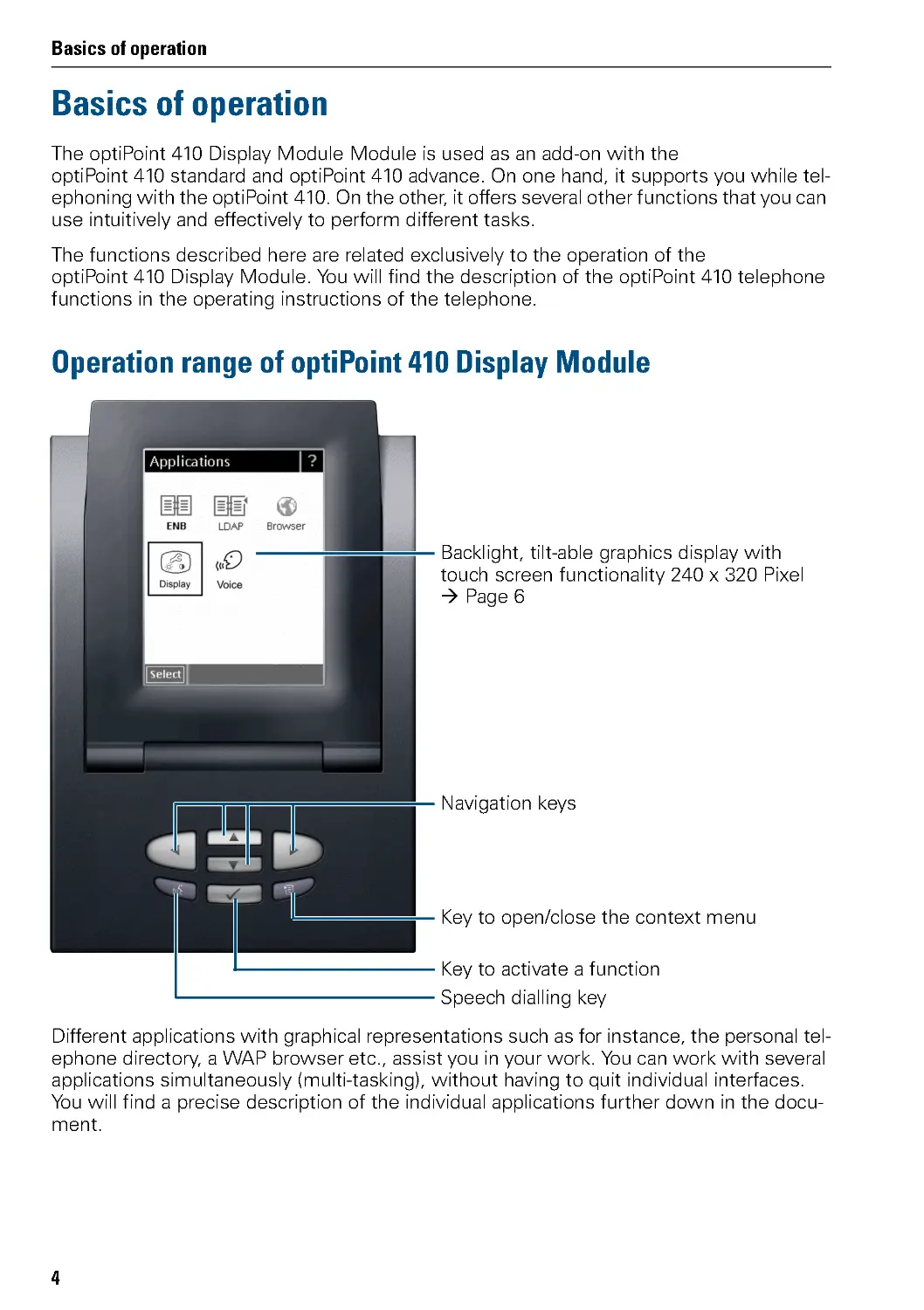
The optiPoint 410 Display Module Module is used as an add-on with the
optiPoint 410 standard and optiPoint 410 advance. On one hand, it supports you while tel-
ephoning with the optiPoint 410. On the other, it offers several other functions that you can
use intuitively and effectively to perform different tasks.
The functions described here are related exclusively to the operation of the
optiPoint 410 Display Module. You will find the description of the optiPoint 410 telephone
functions in the operating instructions of the telephone.
Operation range of optiPoint 410 Display Module
Different applications with graphical representations such as for instance, the personal tel-
ephone directory, a WAP browser etc. , as sist you in your work. You can work with several
applications simultaneously (multi-tasking), without having to quit individual interfaces.
You will find a precise description of the individual applications further down in the docu-
ment.
Backlight, tilt-able graphics display with
touch screen functionality 240 x 320 Pixel
ÆPage6
Key to open/close the context menu
Key to activate a function
Navigation keys
Speech dialling key

Basics of operation
5
Step by Step
Guidance for reading the
operating instructions
The operational steps of the gadget are represented
graphically in a logical sequence in the left column. The
representations have the following meanings:
J Lift handset.
P Replace handset.
O Conduct conversation.
# Press key in the optiPoint 410 Display Module.
Click on the symbol in the display ("Display key") of the
optiPoint 410 Display Module.
Instructions for intuitive operation
In many situations, the context-sensitive interface of-
fers you a number of options for performing the same
operation.
For reasons of transparency, all the possibilities have
not always been described in this document.
You should therefore get to know the context menu in
particular (e.g ., the context menu can be invoked by
pressing the ( key).

Basics of operation
6
Display with touch screen functionality
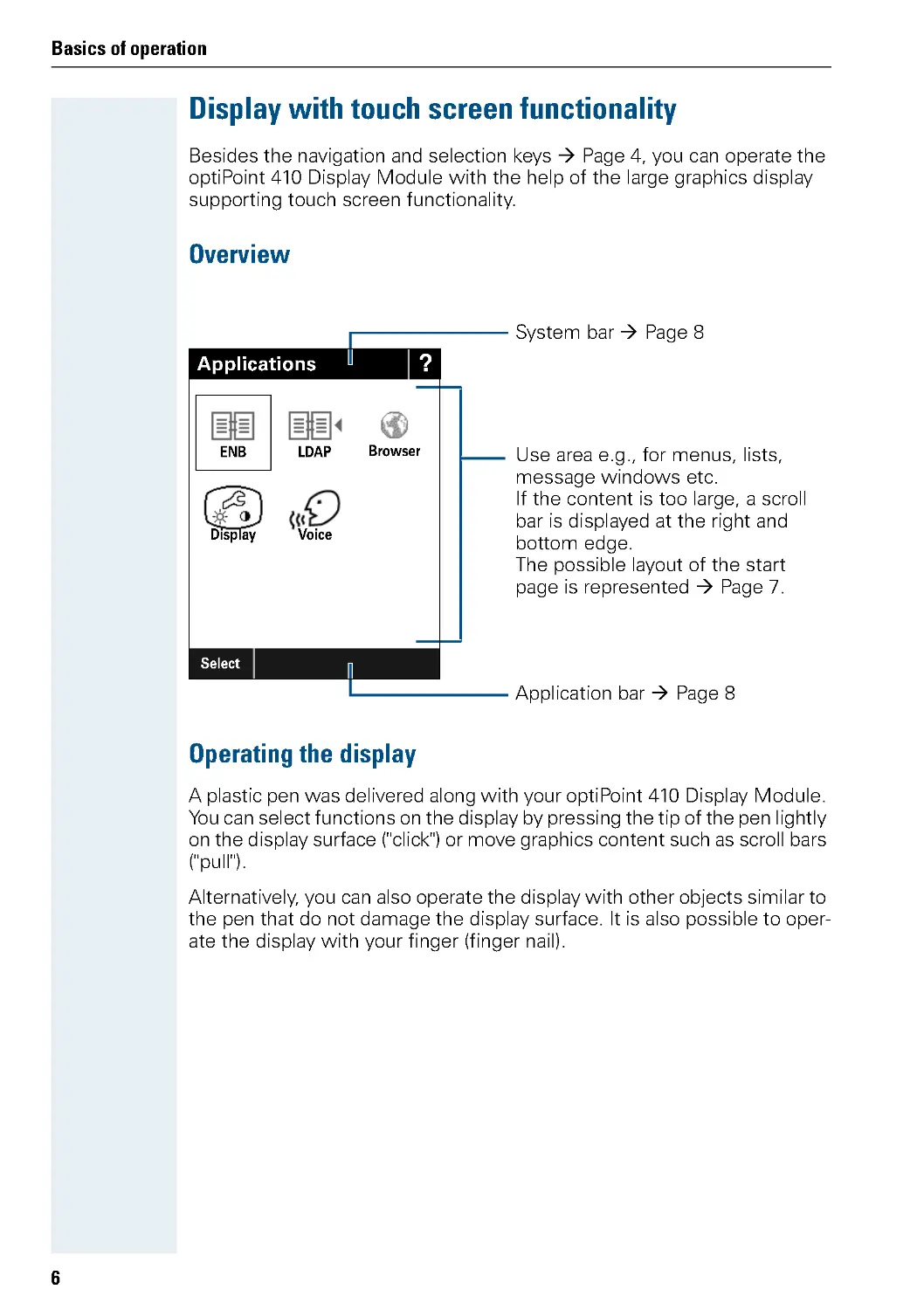
Besides the navigation and selection keys Æ Page 4, you can operate the
optiPoint 410 Display Module with the help of the large graphics display
supporting touch screen functionality.
Overview
Operating the display
A plastic pen was delivered along with your optiPoint 410 Display Module.
You can select functions on the display by pressing the tip of the pen lightly
on the display surface ("click") or move graphics content such as scroll bars
("pull") .
Alternatively, you can also operate the display with other objects similar to
the pen that do not damage the display surface. It is also possible to oper-
ate the display with your finger (finger nail).
ENB
Application bar Æ Page 8
?
Applications
Select
System bar Æ Page 8
Use area e.g ., for menus, lists,
message windows etc.
If the content is too large, a scroll
bar is displayed at the right and
bottom edge.
The possible layout of the start
page is represented Æ Page 7.
LDAP
Display
Browser
Voice

Basics of operation
7
Start page
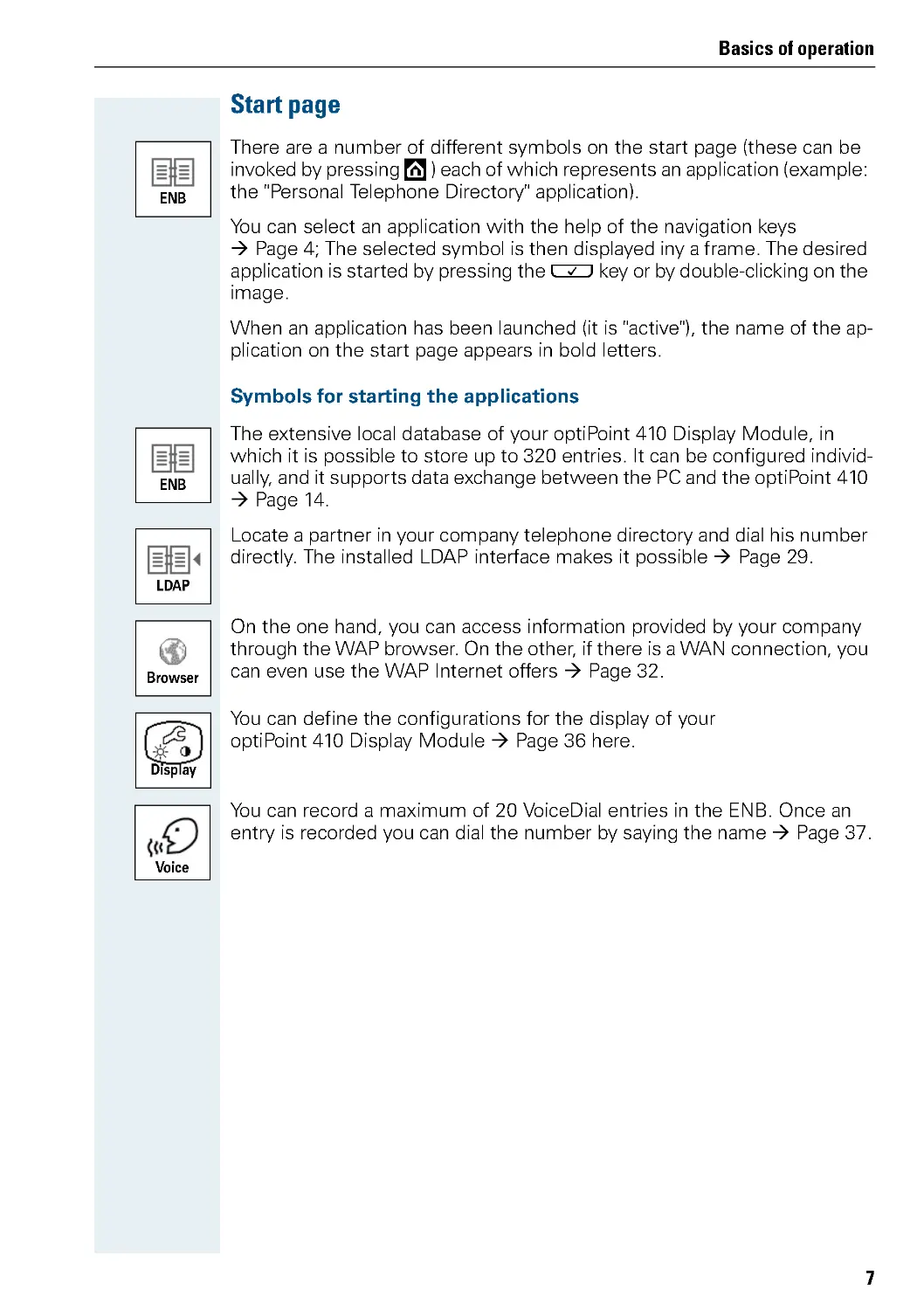
There are a number of different symbols on the start page (these can be
invoked by pressing ) each of which represents an application (example:
the "Personal Telephone Directory" application).
You can select an application with the help of the navigation keys
Æ Page 4; The selected symbol is then displayed iny a frame. The desired
application is started by pressing the ' key or by double-clicking on the
image.
When an application has been launched (it is "active") , the name of the ap-
plication on the start page appears in bold letters.
Symbols for starting the applications
The extensive local database of your optiPoint 410 Display Module, in
which it is possible to store up to 320 entries. It can be configured individ-
ually, and it supports data exchange between the PC and the optiPoint 410
Æ Page 14.
Locate a partner in your company telephone directory and dial his number
directly. The installed LDAP interface makes it possible Æ Page 29.
On the one hand, you can access information provided by your company
through the WAP browser. On the other, if there is a WAN connection, you
can even use the WAP Internet offers Æ Page 32.
You can define the configurations for the display of your
optiPoint 410 Display Module Æ Page 36 here.
You can record a maximum of 20 VoiceDial entries in the ENB. Once an
entry is recorded you can dial the number by saying the name Æ Page 37.
ENB
ENB
LDAP
Browser
Display
Voice

Basics of operation
8
System and application bar
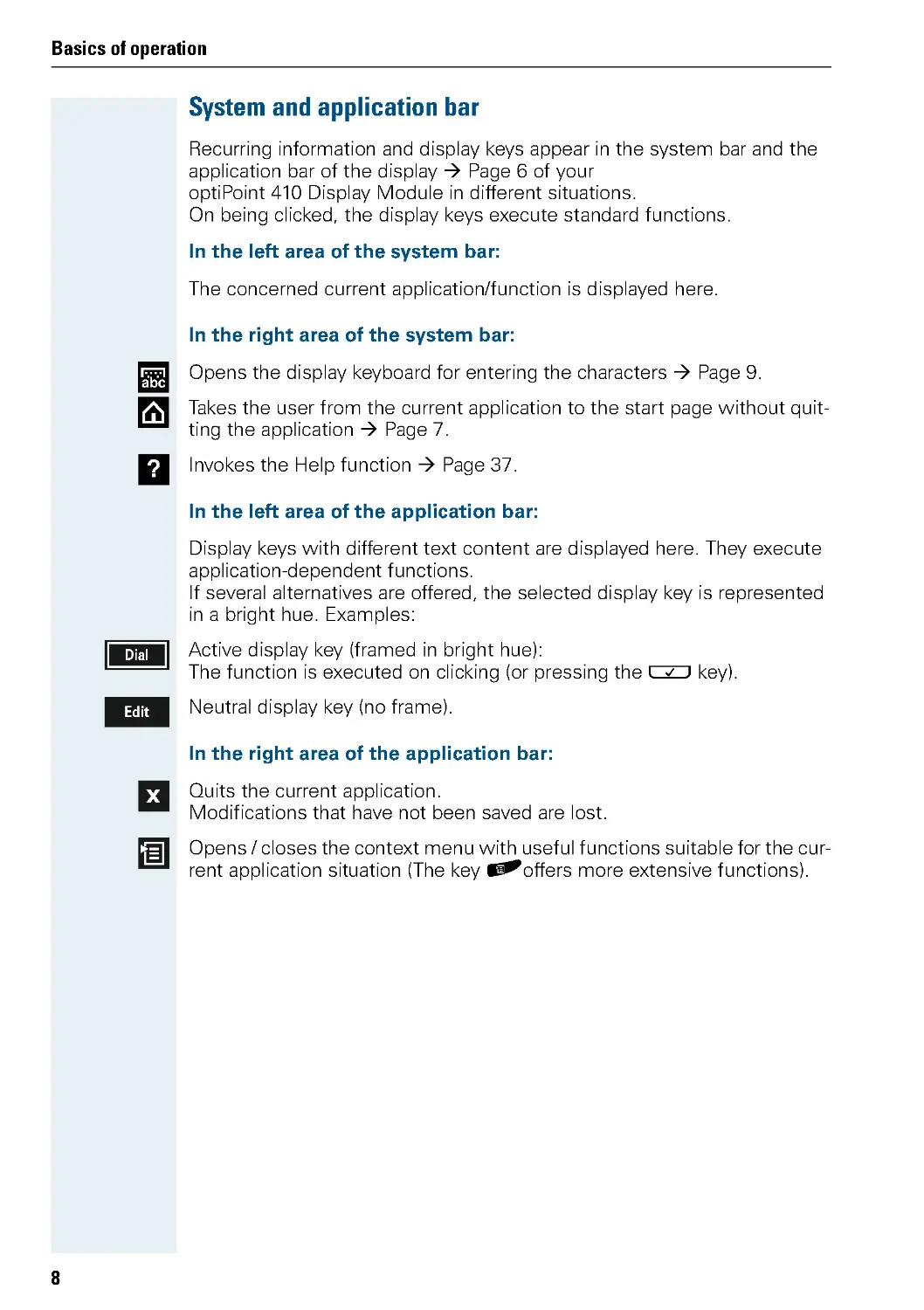
Recurring information and display keys appear in the system bar and the
application bar of the display Æ Page 6 of your
optiPoint 410 Display Module in different situations.
On being clicked, the display keys execute standard functions.
In the left area of the system bar:
The concerned current application/function is displayed here.
In the right area of the system bar:
Opens the display keyboard for entering the characters Æ Page 9.
Takes the user from the current application to the start page without quit-
ting the application Æ Page 7.
Invokes the Help function Æ Page 37.
In the left area of the application bar:
Display keys with different text content are displayed here. They execute
application-dependent functions.
If several alternatives are offered, the selected display key is represented
in a bright hue. Examples:
Active display key (framed in bright hue):
The function is executed on clicking (or pressing the ' key).
Neutral display key (no frame).
In the right area of the application bar:
Quits the current application.
Modifications that have not been saved are lost.
Opens / closes the context menu with useful functions suitable for the cur-
rent application situation (The key (offers more extensive functions).
abc
?
Dial
Edit
x

Basics of operation
9
Dialog messages
In different situations, the optiPoint 410 Display Module expects the user
to confirm an information item in a dialog window. Depending on the con-
tent, the buttons "OK", "Yes" , " No" and "Cancel" are available for use.
Answer the question by clicking on one of the two buttons.
Confirm the warning message. It appears for instance, as a safety query
when you delete telephone directory entries.
An error has taken place. Try to resolve the error described in the mes-
sage. If you have questions, please contact the competent authority or
staff.
Read the Info message. It appears for instance, during a data transmission
operation.
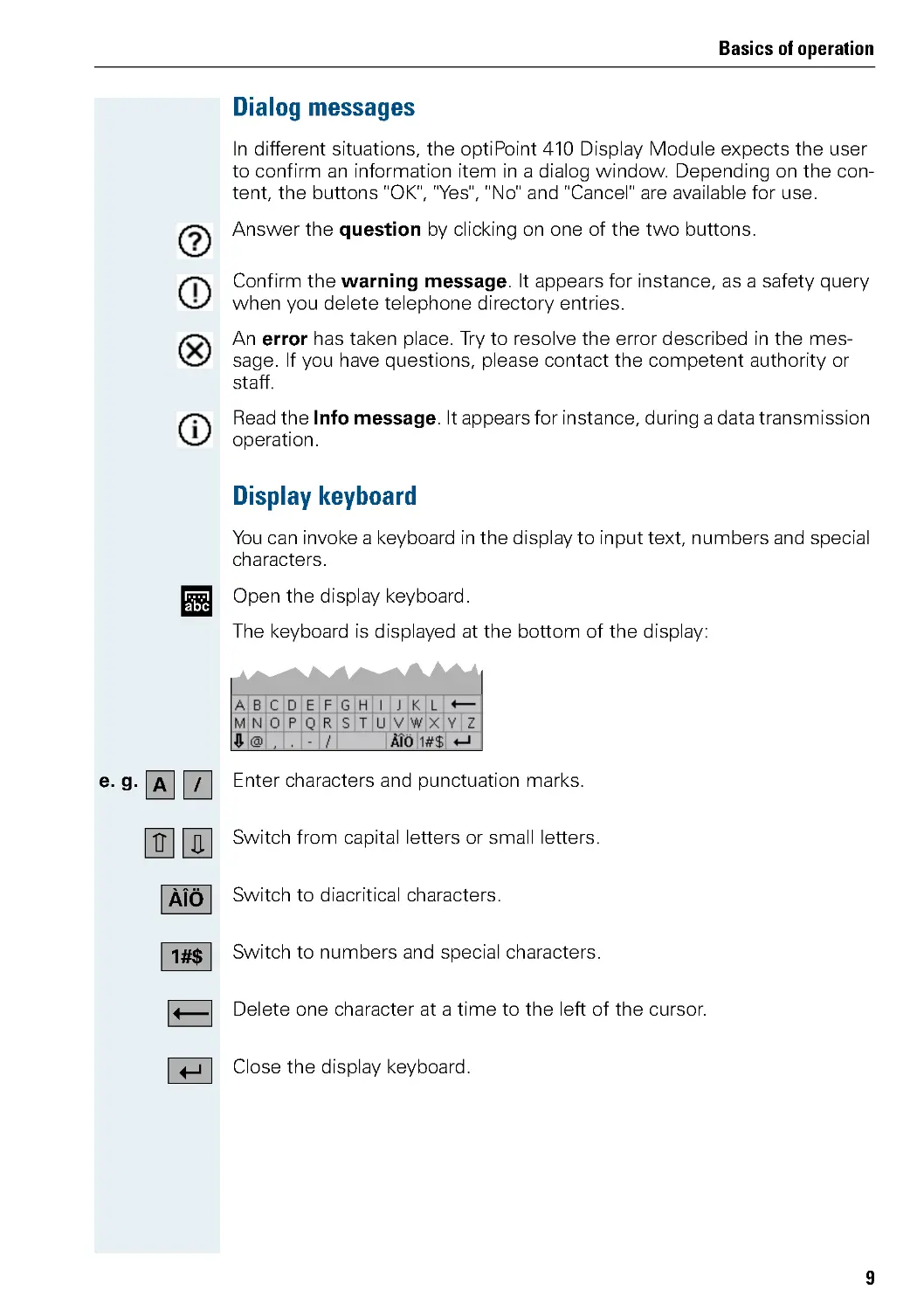
Display keyboard
You can invoke a keyboard in the display to input text, numbers and special
characters.
Open the display keyboard.
The keyboard is displayed at the bottom of the display:
e. g.
Enter characters and punctuation marks.
Switch from capital letters or small letters.
Switch to diacritical characters.
Switch to numbers and special characters.
Delete one character at a time to the left of the cursor.
Close the display keyboard.
abc
x
Edit
Dial
A/
ÀÎÖ
1#$

Step by Step
Basics of operation
10
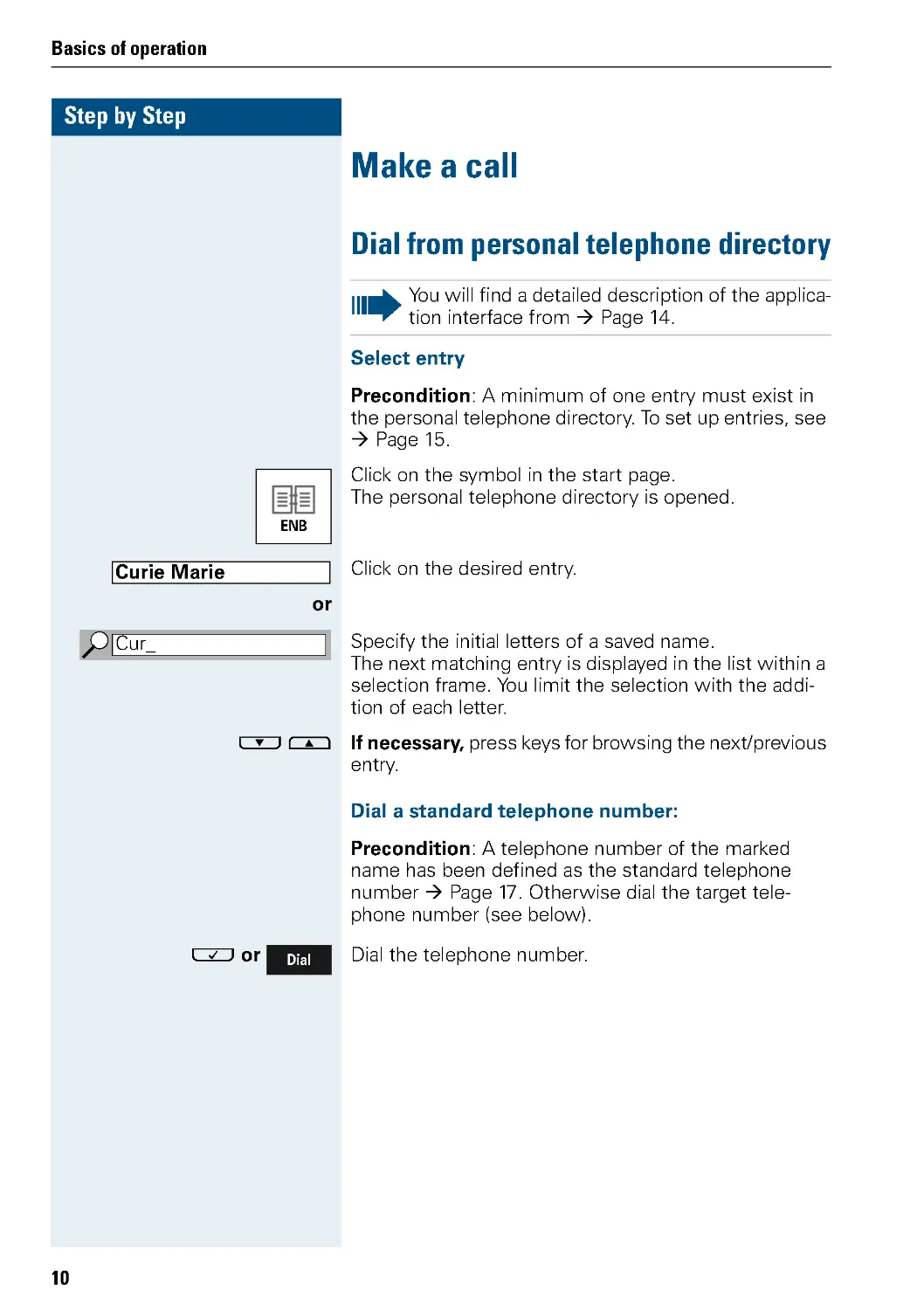
Make a call
Dial from personal telephone directory
Select entry
Precondition: A minimum of one entry must exist in
the personal telephone directory. To set up entries, see
Æ Page 15.
Click on the symbol in the start page.
The personal telephone directory is opened.
Click on the desired entry.
or
Specify the initial letters of a saved name.
The next matching entry is displayed in the list within a
selection frame. You limit the selection with the addi-
tion of each letter.
& % If necessary, press keys for browsing the next/previous
entry.
Dial a standard telephone number:
Precondition: A telephone number of the marked
name has been defined as the standard telephone
number Æ Page 17. Otherwise dial the target tele-
phone number (see below).
'or
Dial the telephone number.
You will find a detailed description of the applica-
tion interface from Æ Page 14.
ENB
Curie Marie
Cur_
Dial

Basics of operation
11
Step by Step
Dial selected telephone number:
Precondition: One entry in the telephone directory list
is marked.
Click on the menu option.
or
( Open the context menu and select "View".
The "Numbers" register is opened
Click on the desired entry.
or
& % Press to browse through the next/previous entry.
'or
Dial the marked telephone number.
or
( Open the context menu and select "Dial".
Select a desired telephone number if you wish to
dial a number that is not the standard telephone
number.
View
Busi ness: 4989123456
Dial
The assignment of the standard telephone
number is not changed.

Step by Step
Basics of operation
12
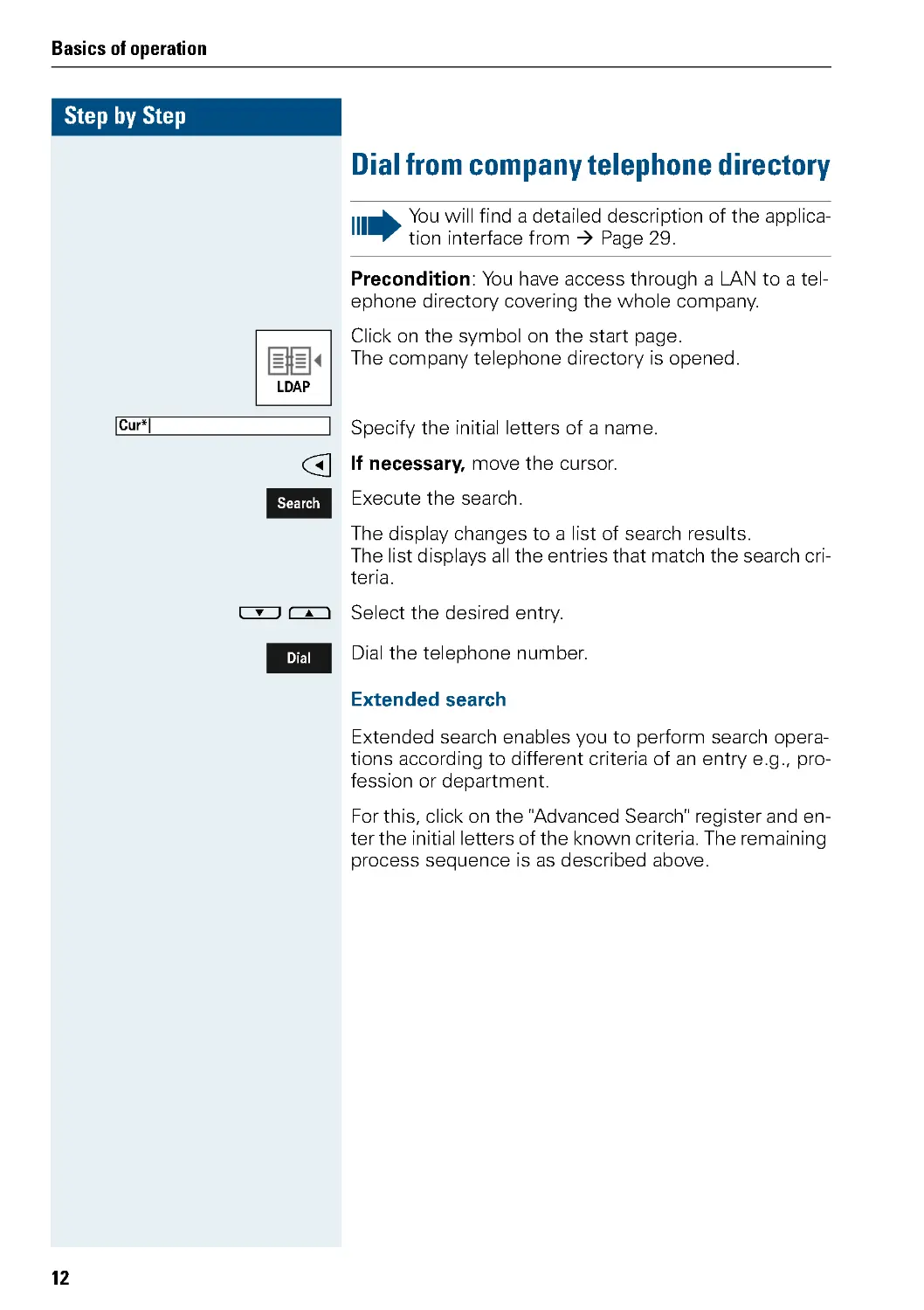
Dial from company telephone directory
Precondition: You have access through a LAN to a tel-
ephone directory covering the whole company.
Click on the symbol on the start page.
The company telephone directory is opened.
Specify the initial letters of a name.
# If necessary, move the cursor.
Execute the search.
The display changes to a list of search results.
The list displays all the entries that match the search cri-
teria.
& % Select the desired entry.
Dial the telephone number.
Extended search
Extended search enables you to perform search opera-
tions according to different criteria of an entry e.g ., pro-
fession or department.
For this, click on the "Advanced Search" register and en-
ter the initial letters of the known criteria. The remaining
process sequence is as described above.
You will find a detailed description of the applica-
tion interface from Æ Page 29.
LDAP
Cur*|
Search
Dial

Basics of operation
13
Step by Step
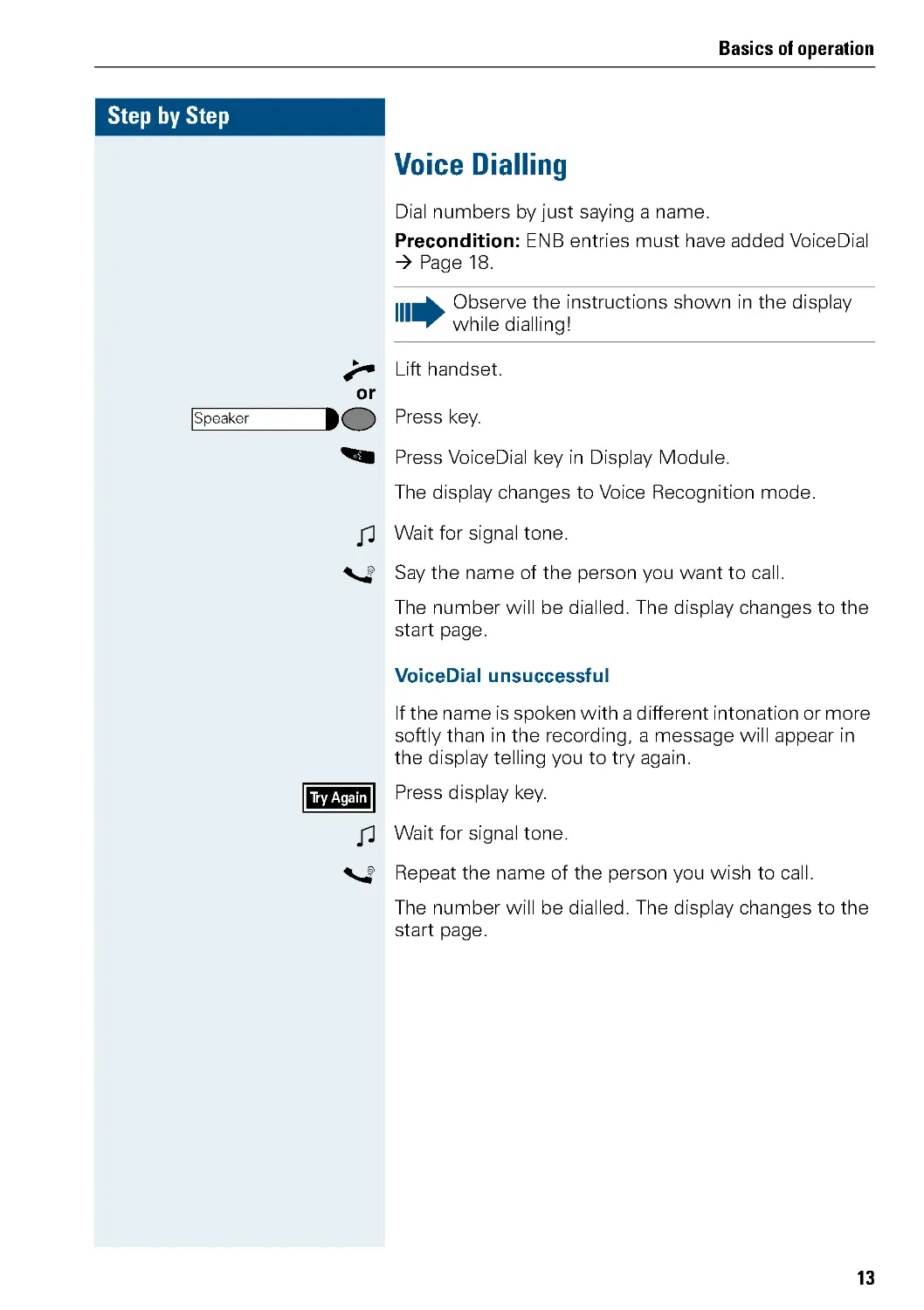
Voice Dialling
Dial numbers by just saying a name.
Precondition: ENB entries must have added VoiceDial
Æ Page 18.
J Lift handset.
or
Press key.
) Press VoiceDial key in Display Module.
The display changes to Voice Recognition mode.
S Wait for signal tone.
O Say the name of the person you want to call.
The number will be dialled. The display changes to the
start page.
VoiceDial unsuccessful
If the name is spoken with a different intonation or more
softly than in the recording, a message will appear in
the display telling you to try again.
Press display key.
S Wait for signal tone.
O Repeat the name of the person you wish to call.
The number will be dialled. The display changes to the
start page.
Observe the instructions shown in the display
while dialling!
Speaker
Try Again

Step by Step
Applications
14
Applications
Personal telephone directory
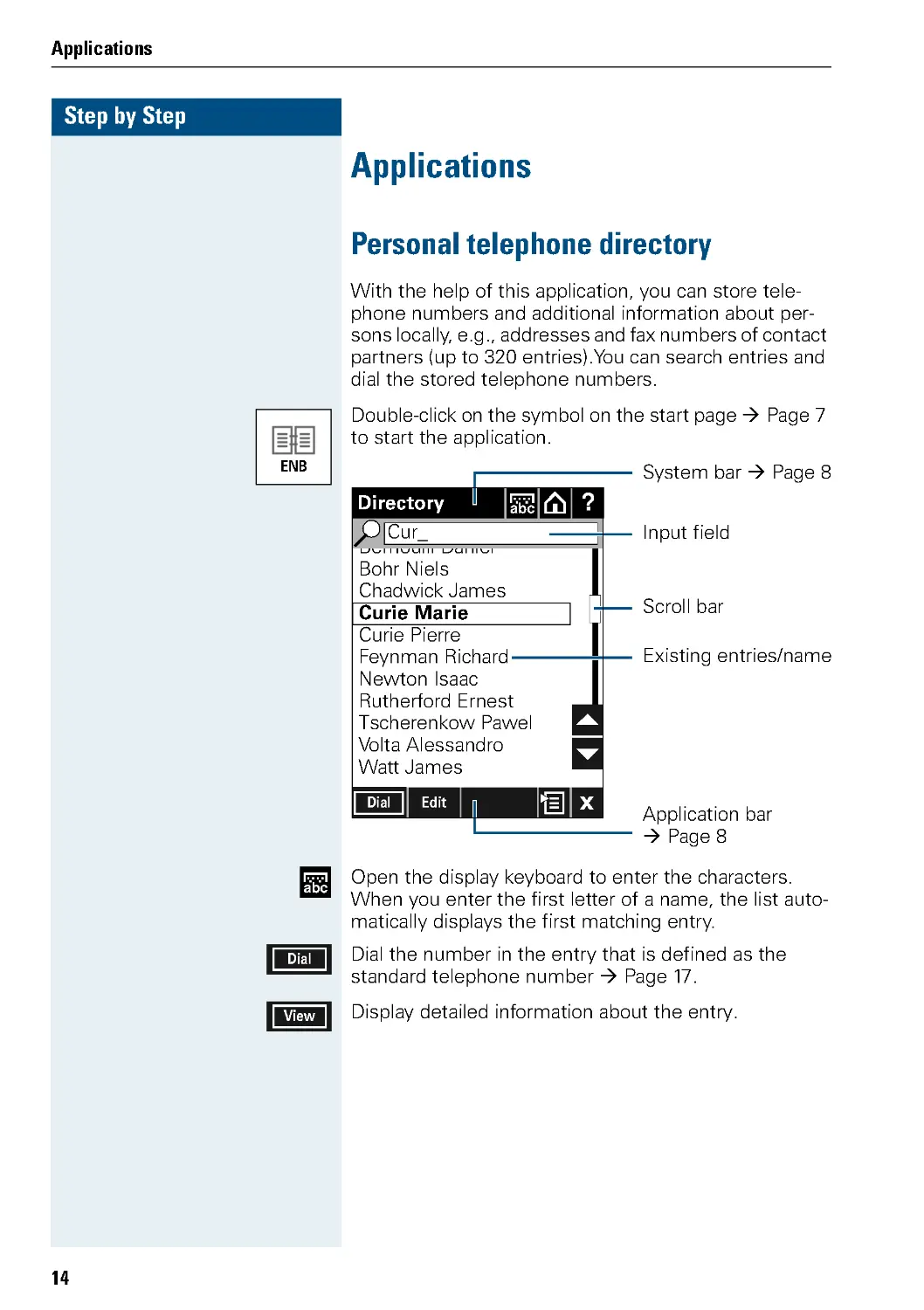
With the help of this application, you can store tele-
phone numbers and additional information about per-
sons locally, e .g ., addresses and fax numbers of contact
partners (up to 320 entries).You can search entries and
dial the stored telephone numbers.
Double-click on the symbol on the start page Æ Page 7
to start the application.
Open the display keyboard to enter the characters.
When you enter the first letter of a name, the list auto-
matically displays the first matching entry.
Dial the number in the entry that is defined as the
standard telephone number Æ Page 17.
Display detailed information about the entry.
ENB
C
Bernoulli Daniel
Bohr Niels
Chadwick James
Curie Marie
Curie Pierre
Feynman Richard
Newton Isaac
Rutherford Ernest
Tscherenkow Pawel
Volta Alessandro
Watt James
?
Directory
abc
x
Cur_
Input field
Existing entries/name
Scroll bar
System bar Æ Page 8
Application bar
ÆPage8
i
Edit
Dial
abc
Dial
View

Applications
15
Step by Step
In this view, the context menu offers the following:
• Edit: Opens the entry in the editor Æ Page 20.
• New Entry: Opens the editor for setting up a new
entry Æ Page 15.
• Delete Entry: Deletes thes currently selected entry
Æ Page 20.
• Delete All: Deletes all entries in the personal tele-
phone directory Æ Page 20.
• Import: Imports data from the PC into the
optiPoint 410 Display Module Æ Page 21.
• Export: Exports (backs up) data from the
optiPoint 410 Display Module to a PC Æ Page 22.
• VoiceDial-Add: Add VoiceDial Æ Page 18
Set up entry
Double-click on the symbol.
The telephone directory list Æ Page 14 15 is displayed.
or ( open the context menu and select "New Entry" to set up
a new entry.
The "Personal Data" register appears. The first field is ac-
tivated for processing.
ENB
It is possible to store up to 320 entries.
C
Last Name: |
Numbers
Notes
?
Edit Entry
abc
x
"Name" register
System bar Æ Page 8
Application bar
ÆPage8
"Notes" register
Name
"Numbers" register
First Name:
Save
View

Step by Step
Applications
16
"Name" register
Enter the personal data such as name and company
here.
Open the display keyboard to input the letters.
& % Browse with the keys to move from line to line.
# $ Where necessary, use keys to move the cursor to the
left/right.
Confirm the entry. You are returned to the telephone di-
rectory list.
You can also populate all the registers first and then con-
firm the data.
& % Browse with the keys to reach the next/previous regis-
ter.
Aborts the creation of a new entry.
First Name: Michael|
Cx
Numbers
Notes
?
Edit Entry
abc
Active input field
Faraday Michael
Faraday
Name:
Save
View
abc
Save
x

Applications
17
Step by Step
"Numbers" register
Enter the telephone number of the person here.
Where appropriate, select the optional field to define
the corresponding telephone number as the standard
telephone number. This number is used while dialling
from the list view.
Operation sequence as in the "Personal Data"
Æ Page 16 register.
Where appropriate, confirm the entry. You are re-
turned to the telephone directory list.
"Notes" register
Enter possible additional information on the person in
the "Notes" register.
Operation sequence as in the "Personal Data"
Æ Page 16 register.
Where appropriate, confirm the entry. You are re-
turned to the telephone directory list
Save
C
Business
View
|
Numbers
Notes
?
Edit Entry
abc
x
"Personal data" registe
System bar
ÆPage8
Application bar
ÆPage8
"Notes" register
Faraday Michael
"Numbers" register
Private
Fax
Mobile
Optional field for the
selection of the
standard telephone-
number
Opens the
Fieldname menu
Save
Save

Step by Step
Applications
18
Adding VoiceDial to an entry
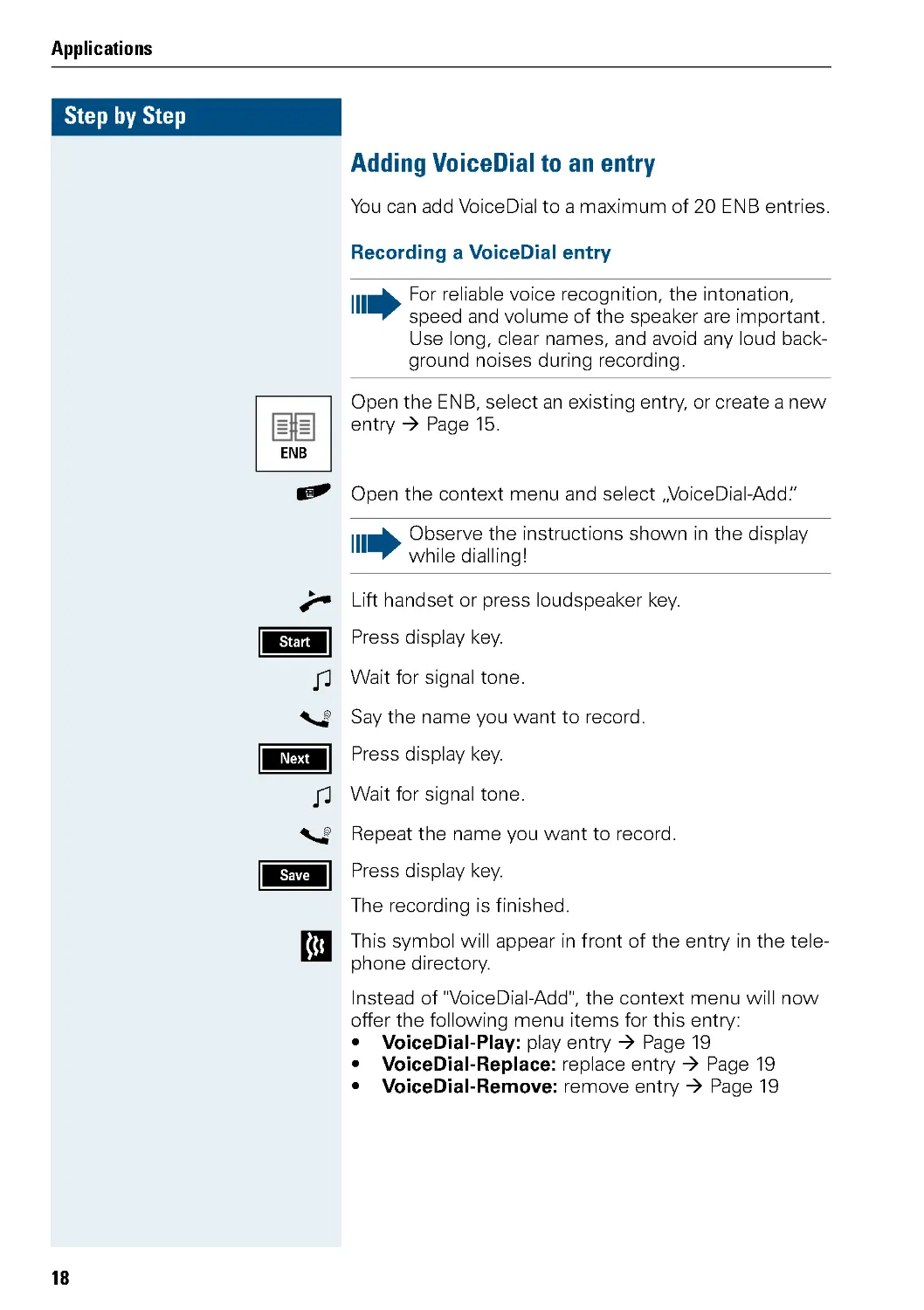
You can add VoiceDial to a maximum of 20 ENB entries.
Recording a VoiceDial entry
Open the ENB, select an existing entry, or create a new
entry Æ Page 15.
( Open the context menu and select „VoiceDial-Add“
.
J Lift handset or press loudspeaker key.
Press display key.
S Wait for signal tone.
O Say the name you want to record.
Press display key.
S Wait for signal tone.
O Repeat the name you want to record.
Press display key.
The recording is finished.
This symbol will appear in front of the entry in the tele-
phone directory.
Instead of "VoiceDial-Add ", the context menu will now
offer the following menu items for this entry:
• VoiceDial-Play: play entry Æ Page 19
• VoiceDial-Replace: replace entry Æ Page 19
• VoiceDial-Remove: remove entry Æ Page 19
For reliable voice recognition, the intonation,
speed and volume of the speaker are important.
Use long, clear names, and avoid any loud back-
ground noises during recording.
ENB
Observe the instructions shown in the display
while dialling!
Start
Next
Save

Applications
19
Step by Step
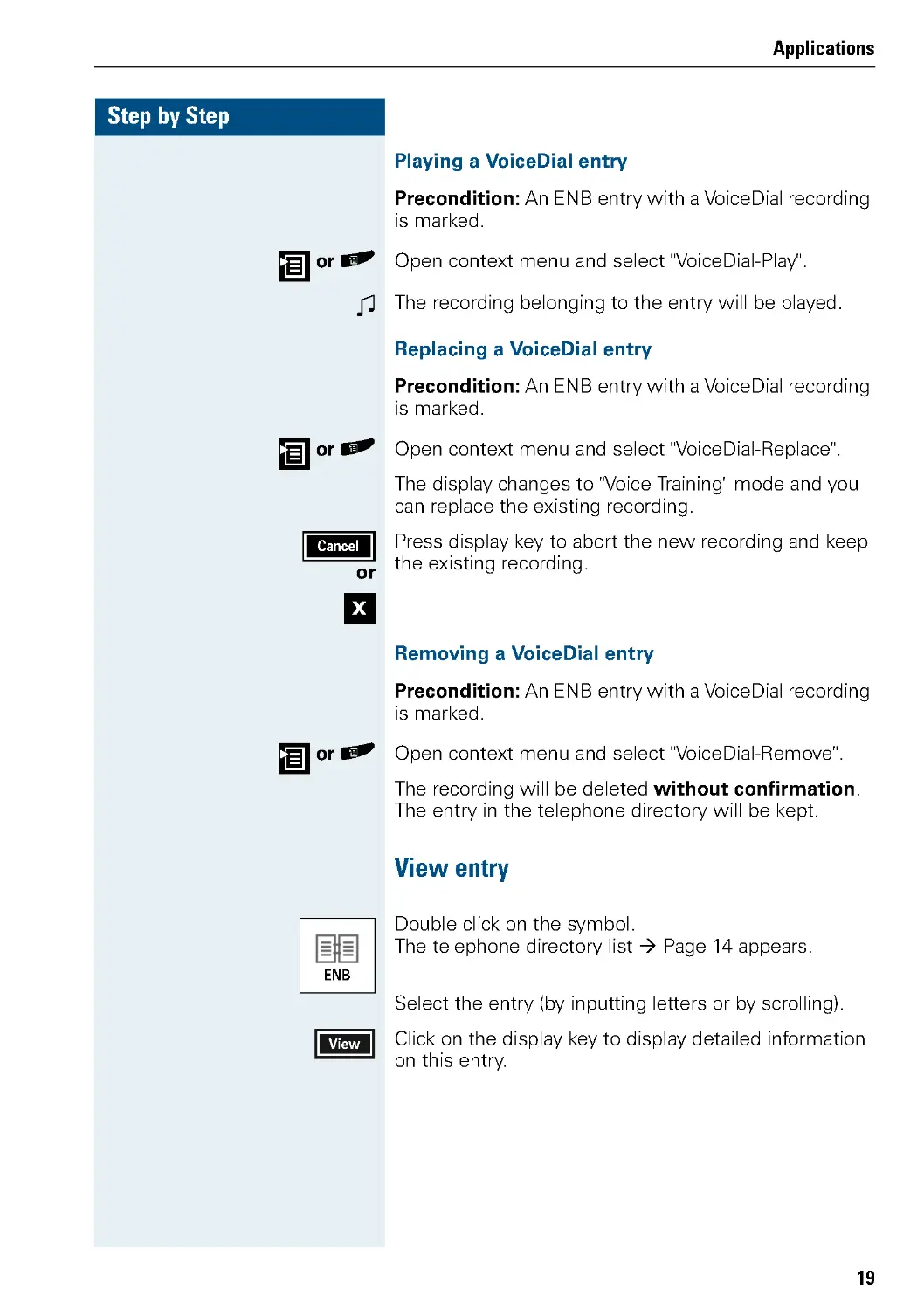
Playing a VoiceDial entry
Precondition: An ENB entry with a VoiceDial recording
is marked.
or ( Open context menu and select "VoiceDial-Play" .
S The recording belonging to the entry will be played.
Replacing a VoiceDial entry
Precondition: An ENB entry with a VoiceDial recording
is marked.
or ( Open context menu and select "VoiceDial-Replace".
The display changes to "Voice Training" mode and you
can replace the existing recording.
or
Press display key to abort the new recording and keep
the existing recording.
Removing a VoiceDial entry
Precondition: An ENB entry with a VoiceDial recording
is marked.
or ( Open context menu and select "VoiceDial-Remove" .
The recording will be deleted without confirmation.
The entry in the telephone directory will be kept.
View entry
Double click on the symbol.
The telephone directory list Æ Page 14 appears.
Select the entry (by inputting letters or by scrolling).
Click on the display key to display detailed information
on this entry.
Cancel
x
ENB
View

Step by Step
Applications
20
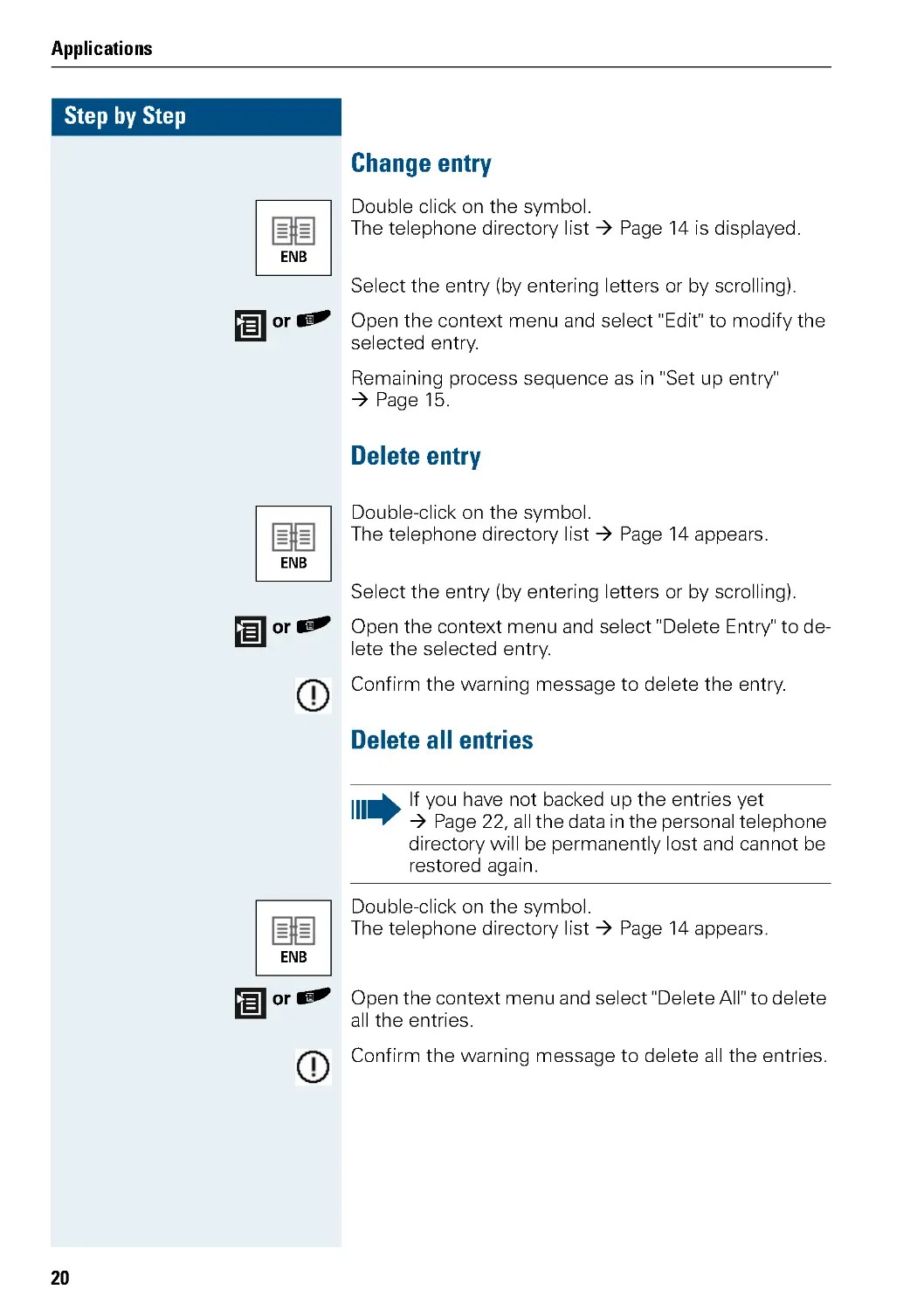
Change entry
Double click on the symbol.
The telephone directory list Æ Page 14 is displayed.
Select the entry (by entering letters or by scrolling).
or ( Open the context menu and select "Edit" to modify the
selected entry.
Remaining process sequence as in "Set up entry"
Æ Page 15.
Delete entry
Double-click on the symbol.
The telephone directory list Æ Page 14 appears.
Select the entry (by entering letters or by scrolling).
or ( Open the context menu and select "Delete Entry" to de-
lete the selected entry.
Confirm the warning message to delete the entry.
Delete all entries
Double-click on the symbol.
The telephone directory list Æ Page 14 appears.
or ( Open the context menu and select "Delete All" to delete
all the entries.
Confirm the warning message to delete all the entries.
ENB
ENB
If you have not backed up the entries yet
Æ Page 22, all the data in the personal telephone
directory will be permanently lost and cannot be
restored again.
ENB

Applications
21
Step by Step
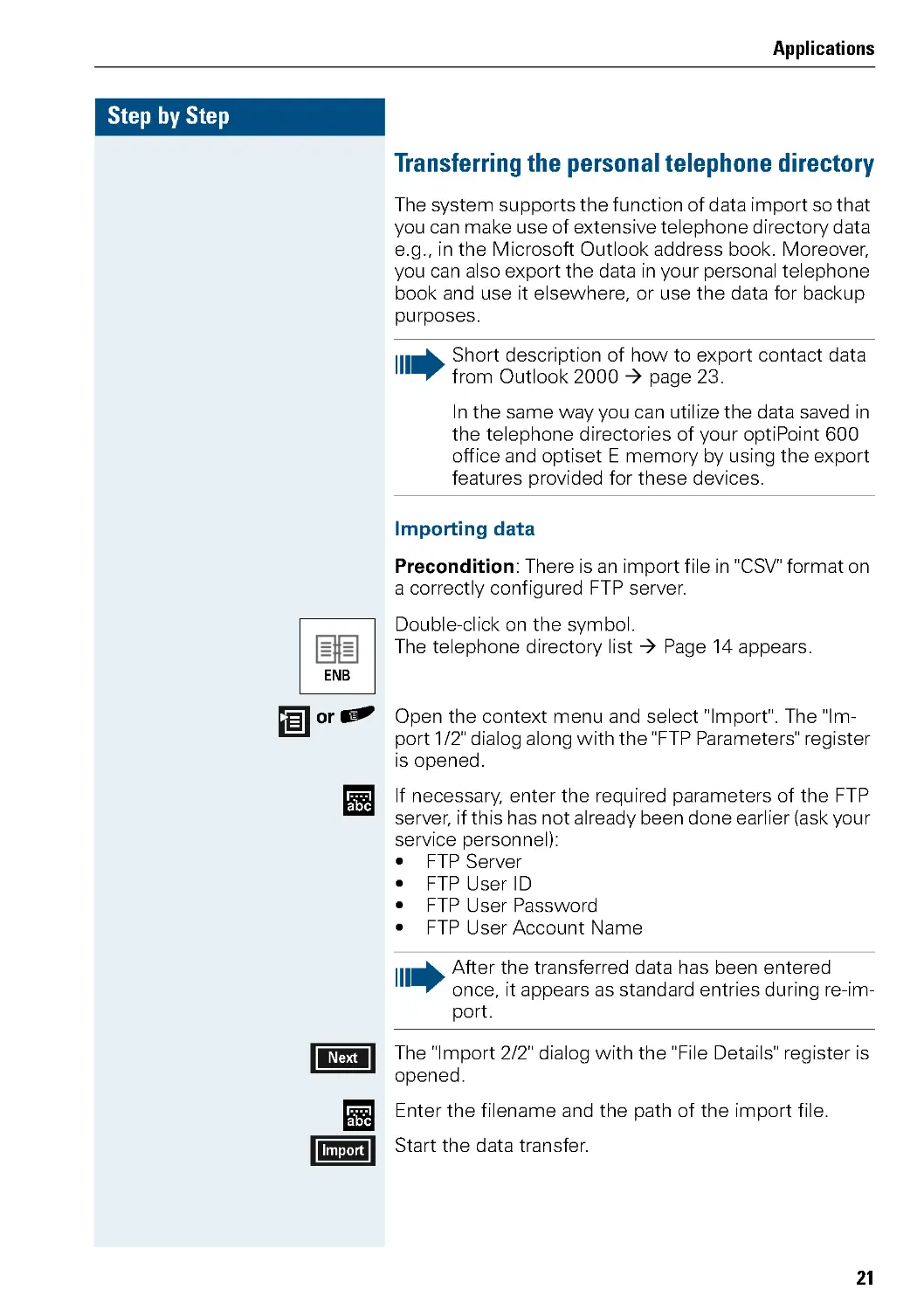
Transferring the personal telephone directory
The system supports the function of data import so that
you can make use of extensive telephone directory data
e.g . , in the Microsoft Outlook address book. Moreover,
you can also export the data in your personal telephone
book and use it elsewhere, or use the data for backup
purposes.
Importing data
Precondition: There is an import file in "CSV" format on
a correctly configured FTP server.
Double-click on the symbol.
The telephone directory list Æ Page 14 appears.
or ( Open the context menu and select "Import". The "Im-
port 1/2" dialog along with the "FTP Parameters" register
is opened.
If necessary, enter the required parameters of the FTP
server, if this has not already been done earlier (ask your
service personnel):
•F
TPServer
•F
TPUserID
• FTP User Password
• FTP User Account Name
The "Import 2/2" dialog with the "File Details" register is
opened.
Enter the filename and the path of the import file.
Start the data transfer.
Short description of how to export contact data
from Outlook 2000 Æ page 23.
In the same way you can utilize the data saved in
the telephone directories of your optiPoint 600
office and optiset E memory by using the export
features provided for these devices.
ENB
abc
After the transferred data has been entered
once, it appears as standard entries during re-im-
port.
Next
abc
Import

Step by Step
Applications
22
If the fieldnames of the import file match the corre-
sponding fieldnames of the personal telephone directo-
ry, the file is imported and converted automatically.
After the successful data transfer, the file is opened as
the current telephone directory list.
Exporting data
Precondition: A correctly configured FTP server is avai-
lable.
Double click on the symbol.
The telephone directory list Æ Page 14 appears.
Open the context menu and select "Export".
The "Export 1/2" dialog with the "FTP Parameters" regis-
ter opens.
If necessary Enter the required parameters of the FTP server if this
has not already been done (ask your service personnel):
•F
TPServer
• FTP User ID
•F
TPUserP
a
s
s
w
o
r
d
• FTP User Account Name
The "Export 2/2" dialog with the "File details" is opened.
Enter the filename and the path for the export opera-
tion.
Start the file transfer.
After the successful transfer, the display changes to the
telephone directory list.
ENB
abc
After the transferred data has been entered
once, it appears as standard entries during re-ex-
port.
Next
abc
Export

Applications
23
Step by Step
Preparation of Data: Export from Microsoft Outlook
You can import the contents of the “Kontakte“ folder in
Microsoft Outlook to the personal phone directory of
your optiPoint 410 Display Module.
In order to be able to import your contacts, the data
must be in “CSV“ (Comma Separated Values) format.
The process of exporting contact data into a CSV file is
described here.
1. Open Microsoft Outlook (if not already open).
2. In the main “File“ menu select menu item “Impor-
tieren/Exportieren...“
.
The Import/Export Assistant will appear:
3. Select the entry “Exportieren in eine Datei“ from the
list, and confirm with “Weiter >“.
The following dialogue box will appear:
German screen
German screen

Step by Step
Applications
24
4. Select the entry “Kommagetrennte Werte (Windows)“
from the list, and confirm with “Weiter >“.
The following dialogue box will appear:
5. In the menu tree select the folder which you want to ex-
port, e . g “Kontakte“ and click “Weiter >“ to confirm.
The following dialogue box will appear:
German screen
German screen
German screen
German screen
Subdirectories of the selected folder will not be
exported with it automatically. If you want to ex-
port data from subdirectories, you must export
these folders separately.

Applications
25
Step by Step
6. Make any necessary alterations to the path and the
name of the CSV file. Change the path manually or click
“ Durchsuchen“ to select the destination folder.
When the path is correct, click “Weiter >“ to confirm.
The following dialogue box will appear:
7. Click “Felder zuordnen ...“ to configure the export for-
mat.
The following dialogue box will appear:
German screen
German screen
German screen
German screen

Step by Step
Applications
26
8. Click “Zuordnung löschen“ to unassign the standard as-
signment.
9. Holding the mouse button down, drag the fields you
want to transfer to the personal phone directory of your
optiPoint 410 Display Module from the Outlook window
into the CSV window.
A maximum of 8 fields can be transferred to the person-
al directory, and fields 2 to 5 must be phone numbers.
If more than 8 fields are exported, this will lead to errors
in transferring the data. The order in the CSV window
will be the order used in the personal directory.
Scroll through entries Outlook
list
CSV list
German screen
German screen

Applications
27
Step by Step
The following table shows an example of the assignment
structure in Microsoft Outlook and the corresponding
structure in the personal directory.
When you have transferred the desired fields, you can
carry out changes in the CSV list as follows:
• You can change the term used to indicate a particu-
lar field in optiPoint 410 Display Module. To do this,
select an entry in the “Feld“ column in the CSV win-
dow and click on the entry again. You can now
change the term.
• You can correct the order of the entries. To do this,
click on an entry in the “Feld“ column in the CSV
window and drag the entry up or down while hold-
ing the mouse button down.
• To delete an entry in the CSV window, select it and
press the “Entf“ button on your PC keyboard.
To make this clearer, the chart below shows the assign-
ment of the data during export and the subsequent re-
sult in the personal directory of your
optiPoint 410 Display Module:
Item Outlook-list
Personal directory
1
Name
Name
2
First Name
First Name
3
Office (default)
Business
4
Private
Private
5
Mobile
Mobile
6
Fax No.
Fax

Step by Step
Applications
28
If you are satisfied with the assignment, click “OK“ and
confirm with “Fertig stellen“.
10 . The CSV file is written.
When this is completed, it means the data have been
exported and a CSV file with your defaults has been cre-
ated.
German screen
German screen
CSV list
1
2
3
4
Display in optiPoint 410 Display Module
Edit
Business
498912345678
Numbers
Notes
Faraday Michael
Pri vate
498912345677
Fax
491721256789
Mobile
?
View Entry
498912345677
x
1
4
2
3
Dial
German screen
German screen

Applications
29
Step by Step
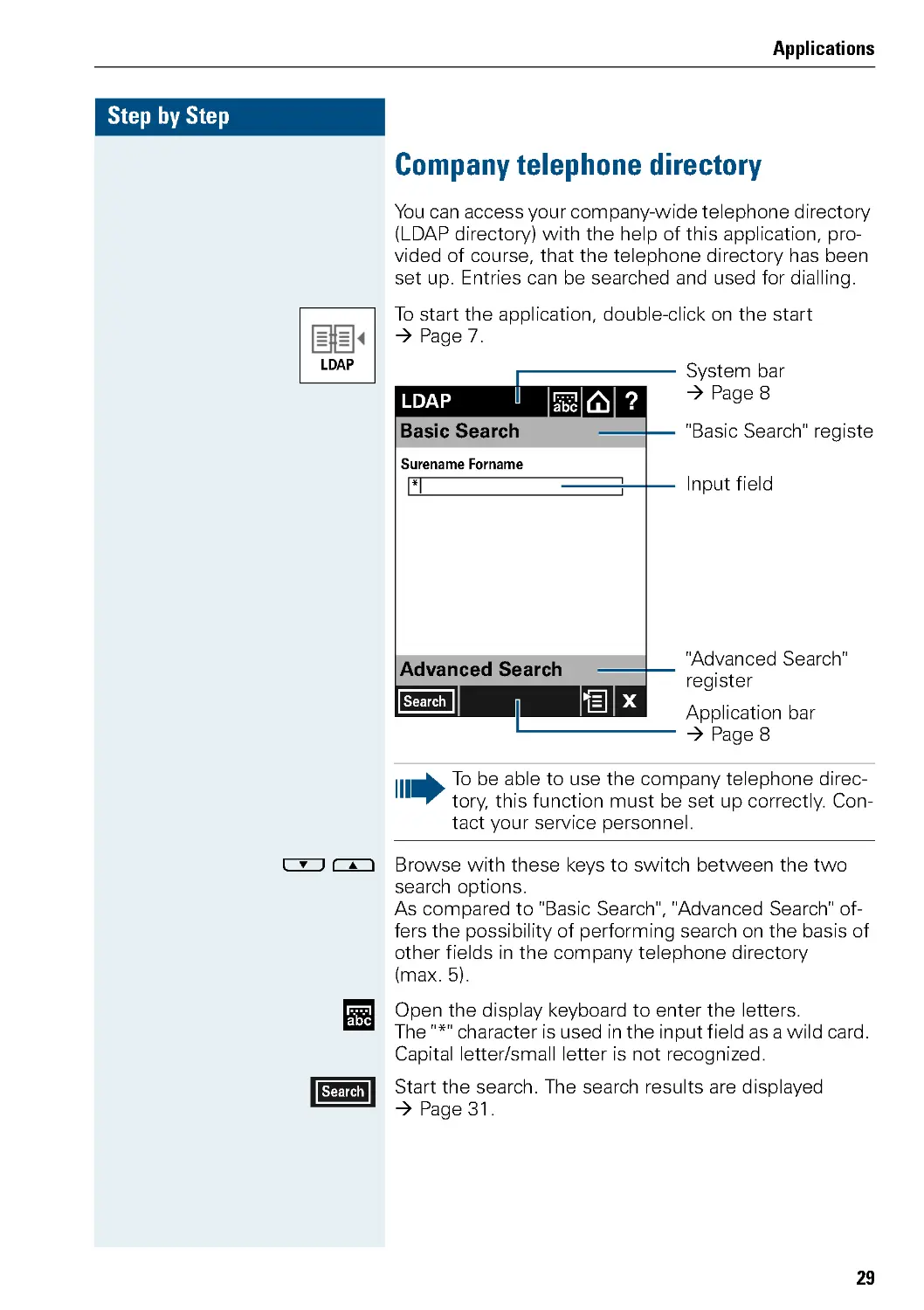
Company telephone directory
You can access your company-wide telephone directory
(LDAP directory) with the help of this application, pro-
vided of course, that the telephone directory has been
set up. Entries can be searched and used for dialling.
To start the application, double-click on the start
Æ Page 7.
& % Browse with these keys to switch between the two
search options.
As compared to "Basic Search" , " Advanced Search" of-
fers the possibility of performing search on the basis of
other fields in the company telephone directory
(max. 5).
Open the display keyboard to enter the letters.
The "*" character is used in the input field as a wild card.
Capital letter/small letter is not recognized.
Start the search. The search results are displayed
Æ Page 31.
LDAP
To be able to use the company telephone direc-
tory, this function must be set up correctly. Con-
tact your service personnel.
C
Advanced Search
?
LDAP
abc
"Basic Search" registe
Input field
System bar
ÆPage8
Application bar
ÆPage8
"Advanced Search"
register
Basic Search
Surename Forname
*|
Cx
Search
abc
Search

Step by Step
Applications
30
( In this view, the context menu offers the following:
• Search: Starts the search operation.
• New Search: Clears the input field.
• Server Settings: Please contact the competent au-
thority/specialized staff to configure the LDAP serv-
er.
•L
D
APT
e
m
pla
t
e
: Please contact the competent au-
thority/specialized staff to configure the search pa-
rameters of the company telephone directory.
• Keyboard: Invoke the display keyboard Æ Page 9.
• Home: Displays the start page Æ Page 7. The appli-
cation remains open in the background.
• Help: Invokes the Help function Æ Page 37.
• Exit LDAP: Quits the application and displays the
start page Æ Page 7.

Applications
31
Step by Step
Search results
The results list contains one or more than one entry, of
which the first entry is marked.
View entry in the LDAP viewer
& % Browse the results.
The LDAP viewer opens the marked entry in the "De-
tails" register.
The LDAP viewer opens the marked entry in the "Num-
bers" register.
Abort the display and go back to the search dialog.
Dial entry from the LDAP viewer
& % Mark the desired telephone number.
Start dialling.
The LDAP viewer contains the "Details" and
" Numbers" registers.The number of fields de-
pends on the LDAP template (ask the competent
authority/specialized staff).
?
LDAP
x
Advanced Search
Webster David
Dial
View
Webster Greg
Webster Henry
"Advanced Search"
register
List of results
View
Dial
x
Dial

Step by Step
Applications
32
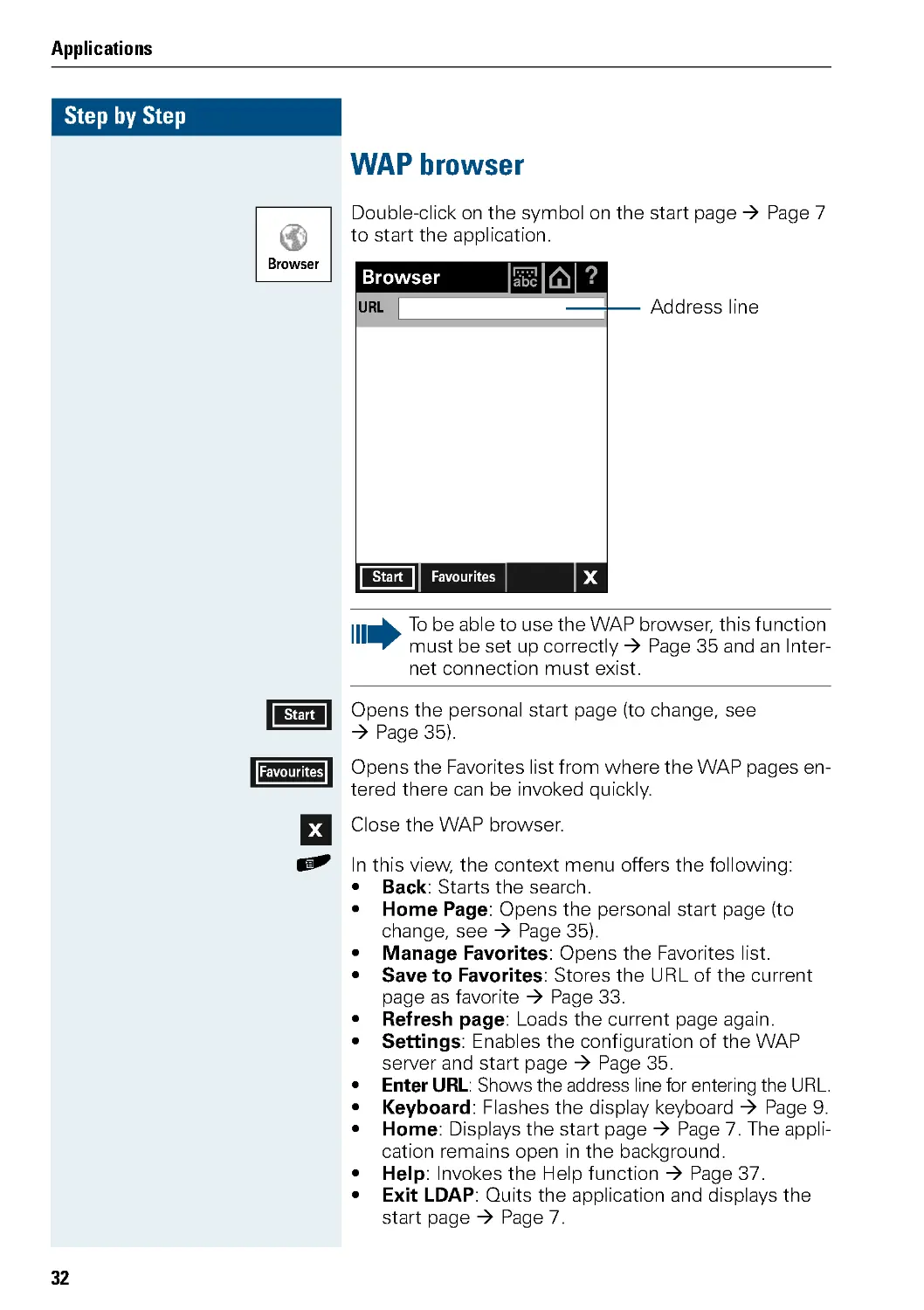
WAP browser
Double-click on the symbol on the start page Æ Page 7
to start the application.
Opens the personal start page (to change, see
Æ Page 35).
Opens the Favorites list from where the WAP pages en-
tered there can be invoked quickly.
Close the WAP browser.
( In this view, the context menu offers the following:
• Back: Starts the search.
• Home Page: Opens the personal start page (to
change, see Æ Page 35).
• Manage Favorites: Opens the Favorites list.
• Save to Favorites: Stores the URL of the current
page as favorite Æ Page 33.
• Refresh page: Loads the current page again.
• Settings: Enables the configuration of the WAP
server and start page Æ Page 35.
•
Enter URL: Shows the address line for entering the URL.
• Keyboard: Flashes the display keyboard Æ Page 9.
• Home: Displays the start page Æ Page 7. The appli-
cation remains open in the background.
• Help: Invokes the Help function Æ Page 37.
• Exit LDAP: Quits the application and displays the
start page Æ Page 7.
Browser
To be able to use the WAP browser, this function
must be set up correctly Æ Page 35 and an Inter-
net connection must exist.
?
Browser
x
Start Favour ites
Address line
abc
URL
Start
Favour ites
x

Applications
33
Step by Step
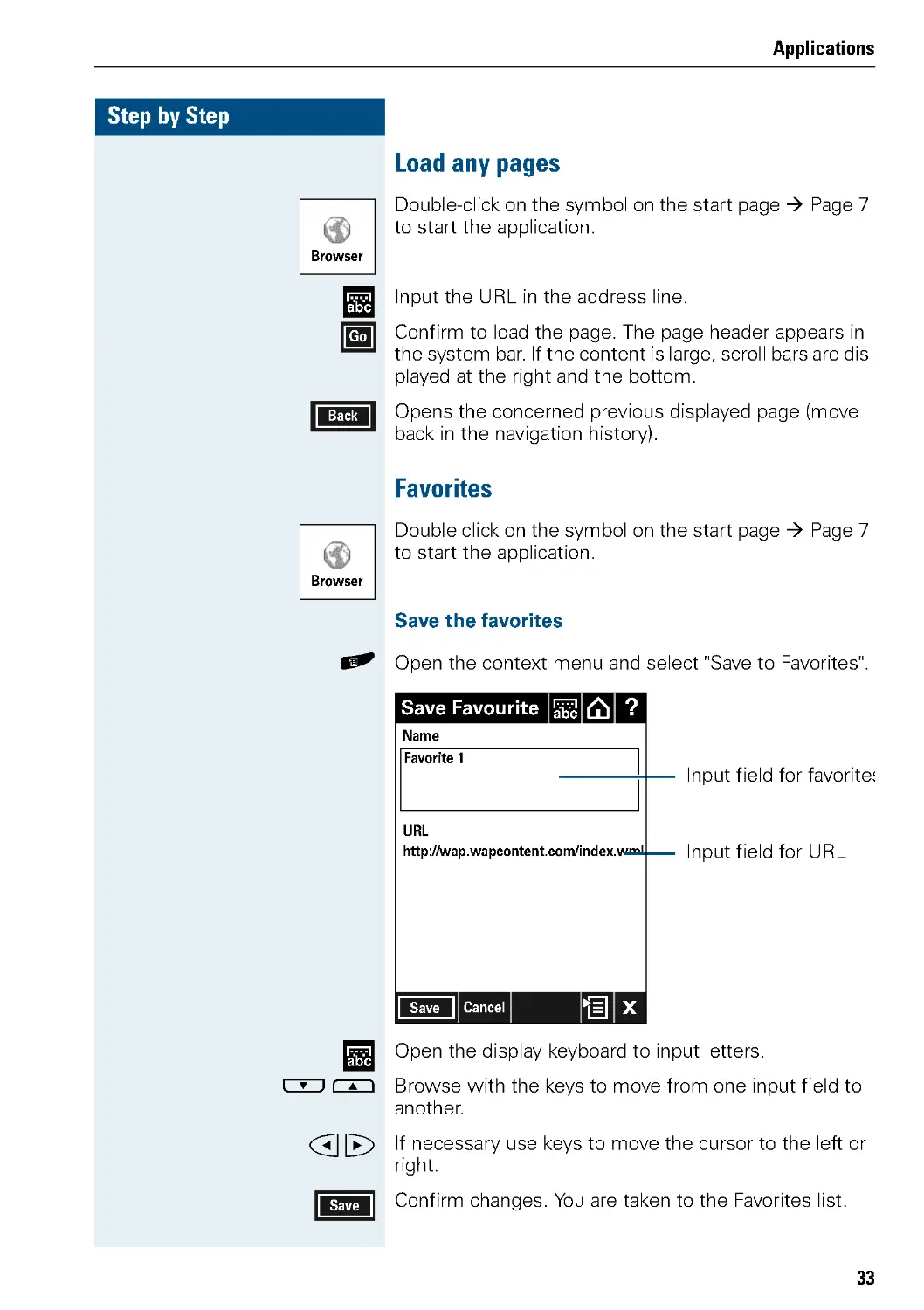
Load any pages
Double-click on the symbol on the start page Æ Page 7
to start the application.
Input the URL in the address line.
Confirm to load the page. The page header appears in
the system bar. If the content is large, scroll bars are dis-
played at the right and the bottom.
Opens the concerned previous displayed page (move
back in the navigation history).
Favorites
Double click on the symbol on the start page Æ Page 7
to start the application.
Save the favorites
( Open the context menu and select "Save to Favorites".
Open the display keyboard to input letters.
& % Browse with the keys to move from one input field to
another.
# $ If necessary use keys to move the cursor to the left or
right.
Confirm changes. You are taken to the Favorites list.
Browser
abc
Go
Back
Browser
C
?
Save Favourite abc
Input field for favorites
Name
Favorite 1
URL
http://wap.wapcontent.com/index.wml
Input field for URL
CCx
Save Cancel
abc
Save

Step by Step
Applications
34
Change favorites
Open the Favorites list.
& % Select the desired favorite.
Open the favorite to make changes.
Open the display keyboard to input characters.
& % Browse with the keys to move from one input field to
another input field.
# $ If necessary use keys move the cursor to the left or
right.
Confirm changes. You are returned to the Favorites list.
Delete favorites
Open the Favorites list.
& % Select the desired favorite.
Delete the favorite.
Answer the question with "Yes" to delete the entry per-
manently.
Favour ites
Edit
C
?
Edit Favourite abc
Input field for the name
Name
Favorite 1
URL
http://wap.wapcontent.com/index.wml Input field for the URL
CCx
Save Cancel
abc
Save
Favour ites
Delete

Applications
35
Step by Step
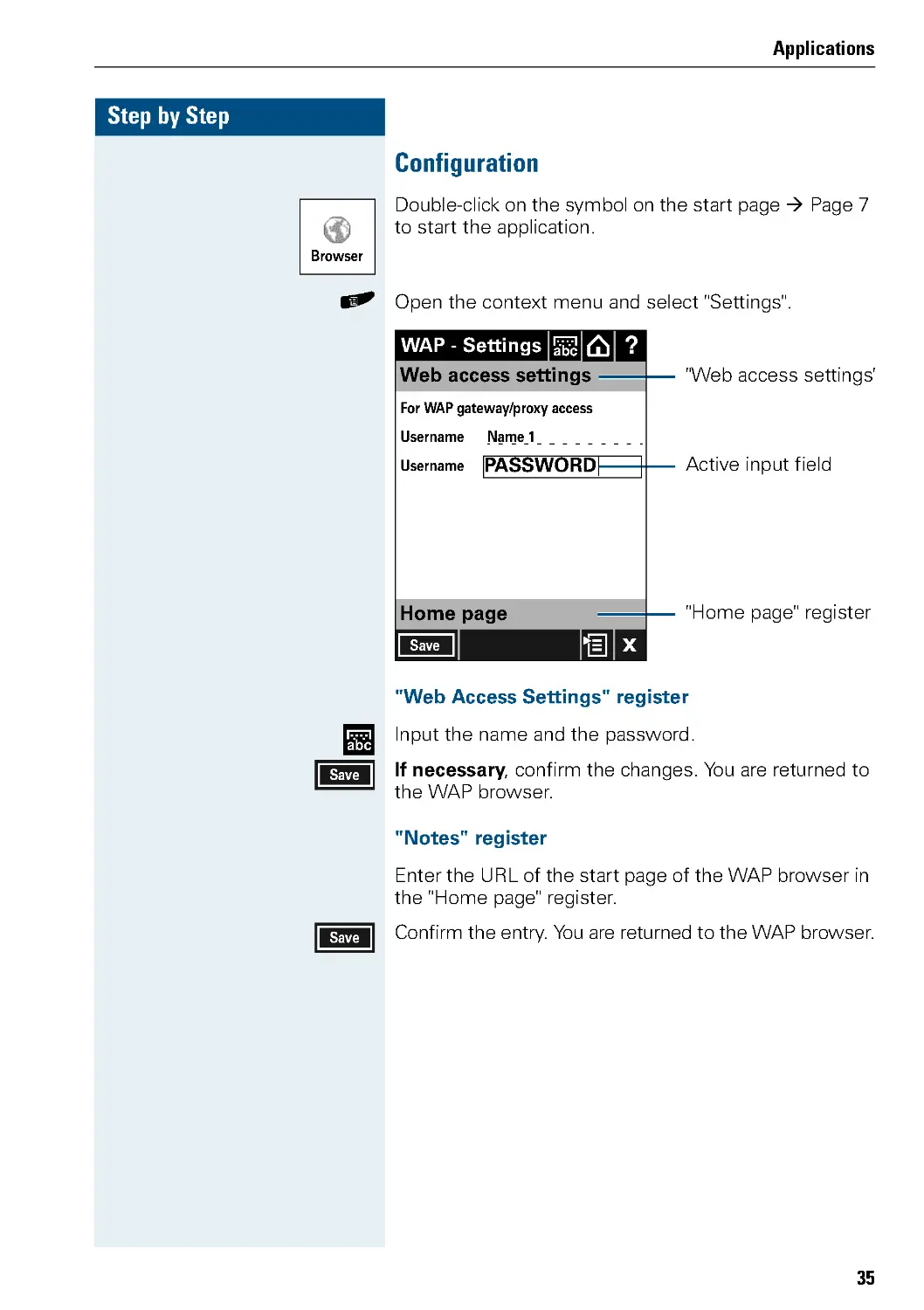
Configuration
Double-click on the symbol on the start page Æ Page 7
to start the application.
( Open the context menu and select "Settings".
"Web Access Settings" register
Input the name and the password.
If necessary, confirm the changes. You are returned to
the WAP browser.
"Notes" register
Enter the URL of the start page of the WAP browser in
the "Home page" register.
Confirm the entry. You are returned to the WAP browser.
Browser
C
Home page
?
WAP - Settings abc
"Web access settings"
Active input field
"Home page" register
Web access settings
Cx
Save
Name 1
Username
For WAP gateway/proxy access
Username PASSWORD|
abc
Save
Save

Step by Step
Applications
36
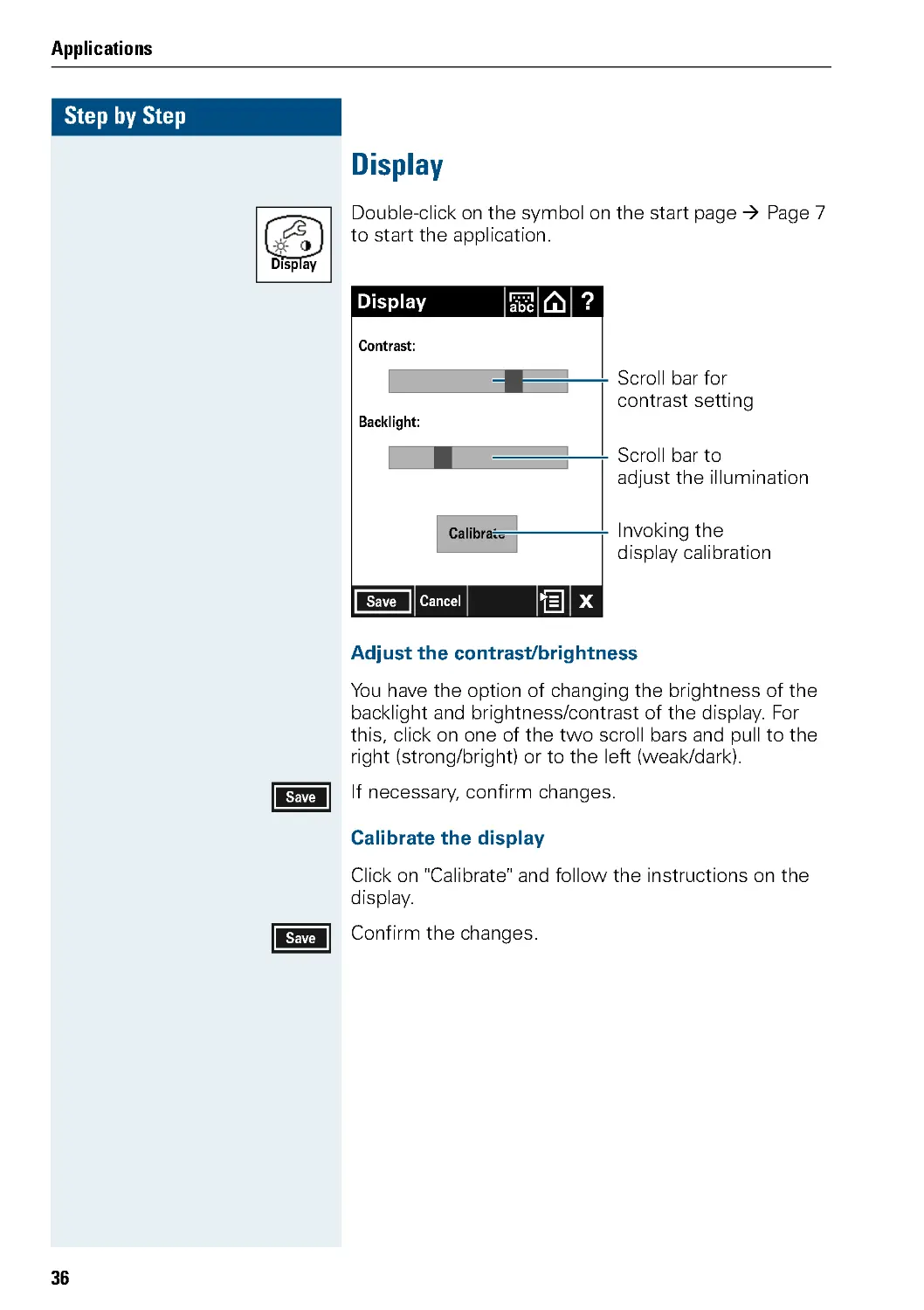
Display
Double-click on the symbol on the start page Æ Page 7
to start the application.
Adjust the contrast/brightness
You have the option of changing the brightness of the
backlight and brightness/contrast of the display. For
this, click on one of the two scroll bars and pull to the
right (strong/bright) or to the left (weak/dark).
If necessary, confirm changes.
Calibrate the display
Click on "Calibrate" and follow the instructions on the
display.
Confirm the changes.
Display
C
?
Display
abc
Contrast:
CCx
Save Cancel
Scroll bar for
contrast setting
Backlight:
Calibrate
Scroll bar to
adjust the illumination
Invoking the
display calibration
Save
Save

Applications
37
Step by Step
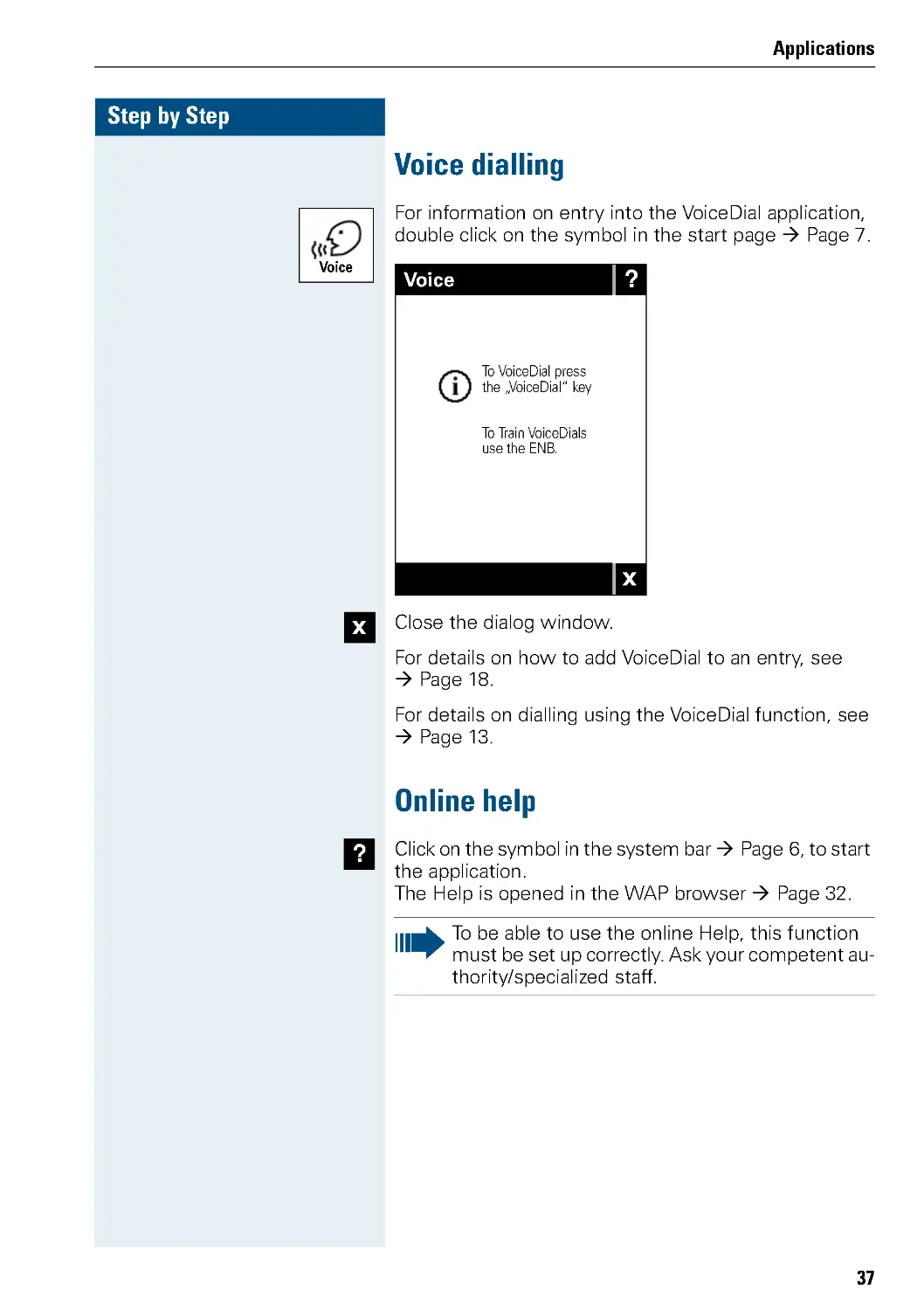
Voice dialling
For information on entry into the VoiceDial application,
double click on the symbol in the start page Æ Page 7.
Close the dialog window.
For details on how to add VoiceDial to an entry, see
Æ Page 18.
For details on dialling using the VoiceDial function, see
Æ Page 13.
Online help
Click on the symbol in the system bar Æ Page 6, to start
the application.
The Help is opened in the WAP browser Æ Page 32.
Voice
C
?
Voice
CCx
To VoiceDial press
the „VoiceDial“ key
To Train VoiceDials
use the ENB.
x
?
To be able to use the online Help, this function
must be set up correctly. Ask your competent au-
thority/specialized staff.

33
Index
Index
A
Adjust backlight .......................................... 31
Application bar .............................................. 8
Application symbols .................................... 7
B
Browser ....................................................... 27
C
CE-Reference Numbers/tags ..................... 2
Company telephone directory ........... 12, 24
List of search results ............................. 26
Search entry ............................................ 24
D
Dialog messages .......................................... 9
Display ........................................................... 6
Display contrast setting ............................ 31
Display keyboard .......................................... 9
Display, calibrate ........................................ 31
E
ENB ........................................................ 10, 14
H
Help function .............................................. 32
L
LDAP ...................................................... 12, 24
Search results ......................................... 26
M
Messages ...................................................... 9
N
Navigation keys ............................................ 4
O
Online Help ................................................. 32
Operating instructions ................................. 2
Operation range ............................................ 4
Operation steps ............................................ 5
Operation, intuitive ...................................... 5
P
Personal telephone directory ............. 10, 14
Adding VoiceDial to an entry ................ 18
Change entry ........................................... 20
Delete entry ............................................ 20
Set up entry ............................................. 15
View entry ............................................... 19
R
Recording .................................................... 18
Recording a VoiceDial entry ..................... 18
S
Start page ...................................................... 7
Start symbols ................................................ 7
Symbol explanations ................................... 5
Symbols ......................................................... 5
System bar .................................................... 8
V
Voice Dialling ............................................... 13
VoiceDial
"Try again" message ............................... 13
play ........................................................... 19
record ....................................................... 18
remove ..................................................... 19
replace, rerecord .................................... 19
start symbol ............................................ 32
W
WAP browser ............................................. 27
Configuration ........................................... 30
Favorites .................................................. 28

‹#6LHPHQV#$*#5337
,QIRUPDWLRQ#DQG#&RPPXQLFDWLRQ#1HWZRUNV
+RIPDQQVWU1#84#‡#'0;468<#0•QFKHQ
5HI1#1R1=#$643360$53890'7430850:94<
7KH#LQIRUPDWLRQ#SURYLGHG#LQ#WKLV#GRFXPHQW#FRQWDLQV#PHUHO\#JHQHUDO#GH0
VFULSWLRQV#RU#FKDUDFWHULVWLFV#RI#SHUIRUPDQFH#ZKLFK#LQ#FDVH#RI#DFWXDO#XVH#
GR#QRW#DOZD\V#DSSO\#DV#GHVFULEHG#RU#ZKLFK#PD\#FKDQJH#DV#D#UHVXOW#RI#
IXUWKHU#GHYHORSPHQW#RI#WKH#SURGXFWV1#
$Q#REOLJDWLRQ#WR#SURYLGH#WKH#UHVSHFWLYH#FKDUDFWHULVWLFV#VKDOO#RQO\#H[LVW#LI#
H[SUHVVO\#DJUHHG#LQ#WKH#WHUPV#RI#FRQWUDFW1
6XEMHFW#WR#DYDLODELOLW\1#5LJKW#RI#PRGLILFDWLRQ#UHVHUYHG1#
3ULQWHG#LQ#WKH#)HGHUDO#5HSXEOLF#RI#*HUPDQ\1
4;136 15337
ZZZ1VLHPHQV1FRP2KLSDWK